

Page 1
Page 2

© 2018 Garmin Ltd. or its subsidiaries
All rights reserved. Under the copyright laws, this manual may not be copied, in whole or in part, without the written consent of Garmin. Garmin reserves the right to change or improve its
products and to make changes in the content of this manual without obligation to notify any person or organization of such changes or improvements. Go to www.garmin.com for current updates
and supplemental information concerning the use of this product.
Garmin®, the Garmin logo, ANT+®, Auto Lap®, Auto Pause®, Edge®, fēnix®, TracBack®, VIRB®, and Virtual Partner® are trademarks of Garmin Ltd. or its subsidiaries, registered in the USA and other
countries. Connect IQ™, Garmin Connect™, Garmin Explore™, Garmin Express™, Garmin Golf™, Garmin Move IQ™ , Garmin Pay™, HRM-Run™, HRM-Swim™, HRM-Tri™, QuickFit™, tempe™,
TruSwing™, Varia™, Varia Vision™, Vector™, and Xero™ are trademarks of Garmin Ltd. or its subsidiaries. These trademarks may not be used without the express permission of Garmin.
American Heart Association® is a registered trademark of American Heart Association, Inc. Android™ is a trademark of Google Inc. Apple® and Mac® are trademarks of Apple Inc., registered in the
U.S. and other countries. The Bluetooth® word mark and logos are owned by the Bluetooth SIG, Inc. and any use of such marks by Garmin is under license. The Cooper Institute®, as well as any
related trademarks, are the property of The Cooper Institute. Di2™ is a trademark of Shimano, Inc. Shimano® is a registered trademark of Shimano, Inc. STRAVA and Strava™ are trademarks of
Strava, Inc. Advanced heartbeat analytics by Firstbeat. Training Stress Score™ (TSS), Intensity Factor™ (IF), and Normalized Power™ (NP) are trademarks of Peaksware, LLC. Wi‑Fi® is a
registered mark of Wi-Fi Alliance Corporation. Windows® is a registered trademark of Microsoft Corporation in the United States and other countries. Other trademarks and trade names are those
of their respective owners.
This product is ANT+® certified. Visit www.thisisant.com/directory for a list of compatible products and apps.
Page 3

Table of Contents
Introduction.....................................................................1
Device Overview......................................................................... 1
Viewing the Controls Menu.................................................... 1
Viewing Widgets.................................................................... 1
Charging the Device................................................................... 1
Pairing Your Smartphone with Your Device............................... 1
Product Updates......................................................................... 1
Setting Up Garmin Express................................................... 2
Activities and Apps........................................................ 2
Starting an Activity...................................................................... 2
Tips for Recording Activities.................................................. 2
Stopping an Activity.................................................................... 2
Adding or Removing a Favorite Activity...................................... 2
Creating a Custom Activity......................................................... 2
Indoor Activities.......................................................................... 2
Recording a Strength Training Activity...................................2
Outdoor Activities........................................................................3
Viewing Your Ski Runs.......................................................... 3
Using the Metronome.............................................................3
Playing Audio Prompts During an Activity..............................3
Jumpmaster........................................................................... 3
Multisport.................................................................................... 3
Creating a Multisport Activity................................................. 3
Tips for Triathlon Training or Using Multisport Activities........ 3
Swimming................................................................................... 4
Swim Terminology................................................................. 4
Stroke Types.......................................................................... 4
Tips for Swimming Activities.................................................. 4
Resting During Pool Swimming............................................. 4
Training with the Drill Log...................................................... 4
Golfing........................................................................................ 4
Playing Golf............................................................................4
Hole Information.....................................................................4
Moving the Flag..................................................................... 4
Viewing Hazards.................................................................... 5
Measuring a Shot................................................................... 5
Viewing Layup and Dogleg Distances................................... 5
Keeping Score....................................................................... 5
Updating a Score................................................................... 5
TruSwing™............................................................................ 5
Using the Golf Odometer....................................................... 5
Tracking Statistics.................................................................. 5
Connected Features....................................................... 5
Enabling Bluetooth Notifications................................................. 5
Viewing Notifications.............................................................. 6
Receiving an Incoming Phone Call........................................ 6
Replying to a Text Message.................................................. 6
Managing Notifications...........................................................6
Turning Off the Bluetooth Smartphone Connection.................... 6
Turning On and Off Smartphone Connection Alerts................... 6
Locating a Lost Mobile Device.................................................... 6
Garmin Connect..........................................................................6
Updating the Software Using Garmin Connect Mobile.......... 6
Updating the Software Using Garmin Express...................... 7
Using Garmin Connect on Your Computer....................... 7
Manually Syncing Data with Garmin Connect Mobile............ 7
Garmin Golf™ App.................................................................7
Starting a GroupTrack Session...................................................7
Tips for GroupTrack Sessions............................................... 7
Garmin Explore™....................................................................... 7
Wi‑Fi® Connected Features.......................................... 7
Setting Up Wi‑Fi Connectivity..................................................... 7
Connect IQ Features...................................................... 8
Downloading Connect IQ Features
Downloading Connect IQ Features Using Your Computer......... 8
............................................ 8
Garmin Pay..................................................................... 8
Setting Up Your Garmin Pay Wallet........................................... 8
Paying for a Purchase Using Your Watch.................................. 8
Adding a Card to Your Garmin Pay Wallet................................. 8
Managing Your Garmin Pay Wallet........................................8
Changing Your Garmin Pay Passcode....................................... 9
Music............................................................................... 9
Connecting to a Third-Party Provider......................................... 9
Downloading Audio Content from a Third-Party Provider...... 9
Disconnecting from a Third-Party Provider............................ 9
Downloading Personal Audio Content........................................ 9
Listening to Downloaded Music.................................................. 9
Music Playback Controls............................................................ 9
Connecting Headphones using Bluetooth Technology............... 9
Heart Rate Features..................................................... 10
Wrist-based Heart Rate............................................................ 10
Wearing the Device..............................................................10
Tips for Erratic Heart Rate Data...........................................10
Viewing the Heart Rate Widget............................................ 10
Broadcasting Heart Rate Data to Garmin Devices.............. 10
Broadcasting Heart Rate Data During an Activity........... 10
Turning Off the Wrist-based Heart Rate Monitor................. 10
Putting On the Heart Rate Monitor........................................... 10
Tips for Erratic Heart Rate Data...........................................11
Caring for the Heart Rate Monitor........................................ 11
Running Dynamics....................................................................11
Training with Running Dynamics......................................... 11
Color Gauges and Running Dynamics Data........................ 11
Ground Contact Time Balance Data............................... 12
Vertical Oscillation and Vertical Ratio Data.....................12
Tips for Missing Running Dynamics Data............................ 12
Performance Measurements.................................................... 12
Turning Off Performance Notifications................................. 13
Detecting Performance Measurements Automatically......... 13
Training Status..................................................................... 13
Tips for Getting Your Training Status.............................. 13
About VO2 Max. Estimates.................................................. 13
Getting Your VO2 Max. Estimate for Running................ 14
Getting Your VO2 Max. Estimate for Cycling.................. 14
Recovery Time..................................................................... 14
Viewing Your Recovery Time.......................................... 14
Recovery Heart Rate........................................................... 14
Training Load....................................................................... 14
Viewing Your Predicted Race Times................................... 14
About Training Effect........................................................... 14
Heart Rate Variability and Stress Level............................... 15
Viewing Your Heart Rate Variability and Stress Level.... 15
Performance Condition........................................................ 15
Viewing Your Performance Condition............................. 15
Lactate Threshold................................................................ 15
Performing a Guided Test to Determine Your Lactate
Threshold........................................................................ 15
Getting Your FTP Estimate.................................................. 15
Conducting an FTP Test................................................. 16
Pulse Oximeter............................................................. 16
Viewing the Pulse Oximeter Widget......................................... 16
Turning On All-Day Acclimation Mode...................................... 16
Turning On Manual Acclimation Mode..................................... 16
Tips for Erratic Pulse Oximeter Data........................................ 16
Training......................................................................... 17
Setting Up Your User Profile.....................................................17
Fitness Goals....................................................................... 17
Table of Contents i
Page 4

About Heart Rate Zones...................................................... 17
Setting Your Heart Rate Zones....................................... 17
Letting the Device Set Your Heart Rate Zones............... 17
Heart Rate Zone Calculations......................................... 17
Setting Your Power Zones................................................... 17
Activity Tracking........................................................................17
Auto Goal............................................................................. 18
Using the Move Alert............................................................18
Sleep Tracking..................................................................... 18
Using Automated Sleep Tracking....................................18
Using Do Not Disturb Mode............................................ 18
Intensity Minutes.................................................................. 18
Earning Intensity Minutes................................................ 18
Garmin Move IQ™............................................................... 18
Activity Tracking Settings..................................................... 18
Turning Off Activity Tracking........................................... 18
Workouts...................................................................................18
Following a Workout From the Web.....................................18
Starting a Workout............................................................... 19
About the Training Calendar................................................ 19
Using Garmin Connect Training Plans............................ 19
Interval Workouts...................................................................... 19
Creating an Interval Workout............................................... 19
Starting an Interval Workout................................................ 19
Stopping an Interval Workout...............................................19
Segments..................................................................................19
Strava™ Segments.............................................................. 19
Viewing Segment Details..................................................... 19
Racing a Segment............................................................... 20
Setting a Segment to Adjust Automatically.......................... 20
Using Virtual Partner®.............................................................. 20
Setting a Training Target.......................................................... 20
Cancelling a Training Target................................................ 20
Racing a Previous Activity........................................................ 20
Personal Records..................................................................... 20
Viewing Your Personal Records.......................................... 20
Restoring a Personal Record............................................... 20
Clearing a Personal Record................................................. 20
Clearing All Personal Records............................................. 21
Clock.............................................................................. 21
Setting an Alarm....................................................................... 21
Deleting an Alarm................................................................ 21
Starting the Countdown Timer.................................................. 21
Using the Stopwatch................................................................. 21
Adding Alternate Time Zones................................................... 21
Setting Clock Alerts.................................................................. 21
Syncing the Time with GPS...................................................... 21
Navigation..................................................................... 21
Saving Your Location............................................................... 21
Editing Your Saved Locations.............................................. 21
Projecting a Waypoint............................................................... 21
Navigating to a Destination....................................................... 22
Navigating to a Point of Interest............................................... 22
Points of Interest.................................................................. 22
Creating and Following a Course on Your Device.................... 22
Creating a Round-Trip Course..................................................22
Marking and Starting Navigation to a Man Overboard
Location.................................................................................... 22
Navigating with Sight 'N Go...................................................... 22
Navigating to Your Starting Point During an Activity................ 22
Navigating to the Starting Point of Your Last Saved Activity.... 22
Stopping Navigation................................................................. 23
Map........................................................................................... 23
Viewing the Map.................................................................. 23
Saving or Navigating to a Location on the Map................... 23
Navigating with the Around Me Feature.............................. 23
Compass
Altimeter and Barometer........................................................... 23
...................................................................................23
History........................................................................... 23
Using History............................................................................ 23
Multisport History................................................................. 24
Viewing Your Time in Each Heart Rate Zone...................... 24
Viewing Data Totals.................................................................. 24
Using the Odometer..................................................................24
Deleting History........................................................................ 24
Customizing Your Device............................................ 24
Activities and App Settings....................................................... 24
Customizing the Data Screens............................................ 24
Adding a Map to an Activity................................................. 25
Alerts.................................................................................... 25
Setting an Alert................................................................25
Activity Map Settings............................................................25
Routing Settings...................................................................25
Auto Lap...............................................................................26
Marking Laps by Distance............................................... 26
Enabling Auto Pause........................................................... 26
Enabling Auto Climb............................................................ 26
3D Speed and Distance....................................................... 26
Turning On and Off the Lap Key.......................................... 26
Using Auto Scroll................................................................. 26
UltraTrac.............................................................................. 26
Power Save Timeout Settings..............................................27
Changing the Order of an Activity in the Apps List................... 27
Widgets..................................................................................... 27
Customizing the Widget Loop.............................................. 27
VIRB Remote....................................................................... 27
Controlling a VIRB Action Camera.................................. 27
Controlling a VIRB Action Camera During an Activity..... 27
Using the Stress Level Widget............................................. 28
Customizing the Controls Menu................................................28
Watch Face Settings.................................................................28
Customizing the Watch Face............................................... 28
Sensors Settings.......................................................................28
Compass Settings................................................................ 28
Calibrating the Compass Manually................................. 28
Setting the North Reference............................................29
Altimeter Settings................................................................. 29
Calibrating the Barometric Altimeter............................... 29
Barometer Settings.............................................................. 29
Calibrating the Barometer............................................... 29
Map Settings............................................................................. 29
Marine Map Settings............................................................ 29
Showing and Hiding Map Data............................................ 29
GroupTrack Settings................................................................. 29
Navigation Settings................................................................... 29
Customizing Map Features.................................................. 30
Setting Up a Heading Bug................................................... 30
Setting Navigation Alerts......................................................30
System Settings........................................................................ 30
Time Settings....................................................................... 30
Changing the Backlight Settings.......................................... 30
Customizing the Hot Keys....................................................30
Changing the Units of Measure........................................... 30
Viewing Device Information...................................................... 30
Viewing E-label Regulatory and Compliance Information.... 30
Wireless Sensors......................................................... 31
Pairing Your Wireless Sensors................................................. 31
Using an Optional Bike Speed or Cadence Sensor.................. 31
Training with Power Meters...................................................... 31
Using Electronic Shifters...........................................................31
Situational Awareness.............................................................. 31
ii Table of Contents
Page 5

Foot Pod................................................................................... 31
Improving Foot Pod Calibration........................................... 31
Calibrating Your Foot Pod Manually.................................... 31
Setting Foot Pod Speed and Distance................................. 31
tempe™.................................................................................... 32
Device Information....................................................... 32
fēnix 5/5S/5X Plus Specifications............................................. 32
Battery Information...............................................................32
Data Management.................................................................... 32
Disconnecting the USB Cable..............................................32
Deleting Files....................................................................... 32
Device Maintenance..................................................... 32
Device Care.............................................................................. 32
Cleaning the Device............................................................. 32
Cleaning the Leather Bands................................................ 32
Changing the QuickFit™ Bands............................................... 32
Metal Watch Band Adjustment................................................. 33
Troubleshooting........................................................... 33
My device is in the wrong language......................................... 33
Is my smartphone compatible with my device?........................ 33
My phone will not connect to the device................................... 33
Can I use my Bluetooth sensor with my watch?....................... 33
My headphones will not connect to the device......................... 33
My music cuts out or my headphones do not stay connected.. 33
Resetting Your Device.............................................................. 33
Resetting All Default Settings................................................... 33
Acquiring Satellite Signals........................................................ 33
Improving GPS Satellite Reception......................................34
The temperature reading is not accurate.................................. 34
Maximizing the Battery Life.......................................................34
Activity Tracking........................................................................34
My daily step count does not appear................................... 34
My step count does not seem accurate............................... 34
The step counts on my device and my Garmin Connect
account don't match............................................................. 34
The floors climbed amount does not seem accurate........... 34
My intensity minutes are flashing......................................... 34
Getting More Information.......................................................... 34
Appendix....................................................................... 34
Data Fields................................................................................34
VO2 Max. Standard Ratings..................................................... 38
FTP Ratings.............................................................................. 38
Wheel Size and Circumference................................................ 38
Symbol Definitions.................................................................... 39
Index.............................................................................. 40
Table of Contents iii
Page 6

Page 7
Page 8
Page 9
Page 10
Page 11
Page 12
Page 13
Page 14
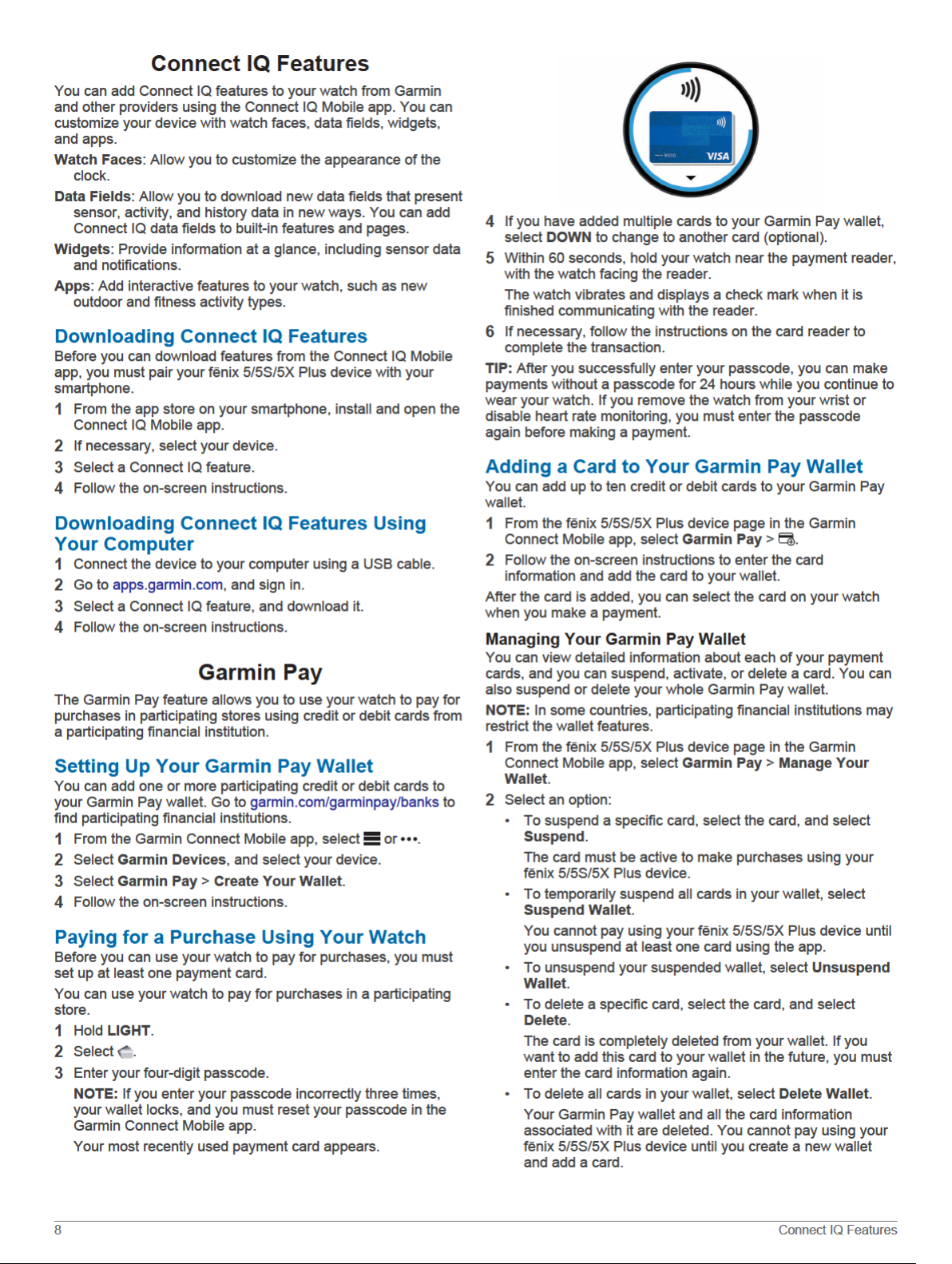
Page 15
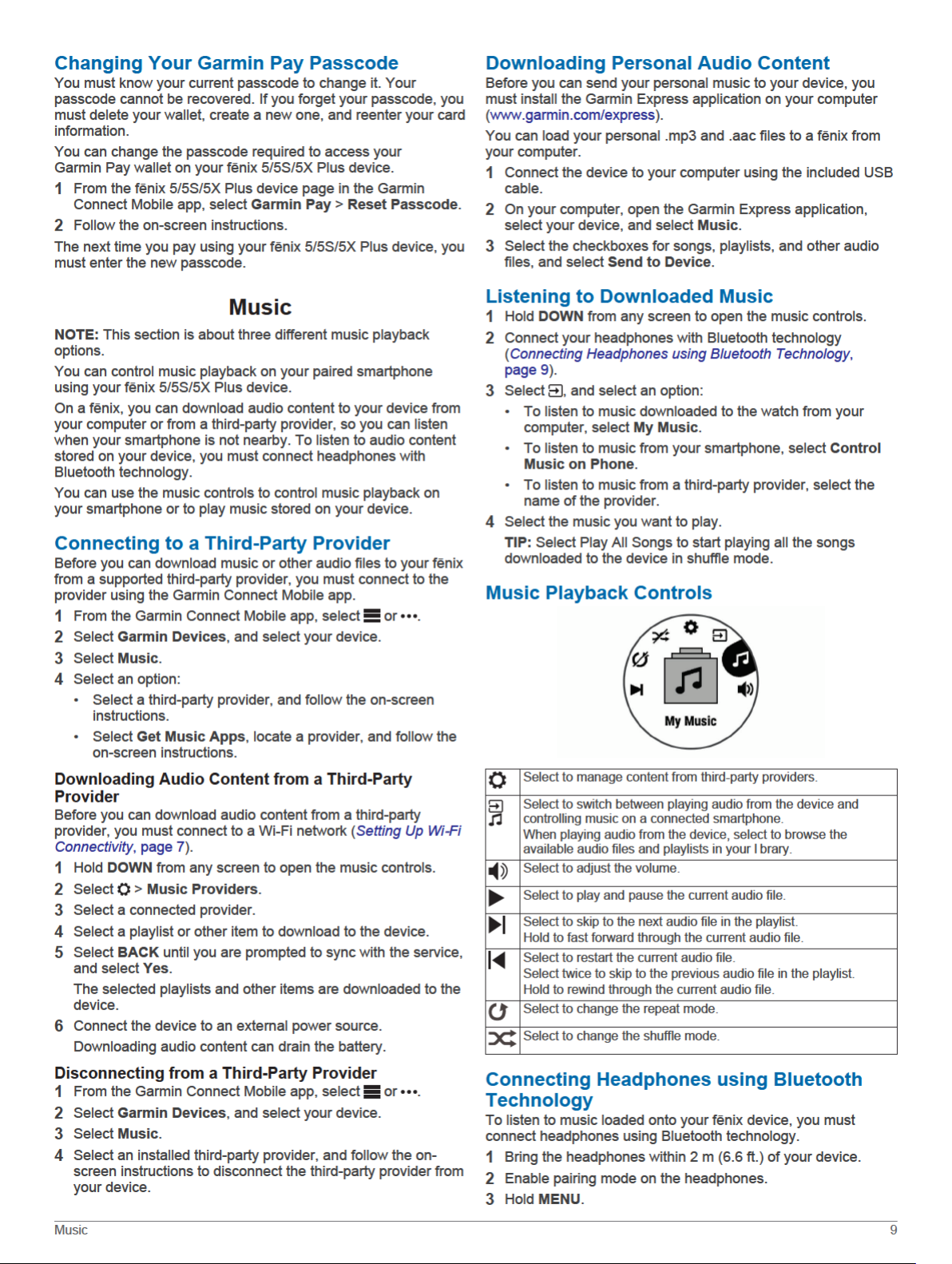
Page 16
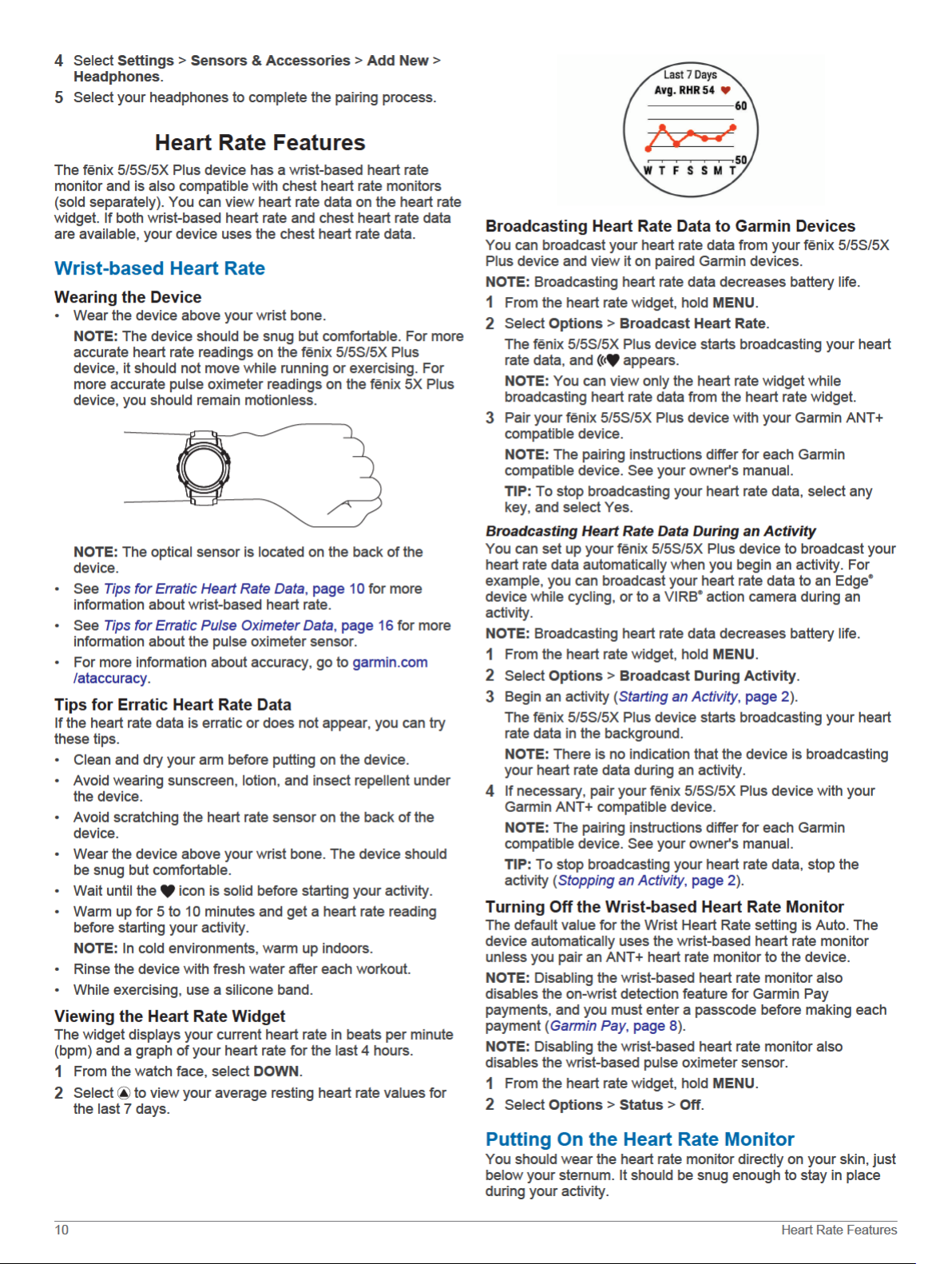
Page 17
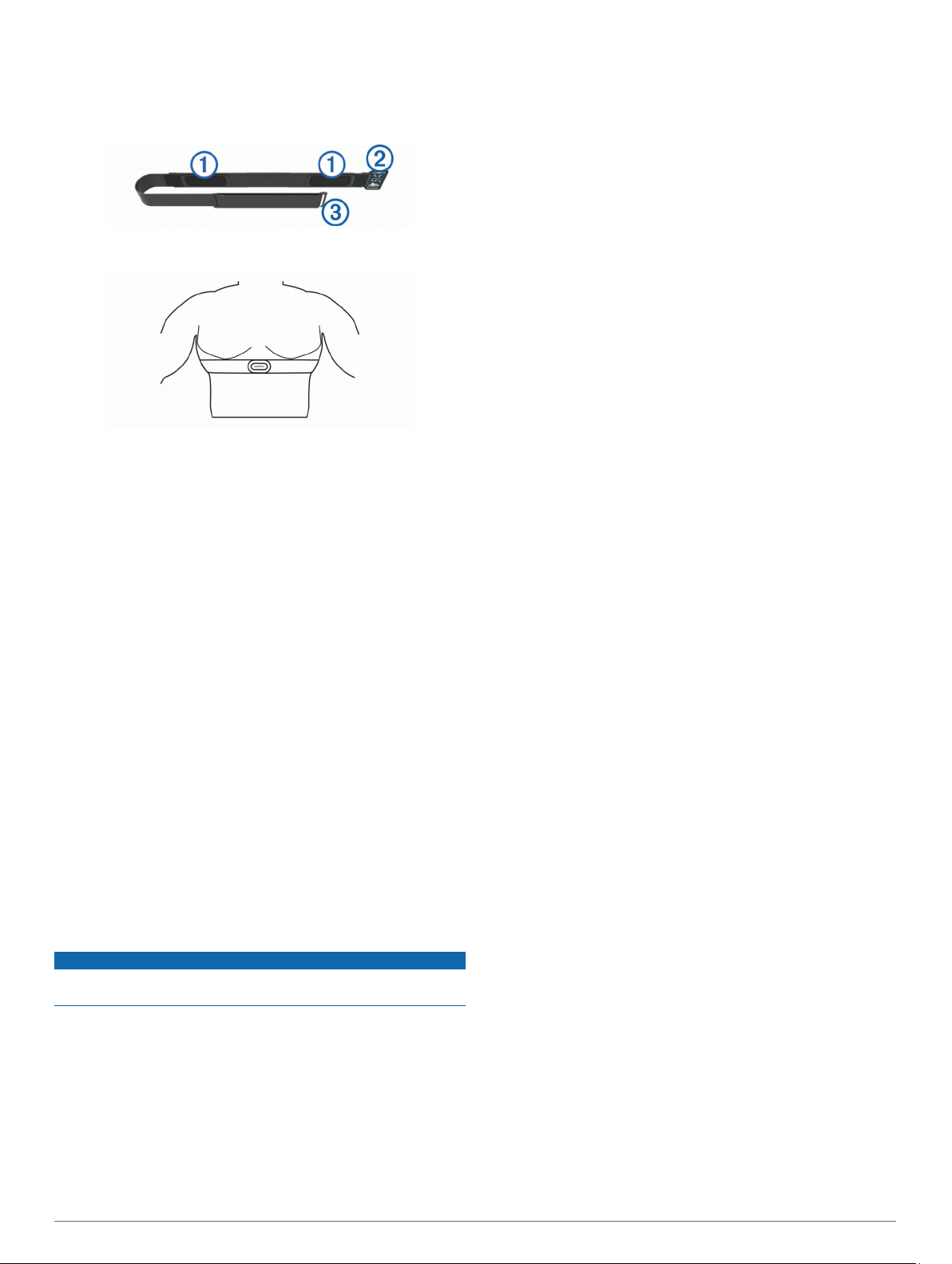
If necessary, attach the strap extender to the heart rate
1
monitor.
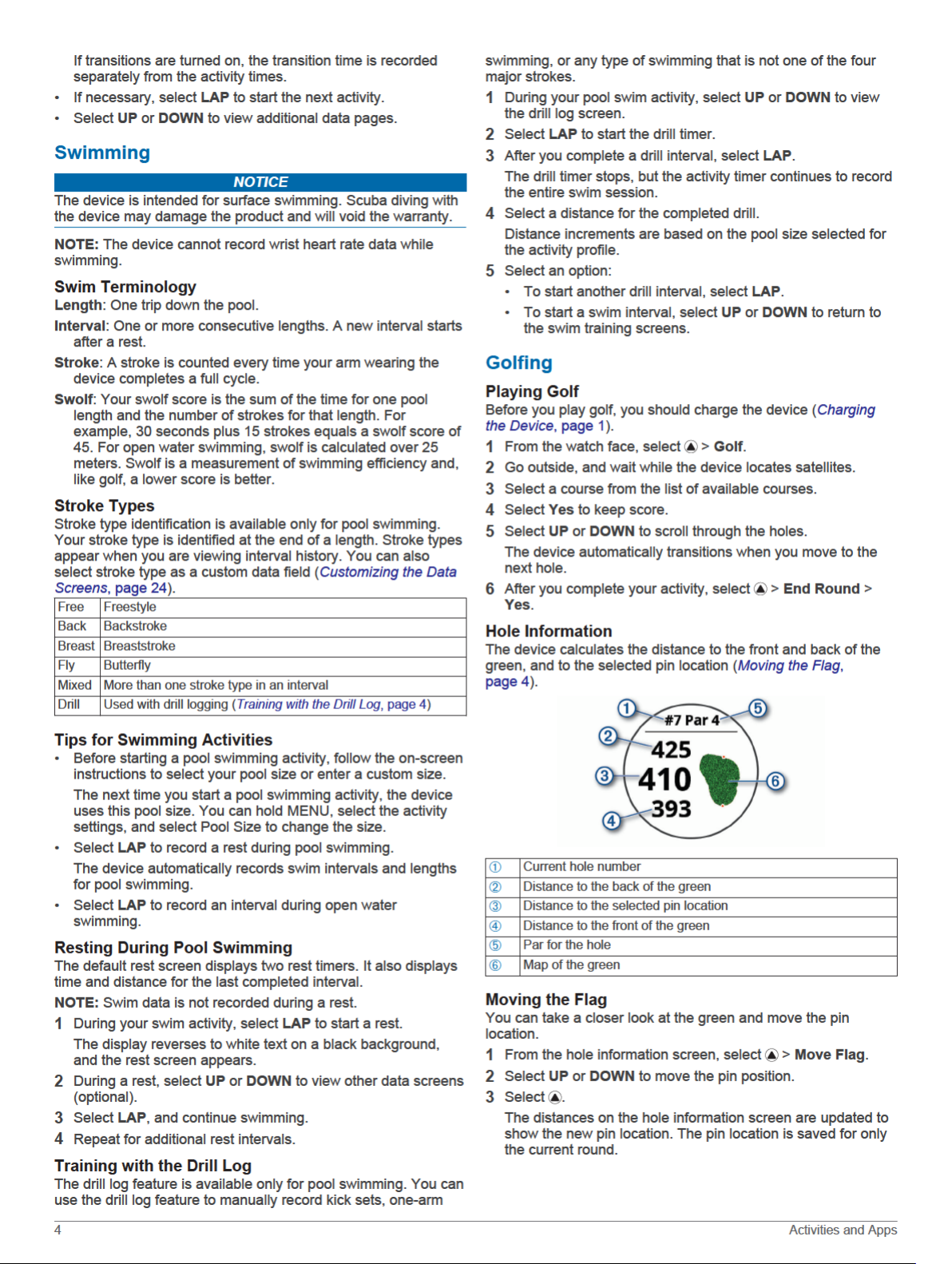
Wet the electrodes À on the back of the heart rate monitor to
2
create a strong connection between your chest and the
transmitter.
Wear the heart rate monitor with the Garmin logo facing right-
3
side up.
The loop Á and hook  connection should be on your right
side.
Wrap the heart rate monitor around your chest, and connect
4
the strap hook to the loop.
NOTE: Make sure the care tag does not fold over.
After you put on the heart rate monitor, it is active and sending
data.
Tips for Erratic Heart Rate Data
If the heart rate data is erratic or does not appear, you can try
these tips.
• Reapply water to the electrodes and contact patches (if
applicable).
• Tighten the strap on your chest.
• Warm up for 5 to 10 minutes.
• Follow the care instructions (Caring for the Heart Rate
Monitor, page 11).
• Wear a cotton shirt or thoroughly wet both sides of the strap.
Synthetic fabrics that rub or flap against the heart rate
monitor can create static electricity that interferes with heart
rate signals.
• Move away from sources that can interfere with your heart
rate monitor.
Sources of interference may include strong electromagnetic
fields, some 2.4 GHz wireless sensors, high-voltage power
lines, electric motors, ovens, microwave ovens, 2.4 GHz
cordless phones, and wireless LAN access points.
Caring for the Heart Rate Monitor
NOTICE
A buildup of sweat and salt on the strap can decrease the ability
of the heart rate monitor to report accurate data.
• Rinse the heart rate monitor after every use.
• Hand wash the heart rate monitor after every seven uses or
one pool swim, using a tiny amount of mild detergent, such
as dishwashing liquid.
NOTE: Using too much detergent may damage the heart rate
monitor.
• Do not put the heart rate monitor in a washing machine or
dryer.
• When drying the heart rate monitor, hang it up or lay it flat.
Running Dynamics
You can use your compatible fēnix device paired with the
HRM-Run™ accessory or other running dynamics accessory to
provide real-time feedback about your running form. If your fēnix
device was packaged with the HRM-Run accessory, the devices
are already paired.
The running dynamics accessory has an accelerometer that
measures torso movement in order to calculate six running
metrics.
Cadence: Cadence is the number of steps per minute. It
displays the total steps (right and left combined).
Vertical oscillation: Vertical oscillation is your bounce while
running. It displays the vertical motion of your torso,
measured in centimeters.
Ground contact time: Ground contact time is the amount of
time in each step that you spend on the ground while
running. It is measured in milliseconds.
NOTE: Ground contact time and balance are not available
while walking.
Ground contact time balance: Ground contact time balance
displays the left/right balance of your ground contact time
while running. It displays a percentage. For example, 53.2
with an arrow pointing left or right.
Stride length: Stride length is the length of your stride from one
footfall to the next. It is measured in meters.
Vertical ratio: Vertical ratio is the ratio of vertical oscillation to
stride length. It displays a percentage. A lower number
typically indicates better running form.
Training with Running Dynamics
Before you can view running dynamics, you must put on a
running dynamics accessory, such as the HRM-Run accessory,
and pair it with your device (Pairing Your Wireless Sensors,
page 31). If your fēnix 5/5S/5X Plus was packaged with the
accessory, the devices are already paired, and the fēnix 5/5S/5X
Plus is set to display running dynamics data screens.
Select an option:
1
• If your running dynamics accessory and fēnix 5/5S/5X
Plus device are already paired, skip to step 7.
• If your running dynamics accessory and fēnix 5/5S/5X
Plus device are not already paired, complete all the steps
in this procedure.
Hold MENU.
2
Select Settings > Activities & Apps.
3
Select an activity.
4
Select the activity settings.
5
Select Data Screens > Add New.
6
Select a running dynamics data screen.
7
NOTE: The running dynamics screens are not available for
all activities.
Go for a run (Starting an Activity, page 2).
8
Select UP or DOWN to open a running dynamics screen to
9
view your metrics.
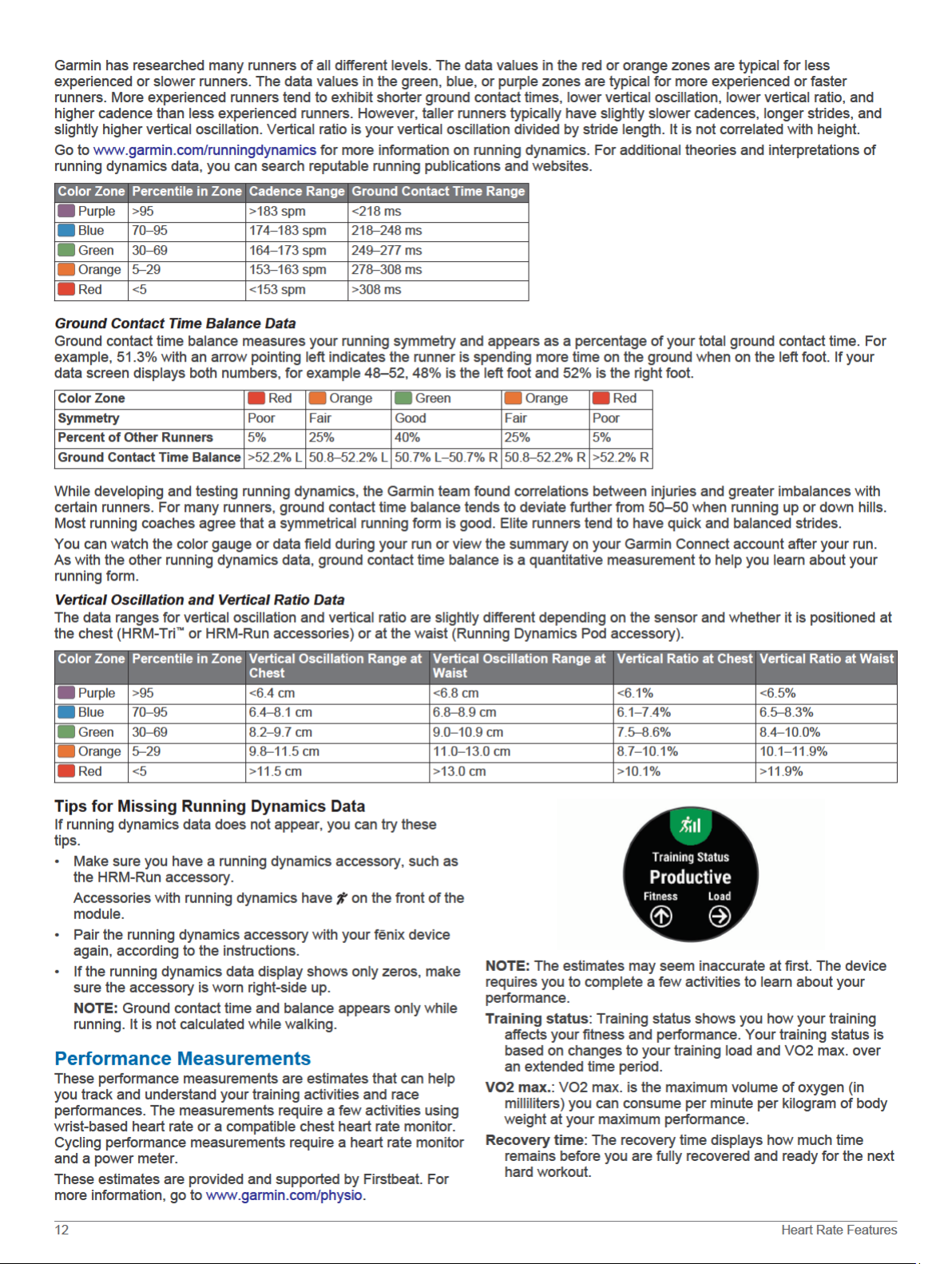
Color Gauges and Running Dynamics Data
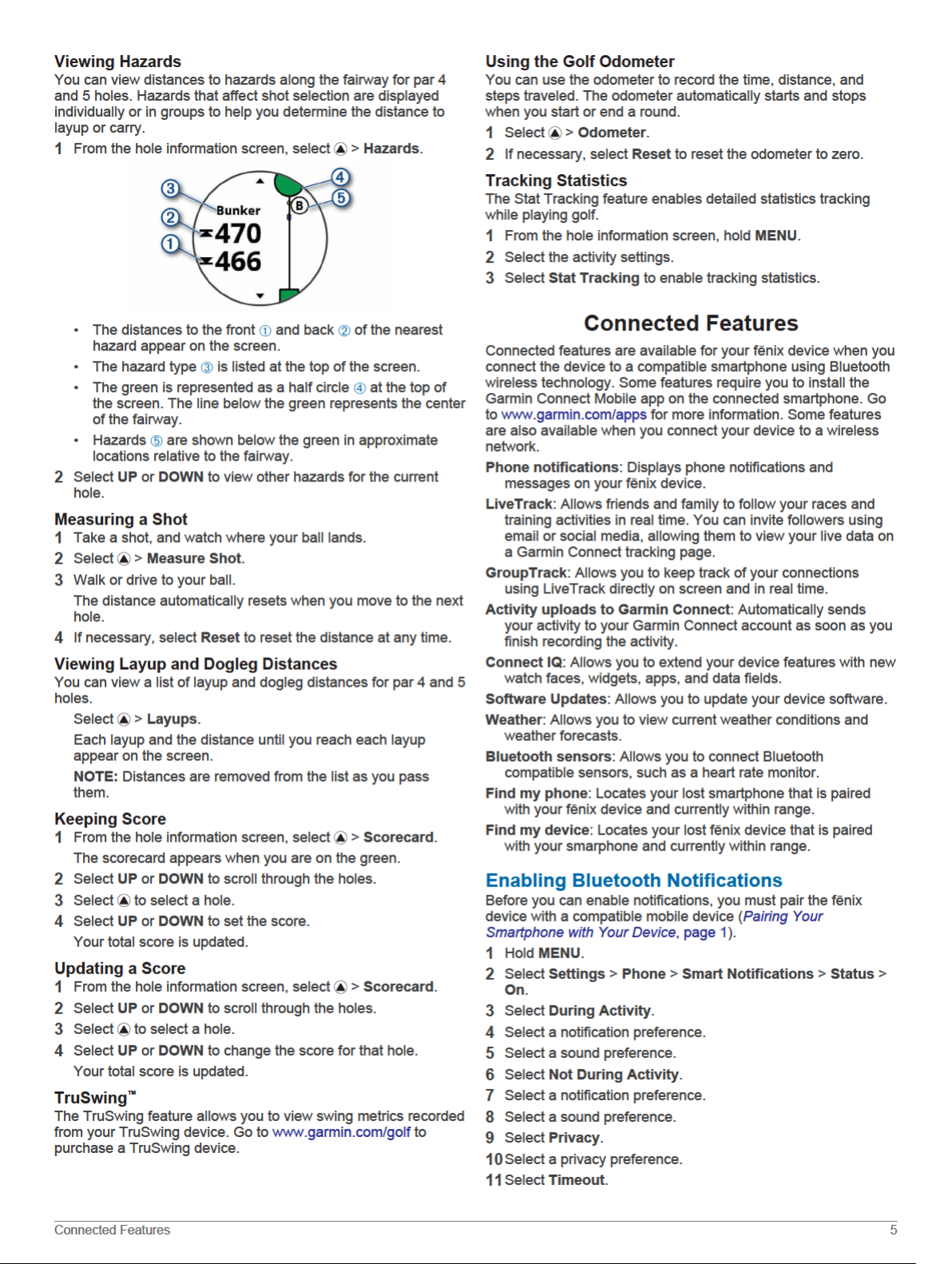
The running dynamics screens display a color gauge for the primary metric. You can display cadence, vertical oscillation, ground
contact time, ground contact time balance, or vertical ratio as the primary metric. The color gauge shows you how your running
dynamics data compare to those of other runners. The color zones are based on percentiles.
Heart Rate Features 11
Page 18
Page 19
Page 20
Page 21
Page 22
Page 23
Training
Setting Up Your User Profile
You can update your gender, birth year, height, weight, heart
rate zone, and power zone settings. The device uses this
information to calculate accurate training data.
Hold MENU.
1
Select Settings > User Profile.
2
Select an option.
3
Fitness Goals
Knowing your heart rate zones can help you measure and
improve your fitness by understanding and applying these
principles.
• Your heart rate is a good measure of exercise intensity.
• Training in certain heart rate zones can help you improve
cardiovascular capacity and strength.
If you know your maximum heart rate, you can use the table
(Heart Rate Zone Calculations, page 17) to determine the best
heart rate zone for your fitness objectives.
If you do not know your maximum heart rate, use one of the
calculators available on the Internet. Some gyms and health
centers can provide a test that measures maximum heart rate.
The default maximum heart rate is 220 minus your age.
About Heart Rate Zones
Many athletes use heart rate zones to measure and increase
their cardiovascular strength and improve their level of fitness. A
heart rate zone is a set range of heartbeats per minute. The five
commonly accepted heart rate zones are numbered from 1 to 5
according to increasing intensity. Generally, heart rate zones are
calculated based on percentages of your maximum heart rate.
Setting Your Heart Rate Zones
The device uses your user profile information from the initial
setup to determine your default heart rate zones. You can set
separate heart rate zones for sport profiles, such as running,
cycling, and swimming. For the most accurate calorie data
during your activity, set your maximum heart rate. You can also
set each heart rate zone and enter your resting heart rate
manually. You can manually adjust your zones on the device or
using your Garmin Connect account.
Hold MENU.
1
Select Settings > User Profile > Heart Rate.
2
Select Max. HR, and enter your maximum heart rate.
3
You can use the Auto Detection feature to automatically
record your maximum heart rate during an activity (Detecting
Performance Measurements Automatically, page 13).
Select LTHR > Enter Manually, and enter your lactate
4
threshold heart rate.
You can perform a guided test to estimate your lactate
threshold (Lactate Threshold, page 15). You can use the
Auto Detection feature to automatically record your lactate
threshold during an activity (Detecting Performance
Measurements Automatically, page 13).
Select Resting HR, and enter your resting heart rate.
5
You can use the average resting heart rate measured by your
device, or you can set a custom resting heart rate.
Select Zones > Based On.
6
Select an option:
7
• Select BPM to view and edit the zones in beats per
minute.
• Select %Max. HR to view and edit the zones as a
percentage of your maximum heart rate.
• Select %HRR to view and edit the zones as a percentage
of your heart rate reserve (maximum heart rate minus
resting heart rate).
• Select %LTHR to view and edit the zones as a percentage
of your lactate threshold heart rate.
Select a zone, and enter a value for each zone.
8
Select Add Sport Heart Rate, and select a sport profile to
9
add separate heart rate zones (optional).
Repeat steps 3 through 8 to add sport heart rate zones
10
(optional).
Letting the Device Set Your Heart Rate Zones
The default settings allow the device to detect your maximum
heart rate and set your heart rate zones as a percentage of your
maximum heart rate.
• Verify that your user profile settings are accurate (Setting Up
Your User Profile, page 17).
• Run often with the wrist or chest heart rate monitor.
• Try a few heart rate training plans, available from your
Garmin Connect account.
• View your heart rate trends and time in zones using your
Garmin Connect account.
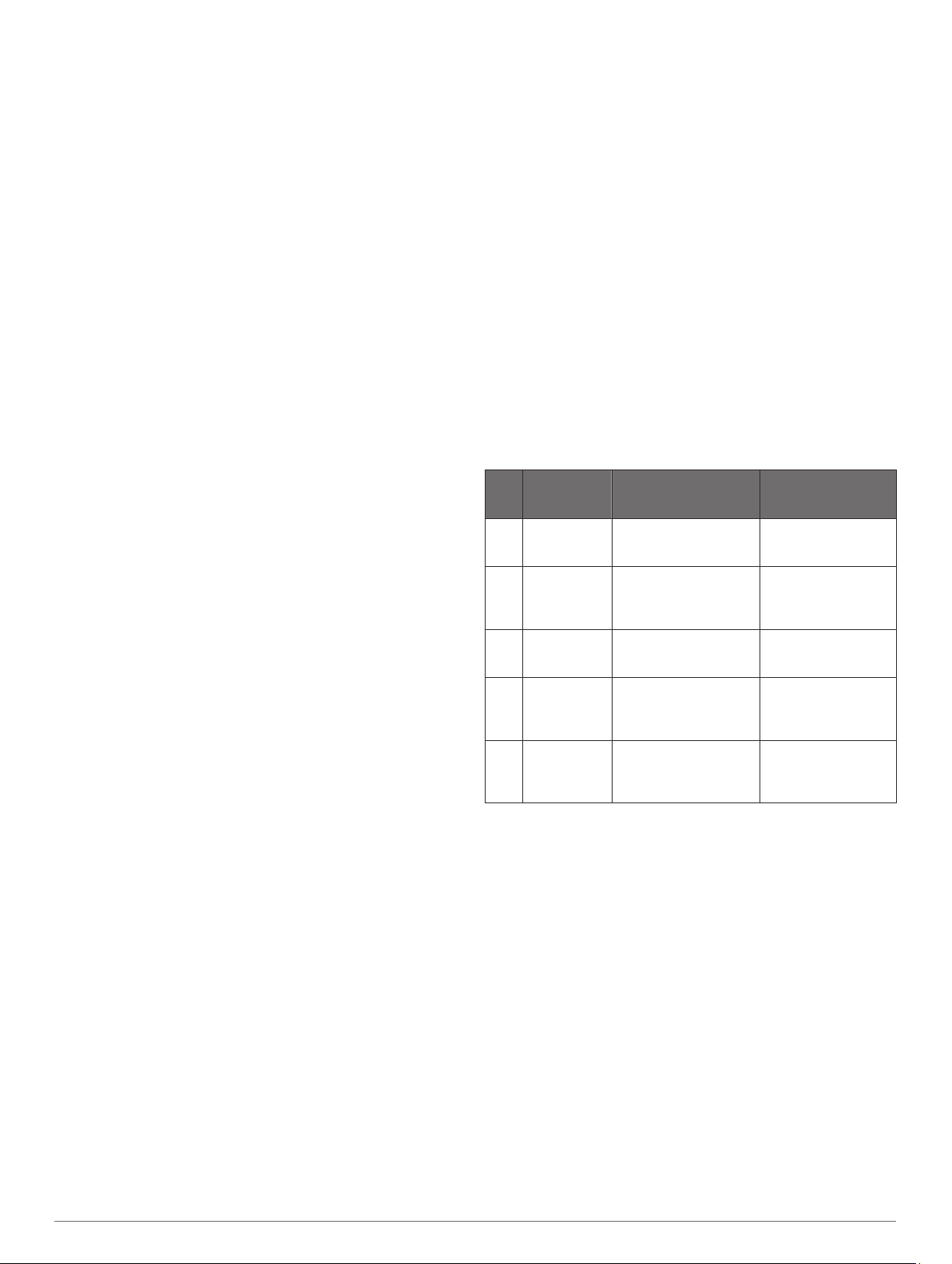
Heart Rate Zone Calculations
Zone % of
Maximum
Heart Rate
1 50–60% Relaxed, easy pace,
2 60–70% Comfortable pace,
3 70–80% Moderate pace, more
4 80–90% Fast pace and a bit
5 90–100% Sprinting pace,
Perceived Exertion Benefits
rhythmic breathing
slightly deeper
breathing, conversation
possible
difficult to hold
conversation
uncomfortable, breathing
forceful
unsustainable for long
period of time, labored
breathing
Beginning-level
aerobic training,
reduces stress
Basic cardiovascular
training, good
recovery pace
Improved aerobic
capacity, optimal
cardiovascular training
Improved anaerobic
capacity and
threshold, improved
speed
Anaerobic and
muscular endurance,
increased power
Setting Your Power Zones
The values for the zones are default values based on gender,
weight, and average ability, and may not match your personal
abilities. If you know your functional threshold power (FTP)
value, you can enter it and allow the software to calculate your
power zones automatically. You can manually adjust your zones
on the device or using your Garmin Connect account.
Hold MENU.
1
Select Settings > User Profile > Power Zones > Based On.
2
Select an option:
3
• Select Watts to view and edit the zones in watts.
• Select % FTP to view and edit the zones as a percentage
of your functional threshold power.
Select FTP, and enter your FTP value.
4
Select a zone, and enter a value for each zone.
5
If necessary, select Minimum, and enter a minimum power
6
value.
Activity Tracking
The activity tracking feature records your daily step count,
distance traveled, intensity minutes, floors climbed, calories
Training 17
Page 24

burned, and sleep statistics for each recorded day. Your calories
burned includes your base metabolism plus activity calories.
The number of steps taken during the day appears on the steps
widget. The step count is updated periodically.
For more information about activity tracking and fitness metric
accuracy, go to garmin.com/ataccuracy.
Auto Goal
Your device creates a daily step goal automatically, based on
your previous activity levels. As you move during the day, the
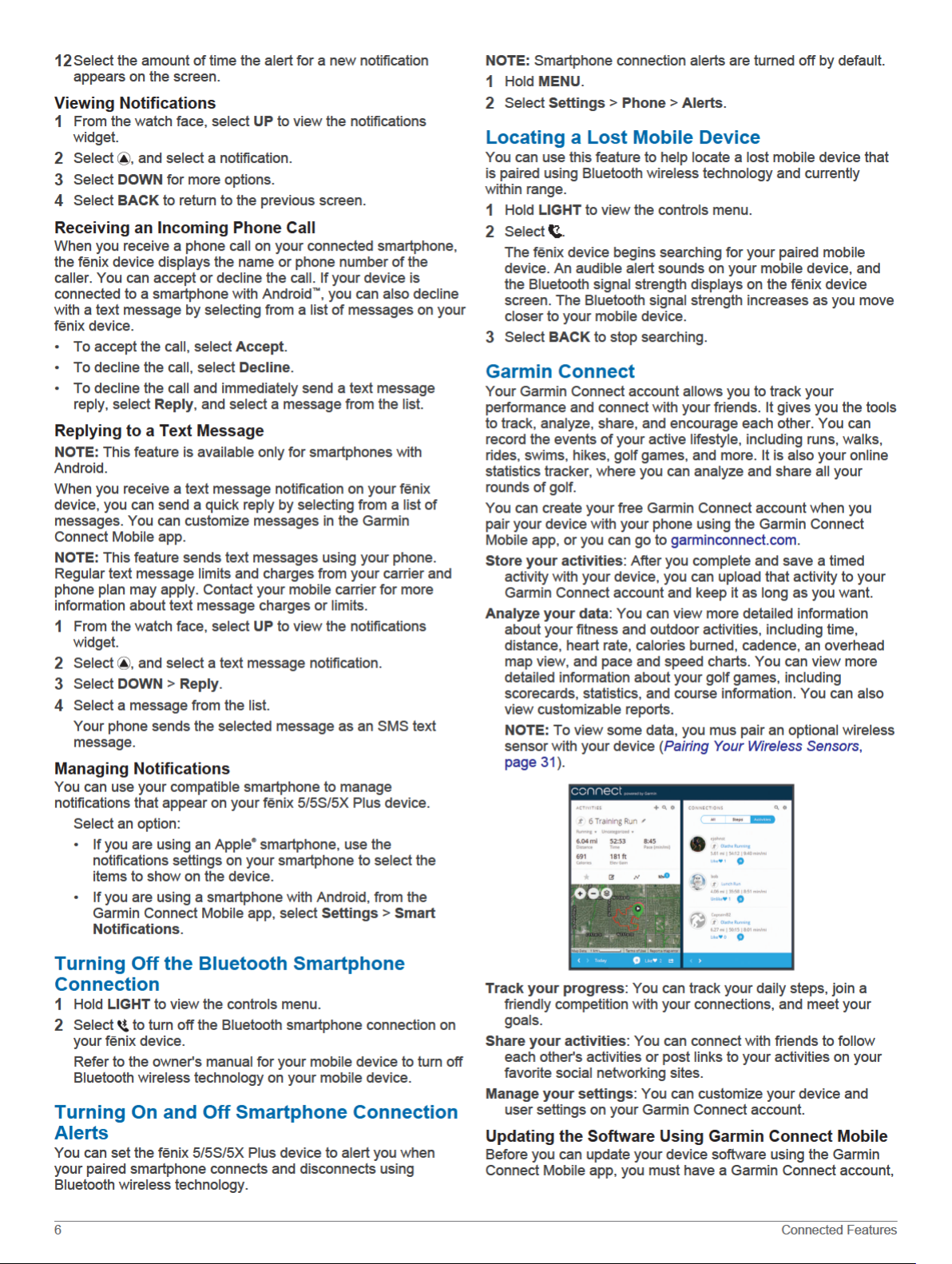
device shows your progress toward your daily goal À.
If you choose not to use the auto goal feature, you can set a
personalized step goal on your Garmin Connect account.
Using the Move Alert
Sitting for prolonged periods of time can trigger undesirable
metabolic state changes. The move alert reminds you to keep
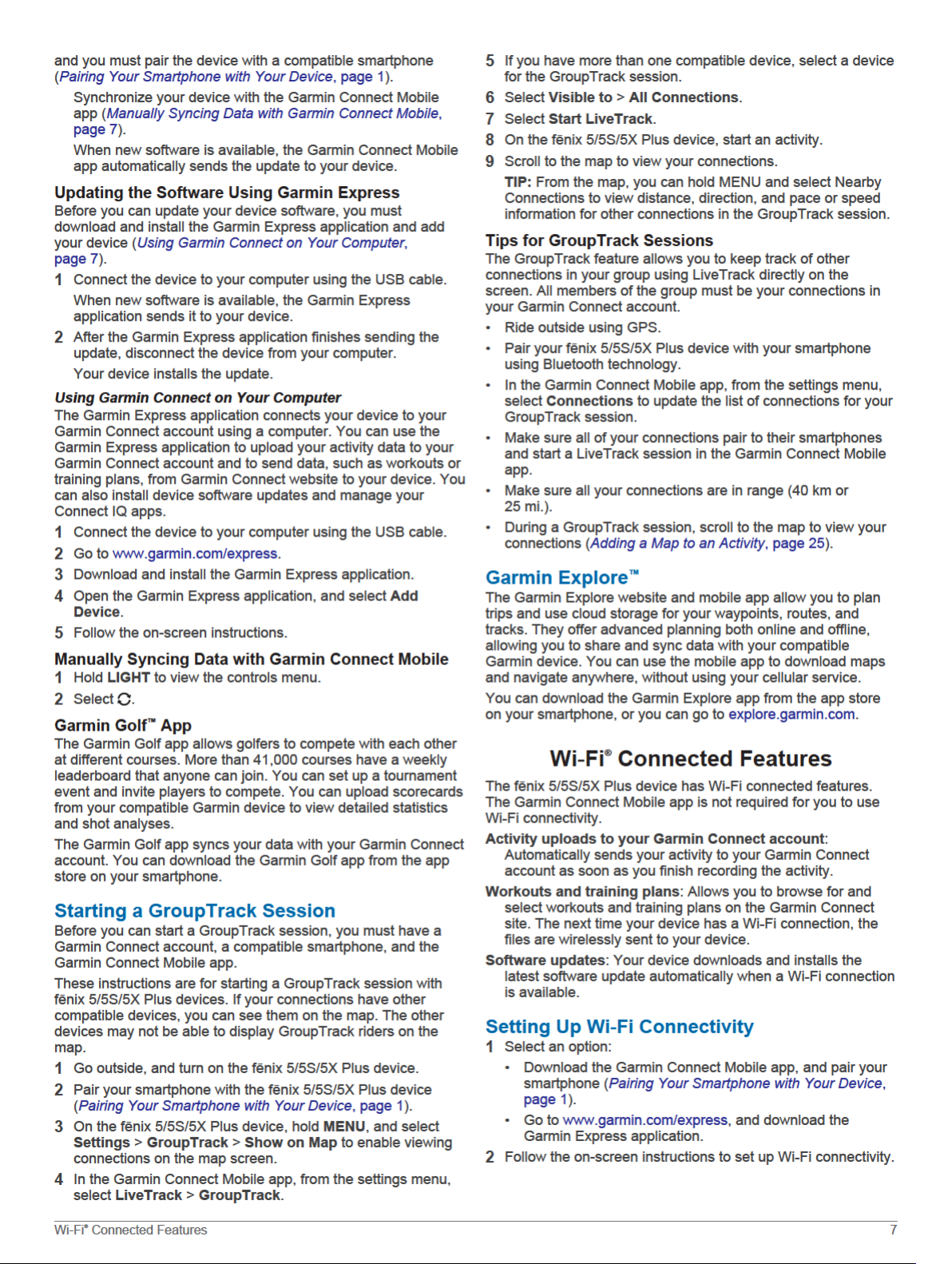
moving. After one hour of inactivity, Move! and the red bar
appear. Additional segments appear after every 15 minutes of
inactivity. The device also beeps or vibrates if audible tones are
turned on (System Settings, page 30).
Go for a short walk (at least a couple of minutes) to reset the
move alert.
Sleep Tracking
While you are sleeping, the device automatically detects your
sleep and monitors your movement during your normal sleep
hours. You can set your normal sleep hours in the user settings
on your Garmin Connect account. Sleep statistics include total
hours of sleep, sleep levels, and sleep movement. You can view
your sleep statistics on your Garmin Connect account.
NOTE: Naps are not added to your sleep statistics. You can use
do not disturb mode to turn off notifications and alerts, with the
exception of alarms (Using Do Not Disturb Mode, page 18).
Using Automated Sleep Tracking
Wear your device while sleeping.
1
Upload your sleep tracking data to the Garmin Connect site
2
(Manually Syncing Data with Garmin Connect Mobile,
page 7).
You can view your sleep statistics on your Garmin Connect
account.
Using Do Not Disturb Mode
You can use do not disturb mode to turn off the backlight, tone
alerts, and vibration alerts. For example, you can use this mode
while sleeping or watching a movie.
NOTE: You can set your normal sleep hours in the user settings
on your Garmin Connect account. You can enable the Sleep
Time option in the system settings to automatically enter do not
disturb mode during your normal sleep hours (System Settings,
page 30).
Hold LIGHT.
1
Select .
2
Intensity Minutes
To improve your health, organizations such as the U.S. Centers
for Disease Control and Prevention, the American Heart
Association®, and the World Health Organization, recommend at
least 150 minutes per week of moderate intensity activity, such
as brisk walking, or 75 minutes per week of vigorous intensity
activity, such as running.
The device monitors your activity intensity and tracks your time
spent participating in moderate to vigorous intensity activities
(heart rate data is required to quantify vigorous intensity). You
can work toward achieving your weekly intensity minutes goal by
participating in at least 10 consecutive minutes of moderate to
vigorous intensity activities. The device adds the amount of
moderate activity minutes with the amount of vigorous activity
minutes. Your total vigorous intensity minutes are doubled when
added.
Earning Intensity Minutes
Your fēnix 5/5S/5X Plus device calculates intensity minutes by
comparing your heart rate data to your average resting heart
rate. If heart rate is turned off, the device calculates moderate
intensity minutes by analyzing your steps per minute.
• Start a timed activity for the most accurate calculation of
intensity minutes.
• Exercise for at least 10 consecutive minutes at a moderate or
vigorous intensity level.
• Wear your device all day and night for the most accurate
resting heart rate.
Garmin Move IQ
When your movements match familiar exercise patterns, the
Move IQ feature automatically detects the event and displays it
in your timeline. The Move IQ events show activity type and
duration, but they do not appear in your activities list or
newsfeed.
The Move IQ feature can automatically start a timed activity for
walking and running using time thresholds you set in the Garmin
Connect Mobile app. These activities are added to your activities
list.
™
Activity Tracking Settings
Hold MENU, and select Settings > Activity Tracking.
Status: Turns off the activity tracking features.
Move Alert: Displays a message and the move bar on the
digital watch face and steps screen. The device also beeps
or vibrates if audible tones are turned on (System Settings,
page 30).
Goal Alerts: Allows you to turn on and off goal alerts, or turn
them off only during activities. Goal alerts appear for your
daily steps goal, daily floors climbed goal, and weekly
intensity minutes goal.
Move IQ: Allows you to turn on and off Move IQ events.
Turning Off Activity Tracking
When you turn off activity tracking, your steps, floors climbed,
intensity minutes, sleep tracking, and Move IQ events are not
recorded.
Hold MENU.
1
Select Settings > Activity Tracking > Status > Off.
2
Workouts
You can create custom workouts that include goals for each
workout step and for varied distances, times, and calories. You
can create workouts using Garmin Connect or select a training
plan that has built-in workouts from Garmin Connect, and
transfer them to your device.
You can schedule workouts using Garmin Connect. You can
plan workouts in advance and store them on your device.
Following a Workout From the Web
Before you can download a workout from Garmin Connect, you
must have a Garmin Connect account (Garmin Connect,
page 6).
Connect the device to your computer.
1
18 Training
 Loading...