

Page 1
®
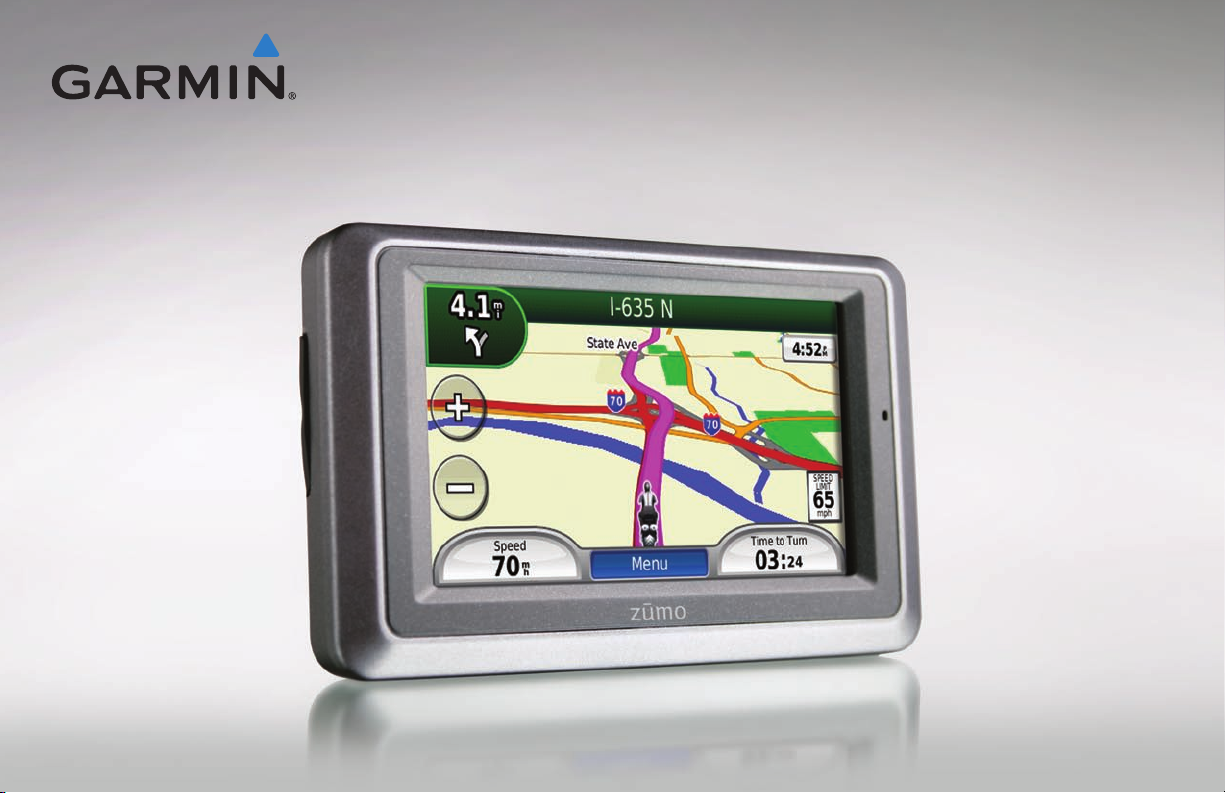
zūmo
660
quick start manual
1
Page 2
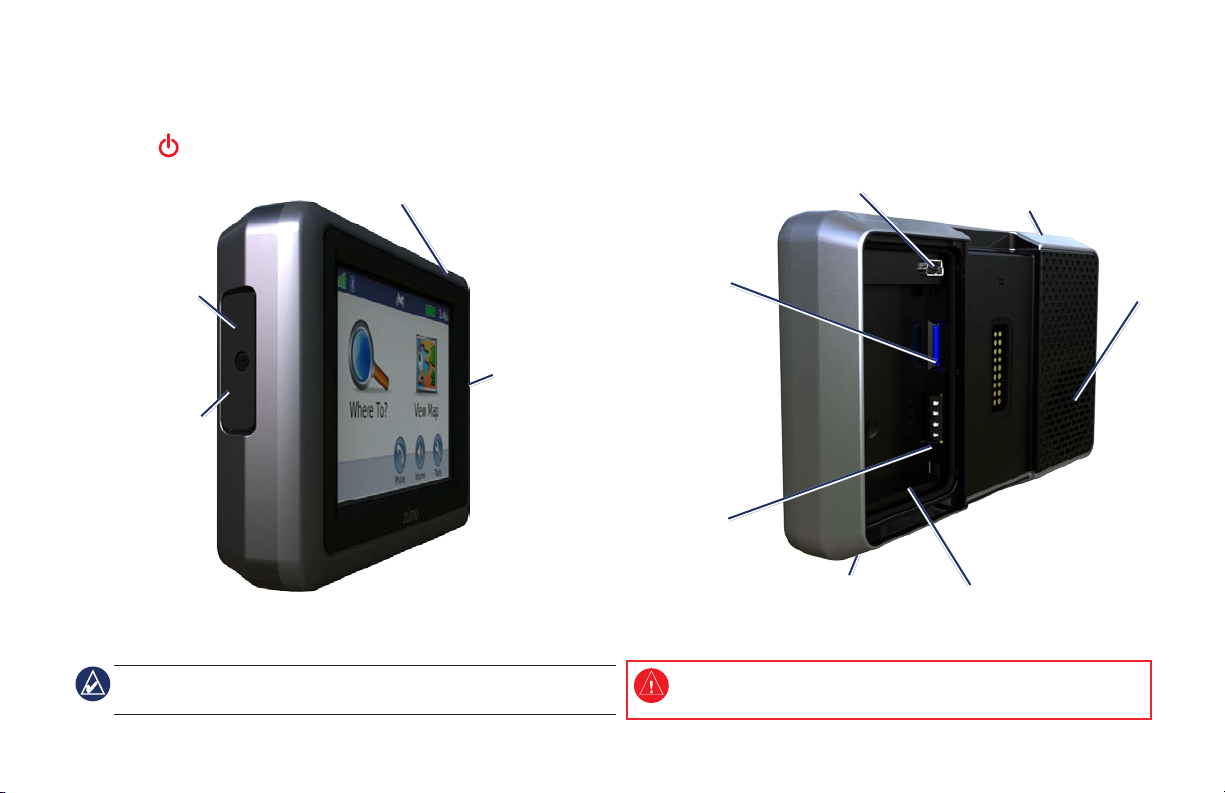
Your zūmo
Power button:
Press and hold to turn the zūmo on/off.
Press quickly to adjust the volume and the backlight brightness.
Headphone/
audio-out jack
(under weather cap)
Microphone
External antenna
connector
(under weather cap)
NOTE: See the zūmo 660 Installation Instructions in the product box for
motorcycle and automobile mounting instructions.
Mini-USB
connector
GPS antenna
Memory card
slot
Battery
contacts
Release key: Slide and
release to open the
battery cover
See the Important Safety and Product Information guide in the product box
for product warnings and other important information.
Serial number
(under the battery)
Speaker
2
Page 3
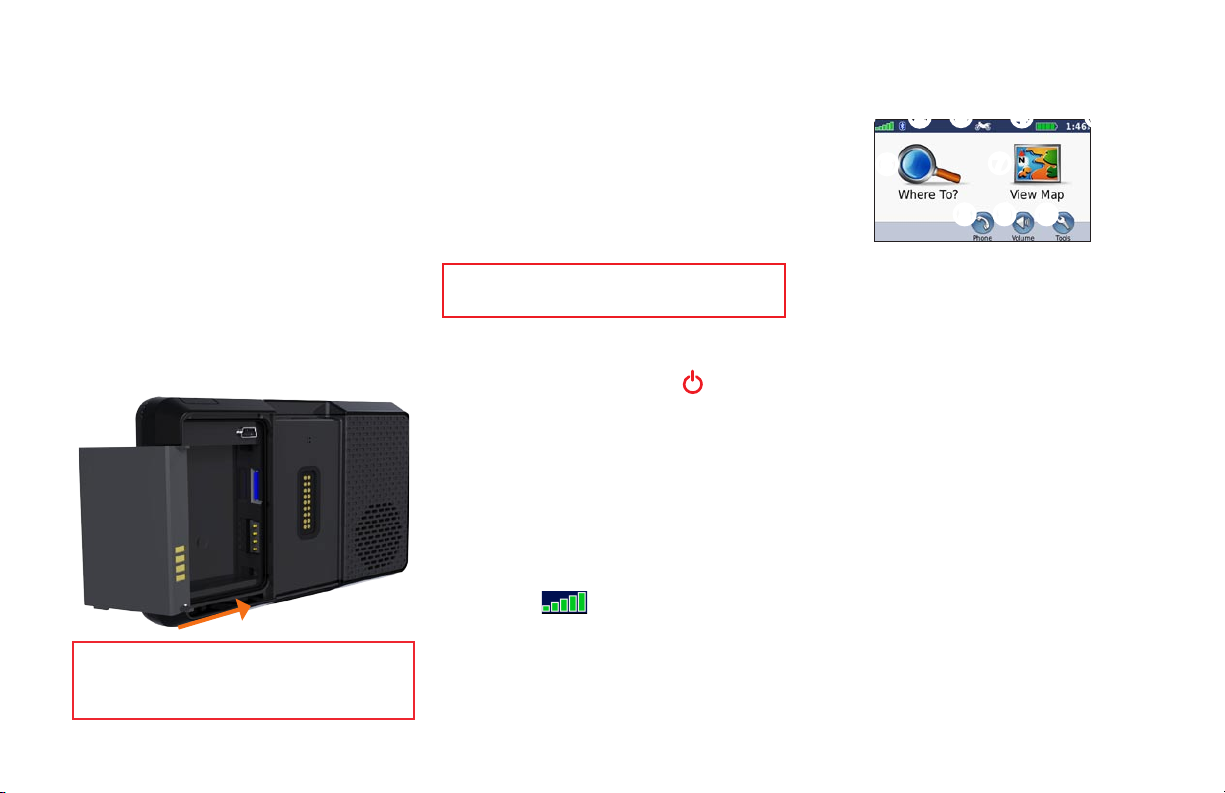
Installing the Battery
1. Locate the lithium‑ion battery that came in
the product box.
2. Slide the release key until the battery
cover on the back of the zūmo pops up.
3. Locate the metal contacts on the end of
the lithium‑ion battery.
4. Insert the battery so that the metal
contacts on the battery match with
the metal contacts inside the battery
compartment.
5. Replace battery cover.
WARNING: This product contains a lithium-ion
battery. To prevent damage, remove the unit from the
vehicle when exiting or store it out of direct sunlight.
3
Ways to Charge Your zūmo
Using the Menu Page
Battery
Use the automotive power cable.
•
•
Use the USB cable.
•
Use an optional AC adapter cable.
•
Use an optional battery charger
WARNING: Always keep the battery installed when
WARNING: Always keep the battery installed when
the zūmo is on.
the zūmo is on.
Conguring Your zūmo
To turn on your zūmo, press the Power
button. Follow the on-screen instructions.
Acquiring Satellites
1. Go outdoors to an open area, out of
garages, and away from tall buildings.
2. Stop your vehicle, and turn on the zūmo.
Acquiring satellite signals may take a few
minutes. The bars indicate GPS
satellite strength. When one bar is green, the
zūmo has acquired satellite signals. Now you
can select a destination and navigate to it.
➊
➋
➌
➍
➎
➏
➐
➑
➒
➓
➋
➌
➐
➒➑
➍
➎
➓
➊
➏
GPS satellite strength.
Bluetooth® technology status.
Touch to select motorcyle, scooter,
automobile, or pedestrian mode.
Battery status.
Current time. Touch to change settings.
Touch to nd a destination.
Touch to view the map.
Touch to make a call when connected to
a compatible mobile phone.
Touch to adjust the volume.
Touch to use the tools such as settings,
Where Am I?, Help, and routes.
Page 4
Finding Points of Interest
1. Touch Where To? > Points of Interest.
2. Select a category and a subcategory.
3. Select a destination, and touch Go!.
To enter letters contained in the name, touch
Where To? > Points of Interest > Spell
Name.
To search for a location in a different area,
touch Where To? > Near.
Following Your Route
Your route is marked with a magenta line.
As you travel, your zūmo guides you to your
destination with voice prompts, arrows on the
map, and directions at the top of the map.
If you depart from the route, the zūmo
recalculates the route and provides new
directions.
Adding a Stop
1. With a route active, touch Menu > Where
To?.
2. Search for the extra stop.
3. Touch Go!.
4. Touch Add as a Via Point to add this stop
before your destination.
TIP: To add more than one stop, edit the
current route. Touch Where To? > Custom
Routes.
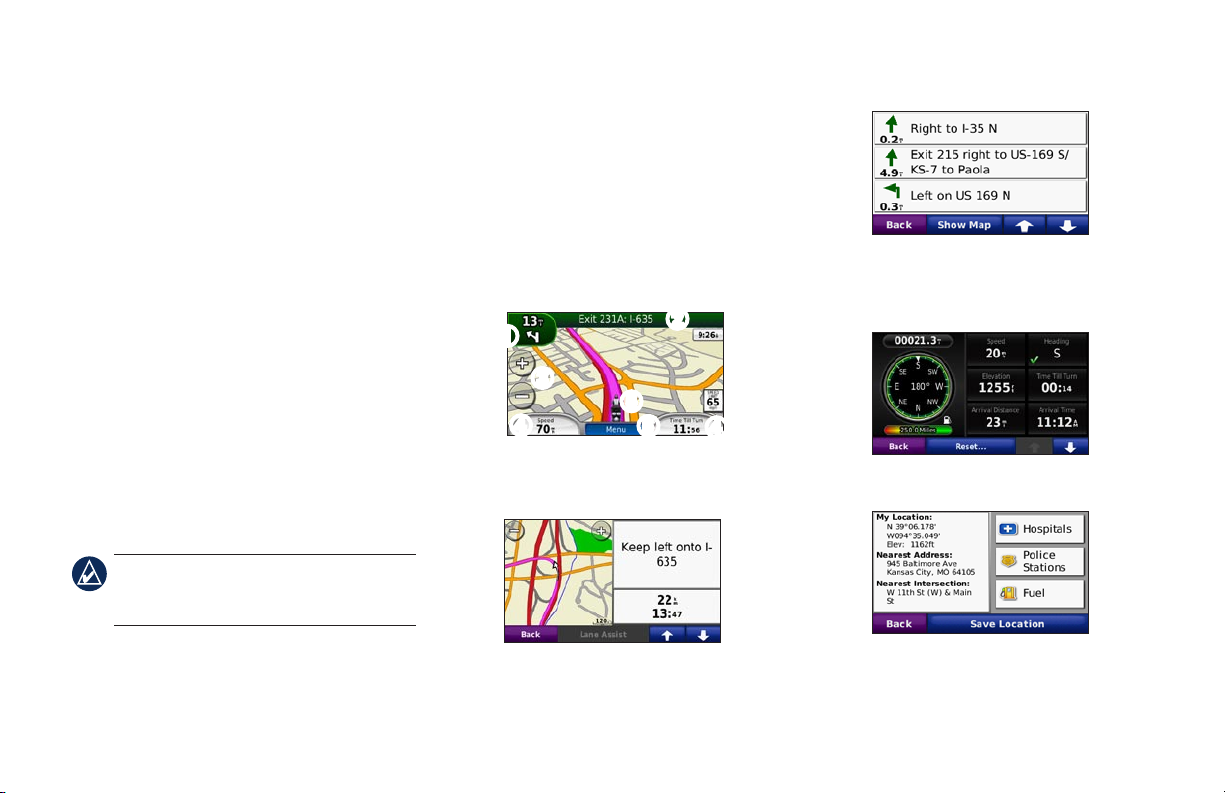
➊
➊
➋
➌
➎
➍
Touch to view the Next Turn page or the
Lane Assist page (if available).
➏
➍
➋
Touch to view the Turn List page.
➌
Touch to zoom in and out.
➍
Touch to view the Trip Computer page.
➎
Touch to view the Where Am I? page.
➏
Touch to return to the Menu page.
4
Page 5
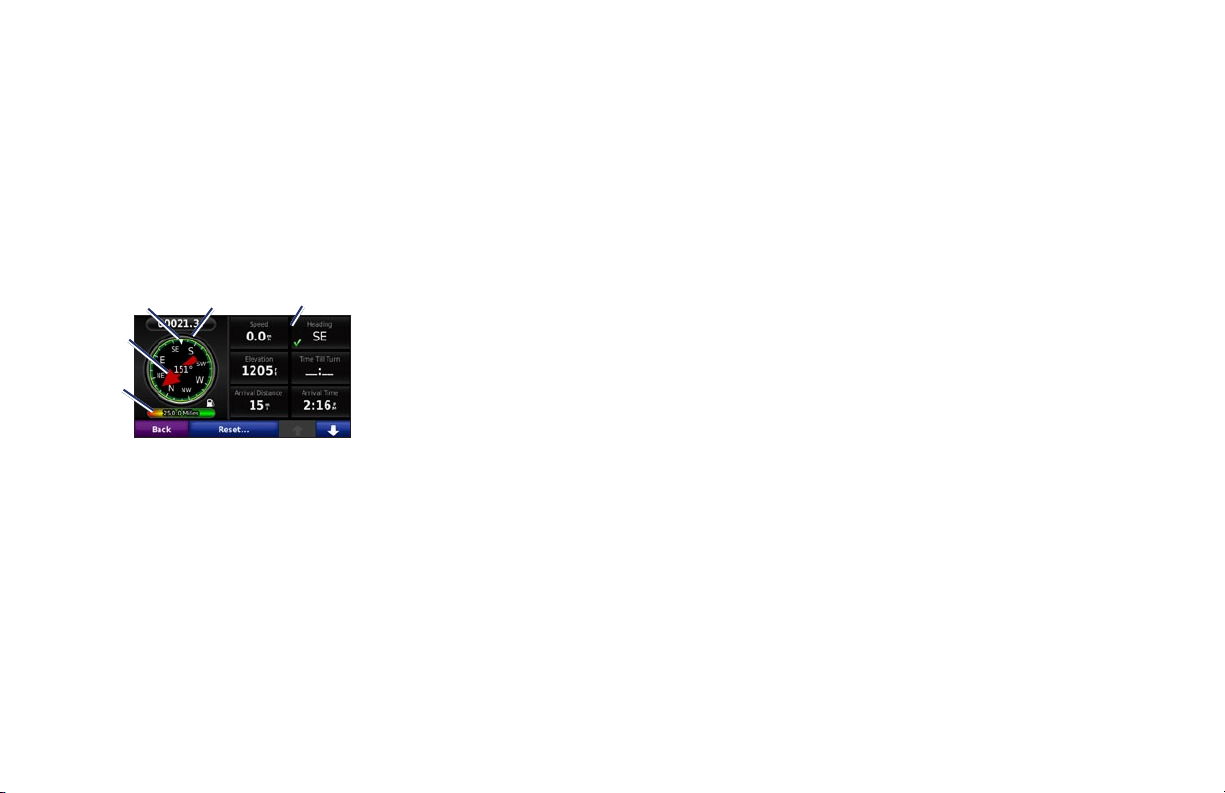
Navigating Off Road
When you choose a destination while the
off road feature is enabled, the zūmo plots a
straight line to the destination.
1. Touch Tools > Settings > Navigation.
2. Under Route Preference, touch Off
Road.
Customizable
Heading
Direction to
destination
Fuel gauge
Compass
data elds
Enabling Fuel Tracking
When connected to the motorcyle mount,
your zūmo can alert you when your fuel tank
is low.
In the Trip Computer page, touch Tools >
Settings > Fuel Gauge.
Under Fuel Tracking, select On.
•
A Fuel Gauge appears under the
compass on the map page.
Under Distance Per Tank, enter the
•
total distance your motorcyle can travel
on a tank of fuel.
Under Low Fuel Warning, choose
•
when you would like to be notied that
your fuel tank is low.
Using Hands-free Calling
Using Bluetooth technology, your zūmo can
connect to your mobile phone to become a
hands-free device.
To pair and connect, your device and the
zūmo must be within 10 meters of each other
and turned on. The zūmo can be connected to
a phone and a headset at the same time.
To determine whether your device with
Bluetooth technology is compatible with the
zūmo, go to www.garmin.com/bluetooth.
5
Page 6
Pairing the zūmo with Your
Mobile Phone
1. Touch Menu > Tools > Settings >
Bluetooth.
2. Under Bluetooth, touch Enabled.
3. On the Menu page, touch Tools >
Settings > Bluetooth.
4. Under Phone, touch Add (or Change).
5. Enable the Bluetooth component on your
phone. Enable Find Me/Discoverable/
Visible mode. These settings might be in
a Bluetooth, Connections, or Hands‑free
menu.
6. Touch OK on the zūmo.
7. Select your phone, and touch OK.
8. Enter 1234 into your phone.
Receiving a Call
When you receive a call, the Incoming Call
window appears. Touch Answer to answer
Using Your Phone Book
1. Touch Phone > Phone Book.
2. Touch the phone book entry (contact) you
3. Touch Dial to call the contact.
Calling a POI
1. Touch Phone > Points of Interest.
2. Search for the POI you want to call.
3. Touch Dial or .
Calling a Number
1. Touch Phone > Dial.
2. Enter the number, and touch Dial.
3. To end the call, touch > End Call.
Pairing a Wireless Headset
1. Touch Menu > Tools > Settings >
the call. Touch Ignore to ignore the call and
silence the ring.
2. Under Bluetooth, touch Enabled.
3. On the Menu page, touch Tools >
want to call.
NOTE: Not all phones support all features
of the zūmo phone menu.
Bluetooth.
Settings > Bluetooth.
4. Under
5. Turn on your headset, and enable
6. Touch OK on the zūmo.
7. Select your headset, and touch OK.
8. Enter the Bluetooth PIN/passkey for your
7. Touch OK.
Audio, touch Add (or Change).
Find Me/Discoverable/Visible mode, if
necessary.
headset, if necessary, and touch Done.
Tips and Shortcuts
To quickly return to the Menu page, touch
•
and hold Back.
•
Touch
and to see more choices.
Touch and hold to scroll faster.
Pages appear differently based on your usage
mode and settings.
Loading Files on Your zūmo
1. Insert a memory card (optional).
2. Connect the USB cable.
3. Transfer les to the zūmo.
4. Eject and unplug the USB cable.
6
Page 7

Listening to MP3 Files
1. Touch Tools > Media Player.
2. Touch Source to open the MP3 player.
3. Touch Browse.
4. Touch a category.
5. Touch Play All.
Locking Your zūmo
1. Touch Tools > Settings > Security.
2. Touch the button below Garmin Lock.
3. Enter a 4‑digit PIN and drive to a security
location.
NOTE: If you forget your PIN and your
security location, you must send your zūmo
and valid product registration or proof
of purchase to Garmin to get your zūmo
unlocked.
Resetting the zūmo
If the zūmo screen stops functioning, turn the
zūmo off and on again. If this does not help,
press and hold the Power key and hold it
for 8 seconds. Turn the zūmo back on. The
zūmo should operate normally.
7
Product Registration
Help us better support you by completing
our online registration today. Connect to our
Web site at http://my.garmin.com. Keep the
original sales receipt, or a photocopy, in a
safe place.
More Information
For more information about your zūmo,
touch Tools > Help. You can download the
latest version of the owner’s manual from
www.garmin.com. For information about
accessories, go to http://buy.garmin.com or
contact your Garmin dealer.
nüMaps Guarantee™
To receive one free map update, register your
zūmo at http://my.garmin.com within 60 days
of acquiring satellites. You are not eligible for
the free map update if you register by phone
or wait longer than 60 days after the rst
time your zūmo acquires satellites. For more
information, go to www.garmin.com/numaps.
Contact Garmin
Contact Garmin if you have any questions
while using your zūmo. In the USA, go to
www.garmin.com/support, or contact Garmin
USA by phone at (913) 397-8200 or
(800) 800-1020.
In the UK, contact Garmin (Europe) Ltd. by
phone at 0808 2380000.
In Europe, go to www.garmin.com
/support and click Contact Support for
in-country support information, or contact
Garmin (Europe) Ltd. by phone at
+44 (0) 870.8501241.
Declaration of Conformity
(DoC)
Hereby, Garmin, declares that this zūmo is in
compliance with the essential requirements
and other relevant provisions of Directive
1999/5/EC. To view the full Declaration of
Conformity, see the Garmin Web site for your
Garmin product: www.garmin.com.
Page 8
Garmin®, the Garmin logo, and zūmo® are trademarks of Garmin Ltd. or its subsidiaries, registered in the USA and other countries. Garmin Lock™ and nüMaps Guarantee™ are trademarks of Garmin
Ltd. or its subsidiaries. These trademarks may not be used without the express permission of Garmin.The Bluetooth® word mark and logos are owned by the Bluetooth SIG, Inc., and any use of such
name by Garmin is under license. RDS-TMC Trafc Information Services France © ViaMichelin 2006. Other trademarks and trade names are those of their respective owners.
For the latest free software updates (excluding map data) throughout the life of your
Garmin products, visit the Garmin Web site at www.garmin.com.
© 2009 Garmin Ltd. or its subsidiaries
Garmin International, Inc.
1200 East 151st Street, Olathe, Kansas 66062, USA
Garmin (Europe) Ltd.
Liberty House, Hounsdown Business Park, Southampton, Hampshire, SO40 9RB UK
Garmin Corporation
No. 68, Jangshu 2nd Road, Shijr, Taipei County, Taiwan
www.garmin.com
January 2009 Part Number 190‑01026‑01 Rev. A Printed in Taiwan
 Loading...