

Page 1
Need help? Contact us anytime at [email protected]
User Manual
Quick Start Guide
Use this quick start guide to understand the basic interaction with the Fyver Watch. You can
read more in detail in later sections.
Please check that in the box there is a
a) Watch
b) Screwdriver
c) Charging dock
d) Cable
Attention: If there is anything missing, immediately contact [email protected].
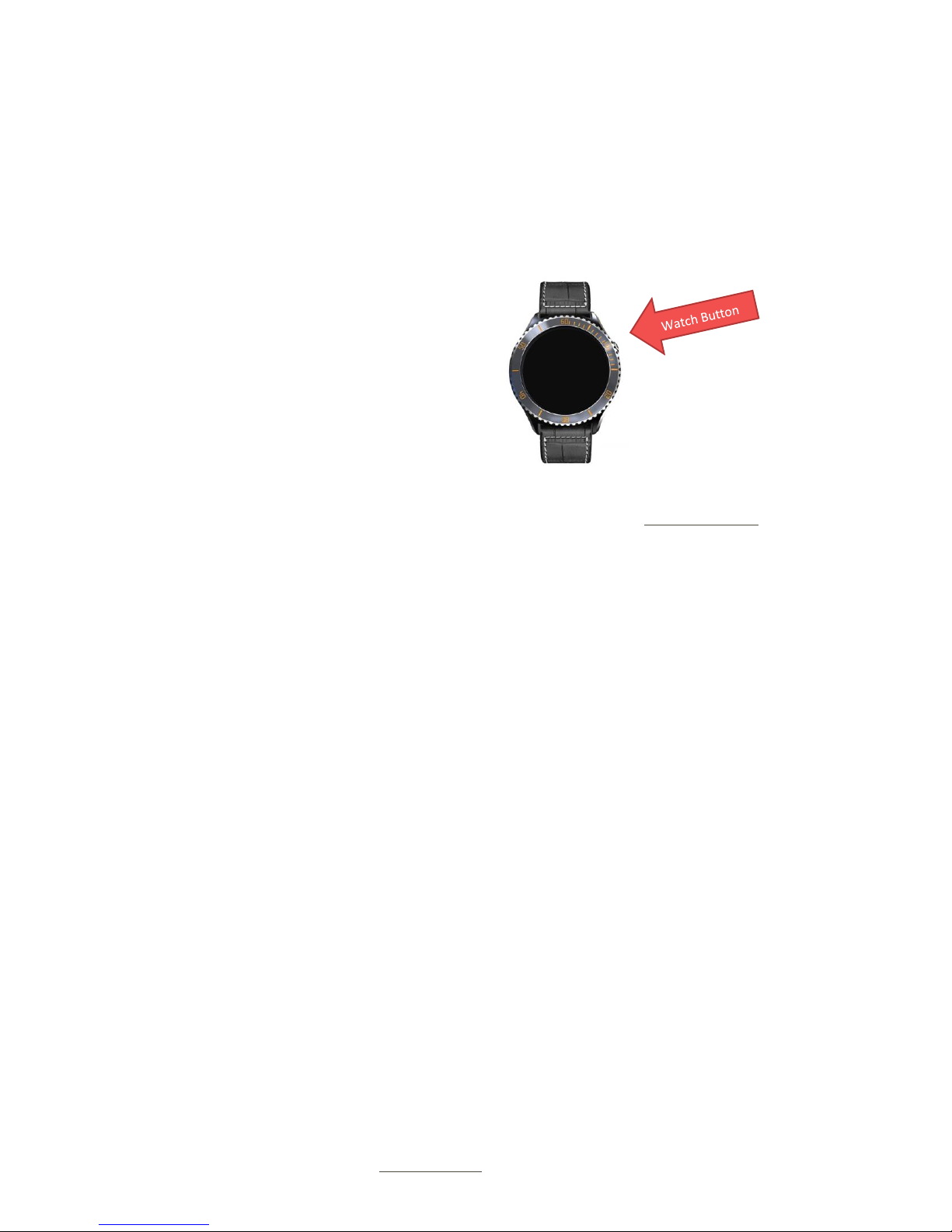
1. Charge the watch for 2-3 minutes. The pins on the dock should match to the pins on
the watch. The circular cut on the dock should match the watch button. Plug in the
dock to the cable, and plug in the cable to an adapter (not included).
2. Hold down the watch button. The watch will now start up, showing FYVER.
3. Follow the set up instructions. There is no need to scan the QR code right now.
4. Congratulations! You have started your Fyver Watch.
Other Setup
1. On the watch screen, swipe to the right. Scroll down to the Settings app. Open it.
2. Scroll, and click Connect, then WiFi. You can now select a WiFi network.
SIM Card
1. If you choose to have a SIM card, you may make phone calls from the watch. First,
shut down the watch.
2. Next, use the screwdriver to unscrew the back.
3. There is a metal clasp on the circuit board. Push it back, and lift.
4. Now you may insert any SIM card with GSM network. Contact your network provider
for GSM availability.
Page 2
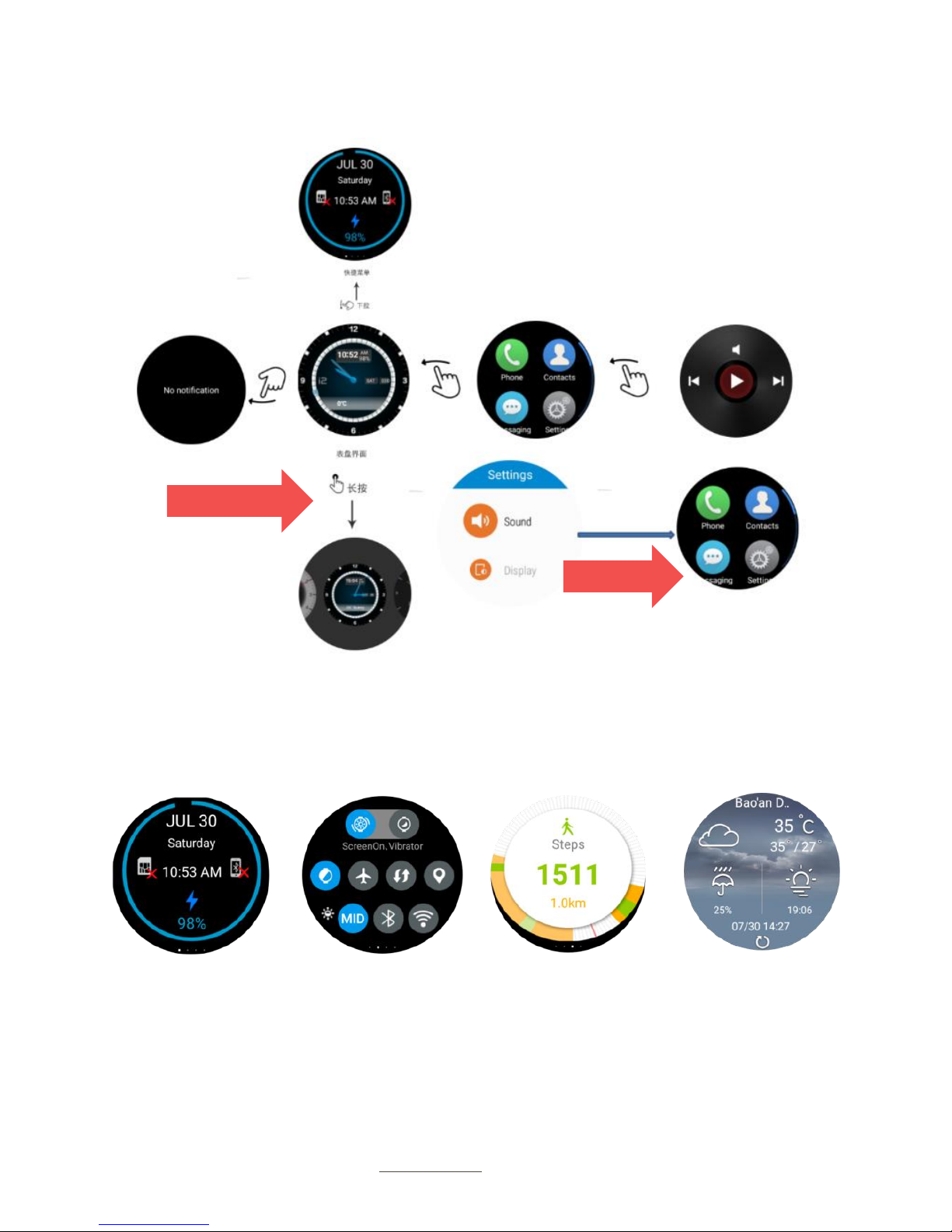
Hold 2 sec
Swipe Left
<< Quick Settings
Page 3

Need help? Contact us anytime at [email protected]
Detailed Guide
This will explain each part of the app in greater detail.
Home Button (watch button)
The home button is on the side of the watch. Use this to turn the watch off and on. You can
hold this button for 2 seconds to bring up the power menu, where you can switch apps, shut
down, restart, and full/square interface switching.
Full/Square interface
At the top of the power menu is a watch icon with the word FULL. Tap it, and it will change to
SMALL. Now, when you open a non-system app, it will be in square mode. You can now
access apps that have trouble fitting to the circular display.
Crashing
If the watch crashes or becomes unresponsive, hold the power button down for 10 seconds,
and the watch will restart.
Google Integration
You can easily integrate the Fyver Watch with your Google account. Open the Play Store, and
you will be prompted to sign in. Now enter your information.
IMPORTANT: If you see Chinese characters instead of English, click the CN in the
bottom of the keyboard. Now it will switch to English.
Google Play
Once signed in, you can download apps from the Google Play store. You can also use Google
Now and Google Now cards. Swipe down from the watch screen to access.
Health
The Fyver Watch offers many health features.
Page 4

Need help? Contact us anytime at [email protected]
Heart Rate App “Health”
This app will have a heart rate feature and a pedometer count. In order to use the heart rate,
wear the watch tightly and click start. It will now show the results. Click stop after the Fyver
Watch makes a sound.
Healthy Reminder “Reminders”
This app lets you set certain reminders such as eye exercises or water consumption.
Google Fit
For more advanced fitness features or those for a specific sport, use the Fit app. Some menus
do not adapt to the circular interface, so use the SQUARE option by holding the power button
for 2 seconds.
SIM Functions
THESE FUNCTIONS WILL REQUIRE A NANO-SIM CARD WITH GSM NETWORK
Phone Call
You can make a phone call from the watch in the phone app. Swipe right to see recently
called. If you need to call 911, you can do so even without a SIM card.
Messaging
You can message people from the Messages app in the watch. This is SMS messaging, so a
signal is required.
Contacts
Contacts are connected with your Google account. They do not require a SIM card.
Music
You can connect, via Bluetooth, your Fyver Watch to a phone or device with music. Swipe
right from the apps screen to quickly access your music player.
Turn off the watch on airplanes. Turn off when near easily
flammable objects. Screws are small and should be kept
away from children. Batteries should not be touched.
Page 5

Need help? Contact us anytime at [email protected]
IMPORTANT NOTICE
FYVER TECHNOLOGIES LLC will not take ANY responsibility for
users who use the Fyver Watch improperly. The battery in the
Fyver Watch should remain untouched. Doing so will result in
a void of the 12-month warranty.
Attempting to edit, change, or disrupt the circuit board will result in a voidance
of warranty. Attempting to, or succeeding in, rooting will also void warranty. We
cannot guarantee security on rooted devices.
FYVER TECHNOLOGIES LLC is a Limited Liability Company (LLC) registered in the United
States. Rules and regulations of the United States apply.
Original certificate documents can be obtained by contacting [email protected]
 Loading...