

Page 1
深圳市奋兴科技发展有限公司
ADD : 4th Flo or, Buil ding 3, HuiDe Bao Ind ustri al Park , GuanG uang Ro ad,
Gua ngMin g New Dis trict ,Shen zhen 51 8107, China (Main land)
TEL:+ 86-75 5-279 09433
FAX: +86 -755- 23009 693
E-m ail: in fo@sz fxt.c om
Web site : www.sz fxt.c om
FXT Technology Co., L imite d
User Manual
Page 2
Contents
1.F ea t ur es . ... .. ... ... .. ... .. . .. ... .. . .. ... .. . .. ... . . 1.
2.S pe ci fic at ion s . .. ... .. ... .. ... .. .. ... .. ... .. ... .. .. ... .. . 2.
3.Con trols D iag ram ........ ... ........ ... ........ ... ........ . .3.
4.Hea dse t Operations .. ... ... ................. ... ... ... ... ..... .4 .
5.Assemb ly Ins tructions ............... ... ... ... .................. .9.
6.Trou ble Shooting .. ................. ... ... ... .............. .10 .
FXT Marvel Vision II 5.8GHz Diversity Goggle
Age Recommendation :14+
Not for chil dre n und er 14 years old.
(Usin g any n ear e ye di splays on children unde r 14 ye ars o ld ca n
cause e ye de vel opm ent problems.This is no t a toy.)
Warning:
Pleas e rea d the e nti re user manual before ope rat ing .Fa ilure to
opera te th e pro duc t can result in damage of the p rod uct a nd
perso nal p rop ert y.
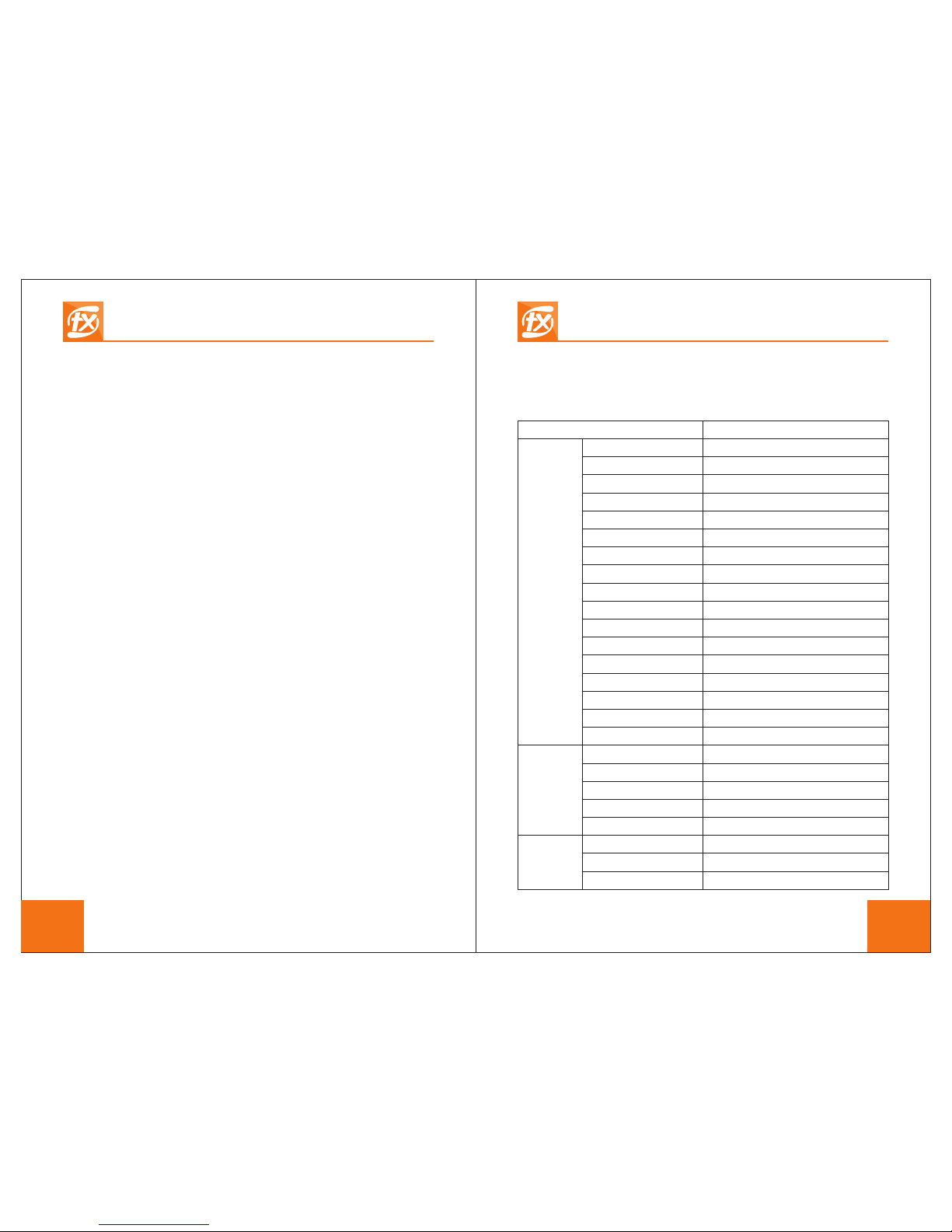
1.Features:
1). Plu g&P lay
2). With HDM I IN, v ers ion 1.1
3). DVR func tio nal ity,support one -ke y-r eco rding
4). Bui lt- in di ver sity receiver,automa tic all y rec eive best signal
5). Hig h bri ght nes s 800cd/m2
6). Easy to us e scr een s ystem and 5 way joystick wi th ch ann el
auto scan
7). With AV IN a nd AV OUT
2.Specifications
Items
Speci fic ati ons
Displ ay
scree n
5 inch
TFT LCD screen/lon g lif e
800x4 80 pi xel s
16:9
800cd /m2
AUTO/NTSC/PAL
6.5MH z
AV/HDMI
Versio n 1.1 d igi tal
AV
7-28V
560mA @12 V
Yes
AVI
Max 32G B mic ro SD c ard
SMA
129mm x89 mmx 11mm
Scree n siz e
Scree n typ e
Resol uti on
Aspec t rat io
Brigh tne ss
Video format
Audio
Input sign al
HDMI IN(mini HDMI)
Outpu t sig nal
Input vol tag e
Power consumption
Work status OSD display
Recor din g for mat
Suppo rt TF card
Anten na co nne cto r
Dimen sio n
5.8GH z
recei ver
Sensi tiv ity
Frequ enc y ran ge
Chann el
One-key-search frequency
Audio
-90dB m
5645M Hz- 594 5MH z
40 channels(it can be customized)
Yes, button control instead of switch
6.5MH z
Goggl e
Color
Dimen sio n
Weight
Black &Re d
165x1 55x 102 mm
374gr ams
FXT Marvel Vision II 5.8GHz Diversity Goggle
1 2
Page 3
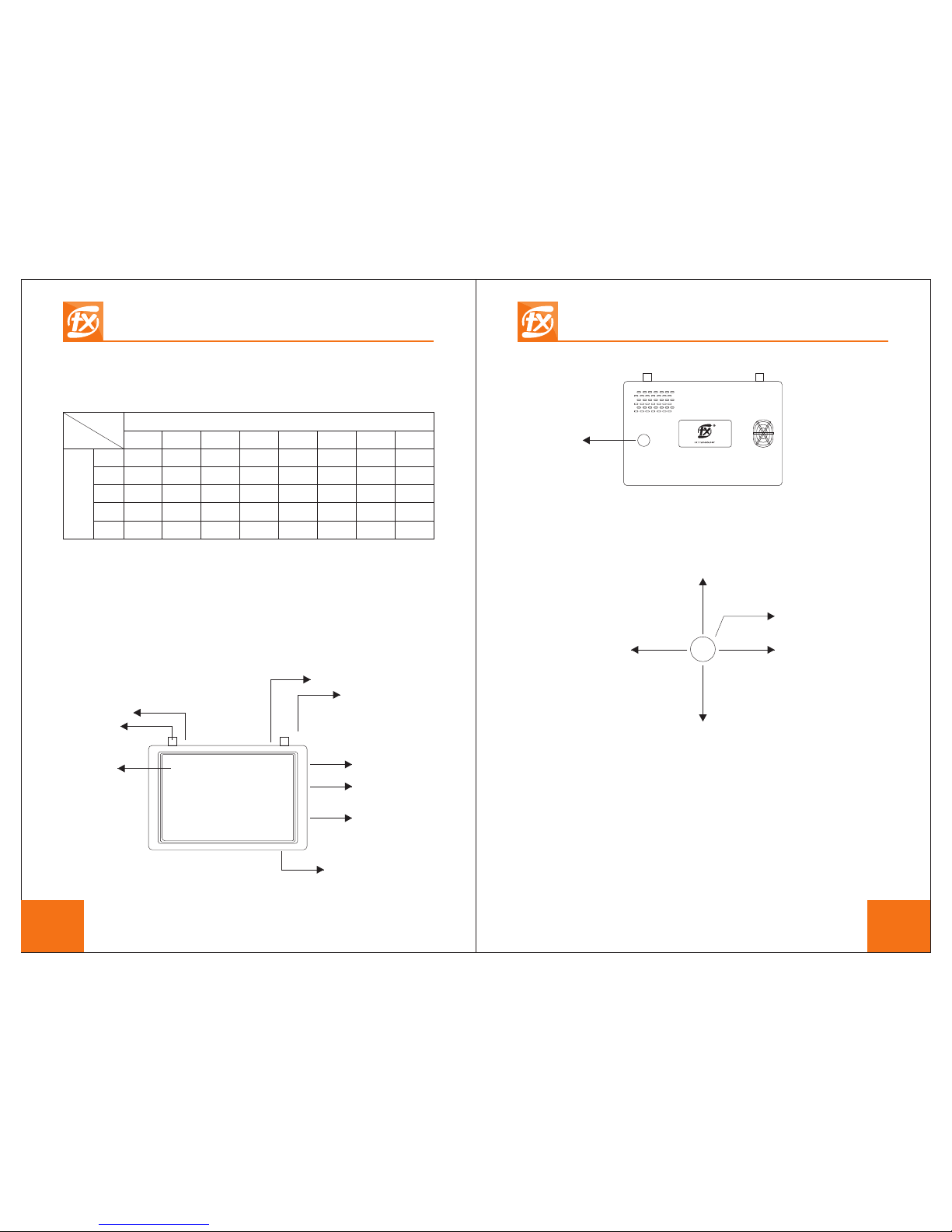
Below i s cha nne l tab le for your reference.(Un it:GH z)
1 2 3 4 5 6 7 8
CH
5.740 5.760 5.780 5.800 5.820 5.840 5.860 5.880
5.705 5.685 5.665 5.645 5.885 5.905 5.925 5.945
5.865 5.845 5.825 5.805 5.785 5.765
5.745
5.725
5.658 5.695
5.732
5.769 5.806
5.843
5.880 5.917
5.733
5.752 5.771 5.790 5.809 5.828 5.847 5.866
F
E
A
R
B
FR
FR
CH
3.Controls Diagram
HDMI IN
LED for A rece ive r
SMA
LED for B receiver
Record Button/
Confirm button
TF card slot
AV OUT
(2.5mm -J)
AV IN
(2.5mm -J)
8-28V IN
5 way Joys tic k
How to to u se 5 wa y joy sti ck:
Switch wor kin g mode/Sw itc h menu item s
Press down joystick to turn on/off
or enter/exit menu
Change c han nel /
Decrea se va lue
Auto sca n cha nne ls/Swit ch me nu items
Change b and /
Increa se va lue
4.Goggle Operation s(Opera tions for 3 working
modes)
1).Tur n ON/ OFF monitor
Conne ct ba tte ry( 2s-6s) with monitor,in ser t mic ro SD c ard into
TF card slot(if you wa nt to r eco rd vi deo).
Single pre ss do wn jo ystick to turn on monitor
Long press d own joy stick to turn off monitor
FXT Marvel Vision II 5.8GHz Diversity Goggle FXT Marvel Vision II 5.8GHz Diversity Goggle
3 4
Page 4
2).FPV mod e(d efa ult working mode)
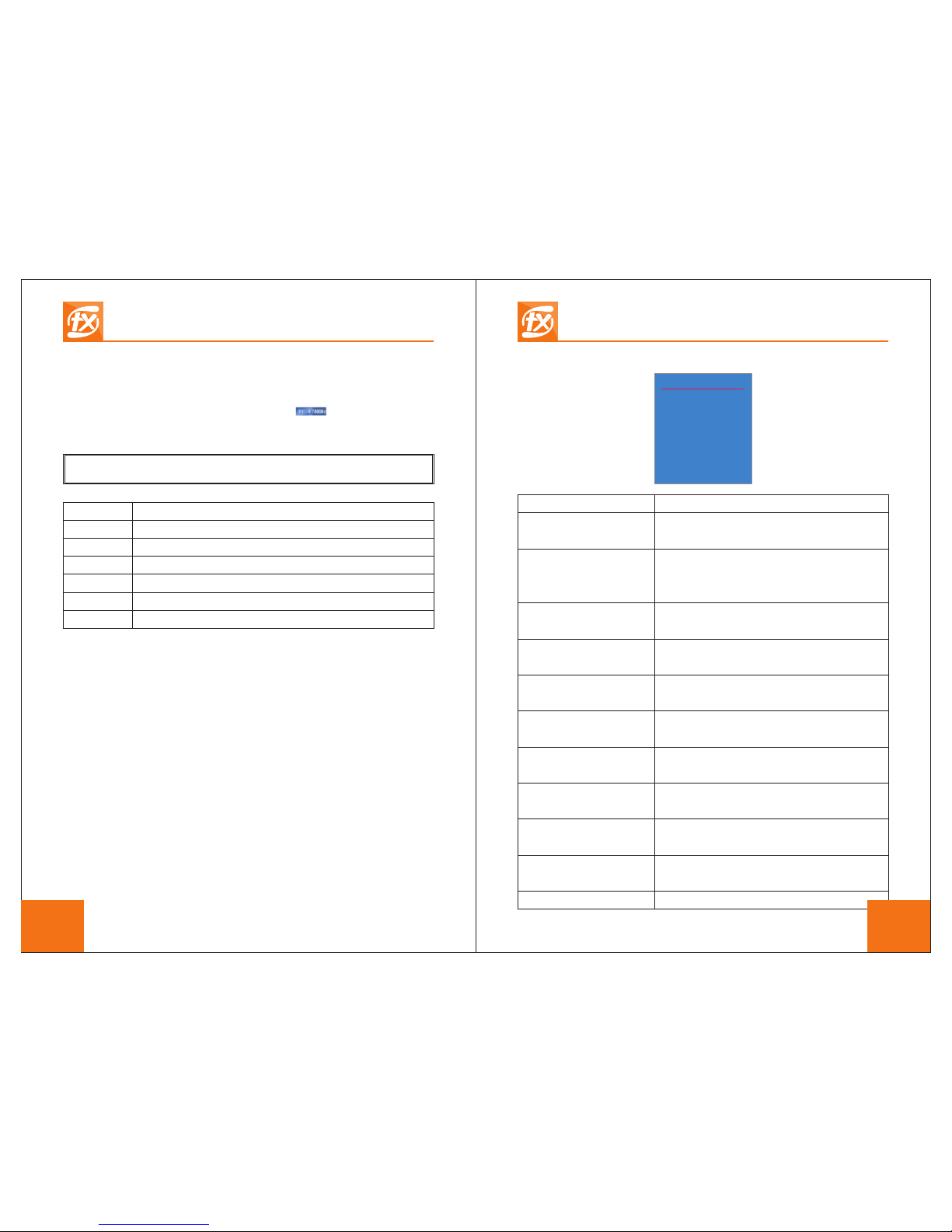
After powe rin g on, LED for A receiver will be lit, it en ter F PV
mode,and d isp lay c hannel&band info ,the n dis pla y
below info rma tio n:
OSD
Expla nat ion
A receiv er si gna l str ength value(00-99)
B recei ver s ign al st rength value(00-99)
Frequ enc y ban d and c hannel
Working time
Input volt age
Monit or wi th no m icr o SD card
How to select channels :
1.Pre ssi ng ba ckw ard joystick to auto scan c han nel s
2.Pre ssi ng le ft on t he joystick to change cha nne ls, pre ss right on
the joysti ck to c han ge band
3.Sin gle p res s dow n joystick,it enter men u and t hen p res s
left/rig ht on t he jo ystick to select band and c han nel
OSD menu(Setting)
Singl e pre ss do wn jo ystick to enter or exit bel ow me nu
Gro up F
CH
For mat
Dis play
Bac kligh t
Bri ghtne ss
con trast
Sat urati on
Volu me
Lan guage
Res et
01
AUTO
On
M
50
50
50
00
Eng
A: 46
b: 66
F1 5 .74 0G
00 :08 :1 9
11 .8V
sd x
a: 46 b: 66 f 1 5.7 40G 0 0: 08: 19 11.8 v
Menu it ems Expla nat ion &Op erations
Group F
Default band is F band,,you can press left/right
joystick to switch 5 bands(F、E、A、R、B )
CH 01
Default channel is first channel,press left/right
joystick to switch 8 channels
(01、02、03、04、05、06、07、08)
Forma t AUTO
Default video format is AUTO,press left/right
joystick to switch video format (AUTO、PAL、NTSC)
Dispa ly On
Default on screen display is ON,press left/right
joystick to turn on OSD or turn off OSD
Contr ast 5 0
Def ault br ightn ess is 50 ,pres s left/ right
joy stick t o chang e brigh tness ( 0-100 )
Brigh tne ss 50
Def ault br ightn ess is 50 ,pres s left/ right
joy stick t o chang e brigh tness ( 0-100 )
Def ault br ightn ess is 50 ,pres s left/ right
joy stick t o chang e brigh tness ( 0-100 )
Satur ati on 50
Volume 00
Def ault br ightn ess is 50 ,pres s left/ right
joy stick t o chang e brigh tness ( 0-20)
Langu age E ng
Default language is English,press left/right joystick to
change language(English or Chinese)
Reset
Res et
Backl igh t M
Default backlight is M,press left/right joystick to select L
(low backlight),M(middle backlight),H(high backlight)
FXT Marvel Vision II 5.8GHz Diversity Goggle FXT Marvel Vision II 5.8GHz Diversity Goggle
5 6
Page 5
How to record video duri ng FPV mode:
Durin g FPV m ode ,si ngle press record butto n to be gin v ide o
recor din g,a nd si ngle press record butto n to st op vi deo
recor din g,i t wil l automatically save pr evi ous v ide o as AVI fi le.
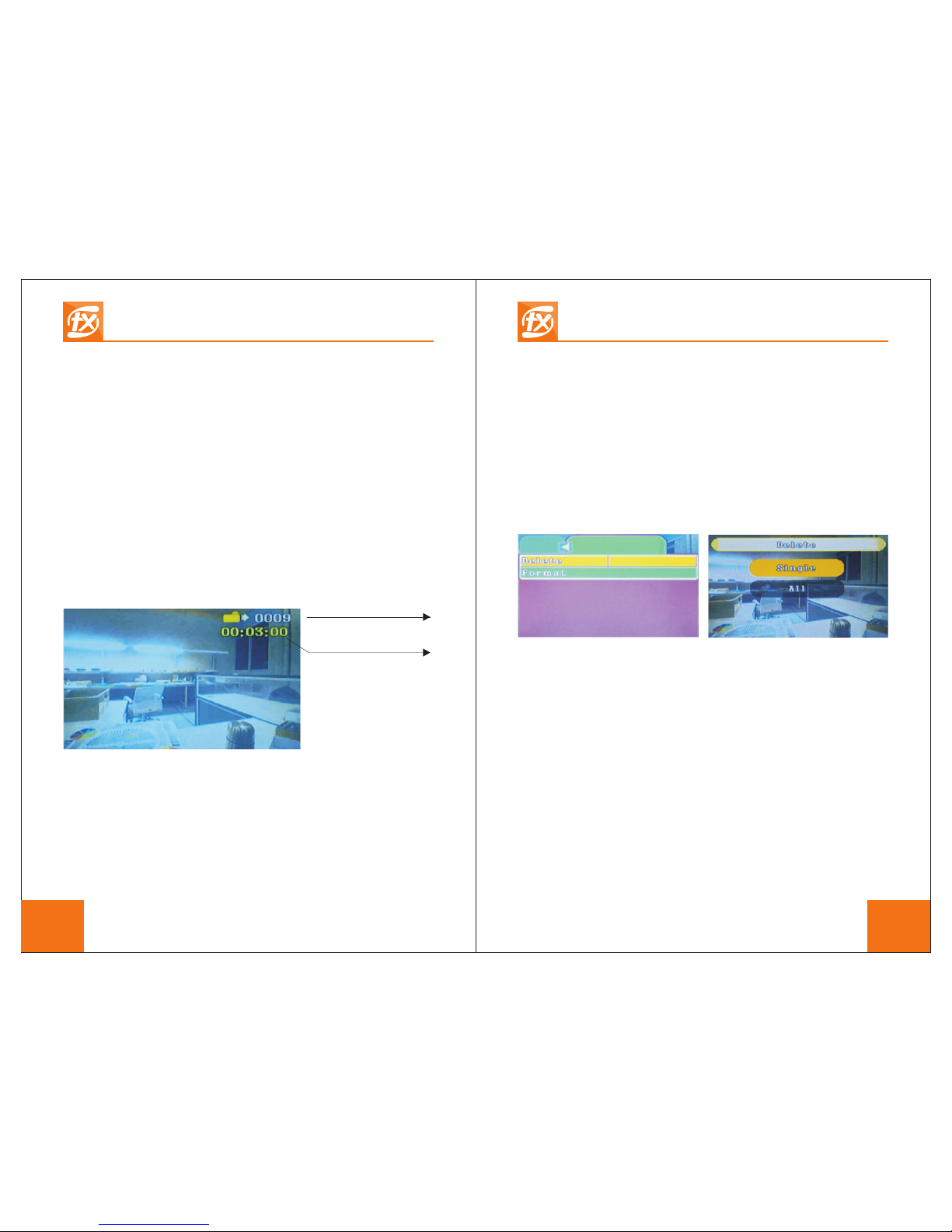
3).DVR mode
How to play recorded vid eo:
Press forw ard /up j oystick(or long press r eco rd bu tto n) to enter
DVR mod e,i t wil l sho w previously recorded v ide o,y ou ca n use
joyst ick t o sel ect t he video and press record b utt on to p lay (and
stop) the vi deo .
Rec orded v ideo na me
Rec orded v ideo ti me
How to delete recorded v ideo:
After vide o pla yin g,single press down joy sti ck to e nte r video
manag eme nt mo de, press left joystick to sw itc h ite ms, you can
delet e or fo rma t mic ro SD card(below pictur e 1), sin gle p ress
down jo yst ick t o del ete single video or all vid eo( bel ow im age
2),pr ess r eco rd bu tton/confirm button o nce y ou ca n del ete single
video o r all v ide os.
Pictu re 1 Pictu re 2
How to record video:
Durin g DVR m ode ,pr ess backward joystick t o pre par e vid eo
recor din g,s ing le press record button to s tar t vid eo re cording,and
singl e pre ss re cor d button to stop video reco rdi ng, it wi ll save
previ ous v ide o as AVI fi le.
FXT Marvel Vision II 5.8GHz Diversity Goggle FXT Marvel Vision II 5.8GHz Diversity Goggle
7 8
Notes :Du rin g DVR w orking mode,default m ode i s vid eo
manag eme nt mo de fo r playing video or deleti ng vi deo (th e other
mode is r eco rdi ng mo de),press left/righ t joy sti ck to s witch
betwe en vi deo s or it ems,press record butt on to c onf irm y our
choic e,p res s bac kward joystick to switc h bet wee n vid eo
manag eme nt mo de an d recording mode.
If you do not wa nt to d ele te any videos,press bac kwa rd jo yst ick
to exit vide o man age ment mode.
Page 6
FXT Marvel Vision II 5.8GHz Diversity Goggle FXT Marvel Vision II 5.8GHz Diversity Goggle
9
10
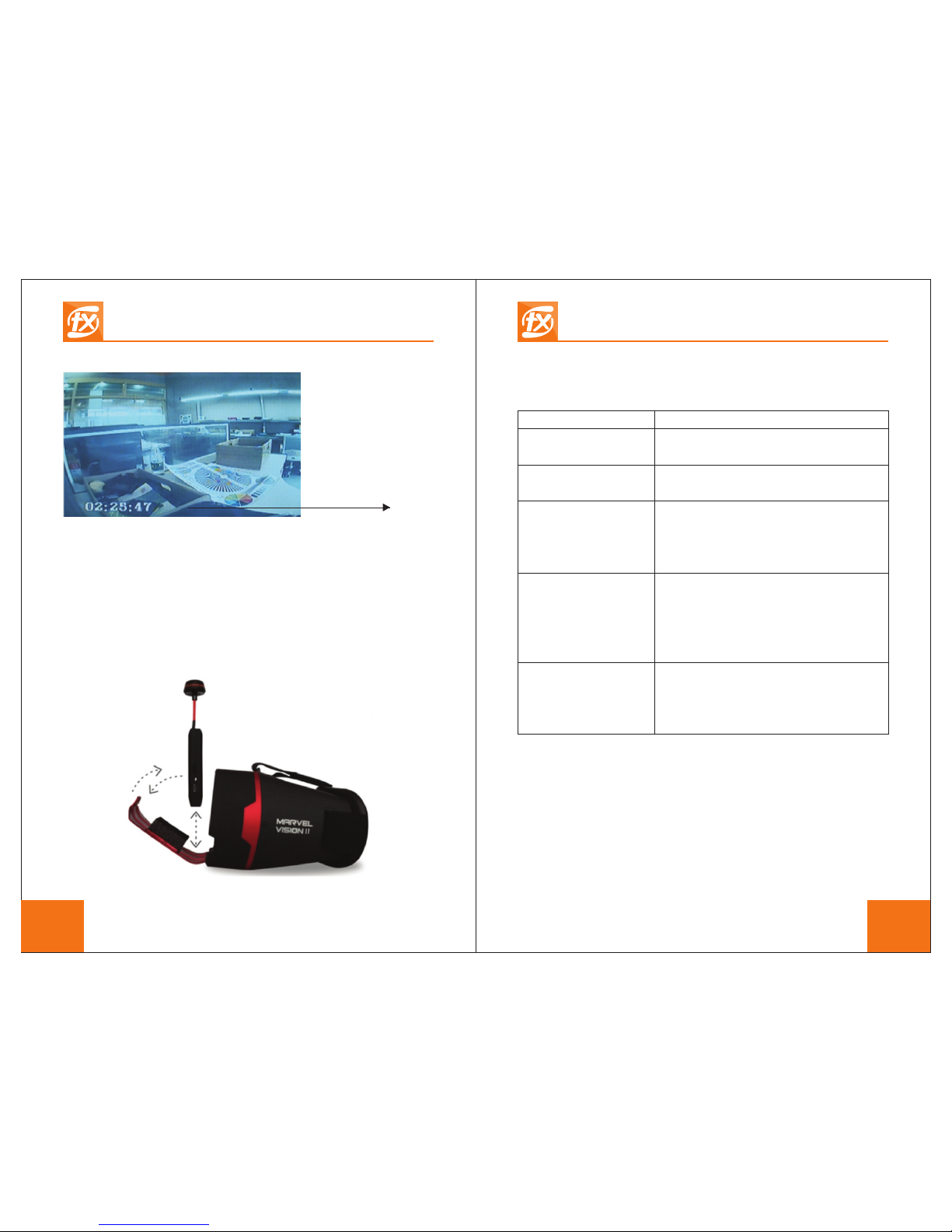
Maximum recording time
of micro SD card
4).HD MI mo de
After powe rin g on an d connected to the HDMI dev ice ,pr ess
forwa rd/ up jo yst ick to enter HD IN mode,it wi ll di spl ay hi gh
defin iti on vi deo a utomatically,if no digital video si gna l inp ut,it
will sh ow bl ue sc ree n.
5.Assembly Instruc tions
6.Trouble Shooting
Obser vat ion
Possi ble C aus e/S olution
No image,display is
completely dark
No power supplied.Check power
connections.
Poor image,dark or not
enough contrast
Using joystick to adjust display(brightness,
contrast etc) via setting
Lots of interference lines
-Check to see if cause is harmonic
interference from 2.4GHz remote
control(turn radio on/off).
-Check correct frequency antenna is used
-Choose a cleaner channel
Short range
-Ensu re co rre ct an tennas are installed
-Chec k for o the r sou rces of
interfer enc e
-Ensu re tr ans mit ter has clear LOS to
heads et. Test in wide open a rea ,
away from an y obs tru ctions
HDMI doesn’t work
-Incorrect working mode.Please switch to
HDMI working mode via press forward
joystick
-Faulty HDMI cable/adapters
-Check HDMI connections
 Loading...