

Page 1
User Manual
Skyus-E IoT Appliance
TM
Installation, Configuration, and Management
Page 2

Skyus-E User Manual
Preface
Copyright
Copyright © 2015 Feeney Wireless LLC (FW), a Novatel Wireless company. All rights reserved.
This document may not be copied in part or otherwise reproduced without prior written consent from Feeney
Wireless except where specifically permitted under US and International copyright law.
Disclaimer
The information in this document is subject to change without notice. Feeney Wireless (“FW”) assumes no
responsibility for inaccuracies or omissions and specifically disclaims any liabilities, losses, or risks, personal or
otherwise, incurred as a consequence, directly or indirectly, of the use or application of any of the contents of this
document. For the latest documentation, contact your local supplier or visit us online at www.feeneywireless.com
This publication may contain examples of screen captures and reports used in daily operations. Examples may
include fictitious names or individuals and companies. Any similarity to names and addresses of actual businesses or
persons is entirely coincidental.
.
Patents and Trademarks
The Skyus-E incorporates technologies covered under U.S. Patents 8,706,104, 8,670,897, and other patents pending.
Feeney Wireless and the FW logo are trademarks of Feeney Wireless LLC. Skyus, Skyus 3G, Skyus 4G, Skyus Global,
Skyus-E, CIRA, CIRA X, CIRA X2, Crossroads, and Axiom are trademarks of Feeney Wireless LLC. VaraSight and the
VaraSight logo are trademarks of Feeney Wireless LLC.
Other trade names used in this document may be trademarks or registered trademarks of the manufacturers or
vendors of the respective products.
Intended Use
Use this product only for the purpose it was designed for; refer to the datasheet and user documentation. For the
latest product information, visit us online at www.feeneywireless.com
.
Open Source Software
This product contains software distributed under one or more open source licenses, including: GNU General Public
License Version 2, NetBSD Foundation License, and PSF License Agreement for Python 3.1.1. For more information
on this software, including licensing terms and your rights to access source code, see
Software Licenses or contact Feeney Wireless at www.feeneywireless.com.
Document Number: 25-52-002-10 (Revision A)
Appendix C: Open Source
1
Page 3

Skyus-E User Manual
Contents
Overview ....................................................................................................................................................................................................................... 4
Intended Audience .............................................................................................................................................................................................. 4
Scope......................................................................................................................................................................................................................... 4
Specifications ......................................................................................................................................................................................................... 5
Block Diagram ....................................................................................................................................................................................................... 6
Installation .................................................................................................................................................................................................................... 6
Installation Summary .......................................................................................................................................................................................... 6
Package Contents ................................................................................................................................................................................................ 7
Hardware Installation ......................................................................................................................................................................................... 8
Installing the Skyus Modem (Optional) .................................................................................................................................................. 8
Installing the Mounting Plate..................................................................................................................................................................... 9
Connecting Antennas ................................................................................................................................................................................ 10
Connecting to the LAN .............................................................................................................................................................................. 11
Connecting Power ....................................................................................................................................................................................... 11
Power LED ................................................................................................................................................................................................... 11
Verifying the Connections ........................................................................................................................................................................ 11
Activity LED ................................................................................................................................................................................................ 12
Signal Strength LEDs .............................................................................................................................................................................. 12
Resetting the Skyus-E ...................................................................................................................................................................................... 12
Skyus-E Administration Interface ..................................................................................................................................................................... 13
Skyus-E Default Settings ................................................................................................................................................................................. 13
Logging In ............................................................................................................................................................................................................ 13
Remote Access to the Skyus-E Interface ............................................................................................................................................. 14
Skyus-E Banner .............................................................................................................................................................................................. 15
Status ..................................................................................................................................................................................................................... 15
Dashboard ...................................................................................................................................................................................................... 16
Cellular ............................................................................................................................................................................................................. 18
Statistics ........................................................................................................................................................................................................... 19
System .............................................................................................................................................................................................................. 20
Configuration ...................................................................................................................................................................................................... 21
Network ........................................................................................................................................................................................................... 22
Creating Firewall Rules .......................................................................................................................................................................... 24
2
Page 4

Skyus-E User Manual
Contacting FW ......................................................................................................................................................................................................... 40
Creating Port Forwarding Rules ......................................................................................................................................................... 27
Creating Routing Rules .......................................................................................................................................................................... 30
APN .................................................................................................................................................................................................................... 31
GPO/IGS ........................................................................................................................................................................................................... 32
Crossroads ...................................................................................................................................................................................................... 34
Connection ..................................................................................................................................................................................................... 35
Administration ................................................................................................................................................................................................... 36
User.................................................................................................................................................................................................................... 36
Settings ............................................................................................................................................................................................................ 37
Firmware ......................................................................................................................................................................................................... 38
System Logging ................................................................................................................................................................................................. 39
Online Library ..................................................................................................................................................................................................... 40
FCC Compliance ...................................................................................................................................................................................................... 41
Appendix A: Troubleshooting ........................................................................................................................................................................... 42
Appendix B: Mounting Plate Template .......................................................................................................................................................... 44
Appendix C: Open Source Software Licenses .............................................................................................................................................. 45
The MIT License (MIT) ...................................................................................................................................................................................... 45
Linux Kernel Copyright Note ........................................................................................................................................................................ 45
GNU GENERAL PUBLIC LICENSE ................................................................................................................................................................... 45
Preamble ......................................................................................................................................................................................................... 45
TERMS AND CONDITIONS FOR COPYING, DISTRIBUTION AND MODIFICATION ................................................................. 46
NO WARRANTY ............................................................................................................................................................................................. 49
OpenSSL Cryptography and SSL/TLS Toolkit License ......................................................................................................................... 49
LICENSE ISSUES ............................................................................................................................................................................................. 49
OpenSSL License .......................................................................................................................................................................................... 49
Original SSLeay License ............................................................................................................................................................................. 50
zlib General Purpose Compression Library Version 1.2.8 License .................................................................................................. 51
JsonCPP C++ Library License ........................................................................................................................................................................ 51
WebSocket++ Version 0.5.1 .......................................................................................................................................................................... 52
Boost Software License - Version 1.0 - August 17th, 2003 ................................................................................................................ 52
rapidjson Parser/Generator for C++ License .......................................................................................................................................... 53
3
Page 5
Skyus-E User Manual
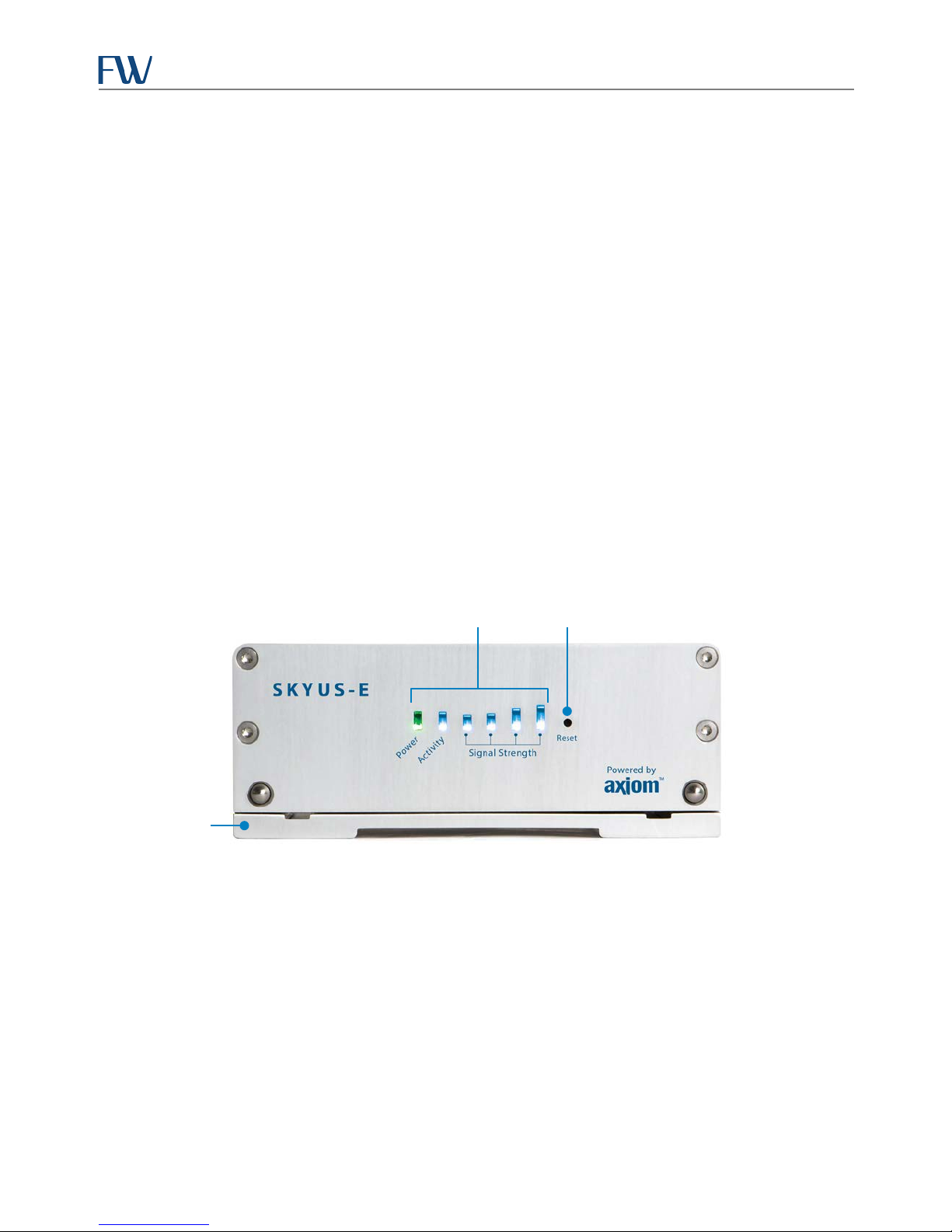
Mounting Plate
Reset
Overview
The Skyus-E IoT Appliance simplifies the effort of implementing wireless connectivity in “Internet of Things” (IoT)
networks. Built on FW’s proven Skyus cellular modem technology, the Skyus-E provides a standard Ethernet interface
for easy connection to customer devices.
The Skyus-E’s rugged, compact aluminum body and its ease of installation make it perfect for deployment in a wide
variety of IoT applications, including kiosks, digital signage, ATMs, and many others. Powered by FW’s own Linux
implementation, Axiom, the Skyus-E is capable of supporting nearly any FW Skyus module. With Axiom you get rapid
connections, integrated connection management, and robust watchdog logic. Skyus-E features include:
• Operation on all major US carrier networks
• 4G LTE support on all major US carriers
• Modular design allows you to swap between Skyus carrier radio modules
• Standard Ethernet connection (LAN) to customer devices
• LED status indicators for power, activity, and signal strength
• Skyus-E Administration Interface for system configuration and monitoring
• Integration with Crossroads IoT application framework
• Powered by the Axiom field data processing framework
• Future functionality and features in firmware updates
LEDs Button
Figure 1: Skyus-E Front Panel
Intended Audience
This document is intended for users responsible for the configuration and management of the Skyus-E and assumes
the user possesses a basic working knowledge of computer networking, wireless routing, and network
administration.
Scope
This manual provides in-depth information about Skyus-E installation, configuration, and management. See the
Skyus-E Quick Start Guide for quick installation and configuration information.
4
Page 6

Skyus-E User Manual
Specifications
Hardware
Input Voltage
Power Consumption
Environmental
Construction Rugged aluminum housing
Dimensions 5” (W) x 2” (H) x 5” (D) - Approximate, includes mounting plate
Weight
Mounting Tool-free mounting of Skyus-E to mounting plate (sold separately)
Data Interface
Antenna Connections
LEDs
Upgrade Kit Skyus-E upgrade kit for easy installation of existing Skyus modules.
• 9-36V DC, AC/DC adapter
• Typical*: 12V @ 0.32A (3.84W)
• Max: 12V @ 1.56A (18.75W)
• Low Power: 8V @ 0.02A (0.16W)
(* 3G module running Skyus-E Interface with Internet activity)
• Operating Temperature: -20°C to 60°C (-4°F to 140°F)
• Storage Temperature: -40°C to 85°C (-40°F to 185°F)
• Skyus-E: 0.554 kg (1.20 lbs)
• Mounting Plate: 0.249 kg (0.55 lbs)
One 10/100 Ethernet, RJ-45 (Ethernet switch recommended for expansion, if
needed)
• Primary Cellular: 50 Ohm SMA (SubMiniature version A) female
• MIMO if 4G LTE, Receive Diversity if 3G – 50 Ohm SMA female
Power x1, Activity x1, Signal Strength x4. Signal LED color shows cellular connection
type: Blue– 4G, Green–3G, Amber–2G, No lights–No Connection.
Cellular
Technologies
Carriers Sprint, Verizon, AT&T, T-Mobile
Bands
Multi-Carrier Support
Standards/Approvals FCC Part 15, Class B
Software
Operating System
Security
Protocols TCP/IP, UDP/IP, DHCP, HTTP
LTE with fallback to HSPA+, HSPA, UMTS, EDGE, GPRS, EVDO, 1xRTT (depending on
the Skyus module used)
See the Skyus Specification Sheet
not supported.)
Skyus 4G LTE embedded modem kit (Verizon, T-Mobile, AT&T) uses softwareswitchable radio technology for multi-carrier support.
AXIOM integrated connection management – FW embedded Linux image enables
rapid addition of functions, features, and carrier support.
Integrated onboard routing, Network Address Translation (NAT), and firewall
module
for modem-specific information. (Skyus Global
5
Page 7
Skyus-E User Manual
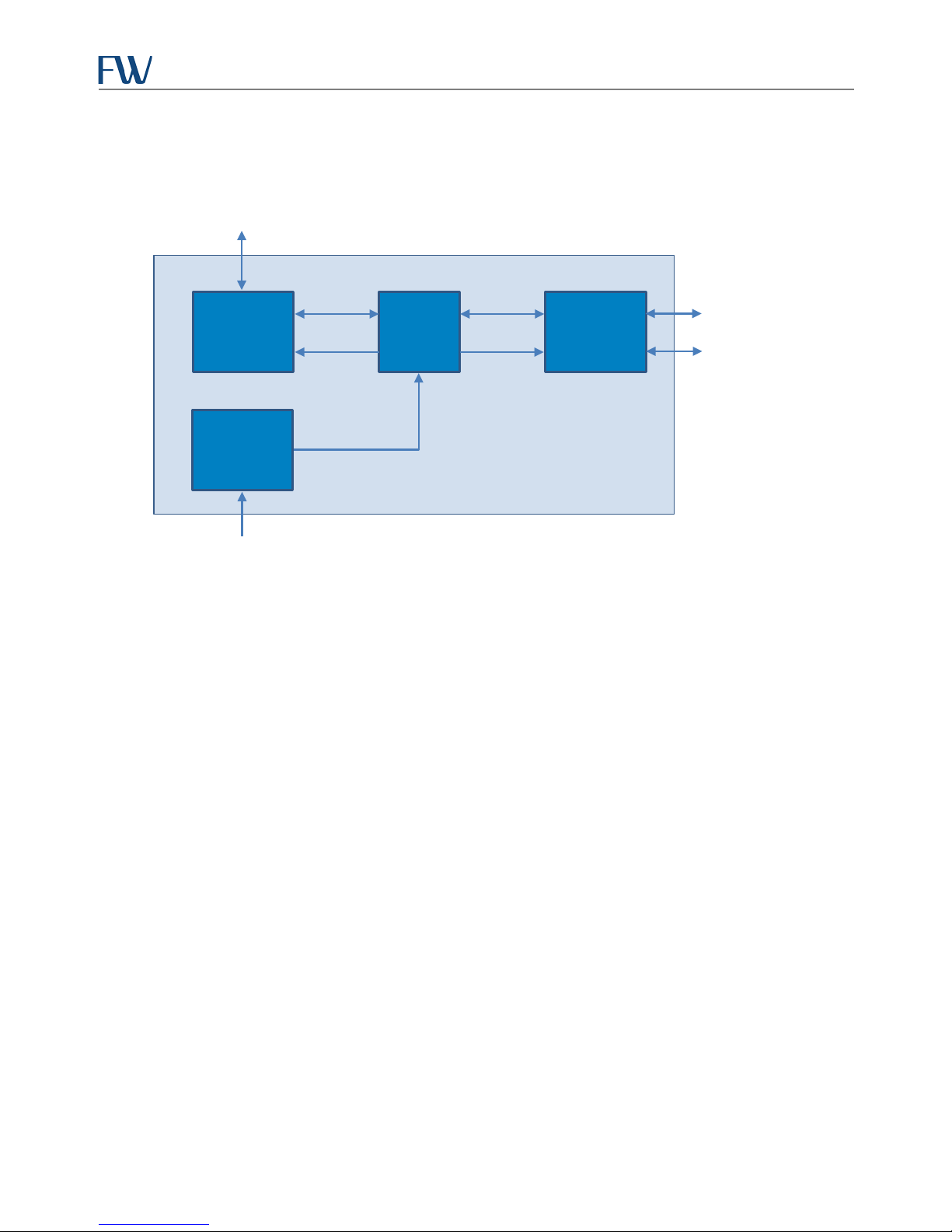
USB Data
Primary Antenna
10/100 Ethernet
Skyus-E
USB Data
DC Input
Block Diagram
(LAN)
Processing
Module
Power
Regulation
5V 1A
System
Module
Figure 2: Skyus-E Block Diagram
5V 2A
Skyus
Module
Secondary Antenna
Installation
The following sections describe the installation and initialization of the Skyus-E. Whether your Skyus-E is shipped
with a Skyus cellular modem installed or you are installing an existing Skyus modem in the Skyus-E appliance, these
instructions assume that the Skyus modem is already activated and provisioned.
Installation Summary
• Inspect the package contents and compare against the packing list.
• (Optional) Install your existing Skyus modem in the unit if necessary.
• Install the Skyus-E mounting plate and mount the unit to the plate.
• Connect the antennas.
• Connect the Skyus-E to the LAN or desired device using the an Ethernet cable.
• Connect power.
• Verify the WAN connection.
• Verify the LAN connection.
• Recommended: Change the default password.
6
Page 8

Skyus-E User Manual
Package Contents
Package contents depend on the configuration ordered. Compare the contents with the packing list. If any items are
missing or damaged, contact FW support.
Item Type Description
Skyus-E Included Skyus-E IoT Appliance
Power Supply Included
Mounting Plate Accessory Skyus-E mounting plate
Antenna(s) Accessory FW offers several antennas that meet the Skyus-E antenna specifications
Ethernet Accessory 5’ Ethernet cable, RJ-45 to RJ-45
Skyus Module Accessory
Power supply options include: AC/DC, DC/DC (bare wire or auto accessory
plug), commercial or industrial temperature
Skyus Cellular Modem (included in many Skyus-E configurations); see the
Skyus Specification Sheet for models
7
Page 9
Skyus-E User Manual
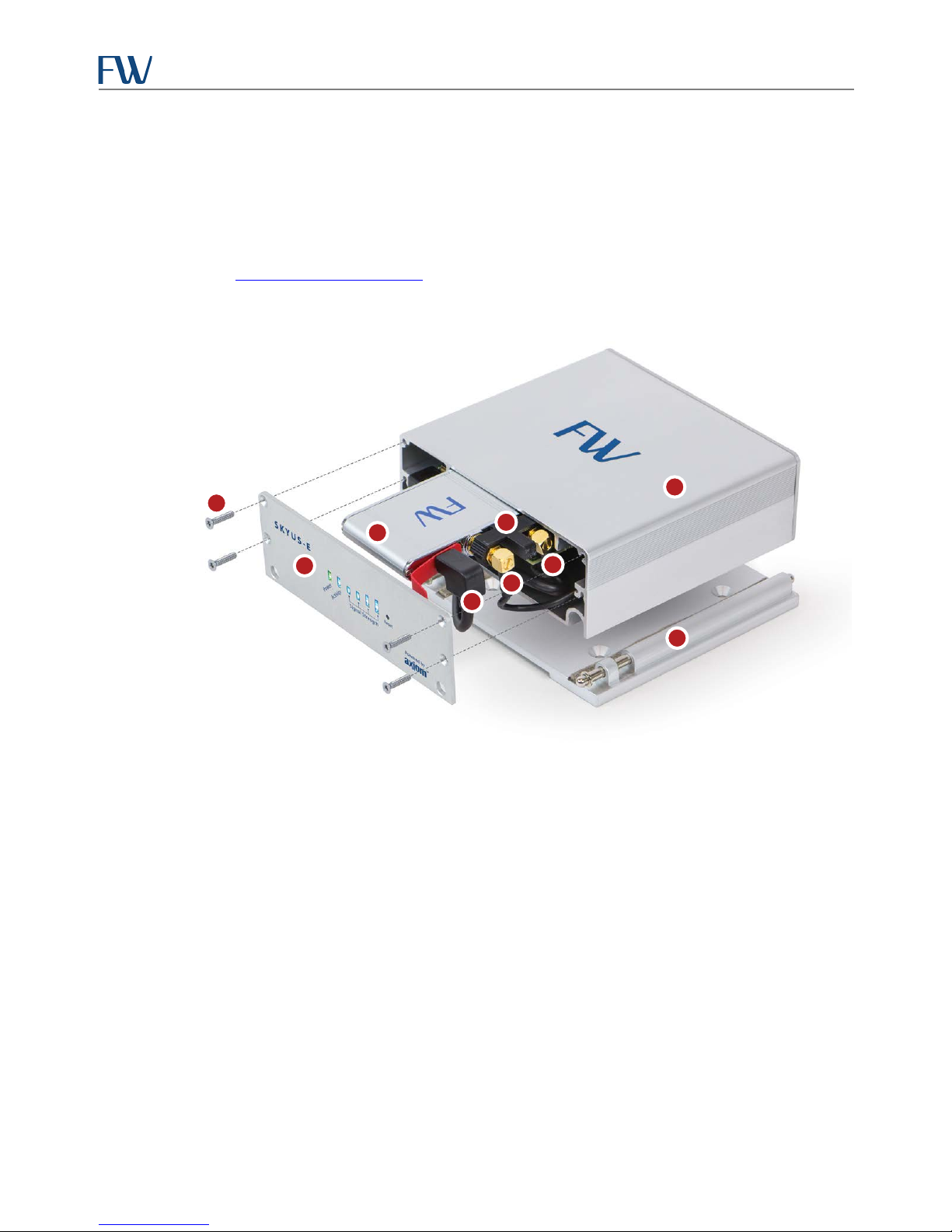
1. Faceplate Screws x4
1 2 3 4 6 7 5 9 8
Hardware Installation
Perform the hardware installation steps described in the following sections.
Installing the Skyus Modem (Optional)
Perform this step only if your Skyus-E was shipped to you without a modem. If your Skyus-E is equipped with a
modem, proceed to “Installing the Mounting Plate
order to install a Skyus radio module.
2. Faceplate
3. Skyus Radio Module
4. USB
5. Antenna Cable Clip
6. Secondary Antenna
7. Primary Antenna
8. Skyus-E Enclosure
9. Mounting Plate
.” The figure below shows how to access inside of the Skyus-E in
1. Remove the Skyus-E from the mounting plate if it is attached.
2. Access the inside of the Skyus-E by removing the four screws securing the faceplate using a T9 Torx driver.
3. Locate the USB and antenna cables inside the Skyus-E enclosure. Plug the Mini B Male USB connector into
the Skyus.
4. Connect both SMA antenna cables to the Skyus. Finger-tighten the connectors only; do not use a torque
wrench.
Important: The shorter cable labeled FW8163-A is the Primary antenna cable and attaches to the
outermost antenna connector on the Skyus module. The longer cable labeled FW7837-A is the
Secondary antenna cable and attaches to the innermost antenna connector on the Skyus module
5. After connecting the antenna cables, snap the provided retaining clip into place over both connectors.
6. Slide the Skyus module into the modem compartment, carefully tucking in the cables so that they do not
extend beyond the opening of the Skyus-E enclosure.
7. Replace the faceplate.
8
Figure 3: Skyus Modem Installation
Page 10
Skyus-E User Manual
Installing the Mounting Plate
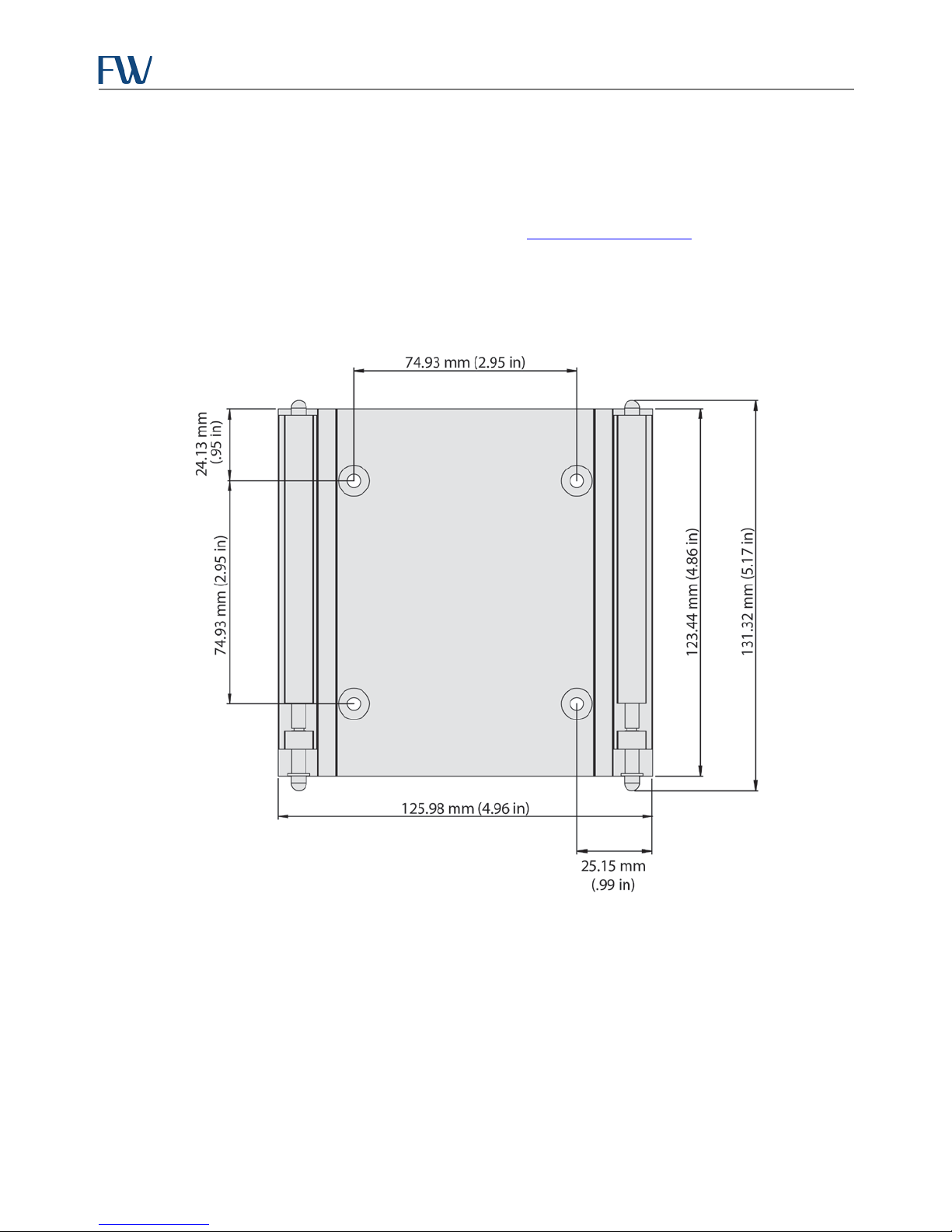
The Skyus-E attaches easily to the mounting plate (sold separately). The figure below shows the dimensions and
mounting hole locations of the plate. The mounting hardware you use will depend on the requirements of your
enclosure. Countersunk bolts or screws may be used. Appendix B “Mounting Plate Template
” provides a full-scale
template you can print and use to mark the screw hole positions.
Note: The mounting plate hole spacing supports mounting to a monitor or TV using VESA standard 75 mm
hole spacing if the appropriate screws are used.
9
Figure 4: Mounting Plate Dimensions (Not to scale.)
Page 11
Skyus-E User Manual
Primary Antenna
Receive Diversity or
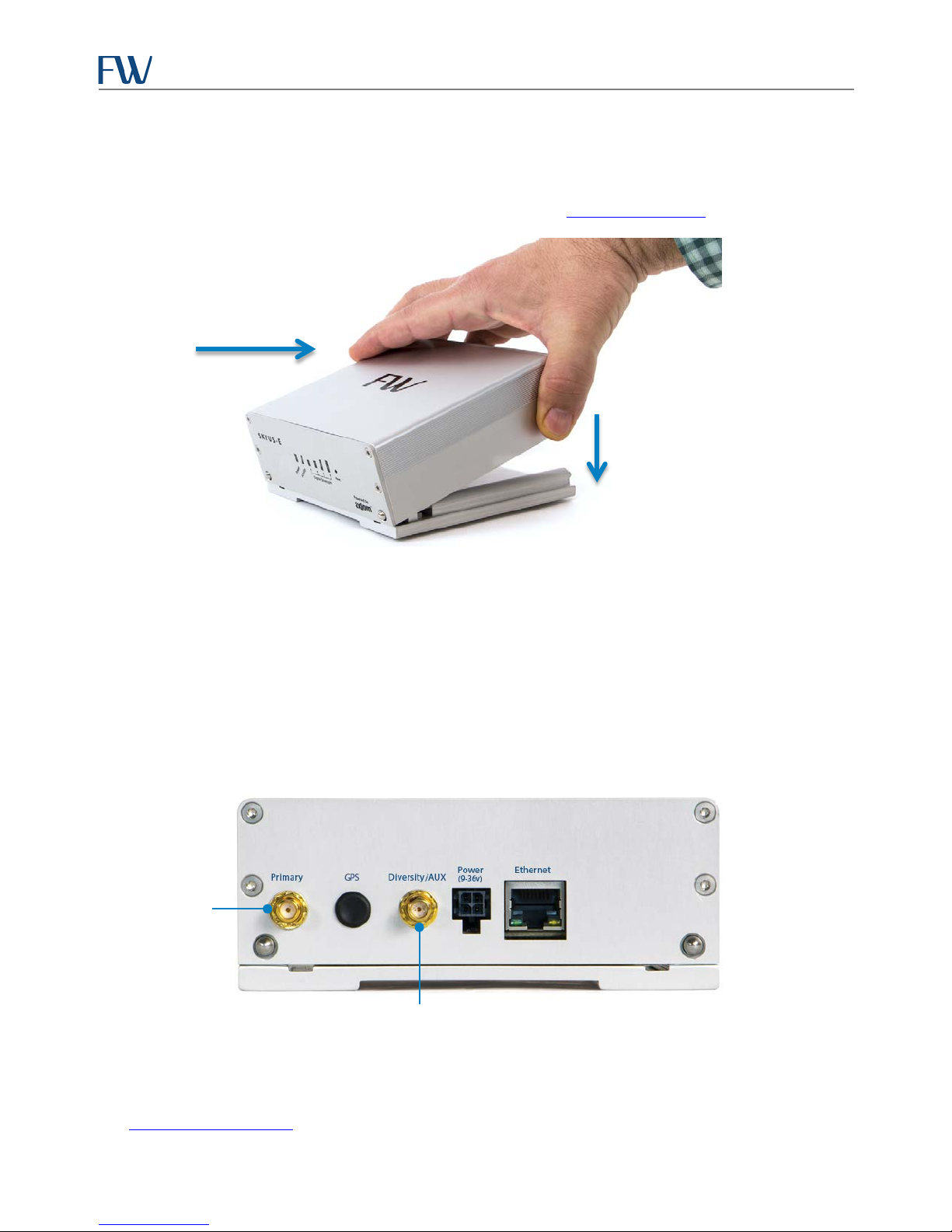
The Skyus-E is mounted to the plate by placing the front or back edge of the Skyus-E over the spring-loaded pins,
pulling to compress the pins, and dropping the opposite edge down over the fixed pins, as shown below. A how-to
video on attaching the Skyus-E to the mounting plate is available on the Skyus-E Product Page
on the FW website.
Figure 5: Attaching the Skyus-E to the Mounting Plate
Connecting Antennas
If you have questions about the appropriate cellular antennas for your Skyus-E, contact your FW representative.
Antennas should be located at least 20 mm from any person. When using multiple separate antennas for MIMO or
Receive Diversity, they should optimally be separated from each other by at least 20 mm.
Connect the primary cellular antenna to the SMA connector on the back panel labeled Primary. A second antenna
can be attached to the SMA connector labeled Diversity/AUX. This connector is used for Receive Diversity for 3G
connections or multiple-input and multiple-output (MIMO) for 4G LTE connections.
The cellular bands on which your Skyus-E operates depends on the Skyus cellular modem installed in the system. See
the “Skyus Specification Sheet
“ for modem-specific information.
10
MIMO Antenna
Figure 6: Antenna Connections
Page 12
Skyus-E User Manual
9-36V In
Ground
1 2
Connecting to the LAN
Connect a standard RJ-45 Ethernet cable into the connector labeled Ethernet on the back of the Skyus-E. Connect
the other end of the cable to your host computer, switch, or separate router.
Connecting Power
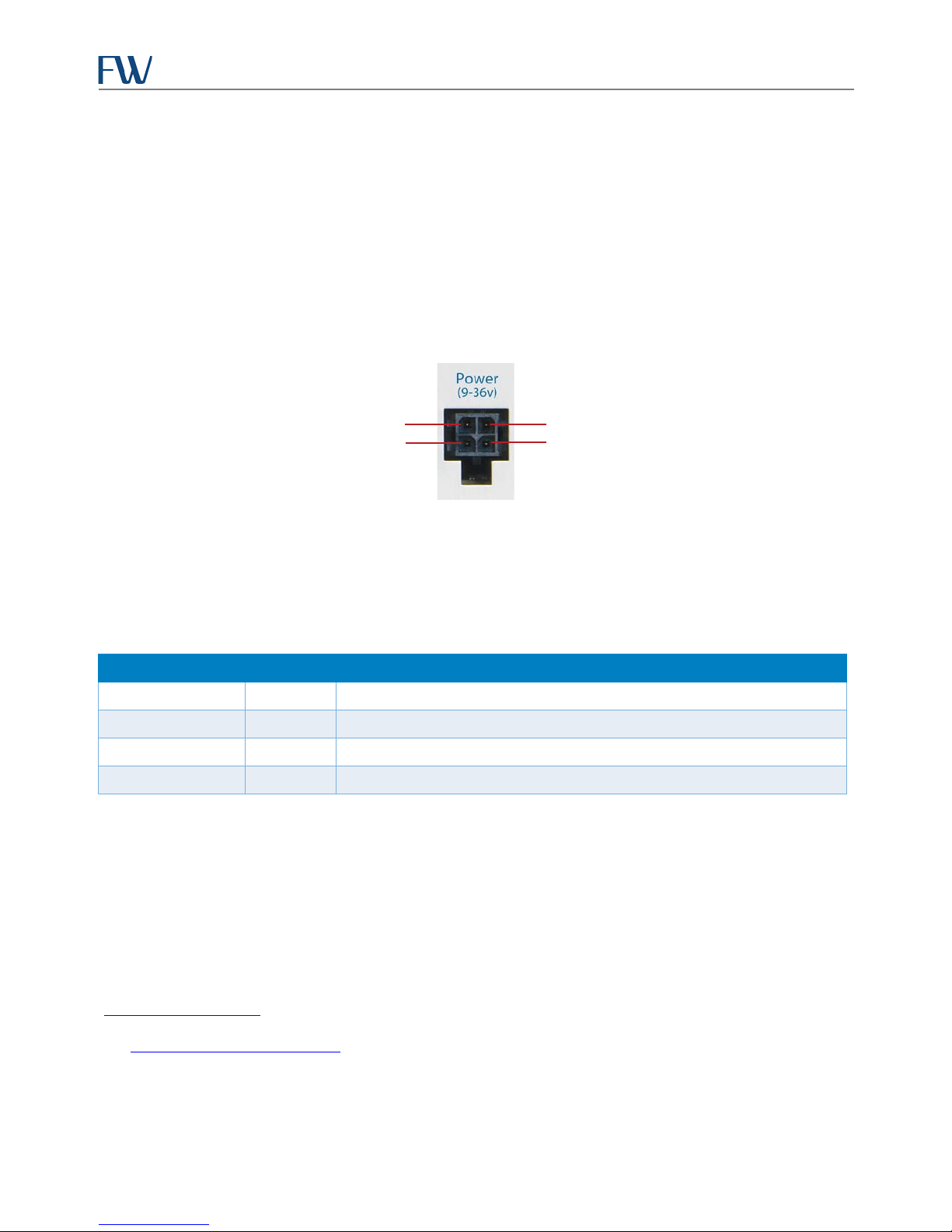
Attach an AC/DC or DC/DC power supply to the connector labeled Power (9-36v) (mating connector: Molex
43025-0400) on the back of the Skyus-E. Plug the other end of the adapter into the power source. Contact FW for
available power supply options. The pin assignments of the power connector are shown below. Refer to the power
specifications for operating and maximum allowed voltage ranges.
IGS (in)
3 4
GPO (out)
Figure 7: Power Connector Pin Assignments
Power LED
When power is applied, the Power LED on the front panel will flash green slowly until the boot process is complete.
During normal operation, the Power LED will flash green quickly. The following table describes the Power LED
modes.
LED Mode Color Description
Slow flashing Green System is booting
Quick flashing Green Power is applied, boot process is complete, normal operation
Solid Red System is in a non-recoverable unhealthy state
Flashing Red Over/under voltage or temperature condition
Verifying the Connections
Connection to the carrier should occur approximately 90-150 seconds after applying power. Connection time will
vary according to carrier network and signal strength. The Activity LED lights up with activity. The Signal Strength
LED array indicates the strength of the signal being received. The color of the LEDs depends on the connection type.
You can connect to the Skyus-E Interface via a Web browser to obtain more information about the connection status.
From a computer connected to the Internet, open a browser and enter the Skyus-E IP address in the address bar. The
login page of the utility displays the state, type, and up time of the connection, among other information. (See
“Skyus-E Default Settings
.“)
See “Skyus-E Administration Interface” for complete information on monitoring, configuring, and managing your
Skyus-E.
11
Page 13
Skyus-E User Manual
Reset Type
Button Press*
LED Flash Color
Description
Resets the system using the current settings. This is
similar to removing and reapplying power to the Skyus-E.
Factory Default
10 seconds
Red
Resets the system to the as-shipped settings.†
Activity LED
The Activity LED indicates both network activity and data usage. The following table describes the Activity LED
modes. Note that indication of monthly data plan used is dependent upon configuring your data usage thresholds in
the Skyus-E configuration. If this is not configured, the Activity LED will default to blue.
LED Mode Color Description
Intermittent flashing Green Skyus-E transferring data
Solid Blue 0-50% of the monthly data plan is used
Solid Green 51-85% of the monthly data plan is used
Solid Yellow 86-99% of the monthly data plan is used
Solid Red 100% of the monthly data plan is used
Signal Strength LEDs
The Signal Strength LED array indicates both the strength of the cellular signal and the type of connection. The
array follows the standard 1-4 bar signal strength scheme, with four bars indicating a strong signal. The following
table describes the Signal Strength LED modes.
LED Mode Color Description
1-4 bars lit Blue 4G connection
1-4 bars lit Green 3G connection
1-4 bars lit Amber 2G connection
0 bars lit — No connection
Resetting the Skyus-E
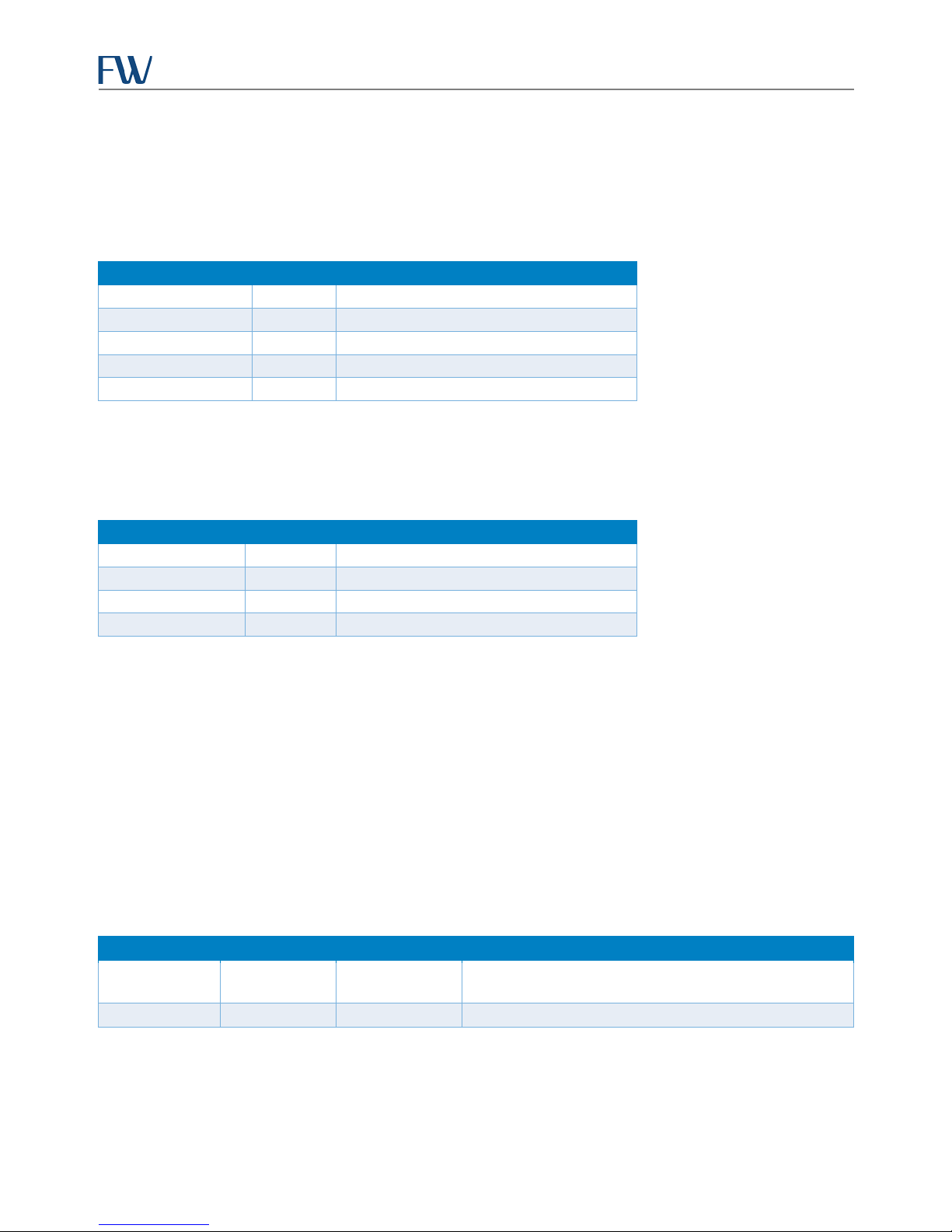
The Reset button on the Skyus-E front panel performs two different reset functions. The type of reset performed
depends on how long the button is held down. When the button is pressed and held down, the signal strength LEDs
will flash specific colors three times to indicate the type of reset that will be performed when the button is released.
CAUTION: Do not remove power to the Skyus-E or disconnect interface cables during a reset. Wait until the device is
fully reset and the connection has been reestablished. Failure to wait might compromise the device.
NOTE: The reset button is functional only when the Activity LED is lit. Pressing the reset button will have no effect
when the Activity LED is not lit.
To press the button, use a narrow tool such as a precision screwdriver or the end of a paperclip.
Soft 5 seconds Green
* Approximate duration of press.
† Does not reset firmware to factory settings. Any after-purchase firmware upgrades will remain intact.
After a reset, restart your browser to reload the Skyus-E Interface and ensure that the latest settings are displayed.
12
Page 14

Skyus-E User Manual
fwxxxxxx
Skyus-E Administration Interface
The Skyus-E Administration Interface is an all-purpose administrative tool that provides an intuitive Web interface for
monitoring, configuring, and managing the Skyus-E. From the interface you can check the status of your
connections to the WAN and LAN, view the status of the Skyus-E hardware, configure network and security settings,
add users , set permission levels, and create and view system logs, among other activities.
Supported browsers are Chrome, Opera, and Firefox. Use of Internet Explorer 10 or newer may result in less than
optimal interface performance.
Note: The screenshots depicted in the following sections are examples only. The actual data displayed
depends on the configuration and status of your Skyus-E.
Skyus-E Default Settings
The following table provides the default system settings you will need to access the Skyus-E Interface.
Parameter Default Setting
Skyus-E Local URL http://192.168.66.1
Username admin
Password
Local Port 80
Remote Port 8080
where xxxxxx is the last six digits of the MAC
address not including dashes or colons (shown
on the utility login page)
Logging In
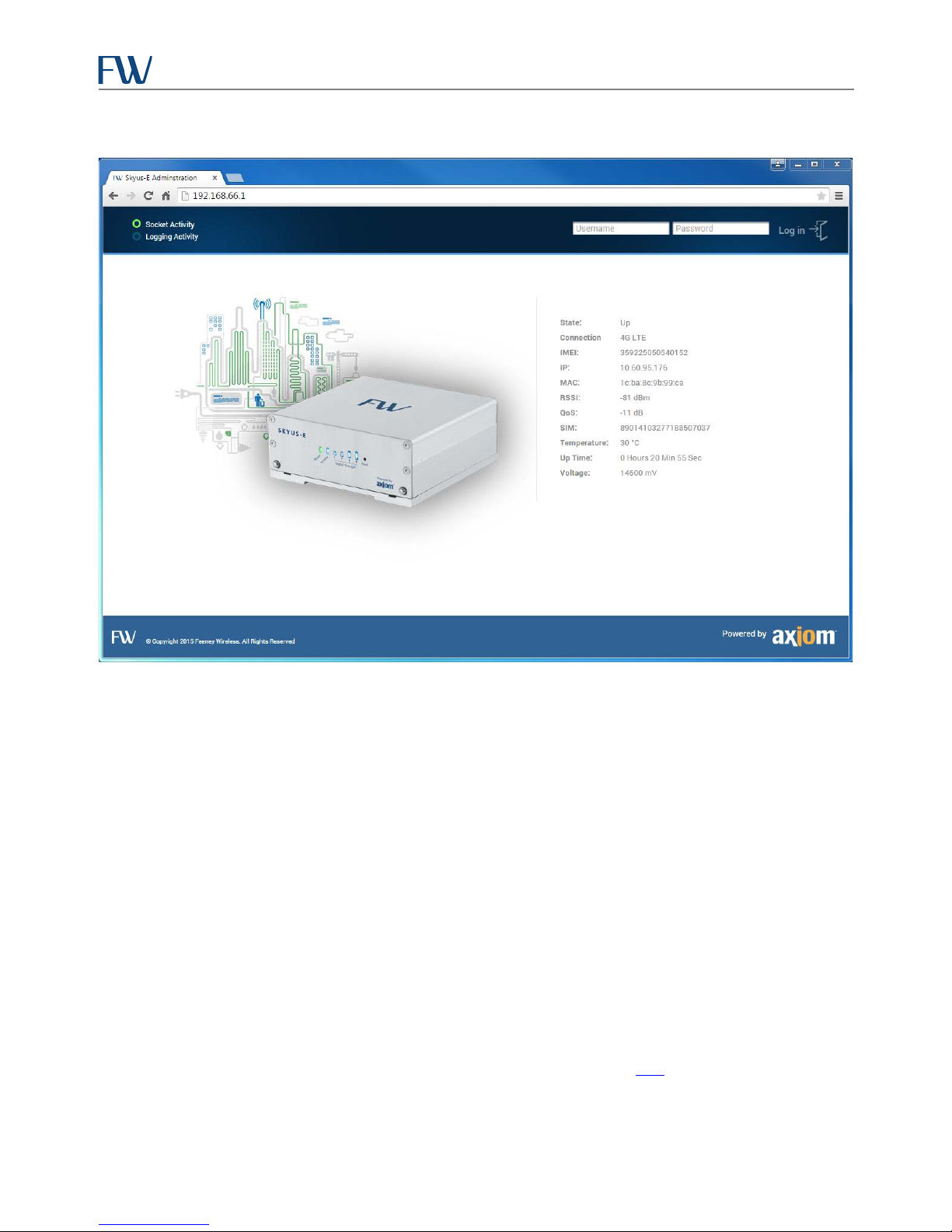
To log in to the Skyus-E Interface, open a browser on a computer connected to the Internet, and type the Skyus-E IP
address into the address bar. The interface login page displays, as shown below. A summary of the current status of
the Skyus-E appears on this page for quick reference.
13
Page 15
Skyus-E User Manual
Figure 8: Skyus-E Web Interface Login Screen
Enter the default username and password and click the Log in icon. The default username and password are:
Username: admin
Password: fwxxxxxx
Where xxxxxx is the last six characters of the MAC address (excluding separators). It is recommended that you change
the default password. The password can be changed on the Administration > User tab.
To log out, click the Log out icon on any page. The Skyus-E Interface will automatically log out after about 10
minutes of inactivity.
Remote Access to the Skyus-E Interface
The Skyus-E Interface can also be accessed remotely if your Skyus has been assigned a publicly routable IP address
from your cellular carrier. To access the Skyus-E remotely, the default port is 8080. Access the Skyus-E using the
following URL:
http://<IP assigned from your carrier>:8080
Note: The same user cannot be logged in on multiple devices. If your application requires multiple users to
manage the Skyus-E, you can add and manage users on the User tab (see “User
“).
14
Page 16
Skyus-E User Manual
Signal Signal Web
Logging
Skyus-E Banner
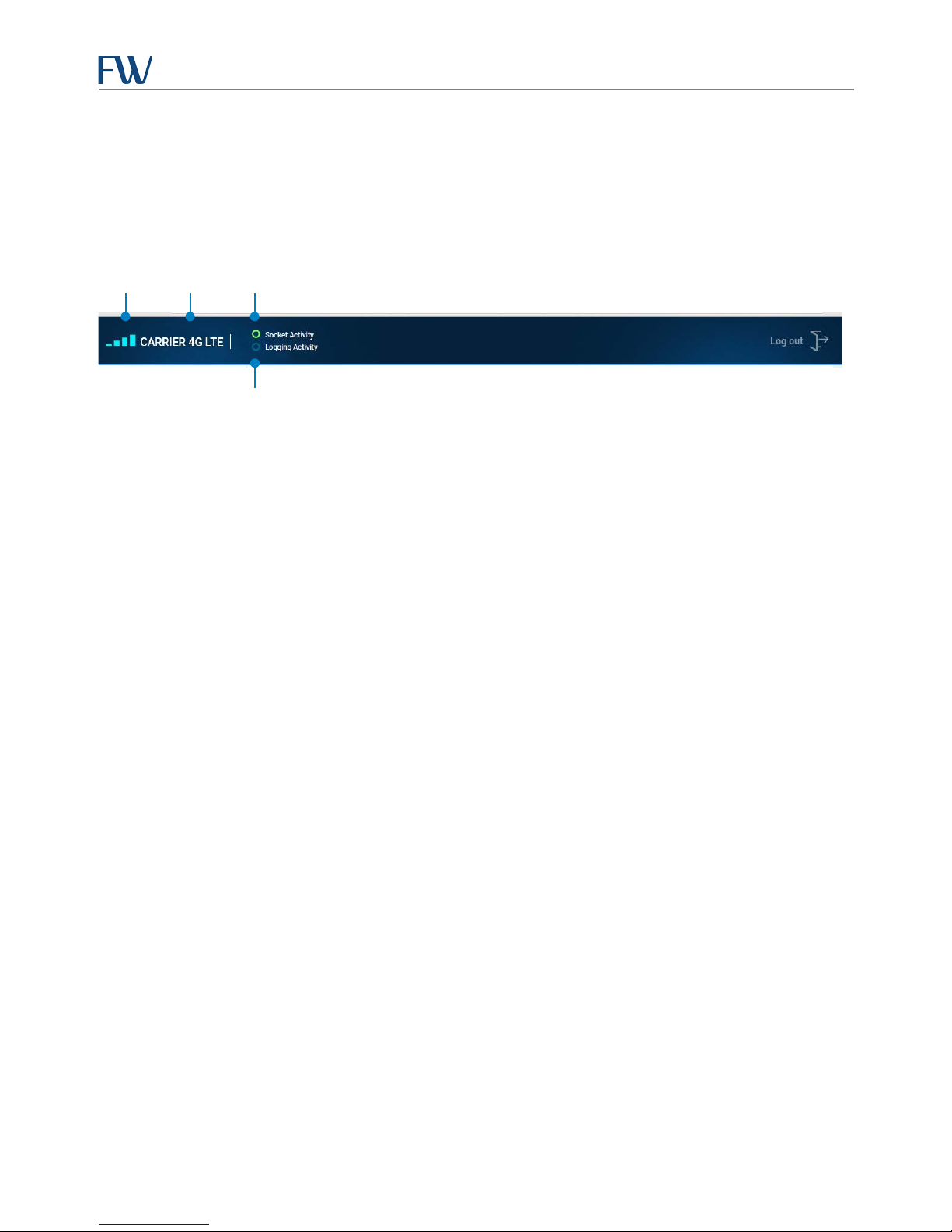
After logging in to the Skyus-E Interface, the banner will display connection information including: the signal type,
signal strength, and activity, as shown below.
Strength Type Activity
Figure 9: Skyus-E Interface Banner
• Signal Strength – This indicator matches the Signal Strength LEDs on the Skyus-E. The number of bars
indicates signal strength and the color indicates data usage.
• Signal Type – This is the name of the cellular carrier to which the Skyus-E is connected.
• Socket Activity – This indicator flashes with connection activity to the Skyus-E.
• Logging Activity – This indicator will be lit if the logging function of the Skyus-E has been turned on.
Status
The Status page provides information about the Skyus-E device, connection status and statistics, and the basic state
of the system.
To access this page, click Status in the navigation panel. Information on this page is organized under four tabs:
Dashboard, Cellular, Statistics, and System.
15
Page 17
Skyus-E User Manual
Alt Ping URL is successful.
to activate a Skyus with a cellular carrier.
and thus can be useful when creating MAC address filtering rules.
Dashboard
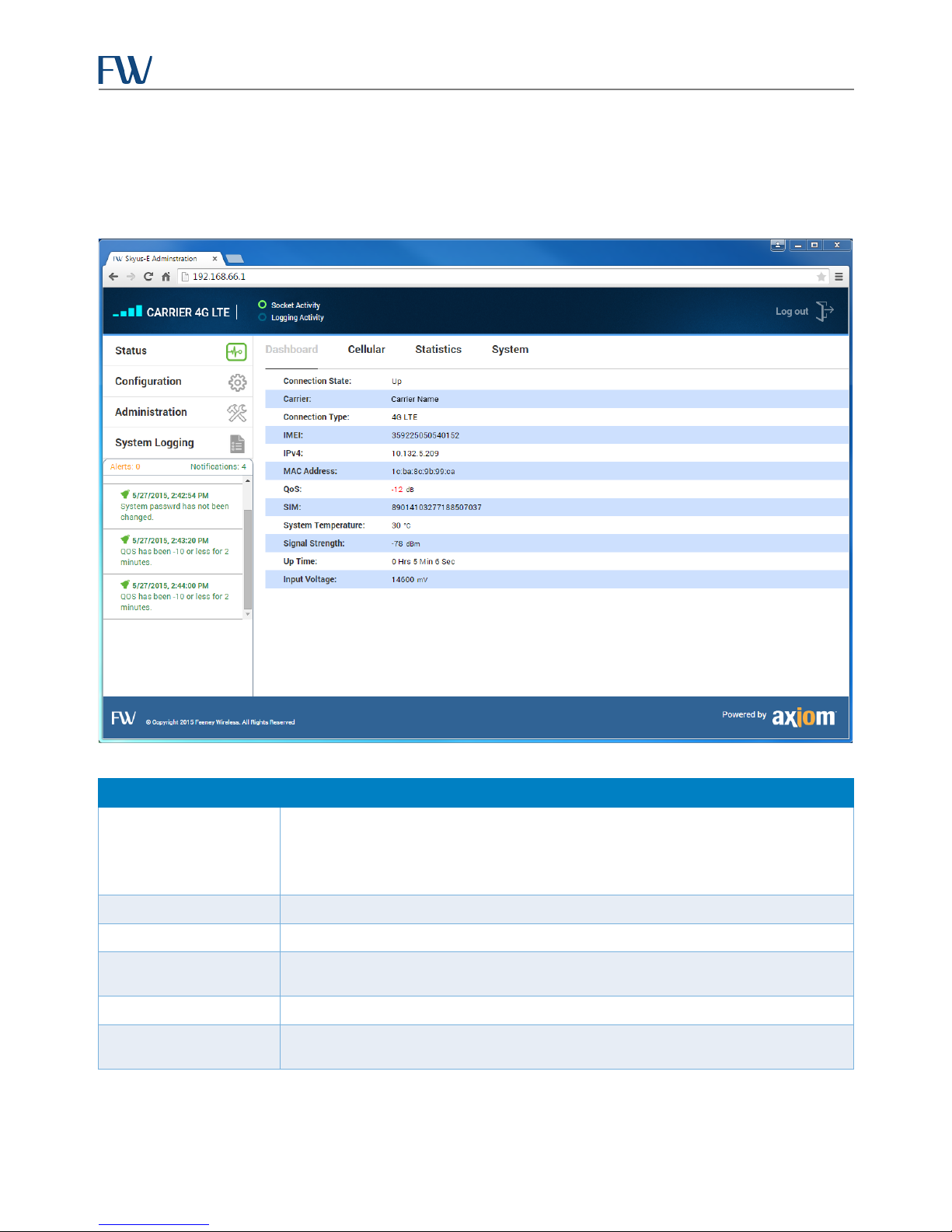
This tab provides a summary of Skyus-E status similar to the summary that appears on the login page. It also displays
any current alerts and notifications.
Figure 10: Dashboard Tab
Field Description
Values: Up, Down. Reports whether or not a connection to the cellular carrier is up or
Connection Status
down. The connection is reported as up if an IP address has been assigned and a ping
(ICMP) check to a URL or IP as configured under Network > Connection > Ping URL or
Carrier Name of the cellular carrier in use, such as AT&T, Sprint, T-Mobile, Verizon, etc.
Connection Type Type of cellular connection, such as 4G LTE and others.
IMEI
IMEI number of the Skyus radio module. The IMEI is often required when attempting
IPv4 WAN IP address of the Skyus-E when connected to a cellular data network.
MAC Address
MAC address of the Skyus-E Ethernet interface. A MAC address is a unique identifier
16
Page 18

Skyus-E User Manual
Field Description
QoS (Quality of Service)
SIM
Temperature Temperature of the Skyus radio module within the Skyus in degrees Celsius.
Signal Strength
Signal quality in dB. Quality of Service (QoS) is a measure of the quality of the cellular
signal as compared to interference and noise. Optimal values vary dependent on
cellular network type, but generally a value consistently less negative than -10 dB
indicates a lack of excessive noise or interference. The QoS value can be useful to refer
to when troubleshooting connection reliability issues, packet loss, or low bandwidth.
When QoS is consistently poor, the value is displayed in red.
Unique identification number of the SIM inserted into the Skyus, also referred to as an
ICCID. This identifier is often needed when activating a Skyus with your cellular
provider.
Strength of the cellular network signal in dBm. When connected to an LTE network
the value reported is the RSRP (Reference Signal Received Power) and when
connected to any other network type the value reported is the RSSI (Received Signal
Strength Indicator). This value is useful when troubleshooting coverage or connection
reliability and performance issues.
Up Time Total time the Skyus-E has been powered up since the last power cycle or reboot.
Voltage in mV (millivolts) detected at the Skyus-E power jack. The Skyus-E can
operate normally between 9-36V DC, which is equivalent to 9000 to 36000 mV DC.
Voltage
Note that in vehicle environments the Skyus-E can be configured to shut down at
voltages above the 9V minimum operating voltage threshold to protect the health of
the vehicle battery.
17
Page 19
Skyus-E User Manual
Alt Ping URL is successful.
Cellular
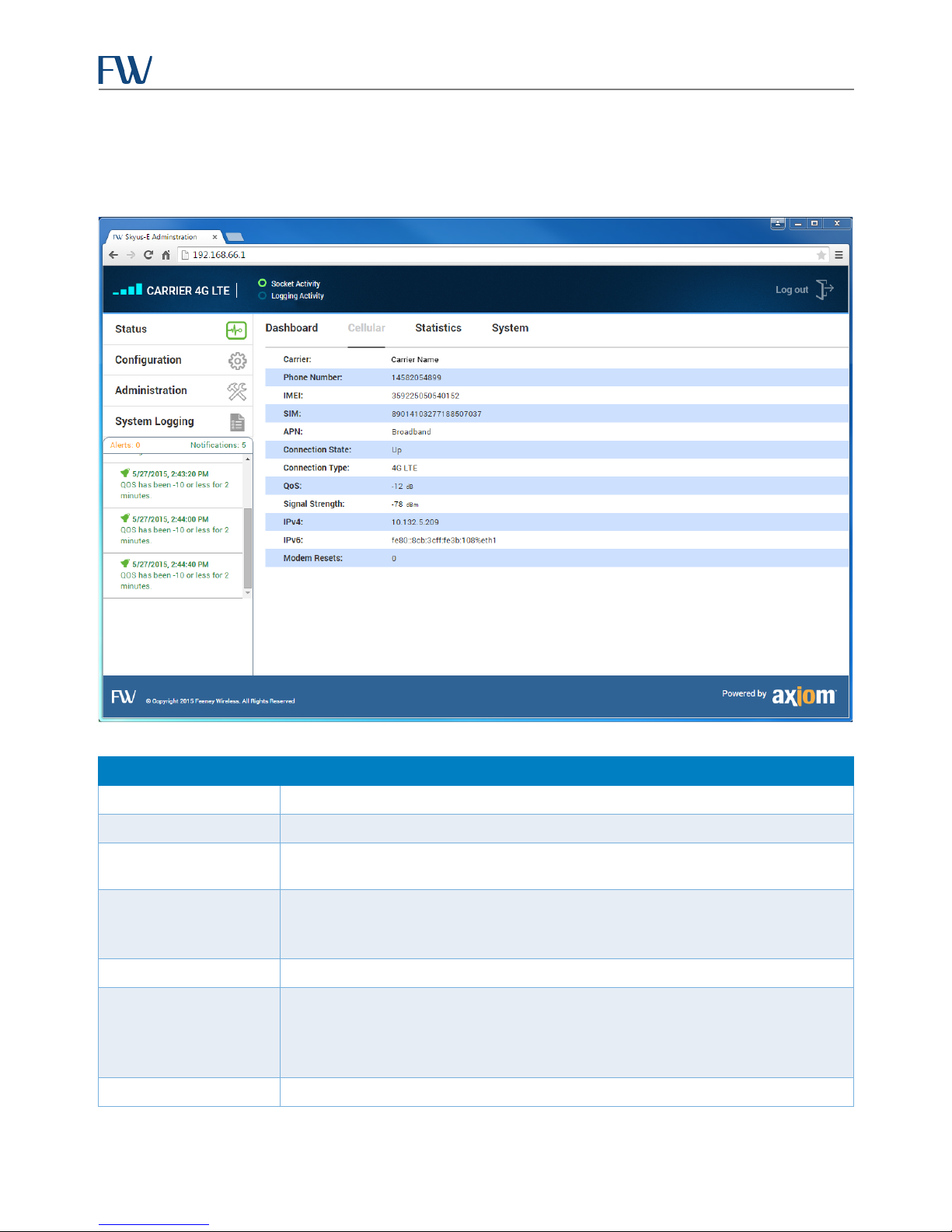
This tab provides information about your cellular carrier and connection status.
Figure 11: Cellular Tab
Field Description
Carrier Name of the cellular carrier in use, such as AT&T, Sprint, T-Mobile, Verizon, etc.
Phone Number Phone number (programmed into the device) associated with the carrier account.
IMEI
IMEI number of the Skyus radio module. The IMEI is often required when attempting
to activate a Skyus with a cellular carrier.
Unique identification number of the SIM inserted into the Skyus, also referred to as an
SIM
ICCID. This identifier is often needed when activating a Skyus with your cellular
provider.
APN Current Access Point Name (APN) in use by the network connection.
Values: Up, Down. Reports whether or not a connection to the cellular carrier is up or
Connection State
down. The connection is reported as up if an IP address has been assigned and a ping
(ICMP) check to a URL or IP as configured under Network > Connection > Ping URL or
Connection Type Type of cellular connection, such as 4G LTE and others.
18
Page 20
Skyus-E User Manual
reliability and performance issues.
Field Description
Signal quality in dB. Quality of Service (QoS) is a measure of the quality of the cellular
signal as compared to interference and noise. Optimal values vary dependent on
QoS (Quality Of Service)
cellular network type, but generally a value consistently less negative than -10 dB
indicates a lack of excessive noise or interference. The QoS value can be useful to refer
to when troubleshooting connection reliability issues, packet loss, or low bandwidth.
When QoS is consistently poor, the value is displayed in red.
Strength of the cellular network signal in dBm. When connected to an LTE network
the value reported is the RSRP (Reference Signal Received Power) and when
Signal Strength
connected to any other network type the value reported is the RSSI (Received Signal
Strength Indicator). This value is useful when troubleshooting coverage or connection
IPv4 WAN IP address of the Skyus-E when connected to a cellular data network.
IPv6 Internet Protocol version 6 (IPv6) address of the Skyus-E (if applicable).
Modem Resets Number of times the modem has reset since the Skyus-E was last powered on.
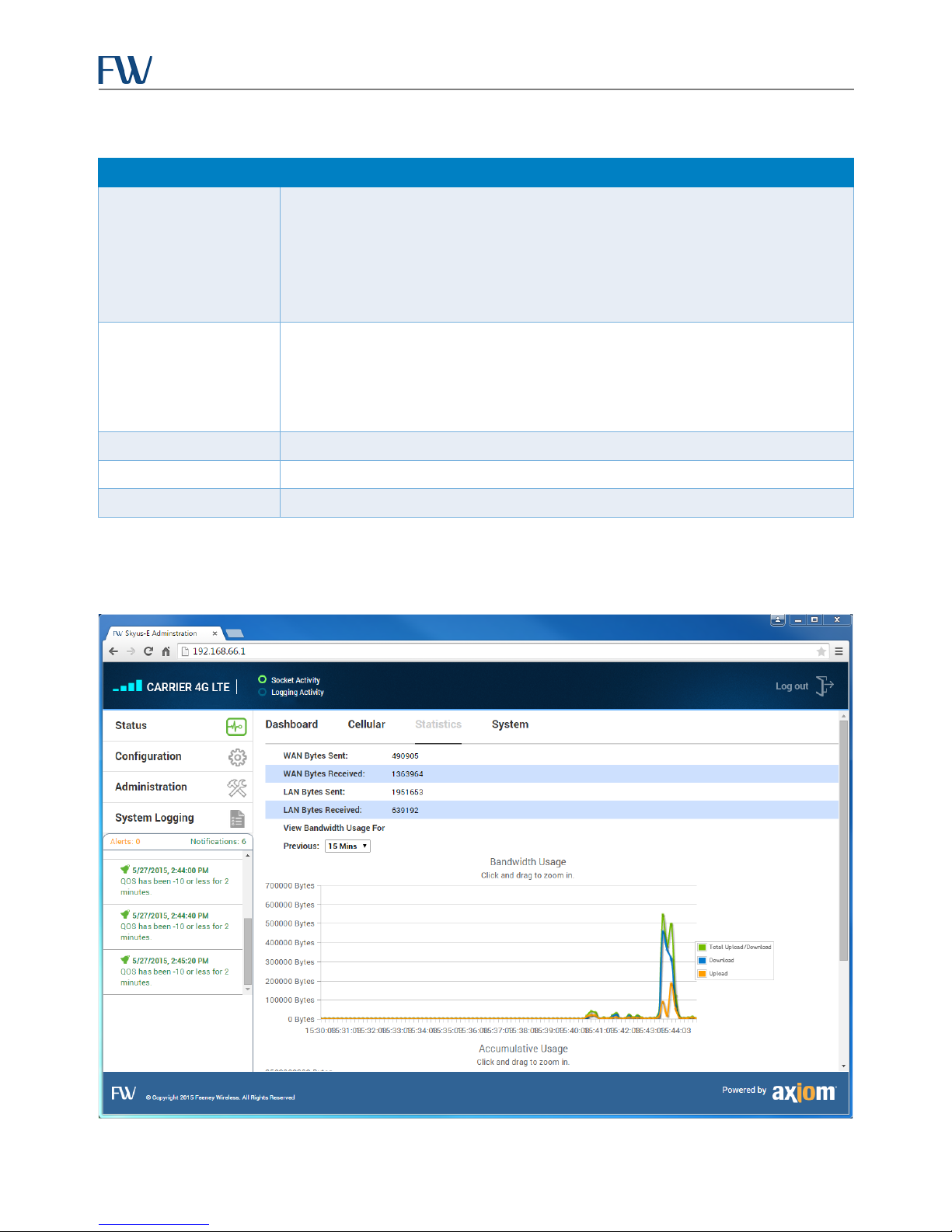
Statistics
This tab displays information about the amount of data sent and received over the WAN and LAN. It allows you to
view bandwidth usage over a specified range.
19
Figure 12: Statistics Tab
Page 21
Skyus-E User Manual
This is also referred to as the “upload” direction.
the values reported, the chart can be changed to report only specific items of interest.
Field Description
WAN Bytes Sent
WAN Bytes Received
Number of bytes sent during the current connection session with the cellular carrier.
Number of bytes received during the current connection session, also referred to as
the “download” direction.
LAN Bytes Sent Number of bytes sent from the Skyus-E LAN Ethernet interface.
LAN Bytes Received Number of bytes received on the Skyus-E LAN Ethernet interface.
The Bandwidth Usage chart provides an extremely useful visualization of data usage
View Bandwidth Usage
For Previous
and bandwidth trends over a selectable period. You can select the last 15 minutes,
last hour, last day, last 7 days, and the last 30 days. By clicking the various names of
System
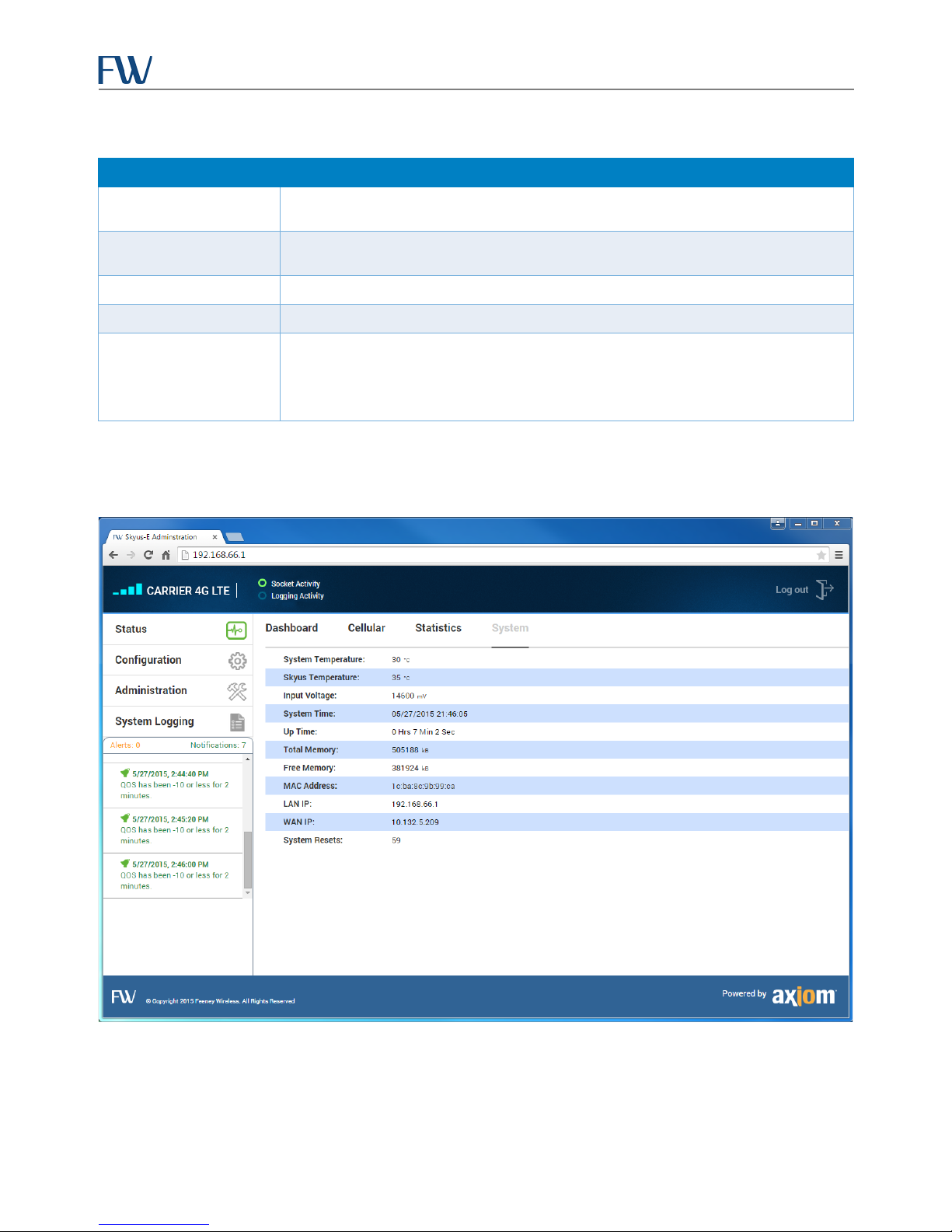
This tab provides hardware and component information.
Figure 13: System Tab
20
Page 22

Skyus-E User Manual
temperature range of the Skyus E.
the vehicle battery.
Universal Time (UTC) standard.
KB of useable memory.
reference in troubleshooting Skyus-E performance issues.
and thus can be useful when creating MAC address filtering rules.
routable.
Field Description
System Temperature
Skyus Temperature Temperature of the Skyus radio module within the Skyus in degrees Celsius.
Input Voltage
Temperature within the Skyus-E in degrees Celsius as detected by the system module.
Alerts will be generated if the temperature exceeds the recommended operating
Voltage in mV (millivolts) detected at the Skyus-E power jack. The Skyus-E can
operate normally between 9-36V DC, which is equivalent to 9000 to 36000 mV DC.
Note that in vehicle environments the Skyus-E can be configured to shut down at
voltages above the 9V minimum operating voltage threshold to protect the health of
System Time
Up Time Total time the Skyus-E has been powered up since the last power cycle or reboot.
Total Memory
Free Memory
MAC Address
LAN IP The current IP address of the Skyus-E.
WAN IP
System Resets The number of times power has cycled on the Skyus-E.
Current date and time: MM/DD/YYYY HH:MM:SS. The Skyus-E uses the Coordinated
Amount of RAM in kilobytes present in the Skyus-E. The current version has 505,188
Amount of RAM free to the operating system. Free Memory can be a useful point of
MAC address of the Skyus-E Ethernet interface. A MAC address is a unique identifier
Current WAN IP address of the device, generally obtained from your carrier. This is the
address you can use to contact the Skyus-E from the Internet if your assigned IP is
Configuration
The Configuration page provides the ability to manage network settings, create and manage APN profiles,
determine connection behavior, enable general purpose output (GPO), and manage ignition sense (IGS) settings.
To access this page, click Configuration in the navigation panel. Information on this page is organized under four
tabs: Network, APN, Connection, and GPO/IGS.
21
Page 23
Skyus-E User Manual
rules, or Routing Rules.
enabled by default.
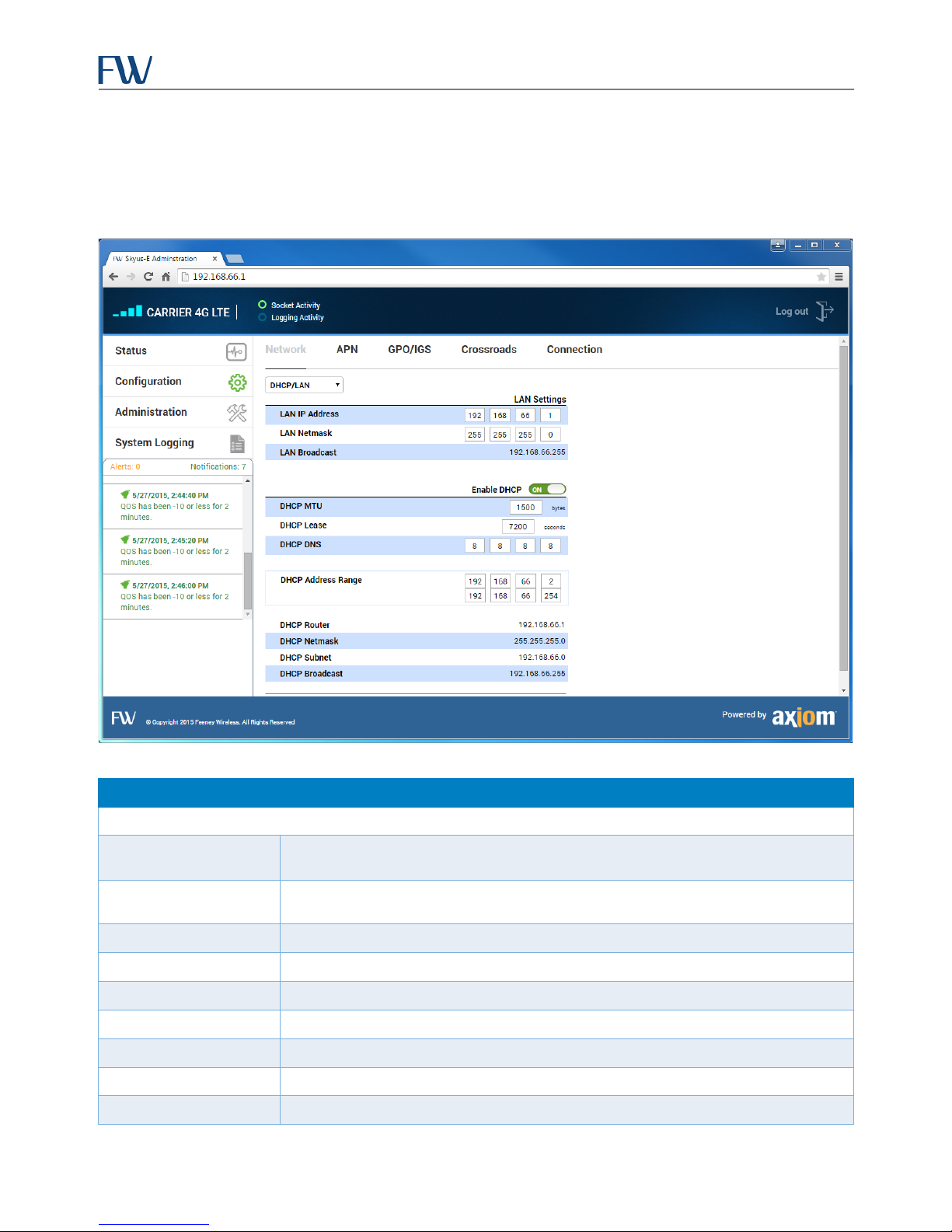
Network
This tab provides the ability to manage DHCP and LAN settings, and add rules for the firewall, port forwarding,
routing, and MAC filtering.
Field Description
DHCP
DHCP/LAN
Enable DHCP
DHCP Router Current router IP address.
DHCP Netmask Current netmask.
DHCP Broadcast Current broadcast.
DHCP DNS Current Domain Name System (DNS) name.
DHCP MTU Slider to set the maximum DHCP transmission unit (MTU) in bytes. Range: 1400-1500.
DHCP Lease Slider to set the DHCP lease period in seconds. Range: 1800-7200 seconds.
DHCP Address Range Current DHCP IP address range.
22
Drop-down list to select between DHCP/LAN settings, Firewall rules, Port Forwarding
Switch to enable or disable Dynamic Host Configuration Protocol (DHCP). DHCP is
Figure 14: Network Tab
Page 24

Skyus-E User Manual
•
Protocol: tcp/upd, tcp, upd
•
Protocol: tcp, upd, tcp/upd
•
Gateway: IP on the Skyus-E LAN to route through.
Field Description
LAN Settings
LAN Address Current LAN IP address.
LAN Netmask Current LAN netmask.
LAN Broadcast Current LAN broadcast.
Firewall
Add Firewall Rule Opens a dialog to create a firewall rule.
Port Forwarding
Add Port Forward Rule Opens a dialog to create a port forwarding rule.
(See Creating Firewall Rules
•
•
•
•
•
•
(See Creating Port Forward Rules
•
•
•
•
•
)
Common Services: HTTP, HTTPS, FTP, Telnet, SSH, DNS. Selecting a service
automatically places values in the From, Port, and Protocol fields.
Logging: Checkbox to enable logging.
Number: Firewall rule number. This is the position in the rule list where the new
rule is to be placed. Rules at the top of the list are evaluated first. By default, new
rules are automatically given a number that puts the new rule at the bottom of
the list, but this can be changed by the user.
Rule: allow, deny, reject.
Dir (direction): in, out.
From: any, or a specific port number.
)
Number
Name: Any name.
Outer Port
Inner Port
IP Address: Desired LAN IP address to forward traffic to.
Routing
Add Routing Rule Opens a dialog to create a static routing rule.
23
(See Creating Routing Rules
Destination: Network.
•
Subnet: Subnet.
•
)
Page 25
Skyus-E User Manual
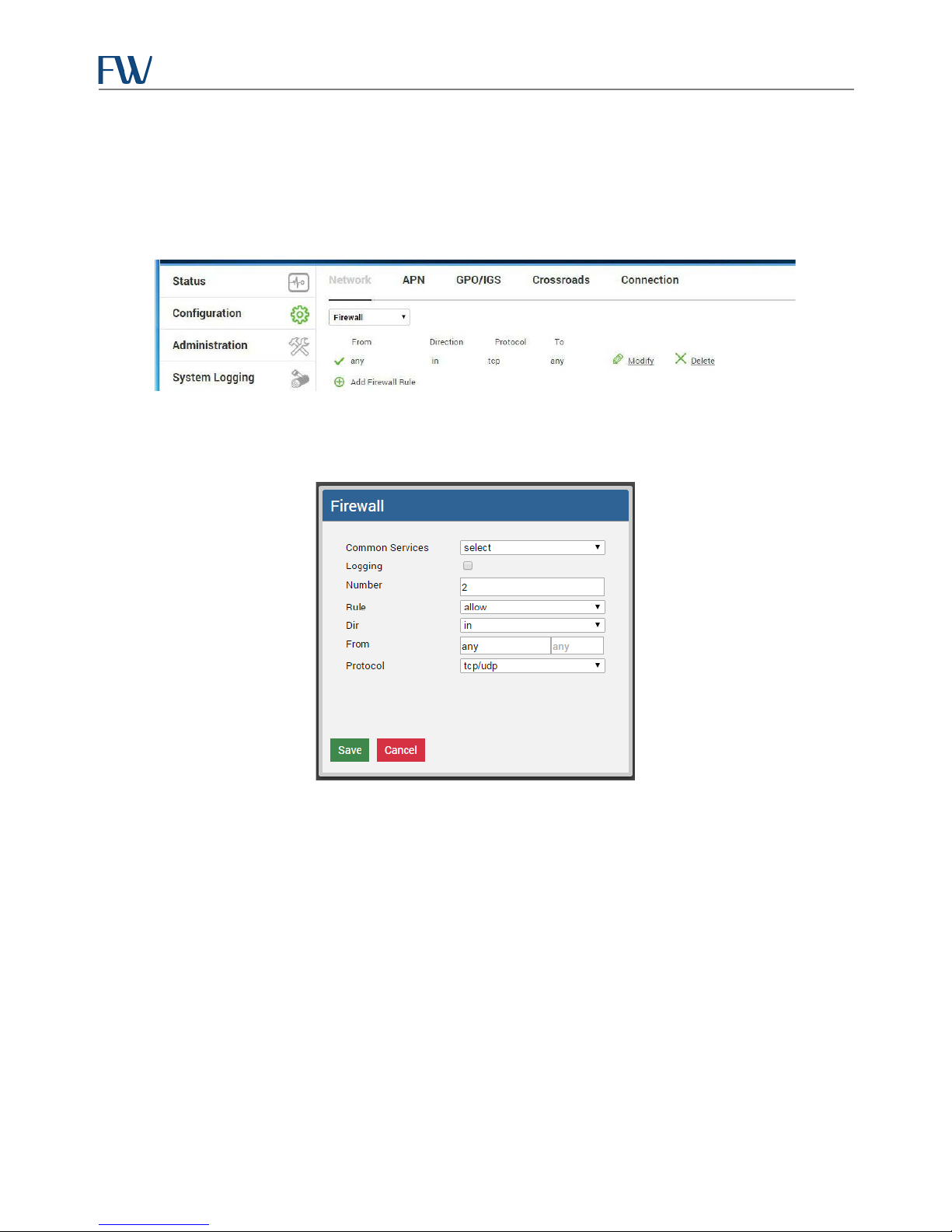
Creating Firewall Rules
The Skyus-E supports the creation of firewall rules to either block or allow certain types of IP traffic. Firewall rules can
be configured to Allow, Deny, or Reject IP traffic to or from specific servers (IPs) or groups of IPs. You can optionally
choose to filter IP traffic based on specific ports and protocols.
Figure 15. Firewall Rules
1. Click Add Firewall Rule. The Firewall dialog box opens.
Selecting a value in the Common Services field (HTTP, HTTPS, FTP, Telnet, SSH, or DNS) automatically
selects values for the From, Port, and Protocol fields. You can choose to include this firewall rule in system
logging by checking the Logging box.
2. When adding or modifying a firewall rule, first define the position on the list of firewall rules in which the
new rule should be evaluated. Do this by modifying the value in the Number field.
By default each new rule will be placed at the bottom of the list. Rules at the top of the list take priority over
rules at the bottom. This is important and useful if, for example, you want to create a set of firewall rules to
accept specific IP traffic and reject all other IP traffic. The rules to accept the traffic should be at the top of
the list.
3. Next, in the Rule field, choose whether to allow, deny, or reject the IP traffic that matches the rule criteria.
24
Figure 16: Firewall Dialog Box
Page 26

Skyus-E User Manual
• Traffic matching an allow rule will be routed to the appropriate host or server.
• Traffic matching a deny rule will be silently dropped by the firewall with no notification given to
the sending server or host. In most cases this is the recommended method for denying specific IP
traffic as it provides no information to a potential attacker that could be useful in mapping any
existing firewall rules.
• Traffic matching a reject rule will be dropped by the firewall, and the server or host sending the IP
traffic will receive an ICMP Port Unreachable message. A reject rule can be useful to alert the sender
of the traffic that a firewall is present and configured to block specific types of traffic.
By default all traffic is allowed outbound from hosts on the Skyus-E LAN to servers. Inbound traffic from the
Internet to hosts and devices behind the Skyus-E on its LAN will not be routed to devices or hosts on the
Skyus-E LAN unless an appropriate Port Forwarding rule is created (see “Creating Port Forwarding Rules
Creating a Port Forwarding rule to an internal host or device will automatically create the corresponding
Firewall allow rule on the defined IP port and protocol. In some cases, it may be desired to create an
additional Firewall rule to restrict the list of IP addresses or ranges of IP addresses the Port Forwarding rule
applies to. In this case, create the appropriate accept, deny, and reject rules as desired to complement the
automatically generated accept rule on the port and protocol.
“).
EXAMPLE: A specific example would be the creation of a rule to allow Port Forwarding to an IP camera to
allow remote viewing of video where additional Firewall rules are desired to only allow access to the camera
from trusted IPs representing a trusted customer network.
4. In the Dir field choose either in or out to match the traffic direction the rule should be evaluated against.
• Choosing in will match IP traffic coming (originating) from hosts and servers on the Internet (or
Private Network). Creating an in direction rule is useful to restrict access to specific devices or hosts
located on the Skyus-E LAN coming from the Internet. The camera example in the previous note is a
use case for an in rule.
• Choosing out will match IP traffic coming from a host or device located on the Skyus-E LAN, such as
a laptop or router connected to the Skyus-E Ethernet port. An out rule can be used to allow, deny,
or reject IP traffic going to servers on the Internet.
EXAMPLE: It may be desired to block Web browsing to www.webpage.com
20.30.240.50. To do this, a direction of out should be selected in this step.
5. In the field noted as either From for an in direction rule or To for an out direction rule, as defined in step 3,
you can enter either a URL or an IP address.
This field defines the IP address, or a number of IP addresses when a URL is entered, to which the rule
applies. In this field you may enter information in one of multiple formats. To create a rule matching all IP
addresses, leave the default of any in this field.
or an IP address such as
• A single IP address, such as 192.168.66.100.
• An IP address noting a specific network and corresponding subnet mask. To utilize this method the
syntax to use is IP address/subnet mask. For example, to create a rule matching all traffic to an IP
range of 192.168.66.X you can enter 192.168.66.0/255.255.255.0 in the From or To field.
25
Page 27

Skyus-E User Manual
• An IP and slash notation subnet. To take the same example as above, to match all traffic to or from
192.168.66.X you may enter 192.168.66.0/24. Slash notation is a convenient shorthand to enter a
subnet mask and is based on the decimal equivalent of the number of “1”s in the subnet mask. For
commonly used subnet masks: 255.255.255.0 equals /24, 255.255.0.0 equals /16, and 255.0.0.0
equals /8.
• A URL such as www.feeneywireless.com
the appropriate rules will be created that match all IPs returned from DNS for that URL. Note that
for large sites such as
block all traffic, due to the dynamic nature of IPs that may be in use at any point in time.
• The special value of any. This is the default and matches all traffic to any IP address.
6. Enter a specific desired TCP, UDP, or TCP & UDP port as defined in the next step. The port can also be left as
the default of any to match all ports for the IP or URL defined in step 4. The port should be entered in the
field to the right of the IP address or URL.
In this step it is possible to define a specific port to match in the Firewall rule. It may be valuable to refer to
online information noting commonly used ports for various services. FW has provided a convenient
commonly used services option at the top of the firewall entry dialog box.
www.google.com that employ load balancing, this might not effectively
. If a URL is entered, a DNS lookup will be performed and
The appropriate syntax in this step is either a specific numeric port ranging from 1 to 65535 or the default of
any to match all ports. To create rules matching a range of ports it is necessary to create multiple firewall
rules. Commas or non-numeric characters other than “any” should not be used in this field.
7. Enter the IP protocol to match the Firewall rule against. The allowed options are the default of tcp / udp or
only tcp or udp.
NOTE: Generally, users can safely leave this at the default of tcp / udp to match the rule against either
protocol.
26
Page 28
Skyus-E User Manual
Creating Port Forwarding Rules
The Skyus-E supports Port Forwarding functionality. Port Forwarding is designed to allow inbound IP traffic to be
routed to a host or device on the Skyus-E LAN. The use of Port Forwarding is closely related to the creation of
appropriate Firewall rules. Refer to Creating Firewall Rules
for more detail related to the creation of Firewall rules to
restrict the allowed hosts which can access an attached device via the use of Port Forwarding rules.
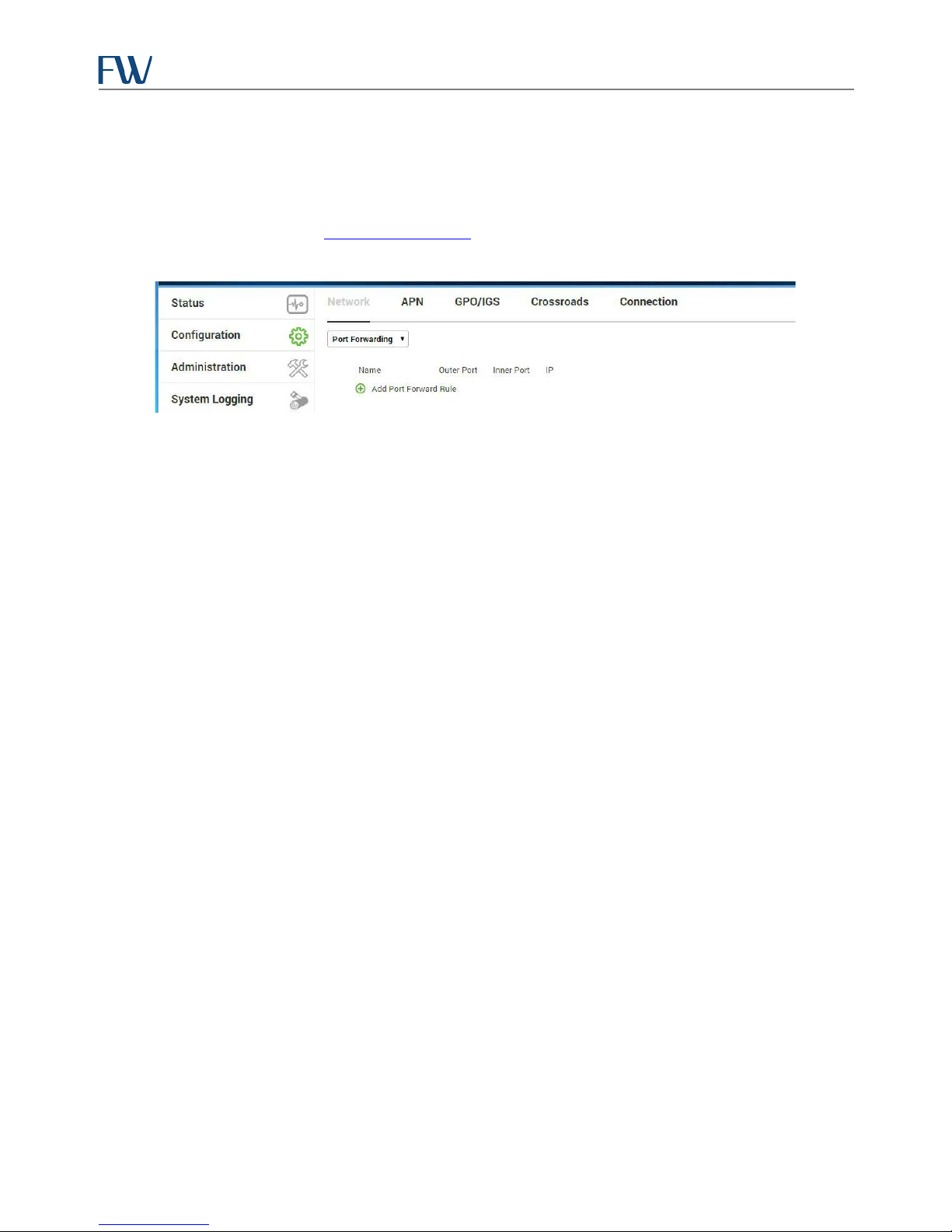
Figure 17. Port Forwarding Rules
Typical applications of Port Forwarding include:
• Remote viewing of video from a webcam (camera) connected to the Skyus-E Ethernet port.
• Remote management of devices such as PCs or routers connected to the Skyus-E Ethernet port.
To make use of Port Forwarding in most cases, a publically routable static IP address may be necessary or desirable.
In these cases you may wish to engage FW Support for assistance or work directly with your chosen cellular carrier to
assign a “publicly routable static IP address.”
Public Static IP addresses are available from Verizon, Sprint, and AT&T, but are generally not the default option for
data devices such as the Skyus. A publicly routable static IP address is one in which the IP address assigned when the
Skyus connects to the carrier network is unchanging and does not block or restrict most traffic from any other
Internet address.
In some use cases where maximum security is required, the use of “Private Networking” or “Restricted Static
Addresses” can also provide an unchanging IP address to the Skyus to support Port Forwarding. This provides the
added benefit of additional security through restrictions on what other networks or Internet IP addresses can
communicate with the Skyus. FW field engineering staff offer consulting services to help our customers best identify
and implement optimal solutions in these types of projects.
To configure Port Forwarding rules follow the steps below.
1. Click Add Port Forwarding Rule. The Port Forward dialog box opens.
27
Page 29
Skyus-E User Manual
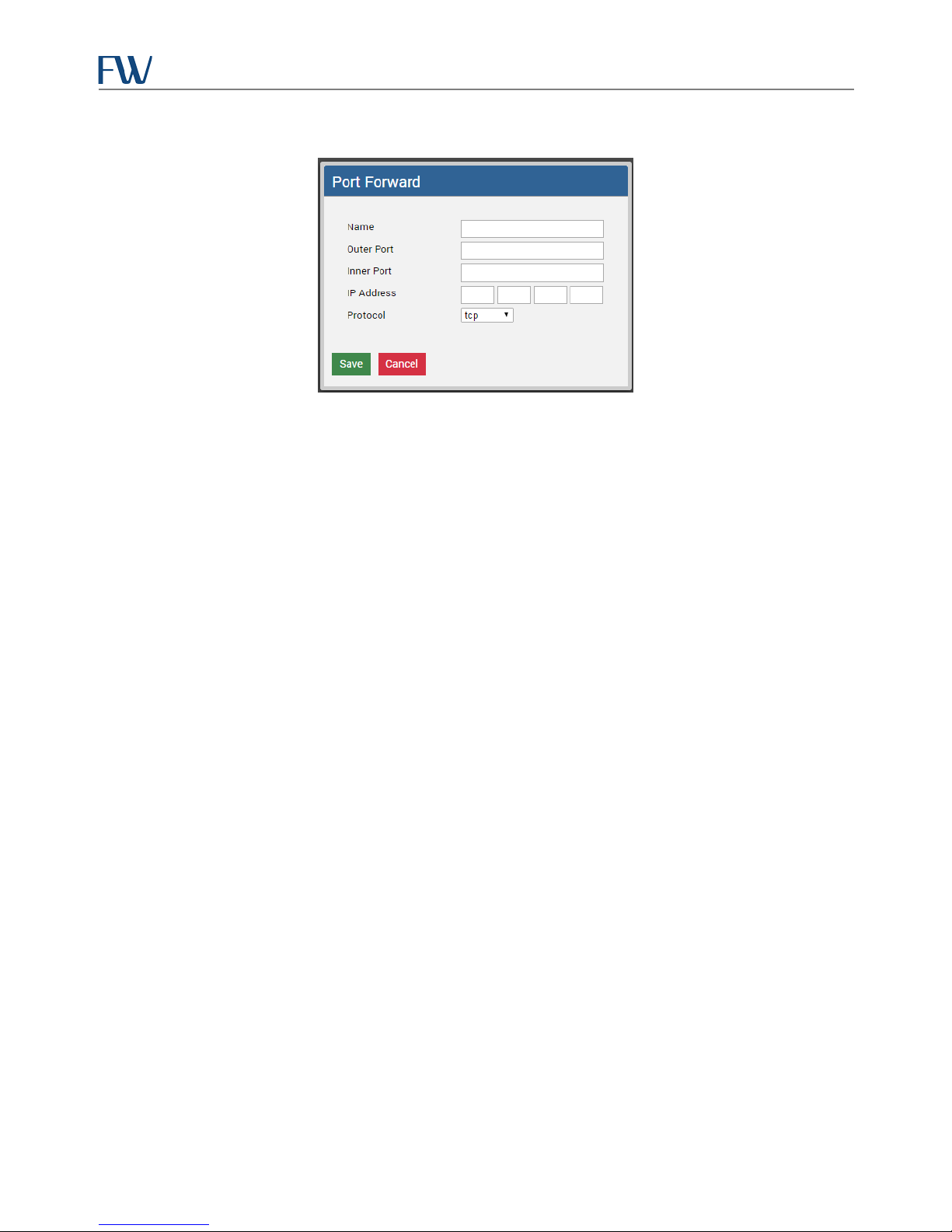
Figure 18: Port Forward Dialog Box
2. Choose a name for the Port Forwarding rule to identify it.
It is recommended that you choose a name that describes the application the rule is enabling, such as
“Camera Web Access.” The name of the rule has no effect on the rule itself.
3. Enter the TCP or UDP port number you will use to access the device remotely into the Outer Port field.
The Outer Port refers to the port the Skyus-E will forward from its cellular WAN interface to an attached
host or device connected to its LAN Ethernet port. Valid ports are numeric values ranging from 1 to 65535
only and should not include any non-numeric digits, such as a comma.
4. Enter the TCP or UDP port the traffic will be routed to on the attached host or device in the Inner Port field.
If the Inner Port entered differs from the Outer Port, the Skyus-E will perform Port Translation as well as
Port Forwarding. Port Translation is designed to support the use of a different external port number that
can be used to access devices that may not support changing the TCP or UDP port the desired service or
application they support “listens” on.
Use Cases
There are several common use cases of Port Translation combined with Port Forwarding, such as:
• Most cellular carriers block several of the most commonly used ports for HTTP (TCP 80), HTTPS
(TCP 443), and SMTP (TCP 25). This may affect certain applications such as the use of IP cameras or
the Web interfaces of various devices. In these scenarios the two available solutions are to either
modify the configuration of the device to use a different port number or to utilize Port Translation
as detailed above to translate to a port that is not blocked by the carriers to the default port of
your device which would be blocked.
For example, consider the use case of a Web camera with a Web interface configured as typical
using the default HTTP and HTTPS ports of 80 TCP and 443 TCP. These two ports are blocked in the
inbound direction by all major US cellular carriers. In this case there are two potential solutions.
You can either modify your camera configuration to use different ports such as 8080 TCP and 8443
TCP with a pair of basic Port Forwarding rules where both the Outer and Inner port in the rules
28
Page 30

Skyus-E User Manual
created are 8080 and 8443 respectively, or you could use Port Translation in combination with
Port Forwarding and keep your camera configuration unchanged.
To accomplish this, create a rule with 8080 TCP for the outer port and 80 TCP for the inner port, as
well as a second rule for 8443 TCP outer port and 443 TCP inner port. Either solution will allow the
camera to function as expected for remote viewing, but the use of port translation does not
require modifying the camera configuration settings for HTTP and HTTPS ports from their defaults,
making future maintenance of the Web camera easier.
• Consider a use case where multiple Web cameras are connected via an Ethernet switch to the
Skyus-E where all cameras have a default HTTP port of 80 TCP.
For example purposes, assume three cameras are used with IP addresses on the Skyus-E LAN
network of 192.168.66.100, 192.168.66.110, and 192.168.66.120. By creating three Port Forwarding
rules using Port Translation, it is possible to keep all three cameras configured to remain using TCP
80 for their HTTP Web interfaces.
To do this, create a rule called “Camera 1” with an Outer Port of 8080 TCP and inner port of 80
directed to 192.168.66.100. Create a “Camera 2” rule with an outer port of 8081 TCP and inner port
of 80 directed to 192.168.66.110. Lastly, create a “Camera 3” rule with an outer port of 8082 TCP
and an inner port of 80 directed to 192.168.66.120. The result of these three rules would allow you
to access all three cameras on TCP ports 8080, 8081, and 8082 respectively via the Skyus-E WAN
interface assigned by your cellular carrier.
5. Select TCP & UDP, TCP, or UDP for the protocol.
In most cases it is common to simply select the default of TCP & UDP.
6. Enter the IP address of the device connected to the LAN interface of the Skyus-E.
It is typical when using port forwarding to manually set the IP address of the device the Port Forwarding
rule is directing IP traffic to “statically.” This prevents any possibility of that device’s assigned IP address
changing under certain scenarios. If DHCP is used the Skyus-E may assign a different IP address after a
power cycle or reboot. In addition, if multiple devices are connected using an Ethernet switch you may find
that the IP address assigned via DHCP to a given device will not be consistent from power cycle to power
cycle. Alternatively, if only one device will ever be connected to the Skyus-E LAN Ethernet interface you
may wish to reduce the size of the DHCP pool to a single IP address in the Network > DHCP Pool settings.
7. Save the rule.
After saving your Port Forwarding rule you should see it appear on the list of currently defined port forwarding rules.
The order of the Port Forwarding rules do not matter unless multiple rules are bound to the same external port, in
which case the rule highest on the list will take precedence. In this case it is recommended that you take advantage
of the Port Translation functionality in the Skyus-E to choose a unique Outer Port for each device a Port Forwarding
rule is required to support for a desired application.
29
Page 31
Skyus-E User Manual
Creating Routing Rules
Creating static routing rules can be useful to instruct the Skyus-E to route traffic to specific networks through
another router or gateway on the Skyus-E LAN subnet.
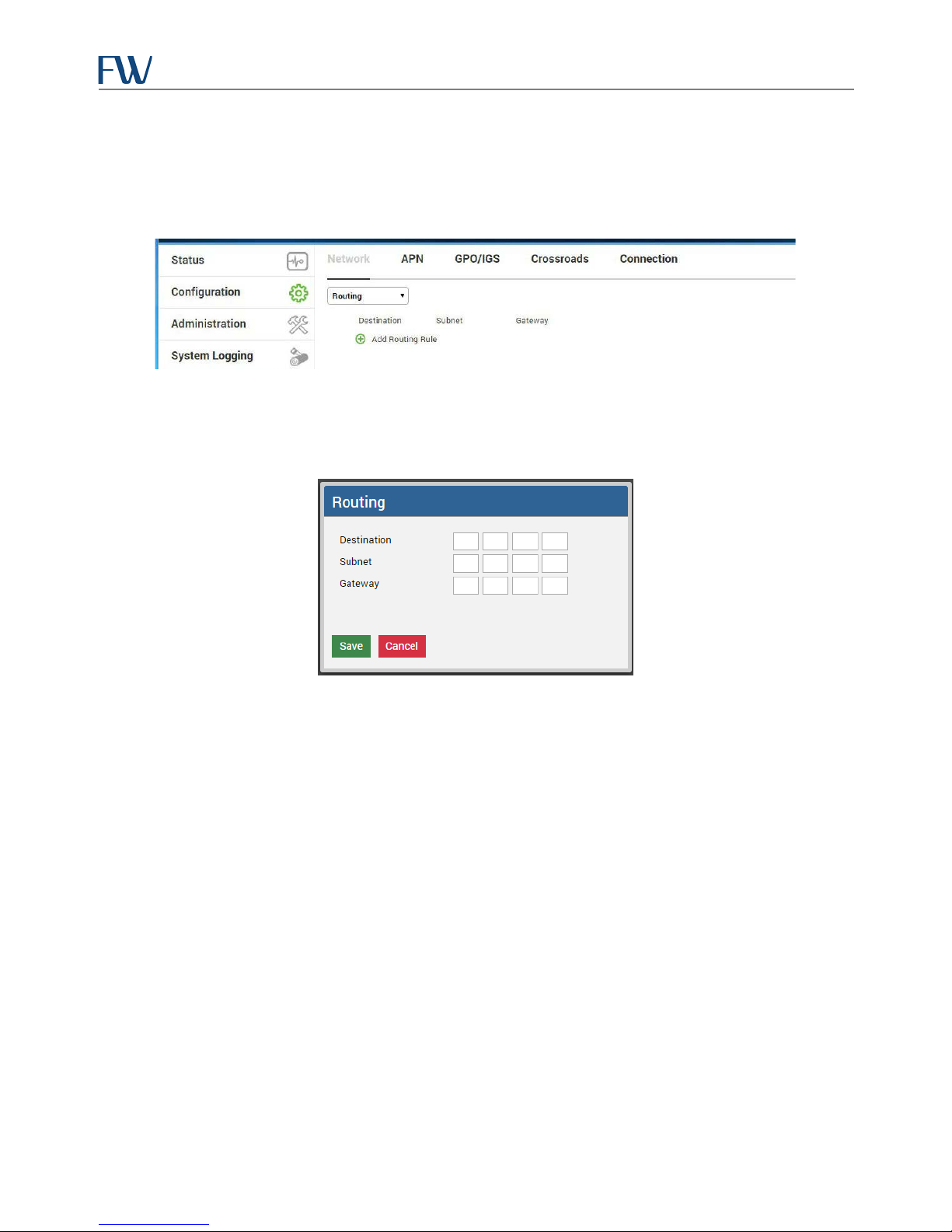
Figure 19. Routing Rules
To create a routing rule:
1. Click Add Routing Rule. The Routing dialog box opens.
Figure 20: Routing Dialog Box
2. Enter addresses for the Destination, Subnet, and Gateway.
EXAMPLE: If another router is connected to the Skyus-E Ethernet port and assigned an IP address of
192.168.66.100 and this second router has other subnets such as 192.168.1.0/24, then creating a static route
to 192.168.1.0/24 pointing to 192.168.66.100 will allow other hosts on the Skyus-E LAN to reach the
192.168.1.0/24 network via this second router.
30
Page 32
Skyus-E User Manual
over the air provisioning process.
APN
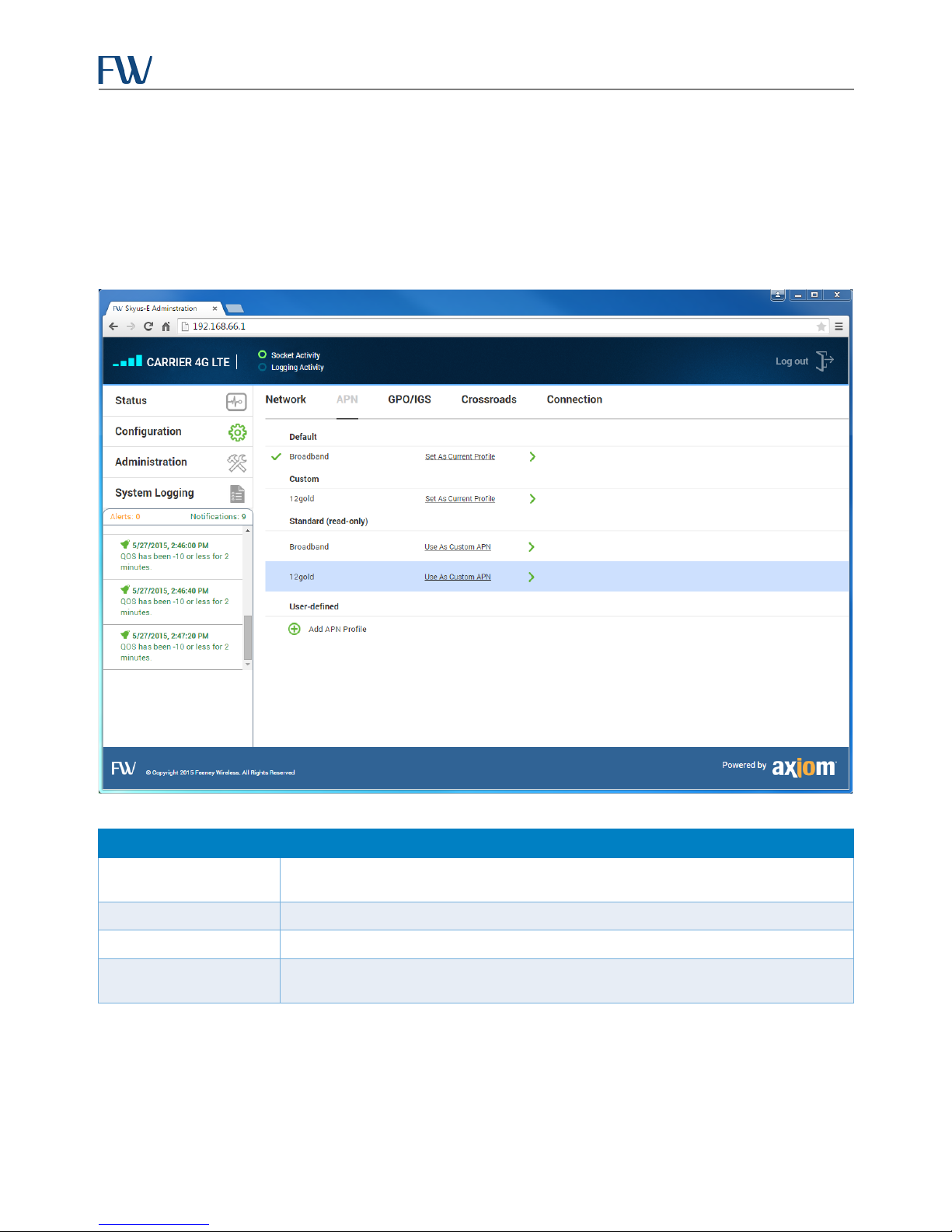
This tab provides the ability to create custom Access Point Name (APN) profiles and set the current profile. The
default APN will be assigned by your cellular carrier. The APN defines which networks and IP addressing are assigned
by your cellular carrier. Most carriers provide several default APN options for private IP addressing, public IP
addressing, public static IP addressing, customer custom IP addressing (private networking / VPNs), and/or restricted
static IP addressing. For more information regarding APNs contact your FW representative.
Field Description
Default
Lists the default APN profile. This is the APN that was assigned to the Skyus during the
Custom Lists custom APN profiles defined by the user.
Standard (read-only) Lists standard APN profiles which may be used as custom APN profiles.
User-defined
Lists user-defined APN profiles. For private networking applications this option may
be used.
31
Figure 21: APN Tab
Page 33

Skyus-E User Manual
•
UserName
Field Description
Add APN Profile
Set As Current Profile Sets the Skyus-E to the selected profile.
Use As Custom APN Designates the profile as the Custom APN profile.
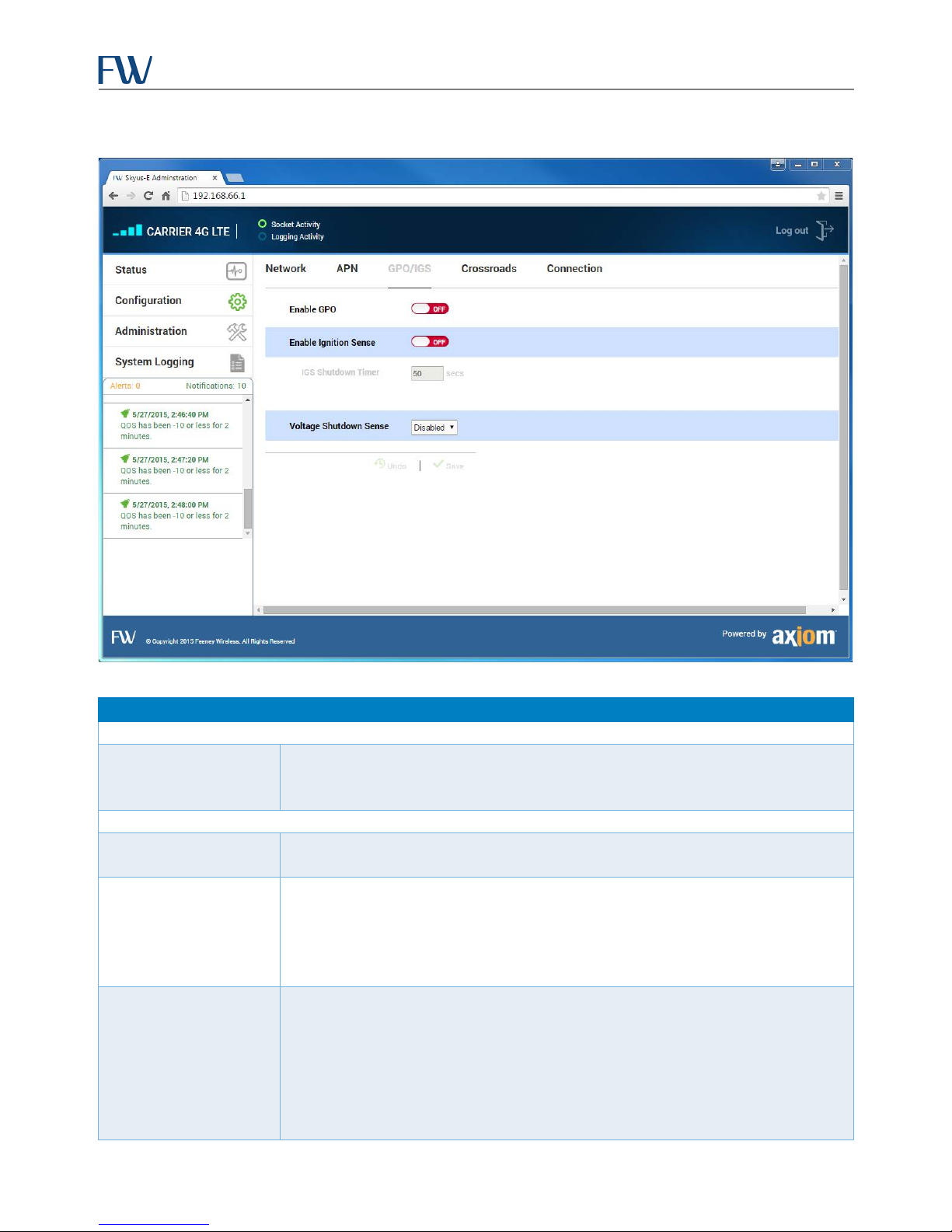
GPO/IGS
This tab provides the ability to enable or disable the general purpose output (GPO) and Ignition Sense, and set IGS
parameters.
Opens a dialog to create an APN profile.
Address
•
APNName
•
Authentication
•
Name (profile name)
•
PDPType: ipv4, ppp, ipv6, ipv4/ipv6
•
Password
•
PrimaryDNS
•
SecondaryDNS
•
GPO can be used to control an external device. The GPO controls a pin on the Skyus-E power port which can be
connected to an external device such as the FW 311 Reset Board to control peripherals.
Ignition Sense is used in vehicle applications. When ignition sense is enabled the Skyus-E will not power up unless a
DC voltage between 9V and 36V is applied to the ignition sense pin.
32
Page 34
Skyus-E User Manual
GPO
accessed on pin 4 of the Skyus-E power connector (see Figure 7).
Ignition Sense
powered applications.
the vehicle ignition is turned off.
designated range after the set shutdown time has passed.
Field Description
Button to enable or disable the general purpose output (GPO). When enabled, the
Enable GPO
Enable Ignition Sense
Skyus-E will ground the GPO line. This output is of the open drain type. The GPO is
Button to enable or disable IGS on the power connector for use in vehicle or battery-
Sets the shutdown timer. Range: 0-999 seconds. The Shutdown Timer value is the
length of time in seconds that the Skyus-E will remain powered up when ignition
IGS Shutdown Timer
sense is enabled after the ignition sense pin voltage drops below 9V. This value in
most automobile applications is the length of time the Skyus-E will remain on after
Sets the IGS mode. Values:
Disabled
•
Auto – attempts to detect whether the Skyus-E is being used in a vehicle with
•
Voltage Shutdown Sense
either a 12V or 24V battery and automatically configure typical low battery
thresholds.
Normal – shuts down the Skyus-E when IGS is determined to be outside the
•
Figure 22: GPO/IGS Tab
33
Page 35
Skyus-E User Manual
accesses Crossroads on a non-FW server.
Crossroads will be accessed on a non-FW server.
Values: Every 5 minutes, Every 15 minutes, Every 30 minutes, Hourly.
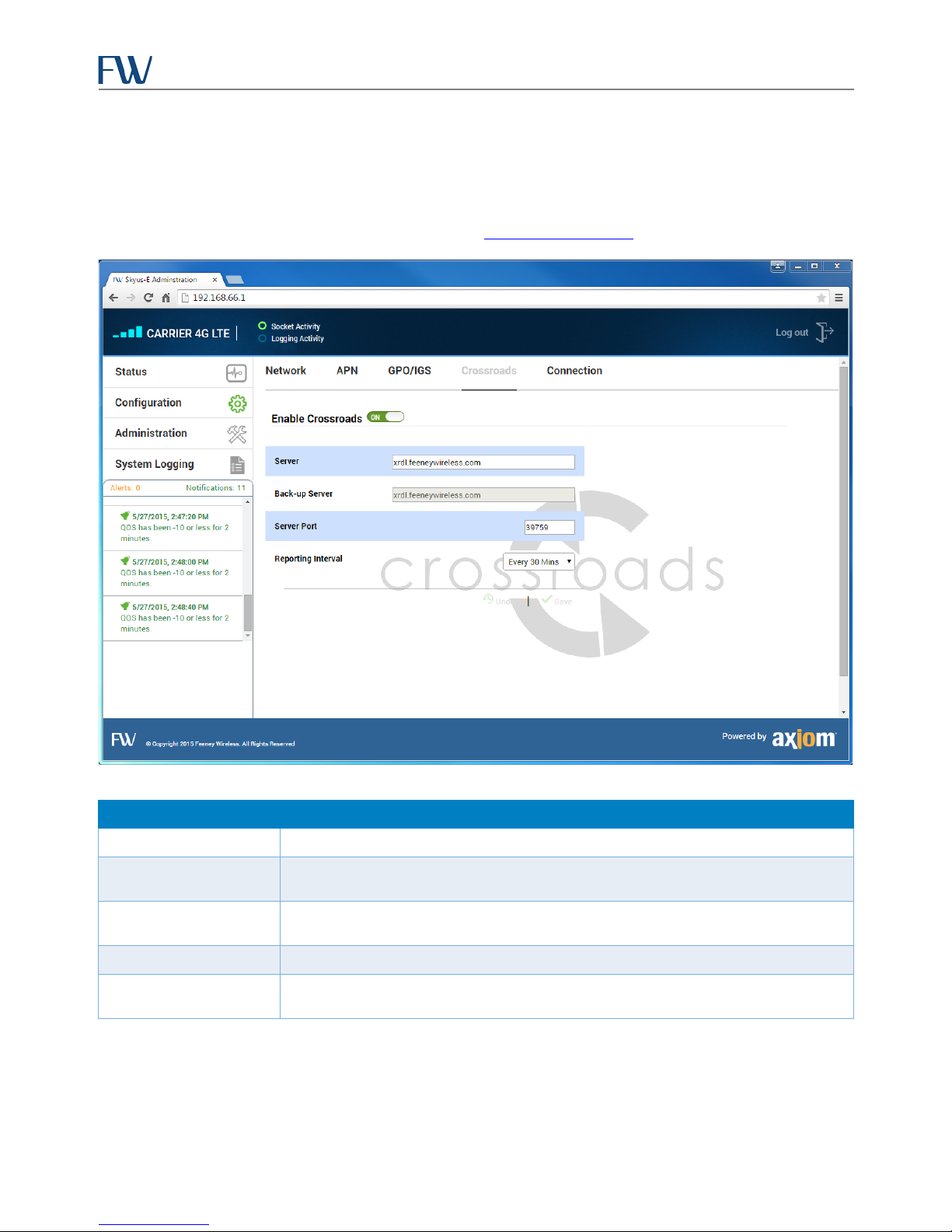
Crossroads
This tab provides the ability to enable connection of the Skyus-E to Crossroads. Crossroads is an Internet of Things
(IoT) application framework that can be used to monitor and manage your Skyus-E units in the field remotely.
Contact your FW Support for more information or go to the Crossroads Home Page
.
Figure 23: Crossroads Tab
Field Description
Enable Crossroads Enables or disables Skyus-E connection to Crossroads.
Server
Back-up Server
IP address of the Crossroads server. This only needs to be supplied if the customer
IP address of the Crossroads backup server. This only needs to be supplied if
Server Port Port number of the Crossroads server.
Reporting Interval
Drop-down list to select the time interval for reporting Skyus-E status to Crossroads.
34
Page 36
Skyus-E User Manual
attempt to reconnect.
Range: -125 dB to -90 dB
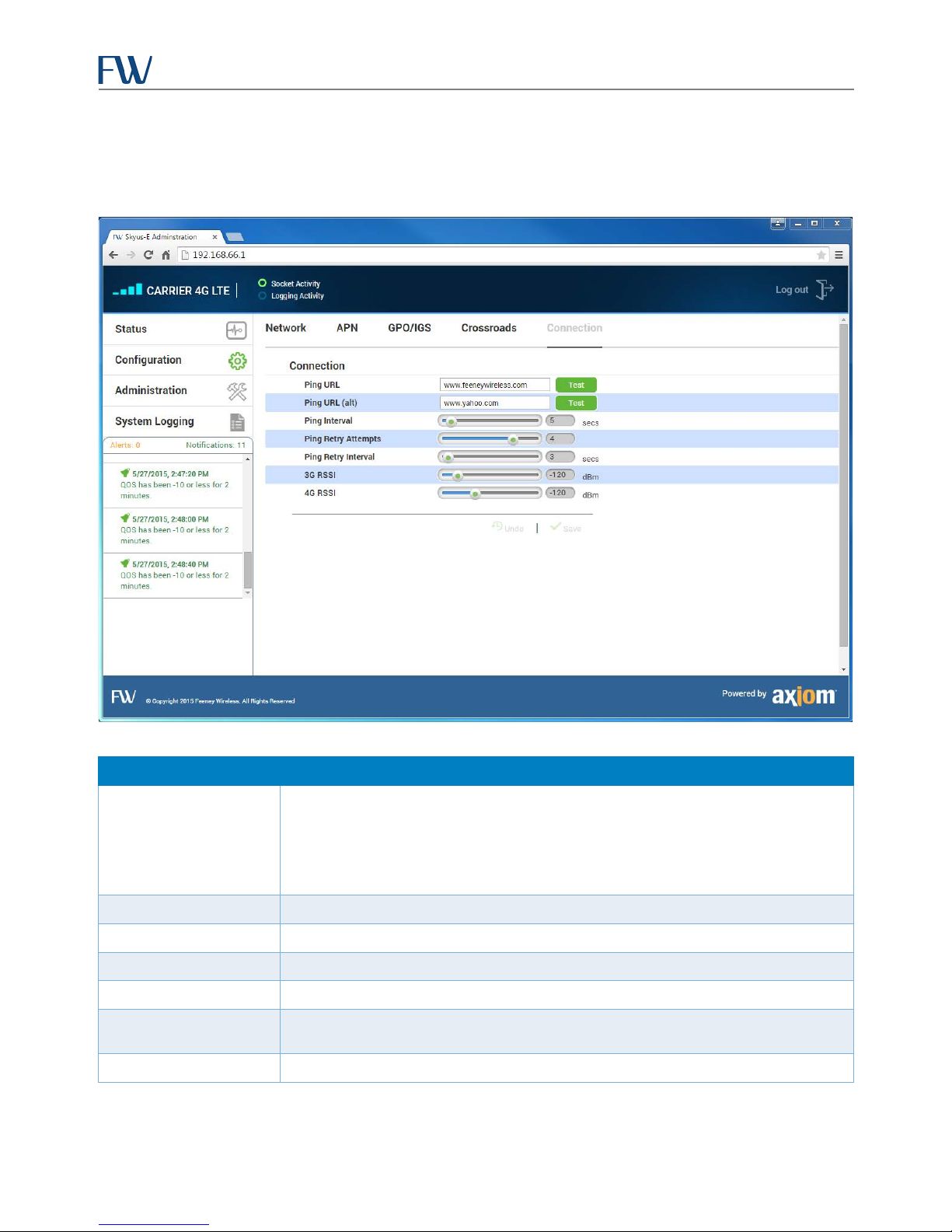
Connection
This tab provides the ability to set various connection quality and test parameters.
Figure 24: Connection Tab
Field Description
URL of the primary ping address. The Ping URL and Alt Ping URL values are used by
the Skyus-E to test, at the defined Ping Interval, if the Skyus-E remains online and can
Ping URL
ping the URLs defined. If the pings fail to both the Ping URL and Alt Ping URL for the
number of Ping Retries defined, then the Skyus-E will reset the Skyus modem and
Ping URL (alt) URL of the alternate ping address.
Ping Interval Slider to set the interval between pings. Range: 1-60 minutes.
Ping Retry Attempts Slider to set the number of retries before a reset. Range: 1-5 attempts.
Ping Retry Interval Slider to set the interval between retries. Range: 1-60 seconds.
3G RSSI
Slider to set the minimum Receive Signal Strength Indicator (RSSI) for 3G connections.
4G RSSI Slider to set the minimum RSSI for 4G connections. Range: -128 dB to -90 dB.
35
Page 37
Skyus-E User Manual
change the admin password. Keep a record of the new password in a secure location.
keep a record of their passwords in a secure location.
Administration
The Administration page provides the ability to manage users, web client and setting profiles, view firmware
information and upload firmware files, and view and set limits on data usage. To access this page, click
Administration in the navigation panel. Information is organized under three tabs: User, Settings, and Firmware.
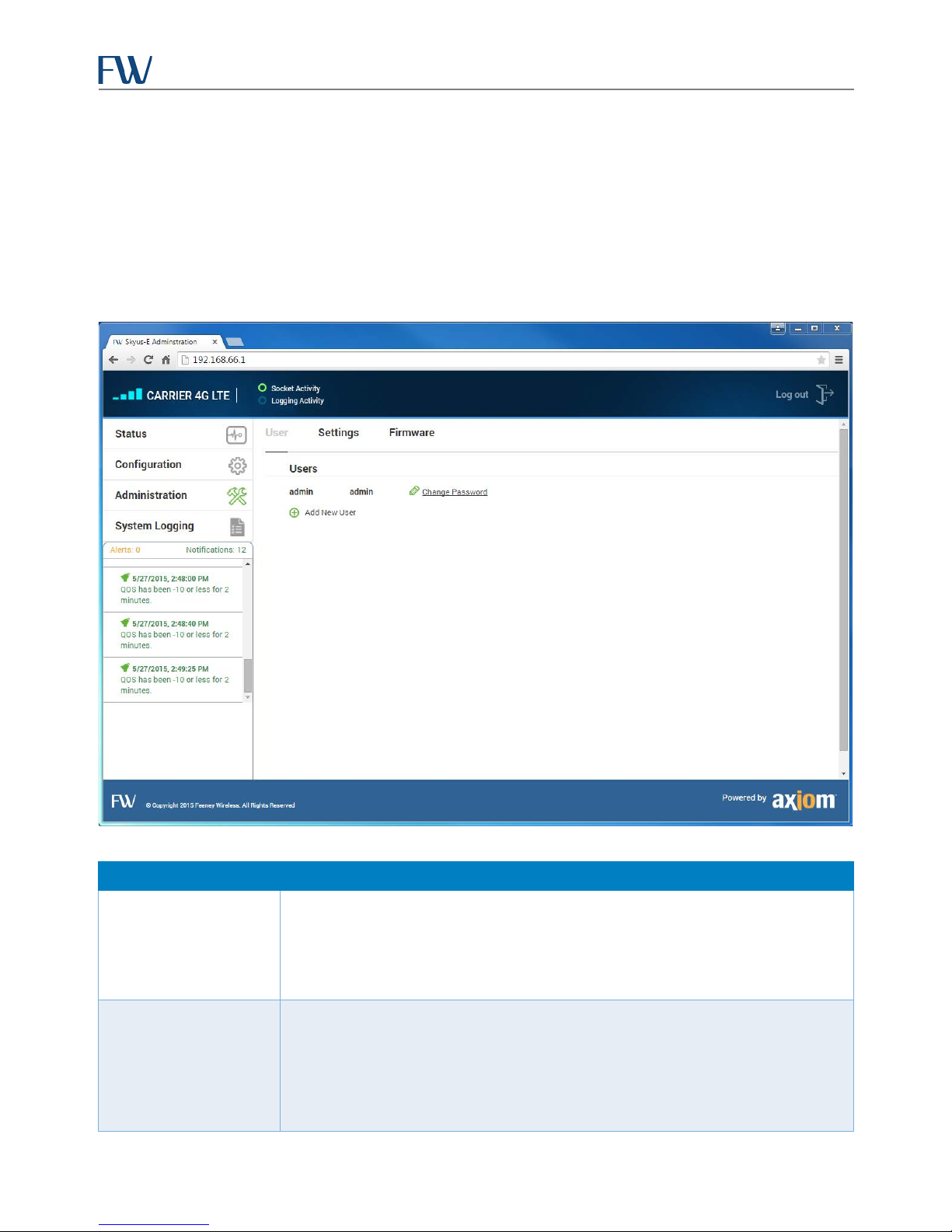
User
This tab provides information on network users and provides the ability to add new users and set their access levels.
Figure 25: User Tab
Field Description
Opens a dialog to change a user’s password.
Old Password: Enter the user’s old password.
•
Change Password
Add New User
36
New Password: Enter the new password.
•
Passwords must be at least eight characters. For security reasons, it is a good idea to
Opens a dialog to add a new user.
Username
•
Password
•
Level: User, Admin.
•
Admins can change Skyus-E settings. For users, settings are read-only. All users should
Page 38
Skyus-E User Manual
cellular network upon connecting.
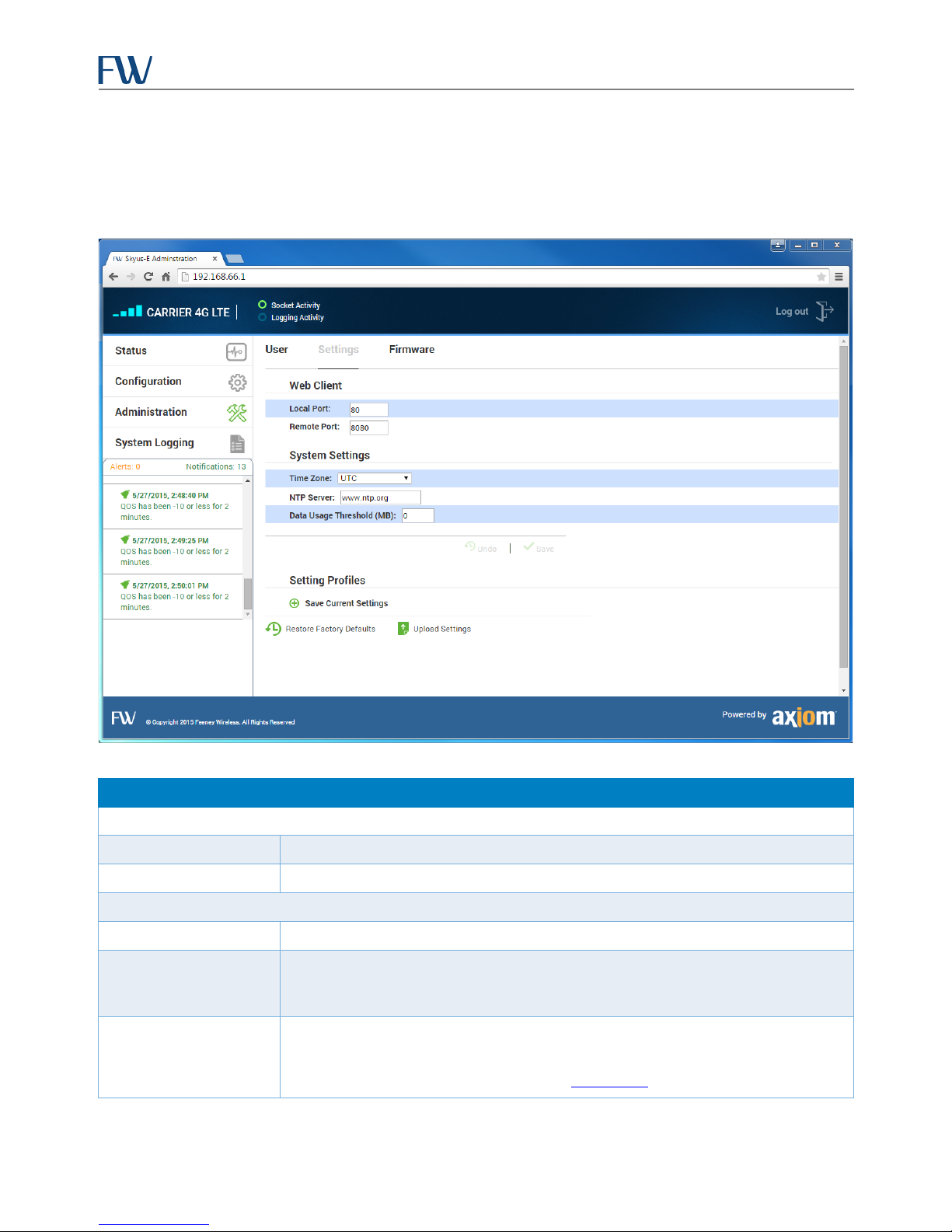
Settings
This tab provides the ability to set the local and remote port number for access to the Skyus-E Utility, and create and
manage setting profiles.
Field Description
Web Client
Local Port TCP port to access the Skyus-E Utility from the LAN. Default: 80.
Remote Port TCP port to access the Skyus-E Utility from the WAN. Default: 8080.
System Settings
Time Zone Selects either UTC (Universal Coordinated Time) or a local time zone.
Enter the URL of the Network Time Protocol (NTP) server you want the Skyus-E to use
NTP Server
Data Usage Threshold
(MB)
and click Apply. By default the Skyus-E will obtain the current UTC time from the
Allows you to enter the upper threshold of your monthly data plan. The system will
use this information to indicate what percentage of your data plan has been used by
changing the color of the
37
Figure 26: Settings Tab
Activity
LED (see Activity LED
).
Page 39
Skyus-E User Manual
user defaults via either the web interface or reset button.
profile and browse to the file to upload.
Field Description
Setting Profiles
Set Current
Sets the selected profile as the current profile to revert to in the event of a reset to
Update Applies the current Skyus-E settings to the selected profile.
Export Exports the current profile.
Delete Deletes a profile.
Save Current Settings Creates a new profile based on the current Skyus-E settings.
Restore Factory Defaults Restores the Skyus-E to factory settings. You will be prompted to confirm the restore.
Upload Settings
Opens a dialog to select a settings file to upload. The dialog allows you to name the
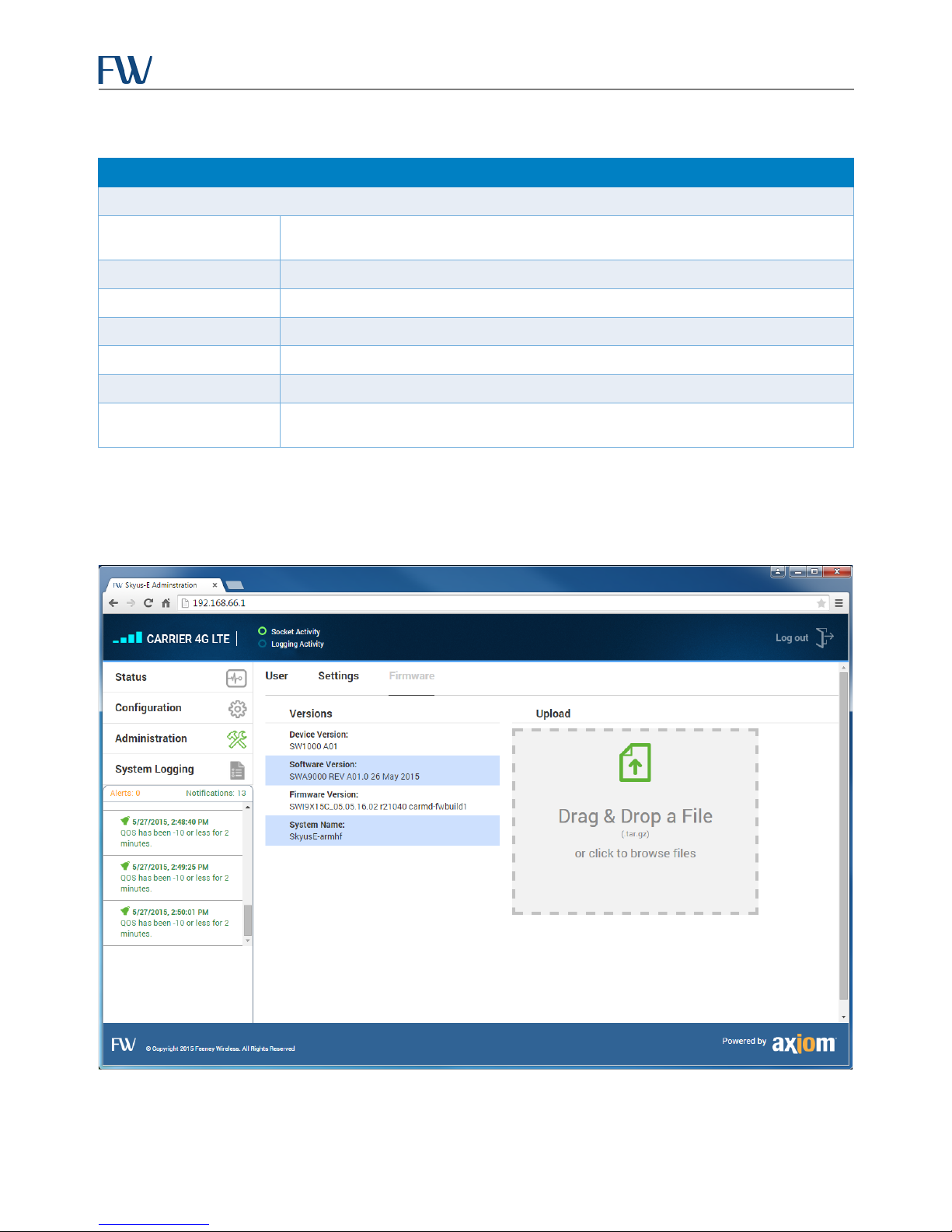
Firmware
This tab displays the current software and firmware versions installed on the Skyus-E and provides the ability to
upload Skyus-E firmware upgrades.
38
Figure 27: Firmware Tab
Page 40
Skyus-E User Manual
Field Description
Versions
Device Version Skyus-E firmware version.
Software Version Skyus-E processing module firmware version.
Firmware Version Skyus module firmware version.
System Name Host name.
Upload
Upload Area
Drag and drop a .tar.gz file or click the upload area to browse to a file. This will update
the Skyus-E firmware. Firmware upgrade files are available from FW Support.
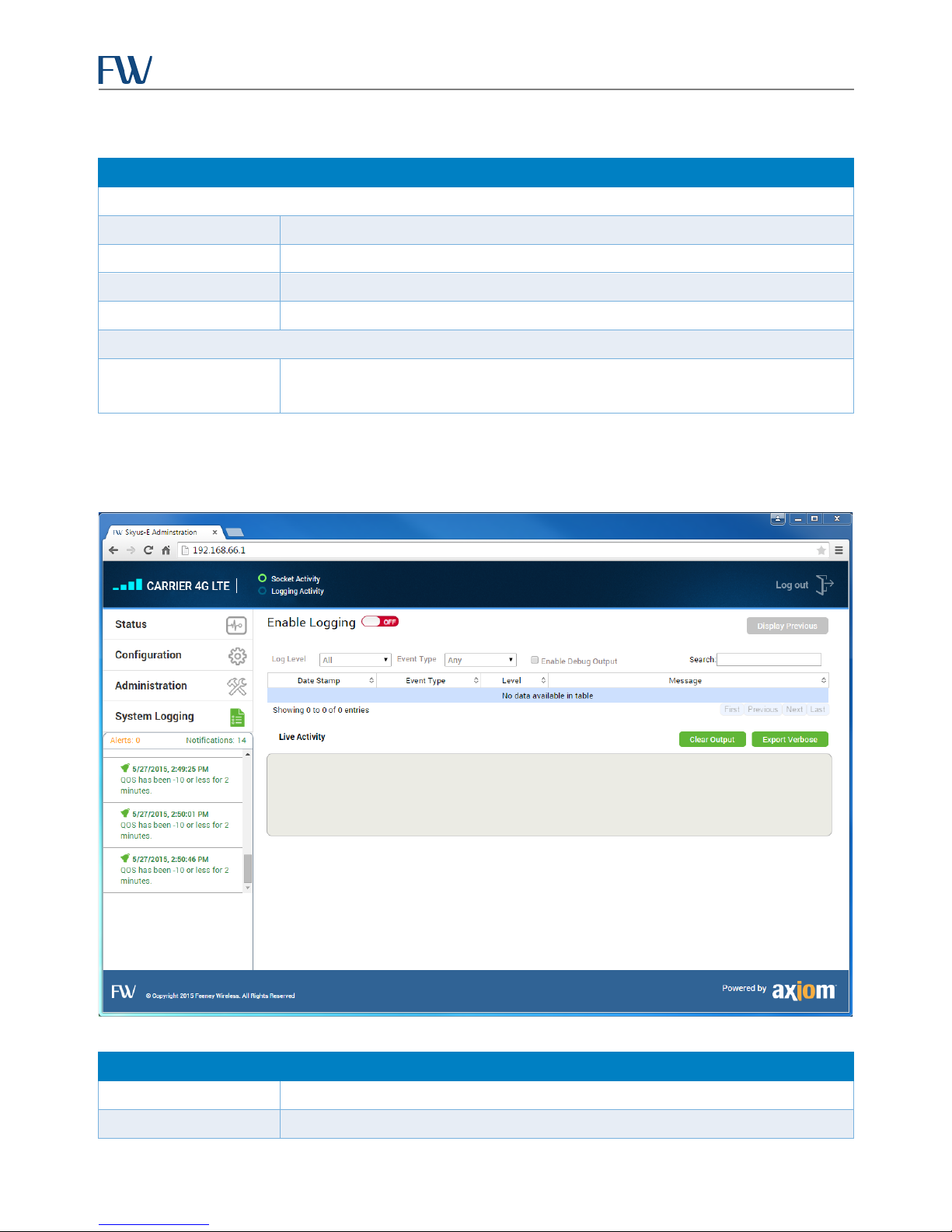
System Logging
The Skyus-E provides extensive system logging capabilities.
Field Description
Enable Logging Click the button to turn logging on or off.
Log Level Select the log level: All, Info, Warning, Critical, Debug.
39
Figure 28: System Logging
Page 41
Skyus-E User Manual
space character between them.
Field Description
Event Type Select the event type: Any, Cellular, System, Hardware.
Enable Debug Output Checkbox to enable or disable debug output.
Search
Log Table Log results sortable by TimeStamp, Event Type, Level, or Message.
Live Activity Displays the unsorted most recent log messages.
Search on any word found in a log. You can search for multiple words by putting a
Contacting FW
For help with installing, operating, maintaining, and troubleshooting this product, refer to this document and any
other documentation provided. The troubleshooting tips provided in Appendix A should be followed before
contacting support at FW. If you still have questions, contact us during business hours: Monday through Friday,
excluding holidays, between 8 a.m. and 5 p.m. Pacific Time.
Contact Us
Support E-Mail [email protected]
Telephone (800) 683-4818
Website www.feeneywireless.com
Mailing Address P.O. Box 2549, Eugene, OR 97402
When contacting technical support, please have the following information on-hand:
• Serial number on product label
• Date that you received your device
• A brief description of the problem
Online Library
For other documentation, see our online document library at:
http://feeneywireless.com/documents
40
Page 42

Skyus-E User Manual
FCC Compliance
This equipment has been tested and found to comply with the limits for a Class B digital device, pursuant to part 15
of the FCC rules. These limits are designed to provide reasonable protection against harmful interference when the
equipment is operated in a residential environment. This equipment generates, uses, and can radiate radio
frequency energy and, if not installed and used in accordance with the instruction manual, may cause harmful
interference to radio communication. FW does not guarantee that interference will not occur in a particular
installation.
Operation is subject to the following conditions:
a. This device may not cause harmful interference.
b. This device must accept any interference received, including interference that may cause undesired
operation.
Changes or modifications not expressly approved by the party responsible for compliance could void the user’s
authority to operate the equipment.
If this equipment does cause harmful interference to radio or television reception, which can be determined by
tuning the equipment off and on, the user is encouraged to try and correct the interference by one or more of the
following measures:
a. Reorient or relocate the receiving antenna.
b. Increase the distance between the equipment and the receiver.
c. Connect the equipment to outlet on a circuit different from that to which the receiver is connected.
d. Consult the dealer or an experienced radio/TV technician for help.
Exposure to RF radiation - To comply with FCC RF exposure compliance requirements, for mobile configurations, a
separation distance of at least 20 cm must be maintained between the antenna of this device and all persons. Do not
collocate or operate this device in conjunction with any other antenna or transmitter.
The TX module FCC ID depends on the Skyus module installed. See the Skyus Specification Sheet
.
41
Page 43

Skyus-E User Manual
Fault
Remedy
Power LED is not lit. No other LEDs are lit. Cannot
connect to the Skyus-E.
Check the power source and connections.
This indicates an over or under voltage condition, or an
Reapply power.
This indicates a non-recoverable unhealthy state.
Contact FW customer support.
These symptoms all point to a problem with the Skyus
Contact FW customer support.
Appendix A: Troubleshooting
The majority of faults result from insufficient power or incorrect configuration. Power supply and configuration
should be the first things checked before more extensive troubleshooting begins. Make sure the Skyus-E and the
internal Skyus module are properly installed according to the instructions in this manual or the Quick Start Guide
before searching for other remedies.
One of the first things to establish is whether the device was working prior to the fault without any change to the
hardware or software settings. If the unit was working initially, investigate power quality first. Also, look for signs of
physical damage or tampering.
In many cases when a fault is detected, it is still possible to log in to the Skyus-E Interface. Doing so will provide you
with additional information about the unit that will help you to determine a remedy.
Power LED is flashing red.
Power LED is solid red.
Power LED is flashing quickly, and one or more of the
following is true:
• At least two minutes have passed since power was
applied to the Skyus-E (allowing time for the
cellular connection to be made)
• No other LEDs are lit
• “No Modem Detected” is displayed in the interface
banner
• Connection State = Down
• Connection Type = None
• QoS = no value
• Alert: “Connect was dropped or lost”
over or under temperature condition.
Remove power from the device and allow the unit to
cool if the Skyus Temperature value was high or the
unit is being operated in hot ambient conditions.
module inside the Skyus-E.
Open the front panel of the Skyus-E as shown in
Installing the Skyus Modem.
If no Skyus module is installed, install a module.
If a Skyus module is installed, make sure the USB and
antenna connectors are correctly and firmly attached.
If the connections are good, try swapping out the Skyus
module with a known working device.
If a connection can be made with a different Skyus
module, the SIM card inside the original may be
missing, installed incorrectly, or damaged.
42
Page 44

Skyus-E User Manual
Fault
Remedy
Signal strength drops to no bars. Other symptoms
(for example, -128 dBm)
Check the internal antenna connections to the Skyus
antenna connector on the Skyus module.
This occurs when an invalid APN profile has been
will take up to two minutes.
If the ignition sense line (pin 3 on the power connector)
the Configuration > GPO/IGS screen, and click Save.
might include:
• Connection Type degrades (for example, to 2G)
• Signal Strength drops to a large negative value
Antenna(s) are connected, but signal strength is still
low.
After selecting an APN profile other than the Default on
the Configuration > APN screen:
• Cellular connection is lost
• The Power LED flashes green
• The Skyus-E Interface becomes inaccessible
Check antenna connections. If using only one antenna,
make sure it is connected to the SMA connector labeled
“Primary.”
modem.
Open the front panel of the Skyus-E as shown in
Installing the Skyus Modem.
Make sure both internal SMA antenna cables are
connected to the Skyus.
The shorter cable labeled FW8163-A is the Primary
antenna cable and should be attached to the outermost
antenna connector on the Skyus module.
The longer cable labeled FW7837-A is the Secondary
antenna cable and should be attached to the innermost
selected as the current APN profile.
Press and hold down the reset button until the Skyus-E
resets, approximately five seconds. The Signal Strength
LEDs will flash green when the reset occurs.
Access the Skyus-E Interface. (You might have to refresh
the browser if the log-in screen still shows that the
interface has timed out.)
On the Configuration > APN screen, set the current APN
profile to the Default.
The Skyus-E will reset using the default APN profile. This
After selecting Enable Ignition Sense on the
Configuration > GPO/IGS screen and clicking Save:
• Cellular connection is lost
• The Power LED goes to solid green
43
has not been properly implemented and IGS is enabled,
the Skyus-E will shut down after the shutdown period.
Remove and reapply power to the Skyus-E. Log in to
the Skyus-E Interface as soon as possible, disable IGS on
Page 45
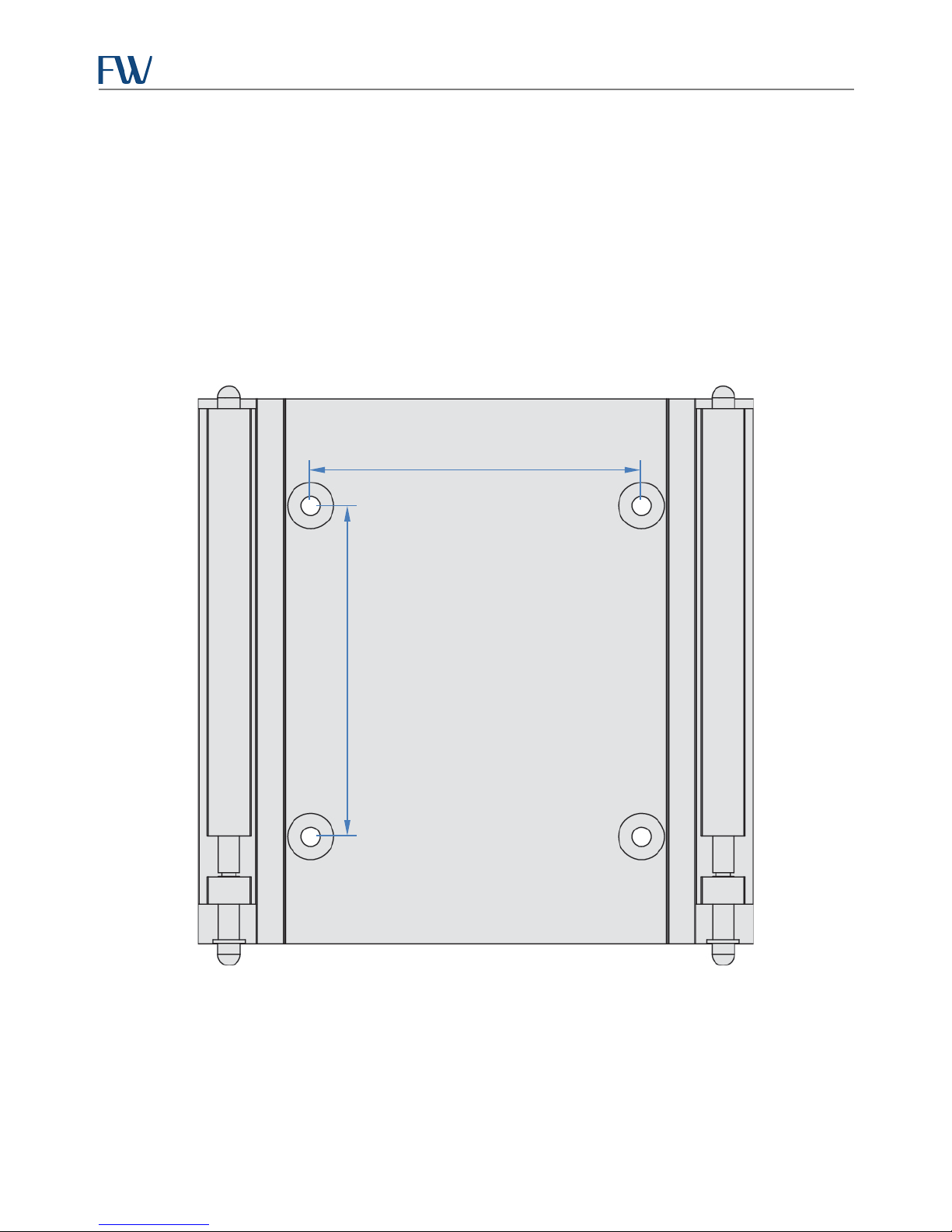
Skyus-E User Manual
74.93 mm (2.95 in)
+ + +
74.93 mm (2.95 in)
Appendix B: Mounting Plate Template
Printed at full-size, the illustration below can be used to mark the center points of the four screw holes for installing
the mounting plate. After printing the template, measure the distance between the holes to make sure the size is
accurate, as shown below.
NOTE: Some print drivers will provide the option to “fit to printer margins” which may cause scaling. To ensure that
the size is accurate, make sure to print to actual size.
44
Page 46

Skyus-E User Manual
Appendix C: Open Source Software Licenses
The MIT License (MIT)
Copyright © 2015 Feeney Wireless LLC.
Permission is hereby granted, free of charge, to any person obtaining a copy of this software and associated
documentation files (the "Software"), to deal in the Software without restriction, including without limitation the
rights to use, copy, modify, merge, publish, distribute, sublicense, and/or sell copies of the Software, and to permit
persons to whom the Software is furnished to do so, subject to the following conditions:
The above copyright notice and this permission notice shall be included in all copies or substantial portions of the
Software. For open source software components, the following applies:
THE SOFTWARE IS PROVIDED "AS IS", WITHOUT WARRANTY OF ANY KIND, EXPRESS OR IMPLIED, INCLUDING BUT
NOT LIMITED TO THE WARRANTIES OF MERCHANTABILITY, FITNESS FOR A PARTICULAR PURPOSE AND
NONINFRINGEMENT. IN NO EVENT SHALL THE AUTHORS OR COPYRIGHT HOLDERS BE LIABLE FOR ANY CLAIM,
DAMAGES OR OTHER LIABILITY, WHETHER IN AN ACTION OF CONTRACT, TORT OR OTHERWISE, ARISING FROM, OUT
OF OR IN CONNECTION WITH THE SOFTWARE OR THE USE OR OTHER DEALINGS IN THE SOFTWARE.
Linux Kernel Copyright Note
NOTE! This copyright does not cover user programs that use kernel services by normal system calls - this is merely
considered normal use of the kernel, and does not fall under the heading of "derived work".
Also note that the GPL below is copyrighted by the Free Software Foundation, but the instance of code that it refers
to (the Linux kernel) is copyrighted by me and others who actually wrote it.
Also note that the only valid version of the GPL as far as the kernel is concerned is this particular version of the
license (ie v2, not v2.2 or v3.x or whatever), unless explicitly otherwise stated.
Linus Torvalds
GNU GENERAL PUBLIC LICENSE
Version 2, June 1991
Copyright (C) 1989, 1991 Free Software Foundation, Inc.
51 Franklin Street, Fifth Floor, Boston, MA 02110-1301, USA
Everyone is permitted to copy and distribute verbatim copies of this license document, but changing it is not
allowed.
Preamble
When we speak of free software, we are referring to freedom, not price. Our General Public Licenses are designed to
make sure that you have the freedom to distribute copies of free software (and charge for this service if you wish),
that you receive source code or can get it if you want it, that you can change the software or use pieces of it in new
free programs; and that you know you can do these things.
45
Page 47

Skyus-E User Manual
To protect your rights, we need to make restrictions that forbid anyone to deny you these rights or to ask you to
surrender the rights. These restrictions translate to certain responsibilities for you if you distribute copies of the
software, or if you modify it.
For example, if you distribute copies of such a program, whether gratis or for a fee, you must give the recipients all
the rights that you have. You must make sure that they, too, receive or can get the source code. And you must show
them these terms so they know their rights.
We protect your rights with two steps: (1) copyright the software, and (2) offer you this license which gives you legal
permission to copy, distribute and/or modify the software.
Also, for each author's protection and ours, we want to make certain that everyone understands that there is no
warranty for this free software. If the software is modified by someone else and passed on, we want its recipients to
know that what they have is not the original, so that any problems introduced by others will not reflect on the
original authors' reputations.
Finally, any free program is threatened constantly by software patents. We wish to avoid the danger that
redistributors of a free program will individually obtain patent licenses, in effect making the program proprietary. To
prevent this, we have made it clear that any patent must be licensed for everyone's free use or not licensed at all.
TERMS AND CONDITIONS FOR COPYING, DISTRIBUTION AND MODIFICATION
0. This License applies to any program or other work which contains a notice placed by the copyright holder saying it
may be distributed under the terms of this General Public License. The "Program", below, refers to any such program
or work, and a "work based on the Program" means either the Program or any derivative work under copyright law:
that is to say, a work containing the Program or a portion of it, either verbatim or with modifications and/or
translated into another language. (Hereinafter, translation is included without limitation in the term "modification".)
Each licensee is addressed as "you".
Activities other than copying, distribution and modification are not covered by this License; they are outside its
scope. The act of running the Program is not restricted, and the output from the Program is covered only if its
contents constitute a work based on the Program (independent of having been made by running the Program).
Whether that is true depends on what the Program does.
1. You may copy and distribute verbatim copies of the Program's source code as you receive it, in any medium,
provided that you conspicuously and appropriately publish on each copy an appropriate copyright notice and
disclaimer of warranty; keep intact all the notices that refer to this License and to the absence of any warranty; and
give any other recipients of the Program a copy of this License along with the Program.
You may charge a fee for the physical act of transferring a copy, and you may at your option offer warranty
protection in exchange for a fee.
2. You may modify your copy or copies of the Program or any portion of it, thus forming a work based on the
Program, and copy and distribute such modifications or work under the terms of Section 1 above, provided that you
also meet all of these conditions:
a) You must cause the modified files to carry prominent notices stating that you changed the files and the
date of any change.
46
Page 48

Skyus-E User Manual
These requirements apply to the modified work as a whole. If identifiable sections of that work are not derived from
the Program, and can be reasonably considered independent and separate works in themselves, then this License,
and its terms, do not apply to those sections when you distribute them as separate works. But when you distribute
the same sections as part of a whole which is a work based on the Program, the distribution of the whole must be on
the terms of this License, whose permissions for other licensees extend to the entire whole, and thus to each and
every part regardless of who wrote it.
b) You must cause any work that you distribute or publish, that in whole or in part contains or is derived
from the Program or any part thereof, to be licensed as a whole at no charge to all third parties under the
terms of this License.
c) If the modified program normally reads commands interactively when run, you must cause it, when
started running for such interactive use in the most ordinary way, to print or display an announcement
including an appropriate copyright notice and a notice that there is no warranty (or else, saying that you
provide a warranty) and that users may redistribute the program under these conditions, and telling the
user how to view a copy of this License. (Exception: if the Program itself is interactive but does not normally
print such an announcement, your work based on the Program is not required to print an announcement.)
Thus, it is not the intent of this section to claim rights or contest your rights to work written entirely by you; rather,
the intent is to exercise the right to control the distribution of derivative or collective works based on the Program.
In addition, mere aggregation of another work not based on the Program with the Program (or with a work based on
the Program) on a volume of a storage or distribution medium does not bring the other work under the scope of this
License.
3. You may copy and distribute the Program (or a work based on it, under Section 2) in object code or executable
form under the terms of Sections 1 and 2 above provided that you also do one of the following:
a) Accompany it with the complete corresponding machine-readable source code, which must be
distributed under the terms of Sections 1 and 2 above on a medium customarily used for software
interchange; or,
b) Accompany it with a written offer, valid for at least three years, to give any third party, for a charge no
more than your cost of physically performing source distribution, a complete machine-readable copy of the
corresponding source code, to be distributed under the terms of Sections 1 and 2 above on a medium
customarily used for software interchange; or,
c) Accompany it with the information you received as to the offer to distribute corresponding source code.
(This alternative is allowed only for noncommercial distribution and only if you received the program in
object code or executable form with such an offer, in accord with Subsection b above.)
The source code for a work means the preferred form of the work for making modifications to it. For an executable
work, complete source code means all the source code for all modules it contains, plus any associated interface
definition files, plus the scripts used to control compilation and installation of the executable. However, as a special
exception, the source code distributed need not include anything that is normally distributed (in either source or
binary form) with the major components (compiler, kernel, and so on) of the operating system on which the
executable runs, unless that component itself accompanies the executable.
47
Page 49

Skyus-E User Manual
If distribution of executable or object code is made by offering access to copy from a designated place, then offering
equivalent access to copy the source code from the same place counts as distribution of the source code, even
though third parties are not compelled to copy the source along with the object code.
4. You may not copy, modify, sublicense, or distribute the Program except as expressly provided under this License.
Any attempt otherwise to copy, modify, sublicense or distribute the Program is void, and will automatically
terminate your rights under this License. However, parties who have received copies, or rights, from you under this
License will not have their licenses terminated so long as such parties remain in full compliance.
5. You are not required to accept this License, since you have not signed it. However, nothing else grants you
permission to modify or distribute the Program or its derivative works. These actions are prohibited by law if you do
not accept this License. Therefore, by modifying or distributing the Program (or any work based on the Program),
you indicate your acceptance of this License to do so, and all its terms and conditions for copying, distributing or
modifying the Program or works based on it.
6. Each time you redistribute the Program (or any work based on the Program), the recipient automatically receives a
license from the original licensor to copy, distribute or modify the Program subject to these terms and conditions.
You may not impose any further restrictions on the recipients' exercise of the rights granted herein. You are not
responsible for enforcing compliance by third parties to this License.
7. If, as a consequence of a court judgment or allegation of patent infringement or for any other reason (not limited
to patent issues), conditions are imposed on you (whether by court order, agreement or otherwise) that contradict
the conditions of this License, they do not excuse you from the conditions of this License. If you cannot distribute so
as to satisfy simultaneously your obligations under this License and any other pertinent obligations, then as a
consequence you may not distribute the Program at all. For example, if a patent license would not permit royaltyfree redistribution of the Program by all those who receive copies directly or indirectly through you, then the only
way you could satisfy both it and this License would be to refrain entirely from distribution of the Program.
If any portion of this section is held invalid or unenforceable under any particular circumstance, the balance of the
section is intended to apply and the section as a whole is intended to apply in other circumstances.
It is not the purpose of this section to induce you to infringe any patents or other property right claims or to contest
validity of any such claims; this section has the sole purpose of protecting the integrity of the free software
distribution system, which is implemented by public license practices. Many people have made generous
contributions to the wide range of software distributed through that system in reliance on consistent application of
that system; it is up to the author/donor to decide if he or she is willing to distribute software through any other
system and a licensee cannot impose that choice.
This section is intended to make thoroughly clear what is believed to be a consequence of the rest of this License.
8. If the distribution and/or use of the Program is restricted in certain countries either by patents or by copyrighted
interfaces, the original copyright holder who places the Program under this License may add an explicit
geographical distribution limitation excluding those countries, so that distribution is permitted only in or among
countries not thus excluded. In such case, this License incorporates the limitation as if written in the body of this
License.
48
Page 50

Skyus-E User Manual
9. The Free Software Foundation may publish revised and/or new versions of the General Public License from time to
time. Such new versions will be similar in spirit to the present version, but may differ in detail to address new
problems or concerns.
Each version is given a distinguishing version number. If the Program specifies a version number of this License
which applies to it and "any later version", you have the option of following the terms and conditions either of that
version or of any later version published by the Free Software Foundation. If the Program does not specify a version
number of this License, you may choose any version ever published by the Free Software Foundation.
10. If you wish to incorporate parts of the Program into other free programs whose distribution conditions are
different, write to the author to ask for permission. For software which is copyrighted by the Free Software
Foundation, write to the Free Software Foundation; we sometimes make exceptions for this. Our decision will be
guided by the two goals of preserving the free status of all derivatives of our free software and of promoting the
sharing and reuse of software generally.
NO WARRANTY
11. BECAUSE THE PROGRAM IS LICENSED FREE OF CHARGE, THERE IS NO WARRANTY FOR THE PROGRAM, TO THE
EXTENT PERMITTED BY APPLICABLE LAW. EXCEPT WHEN OTHERWISE STATED IN WRITING THE COPYRIGHT HOLDERS
AND/OR OTHER PARTIES PROVIDE THE PROGRAM "AS IS" WITHOUT WARRANTY OF ANY KIND, EITHER EXPRESSED OR
IMPLIED, INCLUDING, BUT NOT LIMITED TO, THE IMPLIED WARRANTIES OF MERCHANTABILITY AND FITNESS FOR A
PARTICULAR PURPOSE. THE ENTIRE RISK AS TO THE QUALITY AND PERFORMANCE OF THE PROGRAM IS WITH YOU.
SHOULD THE PROGRAM PROVE DEFECTIVE, YOU ASSUME THE COST OF ALL NECESSARY SERVICING, REPAIR OR
CORRECTION.
12. IN NO EVENT UNLESS REQUIRED BY APPLICABLE LAW OR AGREED TO IN WRITING WILL ANY COPYRIGHT HOLDER,
OR ANY OTHER PARTY WHO MAY MODIFY AND/OR REDISTRIBUTE THE PROGRAM AS PERMITTED ABOVE, BE LIABLE
TO YOU FOR DAMAGES, INCLUDING ANY GENERAL, SPECIAL, INCIDENTAL OR CONSEQUENTIAL DAMAGES ARISING
OUT OF THE USE OR INABILITY TO USE THE PROGRAM (INCLUDING BUT NOT LIMITED TO LOSS OF DATA OR DATA
BEING RENDERED INACCURATE OR LOSSES SUSTAINED BY YOU OR THIRD PARTIES OR A FAILURE OF THE PROGRAM
TO OPERATE WITH ANY OTHER PROGRAMS), EVEN IF SUCH HOLDER OR OTHER PARTY HAS BEEN ADVISED OF THE
POSSIBILITY OF SUCH DAMAGES.
OpenSSL Cryptography and SSL/TLS Toolkit License
LICENSE ISSUES
The OpenSSL toolkit stays under a dual license, i.e. both the conditions of the OpenSSL License and the original
SSLeay license apply to the toolkit. See below for the actual license texts. Actually both licenses are BSD-style Open
Source licenses. In case of any license issues related to OpenSSL please contact [email protected].
OpenSSL License
Copyright (c) 1998-2011 The OpenSSL Project. All rights reserved.
Redistribution and use in source and binary forms, with or without modification, are permitted provided that the
following conditions are met:
1. Redistributions of source code must retain the above copyright notice, this list of conditions and the
following disclaimer.
49
Page 51

Skyus-E User Manual
THIS SOFTWARE IS PROVIDED BY THE OpenSSL PROJECT ``AS IS'' AND ANY EXPRESSED OR IMPLIED WARRANTIES,
INCLUDING, BUT NOT LIMITED TO, THE IMPLIED WARRANTIES OF MERCHANTABILITY AND FITNESS FOR A
PARTICULAR PURPOSE ARE DISCLAIMED. IN NO EVENT SHALL THE OpenSSL PROJECT OR ITS CONTRIBUTORS BE
LIABLE FOR ANY DIRECT, INDIRECT, INCIDENTAL, SPECIAL, EXEMPLARY, OR CONSEQUENTIAL DAMAGES (INCLUDING,
BUT NOT LIMITED TO, PROCUREMENT OF SUBSTITUTE GOODS OR SERVICES; LOSS OF USE, DATA, OR PROFITS; OR
BUSINESS INTERRUPTION) HOWEVER CAUSED AND ON ANY THEORY OF LIABILITY, WHETHER IN CONTRACT, STRICT
LIABILITY, OR TORT (INCLUDING NEGLIGENCE OR OTHERWISE) ARISING IN ANY WAY OUT OF THE USE OF THIS
SOFTWARE, EVEN IF ADVISED OF THE POSSIBILITY OF SUCH DAMAGE.
2. Redistributions in binary form must reproduce the above copyright notice, this list of conditions and the
following disclaimer in the documentation and/or other materials provided with the distribution.
3. All advertising materials mentioning features or use of this software must display the following
acknowledgment: "This product includes software developed by the OpenSSL Project for use in the
OpenSSL Toolkit. (http://www.openssl.org/)"
4. The names "OpenSSL Toolkit" and "OpenSSL Project" must not be used to endorse or promote products
derived from this software without prior written permission. For written permission, please contact openssl[email protected].
5. Products derived from this software may not be called "OpenSSL" nor may "OpenSSL" appear in their names
without prior written permission of the OpenSSL Project.
6. Redistributions of any form whatsoever must retain the following acknowledgment: "This product includes
software developed by the OpenSSL Project for use in the OpenSSL Toolkit (http://www.openssl.org/)"
This product includes cryptographic software written by Eric Young ([email protected]). This product includes
software written by Tim Hudson ([email protected]).
Original SSLeay License
Copyright (C) 1995-1998 Eric Young ([email protected]). All rights reserved.
This package is an SSL implementation written by Eric Young ([email protected]). The implementation was written
so as to conform with Netscapes SSL.
This library is free for commercial and non-commercial use as long as the following conditions are adhered to. The
following conditions apply to all code found in this distribution, be it the RC4, RSA, lhash, DES, etc., code; not just the
SSL code. The SSL documentation included with this distribution is covered by the same copyright terms except that
the holder is Tim Hudson ([email protected]).
Copyright remains Eric Young's, and as such any Copyright notices in the code are not to be removed. If this package
is used in a product, Eric Young should be given attribution as the author of the parts of the library used. This can be
in the form of a textual message at program startup or in documentation (online or textual) provided with the
package.
Redistribution and use in source and binary forms, with or without modification, are permitted provided that the
following conditions are met:
1. Redistributions of source code must retain the copyright notice, this list of conditions and the following
disclaimer.
2. Redistributions in binary form must reproduce the above copyright notice, this list of conditions and the
following disclaimer in the documentation and/or other materials provided with the distribution.
50
Page 52

Skyus-E User Manual
THIS SOFTWARE IS PROVIDED BY ERIC YOUNG ``AS IS'' AND ANY EXPRESS OR IMPLIED WARRANTIES, INCLUDING, BUT
NOT LIMITED TO, THE IMPLIED WARRANTIES OF MERCHANTABILITY AND FITNESS FOR A PARTICULAR PURPOSE ARE
DISCLAIMED. IN NO EVENT SHALL THE AUTHOR OR CONTRIBUTORS BE LIABLE FOR ANY DIRECT, INDIRECT,
INCIDENTAL, SPECIAL, EXEMPLARY, OR CONSEQUENTIAL DAMAGES (INCLUDING, BUT NOT LIMITED TO,
PROCUREMENT OF SUBSTITUTE GOODS OR SERVICES; LOSS OF USE, DATA, OR PROFITS; OR BUSINESS
INTERRUPTION) HOWEVER CAUSED AND ON ANY THEORY OF LIABILITY, WHETHER IN CONTRACT, STRICT LIABILITY,
OR TORT (INCLUDING NEGLIGENCE OR OTHERWISE) ARISING IN ANY WAY OUT OF THE USE OF THIS SOFTWARE, EVEN
IF ADVISED OF THE POSSIBILITY OF SUCH DAMAGE.
The licence and distribution terms for any publically available version or derivative of this code cannot be changed.
i.e. this code cannot simply be copied and put under another distribution license [including the GNU Public License.]
3. All advertising materials mentioning features or use of this software must display the following
acknowledgement: "This product includes cryptographic software written by Eric Young
([email protected])" The word 'cryptographic' can be left out if the routines from the library being used are
not cryptographic related :-).
4. If you include any Windows specific code (or a derivative thereof) from the apps directory (application code)
you must include an acknowledgement: "This product includes software written by Tim Hudson
([email protected])"
zlib General Purpose Compression Library Version 1.2.8 License
zlib.h -- interface of the 'zlib' general purpose compression library version 1.2.8, April 28th, 2013
Copyright (C) 1995-2013 Jean-loup Gailly and Mark Adler This software is provided 'as-is', without any express or
implied warranty. In no event will the authors be held liable for any damages arising from the use of this software.
Permission is granted to anyone to use this software for any purpose, including commercial applications, and to alter
it and redistribute it freely, subject to the following restrictions:
1. The origin of this software must not be misrepresented; you must not claim that you wrote the original
software. If you use this software in a product, an acknowledgment in the product documentation would be
appreciated but is not required.
2. Altered source versions must be plainly marked as such, and must not be misrepresented as being the
original software.
3. This notice may not be removed or altered from any source distribution.
JsonCPP C++ Library License
The JsonCpp library's source code, including accompanying documentation, tests and demonstration applications,
are licensed under the following conditions:
The author (Baptiste Lepilleur) explicitly disclaims copyright in all jurisdictions which recognize such a disclaimer. In
such jurisdictions, this software is released into the Public Domain.
In jurisdictions which do not recognize Public Domain property (e.g. Germany as of 2010), this software is Copyright
(c) 2007-2010 by Baptiste Lepilleur, and is released under the terms of the MIT License (see below).
51
Page 53

Skyus-E User Manual
In jurisdictions which recognize Public Domain property, the user of this software may choose to accept it either as
1) Public Domain, 2) under the conditions of the MIT License (see below), or 3) under the terms of dual Public
Domain/MIT License conditions described here, as they choose.
The MIT License is about as close to Public Domain as a license can get, and is described in clear, concise terms at:
The full text of the MIT License follows:
Copyright (c) 2007-2010 Baptiste Lepilleur
Permission is hereby granted, free of charge, to any person obtaining a copy of this software and associated
documentation files (the "Software"), to deal in the Software without restriction, including without limitation the
rights to use, copy, modify, merge, publish, distribute, sublicense, and/or sell copies of the Software, and to permit
persons to whom the Software is furnished to do so, subject to the following conditions:
The above copyright notice and this permission notice shall be included in all copies or substantial portions of the
Software.
http://en.wikipedia.org/wiki/MIT_License
THE SOFTWARE IS PROVIDED "AS IS", WITHOUT WARRANTY OF ANY KIND, EXPRESS OR IMPLIED, INCLUDING BUT
NOT LIMITED TO THE WARRANTIES OF MERCHANTABILITY, FITNESS FOR A PARTICULAR PURPOSE AND
NONINFRINGEMENT. IN NO EVENT SHALL THE AUTHORS OR COPYRIGHT HOLDERS BE LIABLE FOR ANY CLAIM,
DAMAGES OR OTHER LIABILITY, WHETHER IN AN ACTION OF CONTRACT, TORT OR OTHERWISE, ARISING FROM, OUT
OF OR IN CONNECTION WITH THE SOFTWARE OR THE USE OR OTHER DEALINGS IN THE SOFTWARE.
WebSocket++ Version 0.5.1
WebSocket++ is an open source (BSD license) header only C++ library that implements RFC6455 The WebSocket
Protocol. It allows integrating WebSocket client and server functionality into C++ programs. It uses interchangeable
network transport modules including one based on C++ iostreams and one based on Boost Asio.
Boost Software License - Version 1.0 - August 17th, 2003
Permission is hereby granted, free of charge, to any person or organization obtaining a copy of the software and
accompanying documentation covered by this license (the "Software") to use, reproduce, display, distribute,
execute, and transmit the Software, and to prepare derivative works of the Software, and to permit third-parties to
whom the Software is furnished to do so, all subject to the following:
The copyright notices in the Software and this entire statement, including the above license grant, this restriction
and the following disclaimer, must be included in all copies of the Software, in whole or in part, and all derivative
works of the Software, unless such copies or derivative works are solely in the form of machine-executable object
code generated by a source language processor.
THE SOFTWARE IS PROVIDED "AS IS", WITHOUT WARRANTY OF ANY KIND, EXPRESS OR IMPLIED, INCLUDING BUT
NOT LIMITED TO THE WARRANTIES OF MERCHANTABILITY, FITNESS FOR A PARTICULAR PURPOSE, TITLE AND NONINFRINGEMENT. IN NO EVENT SHALL THE COPYRIGHT HOLDERS OR ANYONE DISTRIBUTING THE SOFTWARE BE
LIABLE FOR ANY DAMAGES OR OTHER LIABILITY, WHETHER IN CONTRACT, TORT OR OTHERWISE, ARISING FROM, OUT
OF OR IN CONNECTION WITH THE SOFTWARE OR THE USE OR OTHER DEALINGS IN THE SOFTWARE.
52
Page 54

Skyus-E User Manual
rapidjson Parser/Generator for C++ License
Copyright (C) 2011 Milo Yip.
Permission is hereby granted, free of charge, to any person obtaining a copy of this software and associated
documentation files (the "Software"), to deal in the Software without restriction, including without limitation the
rights to use, copy, modify, merge, publish, distribute, sublicense, and/or sell copies of the Software, and to permit
persons to whom the Software is furnished to do so, subject to the following conditions:
The above copyright notice and this permission notice shall be included in all copies or substantial portions of the
Software.
THE SOFTWARE IS PROVIDED "AS IS", WITHOUT WARRANTY OF ANY KIND, EXPRESS OR IMPLIED, INCLUDING BUT
NOT LIMITED TO THE WARRANTIES OF MERCHANTABILITY, FITNESS FOR A PARTICULAR PURPOSE AND
NONINFRINGEMENT. IN NO EVENT SHALL THE AUTHORS OR COPYRIGHT HOLDERS BE LIABLE FOR ANY CLAIM,
DAMAGES OR OTHER LIABILITY, WHETHER IN AN ACTION OF CONTRACT, TORT OR OTHERWISE, ARISING FROM, OUT
OF OR IN CONNECTION WITH THE SOFTWARE OR THE USE OR OTHER DEALINGS IN THE SOFTWARE.
53
 Loading...