

Page 1
For more information visit: fvlight.com
F&V Photographic Industry B.V.
Steenovenweg 5, 5708HN Helmond, The Netherlands
TM & © F&V All rights reserved.
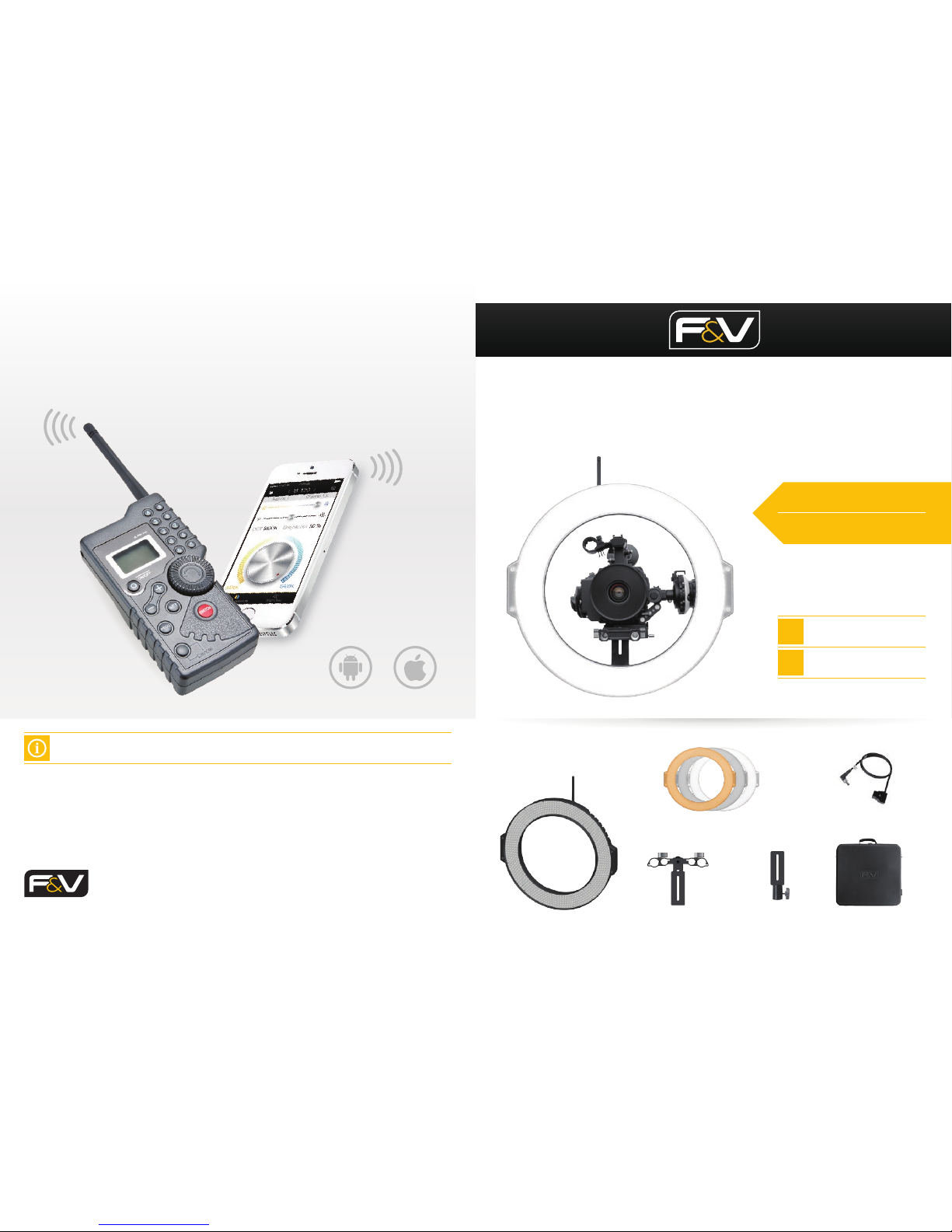
F&V Wi Remote & F&V Wi Routeris are optional accessories.
F&V Wi App only can work with the F&V Wi Router.
Create and Save Your Scenes
The Z720 has a built in WiFi module that allows you to control the light via your cell phone or
F&V Wi Remote. You can even save the exact settings and recall it any time.
WiFi Module
Quick Start Guide
1
What‘s in the box?
15mm LWS & 19mm Studio
Rail Mount
5/8” Light Stand Mount
(16mm)
Tungsten / Frost Diffusion / Milk Diffusion Filter D-tap to DC Cable
Z720 Ring Light
Z720 UltraColor
Ring Light
Getting Started
2 Functions
Pro Case for Z720
Page 2
DC Φ2.5
10-18 V
4
3
3
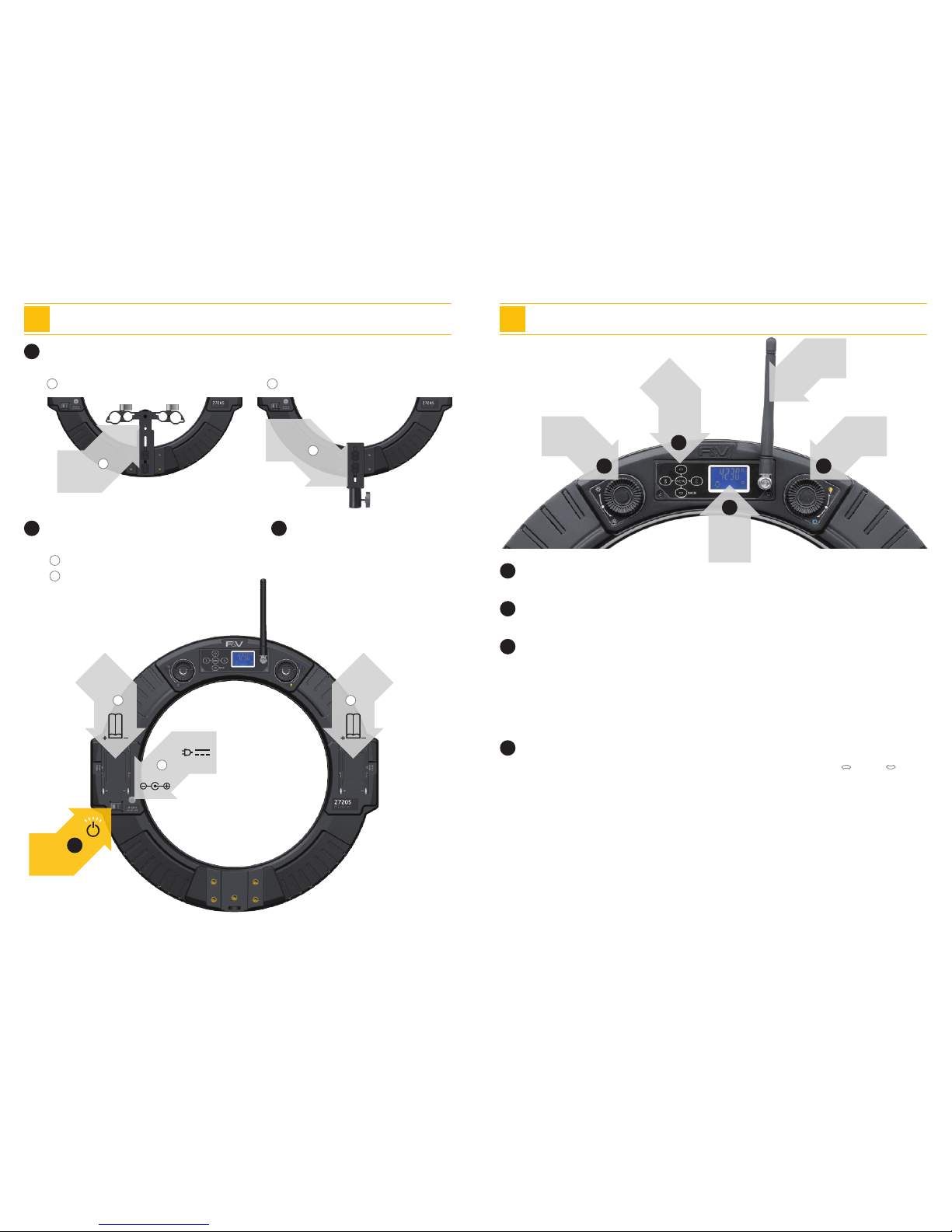
Three mounting options
15mm LWS Rail Mount & 19mm Studio Rail Mount 5/8” Light Stand Mount (16mm)
Mount
1
1 2
2
2
Adjust the Intensity
1
Use <Intensity> knob to adjust the intensity
* Adjust the Color Temperature (only the bi-color version)
2
Use <Color Temperature> knob to adjust the color temperature
3
[Press and hold the <MENU> button to enter the Extended Menu. Using the < > and < >
button, select between Group 0 or Group 1. Group 0 enables IQC. Group 1 disables IQC.]
1 Getting Started 2 Functions
POWER
NO/OFF
LCD
Display
Menu Button
& Directional
Pad
NP-F
Li-ion
Battery
1
NP-F
Li-ion
Battery
1
LightStand
Mount
Rail
Mount
15mm
& 19mm
16mm
⅝”
1
1 2
Intensity
Knob
* Color
Temperature
Knob
Antenna
Two power options
NP-F Li-ion battery
DC Φ2.5 6.8-18V
Power
2
1
2
<I> when powering through DC Jack
<II> when using NP-F batteries
Turn the light ON
Let’s do this!
3
LCD Display
Each time you press the <MENU> button, the LCD display will change:
View the current intensity
→ * View the current color temperature (only the bi-color version)
→ View the current energy level of your rst battery or the AC adapter’s efciency
→ View the energy level of your second battery
4 Independent Quadrant Control (IQC)
Start IQC
When IQC is enabled, exit the menu, and use the directional arrows to select the quadrants you
want to control. The illuminated quadrants on the LCD correlate to the quadrants you will control.
 Loading...