

Page 1
QUICK START GUIDE
Wi-Fi SOCKET
WP01
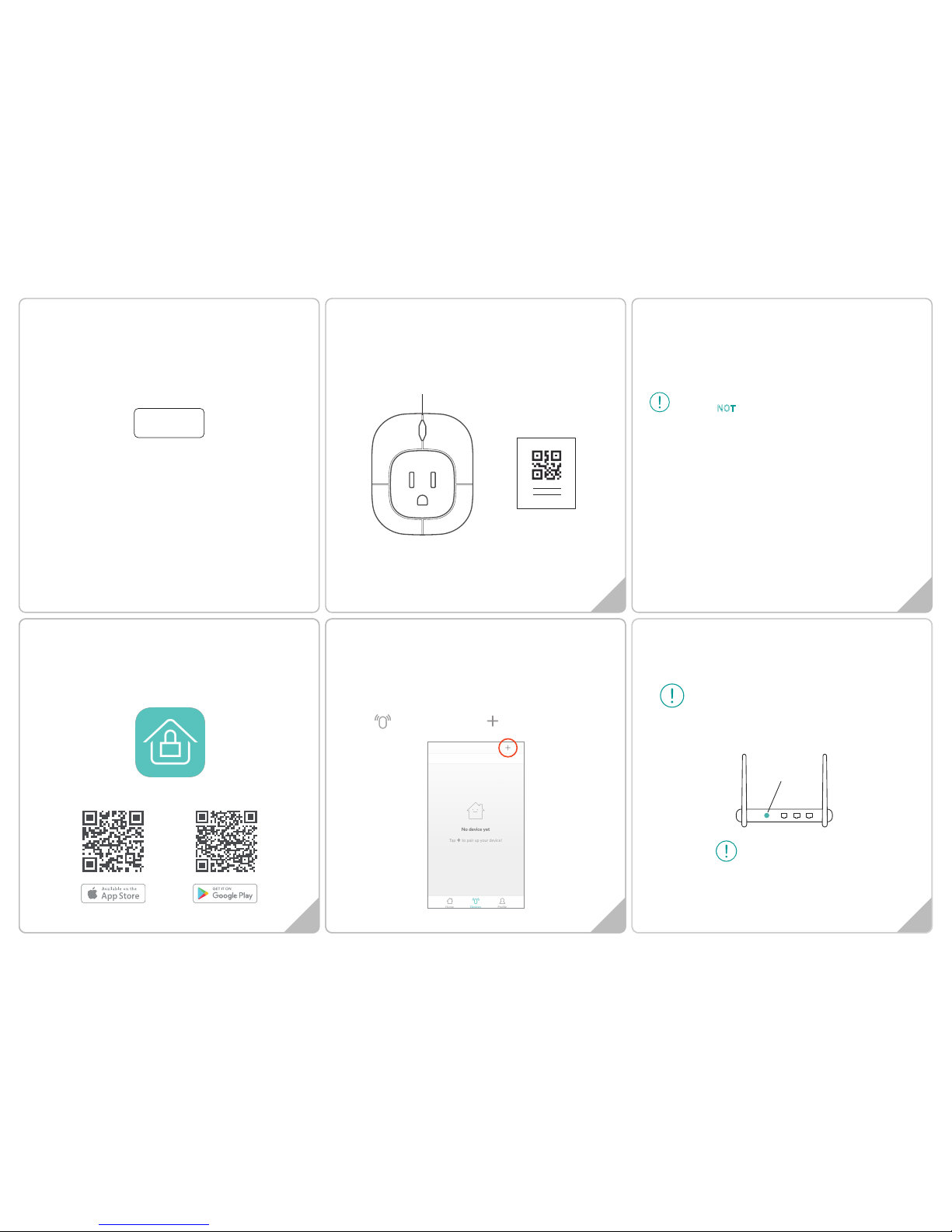
In the Box
1 2
43 5
Getting started
1. Please check that your smart phone app is updated.
2. Please also check that your Wi-Fi router is working properly and
operates on 802.11b/g/n 2.4GHz with WPA/WPA2 encryption.
We also support OPEN encryption. i.e. no password
Product Features
1. Built-in Wi-Fi module
2. Smart alarm siren function
3. Life-time cloud service is included
4. Simple Wi-Fi connection set up with APP
5. Individual socket setting from your smartphone
2.4GHz is the standard connection for most routers.
Please do NOT
choose 5GHz connection.
Installing the APP
1. Before powering up the device, please install our free
NetzHome APP onto your phone.
2. Now complete your User Profile by inputting your email
address and a 6-to-20-digit password.
NetzHome
Setting up your DEVICE
1. Plug in the socket. If there is a switch to power up the socket,
please turn it on.
2. Make sure your smart phone is connecting to the Wi-Fi network
to be used by the device.
3. Please login your account
4.
Go to Devices section
, press
5. Input your Wi-Fi password.
6. Scan the QR code on Hang Tag or device. You may also input
the “UDID” manually.
7. Press WPS button on your router (Optional but highly
recommended)
Since WPS mode will not last long, make sure
you finish step7-9 as quickly as possible.
Some RESET function
is combined with
WPS button on
router. It is better to
refer to user manual
of your router.
WPS/
Reset
QR Code Card
Wi-Fi Socket
(Blue LED)
Page 2
76 8
109
Trouble Shooting
CANNOT PAIR THE SOCKET SUCCESSFULLY
1. It is better to get the DEVICE closer to the router. If there are too
many Wi-Fi connections around your socket, turn them off to
avoid any disturbance and pair again.
2. Check that the router is working properly and that it operates
on 2.4GHz.
3. Check that the name of router and password are correct.
4. Repeat from step 4 of section "Setting up your DEVICE" and
press the button for 5 seconds. If the blue LED indicator flashes,
the socket is ready to pair. The whole pairing process finishes
until the “Pair Finish” message appears.
DOESN’T WORK PROPERLY or LOSS OF SIGNAL ICON
APPEARS ( )
1. Check whether the Socket is within coverage of your Wi-Fi
router/repeater.If signal coverage cannot cover your device, you
may add Wi-Fi extender OR use another router with stronger
signal strength.
2. Check that the router is working properly.
FCC Statement
This device complies with Part 15 of the FCC Rules. Operation is subject
to the following two conditions: (1) this device may not cause harmful
interference, and (2) this device must accept any interference received,
including interference that may cause undesired operation.
Please note that changes or modifications not expressly approved by
the party responsible for compliance could void the user's authority to
operate the equipment.
NOTE: This equipment has been tested and found to comply with the
limits for a Class B digital device, pursuant to Part 15 of the FCC Rules.
These limits are designed to provide reasonable protection against
harmful interference in a residential installation. This equipment
generates, uses and can radiate radio frequency energy and, if not
installed and used in accordance with the instructions, may cause
harmful interference to radio communications. However, there is no
guarantee that interference will not occur in a particular installation. If
this equipment does cause harmful interference to radio or television
reception, which can be determined by turning the equipment off and
on, the user is encouraged to try to correct the interference by one or
more of the following measures: --Reorient or relocate the receiving
antenna. --Increase the separation between the equipment and
receiver. -- Connect the equipment into an outlet on a circuit different
from that to which the receiver is connected. --Consult the dealer or an
experienced radio/TV technician for help.
THANK YOU
8. Press and hold the button on the Wi-Fi socket until a beep to
enter pairing mode.
9. Press ‘Pair’ and wait for network connection.
10. The device will now start pairing to the router.
11. When pairing is succeed, a “Pair Finish” message will be
shown. A new device will be shown on device page. Otherwise,
please disconnect the batteries from the device and repeat
from step 4.
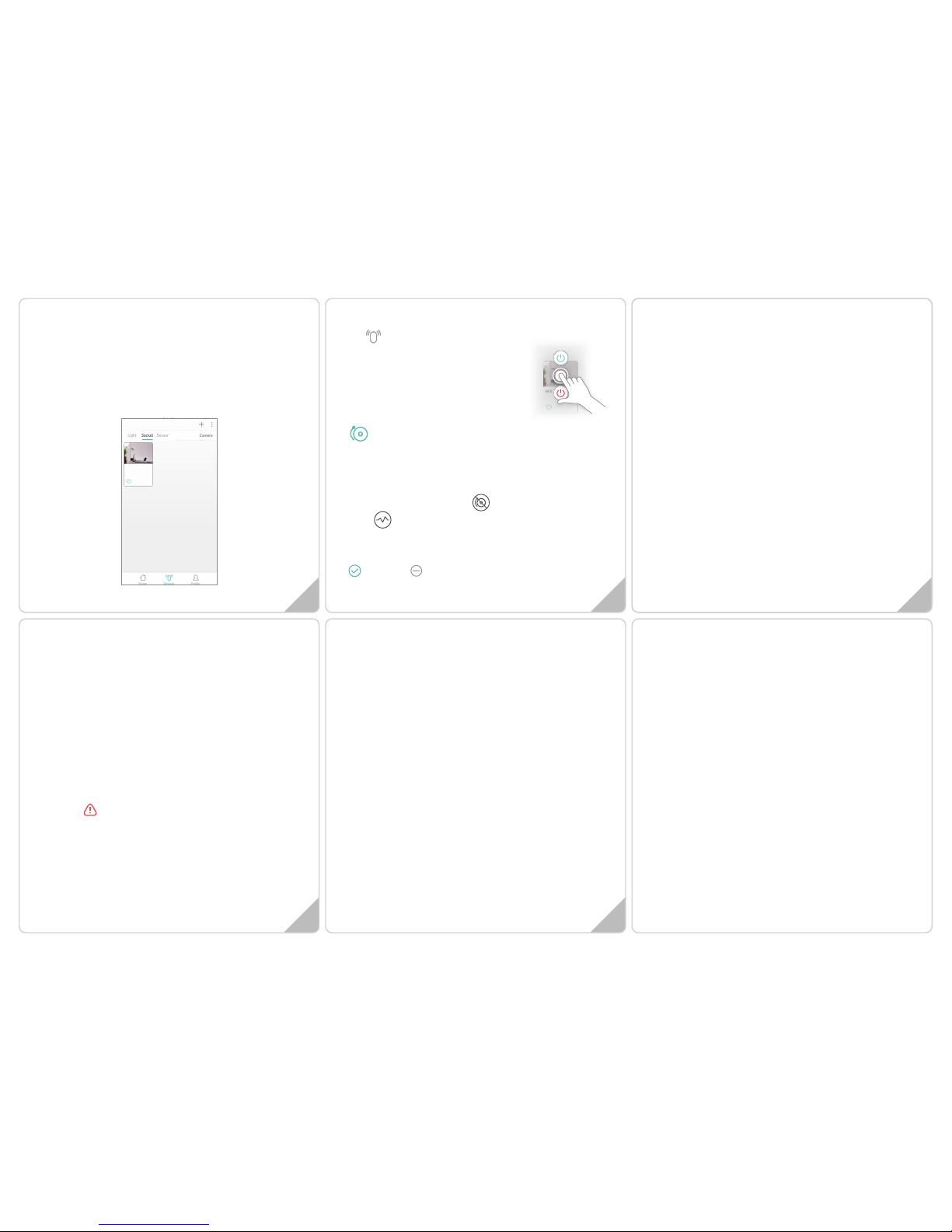
How To Use
Go to Devices section > Socket column
• Long press the socket to turn the
electrical
devices ON / OFF when you are at home
or out.
2. On the device detail page
•
Local Alert
Works with other NetzHome sensors. When sensor is triggered,
the built-in buzzer will start beeping for a few minutes. Click this
icon to enable the function.
Once it starts beeping, you can stop the alert by pressing the
button on the socket, or press at the device detail page.
•
Click to show history of energy consumption
•
Timer: Set timers for automatic switching of devices. Support
Max. 4 timing task.
Timer on Timer off
Important
1. Make sure your Wi-Fi router and its signal strength cover all the
devices locations. Please note that a Wi-Fi signal may not
penetrate through concrete walls or solid doors and that, if it
does, it is usually SEVERELY reduced. You may therefore need
to add one or more Wi-Fi Repeaters to increase signal coverage.
Then ensure that individual devices are paired to the closest
Repeater or Router.
2. After installing a socket, please test it at least a couple of times
to check the performance.
Socket
 Loading...