

Page 1
User Manual
Futiro Luna / Terra / Solo
English
www.futiro.com
All manuals and user guides at all-guides.com
all-guides.com
Page 2
1
Table of Contents
1. Introduction ................................................................................................2
1.1 Overview .................................................................................................2
1.2 System Requirements ............................................................................2
1.3 Features .................................................................................................3
2. Installing your Futiro USB Phone .............................................................4
3. Using your Futiro USB Phone ...................................................................8
3.1 Using your Futiro Luna ........................................................................9
3.1.1 Luna Key functions ......................................................................... 10
3.2 Using your Futiro Terra ...................................................................... 11
3.2.1 Terra Key functions ........................................................................ 12
3.3 Using your Futiro Solo ....................................................................... 13
3.3.1 Solo Key functions ......................................................................... 14
4. Troubleshooting ....................................................................................... 15
All manuals and user guides at all-guides.com
Page 3
2
1. Introduction
This manual provides instructions for installing and operating your Futiro USB
Phon.
1.1 Overview
Package Contents
• Futiro USB phone Luna, Terra or Solo.
• Futiro Quick Start Guide.
• Futiro software CD which includes :
o Futiro drivers and software to allow your phone to interact with
iChat.
o Futiro phone user manual in pdf format.
o Adobe Acrobat Reader
1.2 System Requirements
Mac OS X v10.4.8 (Tiger)
•
Intel / G4 800 MHz CPU or faster
• Minimum 512 MB RAM
• Minimum 10Mb of free space on your hard drive.
• 1 x USB 1.1/2.0.
• Broadband Internet Connection.
All manuals and user guides at all-guides.com
Page 4
3
1.3 Features
• Easy to install plug-and-play technology.
• USB 1.1/2.0 compatible.
• USB bus powered.
• Connection type - USB Type A, Slave.
• iChat Integration.
• Adjustable in-call volume control.
• Unique Free Standing Design on Luna and Terra models.
• Stretchable cord on Luna and Terra models (up to approx 3 metres).
• Unique patented cable management system on Solo model.
• Hands-free and Speed-dial functionality on Luna model.
• Omnidirectional microphone with 60dB S/N Ratio and -43dB +/- 2dB
sensitivity.
• Speaker with a frequency range of F0-5.0 KHz
All manuals and user guides at all-guides.com
Page 5
4
2. Installing your Futiro USB Phone
Please follow these 6 easy steps to set up your Futiro USB Phone for iChat.
STEP 1
First, remove any previous version of the Futiro software by dragging the
Futiro icon to Trash.
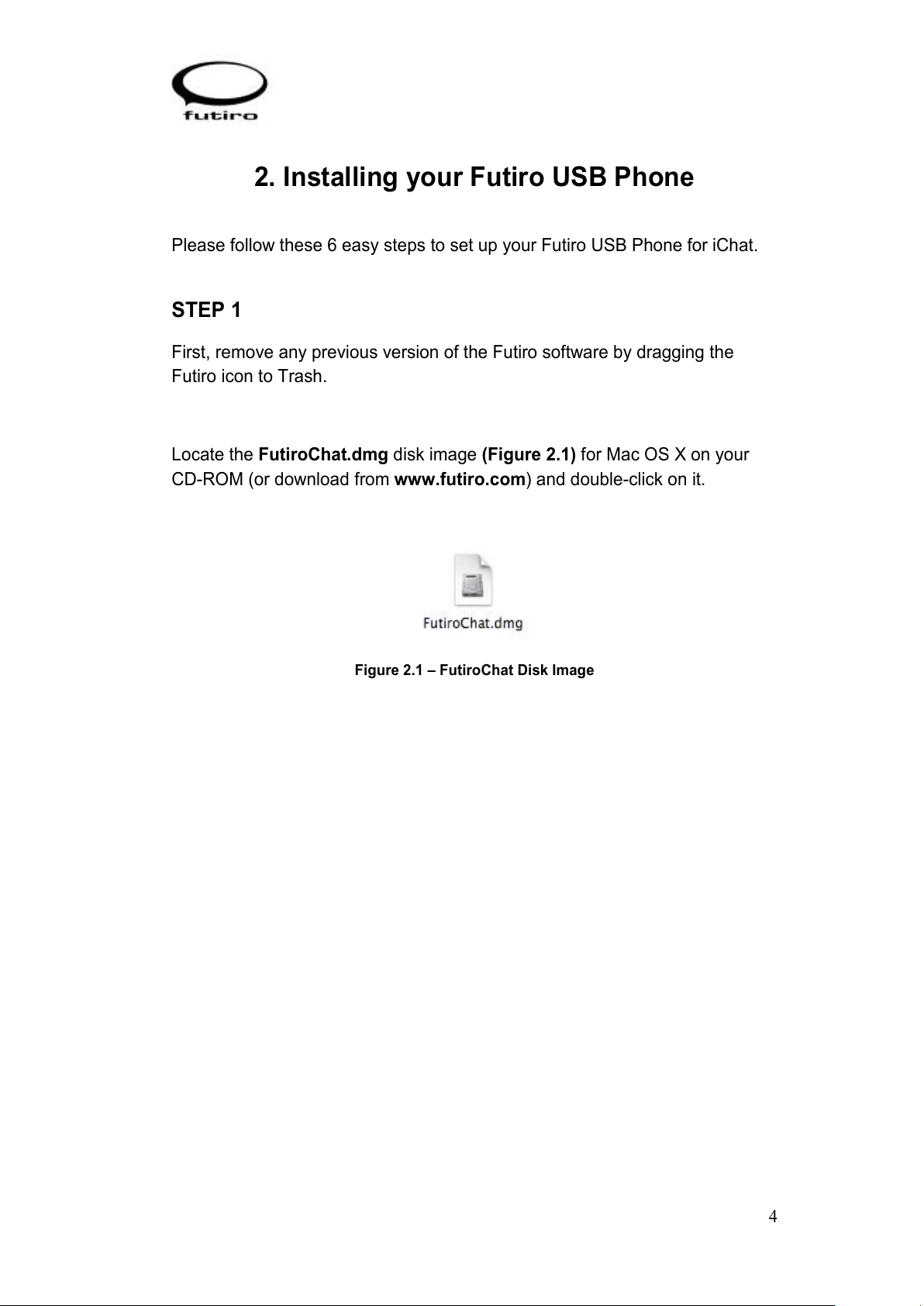
Locate the FutiroChat.dmg disk image (Figure 2.1) for Mac OS X on your
CD-ROM (or download from www.futiro.com) and double-click on it.
Figure 2.1 – FutiroChat Disk Image
All manuals and user guides at all-guides.com
Page 6
5
STEP 2
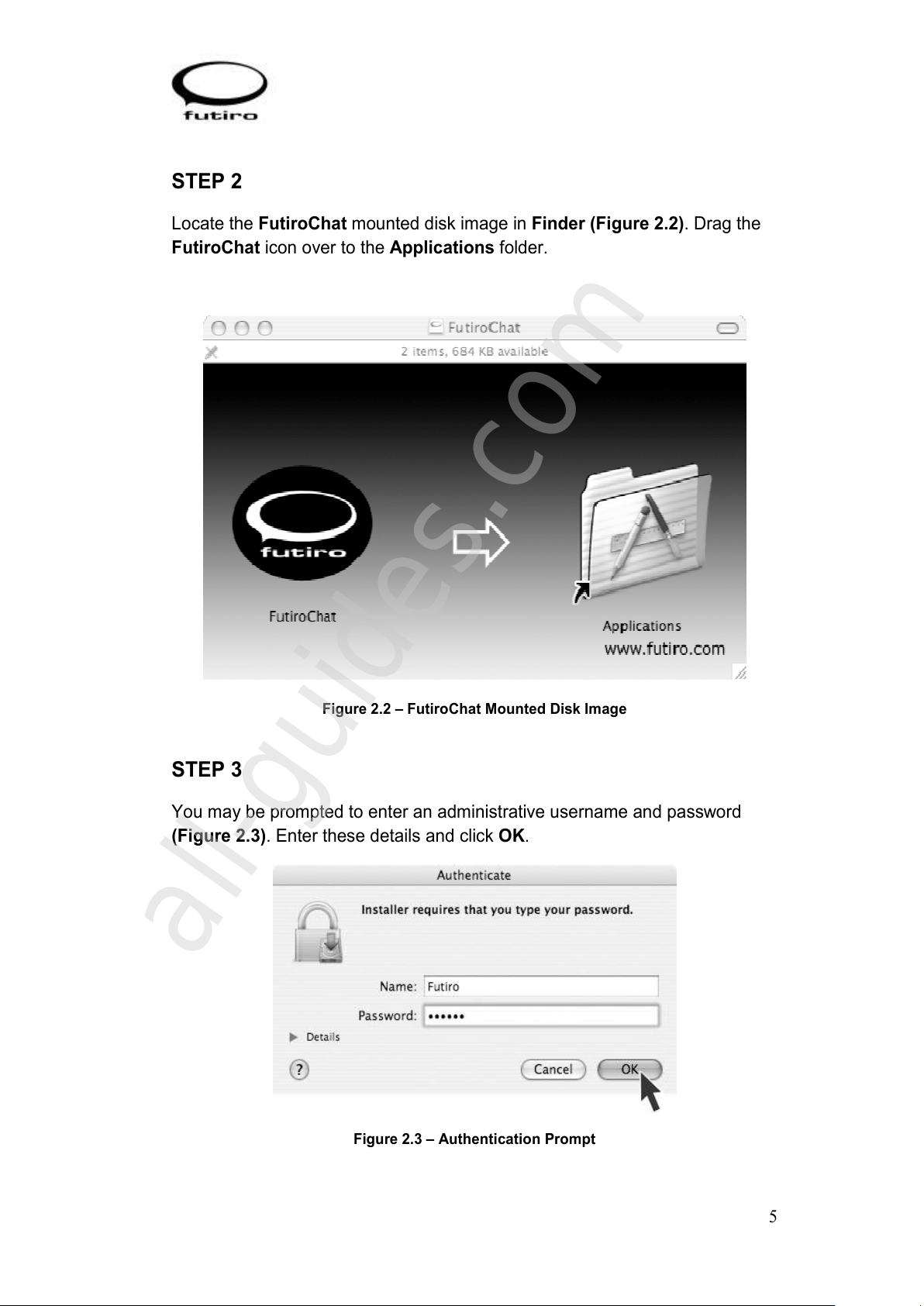
Locate the FutiroChat mounted disk image in Finder (Figure 2.2). Drag the
FutiroChat icon over to the Applications folder.
Figure 2.2 – FutiroChat Mounted Disk Image
STEP 3
You may be prompted to enter an administrative username and password
(Figure 2.3). Enter these details and click OK.
Figure 2.3 – Authentication Prompt
All manuals and user guides at all-guides.com
all-guides.com
Page 7
6
STEP 4
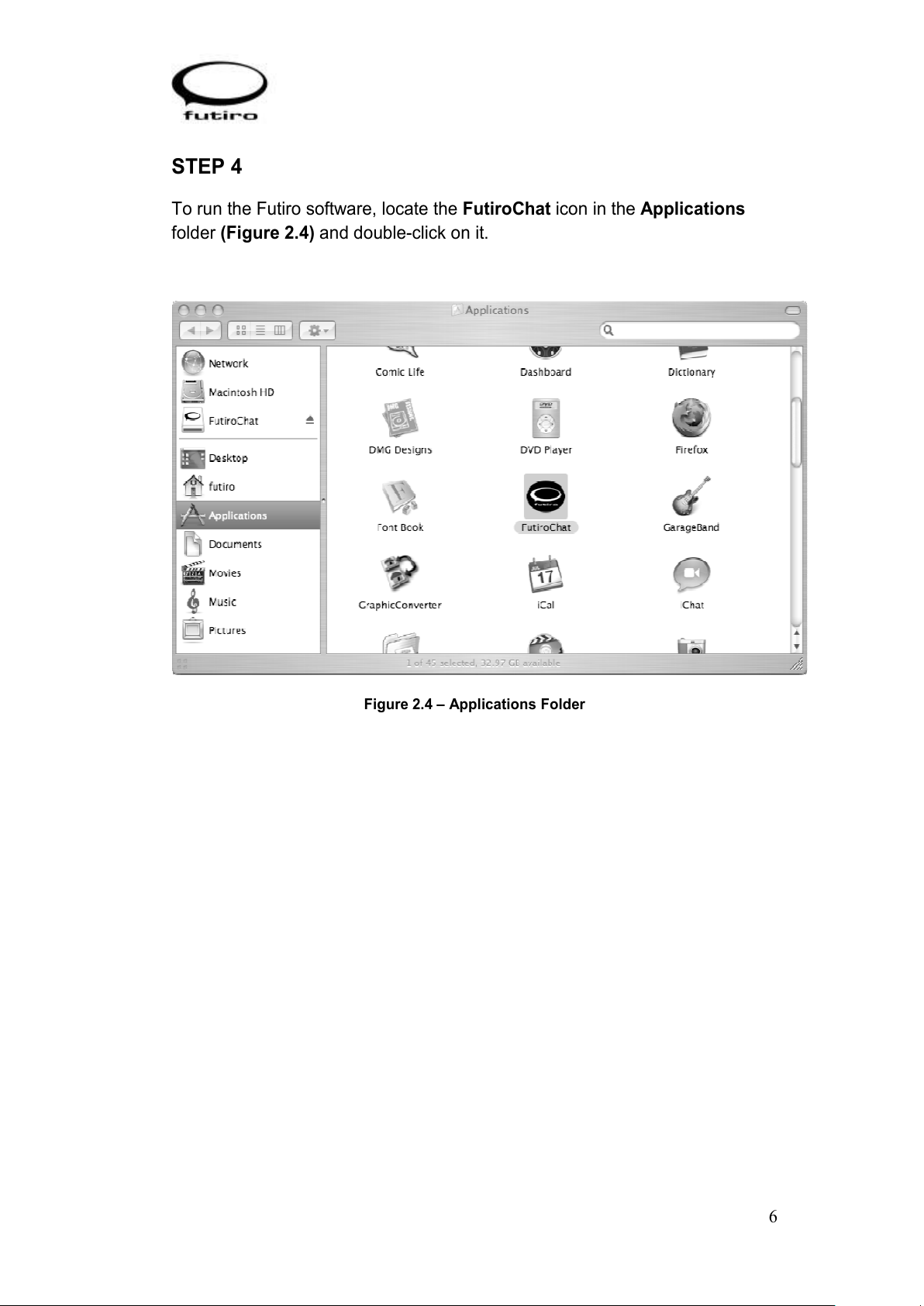
To run the Futiro software, locate the FutiroChat icon in the Applications
folder (Figure 2.4) and double-click on it.
Figure 2.4 – Applications Folder
All manuals and user guides at all-guides.com
Page 8
7
STEP 5
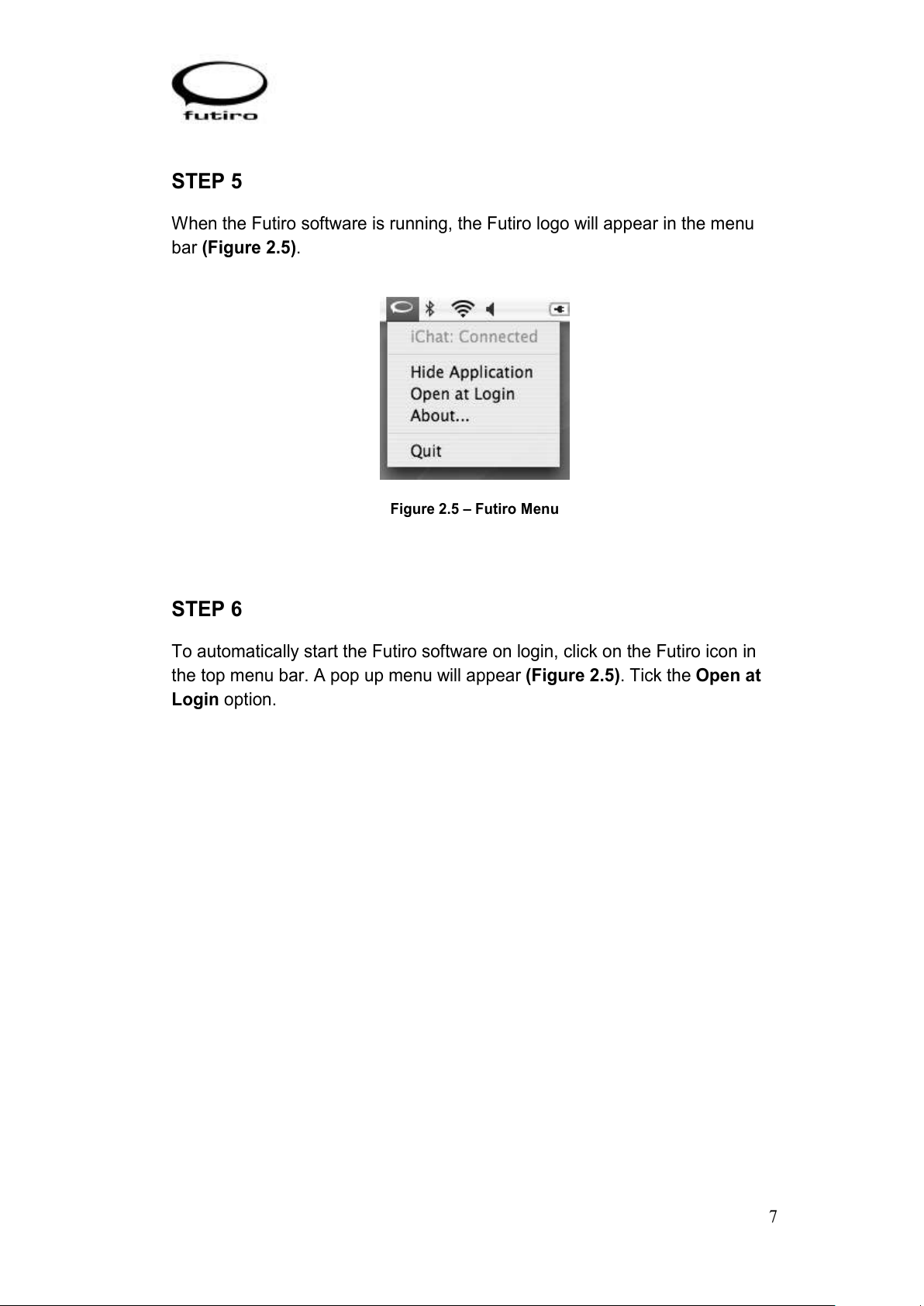
When the Futiro software is running, the Futiro logo will appear in the menu
bar (Figure 2.5).
Figure 2.5 – Futiro Menu
STEP 6
To automatically start the Futiro software on login, click on the Futiro icon in
the top menu bar. A pop up menu will appear (Figure 2.5). Tick the Open at
Login option.
All manuals and user guides at all-guides.com
Page 9
8
3. Using your Futiro USB Phone
When using your Futiro phone with iChat, please ensure you have read the
previous chapters and have installed the Futiro software on your Mac.
Before you start using your phone with iChat please ensure:
1. iChat is running on your Mac and you are logged on to your iChat
account.
2. Your Futiro software is running. (See Section 2)
All manuals and user guides at all-guides.com
Page 10
9
3.1 Using your Futiro Luna
Making a Call
1. Press the green
to open the contact list.
2. Use the scroll button to scroll up or down through your contacts and
select the desired contact.
3. Press the green
to call the selected contact.
Receiving a Call
Press the green
to answer the call.
Ending a Call
Press the red
to end the call.
Closing the Contact List
Press the red
to close the contact list.
Additional Features
• To Switch on hands-free - Press
either before or during a call. You
can leave the hands-free feature on if you wish.
• When on a call, press
to mute the microphone (requires Enable
access for assistive devices to be ticked in the Universal Access
options under System Preferences.
The LED Indicator
The Futiro Luna contains a light emitting diode (LED) indicator. The LED
indicates different states of the phone:
LED Colour
Phone Mode
Off The phone is not plugged in.
Red The phone is plugged in and on normal mode.
Red Intermittent Plugged in and on a standard call.
Green Plugged in and on hands-free mode.
Green Intermittent Plugged in and on a hands-free call.
All manuals and user guides at all-guides.com
Page 11
10
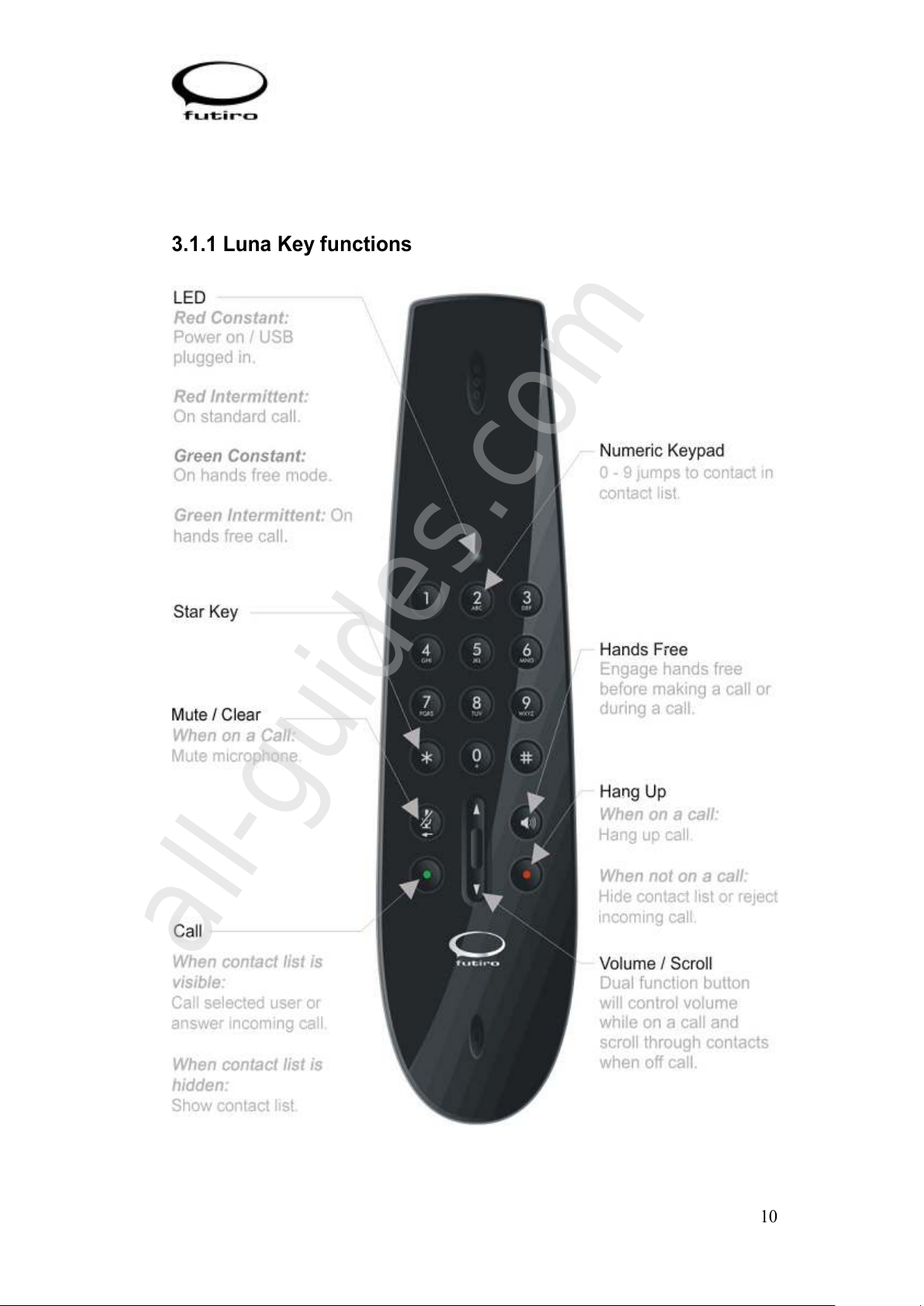
3.1.1 Luna Key functions
All manuals and user guides at all-guides.com
all-guides.com
Page 12
11
3.2 Using your Futiro Terra
Making a Call
1. Press the green
to open the contact list.
2. Use the scroll button to scroll up or down through your contacts and
select the desired contact.
3. Press the green
to call the selected contact.
Receiving a Call
Press the green
to answer the call.
Ending a Call
Press the red
to end the call.
Closing the Contact List
Press the red
to close the contact list.
All manuals and user guides at all-guides.com
Page 13
12
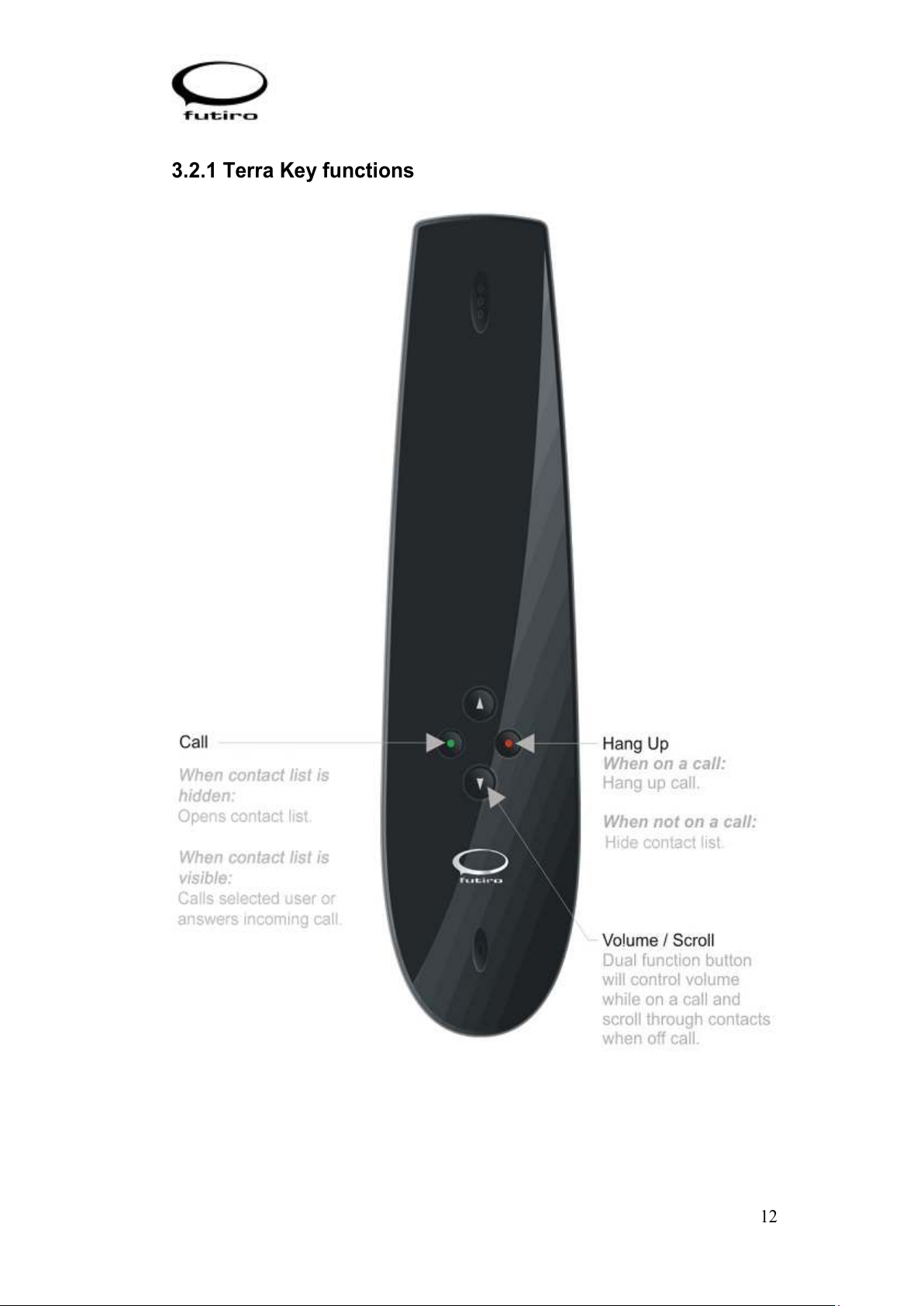
3.2.1 Terra Key functions
All manuals and user guides at all-guides.com
Page 14
13
3.3 Using your Futiro Solo
Making a Call
1. Press the green
to open the contact list.
2. Use the scroll button to scroll up or down through your contacts and
select the desired contact.
3. Press the green
to call the selected contact.
Receiving a Call
Press the green
to answer the call.
Ending a Call
Press the red
to end the call.
Closing the Contact List
Press the red
to close the contact list.
All manuals and user guides at all-guides.com
Page 15
14
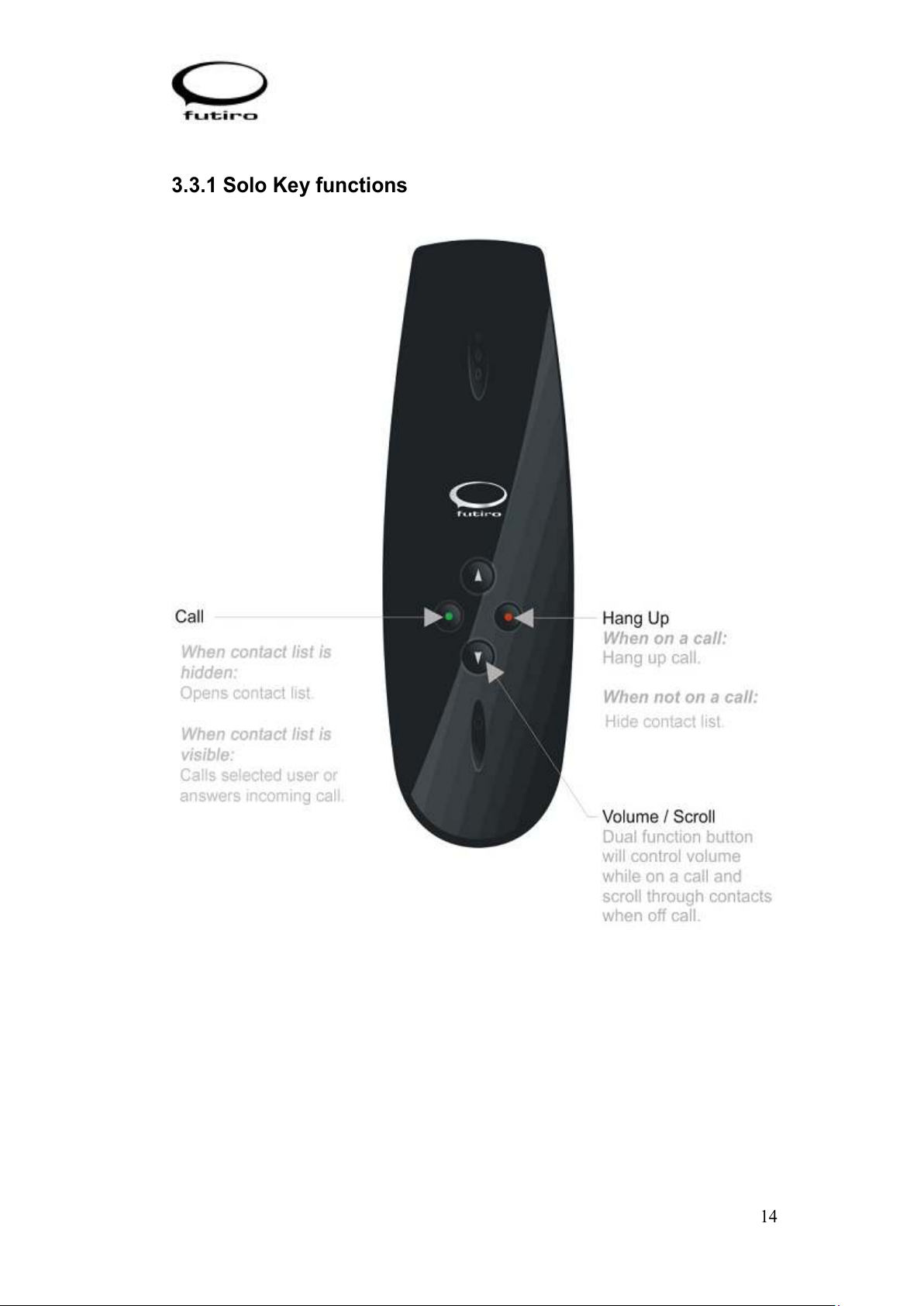
3.3.1 Solo Key functions
All manuals and user guides at all-guides.com
Page 16
15
4. Troubleshooting
When I press the call button Skype does not launch.
1. Is the Phone plugged in to a USB port?
The USB phone needs to be plugged into a working USB port on your
computer.
2. Is the LED on the phone on? (Luna Only)
If not, there may be a problem with your USB port. If possible try a
different USB port.
3. Have you logged into iChat?
Double click the iChat icon in the Applications folder, if prompted for
your user name and password, enter them.
4. Is the Futiro software installed on your computer?
Check your desktop and/or your program list to see if Futiro is installed.
If not, refer to Chapter 2 Installing your Futiro USB Phone.
5. Is the Futiro software running?
If the Futiro software is running you will see the Futiro icon in the menu
bar, at the top right hand corner of your screen.
I cannot hear the ringtone / audio.
The default iChat ringtone is only audible through your Mac’s speakers.
Please ensure that your speakers are adjusted so that the audio can be hear.
To configure the Futiro handset for iChat integration, select Preferences...
from the iChat menu. Click on the Video tab and select Generic USB Audio
Device for both Microphone and Sound Output.
All audio is being played through my Futiro phone.
Open System Preferences and click on Sound. Click on Output and select
your usual sound card (not the Generic USB Audio Device).
I am having problems installing my Futiro software. I have been getting
messages about administrative rights and/or insufficient privileges.
You may not have rights to install software on your computer; you need to log
on to your computer as administrator. In business environments you may
need to contact your local network administrator to do this.
All manuals and user guides at all-guides.com
all-guides.com
Page 17
16
For additional troubleshooting and software updates visit:
www.futiro.com
Uninstalling the Futiro software:
• First click the Futiro icon in the system menu, then select Quit from the
drop-down menu.
• Remove the Futiro application from the Applications folder and place
it in the Trash.
All manuals and user guides at all-guides.com
 Loading...