

Page 1

FUSION RESEARCH
Encore Movie Server
Installation Guide:
Version 4.0 April 2011
Page 2

Page 3

Encore Movie Server | Fusion Research
2
Table of Contents
Before you get started ..................................................... 3
Setting up your Encore .................................................... 6
Loading a DVD .............................................................. 13
Sorting, Filtering & Searching your Collection................ 17
Managing your Movie Collection .................................... 20
Adding Players & Backing up Movies ............................ 26
Adding Storage to your System ..................................... 29
Troubleshooting Guide .................................................. 30
Understanding EDID Issues .......................................... 32
Warranty & Return Policy .............................................. 33
Page 4
Chapter 1
Before you get started…
3
Fusion Research | Encore Movie Server
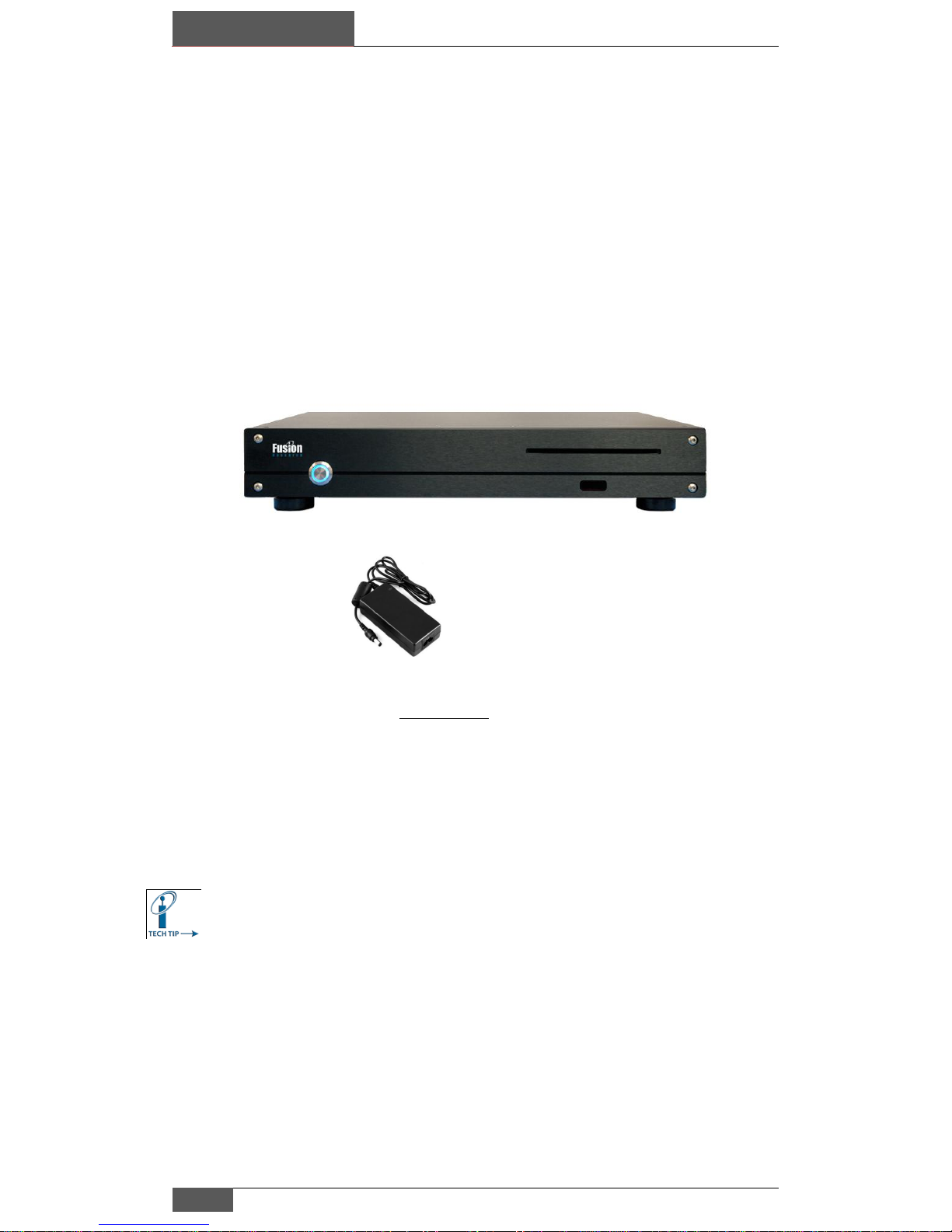
Your Encore system is a hard drive based server with the ability to playback
one zone (additional zones may be added by purchasing additional players).
The system can be rack-mounted by ordering a kit specially designed for the
Encore by Middle Atlantic, the 3U kit allows for proper cooling and spacing for
this product.
When placing the system it is important to remember that thought should be
given to providing adequate ventilation. All server based products will
generate some heat and will require some ventilation.
The entire system has been engineered to be as quiet as possible;
however it is important to understand that this is both a player and
a powerful multi-terabyte server. The system will therefore still
emit some minor fan sounds especially under load during video
playback and care must be given to keep the unit cool and well
ventilated.
The Encore System
To power down the unit
touch the front power
button to allow a proper
shutdown.
DO NOT HOLD THE POWER
BUTTON TO POWER OFF
UNIT.
Forcing the power off
without a proper
shutdown could damage
the unit.
Note special 19 volt adapter should
not be confused with other product‟s
units…Plugging in the incorrect
adapter can damage the system.
Page 5
Before you get started…
Chapter 1
Encore Movie Server | Fusion Research
4
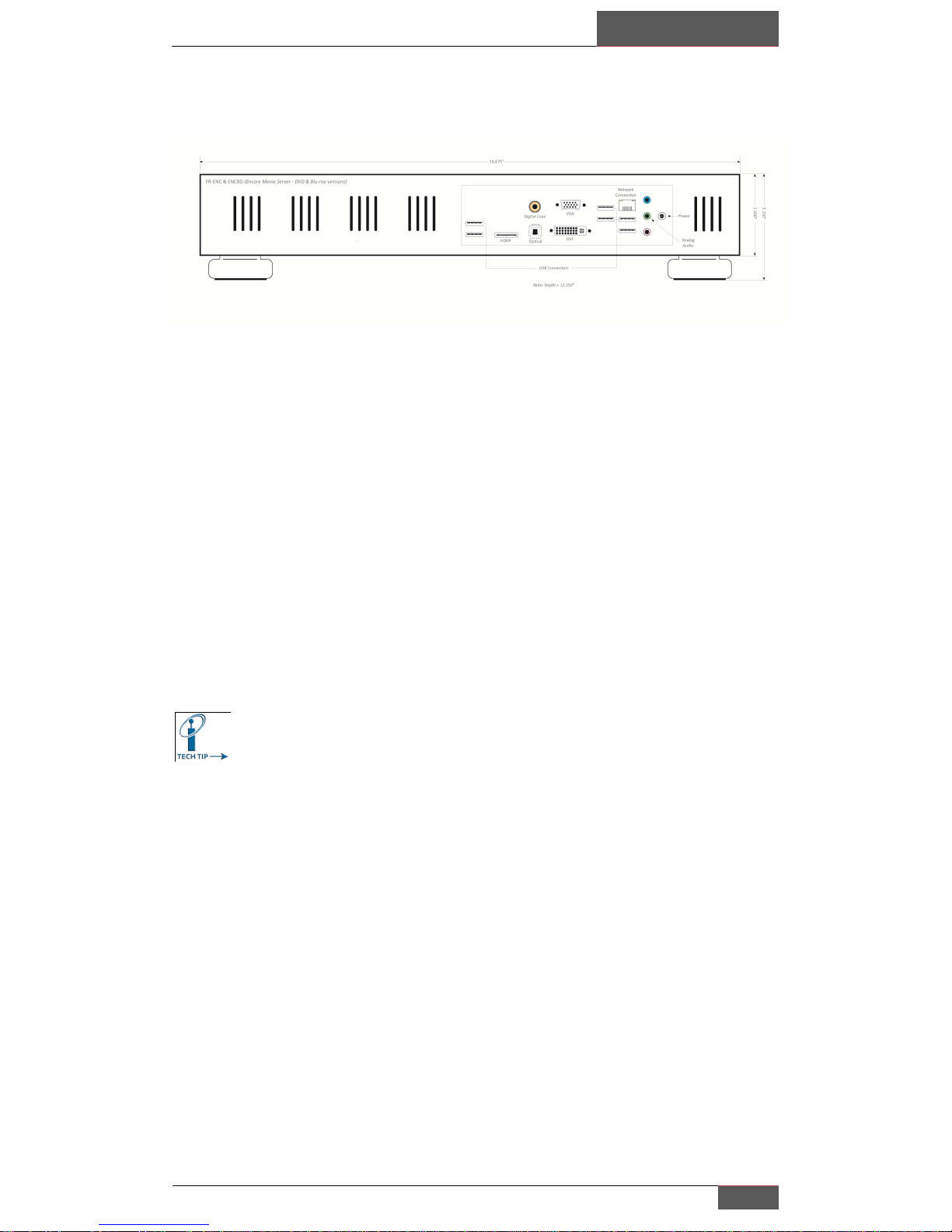
Basic connections on Encore:
(Component output requires FR-COM adapter kit)
Things to remember when connecting the system:
You must connect to a network PRIOR to powering up unit
System is default set to digital 5.1 audio over HDMI output, you can
easily change the audio output to SPDIF, Optical or 2 channel over
HDMI or Analog 2 channel (explained later in the manual or can be
found in the Quick Start Guide
Both Digital Audio and Analog audio are NOT both active at the
same time, you must setup one or the other in the system
manager.
If both analog and digital outputs are required simultaneously,
please order the optional dual output adapter FR-D2A.
Component output requires FR-COM adapter kit
Page 6
Chapter 1
Before you get started…
5
Fusion Research | Encore Movie Server
3 Steps for Successful Media Server Installations:
Prior to setting up your Encore System for the first time, it is critical to
understand and plan for a proper installation that will avoid problems.
1. Cool Environment
2. UPS Power with High Quality Surge Protection
3. Properly configured reliable network
A cool environment is a must for Fusion equipment and lack of adequate
venting will shorten the life of the product and in circumstances where it gets
hot enough, will cause the equipment to shutdown. If you observe any of
your Fusion components shutting down spontaneously, there is a 99%
chance that they are overheating.
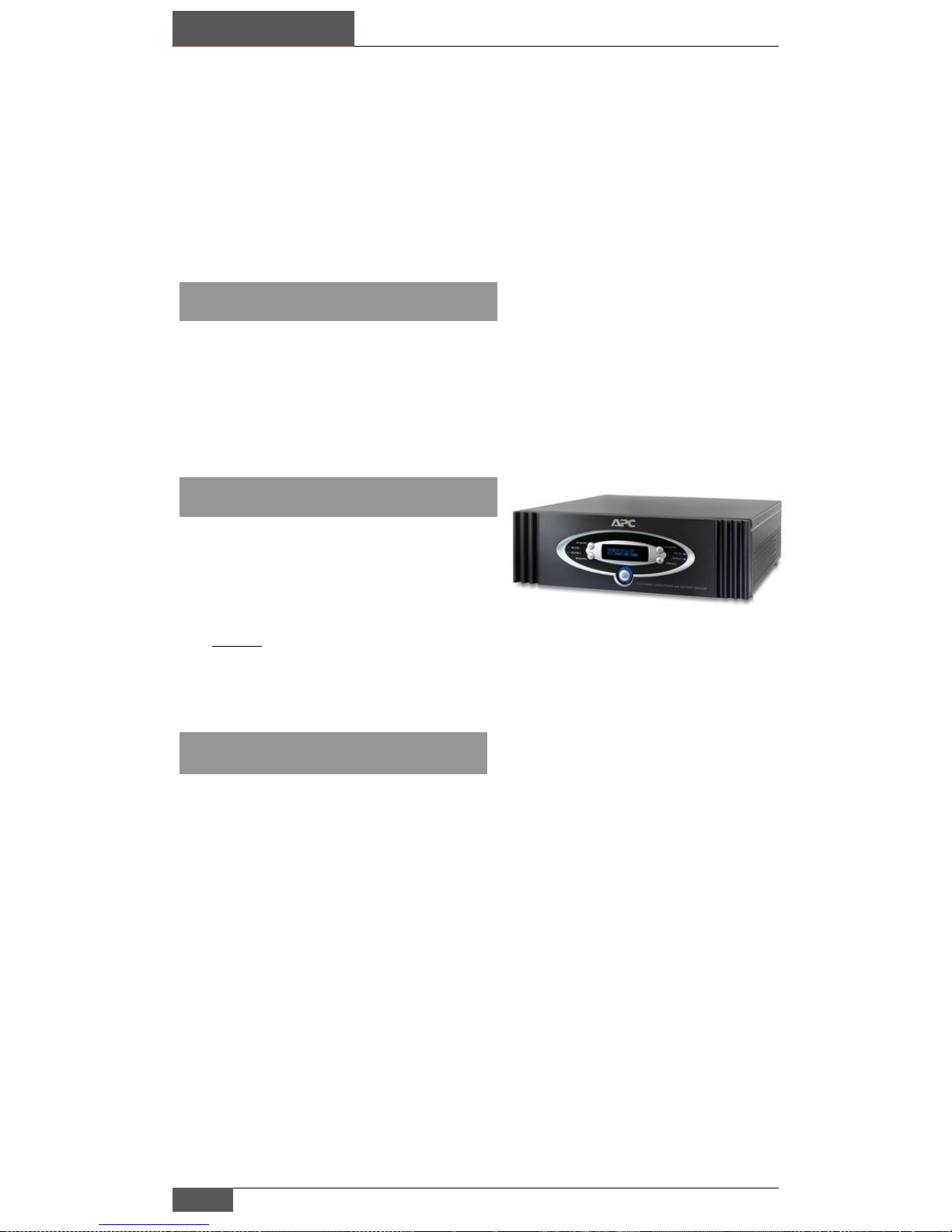
Servers can be extremely reliable and last
for years if they have a clean conditioned
power source. If you are in an area that
experiences power outages & brown outs
you MUST take steps to protect your investment!
There are many good quality UPS & surge protectors available that will work
well, please take steps to insure that you protect your client‟s equipment.
All media servers require a network to function properly; the network allows
the server to have access to the Internet to catalog movies as well as
streaming content. There are three key items to remember about getting a
reliable and solid network;
1. Install a quality Business Class Switch – Dell Power Connect
recommended
2. Test ALL your cat-5 runs, test your terminations, be confident of
your cable
3. Use a static IP for each Fusion server and any additional players
4. If you are not sure about your configuration call in for help (925)
217-1233 8AM-5PM in California
Lastly, Fusion strongly recommends against using any combination
router/DSL units that many Internet providers are putting in the field.
Keeping it Cool…
Power is Key…
It starts with a solid network…
Page 7
Setting up your Encore
Chapter 2
Encore Movie Server | Fusion Research
6
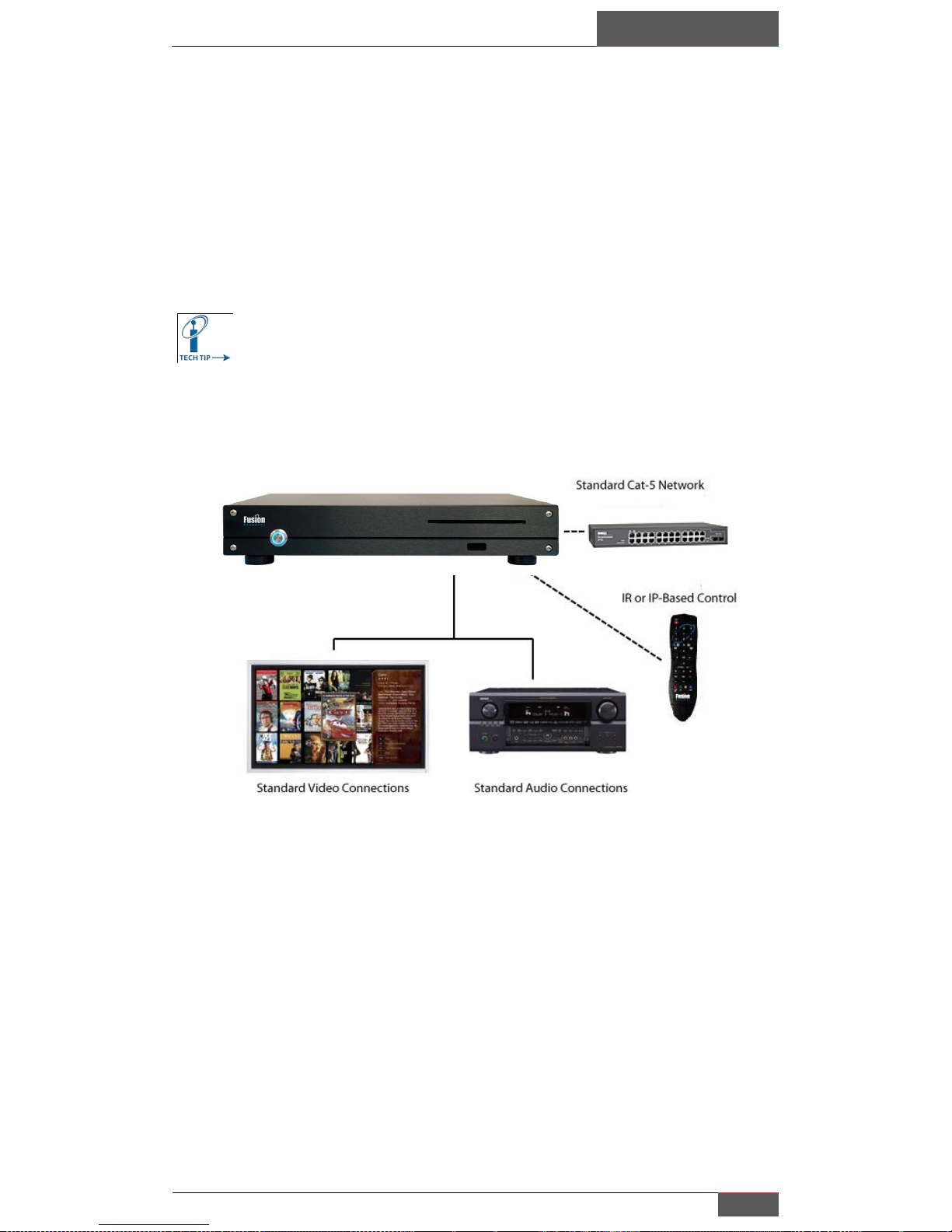
The Fusion Encore System is a Video Server that is capable of outputting a
single stream of video; the system has the ability to provide up to four
additional video streams by adding additional Fusion players. To get started,
we will begin by setting up the Encore video first, before moving into
additional video streams. The Encore is a networked based product and
requires Internet access to be able to catalog movies; it also uses the network
to distribute additional streams of video to multiple players.
It is important to have a network and Internet access available
when first setting up the Encore to load movies and setup the
system.
Before powering up:
Make sure that the server is connected to your network prior to powering the
unit; it will not properly launch all of its services without this connection.
Network Cat-5 cable plugged in viable network
Even if you intend to run the Encore with a control system,
use the Fusion remote for initial setup and testing.
Page 8
Chapter 2
Setting up your Encore
7
Fusion Research | Encore Movie Server
Connecting Encore to your Display:
It is important to understand and know your display‟s native resolution and
available video connections to achieve the best possible picture quality for
optimal video playback. The Encore was designed for use with newer high
definition wide screen displays; the recommended output for the unit is
1080p, 1080i, or 720p.
Encore systems have HDMI 1.3 for video; if component output
is required you must use the FR-COM component adapter.
Setting up the System:
Now it‟s time to power up the system to begin initial setup, the unit will
default to the movie mode screen showing movie cover art, typically new
systems have one test movie on them unless you have had
your movies pre-loaded by Fusion‟s movie loading service.
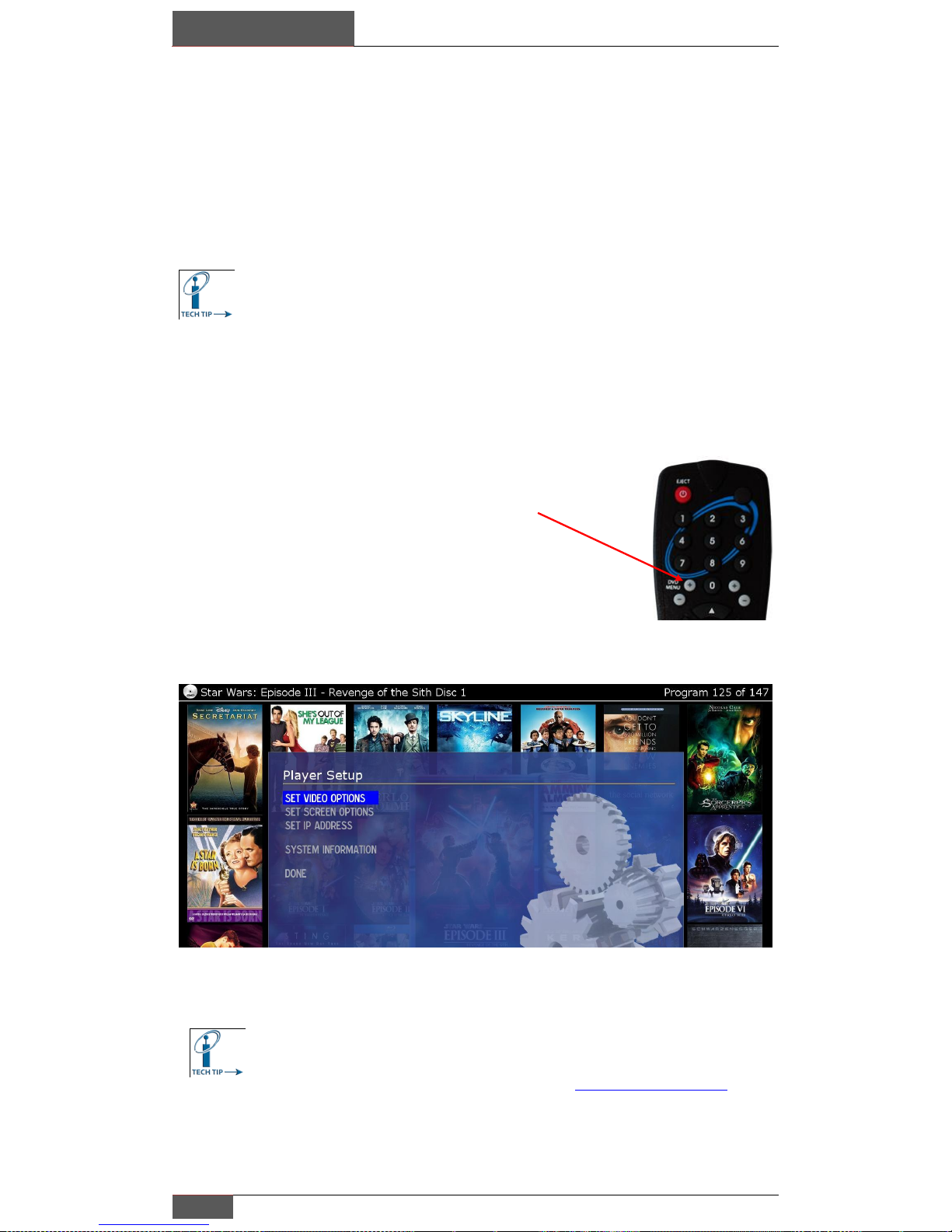
To go to the setup mode you will press the “+” key on the
left side of the remote.
For complete overview of the setup and each remote control
function, please review the Quick Setup Guide, included with
your Encore and available online at www.fusionrd.com
Almost every setting is available through the setup screen using
the remote. Follow the simple menu on the screen for player
setup options.
Page 9
Setting up your Encore
Chapter 2
Encore Movie Server | Fusion Research
8
Using the Fusion Remote for Setup:
Setup options are available using the Fusion remote and are not available in
3rd Party controllers (like Crestron or Control4 since these are for installation
and not for use with control systems). Please use the Fusion remote control
for the following procedure.
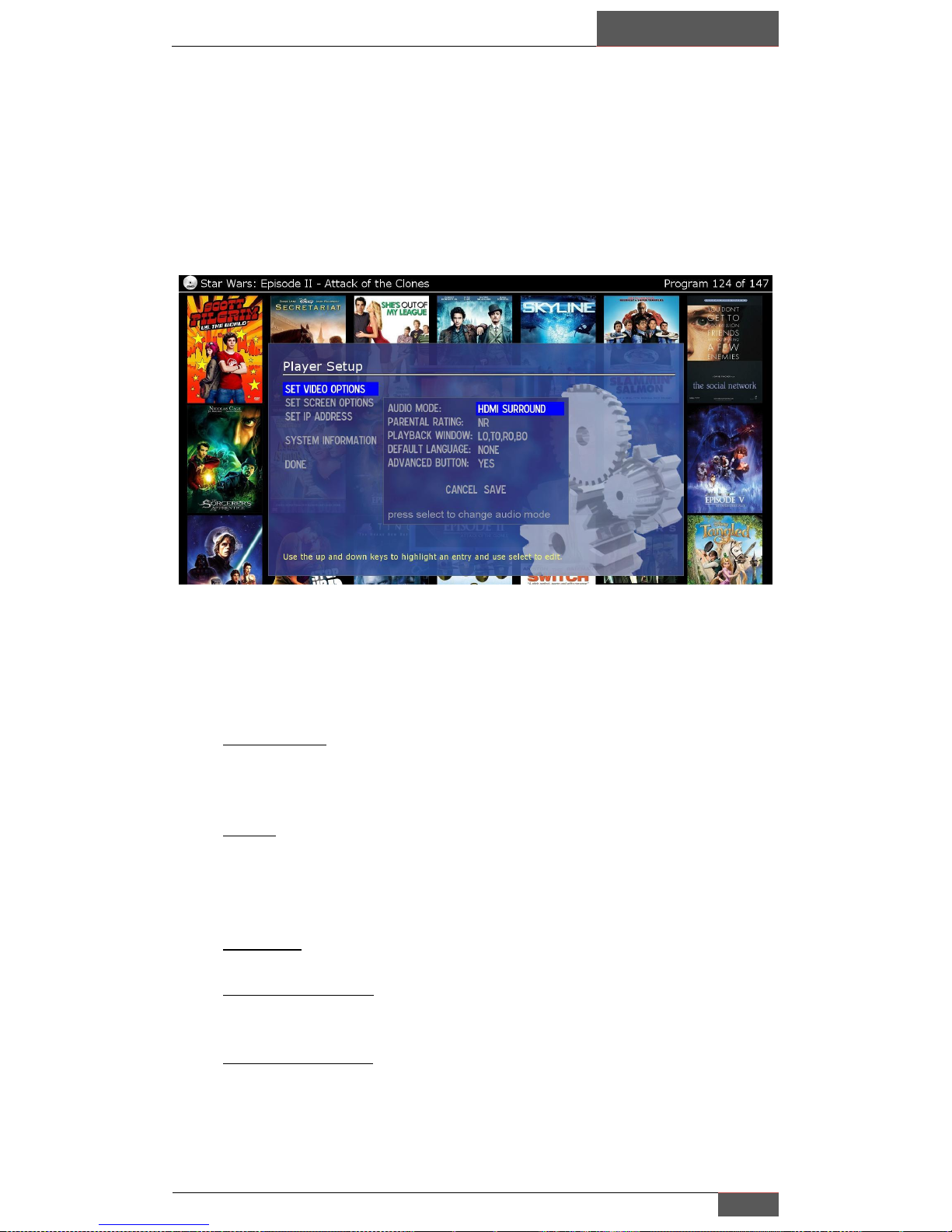
Set Video Options:
Audio Mode: Only one mode is supported on the system at a time
(unless a special adapter is used); please see the example above to
choose the appropriate audio mode.
Rating: You can set the maximum rating on each zone so that no titles
will be displayed that are above the limit you set on the individual zone.
If you choose to limit a zone‟s rating, you can use a password to
temporarily remove the limit (as explained elsewhere in this manual).
Over scan: You can set the over scan for movie playback
Default Language: No need to change this setting unless you don‟t
want English as your default
Advanced Button: If this is activated you may update and delete
movies in the user interface
Page 10
Chapter 2
Setting up your Encore
9
Fusion Research | Encore Movie Server
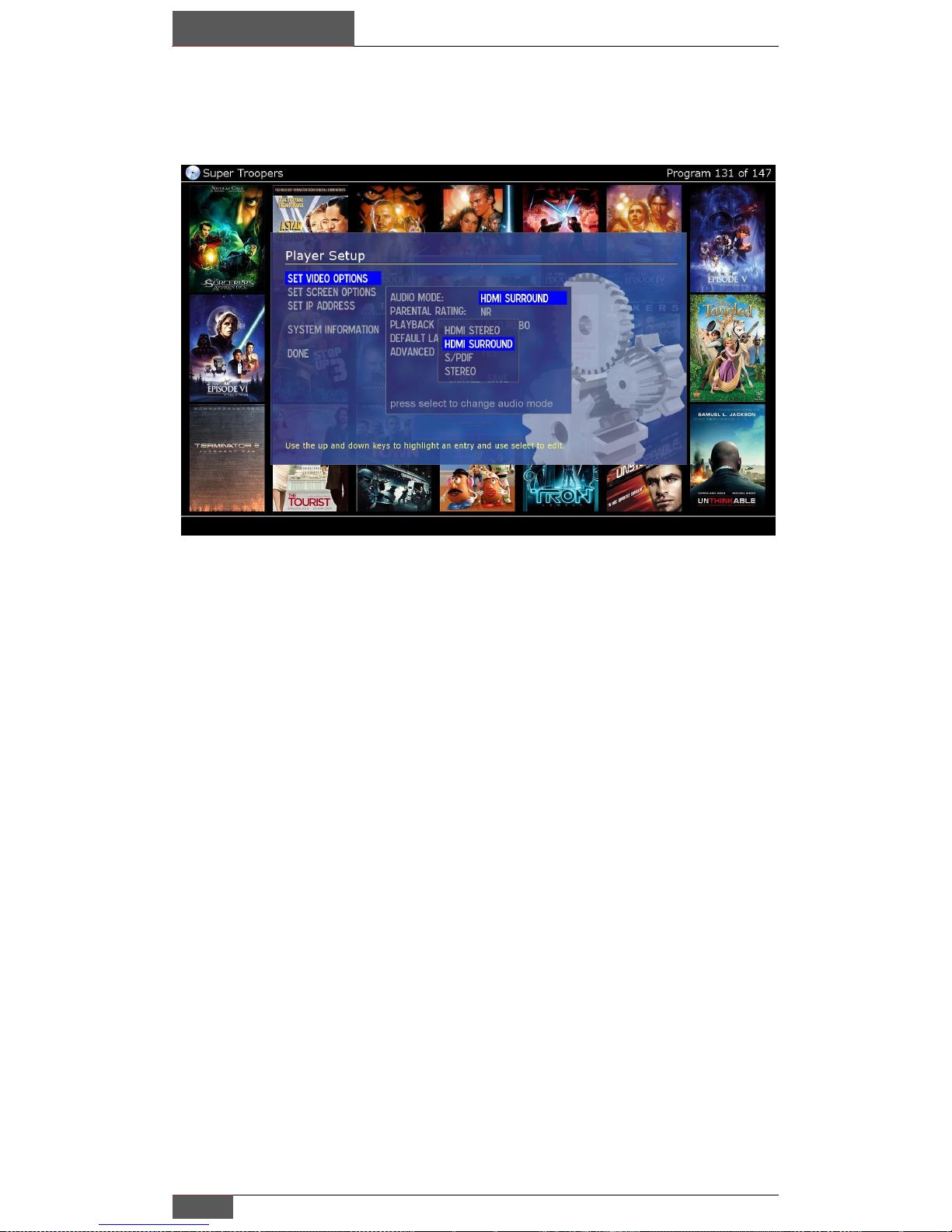
Audio Mode:
There are four possible audio modes that can be set on the Fusion system:
HDMI STEREO: Is typically used for connecting directly to a
display
HDMI SURROUND: Is used for connecting directly to a receiver
using an HDMI cable
SPDIF: Is used when the receiver doesn‟t support
HDMI video
STEREO: For two channel analog output (requires
mini-jack adapter)
If you require both analog and digital audio active at the same time you will
need to order the special Fusion adapter model#: FR-D2A.
Simultaneous HDMI & Component output or using a component switch
If you require both HDMI & Component at the same time you would first split
the HDMI signal to two outputs using the corresponding HDMI setting. You
would then route one HDMI connection directly to your receiver or display,
while the second HDMI connection would go to the FR-COM component
adapter. This adapter also has the capability to take HDMI audio (surround or
stereo) and output 2 channel analog audio making this a perfect solution for
component switches.
Page 11
Setting up your Encore
Chapter 2
Encore Movie Server | Fusion Research
10
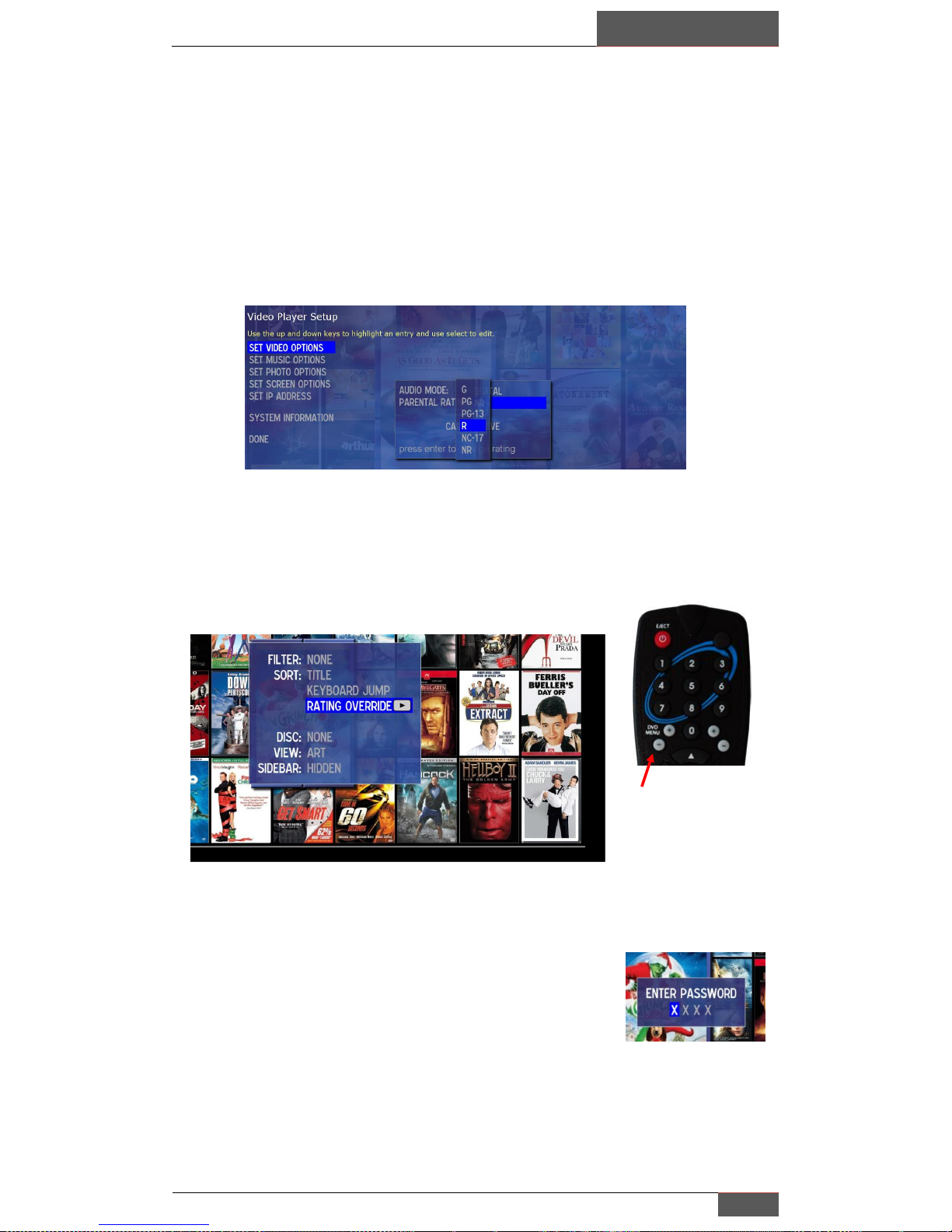
Setting Rating:
You can set a rating limit on any Fusion unit (zone) by selecting the maximum
rating shown in the setup section under “Set Video Options” as seen below.
When a rating is selected (for example the rating “PG-13”) once saved, no
movies with a rating above PG-13 will be seen in the interface in that
particular zone. The default setting is “NR”, which has no restrictions and
allows all movies to be shown.
You can unlock any zone that has a rating limit on it by bringing up the
“Menu” button on your remote or touch panel, or by selecting the DVD Menu
key on the Fusion remote.
Navigate down to “Rating Override” to open a password
window as seen below to override the rating limit and
allow all movies to be shown in the zone. The rating
override will stay active for a period of 30 minutes, after
which the system will revert back to its original rating
limit.
The default password is “4711”, and can only be changed by Fusion
personnel; this can easily be done remotely by calling into support and
requesting the change (925) 217-1233.
Menu window shown has many additional functions
To bring up on
screen menu select
this key. Also the
“Menu” key will work
on most control
systems.
Page 12
Chapter 2
Setting up your Encore
11
Fusion Research | Encore Movie Server
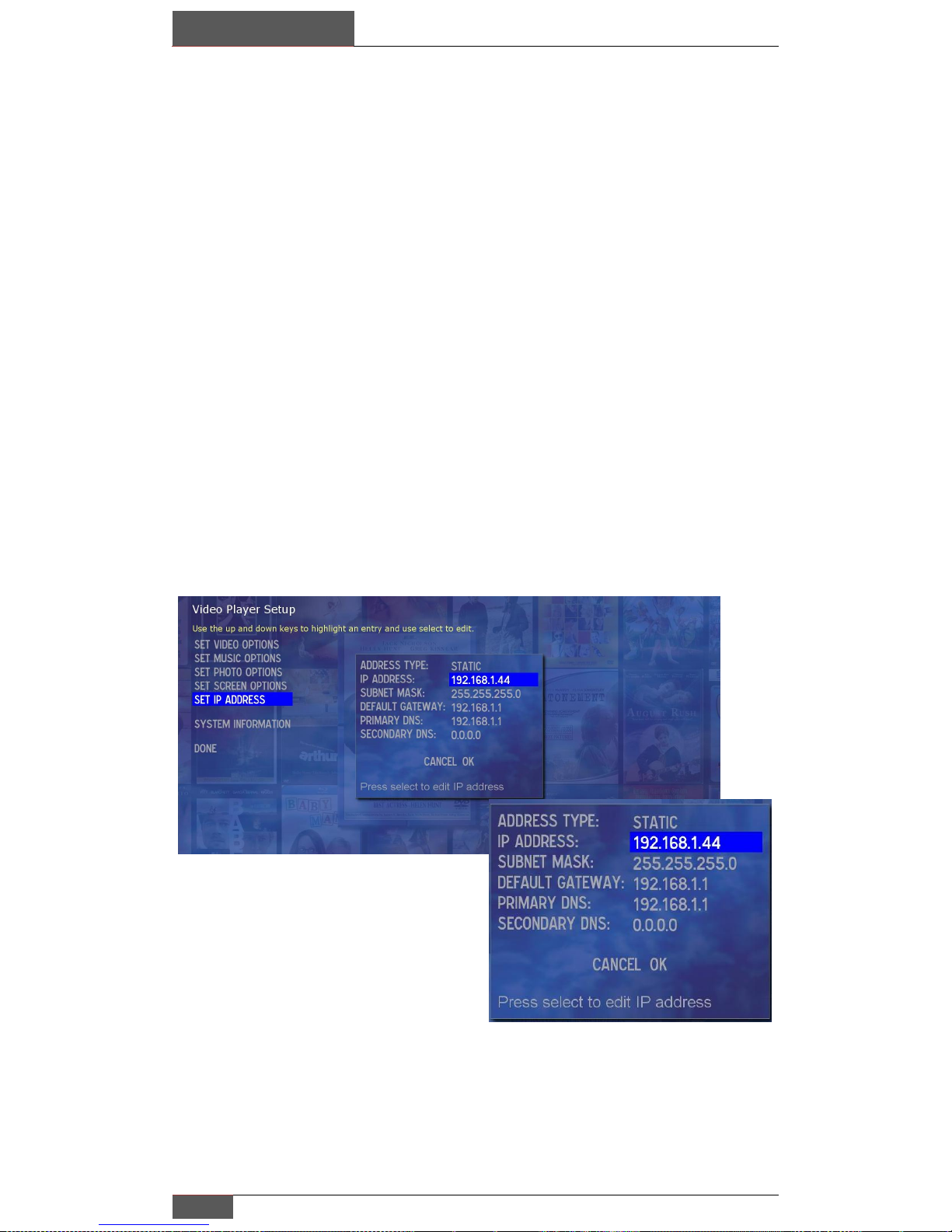
When setting the static IP of a system, you must make
sure that the address is outside the range of the
router‟s DHCP settings.
For example; if the router‟s range in this example is
192.168.1.100 to 192.168.1.150, you would want to set
the last number either below 100 or above 150.
The default gateway is typically the router‟s address as
is the DNS setting.
You must have a default gateway & DNS setting
Set Screen Options:
Include setting the output resolution (720p, 1080i or 1080p),
You may reset video to 720p at anytime by pressing and holding the “exit”
key for 10 seconds this can be helpful if the incorrect resolution is selected
and you no longer have a video output to view.
Unit must be re-booted for resolution change to take effect.
When using the Fusion component adapter (FR-COM), only use 720p or
1080i (typically displays cannot handle 1080p component)
Setting IP Address:
Fusion products ship with IP settings set to DHCP for initial ease of installation
and setup, we do however recommend that you set all Fusion components to
static IP addresses for greatest reliability.
It is import to know your router‟s IP address as well as its DHCP range, which is
the series of numbers or IP addresses that the router will assign all devices on
its network that are set to DHCP. See the example below for a correctly
configured IP setting.
When operating the system, if you cannot connect to the online movie
database the likely problem will be that you do not have the default gateway
or DNS settings properly entered.
Page 13
Setting up your Encore
Chapter 2
Encore Movie Server | Fusion Research
12
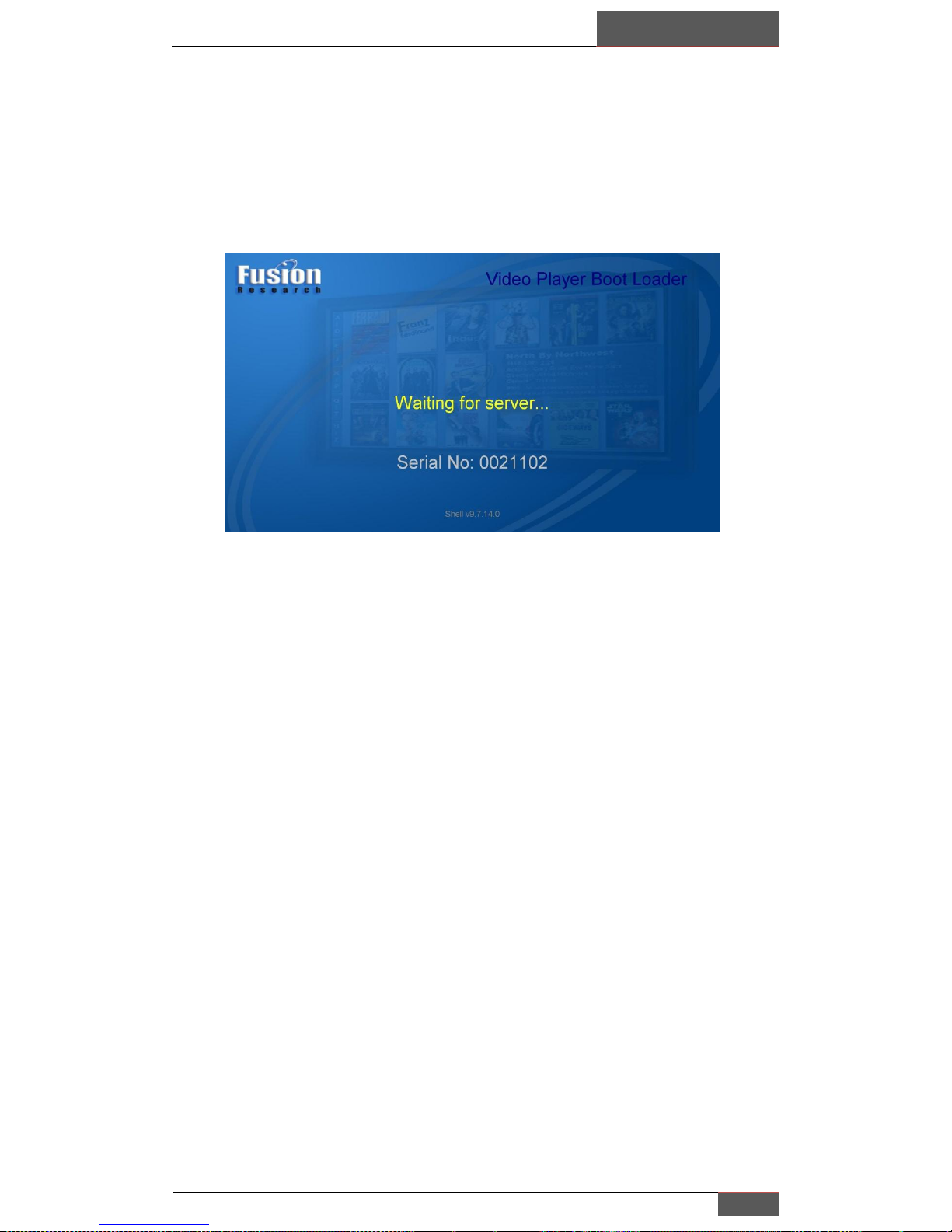
If when initially setting up your system the startup screen shows “waiting on
server”, this is an indication that no network connection was detected and the
cat-5 cable needs to be inspected or pushed in all the way to make solid
contact. If the problem persists, please try changing the cable or port on the
switch or router since this is an indication that no network was found.
Page 14
Chapter 3
Loading a DVD
13
Fusion Research | Encore Movie Server
Once a disc is in the system, the unit will need 30 seconds to retrieve the
movie information from Fusion’s online movie database.
Loading a DVD Movie into the System: (Blu-ray loading is covered in a separate guide)
After you have completed your setup, you can begin loading a DVD begin by
simply placing the disc into the drive before selecting the red record button.
On the Fusion remote this is the red button shown below.
After selecting the record or disc load option the system will begin to read the
DVD‟s unique ID number and look it up on Fusion‟s movie database. DVDs
actually do not have any movie data or cover art on them and only have an
identification number to make them unique.
Press the red “record”
button to load a movie
onto the system
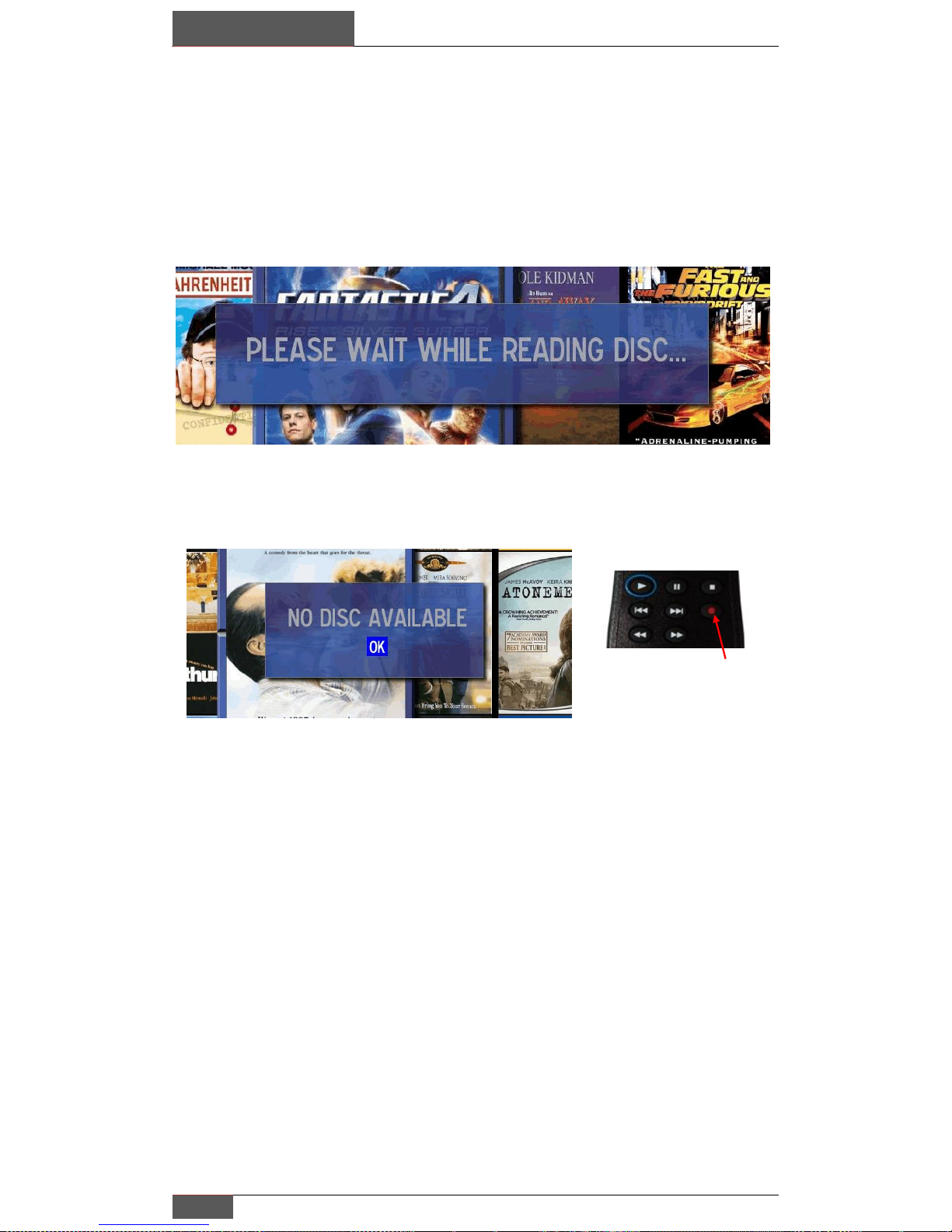
Occasionally if you press record too soon before the system can
recognize a disc, you will get this screen, waiting a second of two
before selecting record will prevent this
Page 15
Loading a DVD
Chapter 3
Encore Movie Server | Fusion Research
14
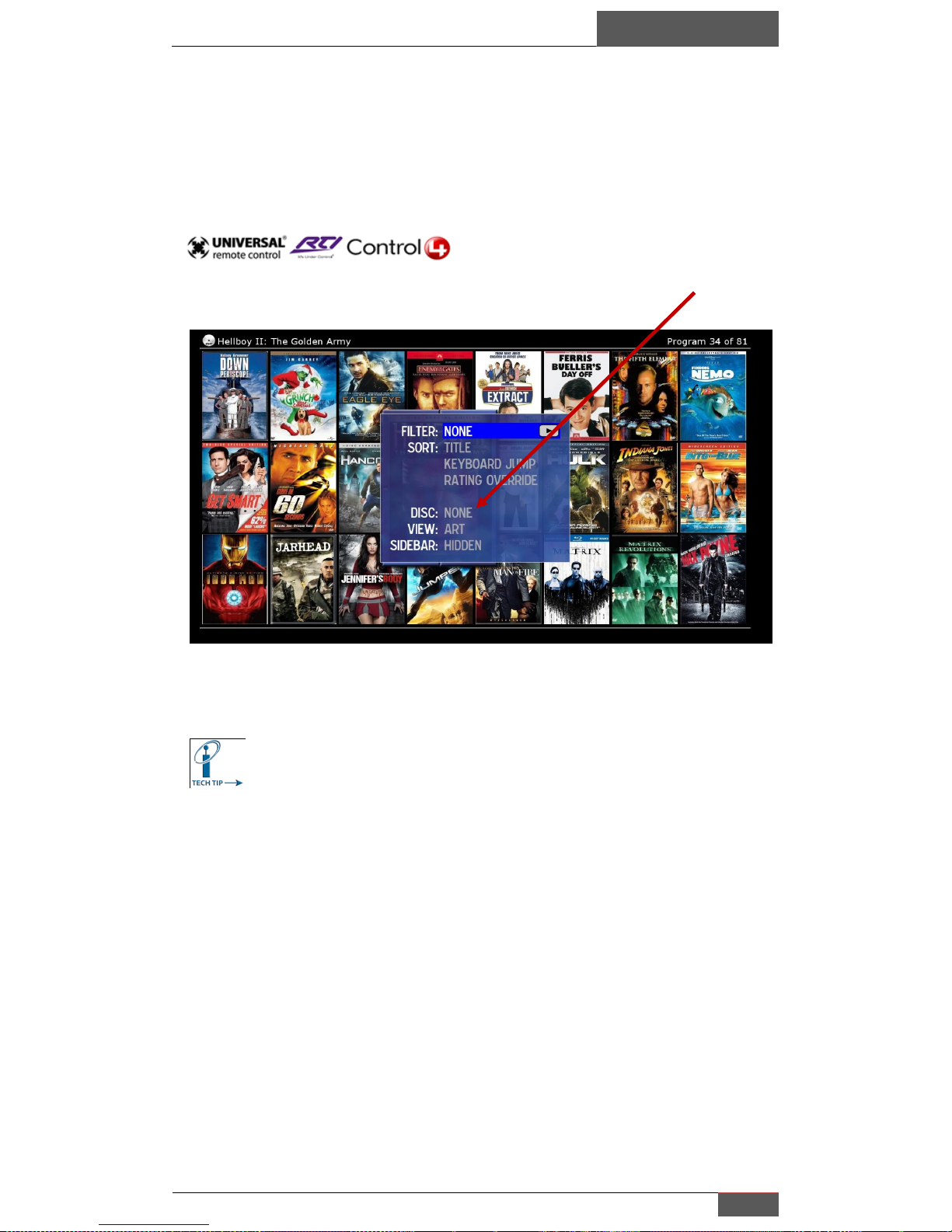
If you are using a control system such as Control4, RTI or URC, you would
select the MENU key to bring up the menu box, then cursor down to the
“DISC” option, if a disc is in the drive you will be able to select load.
If you are not connected to the Internet, the Encore system
will not be able to identify the movie and properly load it. The
system requires the Internet for online cataloging and cover
art; this allows the unit to always have the latest movie
information.
If you think that you have Internet access on your network, be
sure to check that you have properly configured your DNS
server address in your IP setup. Very often this is simply the
same IP address as your router.
Tip: By selecting “Menu” on the URC, RTI or Control4
remote or touch panel you will get a menu window that
will allow recording, sorting & filtering in the interface as
seen below. By selecting “Disc” using the down arrow
keys you will be able to load.
Page 16
Chapter 3
Loading a DVD
15
Fusion Research | Encore Movie Server
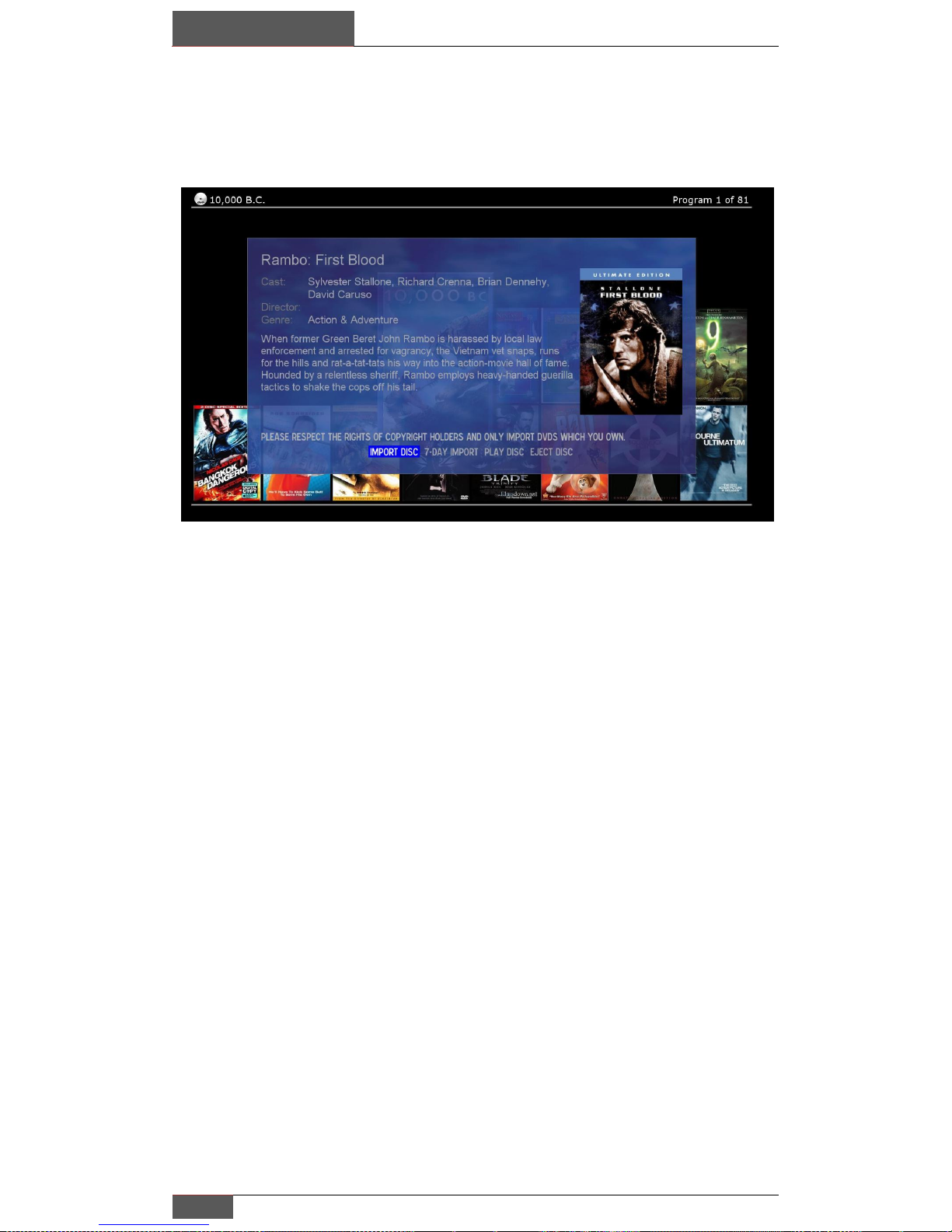
Next you will see will be the detail screen, which will be the information about
the movie that was pulled from the Fusion online database.
Once the disc has been recognized (15-30 seconds) you will be presented with
the import screen seen above.
By selecting “Import disc” you acknowledge that you own the material that
you are loading onto the system. The Fusion media server should be seen as
an archive of media that you own and should never be used otherwise.
Selecting “7-Day Import” will automatically purge the movie from your
archive after one week. This option can be very helpful for movies you want
to view on your system, but would prefer to not keep long-term.
Disc loading can vary from 15 to 30 minutes depending on the length of the
movie and its condition. Scratched movies can take twice as long as discs,
which are in new condition, as the disc drive must slow down to read a
damaged or scratched disc.
Selecting “Play Disc” is for playing the disc in the drive without loading it first.
If you don‟t see this option on your system, you should contact Fusion support
to see if your model can have this feature turned on.
Page 17

Loading a DVD
Chapter 3
Encore Movie Server | Fusion Research
16
Want to load a large collection of Movies? Fusion has a loading
service available to handle anything up to a very large collection.
(Please contact your Fusion representative for more information on this product)
DVD Movie Storage Calculations:
The average DVD size can vary greatly depending on the length of movie and
the special features and other optional information on the specific disk.
Approximate size guidelines for DVD are 150 per 1TB.
Blu-ray Import:
Certain model Fusion Systems will support importing non-encrypted Blu-ray
files or have the ability to play Blu-ray discs from the drive. If you have a Bluray capable model, please refer to the Blu-ray import supplement for this
information. Blu-ray discs can easily be over 40GB in size or larger or 25 per
1TB.
Disc will not be recognized in the drive:
If a disc is scratched in the center or the beginning of the file, the DVD may
not be readable and the system may not even be able to recognize that any
disc is in the system. Even very small scratches can do this on relatively
clean discs. This is not an indication that the system is failing, but that the
disc cannot be loaded into the system and is defective.
Disc will stop loading before finished:
Occasionally you will encounter discs that fail to load; they will usually appear
to freeze during the loading process and not progress. This is due to the fact
that the movie title has an additional level of encryption on it and it hasn’t been
mapped onto our database. Please contact Fusion to let them know about
this title, once mapped onto our system you will be able to load it properly.
Page 18
Chapter 4
Sorting, Filtering & Searching
17
Fusion Research | Encore Movie Server
There are several ways to find what you may be looking for and by combining
more than one method you can enjoy browsing even a very large collection.
We will show some simple examples of each type of search function including:
SORTING: (by movie length, rating, title or when you loaded it)
FILTERING: (by movie director, actor, genre or rating)
SEARCH: (by typing in a title or first letter)
You can combine two types of functions for example you could first filter a
genre (like Comedy), which will remove all movies except for comedies and
then sort the remaining movies by length, rating or when you loaded it, so
that even extremely large collections can be managed easily.
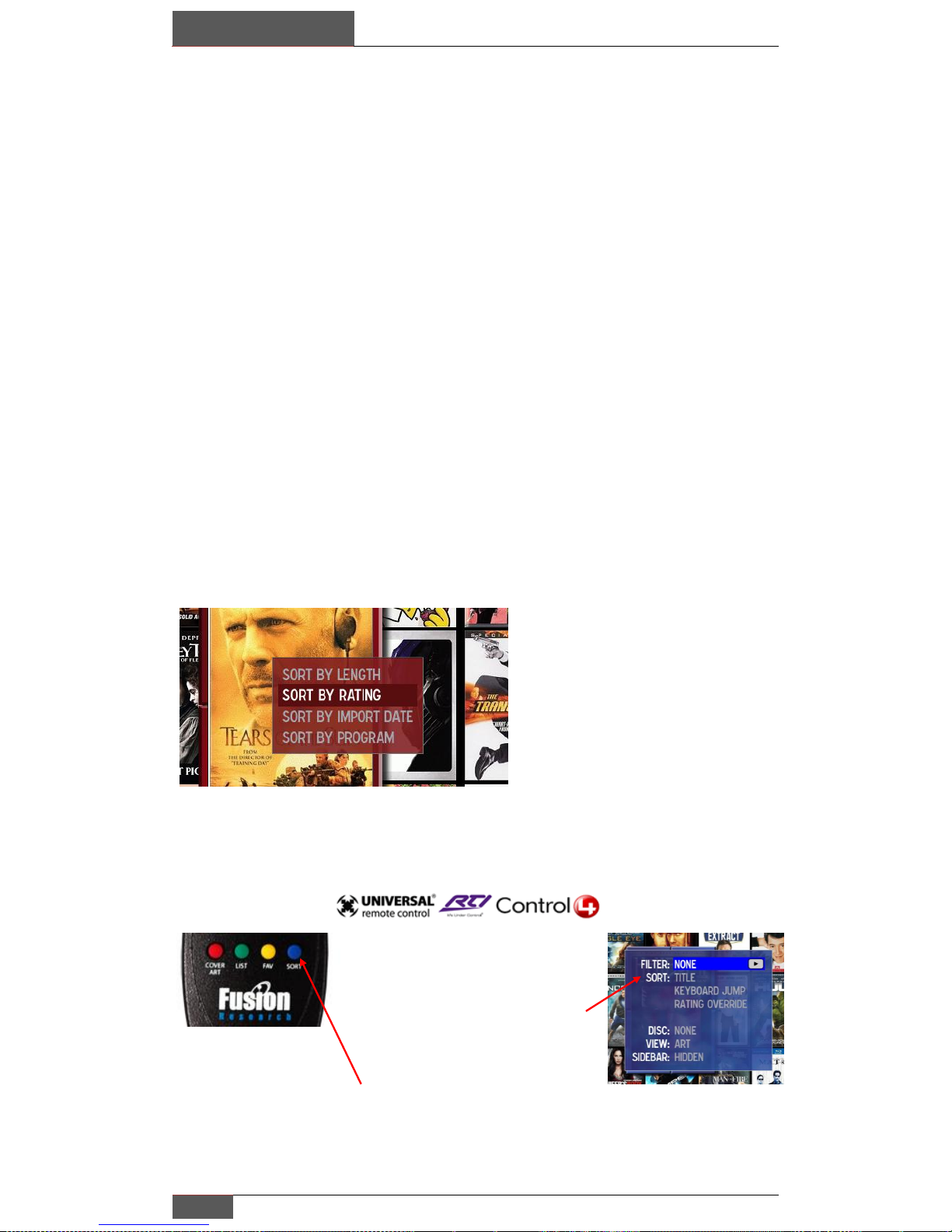
Sorting: By selecting the “Sort” button you can arrange your movie by
length, rating or program (program meaning the alphabetical
order of the movie). By default, movies are always sorted by
alphabetical order unless changed.
Sorting by Length starts with the
shortest movie and goes to the
longest.
Sorting by Rating starts with the
lowest rated movie to the highest.
Sorting by Import Date starts with
the last movie imported to the first.
Sorting by Program puts list in
alphabetical order starting with
numbers first.
Tip: By selecting “Menu” on the
URC, RTI or Control4 remote or
touch panel you will get a menu
window that will allow recording,
sorting & filtering in the interface as
seen below. By selecting “Sort”
using the down arrow keys you will
be able to select the type of sort
you want.
You may also select the “sort”
button directly on the Fusion
remote.
Page 19
Sorting, Filtering & Searching
Chapter 4
Encore Movie Server | Fusion Research
18
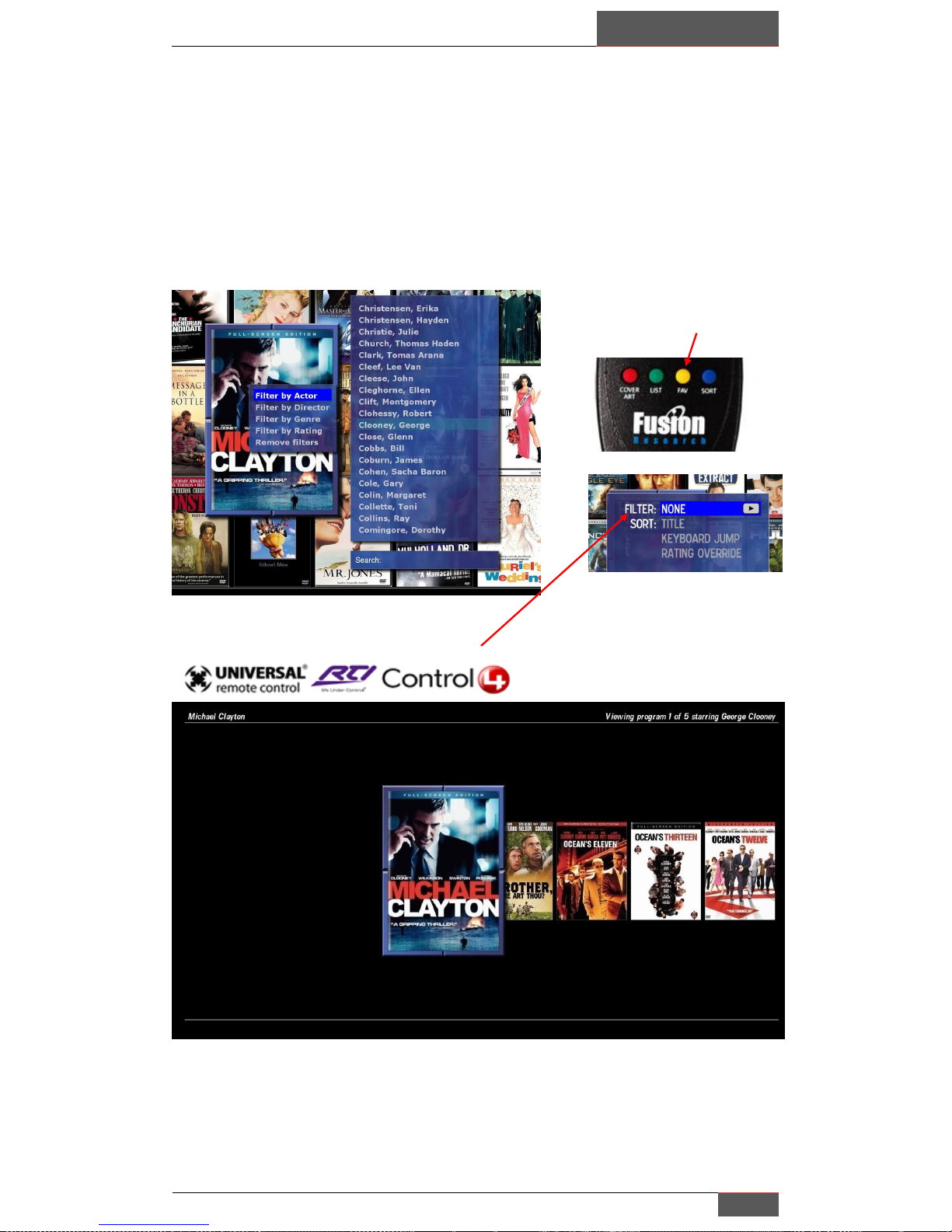
Filtering: Filtering is a useful and powerful tool to use when there is a large
collection. By using filters you can greatly reduce your list of
choices, for example if you choose “Comedy” all other genres
would be removed and the remaining choices could still be sorted
for more convenient selection.
After filtering only the results will be shown, selecting “exit” or “cancel” will
remove filter & all movies will once again be shown.
To bring up the filter view select
the “fav” key at the bottom the
remote, in this example “actor”
was selected then “George
Clooney”.
When using other control
systems you can bring
up the filter option by
select “Menu” on the
remote or touch panel.
Page 20
Chapter 4
Sorting, Filtering & Searching
19
Fusion Research | Encore Movie Server
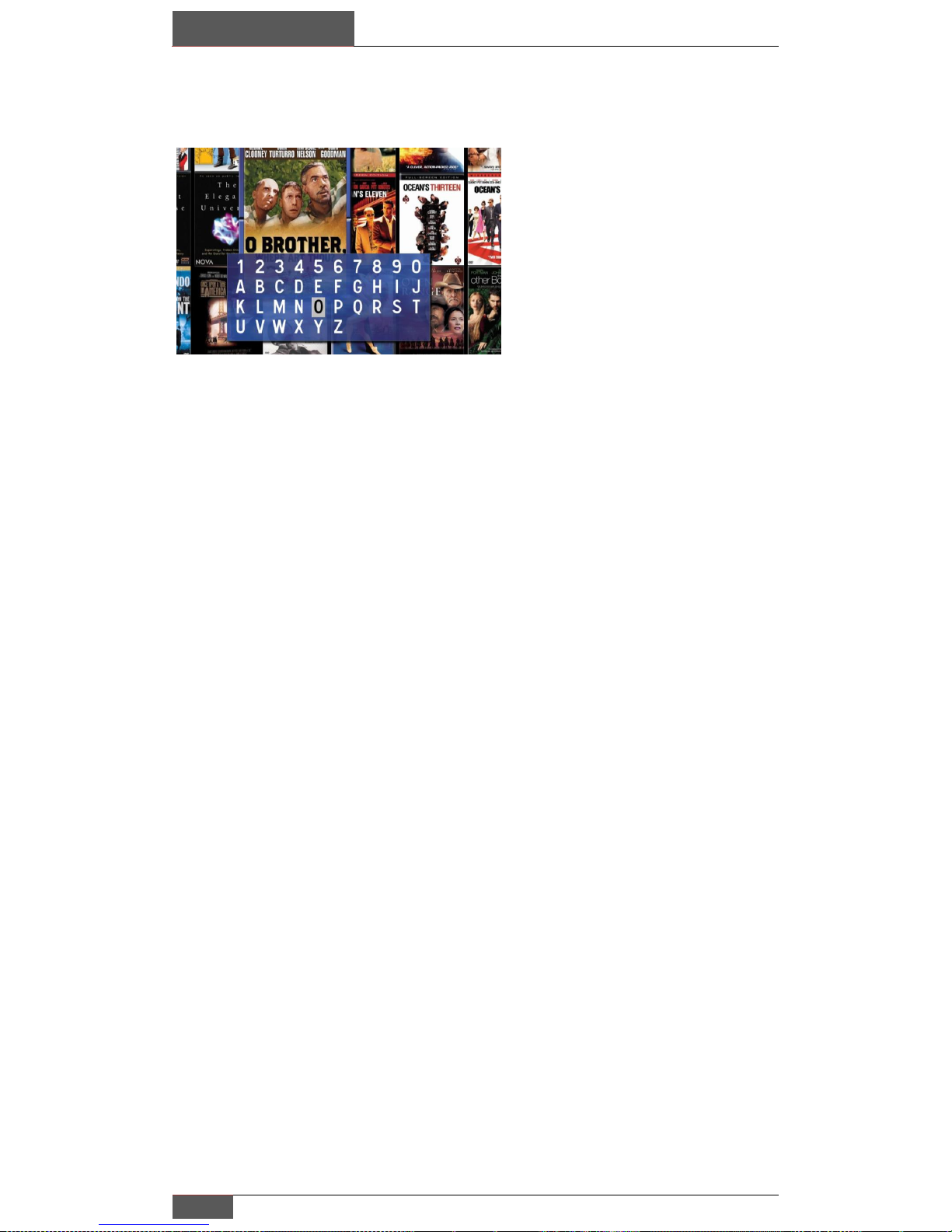
Onscreen Key Search:
By selecting the number “0” key
on the remote to bring up on the
on screen keyboard, by selecting
a letter or number you can
immediately jump to the
beginning of that movie list. You
may also filter a group of movies
then use this feature to refine
your search.
You can also select “keyboard
jump” from the menu selection
as shown above to bring up the
on screen keyboard.
Page 21

Managing your Movie Collection
Chapter 5
Encore Movie Server | Fusion Research
20
There are two ways to manage your movies; by using the onscreen display, or
with a manager on your PC.
The first method is using the movie interface itself. As shown above, after you
select a movie using the “select” button on your remote or touch panel on the
lower right you have an “advanced” button. Once selected you have a choice
of deleting a movie or updating it. Occasionally a movie could require an
update when the cover art or meta data is incorrect and our database staff
have not yet had the opportunity to update it yet, there is also a link on
Fusion‟s website for notifying us when a movie needs updating.
Please note: You turn off the advanced option in the setup program
discussed earlier in this manual, to prevent (children or others from deleting
movies)
Using the PC Cinema Manager
Download the Cinema Manager from Fusion‟s website
www.fusionrd.com
Note: The manager is a Windows™ application, which can be downloaded
onto any PC on the same network that the Encore Media Server is on; the
application will automatically find the server without any configuration
required.
Page 22
Chapter 5
Managing your Movie Collection
21
Fusion Research | Encore Movie Server
Using the Cinema Movie Manager Application:
The Cinema Manager is a program that can be loaded onto any PC on the
owner‟s network. This program gives you the ability to manage content on
the Fusion System.
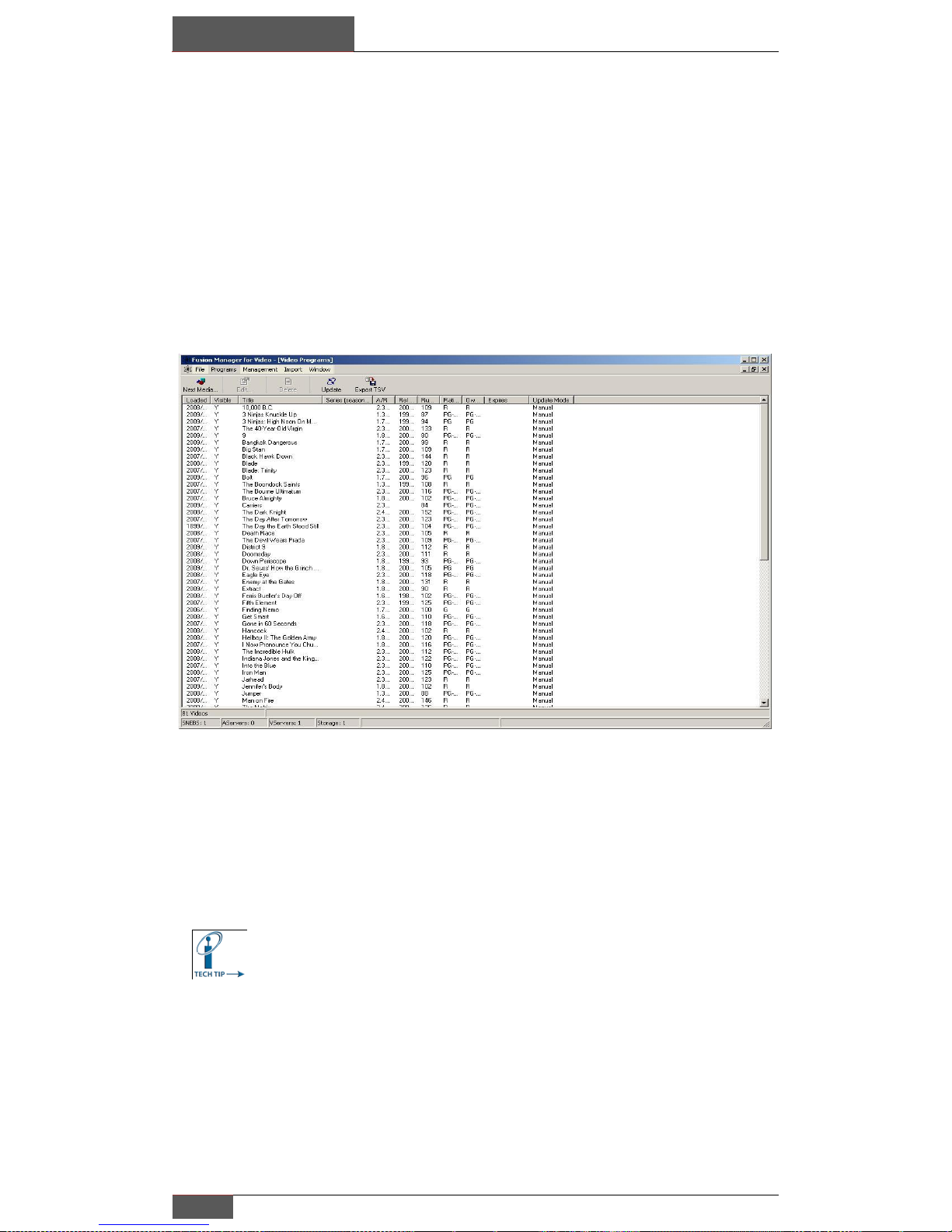
When you download the Cinema Manager to the desktop of your PC, you will
get a small icon, which will launch the following screen after double clicking
on it.
The manager must connect to the network to operate properly. Upon startup,
it will automatically search for and connect to the Fusion server, and open
your list of loaded movies. You may select a video by double clicking on it or
by right clicking presents options to Edit, Export and Delete the video.
If the list window does not open, and most menus are disabled
then you are not connected, this could be due to firewall
issues or how your PC’s security is setup. If this is the case you
will need to make an exception in your PC’s security to allow
the Fusion Cinema Manager to operate.
Page 23
Managing your Movie Collection
Chapter 5
Encore Movie Server | Fusion Research
22
Editing Movie Information:
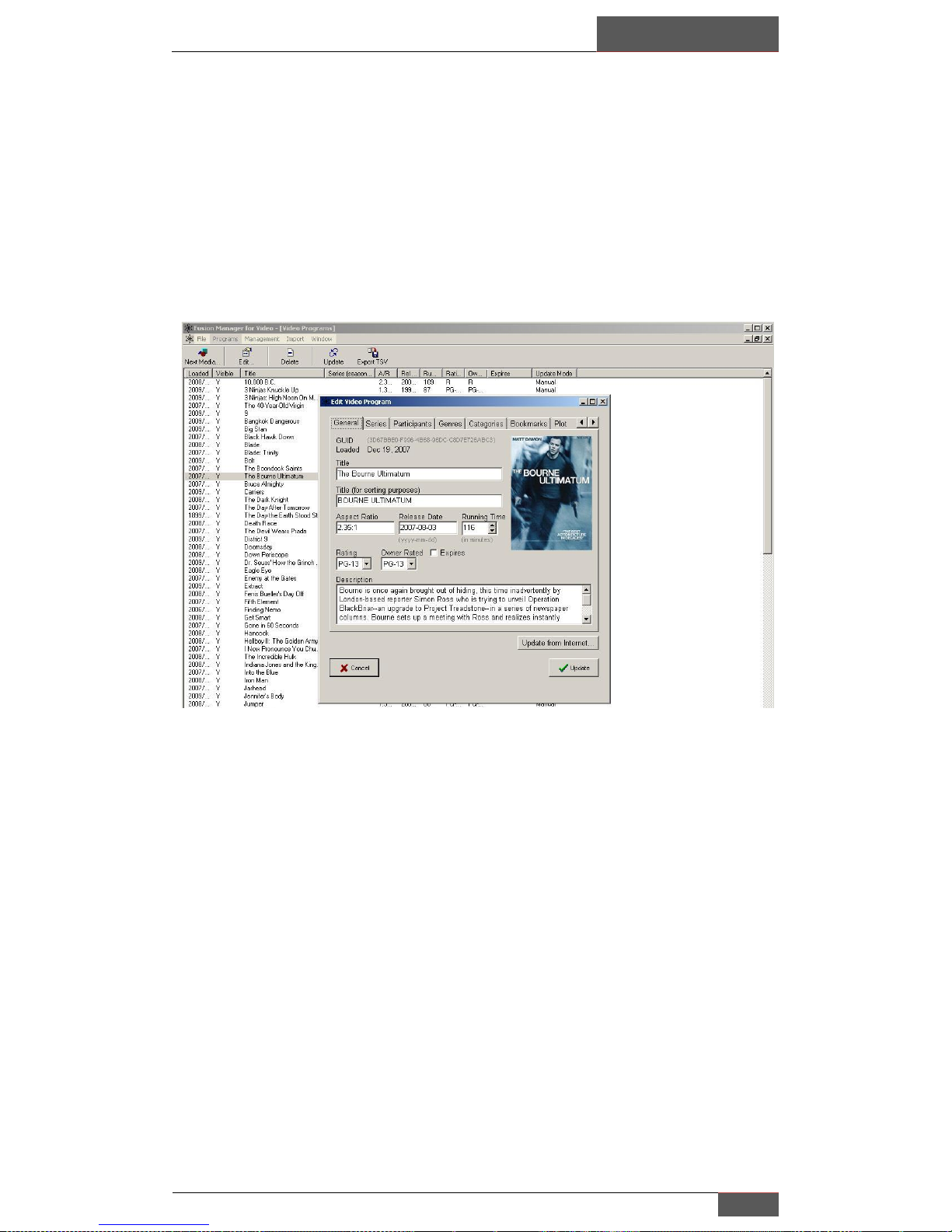
After selecting a movie, you will see the following pop-up window, which you
may edit. This feature is especially helpful when you have loaded home movie
DVDs, which won‟t pull information from Fusion‟s online database. You can
use this utility to supply cover art and information to be able to catalog your
own movies.
Owner Rated
In addition to the official MPAA film rating, the user has the option of
changing rating of the movie; this is helpful as the rating is used to determine
if a video will be available on a player based on the player's rating. This
feature adds much more flexibility for the owner who wishes to restrict
viewing of certain movies throughout the home.
For example, the owner has the movie "Caddyshack" which is rated R and the
player in the son‟s bedroom has been set to "PG-13", meaning videos rated
"higher" than PG-13 will not be available, but the owner wants to make THIS
particular video available to his son's player without making all other R rated
videos available.
Page 24
Chapter 5
Managing your Movie Collection
23
Fusion Research | Encore Movie Server
Participants (tab)
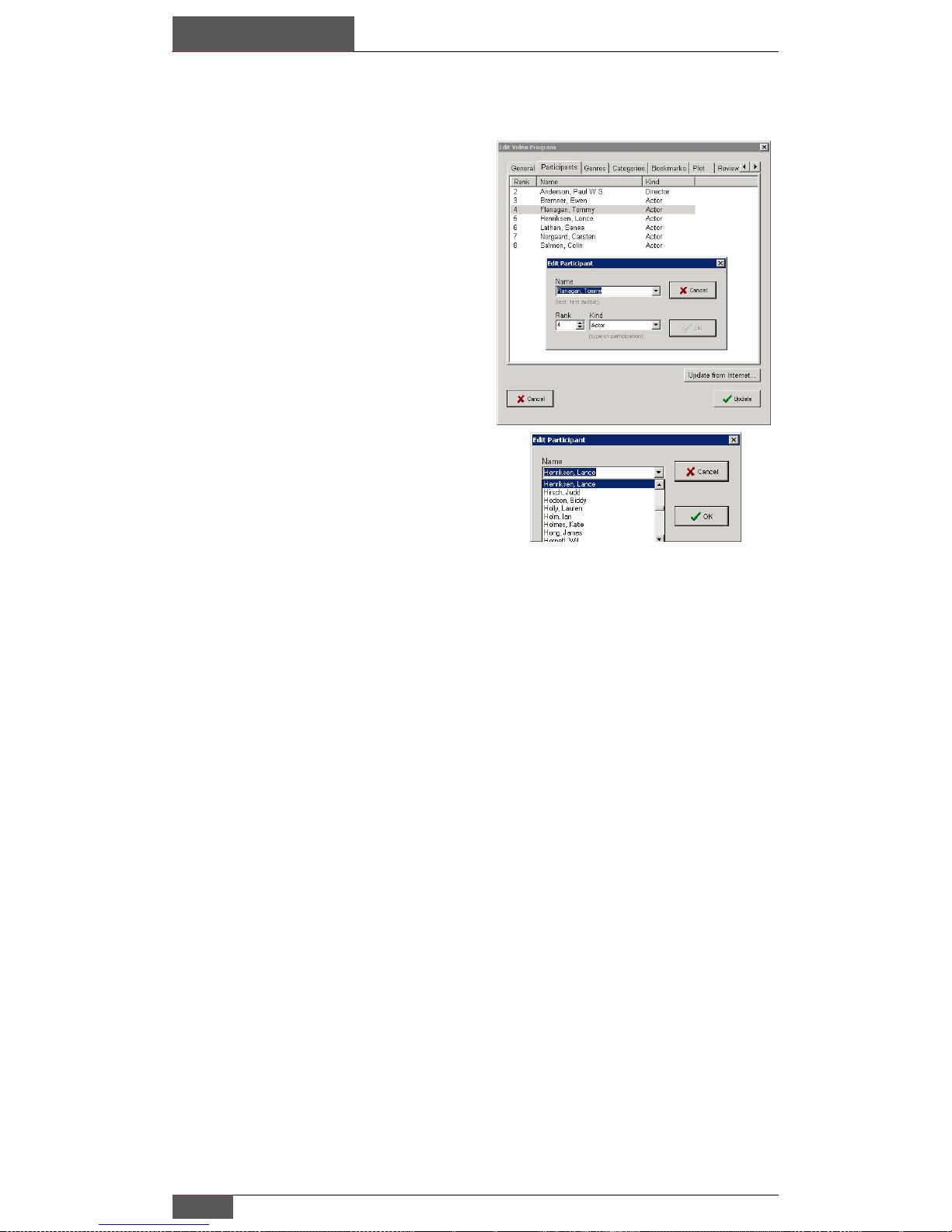
Participants are Actors or Directors
participating in the video. They have a
rank, which is their billing order. For
example, Harrison Ford should have a
higher rank than John Rhys-Davies in
the film Raiders of the Lost Ark. By
right clicking in the window you can
add a name not currently associated
with that movie. You may also change
the order of their ranking based upon
your personal preference.
Note: When adding participants, choose the name
from the drop-down list whenever possible to
ensure consistency in name presentation.
Genres (tab)
Genres are used to categorize a video by well-known groupings, such as
Action, Suspense, Western, etc. They also have a rank, and a video can have
more than one genre. An owner may add, edit or delete genres at their
discretion however the actual genres must be chosen from the predefined
values.
Categories (tab)
Categories are similar to Genres. They present an alternative way to categorize
videos. In categories, owners can create their own definitions. This allows
owners even more ways to quickly sort through large collections.
For Example, an owner might take all of their TV shows and Movies, which
feature Star Trek characters and assign them a „Star Trek‟ category. Generic
categories might give more information than the Genre. For instance „The
Natural‟ might have a “sports” genre but the owner adds a „Baseball‟ category.
This is also where different individuals can mark their own “favorites” list.
Update from Internet (button)
Clicking this button will delete the information currently available for the
video, and replace it with information from our Fusion Information Server on
the Internet. There should be no reason to do this unless you believe the
Internet information has been updated or corrupted since you imported the
video.
Page 25
Managing your Movie Collection
Chapter 5
Encore Movie Server | Fusion Research
24
Editing and Adding
Cover Art
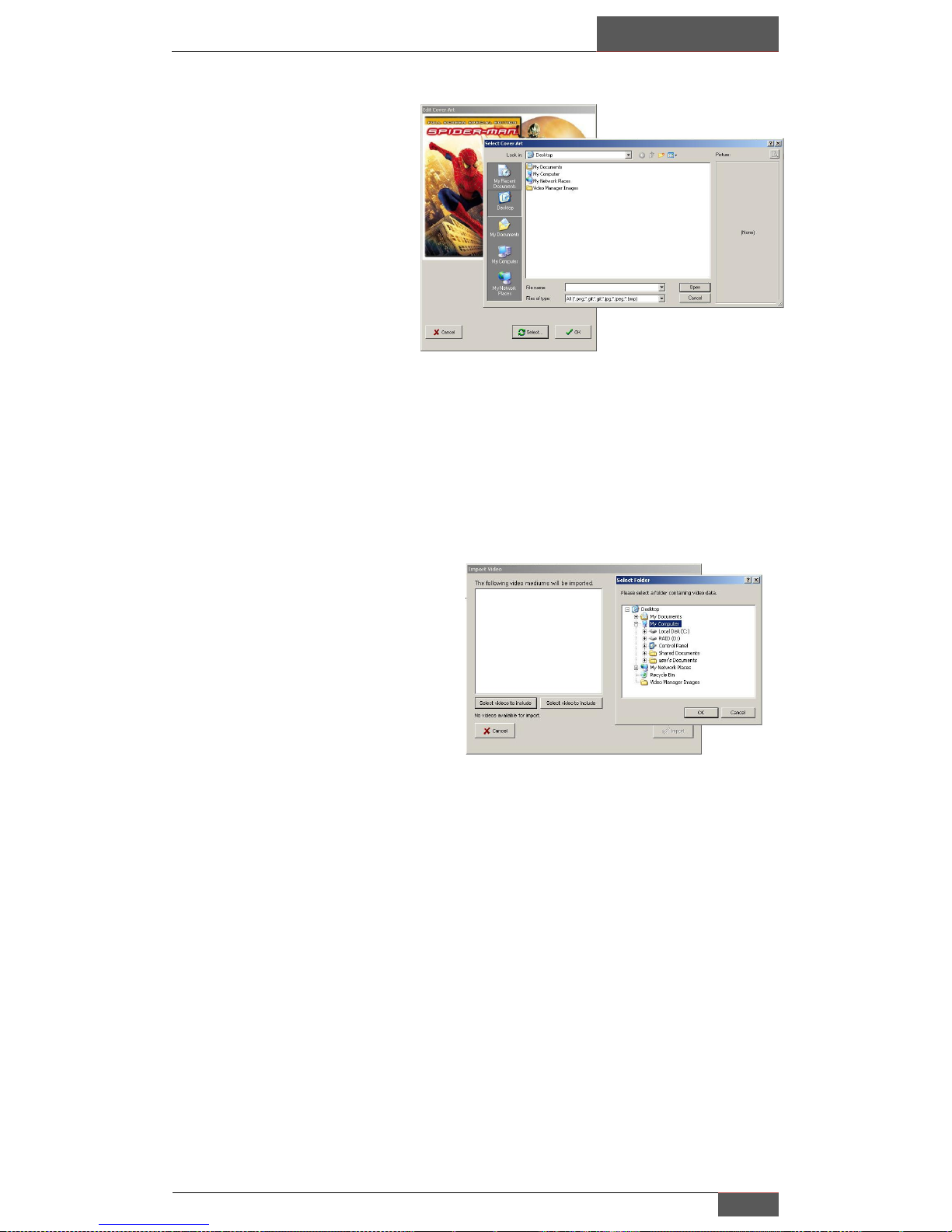
Cover art can be changed or
added by the owner. Simply
search for the cover art on an
Internet search engine or web
store (we use Amazon for
their high resolution cover art)
and store the image to a
computer on the home
network. After all the cover
art is on the computer, simply go into the [Programs], [Edit] tab in the video
manager and select Cover Art. The owner then simply selects the appropriate
cover art image.
Importing Movies from Other
Sources
Videos can be imported in one of
three ways depending on the
medium the video is contained
within.
A DVD must be imported through a
Player, or through the import utility. For more information about DVD
importing, please refer to the import supplement manual that also includes
Blu-ray importing.
Page 26
Chapter 5
Managing your Movie Collection
25
Fusion Research | Encore Movie Server
Checking Available Storage:
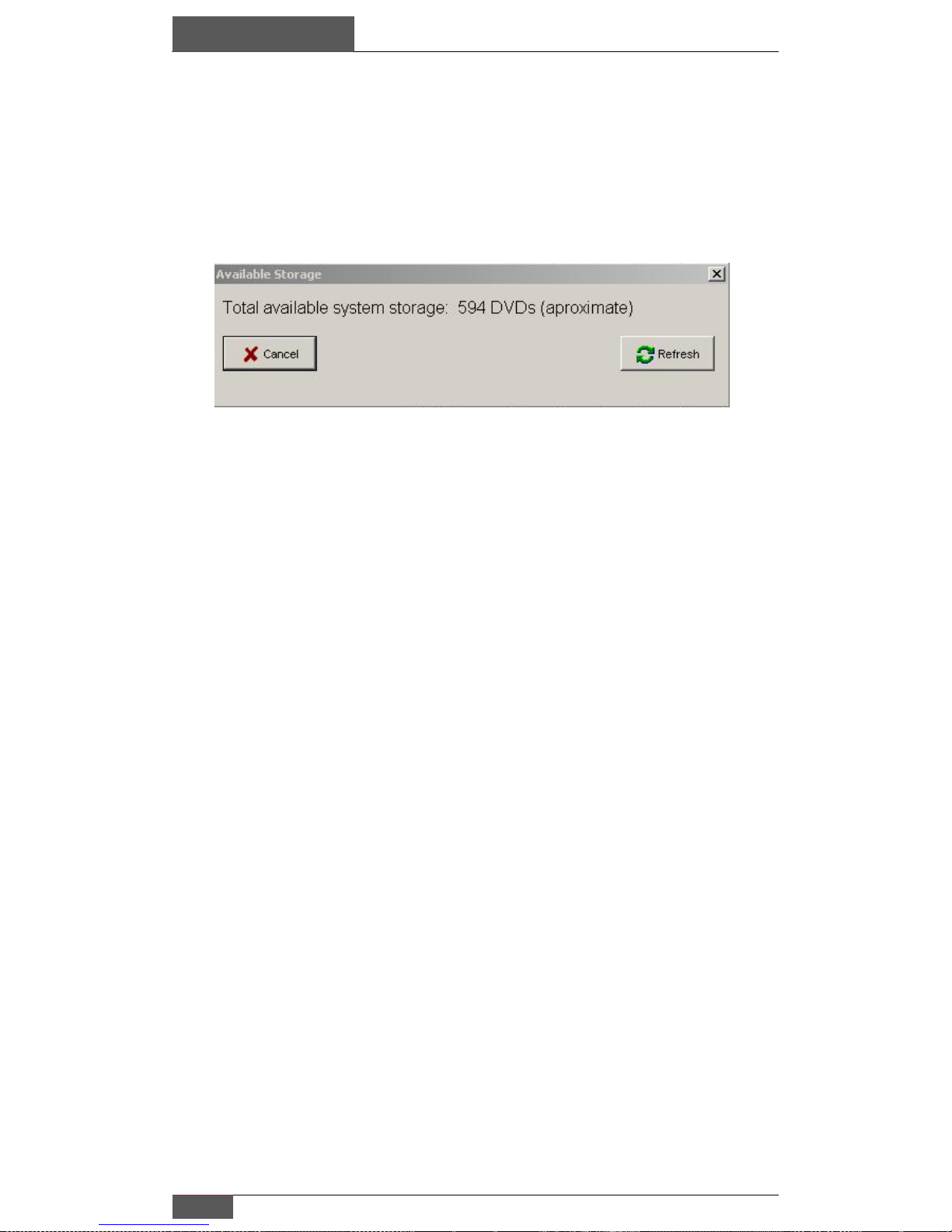
By selecting the [Management] [Available Storage], a window will pop up
letting you know how much combined music and video storage space is
available on the Fusion Cinema Server as well as approximately how many
DVD‟s can be imported.
NOTE: The total number of movies on the system will be reported in the
lower left corner of the manager window. Total DVD amount will be different
based on server capacity. As you get down to the last 20 available spaces for
movies, you will see a countdown on the top right corning of the loading
screen.
Page 27
Adding players & Backing up Movies
Chapter 6
Encore Movie Server | Fusion Research
26
Adding additional Players to your system:
You may add up to 4 additional players to an Encore system for a total of 5
independent streams of video, additional players may be added, however the
Encore cannot support more than 5 independent streams at any one time. For
example, you “could” have any number of players added to the Encore;
however you cannot have more than 5 simultaneous streams without playback
issues.
Additional players can simply be added to your network and are default to
automatically receive an IP address from your network‟s router. It is strongly
suggested that the players be given static IP address including DNS
information like the Encore system. The player‟s setup is identical to the
Encore and uses the same Fusion remote to access the setup screens.
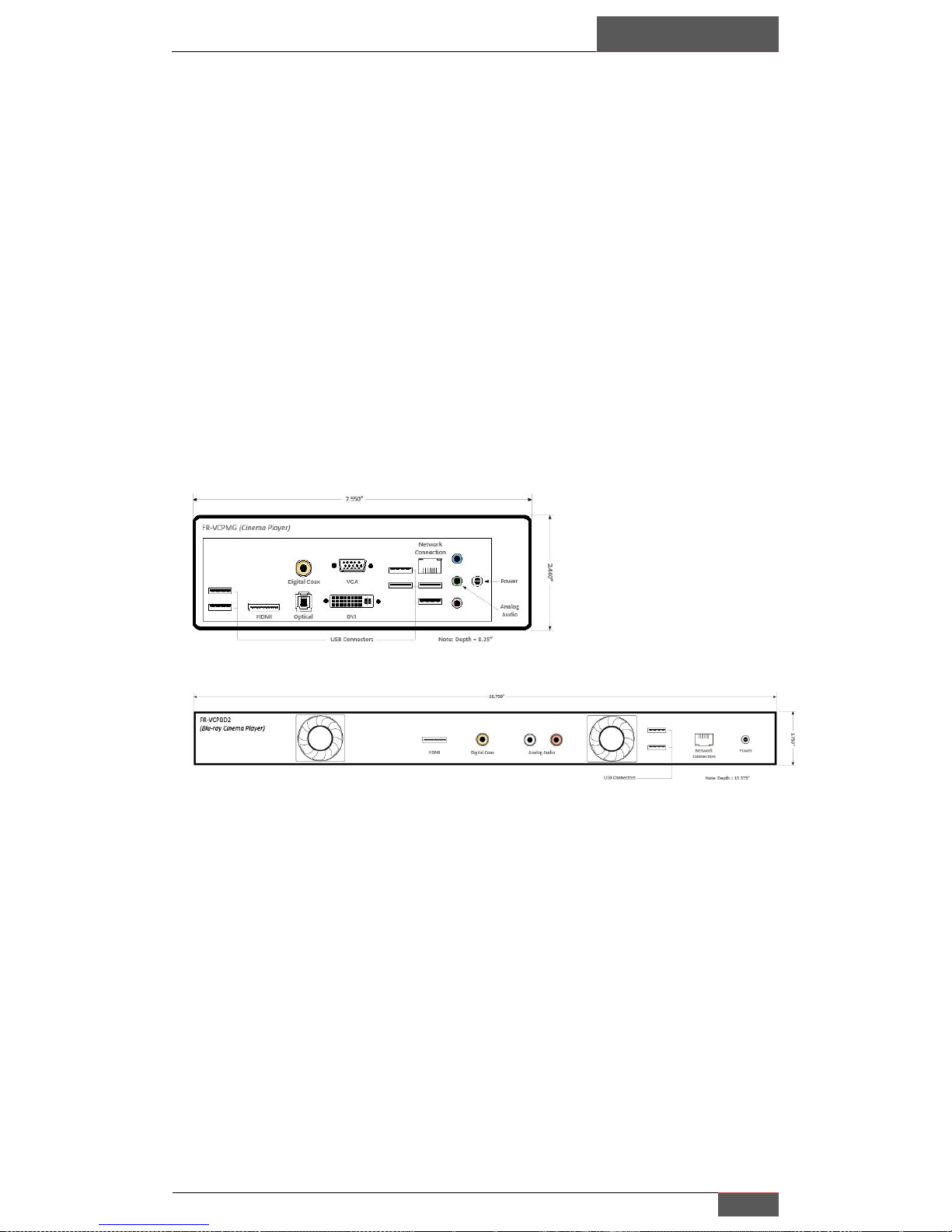
Back panel of FR-VCPBD2:
Blu-ray player
Back panel of FR-VCPMG:
Mini-Green player
Page 28
Chapter 6
Adding players & Backing up Movies
27
Fusion Research | Encore Movie Server
Backup & Movie Export
You can export you movies for backup purposes or to be imported to a
second Encore unit (for a vacation or second home unit) through the Video
Manager. These files are fully encrypted and cannot be shared with other
video systems. This procedure is intended as a security measure to protect
the archived files on the Encore system. This will not however give the ability
to add extra storage. To add additional storage you must purchase a license;
please contact your Fusion representative for more information.
Step #1 – Connect the drive you want to transfer your movies to:
Typically people use an external USB drive to connect directly to the Encore; you may also
use a NAS drive on your network for this purpose.
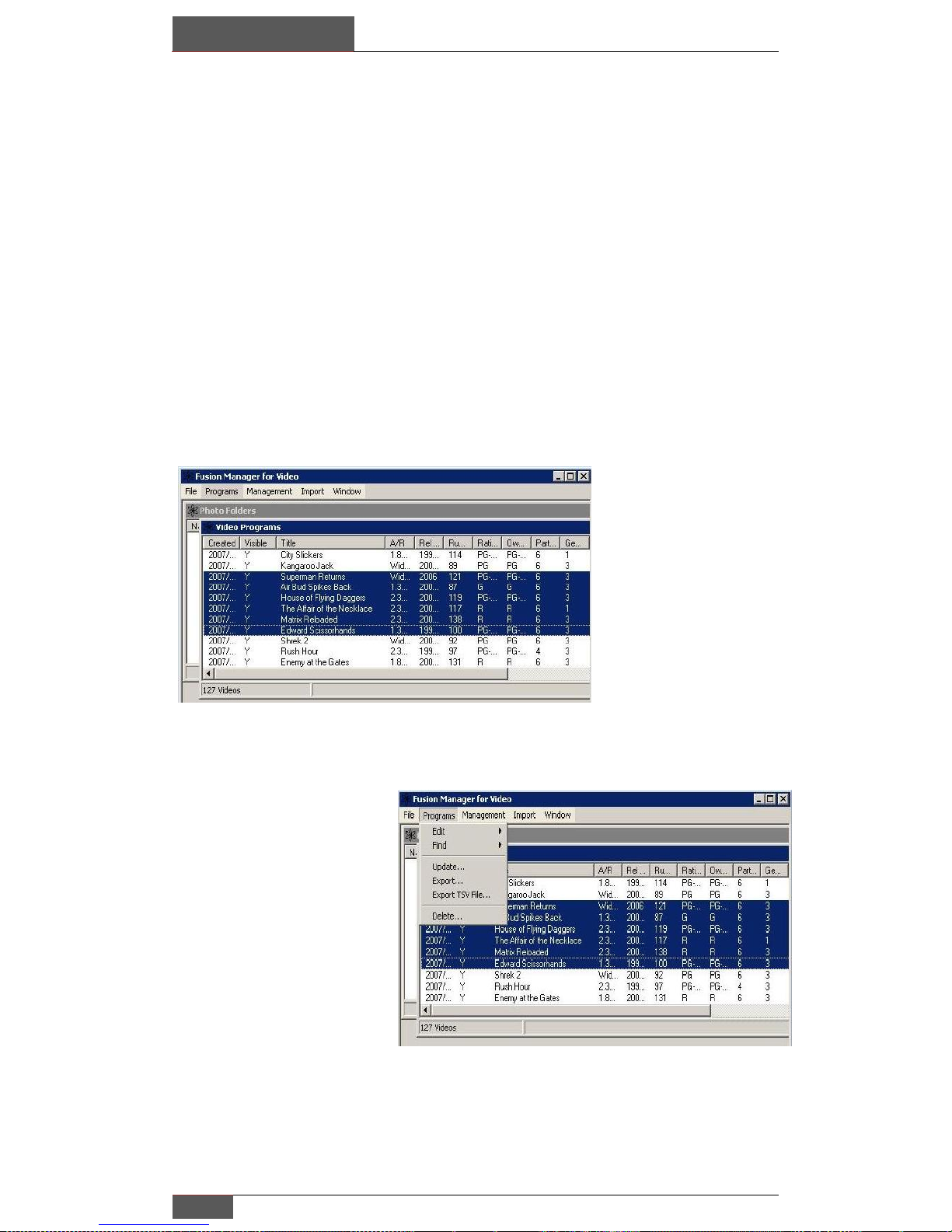
Step #2 – Select the
movies you want to
backup
You should sort your movies
prior to selecting your movies.
We highly recommend sorting
your movies by load date. You
can sort load date by clicking
on the top of the first column
(also called “Created”)
This way if you back up more
than once, you will know the
last movie you imported.
Step #3 – Highlight all
movies you want to
backup
You can select multiple movies
by first clicking on the first
movie you want in your list
while holding the shift key, all
the movies you want will then
be highlighted.
You should note the last movie
on your list (after sorting), so
that you don‟t backup a movie
that you have already
previously stored.
Page 29
Adding players & Backing up Movies
Chapter 6
Encore Movie Server | Fusion Research
28
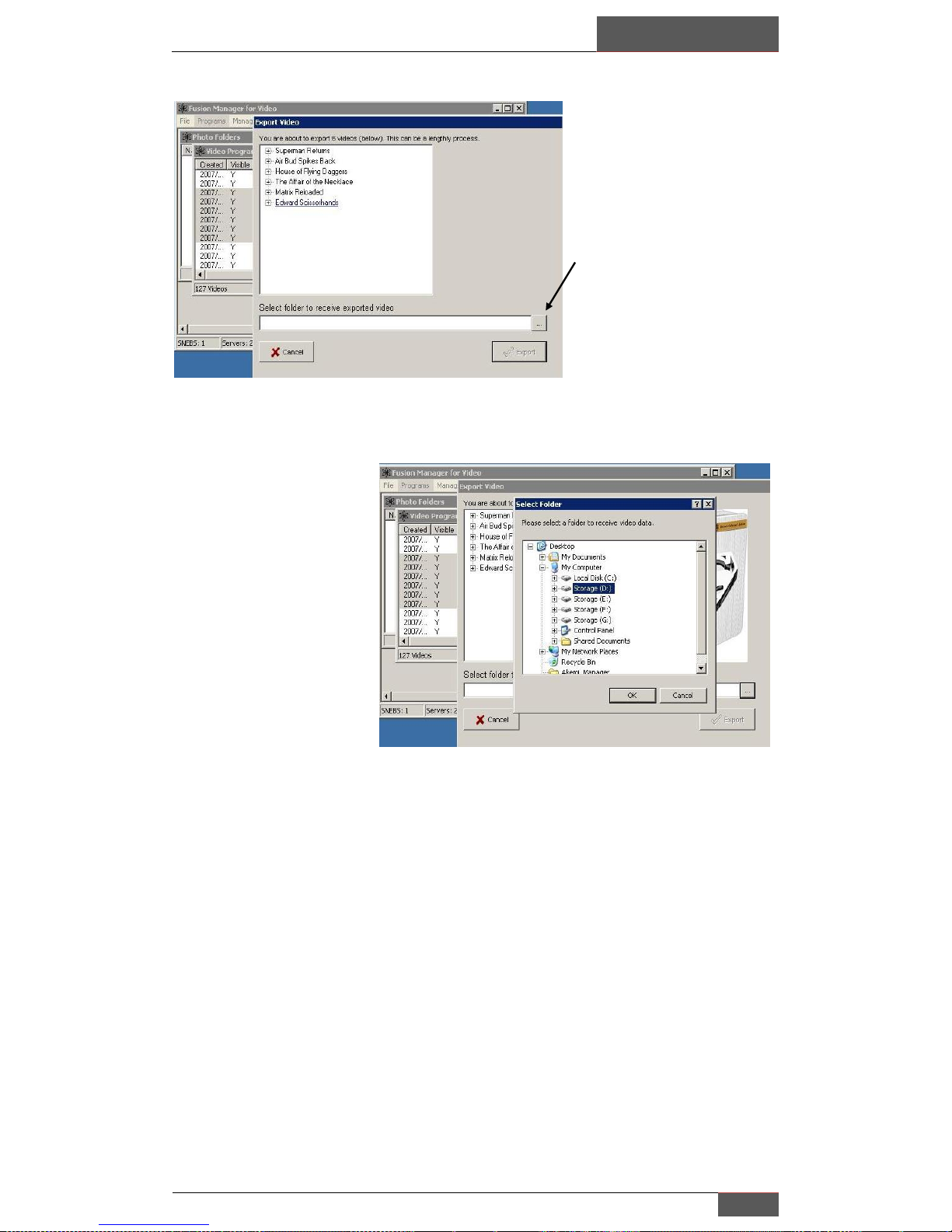
Step #5 – Select final
destination folder
Using the familiar Windows
convention you can select the
eventual folder that the movies
will be stored.
Step #4 – Confirming
your export
Your list of movies will now be
shown within the export video
window.
By clicking on the folder button
you can select the destination
for your backup.
Page 30

Chapter 7
Adding Storage to your System
29
Fusion Research | Encore Movie Server
You have the option of adding additional storage to the Encore system at any
time beyond the 2TB native storage found in the server. The first requirement
is to purchase a storage license, which will increase the system‟s ability to
store movies past its base amount. Storage licenses do not include hardware.
Storage licenses come in several different sizes including 2TB, 5TB, and
Unlimited (please check with your Fusion representative as sizes may change in
the future). The typical estimate is 125 to 150 DVDs per 1TB or 25 to 30 Blurays, the actual number will vary based of the individual movie collection.
It should be noted that if storage (hardware) is added to an Encore
without the purchase of a storage license, movies my actually be stored
on the hardware. The total amount of storage however will still not
exceed the amount of the license. Once the Encore reaches a total of
2TB total, whether on the unit’s internal hard drive or from an added
storage device, the system will not store additional movies until the
license is increased.
Types of hardware storage:
There are basically two types of storage which will work with Fusion systems,
external USB hard drives and network attached storage or NAS drives.
USB based external drives are only approved for single zone applications when
only an Encore is being used, if you plan on using the Encore with any
additional players, you cannot successfully use a USB external drive.
If more than one zone is to be used with the Encore, you must use a NAS drive
for adding additional storage. Although there are numerous brands of NAS
drives on the market, there is also various level of performance within each
manufacturer‟s line.
Some entry level NAS products will not have the bandwidth to support
multiple streams of video for the Encore. Since products and
specifications change frequently you must check with Fusion prior to
specifying or using an inappropriate drive. Using a non-approved or
under specified NAS will cause playback stutter or other problems.
Please call (925) 217-1233 and check before selecting your NAS solution.
All NAS devices must also be properly setup prior to use with a Fusion system,
this will include setting up the NAS RAID, formatting the drive, as well as
giving the unit a static IP. Once the NAS has been properly configured, call
Fusion to have the Encore properly mapped to the unit, this is done online and
typically takes a few minutes as long as the NAS have been properly
configured.
Using an unlimited license, there is no limit to the amount of storage that can
be added to your Encore system, you may continue to add NAS units as you
fill them. Please contact Fusion technical support should you have any
questions related to adding storage to your Encore system.
Page 31

Troubleshooting Guide:
Chapter 8
Encore Movie Server | Fusion Research
30
No video from Encore or player
If video shows at startup then disappears,
you have most likely set the resolution
beyond the capability of the display and
must use the remote to drop to a lower
resolution – (you can reset video to 720p
by holding the exit key for 10 seconds)
If you are running video through a switch,
trying connecting directly into the display to
make sure that video is working properly.
Very often the video switch requires special
setup and configuration for computer-based
video.
Make sure that display is set to proper video
input, some displays require digital input to
be set for computer type interface – please
check display manual.
If you are using Fusion‟s component adapter
(FR-COM), be sure to have it set to a
resolution of 720p or 1080i (not 1080p)
When Encore or player boots up
the system cannot get through the
check list “waiting on server”
This is a networking issue: make sure that
you have cat-5 cables connected prior to
powering on the system; you must have a
network connection prior to power up. If
not, you must power down the system to
reset.
No Sound comes from system
Make sure that your system has been
properly configured. The system cannot
output both digital and analog signals
simultaneously unless using special Fusion
adapter FR-D2A. Make sure that you have
chosen the correct audio output in the
system setup area, discussed earlier in this
manual.
System shuts down randomly or
after running for sometime without
warning
All Fusion products will shutdown
automatically if they get critically overheated
to help prevent damage. Please check units
to see if they are properly vented in a cool
area, constant overheating will shorten
product life and could void warranty.
System will occasionally lose
movies and must be re-booted to
bring them back.
System should not be re-booted as a
remedy for missing media; the problem is
networking related. Check router (it should
be a business class unit), make sure it is
configured properly, and also check all cat-5
terminations & set static IP on all units.
System will appear frozen or player
will not respond to input and must
be re-booted to work.
System should not be re-booted as a
remedy for a player not responding; the
problem is due to networking issues. Check
router (it should be a business class unit),
make sure it is configured properly, and also
check all cat-5 terminations.
Page 32

Chapter 8
Troubleshooting Guide:
31
Fusion Research | Encore Movie Server
When loading a DVD the movie
shows as “UNKNOWN” in all
capital letters and does not have
cover art
When “UNKNOWN” appears in all capital
letters the Fusion server did not get access to
Fusion‟s online database, please check you
network connect to make sure that you have
a proper access to the Internet.
Also be sure to check that proper DNS server
information was put in IP setup program.
When loading a DVD the movie
shows as “Unknown” not in all
capital letters and does not have
cover art
When “Unknown” appears and is not in all
capital letters, the DVD is not currently in the
Fusion database. Sometimes a well know
movie, which has had a second release may
not been cataloged. You may correct this
information in the Cinema Manager, or use
the “update” option as detailed in this guide.
When a DVD is loading it stops
during the middle of the load and
cannot finish
On rare occasions certain titles especial
Disney or Sony movies have a special antipiracy protection on them. Fusion maintains
a special “key” for these movies to be able to
be used on our systems.
On occasion we may have missed an old title,
which has not been accounted for, or a new
release that we are currently cataloging. If
you encounter this problem, please report it
to us at [email protected]. If the
movie is a new title that has just come out,
try loading again in a couple of days and it
will most likely be done by then.
When a DVD is loaded into the
system nothing happens and the
disc must be ejected
On rare occasions the DVD will have damage
or imperfections on the very first data file on
the disc, this is the area closest to the center.
Very often this damage cannot be seen, but
without it the system cannot determine what
type of disc or data is on the media,
therefore it cannot be loaded onto the
system.
When loading a DVD, the incorrect
cover art is shown or the movie
has some missing information
On occasion the online database will have
incorrect or missing information. This can be
easily corrected by using the Cinema
Manager.
Page 33

Understanding EDID Issues:
Chapter 9
Encore Movie Server | Fusion Research
32
When using HDMI for connecting components, it‟s important to under that
this connection is two-way and that the two pieces of equipment that you are
connecting must “talk” to each other. When there is a problem between two
pieces of equipment, typically referred to as “handshaking” problems, you
have experience undesirable results.
Typically, the result of a handshaking problem shows up with the
system’s resolution changing after powering down or very often the
complete loss of video. This section covers how to identify and resolve
these issues.
EDID stands for Extended Display Identification Data, and it's a piece of
information that is transmitted by a display or "sink" - a TV, a projector, or a
monitor - to describe its audio and video capabilities to an AV "source," such
as a Cable Box, Disc Player, or a Fusion system. Most important within this
EDID is the video resolutions and audio setups supported for the sink device.
Within the code the Fusion system will receive the video resolution as well as
the audio format and codes.
Normally when the Fusion is connected to a device, like a display or projector
the EDID is available from the device and the Fusion will understand what to
do. One problem can occur when the Fusion is left on (as it is designed to do)
and the target or display device is turned off. Many display devices will
continue to output its EDID even when powered off, but some do not so the
end result can be that the next time the display is powered on you will not
have video from the Fusion since the EDID has been lost.
This can also happen when the Fusion is connected to an HDMI switch and
there isn‟t a consistent EDID connection available to maintain the correct
resolution between the display devices so video can be lost. This is a very
common problem now that HDMI is becoming the mainstream and there are
several solutions available to solve this problem.
THE SOLUTION
If an HDMI switch is being used, most units have the ability to capture or learn
the EDID of the intended display device, in this case you must contact your
switch manufacturer or find the solution in the switches manual.
Fusion sells a small adapter that connects in-line between the server and the
switch or device, please check with Fusion for pricing and availability.
Gefen sells a device called the HDMI Detective, which also solves this common
problem, the adapter also connects in-line on the HDMI cable and retails for
$129.00.
Page 34

Chapter 10
Warranty & Returns
33
Fusion ResearchWarranty Terms of Coverage | Encore Movie Server
Warranty Terms of Coverage
Each Fusion branded system sold comes with a 13-month limited warranty.
This warranty provides no-charge coverage under normal product usage, for a
period of thirteen months from the date the product is shipped from the
factory, the warranty period does not commence when the system is installed.
This warranty program provides the following key features and benefits:
Thirteen (13) months service parts and labor.
Five (5) day turnaround time on all standard in-warranty repairs. No charges to the
customer other than in-bound shipping charges, which are determined by the shipping
method. All return shipments will be via Standard Ground Transportation from California
Thirteen (13) months of regular hour telephone support (8AM to 5PM PST), Monday -
Friday.
24-hour email response from the Fusion Support Website during normal hours.
Software maintenance updates provided via an Internet connection.
Access to 24-hour music and movie databases and services providing access to thousands
of CD and DVD titles and associated information.
What is NOT Covered under warranty
Fusion products are only sold to professional custom integrators, products,
which are not installed by profession; authorized Fusion dealers are not
covered under this warranty. A number of items must remain intact in order
for Fusion to verify and validate this warranty. Additionally, there are
conditions, which violate Fusion’s warranty program. These include:
The product was not purchased through an approved Fusion representative or was re-sold
(used).
Equipment which shall have been subjected to damage, deterioration or malfunction
resulting from (a) accident, negligence, misuse, abuse, improper installation or operation or
failure to follow instructions contained in the User Manual, (b) improper environmental
conditions, such as inefficient cooling and air flow or fluctuating power conditions (such as
"brown" or "black" outs), (c) shipment of the product (such claims must be presented to the
carrier), (d) repair or attempted repair by anyone other than Fusion or an authorized Fusion
Customer Service Center, (e) lightning, tornado, hurricanes, floods, or other events beyond
the manufacturer's control (Acts of God).
Any product, on which the serial numbers has been defaced, modified or removed
physically or electronically, will not be covered by a Fusion warranty.
Any type of unauthorized repair made to the system resulting in the damage to the product
will not be covered under this warranty, or ANY installation of unauthorized software not
provided by Fusion.
Damage caused to the product as a result of improper shipping or installation.
Damage caused to the product as a result of improper installation of third party peripherals
or products, or incorrect connections to peripheral or products.
Any damage to recordings or recording tapes or discs or any other media
The cost of parts or labor which would be otherwise provided without charge under this
warranty, obtained from any source other than Fusion.
The loss of any data, content, time, or commercial loss, whether real, incidental or
consequential.
Equipment not manufactured by Fusion. With respect to equipment sold by, but not
manufactured by Fusion, the warranty obligation of Fusion shall in all respects conform and
be limited to the warranty extended by its supplier.
The foregoing warranties do not cover reimbursement for labor, transportation, removal
installation or other expenses, which may be incurred in connection with repair or
replacement of equipment as provided herein, except for ground shipping charges within the
USA to return repaired or replacement units to the owner.
Except as may be expressly provided and authorized in writing by Fusion, Fusion shall not
be subject to any other obligations or liabilities whatsoever with respect to equipment
manufactured by Fusion or services rendered by Fusion. The foregoing warranties are
exclusive and in lieu of all other express and implied warranties except warranties of title,
including but not limited to warranties of merchantability and fitness for a particular purpose.
Page 35

Warranty & Returns
Chapter 10
Encore Movie Server | Fusion ResearchOut of Warranty Repair
34
How to Return a Product for Repair
You must contact Fusion’s support group at (925) 217-1233 to receive a
Return Material Authorization (RMA) number. This number is to be attached
to the outside of the shipping carton. The technical support person will give
additional instructions. Please be sure to use the original packaging when
possible, or provide adequate packaging. It is the responsibility of the
customer to insure the product arrives in secure order. Fusion highly
recommends insuring the package for an adequate amount to cover the cost
of the unit. It will be the customer’s responsibility to collect the insurance from
any claim for damage in shipping.
Out of Warranty Repair
Fusion provides out of warranty repair service on a flat-rate basis if the system
fails the system evaluation test. Minimum charges will apply to evaluate the
system. Technical support will provide information on this service at the time
of the call.
Return Policy
Fusion provides a 14-day (calendar day) refund from the date of receipt of the
product. To qualify, you must have an RMA and the product must be
undamaged and returned complete with all accessories and original
packaging. There may be a 25% re-stocking charge applied to all products
that are opened or scratched. No refunds are allowed on products that are
damaged, missing parts, missing original packaging or past the 14-day time
period.
 Loading...