

Page 1
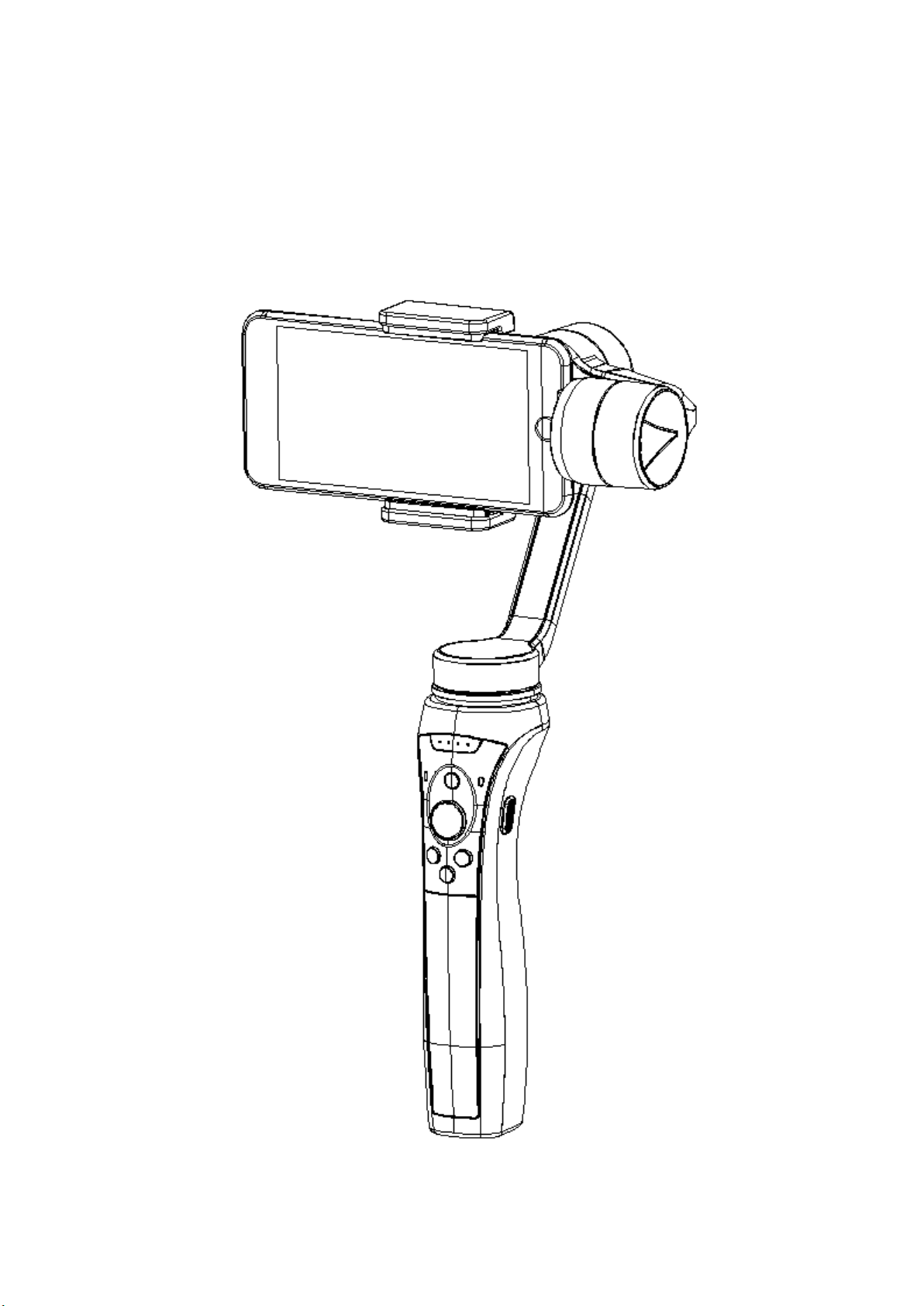
Capture 2
User Manual
V1.00 2018.05
Page 2

WARNING:
① Please download APP before using
IOS and Android user please download and install APP from
official website
Note: IOS system version should be IOS9.0 or above, Android
system version should be 5.0 or above
② Clip the smart phone before you turn the device on (smart
phone may weigh differently, please adjust the phone to keep
the Roll axis in horizontal level and Pitch axis in vertical level)
Page 3
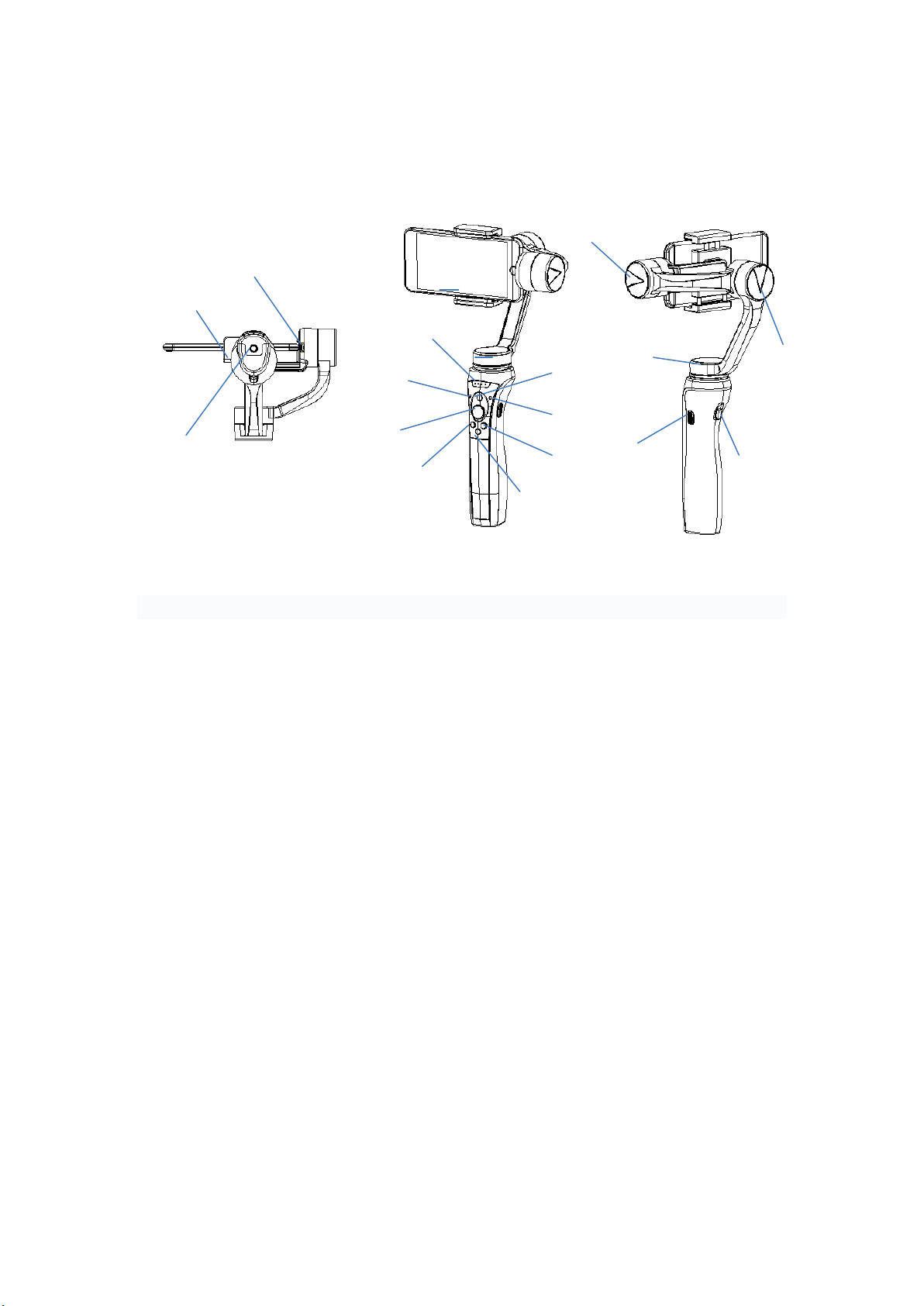
1,Product description
⑥ i
⑤ i
④ i
③ i
② i
① i
⑧ i
⑨
⑩
⑪ ⑫⑬
⑭
⑮
⑦
⑯
The smart phone is used for illustration purpose only.
1, USB charging port for smartphone 8, Horizontal/vertical mode switch button
2, 1/4 Screw Thread 9, Video/Photo button
3, Power indicator 10, Charging indicator
4, Mode indicator 11, Power button
5, Control stick 12, Yaw Axis
6, Mode switch button 13, Pitch Axis
7, Roll Axis 14, USB charging port
15, Reset button 16,Focus button
Bluetooth:
Name:Capture 2
Version: Low power consumption Bluetooth4.0
Battery:
Type:Li-ion
Double cell:18650
Voltage:7.4V
Capacity:2600Mah
Sport camera bracket
2,Capture 2 user guide
Capture 2 comes with a control stick to switch to different modes, photo/video,
horizontal/vertical mode,charge for smartphone etc.
【1】 Power switch
Press power switch for 3S to turn the Capture 2 ON or OFF.
Page 4

【2】 Control stick
Power indicator
0%-25%(1LED)
When low
power the 4
LED flash 10s
then the
Capture 2
power off
25%-50%(2LED)
50%-75%(3LED)
75%-100%(4LED)
Mode indicator
Blue light (full following)
Red light(semi following)
Green light(lock)
Charging indicator
Red Charging
Light out Charge finish
Move the Control stick to Left or Right to control Capture 2 Yaw axis to move Left or
Right. Move the Control stick Up or Down to control Capture 2 Pitch axis to move Up or
Down. This control mode is continuously variable, and the control directions can be
modified on Capture 2 APP.
【3】 Video/Photo button
When Capture 2 is connected with APP. To take a single photo on phone by Pressing
Video/Photo button once, to take a continuous photo by holding Video/Photo button,
the video can be closed by another single press. The before/behind camera can be
exchanged by double pressing Video/Photo button.
【4】 Horizon/Vertical switch button
When Capture 2 is working, Click Horizon/Vertical model switch button can switch
between Horizon model and Vertical model.
【5】 Mode Switch Button
When Capture 2 is working,You can switch full following , semi following and lock
mode by clicking Mode Switch Button.
【6】 Reset button
You can hold the Reset button enter the lock mode immediately. You can exit the
dynamic capture 2 model by clicking Model Switch Button twice ,hence back to gimbal
original status.
【7】 Indicator LED status
Below chart is the explaination for teh status of Capture 2 during operation.
【9】 Removal Method of Phone and sport camera
【10】Capture 2 Charging
【11】1/4 Screw Thread
Either a coin or screwdriver can be used to replace phone arm and sport camera arm.
Whether it’s on or off, Capture 2 can be charged with a laptop or charging treasure,
mobile phone charger, car charger , etc. Charger specifications are as follows: (Voltage:
5V,Current:<2.1A)but bluetooth doesn't work when it charging.
The 1/4 Screw Thread under the handle can work with selfie stick or tripod.
Page 5

3,Capture 2 APP Set and Handle
Name
Capture 2
Dimension
307*113*115mm
Weight
485g(Without smartphone)
Voltage
7-8.4V
Current
200-2500mA
Charging Voltage
5V
Charging Current
900mA
Angle jitter
±0.05°
Pitch Angle
330°
Roll Angle
330°
Heading Angle
330°
Following speed
<120°/S
Max Current
<2.5A
Working Temperature
-10℃-45℃
Endurance Time
13h
Charging Time
4.5h
Charging Temperature
-5℃-60℃
Load Weight
95-220g
Mobile Phone Clip
59-88mm
Warning: The icon location of Android and iOS may be different, but the function is same.
Pls handle the APP according to the guide of APP.
HOW TO USE
1, Power on the Capture 2,open the Bluetooth of smartphone.
2, Open the APP. Select the device you want to connect.
3, Then you can use the Capture 2 with APP.
Please refer to the instructions for use of APP
4,Firmware update
Please connect the Capture 2 and the APP with Bluetooth.Then you can choose the version of the
firmware to update,the time of the uodate will be 8 minutes
5,Specification
Page 6

This device is an electrostatic sensitive device, Don’t touch USB port when the device
is charging to prevent electrostatic discharge from interfering with the device,
causing the device to stop working or abnormal work please restart the device when
there is electrostatic discharge interference.
Note: This equipment has been tested and found to comply with the limits for a Class B digital
device, pursuant to Part 15 of the FCC Rules. These limits are designed to provide reasonable
protection against harmful interference in a residential installation. This equipment generates,
uses and can radiate radio frequency energy and, if not installed and used in accordance with
the instructions, may cause harmful interference to radio communications.
However, there is no guarantee that interference will not occur in a particular installation. If this
equipment does cause harmful interference to radio or television reception, which can be
determined by turning the equipment off and on, the user is encouraged to try to correct the
interference by one or more of the following measures:
---Reorient or relocate the receiving antenna.
---Increase the separation between the equipment and receiver.
---Connect the equipment into an outlet on a circuit different from that to which the receiver is
connected.
---Consult the dealer or an experienced radio/TV technician for help.
Warning: Changes or modifications to this unit not expressly approved by the part responsible
for compliance could void the user’s authority to operate the equipment.
 Loading...