

Page 1
.
Page 2

Dear Customer,
If you encounter any problems using the projector, please
feel free to contact us at any time. (It is best to attach
pictures or videos so that we can better assist you.)
After sales email: [email protected]
Wishing you a wonderful day!
FunFlix Customer Service Team
Page 3
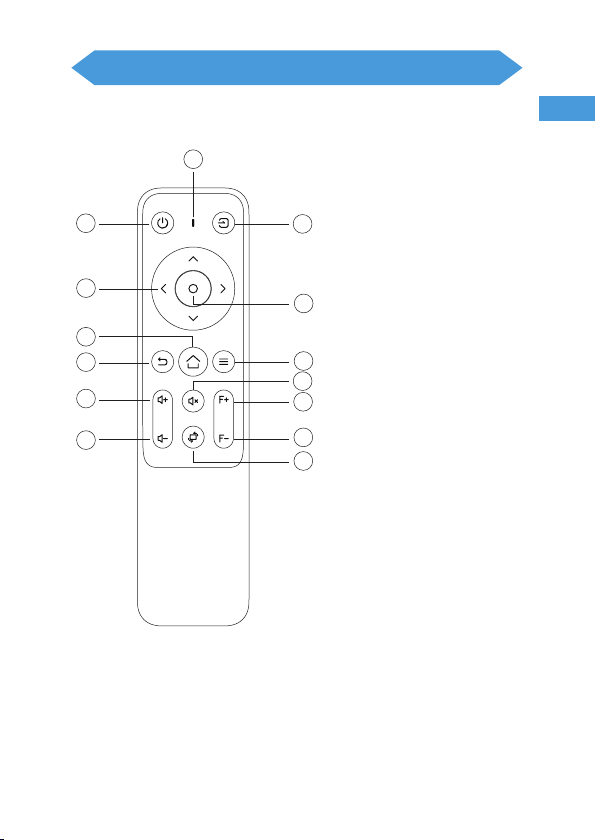
Remote Control
EN
1
1. Signal Indicator
2
3
4
5
6
7
8
9
10
11
12
13
14
2. Power Key
3. Arrow keys
4. Home Key
5. Return key
6. Volume+
7. Volume-
8. Source key
9. Conrmation key
10. Menu
11. Mute Key
12. Focus+
13. Focus-
14. Screen Flip
1
Page 4
Turn the Projector Operation On/O
When the projector is connected to a power source, the projector enters standby
and the cover signal indicator is red.
Operation on: Press the power key on the body or the power key on the remote
control, the indicator will turn blue and enter the working state.
Operation o: In the working state, press the power key of the body or the power key
on the remote control, the indicator changes from blue to red, and the projector is
turned o.
Use of the Projector
Image focusing
When the newly installed projector is used for the rst time, the image will be
blurred, and it is necessary to focus the picture;
Manual Focus
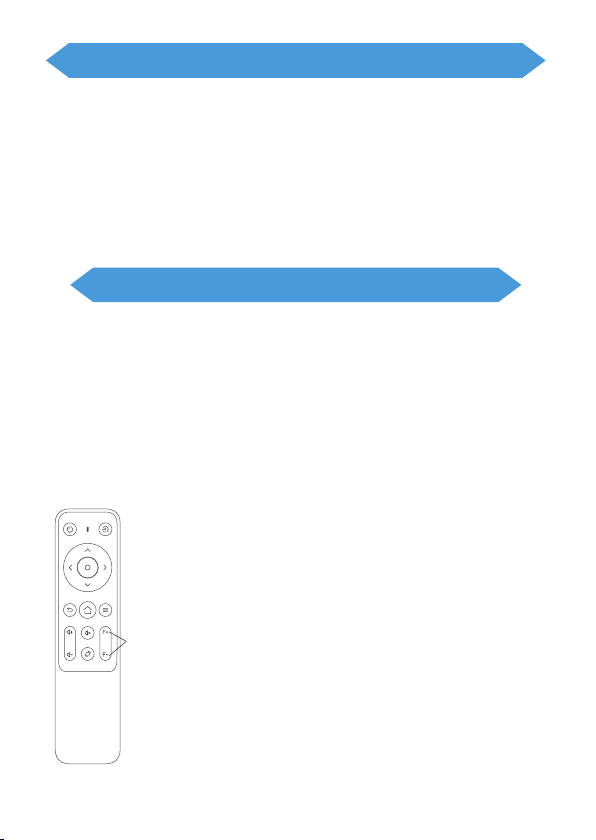
When the picture is blurred, press the focus keys "F+" and" F- "on the remote control
to adjust the focal length of the lens. Tap or long press the focus button until the
picture is clear. (As shown below)
Or press the menu button on the remote control; select "Settings" → Keystone →
Projection Settings → Motor Focusing.
(Before the focus)
Focus
(After the focus)
2
Page 5
Use of the Projector
How to Use Projection Settings
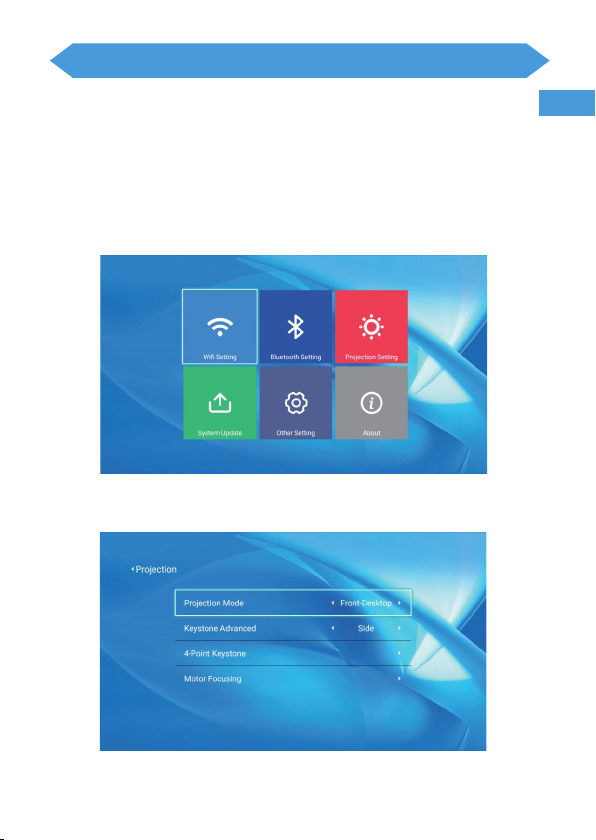
Select the settings icon in the upper right corner of the main interface, and then
press the "OK" key on the remote control to enter the settings interface and select
"Projection Image Setting".
After entering the interface, select the mode you want in the projection settings.
Projection mode: Front-Desktop / Rear-Desktop / Front-Ceiling / Rear-Ceiling
EN
3
Page 6
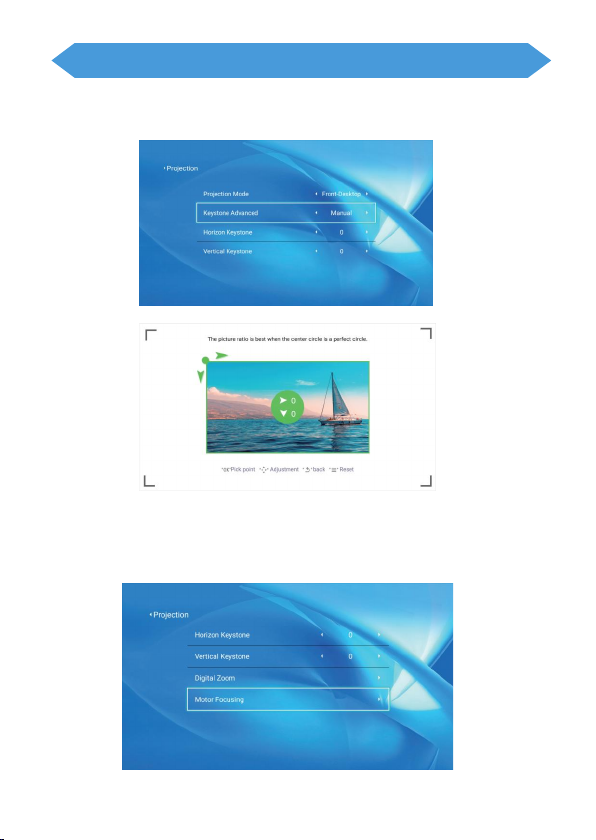
Use of the Projector
Manual Keystone (Manually adjust the four corners through the arrow keys until the
screen can be corrected )
Motor Focusing (This function is turned on by default, and the screen can be kept
square even after the device is displaced. )
4
Page 7
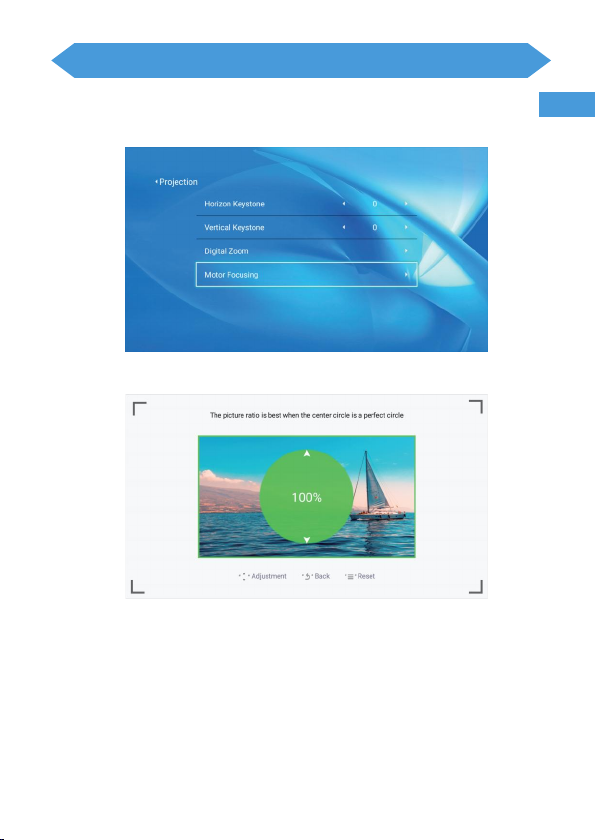
Use of the Projector
Digital Zoom (Zoom out or enlarge the image )
EN
5
Page 8
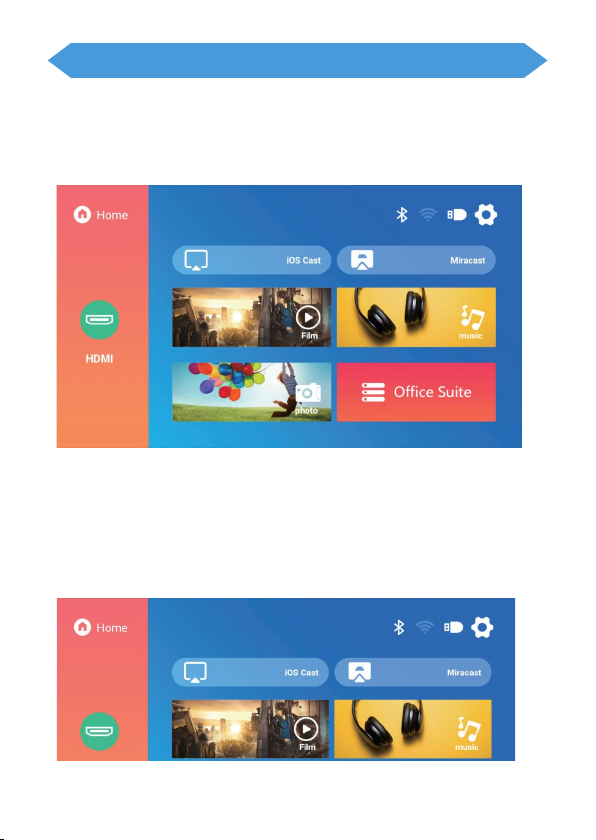
Use of the Projector
How to Select the Source
Select the source channel you want to enter in the list on the left side of the main
interface, such as HDMI 1 / HDMI 2 / AV, then press the “OK” key on the remote
control to enter the corresponding source interface.
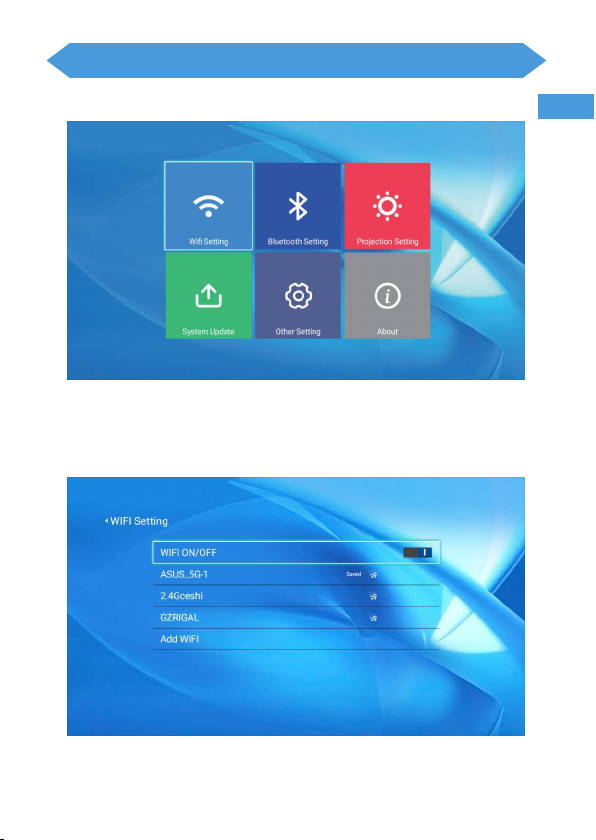
How to Connect to WiFi
Select the settings icon in the upper right corner of the main interface, press the "OK"
key on the remote control to enter the settings interface, and select "WiFi Setting".
After entering the interface, select the WiFi you want to connect to in the list below,
then enter the password and complete the connection. Connected will be displayed
behind the successfully connected WiFi.
6
Page 9
Use of the Projector
EN
7
Page 10
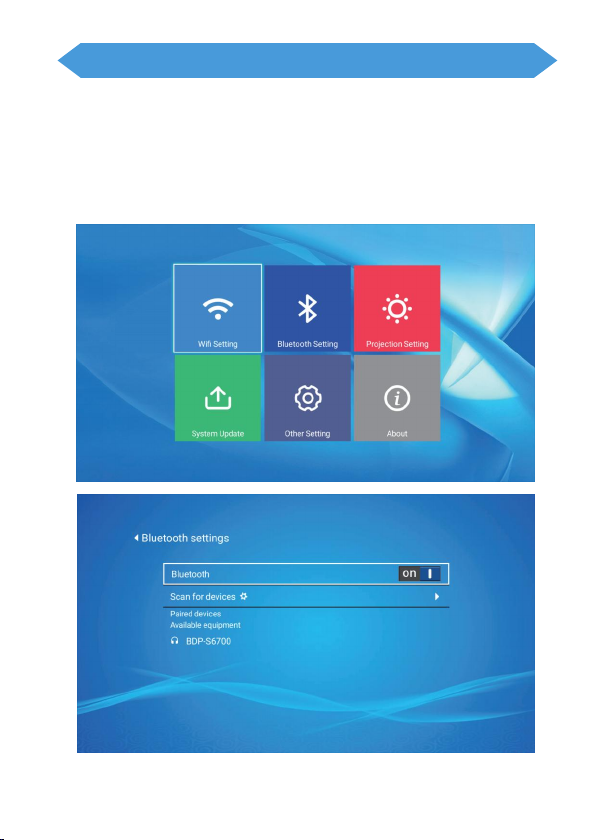
Use of the Projector
How to Connect Bluetooth
Select the setting icon in the upper right corner of the main interface, press the "OK"
key on the remote control to enter the setting interface, and then select "Bluetooth
Setting".
After entering the interface, turn on Bluetooth, search for Bluetooth, and pair
Bluetooth.
8
Page 11

Q&A Normal Questions
1.What if the projector works but there is no sound?
G1 mini projector does not support Dolby, please Turn
off the Dolby sound function.(Settings > Display &
Sounds > Audio > Dolby Digital Output > and then turn
Dolby Digital (OFF).
2.How do I watch Netflix movies or shows on the
FunFlix MINI Projector?
Due to copyright compatibility issues, Netflix and
Disney+ videos are not supported on the same screen
on your phone, we recommend using a fire stick or
Google Chromecast TV stick, which can watch apps
such as Netflix and Amazon Prime Video.
3.Why can't Bluetooth connect to my phone?
Bluetooth can be connected to Bluetooth speakers,
Bluetooth headphones, etc. to play audio. Cannot
connect to a cell phone to play video. If you can't
connect please check if your Bluetooth is connected to
another device.
Page 12

4.When first use, Electric focus not working?
1.Place projector on level surface that is
perpendicular to the wall.
2.Open "Projection" menu and Click "F" button.
3.More details please refer to QA video.
5.Does the remote control come with batteries?
Compliance does not come with batteries, you will
need to purchase 2 batteries yourself.
6.What should I do if my phone's sync playback
doesn't work?
1. First, check if your cell phone and projector are
trying the same WIFI.
2. Check whether the WIFI password is correct and
connected or not
3. Check if your WIFI signal strength is weak.
7.What are the installation options?
It can be placed on a table, stand, wall and many
other ways.
Page 13

8.Will there be any noise when the projector is
working?
When the projector is working, it requires a cooling
fan to work, which can cause noise, which is
unavoidable for every projector. But the sound is
very low and will not affect your viewing effect.
9.Will the temperature be very high when the
projector is working?
No, the projector is equipped with a brand new
upgraded fan cooling system. But do not block the
heat dissipation vent and cover it with a dust-proof
cloth.
10.How to solve the problem of unclear images
played in strong lighting environments?
It is recommended to play in a relatively dark
environment for better results, which can be
combined with the screen to present a clearer
picture.
Page 14

11.Do I need batteries if I use it outdoors?
Required, the projector itself does not have a battery.
Bluetooth and wireless connections require a strong
battery.
12.How to operate if there are unclear spots in
the projection?
We use high-end enclosed light machine technology.
If spots appear, we need to check whether there is
dust on the outside of the lens after opening the lens
cover, and clean and wipe it.
13.Why does the fan sometimes make noise?
This is an occasional condition of the machine and
the noise is automatically eliminated by simply
restarting the machine.
 Loading...