

Page 1

Fujitsu America, Inc.
Port Replicator
User’s Guide
INSTRUCTIONS
The port replicator extends the functionality
of your LIFEBOOK® Tablet PC by
providing ports to connect an external VGA
monitor, a LAN (RJ-45) cable, four USB
2.0 devices, a DVI device, a DisplayPort
device, headphones, and DC power.
The port replicator connects to the bottom
of your LIFEBOOK Tablet PC.
PORT REPLICATOR COMPONENTS
The following is a brief description of the
port replicator’s back panel compon en ts.
(Figure 1)
Power Button
The power button allows you to power the
port replicator on and off.
Page 2
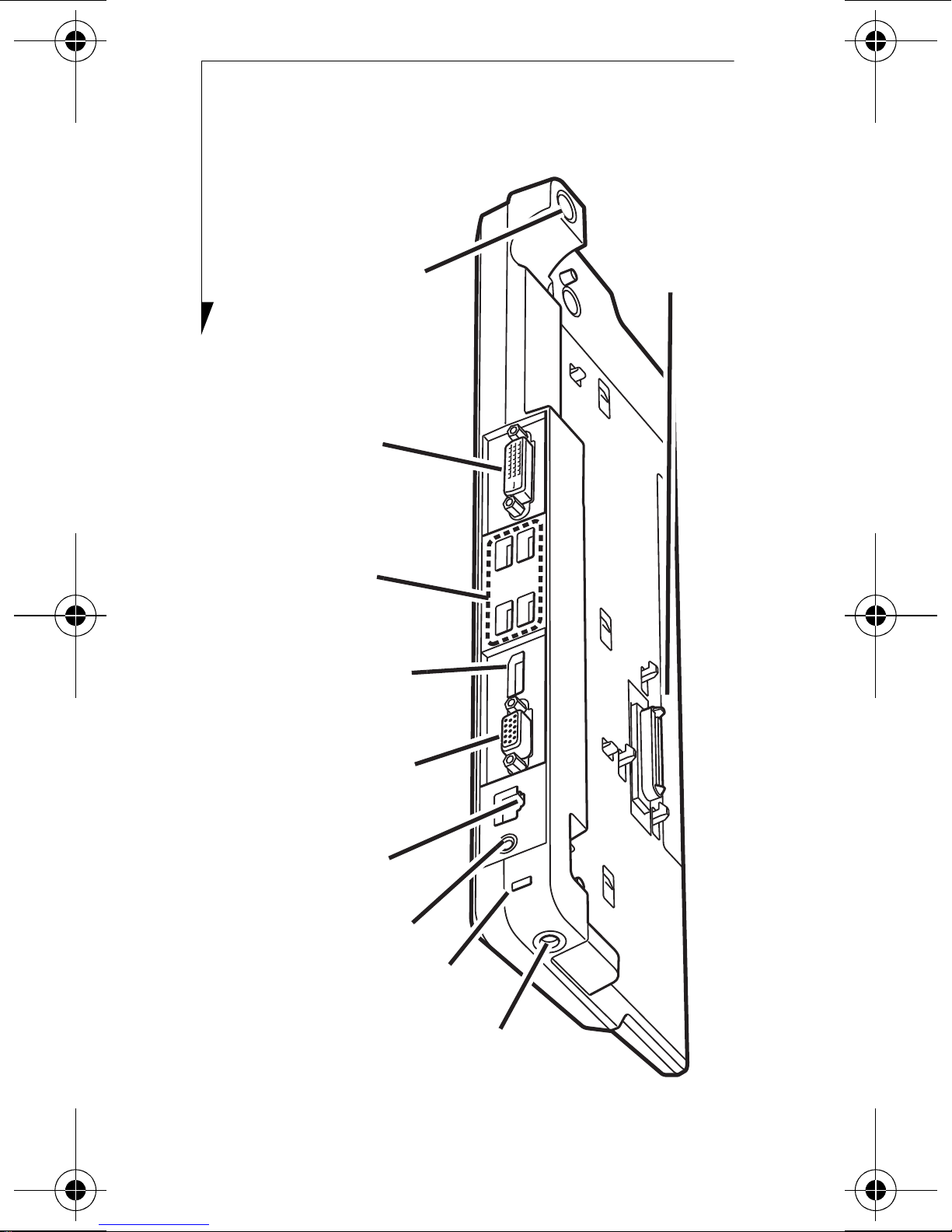
DC Power Jack
External
VGA Port
LAN (RJ-45)
USB 2.0
Ports (x 4)
DVI-D Port
Security Lock Slot
Power Button
DisplayPort
Headphone
Jack
Docking
Connector
Figure 1. Port replicator back panel
2
Page 3
Docking Connector
The docking connector allows you to
connect the Port Replicator to your LIFEBOOK Tablet PC.
CAUTION
THE SYSTEM CONTAINS
COMPONENTS THAT CAN BE
SEVERELY DAMAGED BY
ELECTROSTATIC DISCHARGE (ESD). TO MINIMIZE
RISK TO THE COMPONENTS, OBSERVE THE
FOLLOWING PRECAUTIONS:
•B
•B
EFORE DOCKING OR UNDOCKING YOUR
LIFEBOOK
TOR, YOU SHOULD TOUCH A GROUNDED METAL
OBJECT TO DISCHARGE STATIC ELECTRICITY
BUILT UP IN YOUR BODY.
E SURE TO POWER DOWN YOUR SYSTEM
BEFORE ADDING OR REMOVING SYSTEM COM-
PONENTS. EVEN IF THE SYSTEM IS IN HIBER-
NATE OR SLEEP STATES, DATA COULD BE LOST
OR MEMORY COULD BE DAMAGED IF POWER IS
STILL AVAILABLE TO THE SYSTEM.
WHEN USING A PORT REPLICA-
DVI-D Port
The DVI-D port lets you to connect digital
display devices such flat panel displays and
digital projectors using a DVI-D cable. DVID is primarily used to connect a computer
with a monitor or home theater system.
3
Page 4
DisplayPort
The DisplayPort lets you to connect DisplayPort-compatible digital display devices such
flat panel displays and digital projectors using
a DisplayPort cable.
NOTES
•ALTHOUGH DISPLAYPORT AND DVI-D DEVICES
ARE SUPPORTED BY THE PORT REPLICATOR,
ONLY ONE CAN BE USED AT ANY TIME. AN
INTERNAL SWITCH RECOGNIZES WHICH TYPE OF
DEVICE IS CONNECTED. IF BOTH ARE
CONNECTED AT THE SAME TIME, DISPLAYPORT
HAS THE HIGHER PRIORITY.
•A D
•H
F A DISPLAYPORT-TO-HDMI CONVERTER IS
I
CONNECTED TO THE DISPLAYPORT, SOUND WILL
NOT BE OUTPUT FROM THE HDMI DEVICE. TO USE
AN HDMI DEVICE, PLUG IT INTO THE HDMI PORT
ON THE LEFT SIDE OF THE SYSTEM.
ISPLAYPORT OR DVI-D DEVICE CAN BE USED
CONCURRENTLY WITH AN EXTERNAL VIDEO
DEVICE THAT IS CONNECTED TO THE ANALOG
EXTERNAL VGA PORT.
OT PLUG IS NOT SUPPORTED BY THE
ISPLAYPORT OR DVI-D PORTS.
D
USB 2.0 Ports (Qty. 4)
Universal Serial Bus (USB) 2.0 ports allow
you to connect USB devices. USB 2.0 ports
are backward-compatible with USB 1.1
devices.
4
Page 5
External VGA Port
The external VGA port lets you connect an
external monitor or projector. Note that if a
Port Replicator is attached, you must use the
external VGA port on the Port Replicator,
not the one on your system.
Headphone Jack
The headphone jack allows you to listen to
stereo sound from your Tablet PC with
portable headphones.
LAN (RJ-45) Jack
The LAN jack allows you to connect a LAN
to the Port Replicator. Note that when the
system is attached to the Port Replicator , the
LAN Jack on the Port Replicator should be
used, not the one on the system.
Security Lock Slot
The security lock slot allows you to attach an
optional physical lock down device.
DC Power Jack
The DC power jack allows you to plug in the
AC adapter to power your Tablet PC and
charge the internal Lithium ion battery.
5
Page 6
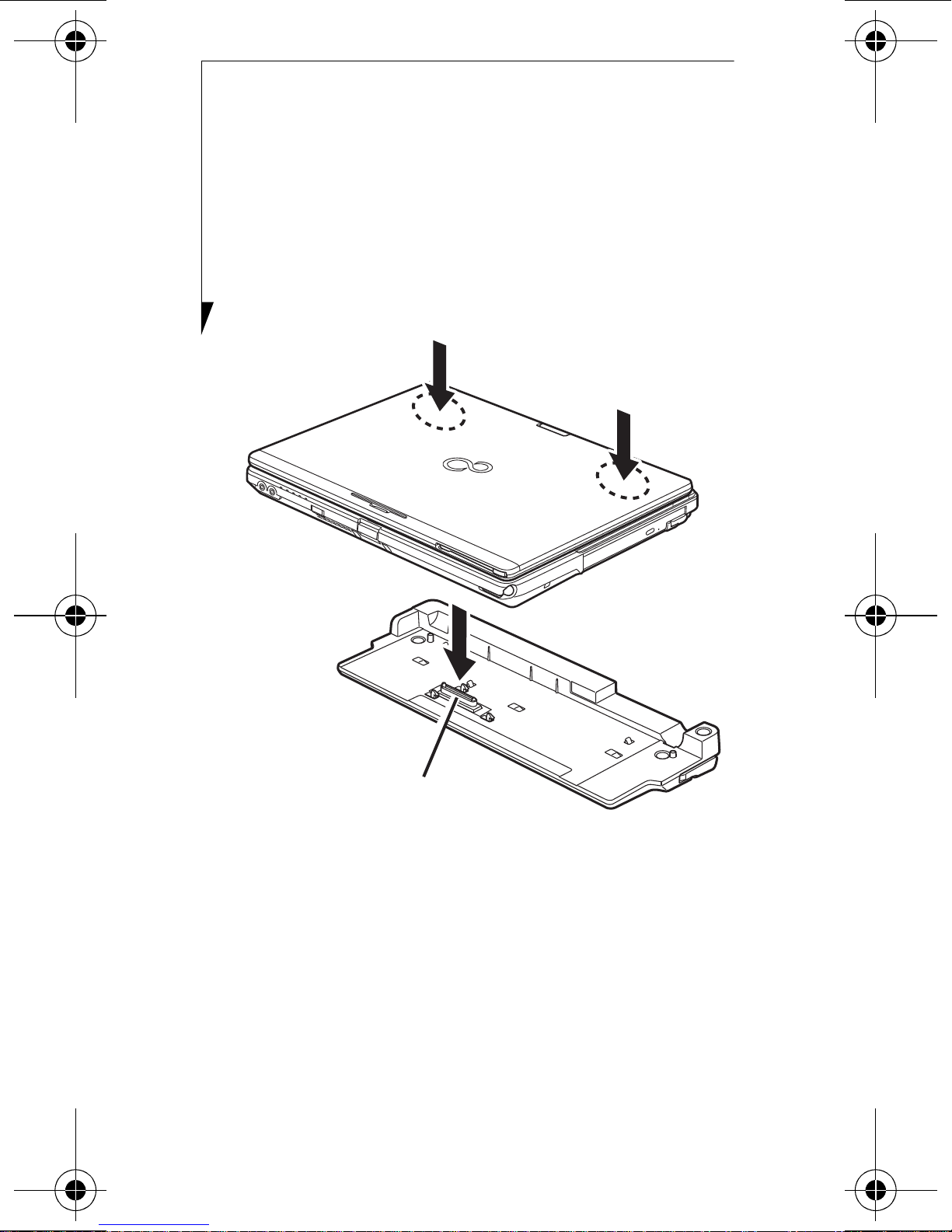
ATTACHING PORT REPLICATOR
Docking Connector
To attach the Port Replicator, align the Port
Replicator connector on the bottom of your
Tablet PC with the connector on the Port
Replicator and push the corners down simul-
taneously.
(Figure 2)
Figure 2. Attaching Port Replicator
DETACHING PORT REPLICATOR
To detach the Port Replicator:
1 Pull the Port Replicator’s release latch
away from the Port Replicator to release
it from your Tablet PC.
2 Lift the Tablet PC away from the Port
Replicator to detach it.
6
(Figure 3)
(Figure 4)
Page 7
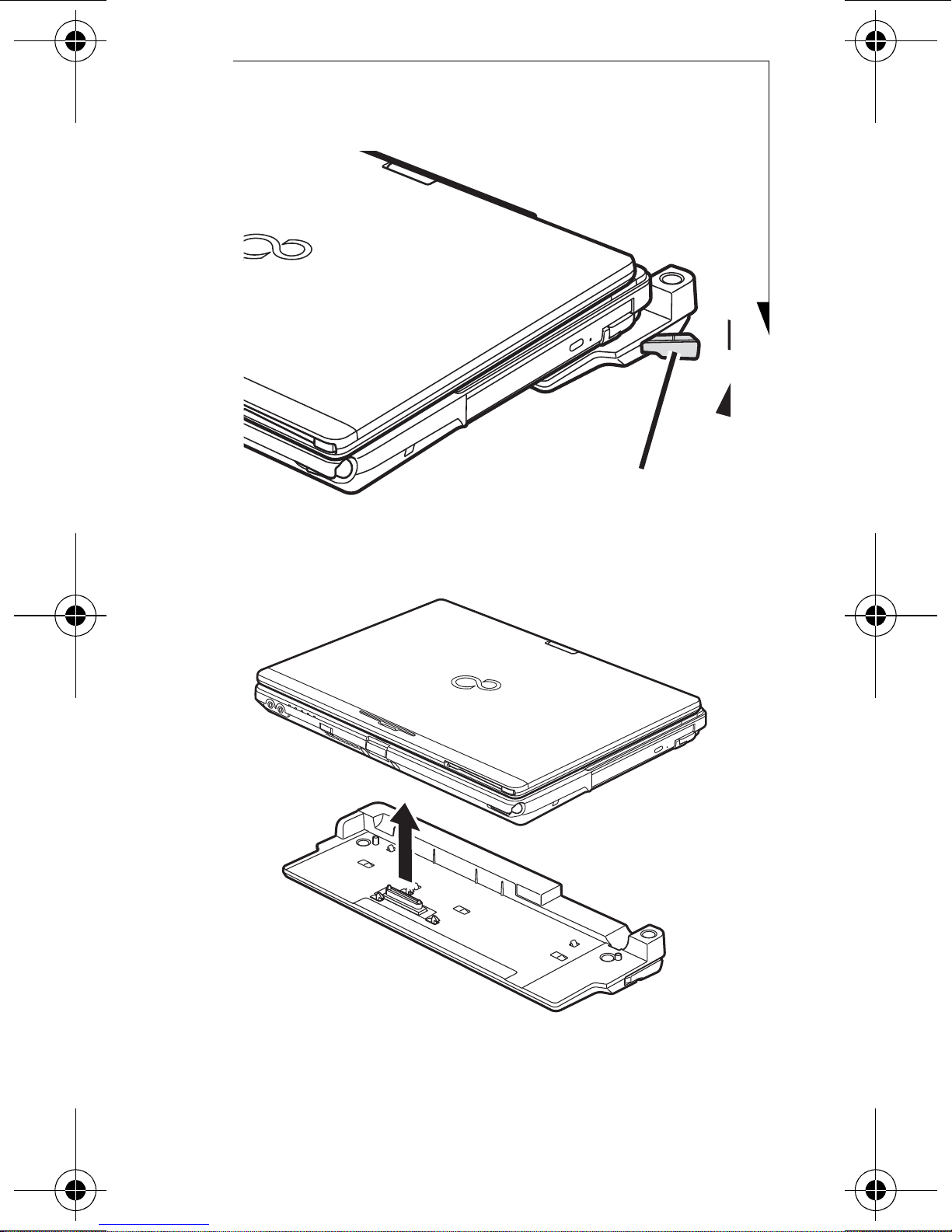
Figure 3. Unlatching
Release Latch
Figure 4. Removing
7
Page 8
Fujitsu America, Inc.
B6FY-0571-01EN-00
1250 E. Arques Avenue
Sunnyvale, CA 94085
For more information, call 1-877-372-3473
or visit our Web site at:
http://us.fujitsu.com/computers
For technical support call:1-800-8fujitsu
(1-800-838-5487)
Fujitsu, the Fujitsu logo, and LIFEBOOK are registered trademarks of Fujitsu, Ltd. All other trademarks mentioned herein are the property of their
respective owners. Fujitsu America, Inc. n has
made every effort to ensure the accuracy and
completeness of this document. As ongoing development efforts continually improve the capabilities
of our products, we cannot guarantee the accuracy
of the contents of this document. We disclaim
liability for errors, omissions, or future changes.
© 2011 Fujitsu America, Inc. All rights reserved.
8
 Loading...