

Page 1

WM340 User Guide
Version 0.2
May 2012
Page 2

Contents
Introduction...............................................................................................................................................3
Before using the terminal...................................................................................................................3
Note about the security at the time of wireless LAN use..............................................................3
Supported OS (Personal Computers).................................................................................................3
Safety Notes...............................................................................................................................................5
Notes about WM340............................................................................................................................6
Notes about battery pack....................................................................................................................9
Note about AC adaptor.....................................................................................................................11
Before Using............................................................................................................................................13
Part names and function..................................................................................................................13
LED lamp display.............................................................................................................................14
Preparing USIM card..............................................................................................................................16
Attaching...........................................................................................................................................16
Removing...........................................................................................................................................16
Setting......................................................................................................................................................17
Setting................................................................................................................................................17
Wireless LAN Connection procedure.....................................................................................................21
Connection procedure for this product............................................................................................21
Various function setting (Detail)............................................................................................................22
About WM340 setting tool................................................................................................................22
Starting of WM340 setting tool........................................................................................................22
Internet Settings.....................................................................................................................................24
Network.............................................................................................................................................24
Connection.......................................................................................................................................26
PIN Lock..........................................................................................................................................28
Wireless LAN...........................................................................................................................................29
WLAN................................................................................................................................................29
Security............................................................................................................................................30
MAC filtering.....................................................................................................................................32
WPS....................................................................................................................................................33
Router.......................................................................................................................................................35
Basic.................................................................................................................................................35
LAN....................................................................................................................................................36
Page 3

WM340 User
Guide
Version 0.2
Static DHCP....................................................................................................................................38
IP Filter............................................................................................................................................39
URL Filter........................................................................................................................................40
Device List.......................................................................................................................................41
System......................................................................................................................................................42
Basic setting....................................................................................................................................42
System log..........................................................................................................................................43
Configuration...................................................................................................................................44
Restart..............................................................................................................................................45
Appendix................................................................................................................................................46
Product Specifications.....................................................................................................................46
Trademarks......................................................................................................................................47
Copyright ©2011 FUJISOFT INCORPORATED, All rights reserved.
2
Page 4
WM340 User
Guide
Version 0.2
Introduction
Thank you for purchasing the WM340
Please always read this user guide before using the product.
Before using the terminal
・ It is not available, at the place that out of reach of radio waves such as in tunnels, underground,
building and weak point, out of service. And you may not be available even in the high floor
vantage point, such as high-rise apartment buildings.
・ If use overseas, please check with your customer center.
・ Public places, a quiet place and where there is a lot of people, please use so as not to disturb the
people around.
・ Damage of this document and caused by the use of products that have been described in this
document, costs of recovery is your responsibilities.
Note about the security at the time of wireless LAN use
In wireless LAN, in order to exchange information with wireless LAN apparatus between wireless
LAN access points instead of a LAN cable using an electric wave, if it is a range which an electric
wave reaches, there is an advantage that LAN access becomes possible freely. If the other hand, if it
is within radio range can reach, in order to reach all locations beyond the obstacles that have not
been security-related settings, there is a risk or is intercepted communications, resulting in the
intrusion.
This product is not setting up security in the state of the purchase. In consideration of safety,
perform security setting and recommend to using this product. Please refer to this book for the
setting method of security.
Supported OS (Personal Computers)
Operation System
Windows XP Service Pack 3 or later(32bit version)
Service Pack 2 or later(64bit version)
Windows Vista
Windows 7
Service Pack 2 or later(32bit / 64bit
version)
Service Pack 1 or later(32bit / 64bit
version)
Mac OS X
Android 2.2 or later
Copyright ©2011 FUJISOFT INCORPORATED, All rights reserved.
10.5 ~ 10.7.2
*Only support Intel processor. Not
supports Mac with a Power PC
processor.
3
Page 5

WM340 User
Guide
Version 0.2
iOS 4 or later
Browser
Mozilla Firefox 2.0 or later
Internet Explorer 6.0 or later
Safari 2.0 or later
Opera 9.64 or later
Disk free space 50MB
Display Resolution 800 × 600 or more (1024 × 768 recommended).
・ Other than the above, it may not work. In addition, even if applicable to the above, by your
environment, you may not operate properly.
Copyright ©2011 FUJISOFT INCORPORATED, All rights reserved.
4
Page 6
WM340 User
Guide
Version 0.2
Safety Notes
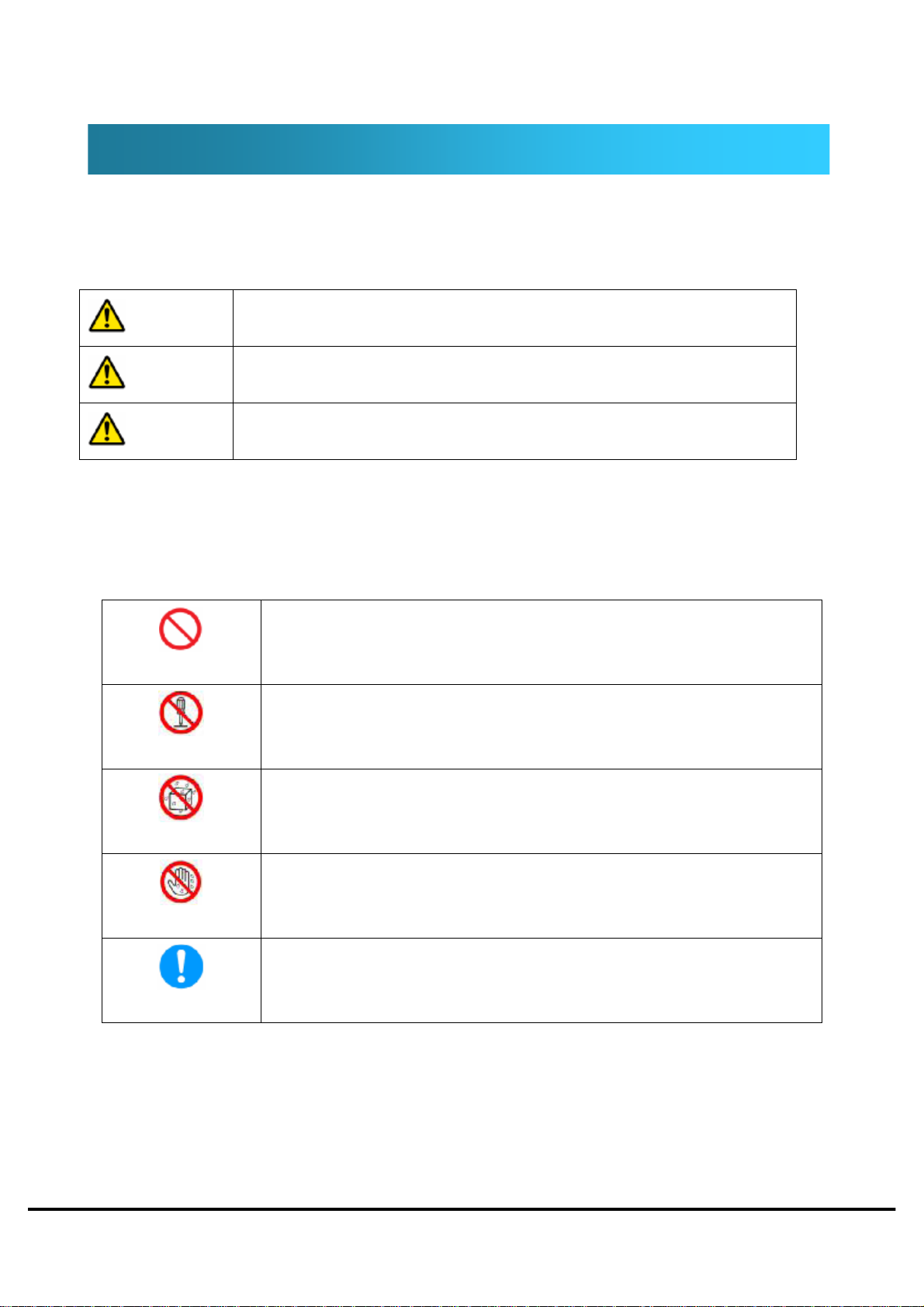
Before using this product, please read the "Safety Notes" and use this product in the correct manner.
The dangers or damage that can occur if the following precautions are not strictly adhered to or this
product is not used in the correct manner are described below.
This sign denotes that death or serious injury may directly result from
Danger
Warning
Caution
improper use.
This sign denotes that death or serious injury may result from improper
use.
This sign denotes that bodily injury or damage to property may result
from improper use.
The following pictorial displays are used to represent what you should do or should not do.
Don’t
No disassembly
No liquids
No wet hands
This symbol denotes a prohibited action.
This symbol denotes that disassembling the phone or its components is
not allowed.
This symbol denotes that using the device or its components in a
bathroom or highly humid area is not allowed.
This symbol denotes that using the device or its components with wet
hands is not allowed.
Do
This symbol denotes an obligatory action (that must be performed).
Copyright ©2011 FUJISOFT INCORPORATED, All rights reserved.
5
Page 7
WM340 User
Guide
Version 0.2
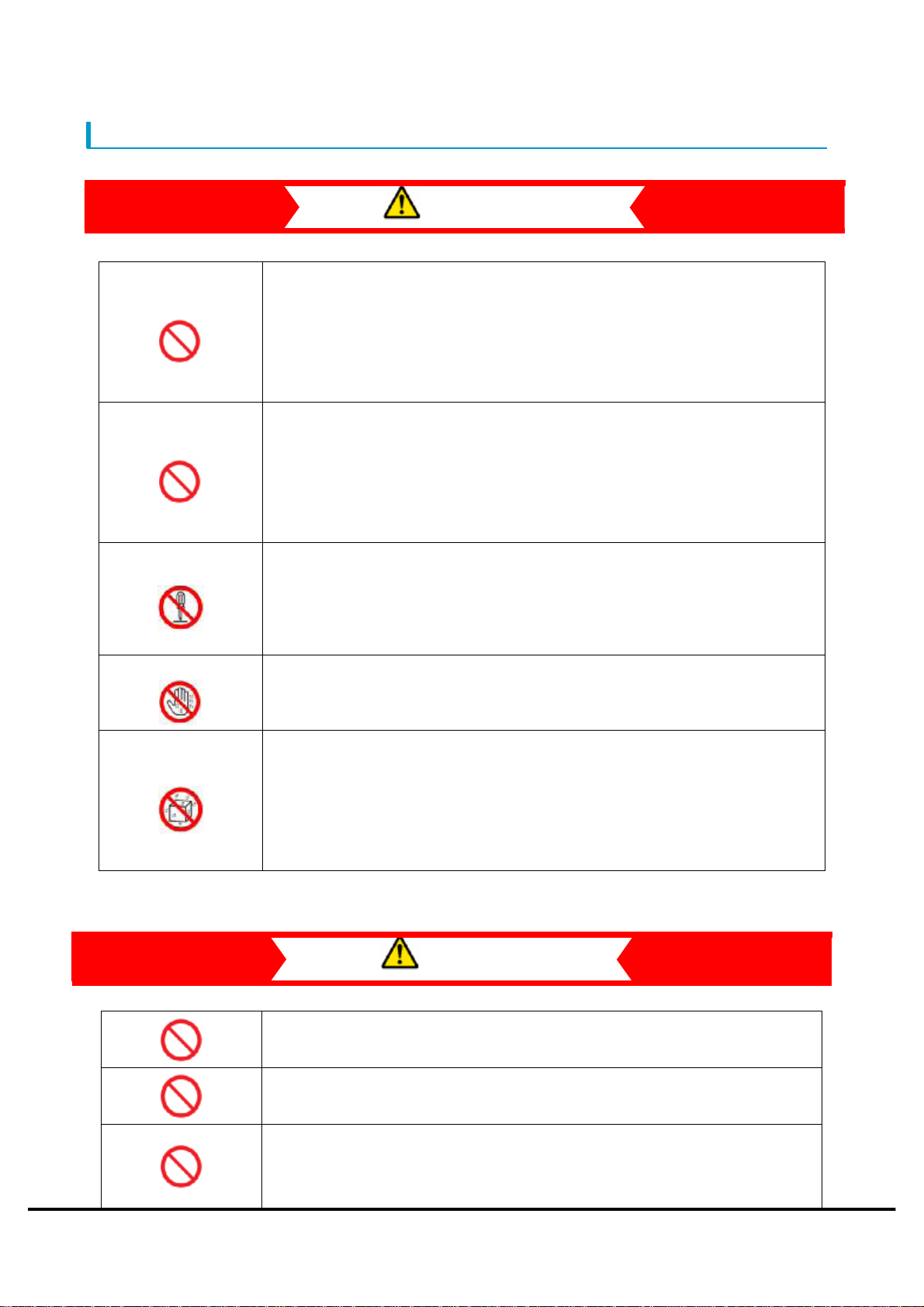
Notes about WM340
Please do not use or leave the device in a place where it will be exposed
to high temperatures, such as near a fire or heater, in strong, direct
sunlight, or inside a car on a hot day.
●This may cause the device change shape or malfunction or overheat, catch fire. It
may also cause the device to become hot, resulting in a burn injury.
Please do not used near the vicinity of high-precision electronic devices.
●If you are using electrical devices for medical care other than an implanted
pacemaker or implanted defibrillator at home or other location outside a medical
facility, please inquire with the manufacturer of each device concerning any adverse
effects of radio waves on device.
Danger
Please do not disassemble or modify the device.
●This may cause a fire, injury, electric shock or other accident, or malfunction of the
device.
●By alter device, it is a violation of the Radio Law.
Please do not use the device with wet hands.
●This may cause electric shock, or malfunction of the device.
Please do not use the device in a bathroom and not put in the water.
●This may cause overheat, a fire, electric shock or malfunction of the device.
Do not used near a risk of spilling liquid.
●Spilled liquid may cause a fire, overheat, electric shock, or malfunction of the
device.
Warning
Please do not subject the device to strong shocks or throw it.
●It may cause malfunction of device, a fire, injury of yourself or others.
Please do not put any foreign objects from the gap.
●This may cause overheats, a fire, electric shock or malfunction.
Please do not use the device at gasoline stations or other locations where
it may cause a fire or explosion.
●This may cause explosion, or catch fire.
Copyright ©2011 FUJISOFT INCORPORATED, All rights reserved.
6
Page 8
WM340 User
Guide
Version 0.2
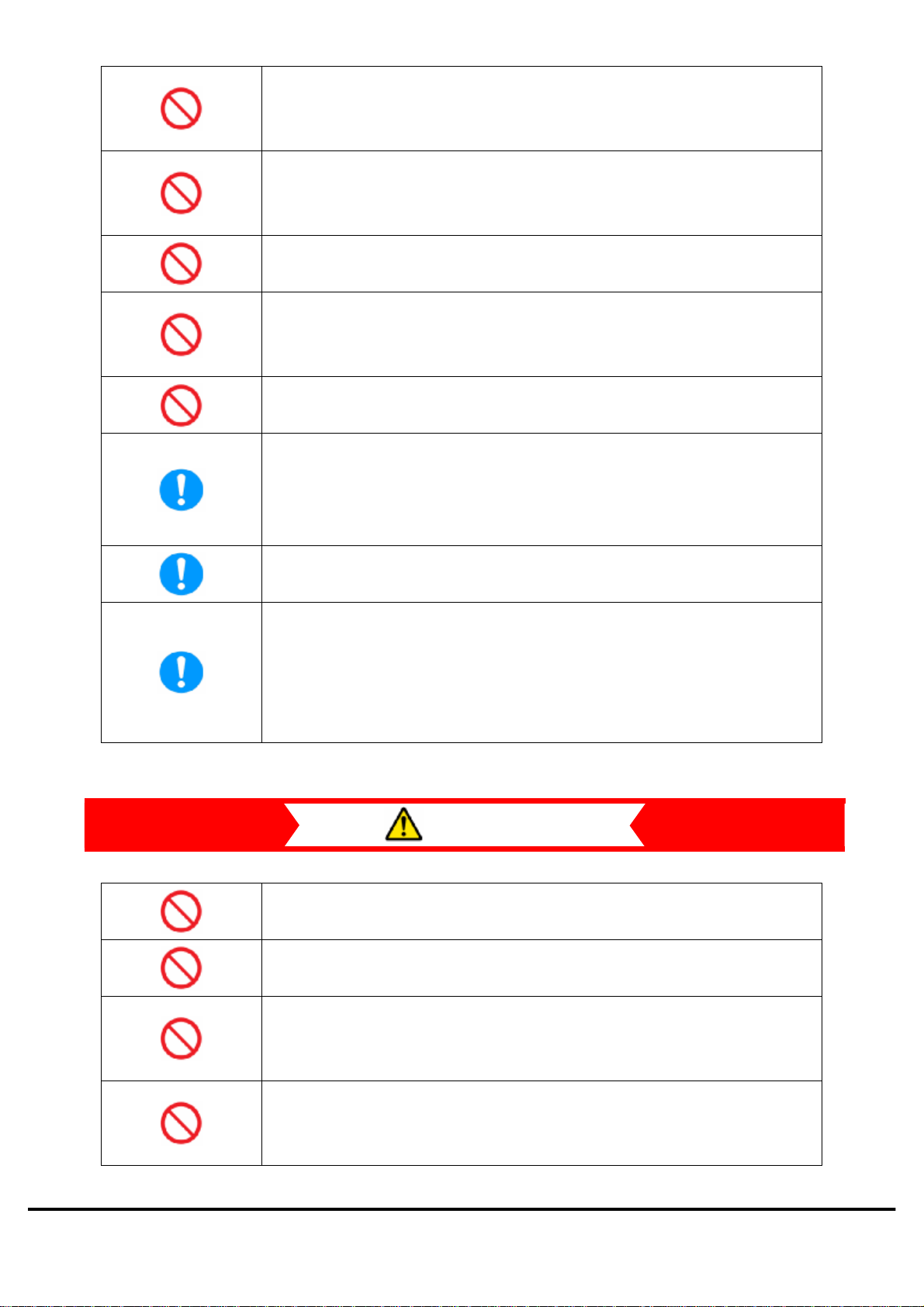
Please do not put in a microwave oven or other cooking device that use
heat, or a high-pressure container.
●This may cause overheats, a fire, electric shock or malfunction.
Please use the equipment always dedicated.
●If use the equipment not dedicated, it may cause overheats, a fire, explosion or
malfunction.
Please do not use this device while driving.
●This may cause traffic accident.
Please do not use this device in aircraft, at hospitals, or other areas
where its use is prohibited.
●It may adversely affect electronic instruments or electric devices for medical care.
Please remove the device from the PC, when not used for a long time.
●This may cause electric shock, a fire or malfunction.
Abnormal condition such as the smoke, strange odor, please remove this
device from PC immediately.
●Continuing to use, it may cause overheat, a fire. When notice any abnormality,
please discontinue use immediately.
If water enters, please discontinue use immediately.
●Continuing to use, it may cause electric shock or malfunction.
When there is a possibility of lightning-fear, please turn off the product
and wireless LAN, and please unplug the power plug of the AC adaptor
and PC.
●It may cause thunderbolt, electric shock, a fire. In the case of outdoor, please move
to a safe place.
Caution
Do not place the device on sloped or unstable surface.
●The device may fall off, causing an injury, or malfunction of the device.
Do not use more excessive force than necessary.
●This may cause injury or malfunction.
Itching, rash, eczema, or other condition may occur depending on the
customer's health or physical disposition.
●If an abnormality occurs, immediately stop using, please receive medical attention.
If the impact on electronic devices of the vehicle, please do not use.
●It may cause an adverse effect on vehicle electronic products and interfere with the
safe driving
Copyright ©2011 FUJISOFT INCORPORATED, All rights reserved.
7
Page 9

WM340 User
Guide
Version 0.2
Keep the device out of the reach of small children.
●Small children may accidentally swallow the device, or may injure themselves.
Copyright ©2011 FUJISOFT INCORPORATED, All rights reserved.
8
Page 10
WM340 User
Guide
Version 0.2
Notes about battery pack
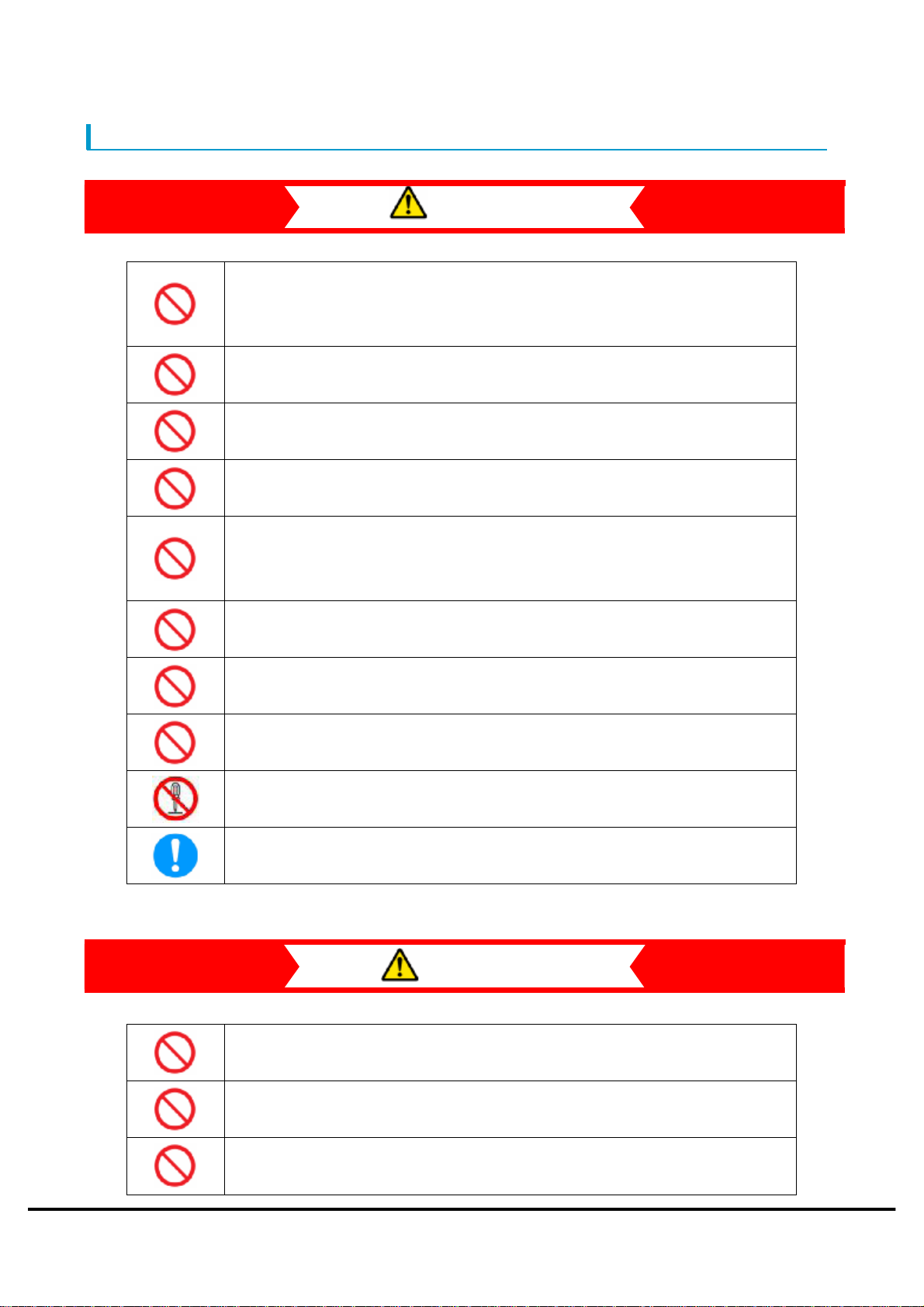
Please do not use or leave the device in a place where it will be exposed to
high temperatures, such as near a fire or heater, in strong, direct
sunlight, or inside a car on a hot day.
Please do not contact metal, such as the wire to the terminals.
Please do not use any batteries other than this product. Also, please do
not use it for other apparatus.
Please do not use anything other than the appointed AC adaptor for
charge.
Danger
When equipping, the orientation of the battery pack has been determined.
Please attach after confirming direction of the battery pack. Please do not
strain, when can not equip this product well.
Do not give a strong shock such as prick with a needle, hit with a hammer,
tramples, and do not throw.
If battery pack significantly damaged or deformed, please do not use.
Do not put in fire or water and do not heat.
Please do not disassemble or modify the device.
When the liquid inside a battery pack enters into eyes, Please Washed
with clean water, and get medical attention immediately.
Warning
Please do not put in a microwave and high-pressure container.
Please fire away from stop using it immediately, When the liquid inside a
battery pack leaks or have nasty smell.
If charging is not completed beyond the predetermined charging time
when charging, Please stop charging.
Copyright ©2011 FUJISOFT INCORPORATED, All rights reserved.
9
Page 11
WM340 User
Guide
Version 0.2
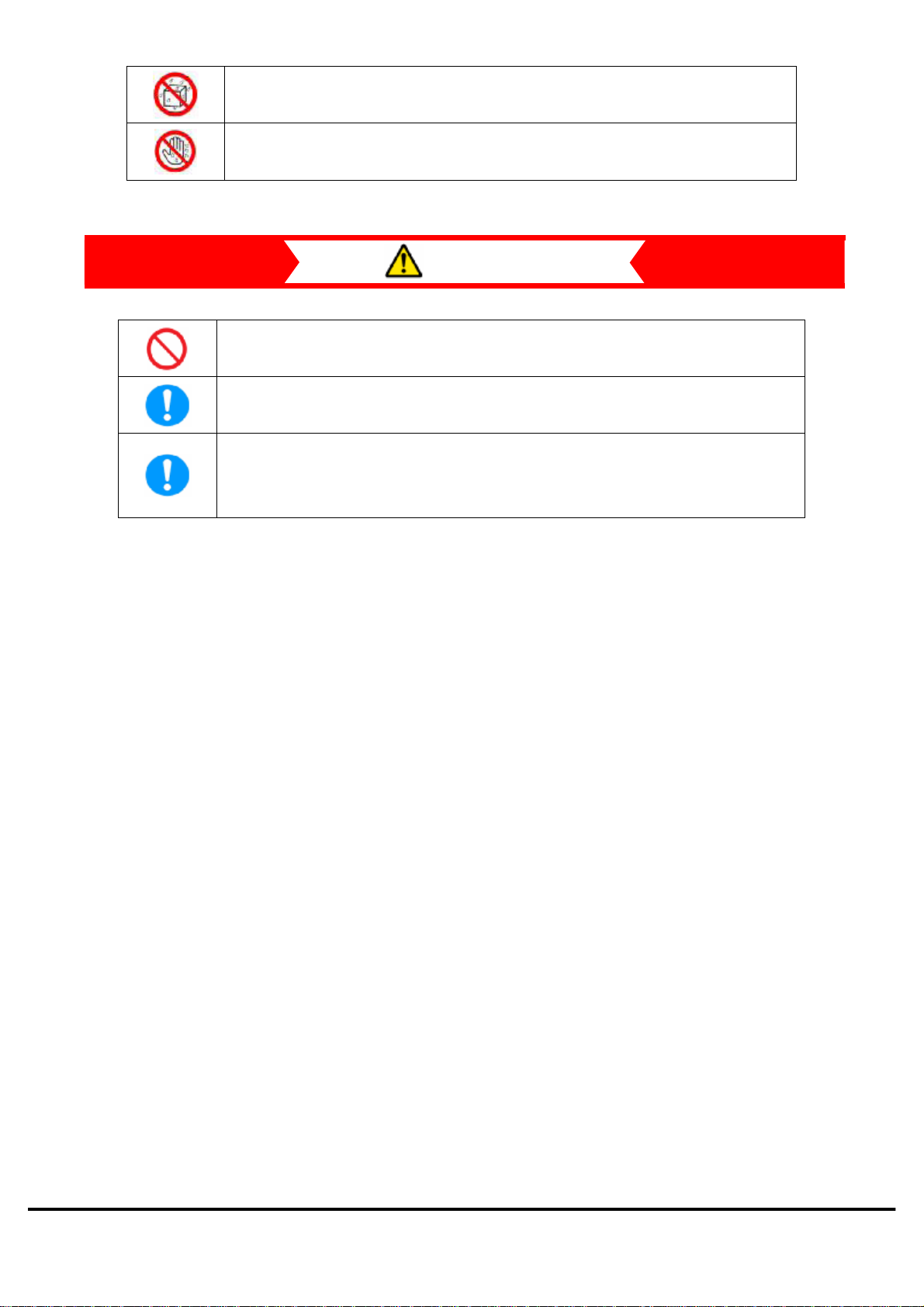
Please do not use it in a bathroom and do not put into water.
Please do not use the device with wet hands.
Caution
When the liquid inside a battery pack adheres to the skin or clothing, Please
wash away with clean water immediately.
Keep the device out of the reach of small children.
When the battery pack attached , if it was probably rust, nasty smell,
generation of heat and other anomalies, please do not attached the battery
pack into it.
Copyright ©2011 FUJISOFT INCORPORATED, All rights reserved.
10
Page 12
WM340 User
Guide
Version 0.2
Note about AC adaptor
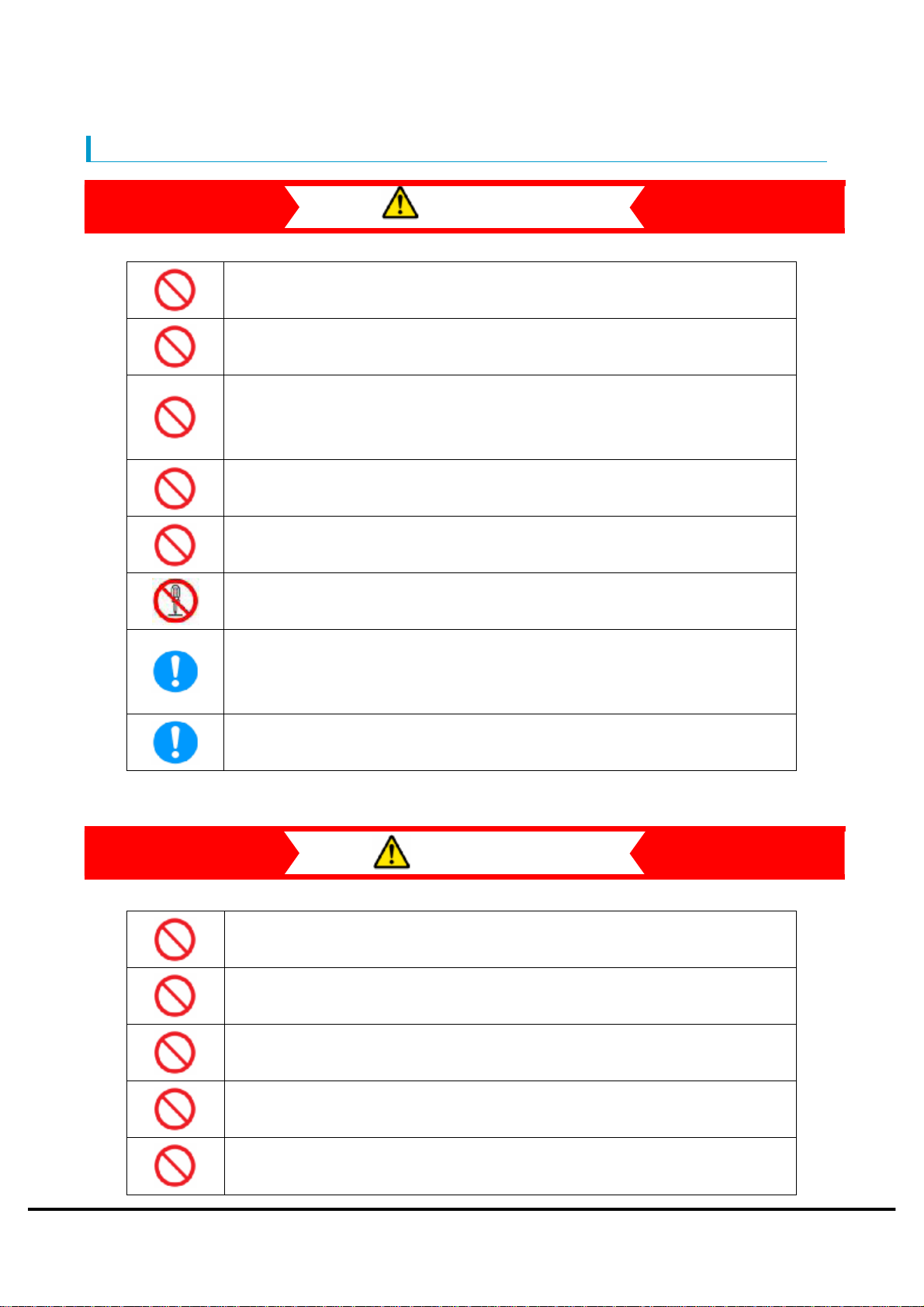
Please do not use an AC adapter other than the product. Please do not use
it for other apparatus.
AC adapter is connected directly to the outlet, please.
Please do not use or leave the device in a place where it will be exposed to
high temperatures, such as near a fire or heater, in strong, direct
sunlight, or inside a car on a hot day.
Please do not put in a microwave and high-pressure container.
Danger
Please do not use the power other than the displayed power voltage.
Please do not disassemble or modify the device.
When there is a possibility of lightning-fear, to prevent electric shock or
fire caused by lightning, please power off and unplug the AC adapter from
the electrical outlet
When not being used, for safety, please remove it from the body and put
the AC adapter.
Warning
Do not give a strong shock or do not throw.
Please do not contact a conductive foreign substance for a terminal.
When the code of the AC adaptor is hurting, please do not use.
Please fire away from stop using it immediately, When the liquid inside a
battery pack leaks or have nasty smell.
If charging is not completed beyond the predetermined charging time
when charging, Please stop charging
Copyright ©2011 FUJISOFT INCORPORATED, All rights reserved.
11
Page 13
WM340 User
Guide
Version 0.2
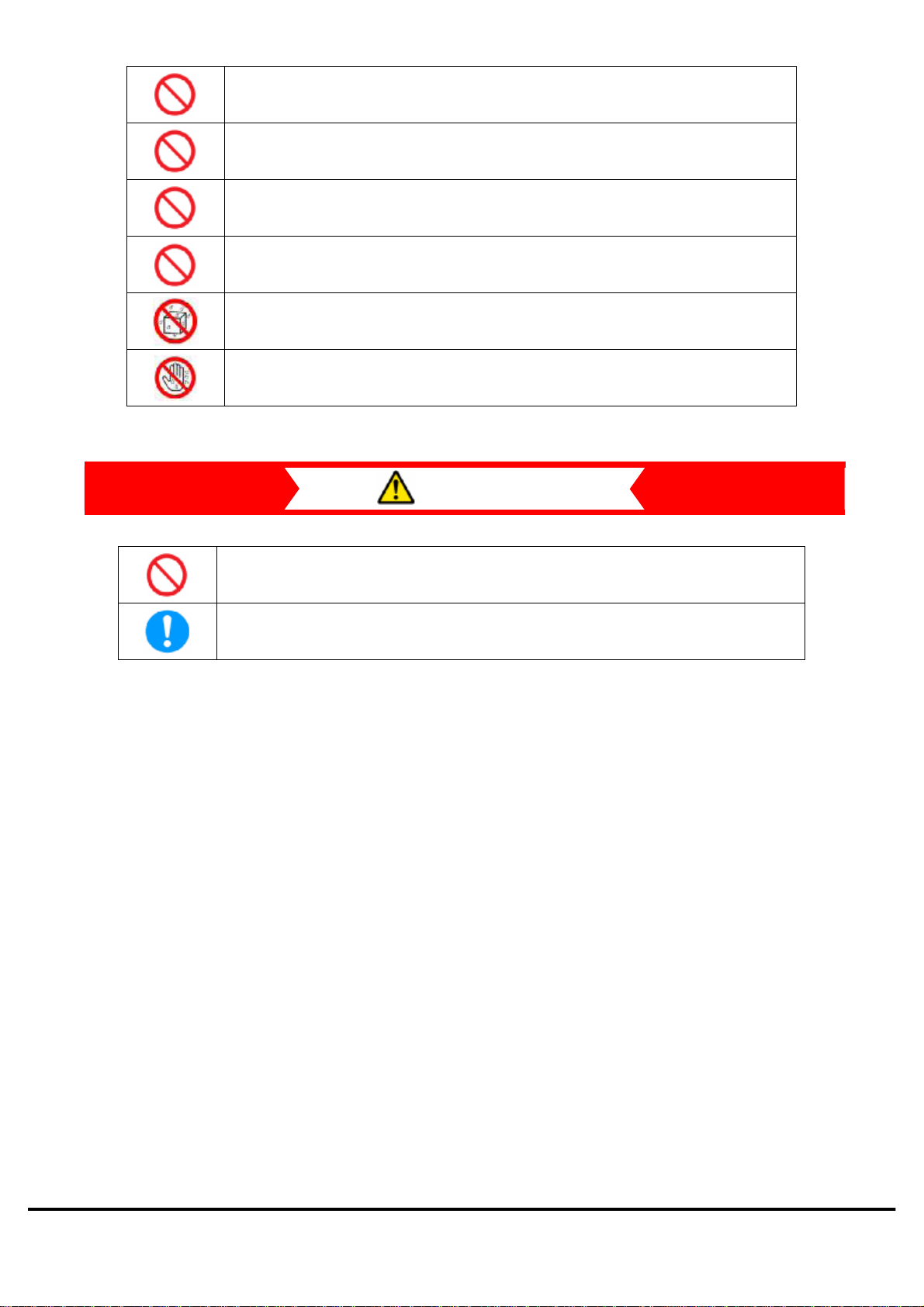
Please do not cover with cloth etc.
Please do not place heavy objects on it.
Please do not put on a dusty place.
Please do not pull a code, when you extract the AC adapter.
Please do not use it in a bathroom and do not put into water.
Please do not use the device with wet hands.
Caution
Do not place the device on sloped or unstable surface.
Keep the device out of the reach of small children.
Copyright ©2011 FUJISOFT INCORPORATED, All rights reserved.
12
Page 14
WM340 User
Guide
Version 0.2
Before Using
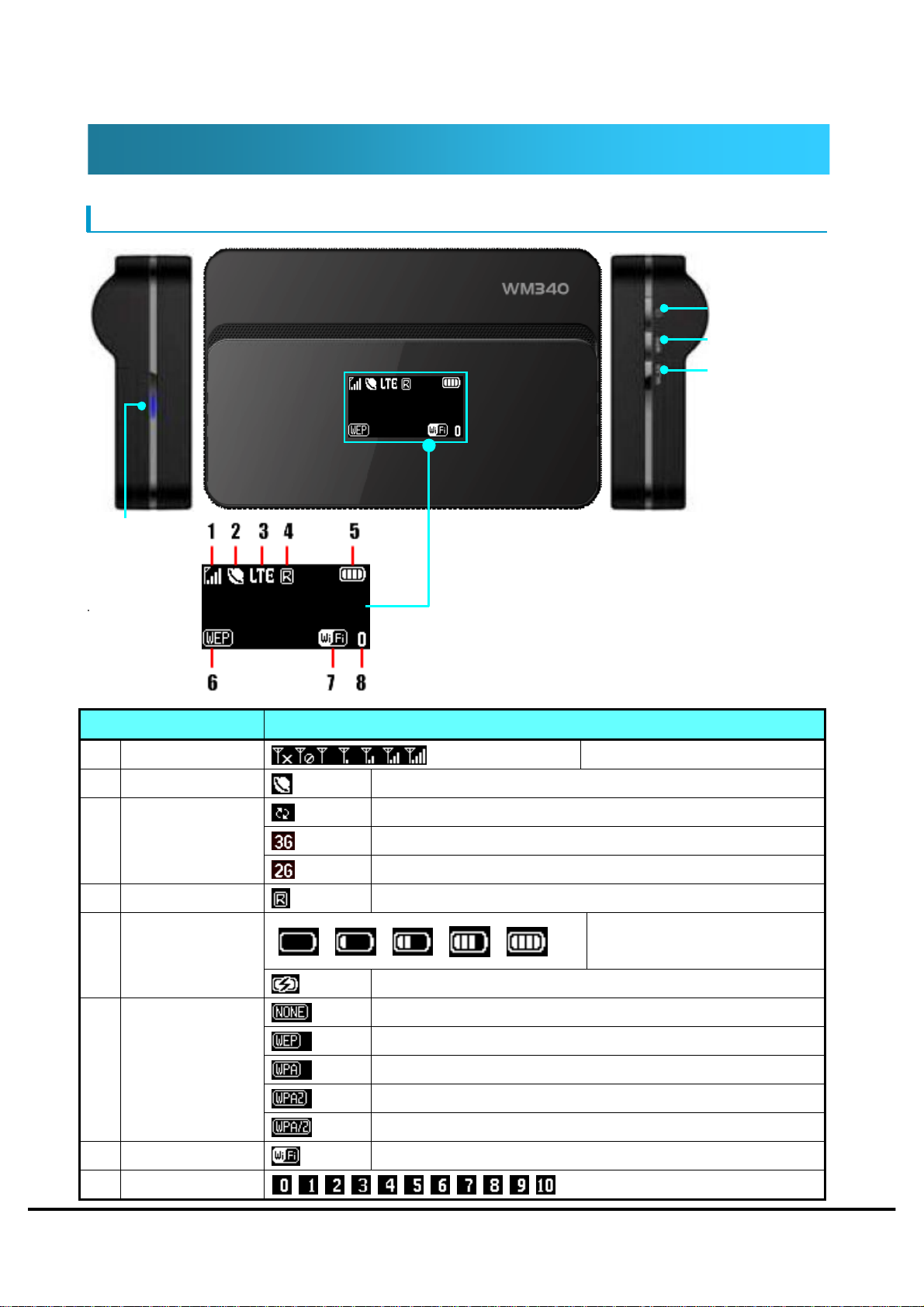
Part names and function
LED Lamp
Status Area Icon Information
Power Button
WPS/WiFi Button
Internet Button
1 Antenna bar
2 Internet connection
3 Connected Status
4 Roaming Status
5 Battery power
6 Wireless Security
7 Access point state
8 Number of users
Network searching
Connected to 3G Network
Connected to 2G Network
Roaming
Charging
No encryption
WEP64bit/WEP128bit
WPA-PSK AES
WPA2-PSK AES
WPA/WPA2-PSK AES
Strength of radio wave
Battery (Small ⇔ Large)
Copyright ©2011 FUJISOFT INCORPORATED, All rights reserved.
13
Page 15
WM340 User
Guide
Version 0.2
1. Power Button
[Power OFF State]
Pressed about 3 seconds, it displayed as "WELCOME" on the LCD screen, and the power is
turned ON.
[Power ON State]
(1) Power OFF
Pressed about 3 seconds, it displayed as "BYE" on the LCD screen, and the power is turned
OFF.
(2) Connect / Disconnect (WAN)
If the power button is pressed for less than 2 seconds, be operated connect / disconnect by
the WAN side.
2. WPS/WiFi Button
Do the following, operate after short pressing the power / disconnected button, please.
(1) ON/OFF (Wireless LAN)
Pressed it about 1 second less than 2 seconds or more, be operated wireless LAN
ON/OFF.
(2) WPS
Pressed it about 5 seconds, WPS function starts.
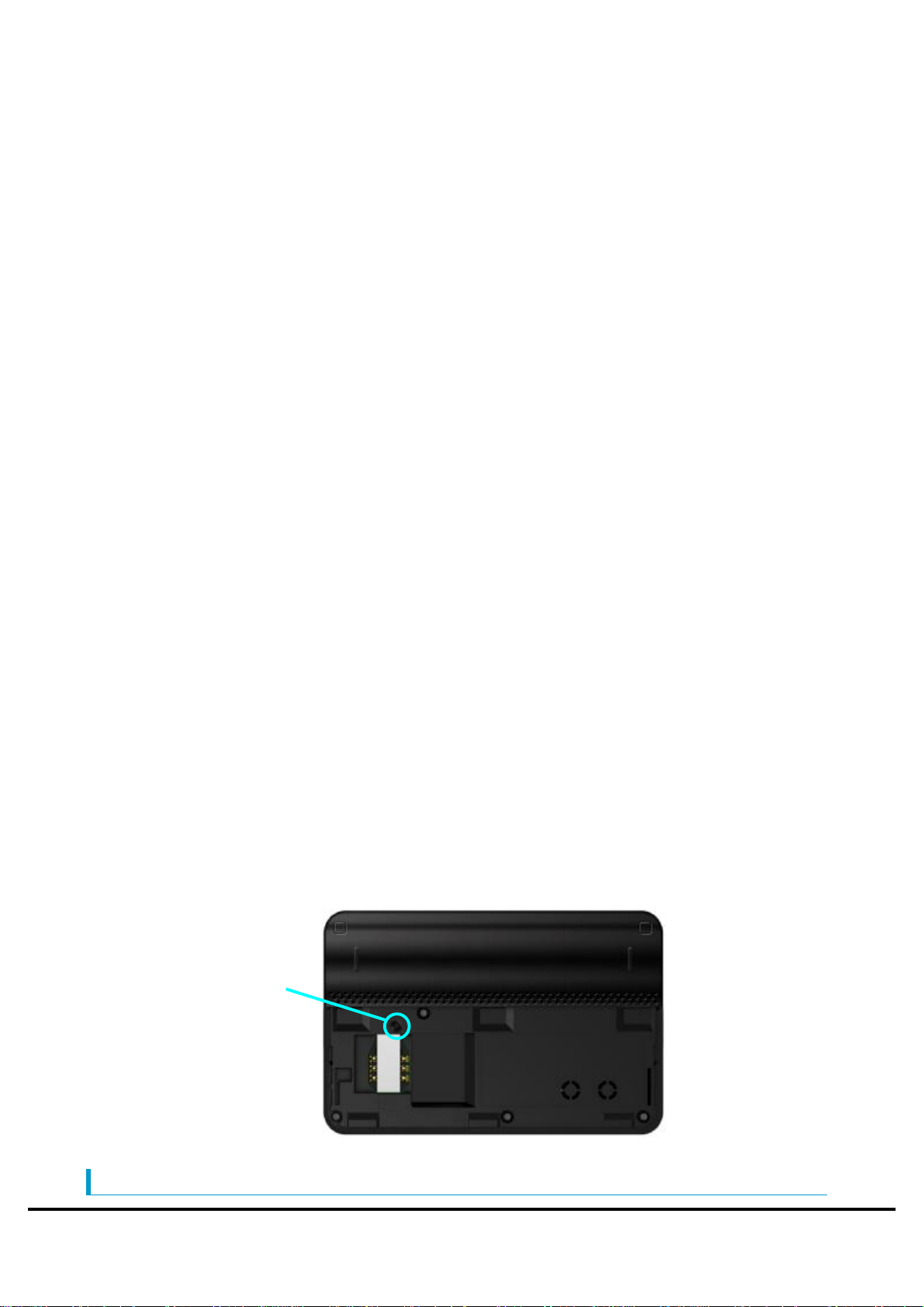
Reset Button
When you open the back cover of the body, there is a reset button.
Short press the reset button, and restarted this product
Press the reset button about 5seconds, Configuration of this product is returned to the
factory default condition.
Reset Button
LED lamp display
Copyright ©2011 FUJISOFT INCORPORATED, All rights reserved.
14
Page 16

WM340 User
Guide
Version 0.2
LED Lamp State
Red Flashes always Charging
Green Flashes always Full charge
Red Flashes Error
Copyright ©2011 FUJISOFT INCORPORATED, All rights reserved.
15
Page 17
WM340 User
Guide
Version 0.2
Preparing USIM card
Attaching
1. Please turn off the power, if the power of this product is on.
2. If this product is connected with USB cable or AC adapter, remove it.
3. Remove the cover.
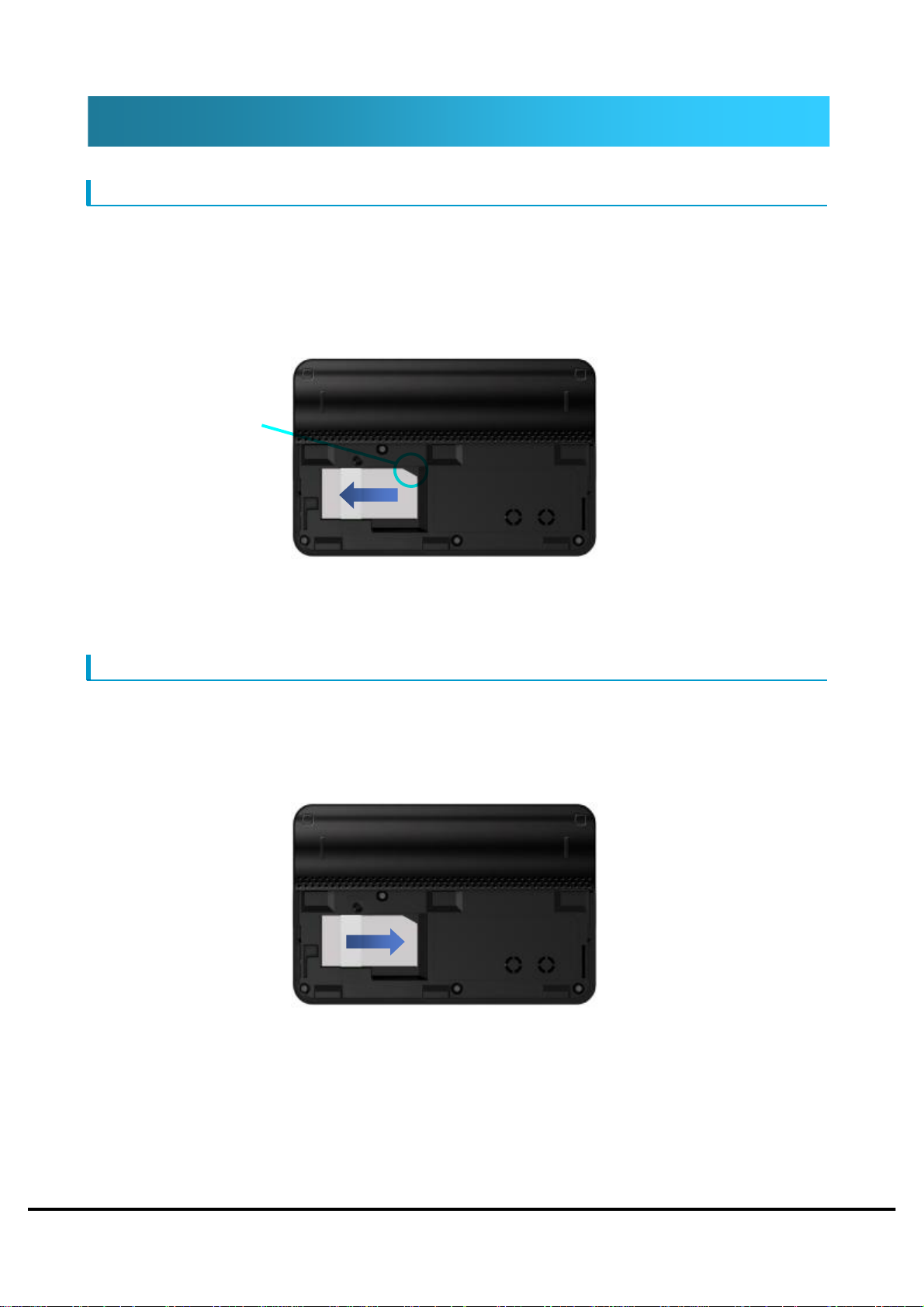
4. Facing down the metal surface of the USIM card, insert the USIM card into the USIM slot in
the upper right corner cutout.
Cutout
5. Check the USIM card is attached.
6. Attach the cover.
Removing
1. Please turn off the power, if the power of this product is on.
2. If this product is connected with USB cable or AC adapter, remove it.
3. Remove the cover.
4. Remove by pulling in the direction of the arrow on the USIM card.
5. Attach the cover.
Copyright ©2011 FUJISOFT INCORPORATED, All rights reserved.
16
Page 18
WM340 User
Guide
Version 0.2
Setting
Setting
Set the fundamental connection item.
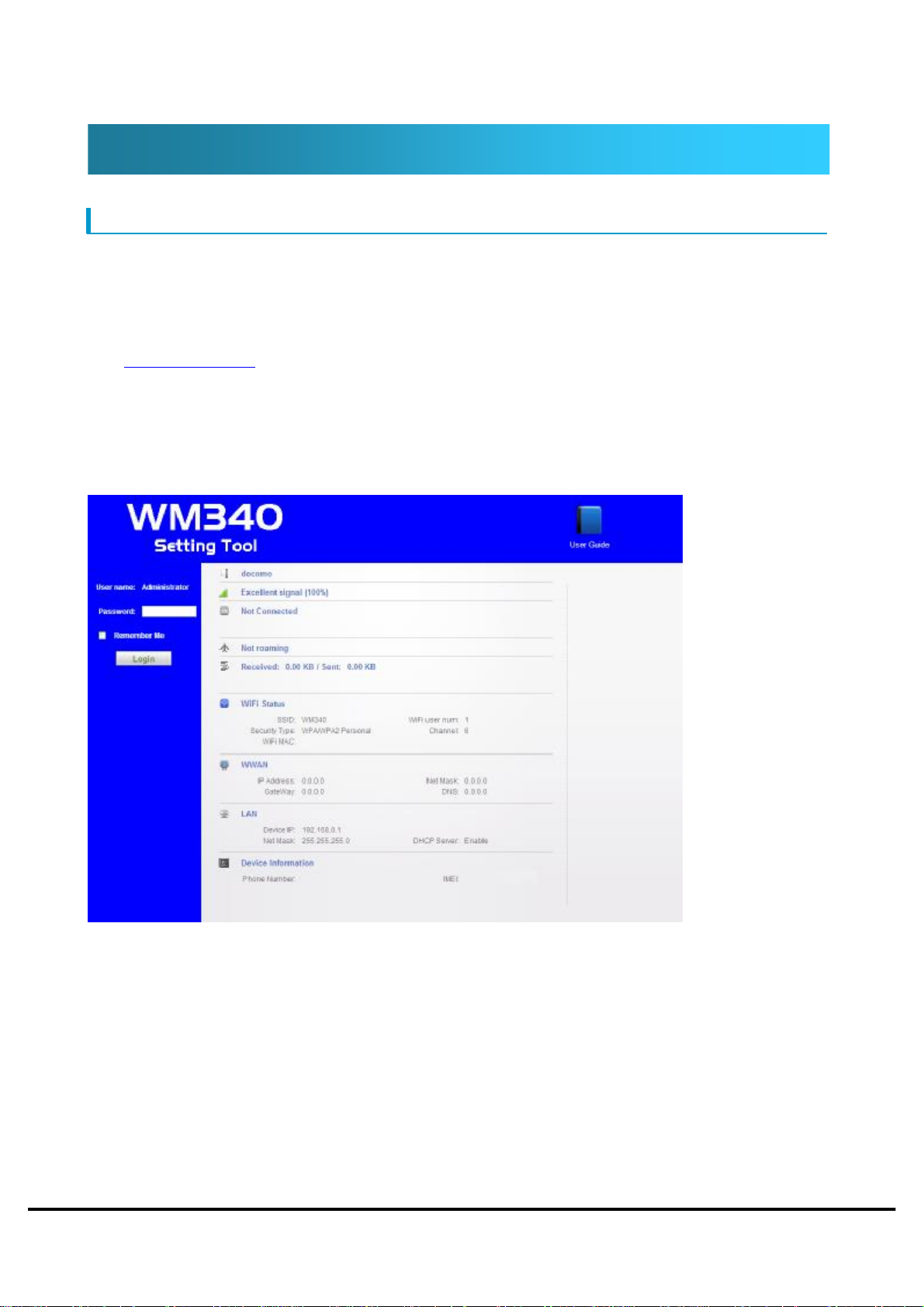
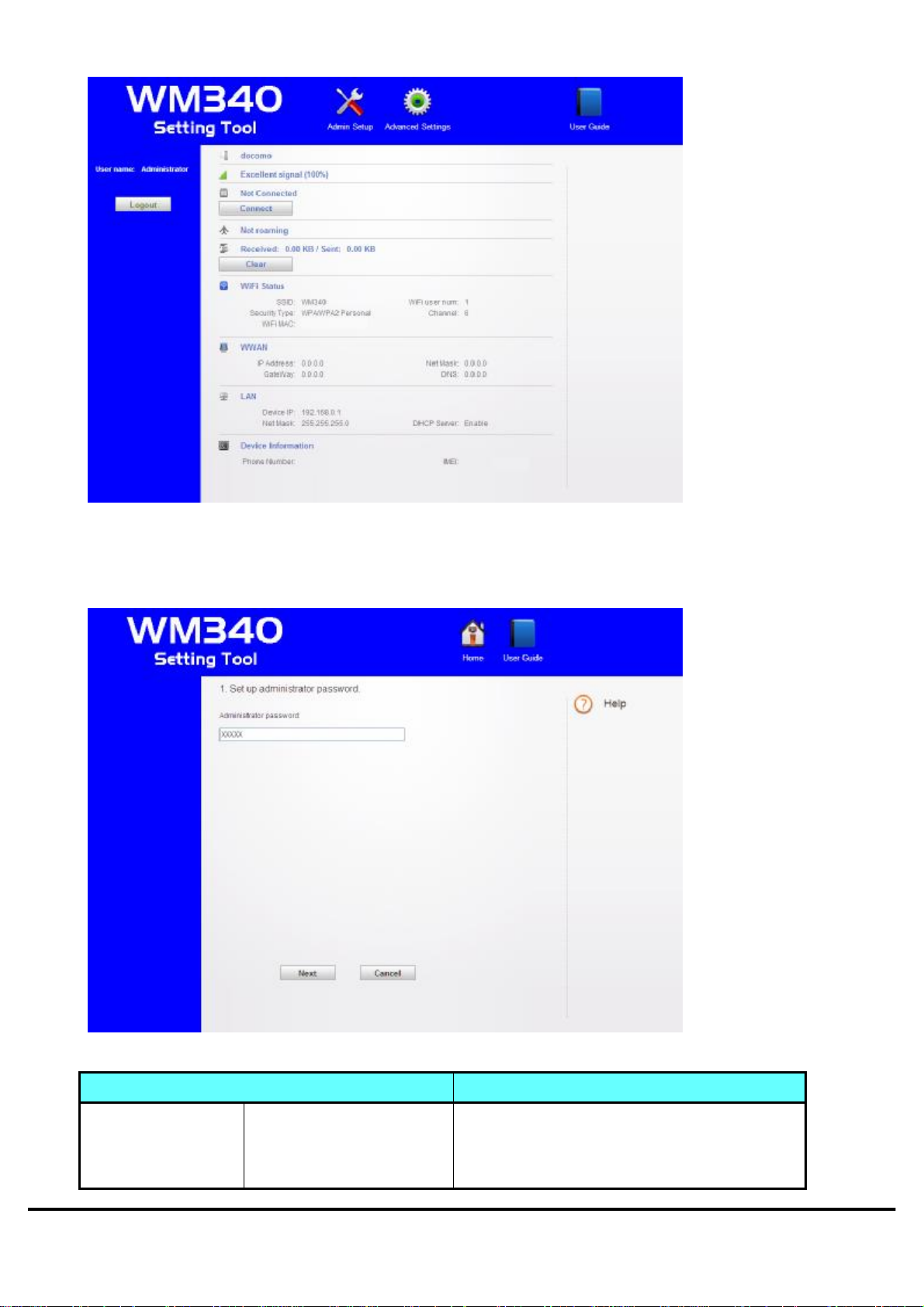
1. Do PC and USB cable connection or wireless LAN connection, please input the private IP
address in the address field. The private IP address at the time of purchase is set
「http://192.168.0.1」. How to connect, check「Wireless LAN Connection procedure」、「USB
Connection procedure」,please.
2. Displayed login screen. Input the password to log in. The password at the time of purchase is set
「password」. For security, recommend to change the password at the time of purchase.
3. Click Admin Setup icon.
Copyright ©2011 FUJISOFT INCORPORATED, All rights reserved.
17
Page 19
WM340 User
Guide
Version 0.2
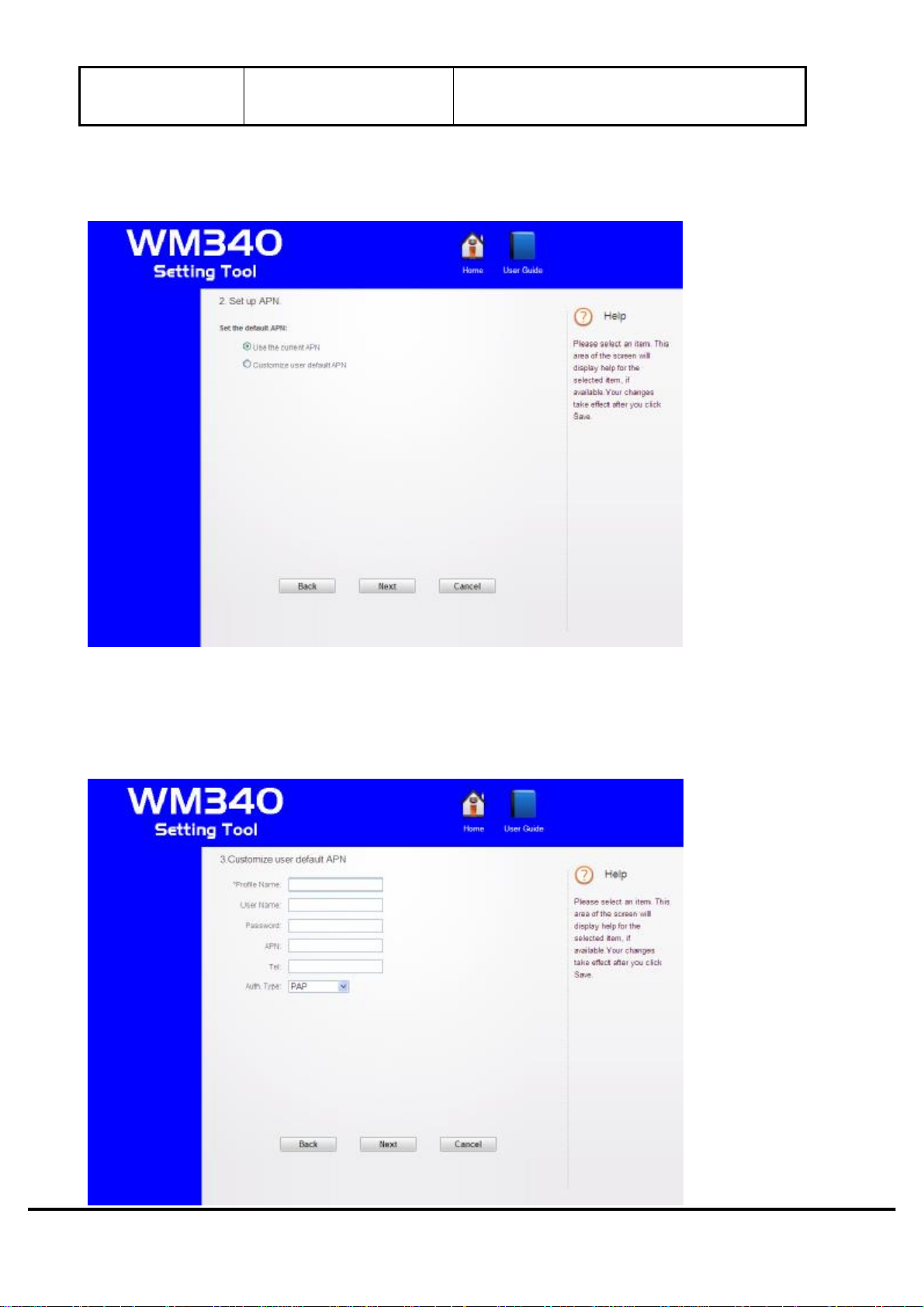
4. In administrator password setting screen, login password can be changed. The password at the
time of purchase is set 「password」. Select 「Next」, after inputting administrator password.
Administrator
password
Setting Items Description
WEP key(initial value) Set the inputting password when connecting
to Wi-Fi. The WEP key (5 digit number) at
the time of purchase is set.
Copyright ©2011 FUJISOFT INCORPORATED, All rights reserved.
18
Page 20
WM340 User
Guide
Version 0.2
The length of the password is dependent on
the security mode.
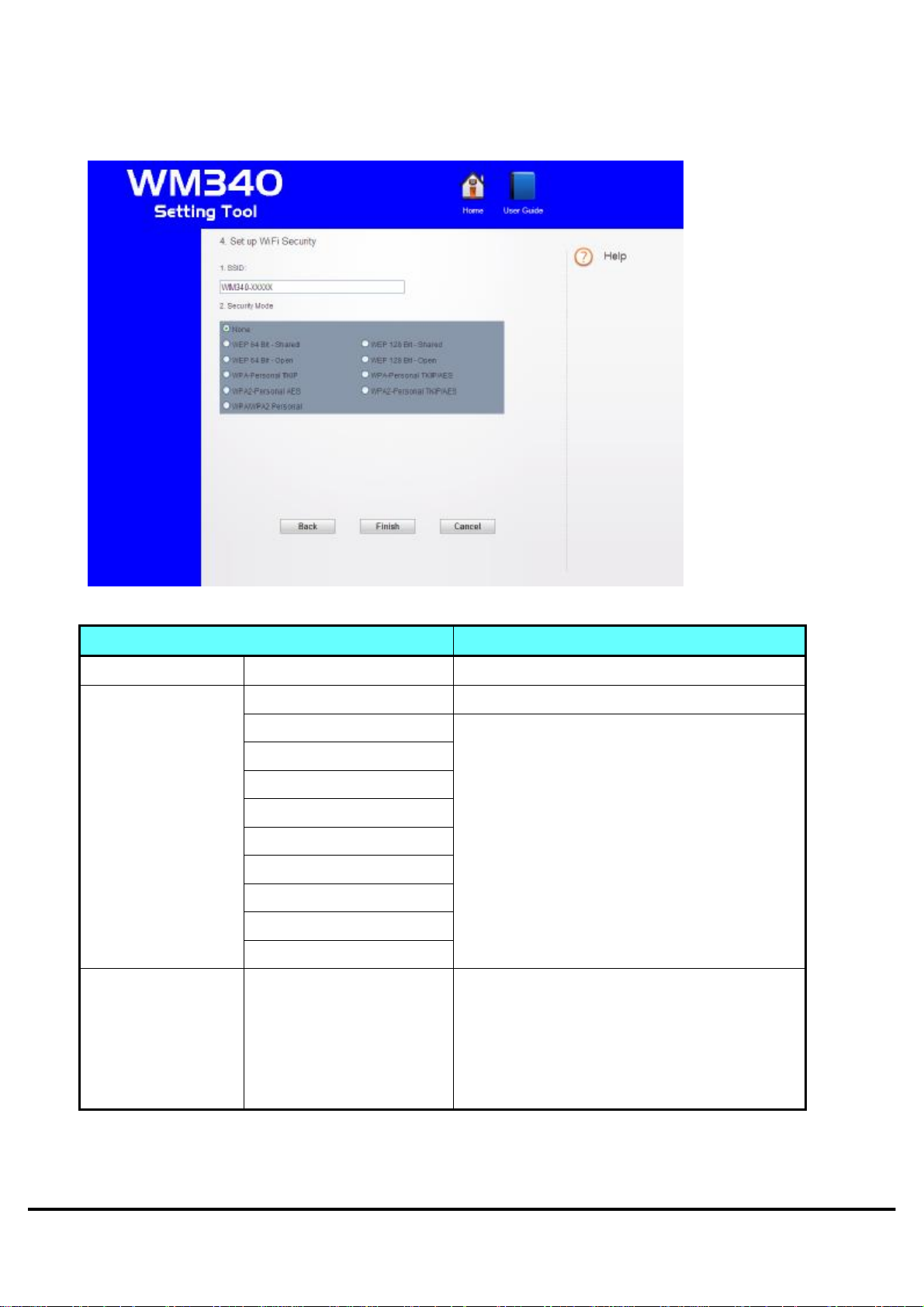
5. In APN setting screen, using APN and default APN can be selected. Select 「Next」, after
selecting APN.
6. In the default user setting screen, profile name/user name/password/APN/Tel/
Authentication type can be set.(Only if you select a 「default APN」, APN settings of the
previous screen, the default user setting screen is displayed)
Copyright ©2011 FUJISOFT INCORPORATED, All rights reserved.
19
Page 21
WM340 User
Guide
Version 0.2
7. In the Wi-Fi setting screen, SSID/Security Mode/Wi-Fi password can be set. Select 「Finish」,
after setting.
Setting Items Description
SSID WM340_XXX
Security Mode
No encryption No security settings.
WEP 64 Bit Shared
WEP 128 Bit Shared
WEP 64 Bit Open
WEP 128 Bit Open
WPA Personal TKIP
Network name(SSID) can set.
Select wireless LAN security.
If select WEP, Set the WEP key of 26 digits
or 10 digits.
If select WPA, Set the WPA key of 63 digits .
WPA Personal TKIP/AES
WPA2 Personal AES
WPA2PersonalTKIP/AES
WPA/WPA2 Personal
Wi-Fi password WEP key (initial value) Set the inputting password when connecting
to Wi-Fi. The WEP key (5 digit number) at
the time of purchase is set.
The length of the password is dependent on
the security mode.
8. Restart the browser after setting. The setting can be reflected.
Copyright ©2011 FUJISOFT INCORPORATED, All rights reserved.
20
Page 22
WM340 User
Guide
Version 0.2
Wireless LAN Connection procedure
Connection procedure for this product
1. Turn on the power of this product.
2. Please search the network from the wireless LAN equipment.
3. SSID (WM340-XXX) of this product is displayed. If this product is chosen, a router and wireless
LAN connection will begin.
When WEP/WPA is set, the input of the WEP/WPA key is needed.
Please enter the WEP/WPA key that is configured on the router.
4. When a connection mode of the Internet is set in "automatic", the WAN side is connected to the
Internet.
Access to the Internet will be available from wireless LAN equipment.
*When you use this product for the first time, WM340 setting tool is accessed
(http://192.168.0.1), and a setup of the Internet is needed. For details, please refer to "a setup of
the Internet" 19-page.
Caution
・ When connection of the Internet is manual, please access WM340 setting tool
(http://192.168.0.1), and perform connection operation to the Internet manually.
Copyright ©2011 FUJISOFT INCORPORATED, All rights reserved.
21
Page 23
WM340 User
Guide
Version 0.2
Various function setting (Detail)
About WM340 setting tool
You can set the various functions of this product by using a Web browser from the USB cable this
product and equipment, and wireless LAN connection. Please note that if you change the settings
from the wireless LAN equipment, it may be disconnected wireless LAN.
Starting of WM340 setting tool
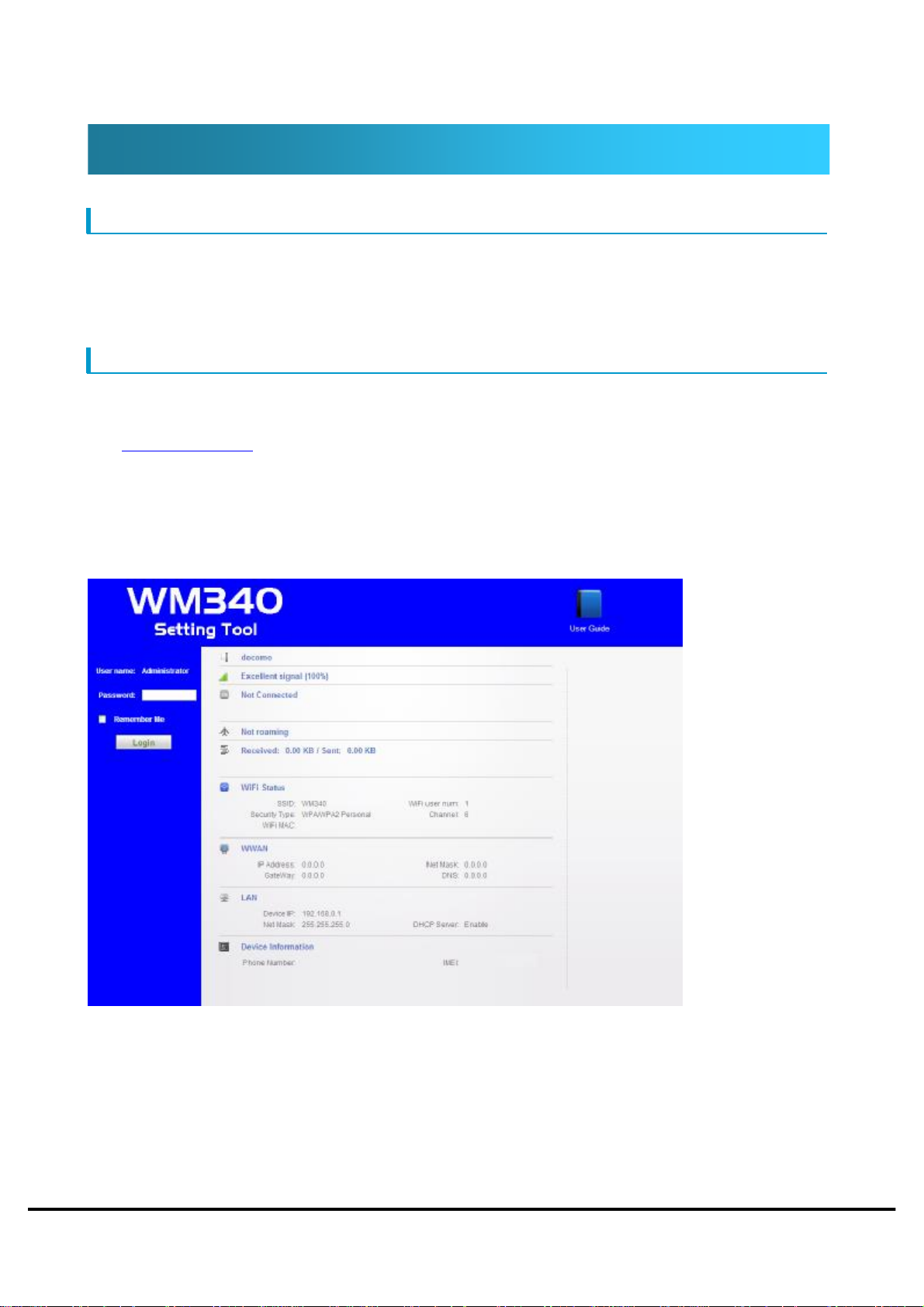
1. Connect the USB cable or wireless LAN and PC, please enter the private IP address in the
address field. As for the private IP address at the time of a purchase of this product,
"http://192.168.0.1" is set up.
2. A login screen is displayed. Please enter a password and log in. As for the password at the time
of a purchase of this product, "the WEP key (5 figures of numbers)" is set up. We recommend you
to change the password at the time of a purchase on security.
Copyright ©2011 FUJISOFT INCORPORATED, All rights reserved.
22
Page 24
WM340 User
Guide
Version 0.2
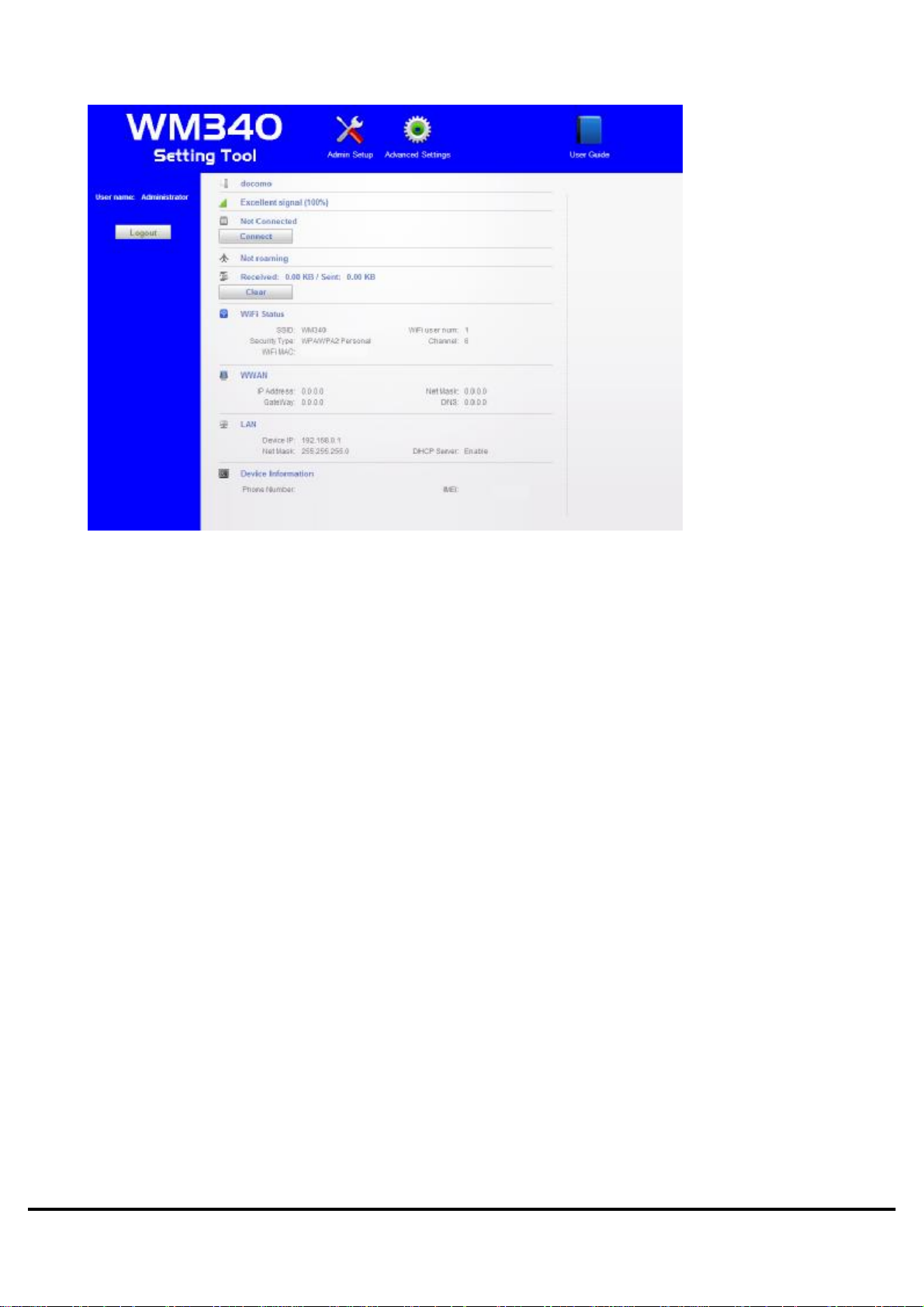
3. Please click advanced settings. A detailed setup of each function is performed.
Copyright ©2011 FUJISOFT INCORPORATED, All rights reserved.
23
Page 25
WM340 User
Guide
Version 0.2
Internet Settings
If you want to set up the Internet, Please make sure that the USIM card is inserted.
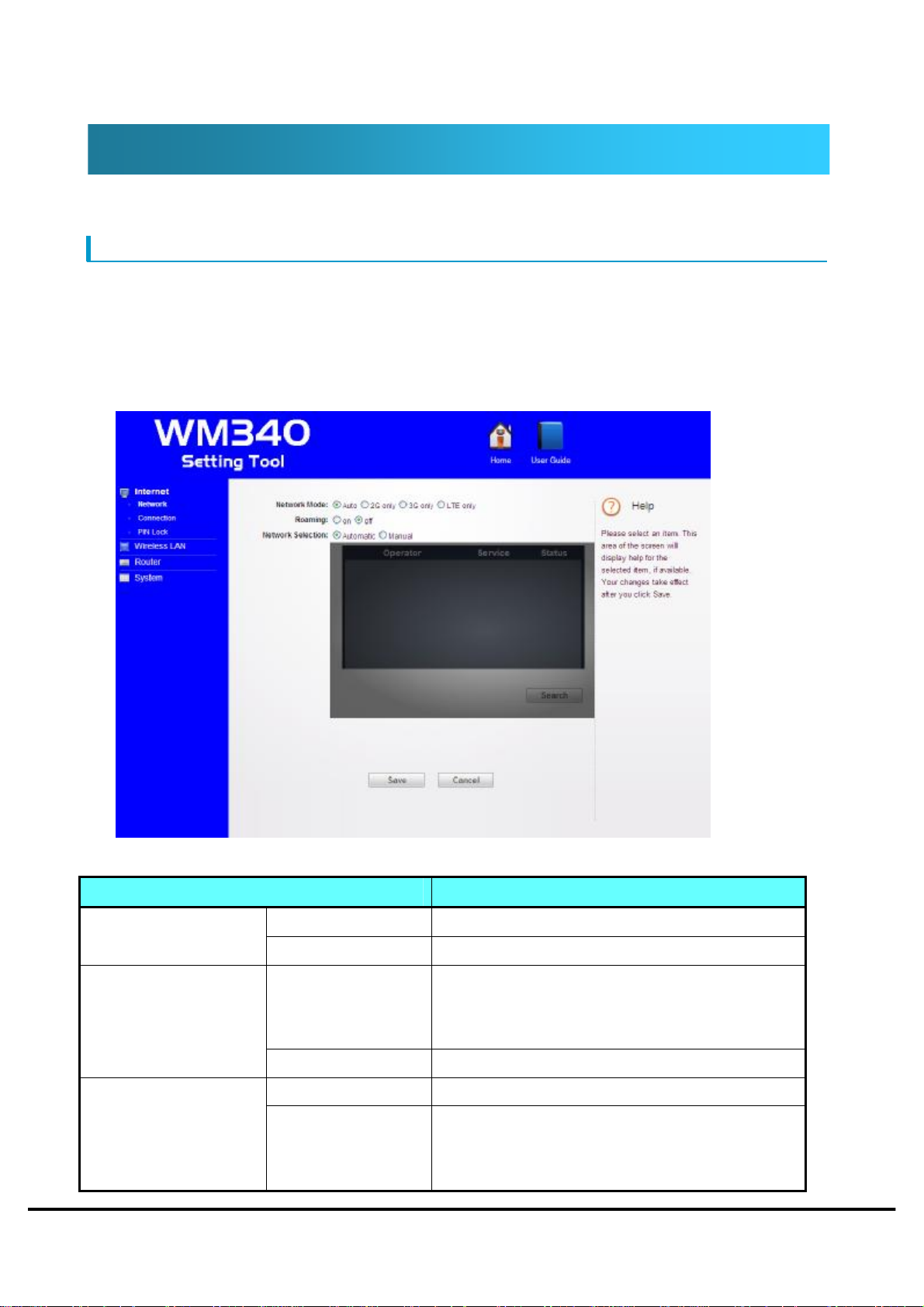
Network
Sets how to search the network to connect.
1. Sets the items.
If you want to use in the domestic, please set to 3G the "Network Mode" and set to automatic the
"Network Selection".
Roaming
Settings Description
2G Only Search only the 2G. Network Mode
3G Only Search only the 3G.
ON
OFF
Automatic Search the network automatically. Network Selection
Manual If set to manual, around network will be
Copyright ©2011 FUJISOFT INCORPORATED, All rights reserved.
WAN(2G/3G) roaming will be enabled.
*If you want to use overseas to USIM cards of
Japan, please set to on this items.
WAN(2G/3G) roaming will be disabled.
displayed.
When you select a network from the list,
24
Page 26

WM340 User
Guide
Version 0.2
connect to that network.
2. Setting is complete, please press the Save button. Setting is updated.
Copyright ©2011 FUJISOFT INCORPORATED, All rights reserved.
25
Page 27
WM340 User
Guide
Version 0.2
Connection
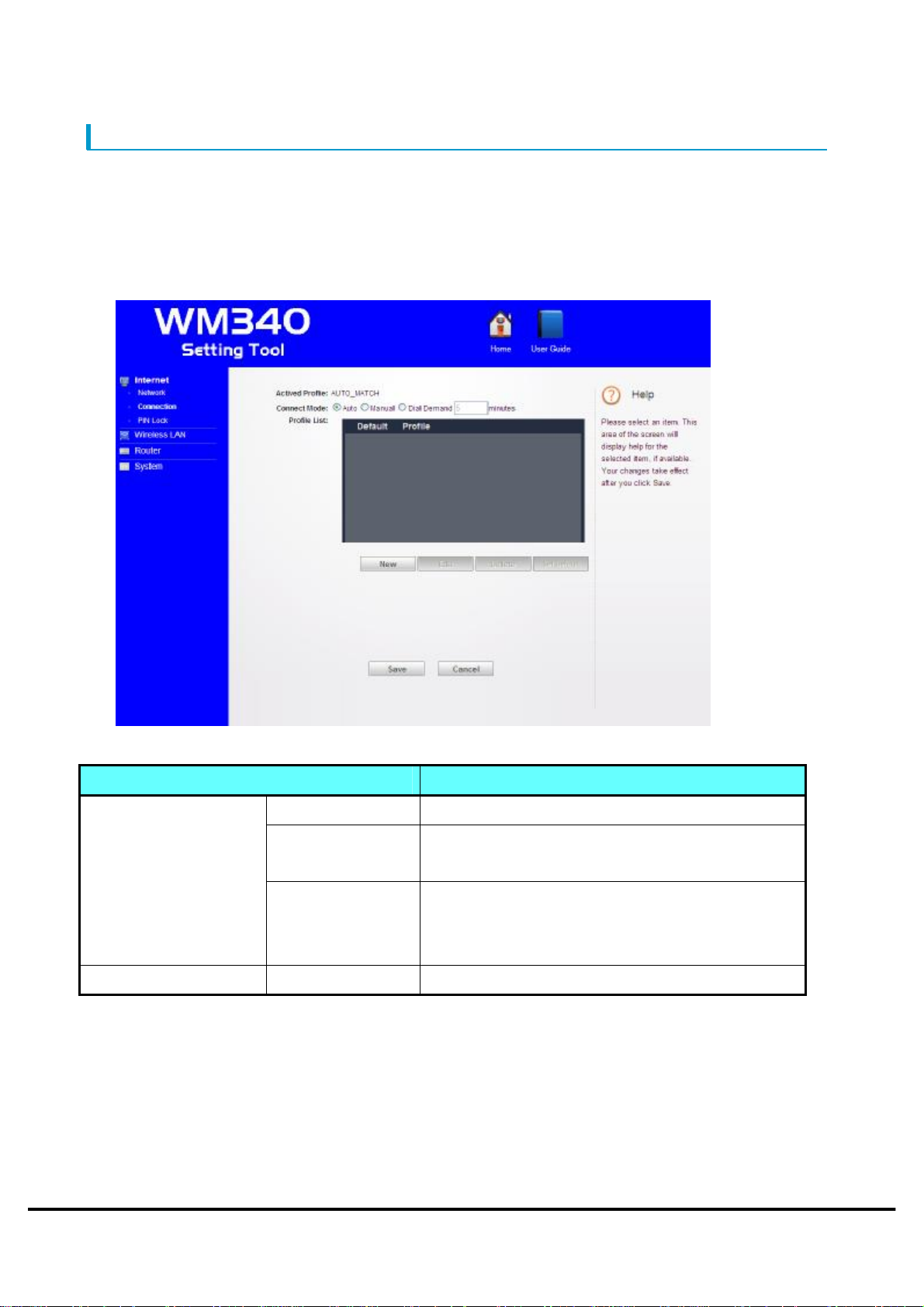
In order to connect to the Internet, sets the connection mode and profile.
1. Sets the items.
The default profile has been registered. Please register a profile for the network as needed.
The profile can be registered up to 10.
Connect Mode
Profile List
Setting Items Description
Auto Connect to Internet automatically.
Manual Perform to connect and disconnect in the WM340
setting tool.
Dial Demand Connect to the Internet when detects the device.
If you do not communicate within the set time,
disconnect automatically.
-
Select the profile to configure.
Copyright ©2011 FUJISOFT INCORPORATED, All rights reserved.
26
Page 28
WM340 User
Guide
Version 0.2
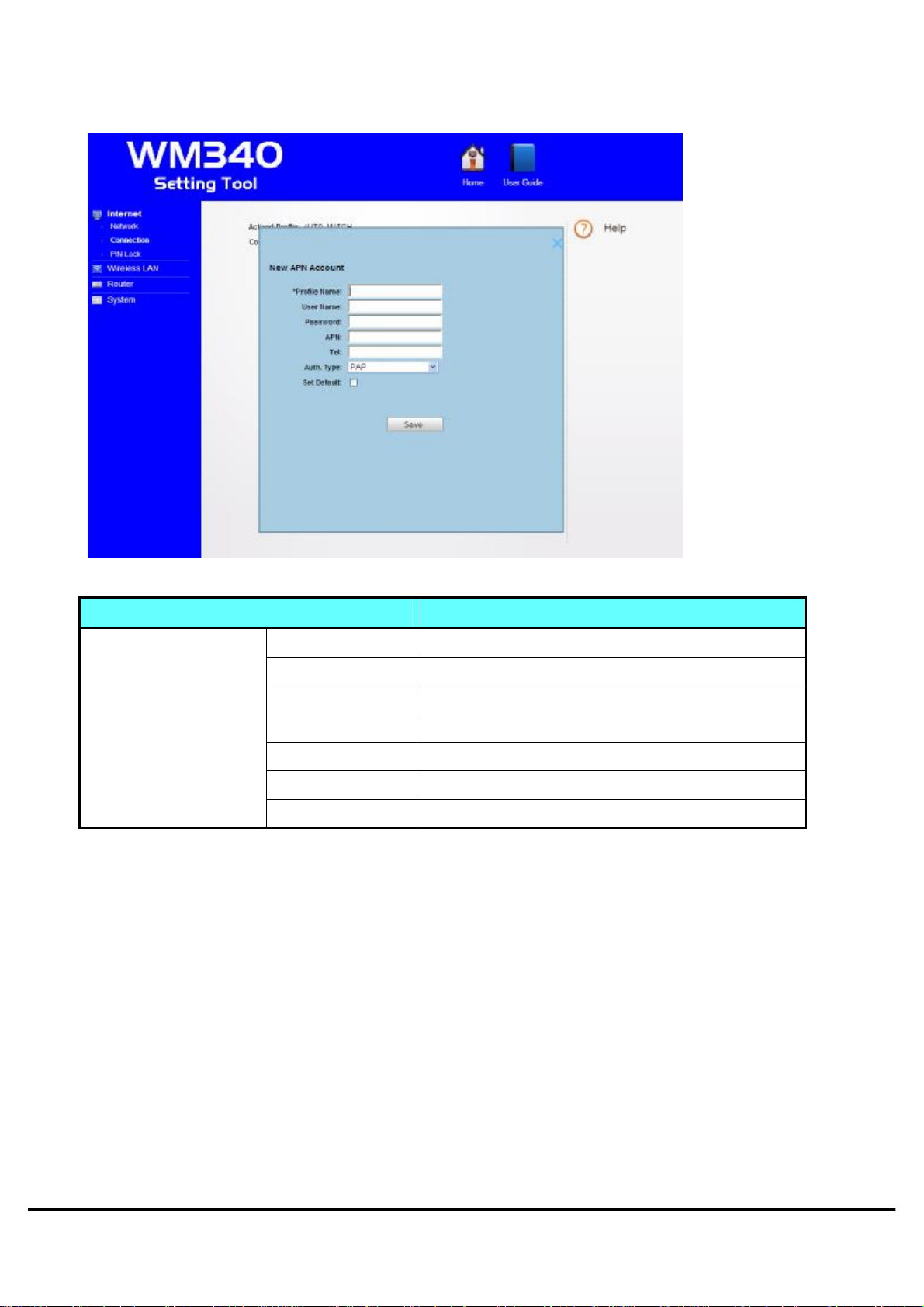
2. To create APN profile by pressing the “New” button.
Setting Items Description
APN Profile
Profile Name Please enter the name of any.
User Name Please register a user name that carriers specify.
Password Please register a password that carriers specify.
APN Please register a APN that carriers specify.
Tel Please register a Tel that carriers specify.
Auth Type Please register a auth type that carriers specify.
Set Default If you want to set to default, please specify.
3. Setting is complete, please press the Save button. Setting is updated.
Copyright ©2011 FUJISOFT INCORPORATED, All rights reserved.
27
Page 29
WM340 User
Guide
Version 0.2
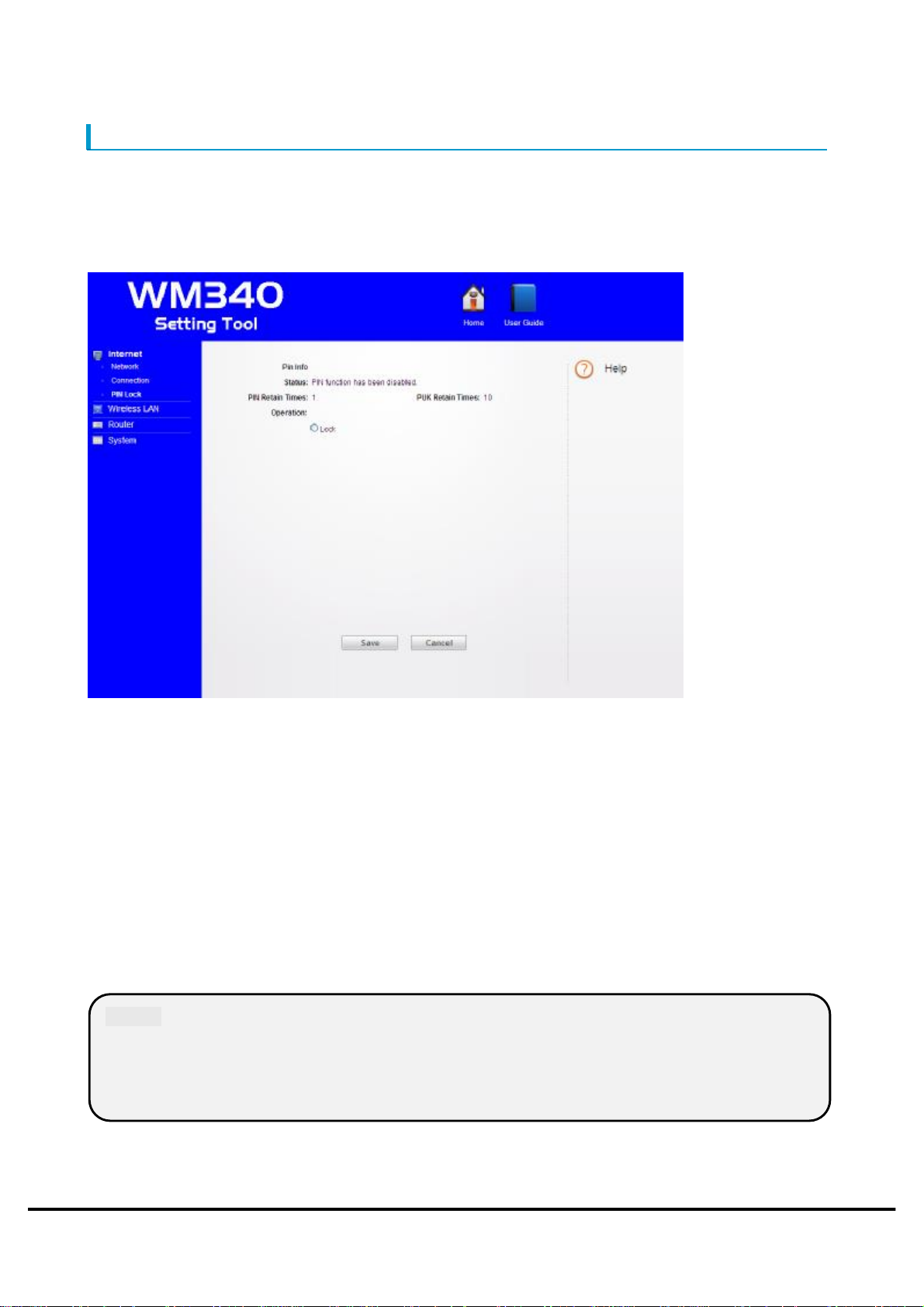
PIN Lock
USIM card PIN code can be set. If you have configured, each time of power on enter the number of 4
to 8 digits. You can prevent unauthorized use by third parties.
In this setting to change the PIN authentication enable or disable and the PIN code.
1. Switching the PIN authentication enable or disable.
Select the "Lock" if you want to enable, please enter the PIN code of the current.
Please press the, "Save" button after you enter.
2. Change the PIN code.
Please press the "Save" button after enter the current PIN code and new PIN code.
3. Authentication of the PIN code
Please press the "Save" button after enter the current PIN code.
Caution
・ After three unsuccessful tries to enter PIN code, will not be able to enter the PIN
code .(PIN Lock)
Want to unlock the PIN lock, please contact the Customer Center.
Copyright ©2011 FUJISOFT INCORPORATED, All rights reserved.
28
Page 30
WM340 User
Guide
Version 0.2
Wireless LAN
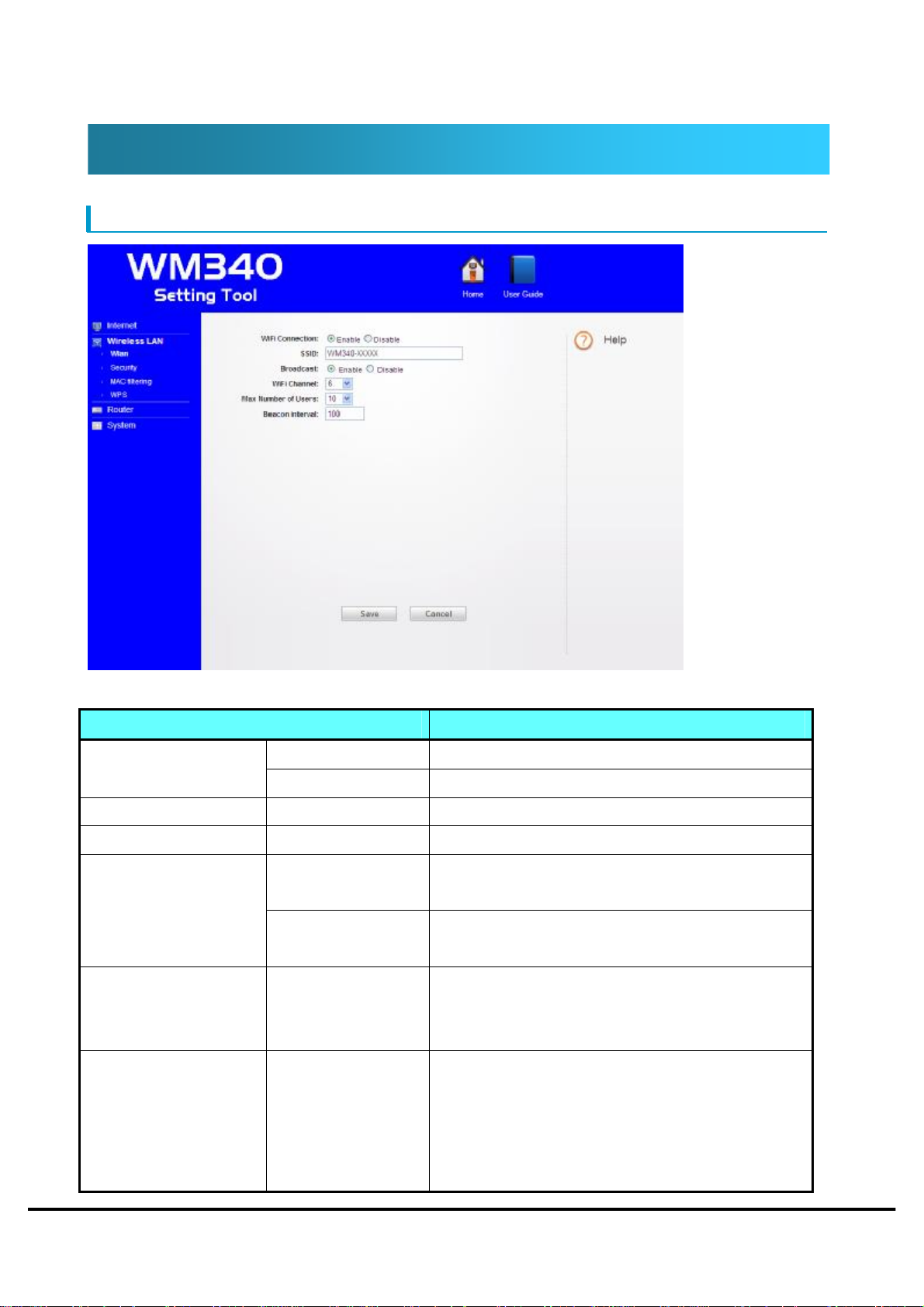
WLAN
Setting Items Description
Enable Wireless LAN connection will be enabled. Wi-Fi Connection
Disable Wireless LAN connection will be disabled.
Wi-Fi Channel
SSID WM340_XXX Set the SSID.
Broadcast
Max Number of Users
Beacon interval 100ms To be recognized by the device, set the interval
1、2、3、4、・・・、14
Enable SSID will be displayed in the connected
Disable SSID is not displayed on the connected
1、2、3、4、・・・、10
Set the Wi-Fi channel to be used.
equipment.
equipment.
Limit the number of users to connect.
Communication speed and security will improve
with fewer number of connected users.
between transmission of a packet.
If set the interval large, power consumption will
be reduced.
The recommended the default settings.
Copyright ©2011 FUJISOFT INCORPORATED, All rights reserved.
29
Page 31
WM340 User
Guide
Version 0.2
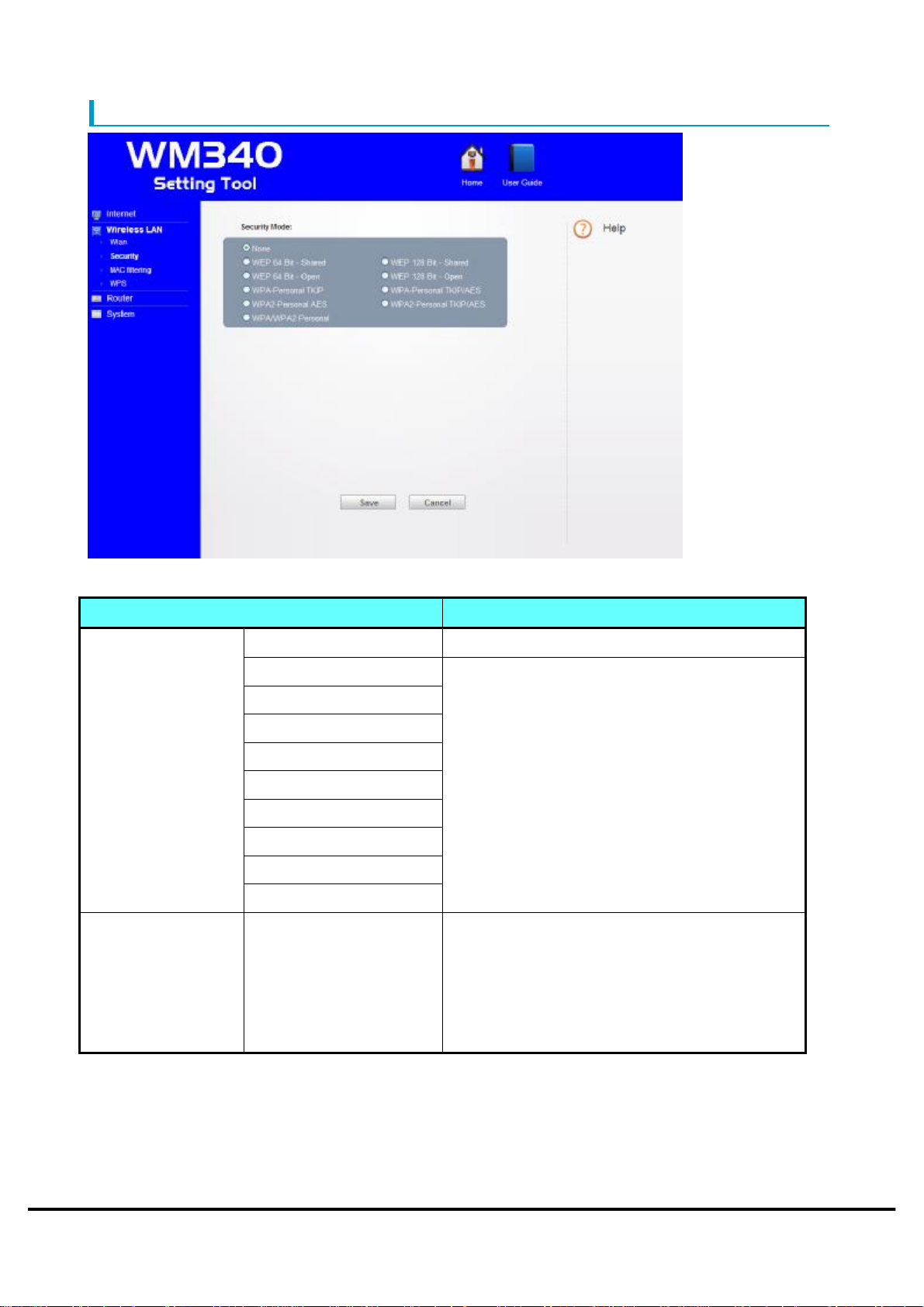
Security
Setting Items Description
Security Mode
None
WEP 64 Bit Shared
WEP 128 Bit Shared
WEP 64 Bit Open
WEP 128 Bit Open
WPA Personal TKIP
WPA Personal TKIP/AES
WPA2 Personal AES
WPA2 Personal TKIP/AES
WPA/WPA2 Personal
No security
Select the wireless LAN security.
If you select WEP, WEP key settings screen is
displayed. Set the WEP key of 10 digits or 26
digits.
If you select WPA, WPA key setting screen
will be displayed. Set the WPA key within 63
digits.
Wi-Fi Password WEP key(initial value) Set the password you enter when connecting
to Wi-Fi. The initial value is WEP key (5 digit
number).
Password length is dependent on the security
mode.
Copyright ©2011 FUJISOFT INCORPORATED, All rights reserved.
30
Page 32

WM340 User
Guide
Version 0.2
Caution
・ If you changed the security, there are times when the device is unable to connect. In that
case, please set the connection of the device again.
・ The recommended the setting to WPA or WPA2 from the safety of security.
Copyright ©2011 FUJISOFT INCORPORATED, All rights reserved.
31
Page 33
WM340 User
Guide
Version 0.2
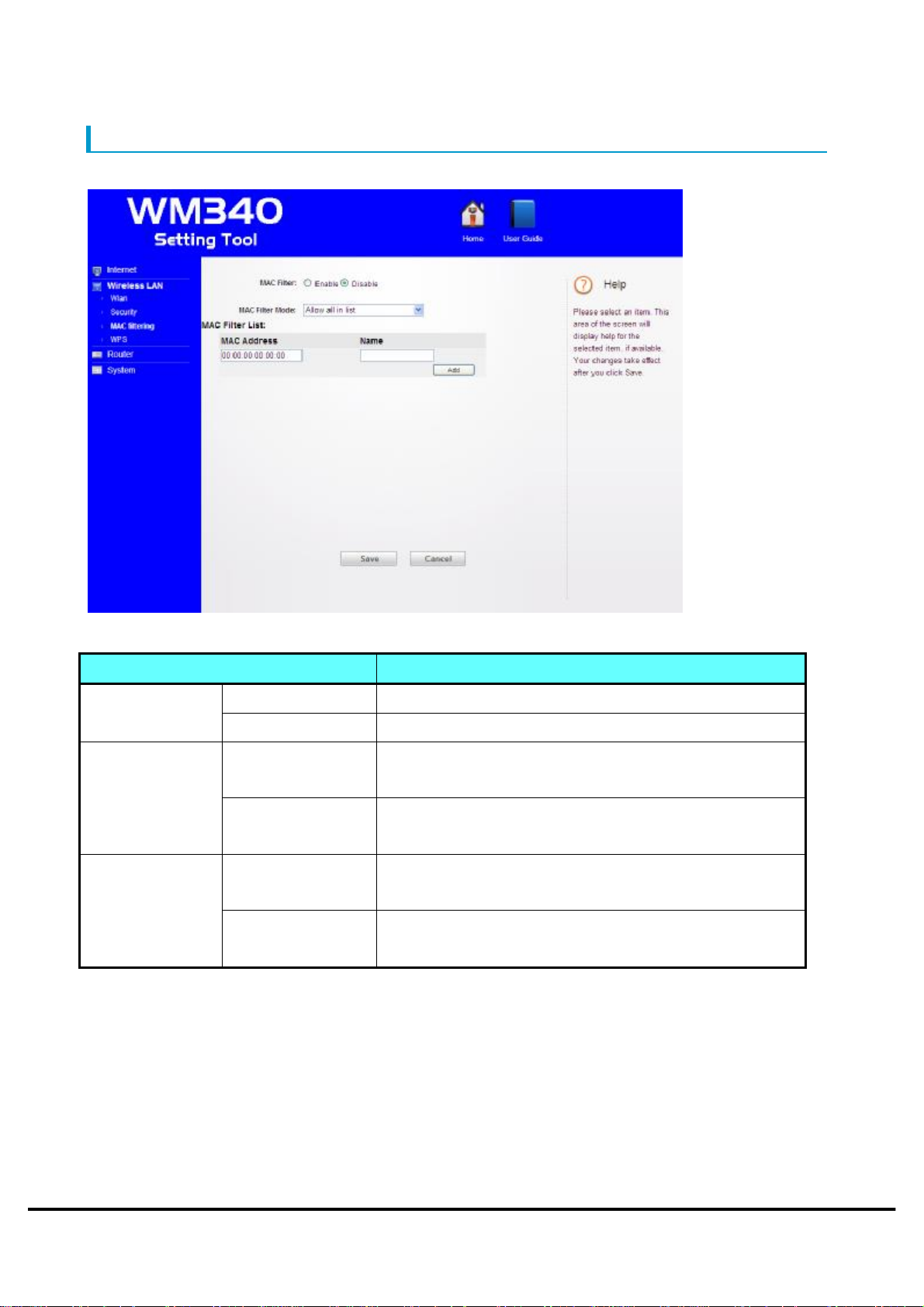
MAC filtering
MAC filtering is the ability to control access from a particular MAC address.
Setting Items Description
MAC
Filter Mode
MAC Filter List
Enable MAC filtering feature will be enabled. MAC Filter
Disable MAC filtering feature will be disabled.
Allow access only of MAC addresses that is registered
Allow all in list
in the list.
Block the access of MAC addresses that are registered
Block all in list
in the list.
MAC Address Register the MAC address of the terminal to connect .
MAC address can be registered up to 10.
Name To register any name corresponding to the MAC
address.
Copyright ©2011 FUJISOFT INCORPORATED, All rights reserved.
32
Page 34
WM340 User
Guide
Version 0.2
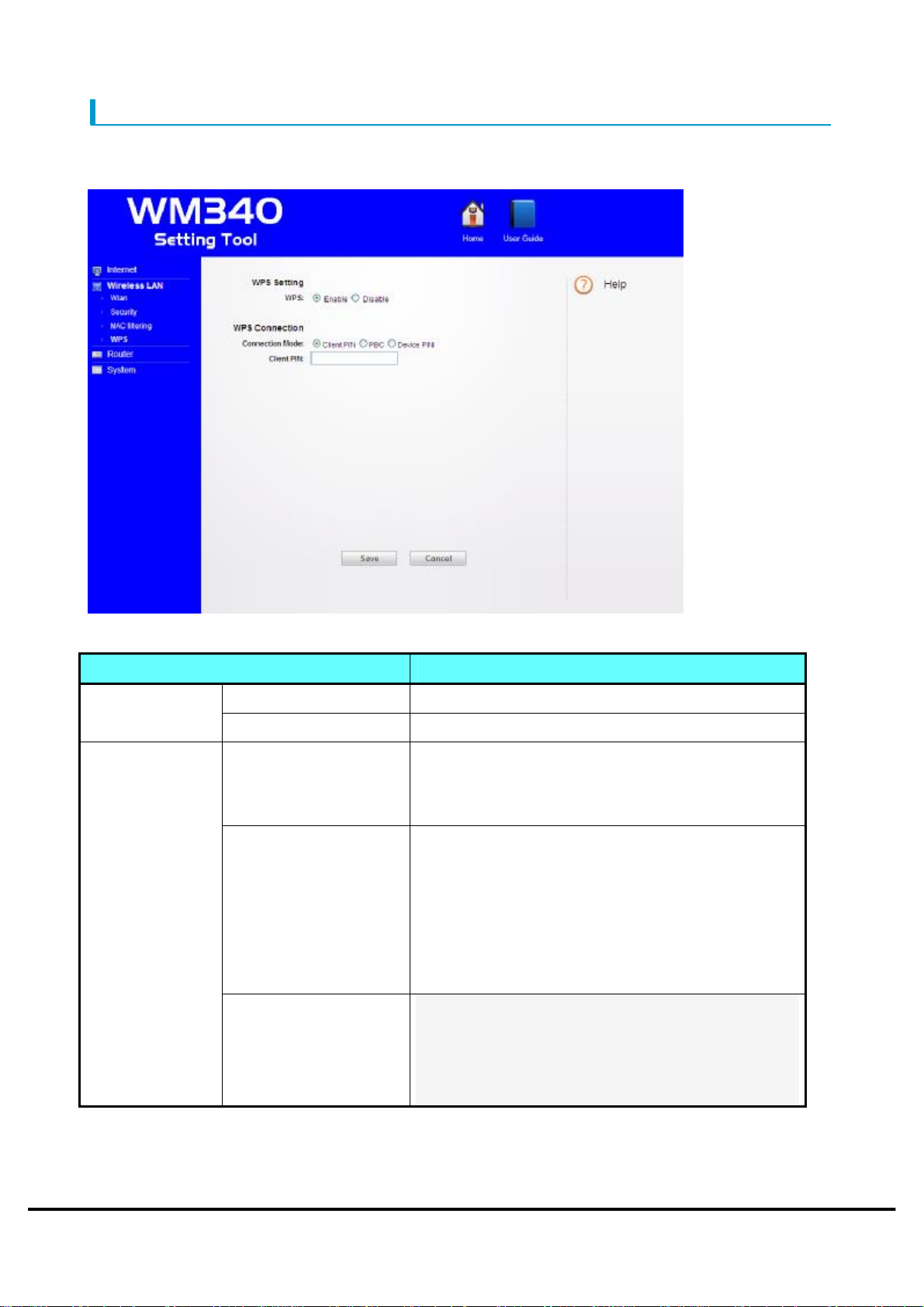
WPS
WPS (Wi-Fi Protected Setup) is feature the easy connection to router.
After select the PBC or PIN, WPS connection is initiated by pressing the "Save".
Connection
Mode
Setting Items Description
Enable
Disable
WPS feature will be enabled. WPS Setting
WPS feature will be disabled.
Please set the client PIN (PIN code of the
Client PIN
connected equipment). After setting the PIN, start
automatically when you press the "Save" button.
After setting the PBC, start automatically when
you press the "Save" button.
Please press the WPS button on the connected
PBC
equipment within 120 seconds.
Also, after setting the PBC, start automatically
even when press the "Wi-Fi/WPS" button.
Device PIN After setting the device PIN, and press the "Save"
button, you are prompted to enter a PIN code to
the wireless client.
"Next" button, you should be able to connect.
Copyright ©2011 FUJISOFT INCORPORATED, All rights reserved.
33
Page 35

WM340 User
Guide
Version 0.2
Caution
・ If broadcast of SSID is disabled, may be unable to connect. Want to use WPS, please enable
the broadcast of the SSID.
Copyright ©2011 FUJISOFT INCORPORATED, All rights reserved.
34
Page 36
WM340 User
Guide
Version 0.2
Router
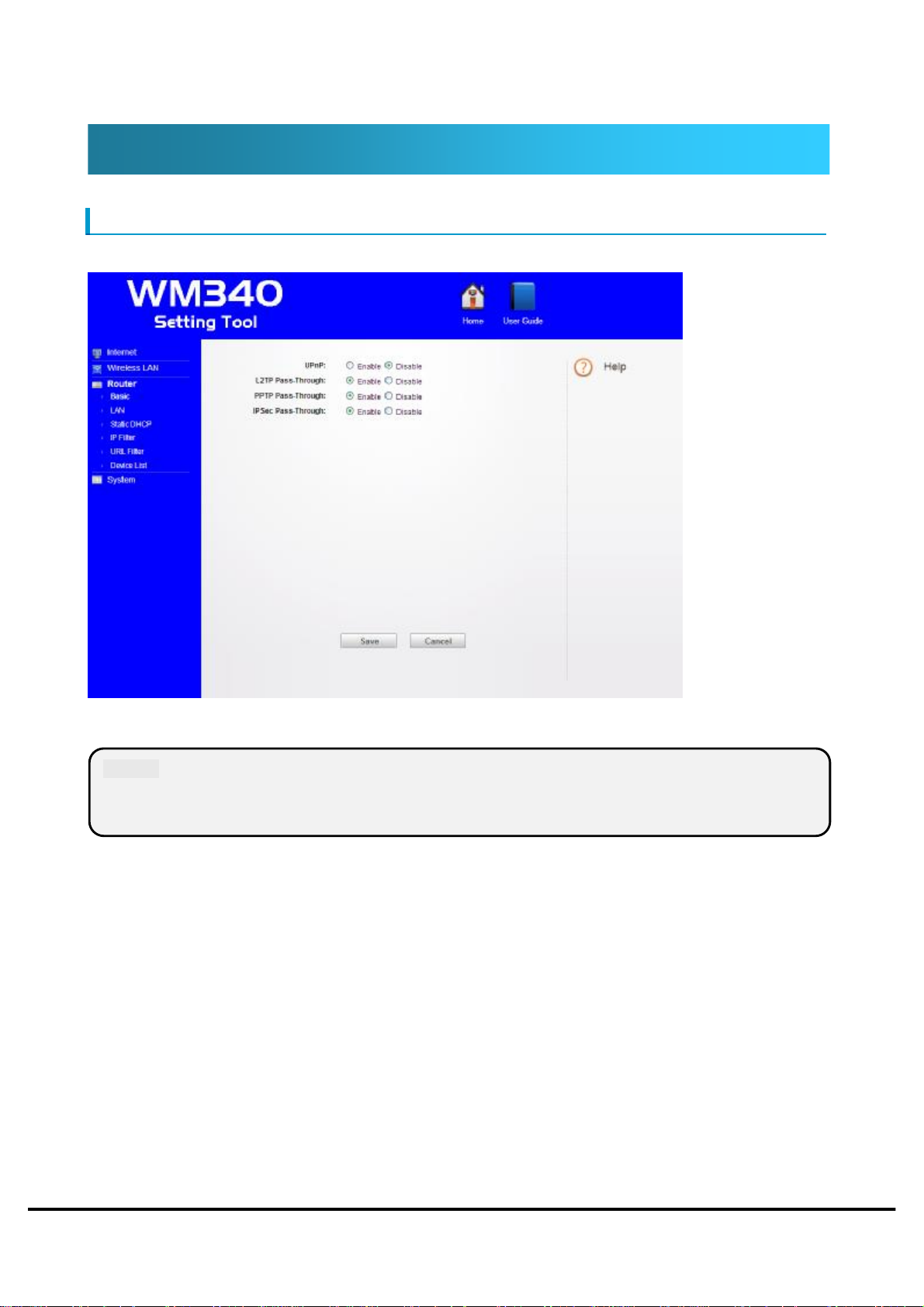
Basic
Allows to configure the UPnP(Universal Plug and Play).
Caution
・ When do not need from security point of view, the recommend to disabled.
Copyright ©2011 FUJISOFT INCORPORATED, All rights reserved.
35
Page 37
WM340 User
Guide
Version 0.2
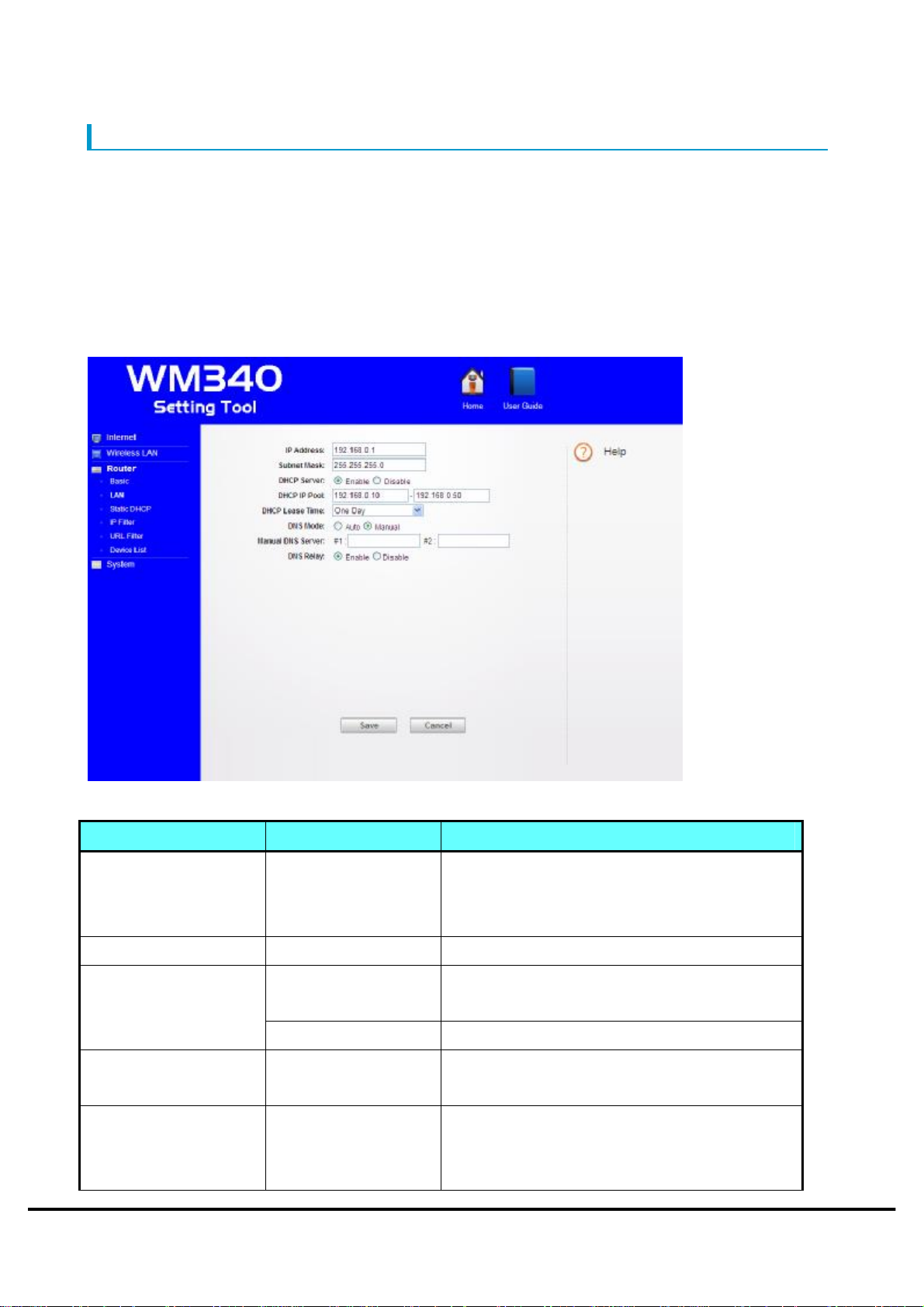
LAN
This item will do the following settings.
・IP addresses(router)
・Subnet Mask
・DHCP Server
・DHCP IP Pool
・DHCP Lease Time
・DNS Mode
Setting Items Setting range Description
IP Address 192.168.0.1 Is the router IP address in the LAN.
"192.168.0.1" At the time of purchase has
been set.
Subnet Mask 255.255.255.0 Is the subnet mask in the LAN.
DHCP Server
Enable DHCP server assigns IP addresses
automatically to devices within the LAN.
Disable DHCP server function will be disabled.
DHCP IP Pool 192.168.0.10
~192.168.0.50
DHCP Lease Time
Half Hour 、 One
Hour 、 Two Hours 、
Half Day、One Day、
Copyright ©2011 FUJISOFT INCORPORATED, All rights reserved.
To set the range of IP addresses that the
DHCP server to do the assignment.
Sets the expiration time of the assigned IP
address.
If exceed the set time, IP address will be
36
Page 38

WM340 User
Guide
Version 0.2
Two Days 、 Half
Week 、 One Week 、
Two Weeks
assigned automatically again.
DNS Mode
Auto IP address of the DNS server will be set
automatically.
Manual Manually set the IP addresses of DNS server .
Copyright ©2011 FUJISOFT INCORPORATED, All rights reserved.
37
Page 39
WM340 User
Guide
Version 0.2
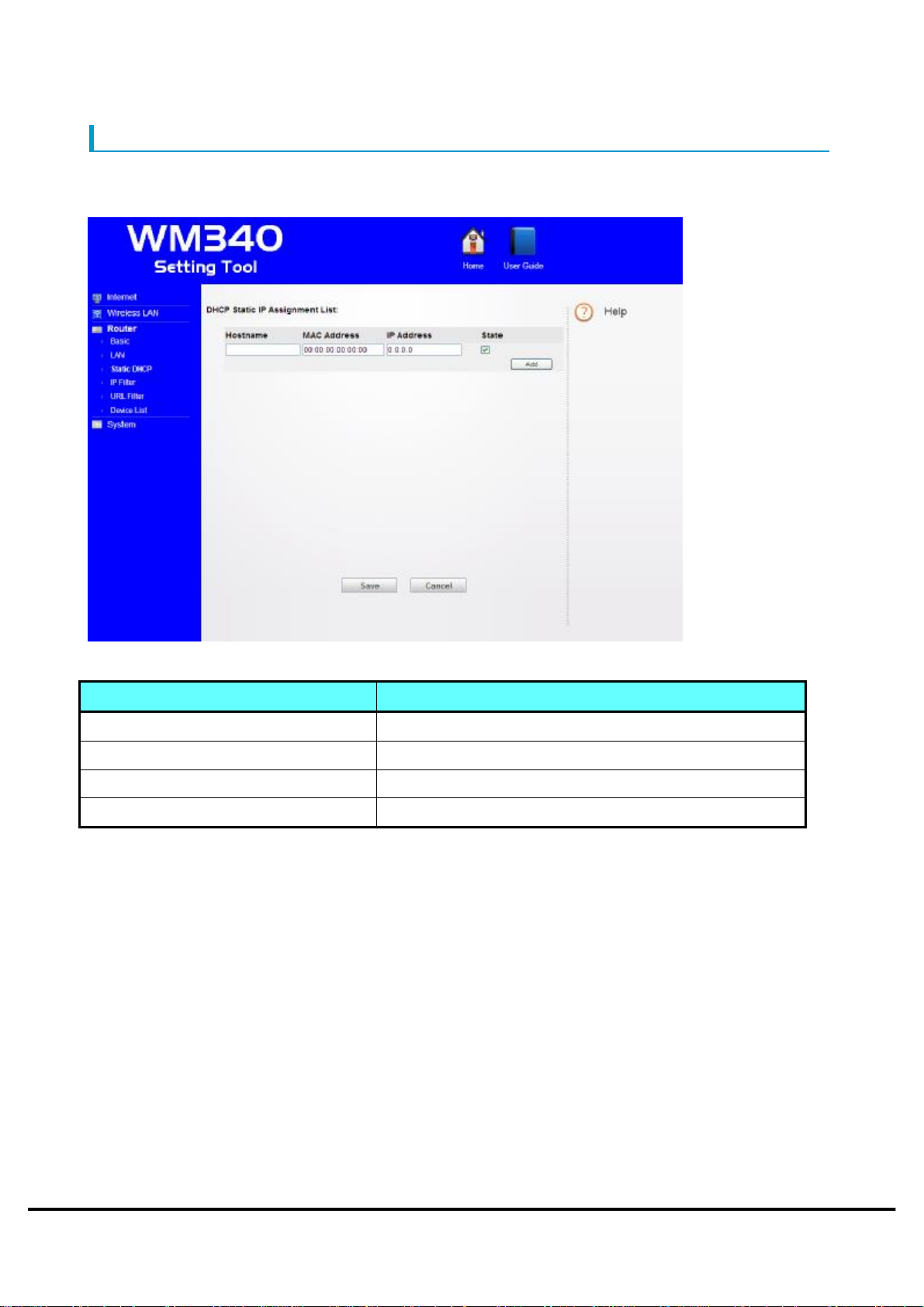
Static DHCP
Static IP address list you can set the IP address assigned to the client.
The static IP address list can register up to 10 units.
Setting Items Description
Hostname Specifies the device to assign IP address.
MAC Address
Specifies the MAC address to assign IP address.。
IP Address Specifies the assign IP address.
State When select a this item, will be enabled.
Copyright ©2011 FUJISOFT INCORPORATED, All rights reserved.
38
Page 40
WM340 User
Guide
Version 0.2
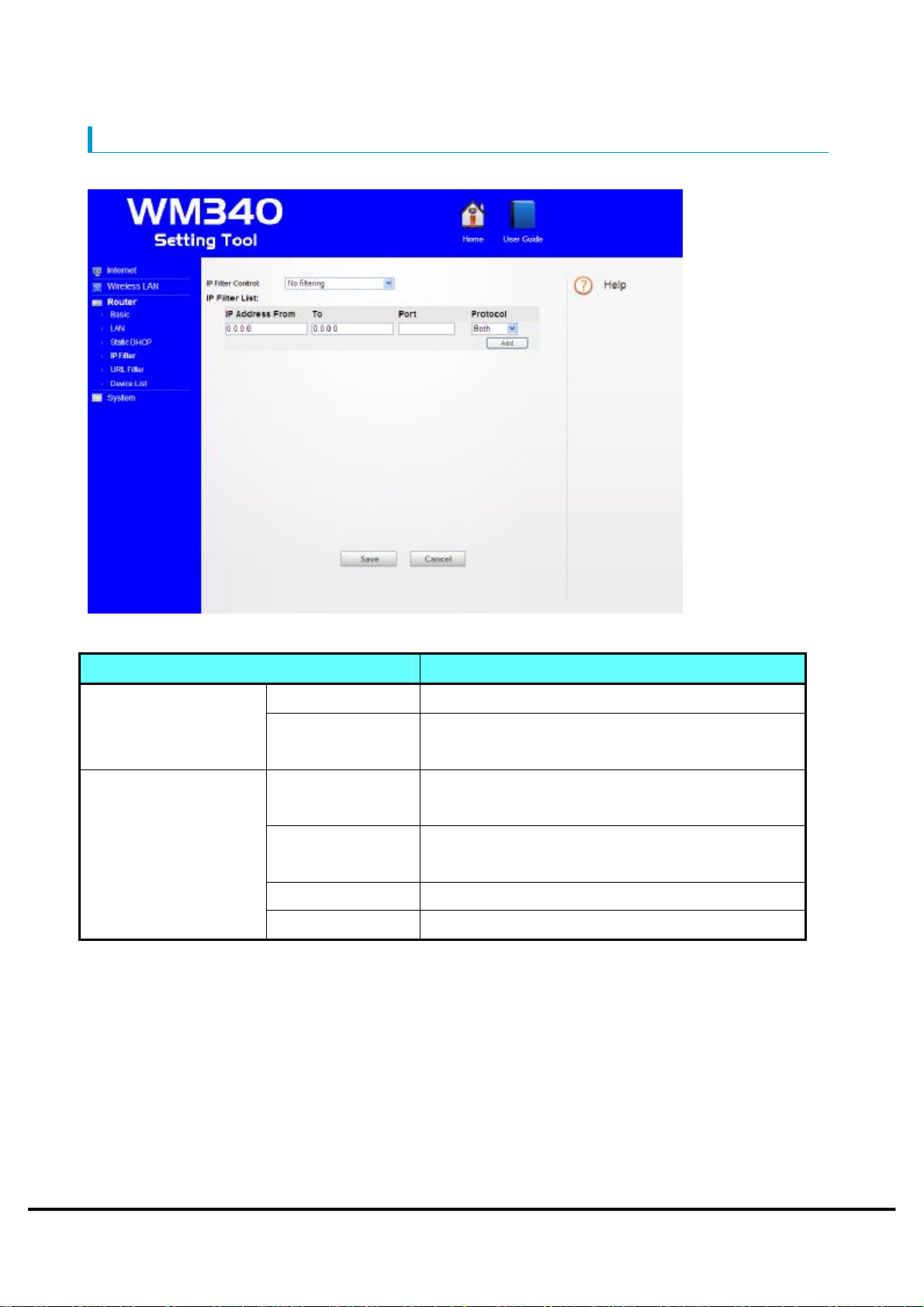
IP Filter
IP filtering feature is the ability to control access to specific IP address.
IP Filter List
Setting Items Description
No Filtering IP filtering will be disabled. IP Filter Control
To blocks access to the IP address that is
Block all in list
registered in the list.
Specifies the starting IP address for a range of IP
IP Address(From)
filtering.
Specifies the ending IP address in the range of IP
IP Address(To)
filtering.
Port Specify the port number of the target filtering.
Protocol Specifies the IP protocol type to be filtered.
Copyright ©2011 FUJISOFT INCORPORATED, All rights reserved.
39
Page 41
WM340 User
Guide
Version 0.2
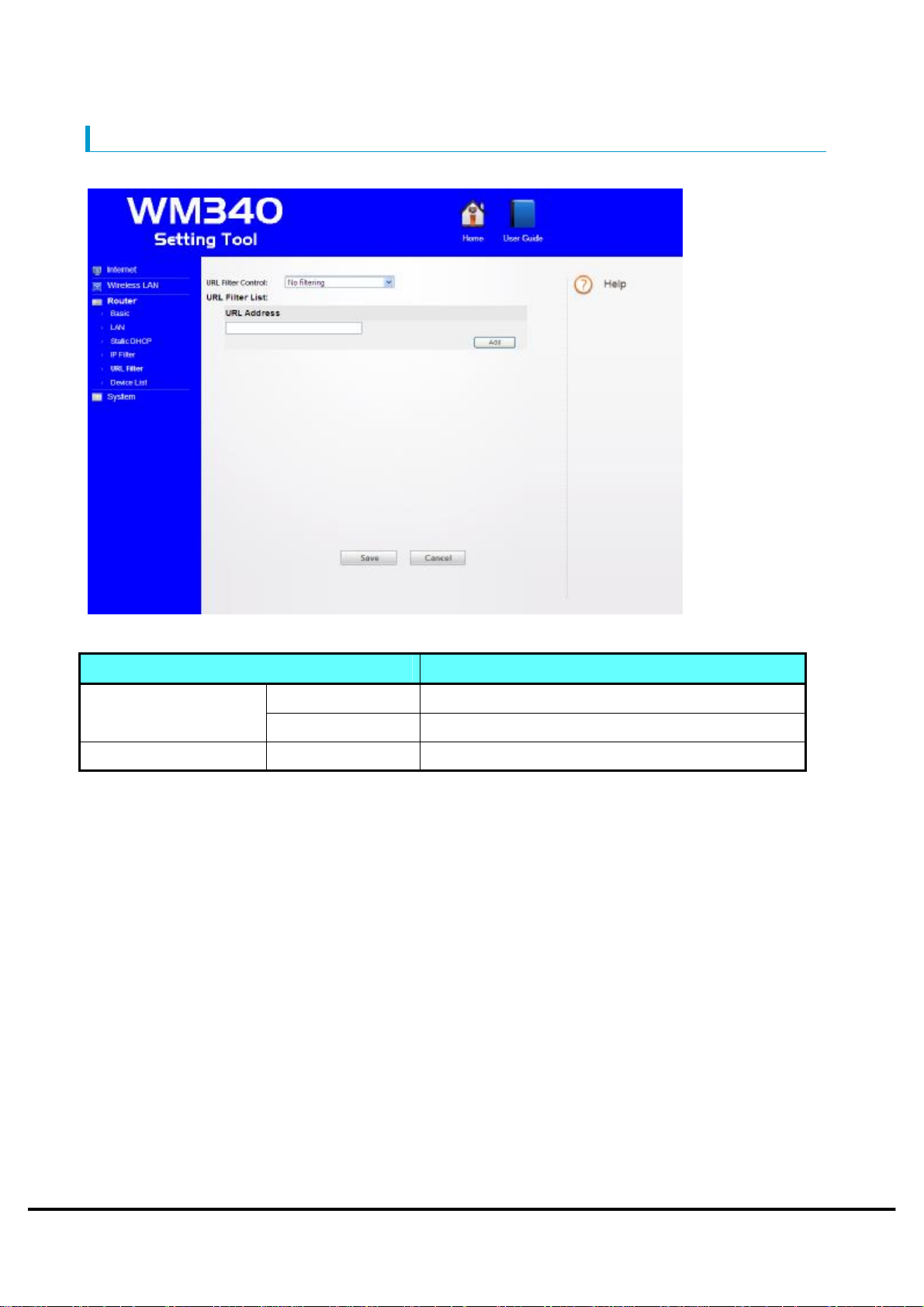
URL Filter
Is the ability to control access to specific URL.
Setting Items Description
No Filtering URL filtering feature will be disabled. URL Filter Control
Block all in list To blocks access to the URL that registered.
URL Filter List URL Address Specifies the URL address to be filtered.
Copyright ©2011 FUJISOFT INCORPORATED, All rights reserved.
40
Page 42
WM340 User
Guide
Version 0.2
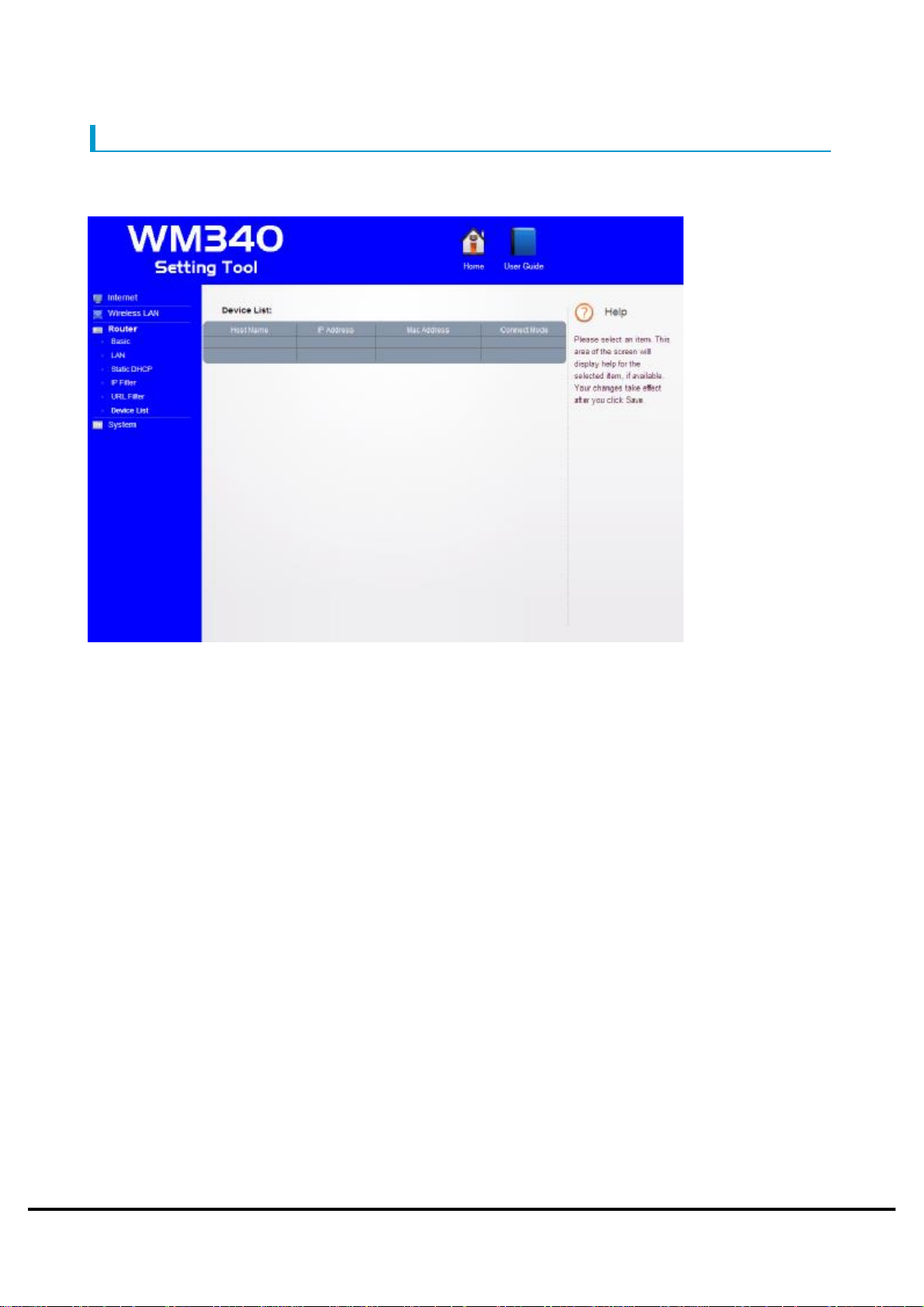
Device List
Devices that are connected will be displayed.
Display Items:Hostname、IP Address、MAC Address、Connect Mode
Copyright ©2011 FUJISOFT INCORPORATED, All rights reserved.
41
Page 43
WM340 User
Guide
Version 0.2
System
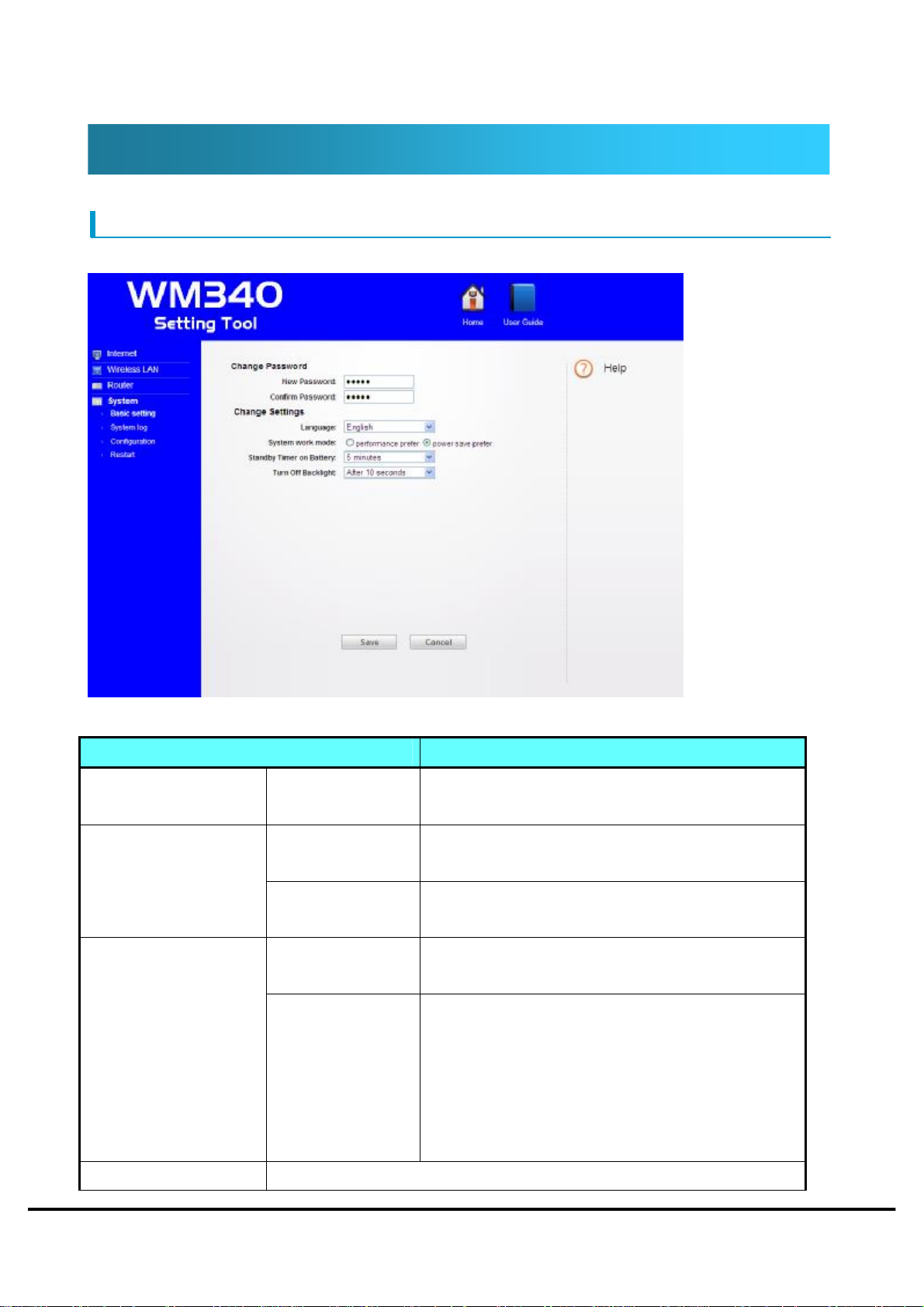
Basic setting
Sets the "login password", "language", "system work mode", "off time of backlight"
Setting Items Description
Change Password
Language
WEP key
(initial value)
English Sets to English the language of WM340 setting
Japanese Sets to Japanese the language of WM340 setting
performance
prefer
power save mode Goes to sleep automatically when data
Change the login password.
Password at the time of purchase is "WEP key".
tool.
tool.
Power save mode will be disabled. System work mode
no-communication state and WAN, LAN is not
connected.
In power save mode, communication is not
possible.
*USB connection will not be in power save mode.
The standby timer of a Invalid
Copyright ©2011 FUJISOFT INCORPORATED, All rights reserved.
42
Page 44
WM340 User
Guide
Version 0.2
battery
5 minutes
(It is displayed only
when power-saving
mode is chosen in
system action mode.)
10 minutes
20 minutes
30 minutes
40 minutes
50 minutes
60 minutes
Turn Off Backlight
Never
After 10 seconds
After 30 seconds
After 60 seconds
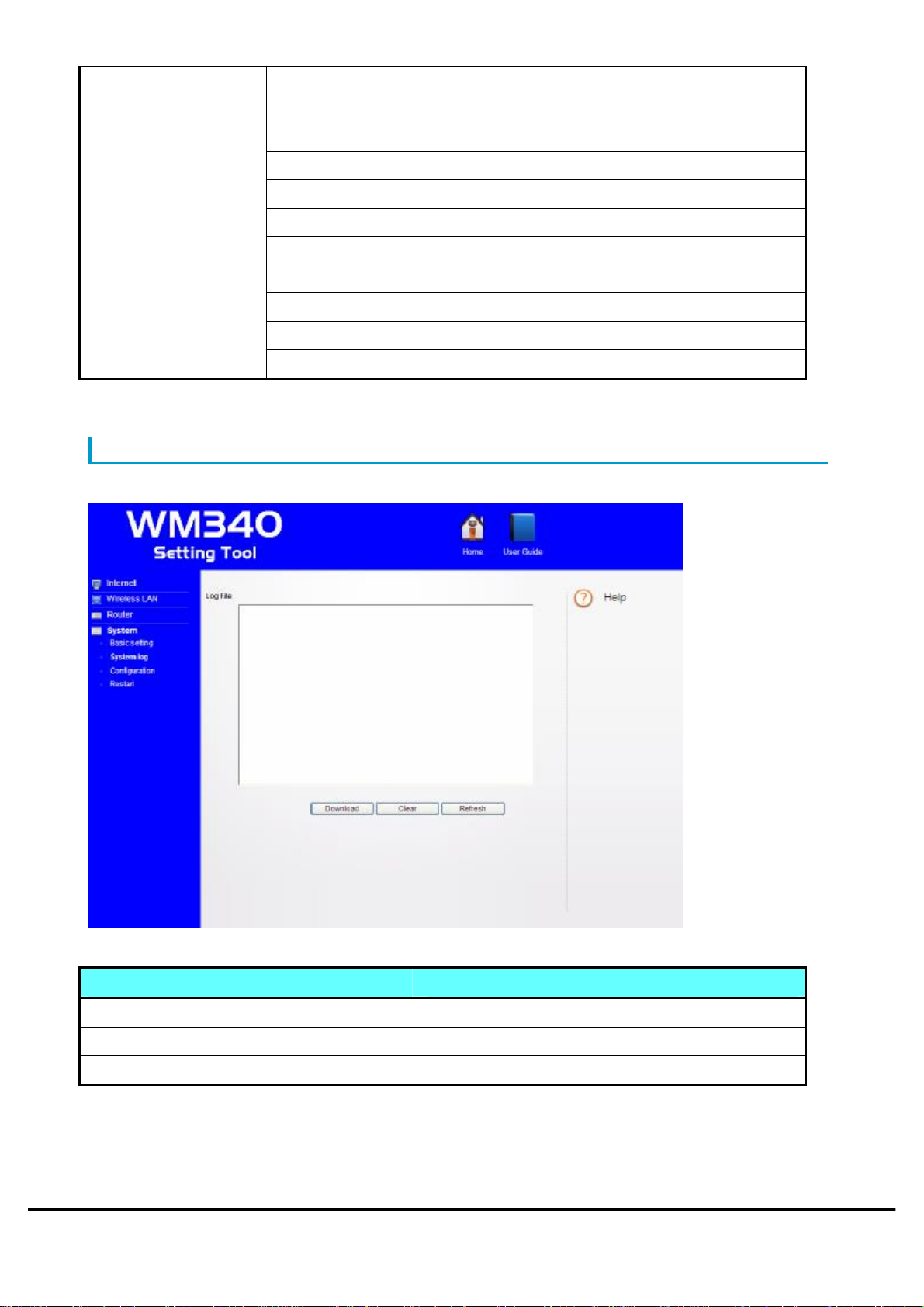
System log
Save the system log of WM340.
Setting Items Description
Download To Download the log that is displayed.
Clear To clear the log that is displayed.
Refresh Update the log.
Copyright ©2011 FUJISOFT INCORPORATED, All rights reserved.
43
Page 45
WM340 User
Guide
Version 0.2
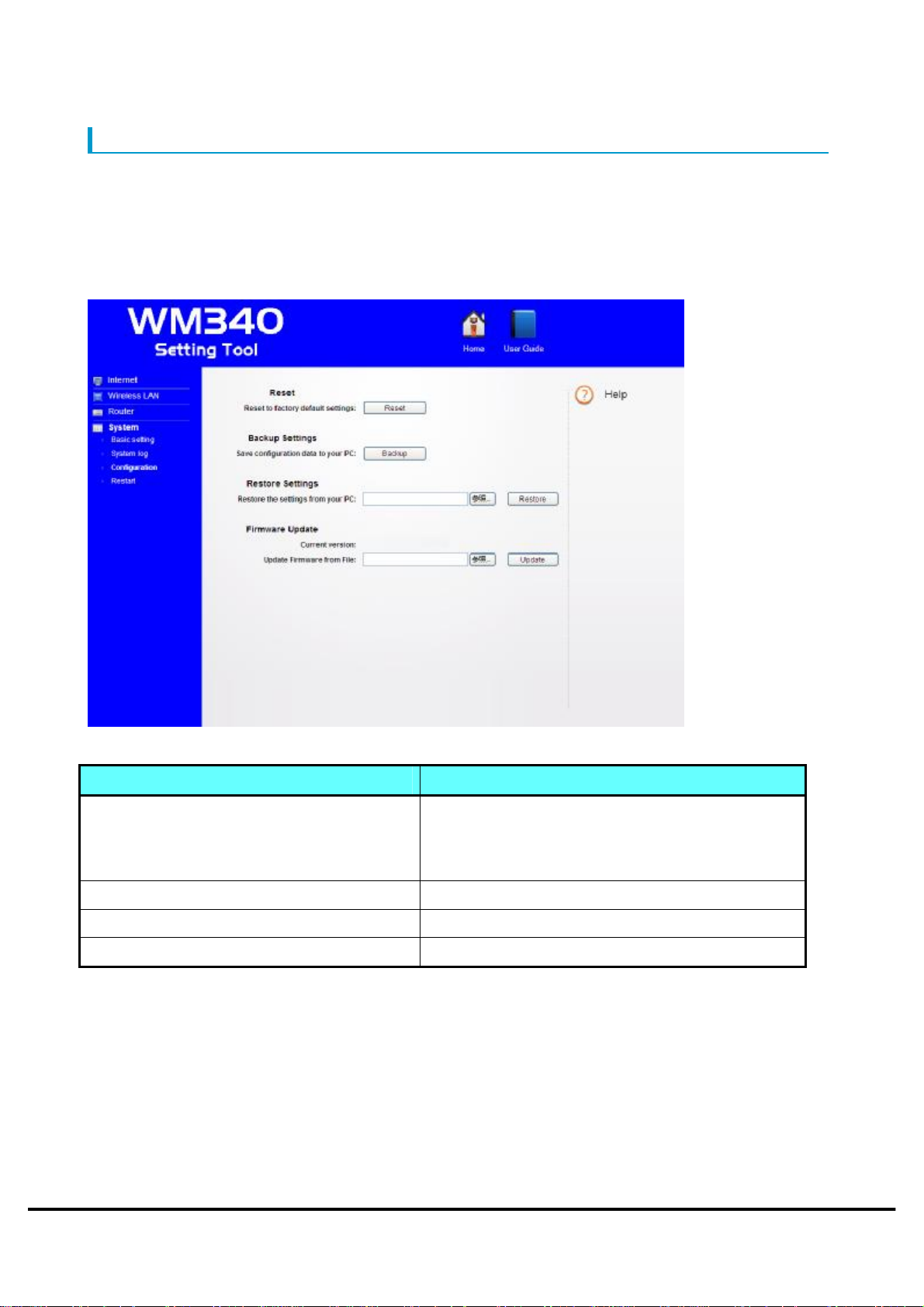
Configuration
This item will be the following functions.
・Reset(Settings)
・Backup Setting
・Restore Setting
・Firmware Update
Setting Items Description
Reset Back to the initial state.
However, the state of the USIM card is not
changed.
Backup Settings Save the settings on your computer.
Restore Settings Restore the configuration.
Firmware Update Update the firmware.
Copyright ©2011 FUJISOFT INCORPORATED, All rights reserved.
44
Page 46
WM340 User
Guide
Version 0.2
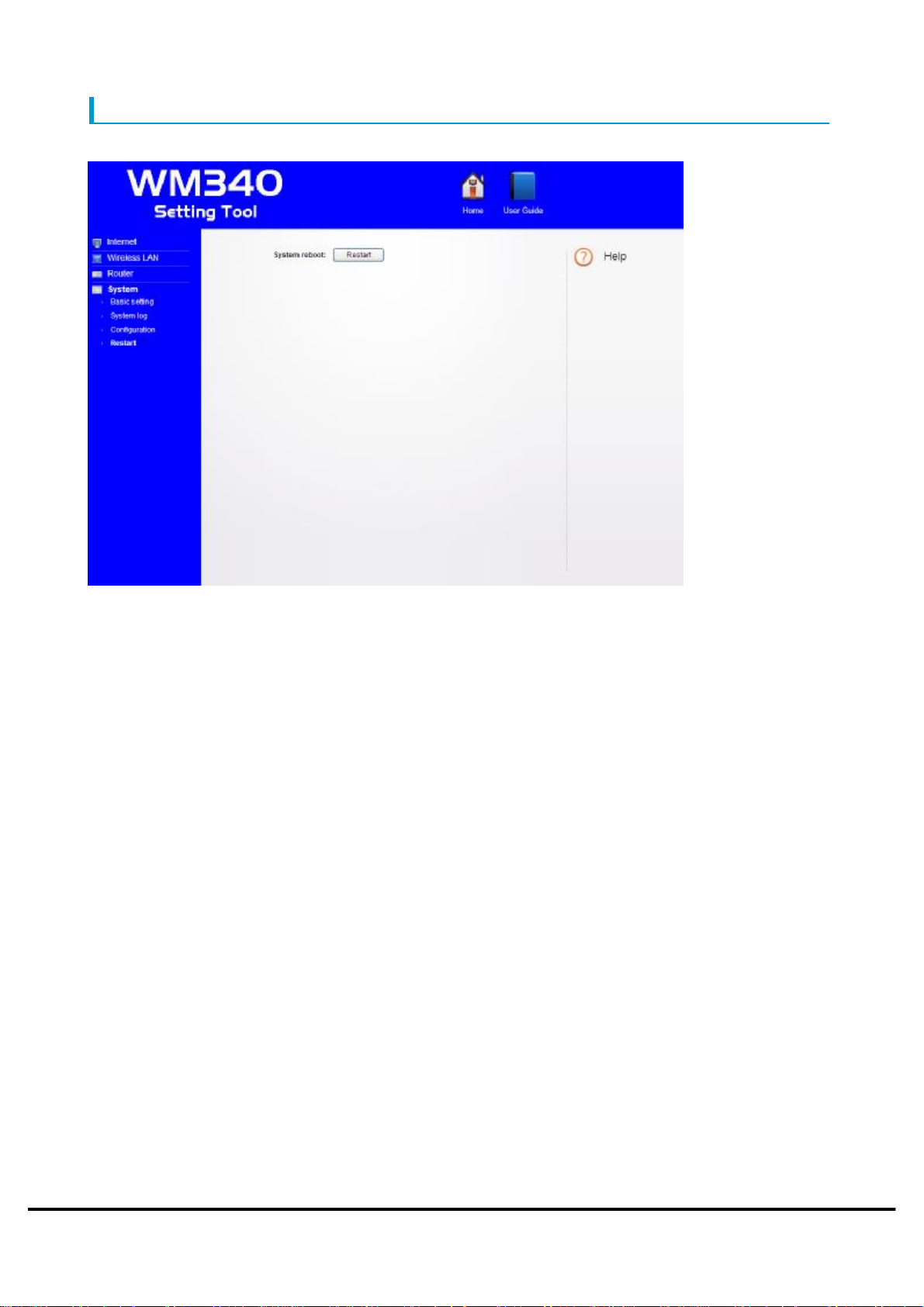
Restart
Restart the system.
Copyright ©2011 FUJISOFT INCORPORATED, All rights reserved.
45
Page 47
WM340 User
Guide
Version 0.2
Appendix
Product Specifications
Items Description
Product Name WM340
External Dimensions 91.2mm(W)×62mm(H)×23.6mm(D)
Weight Approximately 130g
Battery Lithium-ion polymer 3.7V 2930mAh
Working Time
Power Consumption
Operating Environment
Frequency Range Wireless LAN
Compliance Standards Wireless LAN
Standby time : 40 H
Communication time : 8 H(3G)
At maximum communication:Approximately 900mA
At general communication:Approximately 420mA
At in standby:Approximately 140mA
Operating temperature range : 0~45˚C
Operating humidity range : 10~90%
Storage Temperature Range : -20~60˚C
Storage humidity range : 5~95%
IEEE802.11b/g/n : 1~13CH (2412~2472MHz)
WAN
GSM、GPRS、EDGE:850MHz/900MHz/1800MHz/1900MHz
WCDMA、HSUPA、HSDPA : 2100MHz/800MHz
IEEE802.11b、IEEE802.11g、IEEE802.11n
WAN
WCDMA、HSUPA、HSDPA 、GSM、GPRS、EDGE
Data transfer rate Wireless LAN
IEEE802.11b (1/2/5.5/11Mbps)
IEEE802.11g (6/9/12/18/24/36/48/54Mbps)
IEEE802.11n (Maximum150Mbps)
WAN
WCDMA (384kbps)、HSUPA (5.7Mbps)、HSDPA (14.4Mbps)
GPRS(85.6Kbps)、EDGE(237Kbps)
*Transfer rate will be best effort.
AC adapter
Power : AC100V ~ 240V
Input current : Maximum 0.3A
Copyright ©2011 FUJISOFT INCORPORATED, All rights reserved.
46
Page 48

WM340 User
Guide
Version 0.2
Output voltage / current : 5.0V/1.5A
Trademarks
*Windows, Windows 7, Windows Vista, Windows XP, Internet Explorer are trademarks or
registered trademarks of the Microsoft Corporation in the U.S. and other country.
*Macintosh, Mac, Mac OS are trademarks or registered trademarks of the Microsoft Corporation
in the U.S. and other country.
*Android are trademark or registered trademark of Google Inc.
*The other company names and brand names described in this manual are the trademarks or
registered trademarks of the respective companies.
Copyright ©2011 FUJISOFT INCORPORATED, All rights reserved.
47
Page 49

WM340 User
Guide
Version 0.2
CE Warning
Users have to use the connection to USB interfaces with USB 2.0 version or higher.
Caution
Risk of explosion if battery replaced aced by an incorrect type.
Dispose of used batteries according to the instructions.
Please make sure the temperature for adapter will not be higher than 45˚C
Please make sure the temperature for device will not be higher than 45˚C
The adapter shall be installed near the equipment and shall be easily accessible.
Only can use adapter as below:Adapter mfg: NetIndex Inc.
Adapter model: SWFADP-100
I/P:100-240V,50/60Hz,0.3A,O/P 5V,1.5A
The plug considered as disconnect device of adapter
Declaration of Conformity
Model: WM340
Intended use: LTE Hotspot
Complies with the essential requirements of Article 3 of the R&TTE 1999/5/EC Directive, if
used for its intended use and that the following standards have been applied:
1. Health (Article 3.1(a) of the R&TTE Directive)
n EN 62311 :2008/EN 62209-2:2010/EN 62479:2010
2. Safety (Article 3.1(a) of the R&TTE Directive)
Applied Standard(s):
n EN 60950-1:2006+A11:2009
3. Electromagnetic compatibility (Article 3.1 (b) of the R&TTE Directive)
Applied Standard(s):
n EN 301 489-1 V1.9.2/-7 V1.3.1/-17 V1.3.1/-24 V1.5.1
4. Radio frequency spectrum usage (Article 3.2 of the R&TTE Directive)
Applied Standard(s):
n EN 301 511 V9.0.2
n EN 301 908-1/ -2 V5.2.1
n EN 300 328 V1.7.1
All the reports of the applied standards have the Positive Opinion of Notified Body:
PHONEIX TESTLAB, Königswinkel 10 D-32825 Blomberg, Germany
Identification mark: 0700 (Notified Body) CE
Copyright ©2011 FUJISOFT INCORPORATED, All rights reserved.
Page 50

WM340 User
Guide
Version 0.2
FCC Regulations:
lThis device complies with part 15 of the FCC Rules. Operation is subject to the following two
conditions: (1) This device may not cause harmful interference, and (2) this device must accept any
interference received, including interference that may cause undesired operation.
lThis device has been tested and found to comply with the limits for a Class B digital device,
pursuant to Part 15 of the FCC Rules. These limits are designed to provide reasonable protection
against harmful interference in a residential installation. This equipment generates, uses and can
radiated radio frequency energy and, if not installed and used in accordance with the instructions,
may cause harmful interference to radio communications. However, there is no guarantee that
interference will not occur in a particular installation If this equipment does cause harmful
interference to radio or television reception, which can be determined by turning the equipment off
and on, the user is encouraged to try to correct the interference by one or more of the following
measures:
-Reorient or relocate the receiving antenna.
-Increase the separation between the equipment and receiver.
-Connect the equipment into an outlet on a circuit different from that to which the receiver is
connected.
-Consult the dealer or an experienced radio/TV technician for help.
Changes or modifications not expressly approved by the party responsible for compliance could void
the user‘s authority to operate the equipment.
4RF Exposure Information (SAR)
This device meets the government’s requirements for exposure to radio waves.
This device is designed and manufactured not to exceed the emission limits for exposure to radio
frequency (RF) energy set by the Federal Communications Commission of the U.S. Government.
The exposure standard for wireless devices employs a unit of measurement known as the Specific
Absorption Rate, or SAR. The SAR limit set by the FCC is 1.6W/kg. *Tests for SAR are conducted
using standard operating positions accepted by the FCC with the device transmitting at its highest
certified power level in all tested frequency bands. Although the SAR is determined at the highest
certified power level, the actual SAR level of the device while operating can be well below the
maximum value. This is because the device is designed to operate at multiple power levels so as to
use only the power required to reach the network. In general, the closer you are to a wireless base
station, the lower the power output.
The highest SAR value for the model device as reported to the FCC when worn on the body, as
described in this user guide, is 1.26 W/kg (Body-worn measurements differ among device models,
Copyright ©2011 FUJISOFT INCORPORATED, All rights reserved.
Page 51

WM340 User
Guide
Version 0.2
depending upon available accessories and FCC requirements.)
While there may be differences between the SAR levels of various devices and at various positions,
they all meet the government requirement.
The FCC has granted an Equipment Authorization for this model device with all reported SAR
levels evaluated as in compliance with the FCC RF exposure guidelines. SAR information on this
model device is on file with the FCC and can be found under the Display Grant section of
www.fcc.gov/oet/ea/fccid after searching on FCC ID:WLPWM340
For body worn operation, this device has been tested and meets the FCC RF exposure guidelines for
use with an accessory that contains no metal and the positions the handset a minimum of 1 cm from
the body. Use of other accessories may not ensure compliance with FCC RF exposure guidelines.
If you do not use a body-worn accessory and are not holding the device at the ear, position the
handset a minimum of 1 cm from your body when the device is switched on.
Copyright ©2011 FUJISOFT INCORPORATED, All rights reserved.
 Loading...