

Page 1

Page 1
By A MIRIDIS – SAVVIDIS S.A.
DIGITAL MP3 PLAYER
User Guide
MP5918/MP5928
MP471SL/MP472BL/MP473PK
MP591SL/MP592BL/MP593PK
MP383PK
Ver. 7
Page 2

Page 2
This MP3 is supporting MP3, WMA, or WAV files. Its perfect tone in high reliability with refined exterior
design brings you an ultra per formance.
Overview
●Refined exterior design
Unique design fits for h and.
●Multi file format support
This player recognizing M P1, M P2, MP3, WMA, WMV and WAV files.
●Firmware upgrade available
You can download upgrade sof t ware from internet enhancing player’s function.
●Telephone Book
Build-in convenience, portable address book.
●e-Documents
You can download text files into t he pl ayer and read it any time as you like.
●Driver free USB memory
Manage your files in USB memor y without specified software, no need dr ivers in WIN2000 or furthers.
●Recorder / Repeat
Voice can be recorded and saved in WAV or ACT fo r mat. Phase/Contrast repeat available.
●Equalizer
Normal, Rock, Pop, Classic, Soft, Jazz, Bass
● Play modes
Normal, Single Repeat, Pl ay Catalog, Repeat Catalog, Re peat All, Shuf fl e, Lyric.
●Timing turning off
The player provides Sleep and bat t er y saving mode, more convenience for you!
●Complete dynamical menu
Visualized dyna mical m enus with text instructions gives you easy control.
Declarations
Welcome to choose our produce, please read this manual carefully.
Functions and performance may change without prior notice.
If any difference between produce and this manual, please visit our website
Page 3

Page 3
Contents
Overview ..............................................................................................................................................2
Declarations .........................................................................................................................................2
Know your player .................................................................................................................................5
Exterior and Keys ........................................................................................................................5
Display .........................................................................................................................................5
Battery ..........................................................................................................................................5
Basic Functions ....................................................................................................................................6
Access to Menus .........................................................................................................................6
Scrolling .......................................................................................................................................6
List of Menus................................................................................................................................6
Volu me Adjust ..............................................................................................................................7
Power On/Off ...............................................................................................................................7
Play & Stop ..................................................................................................................................7
Recording / Pause .......................................................................................................................7
Keys Processing ..................................................................................................................................7
Keys function definition ................................................................................................................7
Keys processing definition ...........................................................................................................7
Play music ............................................................................................................................................8
Simple Process ............................................................................................................................8
Equalizer mode ............................................................................................................................8
Lyric Settings ...............................................................................................................................8
Voice R ecorder .....................................................................................................................................9
Recording on ‘Record Mo de’ .......................................................................................................9
Recording type .............................................................................................................................9
Play recorded files................................................................................................................................9
FM Radio ............................................................................................................................................10
Settings ..............................................................................................................................................10
How to entry settings? ...............................................................................................................10
Option introductions ...................................................................................................................10
‘Screensaver’ ........................................................................................................................... 11
‘Language Setting’ ..................................................................................................................... 11
‘Timing Setting’ .......................................................................................................................... 11
‘Contrast Adjust’ Setting ........................................................................................................... 11
‘Memory Status’ Setting ........................................................................................................... 11
‘Firmware Version’ Setting ......................................................................................................... 11
E-Documents ..................................................................................................................................... 11
Telephone Book .................................................................................................................................12
How to find telephone infor mation ..............................................................................................12
Create and edit telephone book .................................................................................................12
Edit tel. book ...............................................................................................................................12
Using USB Disk ................................................................................................
..................................13
Upgrade Player ..................................................................................................................................13
Change Folders ..................................................................................................................................13
Delete Mode .......................................................................................................................................14
Page 4
Page 4
Play Mode ..........................................................................................................................................14
Repeat Mode ......................................................................................................................................15
A-B Repeat ................................................................................................................................15
Troubleshooting..................................................................................................................................15
Technical S peci ficati ons .....................................................................................................................15
Know your player
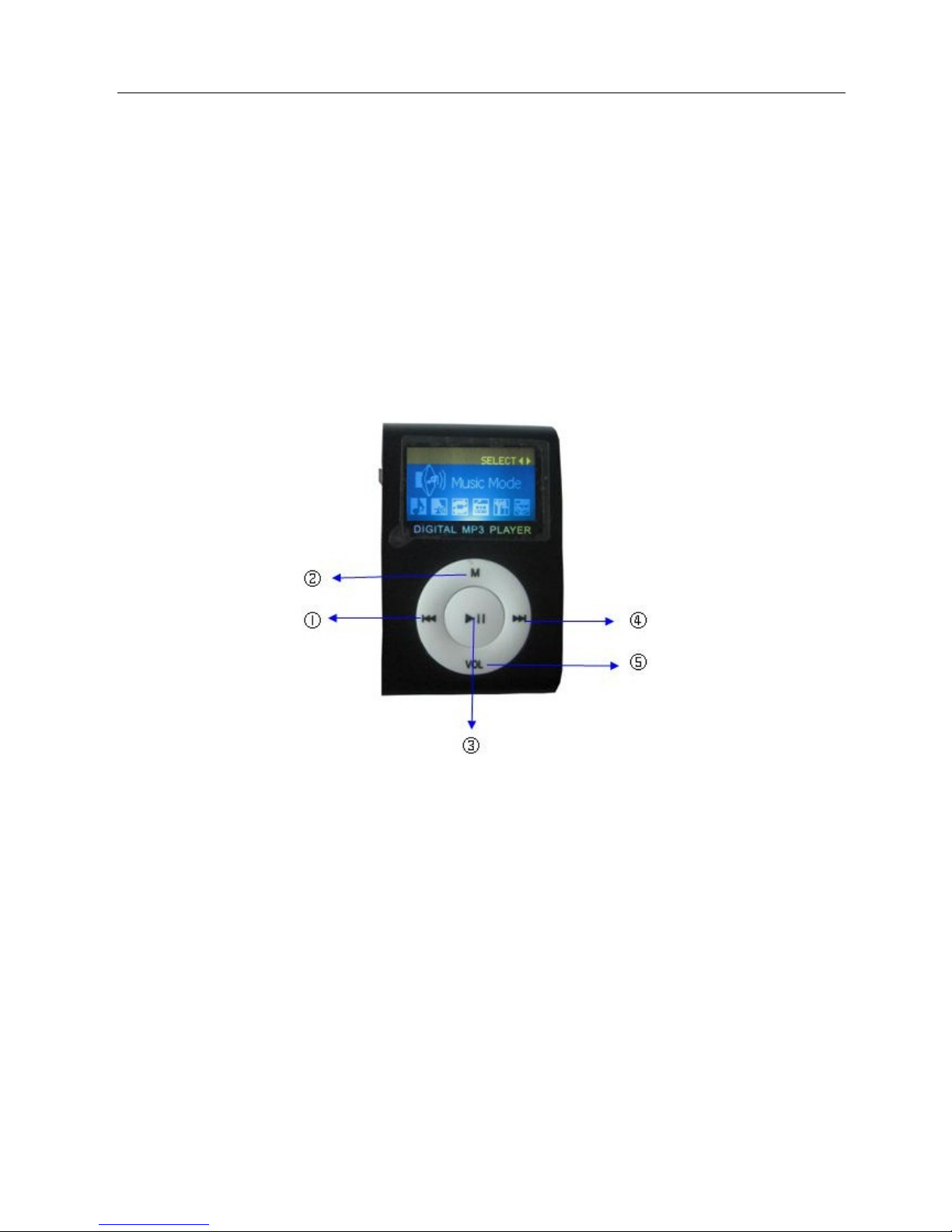
Exterior and Key
1 LAST
2 MODE
3 PLAY/PAUSE
4 NEXT
5 VOL
Page 5
Page 5
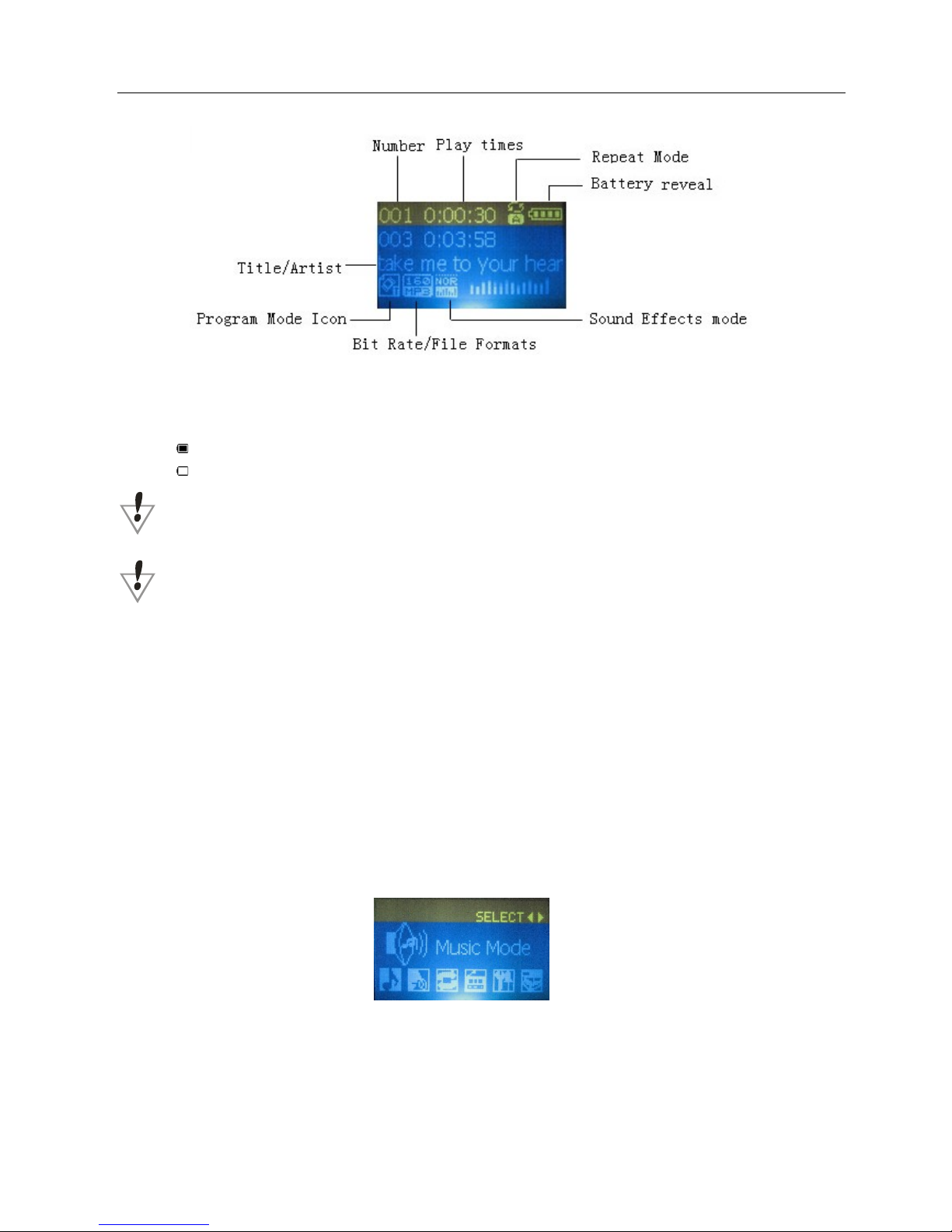
Displayer
Battery Level
The player shows capa city in 4 levels
Battery is full on 1.5V. As time goes on, cap acit y indication will monish.
Indicator shows blan k when battery almost ran out. You should charge your battery at that time.
Please switch on the player bef or e charge. This player cannot be charged i n pow er off.
Please switch off power when not using the player.
Basic Functions
Access to Menus
Press Mode to access menus.
Scrolling
○ Scroll music, menus
○ Fast Forward / Reverse when pl aying music.
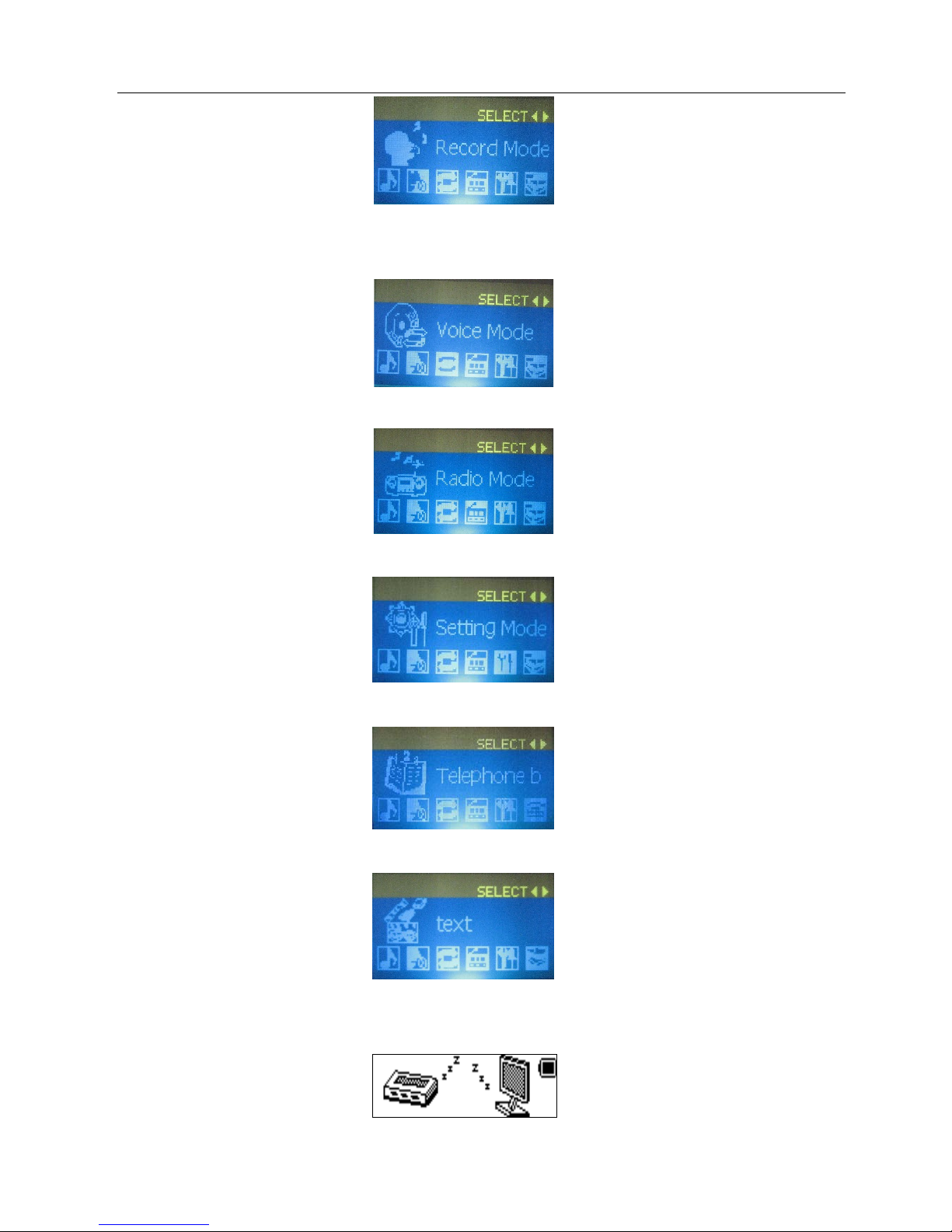
List of Menus
To access different menu functions from main menu.
Main menu: (Hold Mode to access)
Main menu: (Hold Mode to access)
Recorder Mode:
Page 6
Page 6
Play Voice Mode:
Radio:
Settings:
Telephone:
E-Documents:
USB Mode (Connect to PC):
Page 7

Page 7
V olume Adjust
Push VOL to access volume adj ust , pr ess Next/Last to increase or decrease volume.
Switch on/off
Press and hold play to switch on when the player is off.
Press and hold play to switch off when the player is on.
Play & Pause; exit from submenu
On music mode, Press Play to play music.
When playing music, press Play to pause; press an d hol d t o s t op play ing.
Start / Stop recording
On recording mode, press Play t o s t op.
Keys Processing
● Keys Functions Definition
1. Play: Power On/Off, Play, Pause, Stop
2. MODE: Entry main menu or exit from cur r ent menu.
3. VOL: Volume Adjust
4. Next: Next, FF, Volume increase
5. Last: Previous, Rev , Volume decrease
6. USB: USB outlet
7. ON/OFF: Power switch
8. Earphone: Standard earphone outlet
●
Key Processing Definition
Keys processing includes 4 actions: Press, Press and Hold, Push, Hold. If not mentioned, all
actions are Press.
Press: Press a key and valid immediately;
Press and Hold: Press a key and hold it at least 1.2s this action valid on ly onc e.
Push: Push a key, and valid when released.
Hold: events occur in such frequency then the key is holding such as Fast Forward and Reverse.
Play music
Simple actions
1. Put earphone plug into ear phone outlet;
2. Press and hold Play to switch the player on, then entry Music Mode and press Play to play
music.
3. Select a music: Last: Previous music;
Next: Next music.
Volume adjusts: Press VOL to change v olume, press Next to increase, last to decr ease.
Equalizer Mode
1. When playing music
2. Press Mode to entry play submenu;
Page 8
Page 8
3. Push Next choosing Equalizer Mode;
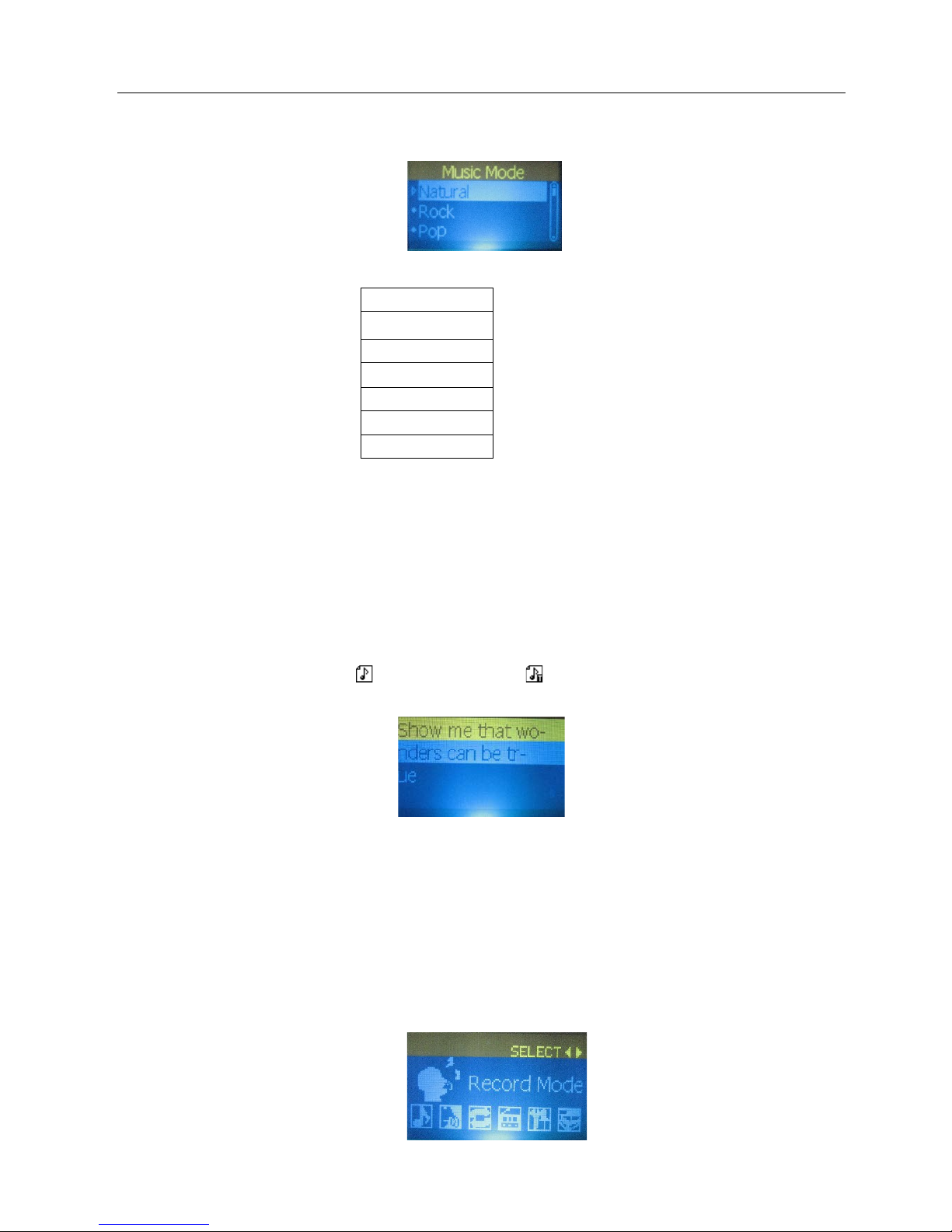
4. Press Mode to entry ‘Equalizer Mode’ submenu.
Select an equalizer:
5. Detail of each equalizer ( EQ):
Natural
Rock
Pop
Classical
Soft
Jazz
DBB
6. Push Next to select an EQ and press Mode to confirm.
Synchronous Lyric Display
The player supports lyr ic f i les w it h *.LRC suffix, and displays synchronously.
How to use lyric files?
Please make sure the lyric has t he same name to the music
For example:
Music file: My heart will go on.mp3
Lyric file: My heart will go on.lrc
How to know if lyric available?
If lyric matched, the icon “
” will be replaced into “ ”.
1. When marched lyric available:
2. Press and hold Mode to entry lyric interface;
3. Lyric displays
4. Press Mode return to music mode.
Voice Recording
Please make sure the battery has enough capacity before making record.
Each fold can save up to 99 voice rec or di ng f il es.
Recording on “ Record mode”
1. .Entry main menu:
Page 9
Page 9
2. Push Next scroll to Re cord mode
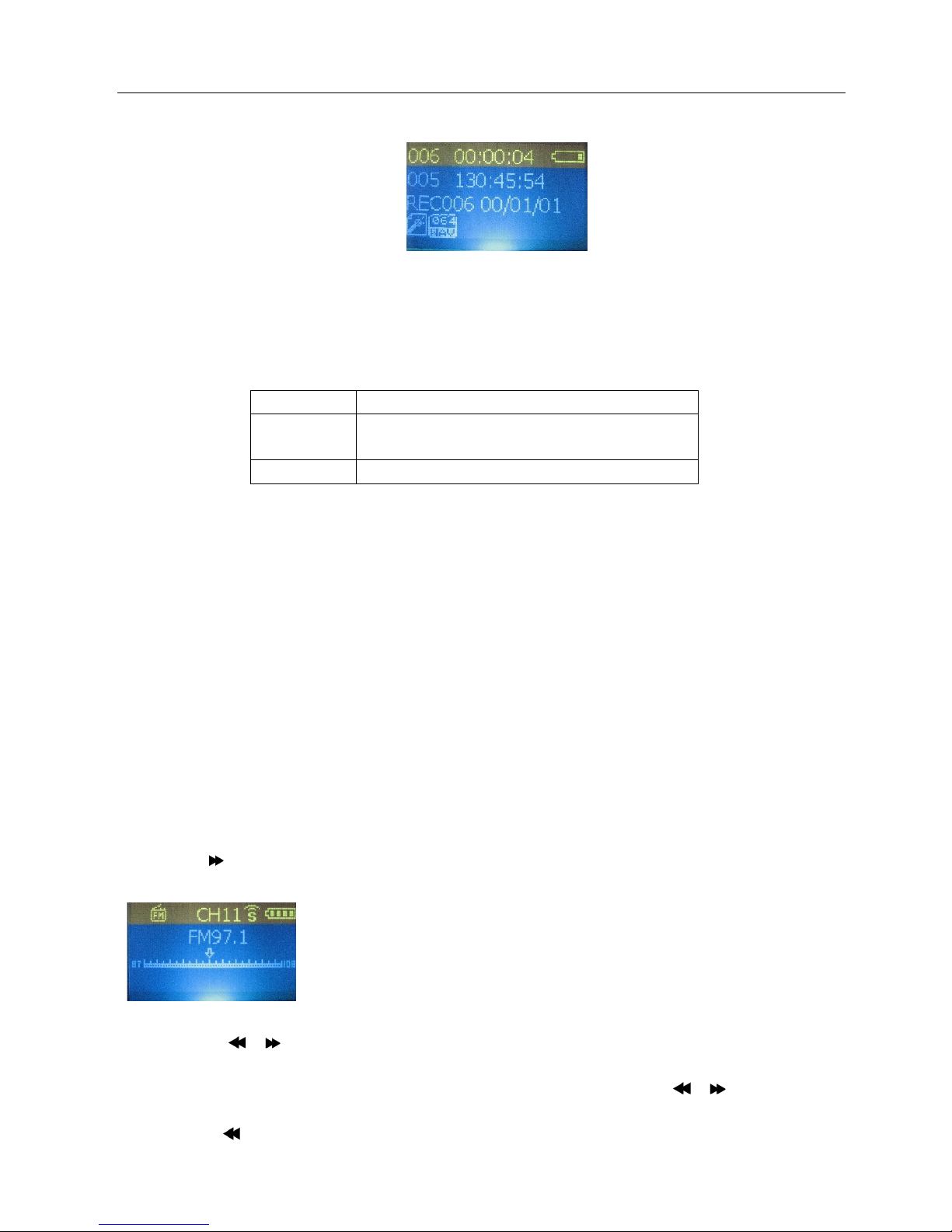
3. Push Mode to select Record mod, scr een w ill display as below:
4. Press Play to start recor ding.
Select Record Type
1. When in the interface of ‘Record stop’
2. Press Mode to entry record submenu
3. Push next scrolling into ‘Record type’ submenu then presses Mode to select it.
Fine record
wav file,fine qua lity
Long-time
record
act file, normal quality
Super REC High bit rate voice memo
4. Press Next to choose appr opriate type and press Mode to select it
5. Press Play to start recording.
Play recorded files
1. Entry main menu
2. Push Next to choose ‘ Pl ay mode’
3. Push Mode to entry playing interface
4. Press Play again to play the file.
5. Choose voice record files。
Last: Select previous file;
Next: Select the next file;
FM Radio
To use the FM radio please, follow the st eps below:
1. Enter the main menu
2. Press the
button until you select “FM”
3. Press the “Mode” button to enter the “FM” menu.
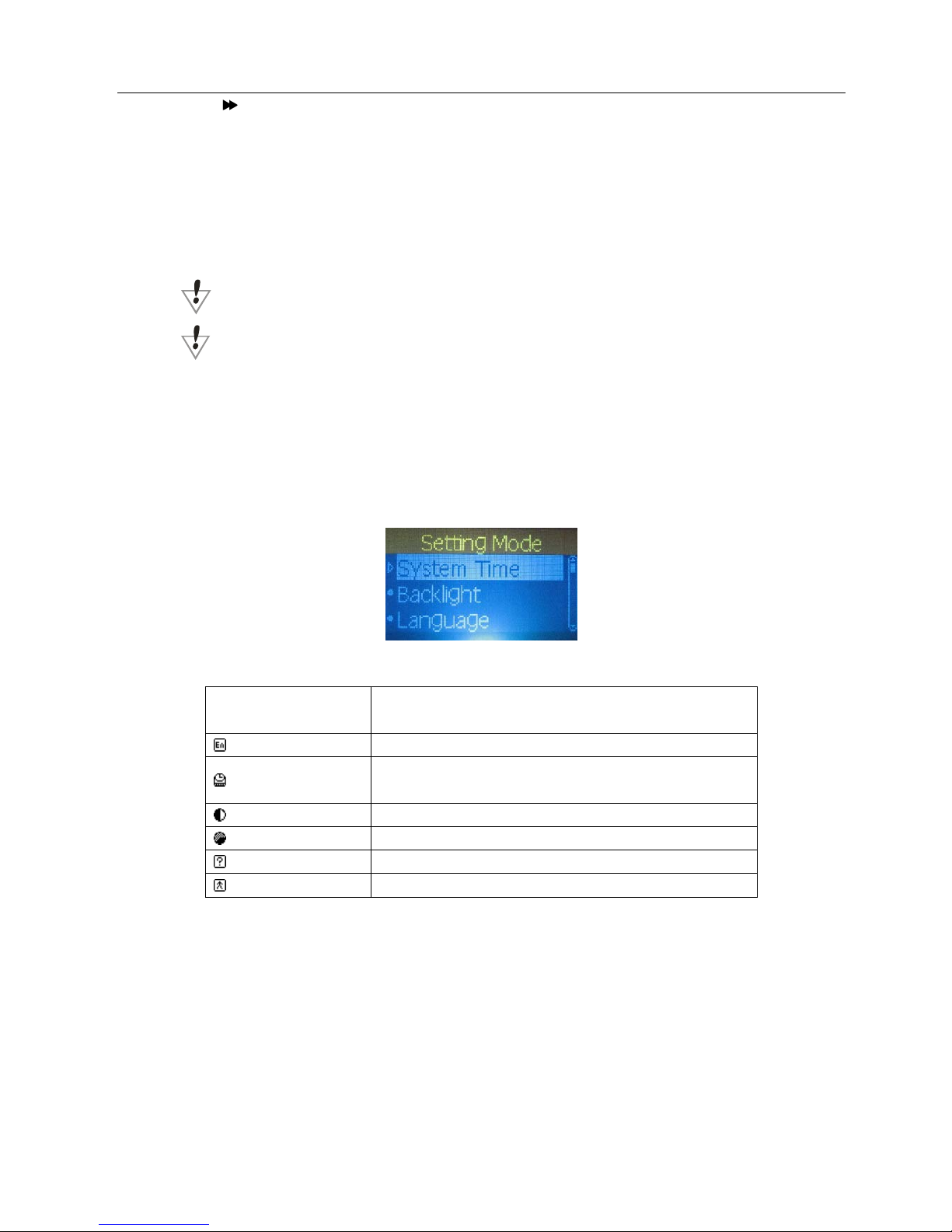
4. Auto s ear ch for the Radio station
Press the “
/ ” button for 2 seconds (long time press), the player will auto search for the next
Radio station with the 100KHz increment forward or backward, it will not stop until the a clear radio
station has been found. I f you want to cancel the auto search, just press the “
/ ” button again.
5. Manual search
Press the
button to try the next FM frequency backwards
Page 10
Page 10
Press the button to try the next FM frequency forwards
6. Save Radio St at ion
Press the “Mode” button enter the “FM” submenu
Press the “Mode” button t o s ave this radio station.
7. To choose the previously saved radio station
Press the “Play/Pause” button to select and listen to the saved radio station.
8. Volu m e C ont r ol
Press Vol+ or Vol- to increase or dec rease the volume.
: You can save up to 20 radio stations in your MP3 player.
: To delete the radio station please refer to the secti on Delete file below.
Settings
Entry Settings
You can set system performances here, options may vary in differe nt fir mware version
1. Entry main menu
2. Push Next Scrolling int o “Settings”
3. Press Mode to entry.
Options introduction:
List of menus:
○ Language Setting
Please consult into ‘Sound Setting’
○Turning off Setting
Please note:
You can set time in seconds on ‘Battery saving’ mode, allow the player shut down
automatically when player become stop and idle for the period you have set. This function id
void if the time set to 0.
You can set time in minutes on ‘Sleep mode’, allow the player shut down automatically when
the player become idle (regardless current status) for the period you have set. It is designed
LCD set (Backlight
Time)
Screensaver setting
(Language) Choosing different languages
(Timing shut off)
Setting a count down time in minutes, the player will
shut off when time out.
(Contrast Setting) Setting display’s contrast
(Memory Status) Check memory space and usage status
(Firmware Ver.) Ver si on of player’s firmware
(Exit) Exit from Setting interface
Page 11

Page 11
for listening music before sleep. Please note: Sleep mode valid only once after setting, you
have to set again if you want to us e it next time.
○’Contrast Adjust’
Please consult into ‘Backlight time setting’
○’Memory status’
You can check total memor y space and the percentage of usag e.
○’Firmware version’
You can find the player’s firmware’s version.
Tips: Press Play can exit current menu quic kly. The function is valid on all other menus.
***Reading Documents
On main menu, press Next/Last choosing e-Document, press Mode to entry corresponding submenu:
Select Folder: Select the root direct or y of flash disk.
Press Mode to entry ‘Select Folder’ interface, press Mode to select a file.
Note: You do not need to select a folder if the file you want to read is in root di r ect or y.
To select a file, please consult ‘ Select folder’ instructions.
Push Next to choose ‘Read document’, then press Mode to confirm. While reading, press Next or Pre
to scroll.
Using telephone book
How to find telephone infor mation?
While on main menu, push NEXT to choose Telephone Book, press Play to entry. Detail of the submenu
lists below:
Push NEXT choosing Browse TEL, press Play to entry.
Push NEXT scrolling to the object you need t o r ef er, press Mode to exit.
Browse TEL: Check the contact which you imported into, including Name, E-mail, Mobile, QQ, Telephone,
Fax etc. (Available only Telephone book has been stored. Otherwise you will receive warning:
No File! Press and hold MODE to exit!)
Import Tel File: Import Telephone book file from PC to player.
Export Tel File: Export Telephone book file from player to PC.
● Create and Edit Telephone Book File
● Edit Telephone Book file
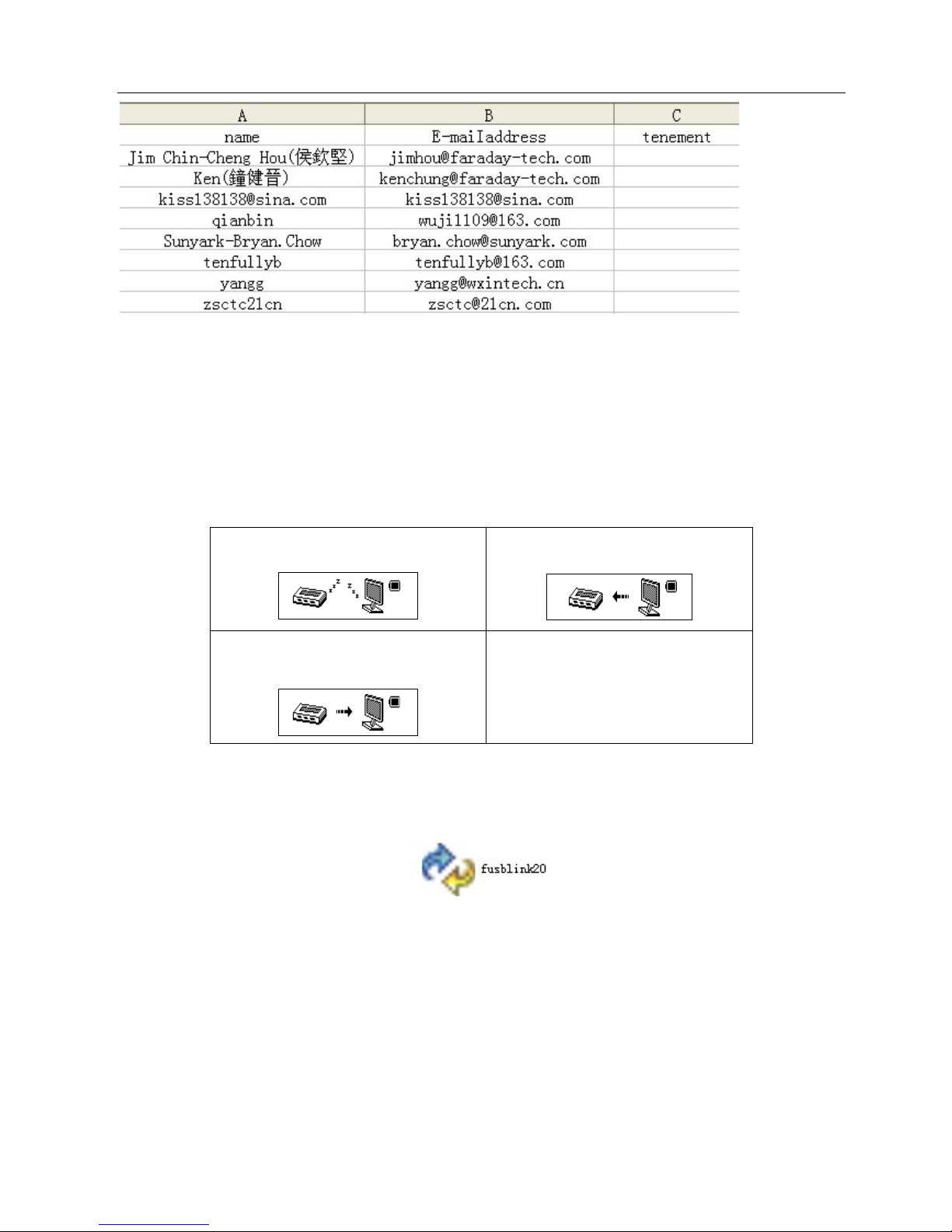
This player is direct to use. The ExceI2003 tool edit.According to correspond a demand, importation
correspond of.Name.Tele phone.Mai l.Addres s informat ion etc..Th en text origin keep for, CSV(stir nu mber t o
box off) text file.Copy in the machine son then
For:
Example
Page 12
Page 12
The player is also a standard USB disk. Supported by Windows98 (drivers needed), Windows 2K
or above (no need for drivers), Mac OS 10.3, Red hat Linux 8.0 or above.
The player supports USB power supply, can be used without batt ery when connected to PC. To entry,
when on在’waiting mode’ press Mode return to ma in menu and choose the operation you need.
This player suppor ts Suspend mode.
When connected to PC, The player works on the three modes below:
1. Waiting
2. Downloading
3. Uploading
10、Upgrade your player
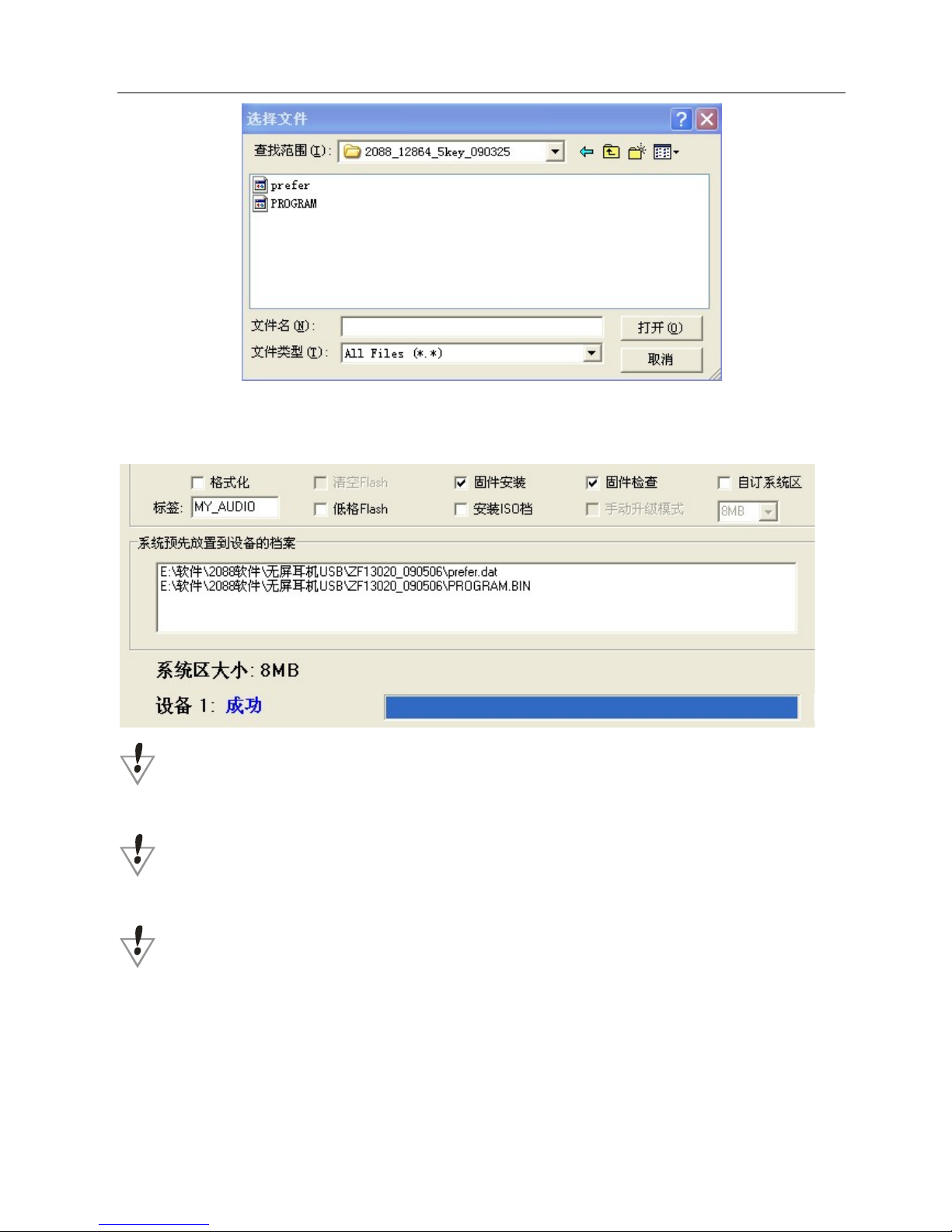
You can use Pc software to ma intain or upgrade player’s firmware.
1. Select a firmware file. (Can b e found on CDROM provided or downloaded from Internet)
Page 13
Page 13
2. While upgrade success fu l, t he player will display like this:
Firmware upgrade is to improve player’s performance; you can still use it normally without doing
upgrade process
Player may not work by incorrect process! Please read this manual carefully before doing upgrade
process.
The upgrade software c annot work for other player and vice versa.
Other settings
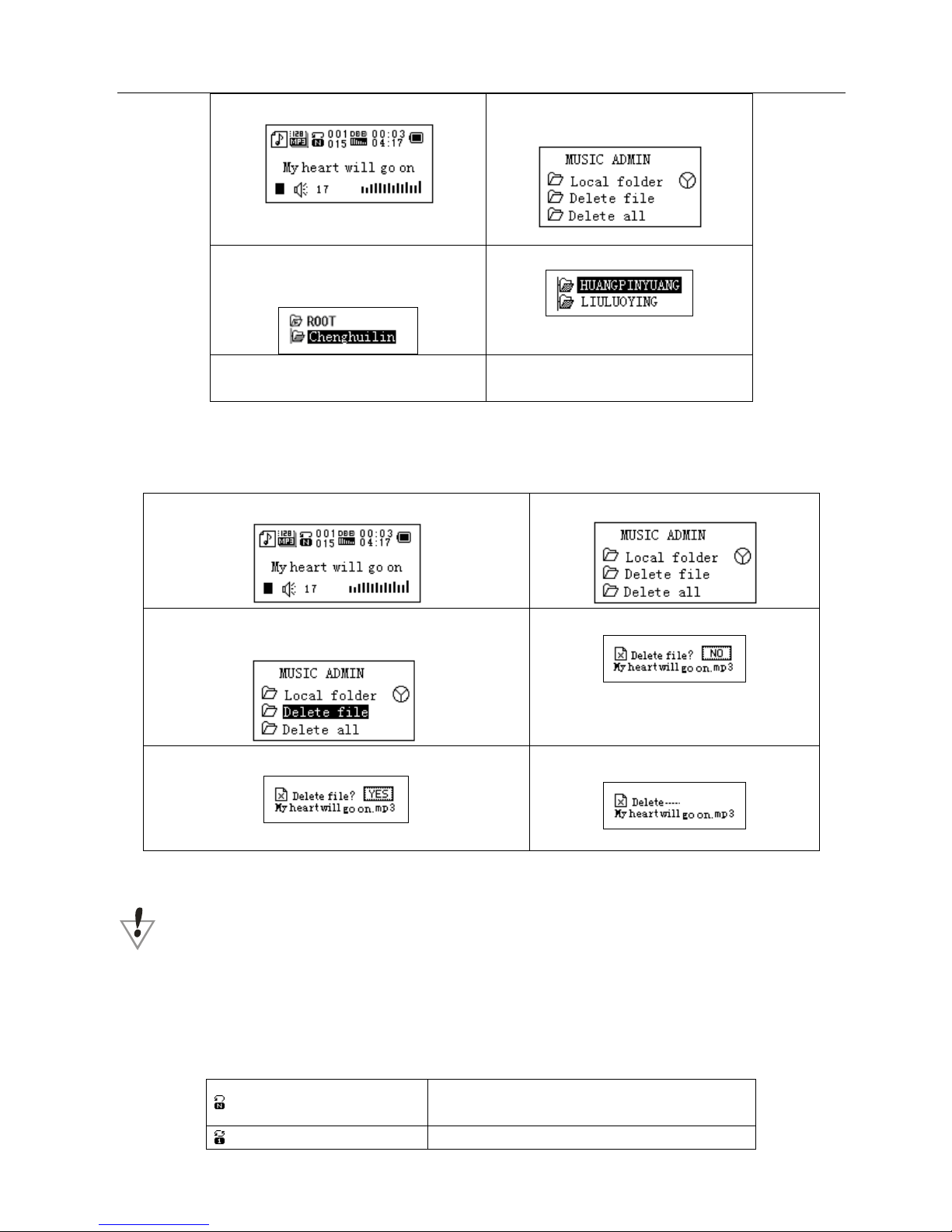
Choose other fold (Stop submenu)
You can classify files into several different folders that ease to manage them (folders should be
created on PC). The player can ide ntify 9 folders in root
Page 14
Page 14
1. When stopped
2. Press Mode
to entry Stop
submenu
3. Press Mode
to entry folder
choosing interface
4. Press Next or Las
t to choose a
folder
5. Press Mode to entry the selected
folder
Please note: You can set folders independently in Music / Record er / Play mode
Delete file (Stop submenu)
You delete correspond files/channels in each Music/Play modes.
1When Stopped.
2.Press Mode to entry S t op submenu
3.Press Next or Last to choose ‘Delete file’ or ‘Delete
all’
4. Press Mode to entry delete interface.
5.Push Next to choose “YES”
6.Press Mode to confirm delete
‘Delete all’ will delete all files in current folder of current mode. I.e. Choose ‘Delete all’ in Music mode
will delete all music files; recorder files will not be affected.
Please safely removed player and unplug USB cable after delete files on PC, otherwise some files
will not be removed.
Play mode (Play submenu)
You can choose different play mode (i.e. repeat, shuffle) whe n playing music or recorded files.
The first option on Play submenu is ‘Play mode’
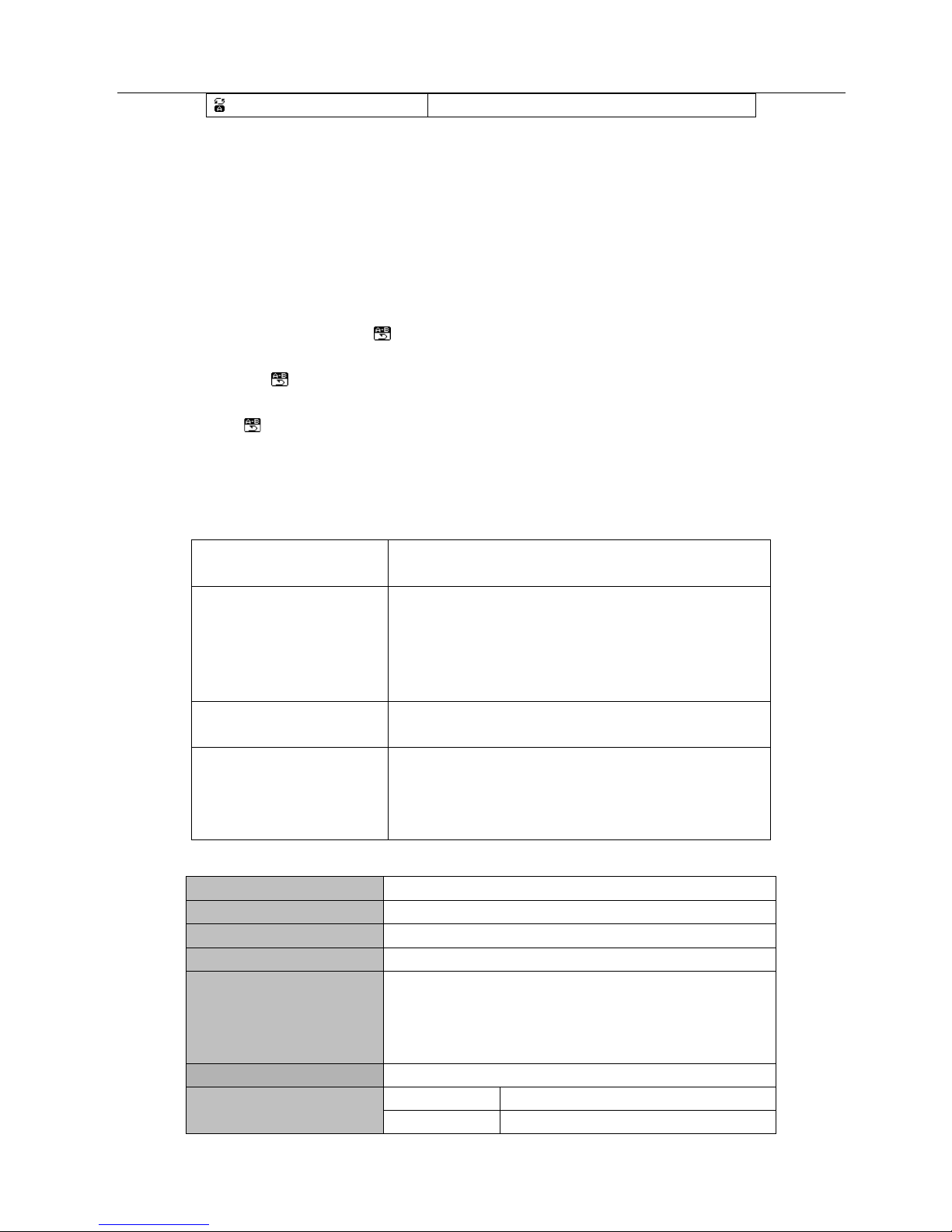
○ REPEAT
Normal
Playing music files in sequence until the end
of folder
Repeat One Repeat single music file
Page 15
Page 15
Repeat All Repeat all music files
Repeat mode (Play submenu)
Press -B to entr y or
Entry from Play submenu:
○ A-B Repeat
1. When play music or recorder
2. Push Mode to entry play submenu
3. Push next scrolling into ‘Re peat M ode’ option
4. Push Mode to entry
Repeat Mode: ‘A’ of Symbol flashes, waiting for starter A
5. Push Next to select ‘A’
‘B’ of symbol
flashes, waiting ender B
6. Push Next to select B
Symbol
fixed and starting repeat between A-B, while playing, you can push Last to reset A
point.
●Troubleshooting
Technical Specifications
Dimension 48mm*30mm*14mm
Weight About 22g
Screen Matrix (128*64) Liquid Crystal
Connect to PC High Speed USB2.0
Memory MP383PK=1GB
MP471SL/MP472BL/MP473PK=2GB
MP591SL/MP592BL/MP593PK=4GB
MP5918/MP5928= 8GB
Power Supply Max 5 hours play mode
Voice Recorder
Sample rate 8KHz
Format WAV (32K bps), ACT (8K bps)
No Power Check if battery had installed properly
Make sure you have switched the player on
No Sound
Make sure volume is not on 0 position and the
connection to earphone is valid
Please make sure the earphone is clean
Damaged MP3 files may have noise and even cannot
be played
Strange characters on
display
Make sure you have chose cor rec t lan guage
Cannot Download Music
Check USB cable, and make sure the player is
properly connected to the PC
Check if the driver has well installed
Make there is still blank memory
Page 16
Page 16
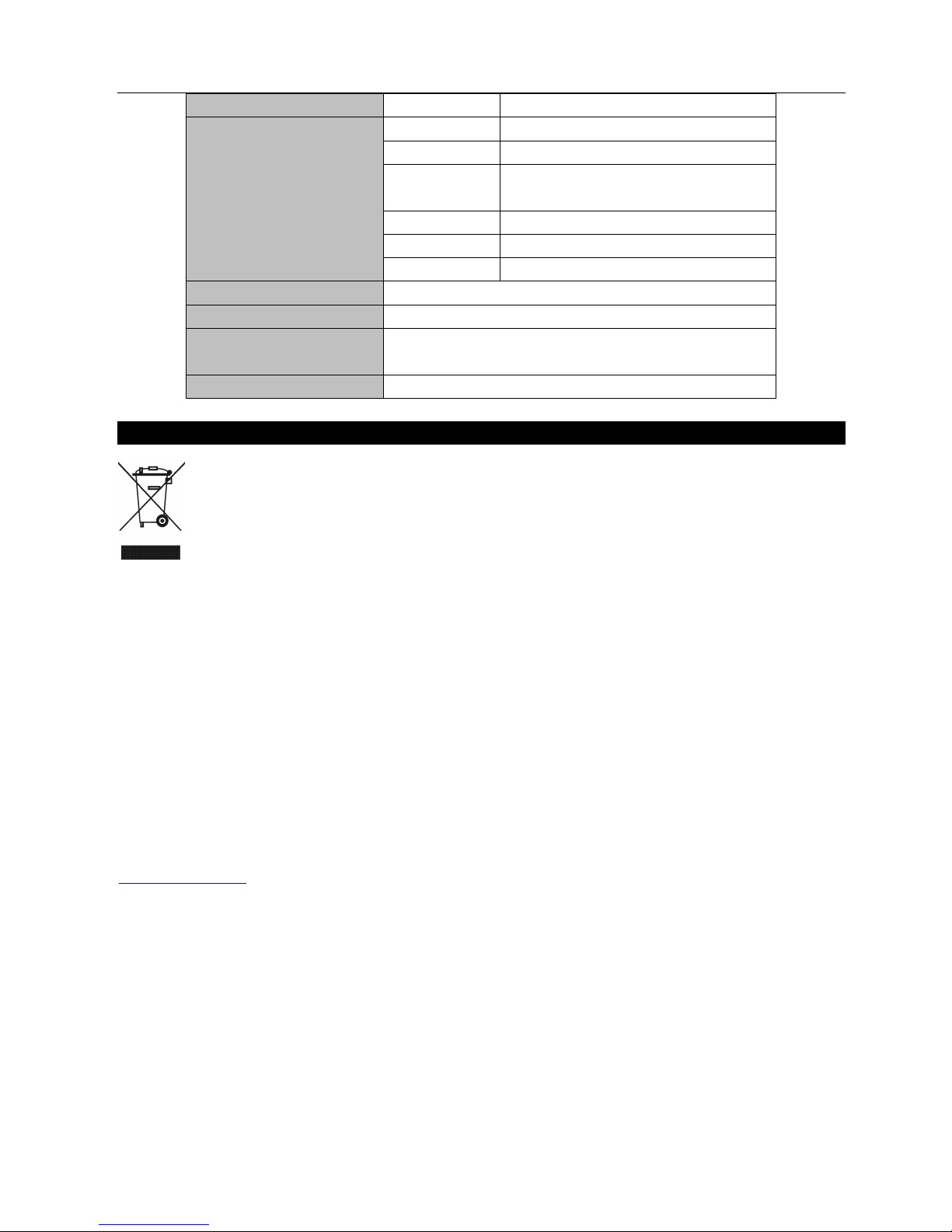
Time 35hours (ACT, 128M Flash)
MP3、WMA、WMV
Max. Output (L) 10mW + (R)10mW (32Ohm)
MP3 Bit rate 8K bps – 320K bps
WMA、WMV Bit
rate
5K bps – 384K bps
Freq. Response 20Hz to 20KHz
SNR 80dB
Distortion ---Supported Music Formats MP1, MP2, MP3, WMA, WMV , WAV
Operate Temperature -5 to 40 degree
Languages Display Portuguese、
Simp Chinese, English, Trad Chinese, German,
French, Italian, Spanish etc
Supported Systems Windows98/SE/ME/2K/XP/Vista/7、Mac OS 10、Linux 2.4.2
Please note: Design and characters may change without prior notice.
NOTICE A BOUT RECYC LING
Your product is designed and manufactured with high quality materials and components which can be
recycled and reused.
This symbol means that electrical and electronic equipment, at their end-of-life, should be
disposed of separatel y from your household waste. Please dispose of this equipment at your loca l
community waste collection/ recycling centre.
In the European Union there are separate collection systems for used electrical and electronic
products. Please help us to conserve the environment we live in!
DECLARATION OF CONFORMI TY
This product complies with the requirement of the below directives:
EMC-Directive: 2004 / 108 / EC
Low Voltage Directive: 2006 / 95 / EC
CE Marking: 93 / 68 / EEC
EC RoHS Directive: 2002 / 95 / EC
EXCLUSIVE IMPORTER IN GREECE:
Amiridis – Savvidis S.A.
33, Vas. Olgas avenue
P.O. 54641, Thessaloniki, Greece
Tel: +30 2310 850107, +30 2310 850108, Fax: +30 2310 867835
45, Posidonos street
P.O. 18344, Moschato, Athens, Greece
Tel: +30 210 9402064, Fax: +30 210 9402137
www.amiridis-savvidis.gr
 Loading...