

Page 1

User’s manual · MAX C130
Technical changes and mistakes reserve - 1 - MAX C130 Version en_1.0 FTE Maximal
Table of contents
Chapter 0 Control elements and connections
0.1. Receiver fro nt panel.............................................................. ....................................................... 3
0.2. Receiver back panel...................................................................................................................... 3
0.3. Remote control.............................................................................................................................. 4
Chapter 1 First installation
1.1. Complete Content…...................................................................................................................... 5
1.2. Installation examples.................................................................................................................... 6
1.3. Safety rules.................................................................................................................................... 7
1.4. Fast installation guide..... ........ ............ ............ ........ ............ ............ ......... .......... ............ ........... ... 8
1.5. Menu overview............................................................................................................................... 10
Chapter 2 Standard functions
2.0. Switch on the receiver.................... ................................ ................................ .............................. 11
2.1. Standby……………………............................................................................................................. 11
2.2. Teletext....................................................................................................................................... 11
2.3. Mute……........................................................................................................................................ 11
2.4. Numeric block on remote control................................................................................................ 11
2.5. Switch channels.......................... ............................. ................................ ............................... ...... 11
2.6. Change between TV and Radio channels......................................... .............................. ............ 11
2.7. Volume........................................................................................................................................ ... 11
2.8. Stop functions…........................................................................................................................... 12
2.9. Open Main menu........ ........... ......... ............ ........... ............ ......... ............ .......... ......... ............ ........ 12
2.10. Watch the last viewed cha n n el .. ............. ............ .............. ............... ............... ............ ............ ..... 12
2.11. Channel list.................................................................................................................................... 12
2.12. EPG Electronic Program Guide........... ............ ............... .............. ............ ............... .............. ...... 12
2.13. Favourite channel list.................................................................................................................. 13
2.14 Menu Audio................................................................................................................................... 13
2.15. Signal and channel information.................................................................................................. 13
2.16. Changing favourite channels ....................... ............................................................................... 13
2.17. Zoom Function.............................................................................................................................. 13
2.18. Subtitle.......................................................................................................................................... . 13
Page 2

User’s manual · MAX C130
Technical changes and mistakes reserve - 2 - MAX C130 Version en_1.0 FTE Maximal
Chapter 3 Channel management
3.1 TV-Channel list.............................................................................................................................. 14
3.1.1. Skip channels.............................................. ..... ......... ......... ......... ..... ......... ......... .... ......... . 14
3.1.2. Lock channels................................................................................................................... 14
3.1.3. Delete channels.............................. .............................. ............................. ....................... 14
3.1.4. Delete channels groups or al l channels......................................................................... 15
3.1.5. Edit Channel...................................................................................................................... 15
3.1.6. List of favourite channels…………………………........................................................... 15
Chapter 4 Timers
4.1 Sorting............................................................................................................................................ 16
4.2 Delete Timer …….......................................................................................................................... 16
4.3 Edit / Add Timer ............................................................................................................................ 16
Chapter 5 Tools
5.1 Calculator....................................................................................................................................... 18
5.2 Calendar……................................................................................................................................. 18
Chapter 6 System settings
6.1. Menu Language............................................................................................................................. 1 9
6.2. Audio Language........... ............................. ................................ ............................... ..................... 19
6.3. Time Zone...................................................................................................................................... 19
6.4. TV Settings.................................................................................................................................... 20
6.5. OSD Settings................................................................................................................................. 21
6.6. Version........................................................................................................................................... 21
6.7. Factory Default.............................................................................................................................. 21
6.8. Software upgrade......................................................................................................................... 22
Chapter 7 Parental Control
7.1. Set Lock..........................................................................................................................................23
7.2. Channel Lock................................................................................................................................. 23
7.3. Installation Lock............................................................................................................................ 23
7.4. Change Password........................................... ................................ ............................... ............... 23
Chapter 8 Installation
8.1. Channel Search............................................................................................................................ 24
8.2. MUX Management.............. ......... ............ ........... ............ ......... .......... ............ ........ ............ ............ 24
8.3. Backup........................................................................................................................................... 25
Chapter 9 The equipment of the receiver
9.1. Technical data............................................................................................................................... 26
Page 3
User’s manual · MAX C130
Technical changes and mistakes reserve - 3 - MAX C130 Version en_1.0 FTE Maximal
Chapter 0 Control elem ents and connections
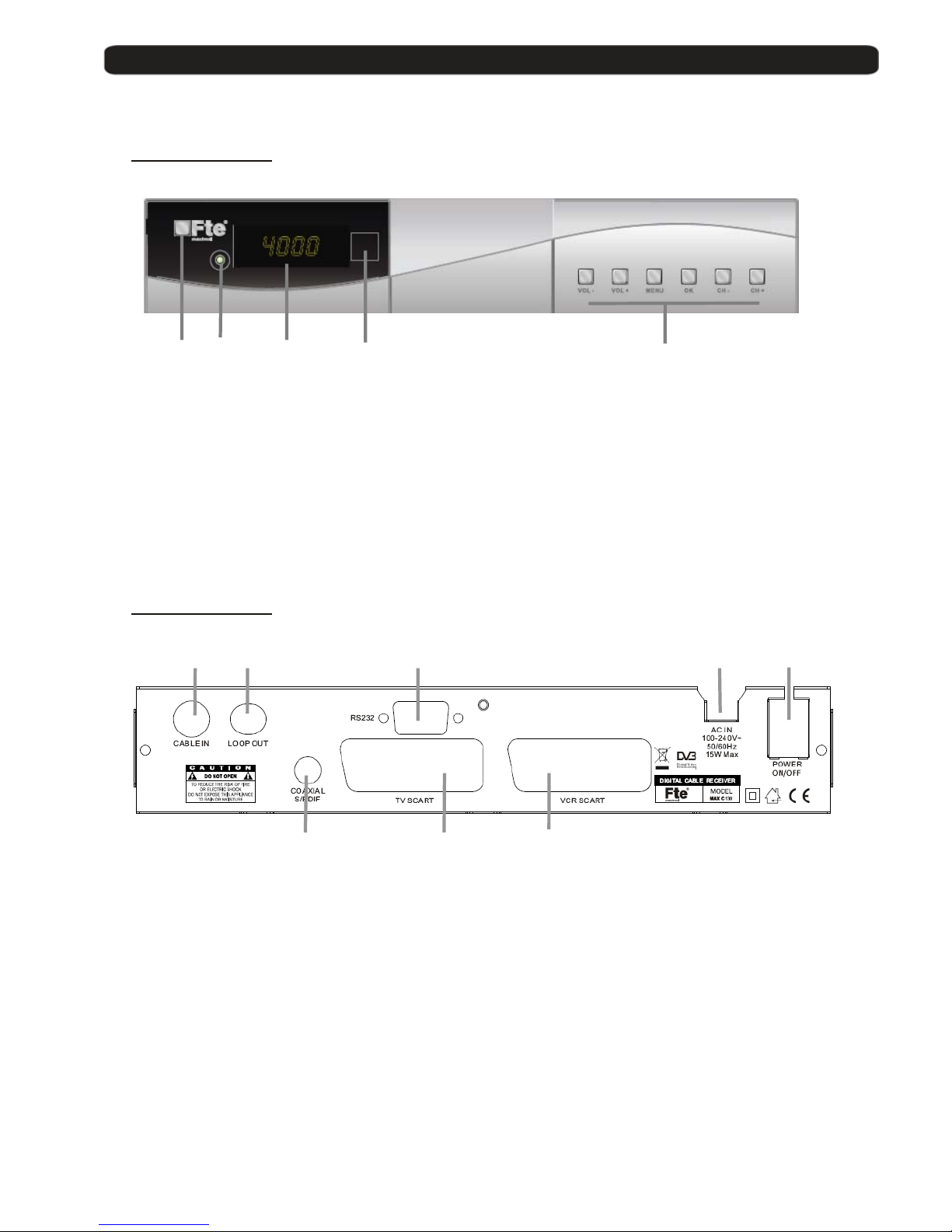
0.1. Receive r front panel
1 2 3 4 5
1 POWER: Switches the receiver ON or in Standby mode. For total sw it ch ing off, use the main
switch at the back side of the receiver.
2 LOCK LED: Indicates a sufficient signal level at the input
3 DISPLAY: 4 Digits to display the program numbers.
4 IR-SENSOR: Reception sensor for the IR remote control signals
5 BUTTONS: These buttons allow controlling the main functions of the receiver, an d
provide the same functionality as the remote control ones.
0.2. Receiver back panel
1 2 3 4 5
6 7 8
1 CABLE IN: Cable signal Input.
2 LOOP OUT: Signal output for cascading to ot he r s devices.
3 RS-232: Serial port to update the firmware of the receiv er.
4 AC IN: Power cord 230VAC/50Hz.
5 POWER ON/OFF: Main switch to switch off totally the receiver.
6 S/PDIF: Coaxial output for digital audio (AC3).
7 TV SCART: SCART output for connecting on e TV set.
8 VCR SCART: SCART connector for video recorder, DVD recorder or DVD player.
Page 4
User’s manual · MAX C130
Technical changes and mistakes reserve - 4 - MAX C130 Version en_1.0 FTE Maximal
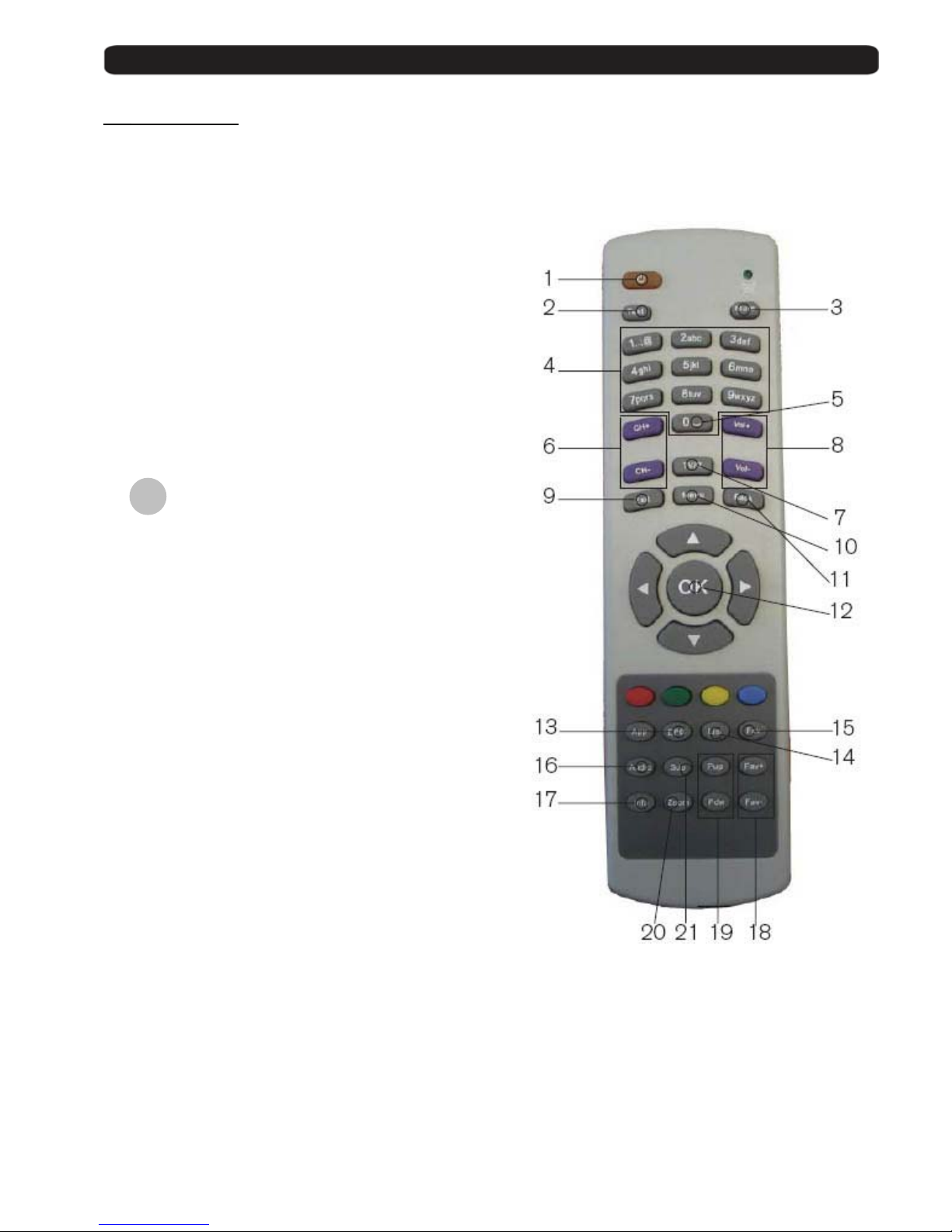
0.3. Remote control
1. POWER: Switches receiver ON or in stand-by-mode
2. TEXT: Open and close teletext
3. MUTE: Switches audio on and off
4. NUMERICBLOCK: For direct typing values and names
5. “0”: Without function in this model
6. CH+ CH-: Changes channel up and down
7. TV/R: Switches between TV and Radio
Channels
8. VOL+ VOL-: Adjusts audio volume up and down
9. EXIT: Exit menus or stop operation s
10. MENU: Opens the main menu
11. BACK: Watch the last viewed channel
12. : Confirms selections or opens channel
list
13. EPG: Shows the EPG informati on
14. List: Opens channel list
15. Fav: Opens favourite channel list
16. Audio: Opens audio menu
17. INFO: Shows channel information with signal
bar
18. Fav+ Fav-: Moves favourite channel up an d do wn
19. Pup Pdw: Moves curs or in block ste ps
20. Zoom: Zoom function
21. Sub: Switches subtitle on and off
OK
Page 5
User’s manual · MAX C130
Technical changes and mistakes reserve - 5 - MAX C130 Version en_1.0 FTE Maximal
1. First installation
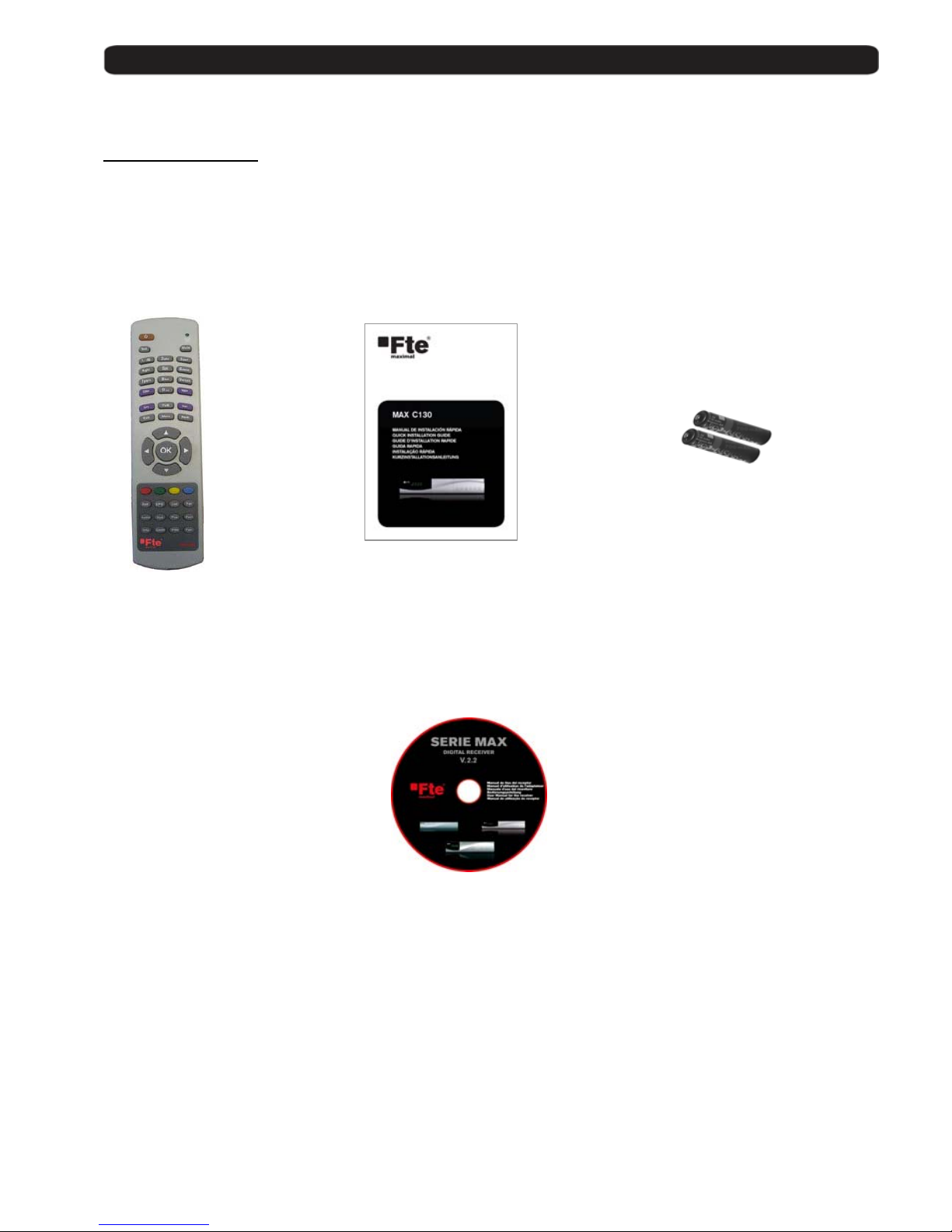
1.1 Complete Content
The following goods must be includ ed in this package when you open it for the first time.
Remote control Installation guide Two batteries
type AAA, Micro, 1,5V
CDROM
Page 6
User’s manual · MAX C130
Technical changes and mistakes reserve - 6 - MAX C130 Version en_1.0 FTE Maximal
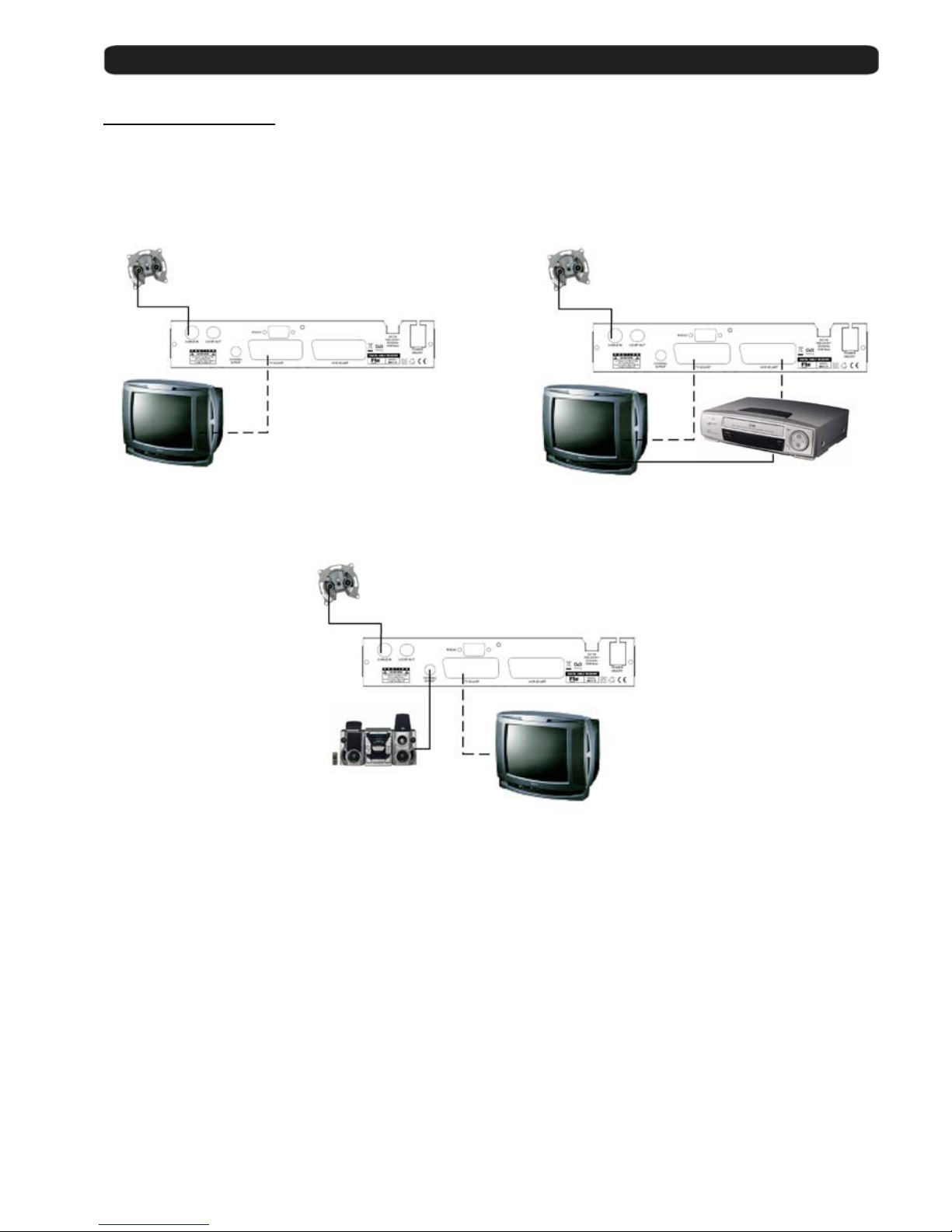
1.2 Installation examples
Page 7
User’s manual · MAX C130
Technical changes and mistakes reserve - 7 - MAX C130 Version en_1.0 FTE Maximal
1.3 Safety rules
Please read the manual carefully before using the receiver.
You will receive a lot of information to use this product correctly and you will prevent incidents.
Please keep the manual on a safe place.
This sign warns you about
high voltages, with risk
of electric shock
Caution: Do not open the housing of
this receiver. Repairs ca n only be
made by professionals au th or i z ed by
Fte maximal. If not, warranty will not be
valid anymore.
This sign informs about
special information which is
important to know.
Caution: Keep this receiver far away from liquids. Do not place it on placements close to water like flowers
vases, wash basin, aquariums or pools. It exists a high risk of electric shock when water or high humidity
filters inside the receivers. Never place other devices on it; they can overheat the receiver as well as daring
fire risk. The receiver m ust be used only with original power cord to 230V main plug.
Please read carefully this manual and do not hesitate to contact to professional help if you have any doubt.
Opening the receiver housing will mean a total lost of warranty.
Installation:
1. Never work during a thun d ers t or m or staying near of the antenna systems.
2. Before adjusting the receiver, make sure that your antenna is well aligned and works properly.
3. Unplug the main connection (230V) every time you work with receiver connections. Do it also when you stay
away for a long time out of home like in holiday periods.
4. The best placement for the receiver is close to the TV and your other equipment like DVD, VCR, CD, and game
stations. Select a stable place where you can make the necessary connections in a safety way.
The 230V main plug should be in a place easy to reach, that you can unplug it when it is necessary.
Cleaning: Before cleaning the receiver with a slightly damped cloth, please disconnec t the main 230 V connectio n fr om
the receiver. Please use only mild cleaners.
Accessories: Please , do not use accessories whic h ar e not agr e ed by the manufacturer of the recei ver.
Unsuitable accessories could increase the risk of getting on fire, an electrical impact or other damages.
Placement: Select a placement where the Receiver has air circulation enough, otherwise it may have overheating
accumulation. Do not cover the openings of the housi ng . Un suitable placements are als o places close to heaters or soft
locations like e.g. sofas and beds.
Power connection: Select a main plug with easy access, in case of unplugging necessity; it will be easier and faster.
Please, make sure that th e cord as well as the plug is in perfec t con di tions. Do not pull the cabl e, use always the plug.
Housing: Please, make sure that no liquid will filter into the housing of the receiver. If so, disconnect immediately the
receiver from the main 230 V plug and bring the receiver to a professional.
Air humidity: When you take the Receiver from a cold to a warm pl ace, please wait until the receiver gets the same
temperature as the new environment, in order to avoid problems of humidity condensation.
Maintenance / Repairing: Within the warranty time all the repairing processes should be done by Fte Maximal technical
staff. Otherwise, the wa rranty will be lost.
RISK OF ELEKTRIC SHOCK
DO NOT OPEN
CAUTIONR
Page 8
User’s manual · MAX C130
Technical changes and mistakes reserve - 8 - MAX C130 Version en_1.0 FTE Maximal
1.4 Fast installation guide
Please, follow the instructions for a faster and simpler installation of the receiver.
Step 1: Connections
Connect a coaxial cable from t he ou tp ut socket to the CABLE IN connector.
Connecting TV set, LCD or video beamer
You can connect in different ways your TV set or other display system:
Scart At this output you will have the best image quality.
This is the connector which will be normally used to connect the TV.
For this purpose, you will need a Scart – Scart connector.
Recorder / DVD At the VCR - Scart connector, you can connect a Video or DVD-Recorder.
Also the signal coming fr om a DV D player is possible to be wach ed if y our TV set has
Scart connections.
You will find further information at chapter 6.4. TV Settings.
You can obtain further information in chapter 0.2 Receiver back panel.
When you set up the system for the first time, the current date will be stored in Menu > System Settings > Version
as beginning date for the warranty period.
Step 2: Main settings on receiver
When you start the first time the re ceiver or when you execute a “factory default” process, you will see this
installation guide in English language.
The selection of the menu opti on s wi l l be done with the arrow buttons
, and the button
OK of the remote control.
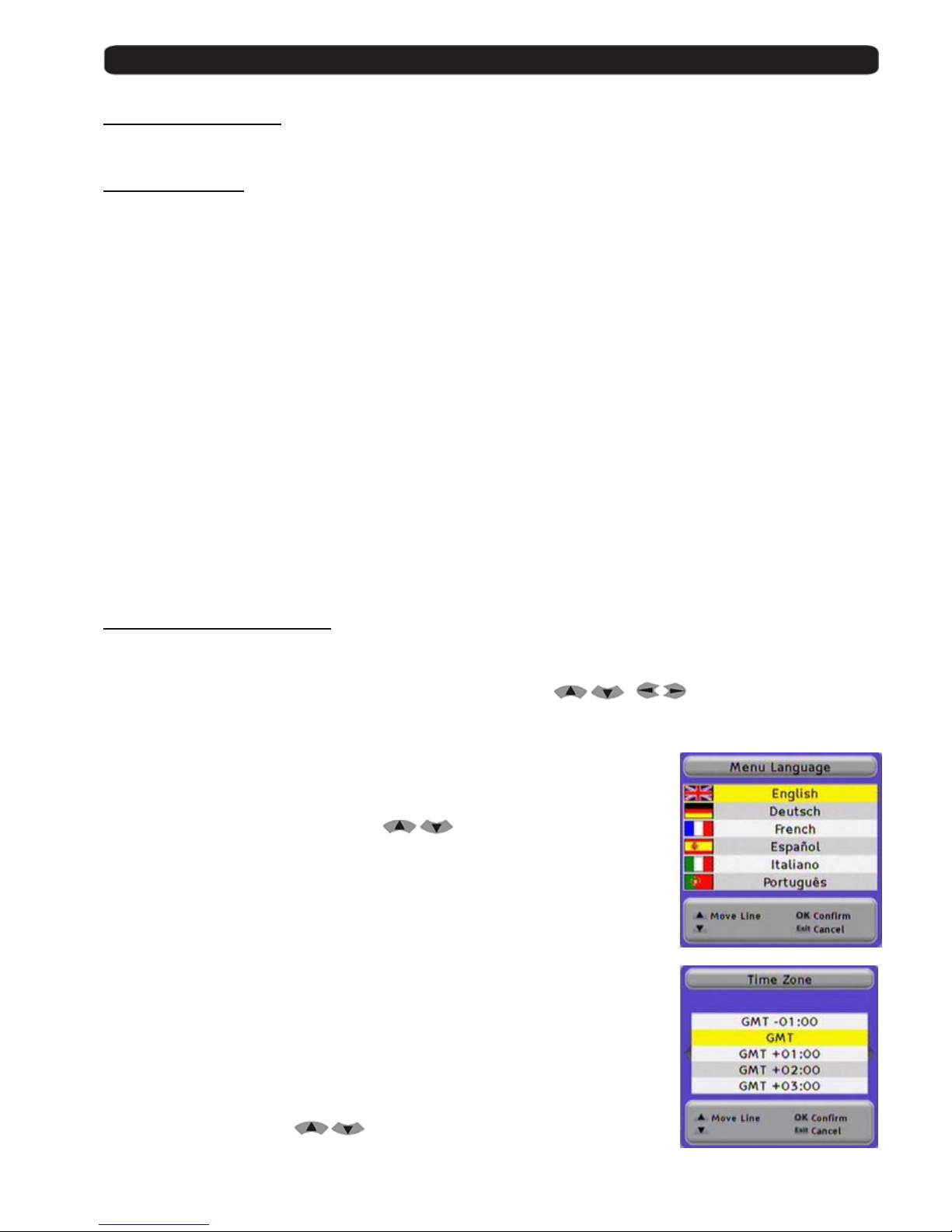
Menu Language:
Here you have to select the language for the Receiver menu and information.
Select the language with the arrow buttons
and press the OK button.
Time Zone:
In order to the receiver is able to display the correct time and adjust the timer
recordings correctly, it is needed to fix the time zone to the place you live.
Select here the time delay according to your position comparing to
Greenwich Time.
In UK: Summer time: +1 hours
Winter time: GMT hour
Select with the arrow buttons
and press the OK button.
Page 9
User’s manual · MAX C130
Technical changes and mistakes reserve - 9 - MAX C130 Version en_1.0 FTE Maximal
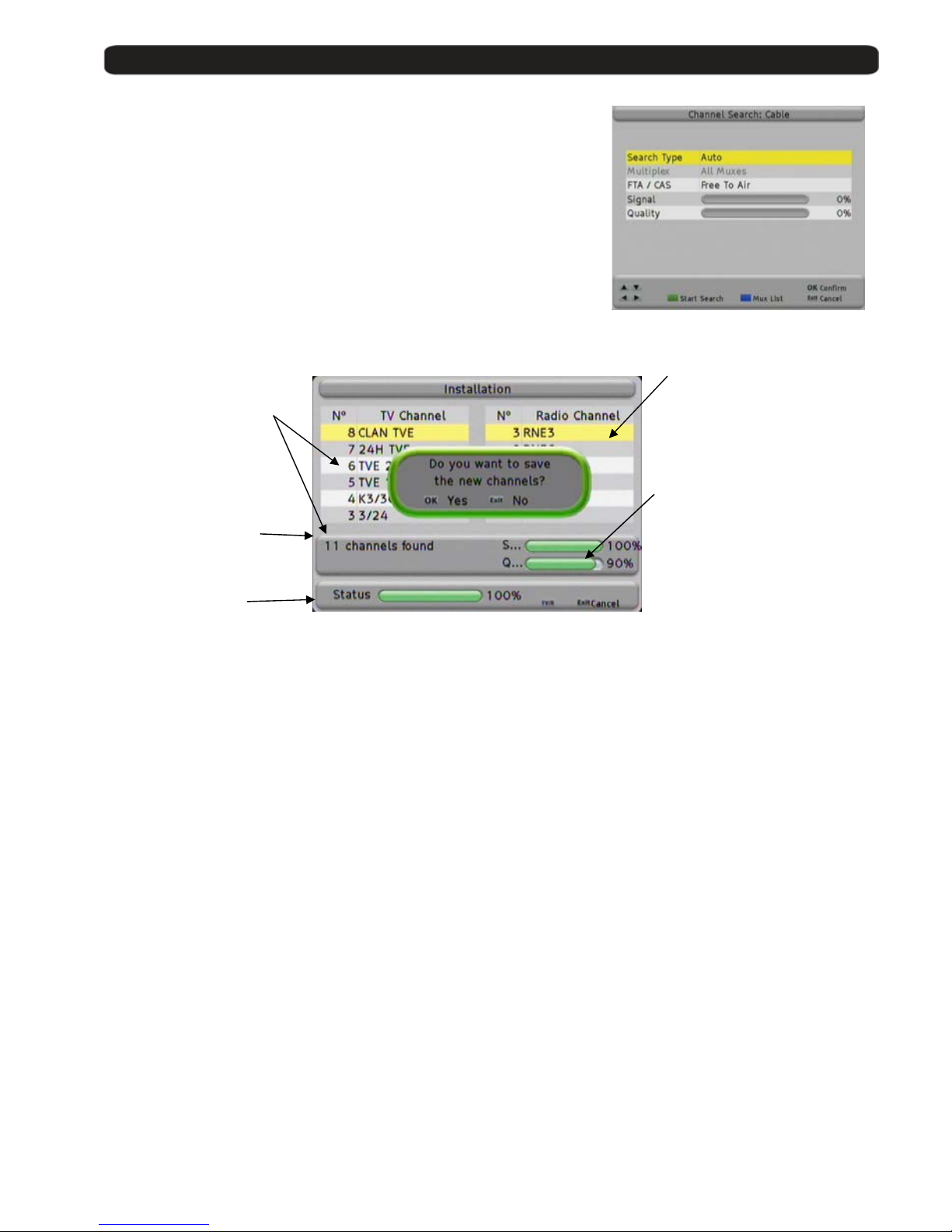
Channel Searching: Cable
This receiver has no pre programmed channel list, because
configuration changes in every different area.
Start the channel searching process by pressing the Green Button.
The receiver searches now in all TV frequencies.
You may stop searching by pressing the button Exit .
Once the search is finished, you must confirm if the new found channels have to be stored.
Press for confirm the OK-button.
Now you come back to menu Channel Search.
You can start a new search again, or you can close the menu now with the button Exit .
The Fast install guide is now finished.
Search status
Current channel
Radio Channels
detected
Channels which the receiver
has found, currently 11
Signal Power and Quality
meter related to the selected
frequency
Page 10
User’s manual · MAX C130
Technical changes and mistakes reserve - 10 - MAX C130 Version en_1.0 FTE Maximal
1.5 Menu overview
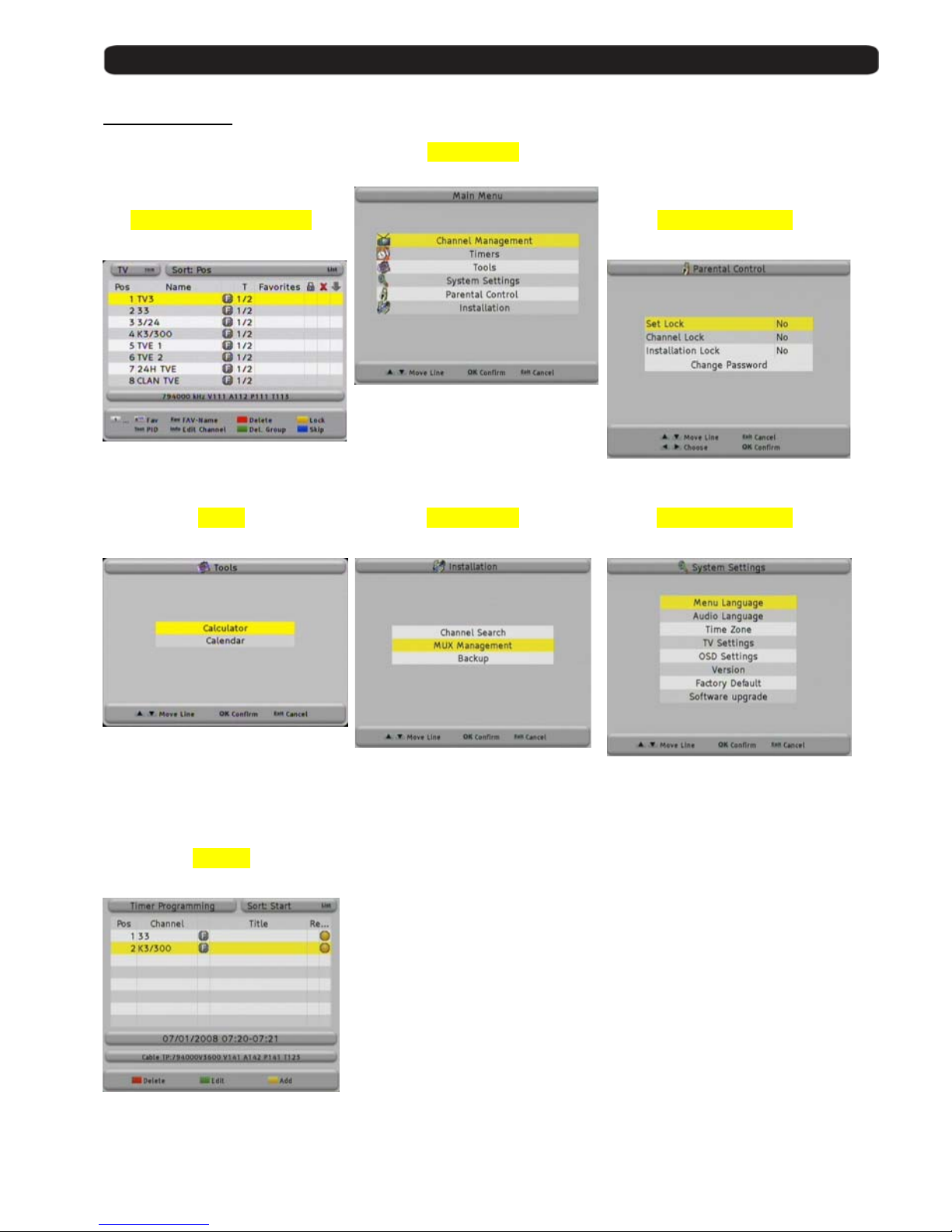
Main menu
Channel Management
Parental Control
Move, rename or delete ch an nels,
Program and, create favo urite list.
Activate parental control
Tools
Installation System Settings
Calculator,
Calendar with date management
Receiver settings
Search channels
Backup
Main settings for receiver
for OSD and adapt TV set
Factory defaul t
Software upgrade
Timers
Manual activation for timer events
Page 11
User’s manual · MAX C130
Technical changes and mistakes reserve - 11 - MAX C130 Version en_1.0 FTE Maximal
Chapter 2 Standard functions
2.0 Switch on the receiver
The receiver has a main switch at the back panel. To switch on, take the switch in position 1.
Now the receiver begins to run an d show information on its displ ay.
2.1 StandBy
To switch the receiver from Standby (sleep mode) to the working mode, press Orange Power button on the left corner
at the top of the remote control.
If the receiver had been working before and you did not switch on by main switch, the receiver show the last displayed
channel.
When you press it again, the receiver goes back to the stand by mode.
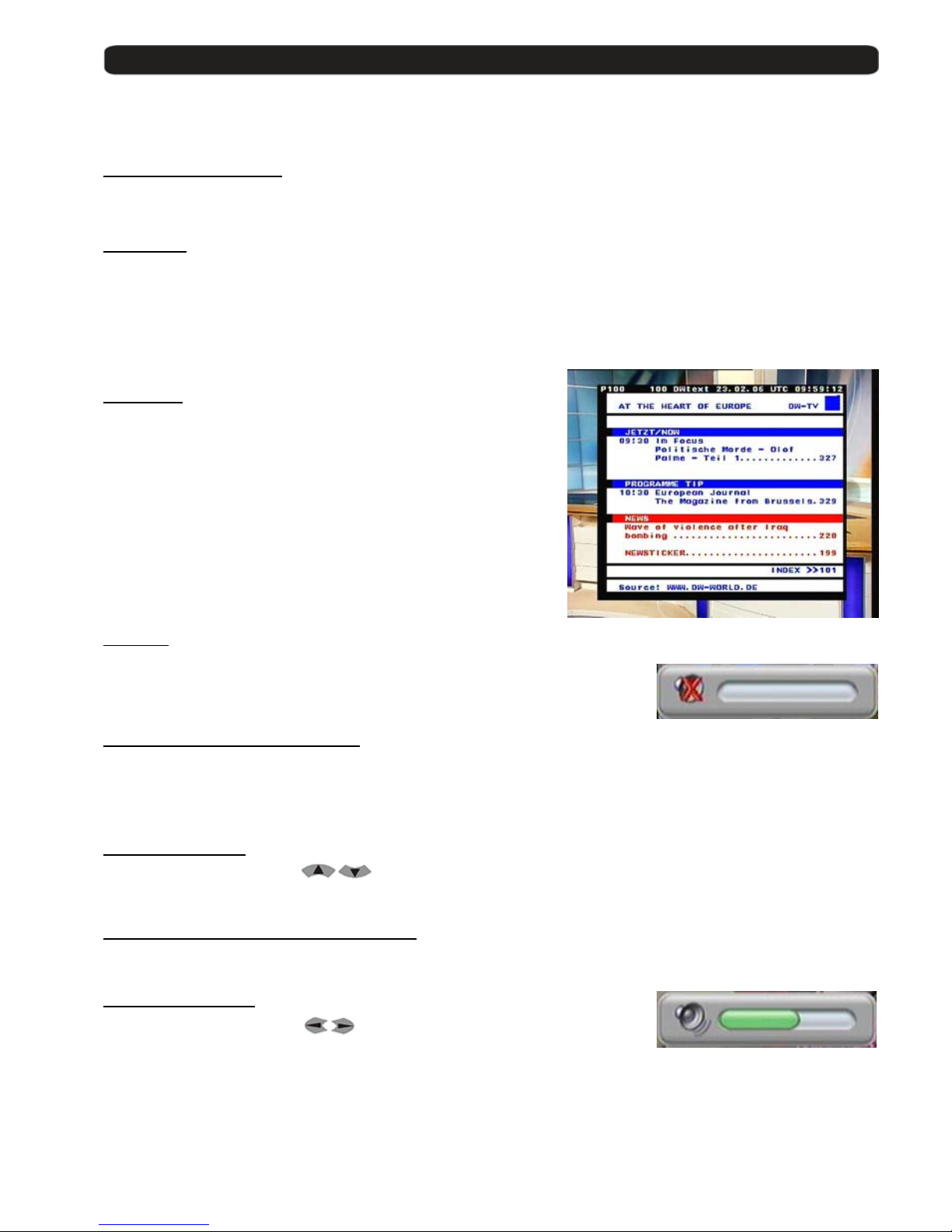
2.2 Teletext
The button Text opens the teletext generator.
Automatically the rece iv er loads page 100 as standard.
Like in your TV set you can open the pages by pressing the buttons
0-9.
If you want to open, for exampl e , the page 140, you
have to press the butt ons 1 – 4 – 0.
When you want close the pag e, press Exit.
2.3 MUTE
With this function, you will be able to shut down the audio completely.
To do it, press the button Mute and the warning symbol will be displayed.
By pressing again the button Mute the function will be disabled.
2.4. Numeric block on remote control
Over the numeric block in the remote control, you can select directly channels the when you know the stored program
place.
If you want for example pla ce 23, you have to press the butt on s 2 and 3 and after the button OK .
2.5. Switch channels
With the buttons CH+ / CH- or
you can change the channels also.
Press one button for getting one channel up or down.
2.6. Change between TV- and Radio channels
When you want change between TV and Radio channels, you have to press the button TV/R on the remote control.
2.7. Vol+/Vol- Volume
With the buttons Vol+ / Vol- or
you can regulate the audio volume.
To do it, you will see a graphic like the one at the left side.
For using this function properly, you need to make an alignmen t with you TV set.
Turn off the volume of the receiver. For this, press the button MUTE on remote control. Now turn up the volume on TV
until the moment you hear a noise. Now turn down the volume until the noise desapears. Normally this is around 5075% of the total volume of the TV set.
Page 12
User’s manual · MAX C130
Technical changes and mistakes reserve - 12 - MAX C130 Version en_1.0 FTE Maximal
2.8. Stop the functions
With the button Exit you can stop functions like channels sea rch or close menus.
2.9. Open Main menu
To open the main menu, you have t o pre ss th e button MENU.
The menu system is made in a tree structure
2.10. Watch the last viewed channel
With the Back button, you can access to the channel viewed previously.
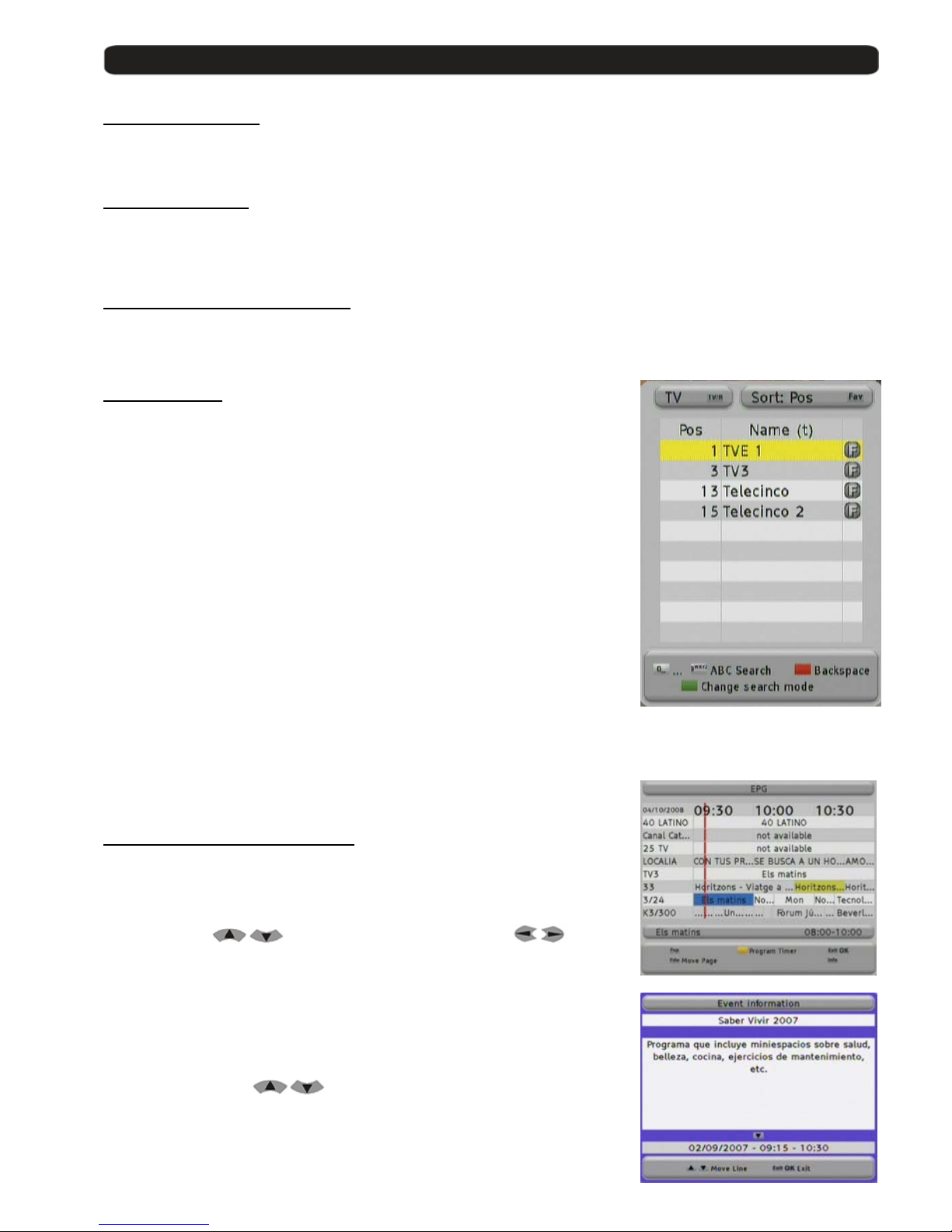
2.11. Channel list
When all the menus are closed, you can open a channel list by pressing
the button OK.
With the button TV/R you can switch be tween TV and Radio channels.
With the button FAV you can sort this list as follows:
POS, Position in channel list
Name, by alphabetic sort
FTA / CAS sort by free or coded chan n els
If the position or the name of the channel fits, you can carry out a searching.
Press the Green button to select the searching mode until the symbol (…)
appears in the row Pos or Name, and introduce the characters with the
alphanumeric keyboard.
The handling of the keyboard is like in a mobile phone.
When you press one button se veral times you will have different results.
Example: If you press button 2: a, b, c and 2
You will get a channel list with the information requeste d.
2.12. EPG Electronic Program Guide
By pressing the button EPG you will start the electronic program guide.
The receiver gets the information of the tuned channel. The in formation
only will be available in case the broadcaster transmits it.
With the buttons
you can select a channel and with one
event. The Blue colour field highlights the current selected event and the
Red line shows the current tim e .
With the Yellow button you can mark one event. The receiver will switch to
this channel once the ev e nt has begun. If you select an even t whi c h has already
started, the receiver switches to this channel immediately.
Pressing the button INFO you will get more detailed information about the event.
With the arrow buttons you can move along the text.
Page 13
User’s manual · MAX C130
Technical changes and mistakes reserve - 13 - MAX C130 Version en_1.0 FTE Maximal
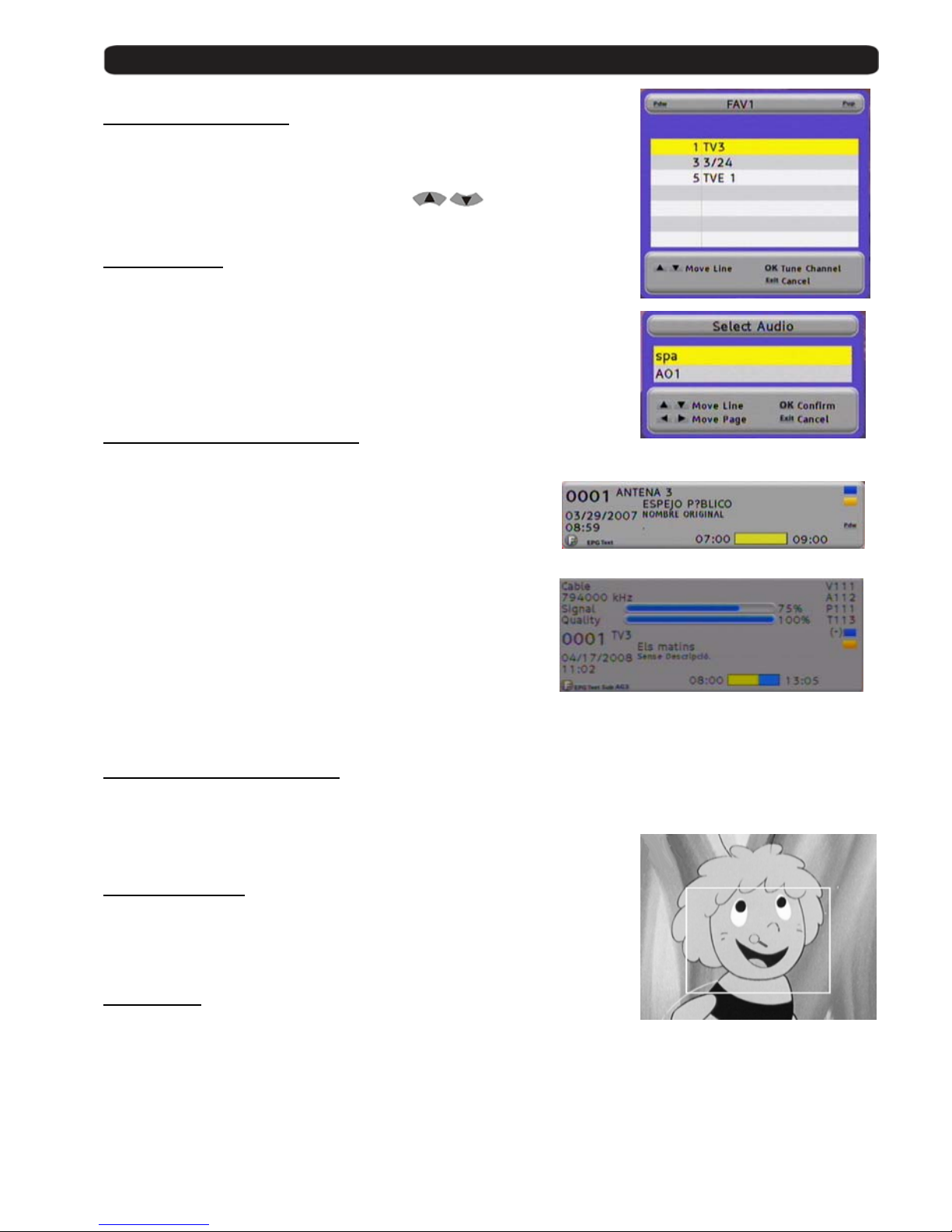
2.13. Favourite channel list
If no menu is opened, you can get your favourite channels list by pressing
the button FAV.
With the buttons Pup / Pdw you can switch between 8 different lists , i f yo u
have marked channels befo re. With the buttons
you can
select a channel from this list.
2.14. Menu Audio
If all menus are closed you can open the menu Audio by pressing
the button Audio.
You can change here the audio o utput in Stereo, Left and Right
audio format.
Testing the channels, yo u will be able to make the most suitable selection.
Standard selection is Stereo.
2.15. Signal and Channel information
Pressing the INFO button, with no menu activated ,
You will see the channel information and the Signal Level Bar. This
information is the same that appears when you change the channels.
In the signal bar we can see the following information:
Channel Number, Channel Name, current Time and Date,
Name of the current event and br ief description given by EPG.
Start and Stop time of the event and the indicati on of th e cur rent
time from the beginning in yellow colour.
This menu disposes of 2 keys of advanced functions. Blue and
Yellow keys. Through Blue key, you can get the technical
information of the shown channel at the top part of the window, as
you can see in the image:
Yellow key allows seeing which will be the next event indicated
by EPG, with its start and stop tim es.
2.16. Changing favourite channels
With the buttons FAV+ and FAV- you can switch the favourite channels directly.
The Sequence for the channels is the established one before in main channel list.
2.17. Zoom Function
With the Zoom button you can see more details of the image.
By pressing the button OK you can select the enlargement.
If you want to stop, please press Exit.
2.18. Subtitles
When no menu is opened, you can start with Sub button the subtitle function.
Subtitles only can be displayed when the operator transmit them.
Page 14
User’s manual · MAX C130
Technical changes and mistakes reserve - 14 - MAX C130 Version en_1.0 FTE Maximal
Chapter 3 Channel management
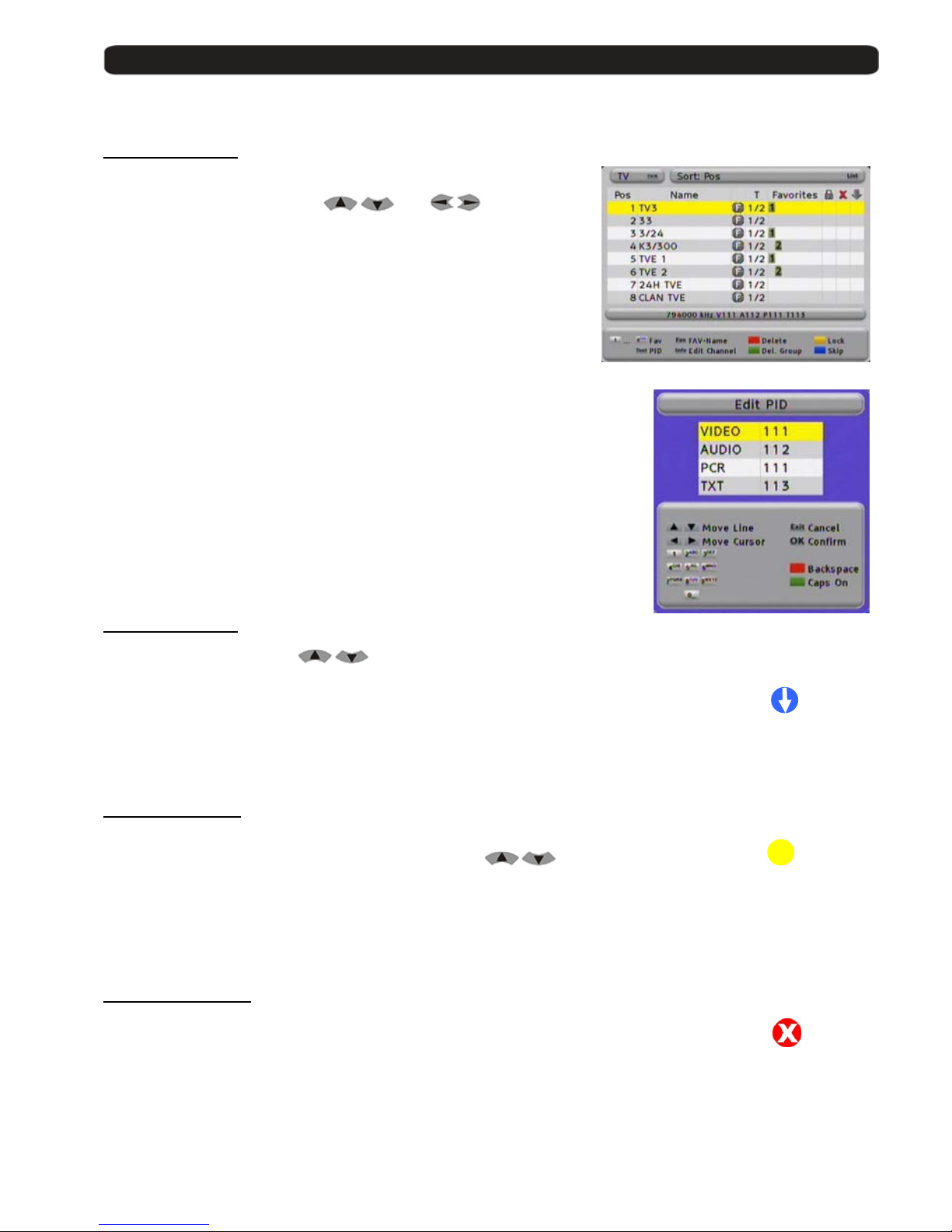
3.1. TV-Channel list
Here you will find an overview about all channels.
Channels can be administrated, moved, deleted or blocked.
The navigation is with the buttons
and .
With the button TV/R you will switch between TV and Radio
channels.
With the button LIST you can sort this list as follows:
POS, Position in channel list
Name, alphabetically
FTA / CAS sort by free or coded chan n els
To see the PID information, you have to press the button TEXT.
This information will be read by the receiver automatically and it gives
the information where the p r ogram is in the data stream.
It is not necessary to change it, but it can be done by the numeric keys
of the remote control.
3.1.1 Skip channels
With this function it is possible to skip selected
with the buttons CH+ / CH- or
.
If you want mark channels for skipping, you have to select the ch a nn el and then press
the Blue Button Skip. Doing this, you will see that the channel has a symbol
like the one at the right side. Marked channels only will be opened by channel list.
3.1.2 Lock channels
If you want to lock channels wit h a pa ssword needed for opening th em,
you can do it with this function.
If you want to mark channels, please select the channel by
buttons and than press the Yellow button Lock.
Doing this, you will see that the channel now has a symbol like the one at the right side.
In order the function works properly, you have to activate the password
function in menu Parental Control.
3.1.3 Delete channels
If you want to delete one channel, you have to select it and then press the
Red button Delete.
Doing this, you see now one symbol like one the right side.
You can mark more than one channel, the channels will be deleted when you close the
Channel Management.
±
Page 15
User’s manual · MAX C130
Technical changes and mistakes reserve - 15 - MAX C130 Version en_1.0 FTE Maximal
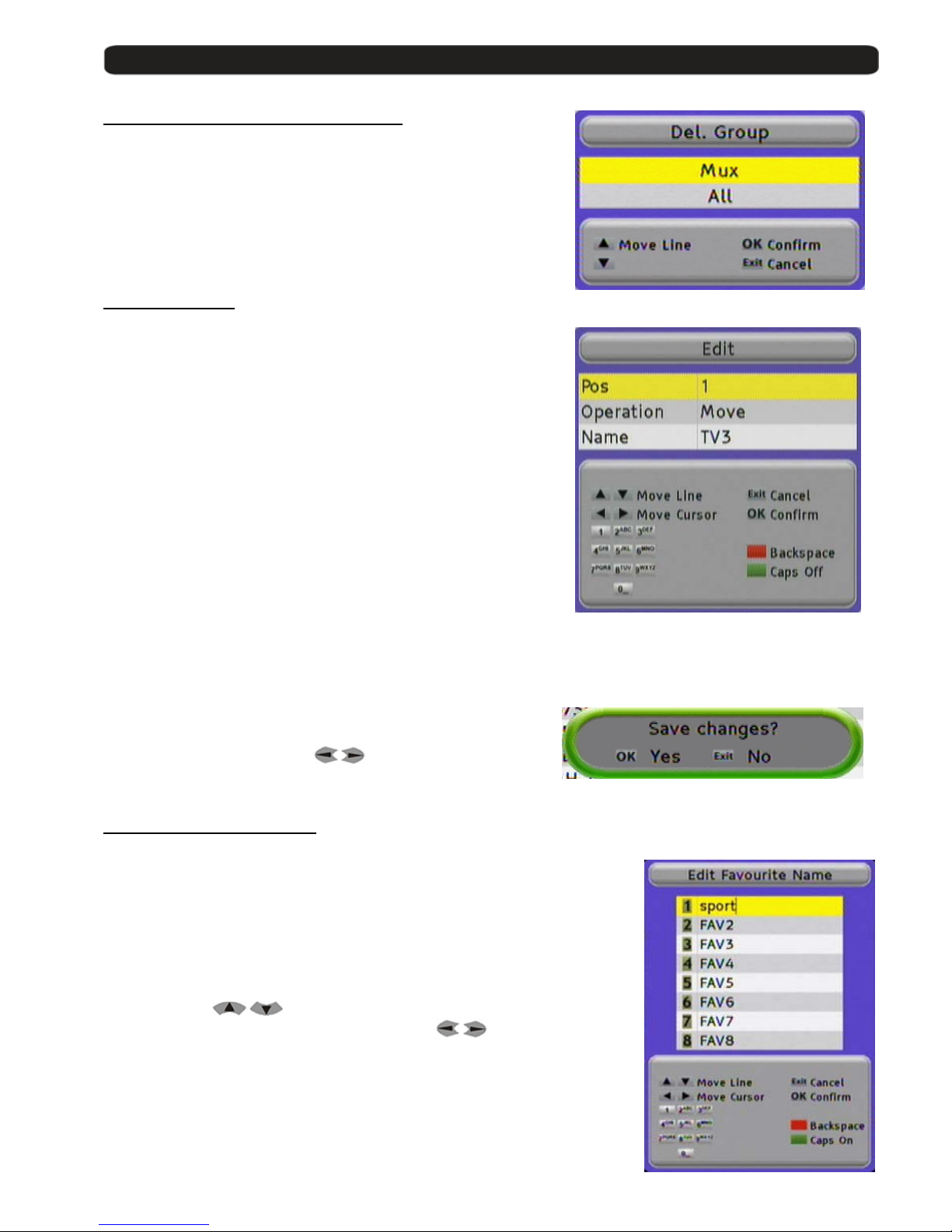
3.1.4 Delete channel groups or all channels
If you want to delete a chann el group or all channels,
you have to select them and th an pr ess the Green button Del. Group.
In the following submenu you should choose all channels from one
MUX or All channels.
With the OK button the selection will be done.
3.1.5 Edit channels
If you want to move channels in their position in channel list
or you want to change their name , you can do it in the submenu
Edit Channel.
To do it, press the button INFO.
In the line POS you can change the placement in channel list
In Operation, you can select the mode of changing the position of
the channel. You can choose between Move (it will shift the res t of
channels) and Exchan ge (it will exchange the posi tion between 2
channels)
In the line Name you can mo di fy the actual name of this channe l.
The keyboard handling is like in a mobile phone.
When you press one button se veral times you will have different
results.
Example: If you press button 2: a, b, c and 2
With the arrow buttons you can move the cursor in its position.
In this menu, the Green button change between normal and
capital letters and the RED button delete the letters.
With the OK button the selection will be done.
The receiver stores the changes when you leave the menu.
Please confirm by selecting with
OK the message.
3.1.6 List of favourite channels
With the buttons 1 to 8 from the numeric block you can select channels of the
favourite channel list 1 to 8.
At the column Favourite of the Channel List, you will see which Favourite list
each channel is from.
If you want to give to a favourit e c hannel list an own name,
you can do it by pressing th e bu tt on FAV.
With the buttons
you have to select one list.
In the line you can move the cursor with the buttons
.
The RED button delete letters and t he Green button change between
normal and capital letters.
The keyboard handling is like in a mobile phone.
When you press one button se veral times you will have different results.
Example: If you press button 2: a, b, c and 2
With the OK button the selection will be done.
Page 16
User’s manual · MAX C130
Technical changes and mistakes reserve - 16 - MAX C130 Version en_1.0 FTE Maximal
Chapter 4 Timers
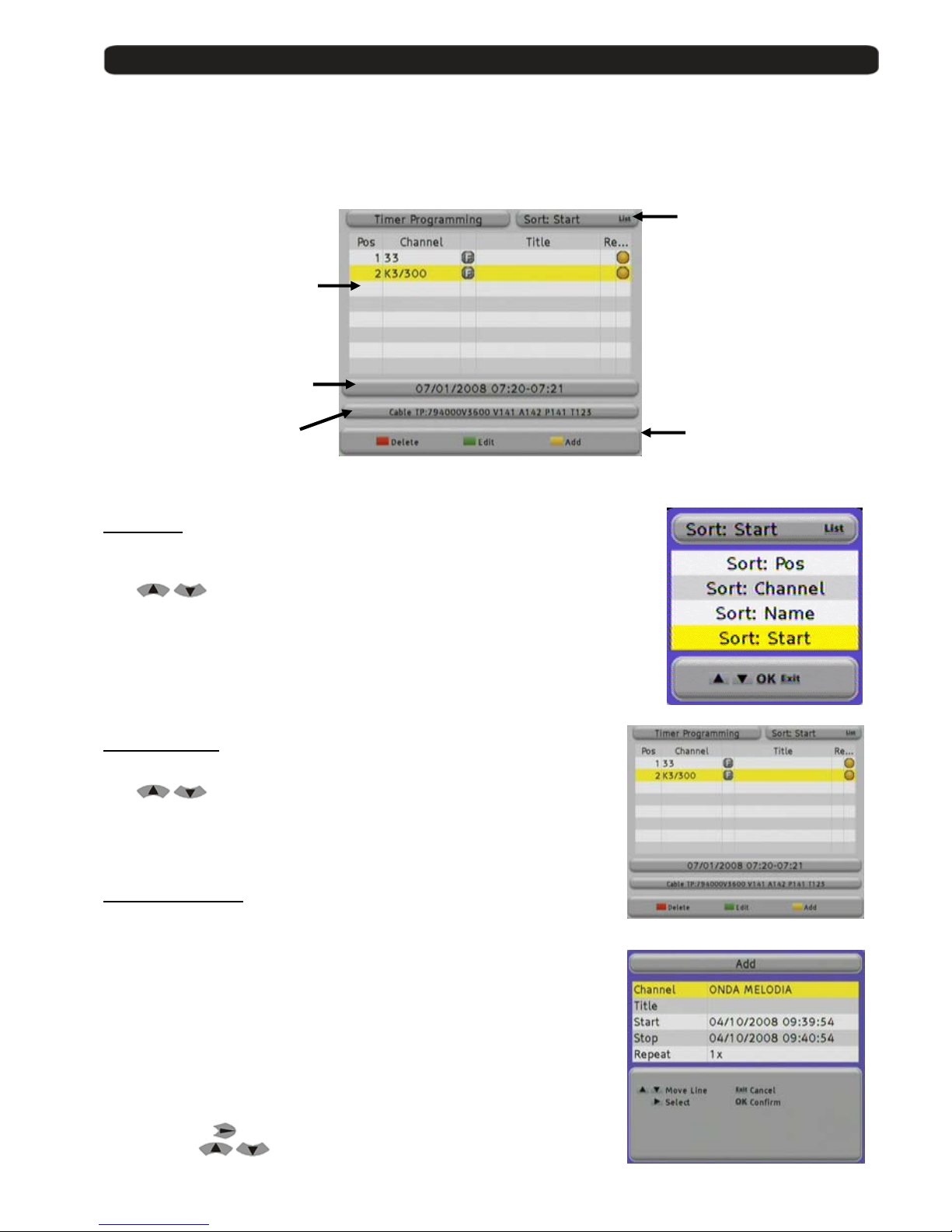
In menu Timers you get one overview about all events which you have programmed.
These events can be store over EPG or direct in this menu.
4.1. Sorting
For having a better view, you can sort the events.
Please press for this the button LIST.
With
buttons you can select the follow optio ns:
Sort Channel: Sort the list related to the first letter of the program name in A,B,C….
Sort Name: Sort the events related to th e name of event in A,B,C….
Sort Start: Sort t he file s relat ed to the start time.
Sort Pos: Sort the files by date of creation.
4.2. Delete Timer
With the Red button Delete you ca n delete even ts.
With
buttons you can select one event and then press the
Red button Delete, then confirm the following message.
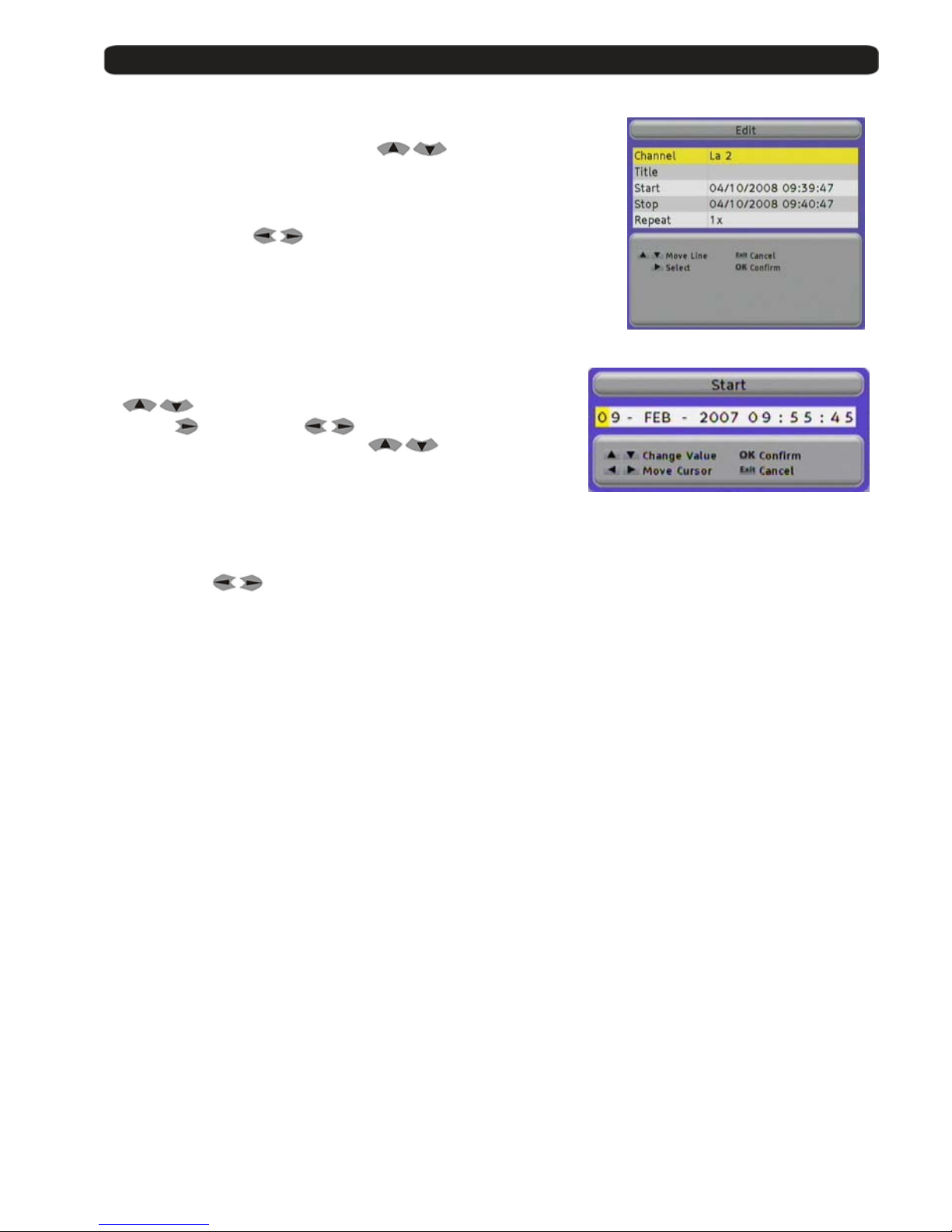
4.3. Edit / Add timer
With the Green button Edit you can modify one event,
This can be useful, when you wa nt t o program one event and
you do not know exactly its starting or ending time.
With the Yellow button Add you can add manual one event.
The using of Add and Edit is the same.
Channel
Here you can change the channel which will be programmed.
Press the button
and select in the new menu the channel you want
by the buttons
and press OK.
Start date and time
selected of event
Frequency and PID
information for the
selected event
List with all events including
channel name and nam e for
the event
Menu options
Menu options
Page 17
User’s manual · MAX C130
Technical changes and mistakes reserve - 17 - MAX C130 Version en_1.0 FTE Maximal
Title
You can modify an existing title or create a new one.
If you want to change it, select this line by
buttons.
The keyboard handling is like in a mobile phone.
When you press one button se veral times you will have different results.
Example: If you press button 2: a, b, c and 2
With the arrow buttons
you can move the cursor in its position.
In this menu, the Green button changes between normal and
capital letters and the RED button deletes letters.
Start / Stop
If you want to modify start and stop times, select this line
by
buttons.
Press now
and select with the entr y you want to change.
The entry will be modified by the buttons
.
When you have finished, press OK.
Repeat
The standard value is 1x, for one time recording.
With the buttons
you can choose the followi n g op tions also.
2x - 6x This repeats the timer next day, at same time, same channel.
T This repeat the timer every day at same time, same ch an ne l .
W This repeat the timer every week at same time, same channel .
Monday – Friday It will repeat the timer since Monday to Friday in the same channel and at the same time.
Page 18
User’s manual · MAX C130
Technical changes and mistakes reserve - 18 - MAX C130 Version en_1.0 FTE Maximal
Chapter 5 Tools
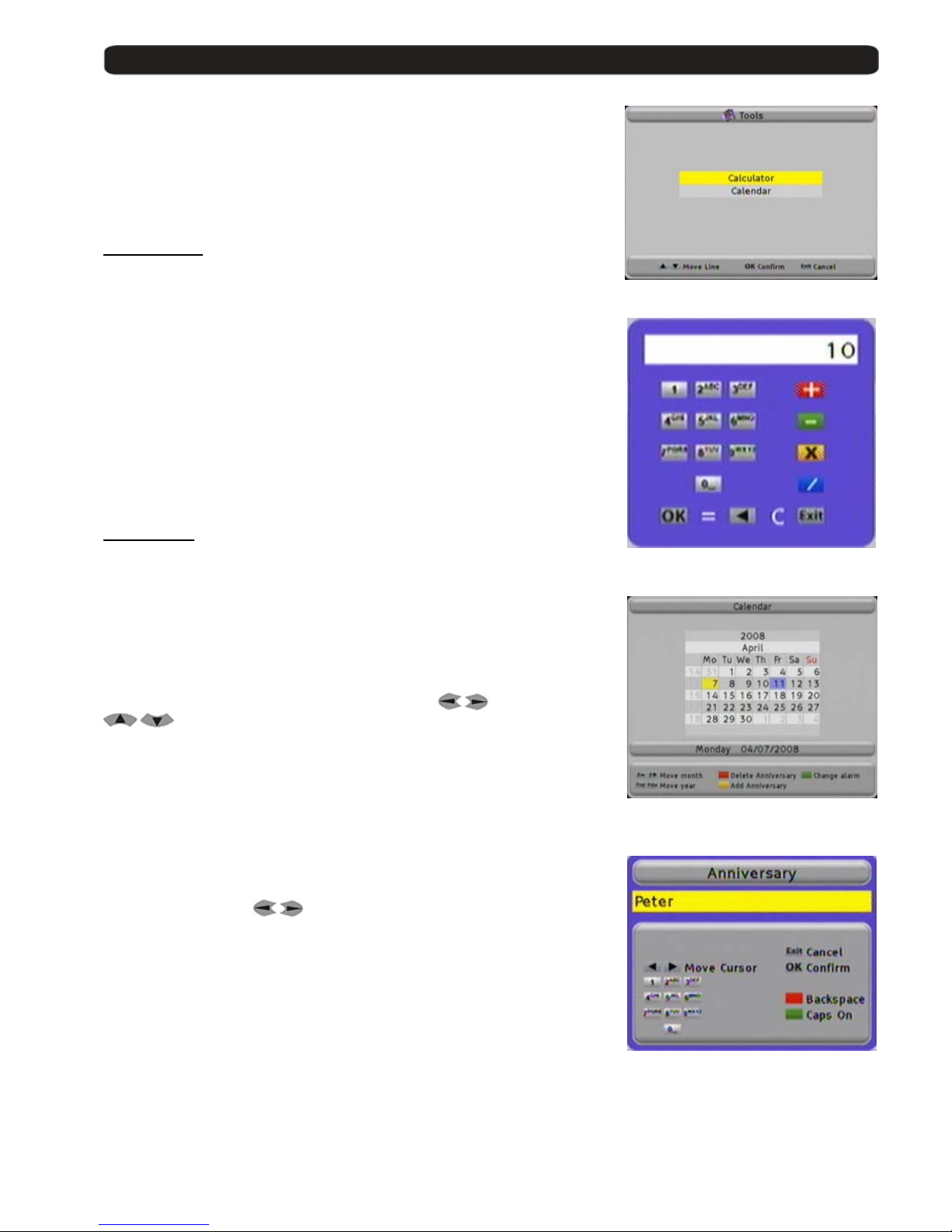
In this menu you can find two little helper tools.
The calculator is useful for fast calculations and with the calendar
you can mark dates for special events like birthdays.
5.1. Calculator
The using of the calculator is very easy.
With numeric block remot e co ntrol, input the numbers.
For the calculations you use the colour buttons .
Red Button Addition
Green Button Subtraction
Yellow Button Multiplication
Blue Button Division
The button OK is used for = function.
With the buttons ◄ you restore the calculator.
5.2. Calendar
If you open the calendar, the yellow marked field sh ows the current date.
This will be shown in the li ne un der the calendar.
With the buttons Fav- and Fav+ you can switch between the m o nths.
With the buttons Pup and Pdown you can change the year.
In the first column it is marked the number of week in the year and one blue
marked field shows a stored even t.
You can select the individual dates with the buttons
an d
.
Add one event (Anniversary)
If you want to add an event, sel ect the date and press the
Yellow button Add Anniversary.
You can type the name for the event like in a mobile phone.
When you press one button se veral times you will have different results.
Example: If you press button 2: a, b, c and 2
With the arrow buttons
you can move the cursor in its position.
In this menu, the Green button changes between normal and
capital letters and the RED button deletes letters.
If you select later a blue marked field you will see the name info the field.
Delete one event
If you want to delete an even t, you have to select it and then pres s
the Red button delete Anniversary.
Change Alarm
Pushing the Green button, you can add an alarm to the event, you will see that this symbol (*) appears close to the
date. A visual alarm will appear in the screen the day of the event.
Page 19
User’s manual · MAX C130
Technical changes and mistakes reserve - 19 - MAX C130 Version en_1.0 FTE Maximal
Chapter 6 System Settings
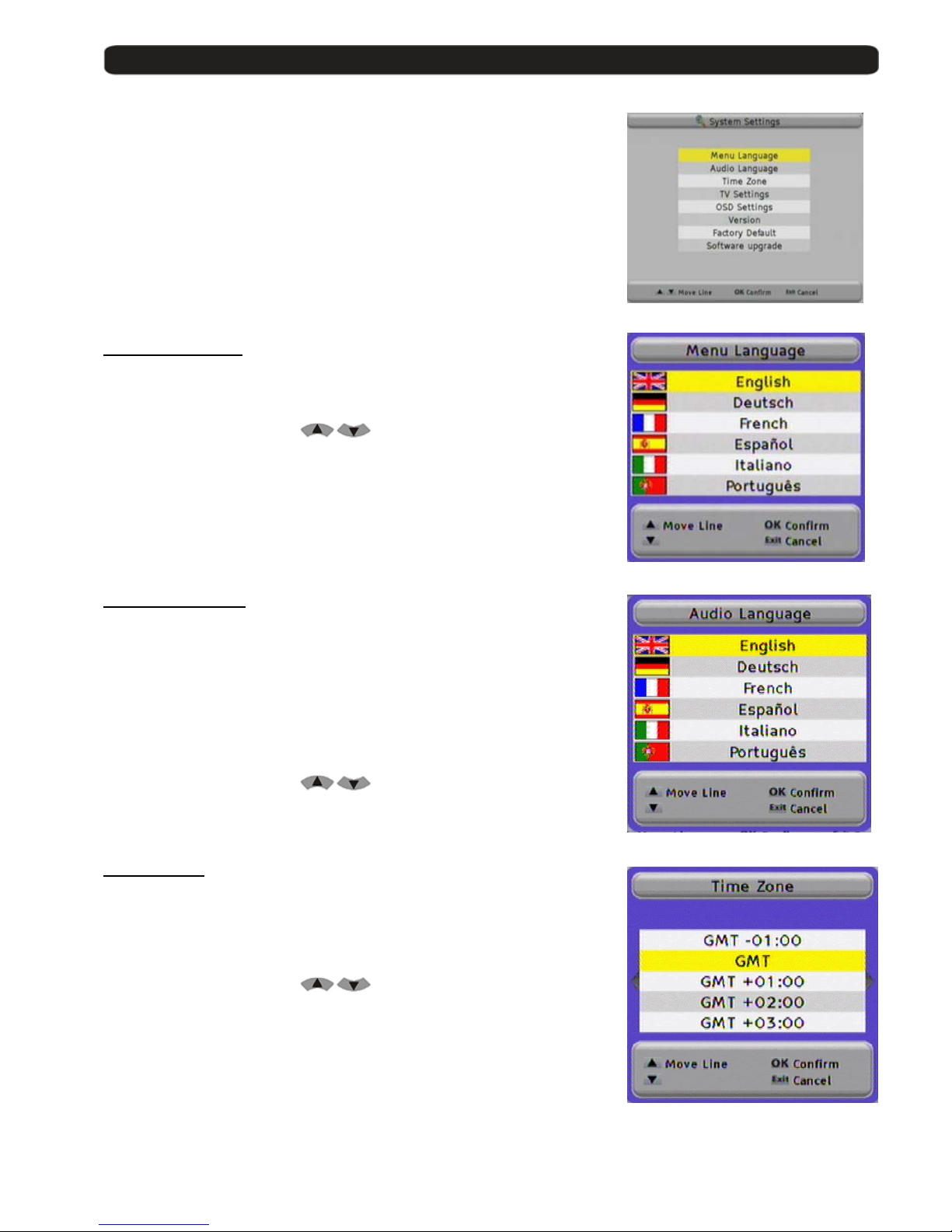
In the menu System Settings you will find all basic adjustments
of the Receiver.
6.1. Menu Language
Here you can choose the language which will be shown in the receiver.
You can select:
English, German, French, Spanish, Italian, Portuguese
Please select with the bu ttons
and then press OK.
6.2. Audio Language
Here you can choose the audio language for the TV and Radio channels.
Example:
If you select English and the channel you want to see have one
audio carrier in English, you will get the audio in English.
If there is no audio carrier in English, you will get the first one which is
supported in this channel, for example German.
You can select:
English, German, French, Spanish, Italian, Portuguese
Please select with the bu ttons
and then press OK.
6.3. Time Zone
In order to the receiver shows the correct time as well as adjusting the records
properly, it is needed th e adjustment of the Time Zone where you live.
For UK: Summer time : +1 hour
Winter time: GMT hour
Please select with the bu ttons
and then press OK.
Page 20
User’s manual · MAX C130
Technical changes and mistakes reserve - 20 - MAX C130 Version en_1.0 FTE Maximal
6.4. TV Settings
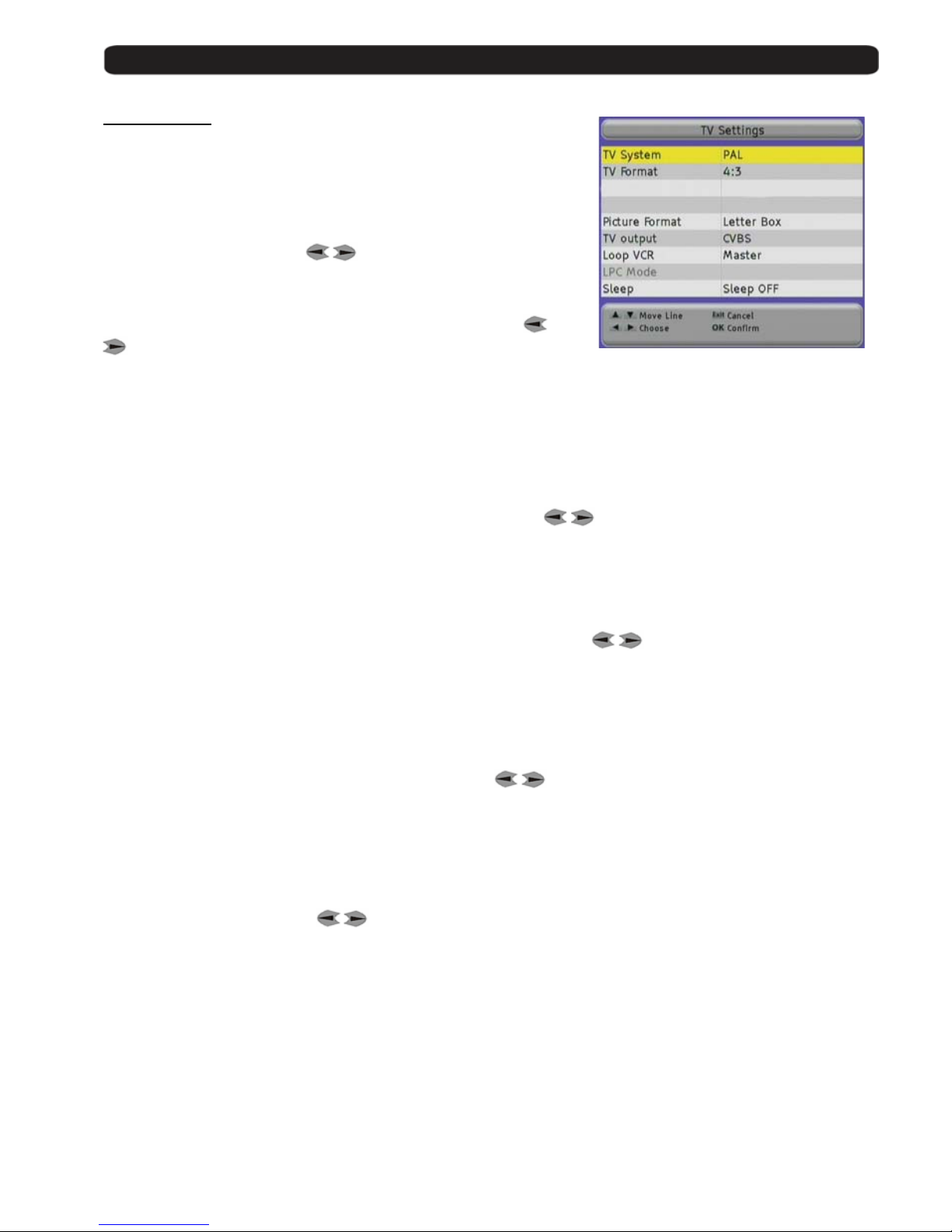
Here you can adapt your receiver to your TV set and you can select
the screen format.
TV-System
Select here which TV sy st em your TV set support.
Selection: NTSC, PAL, Secam and AUTO
Please change with the buttons
.
TV-Format
Select here which TV format your TV set has available.
Selection: 4:3, 16:9 and AUTO, please change it with the buttons
.
RF Mode
Not available in this model.
RF Channel
Not available in this model.
Picture Format
This option is only available when you have not selected TV format in mode AUTO.
Options: Pan&Scan or Letter Box , please change with the buttons
.
In this option you can choose how the pictures in films with a big format will be adapted to your TV set.
If you select Pan&Scan you will see one part of the film and at the left and right sides it will be cut
In Letter Box, the picture will become smaller and you will see on top and bottom two black bars.
TV output
This option allows choosin g ho w th e r eceiver will send the colours to the TV set.
Selection: CVBS , RGB, SVIDEO or YUV , please change with the buttons
.
Loop VCR
Here you select the priority of an external video signal.
If you have selected Slave, the receiver shows every time the signal coming from the VCR Scart connector, when there
is signal available. It also can be a signal from DVD player or r ecorder.
If you have select Master , the signal from receiver has priority and you will see only the signal from connector VCR
scart when the receiver is in Standby mode.
Selection: Master or Slave , please change with the buttons
.
LPC Mode
Not available in this model.
Sleep
If you want shut down the receiver automatically, you can choose here the time for the sleep timer.
Selection: 15, 30, 45, 60, 75, 90, 105, 120 or Sleep Off
Please change it with the buttons
.
Page 21
User’s manual · MAX C130
Technical changes and mistakes reserve - 21 - MAX C130 Version en_1.0 FTE Maximal
6.5. OSD Settings
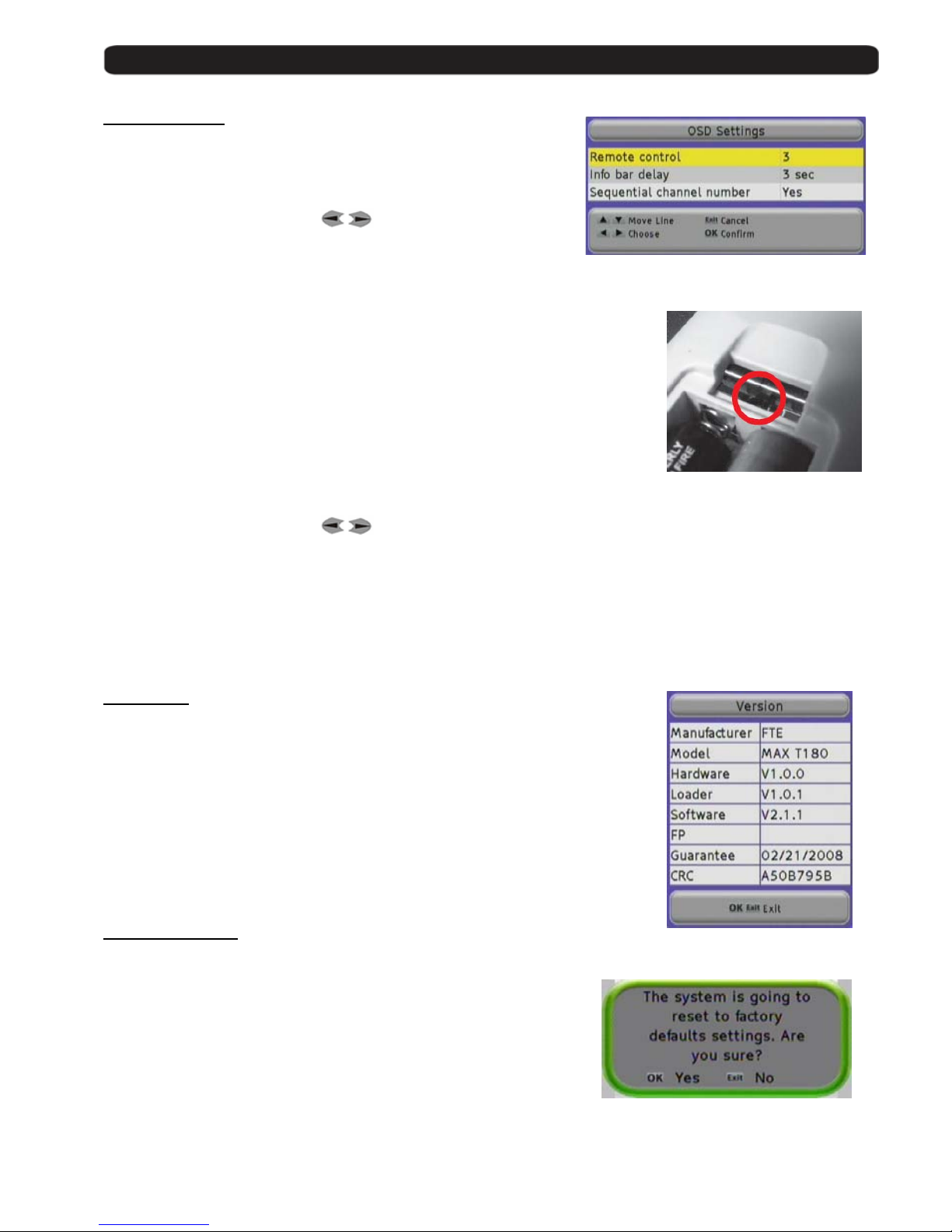
Remote control
Here you can change the transmission code for the remote control if
you have problems with other devices.
Please change it with the buttons
.
For saving the changes, please press OK .
Do not forget to change also the code on the remote contro l.
For this, you have to change the position of a switch in the rem ot e co ntrol.
You have to select the same position in the receiver than in the remote control.
Info bar dela y
Here you can select how long the information of the OSD will be displayed on the screen.
Selection: 1 to 10 sec.
Please change it with the buttons
.
Number of Sequential Channel
Selecting Yes in this option, the positions of the chann els will be occupied continuously and sequentially. Although you
move the position of one channel, you will shift the positio ns to avoid leaving empty channe ls.
Selecting No, you can leave empty channels if we shift th e position of one channel.
6.6. Version
Here you get information about the hard and software from your receiver.
Manufacturer Manufacturer of the receiver.
Model Exact article name .
Hardware Revisi ons number from main PCB
Loader Version for boot loader
Software Version for installed software
FP Not available in this model
Guarantee Beginning of the warranty time
CRC Checksum of the EEpr om
6.7. Factory Default
With this option you can restore the receiv er totally to the status when
the receiver was used the first time.
Caution: Make this only if you are 100% sure, this step can is irreversible.
Page 22
User’s manual · MAX C130
Technical changes and mistakes reserve - 22 - MAX C130 Version en_1.0 FTE Maximal
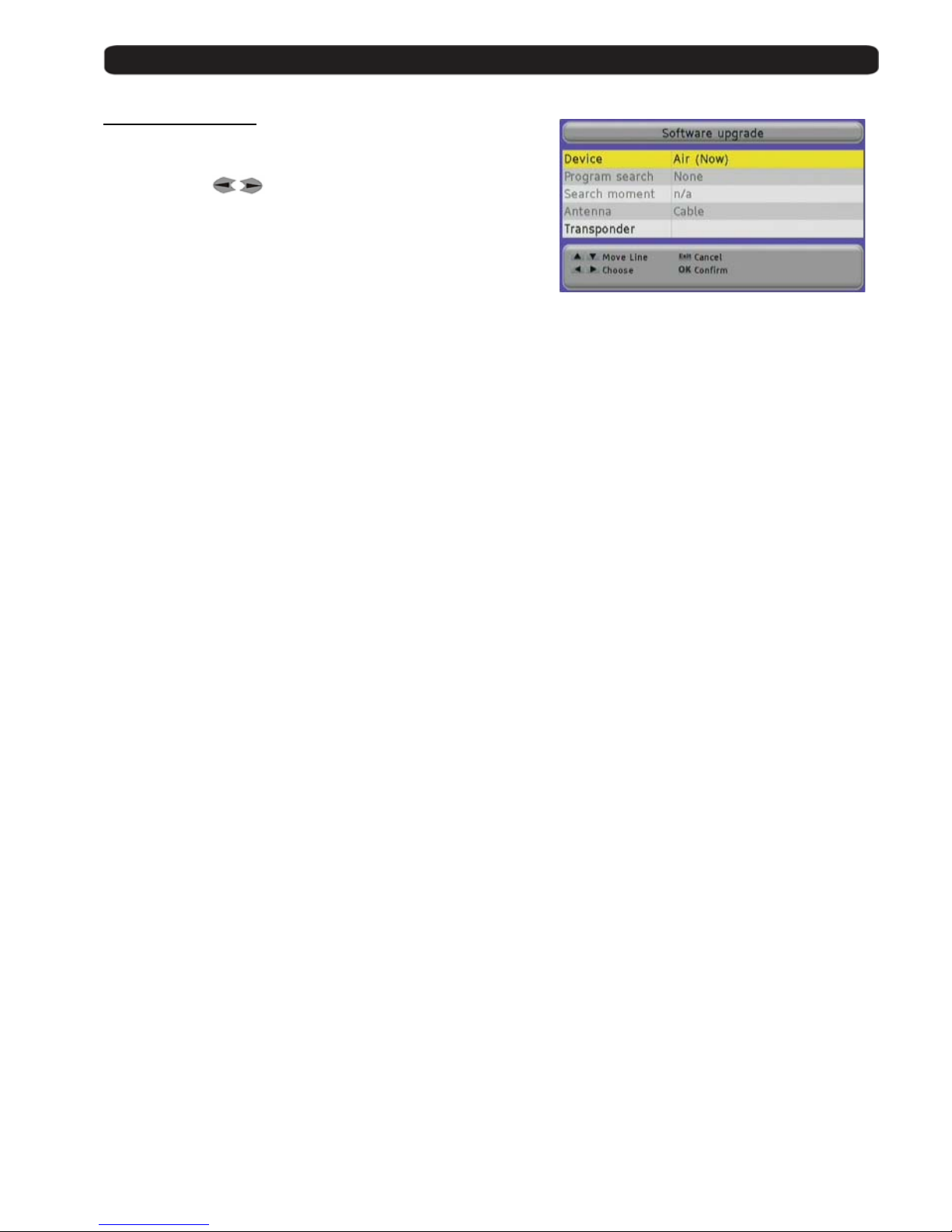
6.8. Software Upgrade
With this menu you can transfer data and install ne w software.
With the buttons
you can choose between the following
possibilities.
Serial port (Download) Start data download vi a RS-232 connection.
Serial port (Upload-ALL) Send all stored channels and main software to other receivers by using
RS-232 connection.
Serial port (Upload-Backup) Send the backup file (receiver database) and software to other receivers by using
RS-232 connection.
For this, the receiving receiver must have been executed a factory default before.
Serial port (Upload-UserDB) Send all stored channels to other recei v er s by using RS-232 connection.
Serial port (Upload-APP) Send the receiver software to other receivers by using RS-232 connection.
Air (now) Starts data download via OTA immediately
Air (programmed) Starts data download vi a OT A at a pr o gr amm ed time
Page 23
User’s manual · MAX C130
Technical changes and mistakes reserve - 23 - MAX C130 Version en_1.0 FTE Maximal
Chapter 7 Parental Control
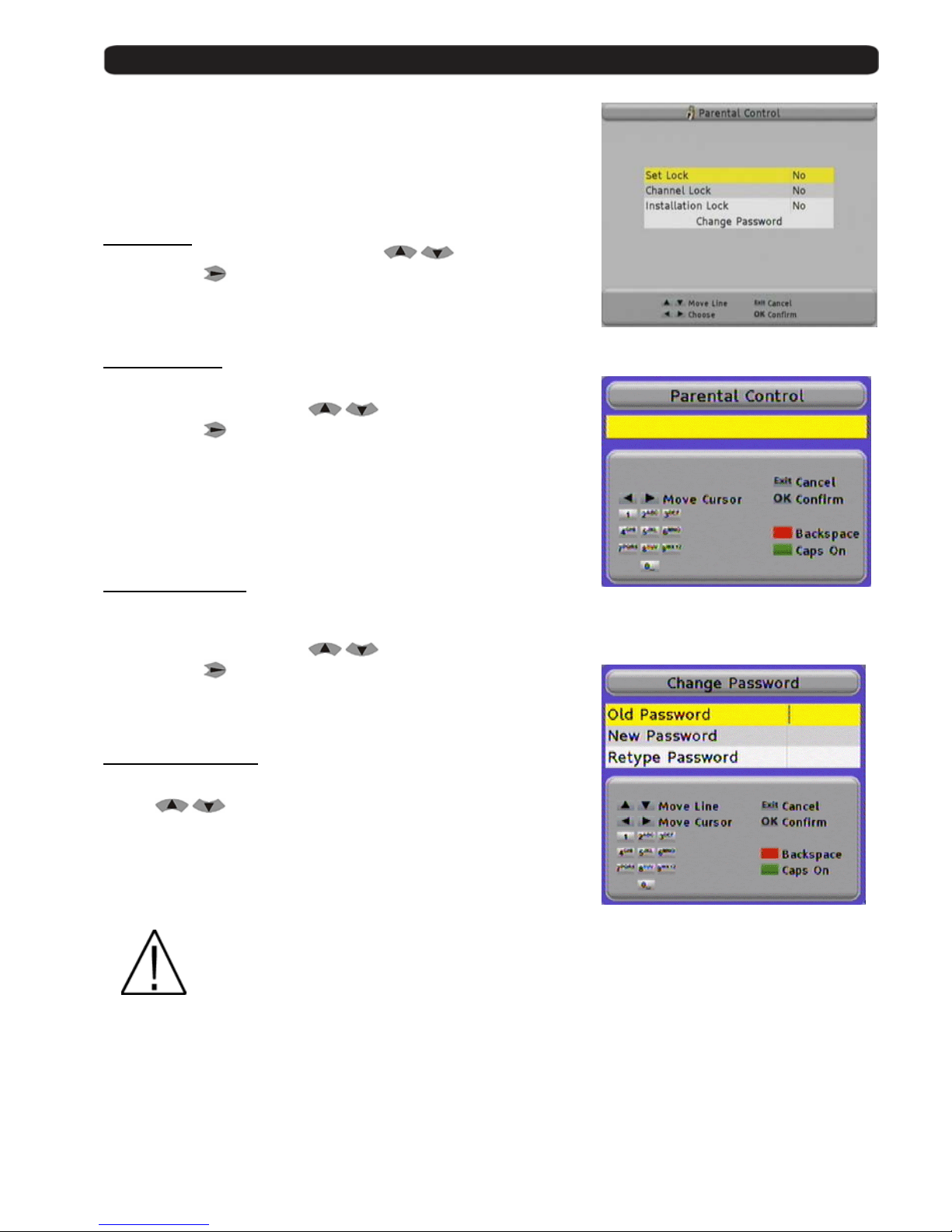
With this menu, you can acti vate the parental control where is necessary
to give one password before opening channels or making settings.
7.1. Set Lock
To activate the parental control, select with
button Set Lock
and then press
.
You have to give the standard code 0000 or your individual on e with the
numeric block from the remote control. Then press OK button.
7.2. Channel lock
Here you can activate the parental control for channels if you have marked
it in Channel Management for Lock.
For this, select with the buttons
the line Channel Lock
and than press
.
You have to give the standard code 0000 or your individual on e with the
numeric block from remote control. Then press OK button.
7.3. Installation Lock
Here you cane activate the parental control for the menu Parental control,
System Settings and Installation.
For this, select with the buttons
the line Installation Lock
and then press
.
You have to give the standard code 0000 or your individual on e with the
numeric block from remote control. Than press OK button.
7.4. Change Password
When you want to change the standard passwo rd, select for this with th e
buttons
Change Password and press OK button.
Old Password Input here the actual password
New Password Input here the new password you wa nt .
Password must have 4 digit.
Retype Password Retype here the new password
and press OK button.
If you loose in any time the standard or your individual password
you can unlock it with master password 5100.
Page 24
User’s manual · MAX C130
Technical changes and mistakes reserve - 24 - MAX C130 Version en_1.0 FTE Maximal
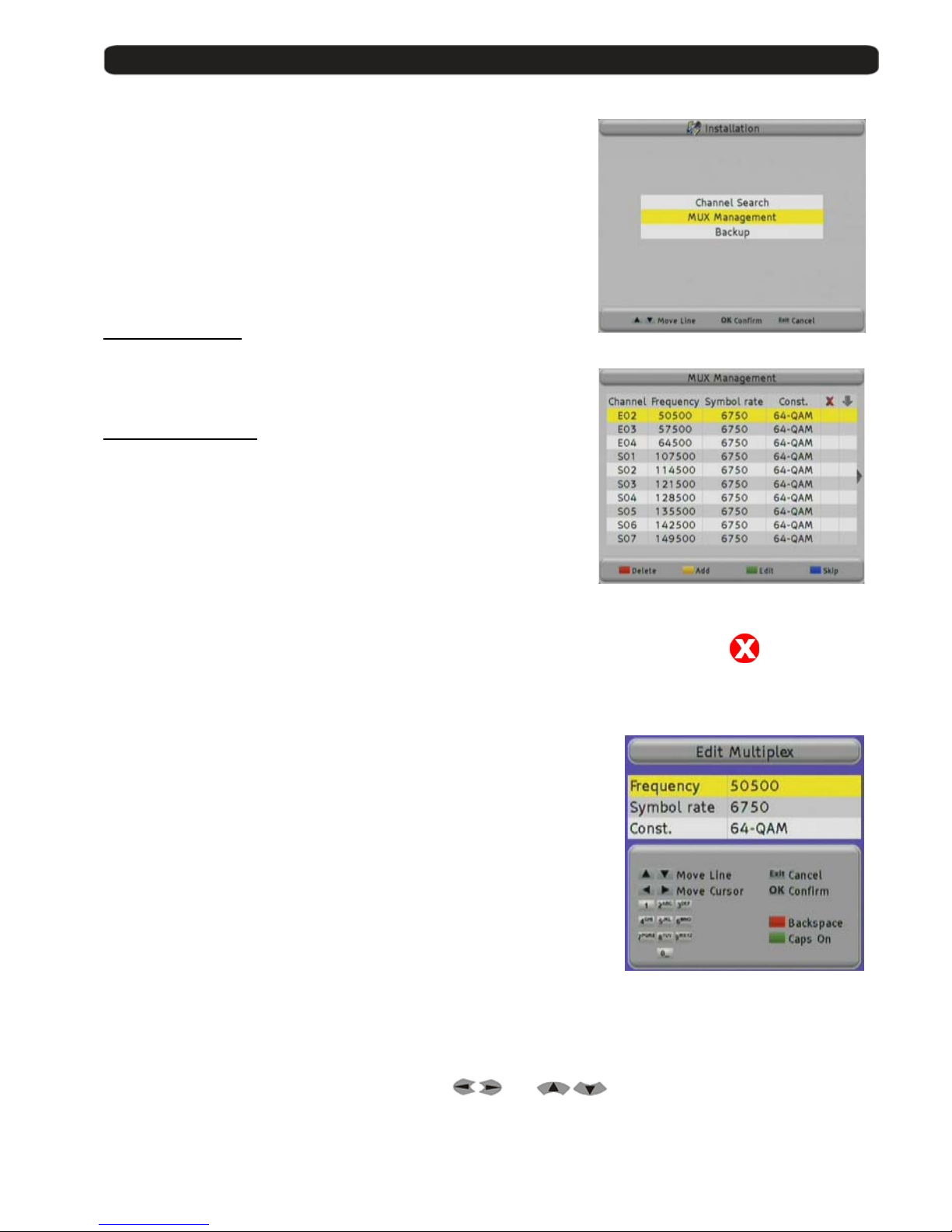
Chapter 8 Installation
Over this menu you can search for new channels Channel Search,
modify the frequency list MUX Management, or make backups.
8.1. Channel Search
With this menu you can also start searching new channels
This process has been described on chapter 1.4. Fast installation
guide.
8.2. MUX Management
Here you can modify the frequency list of the channels. In normal
conditions,
you do need no handling.
Delete Fre quency
If you want delete one frequency, you can do it with the Red button Delete.
Doing it, you will see now one symbol like the one at the right side.
You can mark more than one lines, all of them will be deleted when you close the
MUX Management.
Edit / Add Frequency
With the Green button Edit you can modify one frequency,
and with the Yellow button Add you can add one ne w frequency .
The use of Add and Edit is the same.
Please input here the middle frequency of one carrier.
Example: CH 26 is from 510 up to 518 MHz
The correct frequency is 514MHz
The fields Symbol Rate and Constellation can vary depending on the
service provider. You should ask to it.
If everything is done, press OK button.
Skip Frequency
With this function it is possible to skip one frequency in the channels searching process.
The marked frequencies will not be checked when new channels are searched, so make sure before marking these
channels.
For marking the frequencies, selec t it with the buttons
an d and then press the Blue button Skip.
You can mark more than one frequency.
Page 25
User’s manual · MAX C130
Technical changes and mistakes reserve - 25 - MAX C130 Version en_1.0 FTE Maximal
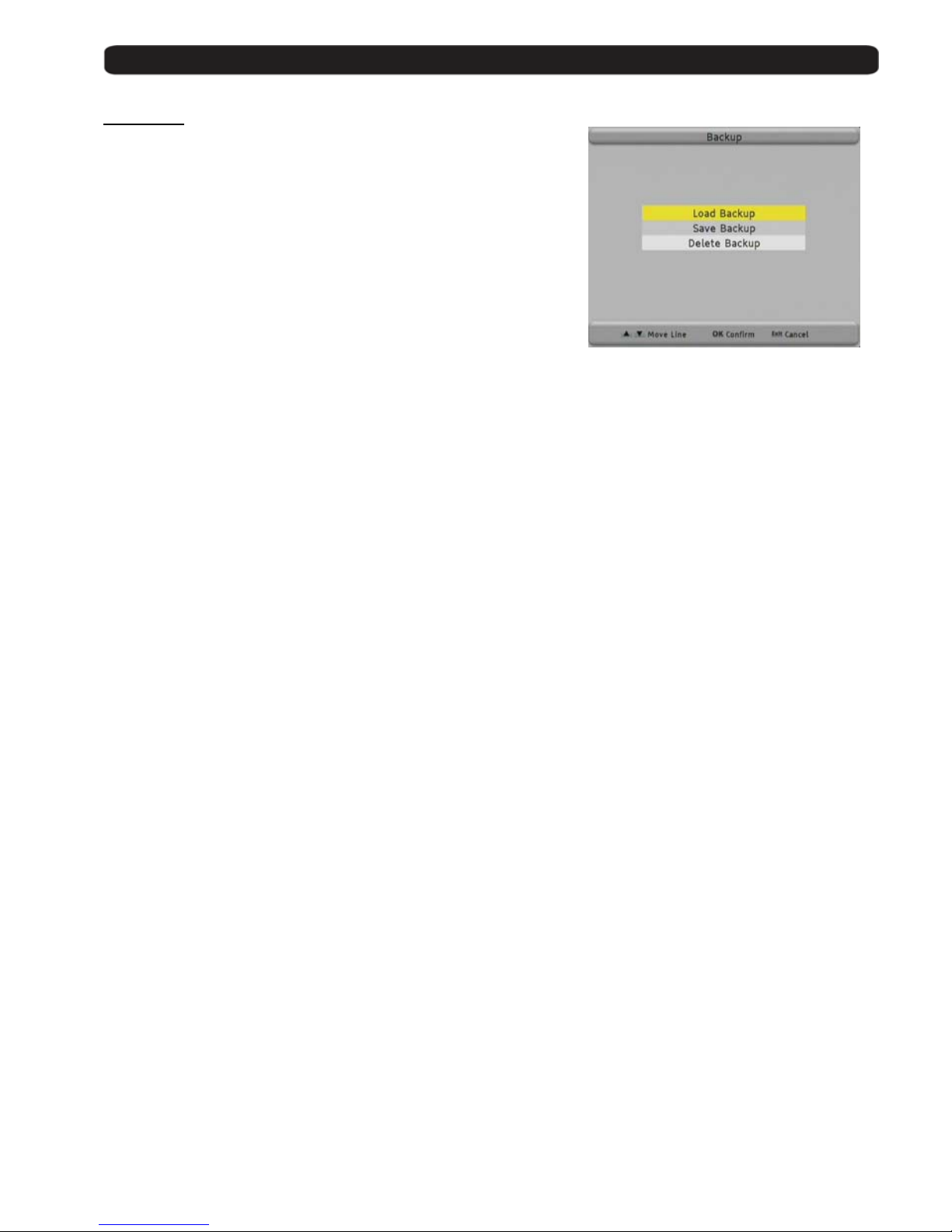
8.3. Backup
Here you can save and load personal backups.
Load Backup
This function load one backup from internal receiver memory.
Save Backup
This function saves one backup to the internal receiver memory.
This process overwrites whatever backup made before.
Delete Backup
This function deletes one backup in the internal receiver memory.
Page 26
User’s manual · MAX C130
Technical changes and mistakes reserve - 26 - MAX C130 Version en_1.0 FTE Maximal
Chapter
9 The equipment of the receiver
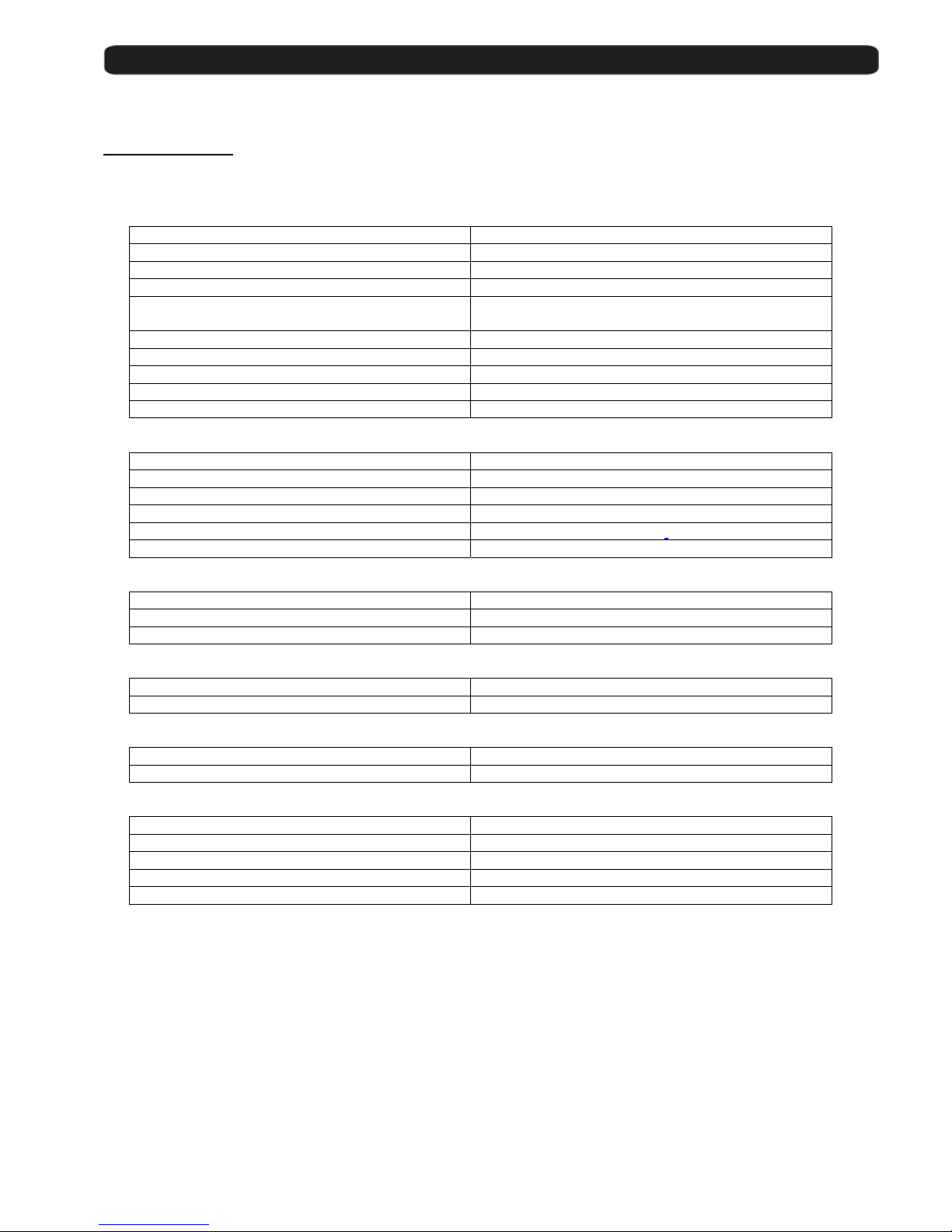
9.1. Technical data
The features of a digital r eceiver depend only on a part of its hardware / electroni c components.
A big part of the functions are made by the software.
General
Reference MAX C130
Code 0710014
Reception range DVB-C Cable
Memory places 700
OSD Language
English, German, French, Spanish, Italian,
Portuguese
Codes for remote control 3
Electronic Program Guide (EPG) Yes
Integrated tele text decoder Yes
Memory for tele text 800 pages
Data connections RS-232
VIDEO
Decoding MPEG-2 & MEPG-1 compatible
Bit Rate Max 15Mbps
Output NTSC/ SECAM / PAL
Screen format 4:3 / 16:9 / Auto
Resolution 720X480 @ 30fps; 720X576 @ 25fps
Connections Scart
AUDIO
Decoding MPEG-2/MEPG-1 layer 1&2
Sampling rate 32 / 44,1 / 48
Connections Scart, AC3 coaxial
DEMODULATION
Demodulation QAM 64, 128, 256
Symbol Rate 1.9 – 6.9 Mbauds
INPUT SIGNAL
Frequency range 47 – 862 MHz
Input level 42 - 82 dBuV
DIVERS
Power supply 90~260VAC 50Hz~60Hz
Power consumption Typ. 15 watts
Operation temperature +5° to +40°
Size (B×T×H) 240x190x45 mm
Weight 1.1Kg
 Loading...