

Page 1

Wireless AP/Router
Quick Installation Guide
FS018 V1.0
January 2017
Page 2
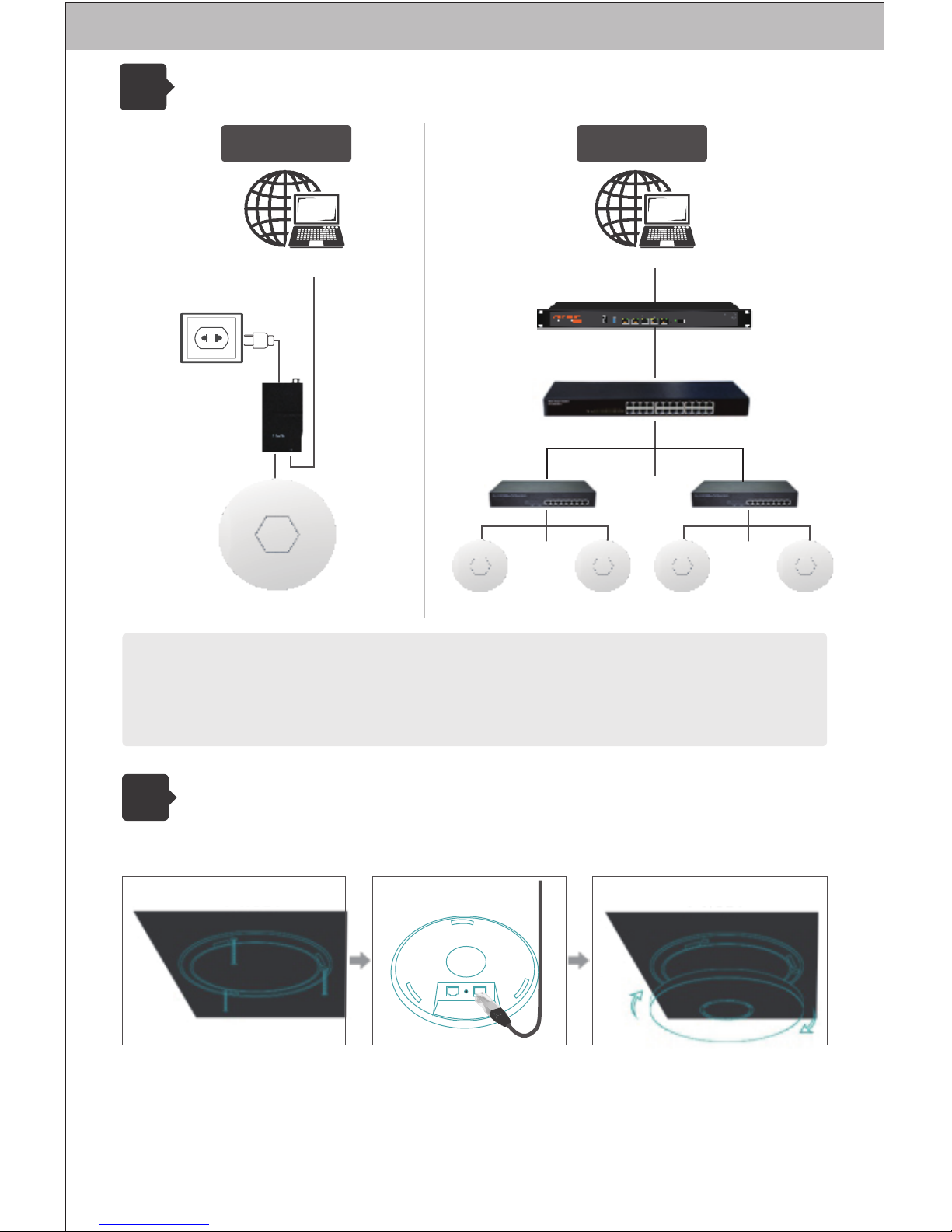
Installation Diagram
1
POE POWER SUPPLY
AP
……
…………
AP AP AP AP
Solution 1 Solution 2
Installation
2
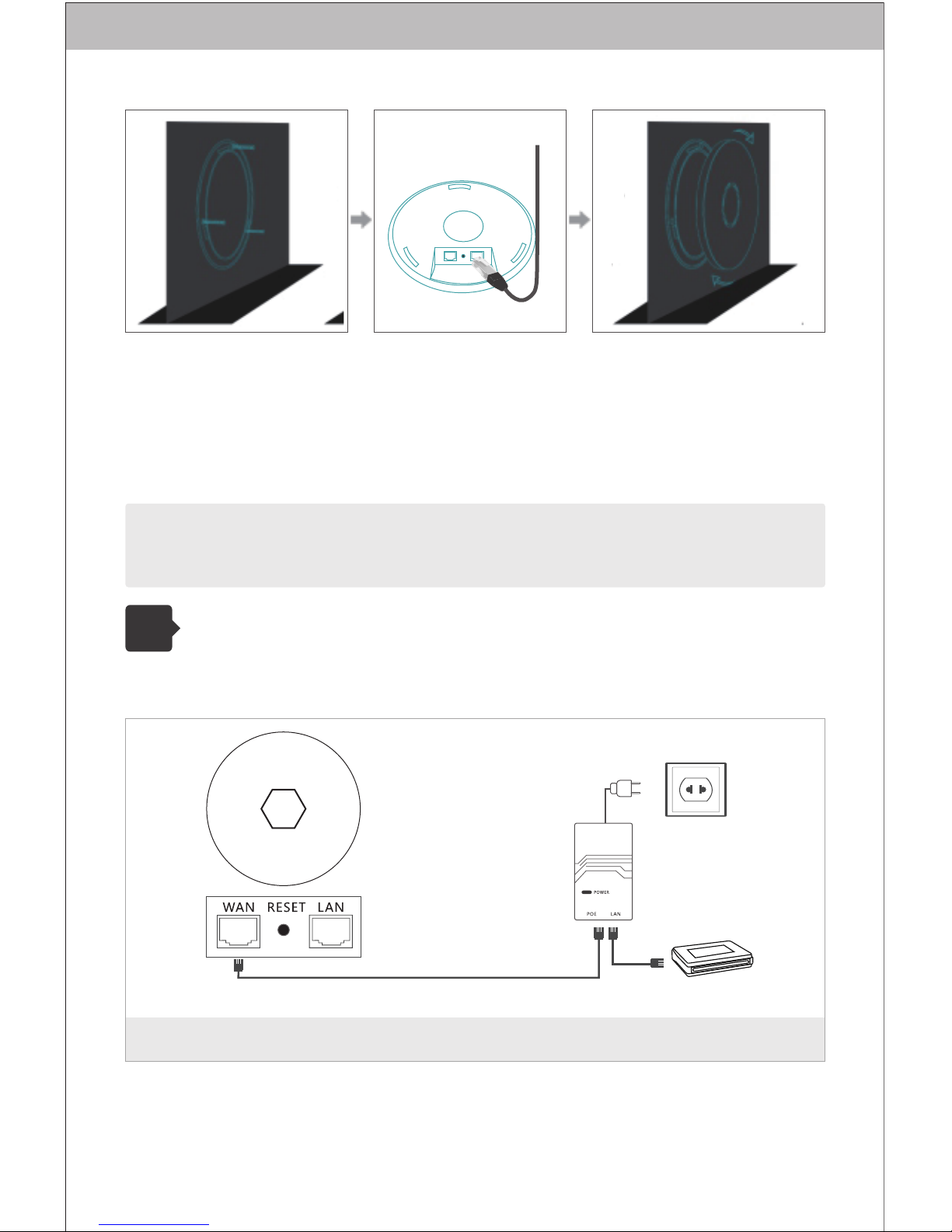
2.1 Ceiling-mounted Installation
Ceiling Ceiling
Note:
Solution 1 (Single Device Setting): Get into the web setting page independently.
Solution 2 (Multiple Devices Setting): Do centralized management settings and
local portal by AC core gateway. (POE power supply and other devices are not
standard, please refer to the packing list. )
①Remove the chassis of
the AP, and fix it on the
ceiling by screws.
②Connect the LAN port
of the device by cable. (If
there are multiple
devices, please connect
the WAN port of the
device by cable for
centralized management.)
Internet
Internet
AC CORE GATEWAY
CORE SWITCH
POE SWITCH POE SWITCH
③Fix chassis on the AP
appropriately.
Page 3
3
Single Device Configuration
3.1 Connection Diagram
POE Power Supply
(Not Standard)
Higher Level Network
Note: This quick installation guide is taken the circled ceiling AP for an example.
Some of square ceiling AP have 4 screws and please push one side to install.
Note: Set the LAN port of the device to the computer.
2.2 Wall-mounted Installation
wall
wall
①Remove the chassis of
the AP, and fix it on the
ceiling by screws.
②Connect the LAN port
of the device by cable. (If
there are multiple devices,
please connect the WAN
port of the device by cable
for centralized management.)
③Fix chassis on the AP
appropriately.
3.2 Set the computer to obtain the IP address automatically, and
connect the LAN port of the device to the device management
interface.
Page 4
简体中文
login
LAN 2LAN 1
AP
Bridge
Router
SWI TCH
MOD EM
Wizard
System
Firewall
Network
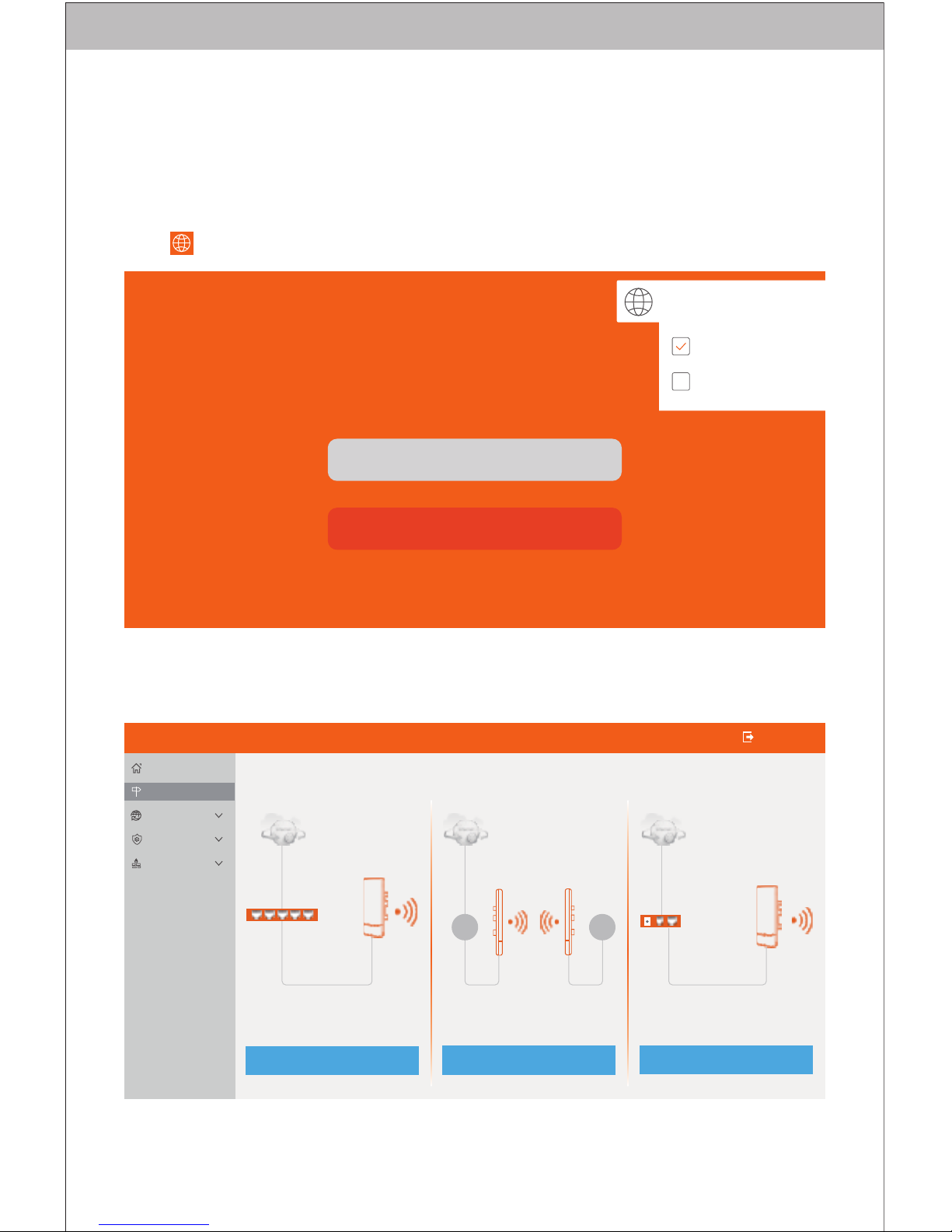
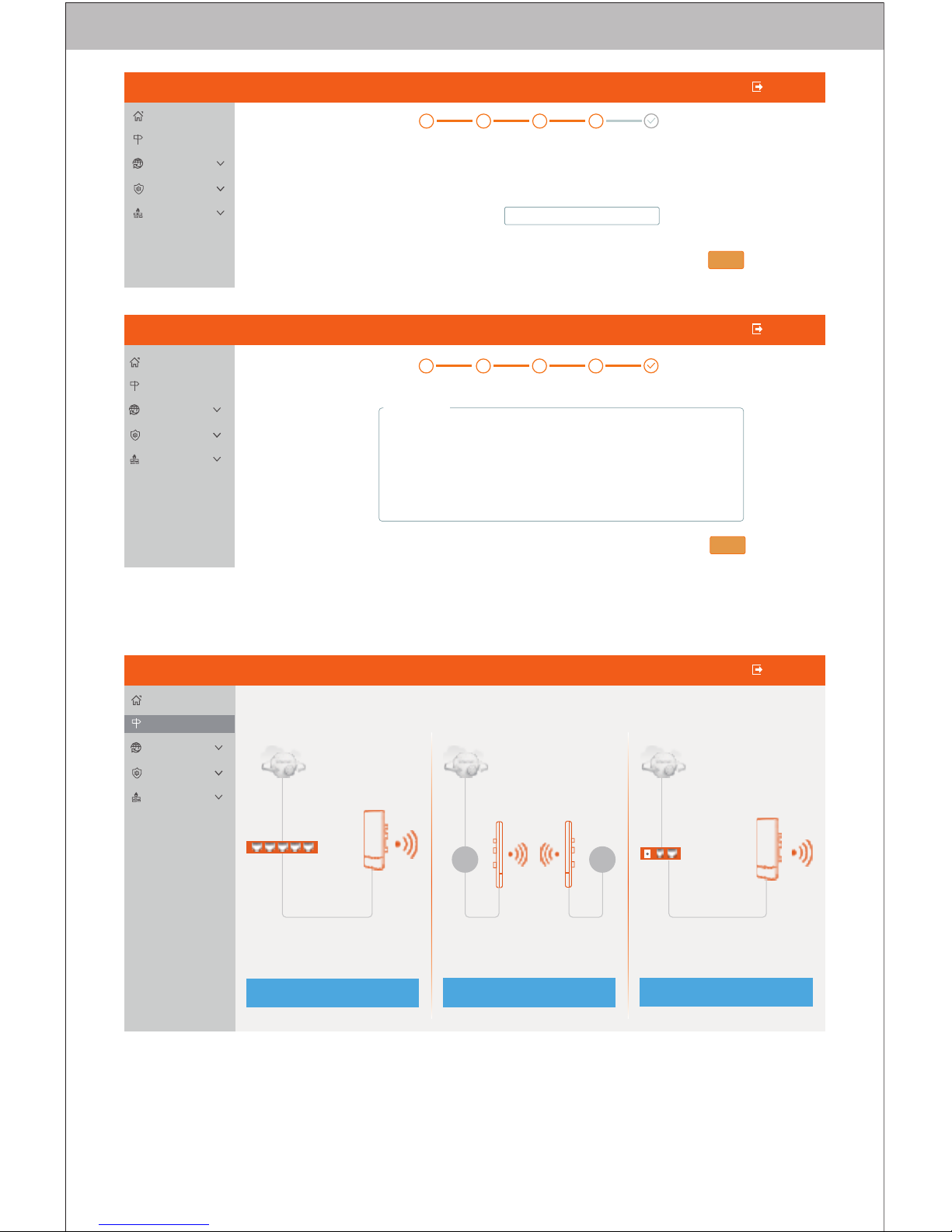
3.3 Open the computer browser, and input 192.168.10.1 to get
into the device login page. The device is defaulted as Router
Mode. When you login at the first time, you need to set a
password. The device language has Chinese and English to be
chosen, and you can set up the language by the top right corner
icon .
3.4 When you get into the setting page, there are three working
modes in the Wizard: PPPOE, Static IP and Dynamic IP.
Language
Settings
English
Please enter password
status information
English
Logout
Page 5
1 2
Lan Settings
WiFi 2.4G
finish
Lan Settings
IP address
Subnet mask
Nex t
192.168.10.1
255.255.255.0
English
Logout
Users
status information
Wizard
System
Firewall
Network
2.4G wireles s
Advanced setting
Pre v
Nex t
Enter or 8-32 Characters
1 2
Lan Settings
WiFi 2.4G
finish
SSID
Pas sword
Bandwidth
Country
Channel
20MHz
China
auto
Users
status information
Wizard
System
Firewall
Network
English
Logout
FS.COM
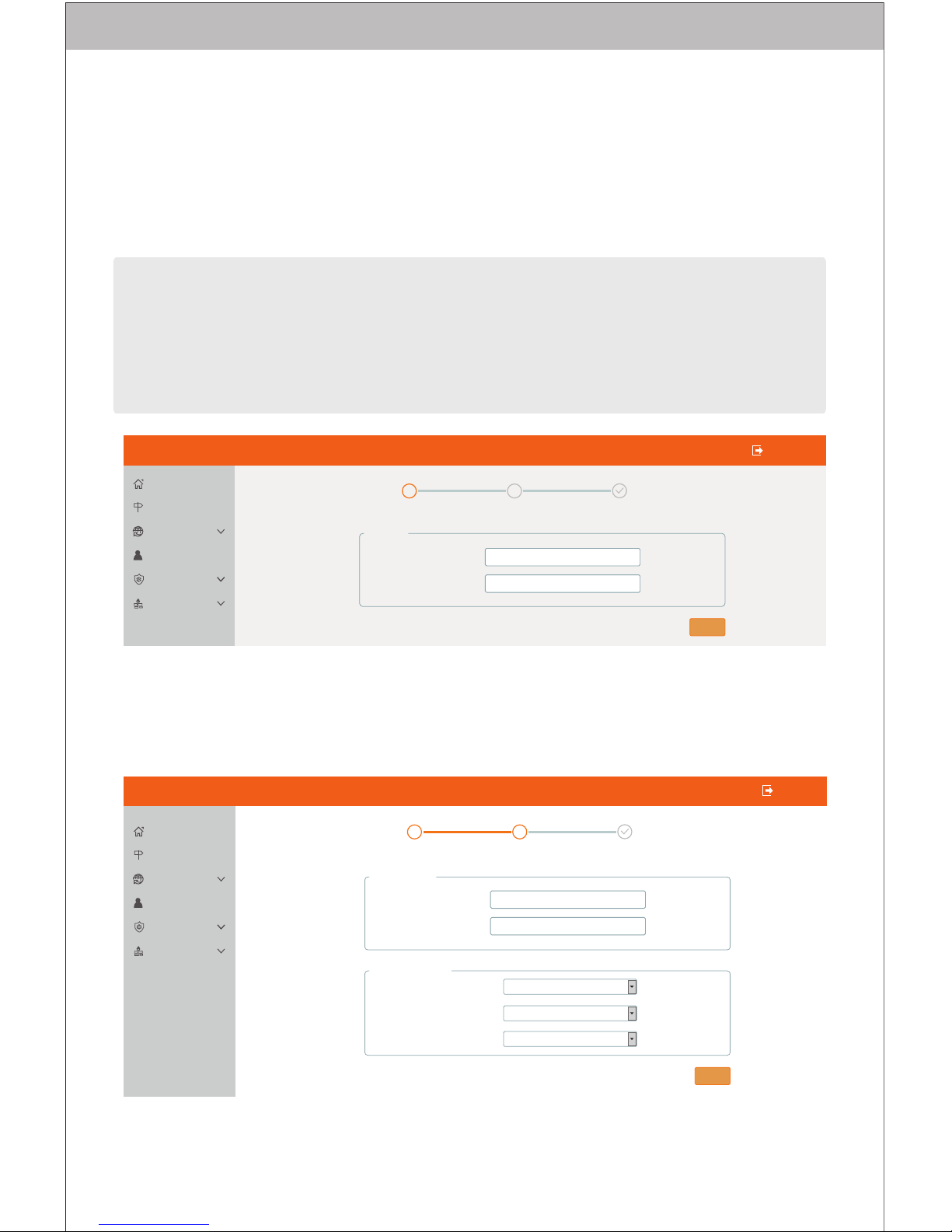
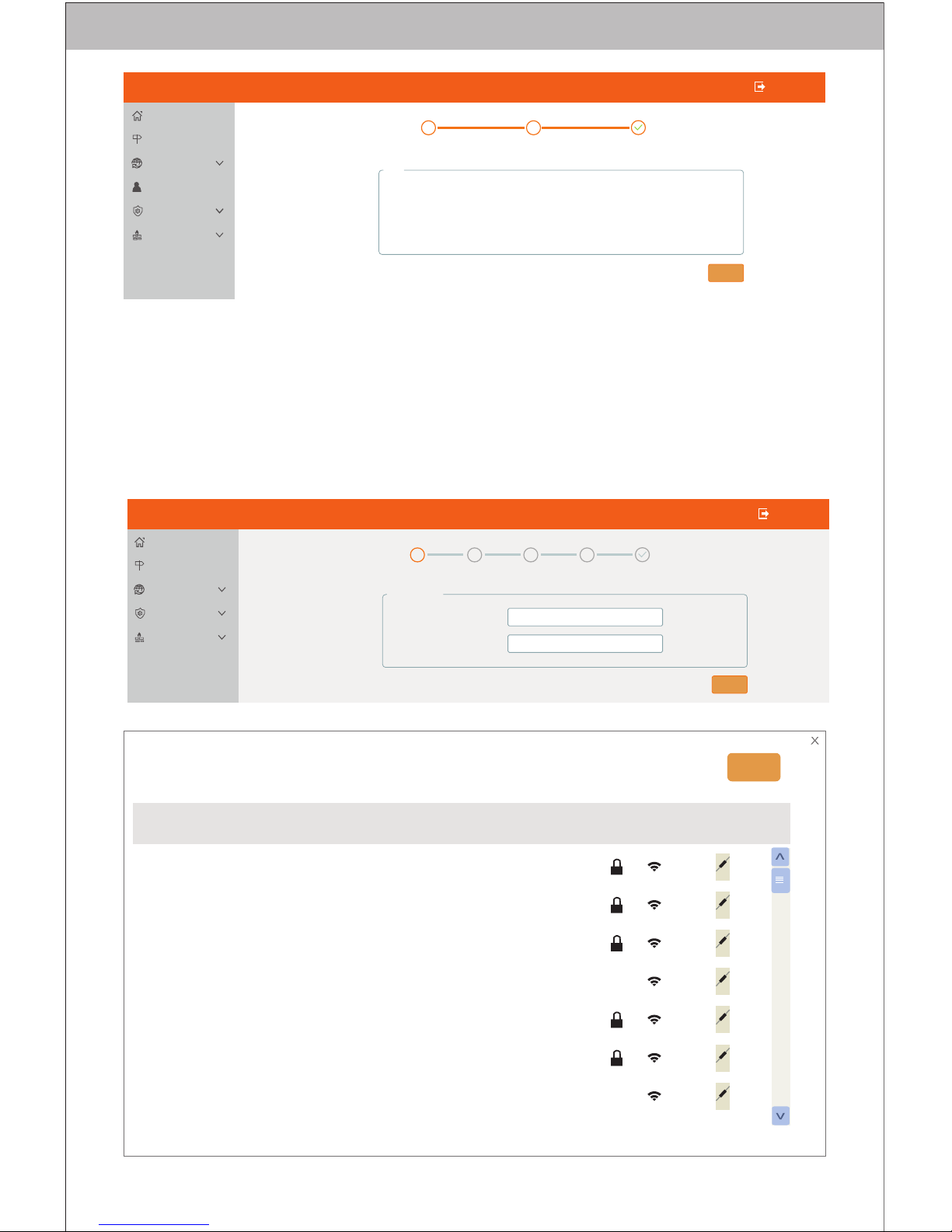
3.5 Click AP mode and set up IP Address and Subnet Mask. The
IP address and Subnet mask should be within same network
segment as upper network and can’t be conflict with IP address
from upper network router. After setting, you can visit the device
from the IP address that you have set just now by connecting
internet with WAN port of the device.
Notes: ① In AP mode, the IP address from the other devices connected to the AP will
be allocated by the upper network router.
② According to the defaulted setting, there is no need to change IP address. If you
want to manage the device, just manually set IP address in the computer.
3.6 AP Mode: You can set up wireless SSID, password and
channel in advanced settings. After setting, other mobile devices
can connect the device SSID to surf the internet.
Page 6
Nex t
WiFi 2.4G
fin ish
Bridge
settings
Wireless
settings
1 2
Lan Settings
3 4
Lan Settings
IP address
Subnet mask
192.168.10.1
255.255.255.0
status information
Wizard
System
Firewall
Network
English
Logout
AP
IP address
Subnet mask
2.4G SSID
Pre v
fin ish
192.168.10.1
255.255.255.0
1 2
Lan Settings
WiFi 2.4G
finish
Users
status information
Wizard
System
Firewall
Network
English
Logout
FS.COM
Scan Results
BSSID
40:A5:EF:84:E6:34
40:A5:EF:84:DE:64
40:A5:EF:85:48:21
00:E0:4C:81:96:D1
40:A5:EF:84:E6:31
40:A5:EF:84:DE:61
40:A5:EF:80:97:36
unknown
1
1
2
2
1
1
2
unknown
unknown
SSID
Channel
Operation
Refresh
NO.
1
2
3
4
5
6
7
unknown
unknown
FS.COM
3.7 Bridge Mode: Please ensure that WDS in the upper network
is enabled. AP device can set up intranet segment, and then
select the wireless SSID signal you need to bridge and input
wireless password. The password is the same as your upper
network router.
FS.COM
Page 7
status information
Wizard
System
Firewall
Network
English
Logout
Pre v
Nex t
WiFi 2.4G
fin ish
Bridge
settings
Wireless
settings
1 2
Lan Settings
3 4
Wireless settings
IP address
Subnet mask
Gateway
DNS
automate
Static DHCP
automate
automate
automate
e.g: xxx.xxx.xxx.xxx
e.g: xxx.xxx.xxx.xxx
e.g:192.168.10.1
e.g:202.96.134.133
status information
Wizard
System
Firewall
Network
English
Logout
Pre v
Nex t
WiFi 2.4G
fin ish
Bridge
settings
Wireless
settings
1 2
Lan Settings
3 4
IP address
Subnet mask
Gateway
DNS
Static
DHCP
Wireless settings
Bridge settings
Scan Bind
SSID
Password
2.4GHz
sca n
status information
Wizard
System
Firewall
Network
English
Logout
Pre v
Nex t
WiFi 2.4G
fin ish
Bridge
settings
Wireless
settings
1 2
Lan Settings
3 4
Enter or 8-32 Characters
FS.COM
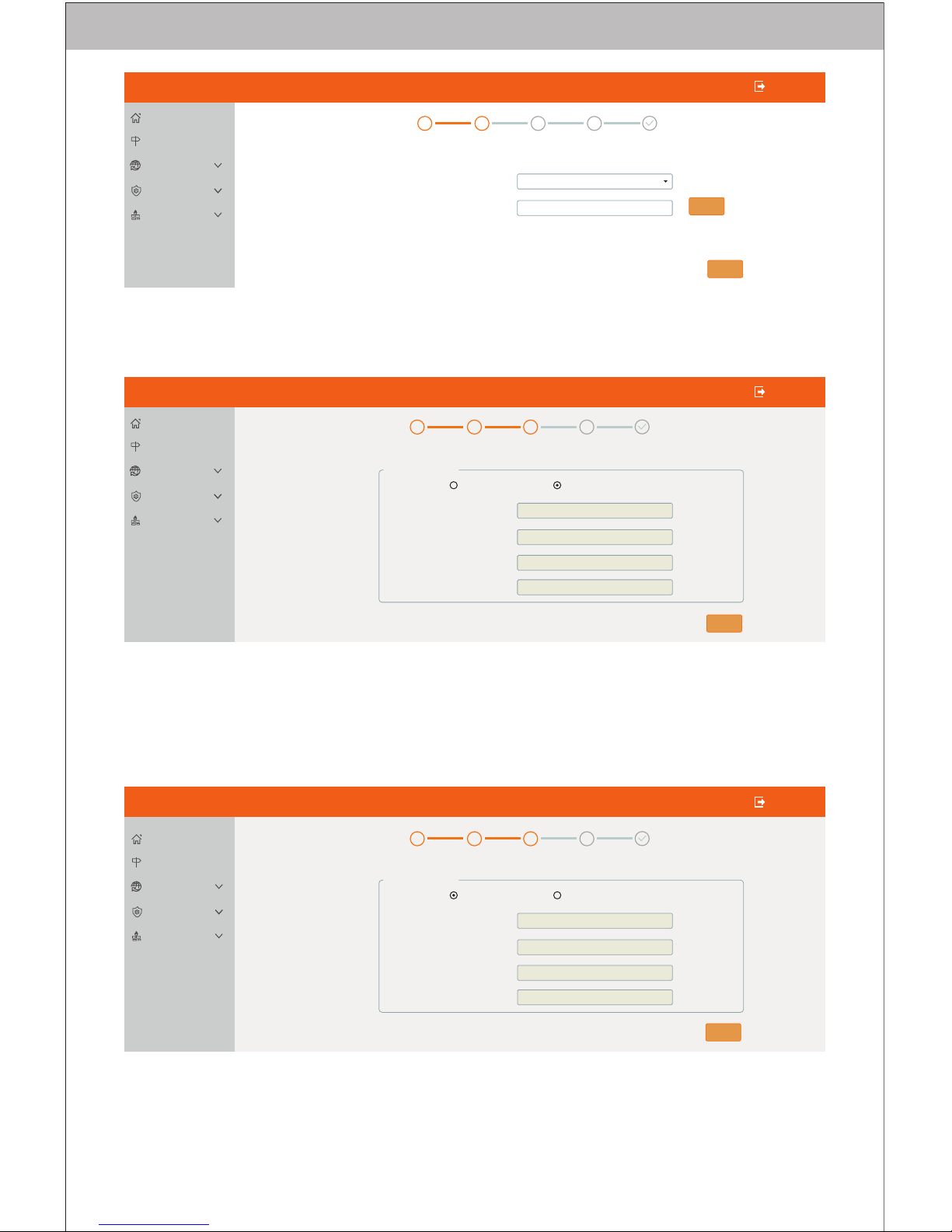
① Select “DHCP” and the device will automatically receive IP
address segment from the upper network.
② Select “Static” and you need to manually input IP address and
ensure that the segment should be the same as the upper
network. (IP address can not be conflict with the upper network
device.)
③ Set up SSID and password for this device and click “Next” to
finish settings.
Page 8
LAN 2LAN 1
AP
SWI TCH
MOD EM
status information
Wizard
System
Firewall
Network
English
Logout
Bridge
Router
IP address
Subnet mask
STA SSID
2.4G SSID
192.168.10.1
255.255.255.0
status information
Wizard
System
Firewall
Network
English
Logout
Pre v
fin ish
WiFi 2.4G
fin ish
Bridge
settings
Wireless
settings
1 2
Lan Settings
3 4
Bridge settings
FS.COM
FS.COM1
2.4 G Wirel ess
SSID
Pas sword
status information
Wizard
System
Firewall
Network
English
Logout
Pre v
Nex t
WiFi 2.4G
fin ish
Bridge
settings
Wireless
settings
1 2
Lan Settings
3 4
FS.COM
FS.COM
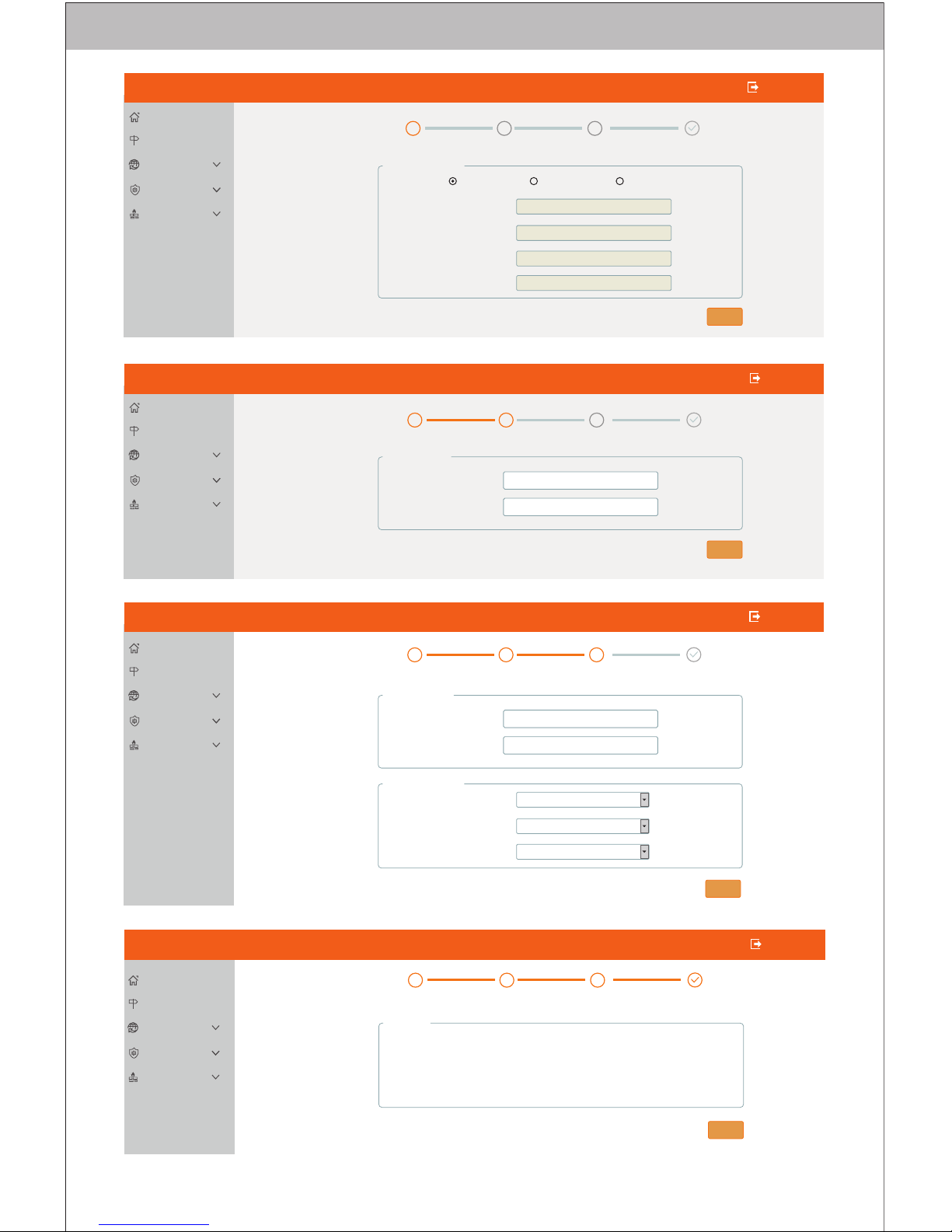
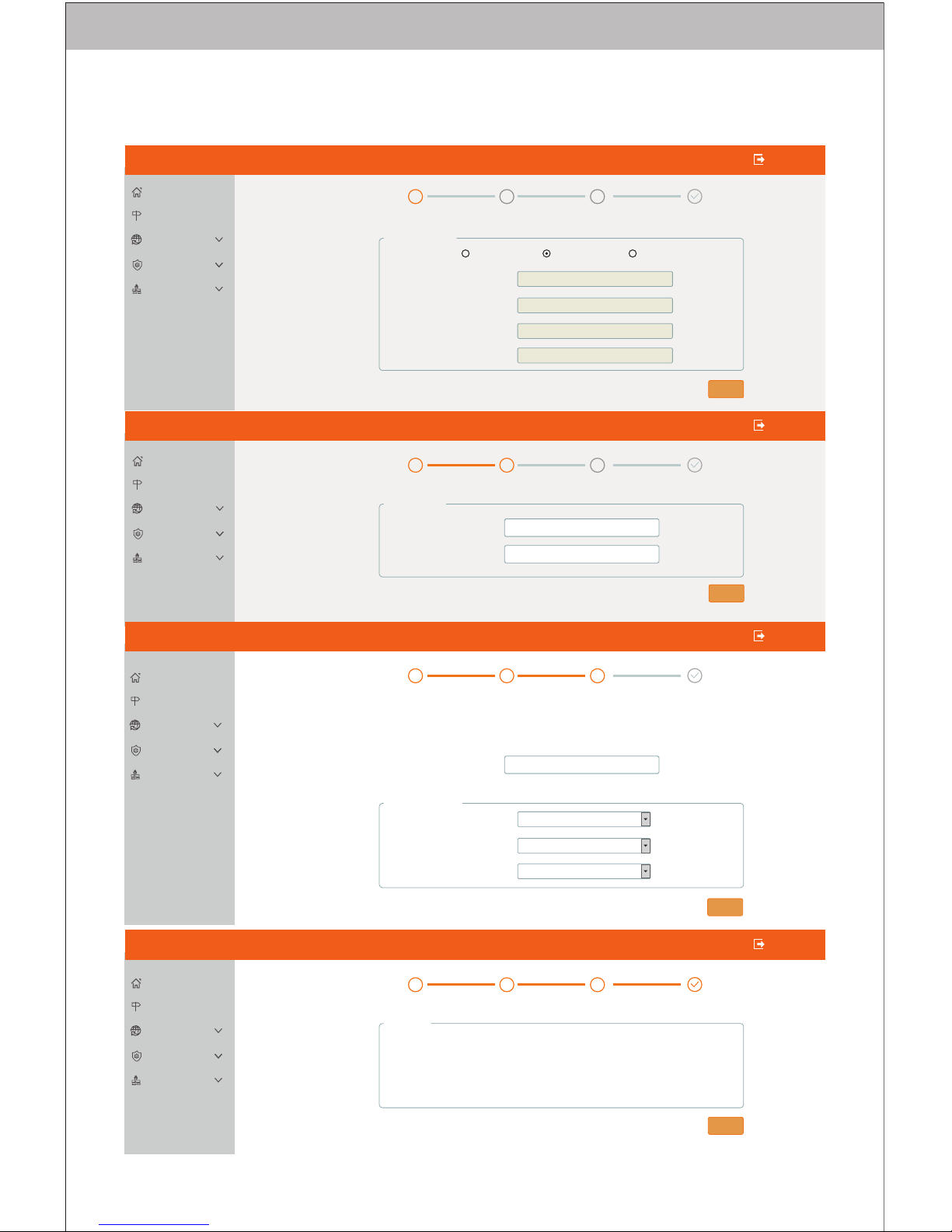
3.8 Router Mode: There are three ways to surf the internet which
are PPPOE, Static and DHCP.
① PPPOE: It needs to fill in the account number and password,
which are provided by ISP.
Page 9
Wir eles s sett ings
User
Password
MTU
Service name
Nex t
Max Length 63 characters
Max Length 63 characters
1492
Max Length 63 characters
PPPoE
WiF i 2.4G
fin ish
Lan Settings
1 2
Wireless settings
3
status information
Wizard
System
Firewall
Network
English
Logout
Static
DHCP
Lan Sett ings
IP address
Subnet mask
192.168.10.1
255.255.255.0
status information
Wizard
System
Firewall
Network
English
Logout
Pre v
Nex t
WiF i 2.4G
fin ish
Lan Settings
1 2
Wireless settings
3
Rou ter
192.168.10.1
255.255.255.0
status information
Wizard
System
Firewall
Network
English
Logout
Pre v
fin ish
WiF i 2.4G
fin ish
Lan Settings
1 2
Wireless settings
3
IP address
Subnet mask
2.4G SSID
FS.COM
2.4G Wireles s
SSID
Password
advanced setting
Bandwidth
Country
Channel
20MHz
China
auto
status information
Wizard
System
Firewall
Network
English
Logout
Pre v
Nex t
WiF i 2.4G
fin ish
Lan Settings
1 2
Wireless settings
3
FS.COM
FS.COM
Page 10
Nex t
PPPoE
e.g: xxx.xxx.xxx.xxx
e.g: xxx.xxx.xxx.xxx
e.g:192.168.10.1
e.g:202.96.134.133
Lan Settings
IP address
Subnet mask
192.168.10.1
255.255.255.0
192.168.10.1
255.255.255.0
status information
Wizard
System
Firewall
Network
status information
Wizard
System
Firewall
Network
status information
Wizard
System
Firewall
Network
status information
Wizard
System
Firewall
Network
English
Logout
English
Logout
English
Logout
English
Logout
Pre v
Nex t
Pre v
Nex t
Pre v
fin ish
Static
DHCP
IP address
Subnet mask
Gateway
DNS
Wireless settings
WiF i 2.4G
fin ish
Lan Settings
1 2
Wireless settings
3
WiF i 2.4G
fin ish
Lan Settings
1 2
Wireless settings
3
WiF i 2.4G
fin ish
Lan Settings
1 2
Wireless settings
3
2.4G Wireless
advanced setting
Bandwidth
Country
Channel
20MHz
China
auto
SSID
Password
IP address
Subnet mask
2.4G SSID
Rou ter
WiF i 2.4G
fin ish
Lan Settings
1 2
Wireless settings
3
FS.COM
FS.COM
FS.COM
② Static: It needs to fill in IP address, Subnet Mask, Gateway and
DNS, which are provided by ISP.
Page 11
192.168.10.1
255.255.255.0
192.168.10.1
255.255.255.0
status information
Wizard
System
Firewall
Network
status information
Wizard
System
Firewall
Network
status information
Wizard
System
Firewall
Network
status information
Wizard
System
Firewall
Network
English
Logout
English
Logout
English
Logout
English
Logout
Nex t
Pre v
Nex t
Pre v
Nex t
Pre v
fin ish
WiF i 2.4G
fin ish
Lan Settings
1 2
Wireless settings
3
IP address
Subnet mask
Gateway
DNS
PPPoE
Static
DHCP
automate
automate
automate
automate
Wireless settings
Lan Settings
WiF i 2.4G
fin ish
Lan Settings
1 2
Wireless settings
3
IP address
Subnet mask
WiF i 2.4G
fin ish
Lan Settings
1 2
Wireless settings
3
2.4G Wireless
advanced setting
SSID
Password
Bandwidth
Country
Channel
20MHz
China
auto
WiF i 2.4G
fin ish
Lan Settings
1 2
Wireless settings
3
Rou ter
IP address
Subnet mask
2.4G SSID
FS.COM
FS.COM
FS.COM
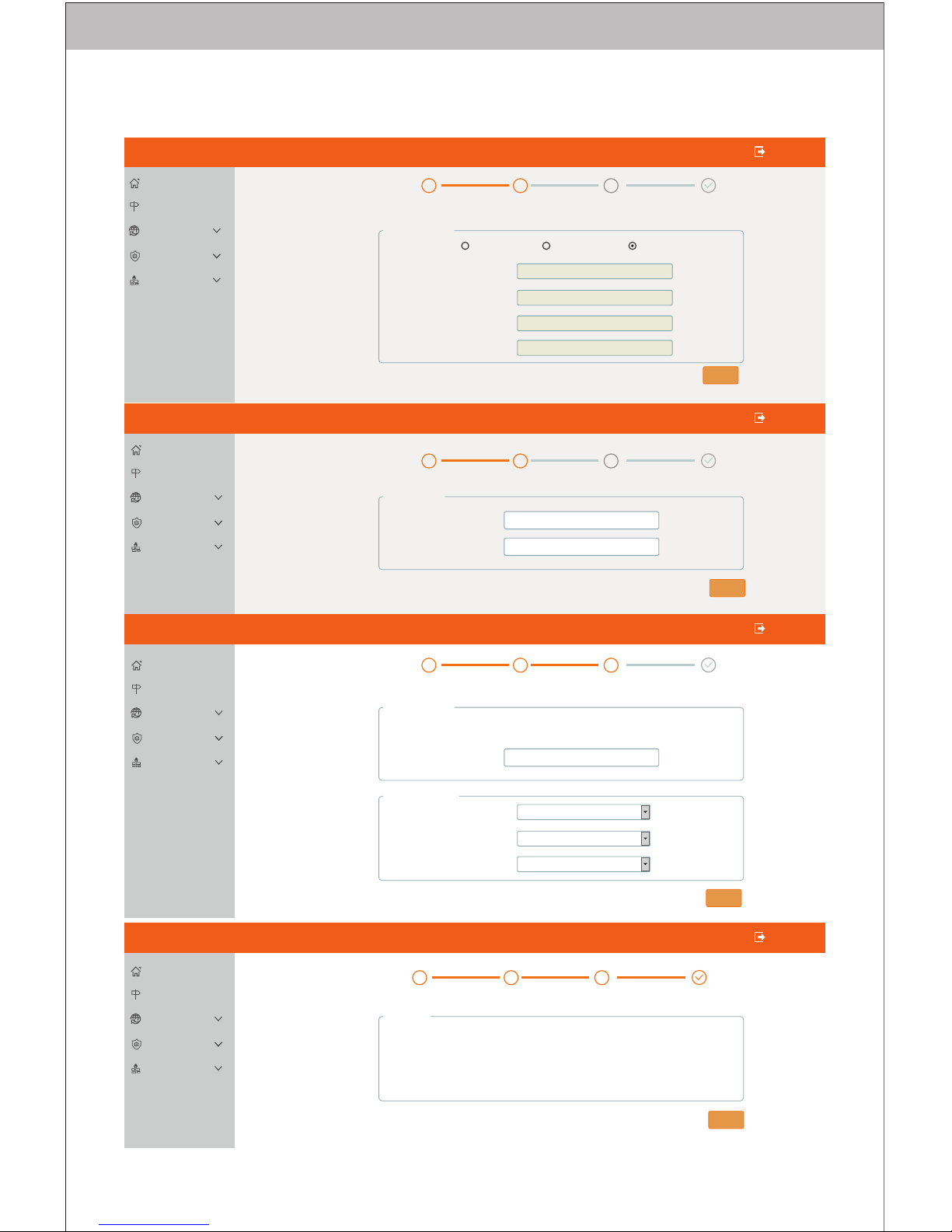
③ DHCP: It needs to be allocated IP by the upper network device
then you can surf the internet.
Page 12

Copyright Statement
No part of this manual shall be copied, reproduced, transcribed or
translated in any form or by any means without the prior written
consent of FS.COM. Product specifications and information
mentioned in this manual are for reference. Any updated information
shall not be announced. Copyright© 2009-2016 FS.COM. All Rights
Reserved. All statements and information are not constitute any form
of guarantee. FS trademark and FS logo belong to FS.COM.
 Loading...