

Page 1
Android: Initial installation (once only)
1
2
Market
Gametel
20
4
Gametel
Gametel
5
Touch Input
Gametel
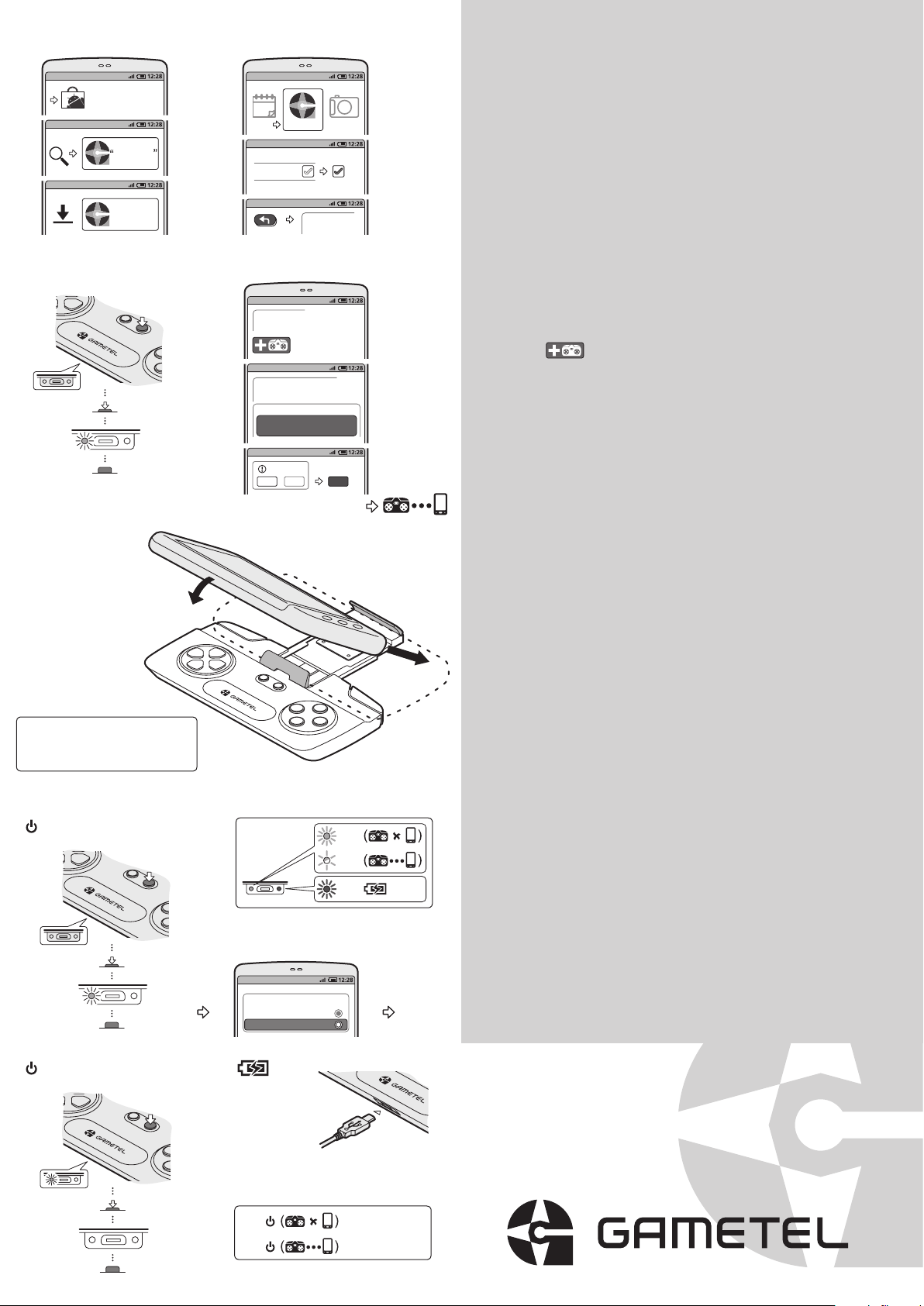
Android: Initial installation
(to install the driver and establish a Bluetooth link)
1 Go to Android Market.
2 Search for “Gametel”.
3 Download and install the Gametel app.
4 Run the Gametel app.
5 When asked to choose the input method, select “Gametel”.
6 Press the back button on your phone to return to the device list.
3
7
Insert phone
Gametel
SELECT
START
~3 secs
10
6
8
9
Gametel
Device List
Gametel
Device List
Select Device
Gametel
88:94:F9:00:08:0A
Bluetooth
Pair
SELECT
START
Gametel
Device List
Pair
7 Press and hold the START button on the Gametel for 3 seconds to switch
it on and make it visible to your phone. After some initial flashes, the
green indicator should light continuously to show that the Gametel is not
yet paired to a phone.
8 Tap the icon in the device list to add the Gametel.
9 If the Gametel is located, it will be added to the list.
Tap the entry to select it.
10 When prompted, tap “Pair” to establish a Bluetooth link between the
Gametel and your phone.
Your phone and the Gametel are now linked and will work together each time
they are both switched on and within range of each other. The green indicator
on the Gametel will flash slowly to show that it is paired with your phone.
ü
Insert phone
On the Gametel, carefully pull out the sprung phone arm and insert your
phone so that it is firmly held in place between the two rubber clamps.
Tip: You can also use the Gametel up to 10 metres away from your phone
(depending on Bluetooth range). Useful if, for instance, your phone is linked
to a TV screen.
For more information and a list of recommended games,
please go to www.gametel.se
www.gametel.se
ð
1
New game releases
ð
2
In use
On
Off
SELECT
SELECT
START
~3 secs
START
Select input method
Touch Input
Gametel
USB A micro
(not supplied)
1/1
1/5
1/1
ü
In use
Once the Gametel has been linked with your phone, to switch it on: Press and
hold the START button for 3 seconds until the green indicator responds. The
green indicator on the Gametel will flash slowly to show that it is paired.
On your phone, select “Gametel” as the input method and you are ready to
start playing.
To switch off the Gametel: Press and hold the START button for 3 seconds
until the green indicator goes dark.
To charge the Gametel, use a standard USB phone charger (or link it to a USB
port on a computer). The red indicator will be on when power is applied.
To conserve battery power, the Gametel will automatically power off when it
is not being used. Auto power off will occur after 10 minutes of inactivity unless it is not paired with your phone, in which case auto power off will occur
after 2 minutes. Press and hold START to switch Gametel on again.
~3 secs
Auto
Auto
~2 min inactivity
~10 min inactivity
User Guide
Release 2.0a-eng
Page 2
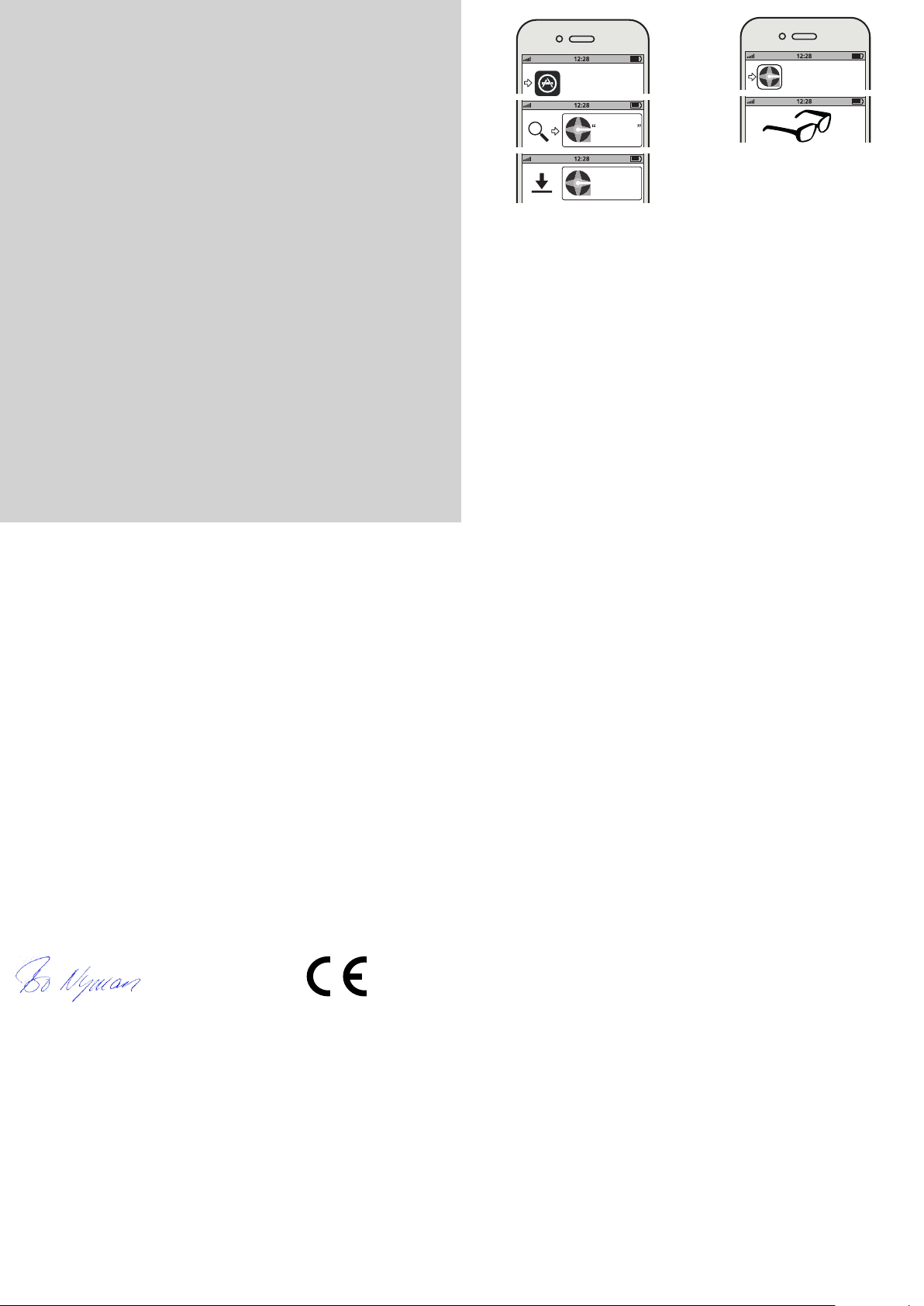
iOS: Initial installation
1 Go to AppStore
2 Search for “Gametel”
3 Download and install the Gametel app
4 Run the Gametel app
5 In the app there is a Manual tab where you can read the details on how to
set up your iOS device to run with Gametel.
1 4
2 5
AppStore
Gametel
Gametel
This product was developed in Lund, Sweden by
Svep Design Center AB on commission from Fructel AB.
3
Gametel
Please Note!Product development
The Gametel clamp should hold your phone securely, but please check the fit
before tilting the Gametel.
Whilst gaming is fun, taking a short break every hour is advisable.
EC Declaration of Conformity
We, Fructel AB, Box 1233, 221 05 Lund, Sweden, declare under our sole
responsibility that our product Gametel is in conformity with the appropriate
standards EN300328, EN 301489-1/-17, EN 60950 : 2006 + A1:2010 +
A11:2009 + A12:2011 following the provisions of Radio Equipment and
Telecommuncation Terminal Equpment Directive 1999/5/EC.
Lund, December 2011
Bo Nyman, CEO, Fructel AB
FCC Compliance Statement
This device complies with part 15 of the FCC and Industry Canada Rules. Operation is
subject to the following two conditions:
(1) This device may not cause harmful interference, and
(2) this device must accept any interference received,
including interference that may cause undesired operation.
Changes or modifications not expressly approved by the party responsible
for compliance could void the user’s authority to operate the equipment.
This equipment has been tested and found to comply with the limits for a Class B digital
device, pursuant to part 15 of the FCC Rules. These limits are designed to provide reasonable
protection against harmful interference in a residential installation. This equipment generates,
Keep your Gametel away from high humidity and wet conditions as it might harm
the electronics.
Do not use your Gametel while driving or operating any machinery!
Disposal of Electrical & Electronic Equipment (WEEE)
Electronic Equipment and Batteries should not be treated as household waste. It
should be handed in at the appropriate collection point for recycling.
Do not try to remove internal batteries, they should only be removed by trained
professionals at recycling centres.
Please help protect the environment by recycling this product properly.
uses and can radiate radio frequency energy and, if not installed and used in accordance with
the instructions, may cause harmful interference to radio communications. However, there is
no guarantee that interference will not occur in a particular installation. If this equipment does
cause harmful interference to radio or television reception, which can be determined by turning
the equipment off and on, the user is encouraged to try to correct the interference by one or
more of the following measures:
—Reorient or relocate the receiving antenna.
—Increase the separation between the equipment and receiver.
—Connect the equipment into an outlet on a circuit different from that to which the receiver
is connected.
—Consult the dealer or an experienced radio/TV technician for help.”
 Loading...