

Page 1

IT'S
SO
SIMPLE!
Attaches to
Macs, PC's, Tablets,
Macs, PC's, Tablets,
USB host PDA's, Wearable-PC's,
USB host PDA's, Wearable-PC's,
devices such as:
Notebooks, etc!
Notebooks, etc!
FrogPad USB Instruction Manual
www.FrogPad.com
Page 2

Learning FrogPad
Chapter 1 Do you Frog?
Chapter 2 Understanding the Keys
Left & Right Keyboard Layouts
Chapter 3 How to "Frog"
Chapter 4 Mac Command Key
Chapter 5 Key Arrangement Chart
Page 2
Do you Frog? Very soon you will be. If you read the instructions,
review the Tutorial and also have a look at the quick reference
card, Frogging is easy. Within an hour, you will be touch-typing.
(About the same time it takes to learn graffiti on a PDA or similar
device.)
But first, let us discuss the opportunity of FrogPad. FrogPad has
broken the Qwerty code. FrogPad is the most unique and powerful
approach to text intensive data entry. It has been designed to be
the next global standard for human computer interfaces. Execute
any command, used on your regular keyboard with two hands, with
just one hand and your FrogPad.
What does this imply? Although we first marketed FrogPad as
being an ergonomic keyboard, the true value of FrogPad is in the
portable wireless Internet market. FrogPad is the only portable,
compact, and fully functional one-handed keyboard that can provide
accuracy and speed for text intensive data applications. Plus it is
easy to learn.
Here are a few things to keep in mind when you are training on Froggy.
Remember that it took a semester (56 hours) to learn to type 40 wordsa-minute (WPM) on the standard keyboard. It will take you less than
10 hours to learn 40 WPM on FrogPad. Some have achieved 40 WPM
in 6 hours. The fact is 79% of the typing population hunts and pecks.
FrogPad is a natural transition for those who hunt and peck.
If you are from the hand-held game generation, you may be inclined to
hold a FrogPad in both hands and use your thumbs. This approach will
work with FrogPad. However, learning to use the FrogPad is easiest
when you first train yourself on one hand.
What does training mean? As a normal human your attention span may
allow you to stick to the tutorial for 10-15 minutes at a time. (Let us
know how long it is for Super Humans...) Also, remember to keep your
eyes on the monitor and not at the keyboard. You will be touch-typing
within an hour.
Two of the unique patented differences to Froggy are the algorithm and
the intuitive letter layout. This makes it fast and easy to learn.
FrogPad Manual
1. Do you Frog?
Page 3

Left & Right Keyboard Layouts
Notice the 15 center keys. At the top left corner, the letters that are in black are used in 86% of the
English language. On the bottom left, the letters are in green, which are used in 14% of the English
language. In the most difficult language, Czech, those 15 letters still comprise 70% of that language.
In most Latin-based languages and in Japanese, it is close to 90%. We also define the character
positions for Arabic, Cyrillic, Hebrew, Korean and Pin Yin for future models.
15 Center Keys
Lefty Layout
CTRL ALT GUI
Num. Lk
;
P
J #
-PgUp
Left
_
D
V
^
+PgDn
{
Y
}
X
..
CapsLock
0
Enter
.
NOTE: When referring to the "LEFTY" FrogPad
We will abbreviate with LHL for 'Left Handed Layout'
FrogPad Manual
Break
R *
W :
B
M
$
7Pause
GUI
H
T
@
~
C
S
L
4
App
[
N
]
K
G
1
Symbol Number
,
=
8End
-
l
(
)
5Alt
2
Print Sc
A &
'
E
Z
I
BkSpc
Sys. Rq
Scroll Lk
F ?
Tab
+
Esc
9Home
!
%
6Ctrl
<
>
3
O
Q
U
Delete
*
Right
/
\
/Ins
"
`
-
Space
15 Center Keys
Righty Layout
2. Understanding the Keys
CTRL ALT GUI
Print Sc
Sd. Lc
Sys. Rq
F ?
A &
g
A
Space
Tab
Esc
Left
/
O
Q
\
U
"
`
Delete
+
'
7Home
*
E
!
%
Z
/Ins
4Ctrl
<
I
>
1
0
BkSpc
SymbolNumber
R *
B
H
L
N
K
Break
=
8End
GUI
-
l
5Alt
App
(
)
2
,
NOTE: When referring to the "RIGHTY" FrogPad
We will abbreviate with RHL for 'Right Handed Layout'
W :
M
$ J #
9Pause
T
@
~
C
6
[
S
]
G
3
Enter
.
Num. Lk
P
Right
D
X
;
g
-PgUp
_
V
^
{
Y
}
A
+PgDn
.
..
CapsLock
3
Page 4

We designed the FrogPad around the natural motion of the hand.
Here are a few exercises:
1. Try "Drumming" your fingers on your desk. This natural motion
starts with the pinky finger and goes one finger at a time to the
index finger. Practice this a few times.
2. This next finger motion is the only new thing you will have to
learn. We'll practice first by doing the following:
press and release your desk with your thumb and fingers like this-
• thumb and index finger
• thumb and middle finger
• thumb and ring finger
• thumb and pinky finger
We call this "simultaneous key press".
FROGGY'S
For (RHL) Place your thumb on the bottom left-hand
key <Space>, and your middle finger on the <H> key.
Press both keys simultaneously and you will produce
the letter <l> (Lowercase L).
For (LHL) Place your thumb on the bottom righthand key <Space>, and your middle finger on the <H>
QUICK
GUIDE!
key. Press both keys simultaneously and you will
produce the letter <l> (Lowercase L).
3. Now place your three middle fingers on the Primary Keys (threecentermost keys) and drum your fingers. You will type "t-h-e".
4. Look at the key above the <H>, and you will see the <R>, now use
what you just learned to type "there"
5. Below the <H> you will see the <N>, now type "then"
6. How about vowels? We have those too. Look at the key directly
above the <E> and you will see <A>, and below the <E> is the <I>.
On the far left side you will see the <O> and <U>. Your index finger
is the strongest finger on your hand. Consequently, you have access
to the all the vowels on one finger.
4
7. Next, we have all of the diagraphs of the English language, such as ei, ou, th,
wh, st, ed, re, er, ed, in. We took these into consideration as we planned the letter
layout.
8. Be mindful of what keys you've activated, such as the <Shift> key. If you find
that your mouse is highlighting text, press the <Shift> key until the indicator light
goes off. You can also reset the FrogPad by holding the <Shift> key down for 3
seconds. After this action, all indicator lights will return to their normal position
of "off" or inactive.
What are all the lights about??
Some lights blink differently to indicate different conditions.
The Num Lock, Caps Lock, & Scroll Lock lights are controlled by
the host computer (usually, but not always, under the direction of the
corresponding key combinations). The right hand light is controlled
by the FrogPad in response to <Right> & <Left> key action.
The other lights across the top; the Ctrl Light and the Alt Light,
are either 'off' or continuously 'on' depending on what keys you are
using. The GUI light blinks (depending on the condition of <GUI> and <App>}.
Number Mode and Symbol Mode cannot be on simultaneously. For example,
if you are in Symbol Mode and you press the <Number> key, Symbol Mode
will be cancelled and the light will go off. However, Symbol Mode "remembers"
if Number Mode is on, so (Keypad or Keyboard) Number Mode is restored when
Symbol Mode is turned off.
Tech-Talk: How does Froggy work anyway?
When a primary key is pressed, the code is sent to your computer like a standard
keyboard. Some functions have about a one-half second delay which cannot be
changed by users. Note, in particular, that codes for secondary characters are sent
immediately because two keys i.e. the key for a character and the <Space> key
are pressed simultaneously. Thus, codes for secondary characters are sent sooner
than those for primary characters.
The delay-before-repeat and the repeat rate can be set on most computer systems.
For example, this is done under "Keyboard" on the "Control Panel" of most MS
Windows® systems. For some people, adjustment of the delay and repeat rate
may make the FrogPad easier to use.
Thank you again for being one of our early adopters. Your insights will make
Froggie the next global standard for data entry. If you have any questions and/or
at any time get 'stuck', please feel free to email us. You may also find answers to
your questions on the FrogBlog at http://frogpad.zeroforum.com/
The Chief Frog Officer
FrogPad Manual
Page 5
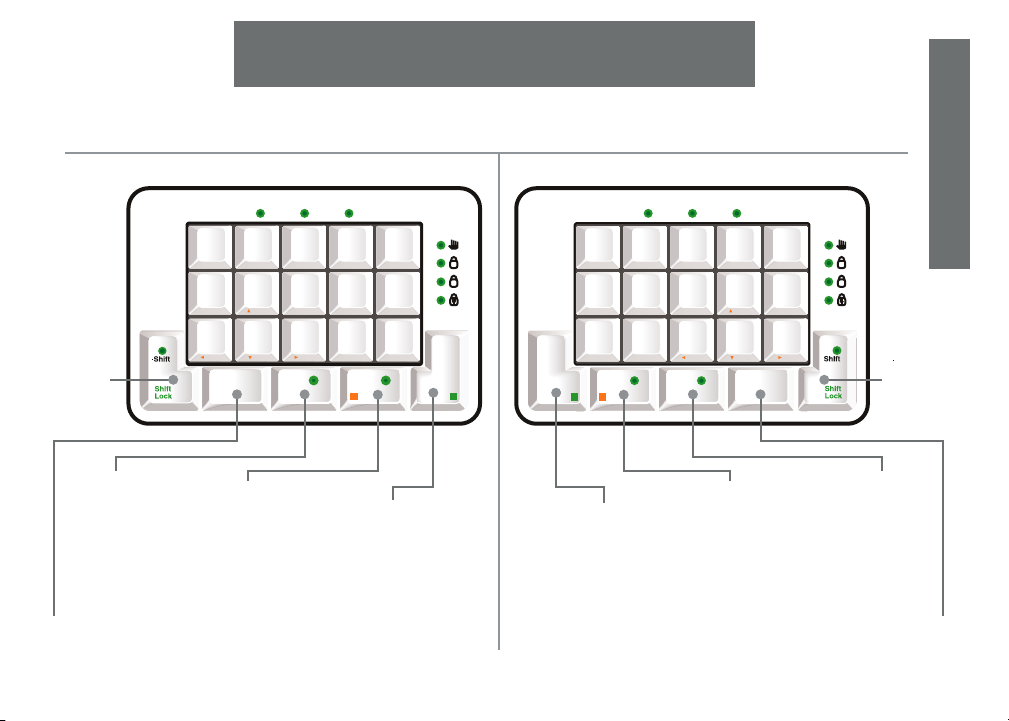
FrogPad Key Functioning
The Letter Keys are the fifteen keys in the center
of the FrogPad. The Primary Letters are located
in the Upper Left-hand corner of each key.
LHL - 'Left Handed Layout'
CTRL ALT GUI
Num. Lk
Break
;
P
J #
-PgUp
Left
_
D
V
^
+PgDn
{
..
CapsLock
Y
}
X
0
Enter
.
SHIFT
the <Shift>
Key also
contains
Caps Lock
&
Shift Lock
SYMBOL
the <Symbol>
Key activates
the Symbol
Mode. Also
contains the
"Comma".
NUMBER
the <Number> Key has
an orange square on it
that corresponds to the
orange commands on
the edge of the keys.
ENTER
the <Enter> Key also contains the "Period".
FrogPad Manual
R *
W :
B
M
$
7Pause
GUI
H
T
@
~
L
C
4
App
[
N
S
]
K
G
1
Symbol Number
,
See the FrogPad Key Arrangement Chart for more information
All Commands will be referenced by angled
brackets (< >). The remaining keys are listed
below:
RHL - 'Right Handed Layout'
Scroll Lk
Print Sc
A &
=
'
8End
-
E
%
Z
l
5Alt
(
I
)
2
BkSpc
Sys. Rq
F ?
Tab
+
Esc
9Home
*
Right
/
O
!
Q
\
/Ins
6Ctrl
<
U
"
>
`
3
-
Delete
SPACE
the <Space> Key
has a green
square on it that
corresponds to
the green letter or
symbol in the
lower half of
each key cap.
Space
Sys. Rq
F ?
Space
Tab
Esc
Left
O
Q
U
Delete
g
A
SPACE
the <Space> Key
has a green square
on it that
corresponds to
the green letter
or symbol in the
lower half of
each key cap.
CTRL ALT GUI
Print Sc
Sd. Lc
A &
R *
+
B
'
7Home
*
/
E
H
!
%
Z
\
/Ins
"
`
0
L
4Ctrl
<
N
I
>
K
1
BkSpc
SymbolNumber
,
NUMBER
the <Number> Key has
an orange square on it
that corresponds to the
orange commands on
the edge of the keys.
Num. Lk
Break
W :
=
M
8End
GUI
-
T
C
l
5Alt
App
(
S
)
G
2
,
$ J #
9Pause
Right
@
~
6
[
]
3
Enter
.
.
;
P
g
-PgUp
A
_
D
V
^
+PgDn
{
Y
}
X
.
..
CapsLock
SHIFT
the <Shift>
Key also
contains
Caps Lock
&
Shift Lock
SYMBOL
the <Symbol>
Key activates the
Symbol Mode.
Also contains the
"Comma".
ENTER
the <Enter> Key also contains the "Period".
3. How to Frog
5
Page 6
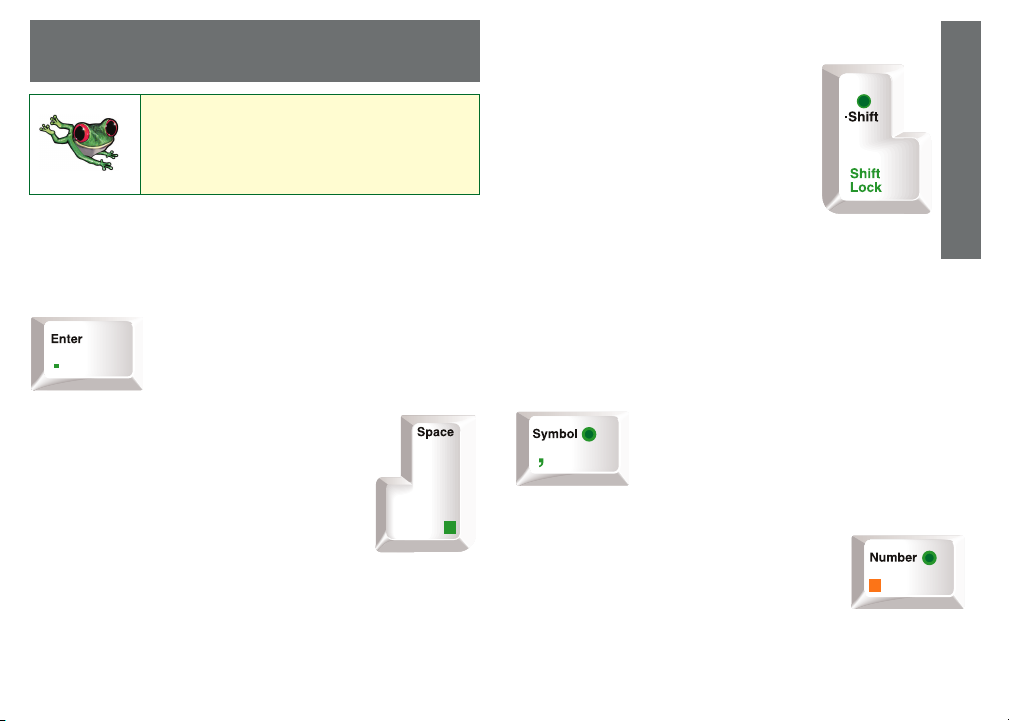
The Basics
FROGGY'S
QUICK GUIDE!
Default Setting
With all lights off the FrogPad is in the Letter Mode for lowercase
letters. Press and release any letter key to get the primary letter for the
key. Hold the key down and the letter repeats.
SPACE
Pressing <Space> by itself generates a space.
Press <Space> and any letter key simultaneously to
obtain the secondary bottom-left GREEN letter for
that key. The <F> and <A> keys have tab and
apostrophe, respectively. The <U> and <I> keys have
no secondary effect.
Pressing <Space> simultaneously with <Symbol> or <Enter> will
generate a comma or a period, respectively.
Other letter-key actions (shifting, repeat, etc.) with <Space> are similar
to those without <Space>.
6
NOTE: When referring to both Left & Right Layouts,
highlighted Commands will be in <RED> .
NOTE: The <GUI> Key is the same as: WIN,
APPLE
ENTER
Press <Enter> to Enter (to start a new line, paragraph,
execute an action, etc.). "Period" is located here too.
To access a Period, press both the <Enter> key and
the <Space> key at the same time.
LHL Shown here
SHIFT
Press <Shift> ONCE to activate Temporary
Shift Mode. The Shift Light blinks to indicate
that CapsLock will be applied to the next letter.
Once the letter is entered, CapsLock will then
be cancelled (unless <Shift> is held down).
Press and hold <Shift> and press any sequence
of letters to get a series of capitalized letters.
(Temporary Shift Mode is still active and is
indicated by the blinking of the Shift light.)
If you want CapsLock press the <Shift> key TWICE (Shift
Light will remain on). To release CapsLock, press the <Shift>
key TWICE.
If you want ShiftLock press the <Shift> and <Space> keys
simultaneously. To release repeat this step.
The Shift Light blinks to indicate that <Shift> will be applied to the
next letter but that <Shift> will be turned off after that letter (unless
<Shift> is held down). It is on continuously to indicate that Shift Lock
is on; in this case, pressing <Shift> causes it to blink off & on periodically.
SYMBOL
Press <Symbol> to activate Symbol Mode. Press
the symbols on the right of each key with or without
<Space> to obtain symbols.
Press <Symbol> again to cancel Symbol Mode.
NUMBER
Press and release <Number> to activate the Keypad
Number Mode (aka NumLock). In this mode,
view the numbers and numeric symbols on the
bottom-edge of the key. You now have a 10-key
keypad. Pressing a number key with <Space> gets
the function keys (F1, F2, etc.). Press <Number>
to cancel the Keypad Number Mode.
Note: the NumLock light and the Number light are on in this mode.
LHL Shown here
..
CapsLock
FrogPad Manual
How to Frog
Page 7
The numbers that run horizontally across the top of a regular
keyboard are called Keyboard numbers (aka Keyboard
Number Mode). To access this set of numbers, press <Space>
and <Number> simultaneously. This mode is similar to the
Keypad Number Mode, except that the coding of digits sent
to the host computer corresponds to that of the keyboard
numbers. The typical user will rarely use this mode. If you do
programming, need it for security codes, or similar applications,
you'll want to make note of this setting. Press <Space> with
<Number> to cancel out of Keyboard Number Mode.
Note: The Num Lock light is off and the Number light blinks
in this mode
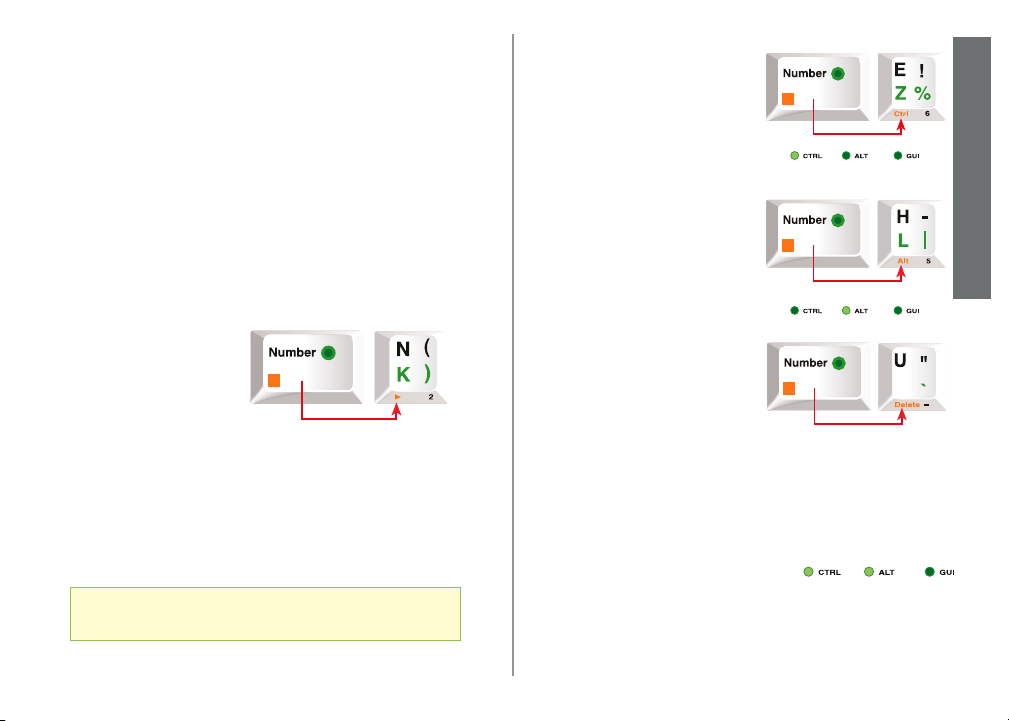
In any mode, press
<Number>
simultaneously with the
indicated orange key to
get functions such as
backspace, delete, escape
and the arrow keys. Hold
<Number> and the
function key to repeat the
function, such as
<Delete> or <BkSpace>.
LHL
Highlighted keys located on the bottom-edges
The following are a sample of keys located on the bottom-edges of all
the keys. In the simplest terms, if the action (i.e. <Esc> or <BkSpc>)
does not have an indicator light, the action is only active at the time
you press it and does not need to be deactivated.
Reference: see FrogPad Key Arrangement
Charts at the end of this manual
FrogPad Manual
CONTROL <Ctrl>
To activate, simultaneously press
<Ctrl> (located at the bottom-edge
of the <E> key) and the <Number>
keys.
Note: The <Ctrl> light is on
To deactivate, repeat the step above.
Note: The <Ctrl> light is off
<Alt>
To activate simultaneously press
<Alt> (located at the bottom-edge of
the <H> key) and the <Number>
keys.
Note: The <Alt> light is on
To deactivate, repeat the step above.
Note: The <Alt> light is off
DELETE
To use <Delete>, simultaneously press
and the <Number> keys. It is only
active each time you use it. To
<Delete>, for example, a line of text,
press an hold down the <Delete> (located at the bottom-edge of the
<U> key) and the <Number> keys until you've completed deleting the
desired text.
CRTL-ALT-DELETE
To execute <Ctrl-Alt-Delete>, press them in sequential order using
<Number> key simultaneously with each of them (see above).
Note: <Ctrl> and <Alt> lights are on.
There is no light for <Delete>
To release, repeat the step above in sequential order pressing only the
<Ctrl> and <Alt> keys, as <Delete> does not stay active.
Note: <Ctrl> and <Alt> lights are off.
LHL
LHL
LHL
How to Frog
7
Page 8
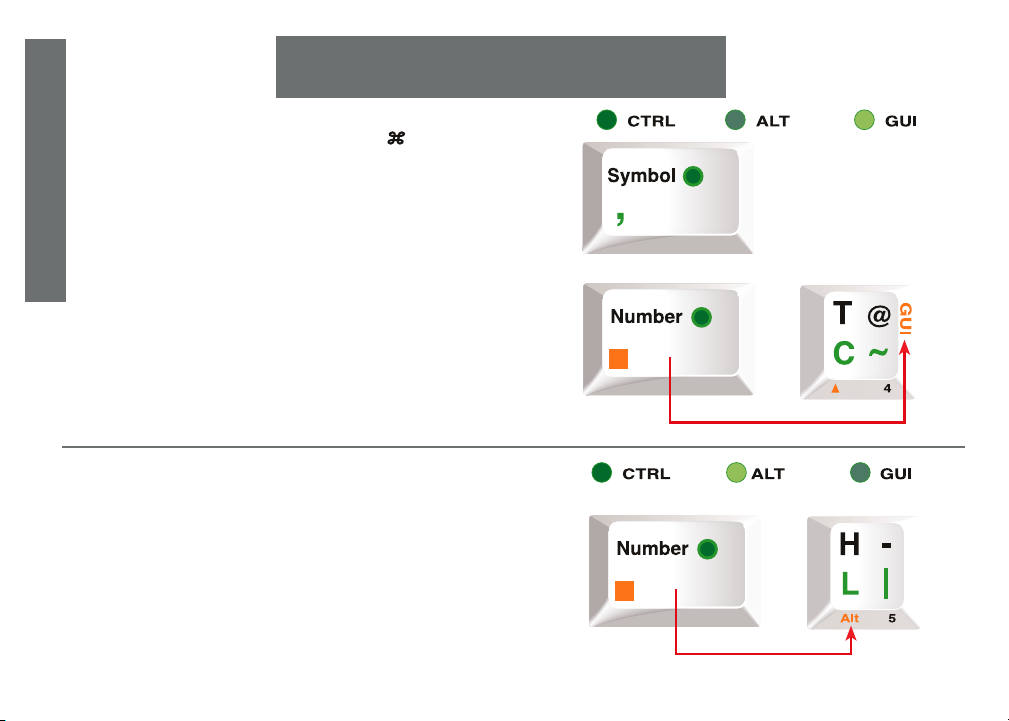
Mac Users
Command
The <GUI> key is the Command key (
(also is PC Windows® key). Activate this function by:
1. Pressing the <Symbol> key and then
2. Simultaneously pressing the <Number> key and the <GUI>
(located at the bottom-edge of the <T> key) .
4. Mac Command Key
3. Immediately enter desired command (such as Copy)
Note: The <GUI> light is on
To deactivate:
1. Press <Symbol> key, next
2. Simultaneously press the <Number> key and the <GUI>.
Note: The <GUI> light is off
)
Option
The <Alt> key is the Option key. Activate this function by:
Pressing the <Alt> key (located at the bottom-edge of the <H> key)
and the <Number> key simultaneously.
Note: The <Alt> light is on
To deactivate:
Simultaneously press the <Number> key and the <Alt>.
Note: The <GUI> light is off
8
LHL
LHL
FrogPad Manual
Page 9
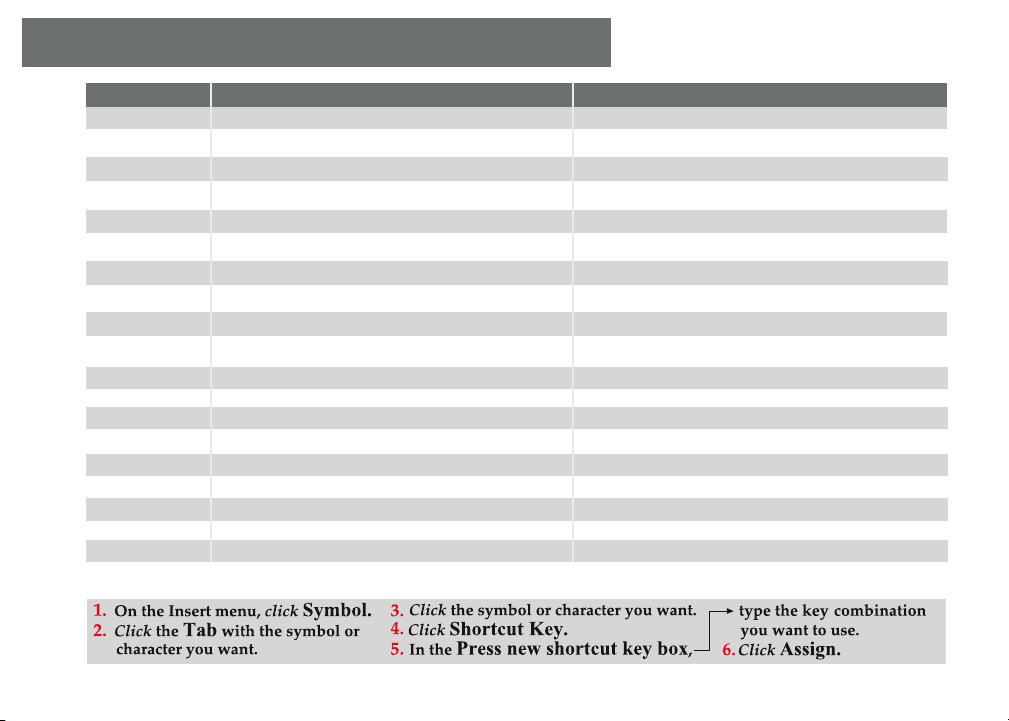
Frequently Used International Characters
PC & Mac equivalents
Character
á, é, í, ó, ú
Á, É, Í, Ó, Ú
à, è, ì, ò, ù
À, È, Ì, Ò, Ù
â, ê, î, ô, û
Â, Ê, Î, Ô, Û
ã, ñ, õ
Ã, Ñ, Õ
ä, ë, ï, ö, ü, ÿ
Ä, Ë, Ï, Ö, Ü, Ÿ
¿
¡
å, Å
æ, Æ
œ, Œ
ç, Ç
›, ‹
ø, Ø
ß
PC
[Ctrl] + ['] (apostrophe), then the letter
For CAPS [Ctrl] + ['] (apostrophe), then press Shift + the letter
[Ctrl] + [`] (accent grave), then the letter
For CAPS [Ctrl] + [`] (accent grave), then press Shift + the letter
[Ctrl] + [^] (caret), then the letter
For CAPS [Ctrl] + [^] (caret), then press Shift + the letter
[Ctrl] + [~] (tilde), then the letter
For CAPS [Ctrl] + [~] (tilde), then press Shift + the letter
[Ctrl] + [:] (colon), then the letter
For CAPS [Ctrl] + [:] (colon), then press Shift + the letter
[Ctrl] + [Alt] + [?]
[Ctrl] + [Alt] + [!]
[Ctrl] + [@], then a or A
[Ctrl] + [&], then a or A
[Ctrl] + [&], then o or O
[Ctrl] + [,] (COMMA), then c or C
[Ctrl] + ['] (APOSTROPHE), then d or D
[Ctrl] + [/], then o or O
[Ctrl] + [&], then s
Mac
[Option] + [e], then the letter
For CAPS [Option] + [e], then press Shift + the letter
[Option] + [`] (accent grave), then the letter
For CAPS [Option] + [`] (accent grave), then press Shift + the letter
[Option] + [i], then the letter
For CAPS [Option] + [i], then press Shift + the letter
[Option] + [n], then the letter
For CAPS [Option] + [n], then press Shift + the letter
[Option] + [u], then the letter
For CAPS [Option] + [u], then press Shift + the letter
[Option] + [Shift] + [?]
[Option] + [!]
[Option] + [a or A]
[Option] + [(APOSTROPHE) or Shift (APOSTROPHE)]
[Option] + [q or Q]
[Option] + [c or C]
[Option] + [Shift] + [4], [Option] + [Shift] + [3]
[Option] + [o or O]
[Option] + [s]
Assign a shortcut key to a symbol (PC only)
FrogPad Manual
9
Page 10
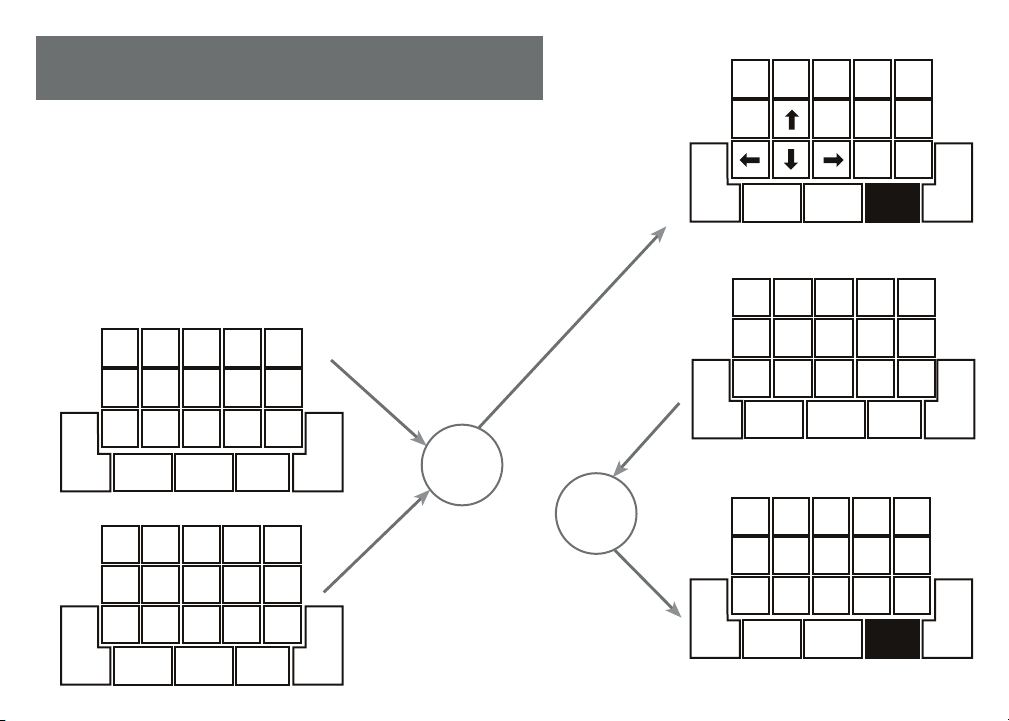
5. Key Arrangement Chart
LHL - 'Left Handed Layout'
• <GUI> = Special Mode + <T> & <Application> = <App> = Special Mode + <S>
• For Function Mode, hold <Number> while in Letter Mode or Number Mode.
• For Special Mode, go to Symbol Mode, then hold <Number> while pressing a Special Mode key.
• <Number> alone brings up the Number Mode with keypad coding (shown as "KP Num"); <Space>
+ <Number> brings up Number Mode with keyboard coding (shown as "KB Num"); consecutive
pressing of <Number> alone does this: [KB Num] -> [KP Num] <-> [Letter Mode]
• <Shift> cycles Shift and Caps Lock.
Letter Mode
F
A
R
W
10
V
X
Caps Lock
Shift Lock
Number Mode
'
F114F4
F10
Caps Lock
Shift Lock
P
D
Y
-
+
0
B
MJ
H
T
L
C
NKIS
G
SymbolEnterShift
,.
8
7
F7
F8
5
F5
213
F1
F2$F3
SymbolEnterShift
,.
'
Z
F9
F6
E
Q
Number
9
6
Number
Tab
U
Tab
F12
O
*
/
.
Space
Space
Hold
<NUMBER>
Hold
<NUMBER>
Function Mode
Page
Page
Down
Caps Lock
Shift Lock
Symbol Mode
#
^
}
Caps Lock
Shift Lock
Special Mode
Num
Lock
Left
Caps Lock
Shift Lock
Pause
Up
;
:
$
_
@
~
[
{
]
.
GUI
App
SymbolEnterShift
SymbolEnterShift
SymbolEnterShift
End
Alt
,.
=
l
)
Print
Scrn
,.
*
-
(
,
Home
Esc
Ctrl
Ins
Back
Del
Space
Number
?
&
+
Tab
!
/
\
%
<
"
>
`
Number
Scroll
Lock
Right
Number
FrogPad Manual
Space
Space
Space
Page 11
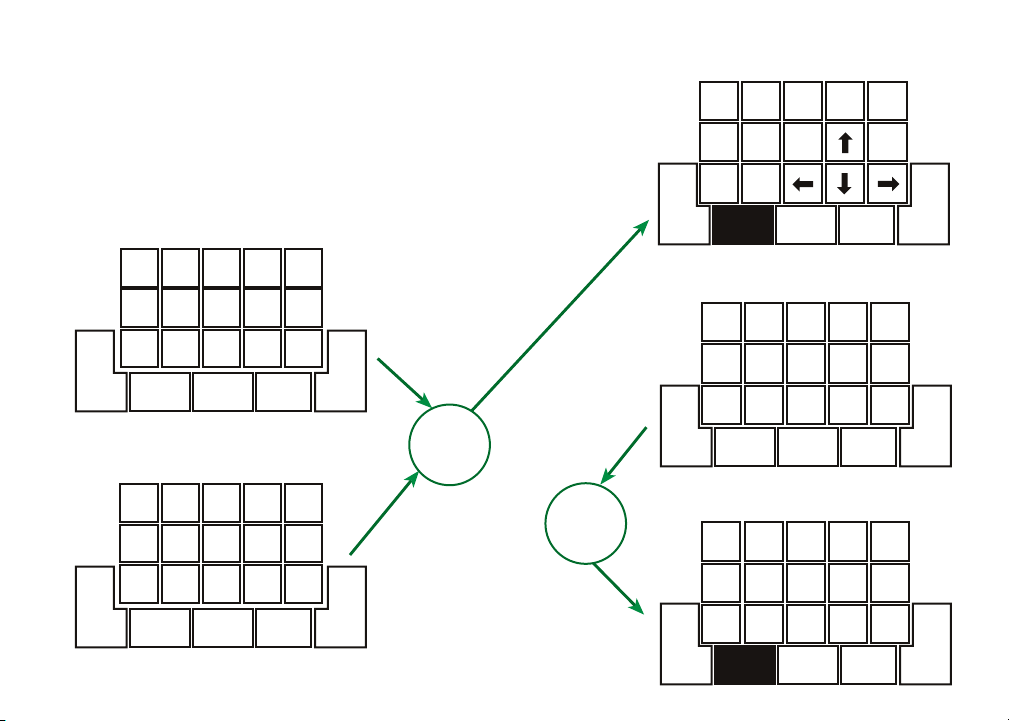
RHL - 'Right Handed Layout'
• <GUI> = Special Mode + <T> & <Application> = <App> = Special Mode + <S>
Function Mode
• For Function Mode, hold <Number> while in Letter Mode or Number Mode.
• For Special Mode, go to Symbol Mode, then hold <Number> while pressing a Special Mode key.
• <Number> alone brings up the Number Mode with keypad coding (shown as "KP Num"); <Space>
+ <Number> brings up Number Mode with keyboard coding (shown as "KB Num"); consecutive
pressing of <Number> alone does this: [KB Num] -> [KP Num] <-> [Letter Mode]
• <Shift> cycles Shift and Caps Lock.
Letter Mode
F
A'RBW
Tab
M J
OQEZHLTCD
N
I S
U
Space Number Symbol Enter Shift
Number Mode
*
Tab
F-114F-4
0
F-10
Number
Space Number Symbol Enter Shift
FrogPad Manual
K
GYX
, .
8
7
F-7
/
F-1
F-9
F-8
5
F-6
F-5
213
F-2$F-3
9
6
, .
V
'
F-12
P
Caps Lock
Shift Lock
-
+
=
Caps Lock
Shift Lock
Hold
<NUMBER>
Hold
<NUMBER>
Space Number Symbol Enter Shift
Space Number Symbol Enter Shift
Space Number Symbol Enter Shift
Esc
Home
Ctrl
Ins
Bk. Sp
Del
Symbol Mode
?
&
Tab
+
!
/
\
%
<
"
>
`
Special Mode
Scroll
Lock
Left
End
Alt
, .
*
=
-
l
(
)
, .
Print
Scrn
, .
Pause
$
~
]
GUI
App
@
Pg Up
Pg Dn
Caps Lock
Shift Lock
;
:
#
_
^
[
{
}
Caps Lock
Shift Lock
Num
Lock
Right
Caps Lock
Shift Lock
11
Page 12
For more information contact us:
713.960.9611 • [email protected]
FrogPad Offices in US, Canada,
Germany, UK, & Japan
visit us online @
www.FrogPad.com
 Loading...