

Page 1
Bluetooth®iFrog Quick Start Guide
Contents of this Package
·
·
·
·
·
Bluetooth
Bluetooth
®
iFrog
120V/240V AC power adapter
Zip Linq USB Charging cable
Quick Start Guide
FrogPad User Manual and CD
Page 2

Compatibility
Charging
Alternate Charging Method
The iFrog is compatible with any PC or MAC that has capability and which also supports the HID
profile. If the PC or MAC does not have a capability or does not support the
HID profile, a dongle with the necessary drivers may be purchased separately.
FrogPad is compatible with many handheld devices from Palm, HP, Nokia, Dell, Sony Ericsson and many
more. To see the latest compatibility list, visit the FrogPad website at www.Frogpad.com.
FrogPad is rechargeable and must be charged before use. Recharge fully for 2 hours before use.
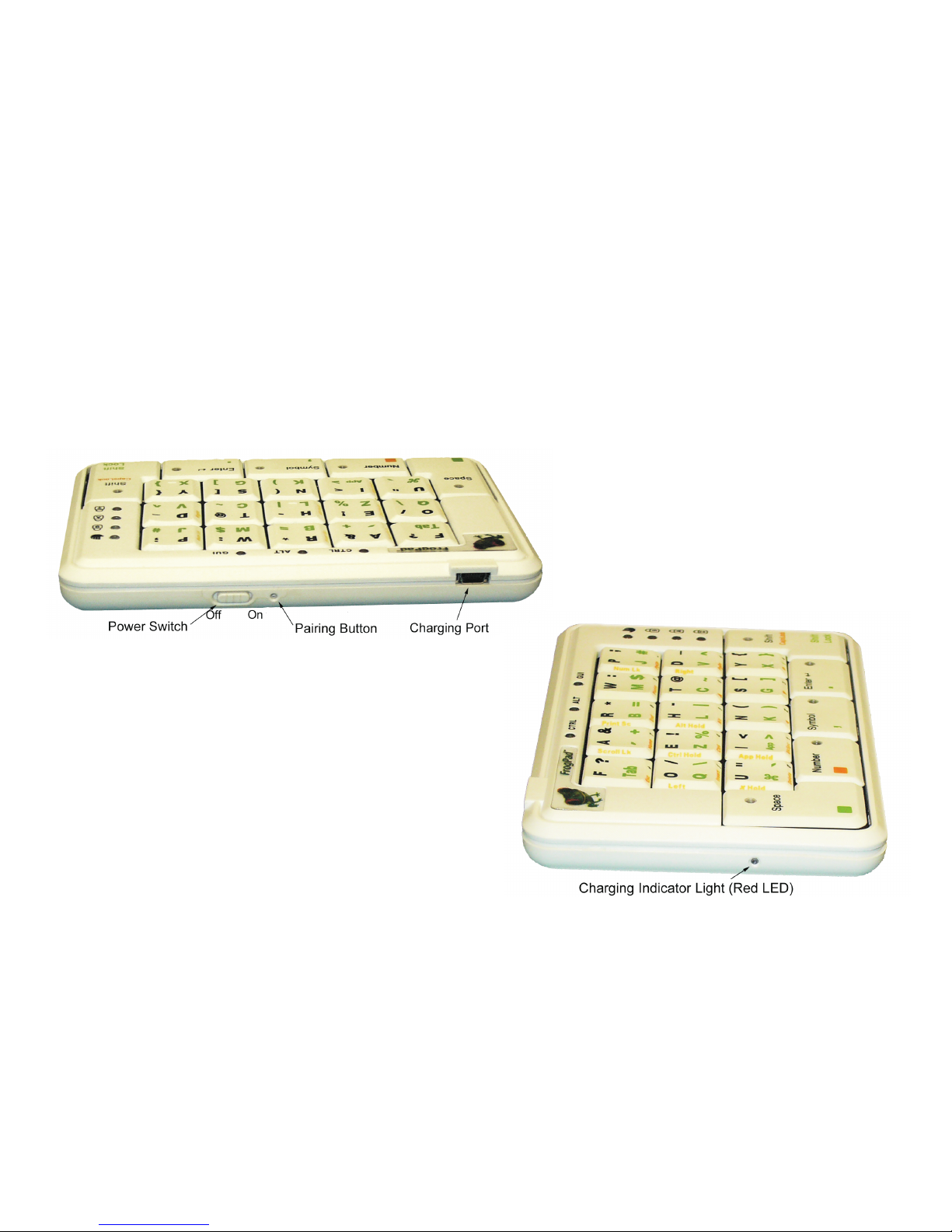
Turn OFF the (see section below on Turning On/Off)
Insert the larger connector on the charging cable into the AC power adapter
Insert the smaller connector of the charging cable into the FrogPad's charging port
Plug the AC power adapter into an electrical wall outlet
You will see a red light on the Charging Indicator Light (Red LED)
The red light will turn off when charging is complete
Insert the smaller connector of the charging cable into the iFrog 's charging port
Insert the larger connector on the charging cable into your PC or MAC USB port
® ®
® ® ®
®
®
Bluetooth
Bluetooth Bluetooth Bluetooth
Bluetooth
Caution: The iFrog includes a lithium polymer rechargeable battery. Use only the included
charger and specified method for charging the battery. Risk of explosion if battery is replaced
by an incorrect type. Dispose of used batteries according to local regulations.
®
·
·
·
·
·
·
·
solid
·
2
Page 3

·
·
·
·
·
·
·
·
·
You will see a red light on the Charging Indicator Light (Red LED)
The red light will turn off when charging is complete
The FrogPad requires recharging when you see a solid red light on the Charging Indicator Light (Red LED)
Turn OFF your iFrog
Refer to Charging section above on how to recharge the iFrog
You may turn your iFrog ON if you would like to continue using the iFrog while it is charging,
To turn ON, slide the on/off switch to the ON position as indicated in the diagram above.
To turn OFF, slide the on/off switch to the OFF position as indicated in the diagram above.
To connect to the PC or MAC, you must first place the iFrog into Pairing mode.
Press the PAIRING button (To Press the RESET/PAIRING button, insert a thin straight object e.g. a
paper clip into the hole of the pairing button)
The red charging indicator light will flash rapidly to indicate the iFrog is in pairing mode
Follow the PC or MAC procedures for connecting to a keyboard
solid
Note:
Low Battery Indicator
Turning On/Off
Connecting to the PC or MAC
®
®
® ®
®®
®
®
Bluetooth
Bluetooth
3
Page 4
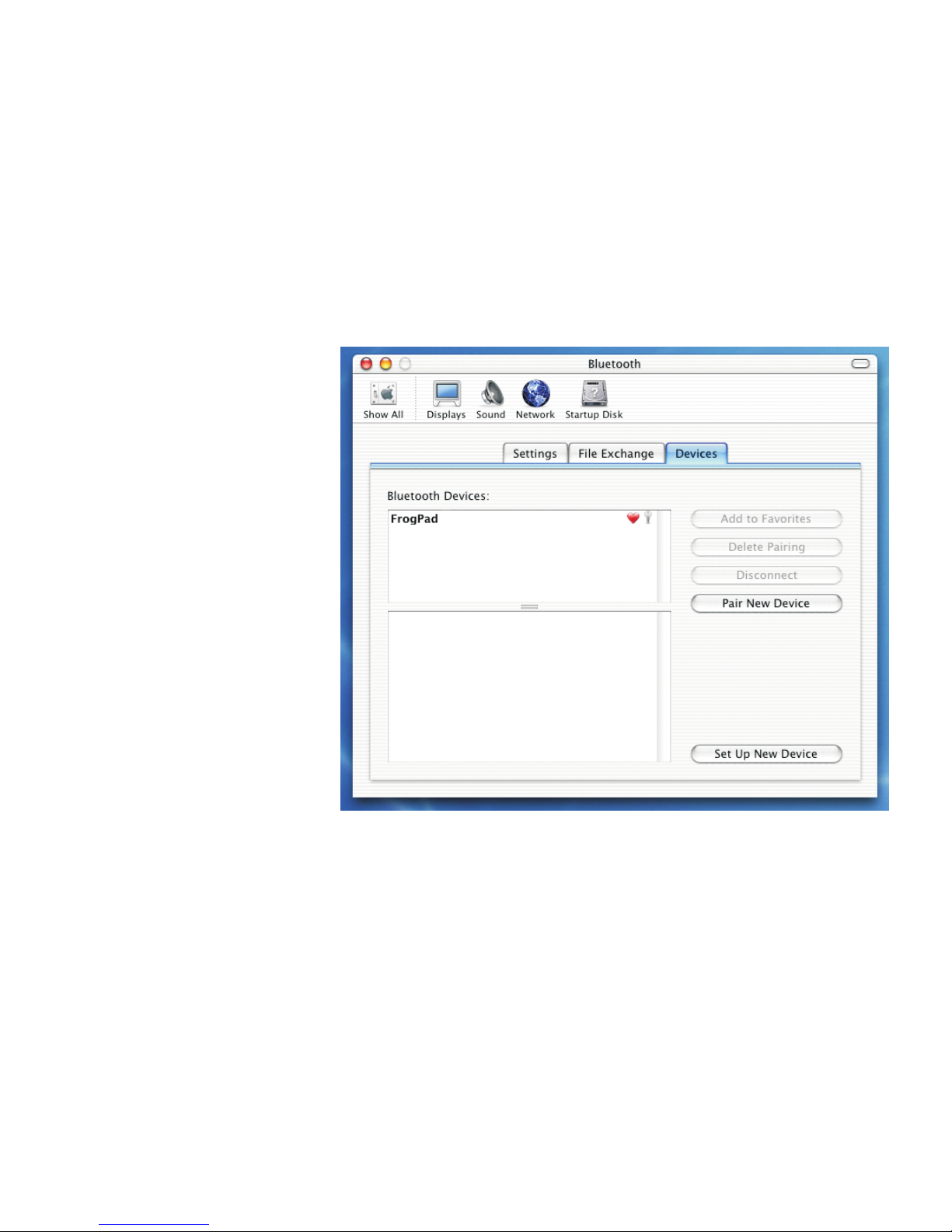
Connecting to a MAC:
Note: Mac OS 10.2.8 or later does
not require additional
software.
Click on the Icon in
the Hardware Panel and open
the Window
Click on the Tab
Turn on the iFrog keyboard
and press the PAIRING button.
The red light on the side of the
keyboard should be blinking
rapidly.
Click on .
Enter a code on the apple
keyboard when prompted, then
enter the code on the iFrog
Keyboard when prompted.
Click OK
(Ensure iFrog is in number
mode ie. Number LED is lit
when entering the numeric code)
: Once the iFrog is paired, it can be turned on and off without repeating the pairing procedure. It will
connect automatically.
Bluetooth
Bluetooth
Bluetooth
Devices
Pair New Device
®
®
®
®
®
®
®
·
·
·
·
Note
4
Page 5
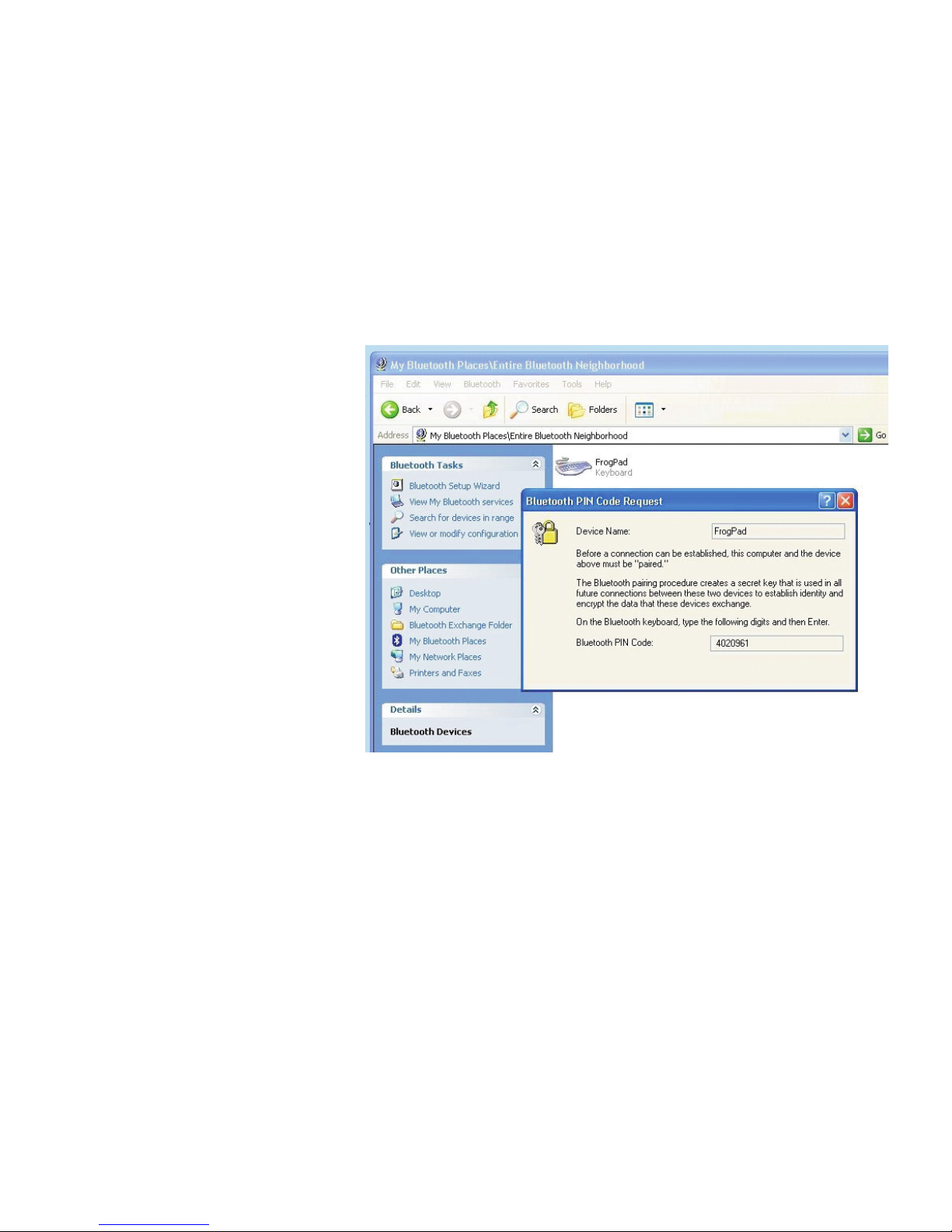
Connecting to a PC:
Note: Windows requires additional
software to pair a
device. Instructions
below are based on WIDCOMM
Software Version 1.4.2
running on Windows XP . Follow
the instructions which come with
your particular adapter.
Turn the iFrog on and press the
PAIRING button. The red LED on
the side should flash rapidly
indicating FrogPad is in pairing
mode.
Click on . A
FrogPad icon will appear in the
window.
Right click on the icon and select
from the menu
Click yes to connect to an HID device
Enter code PIN code when prompted and press enter (ensure the iFrog is in number mode ie. Number
LED is lit)
iFrog is connected! Once the iFrog is paired, it can be turned on and off without repeating the pairing
procedure. It will connect automatically
Bluetooth
Bluetooth
Bluetooth
Bluetooth
View devices in range
Connect to device
®
®
®
®
®
®
®
®®
·
·
·
·
·
·
5
Page 6

Connecting to a Handheld Device
Wake Up
Low Battery Indicator
To connect to most handheld devices you will require additional drivers. The drivers are specific to the family
of device you are using. Installation instructions and drivers are available from the FrogPad website.
After 15 minutes of no keyboard input, the iFrog will enter into sleep mode to preserve battery power. To
wake it up, press the <Shift> for three seconds.
The FrogPad requires recharging when you see a solid red light on the Charging Indicator Light (Red LED)
Turn OFF your iFrog
Refer to Charging section above on how to recharge the iFrog
You may turn your iFrog ON if you would like to continue using the iFrog while it is charging,
®
®
®
® ®
·
·
Note:
FrogPad Keyboard Limited Warranty
TM
FrogPad, Inc.(FrogPad) warrants that your FrogPad iFrog keyboard will be free from defects in material or workmanship for a period of
one (1) year after the date of purchase, under normal use and conditions.
During this period, if the keyboard is found to be defective in materials or workmanship FrogPad will repair or replace it, at the sole option
of FrogPad, at no charge to you. In no event shall FrogPad be liable for damages exceeding the sale price for your keyboard.
You are responsible for packing the defective keyboard properly and for the cost of shipping. Shipping instructions will be given by tech
support at FrogPad. Warranty repairs are completed at no charge for parts or labor, and FrogPad will pay the cost of shipping the repaired
or replaced product back to you. Warranty repairs may use new or equal replacement parts.
®
For all warranty and service related matters, please contact
6
Page 7

FrogPad reserves the right to make the final decision on any warranty claim that may be questionable. This limited warranty does not
cover and FrogPad will not be responsible for failures or defects due to misuse, neglect, abuse, accidents, alterations, improper or
unauthorized installation or service, unauthorized removal or repairs, failure to follow instructions, fire, floods, acts of God, or spills of
food or liquids.
EXCEPT FOR THE EXPRESS LIMITEDWARRANTYPROVIDEDABOVE, THE FROGPAD KEYBOARD, FIRMWARE, SOFTWARE,
ACCOMPANYING DRIVERS AND WRITTEN MATERIALS ARE PROVIDED “AS IS” WITHOUTREPRESENTATION, CONDITION
OR WARRANTY OF ANY KIND, WHETHER EXPRESS, IMPLIED OR STATUTORY, AND FROGPAD SPECIFICALLY EXCLUDES
ALL OTHER CONDITIONS AND WARRANTIES, INCLUDING BUT NOT LIMITED TO IMPLIED CONDITIONS AND
WARRANTIES OF MERCHANTABILITY AND FITNESS FOR A PARTICULAR PURPOSE. IN NO EVENT SHALL FROGPAD BE
LIABLE FORANYINDIRECT, INCIDENTAL, SPECIAL OR CONSEQUENTIALDAMAGESARISING DIRECTLY OR INDIRECTLY
IN CONNECTION WITH THE KEYBOARD,THE USE OF THE KEYBOARD OR OTHERWISE, WHETHER FOR LOSS OF PROFITS,
BUSINESS REVENUES OR OTHERWISE.
This warranty sets forth the entire responsibility of FrogPad with respect to the keyboard, firmware, software, accompanying drivers and
written materials. Your exclusive remedy is repair or replacement as stated herein. In no event shall FrogPad's liabilities exceed the cost of
correcting defects as provided herein and any such liabilities will terminate upon expiration of the warranty period.
This warranty is valid only when the keyboard is purchased from a FrogPad Inc. Authorized Dealer, and applies only to the original
purchaser. Keyboards with the serial number or model designation removed, altered, replaced or defaced are not covered by this warranty.
The trademark is owned by Bluetooth SIG, Inc., and used by FrogPad, Inc. under license.
This device complies with part 15 of the FCC Rules. Operation is subject to the following two conditions:
(1) This device may not cause harmful interference, and
(2) This device must accept any interference received, including interference that may cause undesired operation.
Changes or modifications not expressly approved by the party responsible for compliance could void the user's authority to operate the
equipment.
This equipment has been tested and found to comply with the limits for a Class B digital device, pursuant to part 15 of the FCC
Trademarks™ and Registered Trademarks
FCC NOTICE:
®
Bluetooth
®
FROGPAD and the FROGPAD logo are trademarks of FrogPad, Inc.
Note:
7
Page 8

Rules. These limits are designed to provide reasonable protection against harmful interference in a residential installation. This
equipment generates, uses and can radiate radio frequency energy and, if not installed and used in accordance with the instructions, may
cause harmful interference to radio communications. However, there is no guarantee that interference will not occur in a particular
installation. If this equipment does cause harmful interference to radio or television reception, which can be determined by turning the
equipment off and on, the user is encouraged to try to correct the interference by one or more of the following measures:
Reorient or relocate the receiving antenna
Increase the separation between the equipment and receiver.
Consult the dealer or an experienced radio/TV technician for help.
In accordance with Annex IV of the EU directive 1999/5/EC, as a manufacturer of the product, declares under our
responsibility that the product:
Type:
Intended Purpose:
Equipment Class:
complies with the appropriate essential requirements of the Article 3 of the R&TTE and the other relevant provisions, when used for its
intended purpose.
: Information technology equipment - Safety
, Generic standard to demonstrate the compliance of low power electronic and electrical apparatus with the basic
restrictions related to human exposure to electromagnetic fields (10 MHz - 300 GHz) - General public
, Electromagnetic compatibility and Radio spectrum Matters (ERM); ElectroMagnetic Compatibility (EMC)
standard for radio equipment and services; Part 17: Specific conditions for 2.4 GHz wideband transmission systems and 5 GHz high
performance RLAN equipment
, Electromagnetic compatibility and Radio Spectrum Matters (ERM); Wideband Transmission systems; Data
transmission equipment operating in the 2.4 GHz ISM band and using spread spectrum modulation techniques; Part 2: Harmonized EN
covering essential requirements under article 3.2 of the R&TTE Directive
·
·
·
EUROPEAN CE DECLARATION OF CONFORMITY
Gennum Corporation,
iFrog, FP-100R (right hand version) and FP-100L (left hand version)
Bluetooth Keyboard
1
Health and Safety requirements contained in Article 3 (1) a)
EN 60 950-1:2001
EN 50371:2002
Protection requirements with respect to electromagnetic compatibility Art.3 (1) b)
EN 301 489-17: V1.2.1
Means of the efficient use of the radio frequency spectrum Art.3 (2)
EN 300 328-2 V1.2.1
 Loading...