

Page 1
Join Expérience VDSL V4-6.52 1
User Guide for FritzBox
By
JOIN
Edition : Join VDSL
Page 2

Join Expérience VDSL V4-6.52 2
1- How to connect your FritzBox ? .............................................................................. 3
2- First configuration : accès of the settingS ................................................................. 3
3- Select Language ................................................................................................ 5
4- Select Your country ............................................................................................ 5
5- Select Annex..................................................................................................... 6
6- Automatic reboot ............................................................................................... 6
7- Choose password................................................................................................ 7
8- wizard assist ..................................................................................................... 7
9- Select your provider ........................................................................................... 8
10- Confirm internet connection settings ....................................................................... 8
11- Waiting, saving settings ....................................................................................... 9
12- summary internet connection ................................................................................ 9
13- Account Phone settings ....................................................................................... 10
14- Wifi Settings .................................................................................................... 10
15- Check Fritz OS update ........................................................................................ 11
16- update finished ............................................................................................... 11
17- Overview ........................................................................................................ 12
18- Change Annex – connection failed .......................................................................... 13
19- Factory settings ................................................................................................ 15
20- Settings your own modem ................................................................................... 17
21- How to update your modem ? ............................................................................... 18
22- Forwarding call ................................................................................................ 21
23- Calling line identification restriction ...................................................................... 24
24- Answering machine ............................................................................................ 26
Page 3
Join Expérience VDSL V4-6.52 3
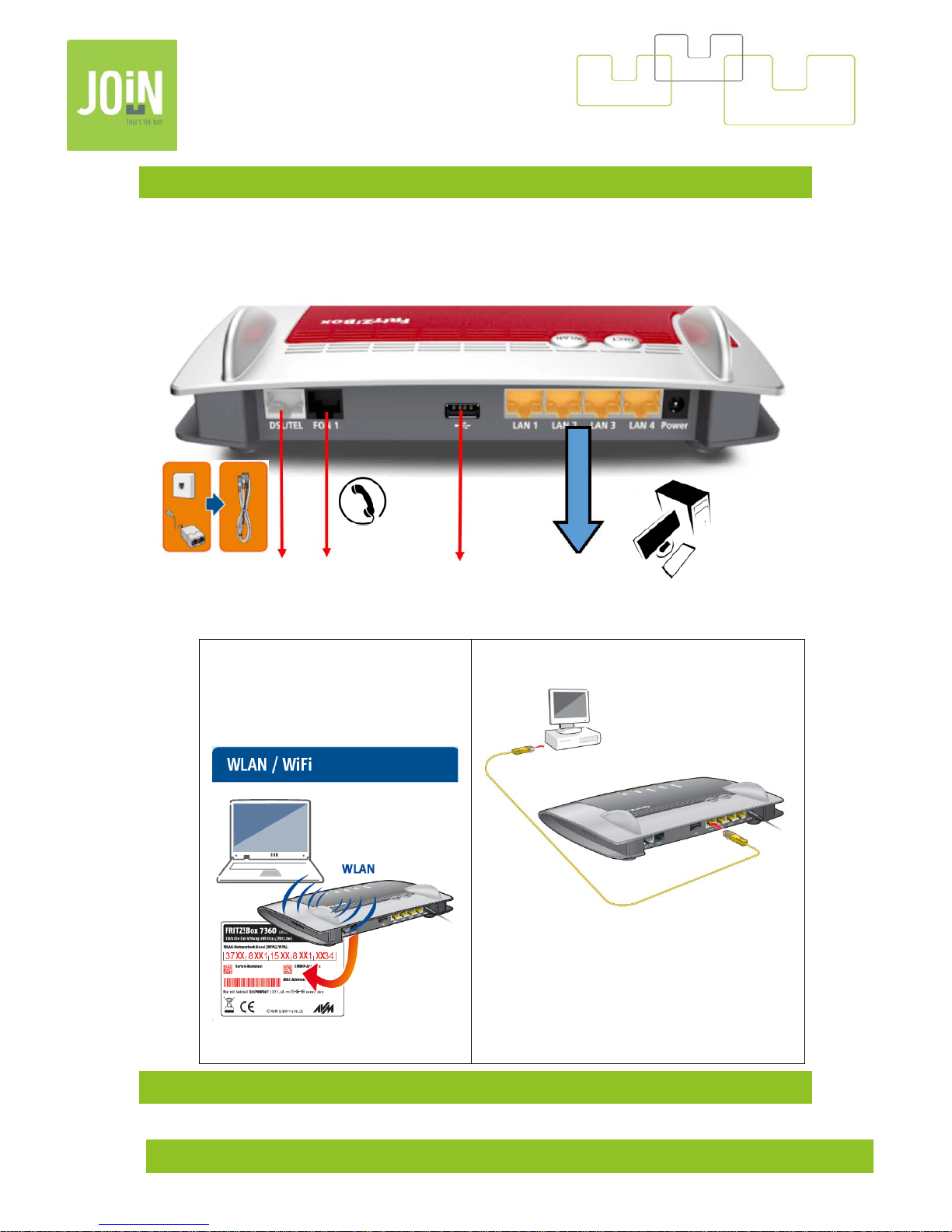
1- HOW TO CONNECT YOUR FRITZBOX ?
Wifi Connexion
Turn on the WLAN by Pushing Wlan button
and wait until Wlan led turn light.
LAN connexion
2- FIRST CONFIGURATION : ACCES OF THE SETTINGS
DSL Line
Fixed telephone
USB 2.0
Computer LAN
Laptop LAN
Page 4
Join Expérience VDSL V4-6.52 4
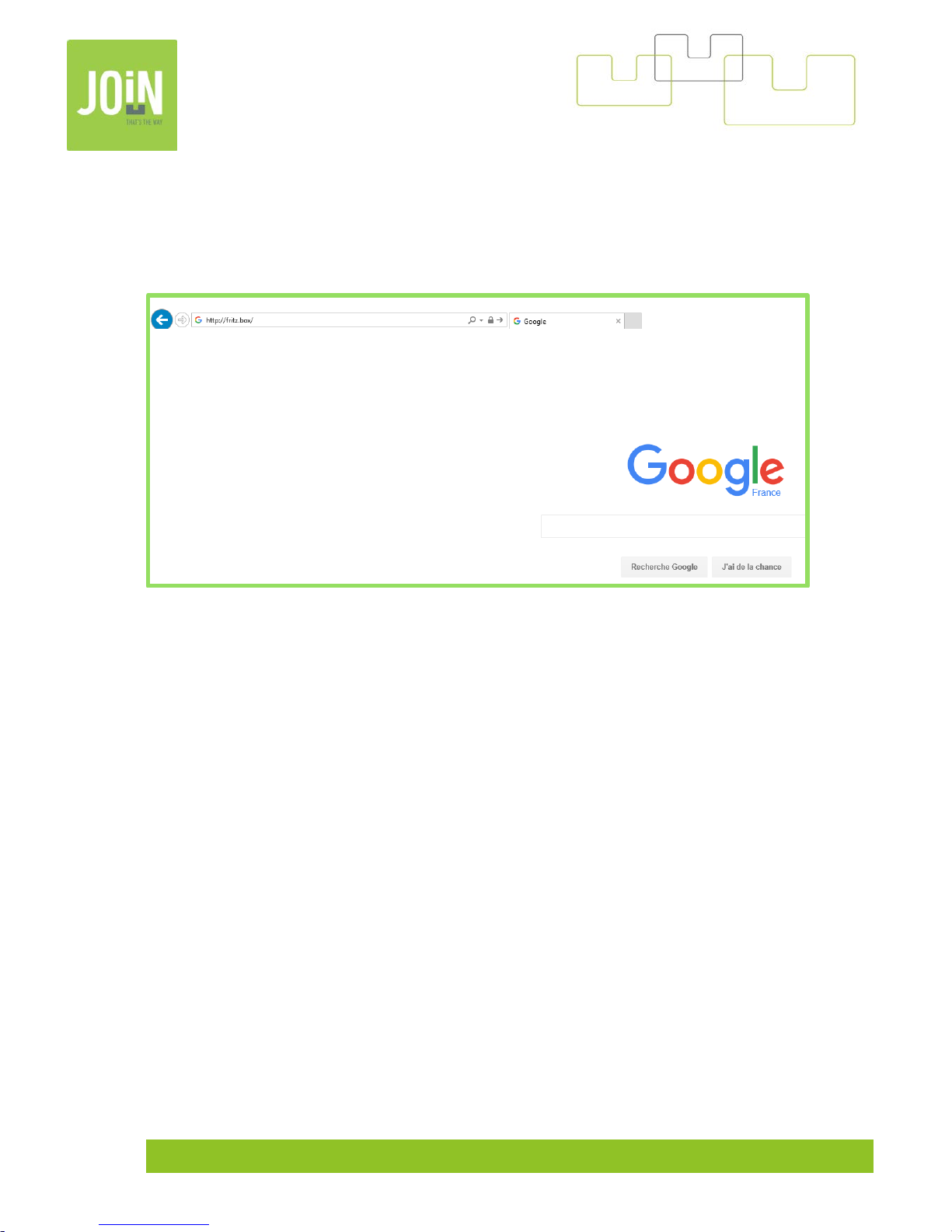
To set up your modem, connect you r computer to your modem via Ethernet cable or WIFI.
Launch a web browser and enter the following into the search address bar:
address:
http://fritz.box or http://192.168.178.1
Page 5
Join Expérience VDSL V4-6.52 5
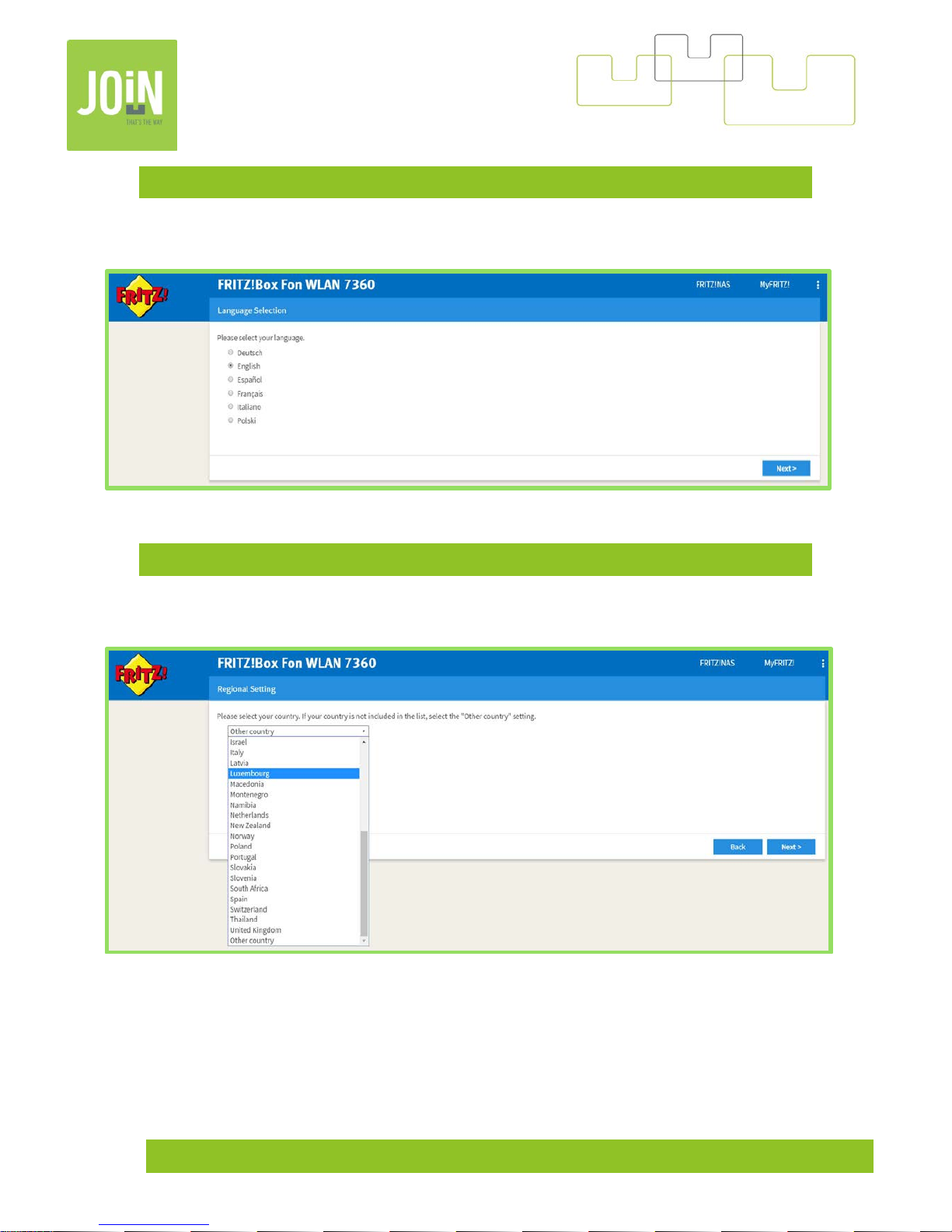
3- SELECT LANGUAGE
In this case, pick English
4- SELECT YOUR COUNTRY
Chose Luxembourg
Page 6
Join Expérience VDSL V4-6.52 6
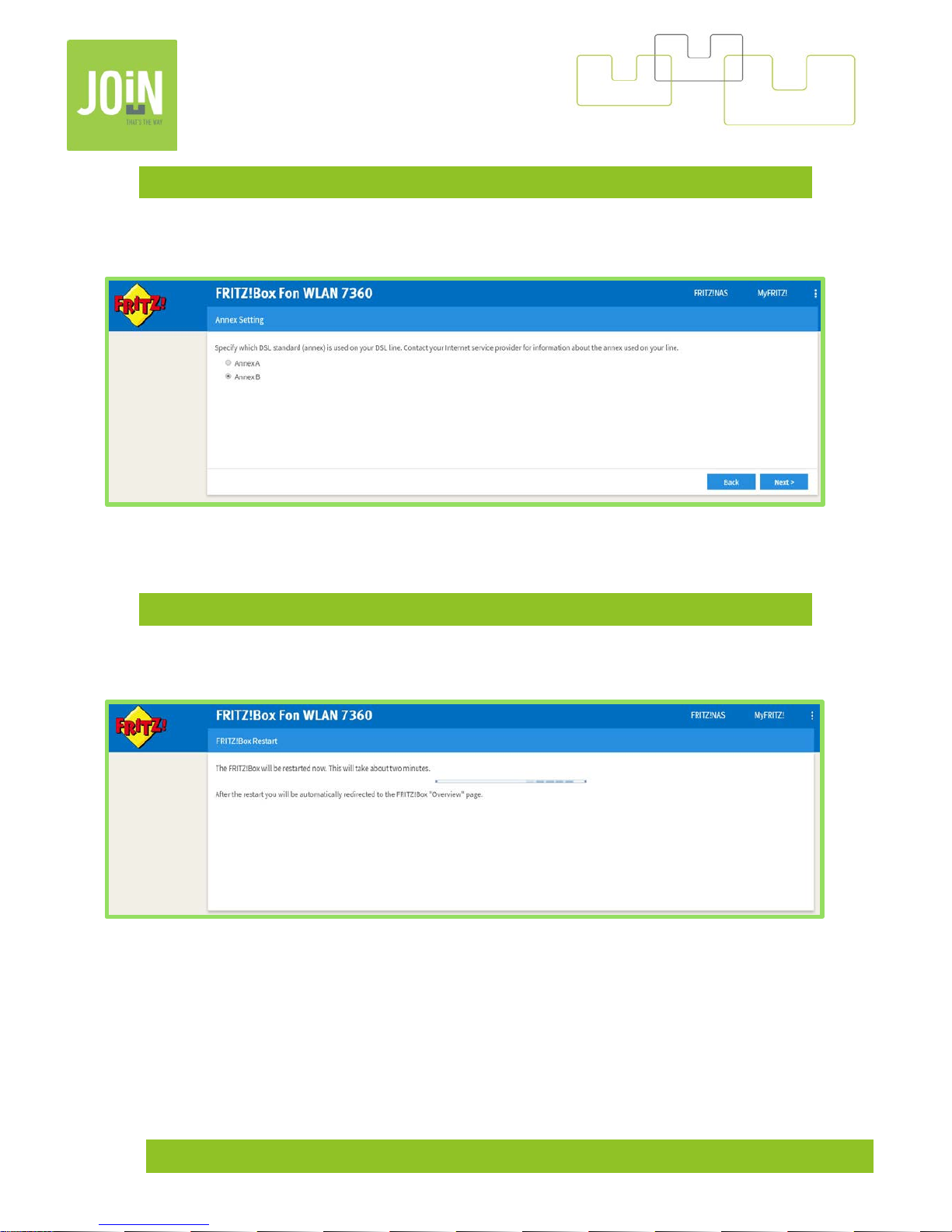
5- SELECT ANNEX
The first time, try with the default setting: Annex B. (
At the end of the configuration, if you
don’t have any internet connection, change to Annex in A, shown i n chapter n°18
).
6- AUTOMATIC REBOOT
After having validated the Annex, your mod e m will re boot au tomatically.
Page 7
Join Expérience VDSL V4-6.52 7
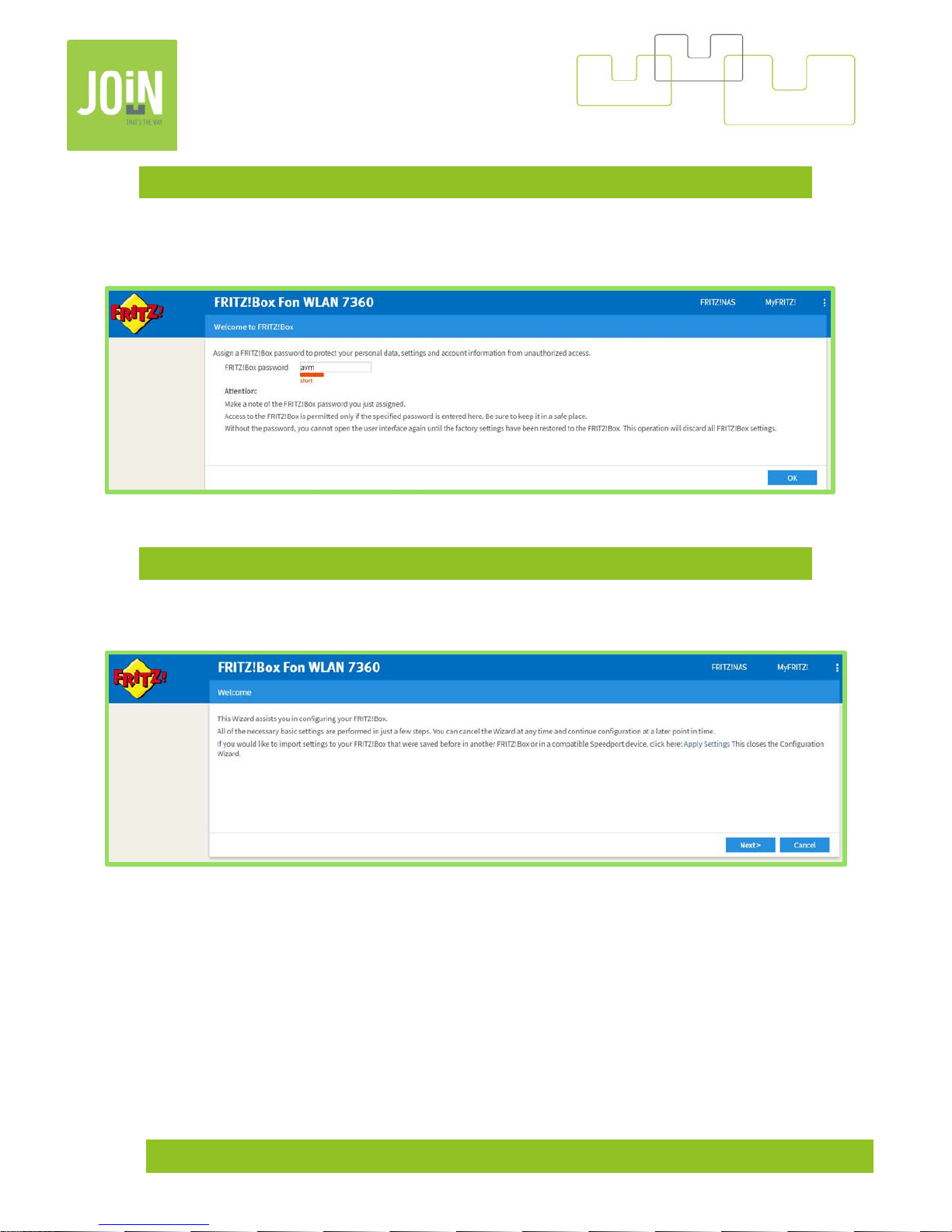
7- CHOOSE PASSWORD
The default password is « AVM », if you choose another password don’t forget it. The password has
to be communicated to our call center if you call them.
8- WIZARD ASSIST
Click on Next.
Page 8
Join Expérience VDSL V4-6.52 8
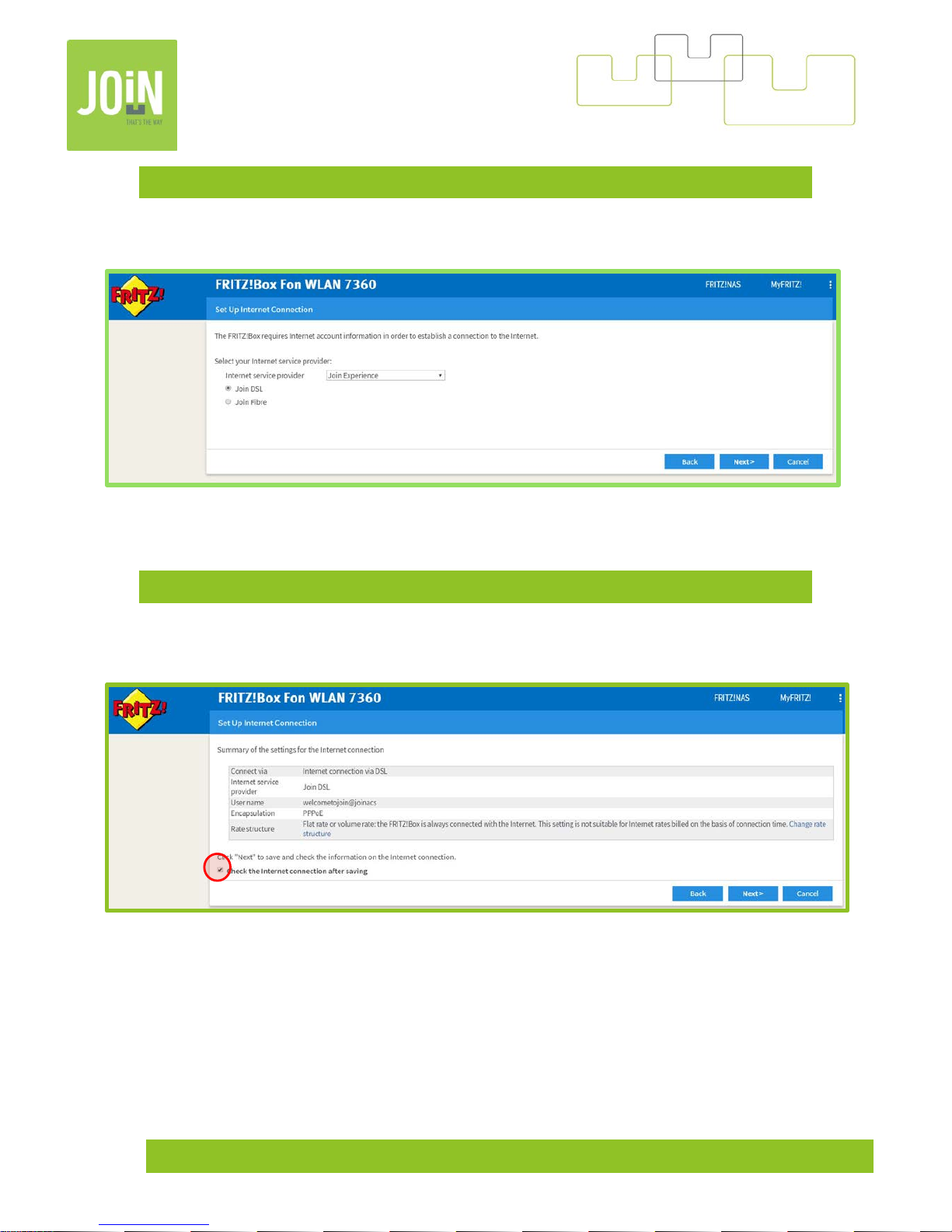
9- SELECT YOUR PROVIDER
Select « Join Experience » and « Join DSL ».
10- CONFIRM INTERNET CONNECTION SETTINGS
Uncheck « Check the Internet connection after saving »
Page 9
Join Expérience VDSL V4-6.52 9
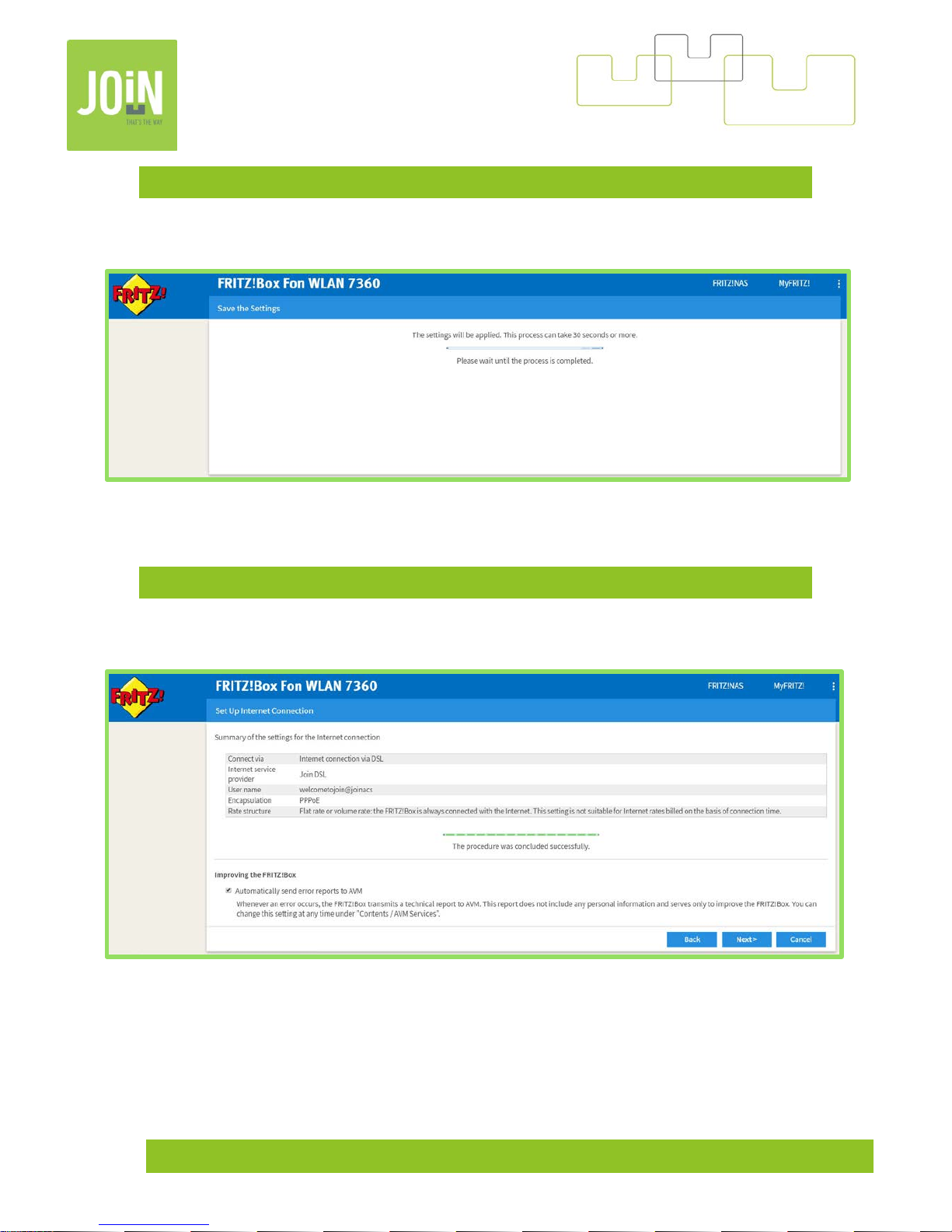
11- WAITING, SAVING SETTINGS
Please wait.
12- SUMMARY INTERNET CONNECTION
Click on Next.
Page 10
Join Expérience VDSL V4-6.52 10
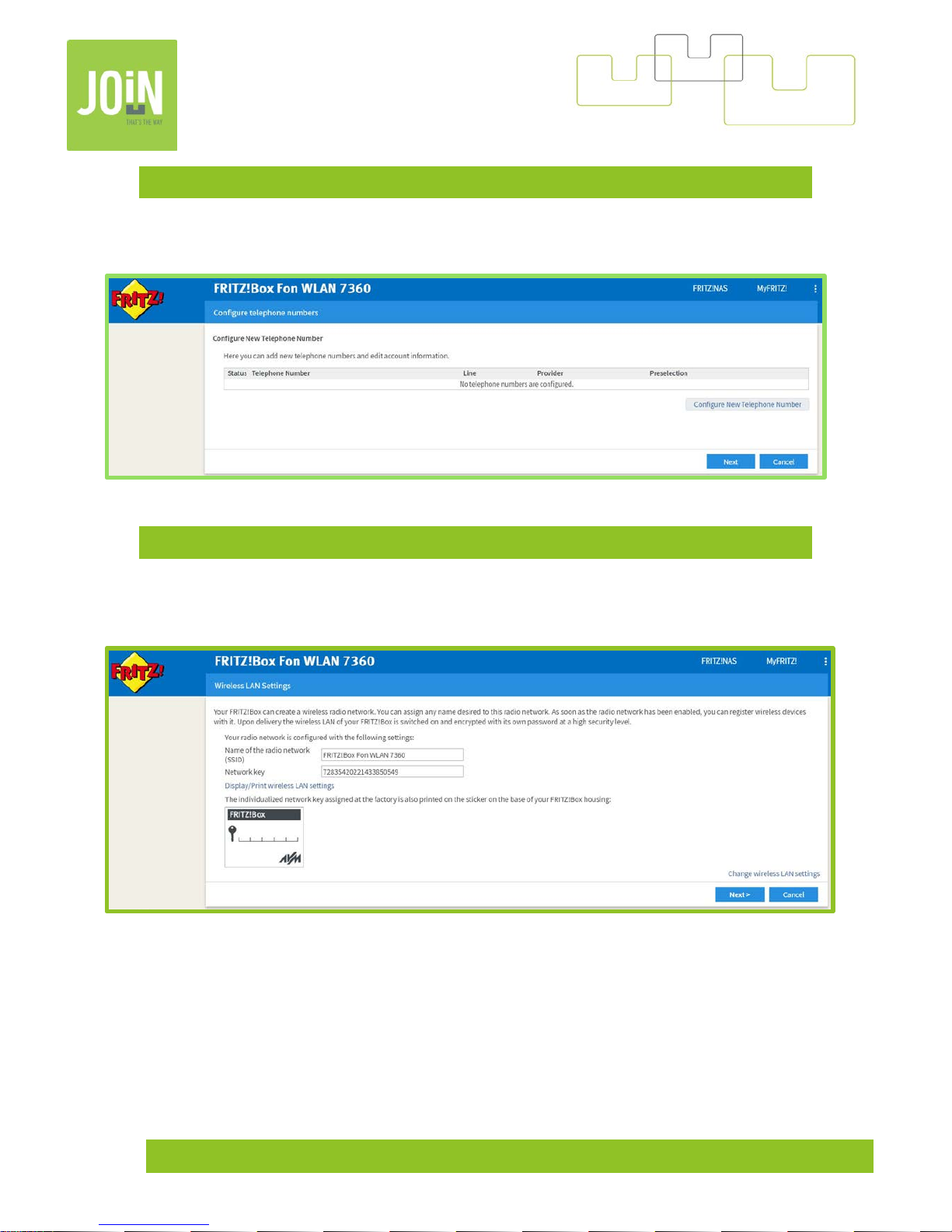
13- ACCOUNT PHONE SETTINGS
If the internet connection is up, you’ll directly receive the settings from our server.
If you didn’t subscribe to a fix number, just click next.
14- WIFI SETTINGS
You can change the name and the password of your WiFi or just let the default settings as they are.
(
Password is under the Modem)
Page 11
Join Expérience VDSL V4-6.52 11
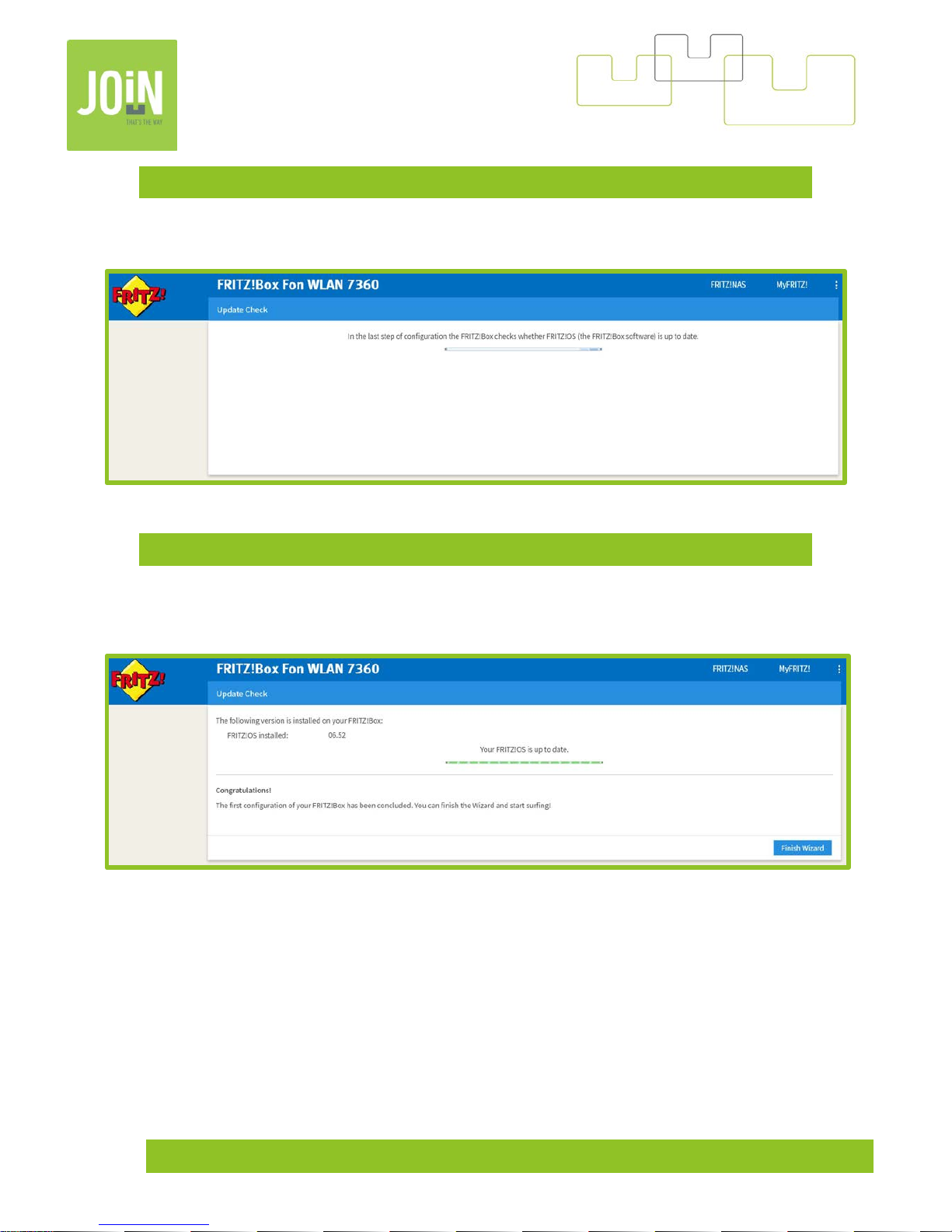
15- CHECK FRITZ OS UPDATE
Wait a few seconds.
16- UPDATE FINISHED
If You have the last version of Fritz OS, click on “Finish Wizard” otherwise instal the last version
detected.
Page 12
Join Expérience VDSL V4-6.52 12
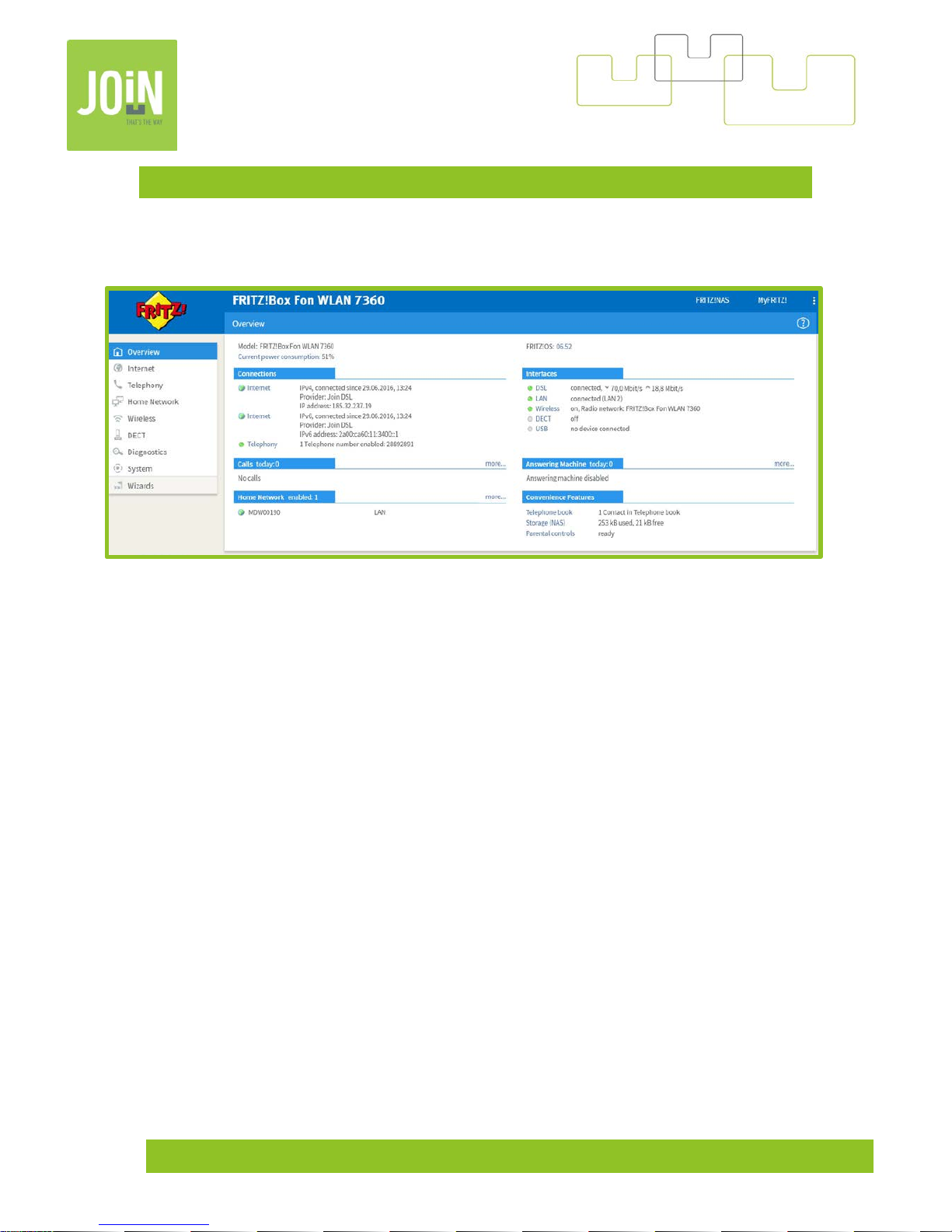
17- OVERVIEW
When the modem is correctly setup, internet connection IVP4 and IPV6 are connected. In case, you
are not connected, please change the Annex, (Chapter-18).
Page 13
Join Expérience VDSL V4-6.52 13
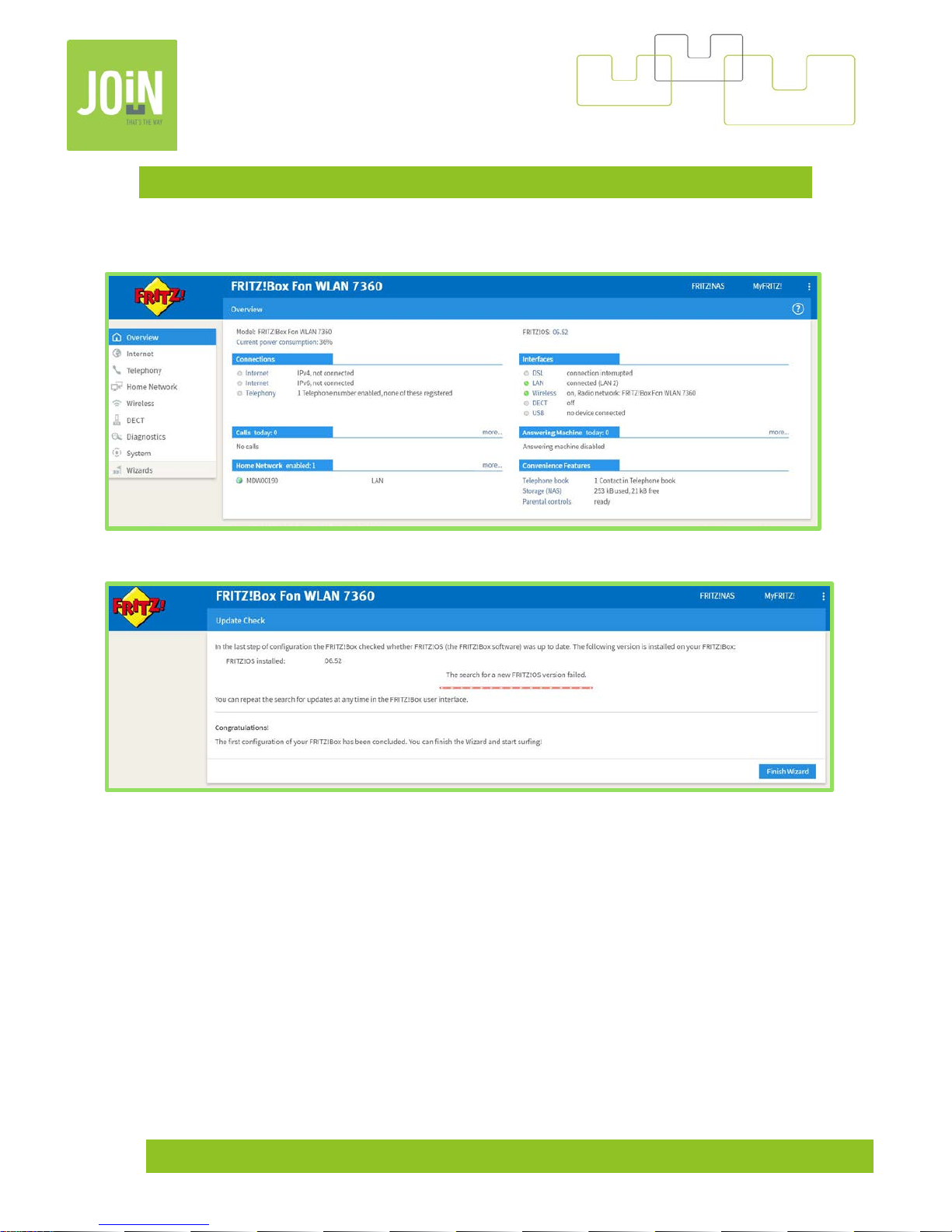
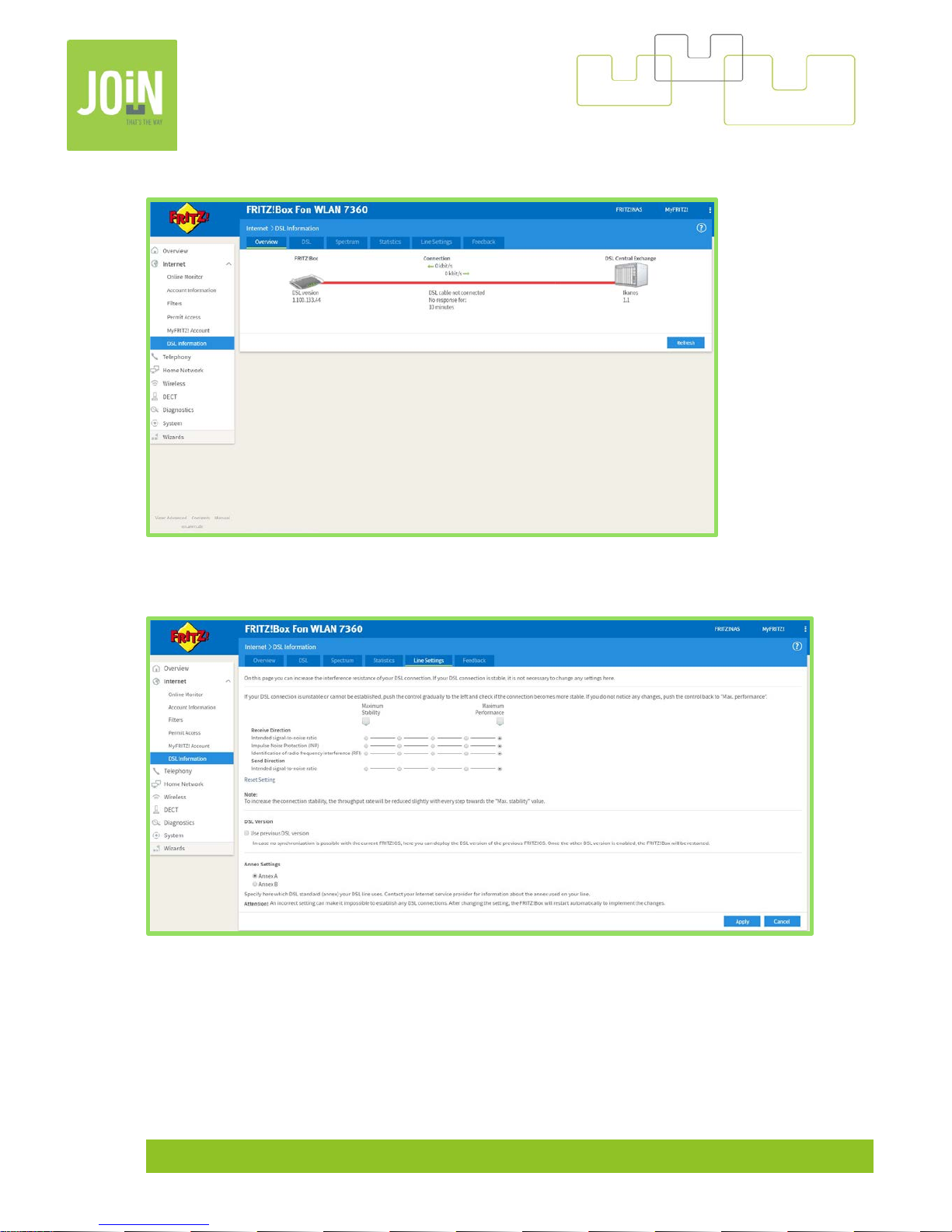
18- CHANGE ANNEX – CONNECTION FAILED
If you have this overview, you need to change the Annex.
Or
Finish the wizard settings.
Page 14
Join Expérience VDSL V4-6.52 14
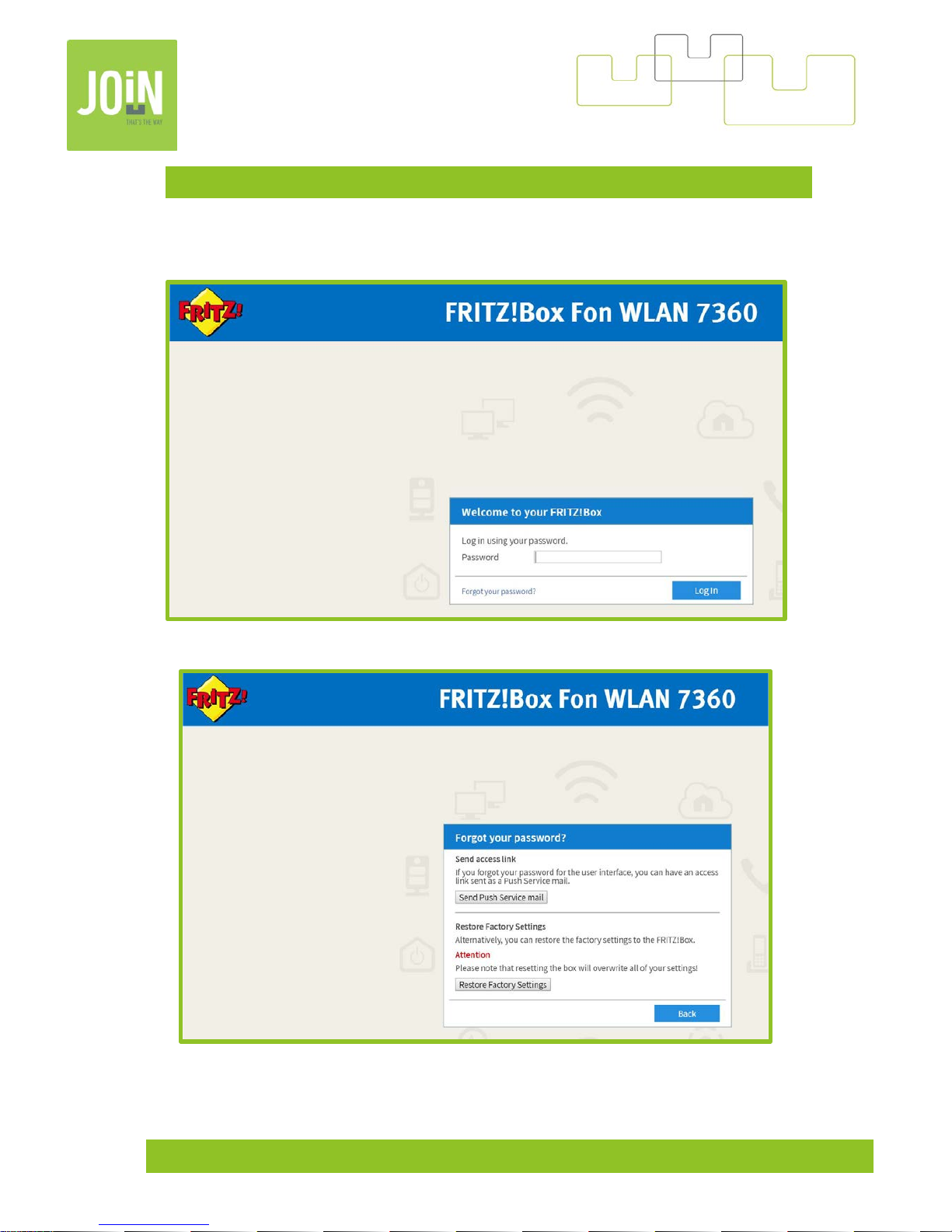
Go to -> Internet -> DSL Information -> (Change view to advanced) -> Line Settings
On Line Settings, you can change the Annex and reboot your modem
Page 15
Join Expérience VDSL V4-6.52 15
19- FACTORY SETTINGS
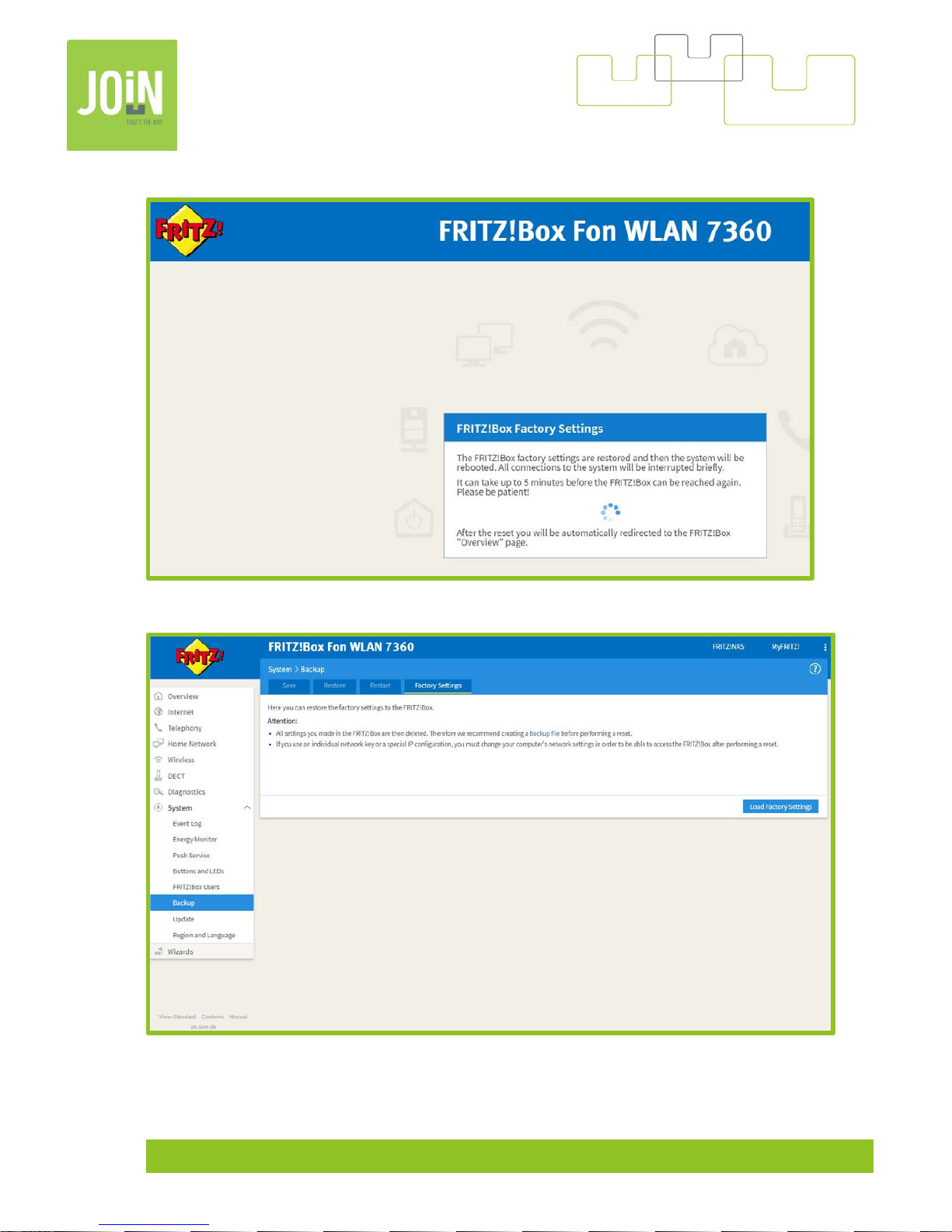
You have 2 solutions to reset your modem. By factory settings: click on « Forgot your password »
(
You must restart your modem just before).
Next, click on « Restore Factory Settings »
Page 16
Join Expérience VDSL V4-6.52 16
Your modem will reset to factory settings. This will take a few minutes.
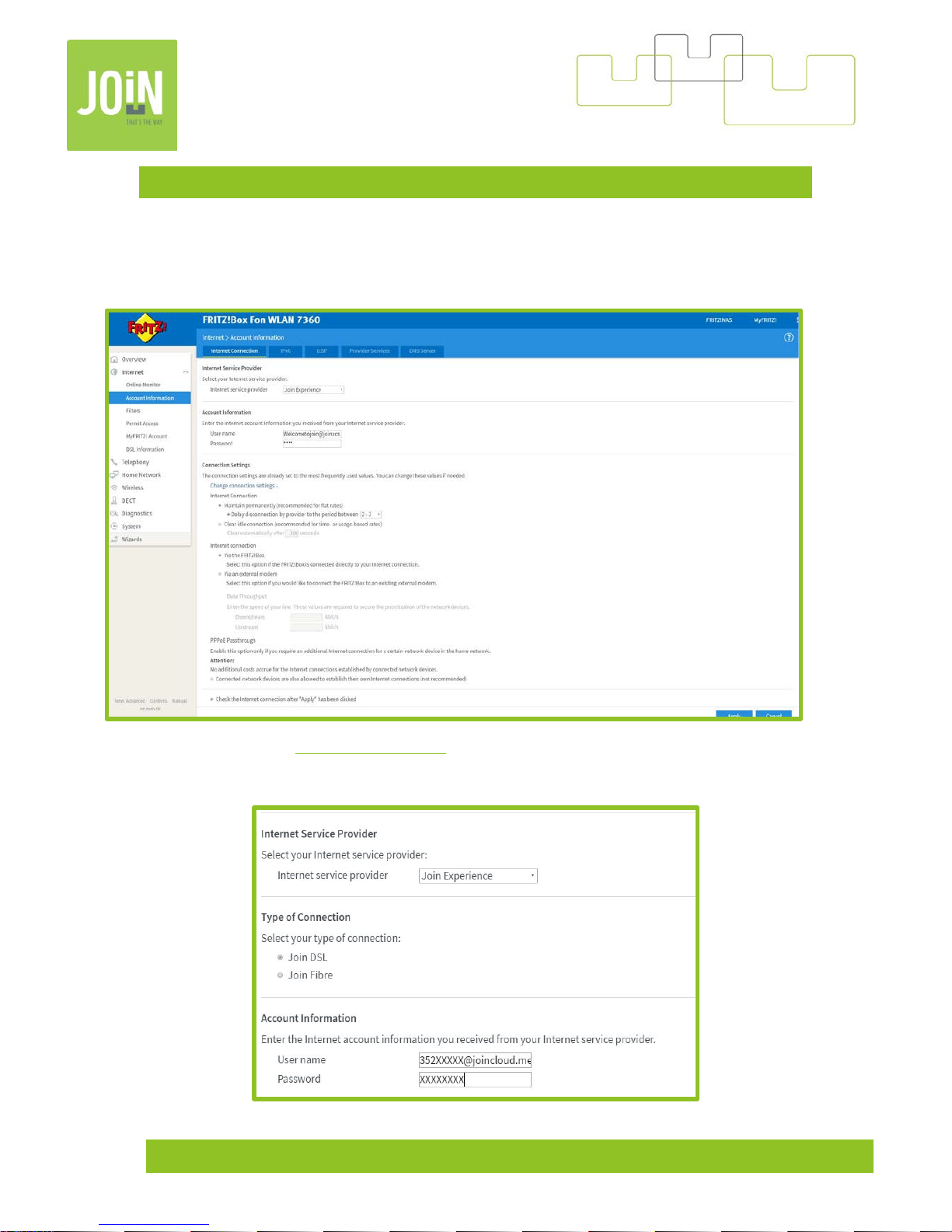
The second method. Go to “system” -> “Backup” -> Factory Settings
Page 17
Join Expérience VDSL V4-6.52 17
20- SETTINGS YOUR OWN MODEM
If you are using your own modem, the model and the firmware need to be compatible.
To add the login and the password sent by Join Experience. Connect on your modem, go to “internet” and then
“account information”, selected “Join Experience” for the “Internet Service Provider”.
Replace “User Name” by [email protected]
(X corresponding to the number login).
Replace “Password” by XXXXXXX (X corresponding to the number and letters of your password, respect capital
and small letters)
Page 18
Join Expérience VDSL V4-6.52 18
21- HOW TO UPDATE YOUR MODEM ?
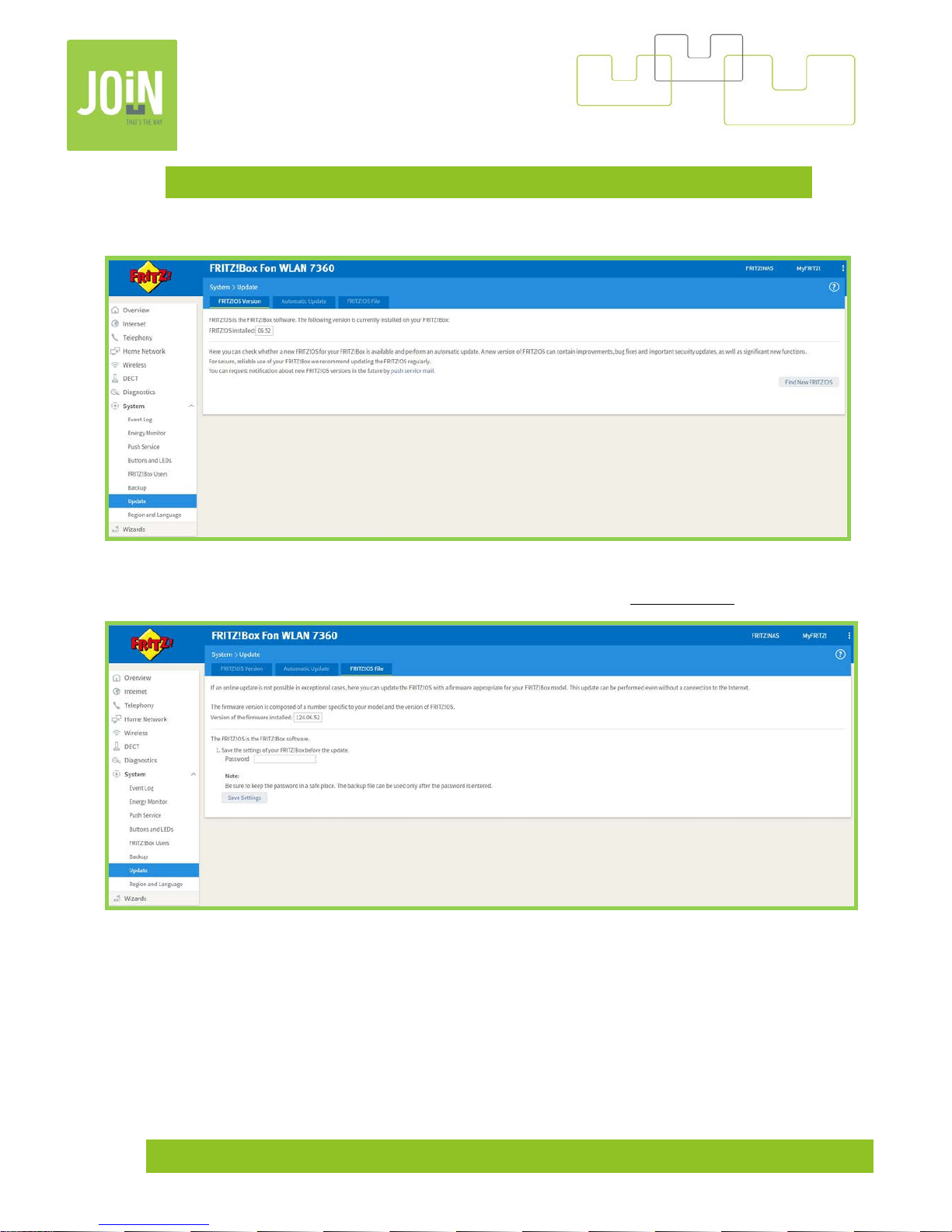
With operational internet connexion, you can update your firmware, to do it : Go to « System » -> « Update »
and click on « Find New FritzOS. If your modem finds a new OS, please install it.
Without internet connexion : Go to « system » -> « Update » and « FritzOS File » (View in advanced).
Page 19
Join Expérience VDSL V4-6.52 19
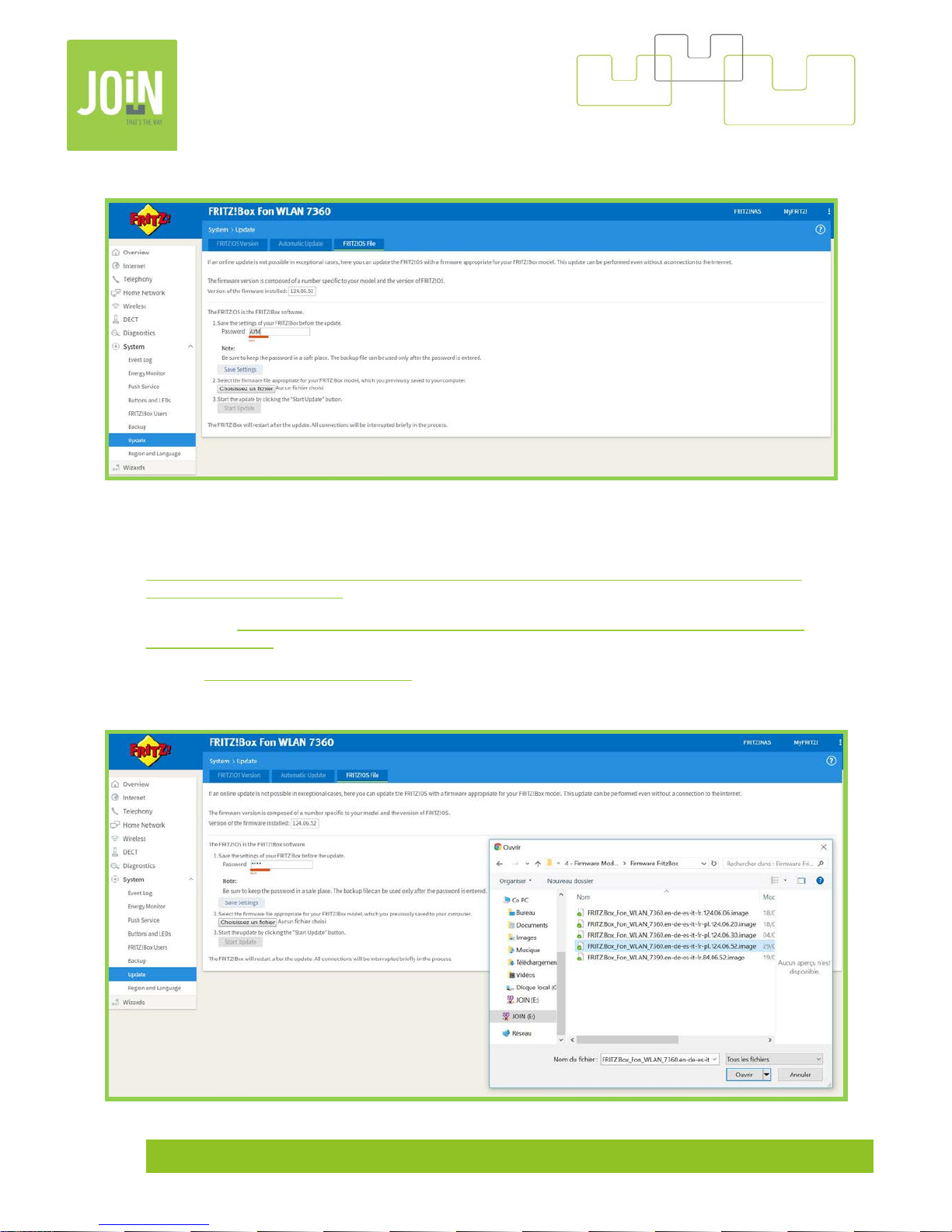
Insert the password « AVM » and click on « Start Update ».
Choose the FritzOs file you previously downloaded to your computer or copy from the manufacturer's website
AVM:
FritzBox 7360 :
http://download.avm.de/fritz.box/fritzbox.fon_wlan_7360_v2/firmware/english/FRITZ.Box_Fon_WLAN_7360.
en-de-es-it-fr-pl.124.06.52.image
FritzBox 7490 : http://download.avm.de/fritz.box/fritzbox.7490/firmware/english/FRITZ.Box_7490.en-de-es-it-
fr-pl.113.06.52.image
FritzBox : http://download.avm.de/fritz.box/
Page 20
Join Expérience VDSL V4-6.52 20
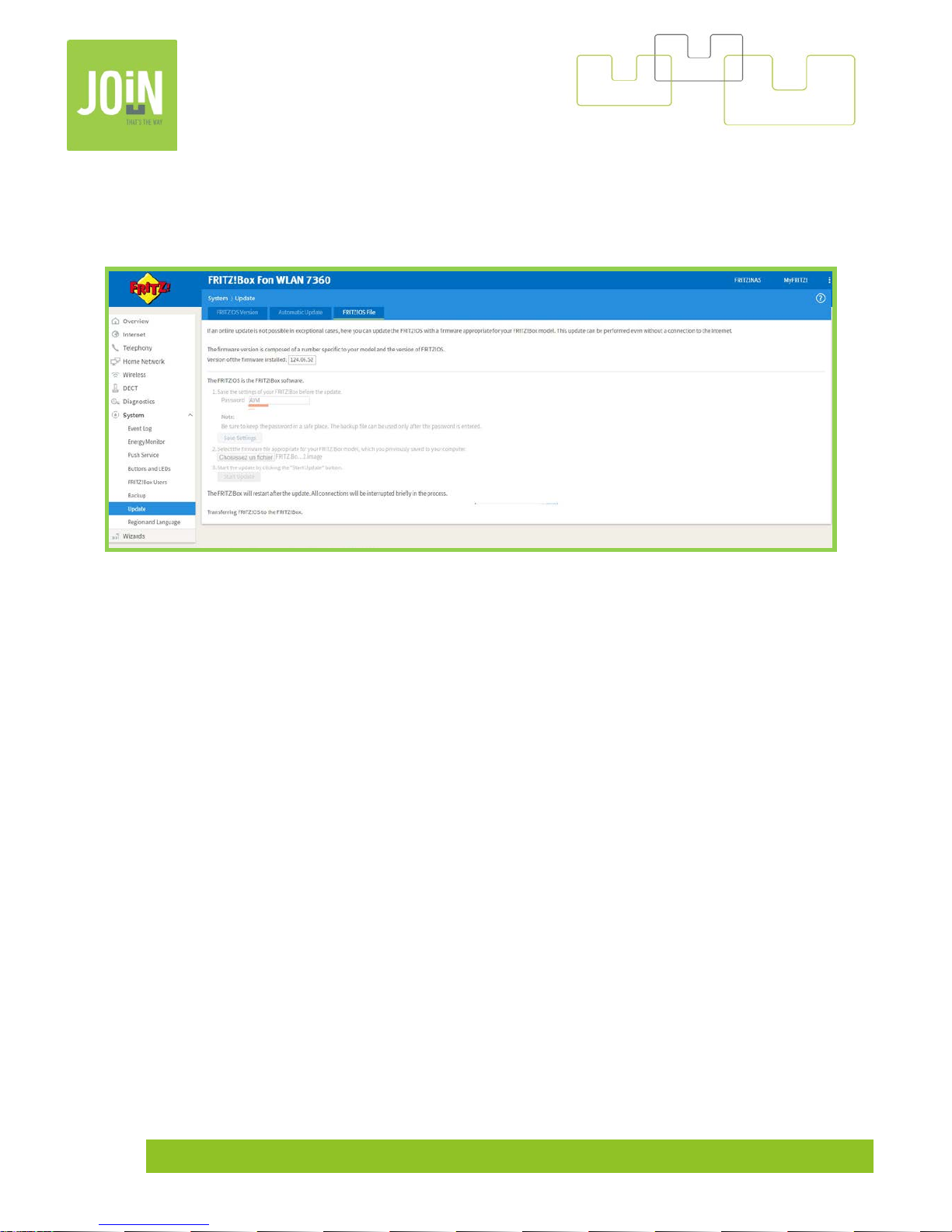
During the firmware update, until the modem reboots, the light « info » is flashing. Don’t touch anything on
the web page and don’t disconnect any câble. At the end of the update progress, your modem will reboot
automaticaly.
Page 21
Join Expérience VDSL V4-6.52 21
22- FORWARDING CALL
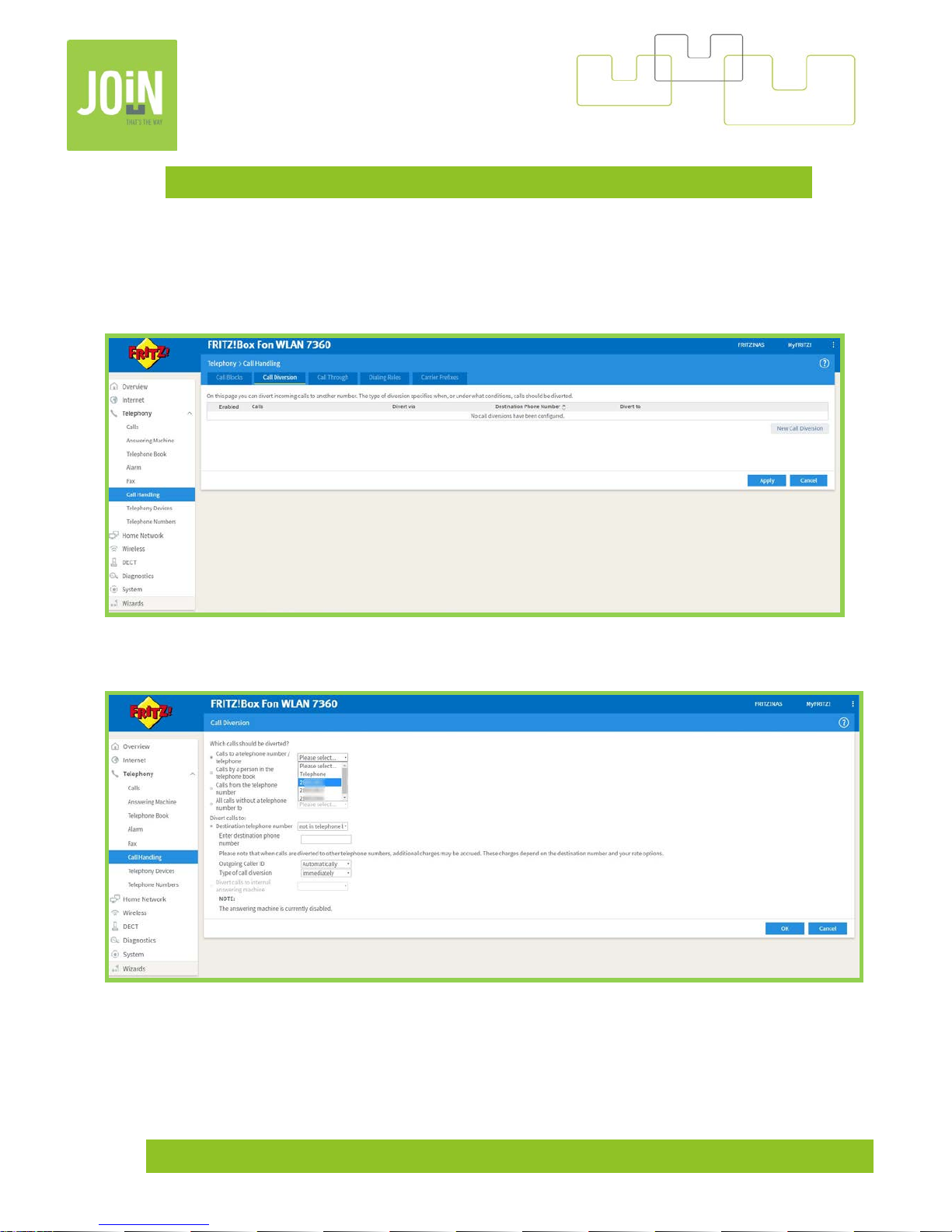
When you want to transfer your calls from your fixed line to another number, for example a mobile number,
you can configure this transfer directly on your modem as follows:
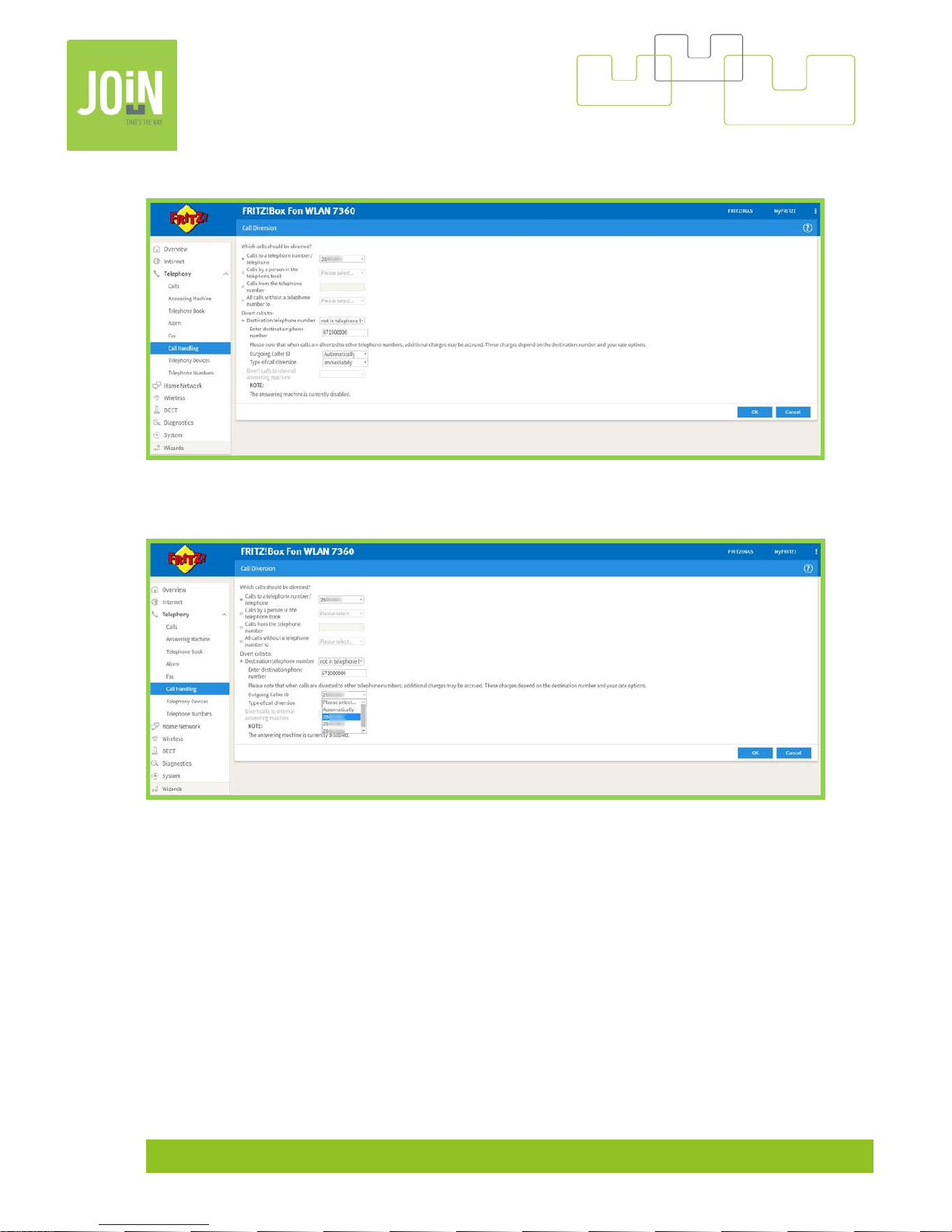
On the modem configuration page, click on "Telephony" -> "Call management" -> "Call forwarding ->" New call
forwarding ".
Select your fixed number to be forwarded.
Page 22
Join Expérience VDSL V4-6.52 22
Add the destination number, for example : 671 000 000.
You can choose which fix number phone emits the call or leave it in automatic mode.
Page 23
Join Expérience VDSL V4-6.52 23
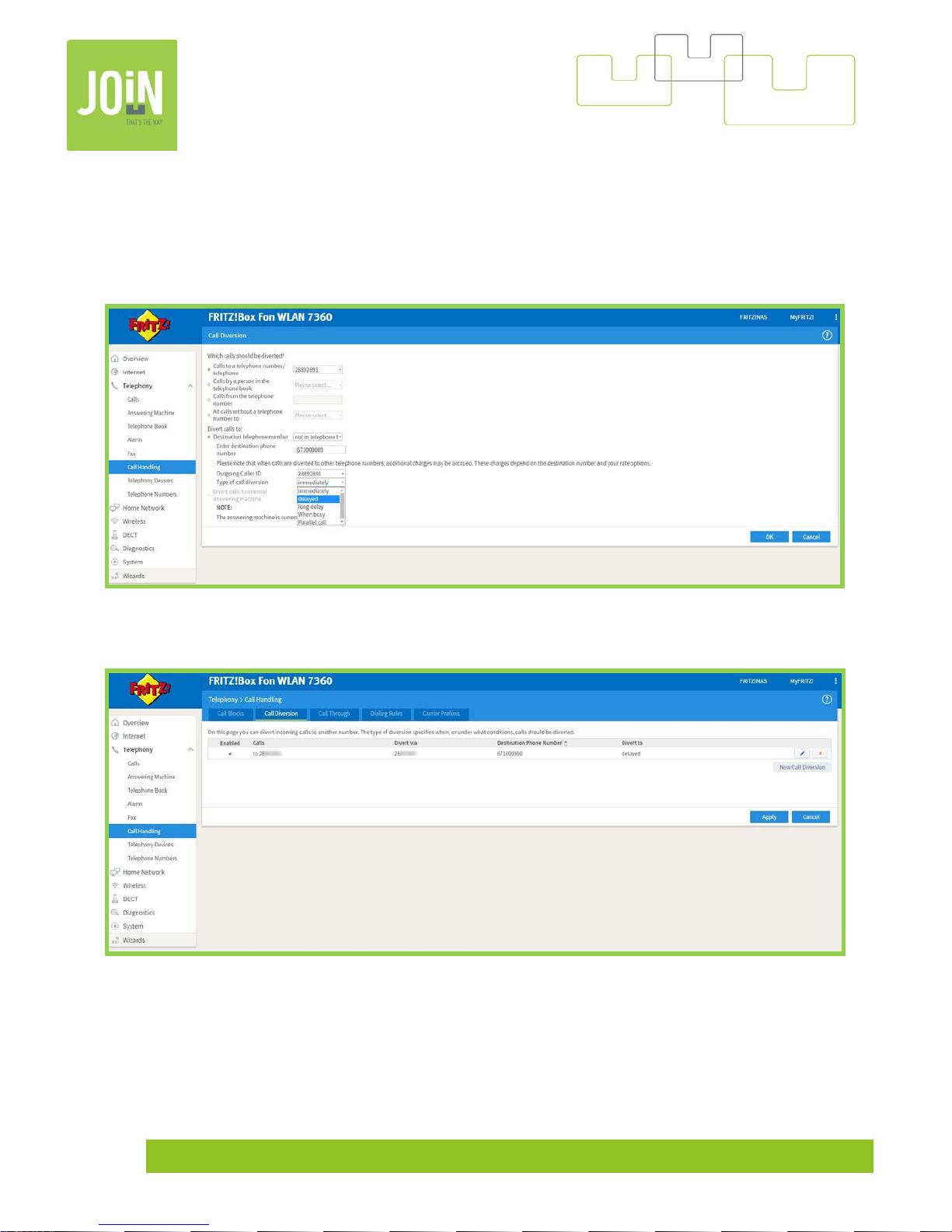
You have 5 solutions for your forwarding call:
- Immediately = your fix line doesn’t ring and the call will be directly sent to the destination phone
number, 671 000 000 for example
- Delayed = Forwarding call with average 4 – 5 tones (standard setting)
- Long delay = Forwarding call with 7 – 8 tones
- Parallel cal = Your destination phone number reacts the way as your fix line
Your call forwarding is now active, you can desactivate it simply by clicking on uncheck « Enabled ».
Page 24
Join Expérience VDSL V4-6.52 24
23- CALLING LINE IDENTIFICATION RESTRICTION
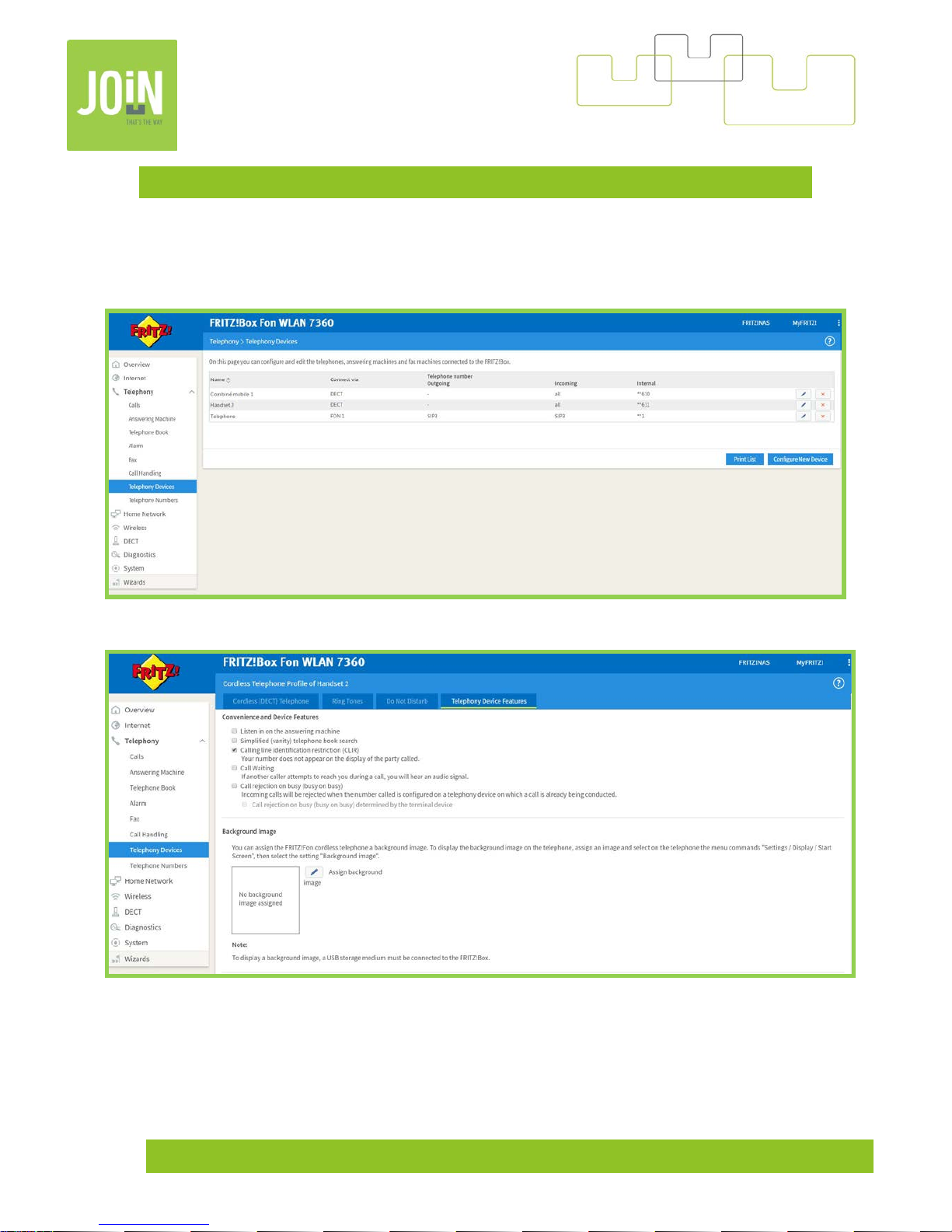
You have the option to hide your phone number during a call, in order to do this, you have two methods: First,
by connecting to your modem by browsing, on the menu "Telephony" -> "Telephony Devices" Select your
device, in this example "Handset 2".
Then on a tab « Telephony Device Features », check « Calling line identification restriction (CLIR) ».
Page 25
Join Expérience VDSL V4-6.52 25
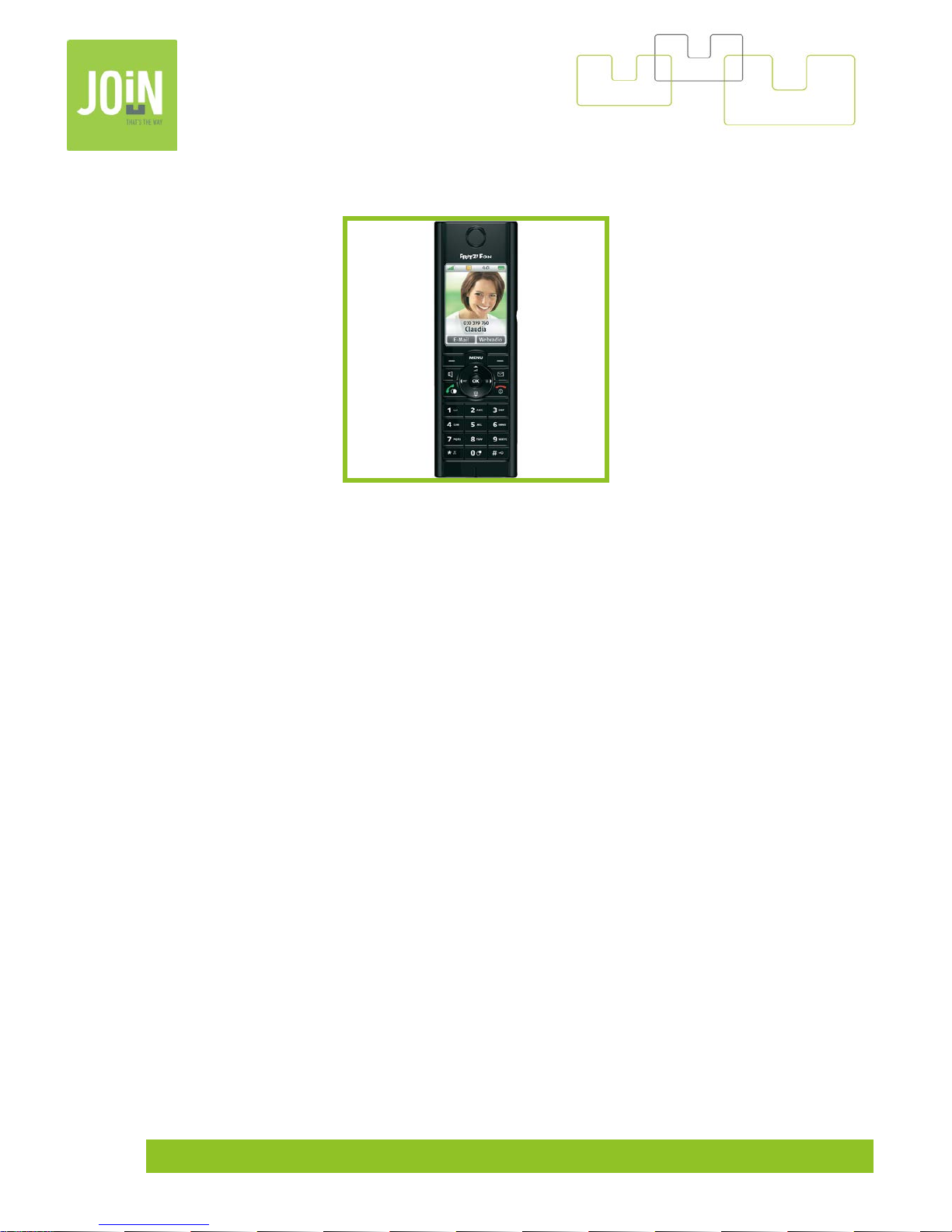
The second method, use your phone by pressing the keys: * 31 * then dial the number of your destination.
Example: * 31 * 671000000
Page 26
Join Expérience VDSL V4-6.52 26
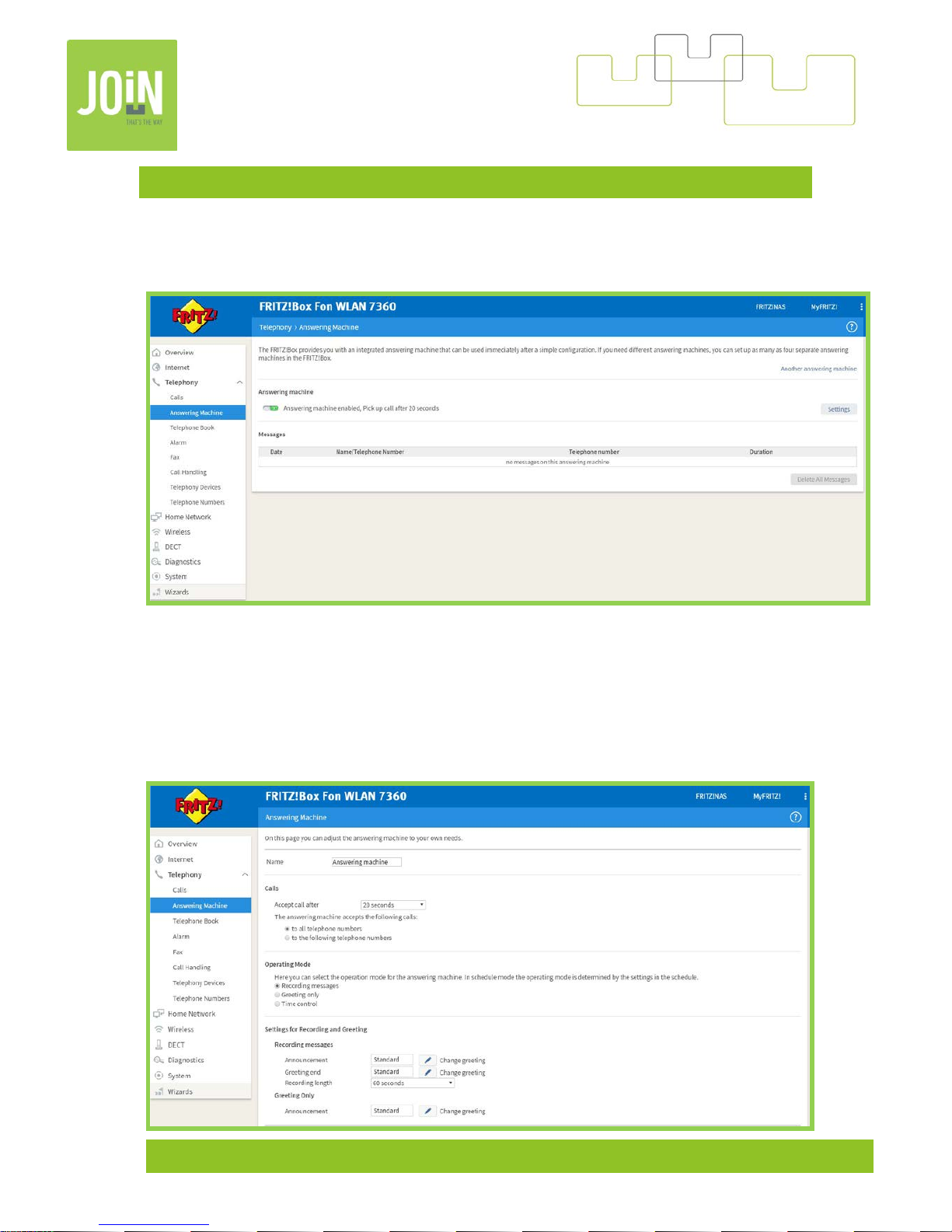
24- ANSWERING MACHINE
Activate your answering machine by clicking the « 0/1 button » on the "Answering Machine" menu. In the case
where a call forwarding is active, do not activate your answering machine, it will be create a conflict with the
delay time of the answering machine and the forwarding call.
On the setup page of the answering machine, you can select the number you want to activate.
Choose between three operating modes:
- Record messages = answering machine with announcement and recording of messages
- Answering machine not recorder = allows to have only one announcement
- Timer = Activate the answering machine in different modes during time slots
Set your announcement :
Page 27
Join Expérience VDSL V4-6.52 27
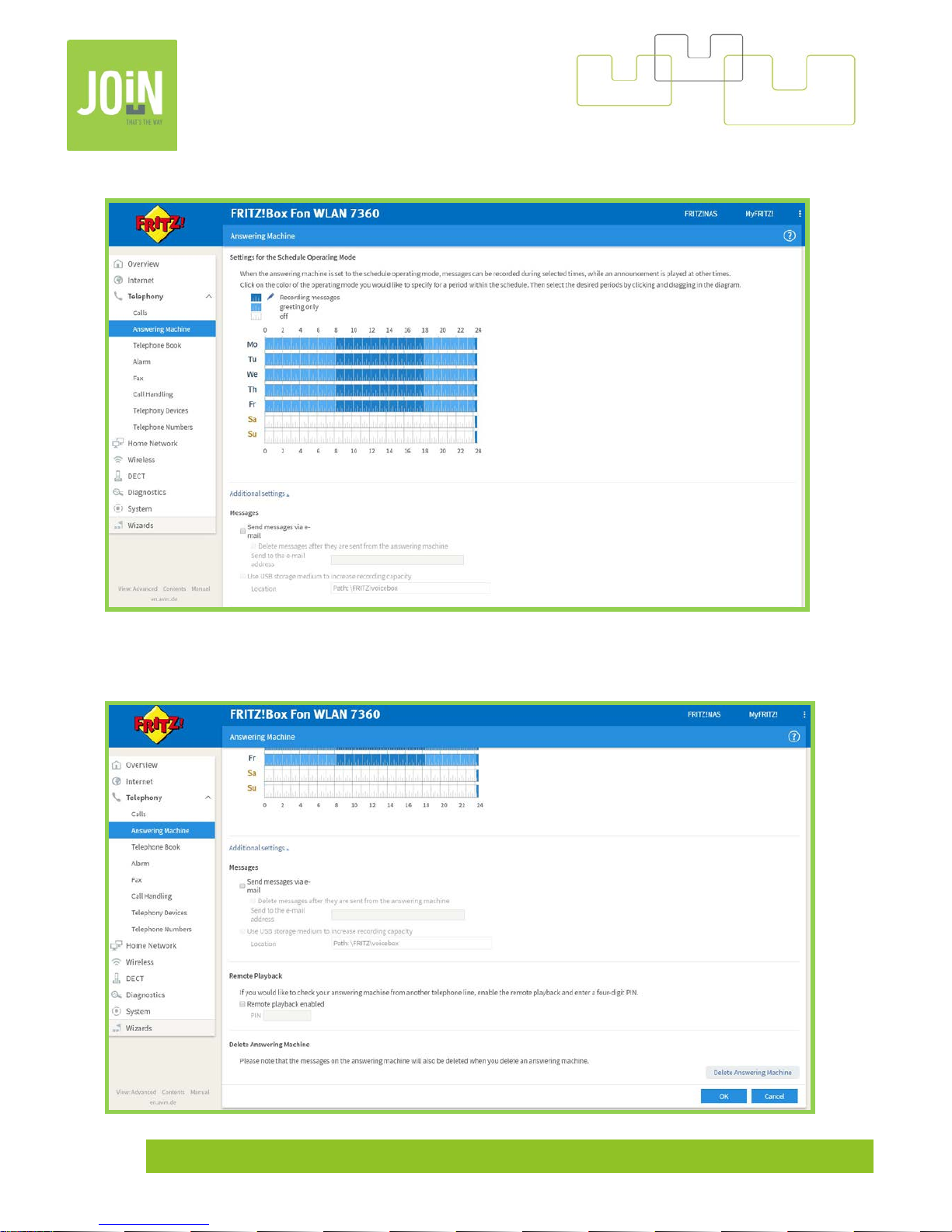
Set your schedule time and answering mode:
You can be alerted by e-mail when you have a new message on your answering machine.
To remotely interrogate your answering machine, you must configure a four-digit PIN.
Page 28
Join Expérience VDSL V4-6.52 28
Join Experience website
https://joinexperience.com/en-Lu
USER GUIDE FRITZBOX 7360 LINK:
https://en.avm.de/fileadmin/user_upload/EN/Manuals/FRITZ_Box/Manual_FRITZBox_7360.pdf
USER GUIDE FRITZBOX 7490 LINK:
https://be.avm.de/fileadmin/user_upload/BENL/Service/Manuals/fr/FRITZ_Box/Manual_FRITZ_Box_7490_fr.p
df
In case your internet connection failed :
- Call center at 9009 from mobile or 671 009 009 or 28 89 90 09
- Contact : https://joinexperience.com/contact-us
 Loading...