

Page 1
FREUND ELEKTRONIK A/S | Fuglebakken 119 | 5210 Odense NV | Denmark | www.freund.dk | Tlf.
+45 66 16 24 14
IPDS-27S Door Phone User Manual
Page 2

FREUND ELEKTRONIK A/S | Fuglebakken 119 | 5210 Odense NV | Denmark | www.freund.dk | Tlf.
+45 66 16 24 14
Content
1. Overview ....................................................................................................................................... 4
1.1. Product Description ............................................................................................................ 4
1.2. Features .............................................................................................................................. 5
1.3. Keypad ................................................................................................................................ 8
2. Configuration................................................................................................................................. 8
2.1. Administrator interface ...................................................................................................... 8
2.1.1 System Information .................................................................................................. 9
2.1.2 Admin Settings ......................................................................................................... 9
2.1.2.1 Admin card setting ................................................................................................ 9
2.1.2.2 Admin Code Setting ............................................................................................. 10
2.1.2.3 Service Code Setting ............................................................................................ 10
2.1.3 System Setting ........................................................................................................ 10
2.1.3.1 Network settings ................................................................................................. 10
2.1.3.2 Station No.Settings .............................................................................................. 11
2.1.3.3 Restore default .................................................................................................... 11
2.2. User interface ................................................................................................................... 11
2.2.1 Public Pin Modif ..................................................................................................... 12
2.2.2 Add User Cards ....................................................................................................... 12
2.2.3 Add Private Pin ....................................................................................................... 12
3. Basic Using ................................................................................................................................... 13
3.1. Make a call ....................................................................................................................... 13
3.2. Receive a call .................................................................................................................... 13
3.3. Unlock............................................................................................................................... 13
4. Web ............................................................................................................................................. 14
4.1. Obtain IP address ............................................................................................................. 14
4.2. Login the web ................................................................................................................... 14
4.3. Status ................................................................................................................................ 15
4.3.1 Basic ....................................................................................................................... 15
4.4. Intercom ........................................................................................................................... 16
4.4.1 Basic ....................................................................................................................... 16
4.4.2 Advanced ................................................................................................................ 18
4.4.3 Relay ....................................................................................................................... 19
4.4.4 Input ....................................................................................................................... 21
4.4.5 Live Stream ............................................................................................................. 23
4.4.6 RTSP ........................................................................................................................ 24
4.4.7 ONVIF ..................................................................................................................... 26
4.4.8 Motion .................................................................................................................... 27
Page 3

FREUND ELEKTRONIK A/S | Fuglebakken 119 | 5210 Odense NV | Denmark | www.freund.dk | Tlf.
+45 66 16 24 14
4.4.9 Card Setting( IPDS-27S only) ................................................................................... 28
4.4.10 Action ................................................................................................................... 30
4.5. Account ............................................................................................................................ 32
4.5.1 Basic ....................................................................................................................... 32
4.5.2 Advanced ................................................................................................................ 35
4.6. Network ............................................................................................................................ 39
4.6.1 Basic ....................................................................................................................... 40
4.6.2 Advanced ................................................................................................................ 41
4.7. Phone ............................................................................................................................... 43
4.7.1 Time/Language ...................................................................................................... 43
4.7.2 Call Feature ............................................................................................................ 44
4.7.3 Voice ....................................................................................................................... 46
4.7.4 Dial Plan.................................................................................................................. 47
4.7.5 Multicast ................................................................................................................. 48
4.7.6 Call log .................................................................................................................... 49
4.7.7 Door log .................................................................................................................. 50
4.8. Upgrade ............................................................................................................................ 51
4.8.1 Basic ....................................................................................................................... 51
4.8.2 Advanced ................................................................................................................ 52
4.9. Security............................................................................................................................. 54
4.9.1 Basic ....................................................................................................................... 54
4.10. Phonebook ..................................................................................................................... 55
4.10.1. Local Book ........................................................................................................... 55
Page 4
FREUND ELEKTRONIK A/S | Fuglebakken 119 | 5210 Odense NV | Denmark | www.freund.dk | Tlf.
+45 66 16 24 14
1. Overview
1.1. Product Description
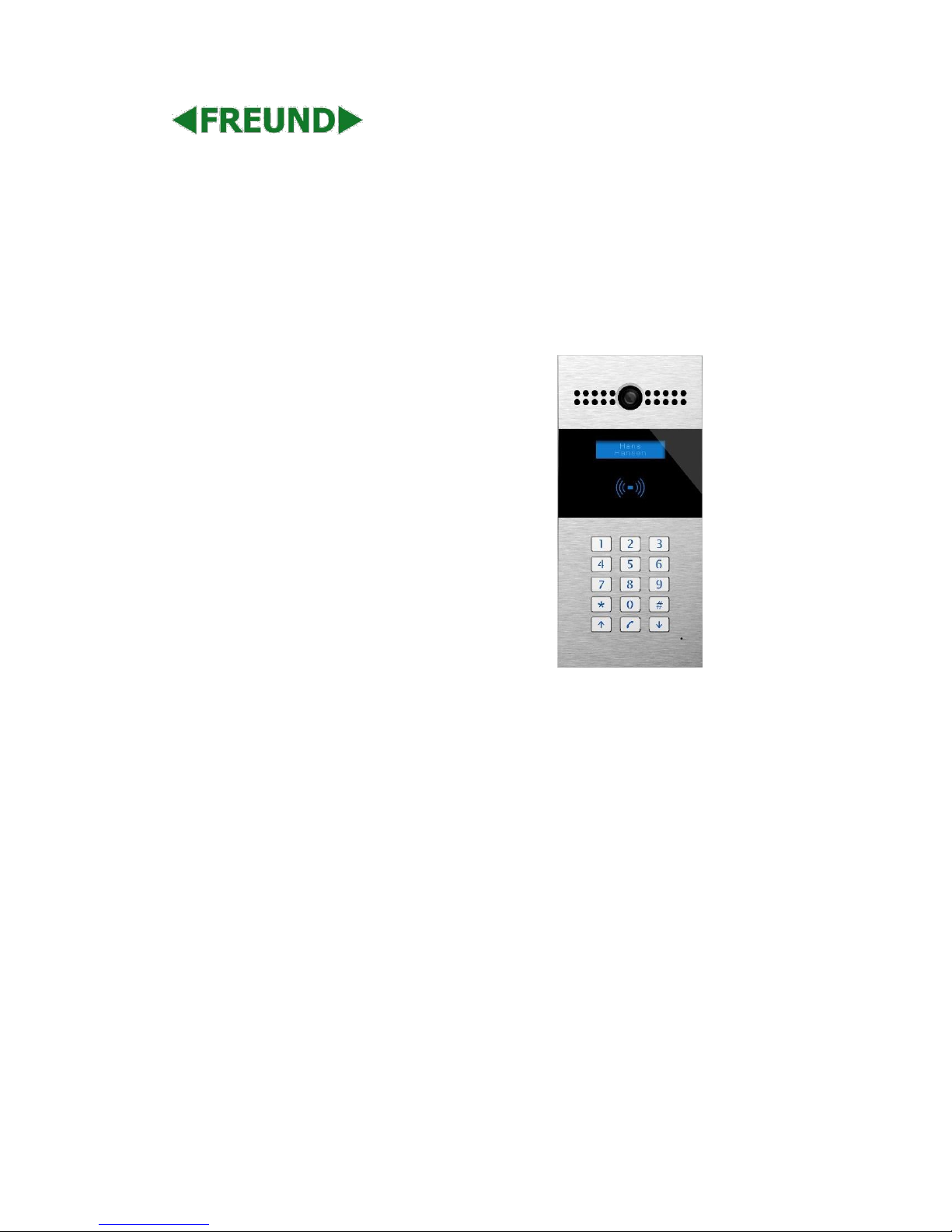
Freund IPDS-27S is a SIP-compliant, hands-free and video outdoor phone. It can be connected
with your Freund IP Phone for remote unlock control and monitor. You can operate the indoor
handset to communicate with visitors via voice and video, and unlock the door if you wish. Users
can also use RF card to unlock the door( IPDS-27S only). It’s applicable in villas, office and so on.
Page 5

FREUND ELEKTRONIK A/S | Fuglebakken 119 | 5210 Odense NV | Denmark | www.freund.dk | Tlf.
+45 66 16 24 14
1.2. Features
➢ Highlight
Vandal resistant body, with a flush button
Wild-angle camera:120°
POE(IEEE802.3af, Power-over-Ethernet)
Two-way audio communication over IP network with Echo cancel feature
Complies with SIP Standard for easy integration in each SIP PBXes
Complies with ONVIF standard for easy integration with any network surveillance system
➢ Physical&Power
Body material: all-aluminum
Camera: 3M pixels, automatic lighting
Numeric keypad with extra buttons
Infrared Sensor: Support
Wiegand port: Support
RF Card Reader:13.56MHz & 125kHz
Output Relay: 3 output relays for door opener
802.3af Power-Over-Ethernet
12V DC connector(if not using POE)
Water proof&Dust proof: IP65
Installation: Flush-mounted & Wall-mounted
Flush-mounted DIM:280x130x68mm
Wall-mounted DIM:280x130x38mm
Page 6

FREUND ELEKTRONIK A/S | Fuglebakken 119 | 5210 Odense NV | Denmark | www.freund.dk | Tlf.
+45 66 16 24 14
➢ SIP Endpoint
SIP v1(RFC2543), SIP v2(RFC3261)
Audio codecs: G.711a, G.711μ, G.722, G.729
Video codecs: H264
Speech Quality: 7kHz Audio
Echo Cancellation
Voice Activation Detection
Comfort Noise Generator
➢ Video
Resolution: up to 720p
Maximum image transfer rate:720p-30pfs
High intensity IR LEDs for picture lighting during dark hours with internal light sensor
Compatible with 3rd.Party.Video components,e.g.NVRs.
➢ Door Entry Feature
Relay control individually by DTMF tones
Camera permanently operational
White Balance: Auto
Auto-night mode with LED illumination
Minimum illumination: 0.1LUX
Page 7

FREUND ELEKTRONIK A/S | Fuglebakken 119 | 5210 Odense NV | Denmark | www.freund.dk | Tlf.
+45 66 16 24 14
➢ Network Features
1x10/100Mbps Ethernet Port
Protocols support: IPv4, HTTP, HTTPS, FTP, SNMP, DNS, NTP, RTSP, RTP, TCP, UDP, ICMP, DHCP,
ARP
Page 8
FREUND ELEKTRONIK A/S | Fuglebakken 119 | 5210 Odense NV | Denmark | www.freund.dk | Tlf.
+45 66 16 24 14
1.3. Keypad
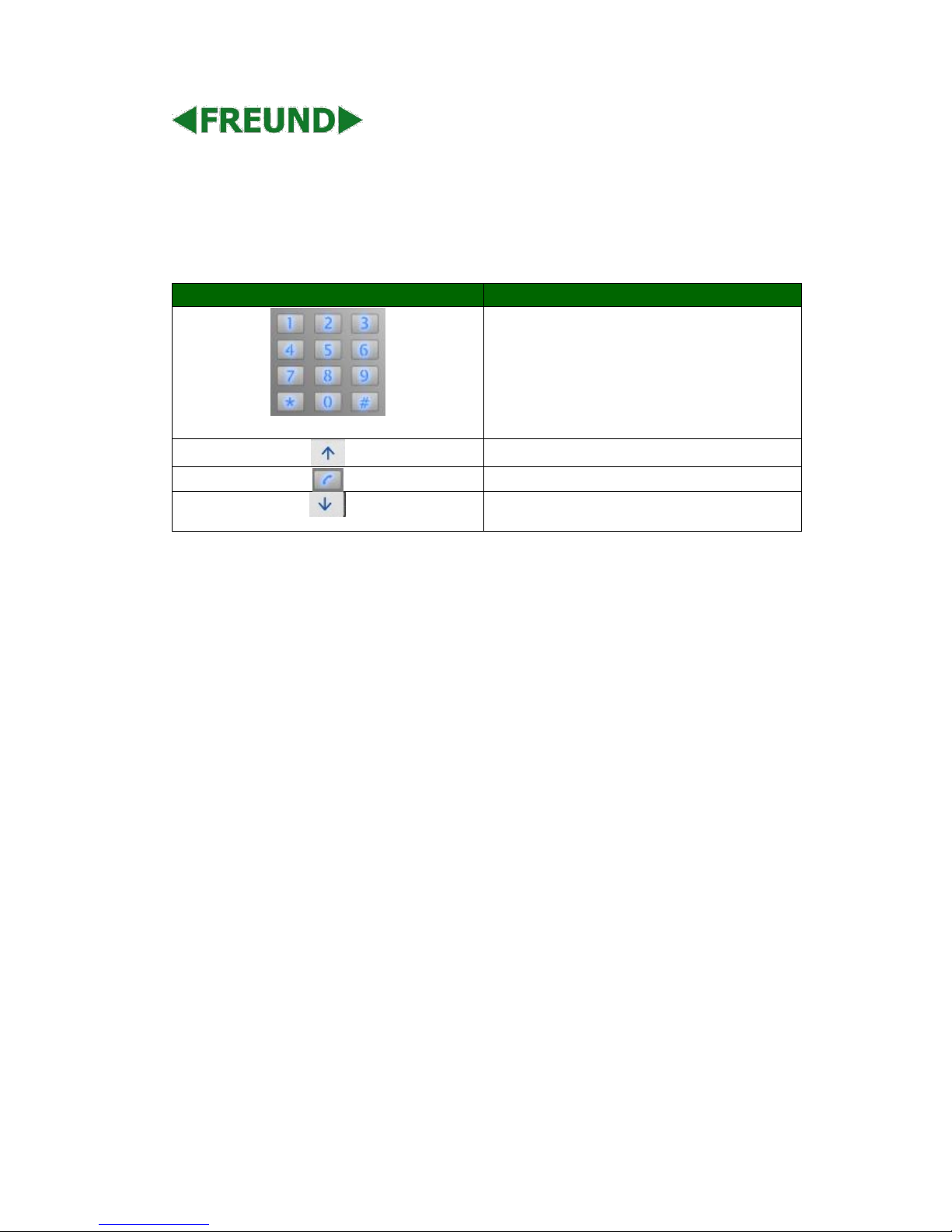
Key
Description
Numeric Key
Go Up in Menu
Dialing Key
Go Down in Menu
2. Configuration
2.1. Administrator interface
Press *2396# to enter administrator interface. Administrator interface provides some advanced
permissions to administrators, including System Information, Admin Settings and System Settings.
2.1.1 System Information
Press 1 to enter System Information to check IP address, Mac address and Firmware version of
the door phone.
Page 9

FREUND ELEKTRONIK A/S | Fuglebakken 119 | 5210 Odense NV | Denmark | www.freund.dk | Tlf.
+45 66 16 24 14
2.1.2 Admin Settings
2.1.2.1 Admin card setting
Add admin card
Enter Admin Card Setting interface, and press 1 to quick add admin card. When you see “Please
Swipe Admin Card...” , please place admin card in the RF card reader area. After the screen
shows “An admin card is added +1” , it means adding successfully.
Clean admin card data
Enter Admin Card Setting interface, press 2 to delete the current admin card. When you see
“Please Swipe Admin Card....”, and place the added admin card you want to delete in the RF card
area. After the screen shows “An admin card is deleted”, it means deleting successfully.
2.1.2.2 Admin Code Setting
Admin code is used to enter administrator interface. The default code is 2396. Enter Admin Code
Setting to input 4 digit new admin codes, click Dial key to save.
2.1.2.3 Service Code Setting
Service Code Setting is used to enter user interface. The default code is 3888. Enter service code
setting to input 4 digit new user codes, and click Dial key to save.
Page 10

FREUND ELEKTRONIK A/S | Fuglebakken 119 | 5210 Odense NV | Denmark | www.freund.dk | Tlf.
+45 66 16 24 14
2.1.3 System Setting
2.1.3.1 Network settings
Enter System Setting interface, and press 1 to enter Network setting. Select DHCP mode, door
phone will access network automatically. Choose Static mode, users need to setup IP address,
subnet mask and default gateway. Press Dial key when you finish each step.
2.1.3.2 Station No.Settings
Users can setup the device ID to limit the unlock permissions.
(This function can not be used now. Freund will perfect it in next version )
2.1.3.3 Restore default
Enter System setting, and press 3 to enter restore interface. After you sure to make the device
restore to factory setting, you can swipe your admin card or enter admin code, then the device
will restore.
2.2. User interface
Press *3888# to enter user interface. User interface includes Public Pin Modif, User Cards Modif
and Add Private Pin. These functions can only be accessed by administrator.
Page 11

FREUND ELEKTRONIK A/S | Fuglebakken 119 | 5210 Odense NV | Denmark | www.freund.dk | Tlf.
+45 66 16 24 14
2.2.1 Public Pin Modif
The default public Pin is 33333333. Before you modify public Pin, users need to swipe admin card
or enter admin code, then you can enter 8 digit new Public Pin, click Dial key to save.
2.2.2 User Cards Modif
User card Modif allows user to add new card user or delete user cards. Before adding users card,
users need to swipe admin card or enter admin code, then you will see “Please Swipe IC Card...”,
place user card in the RF card reader . Then the screen will show “Add IC Card +1”, it means
adding successfully.
2.2.3 Add Private Pin
Users can also use private pin code to unlock. Before adding private pin , users need to swipe
admin card or enter admin code. Then enter a 8 digit private pin, and click Dial key to save.
Page 12

FREUND ELEKTRONIK A/S | Fuglebakken 119 | 5210 Odense NV | Denmark | www.freund.dk | Tlf.
+45 66 16 24 14
3. Basic Using
3.1. Make a call
In the idle interface, press the account or IP address + Dial key to make a call.
3.2. Receive a call
IPDS-27S will auto answer the incoming call by default. If users disable auto answer function, they
can press dial key to answer the incoming call.
3.3. Unlock
Unlock by Pin code: Users can unlock the door by using predefined Public Pin or Private Pin. Press
# + 8digit Pin Code + # to unlock, then you will hear “The door is now opened”. If users input the
wrong Pin code, the screen will show “Incorrect Code”.
Unlock by RF Card(Only IPDS-27S): Place the predefined user card in RF card reader to unlock.
Under normal conditions, the phone will announce “The door is now opened”. If the card has not
been registered, the phone will show “ Unauthorized”. Unlock by DTMF Code: During the talking,
the president can press the predefined DTMF code to remote unlock the door. ( Please refer to
chapter 4.4.4 about DTMF code setting). Then you will also hear “ The door is now opened”.
Page 13
FREUND ELEKTRONIK A/S | Fuglebakken 119 | 5210 Odense NV | Denmark | www.freund.dk | Tlf.
+45 66 16 24 14
4. Web
4.1. Obtain IP address
The Freund IPDS-27S use DHCP IP by default. Press *2396# to enter Administrator interface. Enter
System Information to check the phone IP address.
4.2. Login the web
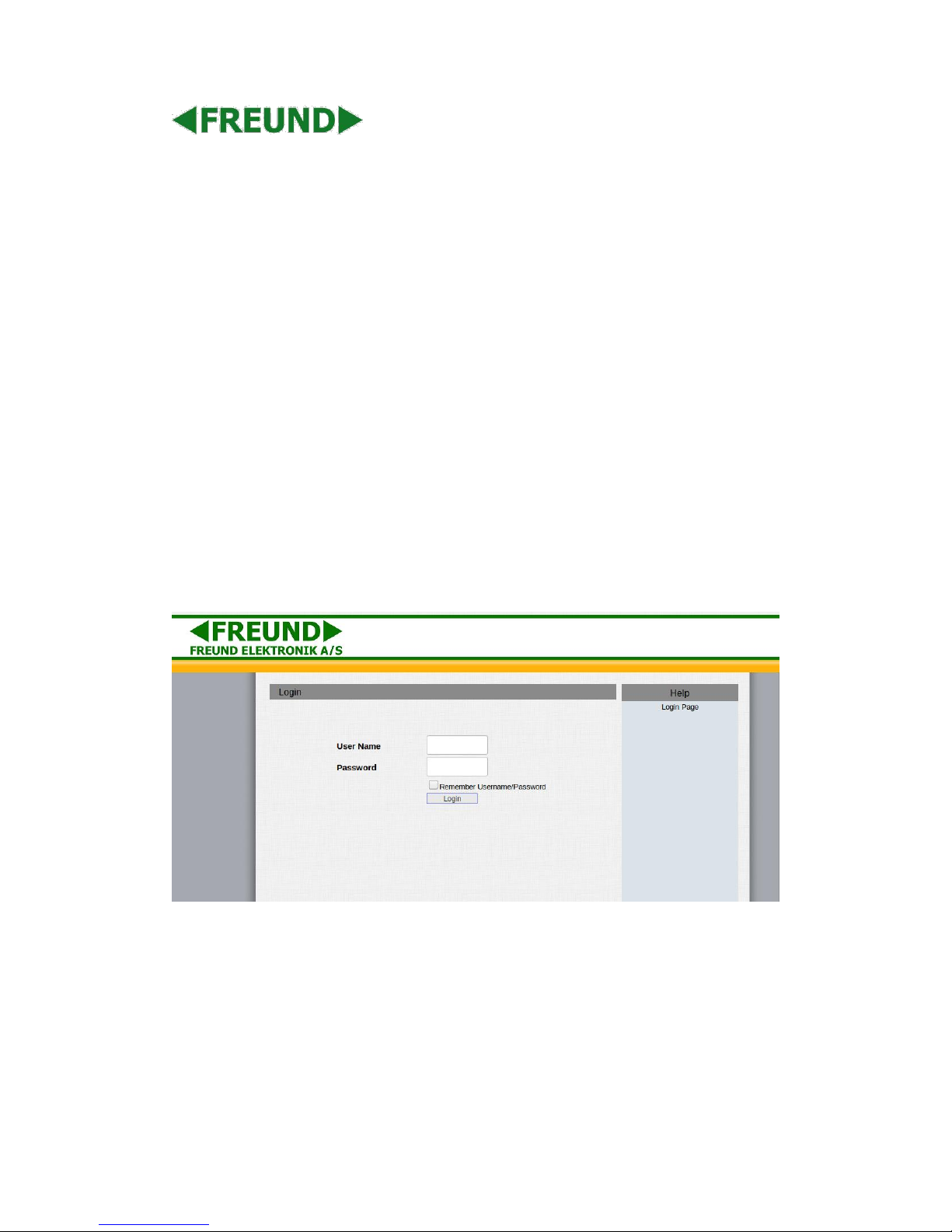
Open a Web Browser, and enter the corresponding IP address. Then, type the default user name
and password as below to log in:
User name: admin
Password: admin
Page 14
FREUND ELEKTRONIK A/S | Fuglebakken 119 | 5210 Odense NV | Denmark | www.freund.dk | Tlf.
+45 66 16 24 14
4.3. Status
4.3.1 Basic
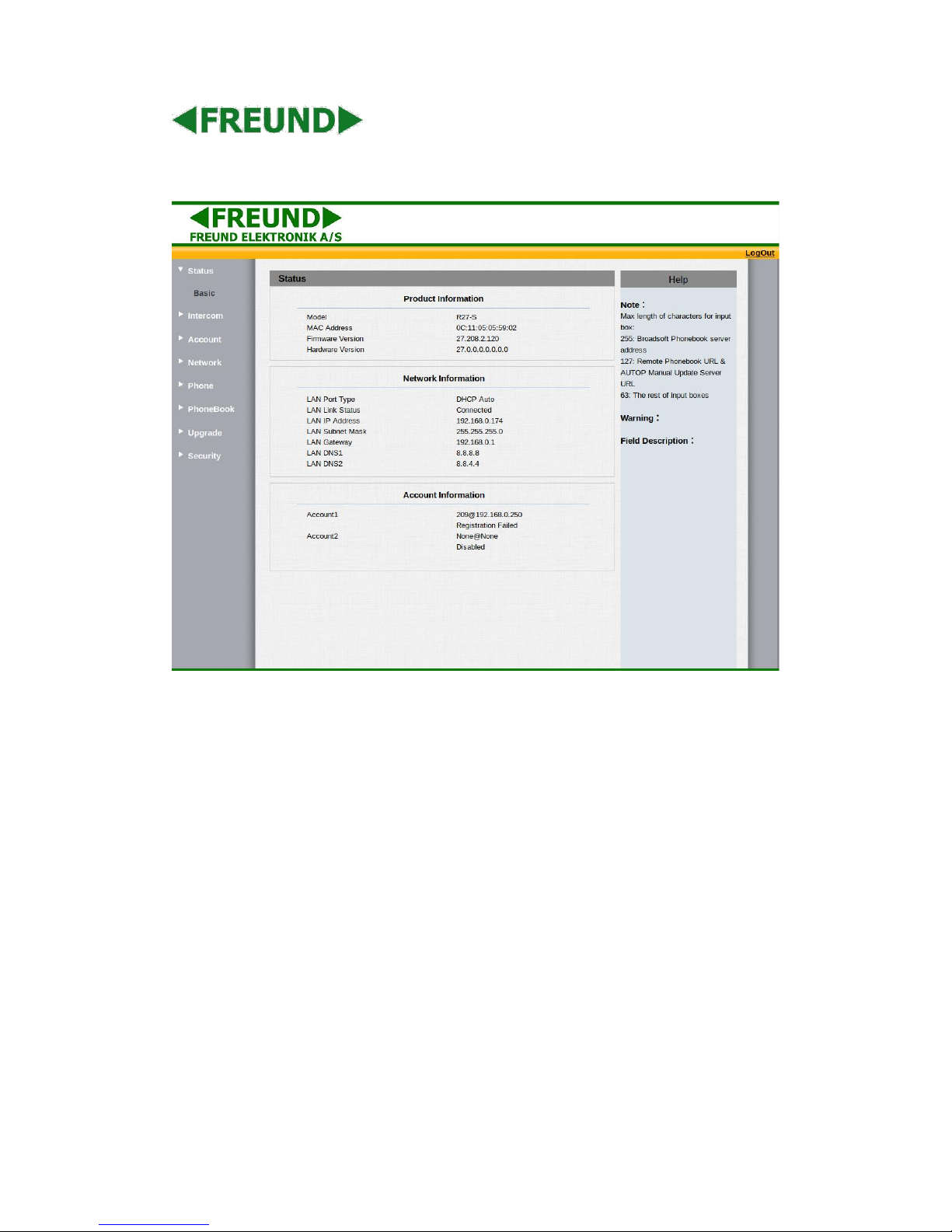
Status, including product information, network information and account information, can be
viewed from Status -> Basic.
Page 15
FREUND ELEKTRONIK A/S | Fuglebakken 119 | 5210 Odense NV | Denmark | www.freund.dk | Tlf.
+45 66 16 24 14
Sections
Description
Product Information
To display the device’s information such as Model name, MAC
address (IP device’s physical address), Firmware version and
Hardware firmware.
Network Information
To display the device’s Networking status(LAN Port),such as Port
Type(which could be DHCP/Static/PPPoE), Link Status, IP Address,
Subnet Mask, Gateway, Primary DNS server, Secondary DNS
server, Primary NTP server and Secondary NTP server(NTP server
is used to synchronize time from INTERNET automatically).
Account Information
To display device’s Account information and Registration status
(account username, registered server’s address, Register result).
4.4. Intercom
4.4.1 Basic
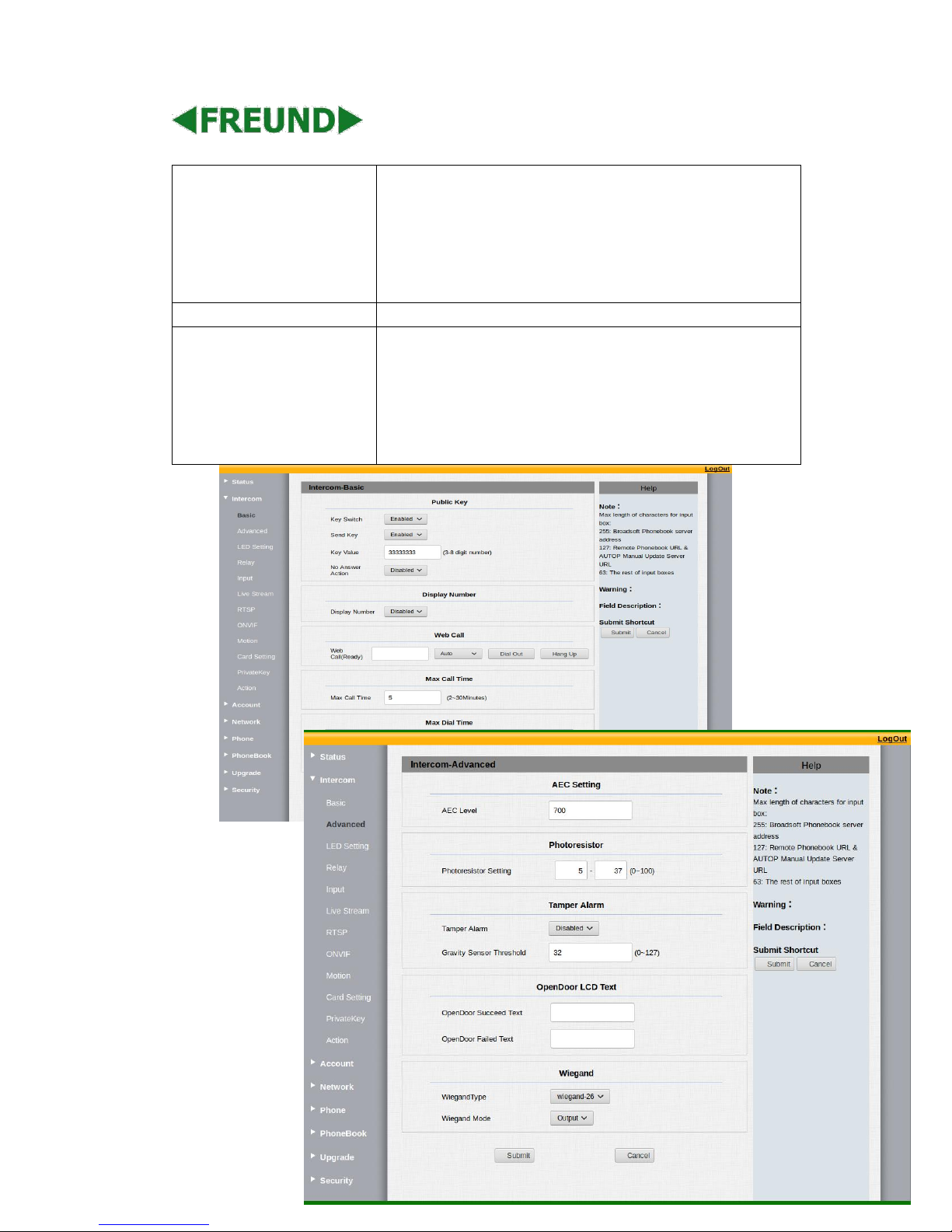
Go to the path: Intercom-Basic
Sections
Description
Public Key
Public Key is used to unlock.
Key Switch: Users can disable or enable this function.
Key Value: The default public Key is 33333333. Users can
modify by yourself.
Display Number
This function is used to hide or display the number when you
operate in the phone. If you select “Disabled”, the phone will
show “*” when you dial.
Speed Dial
This Feature is used to call out 4 numbers in the same time. After
setup the number you need to call, press manage center key to
call .
Web Call
To dial out or answer the phone from website.
Call Event
This feature is similar with the Input event. Once users make a
call , it will execute the action.
It supports 3 types - FTP, Email, and HTTP
Page 16
FREUND ELEKTRONIK A/S | Fuglebakken 119 | 5210 Odense NV | Denmark | www.freund.dk | Tlf.
+45 66 16 24 14
To setup the FTP and Email in Action interface, the FTP server and
Email will receive the capture picture when call out. If you choose
HTTP mode, enter the URL format: http://http server IP
address/any information
(such as, http://192.168.35.48/mac=000 ).Then you will check this
information which captures the network packet.
Max Call Time
To configure the max call time.
Max Dial Time
Dial in Time: When other phone calls to IPDS-27S, if ring
tone is over the Dial in Time without answer. The call will be
hang up.
Dial out Time: When IPDS-27S call to the other party, if the
ringtone is over the Dial out Time without answer. IPDS-27S
will continue to call to no answer call number in order.
4.4.2
Advanced
Page 17
FREUND ELEKTRONIK A/S | Fuglebakken 119 | 5210 Odense NV | Denmark | www.freund.dk | Tlf.
+45 66 16 24 14
Sections
Description
AEC Level
AEC(Configurable Acoustic and Line Echo Cancelers) is used to
adjust the echo effect during the communication. The default
value is 700. Increase the level, the echo control is better.
Photoresistor
Photoresistor is used to sense the light intensity that IPDS-27S
will auto enable infrared LED. Users can adjust the photosensitive
value by yourselves.
Tamper Alarm
Enable the Tamper Alarm, if the gravity of IPDS-27S changes, the
phone will alarm. The Threshold value is smaller, the faster the
reaction of device.
Wiegand
Freund provides two Wiegand protocol. According to the
corresponding wiegand access device to choose the suitable
protocol.
4.4.3 Relay
Page 18
FREUND ELEKTRONIK A/S | Fuglebakken 119 | 5210 Odense NV | Denmark | www.freund.dk | Tlf.
+45 66 16 24 14
Sections
Description
Private Key
Import or Export the Private Key template.
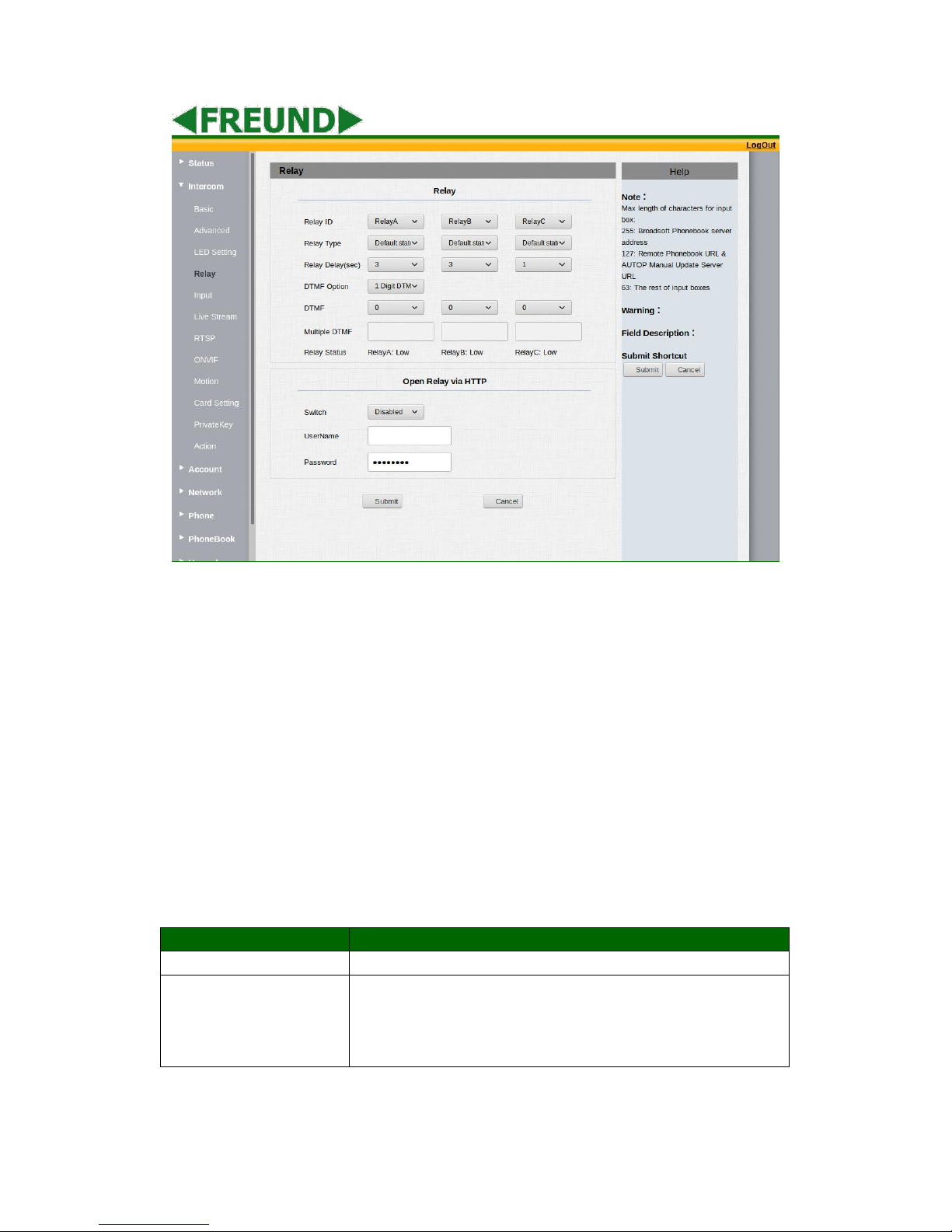
Relay
To configure some settings about unlock
Relay Select: IPDS-27S support 3 relays
Relay Type: Different locks use different relay types, default
state or invert state. If you connect the Lock in NO connector,
Page 19
FREUND ELEKTRONIK A/S | Fuglebakken 119 | 5210 Odense NV | Denmark | www.freund.dk | Tlf.
+45 66 16 24 14
select default state. Otherwise using invert state.
Relay Delay(sec): Allows door remain “open” for certain period
The range is from 1 to 10 seconds
DTMF Option: IPDS-27S support 1、2、3、4 digits DTMF
unlock code. Please select one type and enter the
corresponding code.
DTMF: Setup 1 digit DTMF code for remote unlock
Multiple DTMF: Setup multiple digits DTMF code for remote
unlock.
Status: the status will be changed by the relay state.
Open Relay via HTTP
Users can use a URL to remote unlock the door.
Switch: Enable this function. Disable by default.
Username & password: Users can setup the username and
password for HTTP unlock. Null by default
URL format:http://192.168.1.102/fcgi/do?action=OpenDoor&
UserName=&Password=&DoorNum=1
4.4.4 Input
Page 20
FREUND ELEKTRONIK A/S | Fuglebakken 119 | 5210 Odense NV | Denmark | www.freund.dk | Tlf.
+45 66 16 24 14
Sections
Description
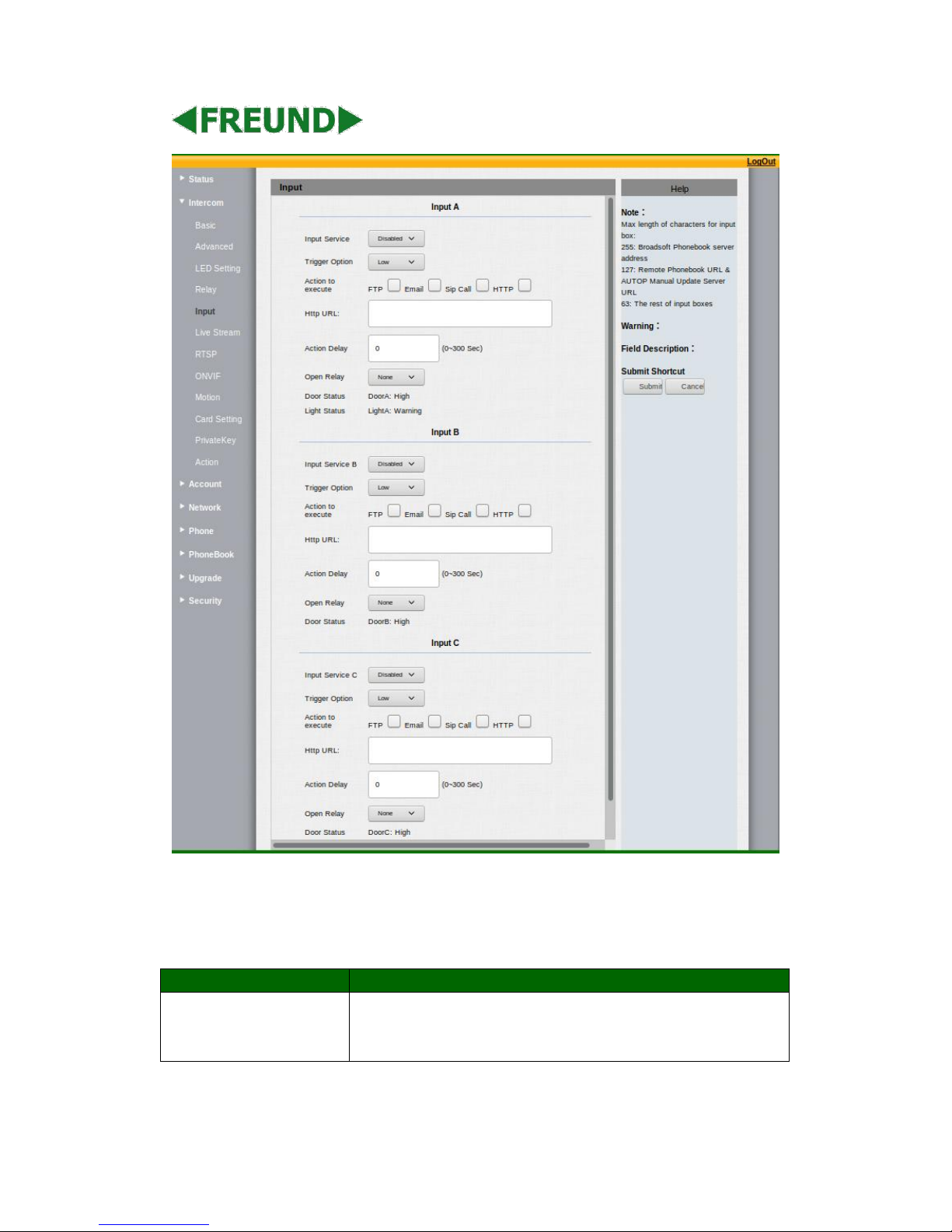
Input
Input function is used to open the door from inside.
Trigger Option: According to different lock connection to
choose different trigger mode. If users connect in normal open
Page 21
FREUND ELEKTRONIK A/S | Fuglebakken 119 | 5210 Odense NV | Denmark | www.freund.dk | Tlf.
+45 66 16 24 14
contact, select low. If you choose High, please connect in
normal close contact.
Action to execute: Choose one or more ways to receive the
action message.
Http URL: If you tick Http URL, then enter the Http server IP
address in the HTTP URL area. When the Input is triggered, it
will send Http message. URL format: http://http server IP
address/any information (such as
http://192.168.35.48/mac=000 ). Then you will check this
information which captures the network packet.
Action Delay: Setup the action delay time. After the delay time,
the phone will send to the action information in the
corresponding way.
Open Relay: To choose a suitable relay for input connector.
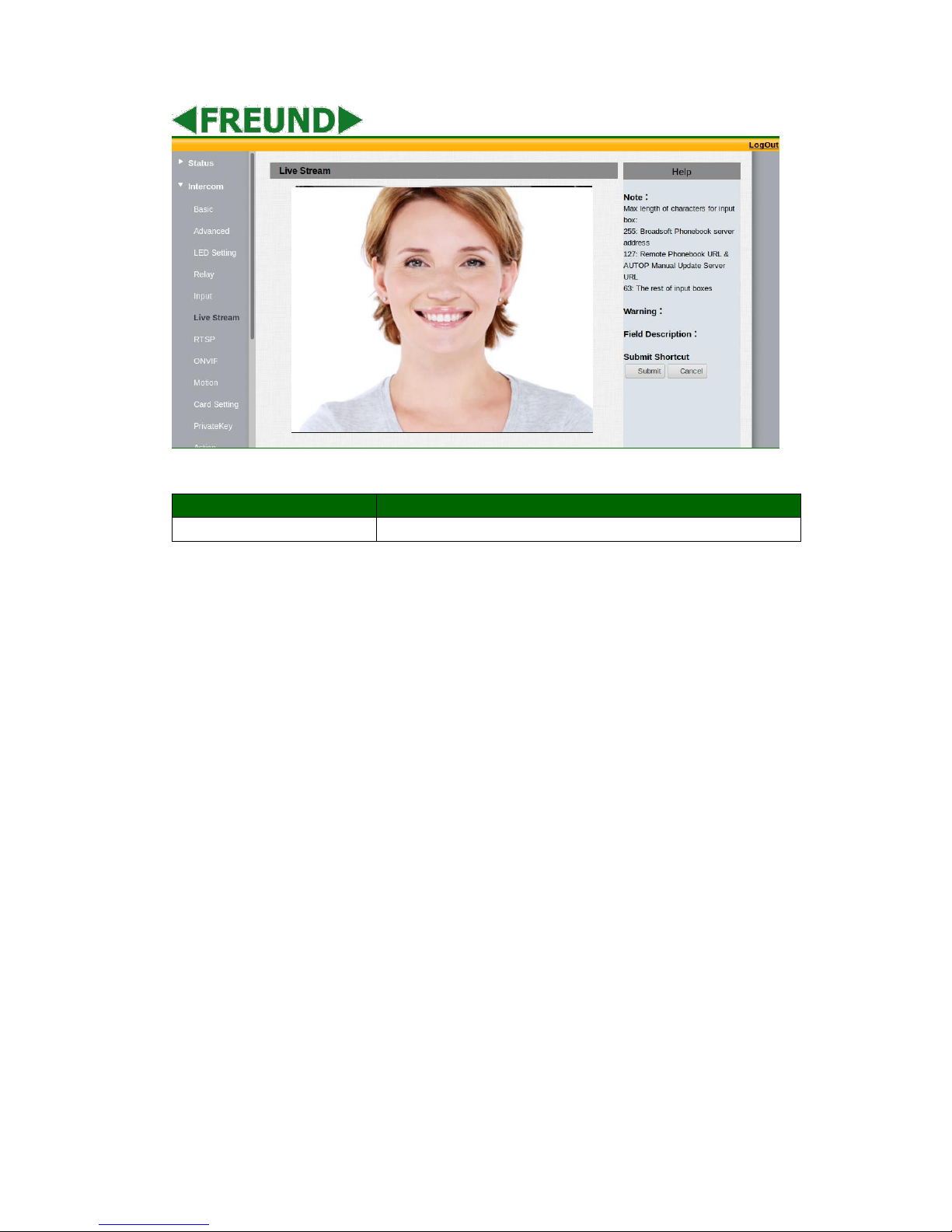
4.4.5 Live Stream
Page 22
FREUND ELEKTRONIK A/S | Fuglebakken 119 | 5210 Odense NV | Denmark | www.freund.dk | Tlf.
+45 66 16 24 14
Sections
Description
Live Stream
To check the real-time video from IPDS-27S.
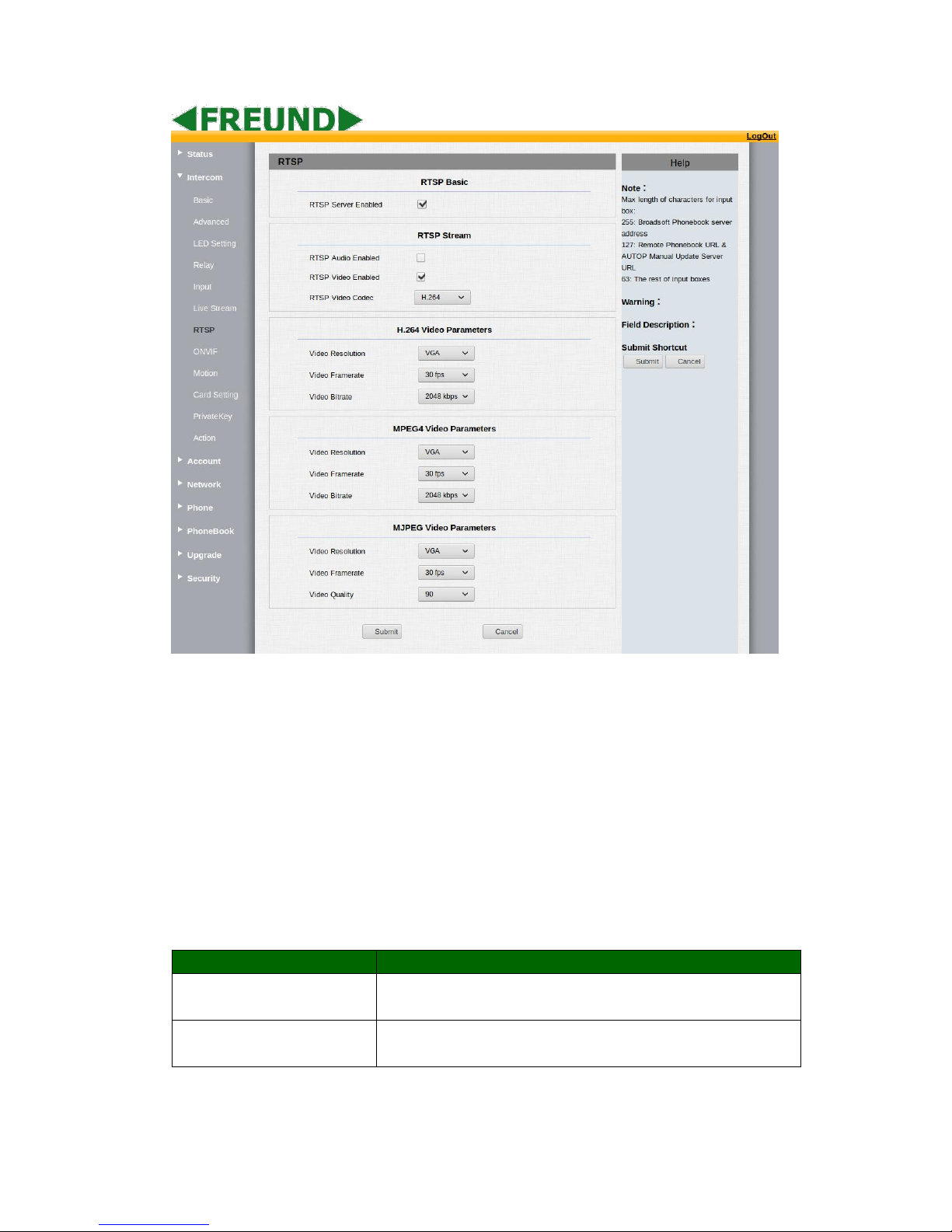
4.4.6 RTSP
Page 23
FREUND ELEKTRONIK A/S | Fuglebakken 119 | 5210 Odense NV | Denmark | www.freund.dk | Tlf.
+45 66 16 24 14
Sections
Description
RTSP Basic
To active the RTSP function, then IPDS-27S can be monitored.
RTSP stream format : rtsp:// device IP/live/ch00_0
RTSP Stream
To enable RTSP video and select the video codec. IPDS-27S
supports H264 video codec.
Page 24
FREUND ELEKTRONIK A/S | Fuglebakken 119 | 5210 Odense NV | Denmark | www.freund.dk | Tlf.
+45 66 16 24 14
H.264 Video Parameters
H264: A video stream compression standard. Different from
H263, it provides an approximately identical level of video stream
quality but a half bit rate. This type of compression is sometimes
called MPEG-4 part 10.
To modify the resolution,framerate and bitrate of H264
MPEG4 Video Parameters
MPEG4: It is one of the network video image Compression
standard. It supports the maximum Compression ratio 4000:1. It
is an important and common video function with great
communication application integration ability and less core
program space.
To modify the resolution,framerate and bitrate of MPEG4
MJPEG Video Parameters
MJPEG: called Motion Joint Photographic Experts Group. It is a
video encoding format in which each image is compressed
separately by JPEG. MJPEG compression can produce high quality
video image and has a flexible configuration in video definition
and Compressed frames
To modify the resolution,framerate and bitrate of MJPEG
4.4.7
ONVI
F
Page 25
FREUND ELEKTRONIK A/S | Fuglebakken 119 | 5210 Odense NV | Denmark | www.freund.dk | Tlf.
+45 66 16 24 14
Sections
Description
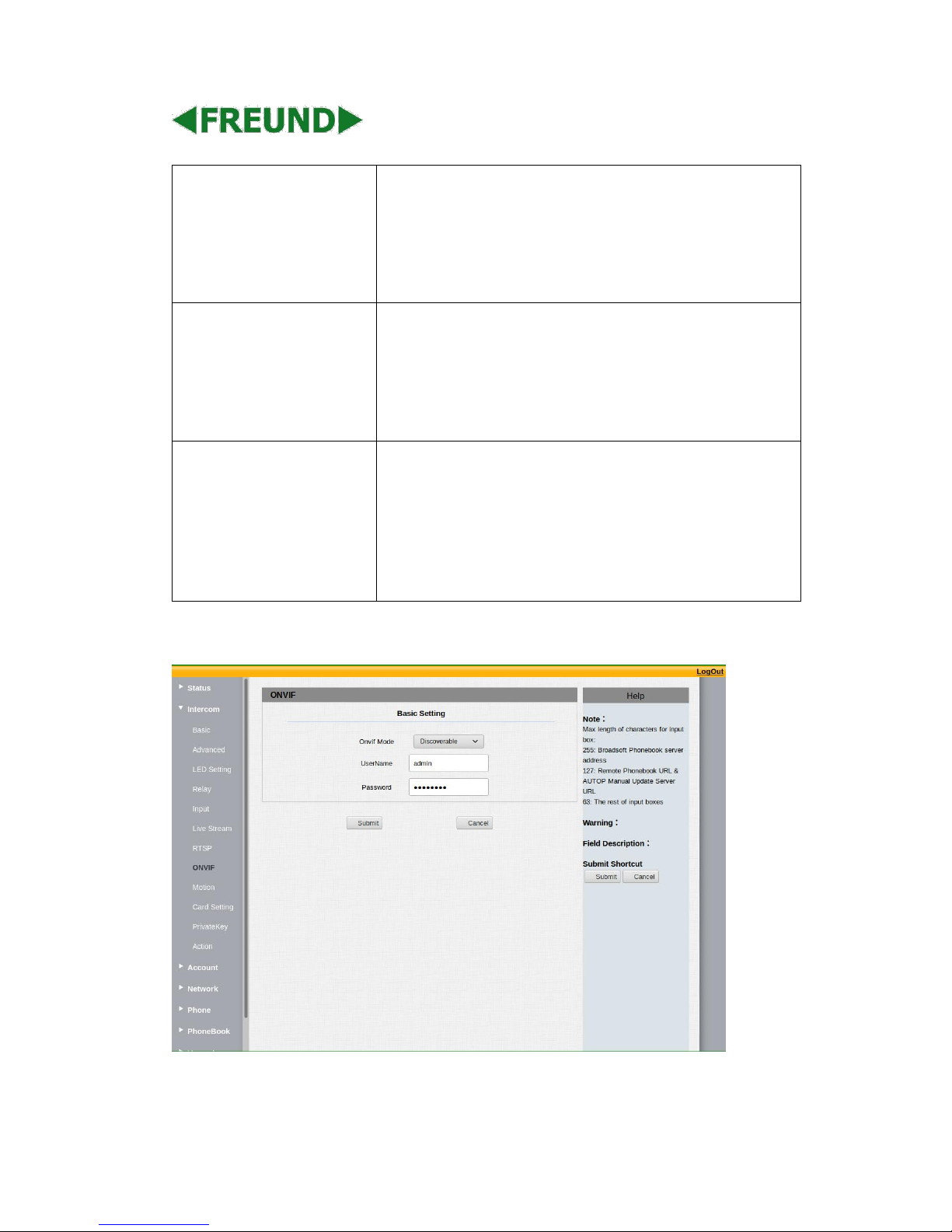
Basic Setting
To setup the ONVIF function parameters. It is used to connect
with the corresponding ONVIF tool.
ONVIF Mode: Two modes - Discoverable and Non-
discoverable. Discoverable by default. Only Discoverable
mode, then Onvif software can search R27X
User Name: To modify the user name you need. Admin by
default.
Password: To modify the password you want. Admin by
default.
Note: User name and password is used for authentication.
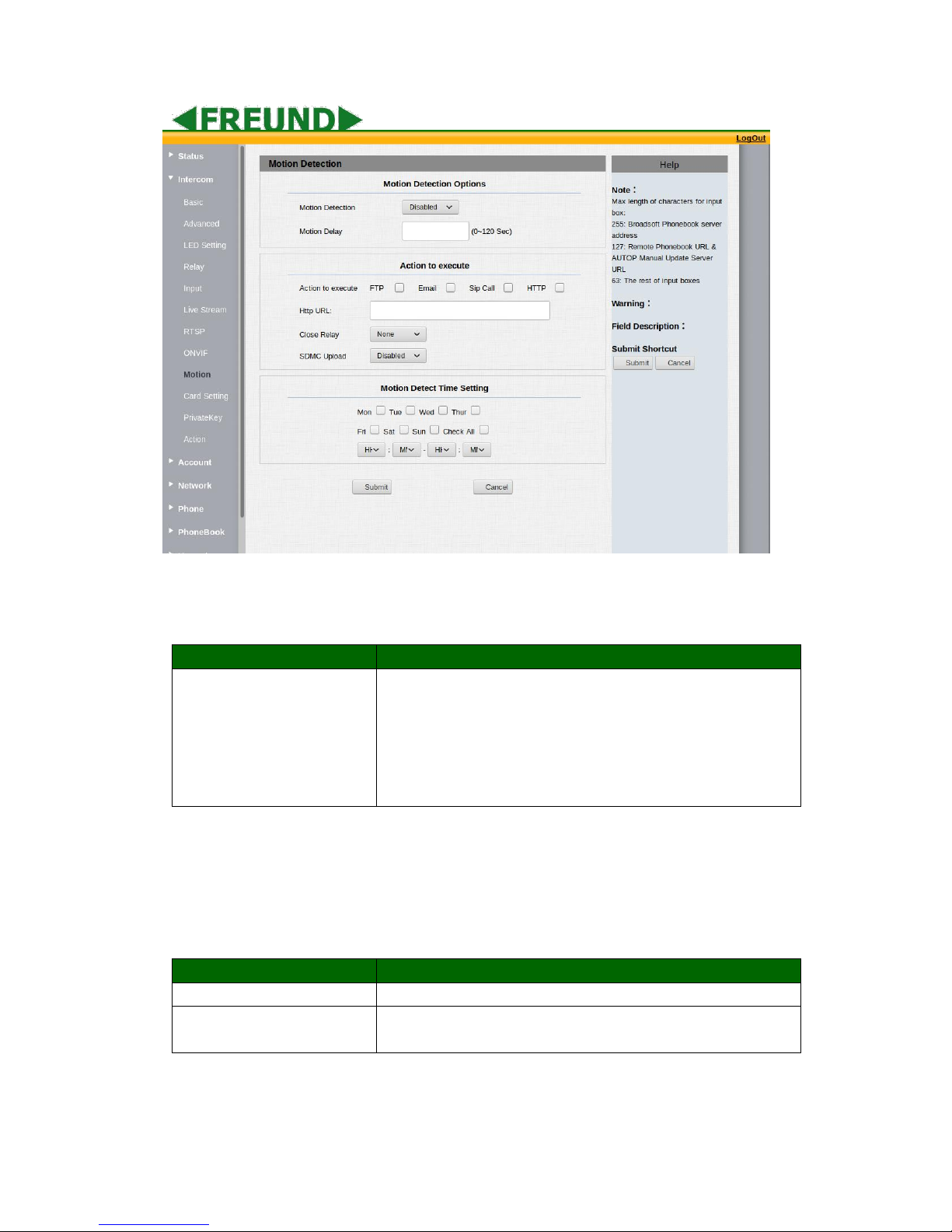
4.4.8 Motion
Page 26
FREUND ELEKTRONIK A/S | Fuglebakken 119 | 5210 Odense NV | Denmark | www.freund.dk | Tlf.
+45 66 16 24 14
Sections
Description
Motion Detection
Motion detection is used to record the change of the surrounding
environment.
Motion Detection Options: Enable to active this function.
Action to execute: Select a suitable way to receive the
motion detection information. (FTP,EMAIL,SIP Call setting
please refer to chapter4.4.10)
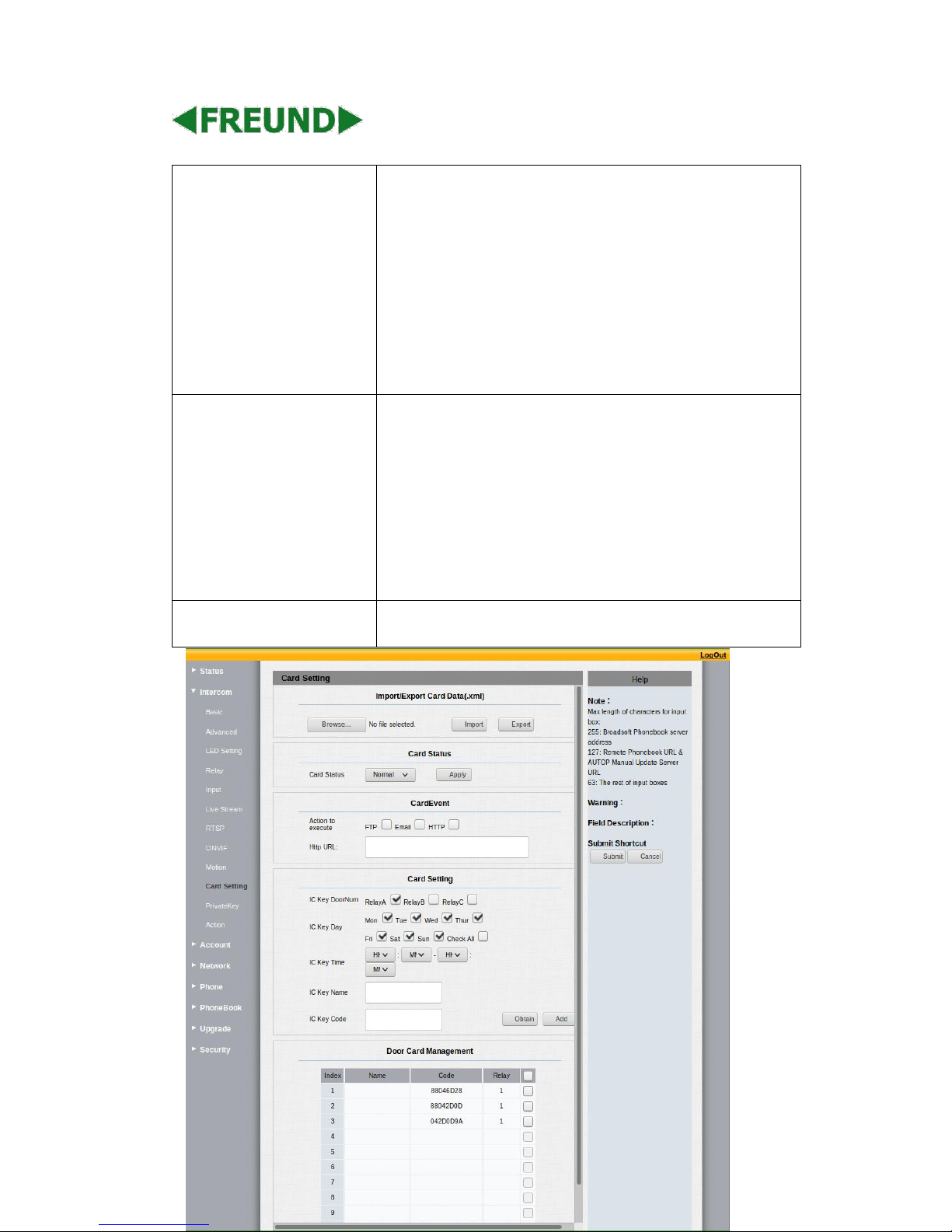
4.4.9 Card Setting( IPDS-27S only)
Sections
Description
Import/Export Card Data
To import or export the card data file. Only support .xml format.
Card Status
Normal: Choose Normal mode when reading card.
Card Issuing: Choose Card Issuing mode when writing card.
Page 27
FREUND ELEKTRONIK A/S | Fuglebakken 119 | 5210 Odense NV | Denmark | www.freund.dk | Tlf.
+45 66 16 24 14
Card Event
This feature is similar with the Input event. Once users use card
to unlock, it will execute the action.
It supports 3 types - FTP, Email, HTTP
To setup the FTP and Email in Action interface, the FTP server and
Email will receive the capture picture when unlocking. If you
choose HTTP mode, enter the URL format: http://http server IP
address/any information
(such as http://192.168.35.48/mac=000 ).Then you will check this
information which captures the network packet.
Card Setting
IC Key DoorNum: IPDS-27S can support to connect 3 relays
Choose one and add the valid card for unlock.
IC Key Day: To choose the valid day for the card you added.
IC Key Time:Setup an accurate valid time for the card.
IC Key Name: To setup corresponding name for the card.
IC Key Code: Place the card in the IPDS-27S RF Card Read
area, then click Obtain button. After IPDS-27S reads the card
code, click Add, the card information will show in the Door
Card Management list.
Door Card Management
Valid card information will show in the list. Users can tick the
current card information then delete one or all in the list.
4.4.1
0
Acti
on
Page 28
FREUND ELEKTRONIK A/S | Fuglebakken 119 | 5210 Odense NV | Denmark | www.freund.dk | Tlf.
+45 66 16 24 14
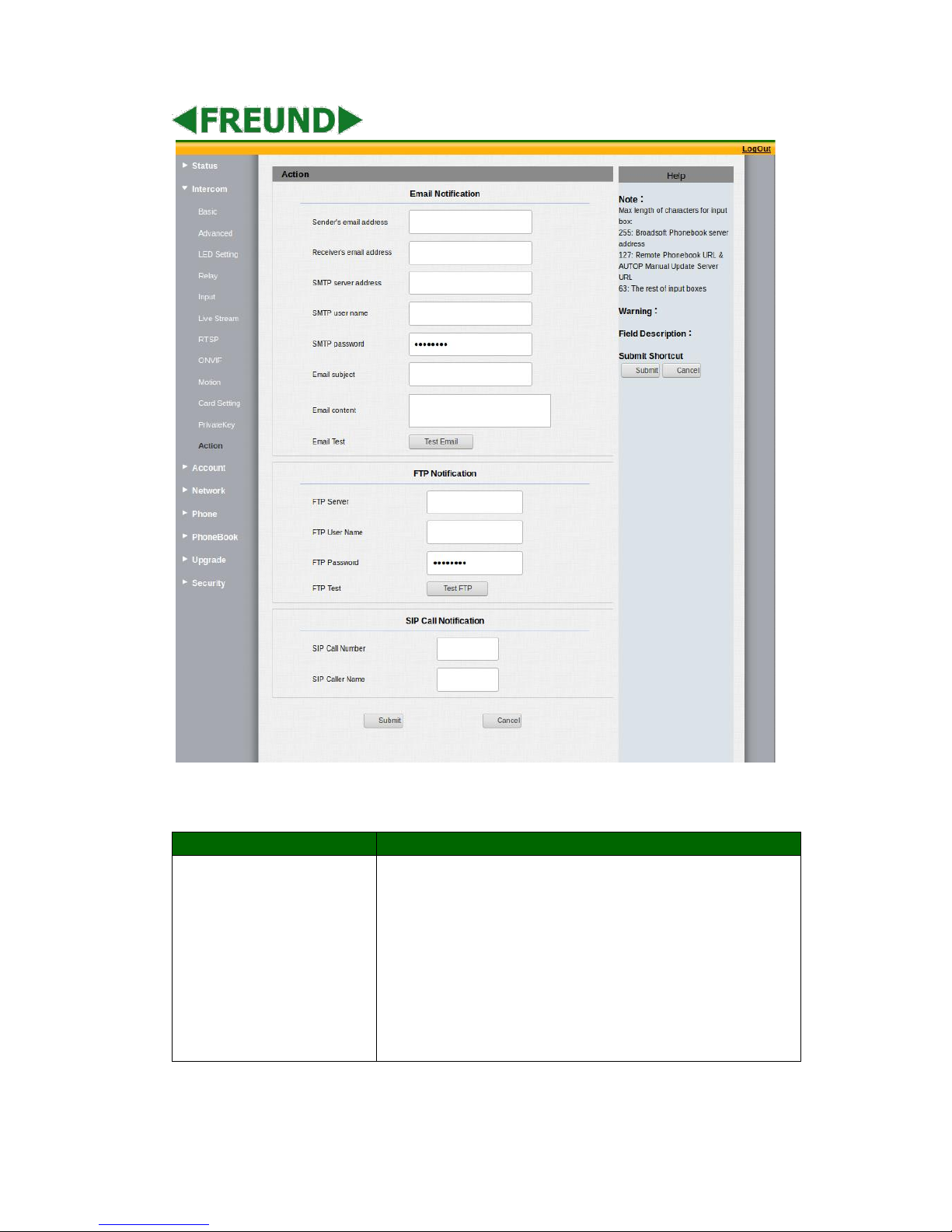
Sections
Description
Email Notification
Sender Email Address: Input the sender email address
Receiver Email Address: Input the receiver email address
SMTP Server Address: Enter the SMTP server format
SMTP User name: Enter the SMTP
SMTP password: Enter the sender email password
Email Subject: Enter the subject name.
Email content: Enter the content name.
Email test: Click test to make sure the parameters you enter
is right.
Page 29
FREUND ELEKTRONIK A/S | Fuglebakken 119 | 5210 Odense NV | Denmark | www.freund.dk | Tlf.
+45 66 16 24 14
FTP Notification
FTP Server: Enter the FTP server address.
FTP User Name: Enter the FTP server user name.
FTP Password: Enter the corresponding FTP server
password.
FTP test: Click test to make sure the parameters you enter is
right.
SIP Call Notification
When you enable SIP Call function of motion. Enter the number
and name in the corresponding area. When the motion is
triggered, the device will call out the number automatically.
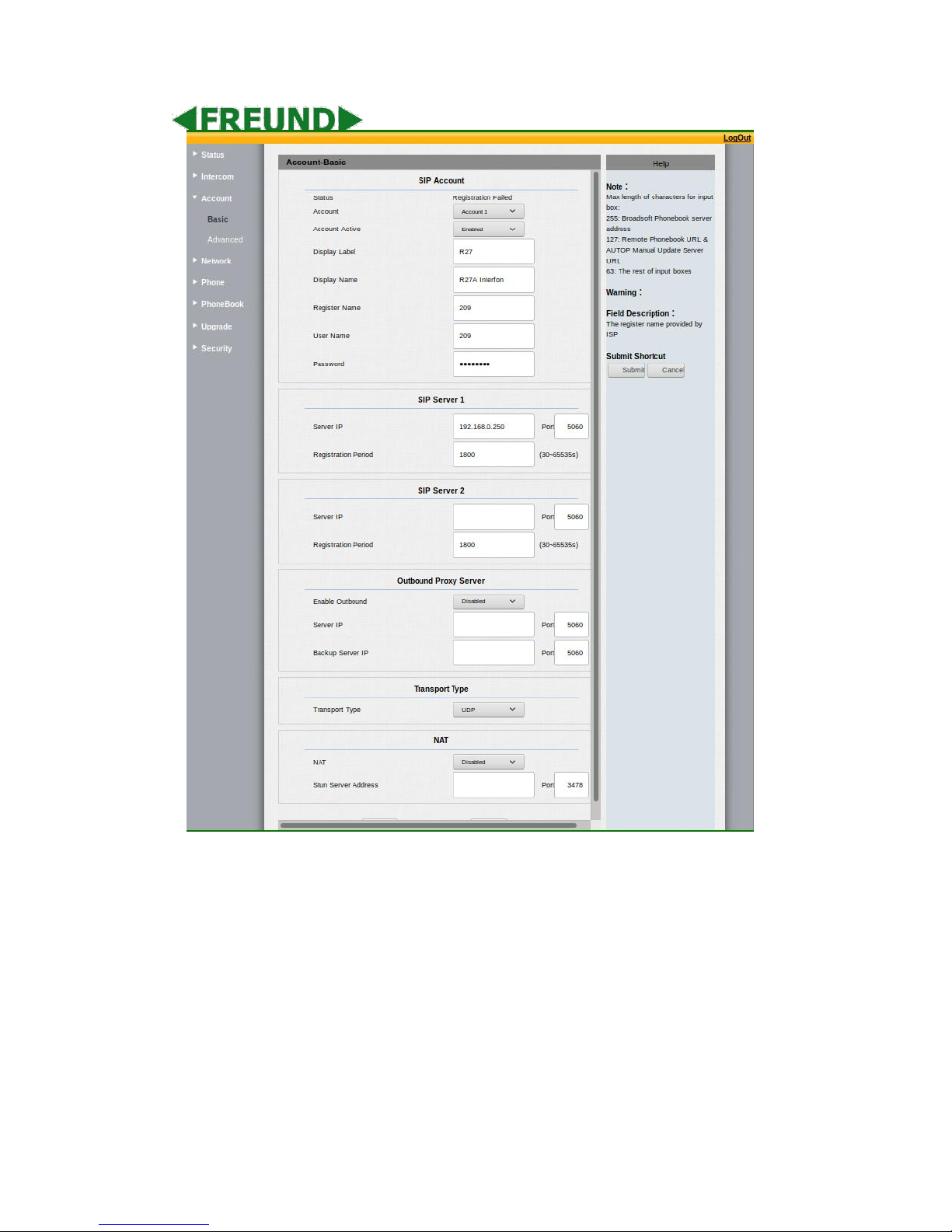
4.5. Account
4.5.1 Basic
Page 30
FREUND ELEKTRONIK A/S | Fuglebakken 119 | 5210 Odense NV | Denmark | www.freund.dk | Tlf.
+45 66 16 24 14
Page 31
FREUND ELEKTRONIK A/S | Fuglebakken 119 | 5210 Odense NV | Denmark | www.freund.dk | Tlf.
+45 66 16 24 14
Sections
Description
SIP Account
To display and configure the specific Account settings.
Status: To display register result.
Display Name: Which is sent to the other call party for
display.
Register Name: Allocated by SIP server provider, used for
authentication.
User Name: Allocated by your SIP server provide, used for
authentication.
Password: Used for authorization.
SIP Server 1
To display and configure Primary SIP server settings.
Server IP: SIP server address, it could be an URL or IP
Page 32
FREUND ELEKTRONIK A/S | Fuglebakken 119 | 5210 Odense NV | Denmark | www.freund.dk | Tlf.
+45 66 16 24 14
address.
Registration Period: The registration will expire after
Registration period, the IP phone will re-register
automatically within registration period.
SIP Server 2
To display and configure Secondary SIP server settings.
This is for redundancy, if registering to Primary SIP server fails,
the IP phone will go to Secondary SIP server for registering.
Note: Secondary SIP server is used for redundancy, it can be left
blank if there is not redundancy SIP server in user’s environment.
Outbound Proxy Server
To display and configure Outbound Proxy server settings.
An outbound proxy server is used to receive all initiating request
messages and route them to the designated SIP server.
Note: If configured, all SIP request messages from the IP phone
will be sent to the outbound proxy server forcefully.
Transport Type
To display and configure Transport type for SIP message
UDP: UDP is an unreliable but very efficient transport layer
protocol.
TCP: Reliable but less-efficient transport layer protocol.
TLS: Secured and Reliable transport layer protocol.
DNS-SRV: A DNS RR for specifying the location of services.
NAT
To display and configure NAT(Net Address Translator) settings.
STUN: Short for Simple Traversal of UDP over NATS, a
solution to solve NAT issues.
Note: By default, NAT is disabled.
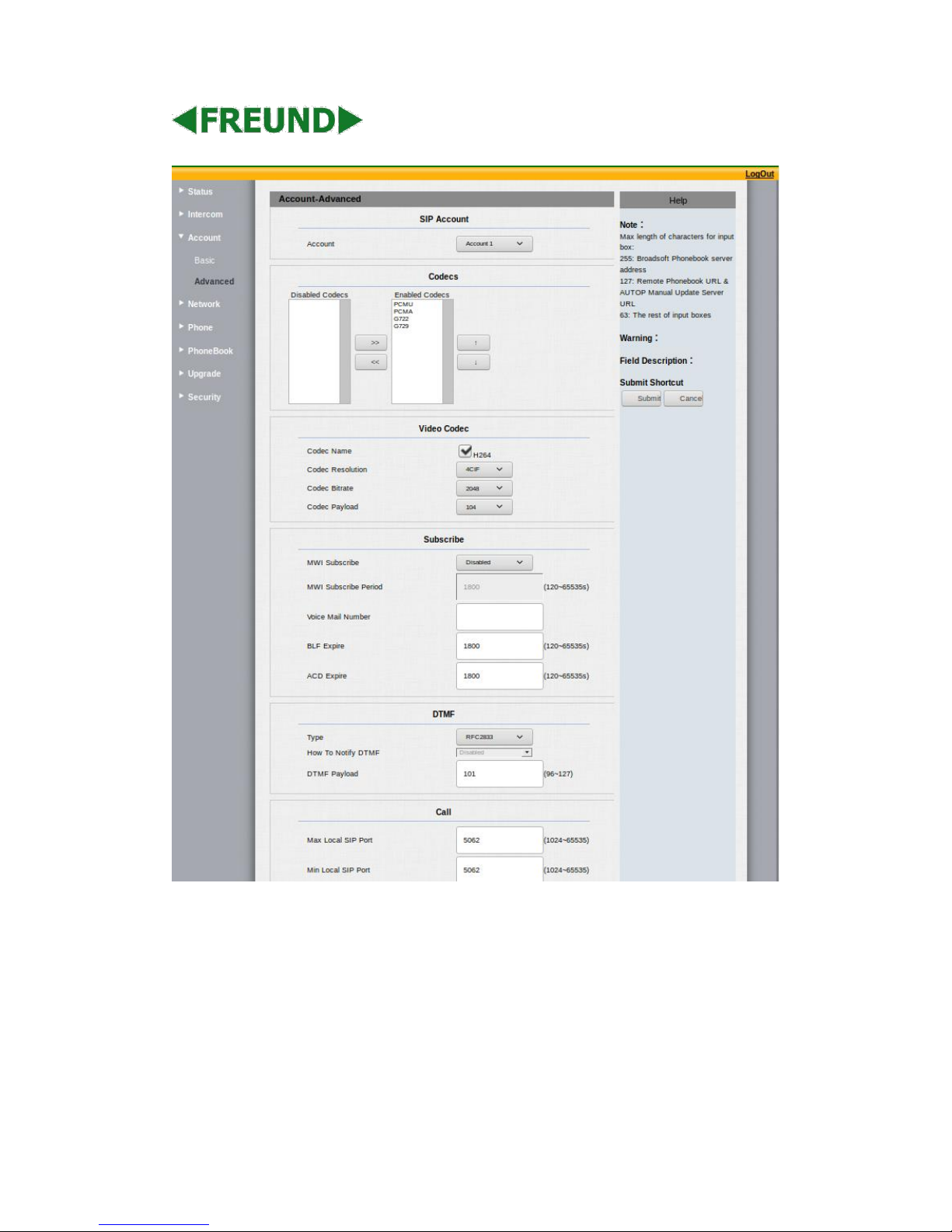
4.5.2 Advanced
Page 33
FREUND ELEKTRONIK A/S | Fuglebakken 119 | 5210 Odense NV | Denmark | www.freund.dk | Tlf.
+45 66 16 24 14
Page 34
FREUND ELEKTRONIK A/S | Fuglebakken 119 | 5210 Odense NV | Denmark | www.freund.dk | Tlf.
+45 66 16 24 14
Sections
Description
Page 35
FREUND ELEKTRONIK A/S | Fuglebakken 119 | 5210 Odense NV | Denmark | www.freund.dk | Tlf.
+45 66 16 24 14
SIP Account
To display current Account settings or to select which account to
display.
Codecs
To display and configure available/unavailable codecs list.
Codec means coder-decoder which is used to transfer analog
signal to digital signal or vice versa.
Familiar codecs are PCMU(G711U), PCMA(G711A), G722 (widebandth codecs), G729 and so on.
Video Codec
To configure the video quality
Codec Name: The default video codec is H264.
Codec Resolution: It can support QCIF, CIF, VGA, 4CIF, 720P.
Codec Bitrate: The lowest bitrate is 128, the highest bitrate
is 2048.
Codec payload: From 90-119.
Subscribe
To display and configure MWI, BLF, ACD subscription settings.
MWI: Message Waiting Indicator which is used to indicate
whether there is unread new voice message.
BLF: BLF is short for Busy Lamp Field which is used to
monitor the designated extension status.
ACD: Automatic Call Distribution is often used in offices for
customer service, such as call center. The setting here is to
negotiate with the server about expire time of ACD
subscription.
DTMF
To display and configure DTMF settings.
Type: Support Inband, Info, RFC2833 or their combination.
How To Notify DTMF: Only available when DTMF Type is
Info.
DTMF Payload: To configure payload type for DTMF.
Note: By default, DTMF type is RFC2833 which is the standard.
Type Inband uses inband frequency to indicate DTMF tone which
is most used to be compatible to traditional telephone server.
Type Info use SIP Info message to indicate DTMF message.
Call
To display and configure call-related features.
Max Local SIP Port: To configure maximum local sip port for
designated account.
Min Local SIP Port: To configure minimum local sip port for
designated account.
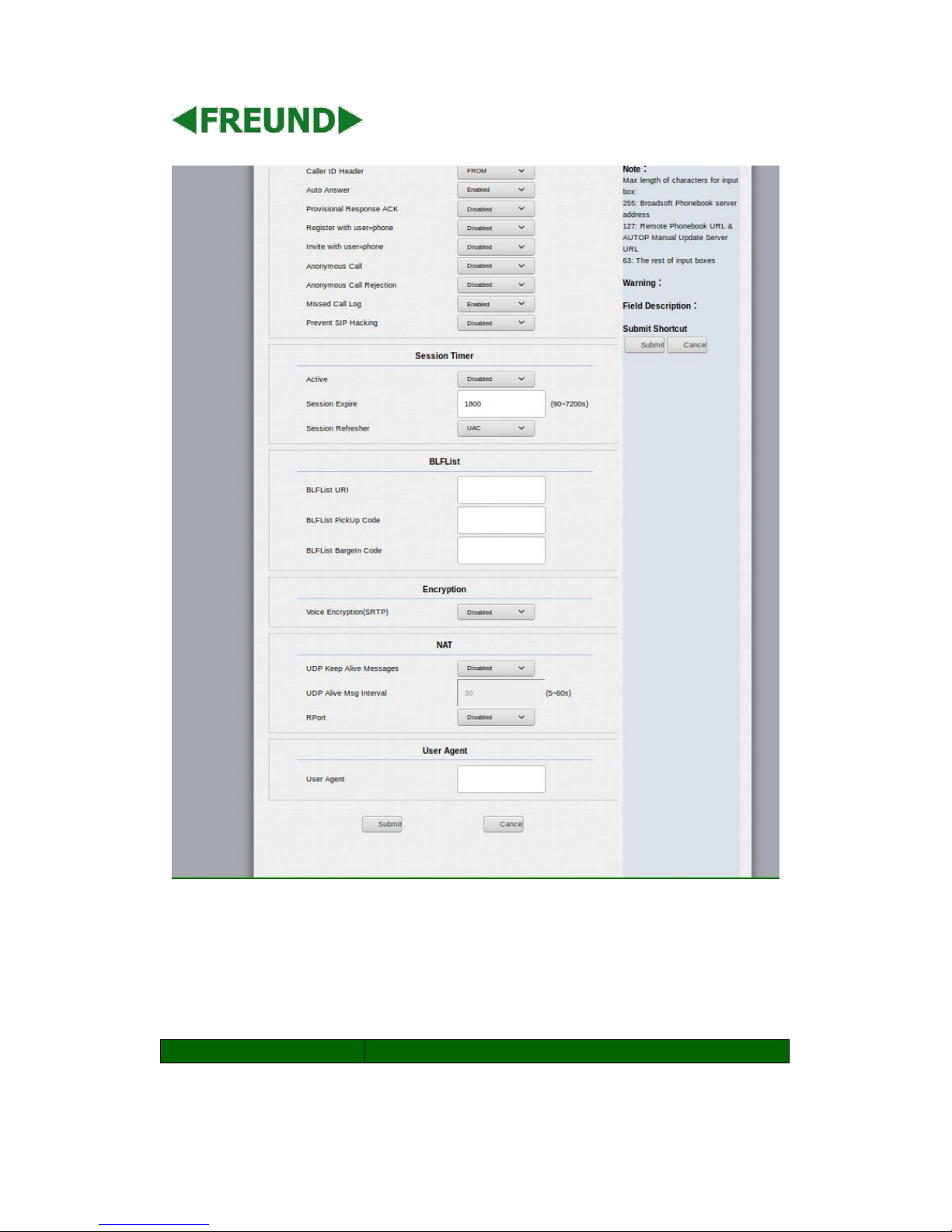
Caller ID Header: To configure which Caller ID format to
fetch for displaying on Phone UI.
Auto Answer: If enabled, IP phone will be auto-answered
Page 36
FREUND ELEKTRONIK A/S | Fuglebakken 119 | 5210 Odense NV | Denmark | www.freund.dk | Tlf.
+45 66 16 24 14
when there is an incoming call for designated account.
Ringtones: Choose the ringtone for each account.
Provisioning Response ACK: 100% reliability for all
provisional messages, this means it will send ACK every time
the IP phone receives a provisional SIP message from SIP
server.
User=phone: If enabled, IP phone will send user=phone
within SIP message.
PTime: Interval time between two consecutive RTP packets.
Anonymous Call: If enabled, all outgoing call for the
designated account will be anonymous number.
Anonymous Call Rejection: If enabled, all incoming
anonymous-out call for the designated account will be
rejected.
Is escape non Ascii character: To transfer the symbol to Ascii
character.
Missed Call Log: To display the miss call log.
Prevent SIP Hacking: Enable to prevent SIP from hacking.
Session Timer
To display or configure session timer settings.
Active: To enable or disable this feature, if it is enabled, the
ongoing call will be disconnected automatically once the
session expired unless it’s been refreshed by UAC or UAS.
Session Expire: Configure session expire time.
Session Refresher: It is used to configure who should be
responded for refreshing a session.
Note: UAC means User Agent Client, here stands for IP phone.
UAS means User Agent Server, here stands for SIP server.
BLF List
To display or configure BLF List URI address.
BLF List URI: BLF List is short for Busy Lamp Field List.
BLFList PickUp Code: To set the BLF pick up code.
BLFList BargeIn Code : To set the BLF barge in code.
Encryption
To enable or disabled SRTP feature.
Voice Encryption(SRTP): If enabled, all audio signal
(technically speaking it’s RTP streams) will be encrypted for
more security.
NAT
To display NAT-related settings.
UDP Keep Alive message: If enabled, IP phone will send UDP
keep-alive message periodically to router to keep NAT port
alive.
Page 37
FREUND ELEKTRONIK A/S | Fuglebakken 119 | 5210 Odense NV | Denmark | www.freund.dk | Tlf.
+45 66 16 24 14
UDP Alive Msg Interval: Keepalive message interval.
Rport: Remote Port, if enabled, it will add Remote Port into
outgoing SIP message for designated account.
User Agent
One can customize User Agent field in the SIP message; if user
agent is set to specific value, user can see the information from
PCAP. If user agent is not set by default, users can see the
company name, model number and firmware version from PCAP
4.6. Network
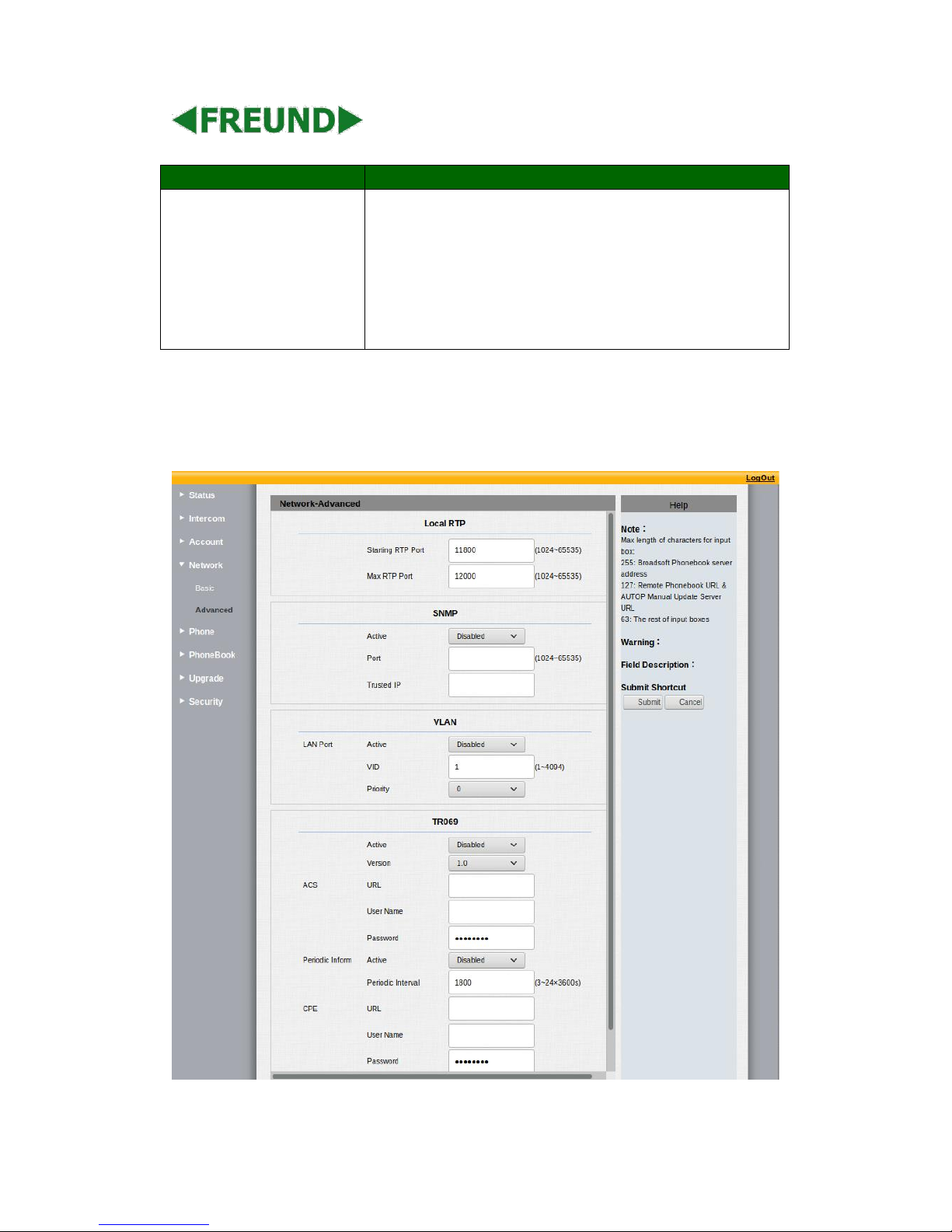
4.6.1 Basic
Page 38
FREUND ELEKTRONIK A/S | Fuglebakken 119 | 5210 Odense NV | Denmark | www.freund.dk | Tlf.
+45 66 16 24 14
Sections
Description
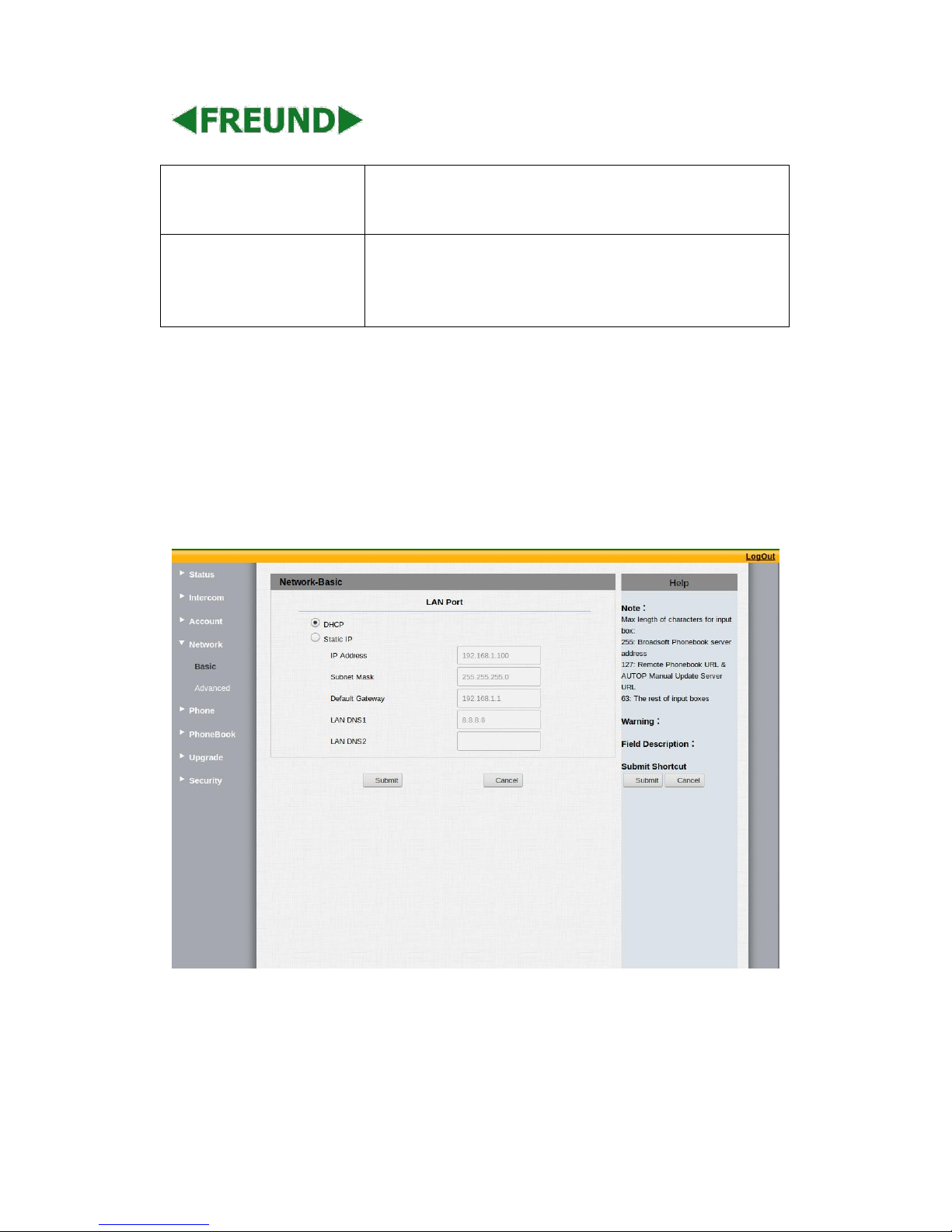
LAN Port
To display and configure LAN Port settings.
DHCP: If selected, IP phone will get IP address, Subnet Mask,
Default Gateway and DNS server address from DHCP server
automatically.
Static IP: If selected, you have to set IP address, Subnet
Mask, Default Gateway and DNS server manually.
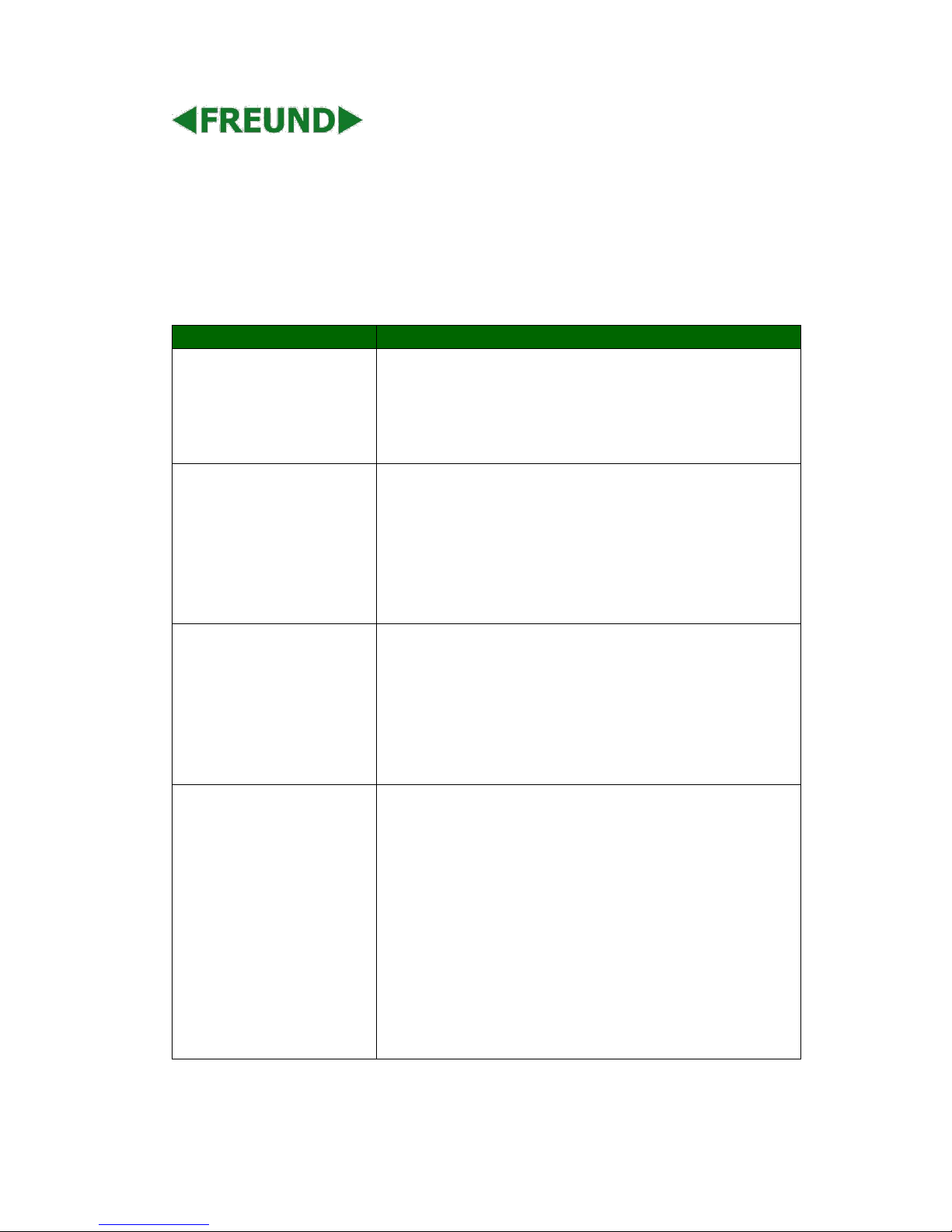
4.6.2 Advanced
Page 39
FREUND ELEKTRONIK A/S | Fuglebakken 119 | 5210 Odense NV | Denmark | www.freund.dk | Tlf.
+45 66 16 24 14
Sections
Description
Local RTP
To display and configure Local RTP settings.
Max RTP Port: Determine the maximum port that RTP
stream can use.
Starting RTP Port: Determine the minimum port that RTP
stream can use.
SNMP
To display and configure SNMP settings.
Active: To enable or disable SNMP feature.
Port: To configure SNMP server’s port.
Trusted IP: To configure allowed SNMP server address, it
could be an IP address or any valid URL domain name.
Note: SNMP (Simple Network Management Protocols) is Internetstandard protocol for managing devices on IP networks.
VLAN
To display and configure VLAN settings.
Active: To enable or disable VLAN feature for designated
port.
VID: To configure VLAN ID for designated port.
Priority: To select VLAN priority for designated port.
Note: Please consult your administrator for specific VLAN settings
in your networking environment.
TR069
To display and configure TR069 settings.
Active: To enable or disable TR069 feature.
Version: To select supported TR069 version (version 1.0 or
1.1).
ACS/CPE: ACS is short for Auto configuration servers as
server side, CPE is short for Customer-premise equipment as
client side devices.
URL: To configure URL address for ACS or CPE.
User name: To configure username for ACS or CPE.
Password: To configure Password for ACS or CPE.
Periodic Inform: To enable periodically inform.
Periodic Interval: To configure interval for periodic inform.
Page 40
FREUND ELEKTRONIK A/S | Fuglebakken 119 | 5210 Odense NV | Denmark | www.freund.dk | Tlf.
+45 66 16 24 14
Note: TR-069(Technical Report 069) is a technical specification
entitled CPE WAN Management Protocol (CWMP).It defines an
application layer protocol for remote management of end-user
devices.
4.7. Phone
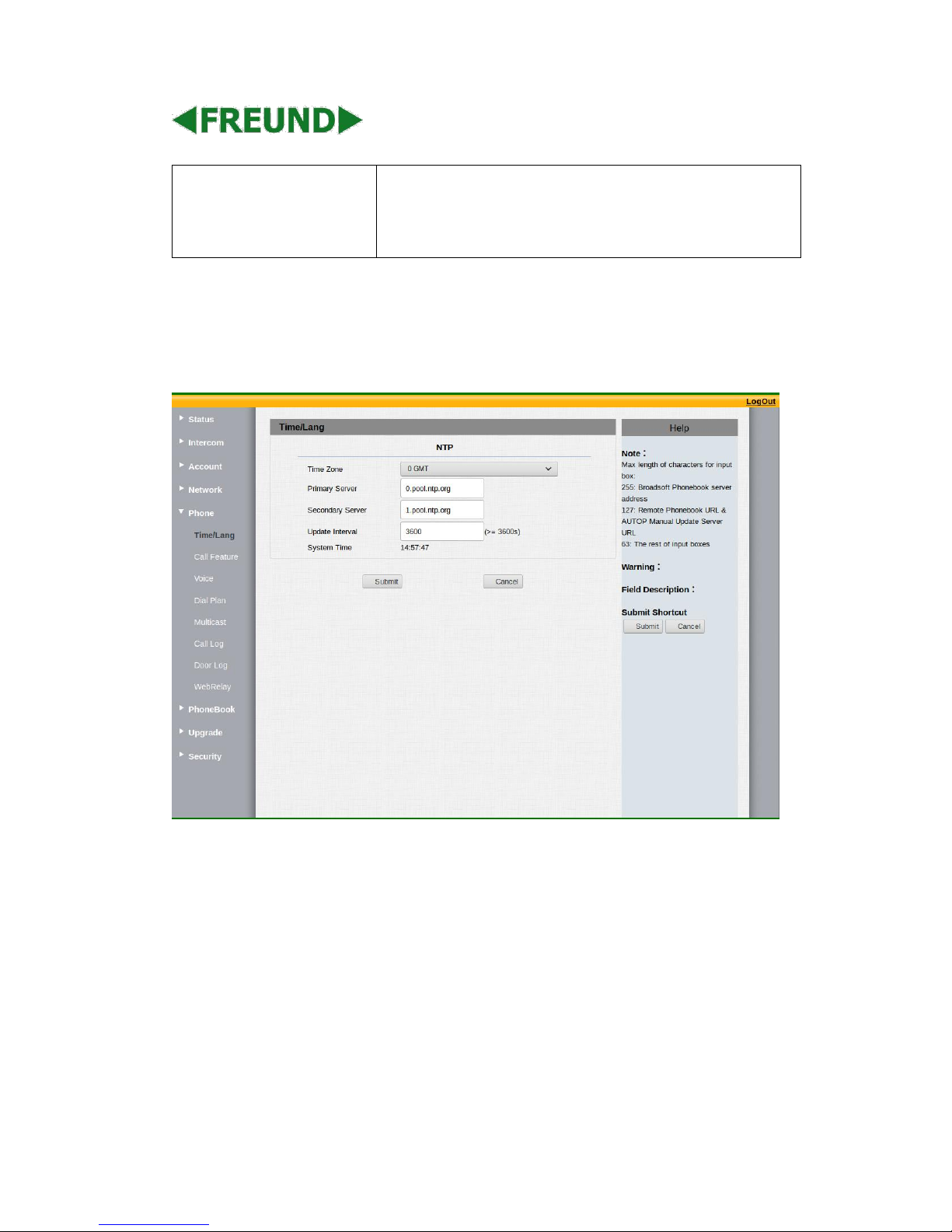
4.7.1 Time/Language
Page 41
FREUND ELEKTRONIK A/S | Fuglebakken 119 | 5210 Odense NV | Denmark | www.freund.dk | Tlf.
+45 66 16 24 14
Sections
Description
NTP
To configure NTP server related settings.
Time Zone: To select local Time Zone for NTP server.
Primary Server: To configure primary NTP server address.
Secondary Server: To configure secondary NTP server
address, it takes effect if primary NTP server is unreachable.
Update interval: To configure interval between two
consecutive NTP requests.
Note: NTP, Network Time Protocol is used to automatically
synchronized local time with INTERNET time, since NTP server
only response GMT time, so that you need to specify the Time
Zone for IP phone to decide the local time.
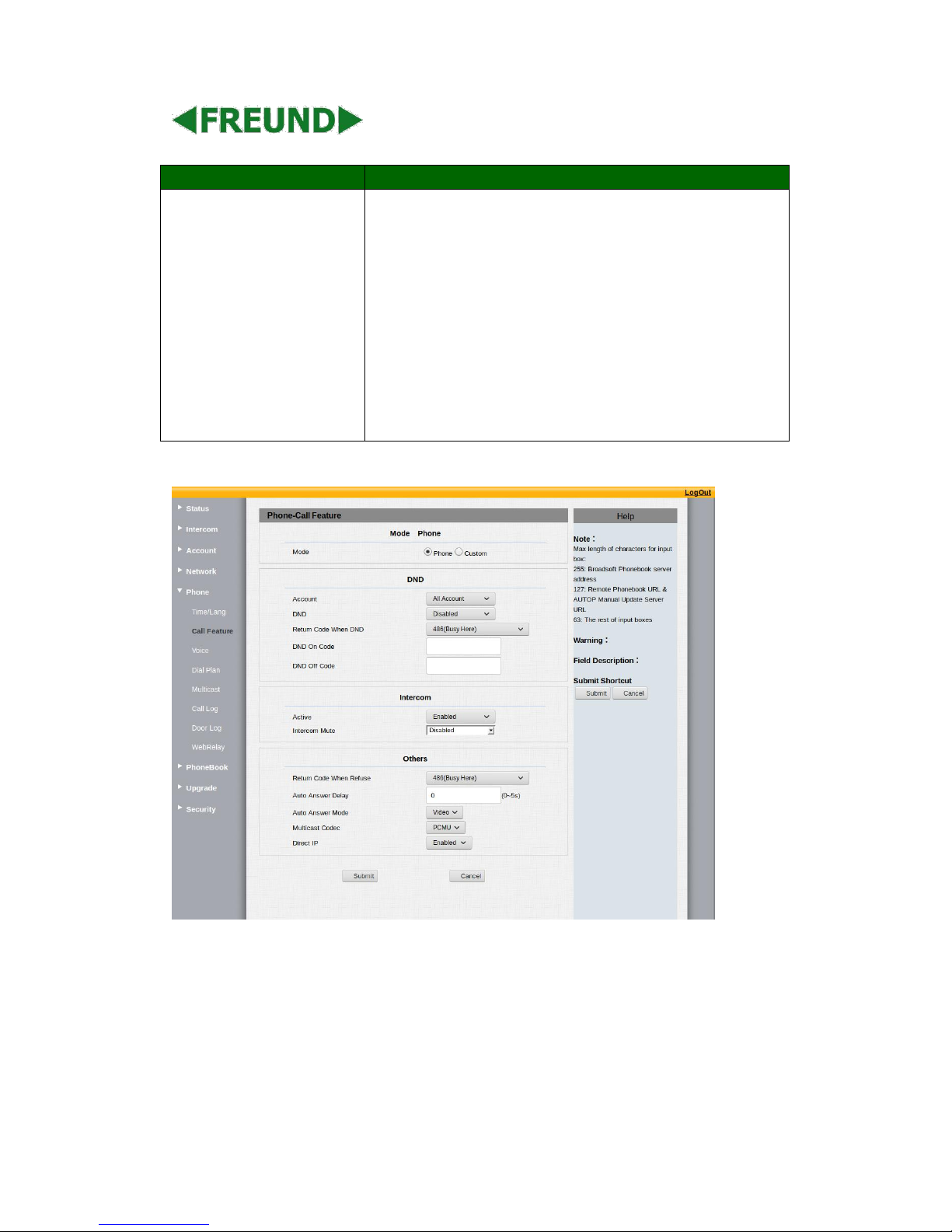
4.7.2
Call
Featur
e
Page 42
FREUND ELEKTRONIK A/S | Fuglebakken 119 | 5210 Odense NV | Denmark | www.freund.dk | Tlf.
+45 66 16 24 14
Sections
Description
Mode
Mode: Select the desired mode.
DND
DND (Do Not Disturb) allows IP phones to ignore any incoming
calls.
Return Code when DND: Determine what response code
should be sent back to server when there is an incoming call
if DND on.
DND On Code: The Code is used to turn on DND on server’s
side, if configured, IP phone will send a SIP message to
server to turn on DND on server side if you press DND when
DND is off.
DND Off Code: The Code is used to turn off DND on server’s
side, if configured, IP phone will send a SIP message to
server to turn off DND on server side if you press DND when
DND is on.
Intercom
Intercom allows users to establish a call directly with the callee.
Active: To enable or disable Intercom feature.
Intercom Mute: If enabled, once the call established, the
callee will be muted.
Others
Return Code When Refuse: Allows user to assign specific
code as return code to SIP server when an incoming call is
rejected.
Auto Answer Delay: To configure delay time before an
incoming call is automatically answered.
Auto Answer Mode: To set video or audio mode for auto
answer by default.
Direct IP: Direct IP call without SIP proxy.
4.7.3 Voice
Page 43
FREUND ELEKTRONIK A/S | Fuglebakken 119 | 5210 Odense NV | Denmark | www.freund.dk | Tlf.
+45 66 16 24 14
Sections
Description
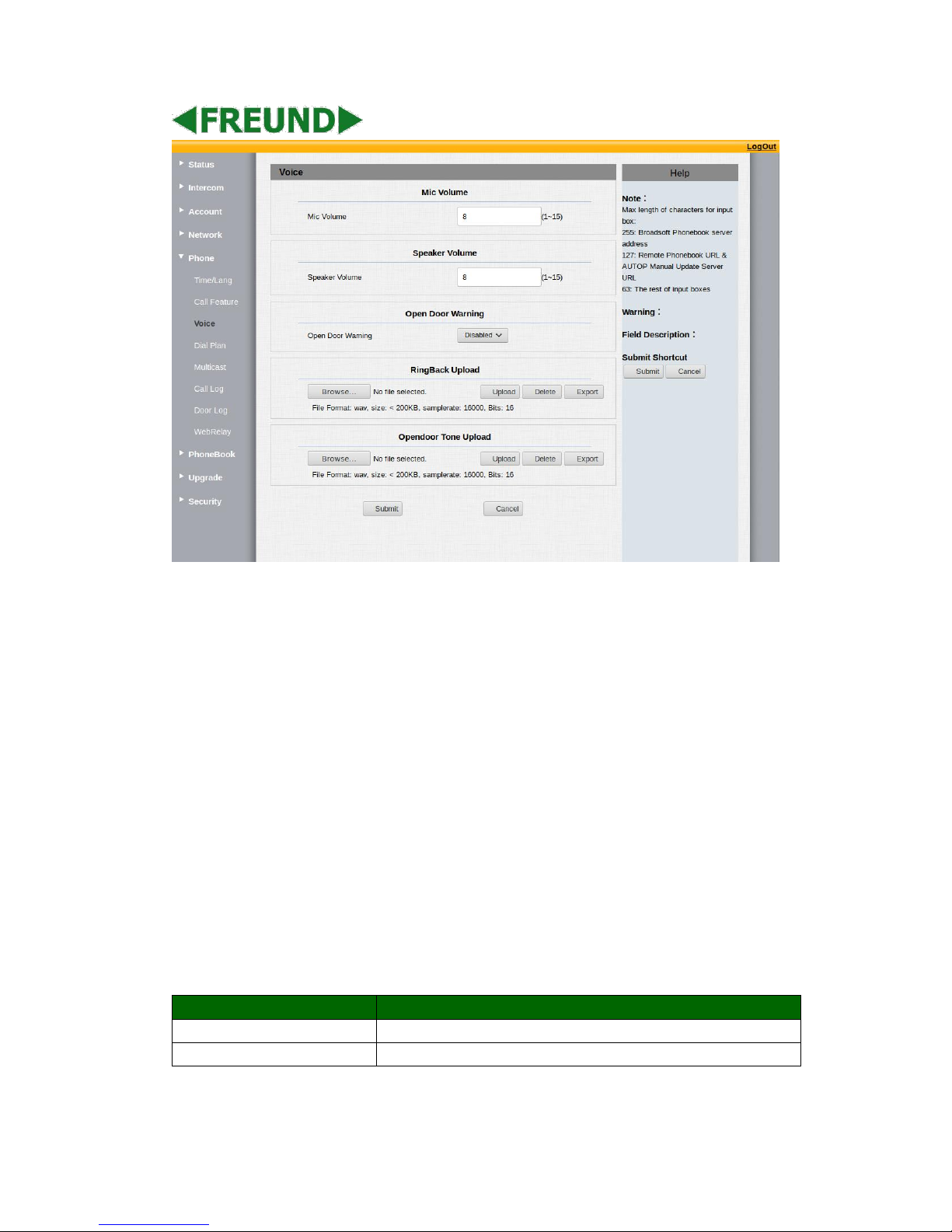
Mic Volume
To configure Microphone volume, from 1-15. 8 by default.
Speaker Volume
To configure Speaker Volume, from 1-15,8 by default.
Page 44
FREUND ELEKTRONIK A/S | Fuglebakken 119 | 5210 Odense NV | Denmark | www.freund.dk | Tlf.
+45 66 16 24 14
Open Door Warning
When the door is opened, users will hear that opendoor prompt
voice. If you disable it, you won’t hear the announcement.
RingBack Upload
During the calling, user will hear the ringback tone before the
other party answer. User can upload the suitable RingBack Tone
by yourselves. Please note the file format and size.
Opendoor Tone Upload
Choose a suitable opendoor warning tone to upload.
Please not the file format and size.
4.7
.4
Dia
l
Pla
n
Page 45
FREUND ELEKTRONIK A/S | Fuglebakken 119 | 5210 Odense NV | Denmark | www.freund.dk | Tlf.
+45 66 16 24 14
Sections
Description
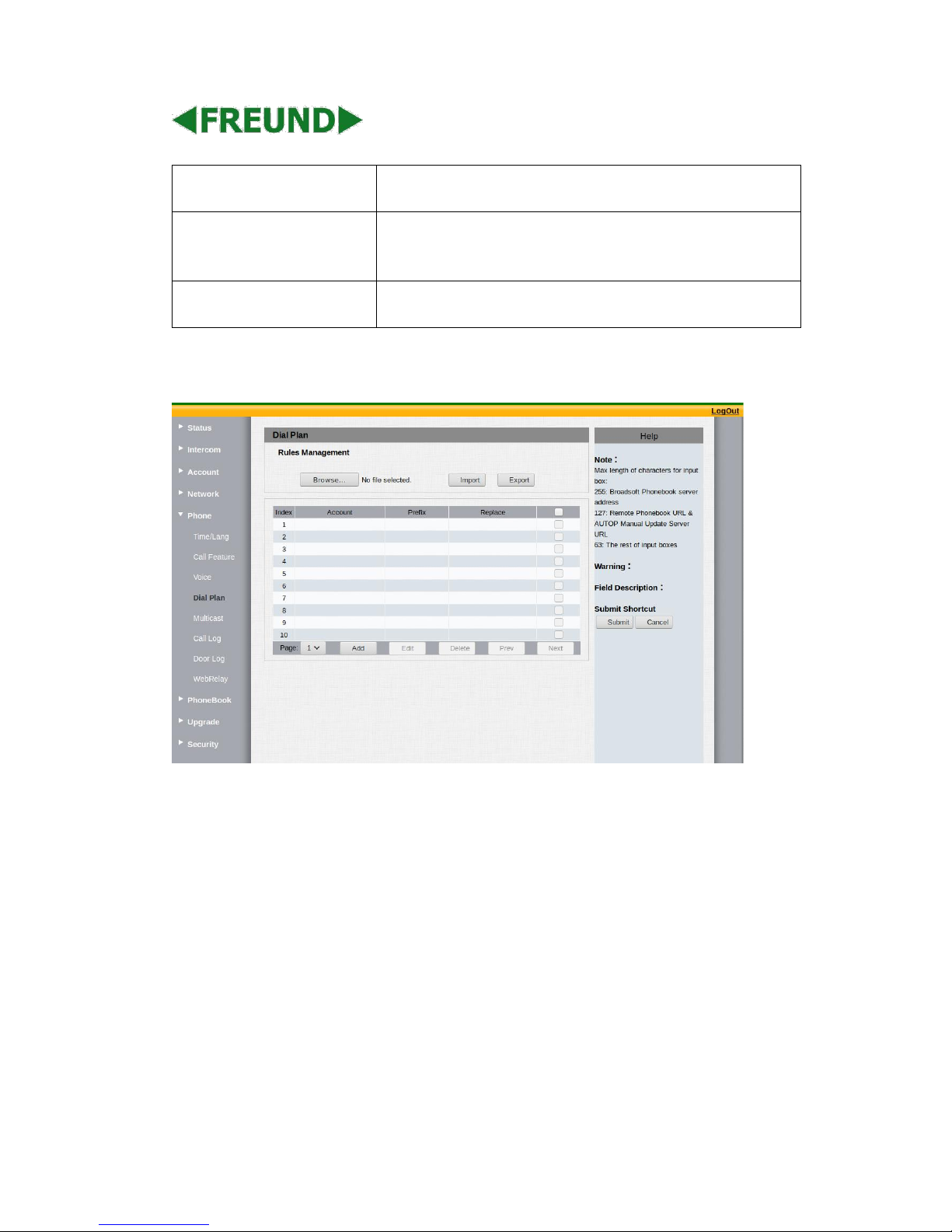
Rules Management
For easy management, users can export and import the replace
rule file directly. (The export file format is .tgz, users need to
unzip it, then check the .XML file. The Import format is .XML)
Rules
Allow user to select Replace rule to display or edit.
Rules Modify
Allow user to modify selected rules information, for replace rule,
you can modify related accounts, prefix and replace.
Such as: Account:1
Prefix: 100
Replace: 110
Then users dial 100 with account1, the phone will call out 110
actually.
4.7.5
Multic
ast
Page 46
FREUND ELEKTRONIK A/S | Fuglebakken 119 | 5210 Odense NV | Denmark | www.freund.dk | Tlf.
+45 66 16 24 14
Sections
Description
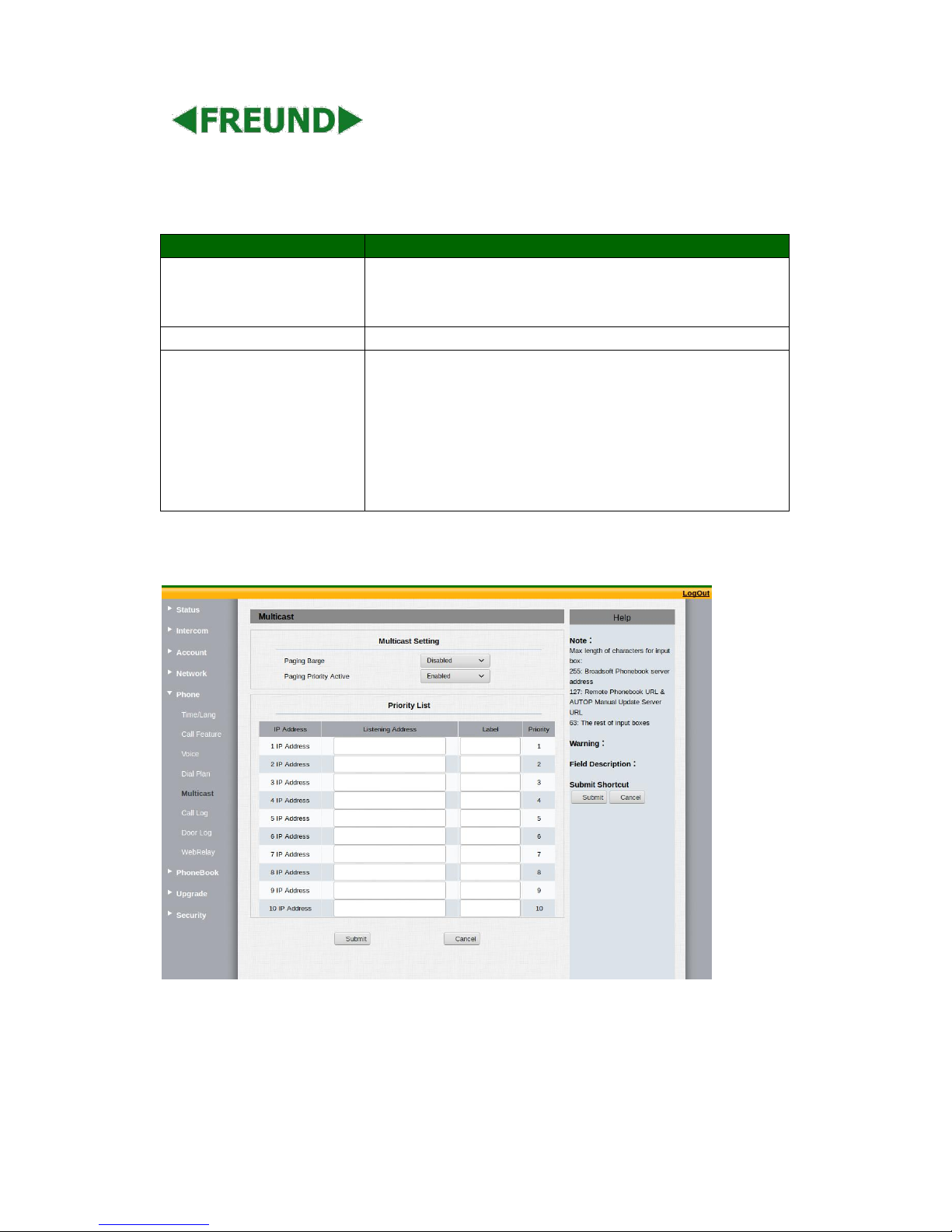
Multicast Setting
To display and configure the Multicast setting.
Paging Barge: Choose the multicast number, the range is
1-10.
Paging priority Active: Enable o disable the multicast.
Priority List
To setup the multicast parameters.
Listening Address: Enter the IP address you need to listen.
Label:Input the label for each listening address.
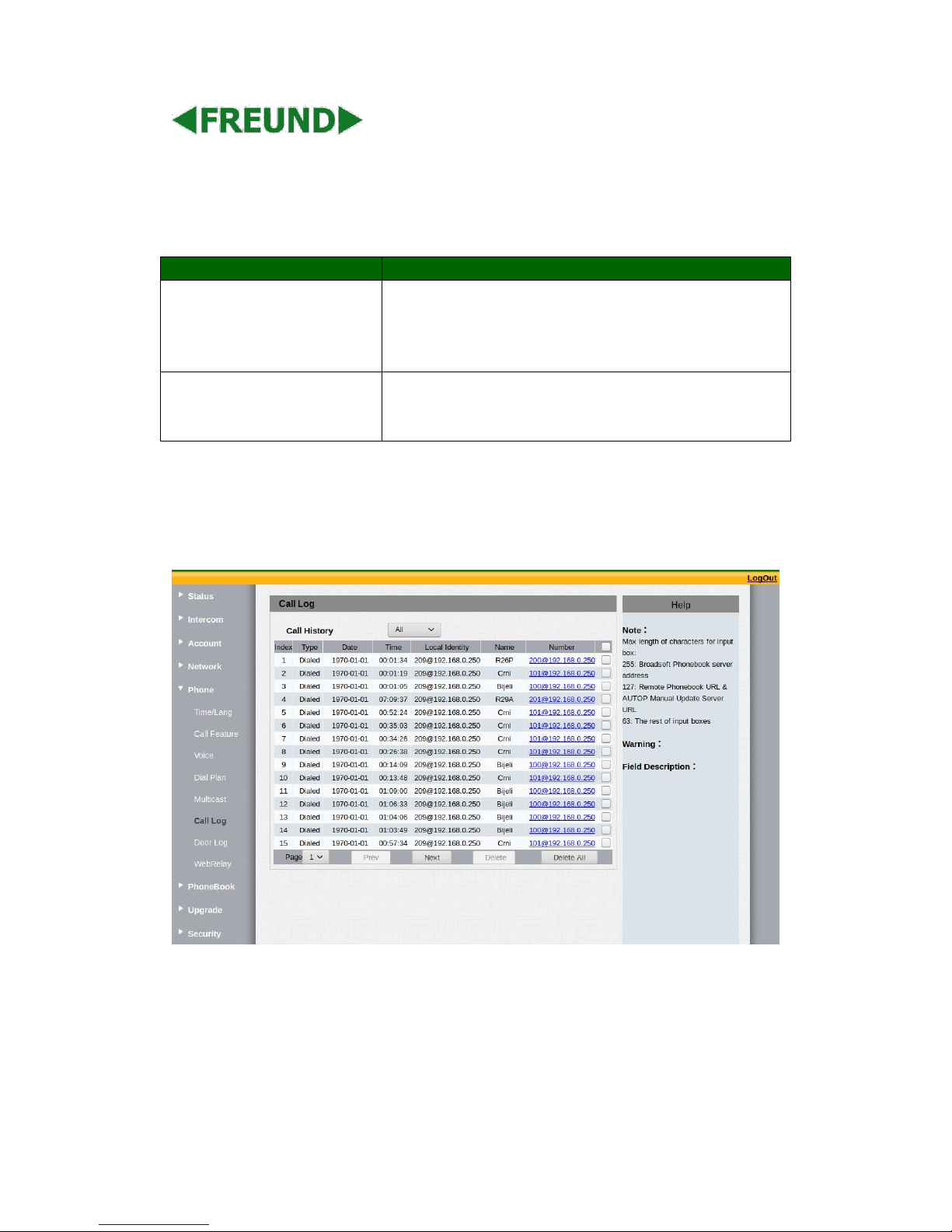
4.7.6 Call log
Page 47
FREUND ELEKTRONIK A/S | Fuglebakken 119 | 5210 Odense NV | Denmark | www.freund.dk | Tlf.
+45 66 16 24 14
Sections
Description
Call History
To display call history records.
Available call history types are All calls, Dialed calls, Received
calls, Missed calls, Forwarded calls.
Users can check the call history in detail. Tick the number to
delete or delete all logs. IPDS-27S supports 100 call logs.
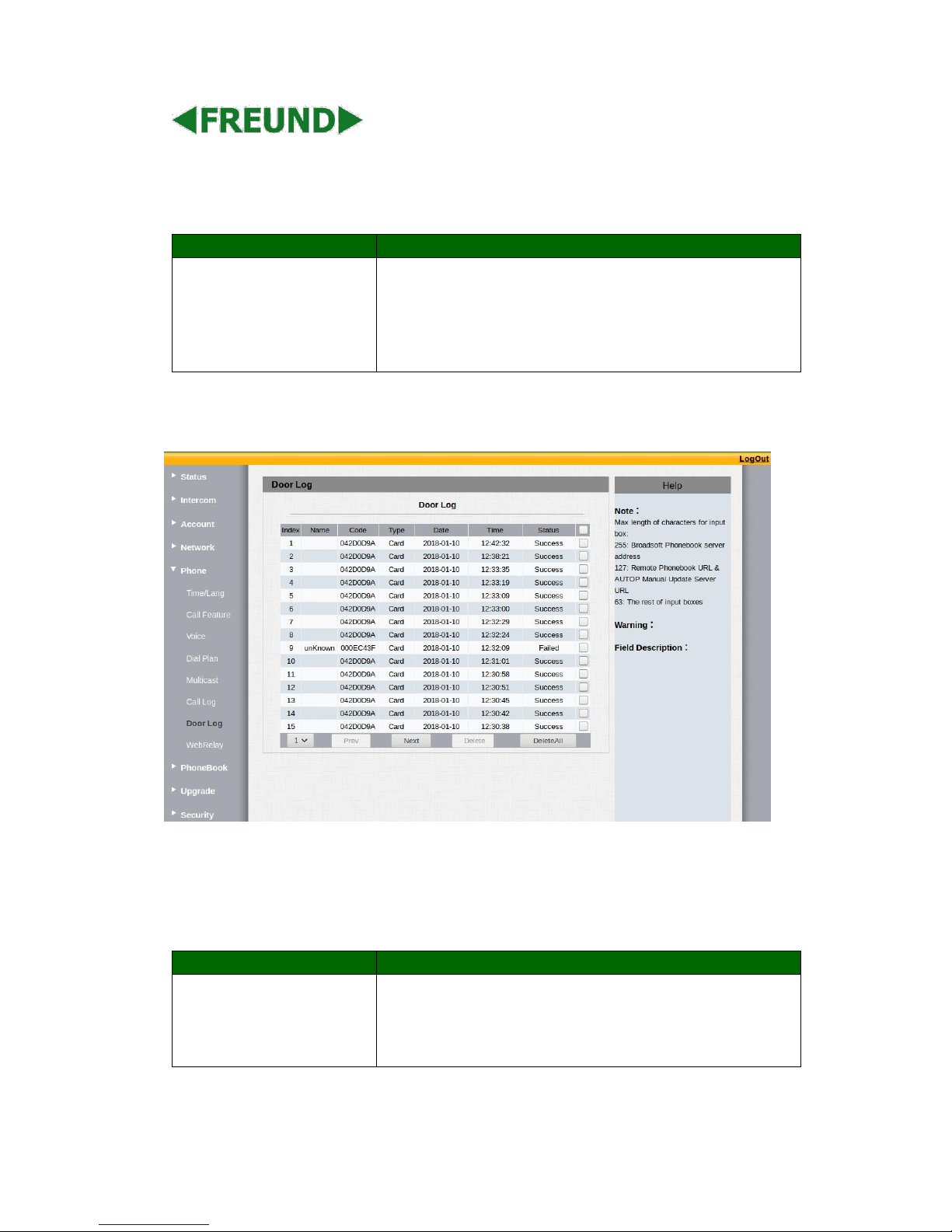
4.7.7 Door log
Sections
Description
Door Log
To display unlock history. This interface can only show the RF card
unlock history now. Users can check the unlock information in
detail. Users can delete one or all logs. The maximum door log is
500.
Page 48
FREUND ELEKTRONIK A/S | Fuglebakken 119 | 5210 Odense NV | Denmark | www.freund.dk | Tlf.
+45 66 16 24 14
4.8. Upgrade
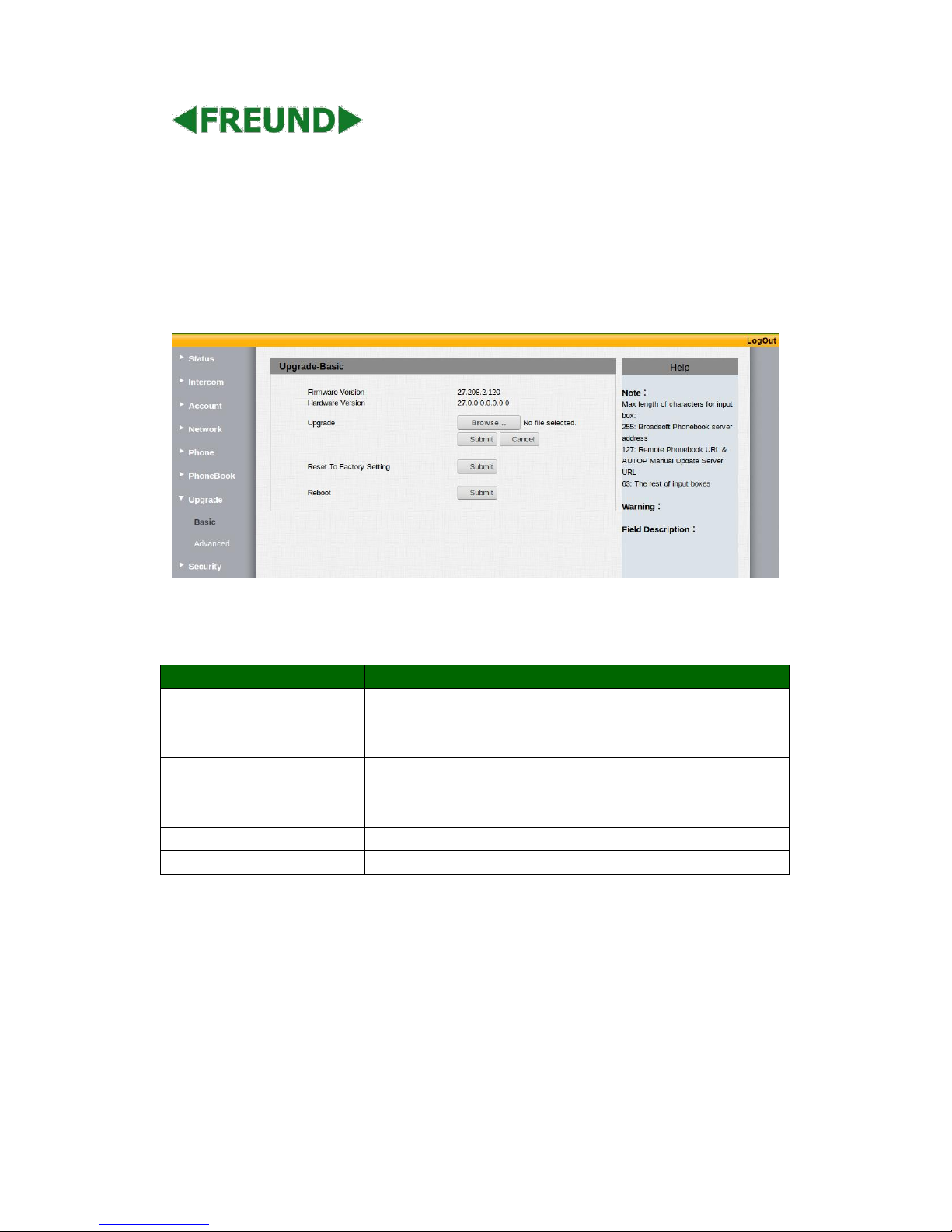
4.8.1 Basic
Sections
Description
Upgrade
To select upgrading zip file from local or a remote server
automatically.
Note: Please make sure it’s right file format for right model.
Firmware version
To display firmware version, firmware version starts with MODEL
name.
Hardware Version
To display Hardware version.
Reset to Factory Setting
To enable you to reset IP phone’s setting to factory settings.
Reboot
To reboot IP phone remotely from Web UI.
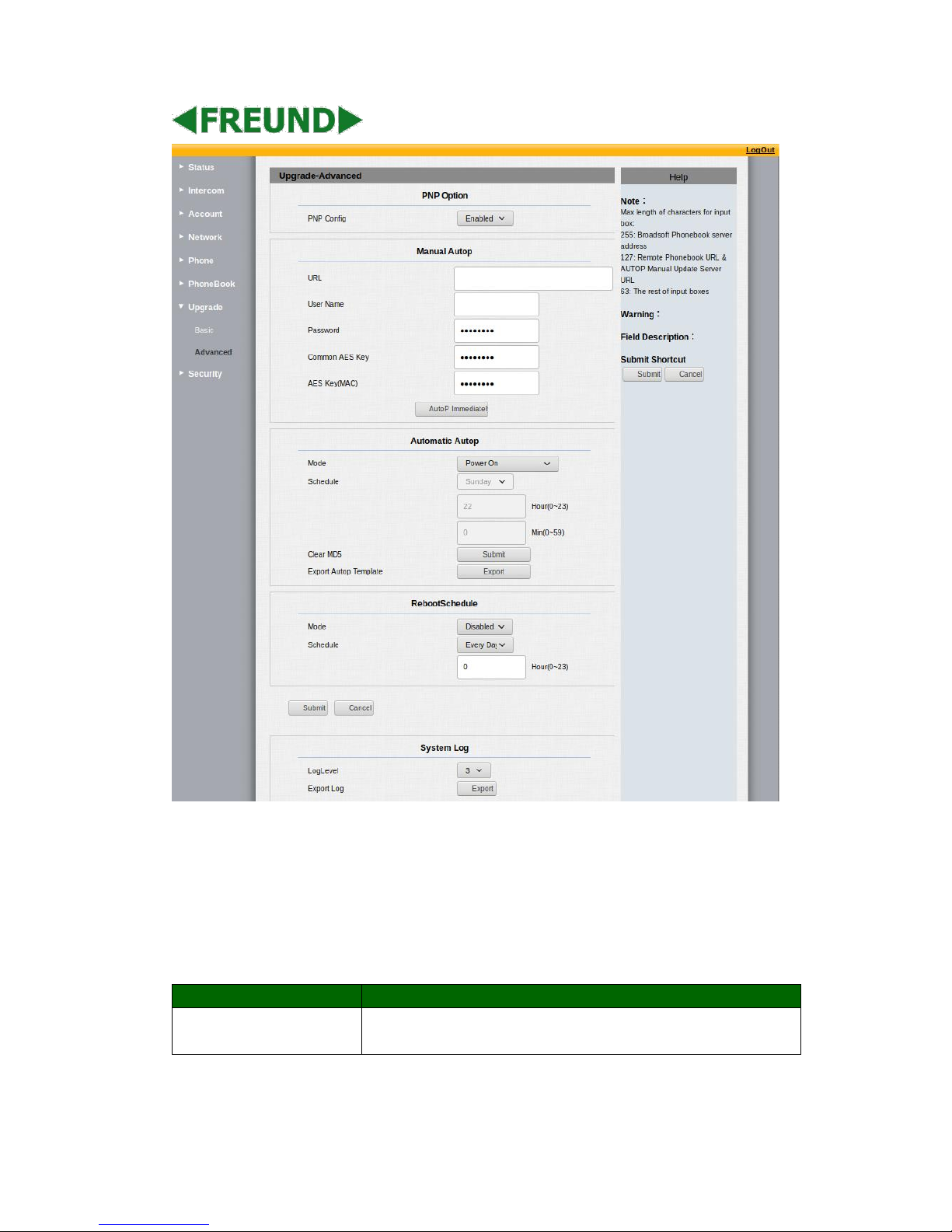
4.8.2 Advanced
Page 49
FREUND ELEKTRONIK A/S | Fuglebakken 119 | 5210 Odense NV | Denmark | www.freund.dk | Tlf.
+45 66 16 24 14
Sections
Description
PNP Option
To display and configure PNP setting for Auto Provisioning.
PNP: Plug and Play, once PNP is enabled, the phone will send
Page 50
FREUND ELEKTRONIK A/S | Fuglebakken 119 | 5210 Odense NV | Denmark | www.freund.dk | Tlf.
+45 66 16 24 14
SIP subscription message to PNP server automatically to get
Auto Provisioning server’s address.
By default, this SIP message is sent to multicast address
224.0.1.75(PNP server address by standard).
Manual Autop
To display and configure manual update server’s settings.
URL: Auto provisioning server address.
User name: Configure if server needs a username to access,
otherwise left blank.
Password: Configure if server needs a password to access,
otherwise left blank.
Common AES Key: Used for IP phone to decipher common
Auto Provisioning configuration file.
AES Key (MAC): Used for IP phone to decipher MAC-oriented
auto provisioning configuration file(for example, file name can
be 0c1105888888.cfg if IP phone’s MAC address is
0c1105888888).
Note: AES is one of many encryption, it should be configure only
configure file is ciphered with AES, otherwise left blank.
Automatic Autop
To display and configure Auto Provisioning mode settings.
This Auto Provisioning mode is actually self-explanatory.
For example, mode “Power on” means IP phone will go to do
Provisioning every time when it powers on.
System Log
To display system log level and export system log file.
System log level: From level 0~7.The higher level means the
more specific system log is saved to a temporary file. By
default, it’s level 3.
Export Log: Click to export temporary system log file to local
PC.
4.9. Security
4.9.1 Basic
Page 51
FREUND ELEKTRONIK A/S | Fuglebakken 119 | 5210 Odense NV | Denmark | www.freund.dk | Tlf.
+45 66 16 24 14
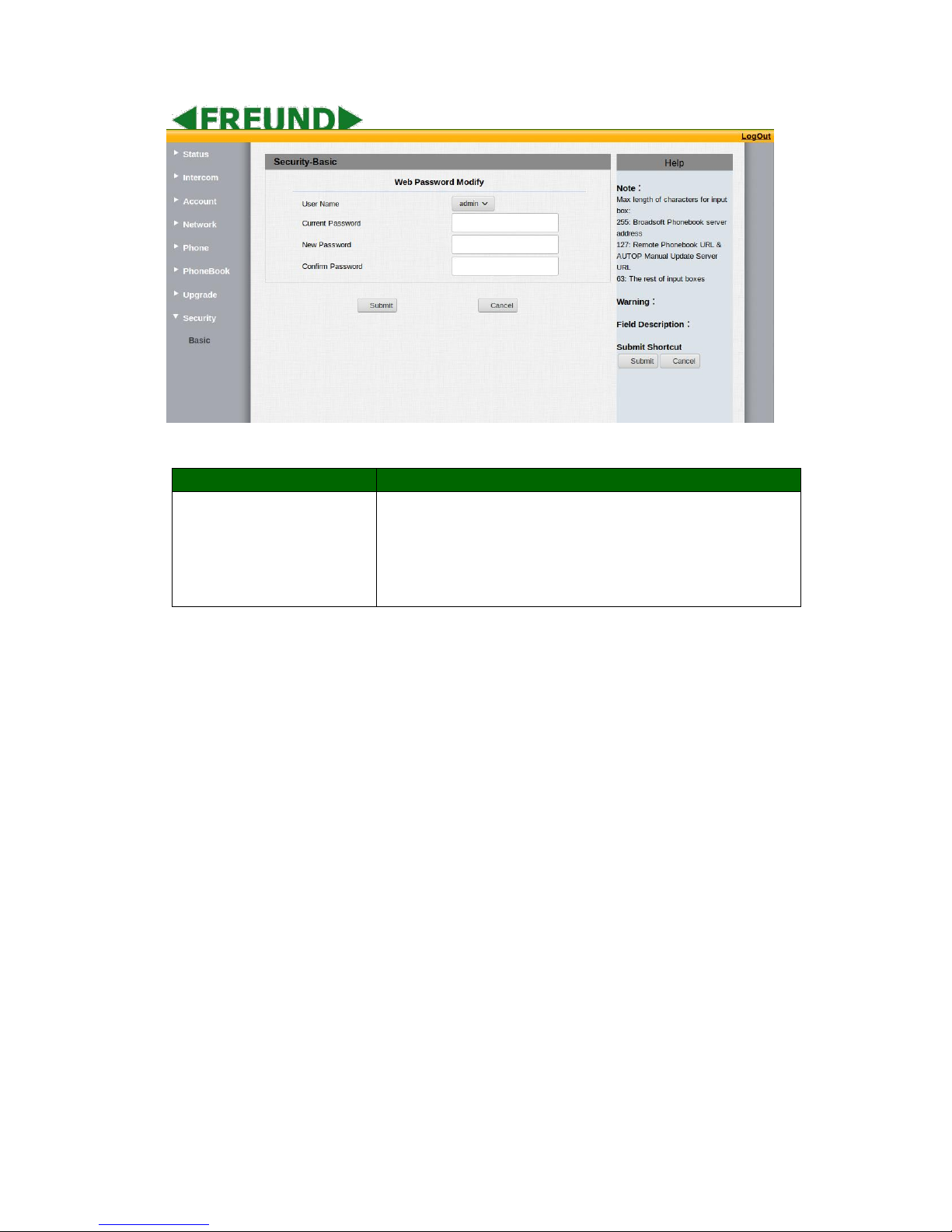
Sections
Description
Web Password Modify
To modify user’s password.
Current Password: The current password you used.
New Password: Input new password you intend to use.
Confirm Password: Repeat the new password.
Page 52
FREUND ELEKTRONIK A/S | Fuglebakken 119 | 5210 Odense NV | Denmark | www.freund.dk | Tlf.
+45 66 16 24 14
4.10. Phonebook
4.10.1. Local Book
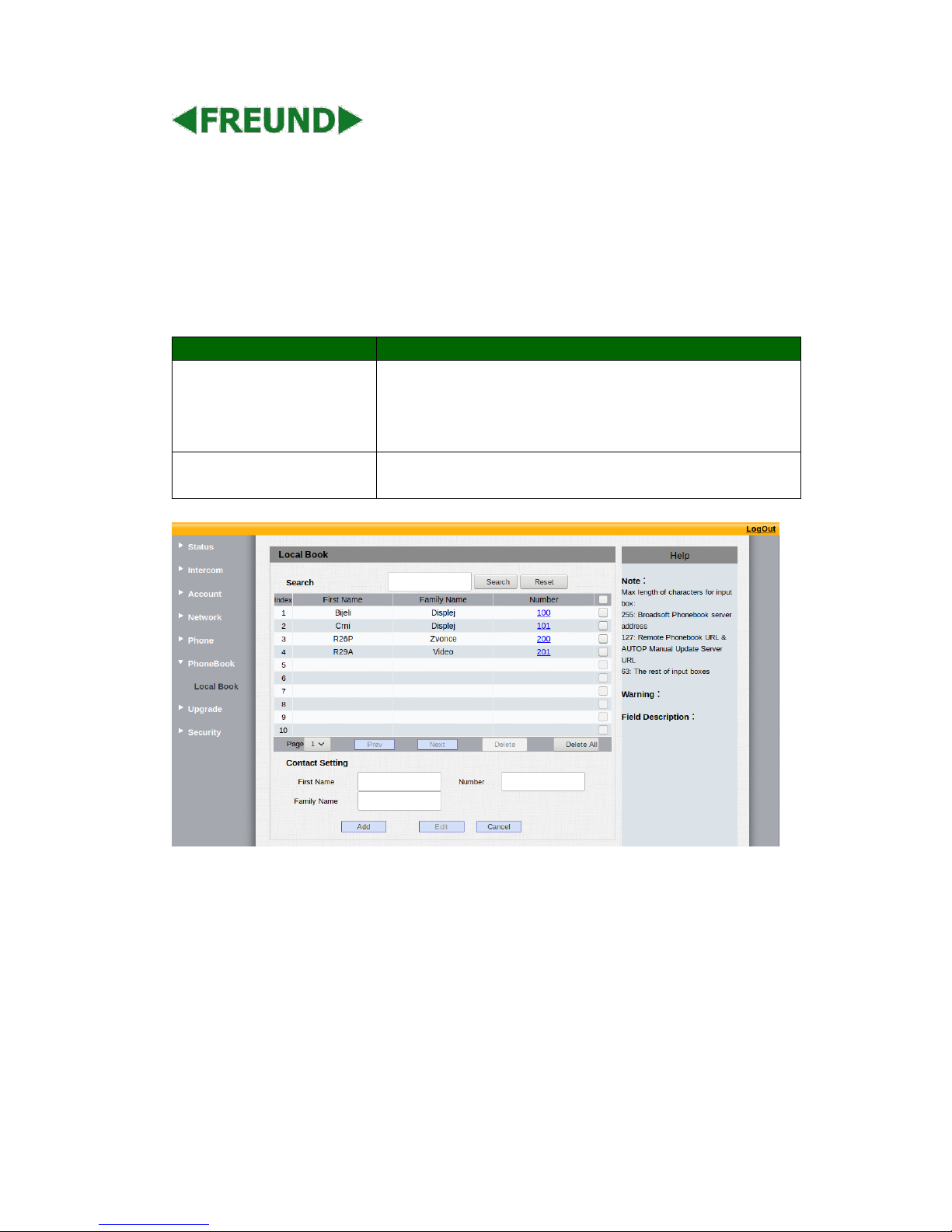
Sections
Description
Search
Enter desired word:
• clicking search, lists all contacts containing that word in
table bellow
• clicking reset, clears search tab and lists all contacts
Contact Settings
Enter First Name, Family Name, and number, then click Add. New
entry will show in table above
 Loading...