

Page 1

FREUND ELEKTRONIK A/S | Fuglebakken 119 | 5210 Odense NV | Denmark | www.freund.dk | Tlf. +45 66 16 24 14
FREUND SIP IPDS-20A INTERCOM USER MANUAL
Page 2

FREUND ELEKTRONIK A/S | Fuglebakken 119 | 5210 Odense NV | Denmark | www.freund.dk | Tlf. +45 66 16 24 14
Contents
1. Product Overview ......................................................................................................................................................................................................................... 4
1.1 Instruction ............................................................................................................................................................................................................................... 4
1.2 At a Glance ............................................................................................................................................................................................................................. 5
1.3 Daily Use ................................................................................................................................................................................................................................ 6
1.3.1 Making a Call ................................................................................................................................................................................................................... 7
1.3.2 Receiving a Call ............................................................................................................................................................................................................... 7
1.3.3 Unlock by RF Card........................................................................................................................................................................................................... 7
1.4 Connector Introduction ........................................................................................................................................................................................................... 7
2. Basic Setting ................................................................................................................................................................................................................................ 9
2.1 Getting Started ....................................................................................................................................................................................................................... 9
2.1.1 IP Announcement ............................................................................................................................................................................................................ 9
2.1.2 Access the device website ............................................................................................................................................................................................... 9
2.2 Network Setting .................................................................................................................................................................................................................... 10
2.2.1 DHCP ............................................................................................................................................................................................................................. 10
2.2.2 Static IP .......................................................................................................................................................................................................................... 10
2.3 Account ................................................................................................................................................................................................................................. 10
2.3.1 SIP Account ................................................................................................................................................................................................................... 11
2.3.2 SIP Sever 1 .................................................................................................................................................................................................................... 11
2.4 Call Setting ........................................................................................................................................................................................................................... 11
2.4.1 No Answer Call .............................................................................................................................................................................................................. 12
2.4.3 Push Button Action ........................................................................................................................................................................................................ 13
2.4.4 Web Call ........................................................................................................................................................................................................................ 13
2.4.5 Call&Dial Time ............................................................................................................................................................................................................... 13
2.4.6 Push to Hang up ............................................................................................................................................................................................................ 14
2.5 Action .................................................................................................................................................................................................................................... 14
2.5.1 Email Notification ........................................................................................................................................................................................................... 14
2.5.2 FTP Notification ............................................................................................................................................................................................................. 15
2.5.3 SIP Notification .............................................................................................................................................................................................................. 15
2.6 Card Setting .......................................................................................................................................................................................................................... 16
2.6.1 Import/Export Card Data ................................................................................................................................................................................................ 16
2.6.2 Obtain and Add Card ..................................................................................................................................................................................................... 16
2.6.3 Door Card Management ................................................................................................................................................................................................ 17
2.7 Relay Setting ........................................................................................................................................................................................................................ 17
2.7.1 Relay .............................................................................................................................................................................................................................. 18
2.7.2 WebRelay ...................................................................................................................................................................................................................... 20
2.7.3 Open Relay via HTTP .................................................................................................................................................................................................... 20
Page 3

FREUND ELEKTRONIK A/S | Fuglebakken 119 | 5210 Odense NV | Denmark | www.freund.dk | Tlf. +45 66 16 24 14
2.8 Input ...................................................................................................................................................................................................................................... 21
3. Advance Setting ......................................................................................................................................................................................................................... 22
3.1 Intercom-Advanced .............................................................................................................................................................................................................. 22
3.2 LED Setting .......................................................................................................................................................................................................................... 23
3.3 Live Stream .......................................................................................................................................................................................................................... 23
3.4 RTSP .................................................................................................................................................................................................................................... 24
3.5 Onvif ..................................................................................................................................................................................................................................... 24
3.6 Motion ................................................................................................................................................................................................................................... 25
3.7 Account-Advanced ............................................................................................................................................................................................................... 26
3.7.1 Audio Codec .................................................................................................................................................................................................................. 26
3.7.2 Video Codec .................................................................................................................................................................................................................. 27
3.7.3 DTMF ............................................................................................................................................................................................................................. 27
3.7.4 Call ................................................................................................................................................................................................................................. 28
3.7.5 Session Timer ................................................................................................................................................................................................................ 29
3.7.6 Encryption ...................................................................................................................................................................................................................... 29
3.8 Time/Lang ............................................................................................................................................................................................................................. 29
3.9 Call Feature .......................................................................................................................................................................................................................... 30
3.10 Voice ................................................................................................................................................................................................................................... 31
3.11 Log ...................................................................................................................................................................................................................................... 32
3.11.1 Call Log ........................................................................................................................................................................................................................ 32
3.11.2 Door Log ...................................................................................................................................................................................................................... 32
3.12 Upgrade .............................................................................................................................................................................................................................. 33
3.12.1 Upgrade-Basic ............................................................................................................................................................................................................. 33
3.12.2 Upgrade-Advanced ...................................................................................................................................................................................................... 33
3.13 Security-Basic ..................................................................................................................................................................................................................... 34
3.13.1 Web Password Modify ................................................................................................................................................................................................. 34
3.13.2 Session Time Out ........................................................................................................................................................................................................ 34
Page 4
FREUND ELEKTRONIK A/S | Fuglebakken 119 | 5210 Odense NV | Denmark | www.freund.dk | Tlf. +45 66 16 24 14
1. Product Overview
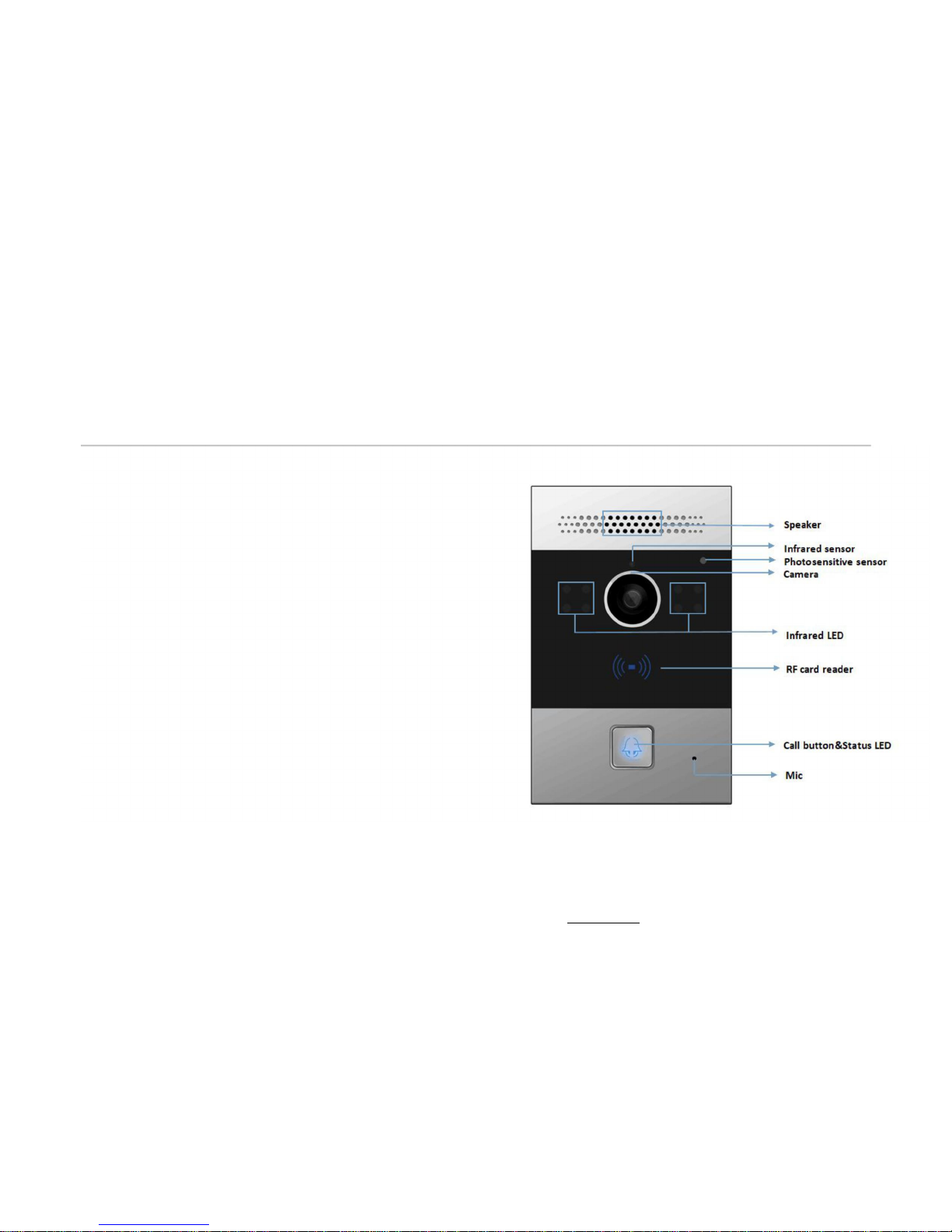
1.1 Instruction
FREUND IPDS-20A is a SIP-compliant, hands-free one button
video outdoor phone. It can be connected with your FREUND
IP Phone for remote unlock control and monitor. Users can
operate the indoor phone to communicate with visitors via
voice and video, and use RF card to unlock the door. It’s
applicable in villas, office and so on.
Page 5
FREUND ELEKTRONIK A/S | Fuglebakken 119 | 5210 Odense NV | Denmark | www.freund.dk | Tlf. +45 66 16 24 14
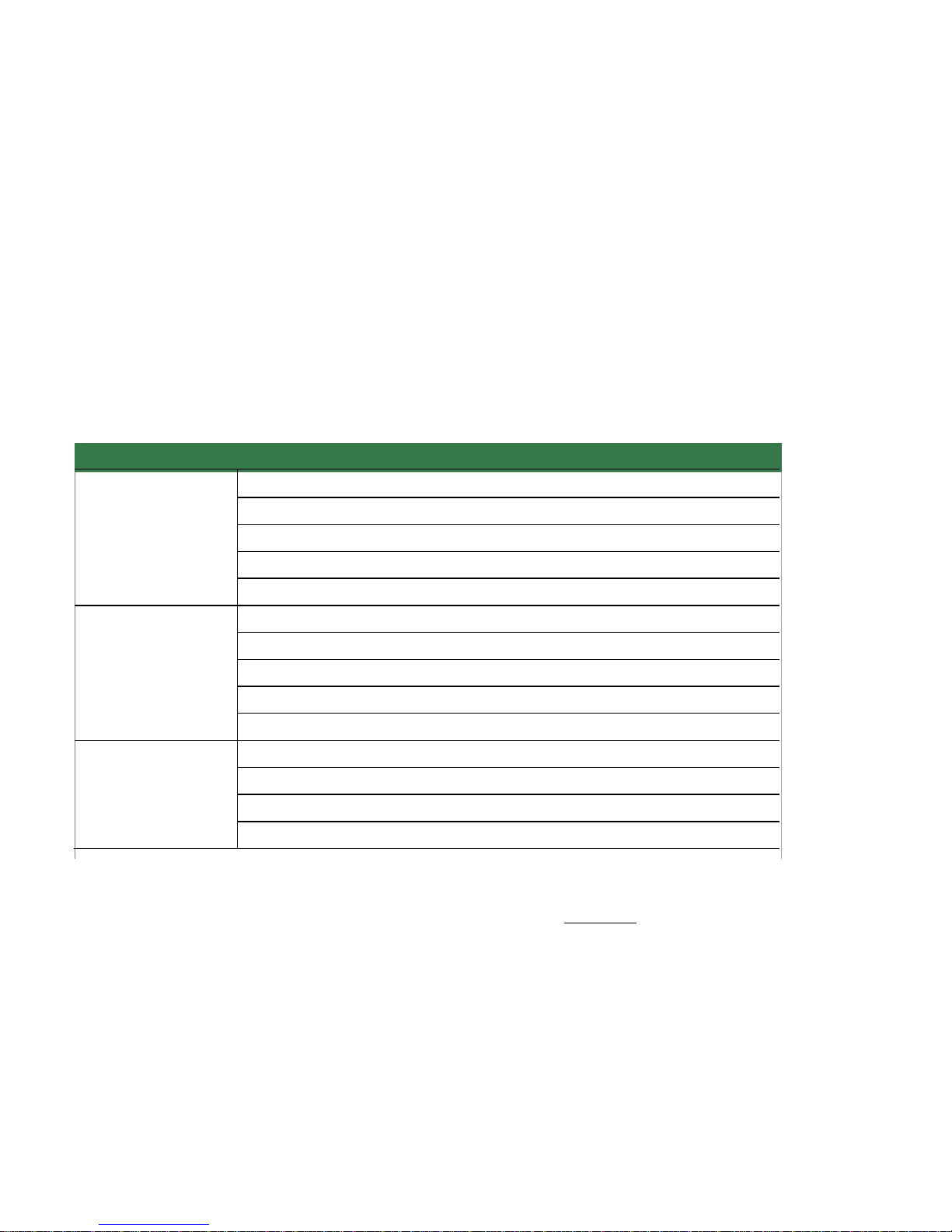
1.2 At a Glance
Features
Body material: Zinc alloy
Camera: 3 Mega pixels, automatic lighting, 120° wide angle
Physical & Power
Button: 1 call button
12V DC connector&POE
Water-proof & Dust-proof: IP65
SIP v1(RFC2543), SIP v2(RFC3261)
Audio codecs: G.711a, G.711μ, G.722, G.729
Sip Endpoint
Video codecs: H.264
Echo Cancellation
Voice Activation Detection & Comfort Noise Generator
Resolution: up to 720p
Video
Maximum image transfer rate: 720p - 30fps
High intensity IR LEDs for picture lighting during dark hours with internal light sensor
Compatible to 3rdPartyVideo components, e.g. NVRs
Page 6

FREUND ELEKTRONIK A/S | Fuglebakken 119 | 5210 Odense NV | Denmark | www.freund.dk | Tlf. +45 66 16 24 14
Relays controlled individually by DTMF tones
Camera permanently operational
White balance: auto
Door Entry Features Auto-night mode with LED illumination
Office door phone with on-site or hosted IP-PBX
Remote site entry over Internet
Apartment/flat intercom with door access control
1.3 Daily Use
Page 7

FREUND ELEKTRONIK A/S | Fuglebakken 119 | 5210 Odense NV | Denmark | www.freund.dk | Tlf. +45 66 16 24 14
1.3.1 Making a Call
Press the call button to call out the predefined number or IP address and if LED turns green, it means the call has been answered.
1.3.2 Receiving a Call
User can use IP phone or indoor monitor to call IPDS-20A and IPDS-20A will answer it automatically by default. If user disable auto
answer, pressing button to answer incoming call.
1.3.3 Unlock by RF Card
Place the predefined RF card on the card sensor area. The door phone will announce ‘the door is now opened’ and open the door
13.56MHz and 125KHz RF card is supported by IPDS-20A.
1.4 Connector Introduction
Connector
Ethernet(POE)
Ethernet(POE) connector which can provide both power
Page 8

FREUND ELEKTRONIK A/S | Fuglebakken 119 | 5210 Odense NV | Denmark | www.freund.dk | Tlf. +45 66 16 24 14
and network connection.
12V/GND
External power supply terminal if POE is not available.
RS485A/B
RS485 terminal for automation system control(e.g.
Elevator control).
DOORA/B
Trigger signal input terminal(e.g. Press indoor button to
open relay).
RelayA/B
NO/NC Relay control terminal.
Page 9

FREUND ELEKTRONIK A/S | Fuglebakken 119 | 5210 Odense NV | Denmark | www.freund.dk | Tlf. +45 66 16 24 14
2. Basic Setting
2.1 Getting Started
2.1.1 IP Announcement
While IPDS-20A starts up normally, hold the call button for several seconds after the Status LED turns blue, voice system will enter
IP announcement mode. In announcement mode, the IP address will be announced periodically and “IP 0.0.0.0” would be
announced if no IP address is gained. Press Call Button again to quilt the announcement mode.
2.1.2 Access the device website
Open a Web Browser, access the corresponding IP address. Then, enter the default user name and password to login. The default
administrator User Name and Password are shown below:
User name: admin
Password: admin
Page 10
FREUND ELEKTRONIK A/S | Fuglebakken 119 | 5210 Odense NV | Denmark | www.freund.dk | Tlf. +45 66 16 24 14
2.2 Network Setting
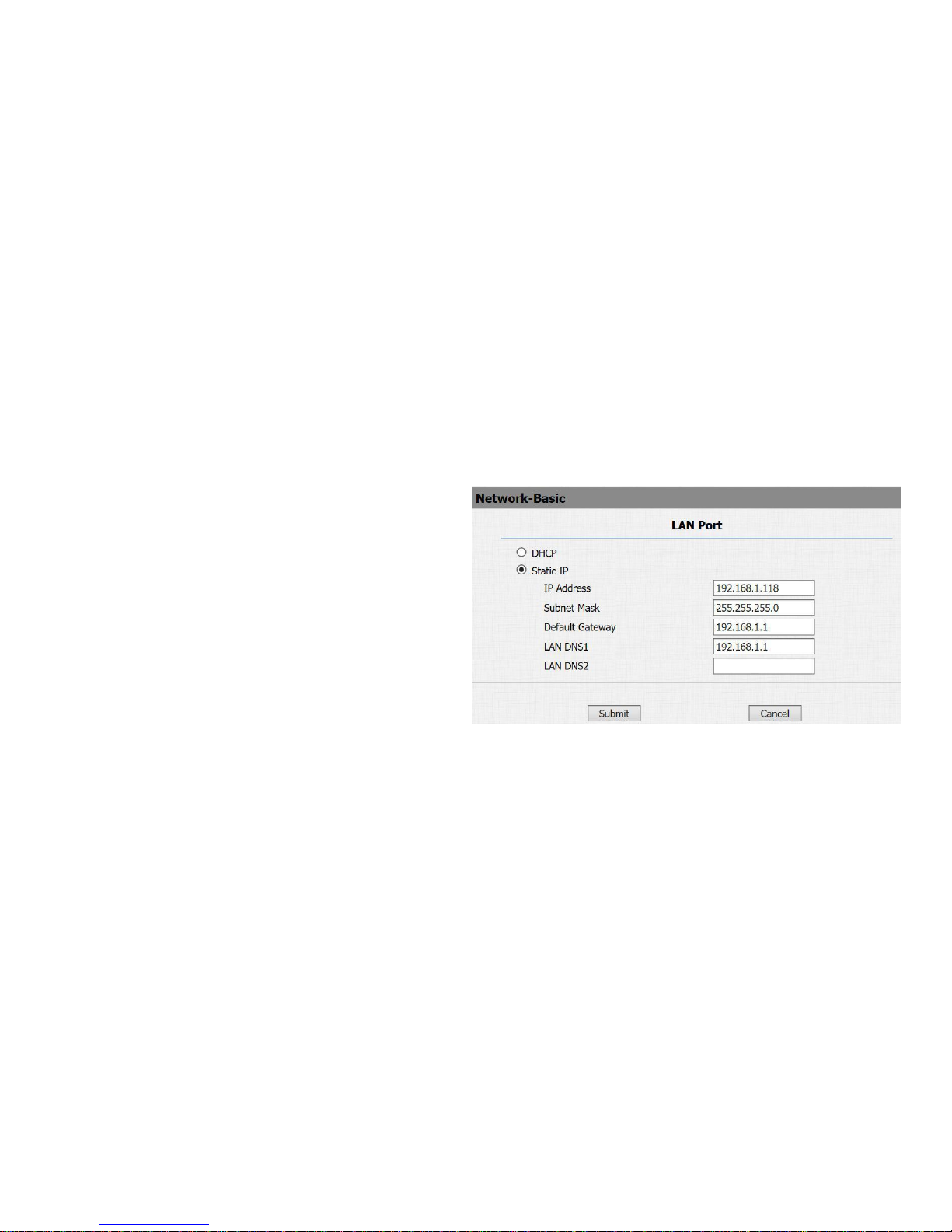
Go to Network->Basic, dynamically or statically to obtain
address.
2.2.1 DHCP
IPDS-20A uses DHCP by default, it will get IP address,
Subnet Mask, Default Gateway and DNS server address from
DHCP server automatically.
2.2.2 Static IP
If selected, you could manually set IP address, Subnet Mask,
Default Gateway and DNS server. The figure below shows
static IP setting.
2.3 Account
Page 11

FREUND ELEKTRONIK A/S | Fuglebakken 119 | 5210 Odense NV | Denmark | www.freund.dk | Tlf. +45 66 16 24 14
Go to Account->Basic to configure sip account and sip server.
2.3.1 SIP Account
Status: To display register result.
Display Label: To configure label displayed on the phone ’s
LCD screen.
Display Name: To configure name sent to the other call party
for displaying.
Register Name: To enter extension number you want and the
number is allocated by SIP server.
User Name: To enter user name of the extension.
Password: To enter password for the extension.
2.3.2 SIP Sever 1
Server IP: To enter SIP server’s IP address or URL.
2.4 Call Setting
Page 12
FREUND ELEKTRONIK A/S | Fuglebakken 119 | 5210 Odense NV | Denmark | www.freund.dk | Tlf. +45 66 16 24 14
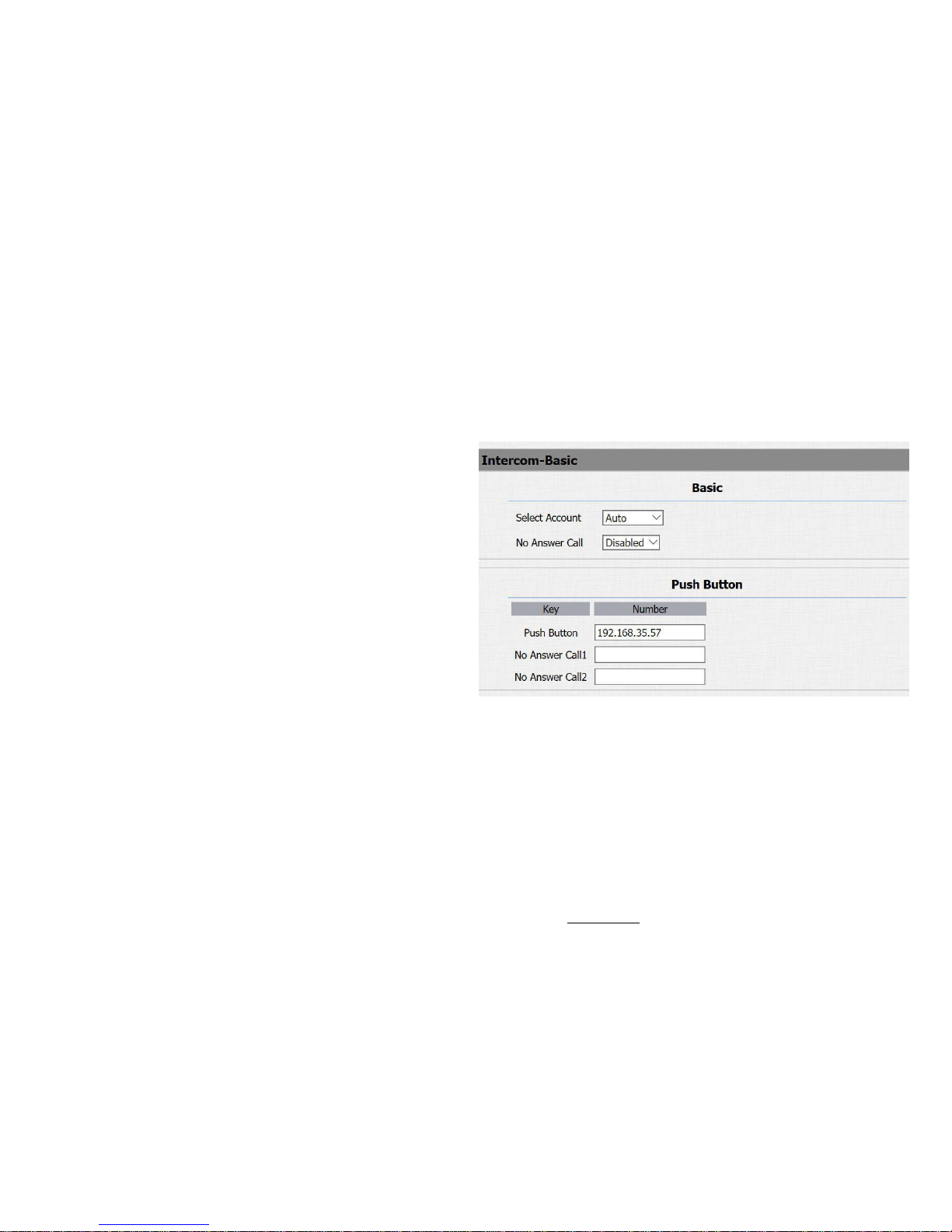
Go to Intercom->Basic, to configure basic call setting.
2.4.1 No Answer Call
Enable it, if there is no answer from push button number over
60s (default value), IPDS-20A will call predefined 'No Answer
Call' number.
2.4.2 Push Button
Push Button: To configure the destination number or IP you
want to contact with. If you would like to call multiple numbers
at same time, divide them by semicolon.
No Answer Call 1&2: To setup one or two no answer call
number.
Page 13
FREUND ELEKTRONIK A/S | Fuglebakken 119 | 5210 Odense NV | Denmark | www.freund.dk | Tlf. +45 66 16 24 14
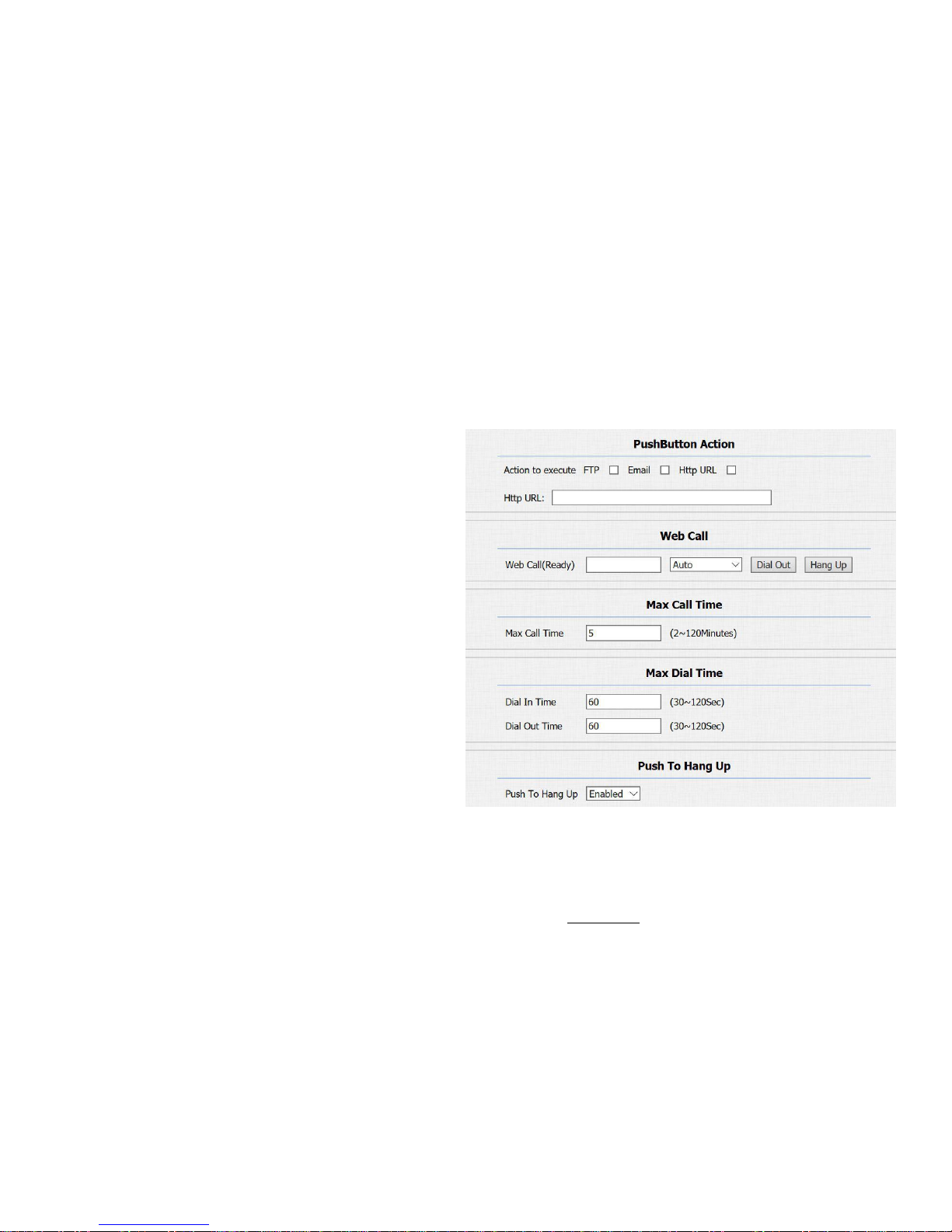
2.4.3 Push Button Action
Action to execute: To choose suitable way to receive message
or snapshot when pushing button.
HTTP URL: If you tick HTTP URL, enter corresponding HTTP
server IP address in the HTTP URL area.
2.4.4 Web Call
To dial out or answer incoming call from website.
2.4.5 Call&Dial Time
Max Call Time: To configure the max call time.
Dial In Time: To configure the max incoming dial time,
available when auto answer is disabled.
Dial Out Time:To configure the max no answer call time
Page 14
FREUND ELEKTRONIK A/S | Fuglebakken 119 | 5210 Odense NV | Denmark | www.freund.dk | Tlf. +45 66 16 24 14
2.4.6 Push to Hang up
To enable or disable pushing button to hang up.
2.5 Action
Go to Intercom->Action to set action receiver.
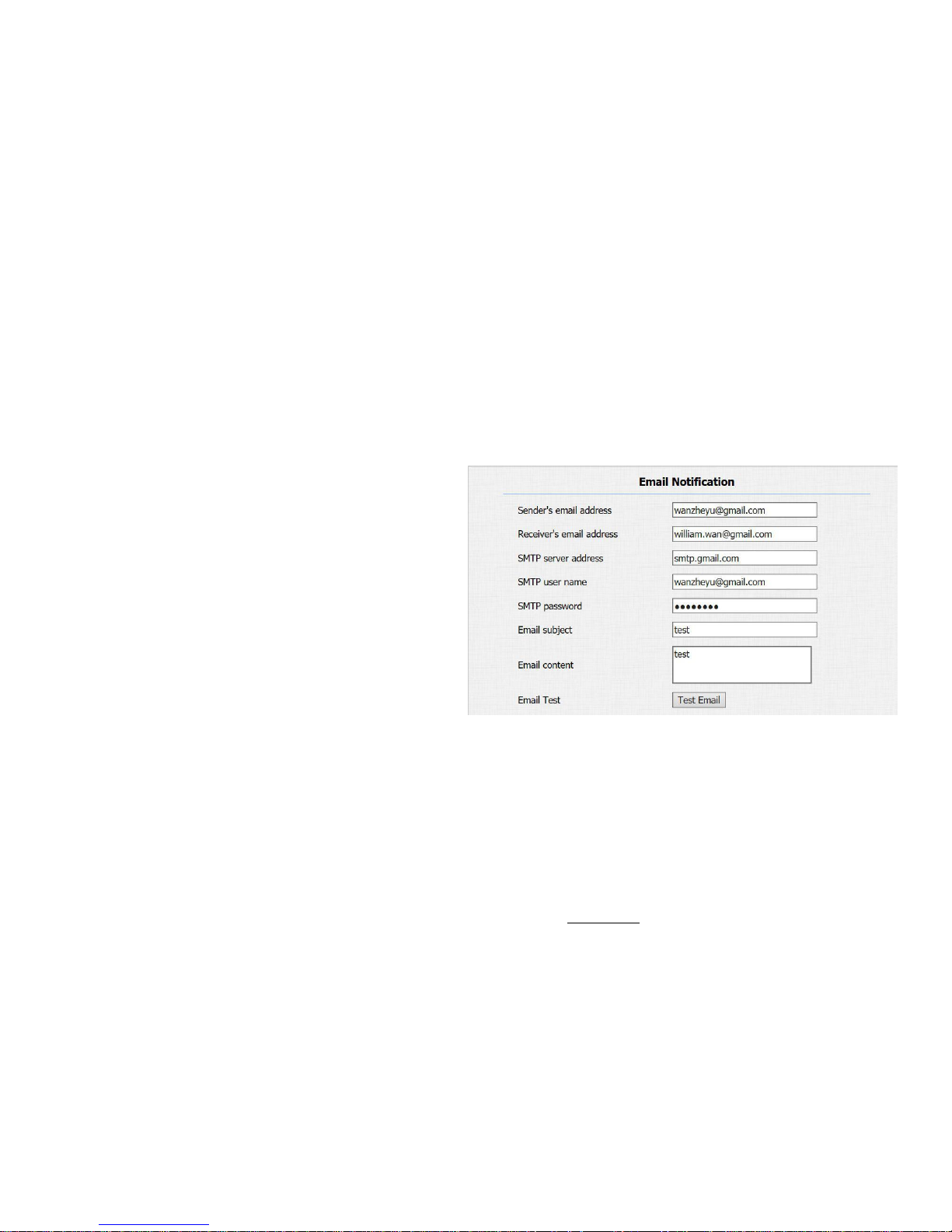
2.5.1 Email Notification
Sender’s email address: To configure email address of
sender.
Receiver’s email address: To configure email address of
receiver.
SMTP server address: To configure SMTP server address of
sender.
SMTP user name: To configure user namer of SMTP
service(usually it is same with sender’s email address).
Page 15
FREUND ELEKTRONIK A/S | Fuglebakken 119 | 5210 Odense NV | Denmark | www.freund.dk | Tlf. +45 66 16 24 14
SMTP password: To configure password of SMTP
service(usually it is same with the password of sender’s
email).
Email subject: To configure subject of email.
Email content: To configure content of email.
Email Test: To test whether email notification is available.
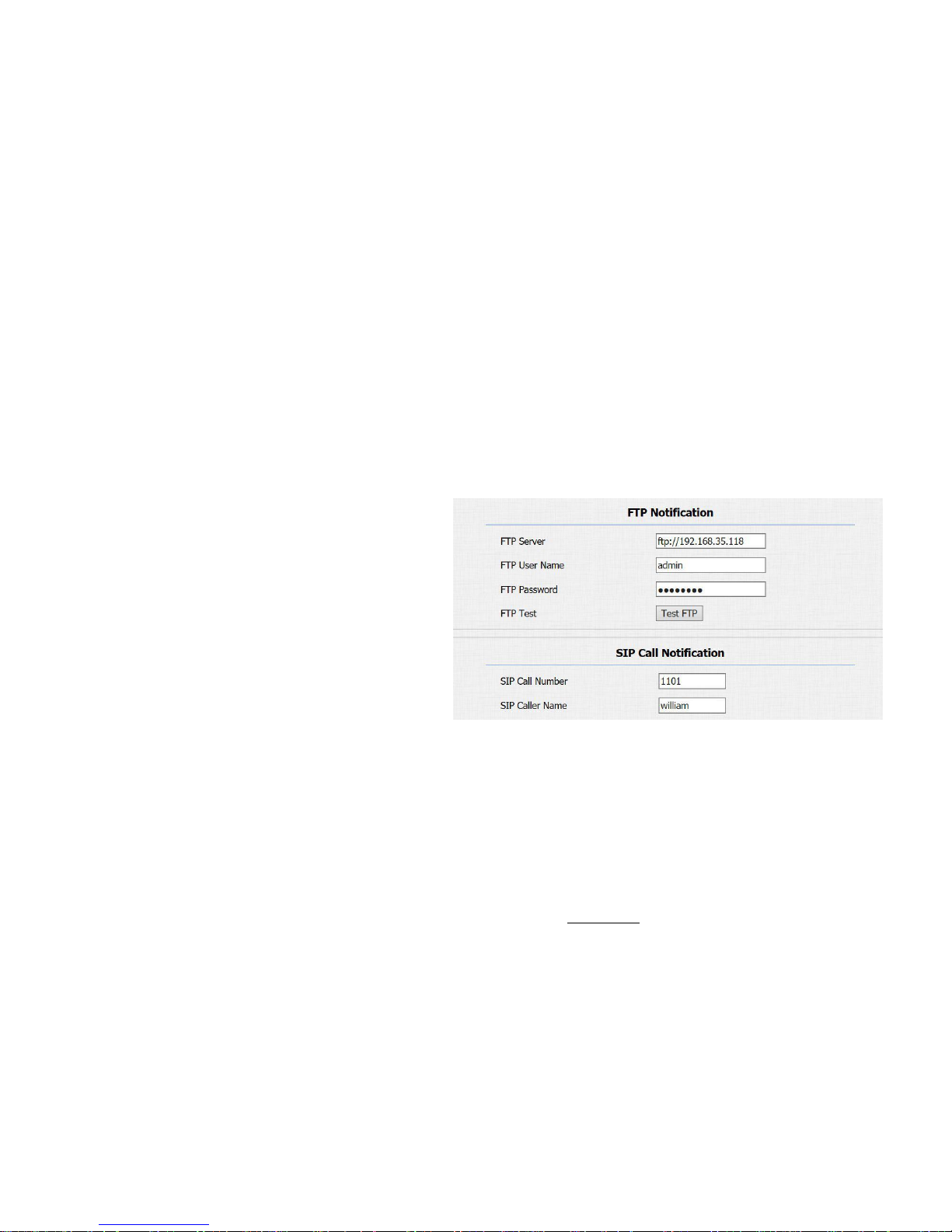
2.5.2 FTP Notification
FTP Server: To configure URL of FTP server.
FTP User Name: To configure user name of FTP server.
FTP Password: To configure password of FTP server.
FTP Test: To test whether FTP notification is available.
2.5.3 SIP Notification
SIP Call Number: To configure sip call number.
SIP Call Name: To configure display name of IPDS-20A.
Page 16
FREUND ELEKTRONIK A/S | Fuglebakken 119 | 5210 Odense NV | Denmark | www.freund.dk | Tlf. +45 66 16 24 14
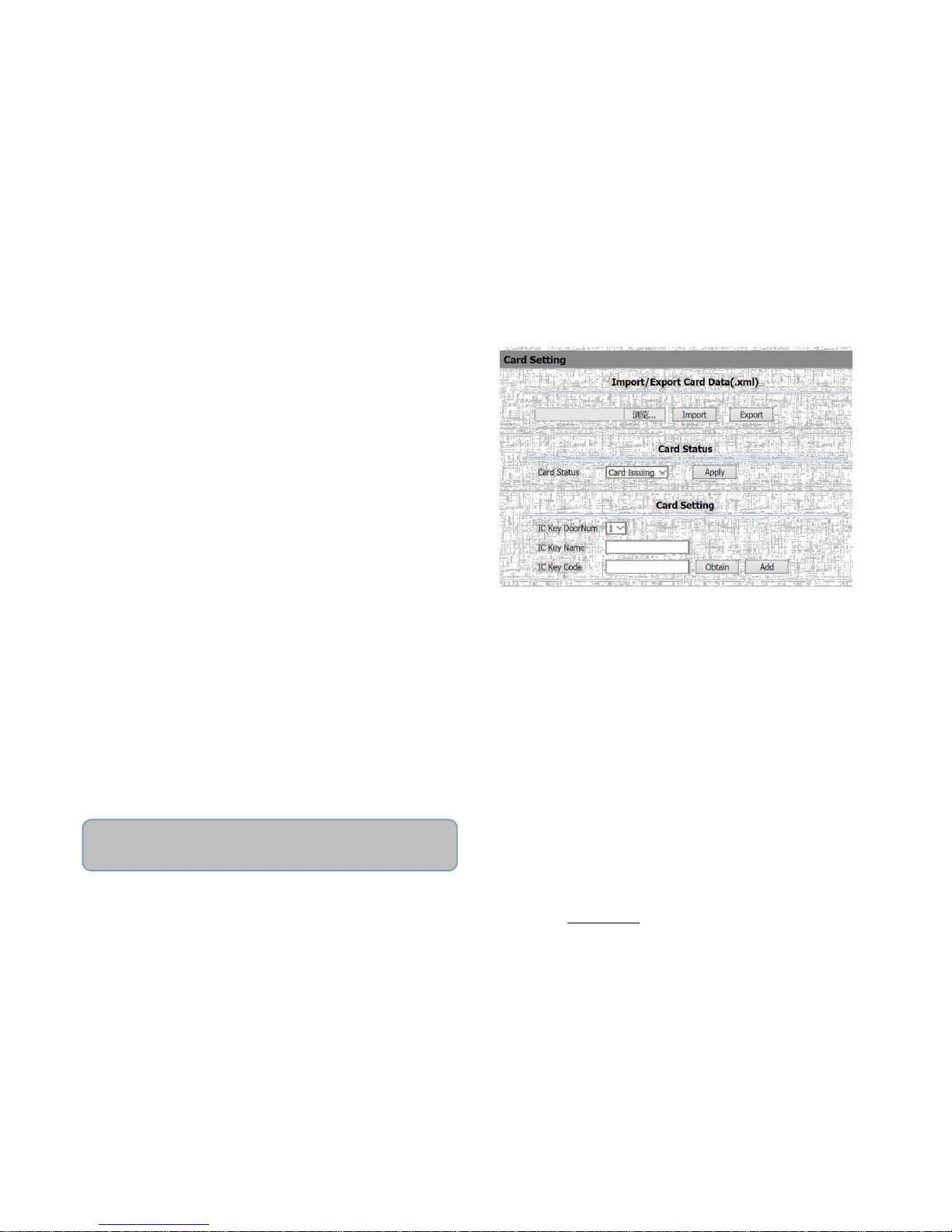
2.6 Card Setting
Go to Intercom->Card setting, to manage card access system.
2.6.1 Import/Export Card Data
IPDS-20A supports import or Export the card data file, which
is convenient for administrator to deal with a large number of
cards.
2.6.2 Obtain and Add Card
①Switch card status to 'Card Issuing' and click 'Apply' ;
②Place card on the card reader area and click 'Obtain' ;
③Name card and choose which door you want to open ;
④Click 'Add' to add it into list .
Note: User can use card to access only when card status
has been switched to 'Normal'.
Page 17
FREUND ELEKTRONIK A/S | Fuglebakken 119 | 5210 Odense NV | Denmark | www.freund.dk | Tlf. +45 66 16 24 14
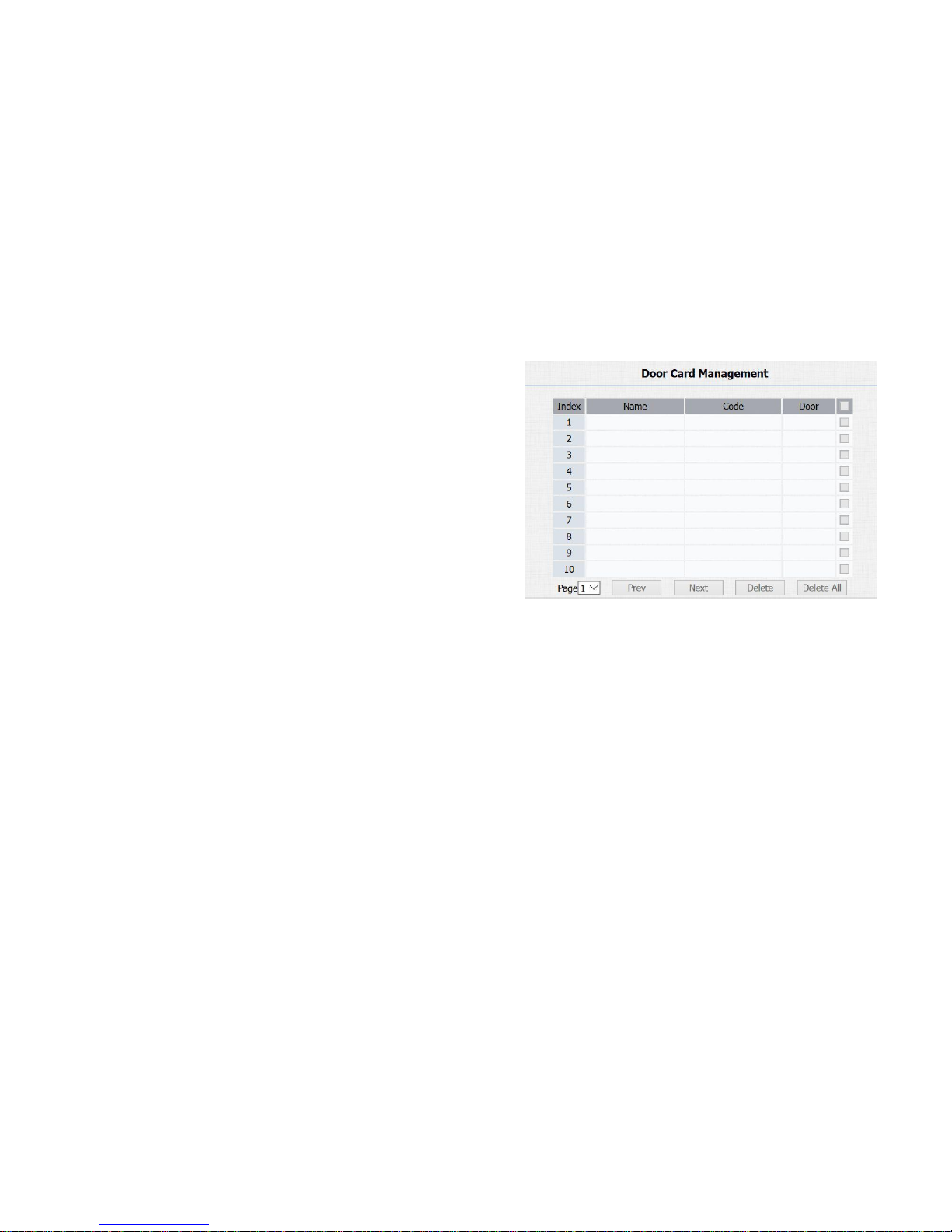
2.6.3 Door Card Management
Valid card information will be shown in the list. Administrator
could delete one card’s access permission or empty all the list.
2.7 Relay Setting
Page 18

FREUND ELEKTRONIK A/S | Fuglebakken 119 | 5210 Odense NV | Denmark | www.freund.dk | Tlf. +45 66 16 24 14
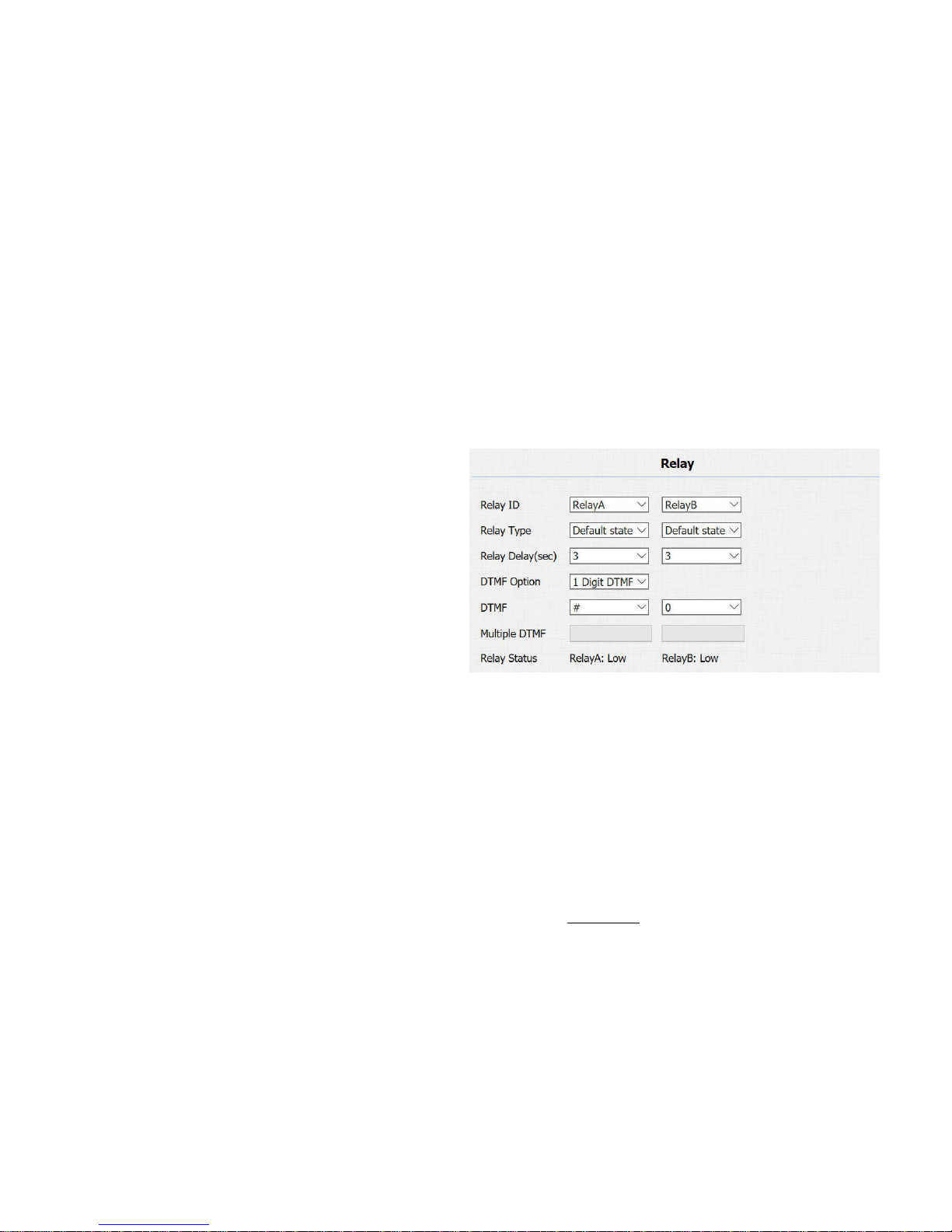
Go to Intercom->Relay, to configure relay.
2.7.1 Relay
There are three terminal of relay: NO, NC and COM. NO
stands for normally open contact while NC stands for normally
closed contact.
Note: Relay operate a switch and does not deliver power, so user should prepare
power adapter for external devices which connects to relay
Page 19
FREUND ELEKTRONIK A/S | Fuglebakken 119 | 5210 Odense NV | Denmark | www.freund.dk | Tlf. +45 66 16 24 14
Relay ID: IPDS-20A supports two relays, user can configure them
respectively.
Relay Type: Default state means NC and COM are normally
closed, while Invert state means NC and COM are normally
opened.
Relay Delay: To configure the duration of opened relay. Over
the value, the relay would be closed again.
DTMF Option: To select digit of DTMF code, IPDS-20A
supports maximum 4 digits DTMF code.
DTMF: To configure 1 digit DTMF code for remote unlock
Multiple DTMF: To configure multiple digits DTMF code for
remote unlock.
Relay Status: Low means that COM is connecting to NC while
High means that COM is connecting to NO .
Page 20
FREUND ELEKTRONIK A/S | Fuglebakken 119 | 5210 Odense NV | Denmark | www.freund.dk | Tlf. +45 66 16 24 14
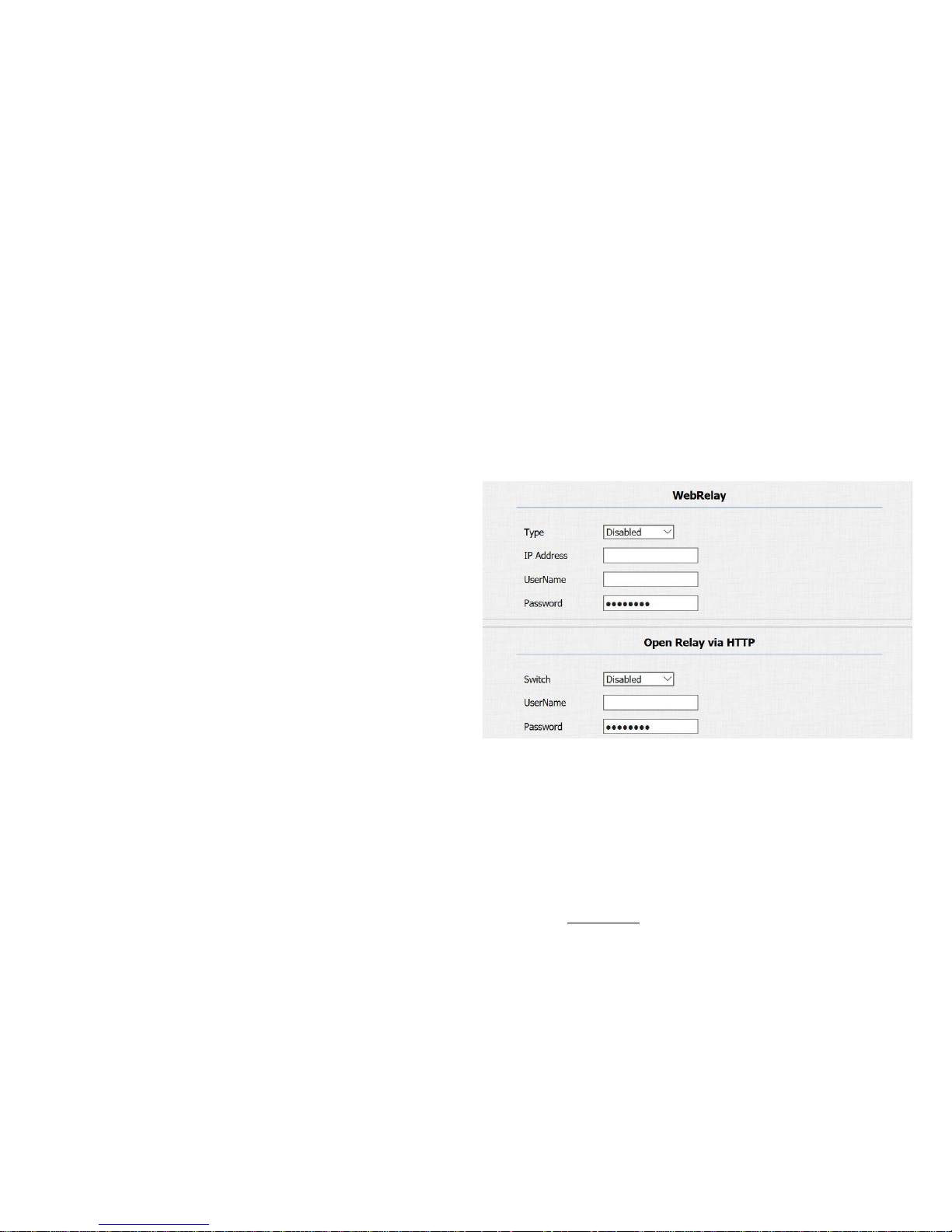
2.7.2 WebRelay
IPDS-20A supports extra web relay.
Type: To choose web relay type(only supports 2N web relay
currently).
IP Address: To enter corresponding web relay IP address.
UserNmae: To enter correct UserName of web relay.
Password: To enter correct Password of web relay.
2.7.3 Open Relay via HTTP
User can use a URL to remote unlock the door.
Switch: Enable this function. Disable by default.
Username & password: Users can setup the username and
password for HTTP unlock.
URL format:
http://IP_address/fcgi/do?action=OpenDoor&UserName=&Pa
ssword=&DoorNum=
Page 21
FREUND ELEKTRONIK A/S | Fuglebakken 119 | 5210 Odense NV | Denmark | www.freund.dk | Tlf. +45 66 16 24 14
2.8 Input
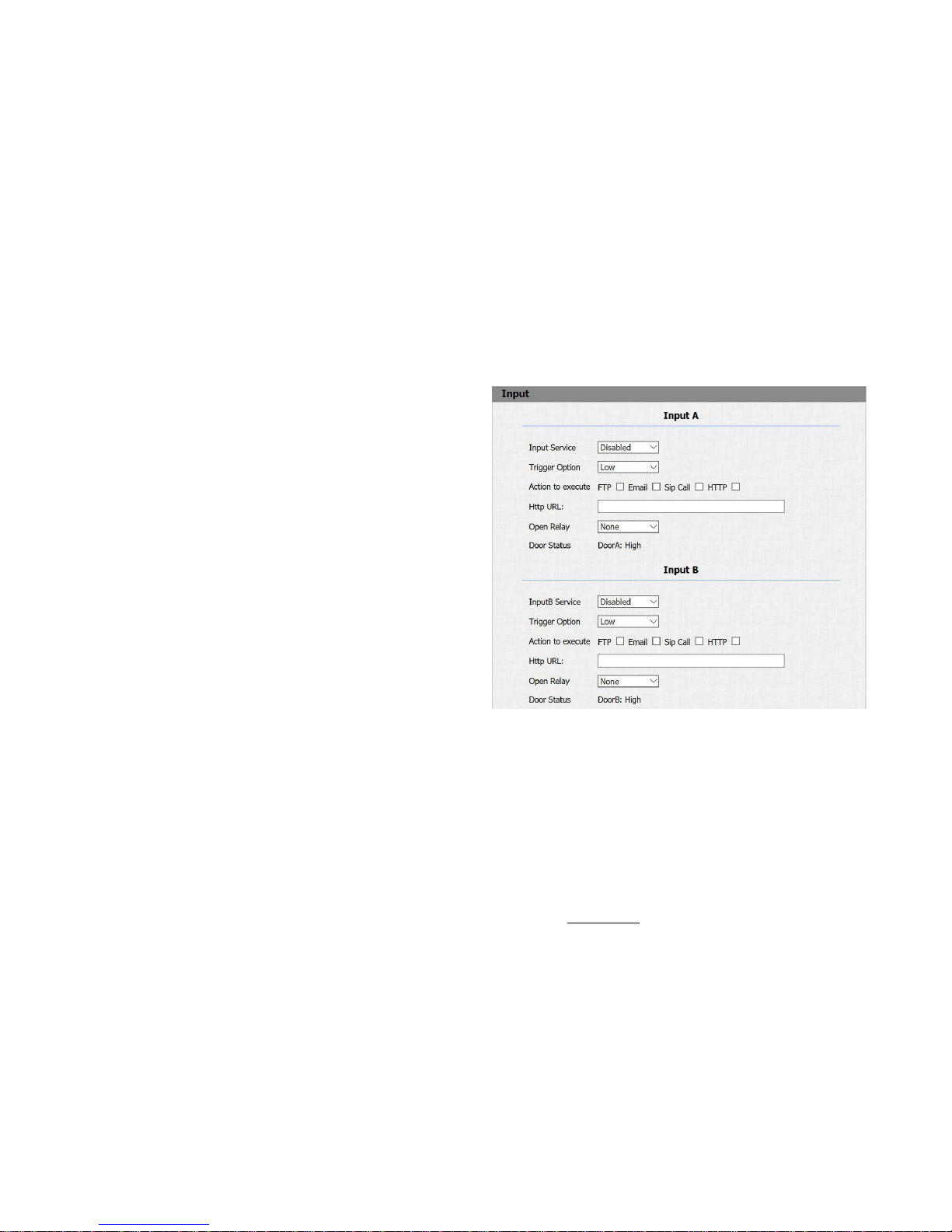
IPDS-20A supports two input triggers Input A/B(DOOR A/B),
and go to Intercom->Input to configure.
Input Service: To enable or disable input trigger service.
Trigger Option: To choose open circuit trigger or closed circuit
trigger. Low means that connection between Door terminal
and GND is closed, while High means the connection is
opened.
Action to execute: To choose which action to execute after
triggering.
Http URL: To configure URL, If HTTP action is chosen.
Open relay: To configure relay to open
Door status: To show the status of input signal.
Page 22
FREUND ELEKTRONIK A/S | Fuglebakken 119 | 5210 Odense NV | Denmark | www.freund.dk | Tlf. +45 66 16 24 14
3. Advance Setting
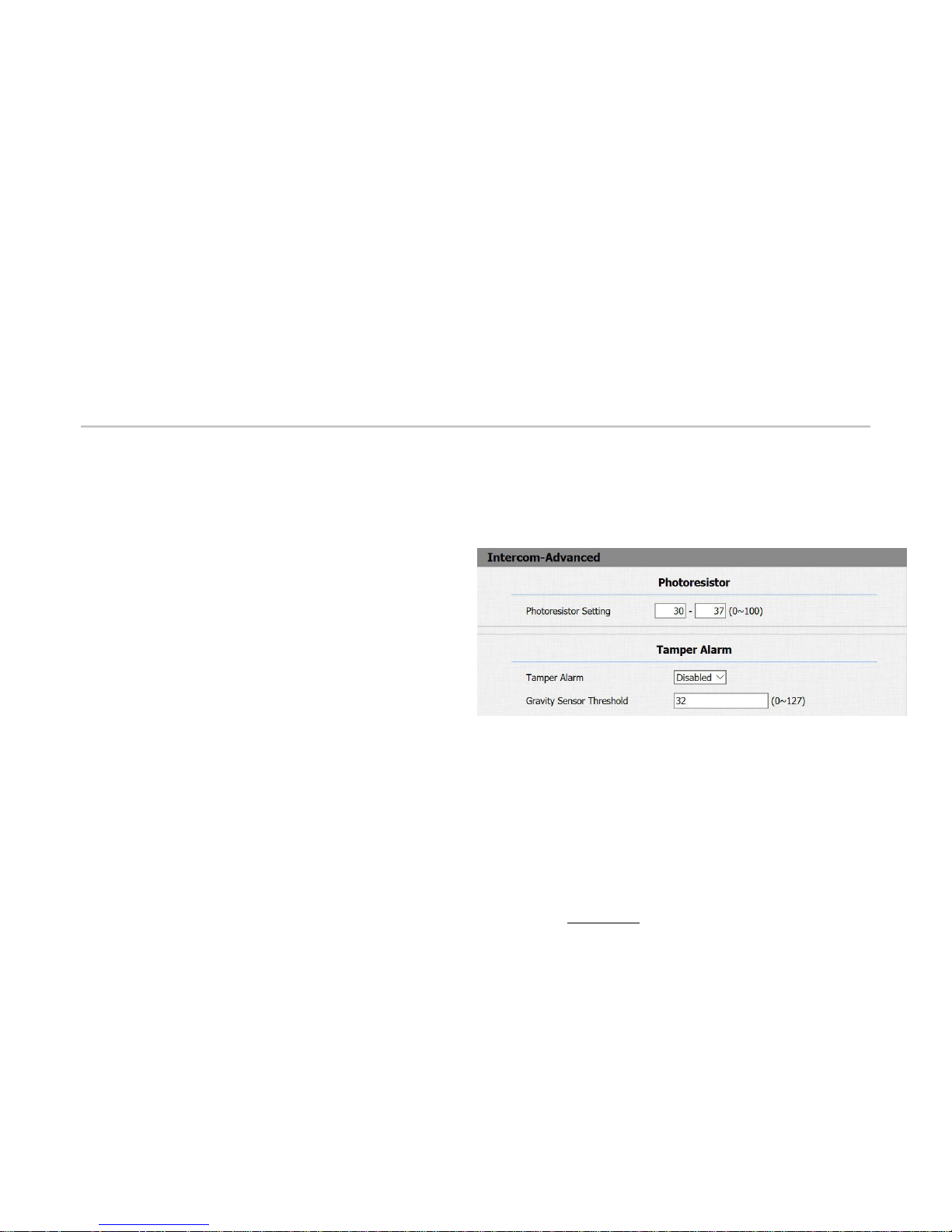
3.1 Intercom-Advanced
Photoresistor: The setting is for night vision, when the
surrounding of IPDS-20A is very dark, infrared LED will turn
on and R20 will turn to night mode. Photoresistor value relates
to light intensity and larger value mean that light intensity is
smaller. User can configure the upper and lower bound and
when photoresistor value is larger than upper bound, IF LED
will turn on. As contrast, when photoresistor value is smaller
than lower bound, infrared LED will turn off and device turns to
normal mode.
Tamper Alarm: IPDS-20A integrates internal gravity sensor for the
own security, and after enabling Tamper Alarm, if the gravity of
IPDS-20A changes dramatically, the phone will alarm. Gravity
Sensor Threshold stands for sensitivity of sensor.
Page 23
FREUND ELEKTRONIK A/S | Fuglebakken 119 | 5210 Odense NV | Denmark | www.freund.dk | Tlf. +45 66 16 24 14
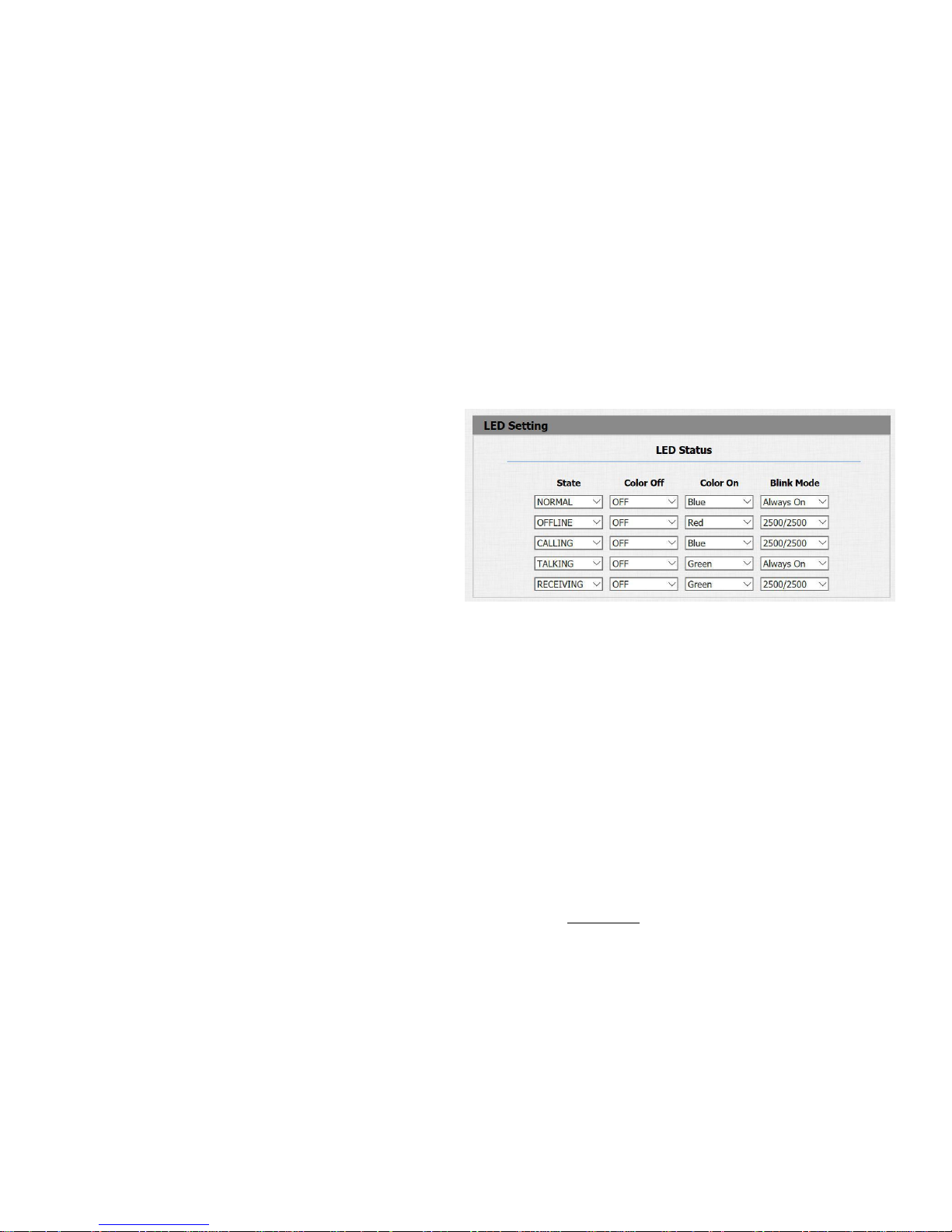
3.2 LED Setting
There are five LED statuses for IPDS-20A: NORMAL,
OFFLINE, CALLING, TALKING and RECEIVING.
Go to Intercom->Led setting, to configure corresponding LED
response.
3.3 Live Stream
Go to Intercom->Live Stream, check the real-time video from
IPDS-20A. In addition, user also can check the real-time picture via
URL: http://IP_address:8080/picture.jpg
Page 24
FREUND ELEKTRONIK A/S | Fuglebakken 119 | 5210 Odense NV | Denmark | www.freund.dk | Tlf. +45 66 16 24 14
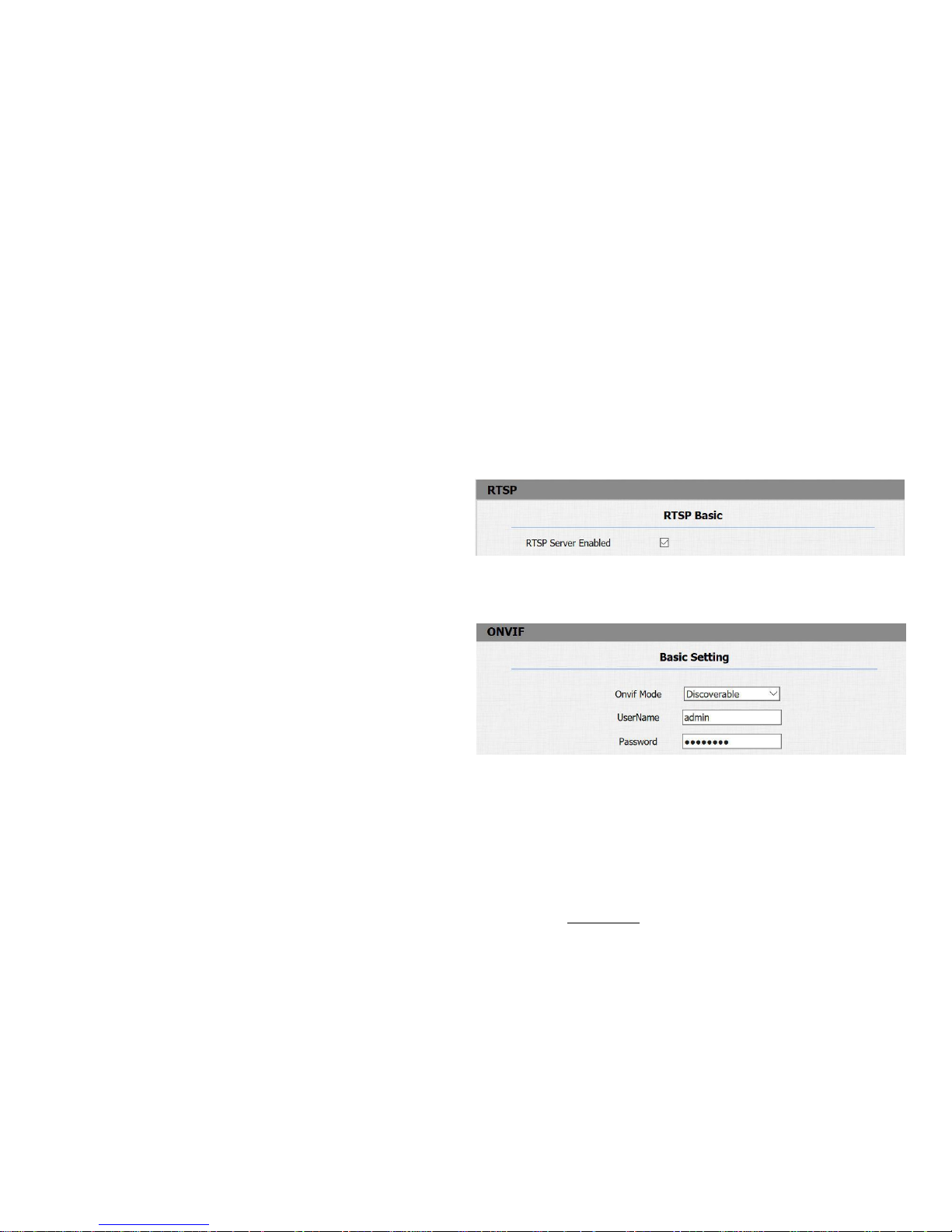
3.4 RTSP
IPDS-20A supports RTSP stream, go to Intercom->RTSP, to
enable or disable RTSP server. The URL for RTSP stream is:
rtsp://IP_address/live/ch00_0
3.5 Onvif
IPDS-20A supports ONVIF protocol, which means IPDS-20A’s
camera can be searched by other devices, like NVR, which
supports ONVIF protocol as well. Go to Intercom->Onvif, to
configure Onvif Mode and its username/password.
Switching Onvif Mode to undiscoverable means that User
must program Onvif’s URL manually.
The Onvif’s URL is:
http://IP_address:8090/onvif/device_servic
Page 25
FREUND ELEKTRONIK A/S | Fuglebakken 119 | 5210 Odense NV | Denmark | www.freund.dk | Tlf. +45 66 16 24 14
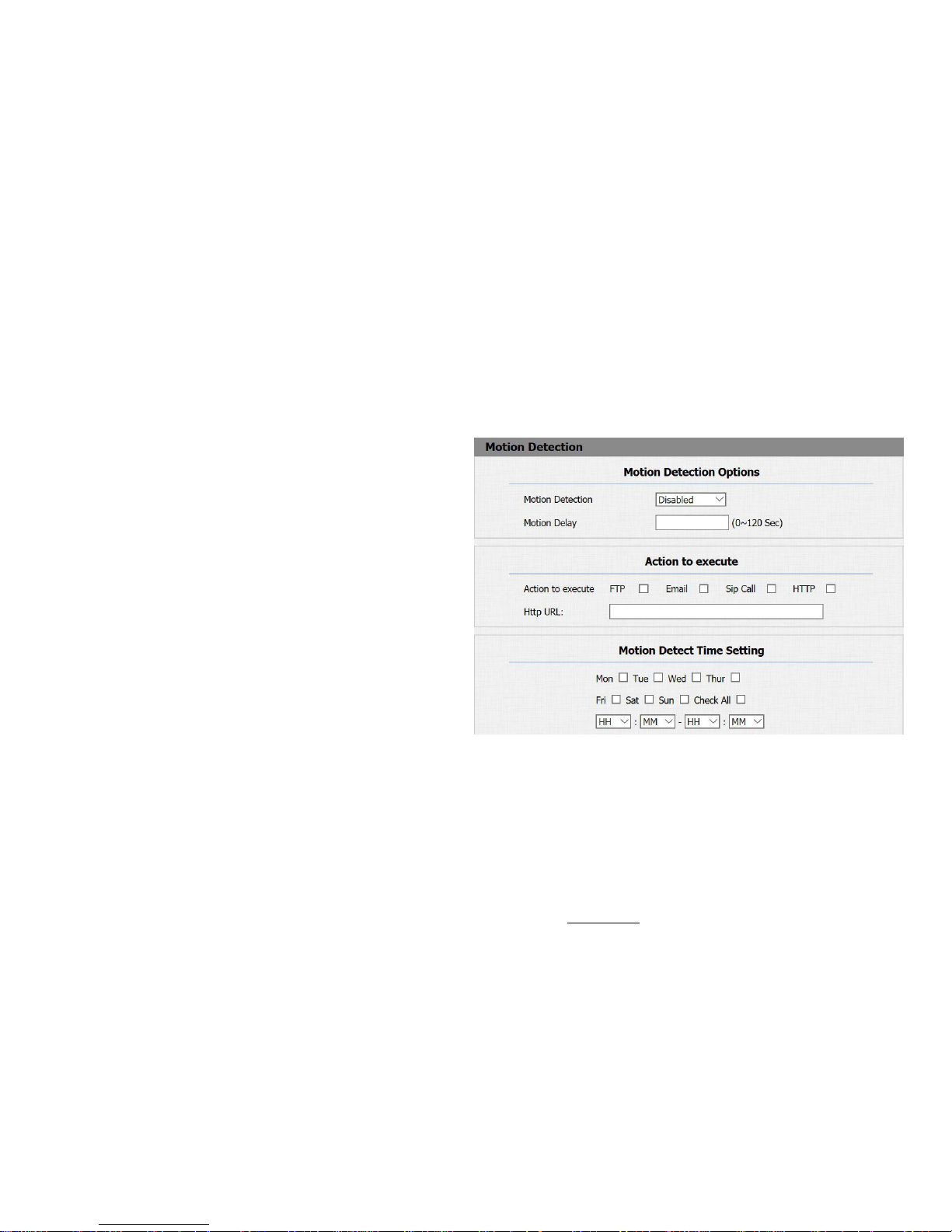
3.6 Motion
IPDS-20A supports motion detection, go to Intercom->Motion
to configure detection parameter.
Motion Detection: To enable or disable Motion Detection
Motion Delay: To configure minium time gap between two
snapshot.
Action to execute: To choose which action to execute after
triggering.
Http URL: To configure URL, If HTTP action is chosen. Motion
Detect Time Setting: To make Motion Detect Time for a whole
week.
Page 26
FREUND ELEKTRONIK A/S | Fuglebakken 119 | 5210 Odense NV | Denmark | www.freund.dk | Tlf. +45 66 16 24 14
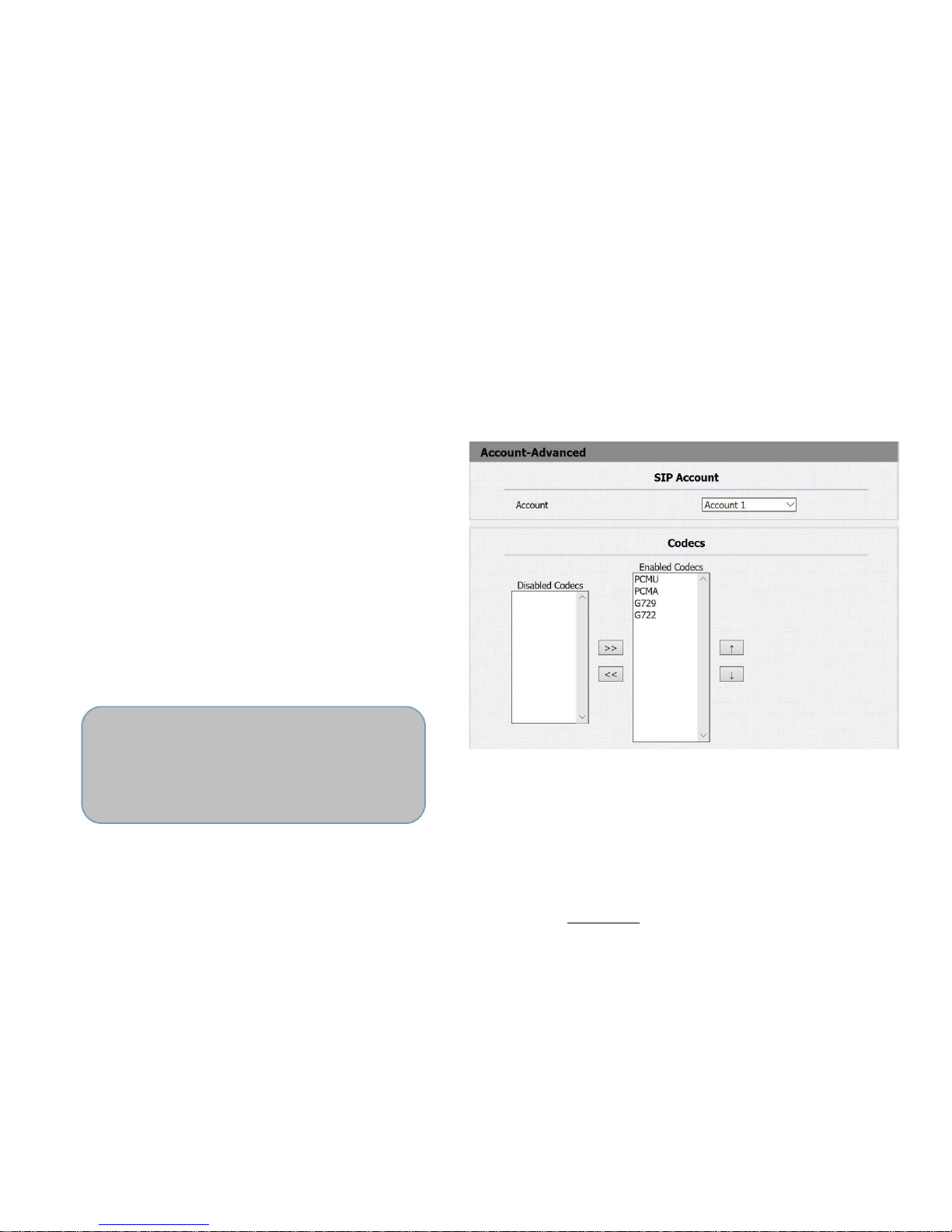
3.7 Account-Advanced
Go to Account->Advanced to configure advanced settings for
account.
3.7.1 Audio Codec
Sip Account: To choose which account to configure.
Audio Codec: IPDS-20A support four audio codec: PCMA,
PCMU, G729, G722. Different audio codec requires different
bandwidth, user can enable/disable them according to
different network environment.
Bandwidth consumption and sample rates.
PCMA: 64kbit/s
8kHz
PCMU: 64kbit/s
8kHz
G729:
8kbit/s
8kHz
Least consumption
G722:
64kbit/s
16kHz
Best quality
Page 27
FREUND ELEKTRONIK A/S | Fuglebakken 119 | 5210 Odense NV | Denmark | www.freund.dk | Tlf. +45 66 16 24 14
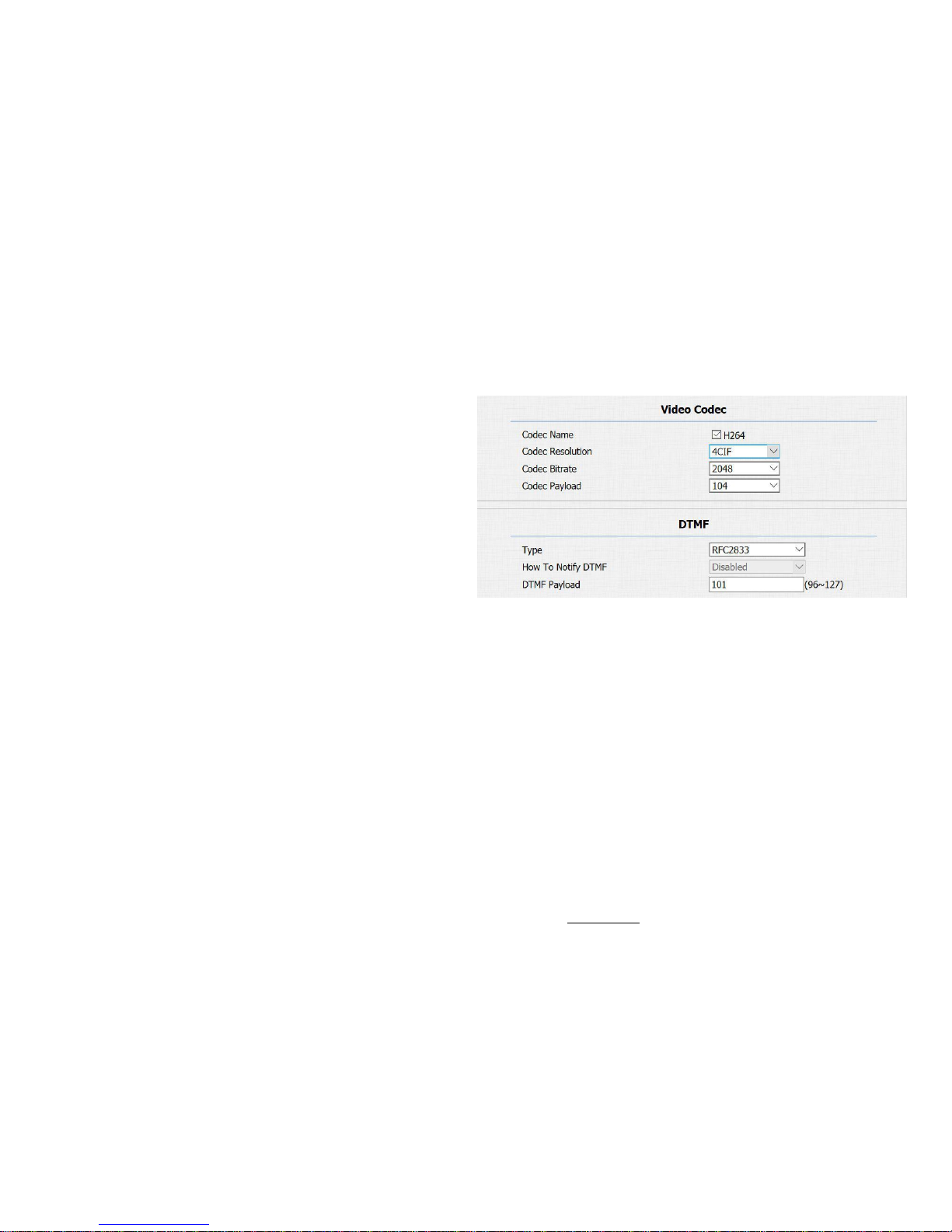
3.7.2 Video Codec
IPDS-20A supports H264 standard, which provides better video
quality at substantially lower bit rates than previous standards.
Codec Resolution: IPDS-20A supports four resolutions: QCIF,
CIF, VGA, 4CIF and 720P.
Codec Bitrate: To configure bit rates of video stream.
Codec Payload: To configure RTP audio video profile.
3.7.3 DTMF
To configure RTP audio video profile for DTMF and its payload
type.
Page 28
FREUND ELEKTRONIK A/S | Fuglebakken 119 | 5210 Odense NV | Denmark | www.freund.dk | Tlf. +45 66 16 24 14
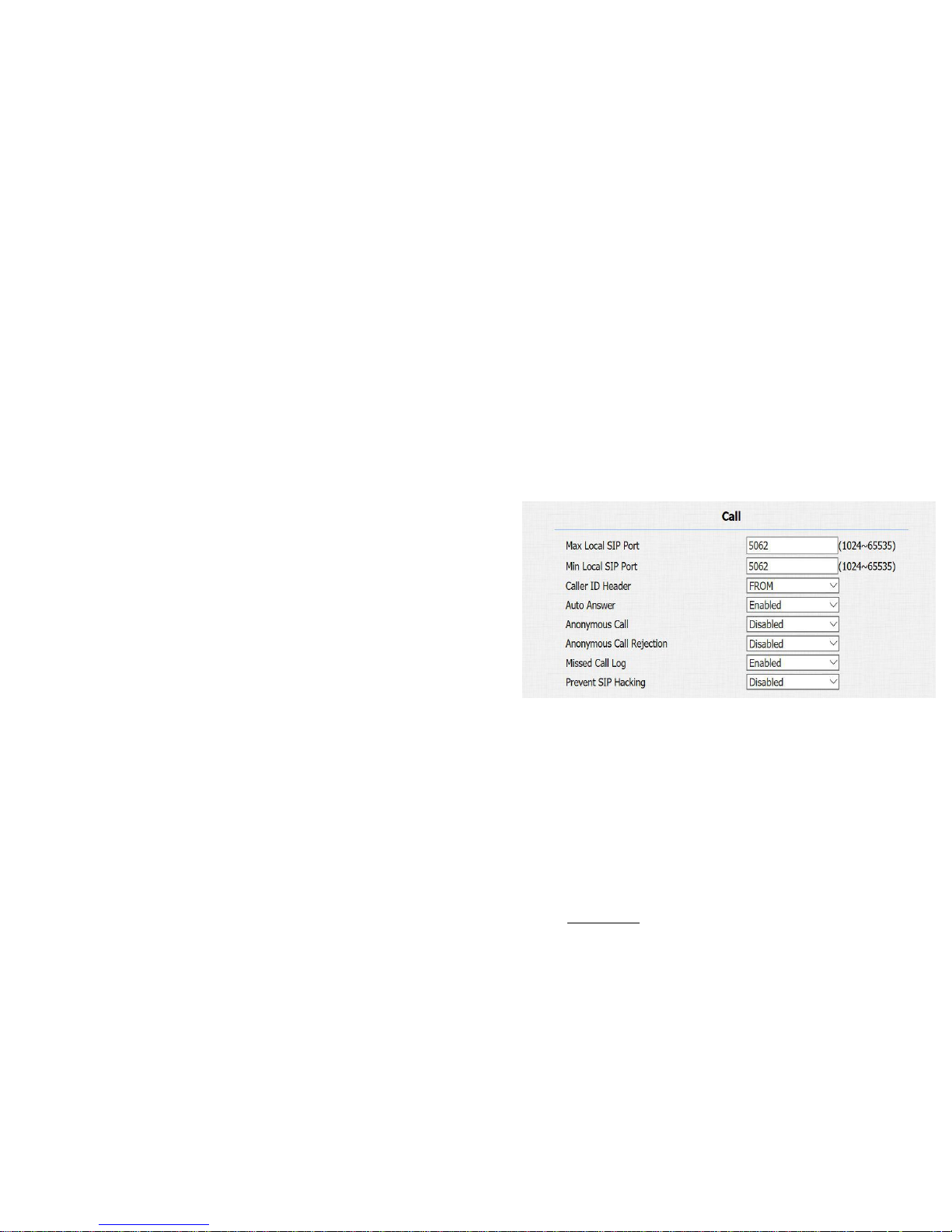
3.7.4 Call
Max Local SIP Port: To configure maximum local sip port for
designated SIP account.
Min Local SIP Port: To configure maximum local sip port for
designated SIP account.
Caller ID Header: To choose Caller ID Header format
Auto Answer: If enabled, incoming call will be answered
automatically.
Anonymous Call: If enabled, IPDS-20A will lock its information
when calling out.
Anonymous Call Rejection: If enabled, calls who block their
information will be screened out.
Missed Call Log: If enabled, any missed call will be recorded
into call log.
Prevent Hacking: If enabled, it will prevent sip message from
hacking
Page 29
FREUND ELEKTRONIK A/S | Fuglebakken 119 | 5210 Odense NV | Denmark | www.freund.dk | Tlf. +45 66 16 24 14
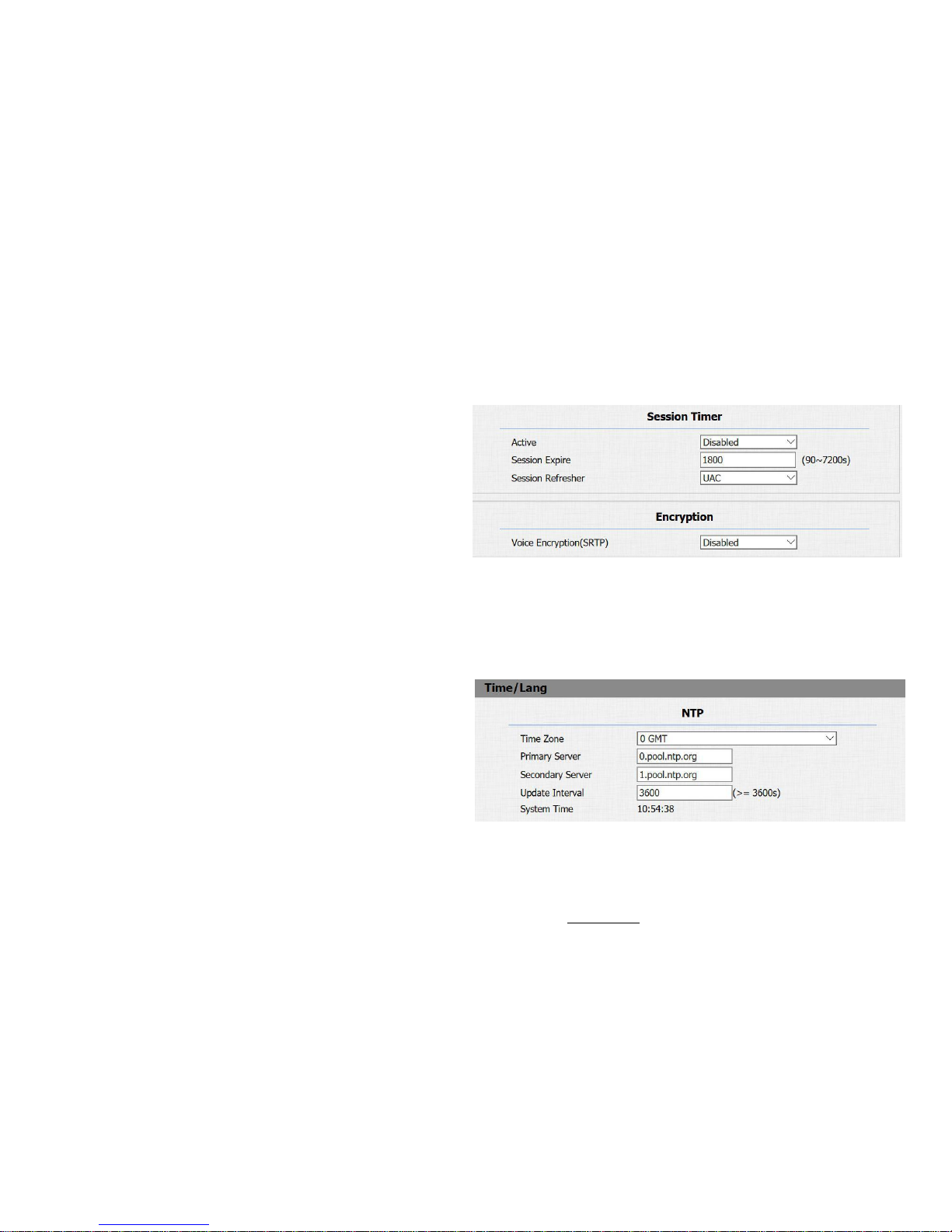
3.7.5 Session Timer
If enabled, the on going call will be disconnected automatically
once the session expired unless it’s been refreshed by UAC or
UAS.
3.7.6 Encryption
If enabled, voice will be encrypted.
3.8 Time/Lang
Go to Phone->Time/Lang, to select local Time Zone for NTP
server.
Page 30
FREUND ELEKTRONIK A/S | Fuglebakken 119 | 5210 Odense NV | Denmark | www.freund.dk | Tlf. +45 66 16 24 14
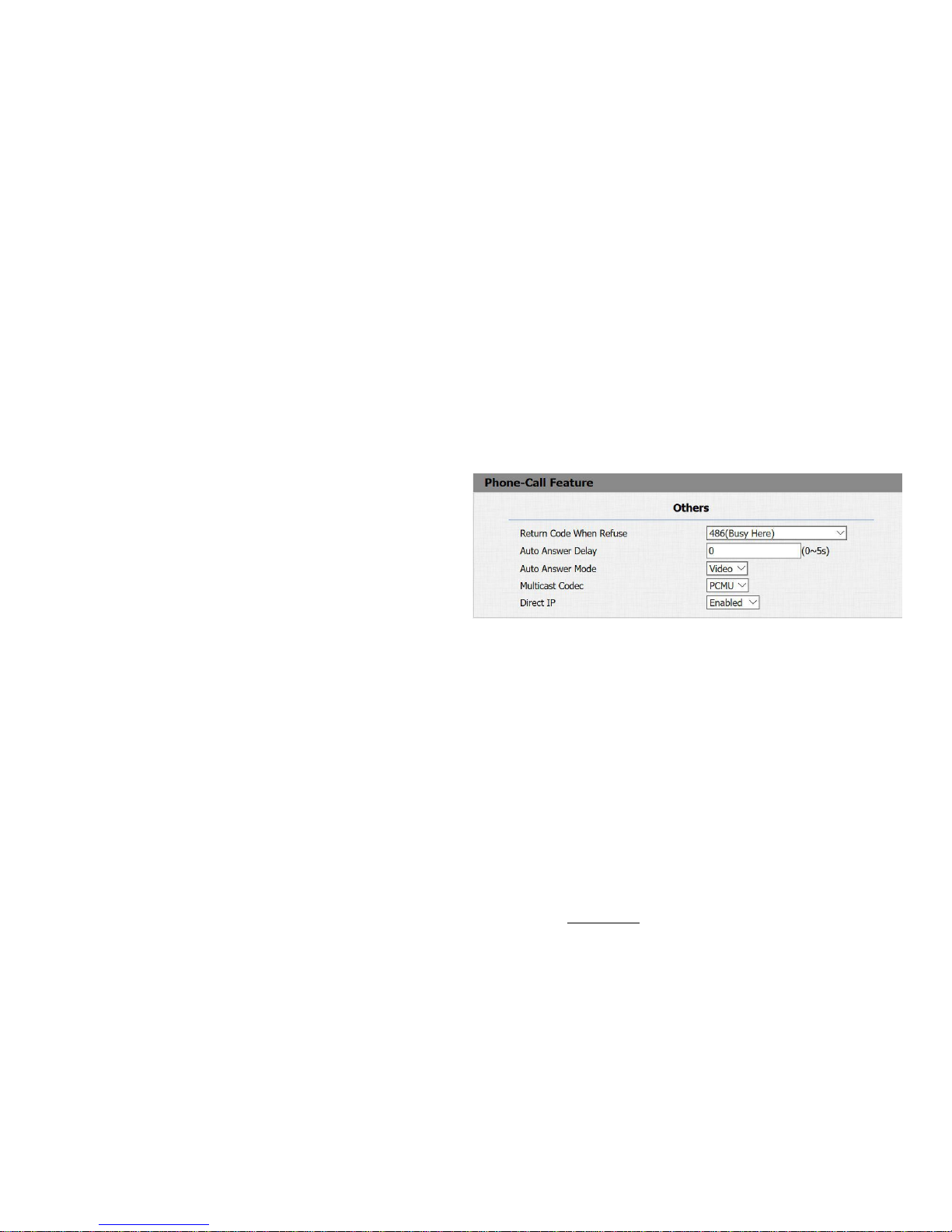
3.9 Call Feature
Go to Phone->Call Feature, to configure Phone-Call Feature.
Return Code When Refuse: To configure return sip status
code.
Auto Answer Delay: To configure answer delay when
receiving a call.
Auto Answer Mode: To choose Video or Audio mode for auto
answer.
Multicast Codec: To configure video codec for multicast.
Direct IP: If disabled, incoming direct IP call will be blocked.
Page 31
FREUND ELEKTRONIK A/S | Fuglebakken 119 | 5210 Odense NV | Denmark | www.freund.dk | Tlf. +45 66 16 24 14
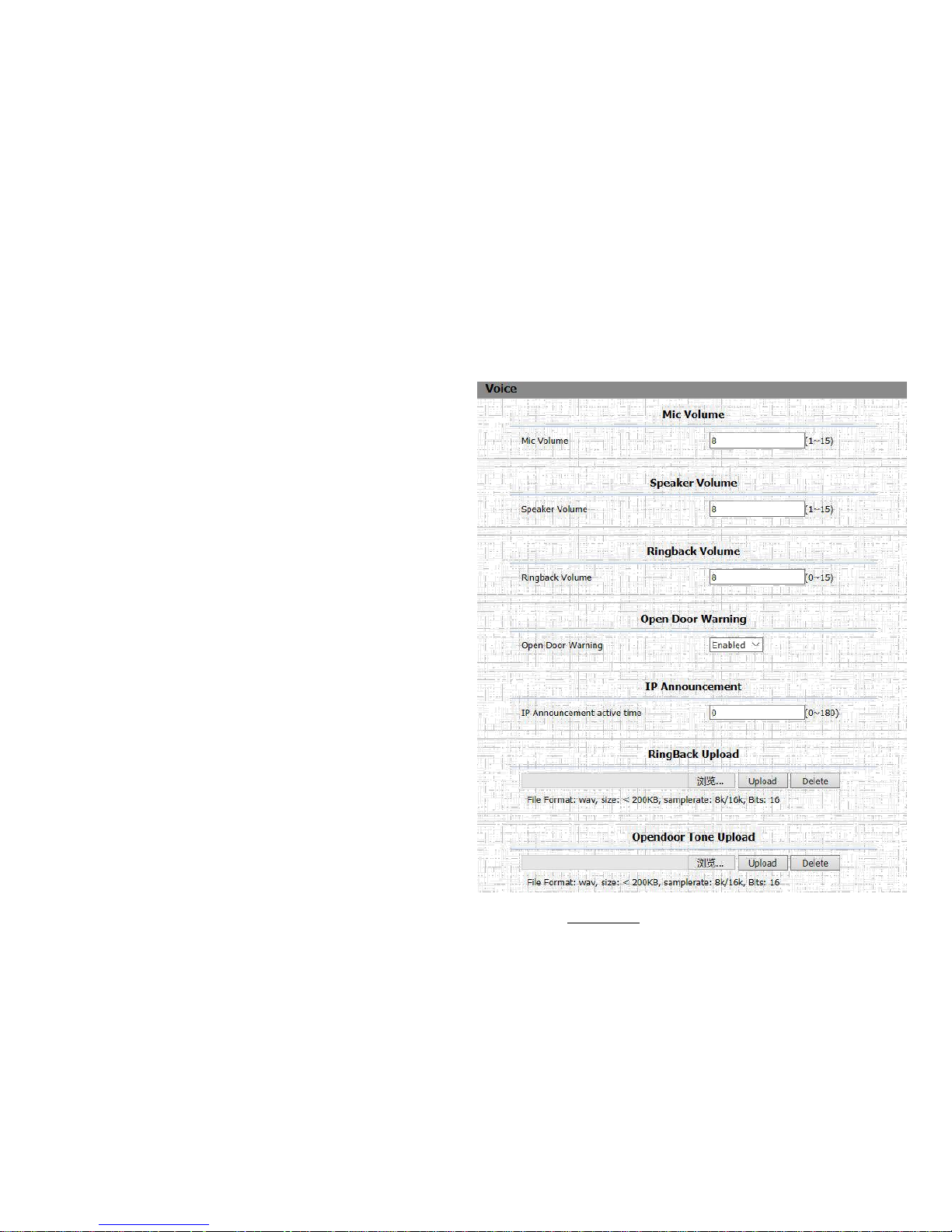
3.10 Voice
Go to Phone->Voice, to configure volume and upload tone file.
Mic Volume:To configure Microphone volume.
Speaker Volume:To configure Speaker volume.
Open Door Warning: Disable it, you will not hear the prompt
voice when the door is opened.
IP Announcement:To setup the IP Announcement active time.
Over the configured value, the phone will not announce its IP
address, even you hold the button.
RingBack Upload: To upload the ring back tone by yourself.
Opendoor Tone Upload:To upload the Opendoor tone by
yourself.
Page 32
FREUND ELEKTRONIK A/S | Fuglebakken 119 | 5210 Odense NV | Denmark | www.freund.dk | Tlf. +45 66 16 24 14
3.11 Log
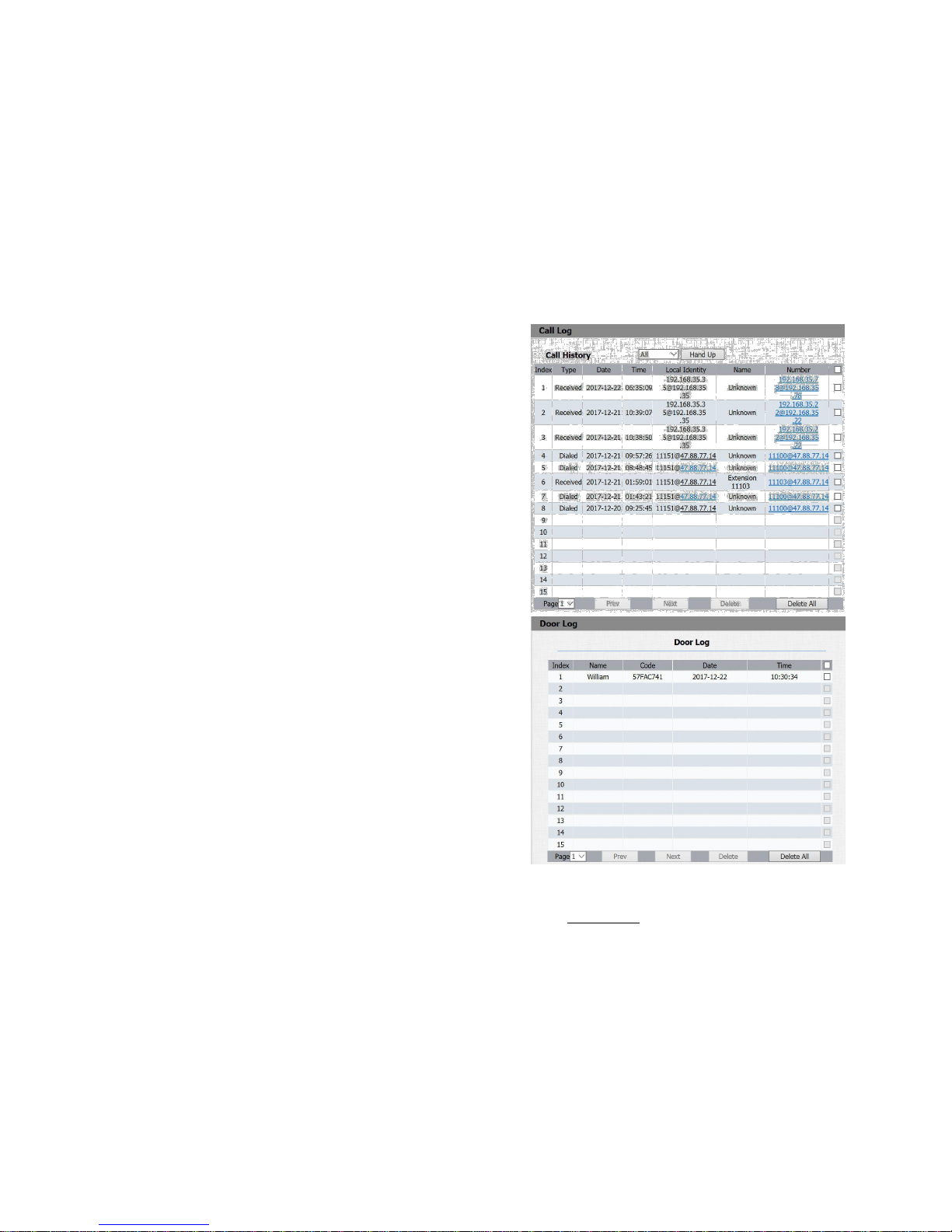
3.11.1 Call Log
Go to Phone->Call Log, user can see a list of call which have
dialed, received or missed. And user can delete calls from list.
3.11.2 Door Log
Go to Phone->Call Log, user can see a list of door log which
records card information and date.
Page 33
FREUND ELEKTRONIK A/S | Fuglebakken 119 | 5210 Odense NV | Denmark | www.freund.dk | Tlf. +45 66 16 24 14
3.12 Upgrade
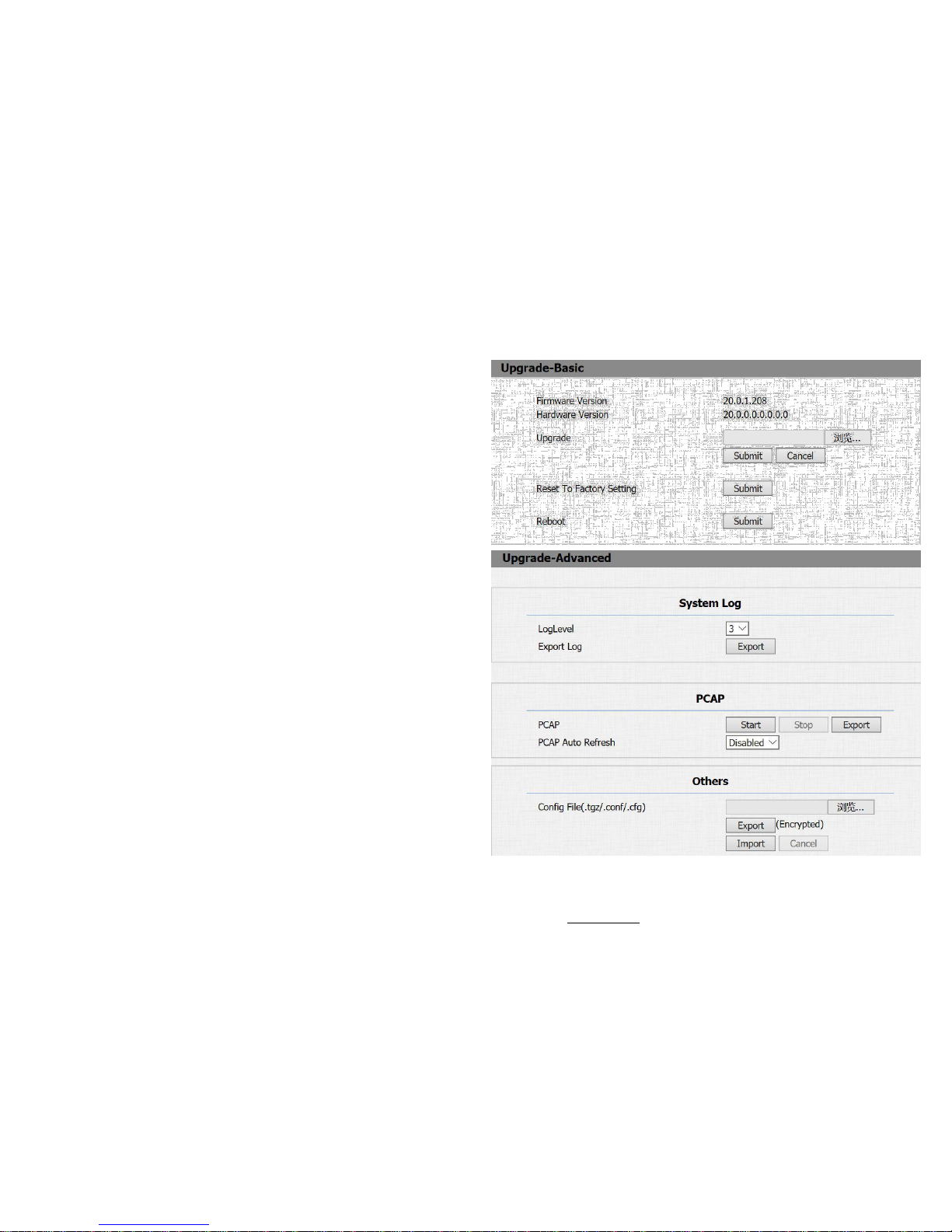
3.12.1 Upgrade-Basic
Go to Upgrade->Basic, user can upgrade firmware; Reset to
factory setting and reboot.
3.12.2 Upgrade-Advanced
System log: System log is used to debug, higher LogLevel
means more specific system log will be recorded. When
device failure occur, user can export System Log send to
FREUND tech support and we would try our best to address
the issue for you.
PCAP: To capture packet which is useful for us to address
issue.
Other: To export and import config file.
Page 34
FREUND ELEKTRONIK A/S | Fuglebakken 119 | 5210 Odense NV | Denmark | www.freund.dk | Tlf. +45 66 16 24 14
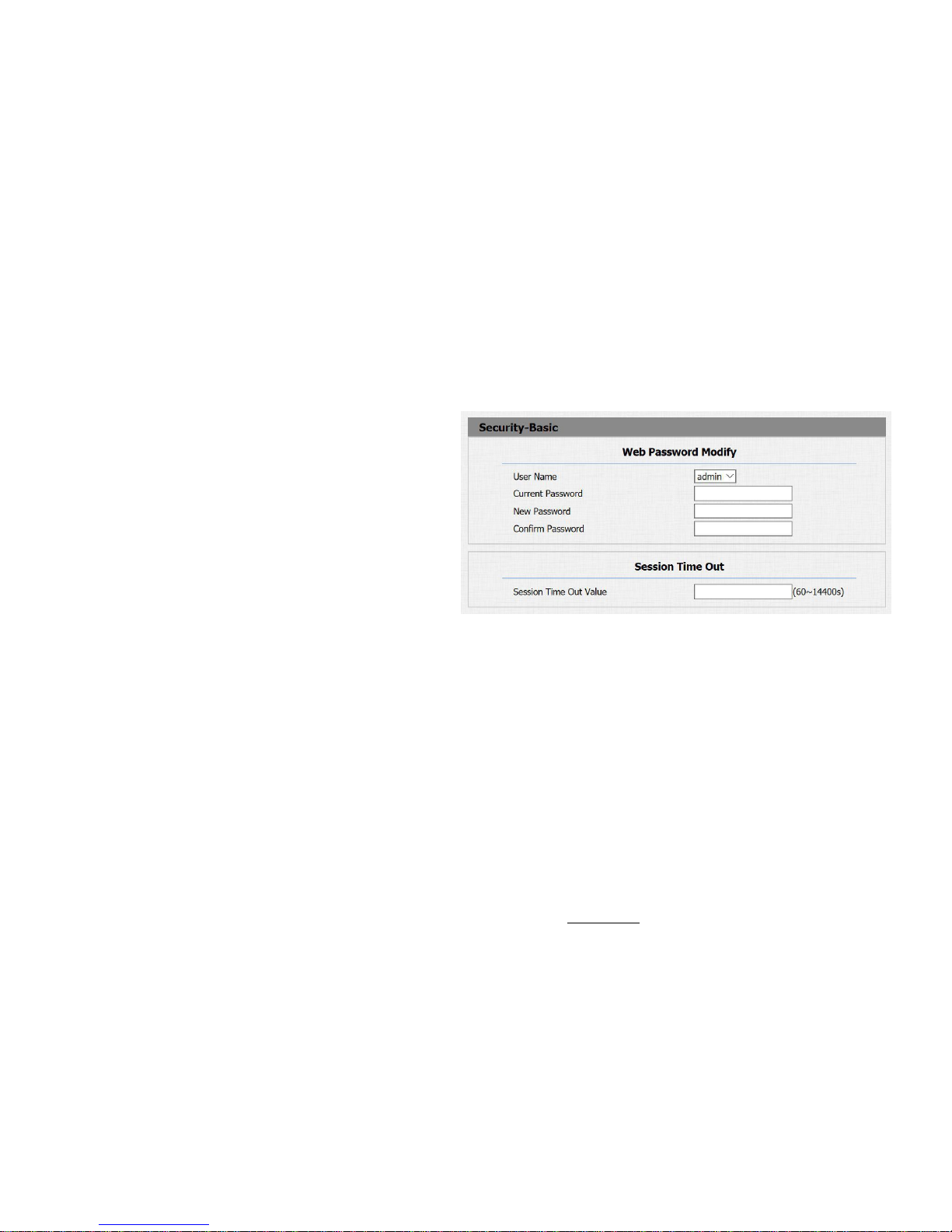
3.13 Security-Basic
Go to Security->Basic, to modify password and session time.
3.13.1 Web Password Modify
To modify password of 'admin' or 'user' account.
3.13.2 Session Time Out
To configure session time out value. Over the value, user need
to login again to continue configuring.
 Loading...