

Page 1
Using Freestyle Audio Media Players with iTunes
(all screen shots made in Windows Vista, your windows may appear different)
Page 2
Loading Music - iTunes
Loading Music on Player using iTunes
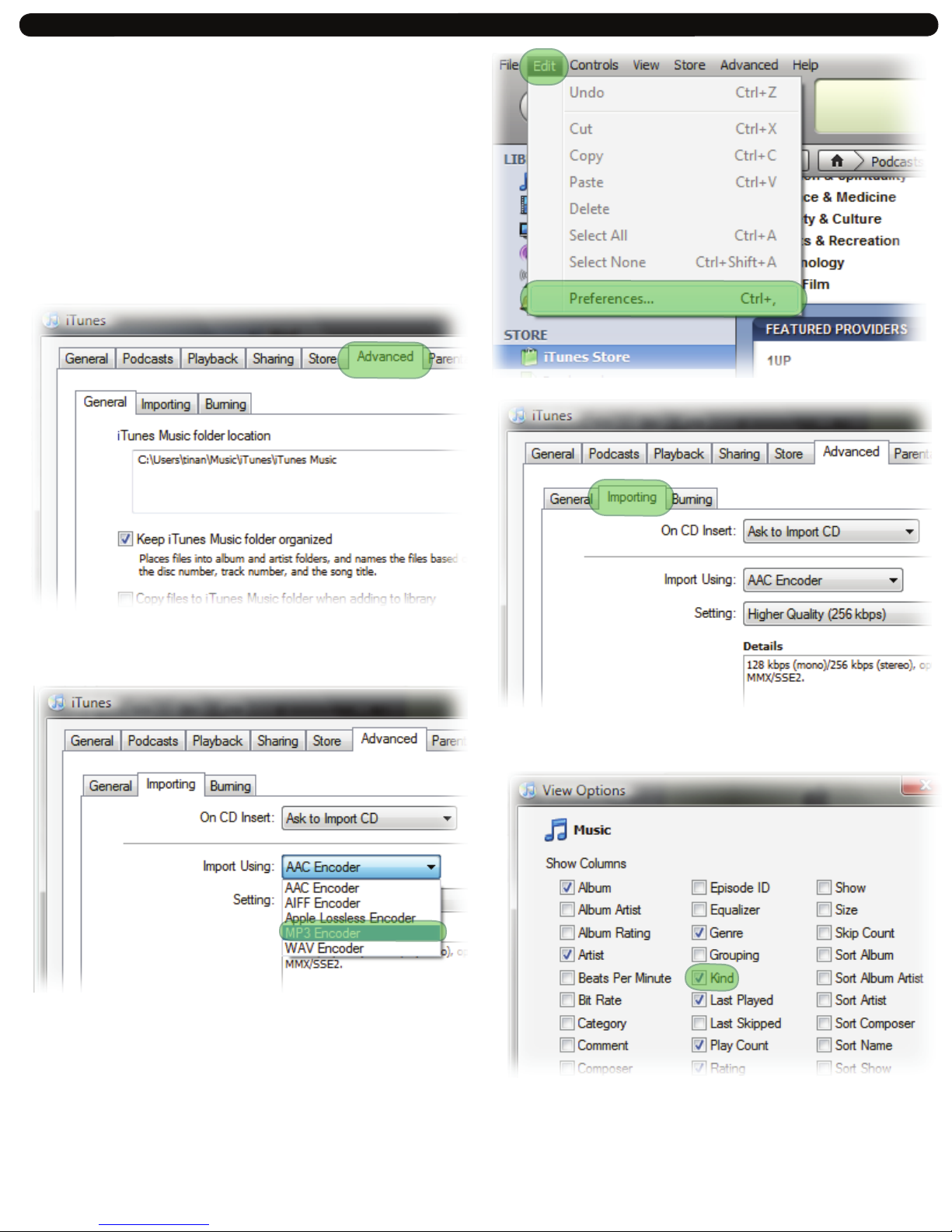
In order to copy les from iTunes you must FIRST change your default music settings.
Changing your default music settings:
1. In iTunes locate the Edit tab on the top menu bar and choose Preferences tab
2. In the Preferences menu, choose Advanced tab
3. In the Advanced menu, choose Import tab and locate Import Using drop down
4. In the Import Using drop down menu, choose MP3 Encoder, then OK
5. Then go to View menu, choose View Options and check Kind, this will show you
which les are MP3 or AAC so when you copy them you select the correct format.
Note: By choosing MP3 Encoder, you have now changed your default settings so any le
brought into iTunes either from the Internet or CD will be imported into an MP3 le. Any
existing music can now be converted into MP3 format.
2.
1.
3.
4.
5.
Page 3
Loading Music - iTunes
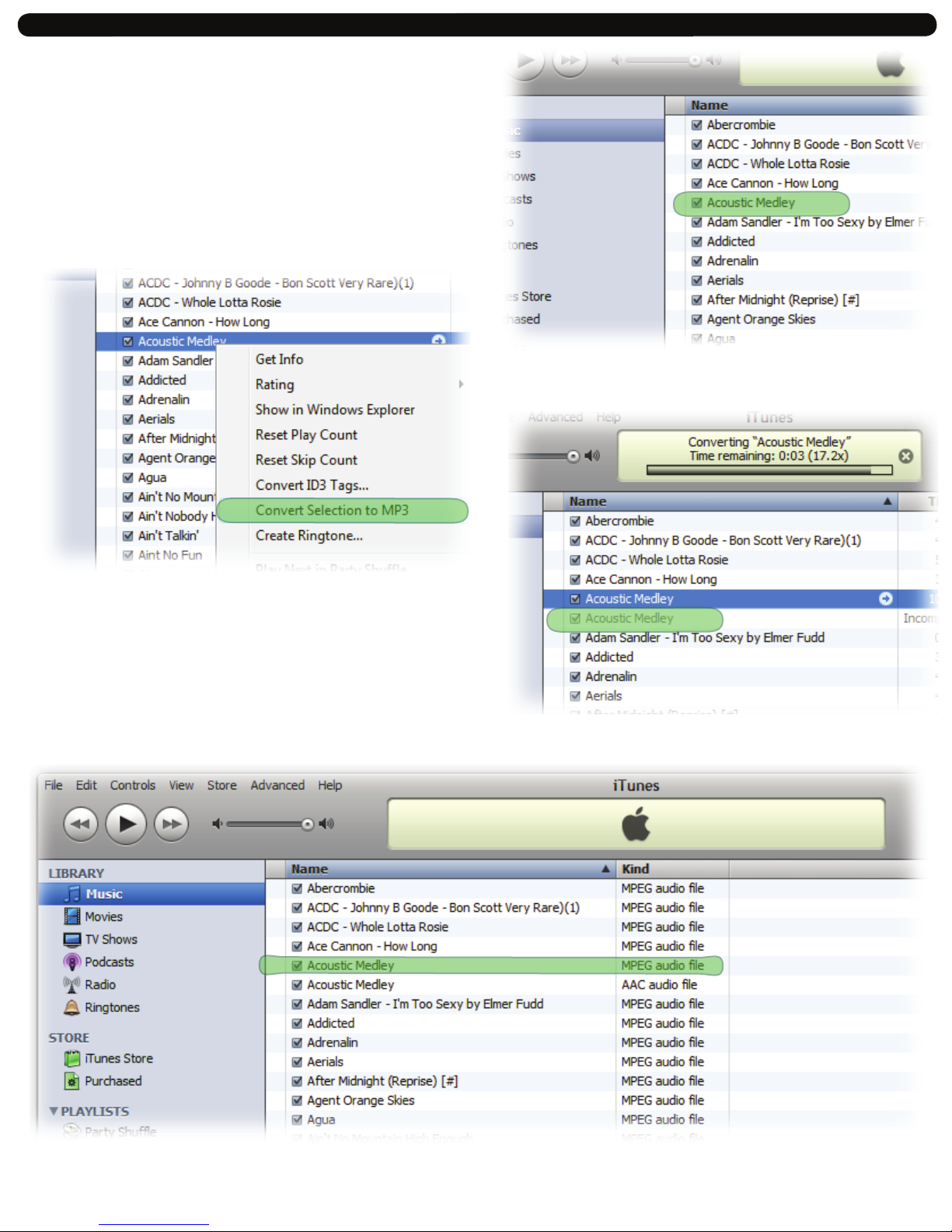
Converting your existing iTunes ACC music les to MPEG/mp3 format
1. Choose songs from your iTunes library you want to convert to mp3 by highlighting
them (for multiple songs, hold the CTRL button on your keyboard and select songs
using your mouse)
2. Right Click the song title, and select “Convert Selection to MP3”
3. iTunes will now begin creating a copy of the songs you selected in MPEG/mp3 audio
Note: The new mp3 formatted songs can now be placed on your Freestyle Audio mp3
player. You should consider creating a new folder for your newly converted songs.
2.
1.
3.
Your converted song shows up as a second copy:
Page 4
Loading Music - iTunes
Copying music from iTunes onto your device.
Your player has two modes, one for working within Windows Media Player (WMP)
the second as a Portable Storage Device (PSD).
For Sport Models:
With the player plugged into you machine, press the Play/Pause button to switch modes.
For Soundwave Model:
You will need to switch out of WMP mode and into PSD mode by pressing the <play>
button on your player while it is turned o and plugged into your computer. The easiest
way to recognize which mode the player is in is by the location of the battery indicator
on the screen while plugged into your computer or laptop.
• Top Left = PMP mode
• Top Right = PSD mode
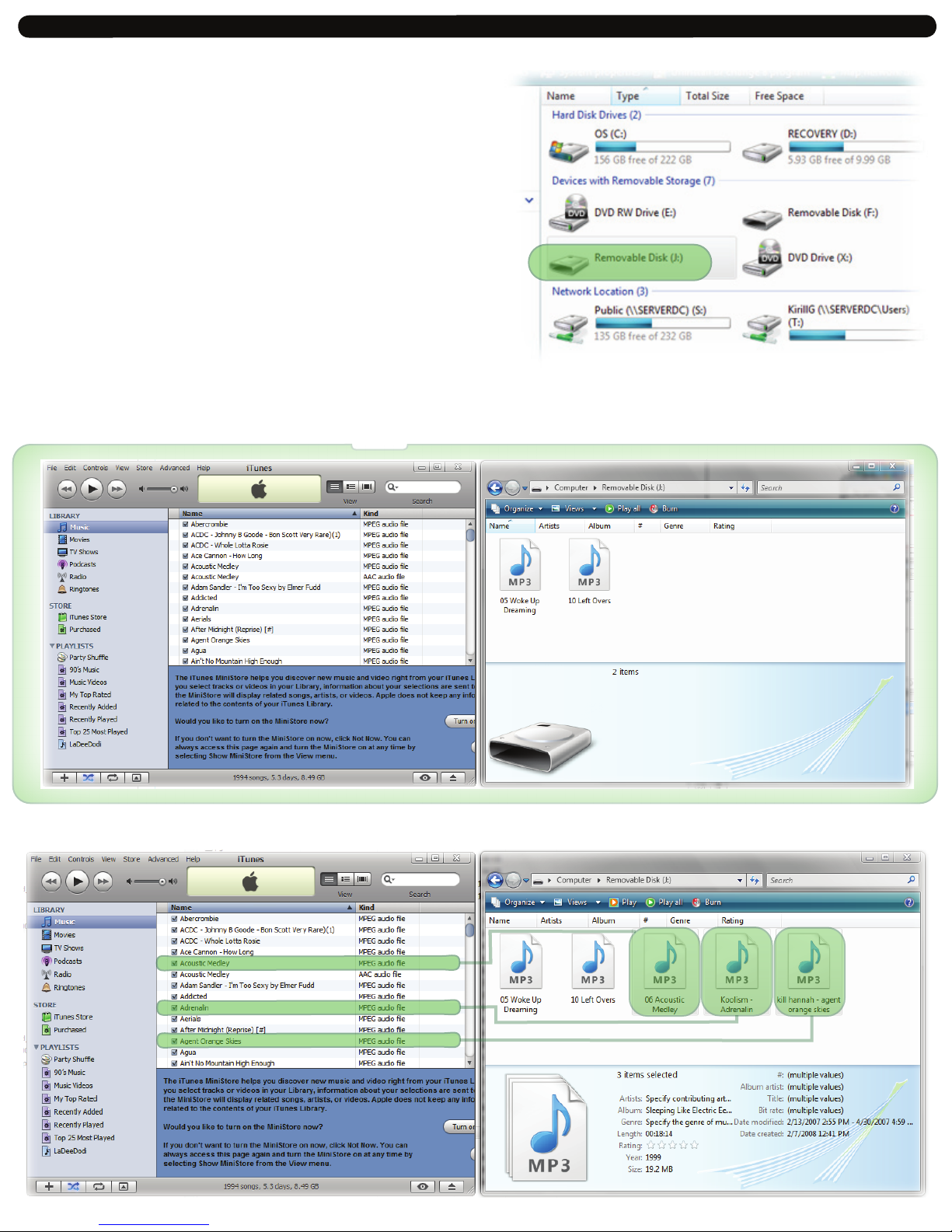
Once this is completed you will now see a Removable Storage Device listed under your
My Computer Option on your computer.
1. With iTunes running, Click Start > My Computer, and in the “My Computer” pane,
You should see a Removable Disk that corrosponds to your player. Double click the icon
to bring up the player window.
2. Now that you have both windows open, shrink each window so that you have equal
boxes windows side by side.
3. Choose the songs from your iTunes Music Library that you want to copy onto the device,
remember to hold the CTRL button down on your keyboard for multiple les.
using your mouse, simply drag and drop the music selected onto the Removable Device
4. For the latest download information please visit the Help! page on our website:
www.freestyleaudio.com/support.php
2.
1.
.
3.
 Loading...