

Page 1
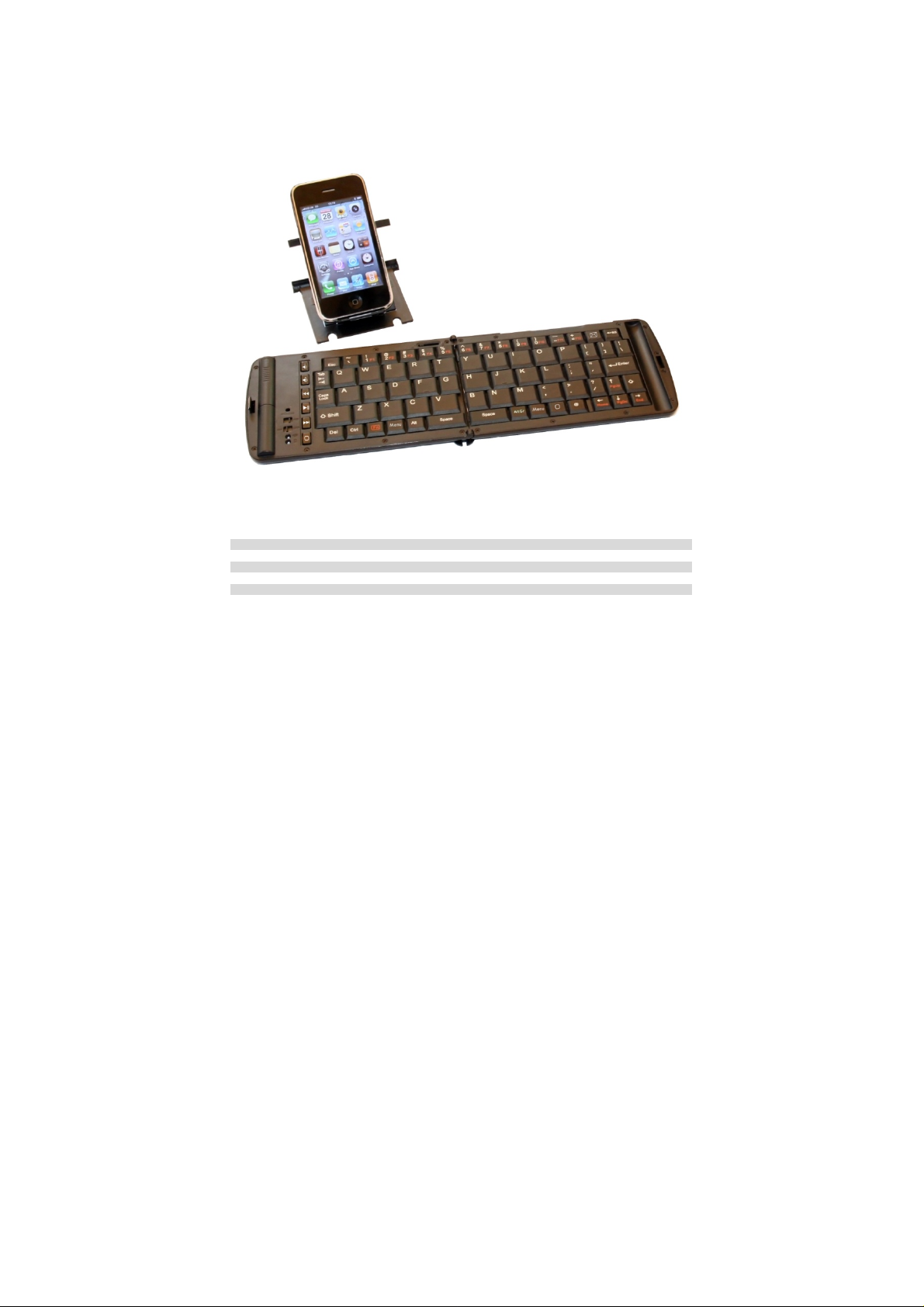
Freedom ICX-2 Keyboard
Quick Start Guide
Keyboard hardware 2
Connecting to an iPhone/iPad/iPod Touch 3
Connecting to Samsung Galaxy S and Galaxy Tab 7
Connecting to a Windows Mobile Pocket PC 9
Connecting to a Windows based Desktop/Laptop/Netbook/Tablet. 10
Trouble shooting 11
Table Of Contents Page
1
Page 2

Thank you for purchasing the Freedom i-Connex Keyboard. Before we proceed with installing the keyboard
on your phone/PDA/Pocket PC let’s take a brief look at the hardware.
1) Bluetooth Pairing Reset:
Used for putting the keyboard into pairing mode when it is first paired.
2) Hinge Lock:
Slide the hinge locking mechanism to the right to lock the hinge in place and stop the keyb oard from
folding. Slide it to the left to unlock the hinge and fold the keyboard. Please ensure that the slide
mechanism is pushed fully to the left (unlocked) position before attempting to close the keyboard.
3) Pull out easel:
The folding device easel pulls out completely from the keyboard to hold your phone/PDA/Pocket PC.
4) Battery Cover:
Slide the battery cover upwards to open. The Freedom i-Connex Keyboard takes two AAA batteries. Typical
AAA batteries will give up to 80 hours of continuous operation before they need to be replaced.
The keyboard will automatically go into power saving mode (switch itself off) if it is left turned on for 15
minutes without any input. To take the keyboard out of power saving mode simply switch the keyboard off
and then switch it back on again
5) Bluetooth Indicator Light:
Flashes rapidly when in pairing/waiting to connect mode (once per second).
Flashes slowly when connected (once every 8 seconds).
6) Power Warning Light:
Flashes when batteries need to be replaced.
7) Power Switch:
Switches the keyboard on and off.
8) SPP/HID Mode Switch:
This has no function on the i-Connex keyboard. The i-Connex keyboard only uses HID mode.
9) FN (Function) Key:
This key is used in combination with other keys on the keyboard to emulate buttons on the phone or to
quick launch applications. Full function key combinations for each device can be found in their relevant
installation instructions. Please note that FN key combinations do not work on all devices.
10) Quick Keys:
These keys give quick access to commonly used controls such as volume, media playback and action
button press.
Your Freedom ICX-2 Keyboard
2
Page 3
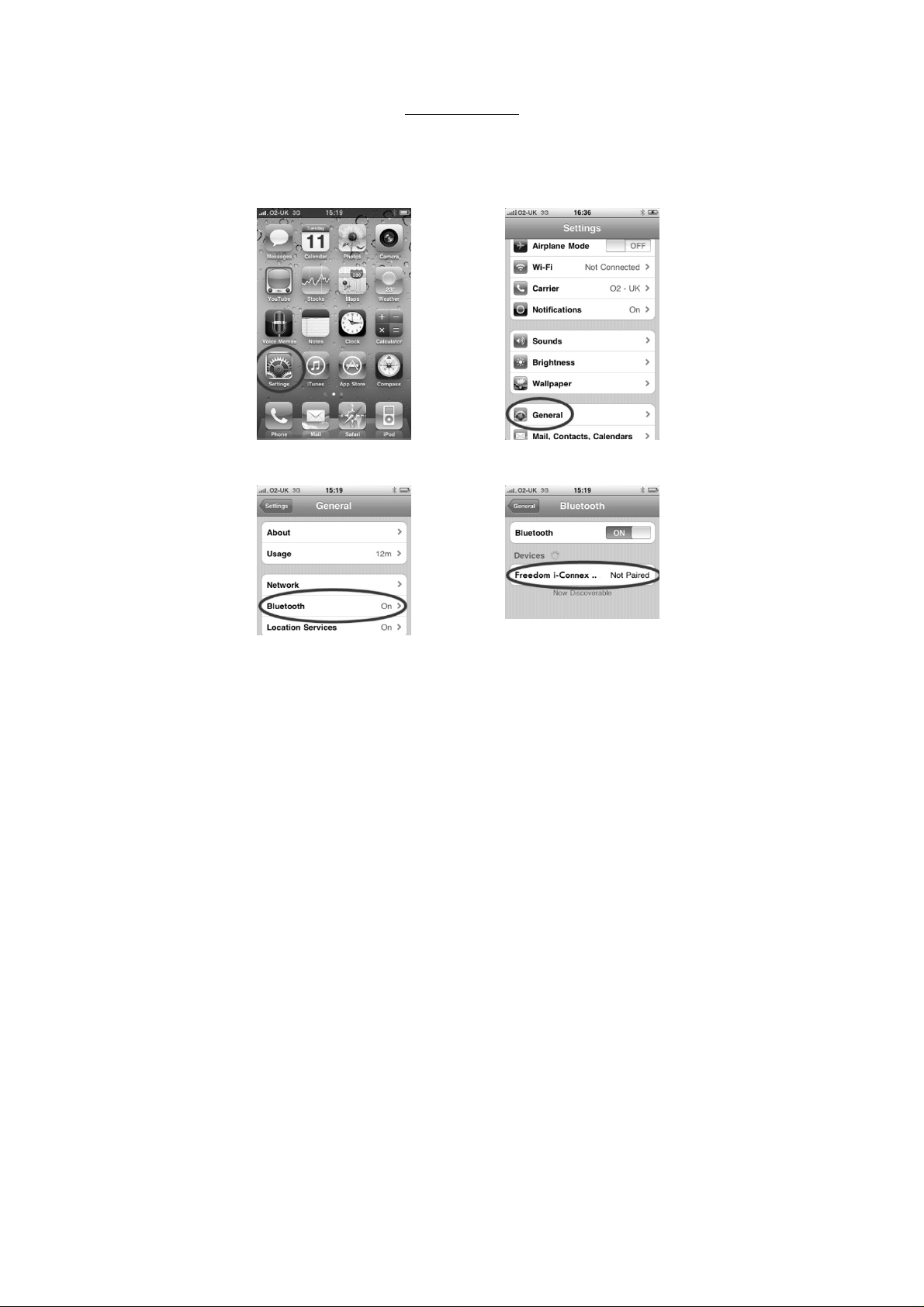
Connecting to an iPhone/iPad/iPod touch.
Please note that your device must be running the 4.0 operating system for the
keyboard to be able to connect.
1) Turn the keyboard on and press the recessed pairing button down for 5
seconds.
2) On your iPhone, iPad or iPod touch, go to “Settings". Then from the settings
screen select “General”.
3) Now under the “General” settings select “Bluetooth”. Once your device finds
the keyboard select “Freedom ICX-2 Keyboard” from the list.
Pairing the Keyboard
3
Page 4
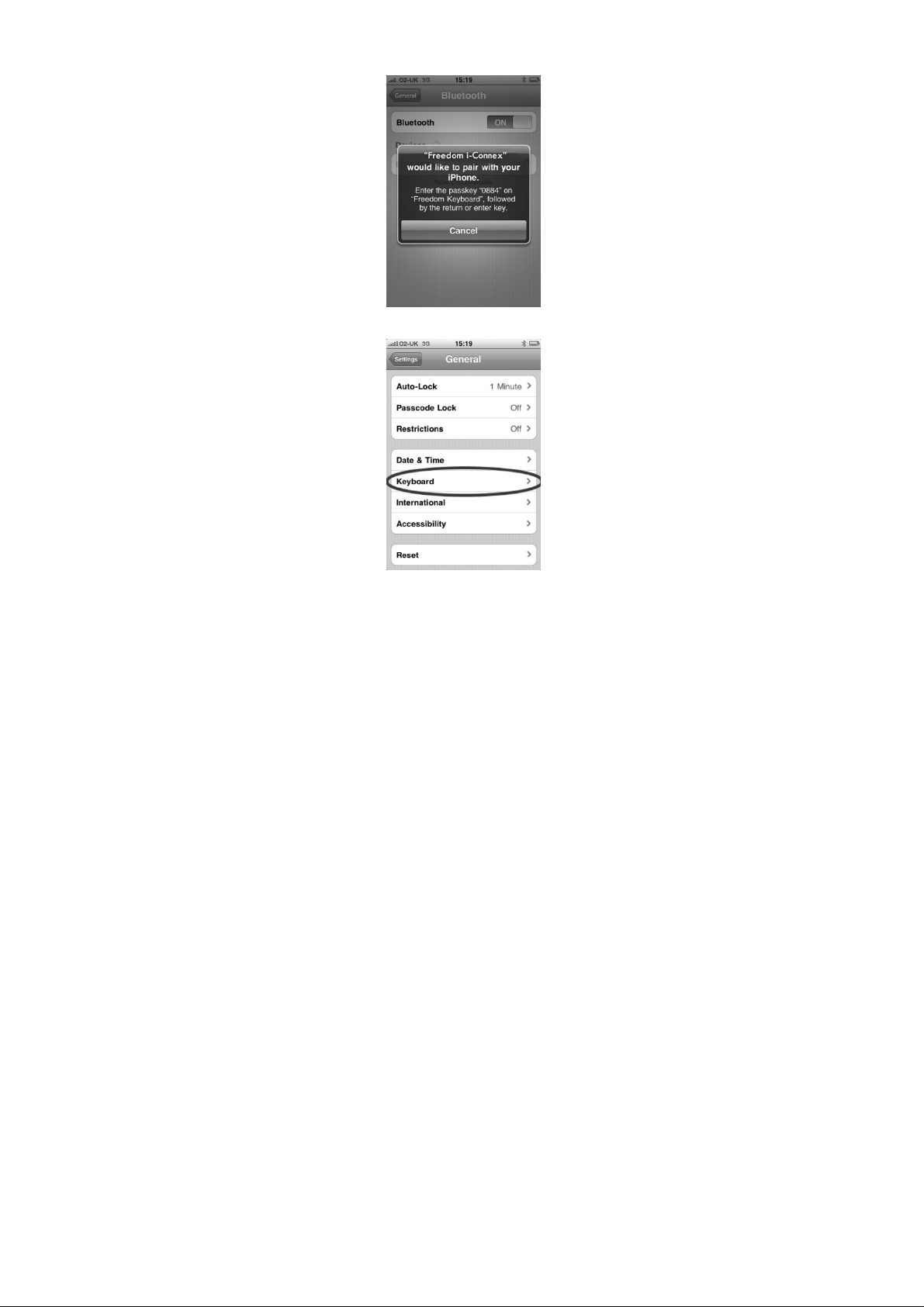
4) Your device will now give you a 4 digit passkey. Enter this key onto the
Freedom i-Connex and press enter to complete the pairing (also on the Freedom
ICX-2).
5) Now go back to the “Settings” page and select “Keyboard”.
4
Page 5
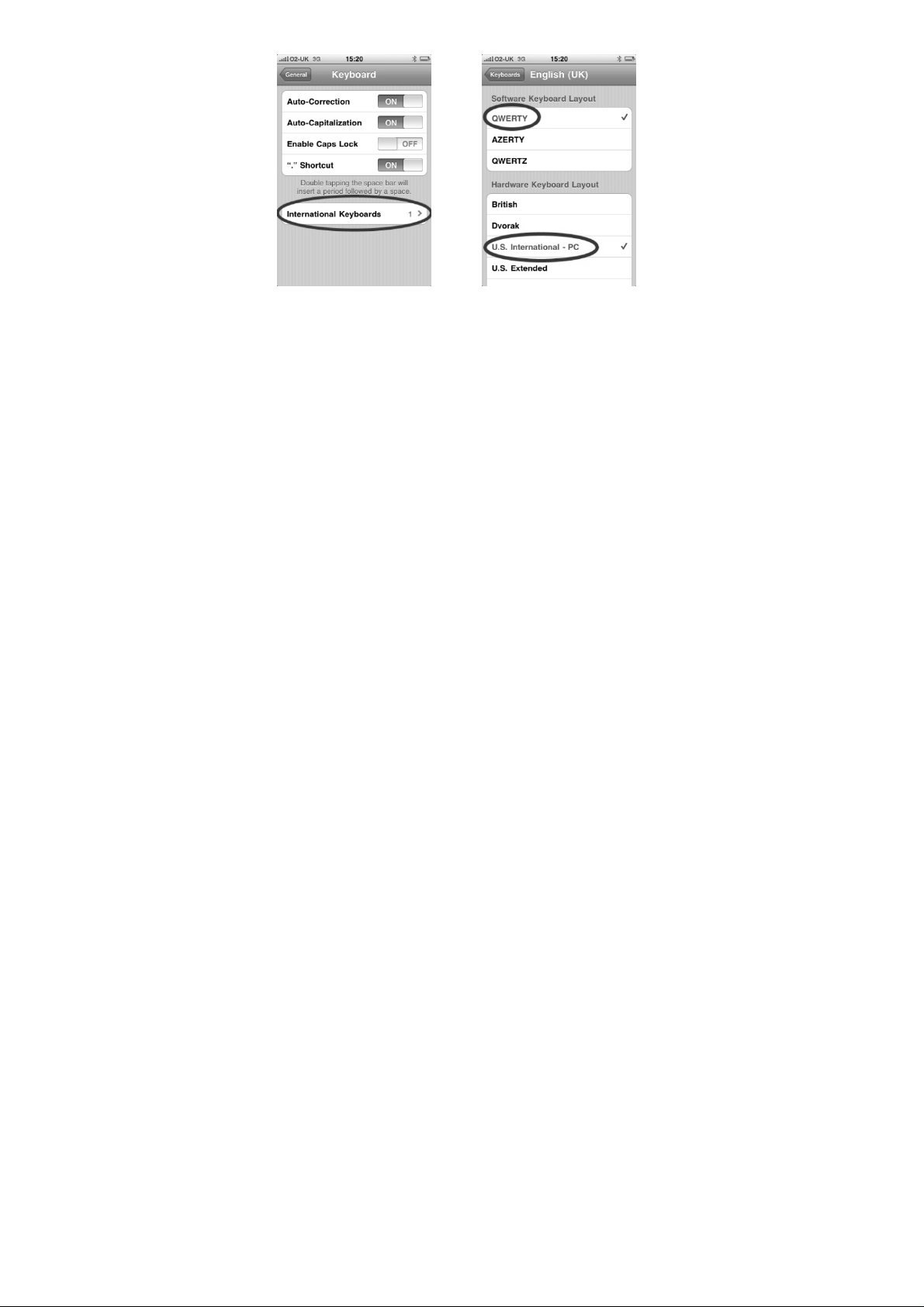
6) Select “International Keyboards”. Now sele ct “QWERTY” and “US
International – PC”.
Optional:
inputs. Select the “International Keyboards” button again and then select the
“Add New Keyboard” option.
7) Now your Freedom ICX-2 keyboard will be connected. From this point
forward you just need to switch the keyboard on and off when you need it. It
will automatically reconnect when switch ed on.
You can also add additional keyboard layouts for other language
5
Page 6

Shortcut Keys for the iPhone and iPad
Switching input language:
If you have defined more than one input language (Page 5, step 6) you can
quickly switch between them using the keyboard shortcut combination below.
1) Press and hold the “Menu” key.
2) Press the “Space Bar” to bring up the input language selection menu.
3) Press the “Space Bar” to toggle between input languages.
4) When the desired input language is selected release the “Menu” key.
Additional Shortcut Keys
Please note that some programs may not recognise all shortcut keys.
Shortcut key combination Effect
Menu+C Copy Selected Text
Menu+V Paste Text
Menu+Z Undo
Menu+X Cut Selected text
Shift+Cursor keys Highlight/Select Text
Menu+A Select all
Menu+Cursor Up Top of Page
Menu+Cursor Down Bottom Of Page
Double press “Home” button Open Task Switcher
Hold “Home” button Open Voice Control
Press “Home” button Return to Home Screen
Press “Home” button when on Home
Screen.
Switch to “Search” bar.
6
Page 7
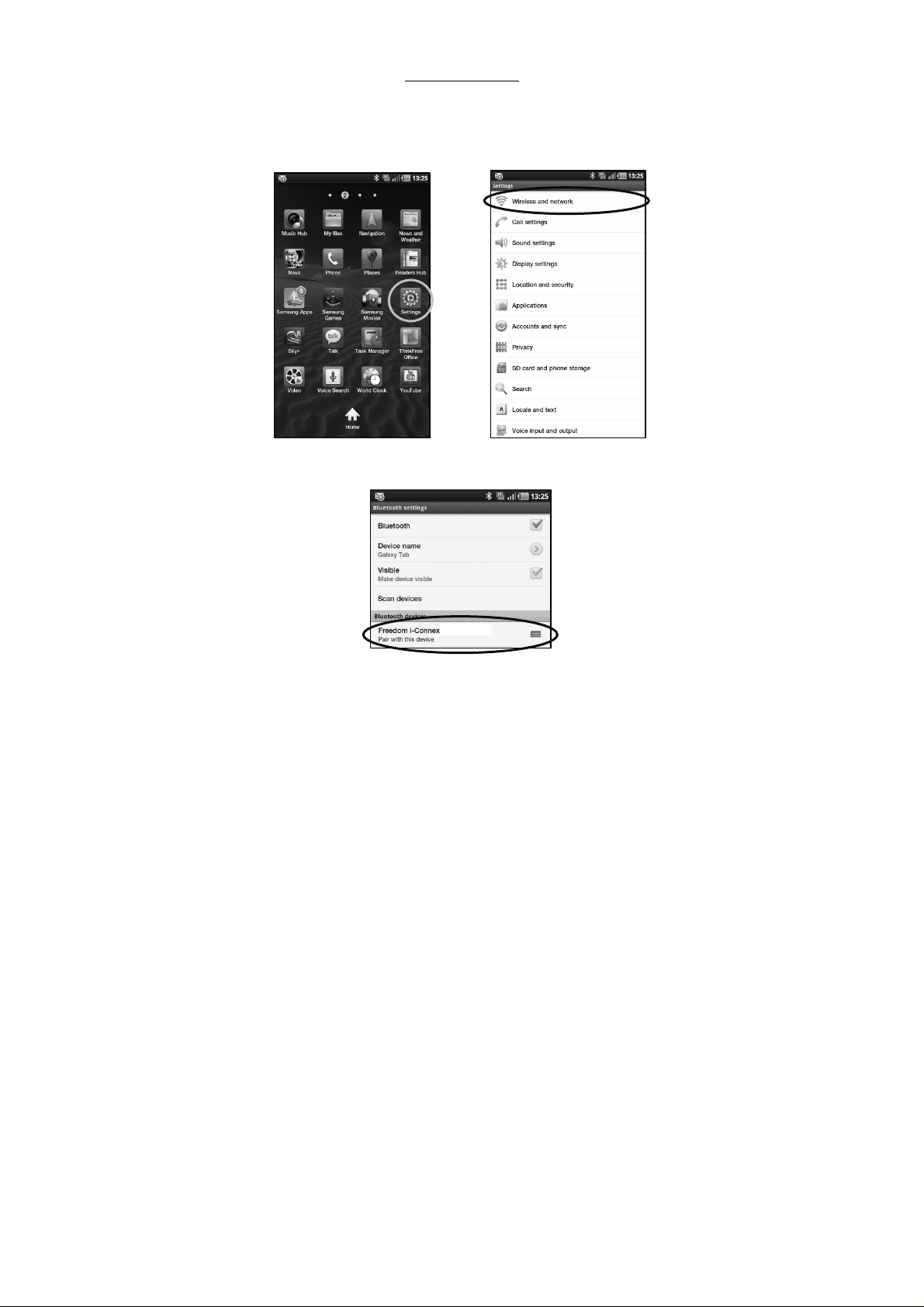
Connecting to Samsung Galaxy S and Galaxy Tab
(and other Android devices which have built in HID support).
1) Turn the keyboard on and press the recessed pairing button down for 5
seconds.
2) On your Android Device, go to “Settings". Then from the settings screen
select “Wireless and network”.
3) Now select “Bluetooth Settings”. Once your device finds the keyboard select
“Freedom ICX-2” from the list.
Paring the keyboard.
7
Page 8

4) Your device will now give you a 6 digit passkey. Enter this key onto the
Freedom ICX-2 and press enter to complete the pairing (also on the Freedom
ICX-2).
5) Now your Freedom ICX-2 Keyboard will be connected. From this point
forward you just need to switch the Freedom ICX-2 on and off when you need it.
It will automatically reconnect wh en switched on.
8
Page 9

Connecting to a Windows Mobile device.
Phones Using HTC Touch Flow interface:
1) Turn the keyboard on and press the recessed pairing button down for 5
seconds.
2) Click on Start.
3) Click on “Settings” icon.
4) Click on “All Settings” from the left hand menu.
5) Click on the “Bluetooth” icon.
6) Click on “Menu” and select “Add Device”. The phone will n ow search for
nearby Bluetooth devices.
7) Once it has finished searching select “Freedom ICX-2” from the list.
8) The phone will now give you a passkey. Enter this passkey onto the keyboard
and press enter (also on the keyboard) to complete the pairing.
9) Now your Freedom ICX-2 keyboard will be connected. From this point
forward you just need to switch the keyboard on and off when you need it. It
will automatically reconnect when switch ed on.
Phones Using standard Windows Mobile Interface:
1) Turn the keyboard on and press the recessed pairing button down for 5
seconds.
2) Click on Start.
3) Click on “Settings” icon.
4) Click on “Connections” Tab.
5) Click on the “Bluetooth” icon.
6) Click on “Menu” and select “Add Device”. The phone will n ow search for
nearby Bluetooth devices.
7) Once it has finished searching select “Freedom ICX-2 keyboard” from the l is t.
Note the next step can vary depending on your phone (8a or 8b):
8a) The phone will now give you a passkey. Enter this passkey onto the
keyboard and press enter (also on the keyboard) to complete the pairing.
8b) The Phone will ask you to enter a passkey. Enter any 4 or 5 digit number
you wish and click next. You will then get the “waiting” animation on screen. At
this time enter the same number onto the keyboard and press enter (also on the
keyboard) to complete the pairing.
9) Now your Freedom ICX-2 keyboard will be connected. From this point
forward you just need to switch the keyboard on and off when you need it. It
will automatically reconnect when switch ed on.
9
Page 10

Connecting to a Windows based
Desktop/Laptop/Netbook/Tablet.
The process for connecting under Windows differs slightly depending on version.
The instructions below are for Windows XP however the pr ocess is similar for
2000, Vista and Windows 7.
1) Turn the keyboard on and press the recessed pairing button down for 5
seconds.
2) Click on Control Panel.
3) Go to “Bluetooth Devices”.
4) Click on Add and follow the onscreen instructions to begin the process.
5) The Computer will now search for nearby Bluetooth devi ces. Once it has
finished select “Freedom ICX-2 Keyboard” from the list.
6) When given passkey options select “choose a passkey for me”.
7) When prompted enter this passkey onto the keyboard and press enter (also
on the keyboard).
9) Now your Freedom ICX-2 keyboard will be connected. From this point
forward you just need to switch the keyboard on and off when you need it. It
will automatically reconnect when switch ed on.
You may have to change your input language to “US International” for the key
mapping to match with what is printed on the keyb oard.
10
Page 11

General Trouble shooting and FAQ.
Q) My device is not seeing the keyboard when I’m trying to pair it.
A) Please ensure the keyboard is turned on and that you have held down the
recessed pairing button for at least 5 seconds. Al so make sure that the
Bluetooth LED on the keyboard is flashing. If the LED is not flashing check the
batteries are placed in the correct way and that they are not flat.
Q) Some of the keys are not matching what is showing on screen.
A) The Freedom i-Connect is based on the US International keyboard layout.
Some devices will require you to change your input layout settings to US
International.
Q) Some of the function keys are not working.
A) The Freedom i-Connect is designed to work with multiple devices. Some
function keys however are only recognised by certain devices. For example the
Email shortcut key and F1-F12 are not recognised by the Apple iPhone/iPad OS
and will have no function but they will work wit h Windows based operating
systems.
For technical support on this product please
visit:
http://freedom.helpserve.com
For the latest product announcements please
visit:
www.freedominput.com
11
Page 12

DECLARATION OF CONFORMITY
We, Freedom Input Ltd, Jasmine House, 65 Salisbury Road, Dover, Kent, CT16 1EY, United Kingdom,
declare under our own responsibility that the product:
Portable, Folding, keyboard for iPhone, iPod Touch, iPad, PDA’s, Pocket PC’s and Smartphones.
To which this declaration conforms with the relevant standards or other standardizing documents CE &
testing reports.
According to the regulations in:
EC Council Directive 1999/5/EC, R&TTE
RoHS Directive 2002/95/EC
P/N:FDMK-BT
This device complies with Part 15 of the FCC Rules. Operation is subject to the following two conditions:
1) This device may not cause harmful interference and
2) This device must accept any interference received, including interference the my cause undesired
operation of the device.
FCC RF Radiation Exposure Statement:
This equipment complies with FCC radiation exposure limits set forth for an uncontrolled environment. End
users must follow the specific operating instructions for satisfying RF exposure compliance. This transmitter
must not be co-located or operating in conjunction with any other antenna or transmitter.
Changes or modifications not expressly approved by the party responsible for compliance could void the
user’s authority to operate the equipment.
Freedom ICX-2 Keyboard
12
 Loading...