

Page 1

IP User Manual
2-wire Accessories
TF
Pow er
IN- US E
-
+
Please read this manual carefully before using the product .
Page 2
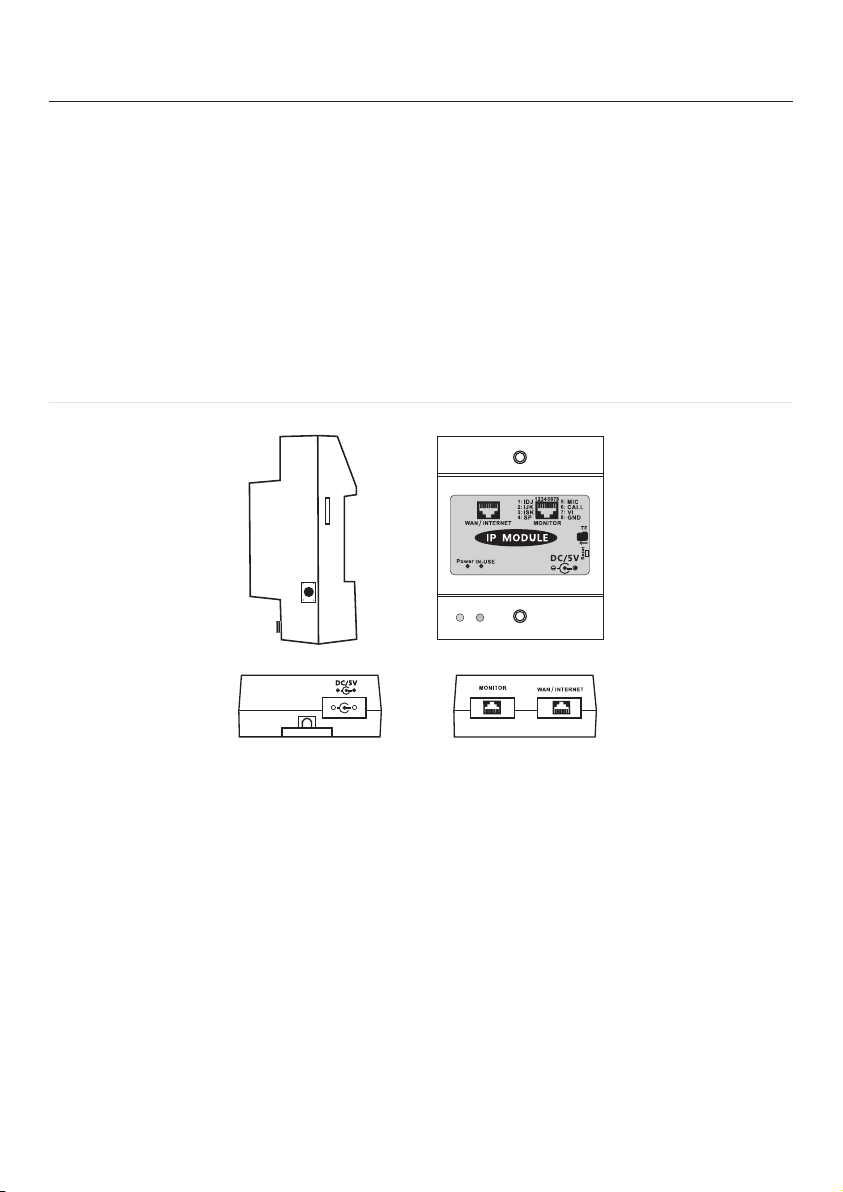
1.About IP description
While the indoor station is conneted with the IP model,the
mobile phone can get connect to the outdoor station as well,
you can talk/unlock / monitor the outdoor station by the APP
on mobilephone.This IP module can connect to our CAT-5
system, 2-wire system, 4-wire system.wifi configuring, the
red light off blue flashing fast, we must finish wifi configuration in 8 minutes.
2.Terminal description
Res et
-
TF Ca rd
+
Power
IN-US E
TF
Note:
1, Keep pressing RESET button over 8s to restore the original
settings, so WiFi needs to re-configure.
2, Only insert the TF card that can store the video.
3, Must restart the IP Module after inserting TF card, so TF
card can work normally.
4, About 90s to restart the IP Module, meanwhile the blue
light is flashing slowly and red light turns on that means IP
module works normally.
5, Red light turns off and blue light is flashing slowly that
means WiFi is under configuration.
-1-
Page 3
3.User manual
Installation instructions
1, The ways to download the APP
a) Scan the bar code in the user manual to download APP.
b) Search "IP intercom" in iPhone's APP store.
2, Connect with power supply to get online in one minute.
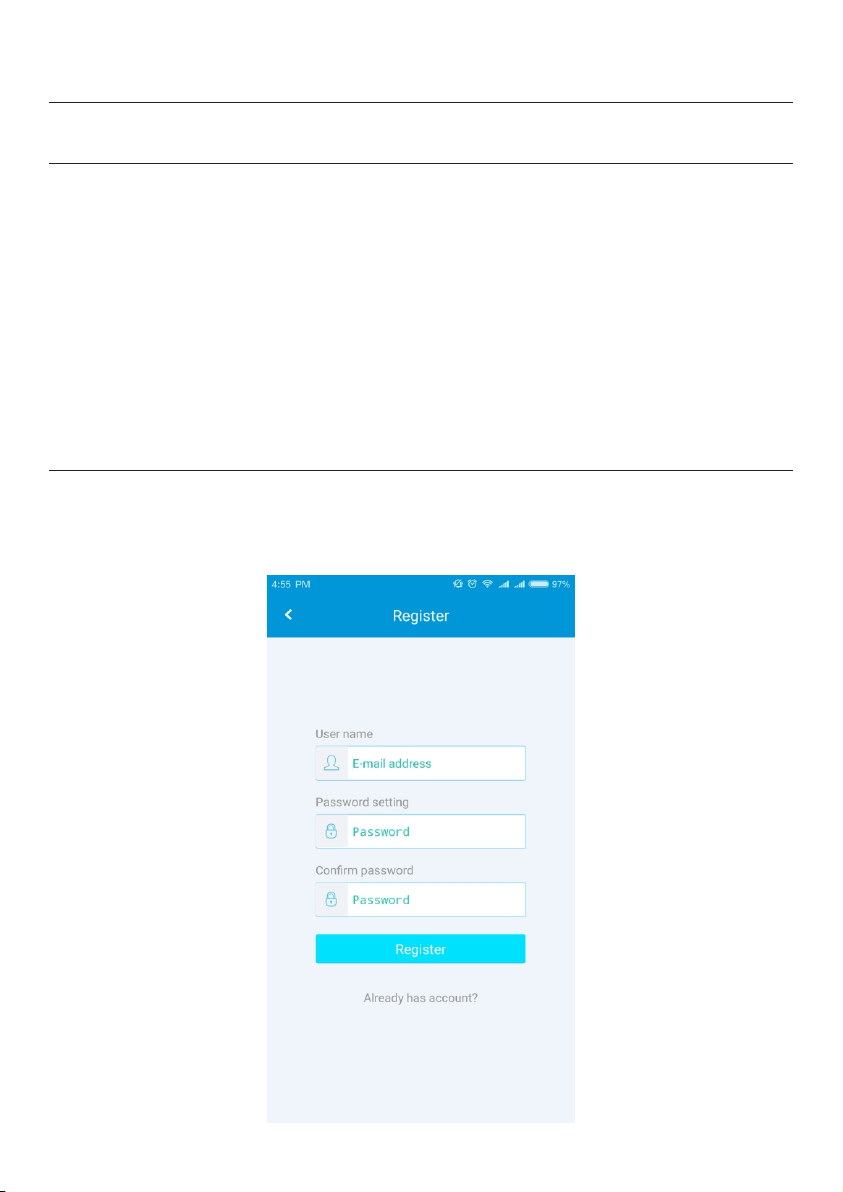
Registration instructions
Register by your valid email ID and set password to get the
valid account.
-2-
Page 4
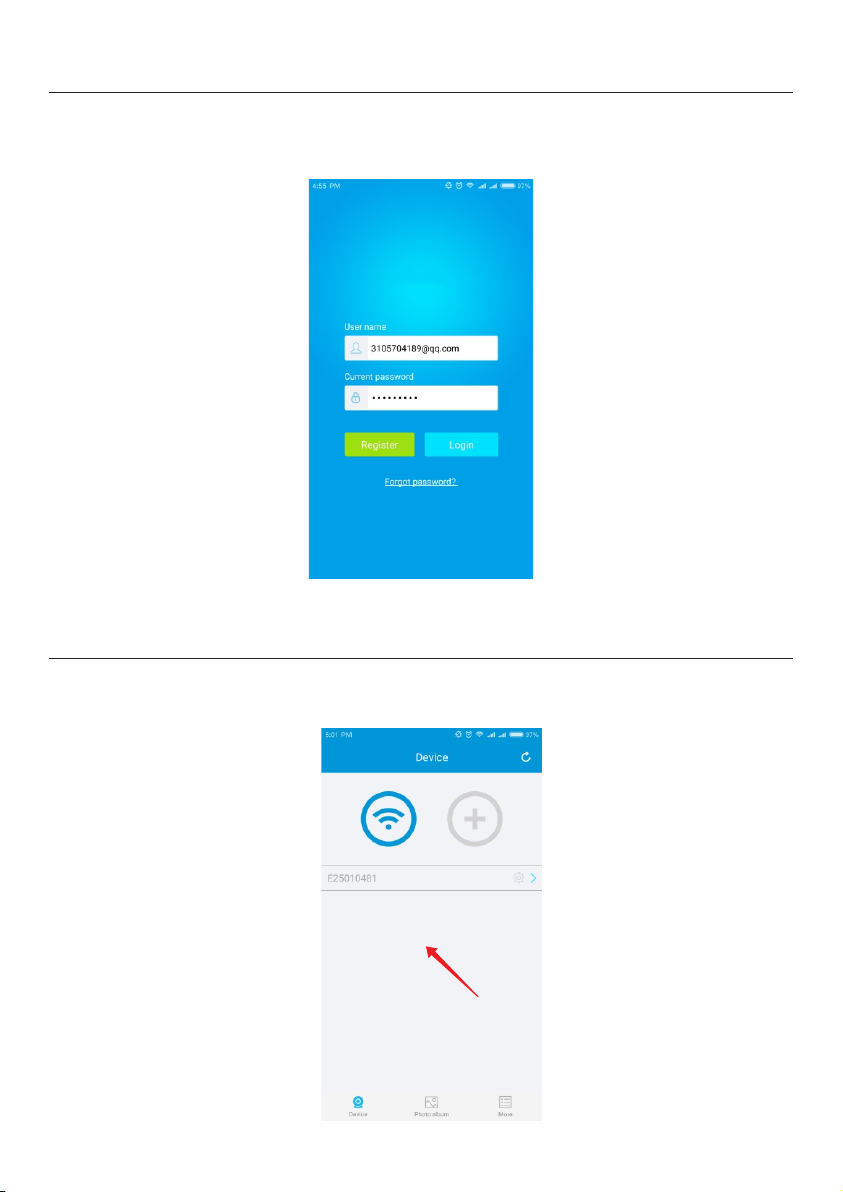
Login
Enter the valid account and password that will be kept
automatically so you can login automatically next time.
Login Interface
Add device
1. Click “ + “ to add device as below.
-3-
Page 5
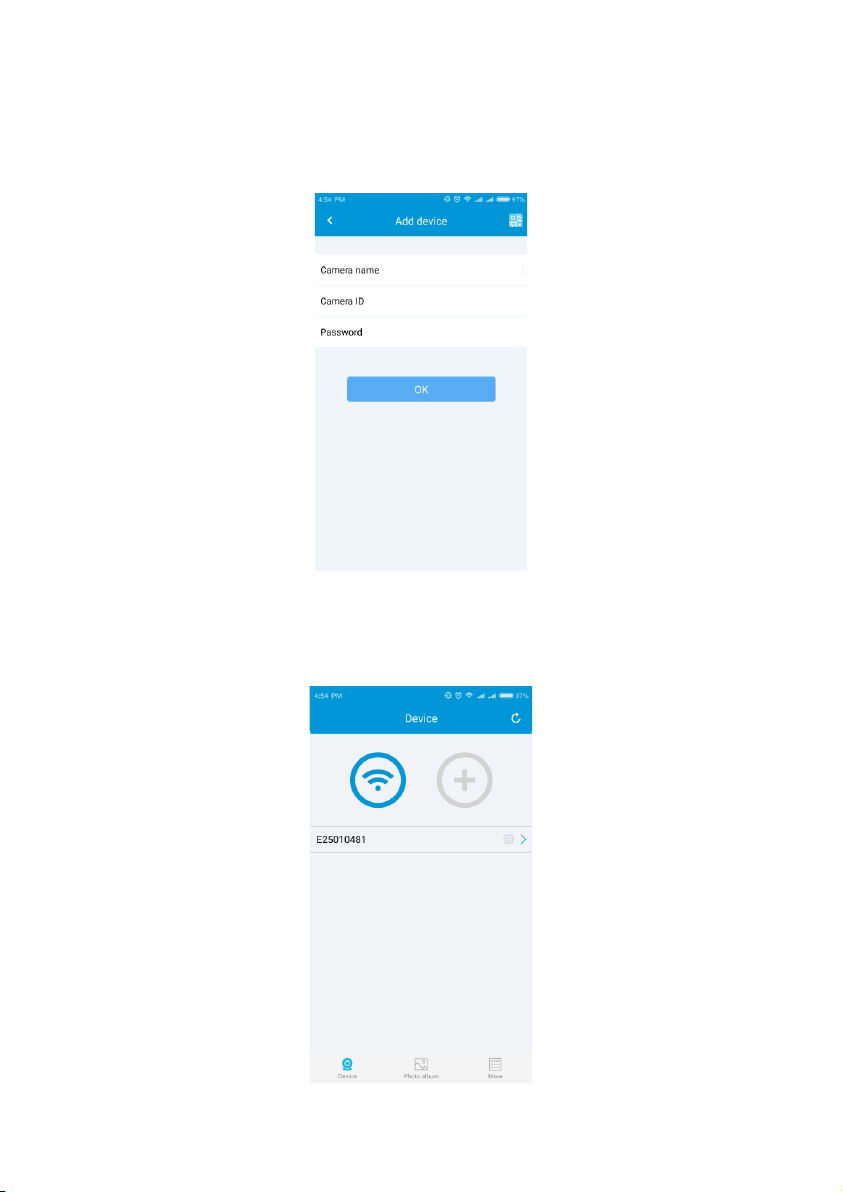
2. Add device as below methods:
a) Scan the bar code to add device.
b) Enter the right camera ID and password to add device.
PS: Bar code and camera ID can be found on the device.
Add Dev ic e In te rface
Status
Device online
Device offline
-4-
Page 6
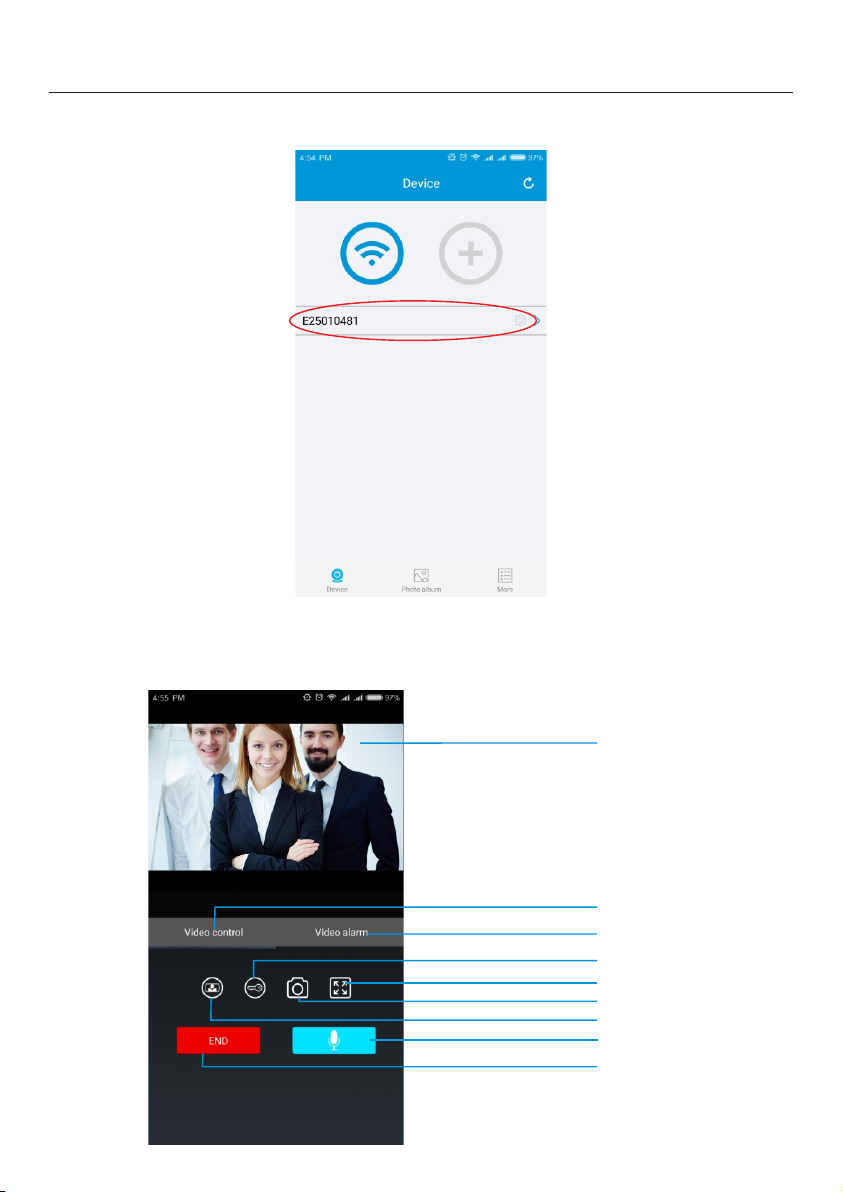
Monitoring operation
1. Click monitoring to enter the monitoring page.
2. Monitoring description:
Video
Video co ntrol
Call r ecord s
Unlo ck
Enla rge
Poto graph
Moni tor/s witch c amera
Push t o talk /R eleas e to list en
End
-5-
Page 7
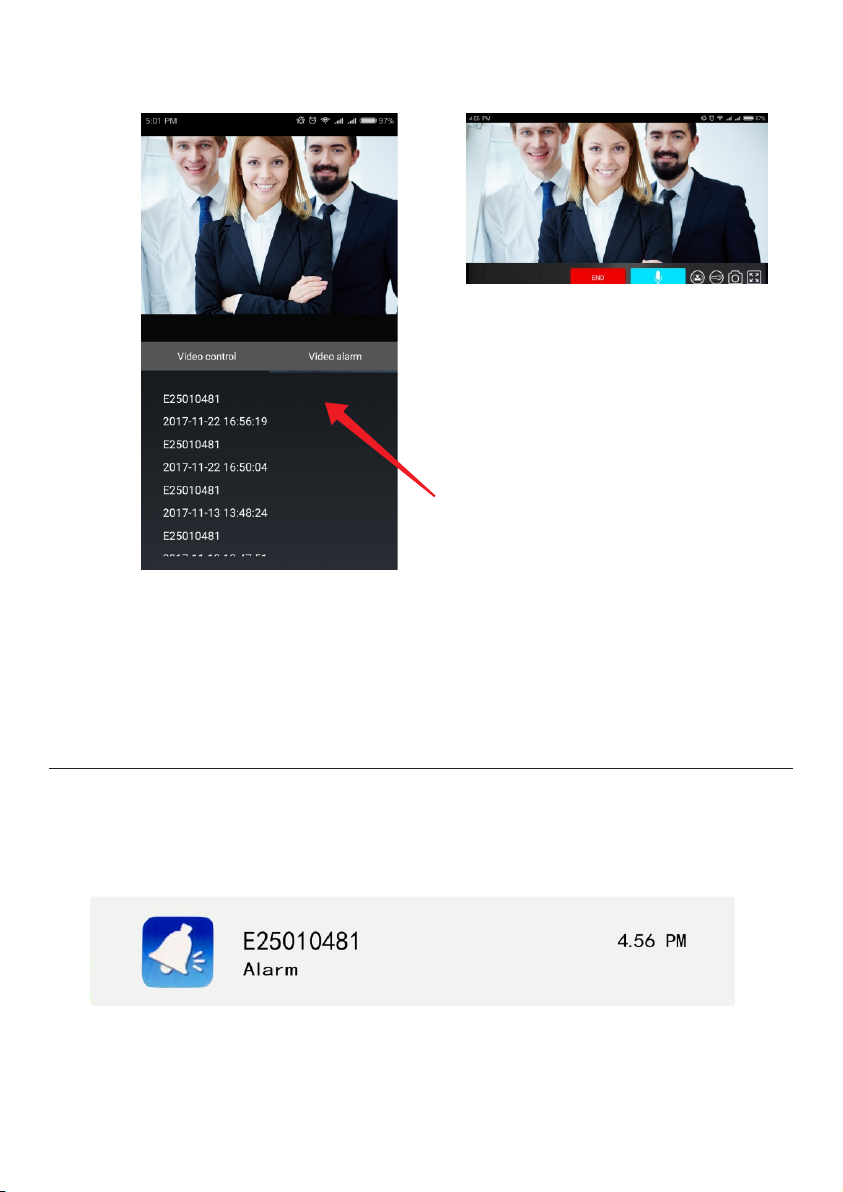
Enlarge
Video replay
Call Records
Call operation
1. To push call button on the door station , the mobile phone will
get a calling notification, click the notification on the mobile
phone to enter the menu.
-6-
Page 8
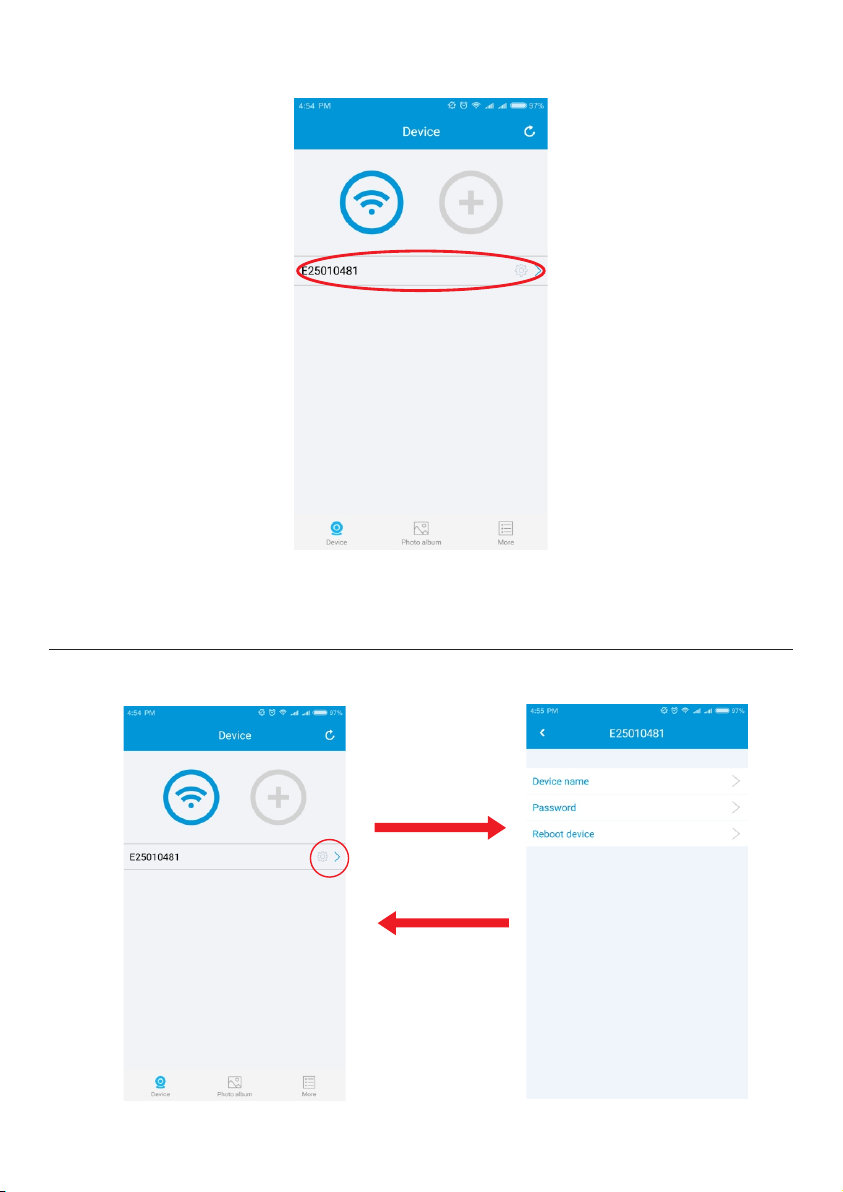
2. Click the device to answer the call.
Other operations
Change device's name and reset password.
-7-
Page 9
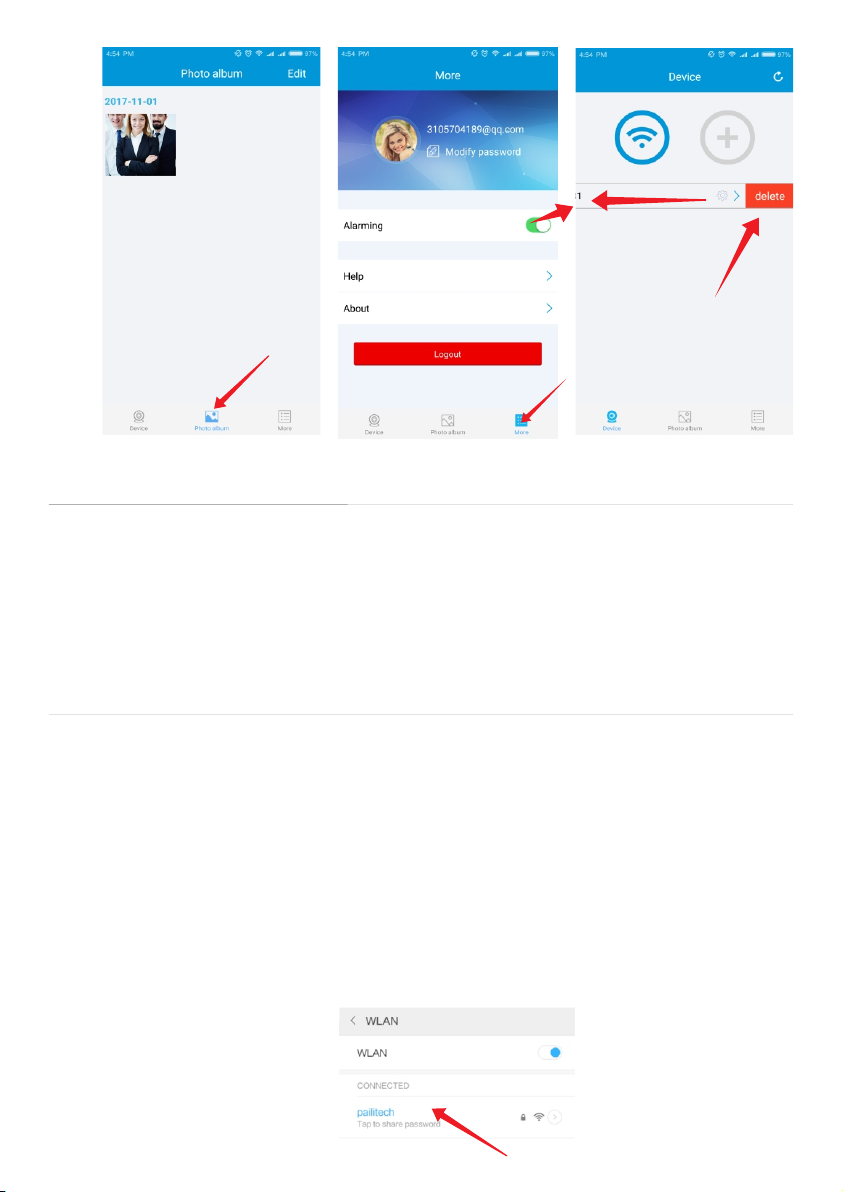
Alarming n oti ce switch
Check phot os
Scroll lef t
Delete dev ice a s below
Configuration instructions of the wired IP module
The wired IP module does not require any configuration after
connecting with network, meanwhile blue light is flashing
slowly and red light turns on always that means connection is
successful.
Configuration instructions of the wireless IP module
Mobile phones must connect with normal WiFi to configure
wireless IP module, and this WiFi signal must be the same one
as the working wireless IP module.
Step 1, Restart IP module after cutting off the wired cable to
enter the WiFi configuration situation, meanwhile red light
turns off and blue light is flashing quickly, and also WiFi
co nfi gur ati on m ust g et fi nis hed wit hin 8 m inu tes .wi fi
configuring, the red light off blue flashing fast, we must finish
wifi configuration in 8 minutes.
-8-
Page 10
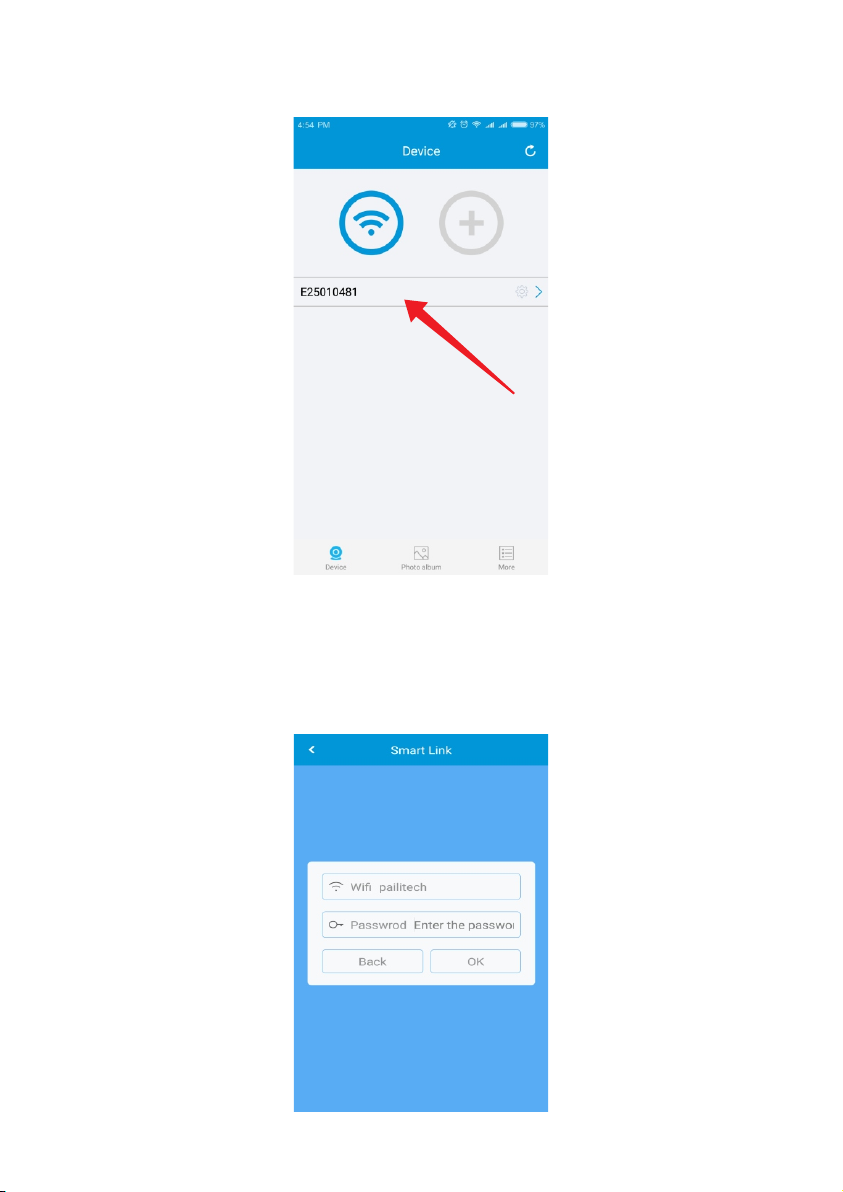
Stept 2, Open the APP, click the WIFI logo.
stept 3, Input the WIFI password, it will choose the WIFI name
automatically.
-9-
Page 11
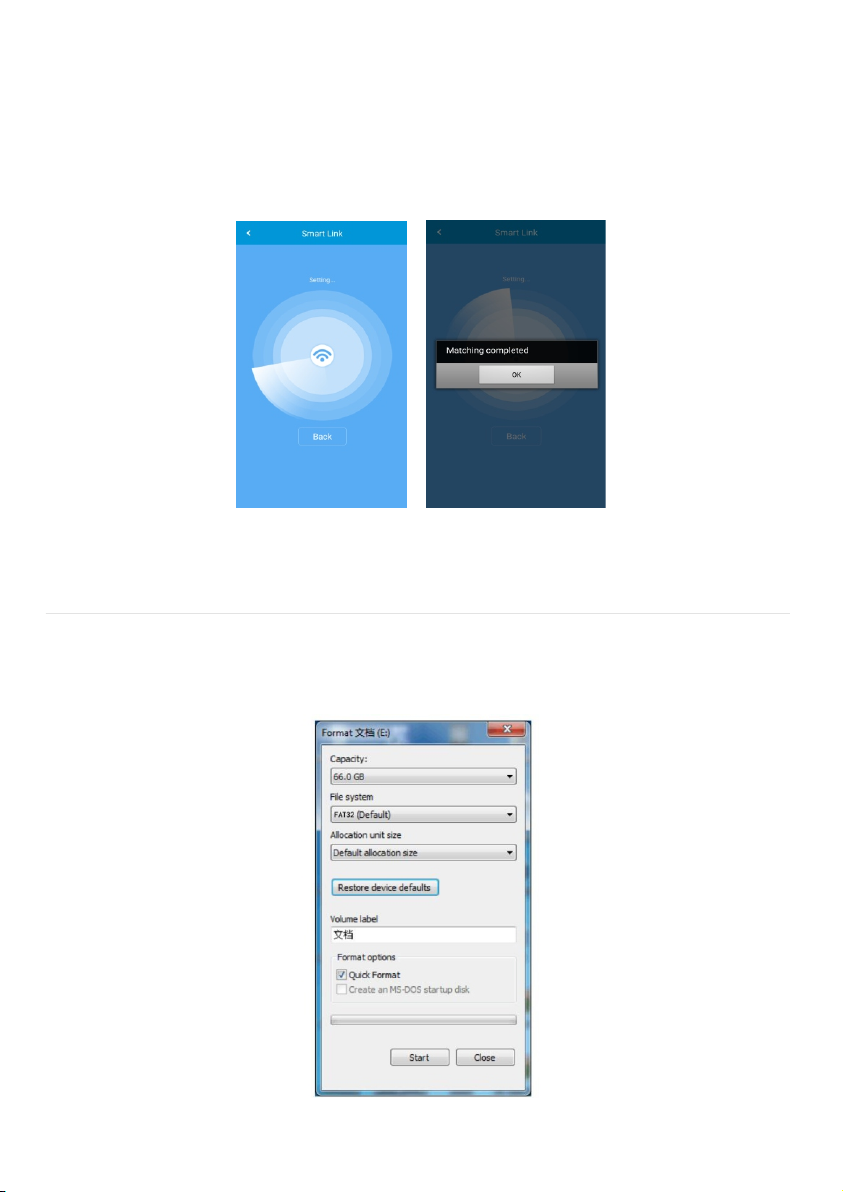
Stept 4, While it is showing matching completed, the IP module
will restart automatically in 1 minutes, when the blue light
flashes slowly and the red light is always on, representing the
connection is successful.
SD card operation
1, SD card must be formatted on the computer before inserting it
into the IP module.
2, Only on calling, IP module can record video that is stored in SD
card.
-10-
Page 12
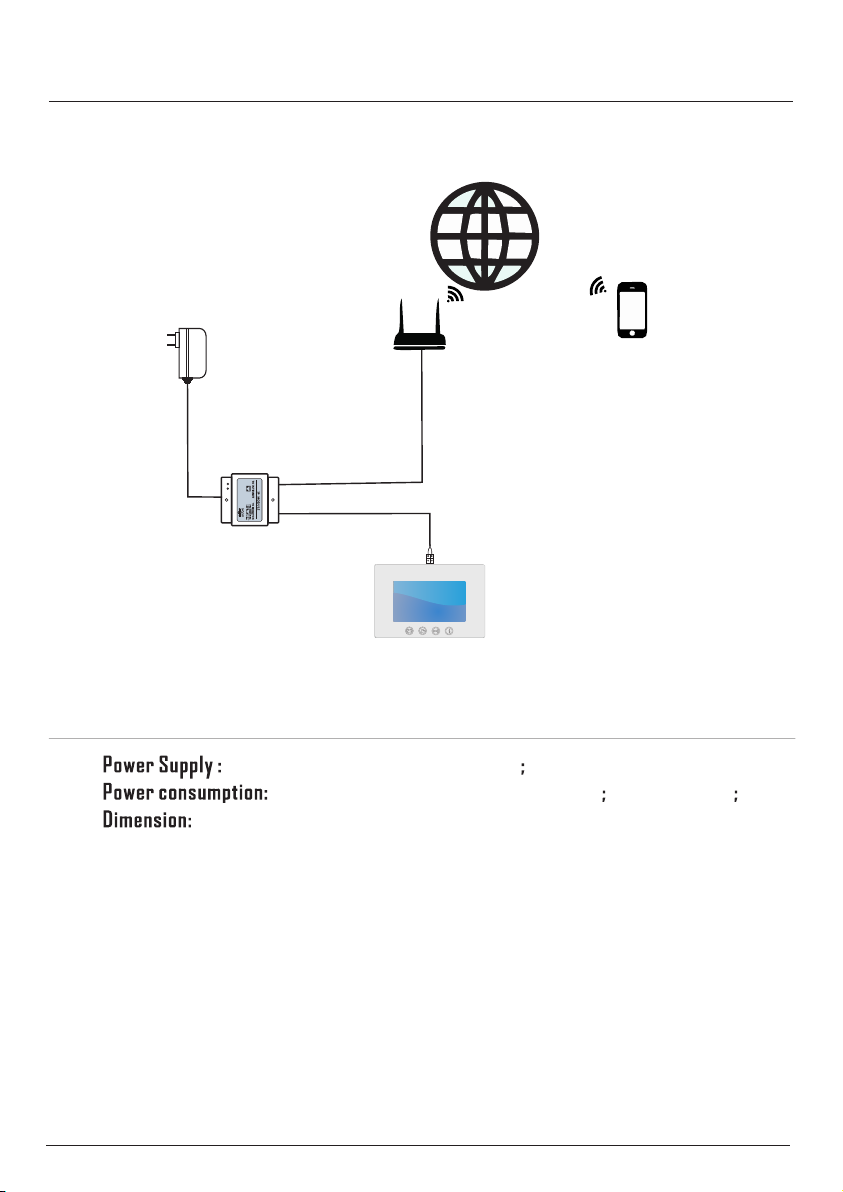
4. Wiring diagram:
IP module can be added to each monitor, and the connection
diagram is as follows.
Power Supply
Router
+
-
IP Module
UT P 5 E
UT P 5 E
5.Specification
Internet
Mobile phone
Monitor
DC5V
Standby200mA Working280mA
89(H)x72(W0x45(D)mm
The design and specifications can be changed without notice to the user. Right
to interpret and copyright of this manual are preserved.
-11-
 Loading...