

Page 1
FM-6603FM-6603
User Manual
Digital Mp3 Player
Page 2
1
Thank you for purchasing Foxda
digital Mp3 Player. Please read
through the user manual carefully
beforeoperating the machine in
order tomaximize the ability and
life of our product. Please take
good care ofthis manual for future
reference. The appearance of our
players shown in the manual may
differ from the actual products since
allpictures are based on the
prototypeof our models.
This device complies with Part 15 of the FCC Rules.Operation
is subject to the following two conditions:(1)this device may not
cause harmful interference received,including interference that
may cause undesired operation.
We strongly recommend you to read through
this manual before connecting this machine
with any PC. If you want to connect this player
with the PC, please first connect the USB
cable to the player and then to the PC. If you
want to disconnect the player from the PC,
Please first unplug the cable from the PC. Our
company will not take the responsibility for
damage caused by any inappropriate operation.
As some components would take up
spaces in the flash memory, it is normal
to find out that the available memory
size is lesser than normal.
Page 3

Content
Note................................1
Overview
MP3 Player.......................3
LCD.................................4
Earphone.........................5
Features..........................6
Technical Spec.................7
Operational Notes.............8
Operation Notes
Battery/Power on or off......9
Operation MODE..............10
Operation Notes...............11-13
Advanced Function
Menu/Function.................15
Music...............................16
Voice............................... 16-17
FM tuner...........................18-20
CD Line-in........................ 20-21
Configuration....................21-24
Erase files........................ 24-25
About/Return....................25
Communication with Computer
Connection...........................27
Installation............................28
Download..............................29
Remove.................................30
Formatting.............................31
FAQ.......................................32
Menu Overview.......................33
Page 4
3
OVERVIEW
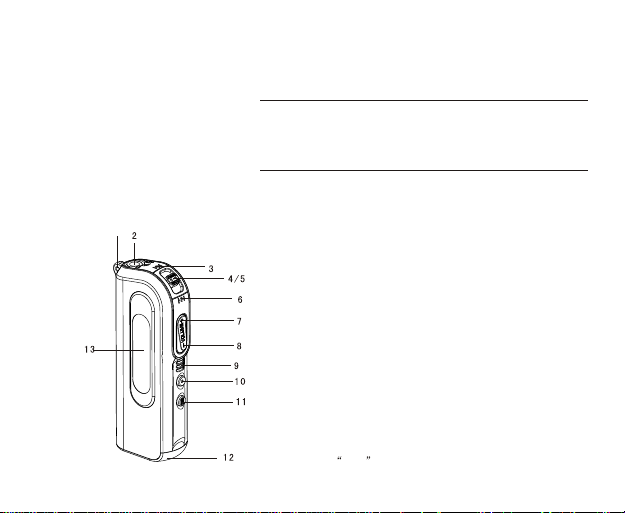
This player is an MP3 player with removable storage hard disk and
fashionable appearance. It is user-friendly, easy to operate and
provides recoding, music playing and repeating function.
1
1.Neck Strap Loop
2.Earphone/USB port/CD Line-in Jack
3.FF
4.PLAY
5.STOP
6.RW
7.Vol +
8.VOL-
9.Internal Microphone
10.REC/A-B/EQ
11.Menu
12.Battery Cover
13.LCD
Note: Press 10&11 Button to enable the
hold function.
Player overview
Page 5
4
3
1 42
A-B
MUSIC.MP3
Song 001-01:05/04:47
8 9 10
7
JAZZ
5 6
12
23
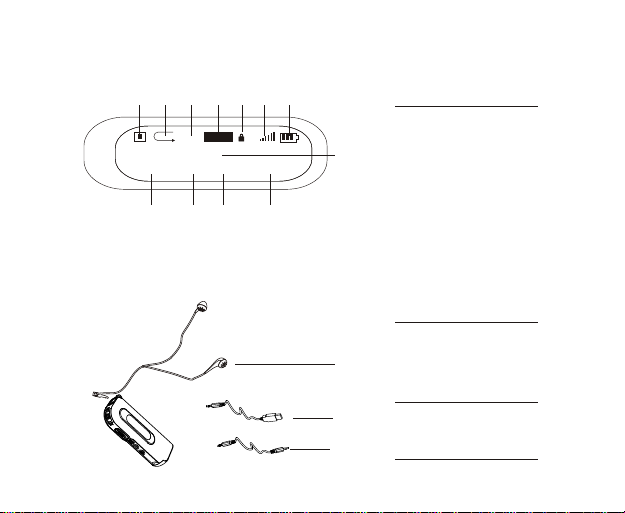
LCD
1.Status indicator
2.Play mode display
11
1
2
3
3.Repeat A-B display
4.EQ
5.Volume
6.Power
7.Function Status
8.Song No.
9.Current Music playing time
10. Total music playing time
11.Song message
12.Hold status
Earphone overview
1.Ear piece
2.USB cable
3.CD Line-in
Page 6
5
Accessories
1.USB cable
2.Earphone
3.Manual
4.CD-ROM
5.Neck Strap
6.CD Line-in cable
Features
Small in size, all-round functions
One jack for USB, earphone and CD Line-in connection (patent)
Online FM recording
CD Line-in
Animation Menu
Playback MP3/ WMA multi-format files
Equalizer mode options: Normal, Classic, Jazz, Pop, Rock, DBB.
LCD display, blue light background.
A-B repeat function
10 hours recording time (128MB)
12MB full speed USB internal flash memory
Low power consumption, AAA battery (12 hrs continuous playback time)
No driver required for windows me/2000/xp (except Windows 98SE)
Compact and light in Weight, Stylish appearance
Multilanguage version
Page 7
Data reference
Size 74 x 31 x 15 mm
Weight 25 g
Power Source 1.5V "AAA" Alkaline Batt.
Frequency Range (+-1db) 20Hz - 20KHz
Frequency 8 KHz - 48 KHz
Encode ISO 11172-3 (MPEG 1.0 Layer 3)
Bit Rate 64 kdps - 320 kdps
Distortion (1Khz) 0. 1%
SNR >80 db
MP3 (Sound Track Separation) >80 db
MP3 (Dynamic Range) >93 db
Recorder Length 16 bit
Transfer Speed 12 Mb Full Speed USB
Delivery Speed 4 Mbps
Power Out >5mW*2
6
Page 8

7
Operational Notes
“ If the MP3 player will not be operated for a prolonged period, remove the battery
to avoid possible damage caused by electrical leakage.
“ The MP3 player should be kept in areas free from extreme temperature changes,
moisture and dust.
“ Set the HOLD switch to release position before operation
“ Do not drop the player
“ Battery life may vary depending on usage condition and manufacture date.
“ Please change the battery under Low Battery indicator displayed.(All buttons
are not responding even after the battery has been taken out and replaced)
“ Do not use the player for a very long period in order to protect your audio ability
“ If the player stops running under propero peration,p lease r eset b y t aking o ut b attery.
“ Do not use player when driving or cycling.
“ The optimum temperature for operation is 5 -45 degree Celsius (41F-95F) with
humidity between 10% and 75 %.
Page 9
Operating Instructions
8
Page 10
9
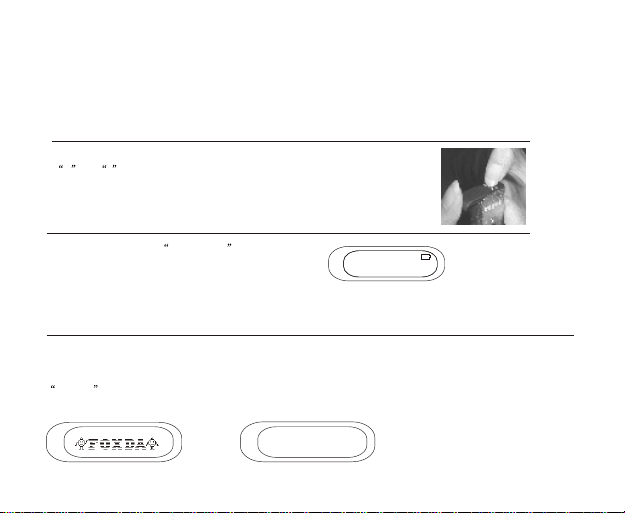
Load battery
Open the battery compartment and load one AAA7 battery as directed by
+and-.
Change battery
When the LCD displays Low Battery , it indicates a
need of battery change. Turn off the machine before
replacing a new battery.
Turning the power on/off
The OSD with blue backlight appears when PLAY/STOP button is pressed. The length of time for the backlight to
stay on is depending on user setting.Switching the power off by pressing on the PLAY/STOP button continuously.
When the machine has idled for a while, auto power off will activate according to the time set by user. You can set
Disable function to let machine cancel this function.
power off
Page 11
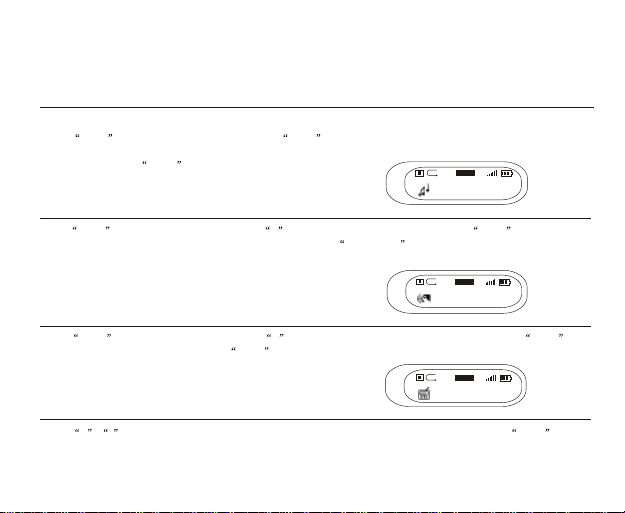
Functional Options
Music playing, voice playing & recording, radio function
Press Menu to select music mode. Then press Menu again to confirm playing music (machine will automatically
switch back to music mode if no operation for more than 10 seconds). You can play Mp3 and WMA format files in this
mode. LCD displays music as:
Music play mode
Press Menu button into music mode. Press + button to select voice mode and press Menu button again
to confirm this mode. It is the same procedure transferring from voice mode to music mode. LCD displays voice
as:
Voice play mode
Press Menu button into music mode. Press + button two times to select FM Tuner mode. Press Menu
again to confirm FM Tuner mode.Press Menu button into music mode.
FM mode
Press + , - button to select music,voice, radio, settings, erase files about or exit mode. Press Menu again
to confirm selection. (Ref. P. 15)
A-B
Music
A-B
Voice
A-B
FM
JAZZ
23
JAZZ
23
JAZZ
23
10
Page 12
11
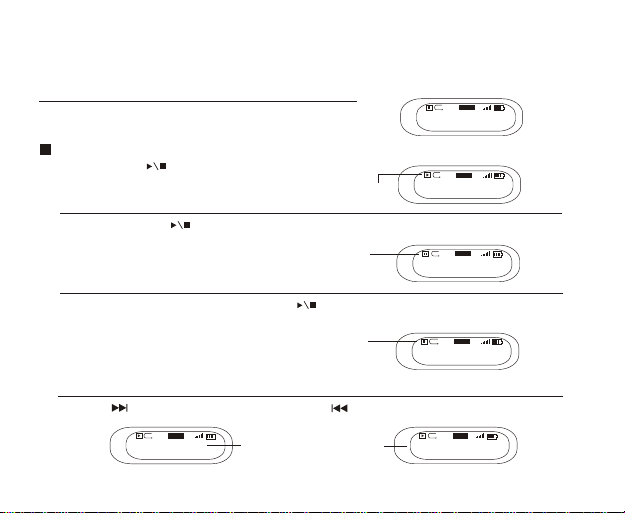
Music playing functions
The default OSD is in stop status under music mode
JAZZ
A-B
MUSIC.MP3
Song 001-01:05/04:47
Play/Pause/Stop/FF/RW
Press Play/Stop button to play, LCD displays as:
Under playing music mode, LCD
displays music mode
Press Play/Stop button again to pause playing. LCD displays as:
LCD displays pause mode when
music is pause playing
Under play or pause mode, press down Play/Stop button for 3 seconds
to jump to stop mode, and press Play/Stop button again to return to
playing music mode, LCD displays as:
Note: Only in stop mode, hold play/stop
button to switch off the machine. If the
machine is playing, please stop playing
first before switching off.
LCD displays stop mode when
music is stopped playing
Press FF button to select next song. Press RW button to select previous song.
JAZZ
A-
23
MUSIC.MP3
Song 001-01:05/04:47
RW/FF operation will cause song
information to change.
JAZZ
A-B
MUSIC.MP3
Song 001-01:05/04:47
JAZZ
A-B
MUSIC.MP3
Song 001-01:05/04:47
JAZZ
A-B
MUSIC.MP3
Song 001-01:05/04:47
JAZZ
A-B
MUSIC2.MP3
Song 002-00:01/05:12
23
23
23
23
23
Page 13
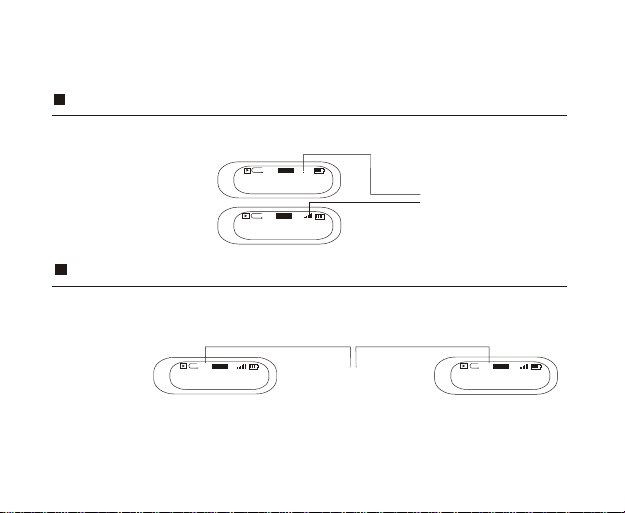
VOL+/ VOL-
By pressing VOL+/VOL- button, you could control the volume under either Play or Pause mode. The volume
steps (see illustration) will increase or decrease when then the VOL+/VOL- button is pressed correspondingly.
JAZZ
A-B
5
TRYING MUSIC.MP3
Song 001-01:05/04:47
JAZZ
A-B
23
TRYING MUSIC.MP3
Song 001-01:05/04:47
Volume adjustment can be
displayed by digit change
Repeat A-B function
Under music/voice mode, you can press A-B/EQ button to select A and B, then A-B music or voice will play
continuously. Press A-B/EQ button to cancel, LCD displays as:
12
JAZZ
A-
23
TRYING MUSIC.MP3
Song 001-01:05/04:47
Remark: Under stop mode, this function is out of operation. Press A-B/EQ/REC for a period of time to
change into EQ setting. (For EQ setting please refer to P. 13)
Repeat A-B setting display
JAZZ
A-B
23
TRYING MUSIC.MP3
Song 001-01:05/04:47
Page 14
13
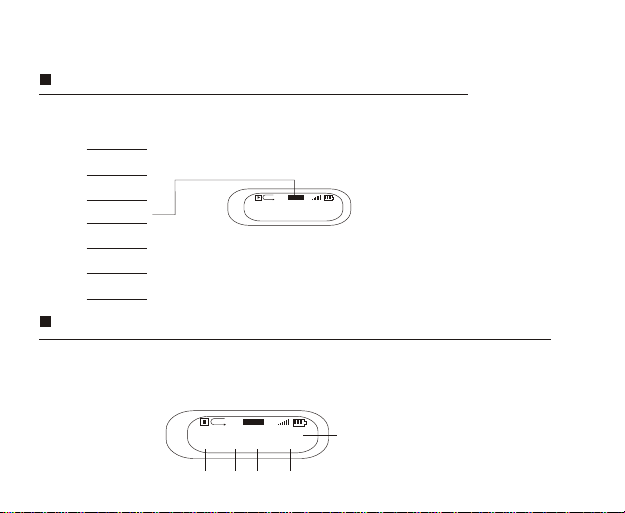
EQ setting
Under the playing mode, press A-B/EQ button for a period of time to select 6 different
music modes:
Normal
DBB
Jazz
Rock
Classical
LCD displays as:
JAZZ
A-B
23
TRYING MUSIC.MP3
Song 001-01:05/04:47
Press this button a period for EQ set, short time for repeat A-B set
Description of another set method(Ref.p21)
Pop
Music/Voice information display:
When in play/stop status, the display will scroll to show the information of music or voice file, e.g.
song title, distributor, copyright, etc. The next line shows the song or voice file number, e.g. song001
or voice001. Next it is the current playing time of the music or voice file, and then the total playing time.
JAZZ
A-B
MUSIC.MP3
Song 001-01:05/04:47
2 3
23
4
5
1.Song title animation rolling
1
2.music or voice
3.music or voice file number
4.Current playing time
5.file total time
Page 15
Advanced function
14
Page 16
15
Advanced function
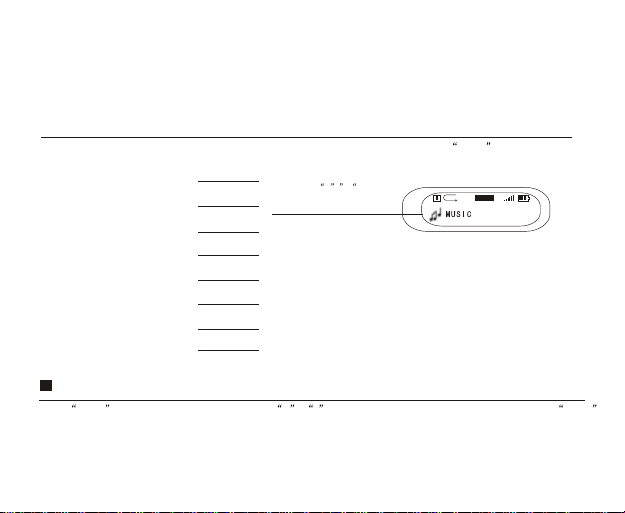
Followed are the more advanced functions of our MP3 player for you. You can press Menu button to
select 6 modes
press + - button
Music
Voice
FM Tuner
Line in
Settings
Erase Files
About
Exit
cycling to select above
item, LCD display as :
MENU
Press Menu button to enter this mode. Press + . - to cycle selecting above 6 functions and press Menu
button again to confirm your selecting.
Note: No operation in 5 seconds, machine returns to latest setting mode.
JAZZ
A-B
23
Page 17
Music mode ( Ref. P. 10)
This is the default mode. Users can play MP3/WMA files under this mode. Users can also run repeat (Ref. P. 22)
/A-B/RW/FF/V+,-/EQ setting in this mode.
Voice mode
Under music mode, press Menu button and + button to select voice mode then press Menu button to
confirm . Under voice mode, you can select play/record/repeat/A-B/RW/FF/V+,-/EQ setting.
1. Play/RW/FF/V+,- (Ref. Page 11)
JAZZ
A-B
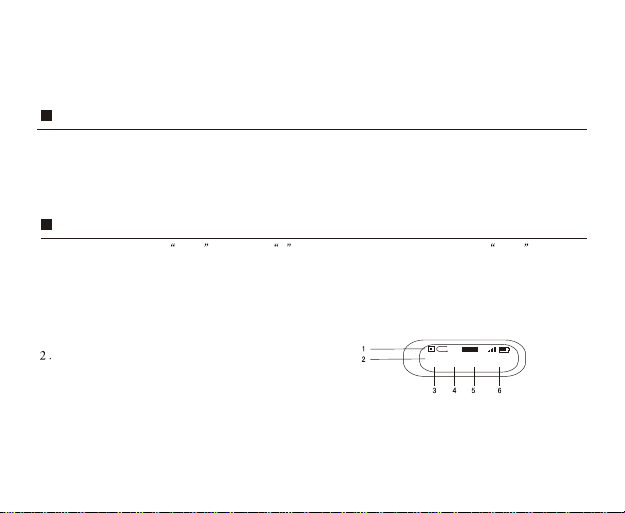
Recording: Under voice mode, LCD display as
1.Display Stop status
2.Voice file name and path
3.Voice file icon
4.Voice file number
5.Voice file current recording time
6.Voice file total recording time
23
/V001.WAV
Voice 001-00:05/01:00
16
Page 18
17
Start Recording
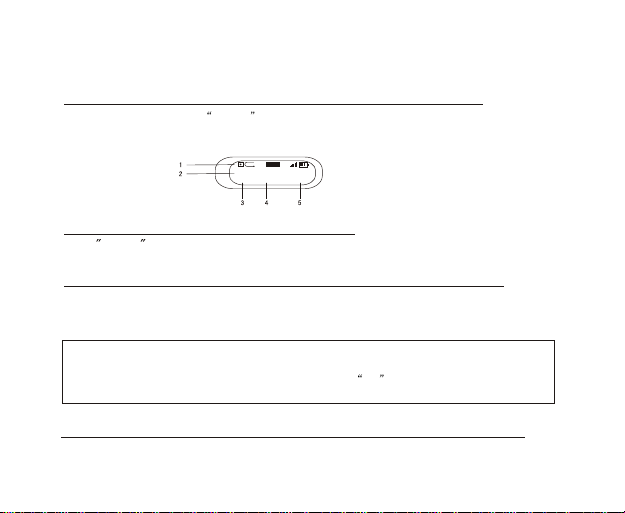
Under Voice Function, press A-B/EQ button to start recording (build-in Microphone,
microphone's position can be seen in P.2). The display is as follows:
JAZZ
A-B
23
/VOICE/V001.WAV
REC 00:00:05/07:58:00
1.Recording Function display
2.Name and track of recorded file
3.REC Function
4.Time of recorded file
5.Total time of recorded file
Stop Recording
Press A-B/EQ button again to stop recording.
Play Recording
The operating procedure is the same as operating music files (Ref. page 11).
(Display reference in Page 13)
Note: "A-B" repeat function only works in playing or pause mode. Users cannot use
this function in recording or stop mode.
Press "A-B/EQ" for a while and then users can adjust the EQ mode in play/stop/pause
status. Users cannot use this function in recording mode.
Name your recorded files
Users can name your recorded files according to your own preference for your convenience
(Ref. Page 29)
Page 19
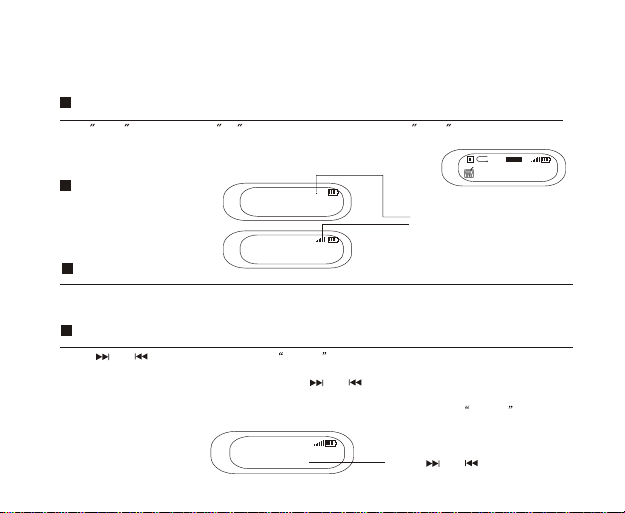
FM Tuner
FM tuner mode
Press Menu button and press +,- to select FM tuner, and then press Menu to confirm.
(Adjust the direction of earphone line to get better radio effect)
VOL+/VOL
Auto search
FM
FM
87.6 Mhz
Mono(Stereo)
87.6 Mhz
Mono(Stereo)
5
P01
23
P01
Volume is shown by numbers
The volume steps (see illustration) will
increase decrease when the VOL+/VOL button is pressed correspondingly.
Press 'menu' button to auto search and memorize up to 32 radio channels.
FM fine tuner
Press or to fine tune. By pressing A-B/EQ button for a moment, the machine will
memorize the current radio frequency. If you want to repeat the auto search function, press stop/play
button until 'P' appeared on the screen,then press and to activate the auto search function
again. Similarly, if you want to fine tune any channels, you onlyneed to press play/stop button once till
the 'p' disappeared from the screen. You may now fine tune the channelby press the A-B/EQ button
for a while.
93.90 Mhz
FM Stereo P
23
Press or to fine tune
JAZZ
A-B
23
FM
18
Page 20
19
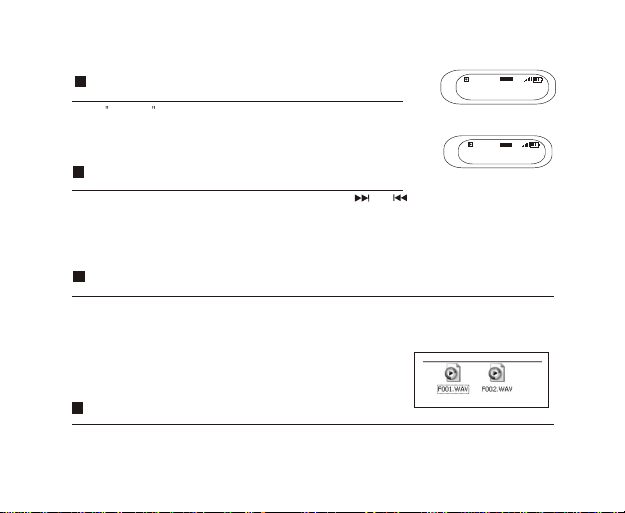
FM Recording
Press A-B/EQ button to start recording the current listening radio
channel. The display is shown below:
Press the same button again to stop recording. You can play the
recorded file in voice mode. The display is shown below:
Playing recorded FM files
Press 'Menu' button to return to voice playing mode. Press and
to search for the recorded files and press play button to play the file. You
can treat the file as common music file to run EQ setup and other related
functions
Record the current listening channel
Play the FM files under voice mode
Operation of FM files in PC
When the USB connection between the mp3 player and PC has completed, you can find that there is
a folder called 'FM' in the player. Inside you can find the recorded FM files. Just like other music files,
you can rename, copy or delete the Recorded FM files.
Quit FM Tuner mode
Press 'Menu' button to quit FM tuner mode and back to music or voice mode.
CLASS
/FM/F001.WAV
REC 00:03:33/04:10:06
CLASS
/F001.WAV
FM 008-01:55/08:16
23
23
Page 21
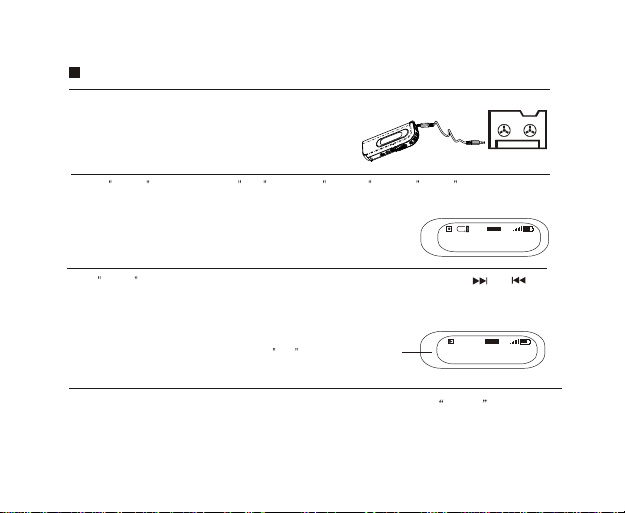
Line-in recording function
1.Connection Use the CD line-in cable to connect the player with CD player
(or other audio equipment) as shown below:
2.Recording
Press Menu and then press +, - to select Line IN . Press Menu to confirm ands
tart recording.
As the mean time, press the play button on the CD player and start
the recording as shown below:
3.Playing recorded files
Press Menu button to return to main menu and select music playing mode. Press and to find
the wave file 001.WAV. Press play to listen to the recorded music files from CD. You can configure and
adjust the EQ mode of the file just like the normal music files.
Press rec to stop recording,
and press it again to start recording.
CLASS
/Line in/L001.WAV
REC 00-:00:49/08:06:09
CLASS
/L001.WAV
Song 001-01:55/08:16
23
23
4.Operation on recorded music files
Connect the player with PC by a USB cable. You may find a folder called LINE In in the flash
memory of mp3player. Inside you can find the file you have recorded. Like common music files,
you may also play/rename/copy/delete the file.
20
Page 22
21
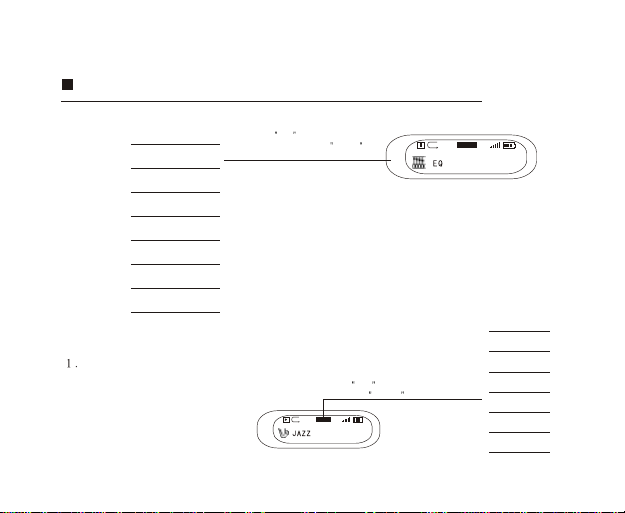
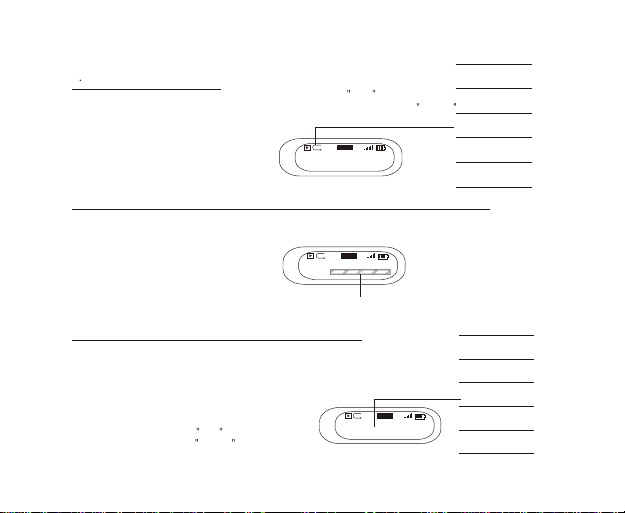
Settings Enter this mode according to the instructions in Page 15.
EQ
Play Mode
Contrast
PowerSaving
BackLight
Language
Exit
EQ Setting (Ref. page 13 for another
setting method)
Press +,- button to cycle
selecting, and press Menu
to confirm.
Note: Except in record mode, you can select setting
function both in play and stop mode. 5 seconds standby
time later, machine will automatically return to music/voice
play mode (or latest setting mode).
Press +,- button to cycle selecting,
and press Menu to confirm.
JAZZ
A-B
23
A-B
JAZZ
23
Norma
DBB
Rock
Jazz
Classical
Pop
Page 23
22
2 Play Mode
playing mode includes:
Press +, - button to cycle
selecting, and press Menu
to confirm.
JAZZ
A-B
Repeat all
3.Contrast
User can customize the contrast setting for better visual effect.
JAZZ
A-B
Contrast
Level
Press "+/-"button to display relative change,
4.Power Saving
In order to save power, the machine can
be set to auto power-off if it has idled for
a certain period of time under voice and
music mode.
Press +,- to select and
press menu to confirm.
and press "menu"button to confirm
2Mins
Normal
Repeat singlesong
Repeat all
23
Shuffle play
Shuffle repeat
23
Disable
1Min
2Mins
JAZZ
A-B
23
5Mins
10Mins
Page 24
23
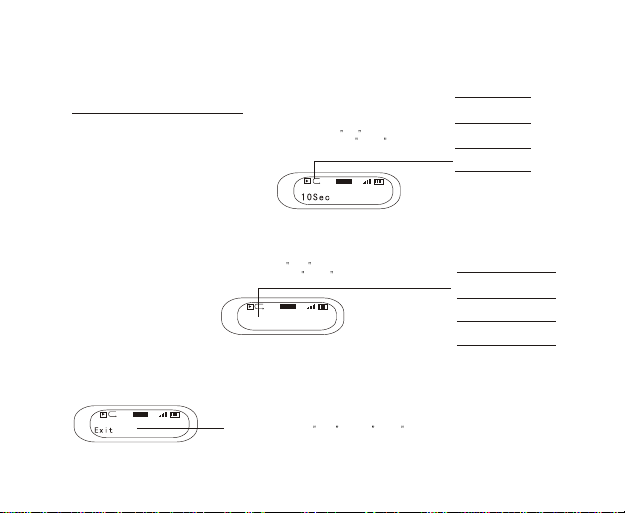
5.Backlight
User can disable or change the backlight
lasting time in this setting.
6.Language
Chinese
7.Exit
JAZZ
A-B
23
When LCD displays Exit , press Menu to confirm, and return to
setting mode.
Press +,- button to select
and press Menu button to
confirm.
JAZZ
A-B
23
Press +, - button to cycle selecting,
and press Menu to confirm.
JAZZ
A-B
23
Disables
3Sec
10Sec
Chinese
Traditional Chinese
English
Page 25
24
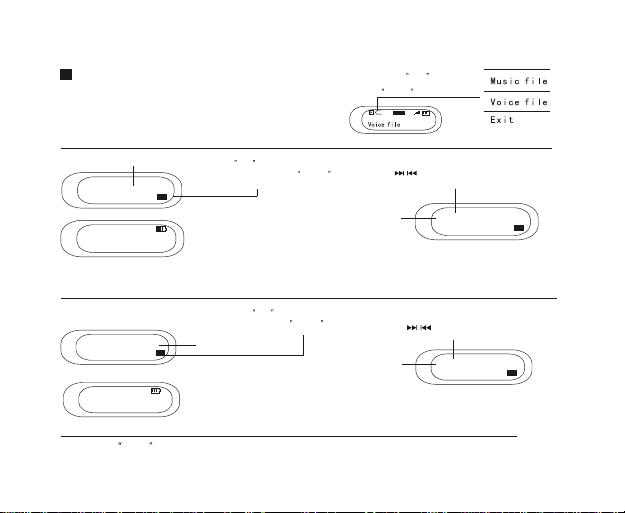
Erase files (Ref. P. 15)
Press +, - button to
cycle selecting,and press
Menu to confirm.
A-B
Erase music files
File name
TRYING MUSIC.MP3
Delete the file?
File deleted
Press +,- to cycle selecting yes
or no, and then press menu
to confirm.
Yes No
When the files has been erased, you
can see the display shown above
Press to cycle the music files
selection
File name
Erase voice files
Press +,- to cycle selecting yes or no,
and then press menu to confirm.
/VOICE/V001.WAV
Delete the file?
File deleted
Note: Under delete mode, 5 secs standby time can cause the machine to return to
voice/music mode (or the latest setting mode)
File name and path
Yes No
When the files has been erased,
you can see the display shown above
Press to cycle the music files
selection
File name
JAZZ
23
2TRYING MUSIC.MP3
Delete the file?
/VOICE/V002.WAV
Delete the file?
Yes No
Yes No
Page 26
25
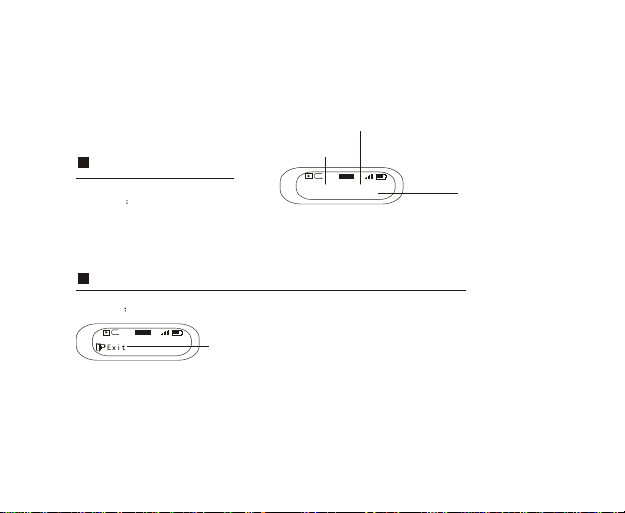
About
Please refer to P. 15 on how to enter
this mode
Note: As some components would take up spaces in the flash memory, it is normal
to find out that the available memory size is lesser than normal.
Exit
Please refer to P. 15 on how to enter
this mode
JAZZ
A-B
23
Note: Under this mode, 5 secs standby time can cause the machine to return to voice/music
mode (or the latest setting mode)
Press menu to return to music or voice mode (latest running mode)
Production Model
A-B
Fm660 VER 2. 3 400
FREE 108MB
Firmware VER.
JAZZ
23
Free memery
Page 27
CONNECTION WITH COMPUTER
26
Page 28
27
Requirements for computer system
1. Operating systems: Microsoft Windows 98 SE, Windows Me, Windows 2000, Windows NT,
Windows XP
2. CPU: Intel Pentium 3, Pentium 4 or above CPU
3. Memory: 64 MB or above
4. HD: 200MB idle memory and above
5. Interface: full-speed USB
6. CD-ROM
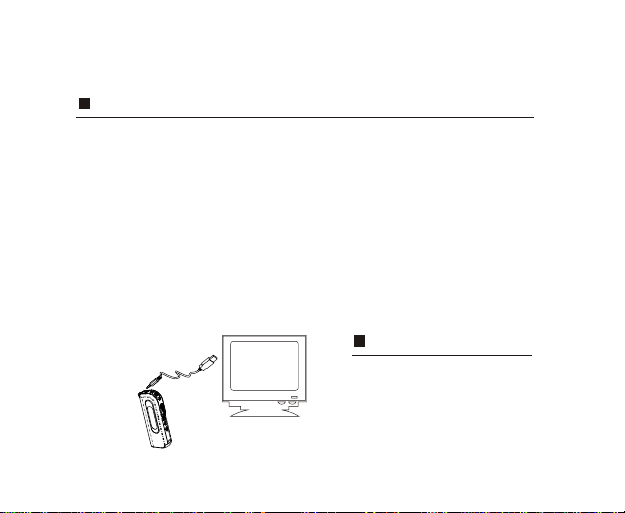
Connection with computer
Connect the USB cable with the
computer USB port.
Page 29
Installation of Driver
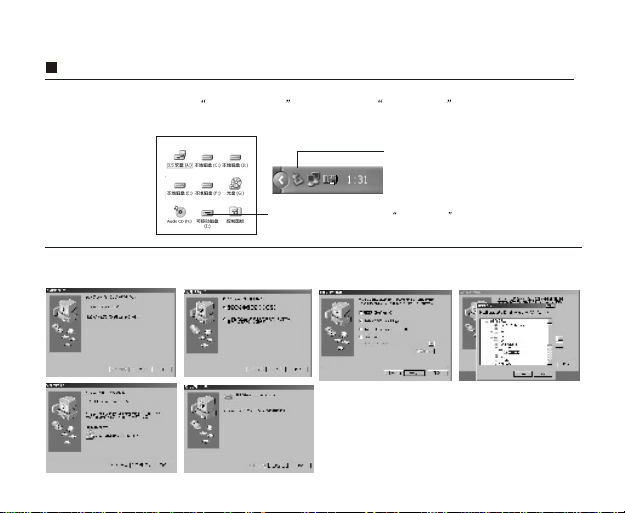
After connecting with computer, Windows 2000/ME/XP will automatically identify and install the driver. The
machine is ready to use when a removable drive icon appears in my computer . The attached CD-ROM
is needed for Windows 98SE to install Driver.
The icon will be displayed here after
installation
The icon will be displayed in my computer after installation
28
Windows 98SE CD-ROM installation Put the attached CD-ROM into computer, and then
install the software according to instruction.
Computer difference can display some changes
Page 30
29
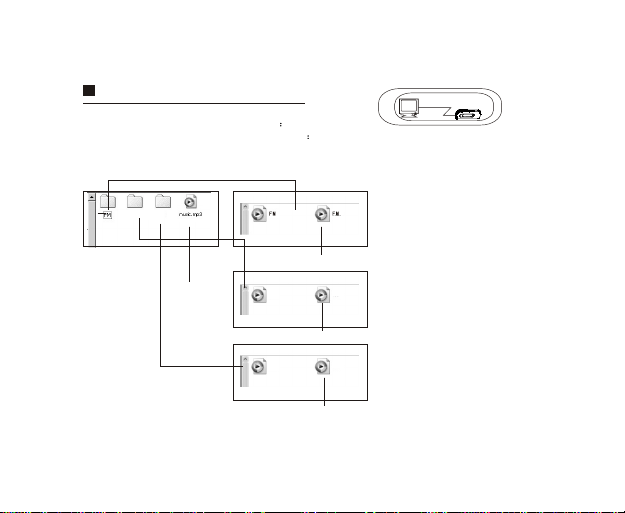
Save and rename music and voice files
After successful connection between the
machine and computer, it is displayed as
Double-click removable disk, it is displayed as
LINE INVOICE
FM FM
FM file
Music file
Voice
Voice
Voice file
Line in
Line in
Line in file
Note: This machine can recognize and play .Mp3, .WMA and .WAV format files
Ready
Page 31
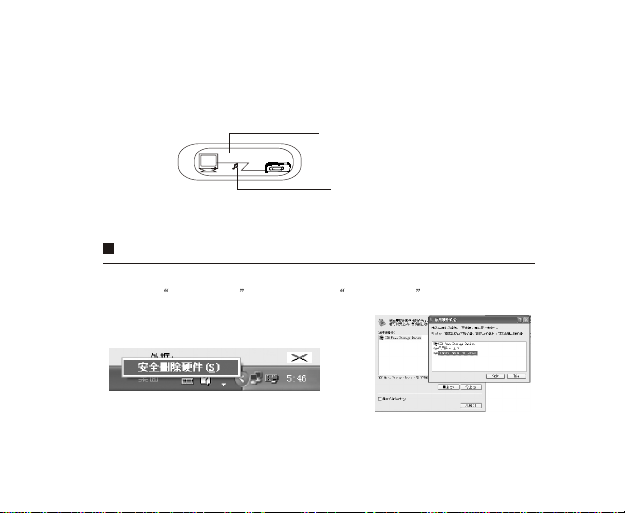
The operating procedure of the removable flash disk is the same as normal USB storage
device. Users may copy files to relevant folder. You may also rename it for your own
convenience
Write
Disconnection with computer
Please follow the instruction below for disconnection between Mp3 player and computer.
Right click plug and play icon then select safe to delete to disconnect
Note: Do not unplug the machine with computer when the file is reading, writing or deleting. Foxda
Technology is not liable for any damage/lose of any files.
Writing status
The icon will move when it is writing
or deleting files
30
Page 32
31
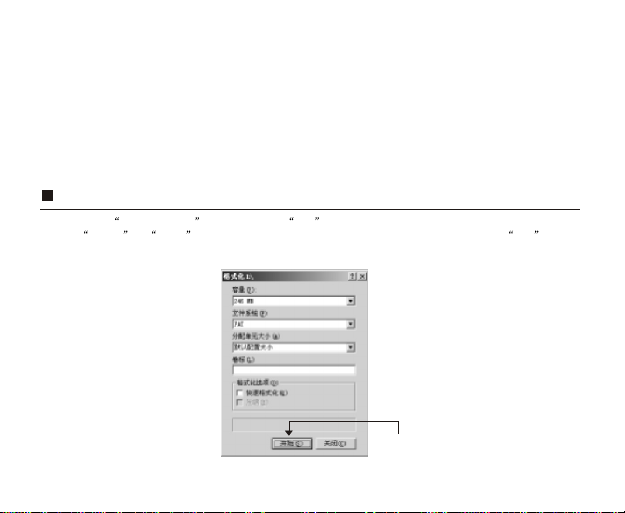
Formatting
Right click the removable disk icon then select FAT mode to format. The machine may not be able to play
music if FAT 32 or NTFS mode selected. To recover, please format the machine again as FAT mode.
Press"Begin"button
Page 33
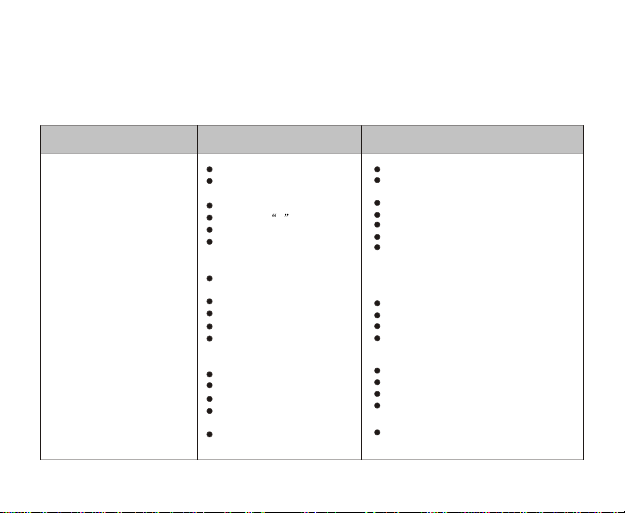
General question&answer
32
Problems
Unable to switch
on the machine
No audio output
from the earphone
LCD cannot display
Poor FM receiving
Cannot upload/download Mp3
/WMA/WAV files
Cannot record or receive FM
Possible causes
No battery
Incorrect battery position
Loosen plug
Volume is 0
Check the battery status
Check the plug for whether it
has oxidized or covered by
any dirty stain
Corrupted Mp3 or Wav files
Wrong lang. setting
Do not support certain lang.
Signal too weak
Interfere by other electronic
appliances
Check the battery
Check the USB connection
Mal-function USB cable
Out of memory
Out of memory
Suggested solutions
Change for new battery
Place the battery appropriately
Re-plug the earphone
Increase the volume
Change the battery
Clean the plug
Re-download related files
Choose the correct lang.
Browse our website for latest version
Adjust the position of earphone
Close and stay away from the electronic
appliances that interfere the signal
Replace the battery with a new one
Reconnect the USB cable
Use another USB cable
Delete files to release more memory
Delete files to release more memory
Page 34
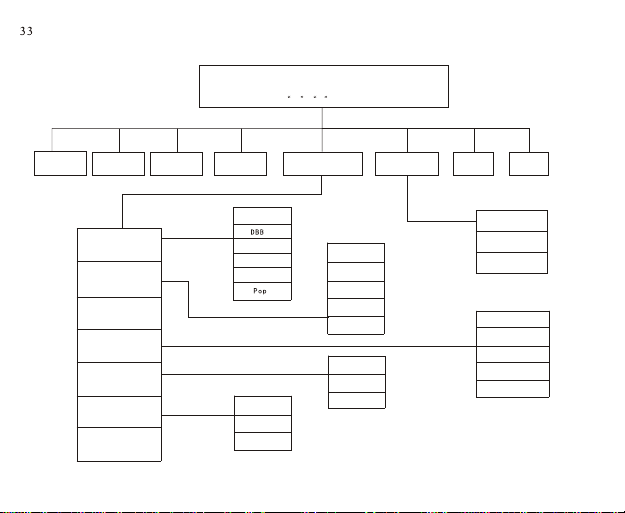
MENU
Press + - button to select
MUSIC
VOICE
EQ
Play Mode
Contrast
PowerSaving
BackLight
Language
Exit
FM Tuner
Line in
Normal
Rock
Jazz
Classical
CHINESE
Traditional
CHINESE
ENGLISH
Settings
Normal
Repeat Track
Repeat All
Shuffle
Shuffle Repeat
Disables
3Sec
10Sec
Erase Files
About Exit
Music
Voice
Exit
Disable
1 Mins
2 Mins
5 Mins
10Mins
Page 35
Hong Kong - Global Sales and Marketing Head Office
Unit 1205, Tower 1
Lippo Centre,
Admiralty,
Hong Kong
Tel: (852) 2521-6669 Fax: (852) 2521-2229
Canada office
Office Address:
#3200-8888 Odlin Crescent
Richmond, B.C.,
Canada V6X 3Z8
Mailing Address:
PO Box 88082, RPO Lansdowne Centre,
5300 No. 3 Road,
Richmond, B.C.,
Canada V6X 3T6
Tel : (604)-279-9891 Fax: (604)279-9871
China - Factory
E/Flat, New Century Industrial Park,
Longgang Large Industrial Zone,
Shenzhen 518115,
China
Tel: (86-755) 8463-7555 Fax: (86-755) 8463 7700
 Loading...