

Page 1
User
User
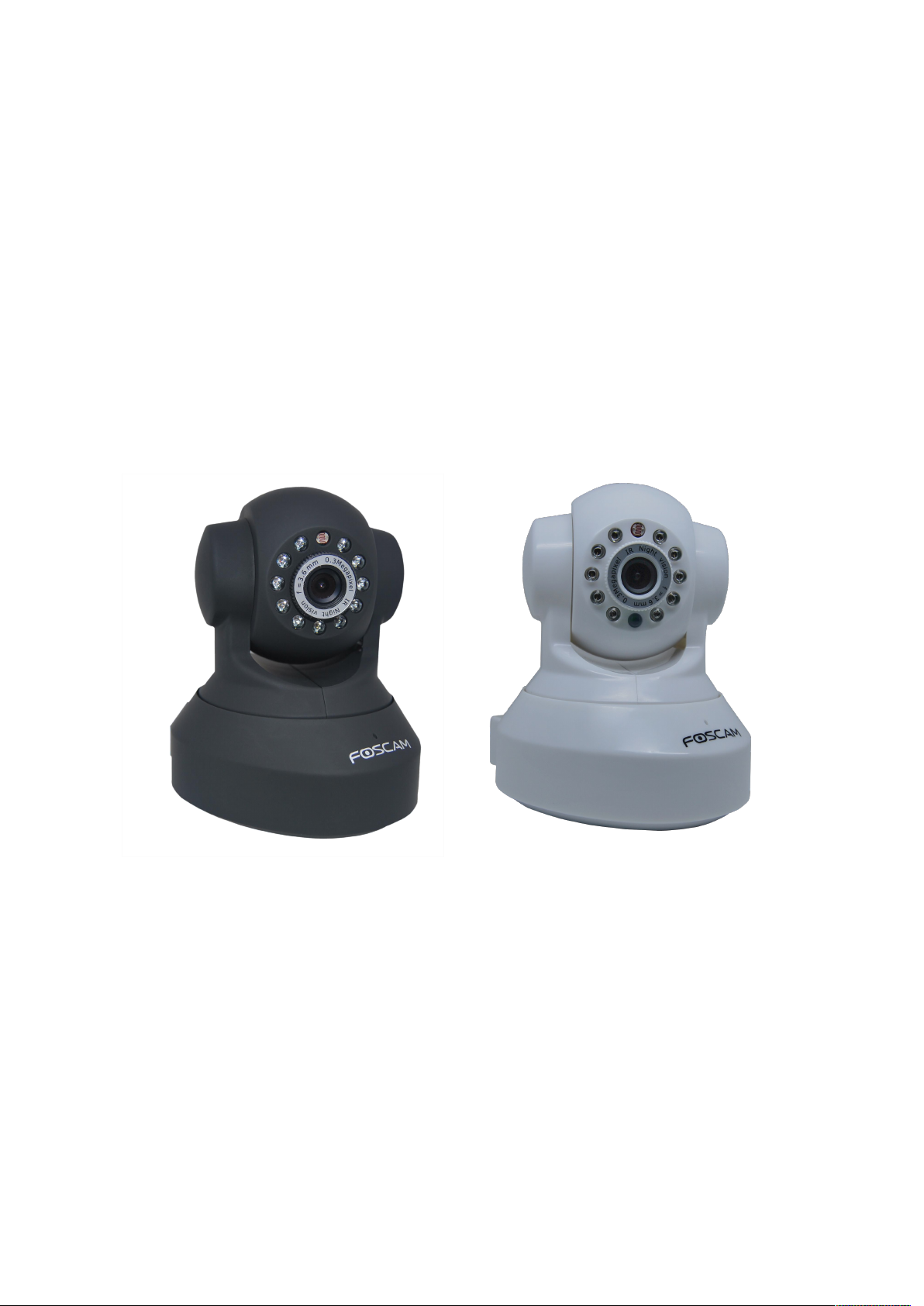
Model: FI8918E
Indoor Pan/Tilt PoE Camera
Manual
Manual
Color: Black Color: White
Page 2

1
wwww.foscam.co
ww.foscam.comm
Shenzhen
Shenzhen
Foscam
Foscam
Intelligent
Intelligent
Technology
Technology
Co.,
Co.,
Limited
Limited
Tel:
Tel:8686
755
755
2674
2674
5668
5668
Fax:
Fax:8686
755
755
2674
2674
516
51688
Table of Contents
1 Overviews................................................................................................................................................. 1
1.1 Key Features.......................................................................................................................................................................1
1.2 PoE (Power over Ethernet)...............................................................................................................................................2
1.3 Read Before Use................................................................................................................................................................ 2
1.4 Packing Contents............................................................................................................................................................... 2
1.5 Physical Description.......................................................................................................................................................... 2
2 Surveillance Software GUI..................................................................................................................... 4
2.1 Login Window..................................................................................................................................................................... 5
2.2 Surveillance Window......................................................................................................................................................... 6
3 Advanced Camera Settings................................................................................................................. 13
3.1 Device Status....................................................................................................................................................................13
3.2 Alias Settings.................................................................................................................................................................... 14
3.3 Date & Time Settings....................................................................................................................................................... 15
3.4 User Settings.................................................................................................................................................................... 15
3.5 Multi-Device Settings.......................................................................................................................................................16
3.6 Basic Network Settings................................................................................................................................................... 23
3.7 Wireless Settings............................................................................................................................................................. 26
3.8 ADSL.................................................................................................................................................................................. 26
3.9 UPnP Settings.................................................................................................................................................................. 27
3.10 DDNS Service Settings.................................................................................................................................................27
3.11 Mail Service Settings..................................................................................................................................................... 31
3.12 MSN Setting....................................................................................................................................................................33
3.13 FTP Service Settings.....................................................................................................................................................35
3.14 Alarm Service Settings.................................................................................................................................................. 37
3.15 PT Settings..................................................................................................................................................................... 44
3.16 Upgrade Device Firmware............................................................................................................................................44
3.17 Backup & Restore Settings.......................................................................................................................................... 46
3.18 Restore Factory Settings.............................................................................................................................................. 47
3.19 Reboot Device................................................................................................................................................................ 47
3.20 Log................................................................................................................................................................................... 48
Page 3

2
wwww.foscam.co
ww.foscam.comm
Shenzhen
Shenzhen
Foscam
Foscam
Intelligent
Intelligent
Technology
Technology
Co.,
Co.,
Limited
Limited
Tel:
Tel:8686
755
755
2674
2674
5668
5668
Fax:
Fax:8686
755
755
2674
2674
516
51688
3.21 Back................................................................................................................................................................................. 48
4 APPENDIX..............................................................................................................................................48
4.1 Frequently Asked Questions.......................................................................................................................................... 48
4.2 Default Parameters.......................................................................................................................................................... 52
4.3 Specifications....................................................................................................................................................................52
5 OBTAINING TECHNICAL SUPPORT................................................................................................54
Page 4

wwww.foscam.co
ww.foscam.comm
Shenzhen
Shenzhen
Foscam
Foscam
Intelligent
Intelligent
Technology
Technology
Co.,
Co.,
Limited
Limited
Tel:
Tel:8686
755
755
2674
2674
5668
5668
Fax:
Fax:8686
755
755
2674
2674
516
51688
1
1 Overviews
FOSCAM FI8918E is an integrated IP Camera solution with 802.3af compliant POE based on
the TCP/IP standard. It combines a high quality digital video camera, with a powerful web server,
to bring clear video to your desktop from anywhere on your local network or the Internet.
The basic function of IPCAM is transmitting remote video on the IP network. The high quality
video image can be transmitted with 30fps speed on the LAN/WAN by using MJPEG hardware
compression technology.
With flexible 300-degree pan and 120-degree tilt, FI8918E gives users more comprehensive
control over a monitored site. FI8918E supports IR-CUT, when light conditions turns poor, the IR
cut filter will be automatically removed to accept IR illumination. Meanwhile, the camera switches
itself automatically from color to black and white, assuring optimal image quality at all times.
The IPCAM is based on the TCP/IP standard. There is a WEB server inside which could support
Internet Explore. Therefore the management and maintenance of your device is simplified by
using the network to achieve the remote configuration, start-up and to upgrade the firmware.
Controlling the IPCAM and managing images is simplified by using the provided web interface
across the network utilizing wired connectivity.
FOSCAM provides Phone APPs for Android and iPhone users, please search “Foscam ip cam
viewer” and install it through APP Store, then you can view your camera directly as a computer.
1.1 Key Features
● Powerful high-speed video protocol processor
● High Definition Color CMOS Sensor
● 300K Pixels
● IR night vision (Range: 8m)
● Pan 300 degree, tilt 120 degree
● Optimized MJPEG video compression for transmission
● Multi-level users’ management and passwords definition
● Embedded Web Server for users to visit by IE
● POE compliant with POE standards IEEE 802.3af
● Supports IR_CUT and the filter change automatically
● Embedded FOSCAM domain name
● Supports Dynamic IP (DDNS) and UPnP LAN and Internet (ADSL, Cable Modem)
● Motion and Sound detection activates alarm
● Supports image snapshot
● Supports multiple network protocols: HTTP/TCP/IP/UDP/STMP/DDNS/SNTP/DHCP/FTP
● Supports Daylight Saving Time
Page 5
wwww.foscam.co
ww.foscam.comm
Shenzhen
Shenzhen
Foscam
Foscam
Intelligent
Intelligent
Technology
Technology
Co.,
Co.,
Limited
Limited
Tel:
Tel:8686
755
755
2674
2674
5668
5668
Fax:
Fax:8686
755
755
2674
2674
516
51688
2
● Supports MSN
● Supports Gmail as sender on mail service settings
● Supports audio on Firefox, Google Chrome and Safari
● Providing Phone APPs for Android and iPhone users
● Providing Central Management Software to manage or monitor multi-cameras
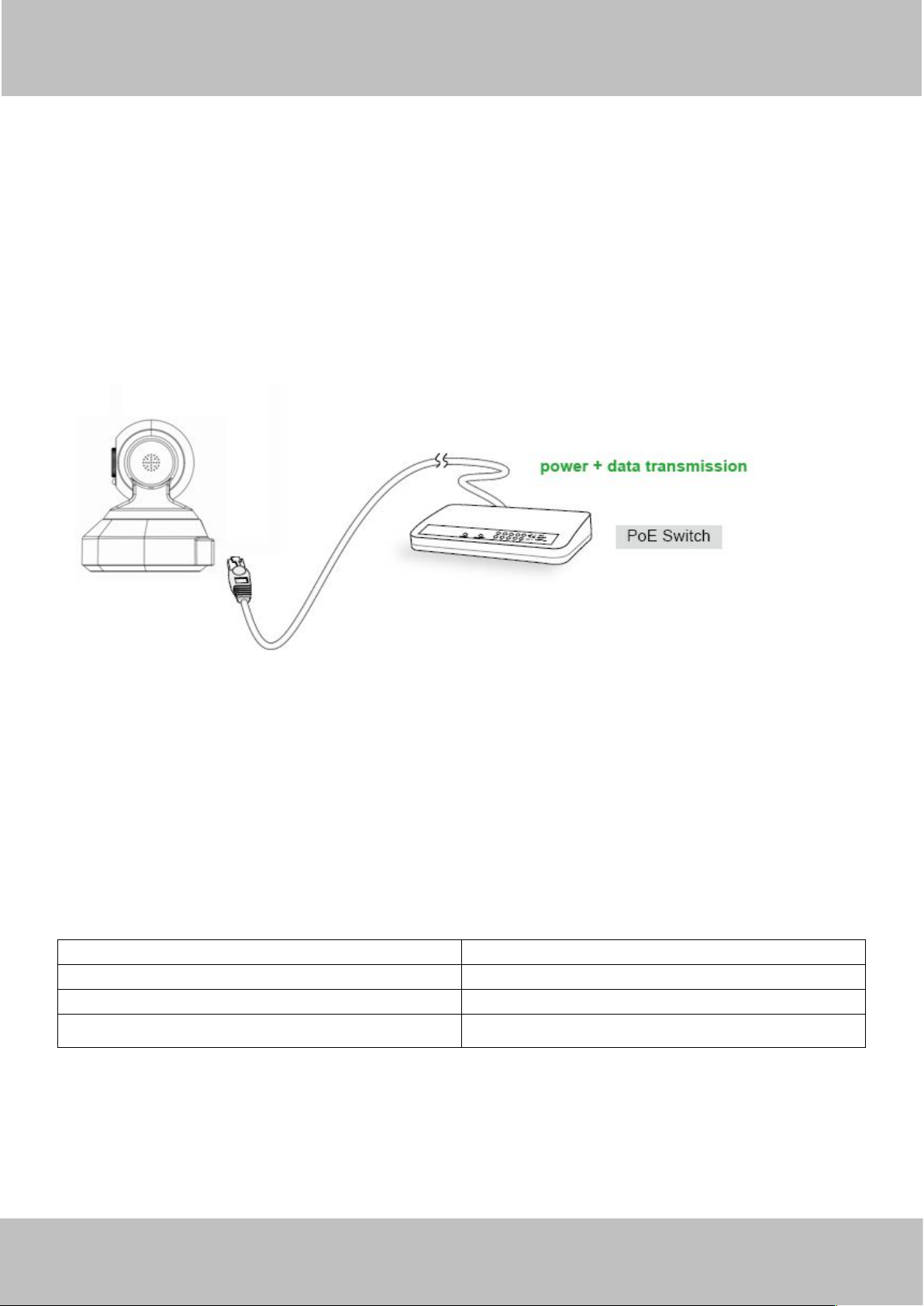
1.2 PoE (Power over Ethernet)
The Network Camera is POE-compliant, allowing transmission of power and data via a single
Ethernet cable. Such as the following picture: connect the Network Camera to a PoE-enabled
router/ switch via Ethernet cable.
1.3 Read Before Use
Please first verify that all contents received are complete according to the Package Contents
listed below. Before the Network Camera is installed, please carefully read and follow the
instructions in the Quick Installation Guide to avoid damage due to faulty assembly and
installation. This also ensures the product is used properly as intended.
1.4 Packing Contents
● IPCAM×1 ● CD×1
● Network Cable×1 ● Quick Installation Guide×1
● DC Power Supply×1 ● Warranty Card×1
● Mounting bracket×1(option)
1.5 Physical Description
Page 6
wwww.foscam.co
ww.foscam.comm
Shenzhen
Shenzhen
Foscam
Foscam
Intelligent
Intelligent
Technology
Technology
Co.,
Co.,
Limited
Limited
Tel:
Tel:8686
755
755
2674
2674
5668
5668
Fax:
Fax:8686
755
755
2674
2674
516
51688
3
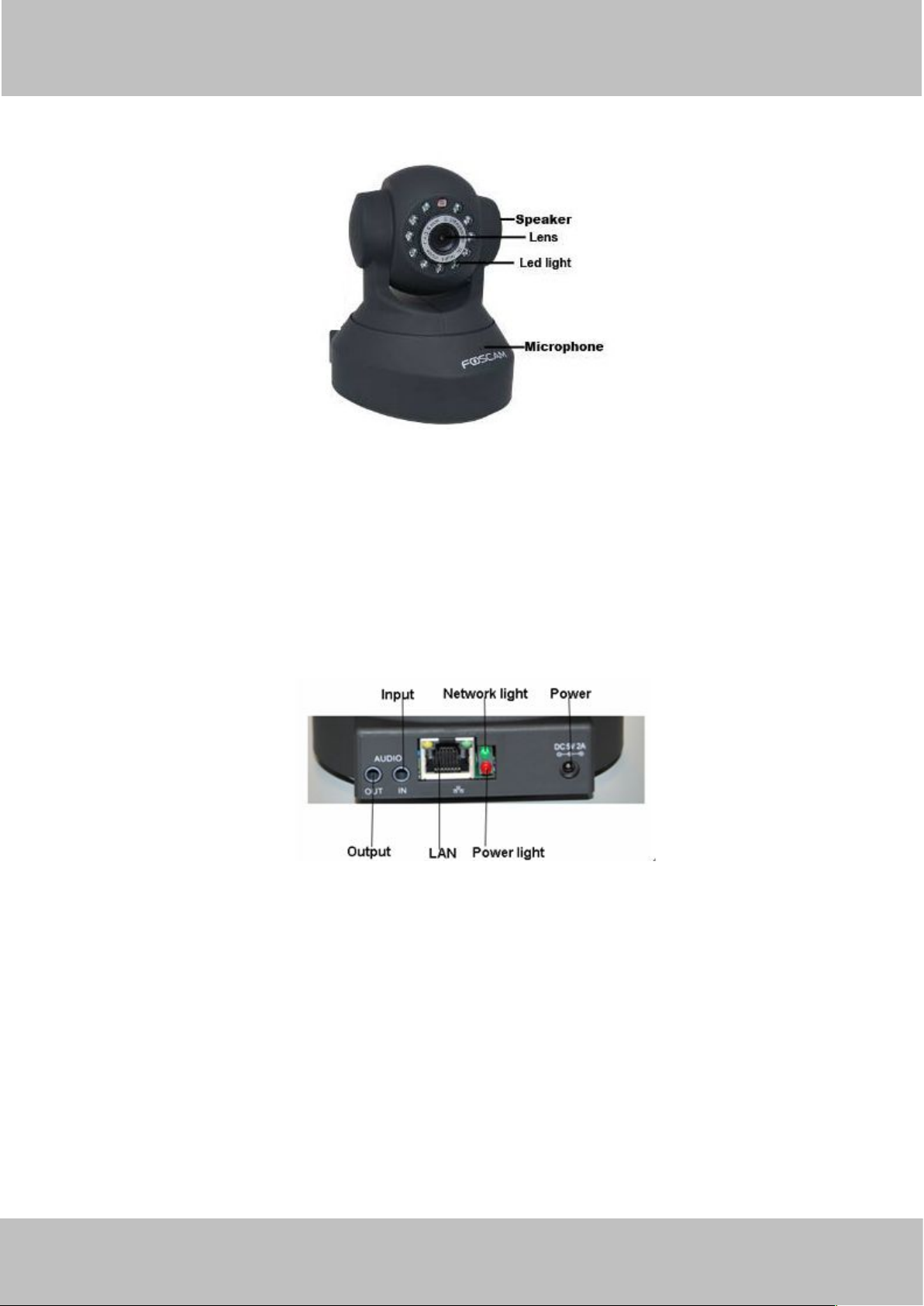
Front Panel
1 Infrared LED: 11 IR LEDs
2 LENS: CMOS sensor with fixed focus lens
3 Speaker: Built-in speaker
4 Microphone: Built-in microphone
Figure 1.1
Back View
Figure 1.2
LAN: RJ-45/10-100 Base T
Power: DC 5V/2A Power supply
Network Light: The LED will blink when power and network cable are plugged in
Power Light: If the power adapter works well, the light will turn on
Audio Input: This jack is used to plug an external microphone
Audio Output: This jack is used to plug an external speaker
Bottom View
There are up to two labels located on the body of the camera; this is an important feature of
original Foscam cameras. If your camera does not have labels as shown in Figure 1.3 ,it may be
a clone one. Cloned Foscam cameras can not use original firmware and are not eligible for
Page 7

wwww.foscam.co
ww.foscam.comm
Shenzhen
Shenzhen
Foscam
Foscam
Intelligent
Intelligent
Technology
Technology
Co.,
Co.,
Limited
Limited
Tel:
Tel:8686
755
755
2674
2674
5668
5668
Fax:
Fax:8686
755
755
2674
2674
516
51688
4
warranty or technical services.
Figure 1.3
Reset button: Press and hold down the RESET BUTTON for 10 seconds. when released the IP
camera will be reset back to factory default settings. You must power on the camera before
reset.
2 Surveillance Software GUI
Please refer to the Quick Installation Guide if you install the camera at first time. After finishing
quick installation, you can take time to learn the operation of the software.
Page 8
wwww.foscam.co
ww.foscam.comm
Shenzhen
Shenzhen
Foscam
Foscam
Intelligent
Intelligent
Technology
Technology
Co.,
Co.,
Limited
Limited
Tel:
Tel:8686
755
755
2674
2674
5668
5668
Fax:
Fax:8686
755
755
2674
2674
516
51688
5
2.1 Login Window
1
234
5
6
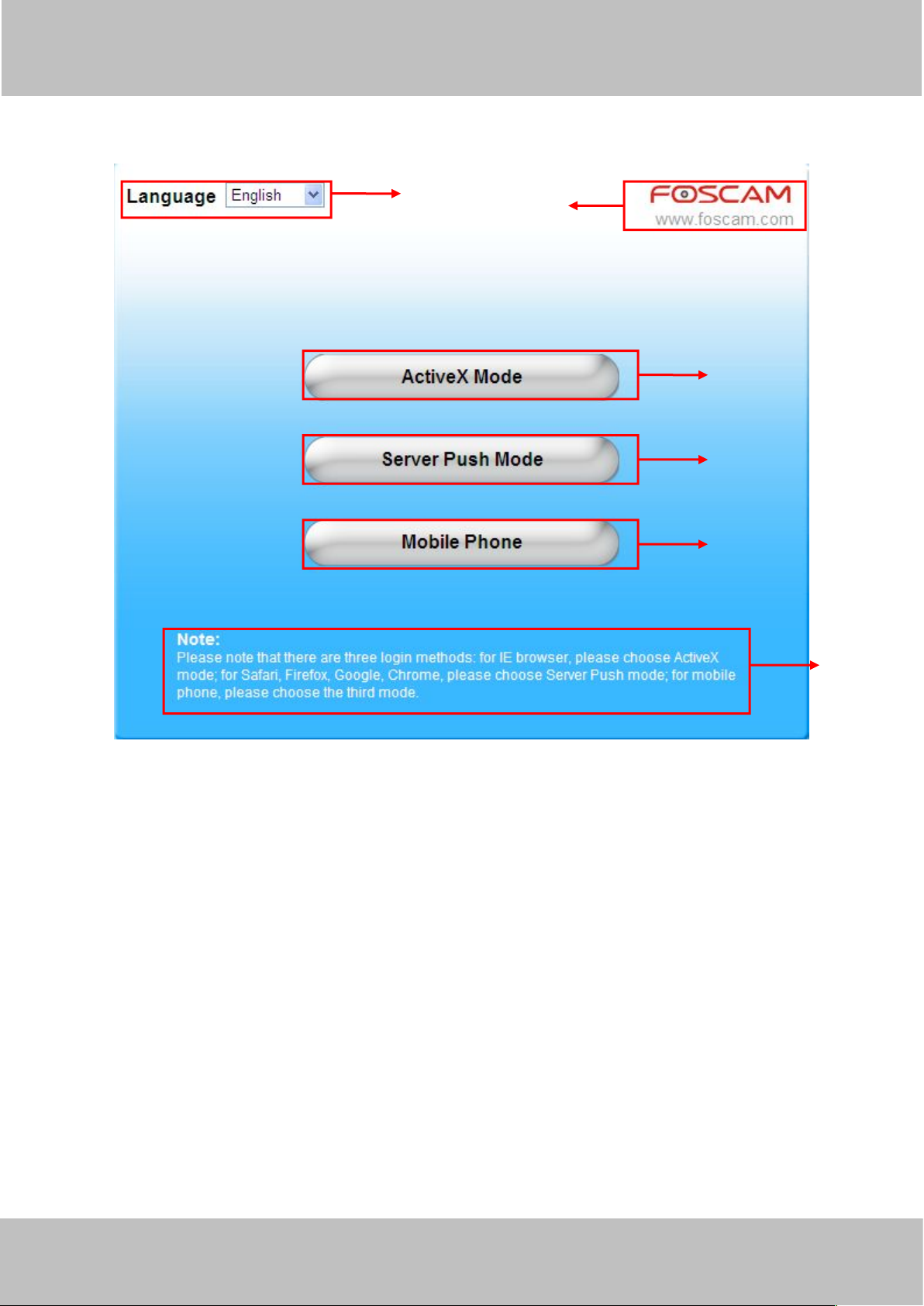
Figure 2.1
Please check the login window above, it was divided to 6 sections from no. 1 to 6.
Section1 Select Language
FOSCAM camera supports up to multi-languages, such as English, Spanish, Deutsch and so on.
You can select the language you need via pull down the dropdown toolbar and click on the
language to switch.
Section2 FOSCAM Website Link
There is an access link to Foscam website homepage, if you need tech support you can contact
Foscam directly.
Section3 ActiveX Mode
If your PC is windows based OS, such as Windows XP, Windows7, Windows Vista and you are
using IE-based browsers like IE6, IE7, IE8, please choose IE ActiveX Mode login mode.
Section4 Server Push Mode
If you are using non-IE based browser, like Firefox, Safari, Google Chrome please choose
Page 9
wwww.foscam.co
ww.foscam.comm
Shenzhen
Shenzhen
Foscam
Foscam
Intelligent
Intelligent
Technology
Technology
Co.,
Co.,
Limited
Limited
Tel:
Tel:8686
755
755
2674
2674
5668
5668
Fax:
Fax:8686
755
755
2674
2674
516
51688
6
Server Push Mode mode.
1
236
4
5
7
Section5 Mobile Phone
If you are using the Mobile to access the camera, here you need to select Mobile Phone login
mode.
Section6 Note
Note that when you login the camera, please select the corresponding login mode.
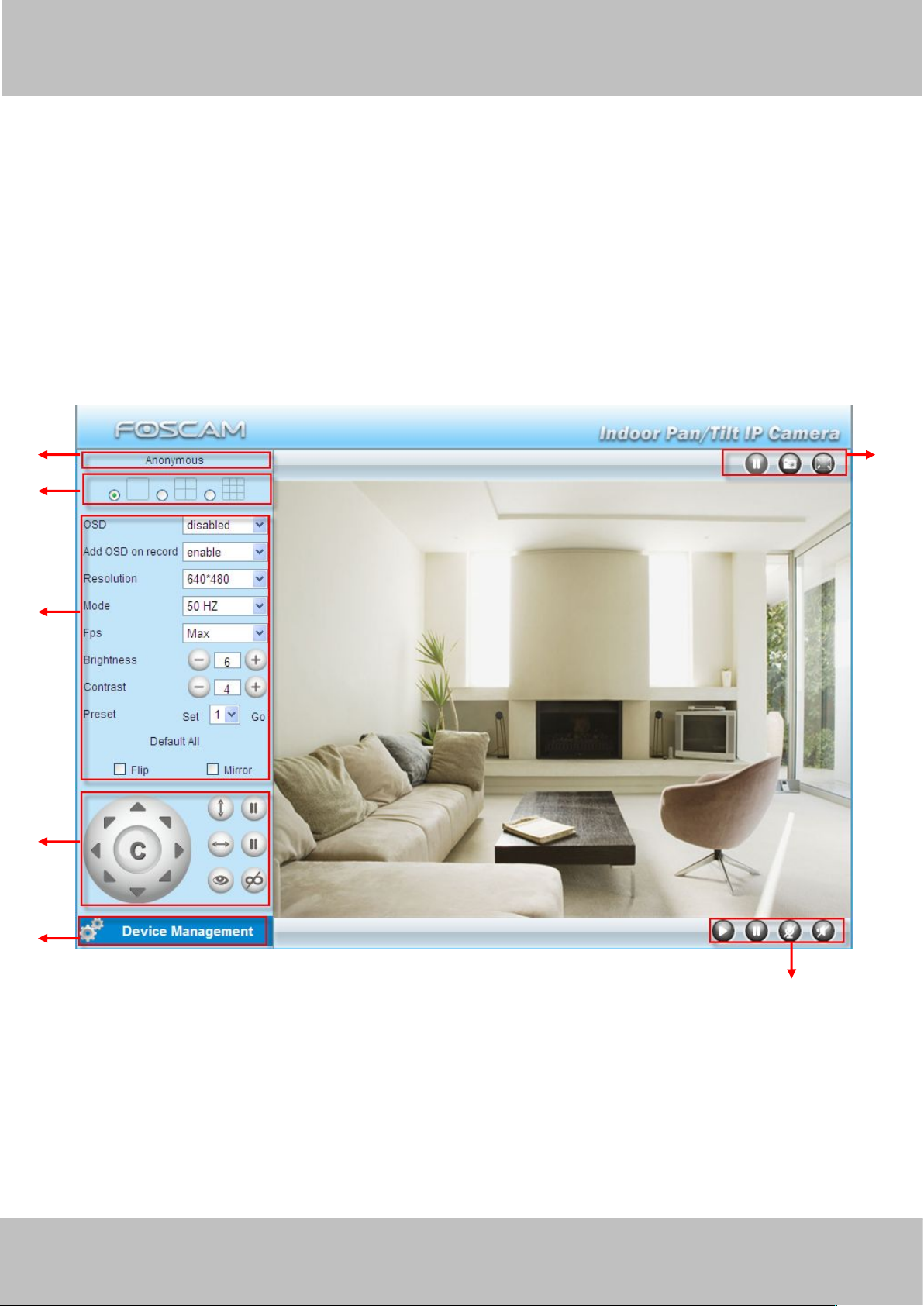
2.2 Surveillance Window
Select the ActiveX mode and you will enter the surveillance window.
Figure 2.2
Section1 Device Name
Default device name is Anonymous. You can define a name for your camera as you like (Please
go to chapter 3.1 and read how to set it)
Page 10
wwww.foscam.co
ww.foscam.comm
Shenzhen
Shenzhen
Foscam
Foscam
Intelligent
Intelligent
Technology
Technology
Co.,
Co.,
Limited
Limited
Tel:
Tel:8686
755
755
2674
2674
5668
5668
Fax:
Fax:8686
755
755
2674
2674
516
51688
7
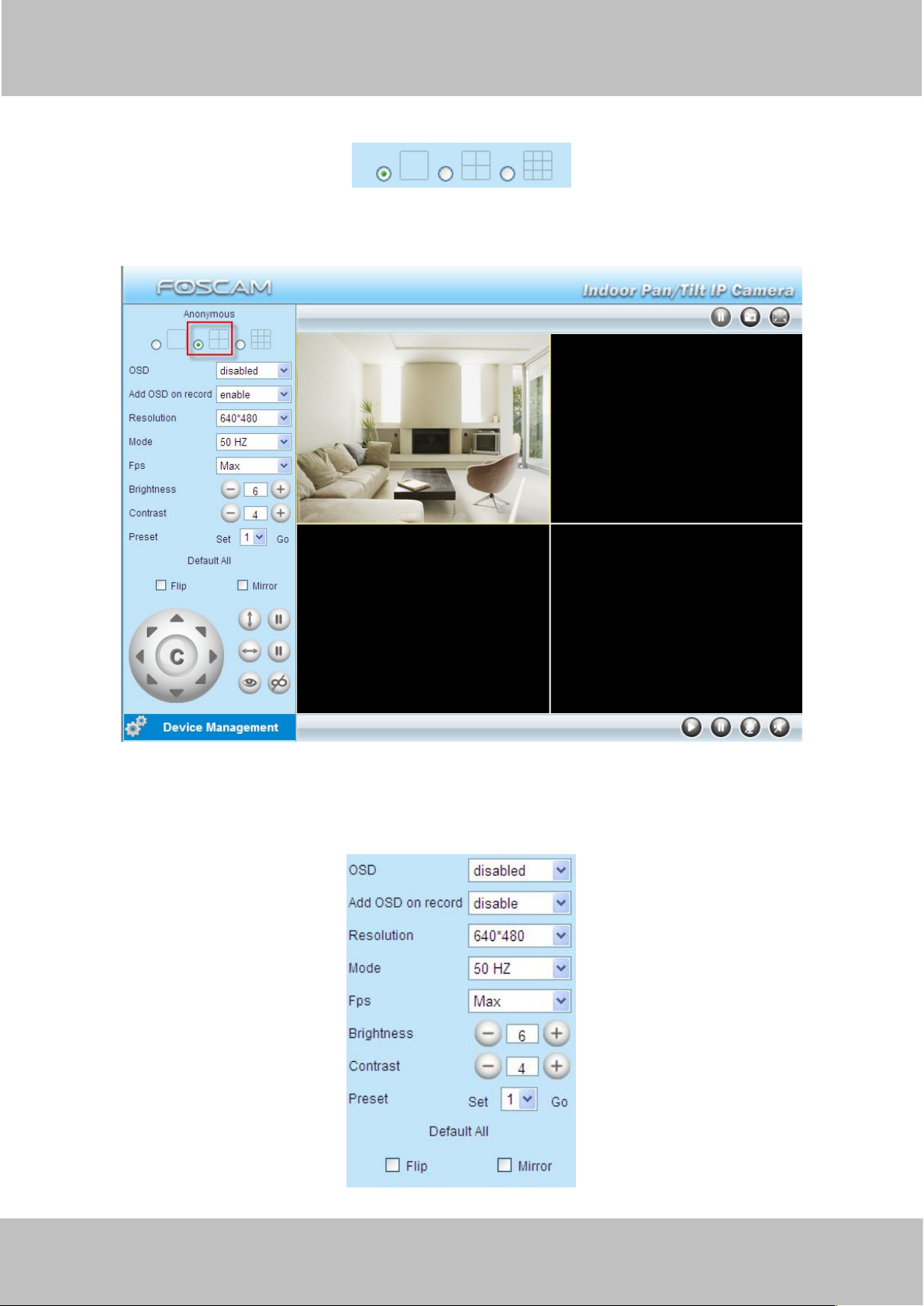
Section2 Multi-Device Window
The firmware inside the camera supports up to maximum of 9 cameras being monitoring at the
same time. You can add other cameras in multi-device setting (read chapter 3.5).
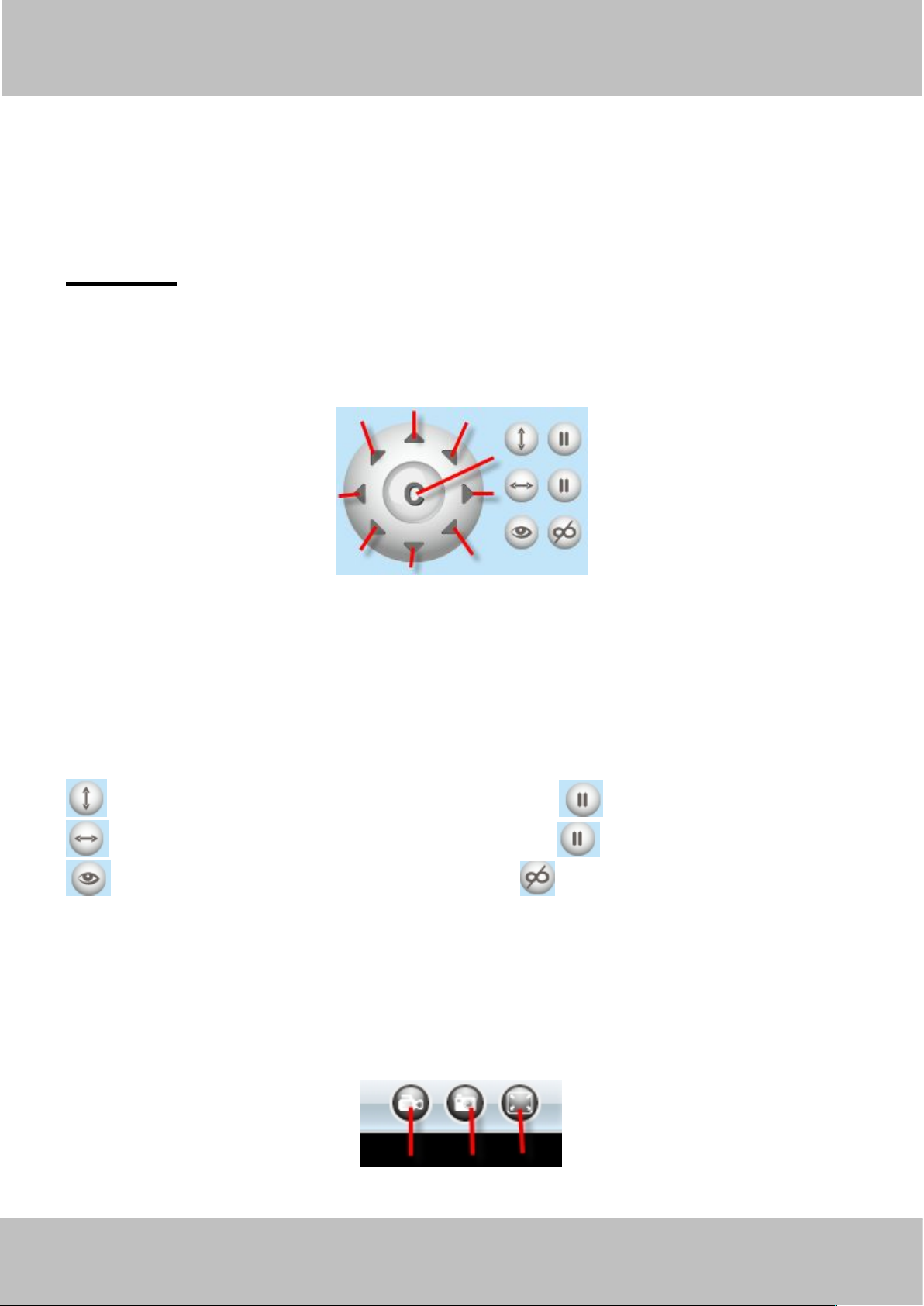
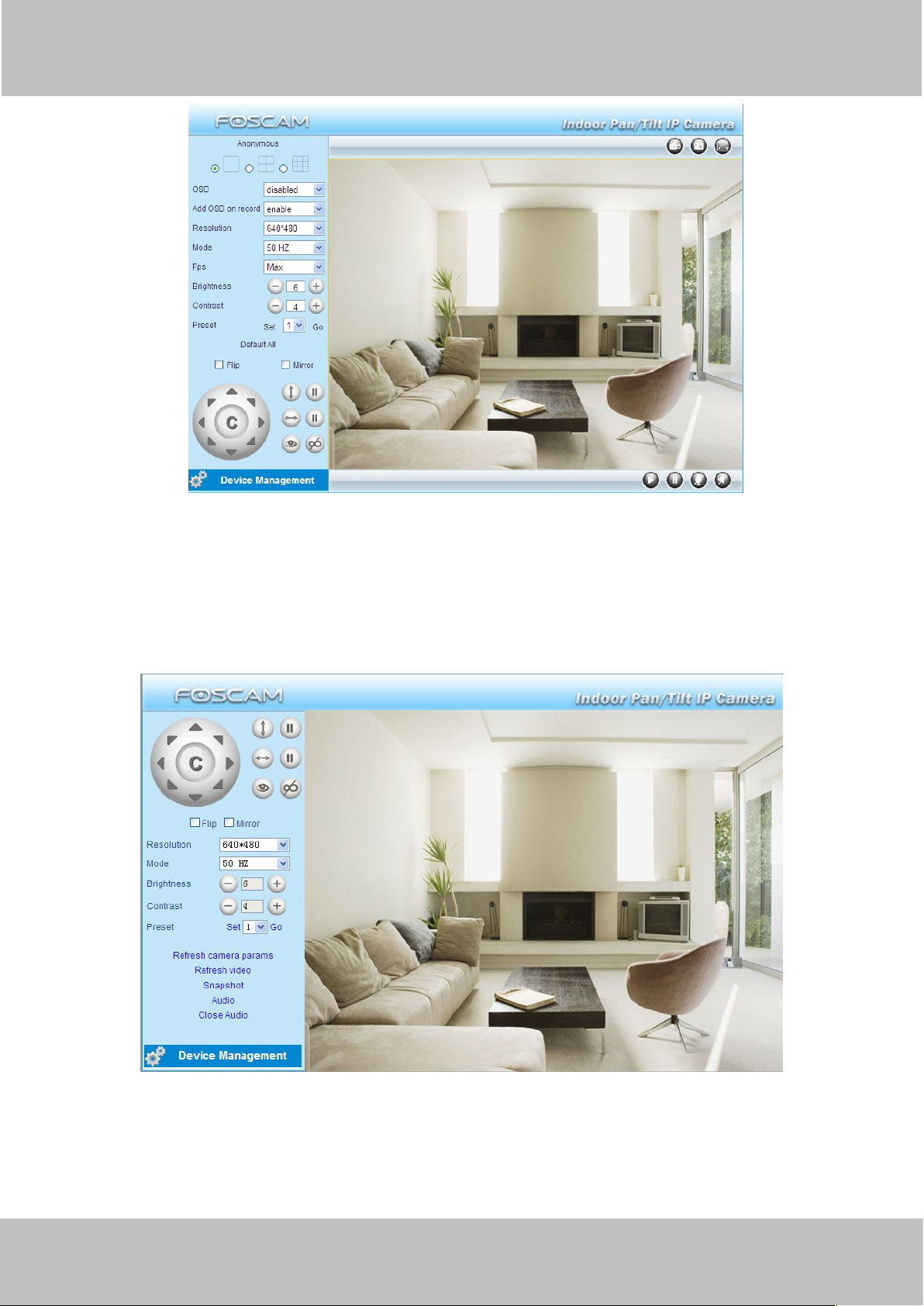
Section3 Image Parameters Settings
. Figure 2.3
Page 11

wwww.foscam.co
ww.foscam.comm
Shenzhen
Shenzhen
Foscam
Foscam
Intelligent
Intelligent
Technology
Technology
Co.,
Co.,
Limited
Limited
Tel:
Tel:8686
755
755
2674
2674
5668
5668
Fax:
Fax:8686
755
755
2674
2674
516
51688
8
OSD
OSD is used to add timestamp on the video. There are five text colors to choose from: Black, red,
yellow, white, blue.
Add OSD on record
Select this option if you want to add a timestamp to recordings.
Resolution
1) 320x240-------QVGA
2) 640x480-------VGA
There are two resolutions, the bigger one (VGA) is 640x480 pixels, and the smaller one (QVGA)
is 320x240 pixels. The bigger the resolution, the better of the image quality is, but the lower the
frame rate is. If you are accessing the camera via internet and want to get more fluent video
streaming, please select resolution QVGA 320x240.
Mode
1) 50HZ ---------Indoor surveillance (Region: Europe, China)
2) 60HZ ---------Indoor surveillance (Region: USA, Canada)
3) Outdoor-------Outdoor surveillance (Region: All over the world)
There are three options within the menu of Mode: 50HZ, 60HZ and Outdoor. It depends on the
frequency of the electricity and surveillance model (indoors & outdoor). Please choose outdoor
mode, when the camera was installed outside.
Fps
1) Max---------- Maximum frame rate
2) 20fps, 15fps, 10fps, 5fps,4fps,3fps,2fps,1fps, 5fps, 1fps ,1/2fps,1/3fps,1/4fps,1/5fps------customized frame rate
You can choose option within the menu of Fps to adjust the frame rate. It is often used in LAN
network when you want to lower the frame rate, so that you can save more bandwidth.
Brightness
Default parameter is 6, you can adjust the brightness of the image by clicking plus or minus
button.
Contrast
Default parameter is 4, you can adjust the contrast of the image by clicking plus or minus button.
Preset/Go
1) Preset----------Support 8 preset position, which is considered enough for DIY home & small
business surveillance market
2) Set----------- Click Set to save the position you need the camera to remember
3) Go----------- Click Go to make the camera move the preset position
4) Number button from 1 to 8--------You can click the number button with preset position, and the
camera will go to the preset position.
How to do preset position?
We can start preset settings from position 1.
Firstly, select no. 1 within the menu of Preset on the panel.
Secondly, move the camera and stop at a place where you want make preset position.
Thirdly, click set button to save it as position 1 and you have done preset of position 1.
Page 12
wwww.foscam.co
ww.foscam.comm
Shenzhen
Shenzhen
Foscam
Foscam
Intelligent
Intelligent
Technology
Technology
Co.,
Co.,
Limited
Limited
Tel:
Tel:8686
755
755
2674
2674
5668
5668
Fax:
Fax:8686
755
755
2674
2674
516
51688
9
After that, you can select no. 2 within the menu of Preset on the panel, and move the camera and
12345
6
7
8
9
1
2
3
stop at another place, and set as preset position 2. You can do all the 8 preset positions with this
method.
If you want to see the preset position you have set, such as the position 1, only select the set
no.1 ,and click go button, the camera will go to position no.1.
Flip & Mirror
You can flip the image by enabling Flip button, or mirror the image by enabling Mirror button.
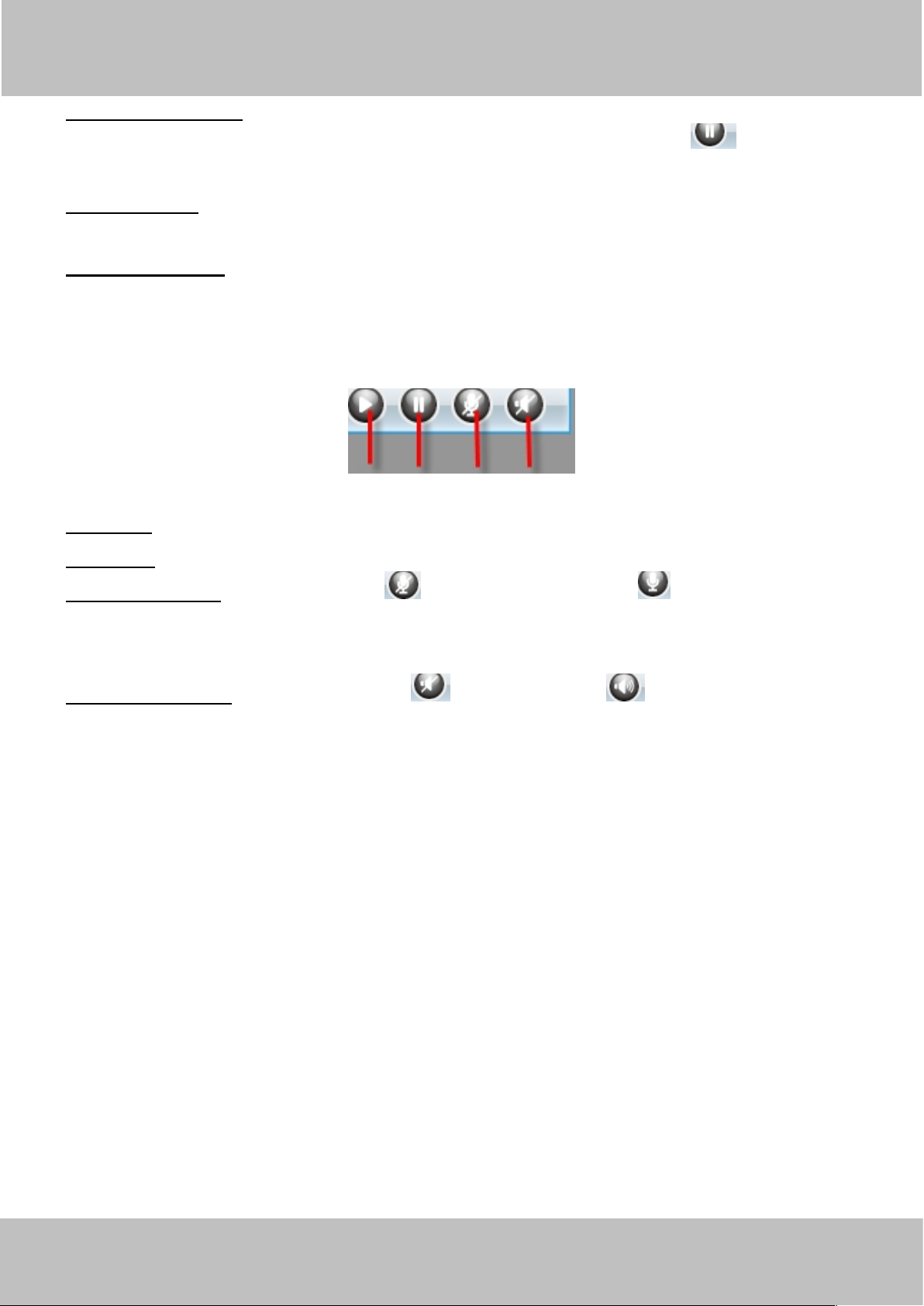
Section4 Pan/Tilt Control
1------Up control button, 2------Down control button,
3------Left control button, 4------Right control button,
5----- Up-Left control button 6----- Up-Right control button
7----- Down-Left control button 8----- Down-Right control button
9------Go to center
: Click this icon; camera will rotate up and down. Click to stop.
: Click this icon; camera will rotate left and right. Click to stop.
: Click this icon, all the IR lights will turn on. Click to turn off them.
Section5 Device Management
Device Management ------Path to Administrator Control Panel, Click it, and it will lead to
Administrator Control Panel.
Section6 Record & Snapshot & Full Screen Buttons
Page 13
wwww.foscam.co
ww.foscam.comm
Shenzhen
Shenzhen
Foscam
Foscam
Intelligent
Intelligent
Technology
Technology
Co.,
Co.,
Limited
Limited
Tel:
Tel:8686
755
755
2674
2674
5668
5668
Fax:
Fax:8686
755
755
2674
2674
516
51688
10
1------Record Button Click it and it pop-up a path-setting window, you can select the storage
path and the record file name. At the same time the record icon changes to ,, Click it again
and stop recording.
2------Snapshot Click it to make snapshot and it pop-up a window which picture you snapshot,
right click in the window and save the picture to anywhere you want.
3------Full Screen Click it to make full-screen, or you can double click the surveillance screen
to make full-screen.
Section7 Play/Stop/ Talk and Audio Buttons
1------Play Click it to play the video of the camera
2------Stop Click it to stop the video of the camera
3------ Talk Button Click the talk icon , and the icon changes to , then talk through your
computer’s microphone which will transmit through the camera’s speaker. People will hear your
talking through the camera’s built-in speaker. Click the icon again and stop talking.
4------Audio Button Click the audio icon , and it changes to , then you will hear sound
captured by the camera’s built-in microphone. You may need to plug in earphones or enable the
computer speakers to hear from the camera’s microphone.
Double click right mouse on the surveillance window, then left click on the screen to indicate the
camera move direction you prefer, press the left mouse and the camera’ Len will move to the
corresponding direction.. Double click right mouse again, cancel onscreen mouse control.
For example, double click right mouse, then left click on the up corner of the screen, you can see
the arrow, press the left mouse, and the camera’s lens will moving towards the up direction.
Double click right mouse again, cancel onscreen mouse control.
1
2
3
4
Onscreen Mouse Control
Page 14
wwww.foscam.co
ww.foscam.comm
Shenzhen
Shenzhen
Foscam
Foscam
Intelligent
Intelligent
Technology
Technology
Co.,
Co.,
Limited
Limited
Tel:
Tel:8686
755
755
2674
2674
5668
5668
Fax:
Fax:8686
755
755
2674
2674
516
51688
11
Figure 2.4
NOTE:
Record and multi-device function are controlled by ActiveX controller, therefore Firefox or
Google Chrome, Safari browsers will not allow these functions.
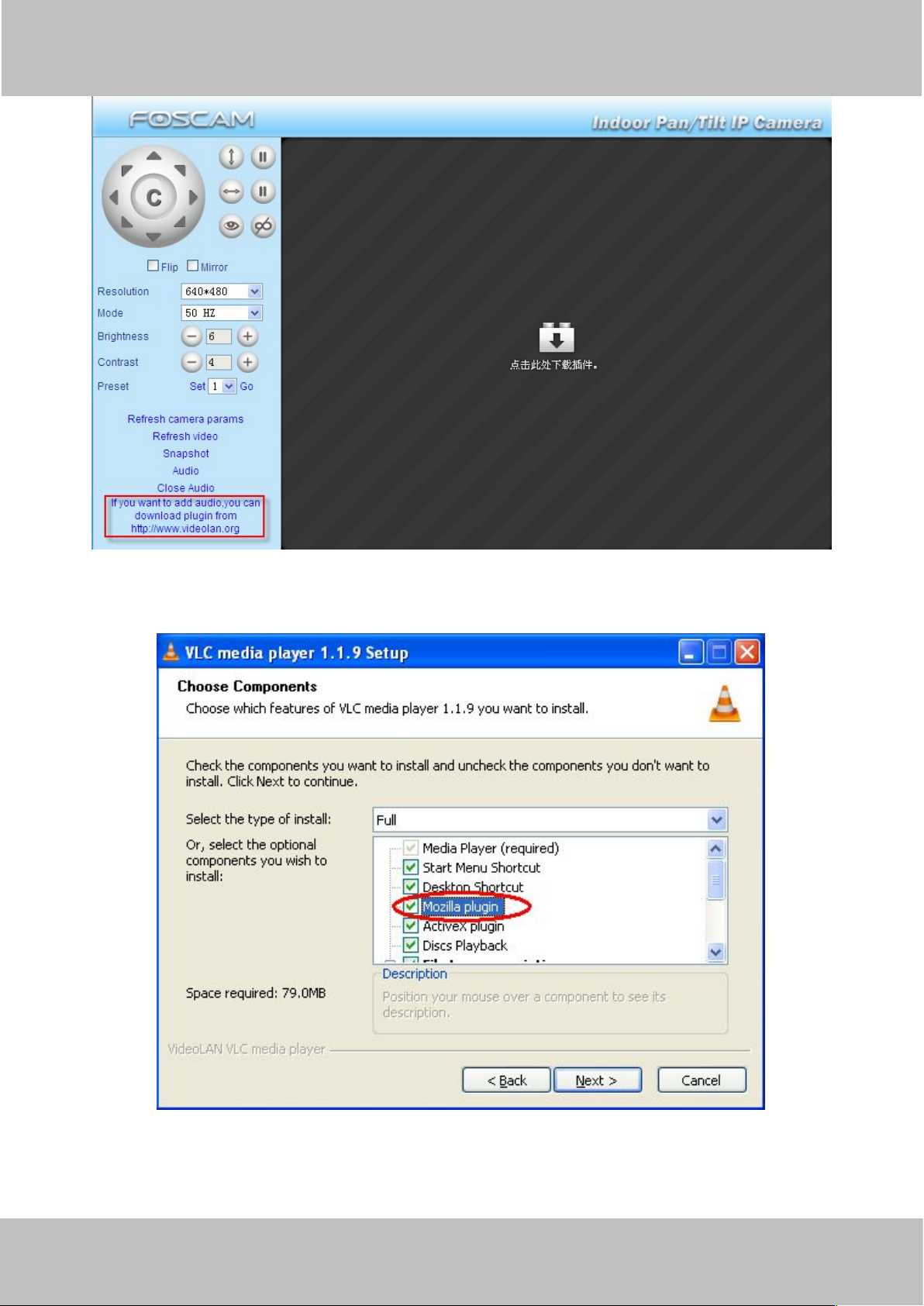
For Firefox, Google Chrome, Safari, you should select the Server Push Mode and you can see
the following screen:
Figure 2.5
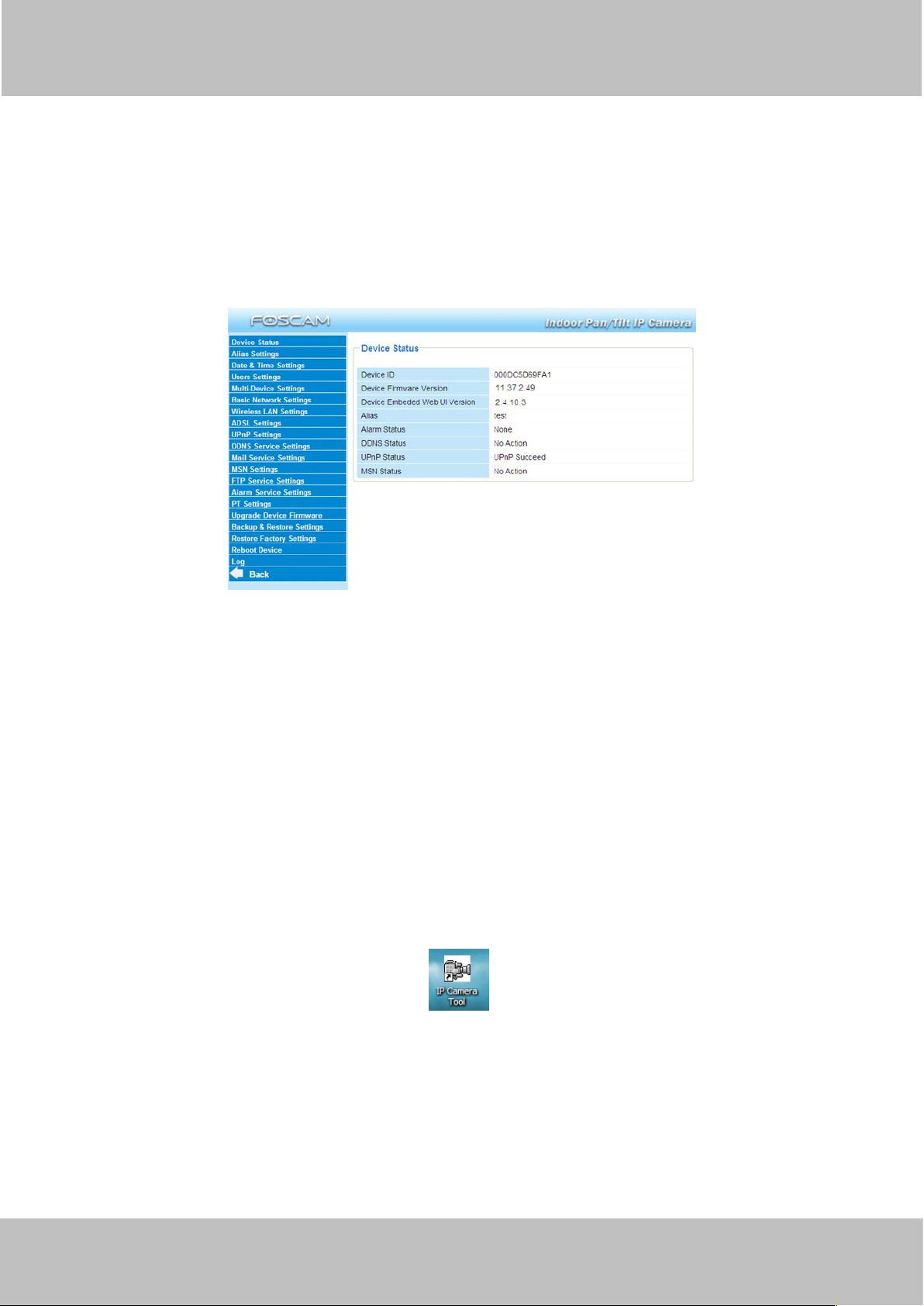
For the first time using audio, you need to download and install VLC plug-in, Click Audio, and you
can see the download website.
Page 15
wwww.foscam.co
ww.foscam.comm
Shenzhen
Shenzhen
Foscam
Foscam
Intelligent
Intelligent
Technology
Technology
Co.,
Co.,
Limited
Limited
Tel:
Tel:8686
755
755
2674
2674
5668
5668
Fax:
Fax:8686
755
755
2674
2674
516
51688
12
Figure 2.6
During the installation, you must select Mozilla plugin as in Figure 2.7.
Figure 2.7
Page 16
wwww.foscam.co
ww.foscam.comm
Shenzhen
Shenzhen
Foscam
Foscam
Intelligent
Intelligent
Technology
Technology
Co.,
Co.,
Limited
Limited
Tel:
Tel:8686
755
755
2674
2674
5668
5668
Fax:
Fax:8686
755
755
2674
2674
516
51688
13
3 Advanced Camera Settings
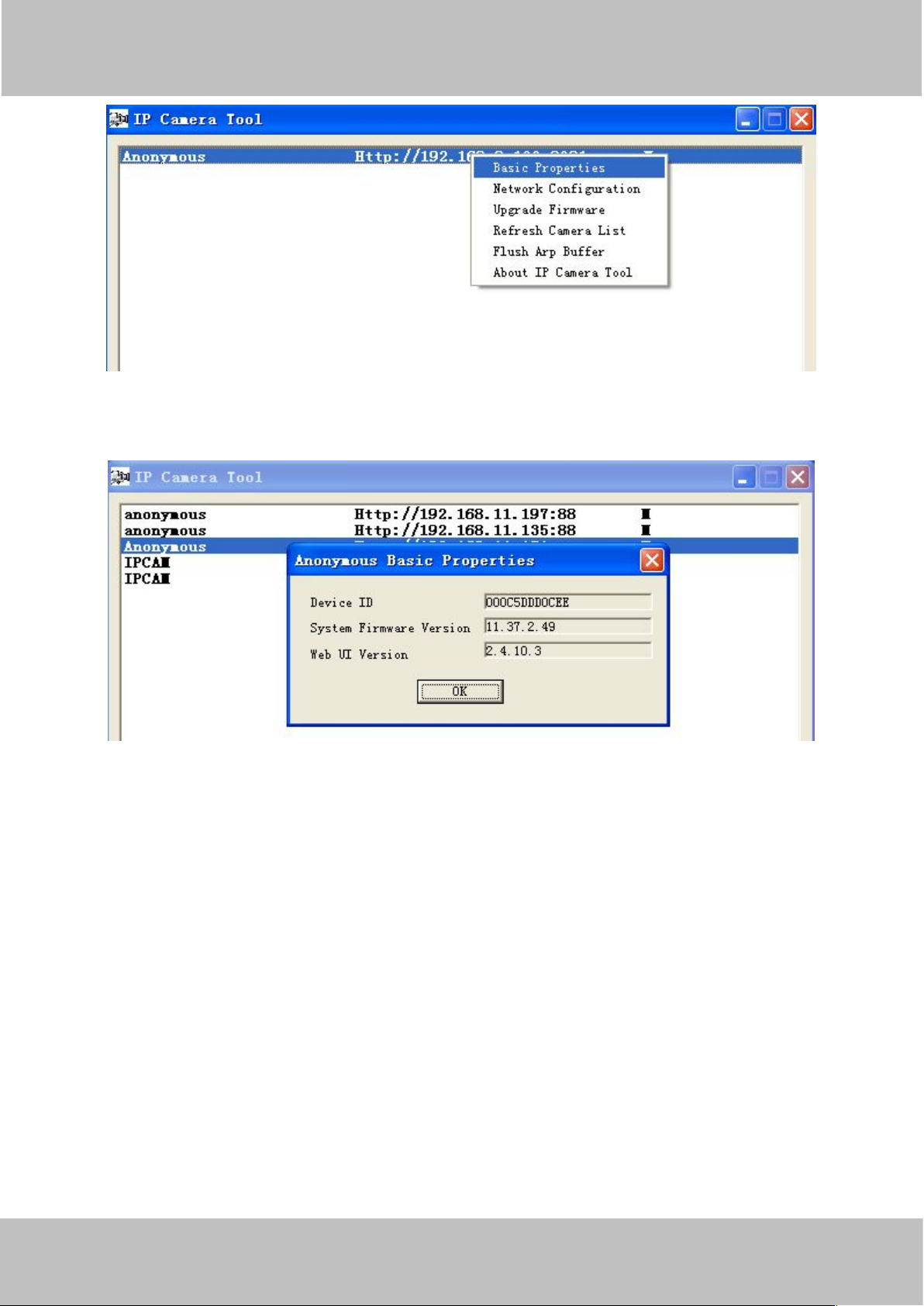
1------Device ID MAC ID of the camera by wired connection
2-----Device Firmware Version System Firmware version of the camera
3-----Device Web UI Version Web UI firmware version of the camera
4-----Alias Name of the camera
5-----Alarm Status The status of Alarm Service Setting
6-----DDNS Status The status of DDNS Setting
7-----UPnP Status The status of UPnP Setting
8-----MSN Status The status of MSN Setting
Click the bar “Device Management”, goes to Administrator Control Panel to make advanced
camera settings.
3.1 Device Status
Figure 3.1
Another Way:
Double click the the icon “IP Camera.exe” , select the camera IP, right click and select
the Basic Properties, you can also see the Firmware Version and MAC Address, such as the
following screen:
Page 17
wwww.foscam.co
ww.foscam.comm
Shenzhen
Shenzhen
Foscam
Foscam
Intelligent
Intelligent
Technology
Technology
Co.,
Co.,
Limited
Limited
Tel:
Tel:8686
755
755
2674
2674
5668
5668
Fax:
Fax:8686
755
755
2674
2674
516
51688
14
3.2 Alias Settings
Figure 3.2
Figure 3.3
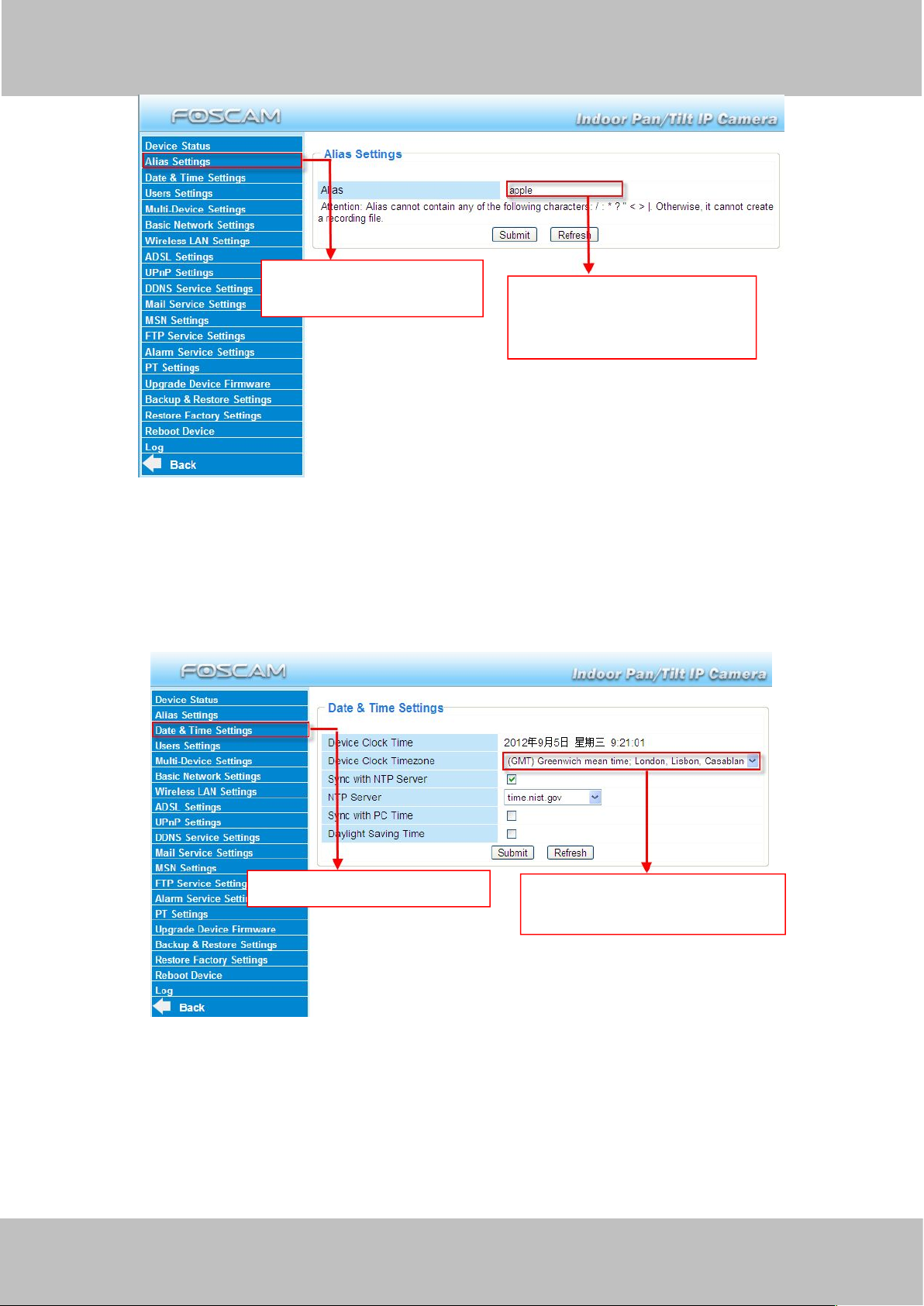
Default alias is Anonymous. You can define a name for your camera here such as apple. Click
Submit to save your changes. The alias name supports special characters.
Page 18
wwww.foscam.co
ww.foscam.comm
Shenzhen
Shenzhen
Foscam
Foscam
Intelligent
Intelligent
Technology
Technology
Co.,
Co.,
Limited
Limited
Tel:
Tel:8686
755
755
2674
2674
5668
5668
Fax:
Fax:8686
755
755
2674
2674
516
51688
15
Figure 3.4
Click the option here to
modify the device name .
Enter the device name as
you like. Use different names
to identify multi-cameras .
Go to Data &Time Settings .
Select the time zone belong to
your region .
3.3 Date & Time Settings
Choose the time zone of your country. You can choose Sync with NTP Server or Sync with PC
Time. If your country implements the Daylight Saving Time, that option can also be selected.
3.4 User Settings
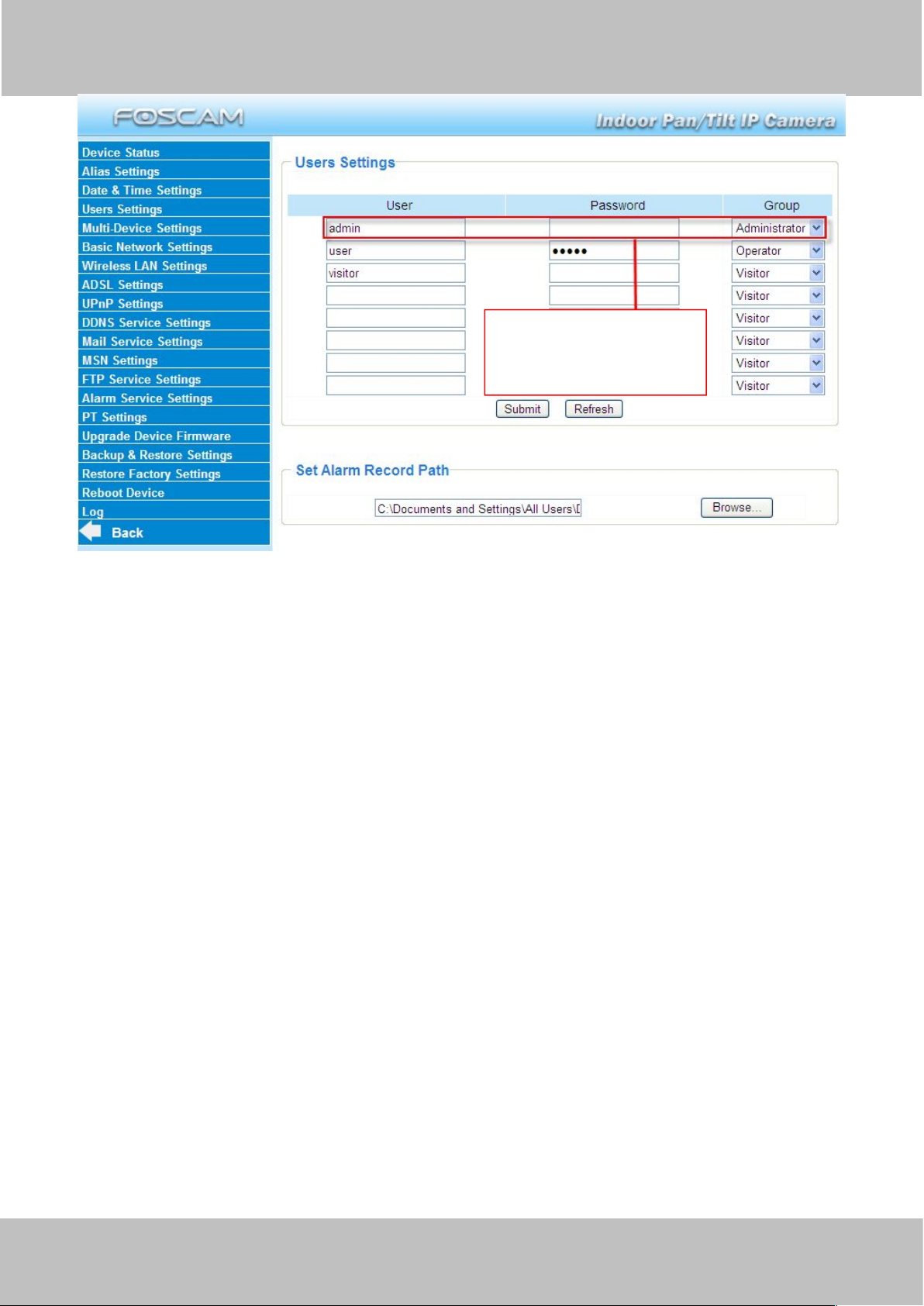
Here you can create users and set permission levels, visitor, operator or administrator.
Click Submit to save these settings. The camera will reboot.
Figure 3.5
Page 19
wwww.foscam.co
ww.foscam.comm
Shenzhen
Shenzhen
Foscam
Foscam
Intelligent
Intelligent
Technology
Technology
Co.,
Co.,
Limited
Limited
Tel:
Tel:8686
755
755
2674
2674
5668
5668
Fax:
Fax:8686
755
755
2674
2674
516
51688
16
Figure 3.6
You can set different
permission levels, but at
least one administrator .
Here you can also set one important file locations for the camera, the Alarm Record Path.
Simply click Browse and choose the path to the required folder.
The Alarm Record Path location is used to store automatically recorded files when the camera
is activated by motion or sound. (See set motion/sound alarm. Figure 3.36) The default path for
Alarm Record Path is C:\Documents and Settings\All Users\Documents.
NOTE: In Windows7 or Vista, if you cannot set the paths.:
Windows7 or Vista's security level is higher than Windows XP/2000.For "set record path"
function, user should add the Device IP address to the Internet Explorer's 'Trusted sites' first. The
step is: IE browserToolInternet ProperSecurityTrusted sitesSitesAdd
3.5 Multi-Device Settings
If you want to view multi-surveillance screens on one window, you need to login one camera,
and set it as the main device, and do Multi-Device Settings, add other cameras to the first one
camera. Before you do multi-cams settings, you need to assign different port such as 81, 82,
83, 84, 85, 86, 87, 88 to the cameras if there is 8 cams installed.
The firmware within the camera can support a maximum of 9 devices monitoring all at the
same time.
3.5.1 Add cameras in LAN
In Multi-Device Settings page, you can see all devices searched in LAN. The 1st Device is the
Page 20
wwww.foscam.co
ww.foscam.comm
Shenzhen
Shenzhen
Foscam
Foscam
Intelligent
Intelligent
Technology
Technology
Co.,
Co.,
Limited
Limited
Tel:
Tel:8686
755
755
2674
2674
5668
5668
Fax:
Fax:8686
755
755
2674
2674
516
51688
17
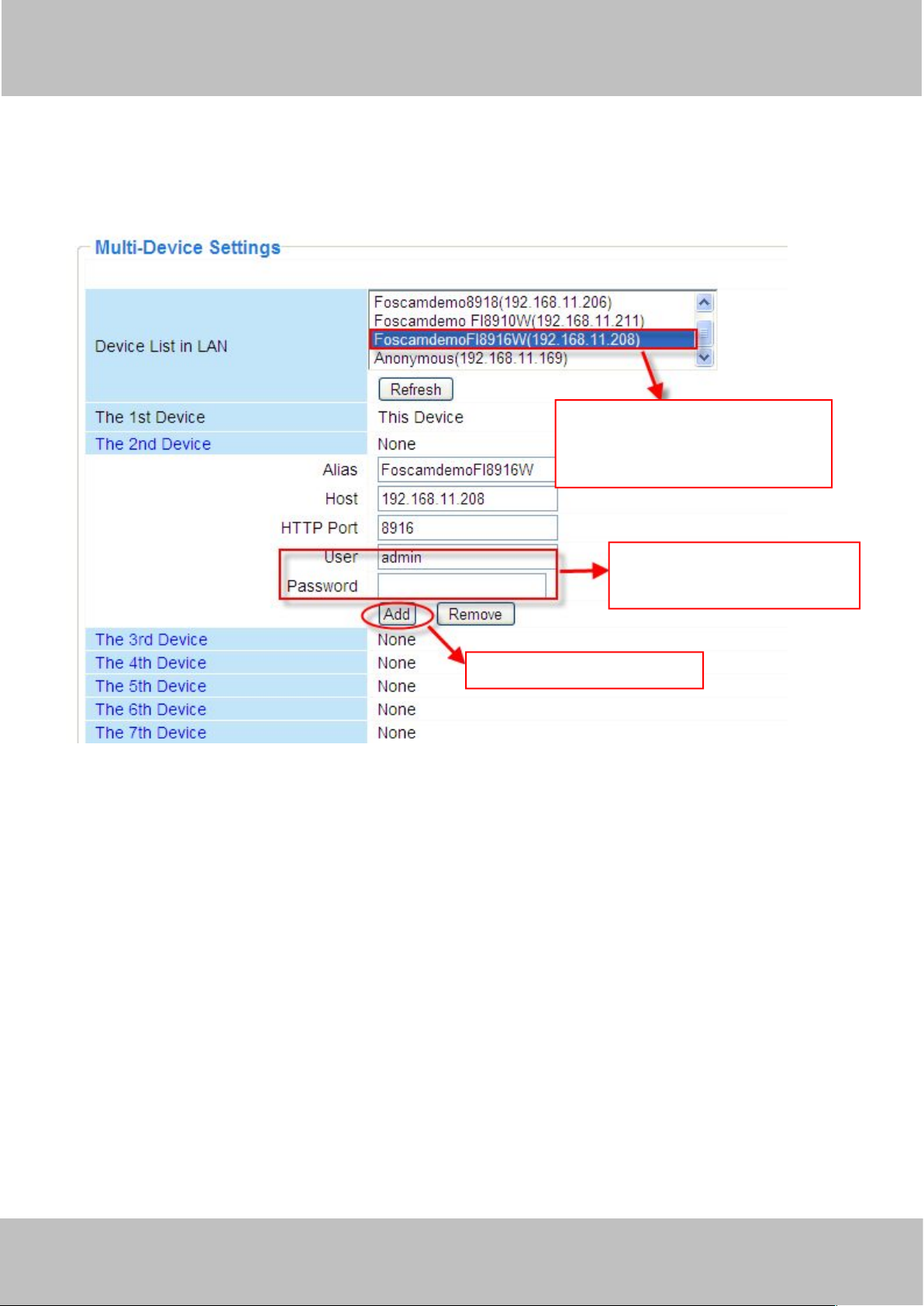
default one. You can add more cameras in the list in LAN for monitoring. The camera’s software
1 Click it, alias, host and HTTP
Port will be filled in the following
boxes automatically .
2 Enter the User name and
password of the 2nd camera .
3 Click Add to take effect .
supports up to 9 IP Cameras online simultaneously. Click The 2nd Device and click the item in
the Device List in LAN, the Alias, Host and Http Port will be filled in the boxes below
automatically. Enter the correct username and password then click Add. Add more cameras in
the same way. After all cameras have been added, choose Submit.
Figure 3.7a
Page 21
wwww.foscam.co
ww.foscam.comm
Shenzhen
Shenzhen
Foscam
Foscam
Intelligent
Intelligent
Technology
Technology
Co.,
Co.,
Limited
Limited
Tel:
Tel:8686
755
755
2674
2674
5668
5668
Fax:
Fax:8686
755
755
2674
2674
516
51688
18
Figure 3.7b
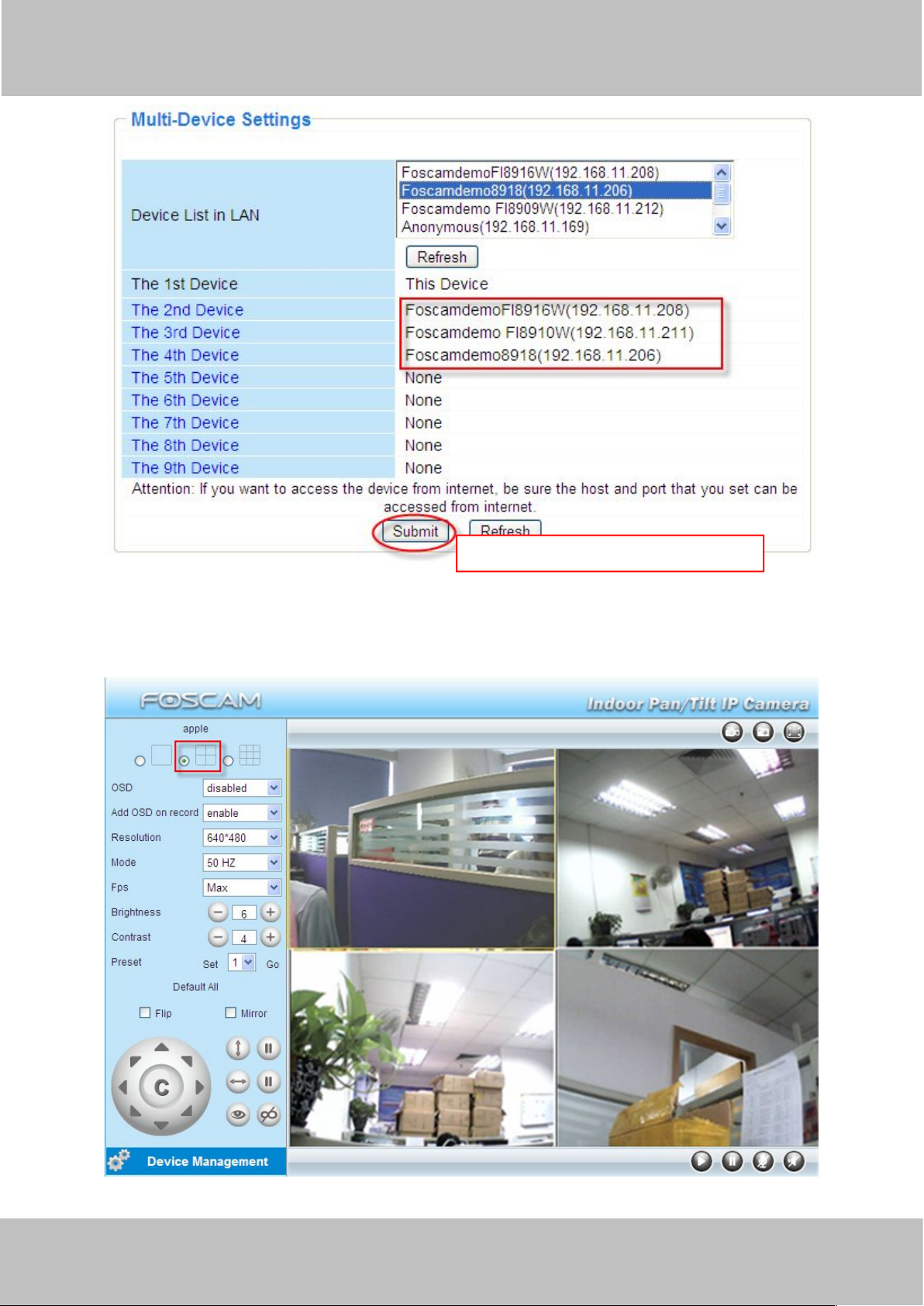
Click Submit after add all cameras
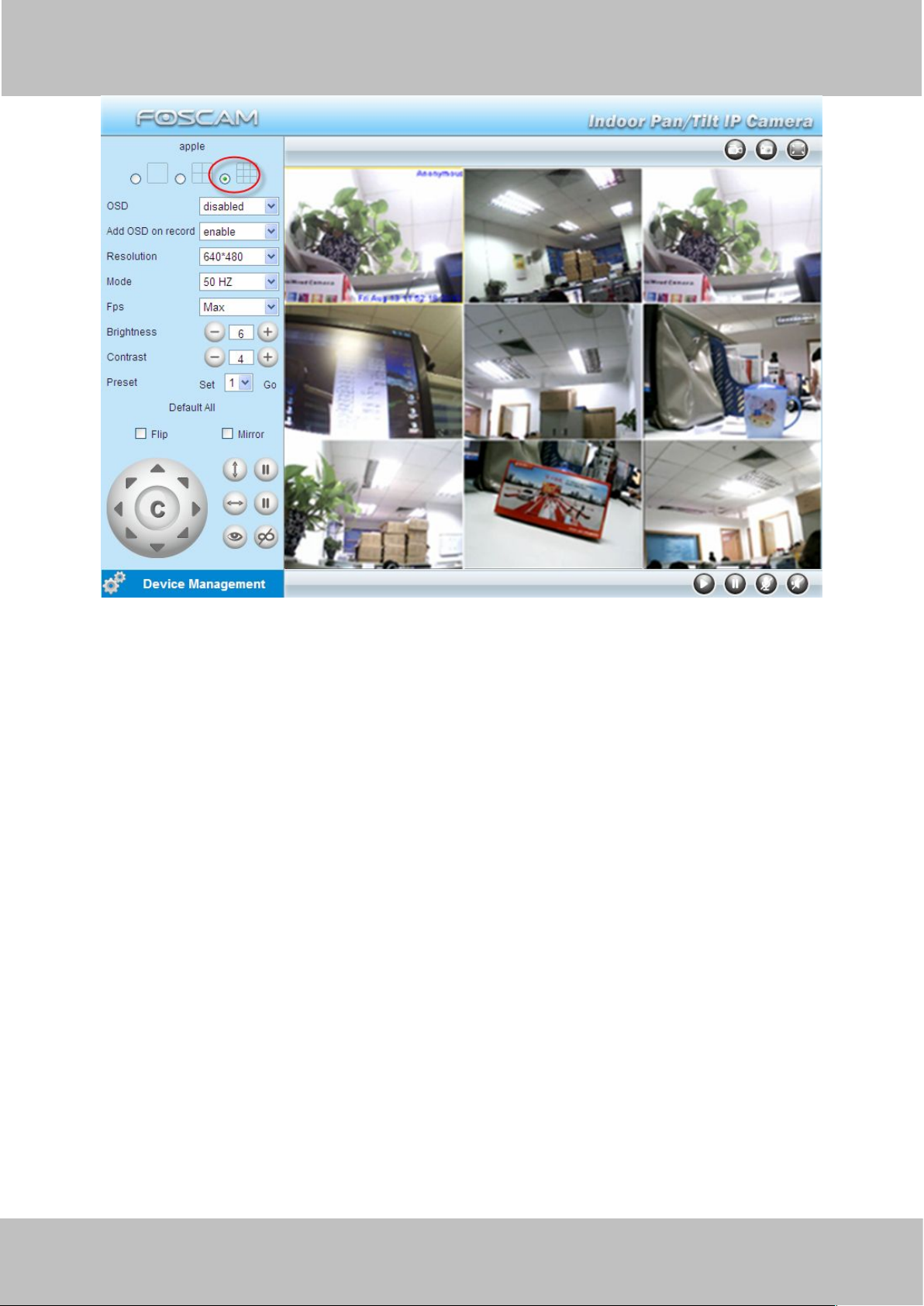
Back to Surveillance Windows, and click Four Windows option, you will see four cameras you
added.
Figure 3.8
Page 22
wwww.foscam.co
ww.foscam.comm
Shenzhen
Shenzhen
Foscam
Foscam
Intelligent
Intelligent
Technology
Technology
Co.,
Co.,
Limited
Limited
Tel:
Tel:8686
755
755
2674
2674
5668
5668
Fax:
Fax:8686
755
755
2674
2674
516
51688
19
Figure 3.9
3.5.2 Add cameras in WAN
If you want to view all cameras via the internet(remote computer), you will need to add them
using DDNS domain name. Firstly, make sure all of the cameras you added can be accessed
through the internet. (Read How to configure DDNS settings in chapter 3.10)
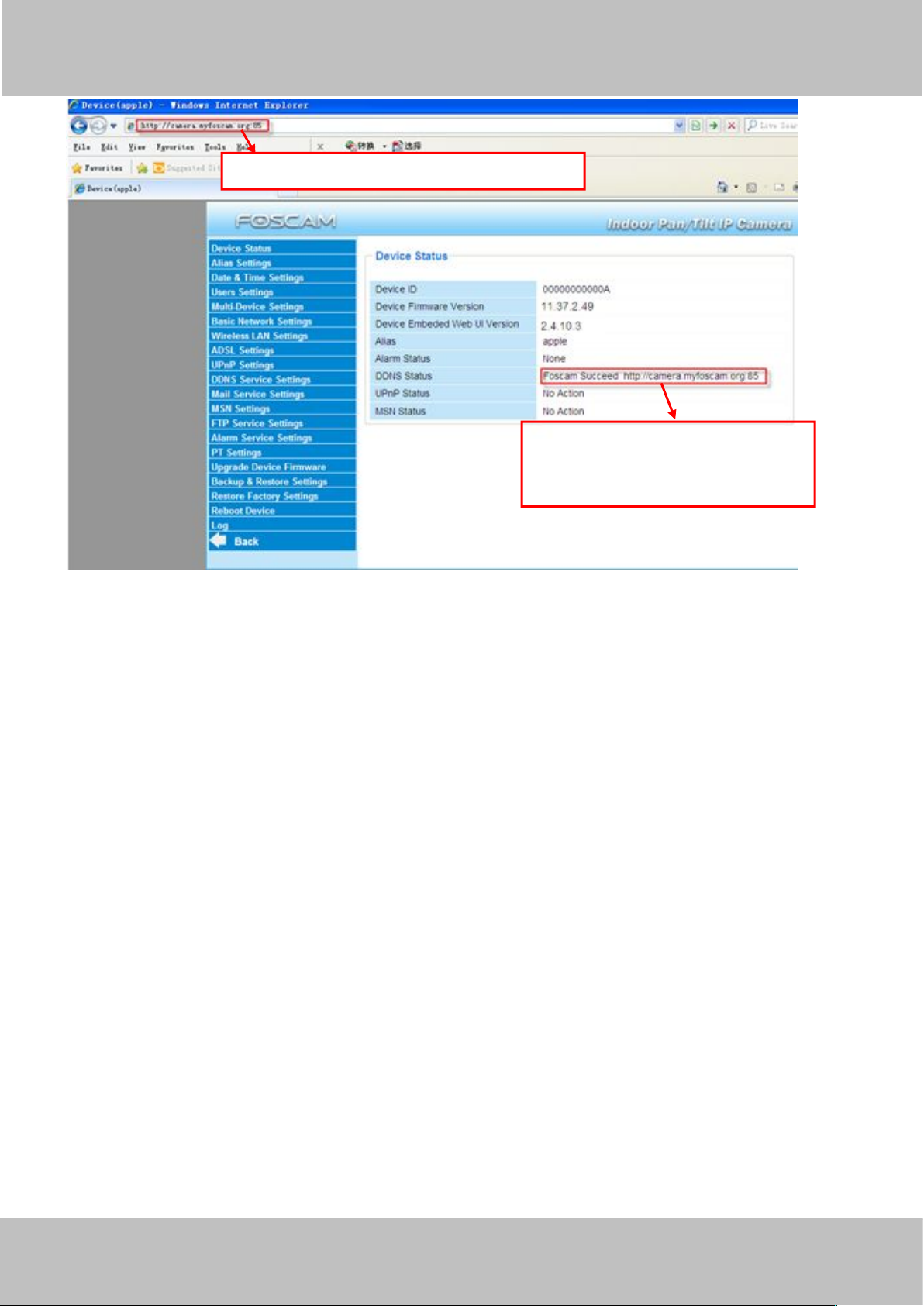
Login to the first camera using a DDNS domain name and port.
Page 23
wwww.foscam.co
ww.foscam.comm
Shenzhen
Shenzhen
Foscam
Foscam
Intelligent
Intelligent
Technology
Technology
Co.,
Co.,
Limited
Limited
Tel:
Tel:8686
755
755
2674
2674
5668
5668
Fax:
Fax:8686
755
755
2674
2674
516
51688
20
Figure 3.10
Use DDNS domain name and port to login
Make sure each camera you need
add could login with DDNS name
and port .
If you have several cameras, you can use the same DDNS domain name; you only need to set a
different port number for each camera.
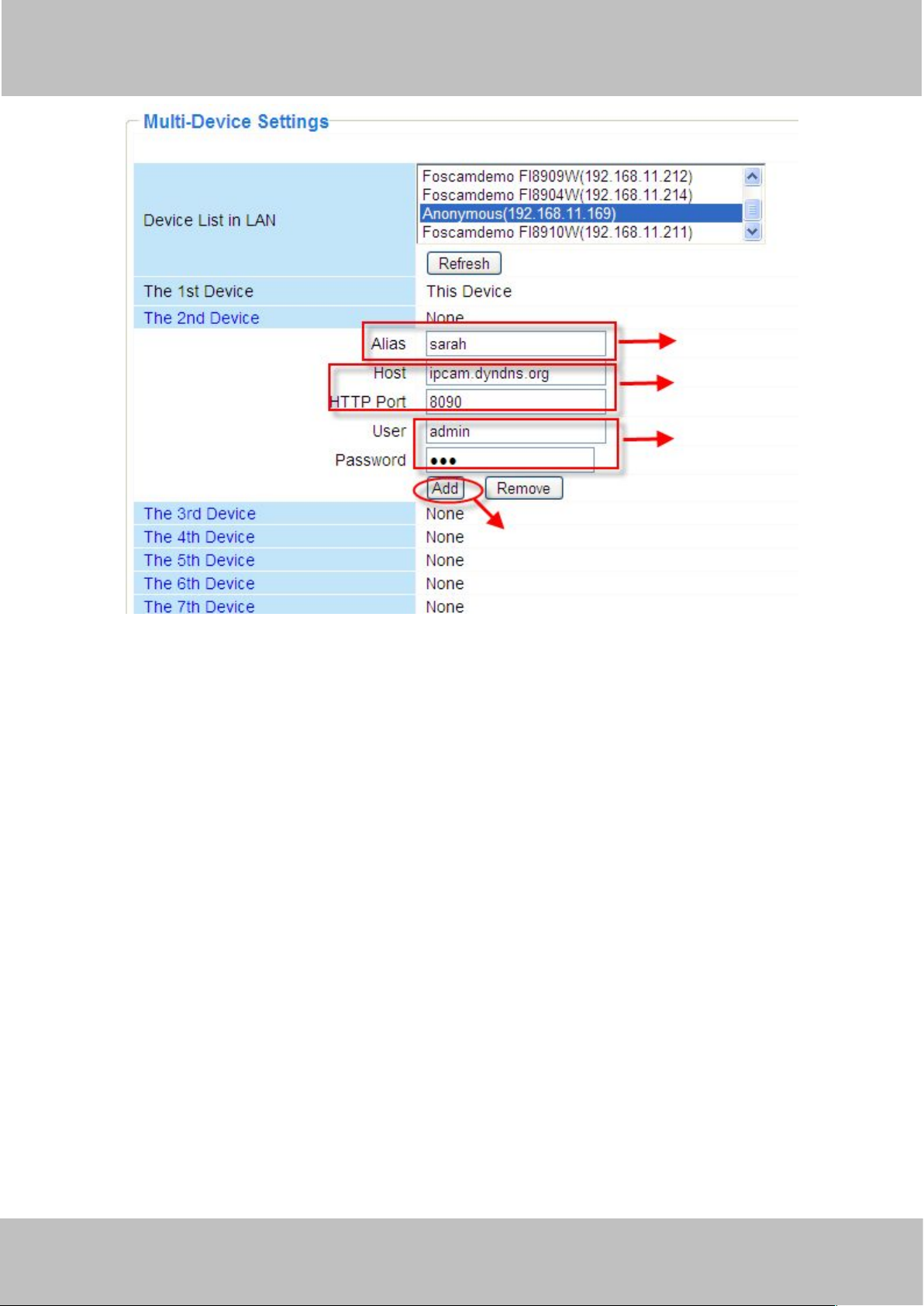
Click Multi-Device Settings. Choose The 2nd Device. Fill in the 2nd camera’s name, DDNS
domain name, port number. Enter user name and password and then choose Add. (Figure 3.11)
NOTE: Here the Host must be entered as the second camera’s DDNS domain name, not its LAN
IP.
Page 24
wwww.foscam.co
ww.foscam.comm
Shenzhen
Shenzhen
Foscam
Foscam
Intelligent
Intelligent
Technology
Technology
Co.,
Co.,
Limited
Limited
Tel:
Tel:8686
755
755
2674
2674
5668
5668
Fax:
Fax:8686
755
755
2674
2674
516
51688
21
Figure 3.11
123
4
1----- The 2nd camera’s name
2----- Fill in the 2nd camera’s DDNS host not LAN IP
3 ---- Enter the 2nd camera’s user name and password
4---- Click Add button and to take effect
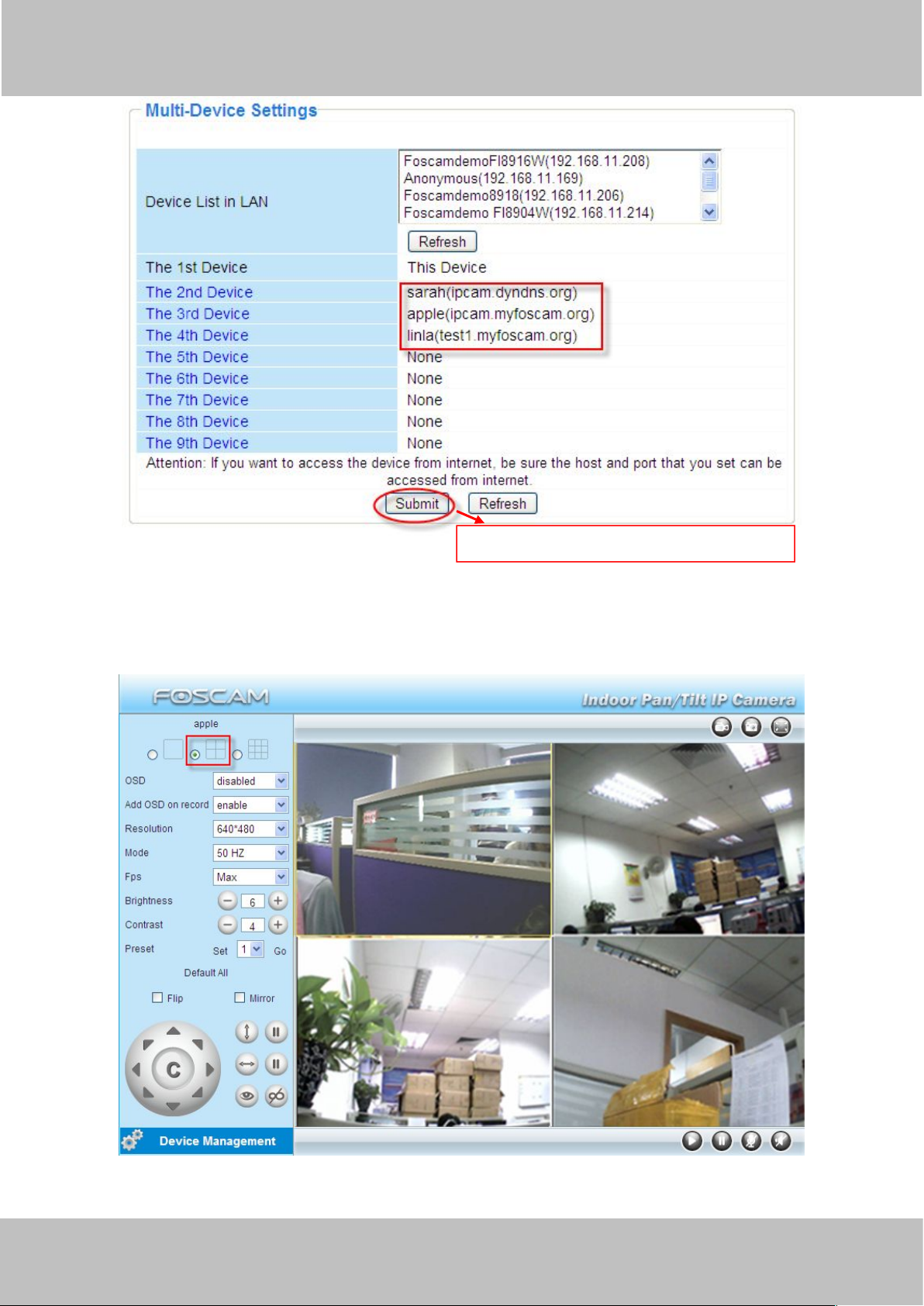
Add the other cameras in the same way. Click Submit to save.
Page 25
wwww.foscam.co
ww.foscam.comm
Shenzhen
Shenzhen
Foscam
Foscam
Intelligent
Intelligent
Technology
Technology
Co.,
Co.,
Limited
Limited
Tel:
Tel:8686
755
755
2674
2674
5668
5668
Fax:
Fax:8686
755
755
2674
2674
516
51688
22
Figure 3.12
Click submit after finishing all settings .
Return to video window. You will see all of the cameras accessible through the internet.
When you are away from home, you can use the first camera’s DDNS domain name and port to
view all the cameras via internet.
Figure 3.13
Page 26
wwww.foscam.co
ww.foscam.comm
Shenzhen
Shenzhen
Foscam
Foscam
Intelligent
Intelligent
Technology
Technology
Co.,
Co.,
Limited
Limited
Tel:
Tel:8686
755
755
2674
2674
5668
5668
Fax:
Fax:8686
755
755
2674
2674
516
51688
23
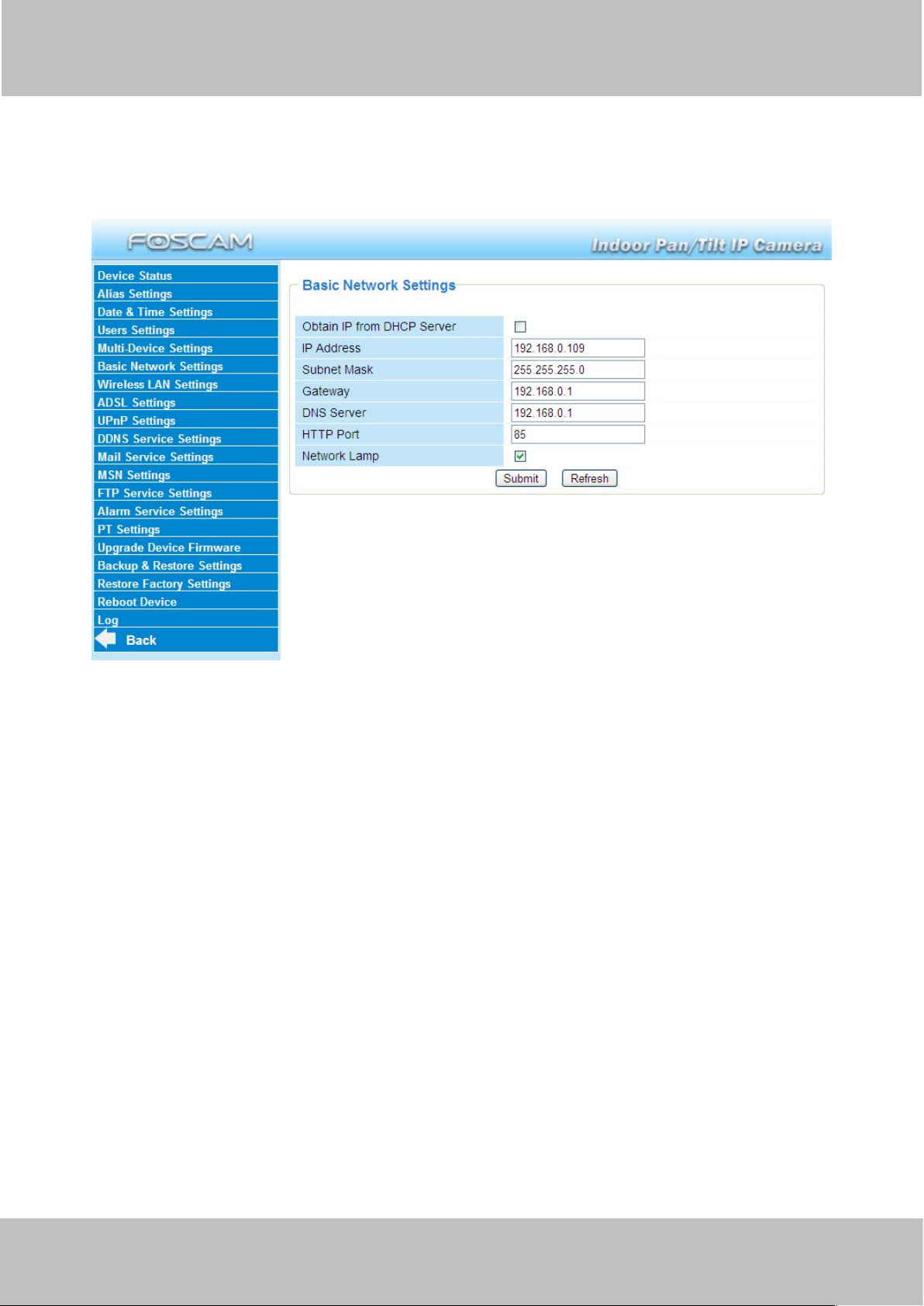
3.6 Basic Network Settings
If you want to set a static IP for the camera, select Basic Network Settings. Keep the camera in
the same subnet of your router or computer.
Figure 3.14
Changing settings here is the same as using the IP Camera Tool. (Figure 3.17/3.18)
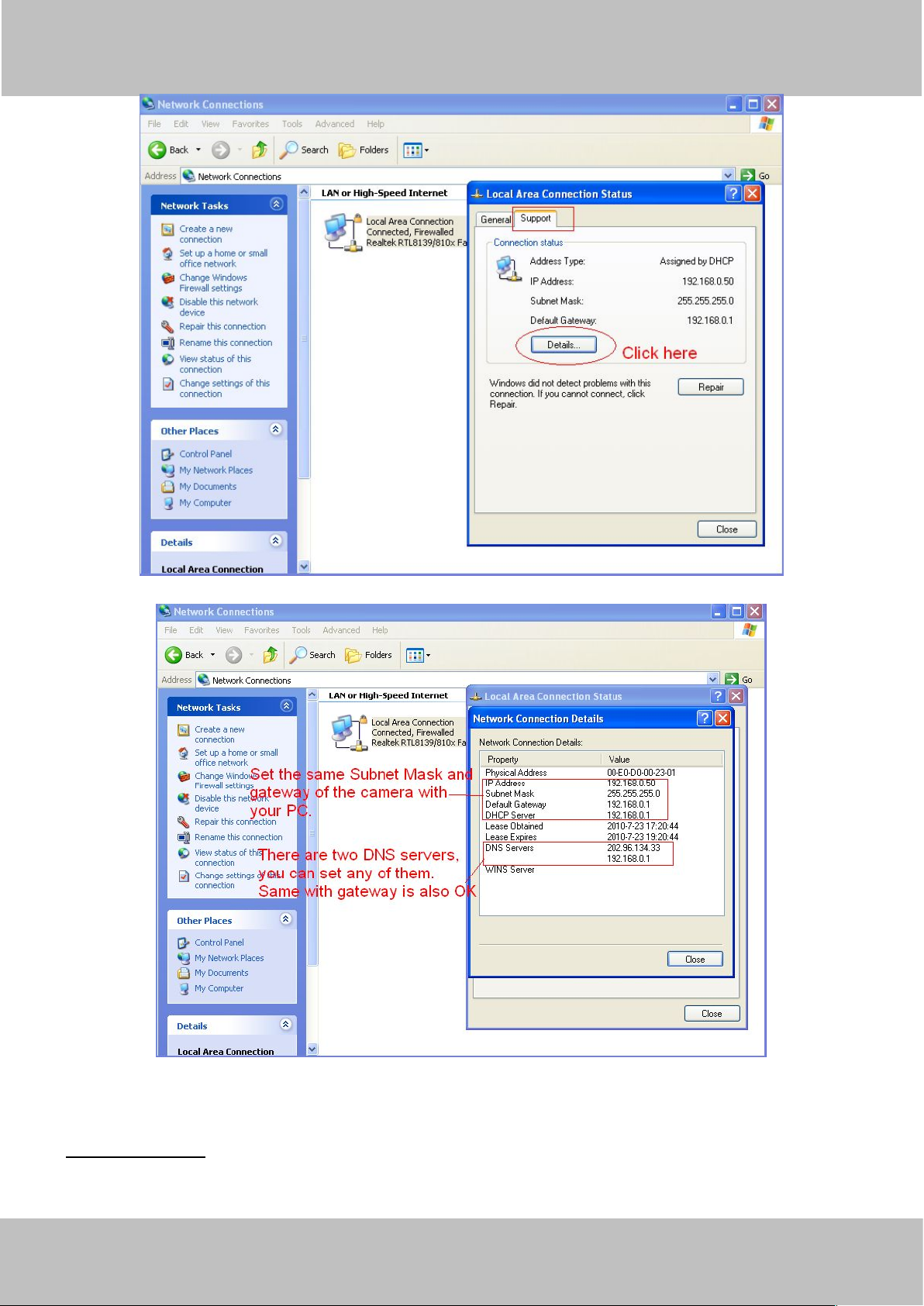
It is recommended that you use the subnet mask, gateway and DNS server from your locally
attached PC. If you don’t know the subnet mask, gateway and DNS server, you can check your
computer’s local area connection as follows:
Control Panel Network Connections Local Area Connections Choose
SupportDetails.
Page 27
wwww.foscam.co
ww.foscam.comm
Shenzhen
Shenzhen
Foscam
Foscam
Intelligent
Intelligent
Technology
Technology
Co.,
Co.,
Limited
Limited
Tel:
Tel:8686
755
755
2674
2674
5668
5668
Fax:
Fax:8686
755
755
2674
2674
516
51688
24
Figure 3.15
Figure 3.16
If you don’t know the DNS server, you can use the same settings as the Default Gateway.
Network lamp: There is a network lamp on the back of the camera, select it and when the
network connection are working, the lamp will turn on and blink.
Page 28
wwww.foscam.co
ww.foscam.comm
Shenzhen
Shenzhen
Foscam
Foscam
Intelligent
Intelligent
Technology
Technology
Co.,
Co.,
Limited
Limited
Tel:
Tel:8686
755
755
2674
2674
5668
5668
Fax:
Fax:8686
755
755
2674
2674
516
51688
25
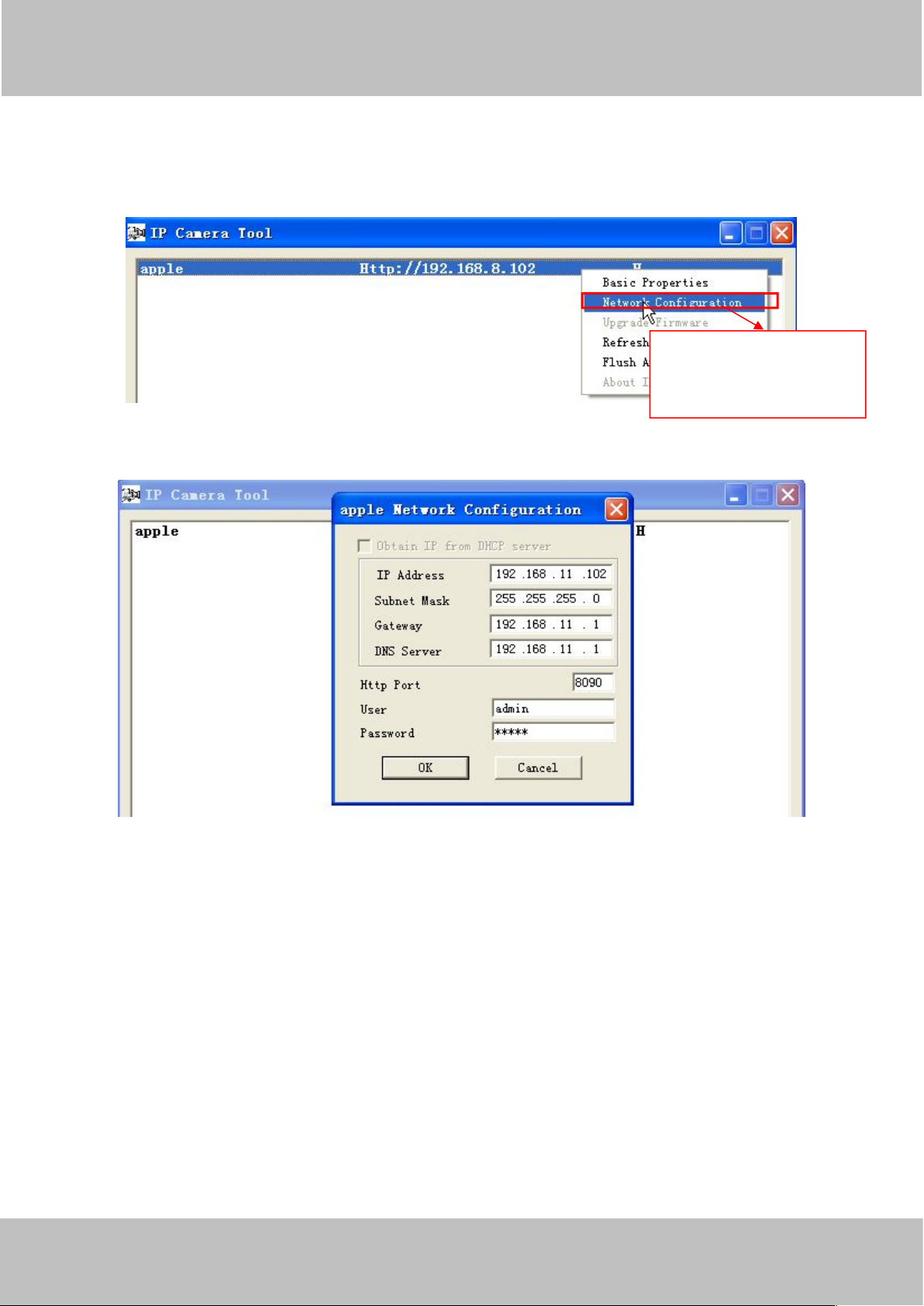
Another way to change the camera’s LAN IP and HTTP Port no.
Select the camera you
want to change the LAN
IP or port no, right click .
Open the IP Camera Tool, select the camera you want to change the port no, right click on the IP
address link, and goes to Option ”Network Configuration”, it pops up another dialogue showed as
the following screen
Figure 3.17
IP Address: Fill in the IP address assigned and make sure it is in the same subnet as your
computer or router. (I.e. the first three sections are the same)
Subnet Mask: The default subnet mask of the equipment in our LAN is: 255.255.255.0.You can
find the subnet mask in the basic information of your router or the locally-attached of your PC.
Gateway: Make sure it is in the same subnet with PC’s IP address. The gateway is your router’s
LAN IP.
DNS Server: IP address of your ISP network provider. You can find the DNS server in your
router or check the locally-attached address of your computer. Your PC contains your PC’s IP
address, gateway and DNS server. Normally, there are two DNS servers. Here you can also set
the DNS server the same with gateway.
Figure 3.18
Page 29
wwww.foscam.co
ww.foscam.comm
Shenzhen
Shenzhen
Foscam
Foscam
Intelligent
Intelligent
Technology
Technology
Co.,
Co.,
Limited
Limited
Tel:
Tel:8686
755
755
2674
2674
5668
5668
Fax:
Fax:8686
755
755
2674
2674
516
51688
26
Http Port: The default Lan port is 80.You can set another port number, such as port 8005,
Enter the ADSL user
and password .
8100.etc.
User&Password: Default administrator user name is admin with no password.
NOTE:
If the prompt “Subnet doesn’t match, dbclick to change!” appears, please enable DHCP set
camera’s IP address and gateway once again.
3.7 Wireless Settings
The network camera is POE-compliant, allowing transmission of power and data via a single
network cable, so here cannot allow to use Wireless function.
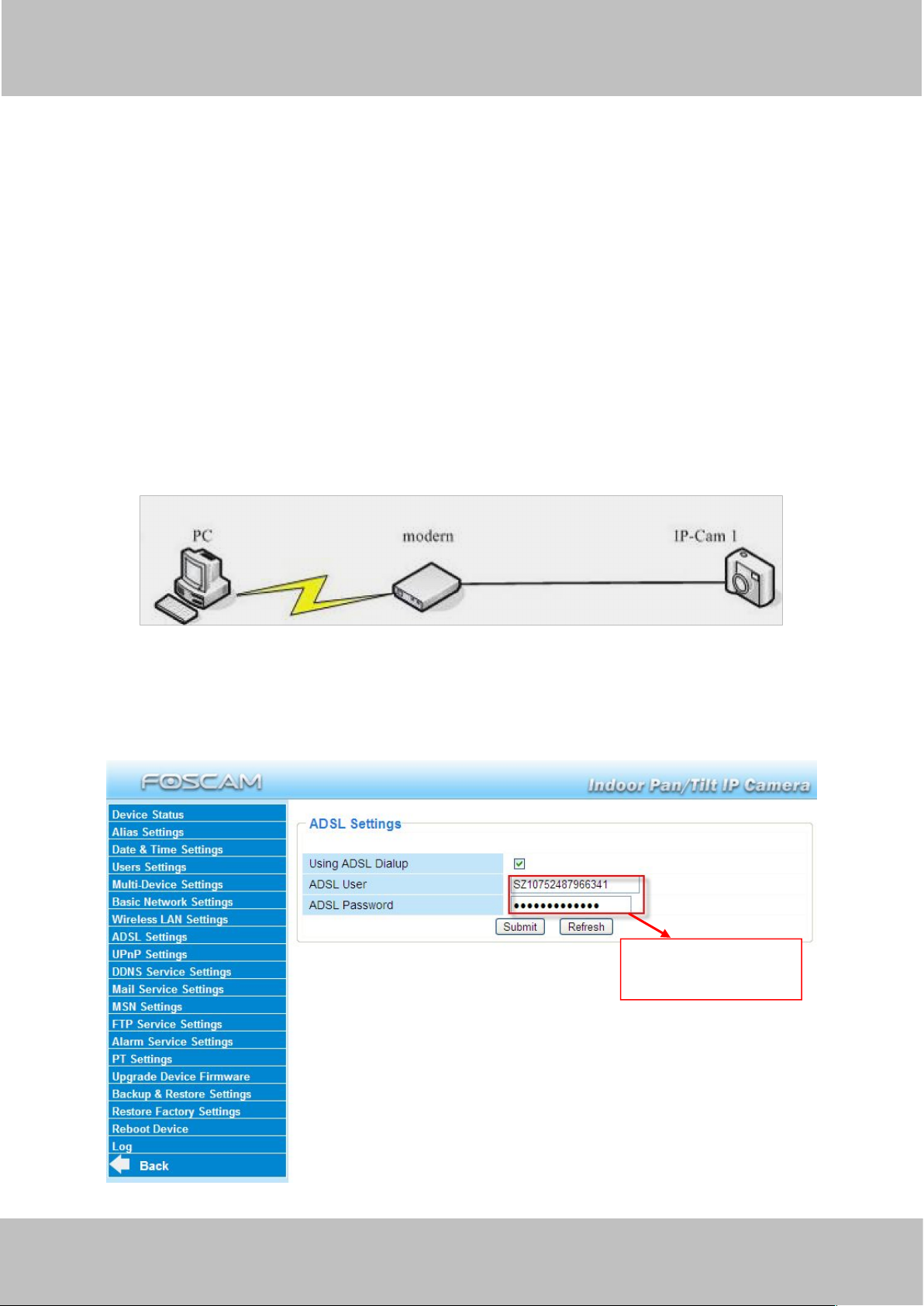
3.8 ADSL
Figure 3.19
If you are connecting the camera directly to a ADSL modem, you can do ADSL settings with your
ADSL account &password provided by the ISP, then make the camera connected to the network.
Figure 3.20
Page 30
wwww.foscam.co
ww.foscam.comm
Shenzhen
Shenzhen
Foscam
Foscam
Intelligent
Intelligent
Technology
Technology
Co.,
Co.,
Limited
Limited
Tel:
Tel:8686
755
755
2674
2674
5668
5668
Fax:
Fax:8686
755
755
2674
2674
516
51688
27
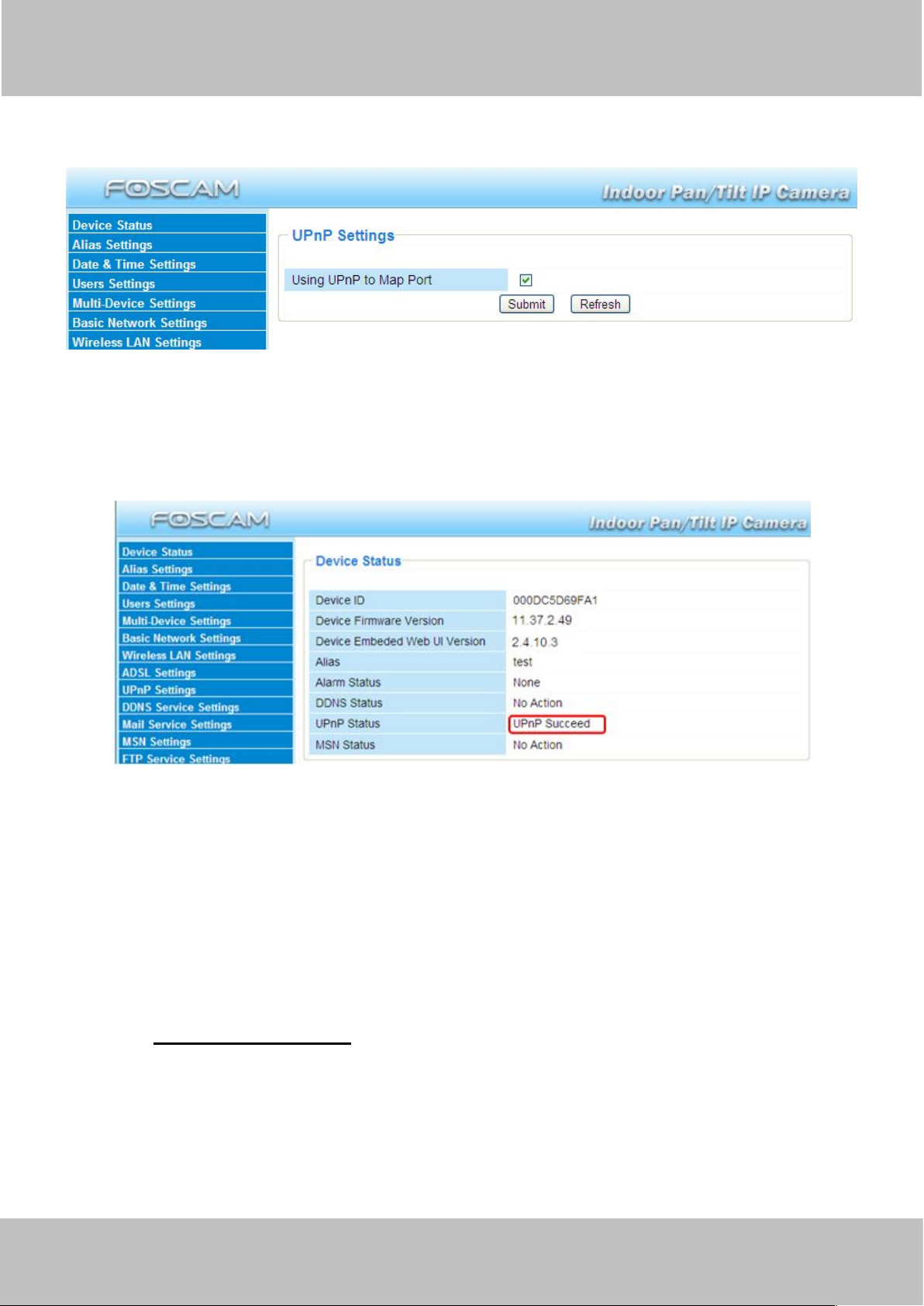
3.9 UPnP Settings
Figure 3.21
The default UPnP status is closed. You can select the checkbox and open UPnP, then the
camera’s software will be configured for port forwarding. Back to the “Device Status” panel, you
can see the UPnP status:
There may be issues with your routers security settings, and sometimes may error. We
recommend you configure port forwarding manually on your router (Figure 3.27).
3.10 DDNS Service Settings
FOSCAM camera has embedded a unique DDNS domain name when producing, and you can
directly use the domain name, you can also use the third party domain name.
FOSCAM domain name
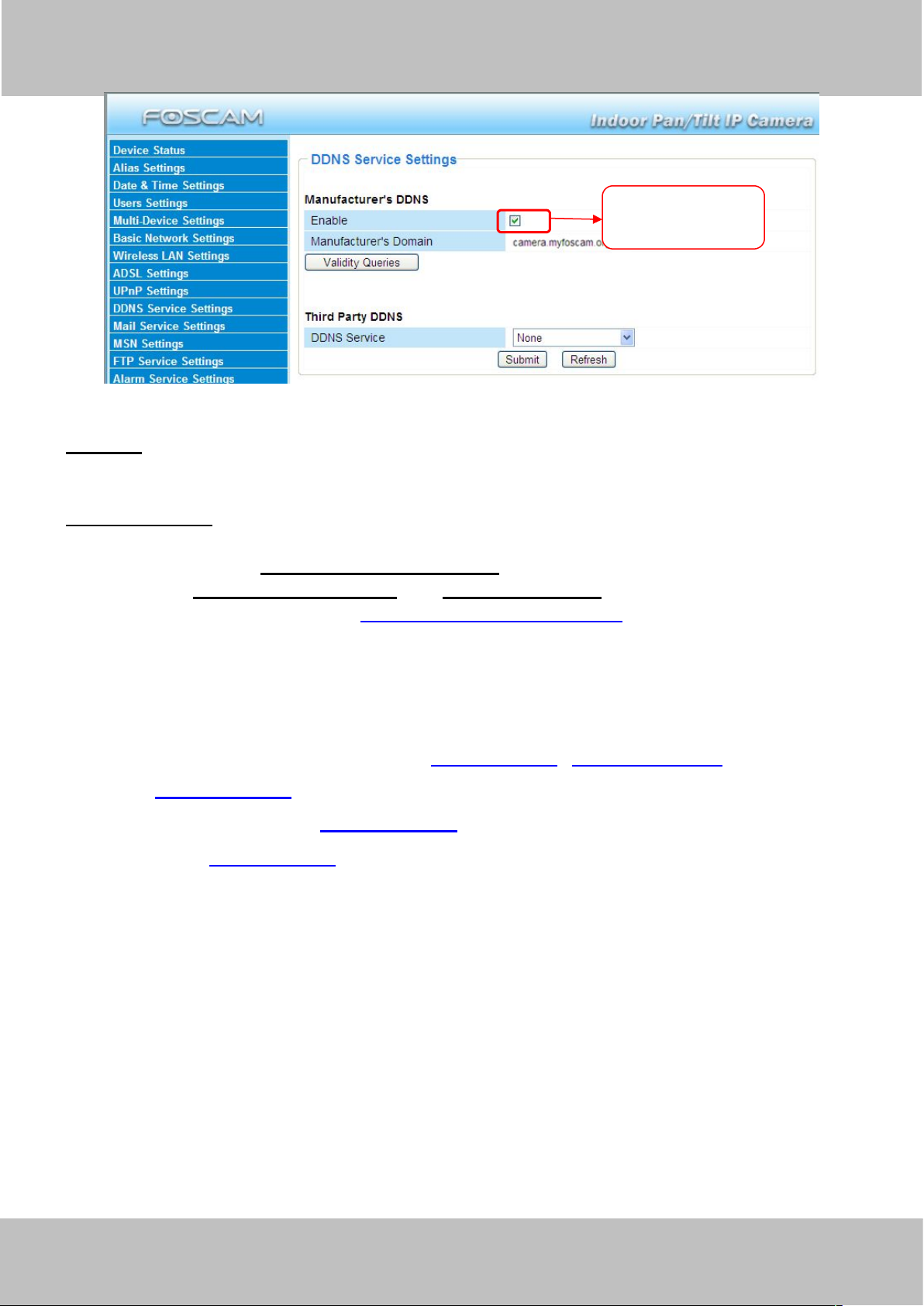
Here take camera.myfoscam.org for example. Go to option of DDNS Service Settings on the
administrator panel, you can see the domain name.
Please enable the FOSCAM DDNS name first.
Page 31
wwww.foscam.co
ww.foscam.comm
Shenzhen
Shenzhen
Foscam
Foscam
Intelligent
Intelligent
Technology
Technology
Co.,
Co.,
Limited
Limited
Tel:
Tel:8686
755
755
2674
2674
5668
5668
Fax:
Fax:8686
755
755
2674
2674
516
51688
28
Figure 3.23
Enable FOSCAM
DDNS name .
Enable: Open or close the FOSCAM domain name. The default status of FOSCAM domain
name is open.
Validity Queries: Check the validity of embedded domain name.
Now you can use http:// Domain name + HTTP Port to access the camera via internet.
Take hostname camera.myfoscam.org and HTTP Port no. 88 for example, the accessing link
of the camera via internet would be http:// camera.myfoscam.org:88
Note: If you want to use the manufacturer’s domain name, please select None as the Third Party
DDNS and enable the Manufacturer’s domain name, then click submit.
Third Party Domain Name Settings
User can also use third part DDNS, such as www.no-ip.com. ,www. dyndns.com
Here take www.no-ip.com for example:
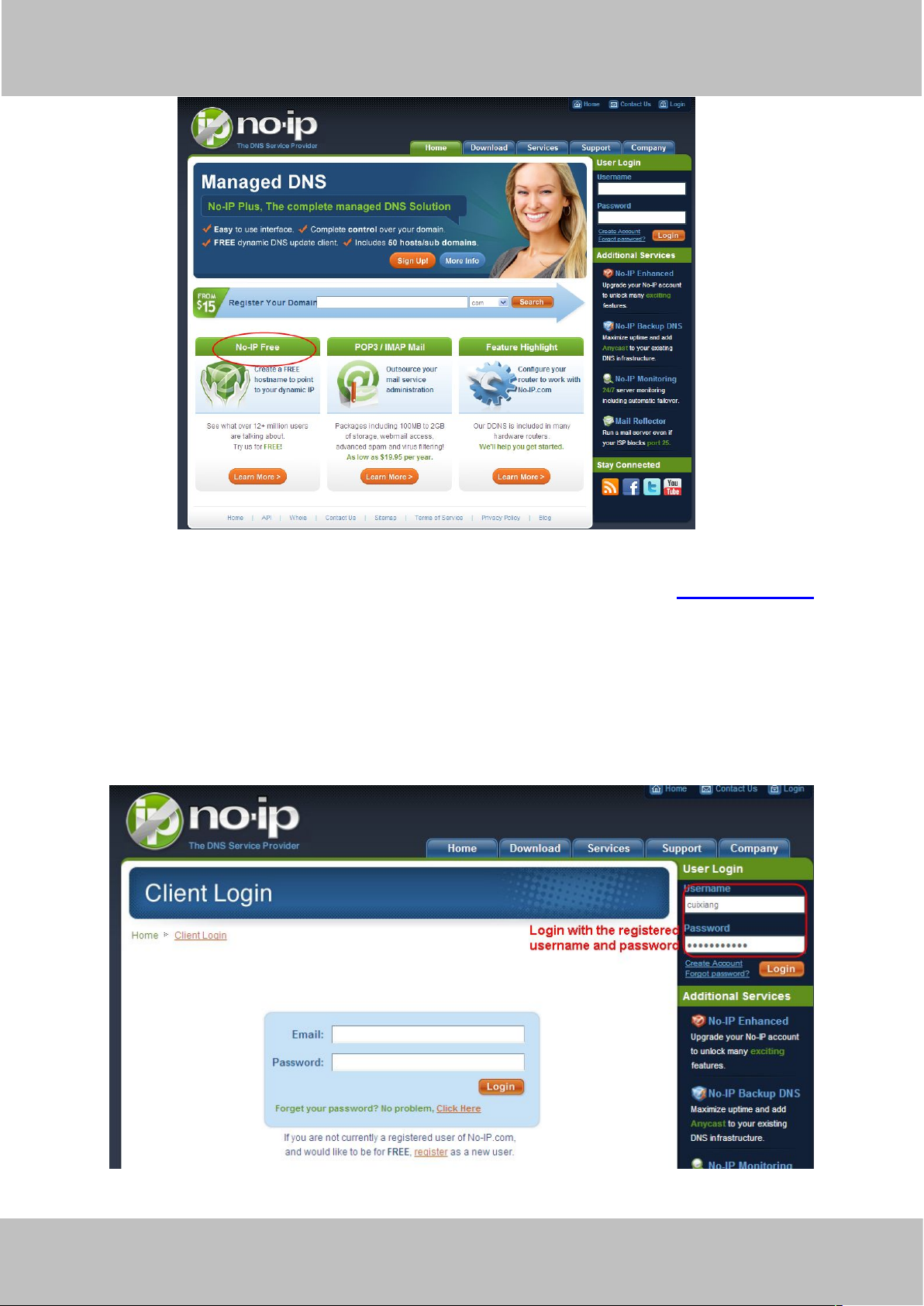
① Step 1, Go to the website www.no-ip.com to create a free hostname
Firstly: Login on www.no-ip.com and click No-IP Free to register.
Page 32
wwww.foscam.co
ww.foscam.comm
Shenzhen
Shenzhen
Foscam
Foscam
Intelligent
Intelligent
Technology
Technology
Co.,
Co.,
Limited
Limited
Tel:
Tel:8686
755
755
2674
2674
5668
5668
Fax:
Fax:8686
755
755
2674
2674
516
51688
29
Figure 3.24
Click here to register
Please register an account step by step according to instructions on www.no-ip.com
After registration, please login your email which used to register. You will receive an email from
website, please click the link to activate your ACCOUNT as indicated in email.
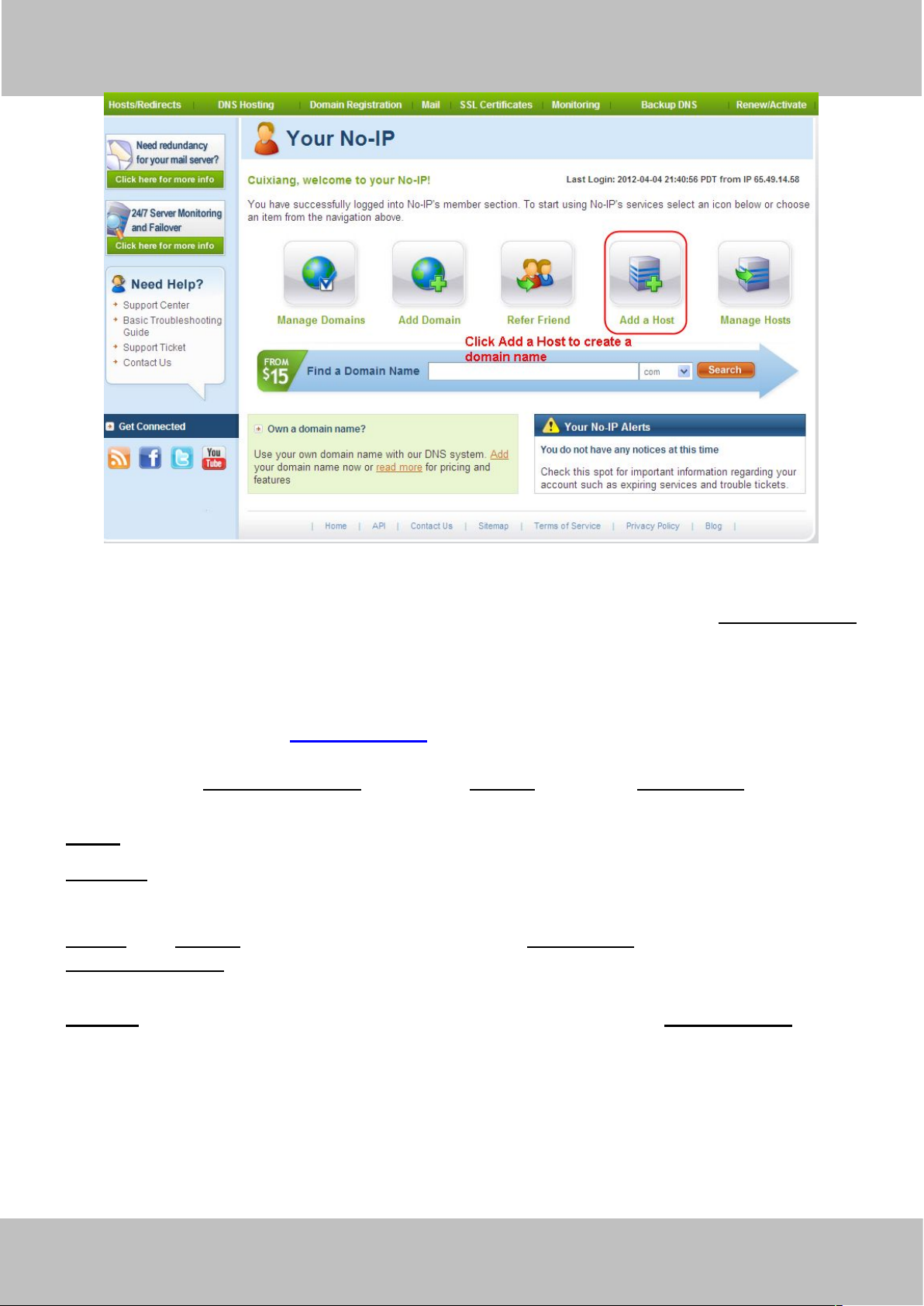
Secondly: Login the link with the registered username and password to create your
domain name.
Figure 3.25
Page 33
wwww.foscam.co
ww.foscam.comm
Shenzhen
Shenzhen
Foscam
Foscam
Intelligent
Intelligent
Technology
Technology
Co.,
Co.,
Limited
Limited
Tel:
Tel:8686
755
755
2674
2674
5668
5668
Fax:
Fax:8686
755
755
2674
2674
516
51688
30
Figure 3.26
Please create the domain name step by step according to instructions on www.no-ip.com
Step 2, DO DDNS Service Settings within the Camera
Please set DDNS Service Settings within the camera by hostname, a user name and
password you’ve got from www.no-ip.com
Take hostname ycxgwp.no-ip.info, user name foscam, password foscam2012 for example.
Firstly, goes to option of DDNS Service Settings on the administrator panel.
Secondly, disable the Manufacturer’s domain name and select No-Ip as a server in the Third
Party DDNS.
Thirdly, fill foscam as DDNS user, fill password foscam2012 as DDNS password, fill
ycxgwp.no-ip.info as DDNS domain and server URL, Then click save to make effect. The
camera will restart and to take the DDNS settings effective.
Fourthly, after the restart, login the camera, and go to option of Device Status on the
administrator panel, and check if the DDNS status is successful.
If failed, please double check if you have input the correct hostname, user name, and
password, and try to redo the settings.
NOTE:
The Third Party DDNS and the Manufacturer’s Domain Name cannot work at the same time.
If you have set Third Party DDNS and meanwhile you enabled the Foscam Domain Name, the
Page 34
wwww.foscam.co
ww.foscam.comm
Shenzhen
Shenzhen
Foscam
Foscam
Intelligent
Intelligent
Technology
Technology
Co.,
Co.,
Limited
Limited
Tel:
Tel:8686
755
755
2674
2674
5668
5668
Fax:
Fax:8686
755
755
2674
2674
516
51688
31
Third Party DDNS will take effect.
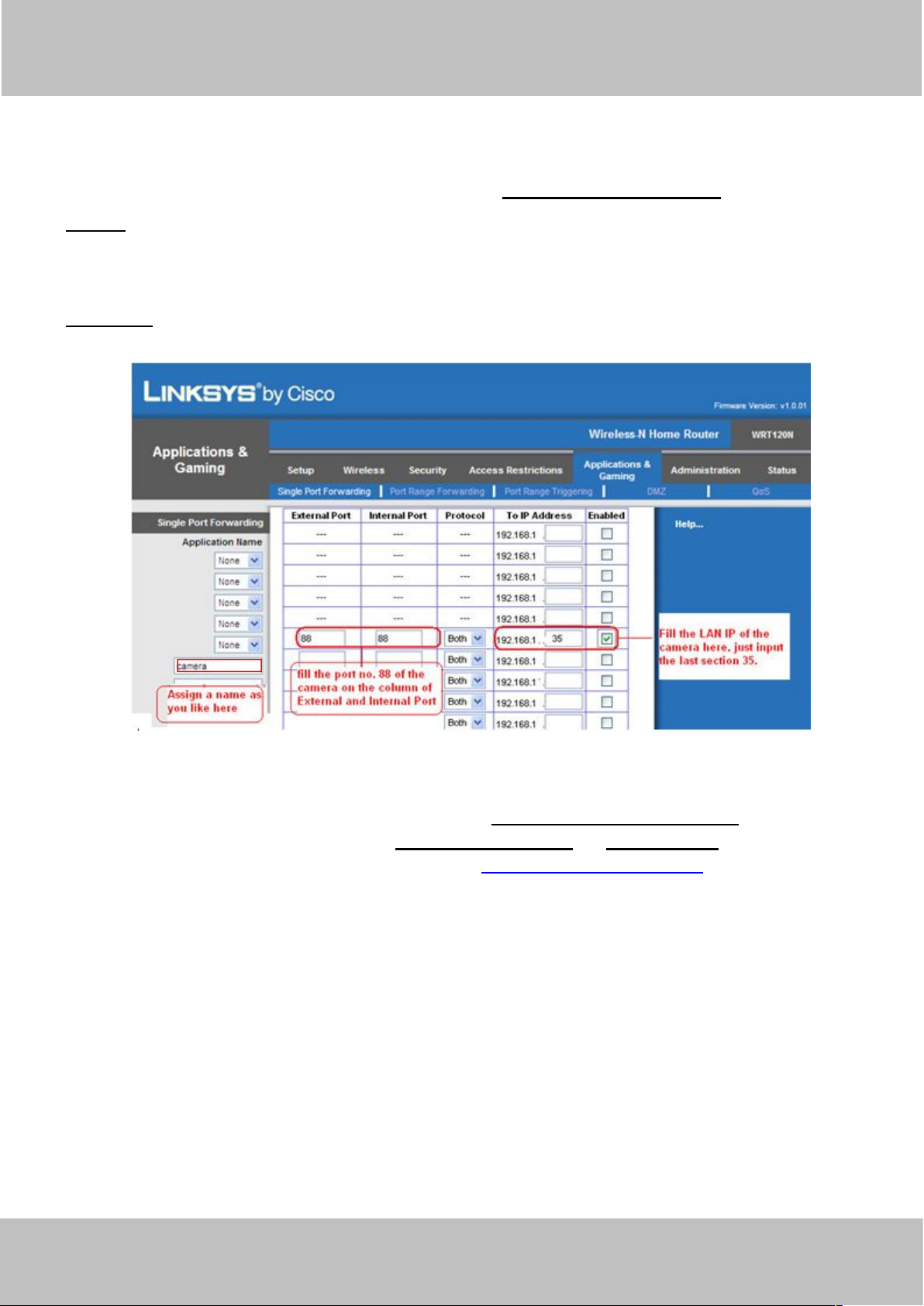
② Do port forwarding within the router
Example: The camera’s LAN IP address is http://192.168.1.35:88 ,
Firstly, login the router, goes to the menu of Port Forwarding or Port Trigger (or named Virtue
Server on some brands of router). Take Linksys brand router as an example, Login the
router, and goes to Applications & Gaming->Single Port Forwarding.
Secondly, Create a new column by LAN IP address & HTTP Port No. of the camera within the
router showed as below.
Figure 3.27
③ Use domain name to access the camera via internet
After the port forwarding is finished, you can use the domain name+ http no. to access the
camera via internet. Take hostname ycxgwp.no-ip.info and http no. 88for example, the
accessing link of the camera via internet would be http:// ycxgwp.no-ip.info:88
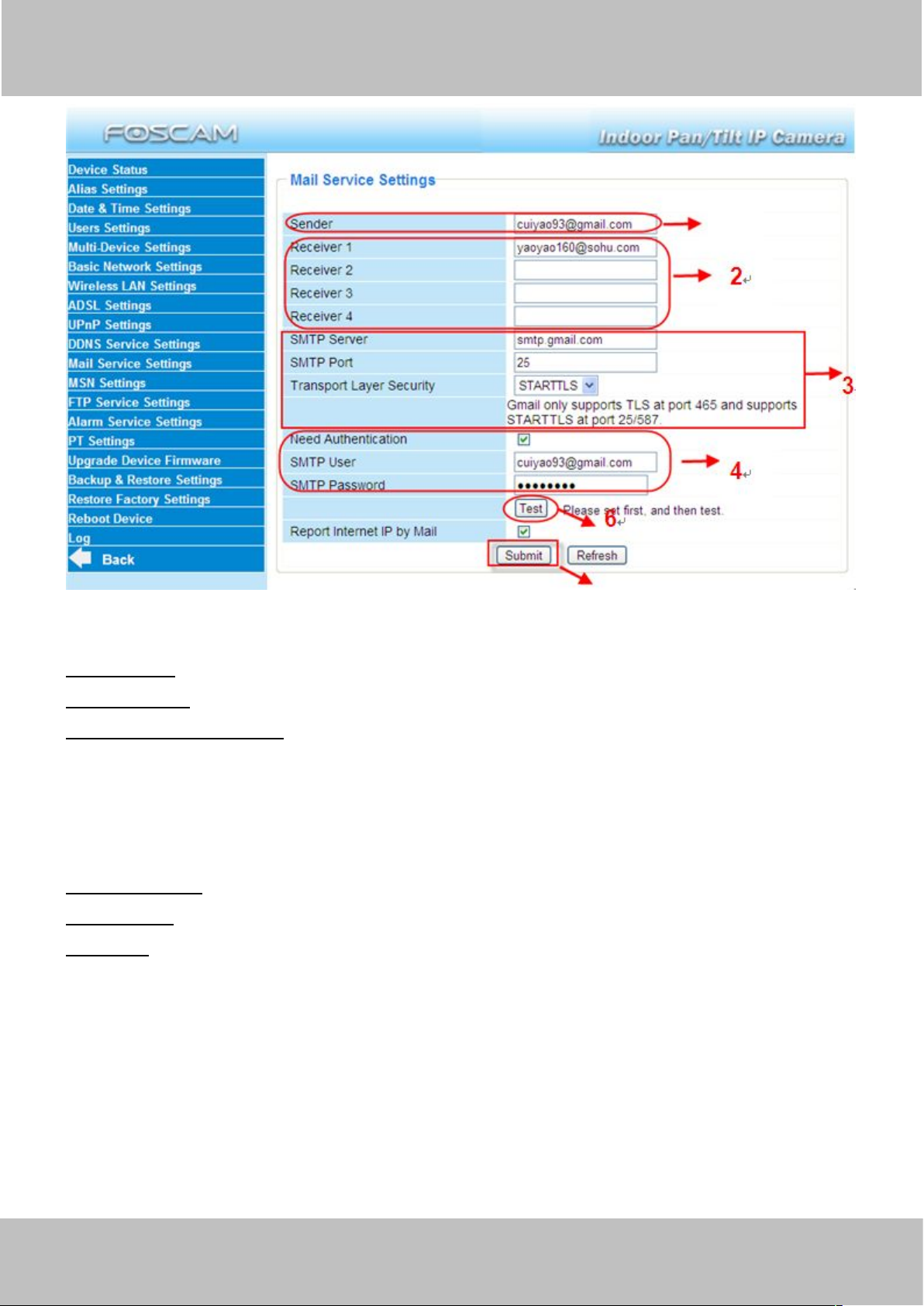
3.11 Mail Service Settings
If you want the camera to send emails when motion/sound has been detected, Mail Service
Settings will need to be configured.
Page 35
wwww.foscam.co
ww.foscam.comm
Shenzhen
Shenzhen
Foscam
Foscam
Intelligent
Intelligent
Technology
Technology
Co.,
Co.,
Limited
Limited
Tel:
Tel:8686
755
755
2674
2674
5668
5668
Fax:
Fax:8686
755
755
2674
2674
516
51688
32
Figure 3.28
1----- Sender Mailbox for sender must support SMTP
2----- Receiver Mailbox for receiver need not support SMTP,you can set 4 receivers
3----- SMTP Server/ Port Enter SMTP server for sender. SMTP port is usually set as 25.
Some SMTP servers have their own port, such as 587 or 465 and Transport Layer Security
usually is None. If you use Gmail, Transport Layer Security must be set to TLS or STARTTLS
and SMTP Port must be set to 465 or 25 or 587, which port you choose should be decided by
which Transport Layer Security you select.
4---- SMTP user ID account of the sender email address
5----Submit Click Submit to take effect
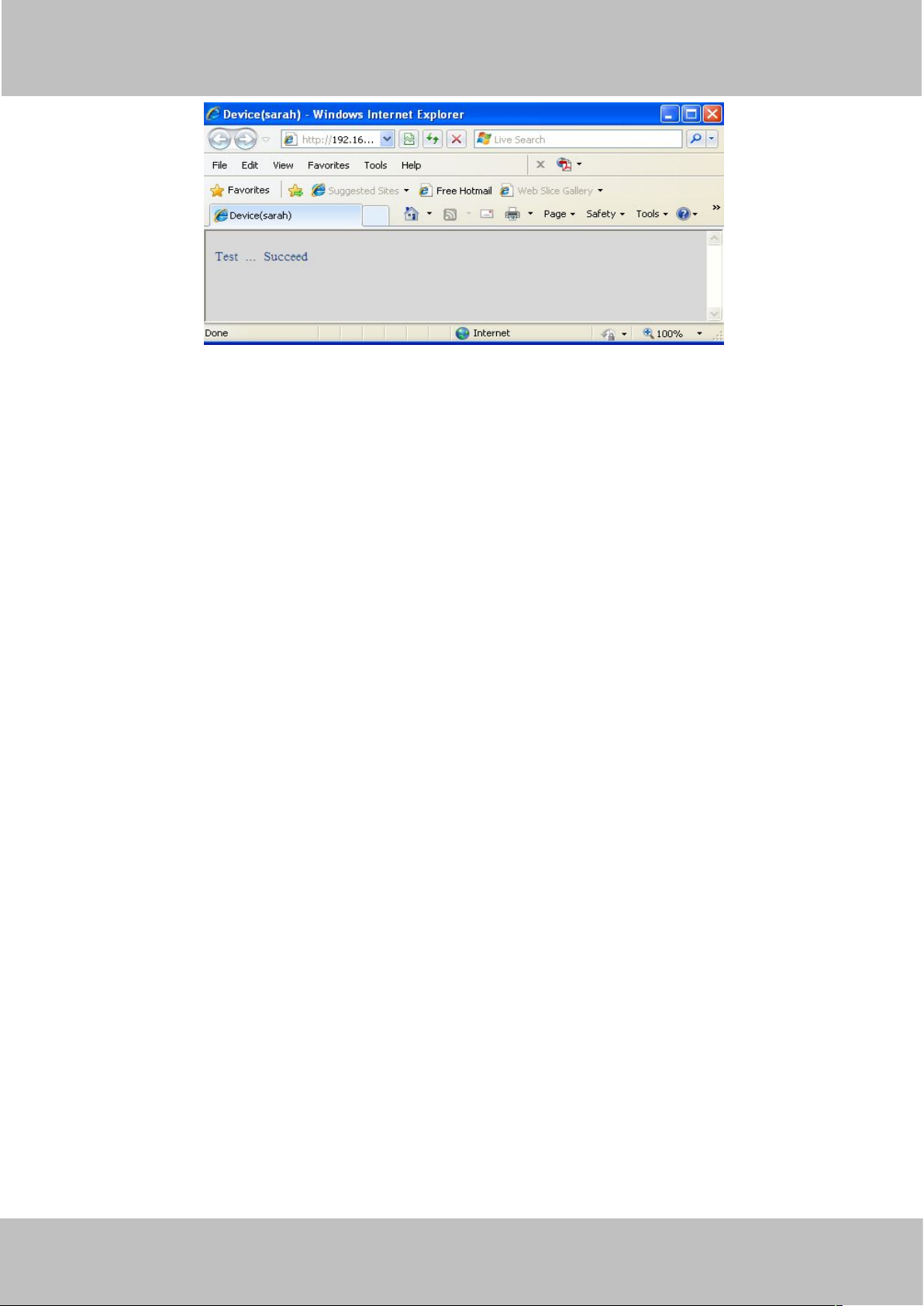
6----Test Click Test to see if SMTP has been successfully configured.
NOTE: Click Submit first before choosing Test.
1
5
Click Test to see if SMTP has been successfully configured.
Page 36
wwww.foscam.co
ww.foscam.comm
Shenzhen
Shenzhen
Foscam
Foscam
Intelligent
Intelligent
Technology
Technology
Co.,
Co.,
Limited
Limited
Tel:
Tel:8686
755
755
2674
2674
5668
5668
Fax:
Fax:8686
755
755
2674
2674
516
51688
33
.
If the test fails with one of the following errors after clicking Test, verify that the information you
entered is correct and again select Test .
1) Cannot connect to the server
2) Network Error. Please try later
3) Server Error
4) Incorrect user or password
5) The sender is denied by the server. Maybe the server need to authenticate the user, please
check it and try again
6) The receiver is denied by the server. Maybe because of the anti-spam privacy of the server
7) The message is denied by the server. Maybe because of the anti-spam privacy of the server
8) The server does not support the authentication mode used by the device
Report Internet IP by Mail—If selected, you will receive emails which contains internet IP
information such as When the camera is powered or the Internet IP has changed. (For example:
IPCAM's urls is http://119.123.207.96:8068). Make sure the port is mapped to the router
correctly.
Figure 3.29
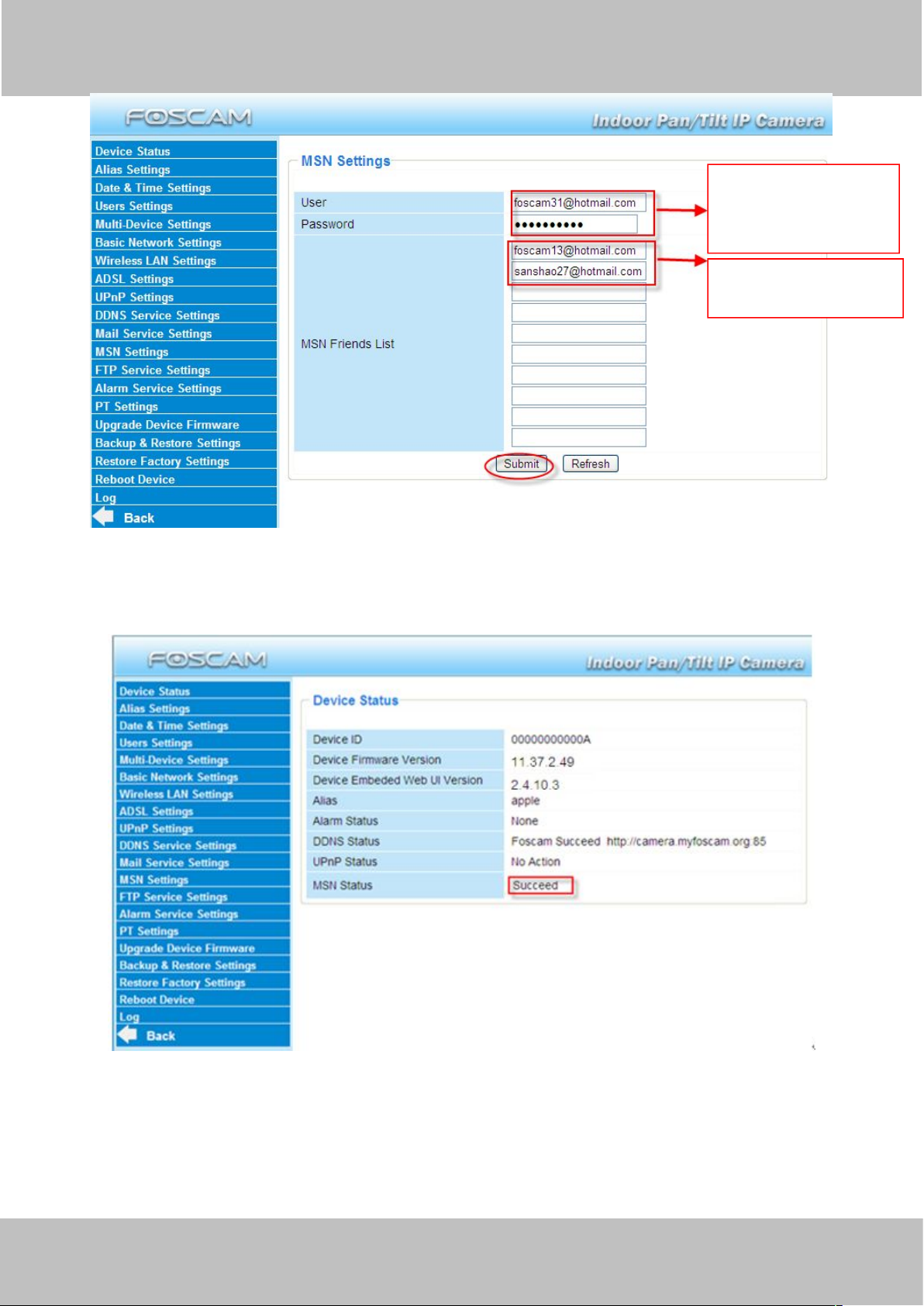
3.12 MSN Setting
If you want the camera send its current internet IP address to you or your friends, please set
MSN settings.
Acquire an MSN ID for the IPCAM first, then follow the instructions as per Figure 3.30.
Page 37
wwww.foscam.co
ww.foscam.comm
Shenzhen
Shenzhen
Foscam
Foscam
Intelligent
Intelligent
Technology
Technology
Co.,
Co.,
Limited
Limited
Tel:
Tel:8686
755
755
2674
2674
5668
5668
Fax:
Fax:8686
755
755
2674
2674
516
51688
34
Figure 3.30
Fill in the user and
password of the MSN
ID you applied for
your camera .
MSN ID in this list can
chat with the camera .
Click Submit and go to the “Device Status” screen and verify the MSN settings are succeed.
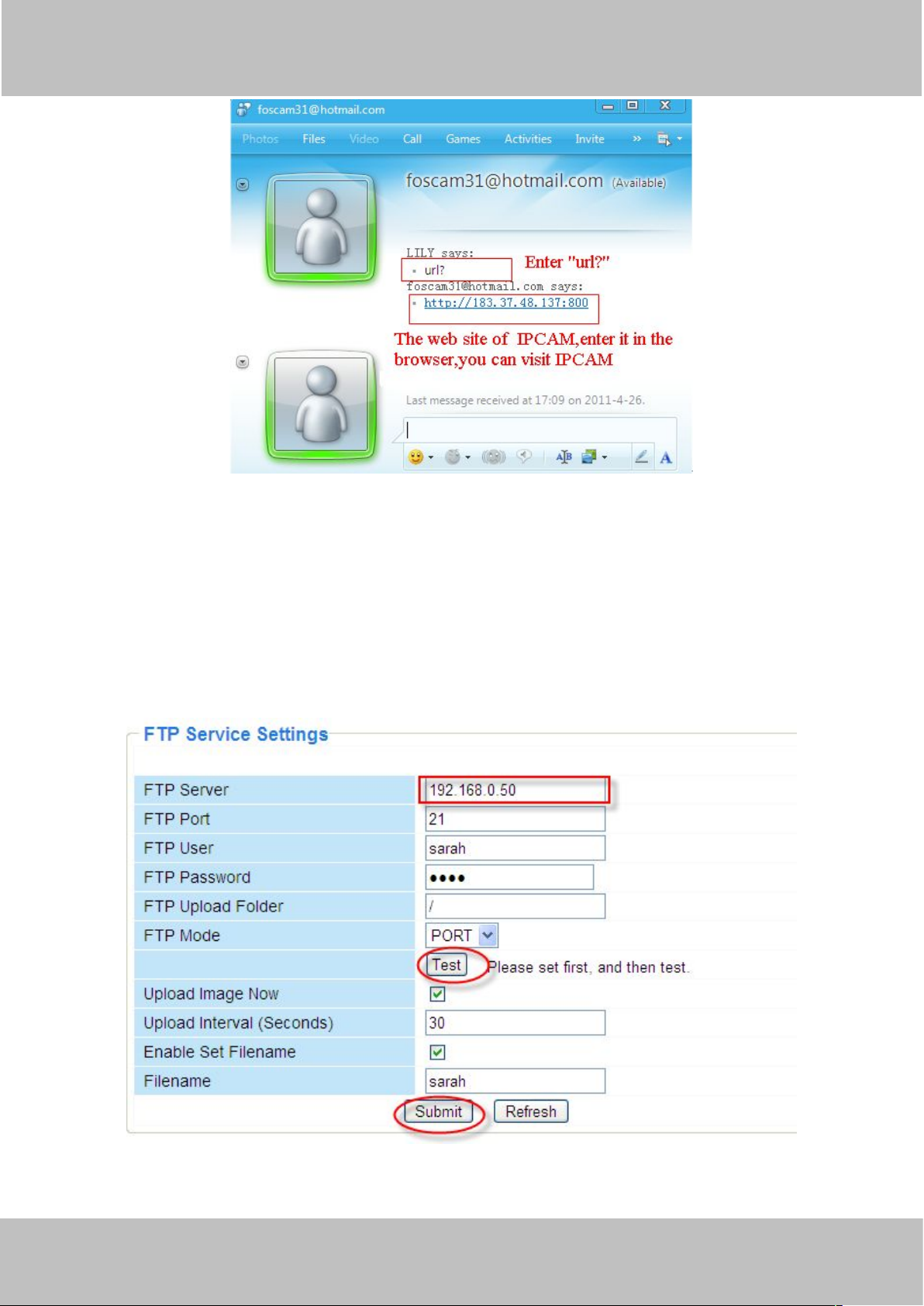
When the MSN ID in the Friends list login the MAN, he can chat with camera. For example:
Foscam13(this account contained in the Friends list) log in MSN, and double click the camera’s
account (foscam31), then enter “url?”, the camera will send it’s current IP address to you.
Figure 3.31
Page 38
wwww.foscam.co
ww.foscam.comm
Shenzhen
Shenzhen
Foscam
Foscam
Intelligent
Intelligent
Technology
Technology
Co.,
Co.,
Limited
Limited
Tel:
Tel:8686
755
755
2674
2674
5668
5668
Fax:
Fax:8686
755
755
2674
2674
516
51688
35
Figure 3.32
Note: Create a new MSN account for the camera, do not use the same MSN account as you
would like to chat with your friends. When the camera login uses the MSN account, this account
cannot be used for anything else when the camera works.
3.13 FTP Service Settings
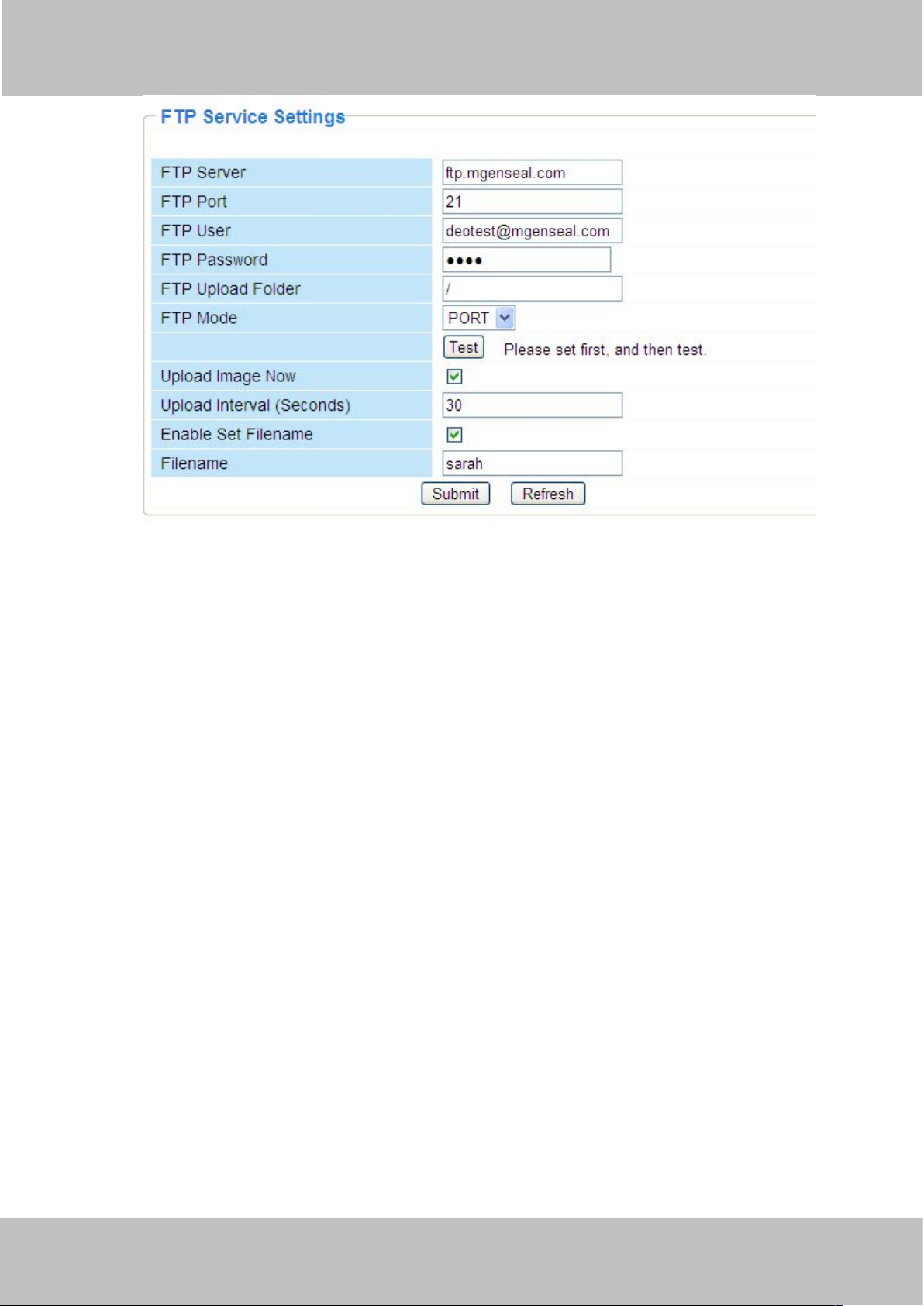
If you want to upload images to your FTP server,you can set FTP Service Settings.
Figure 3.33
Page 39
wwww.foscam.co
ww.foscam.comm
Shenzhen
Shenzhen
Foscam
Foscam
Intelligent
Intelligent
Technology
Technology
Co.,
Co.,
Limited
Limited
Tel:
Tel:8686
755
755
2674
2674
5668
5668
Fax:
Fax:8686
755
755
2674
2674
516
51688
36
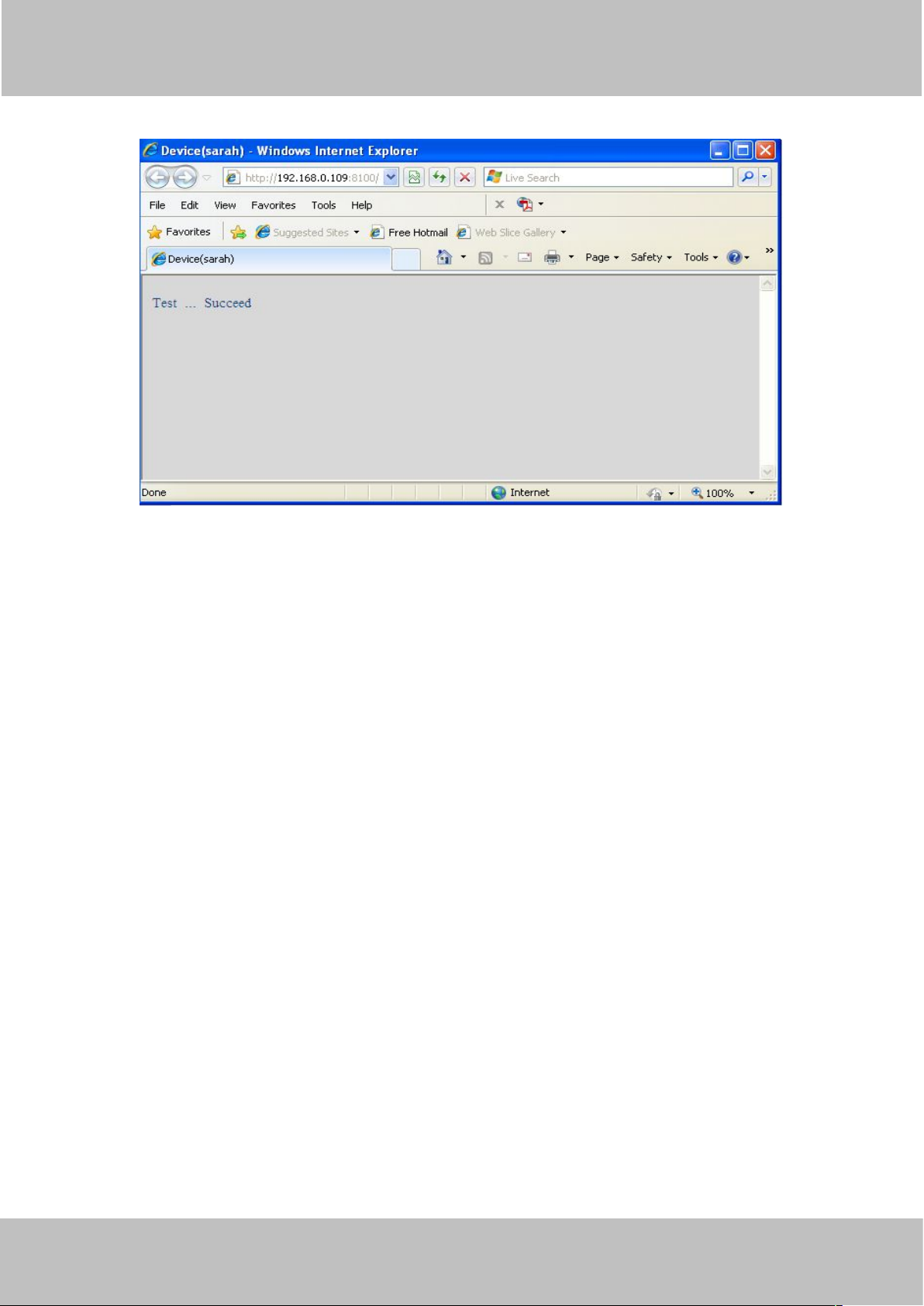
Figure 3.34
FTP server: If your FTP server is located on the LAN, you can set as Figure 3.33.
If you have an FTP server which you can access on the internet, you can set as Figure 3.34.
FTP Port: Usually the port is 21.
FTP Upload Folder: Make sure that the folder you plan to store images exists as the camera
can’t create the folder itself. Also, the folder must be read/writable.
FTP Mode: The camera supports standard (POST) mode and passive (PASV) mode
Upload Image Now: This option will upload images continuously when you enable the checkbox
Enable Set Filename: When you enable this option the uploaded image will be named
according to the filename you enter. The next image will overwrite the filename of the previous
image. Hence there will only be one image, the last uploaded.
Filename: See the above option.
Note: You cannot change the name of the alarm image.
Upload Interval refers to the time between the current image and the next image being
uploaded.
Page 40
wwww.foscam.co
ww.foscam.comm
Shenzhen
Shenzhen
Foscam
Foscam
Intelligent
Intelligent
Technology
Technology
Co.,
Co.,
Limited
Limited
Tel:
Tel:8686
755
755
2674
2674
5668
5668
Fax:
Fax:8686
755
755
2674
2674
516
51688
37
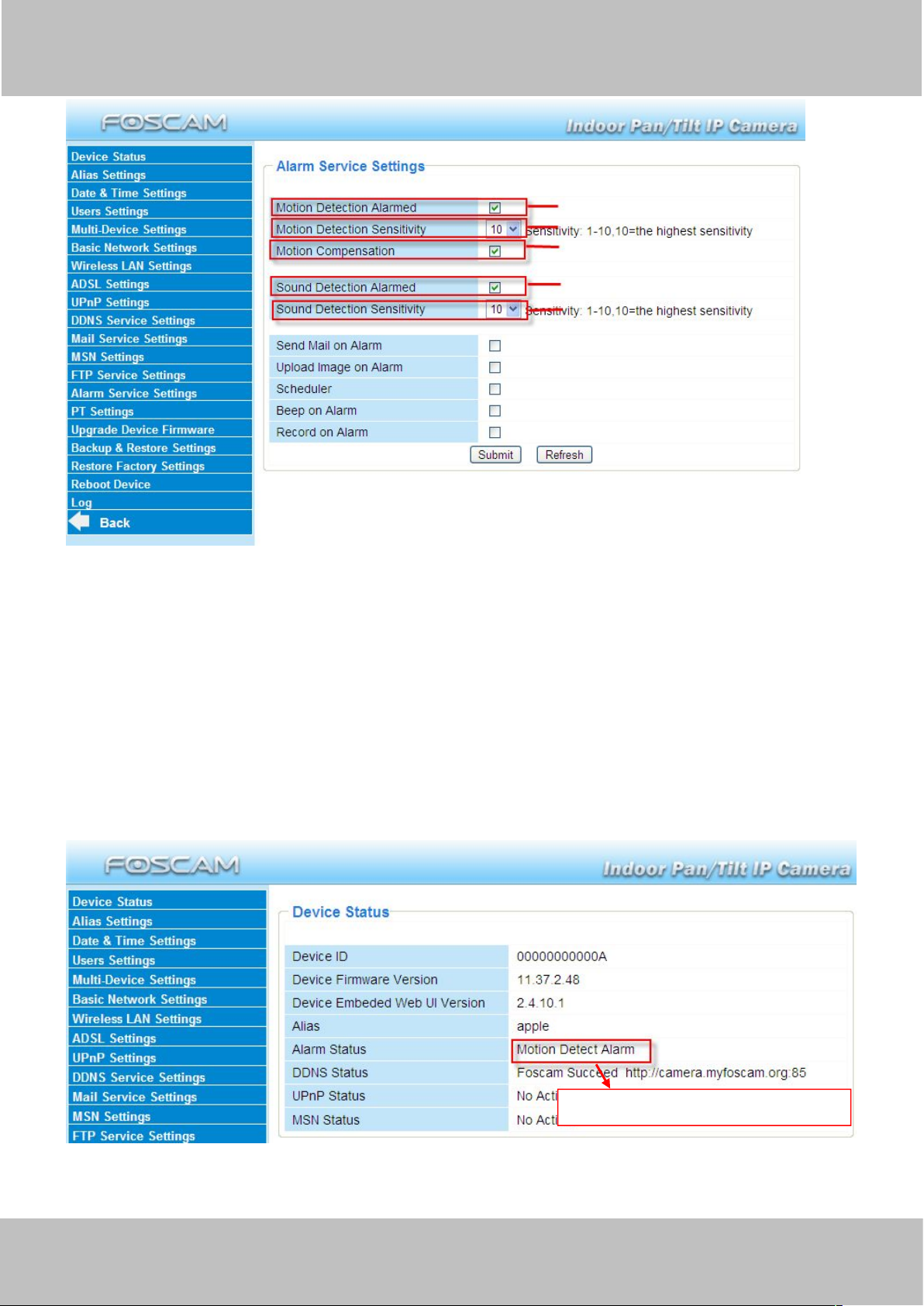
Click Submit to save these settings. Click Test, the following screen displays if successful.
Figure 3.35
The following errors may occur:
1) Can not connect to the server. Check if the FTP Server is correct.
2) Network Error. Please try later.
3) Server Error.
4) Incorrect user or password. Check the username and password.
5) Cannot access the folder. Verify the folder exists and your account is authorized
6) Error in PASV mode. Verify the server supports PASV mode.
7) Error in PORT mode. PASV mode should be selected if the device is behind a NAT.
8) Cannot upload file. Verify your account is authorized
If an error occurs check the parameters you entered are correct. The filename format of the
image is similar to 00606E8C1930(sarah)_0_20100728114350_25.jpg
Check if your FTP server supports this file name format.
3.14 Alarm Service Settings
IP Camera supports Motion Detection Alarmed and Sound Detection Alarmed, when the
motion or sound has been detected, it will send email alerts or upload images or record.
Page 41
wwww.foscam.co
ww.foscam.comm
Shenzhen
Shenzhen
Foscam
Foscam
Intelligent
Intelligent
Technology
Technology
Co.,
Co.,
Limited
Limited
Tel:
Tel:8686
755
755
2674
2674
5668
5668
Fax:
Fax:8686
755
755
2674
2674
516
51688
38
Figure 3.36
If motion/sound is detected after you enable Motion Detection Armed/Sound Detection
Alarmed, the Alarm Status will turn to Motion/Sound Detect Alarm.
14235
Here you can see the alarm status
1---- If you want to set Motion Detection Alarmed ,select the checkbox
2---- The larger the number, the higher the motion sensitivity will be
3---- Select this option to reduce false alarms when light changes
4----- If you want to do Sound Detection Alarmed,select the checkbox
5---- The larger the number, the higher the sound sensitivity will be
Figure 3.37
Page 42
wwww.foscam.co
ww.foscam.comm
Shenzhen
Shenzhen
Foscam
Foscam
Intelligent
Intelligent
Technology
Technology
Co.,
Co.,
Limited
Limited
Tel:
Tel:8686
755
755
2674
2674
5668
5668
Fax:
Fax:8686
755
755
2674
2674
516
51688
39
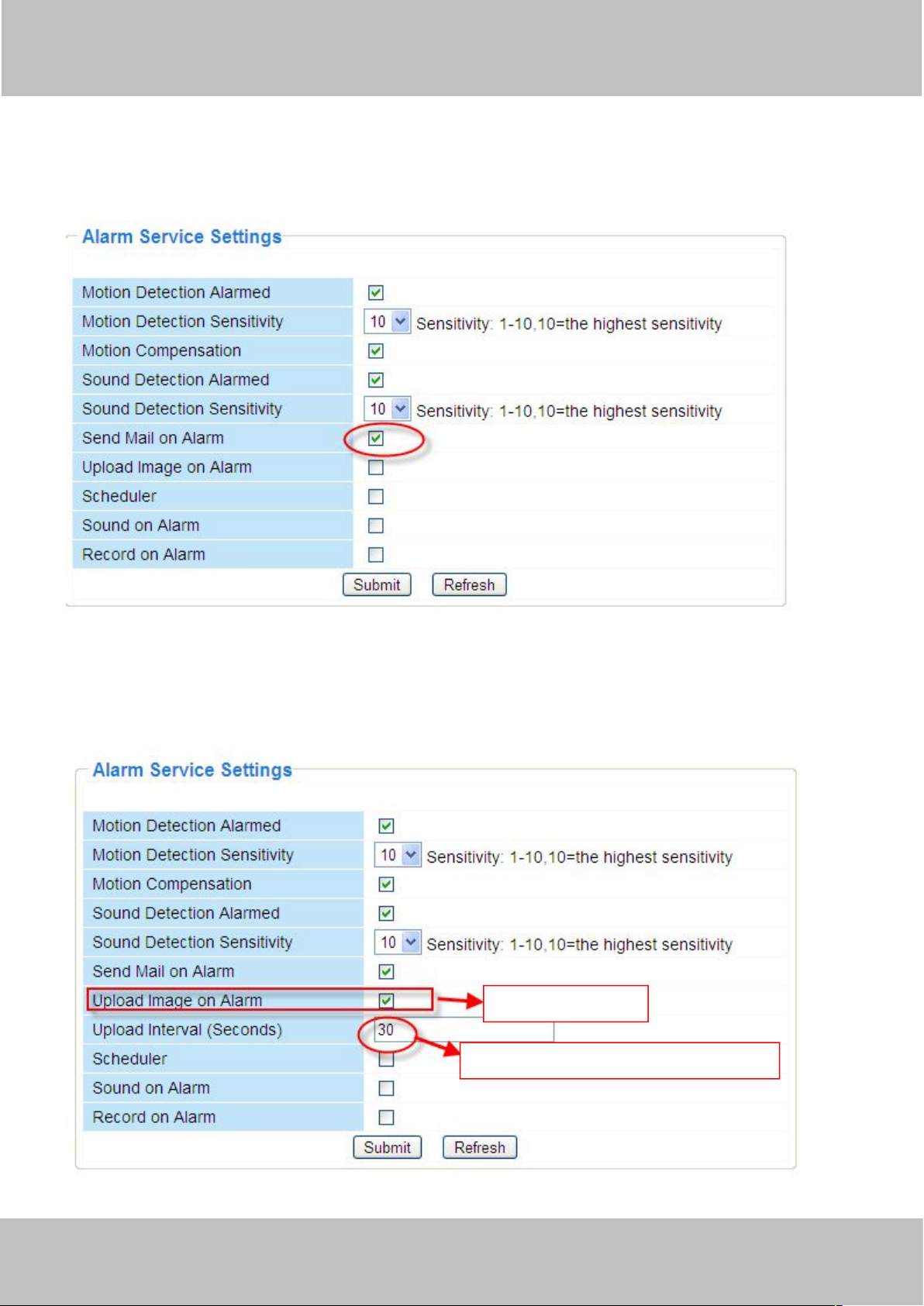
There are four alarm indicators:
1) Camera will send emails when motion/sound is activated.
If you want to receive images when motion is detected, you must set Mail Service Settings first.
(Figure 3.28) Then set motion alarm as follows:
Figure 3.38
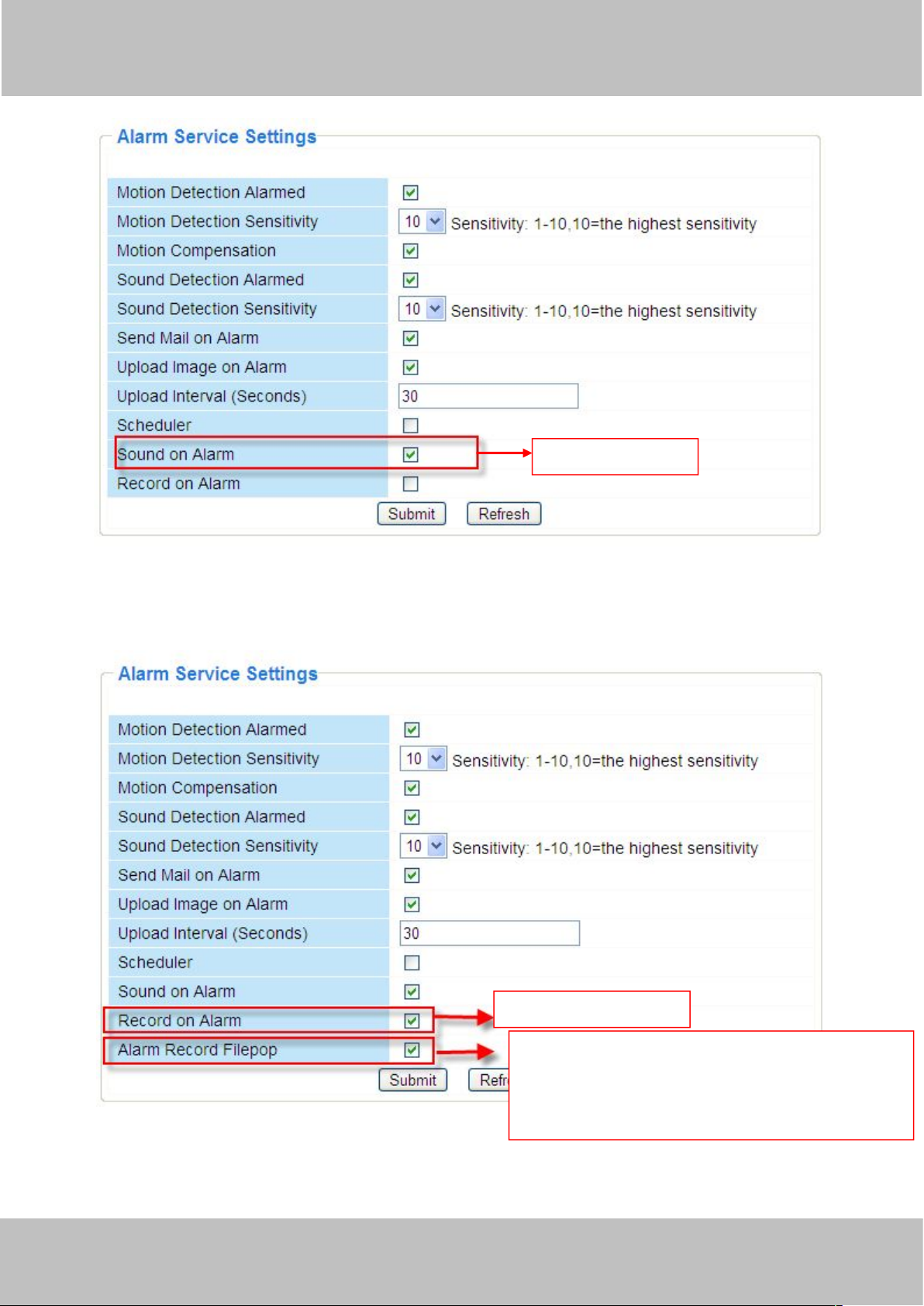
2) Upload images via FTP server when motion/sound trigger.
To upload images to an FTP server when motion/sound is detected, you must set FTP Service
Settings(Figure 3.33/3.34) first and then set motion/sound alarm as pictured below
Select this option
Set an interval for images to upload .
Figure 3.39
Page 43
wwww.foscam.co
ww.foscam.comm
Shenzhen
Shenzhen
Foscam
Foscam
Intelligent
Intelligent
Technology
Technology
Co.,
Co.,
Limited
Limited
Tel:
Tel:8686
755
755
2674
2674
5668
5668
Fax:
Fax:8686
755
755
2674
2674
516
51688
40
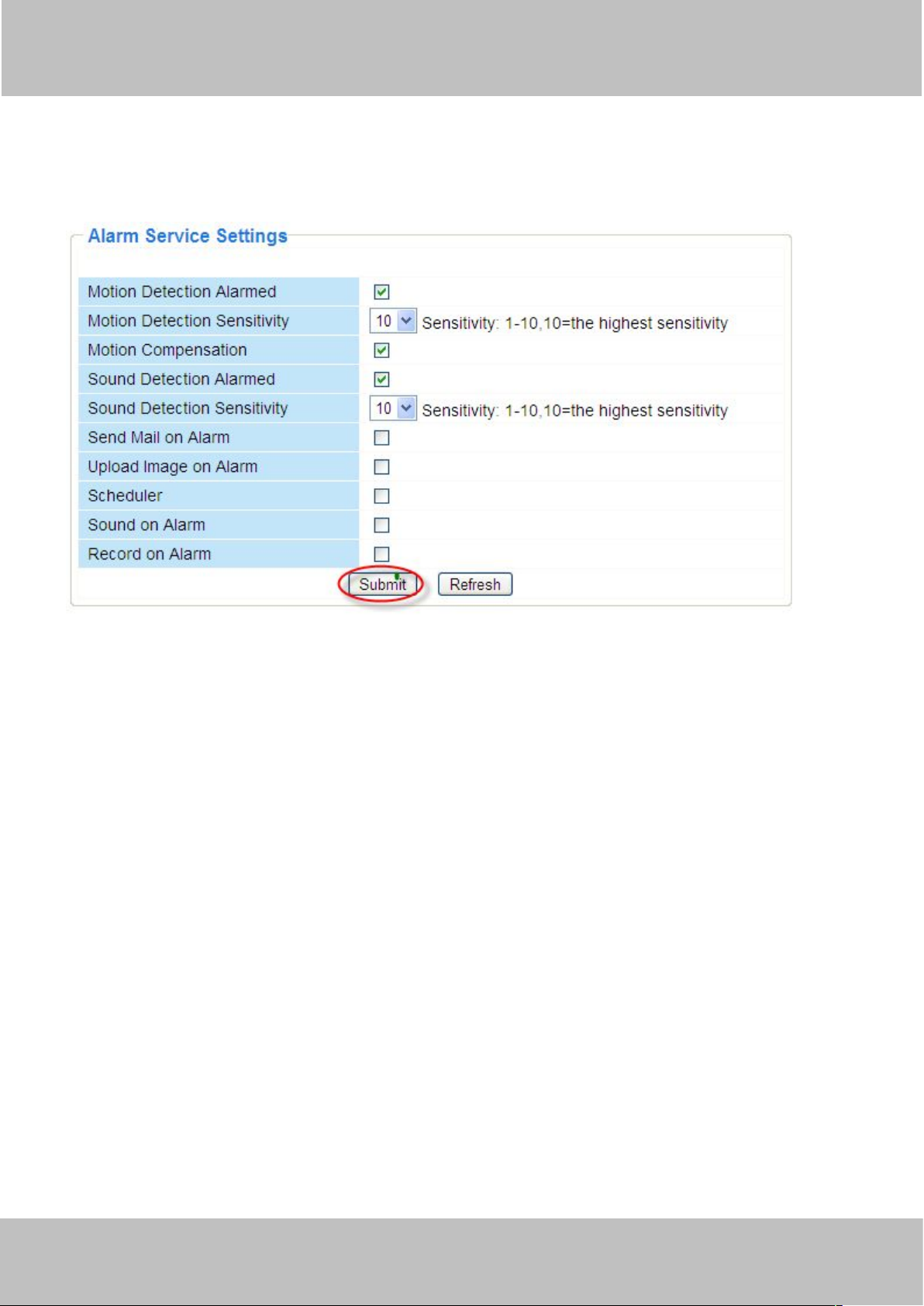
3) You can hear the beep sound when the alarm has been detected.
Figure 3.40
4) The camera will record automatically for one minute after motion/sound is detected.
Select this option
Select the checkbox
When you enable motion alarm, the camera will
record automatically and store the recording file
to the folder you configured. This icon is used to
control whether the folder opens or not .
You can find the recording file in the folder which you set previously. (Figure 3.6)
Figure 3.41
Page 44
wwww.foscam.co
ww.foscam.comm
Shenzhen
Shenzhen
Foscam
Foscam
Intelligent
Intelligent
Technology
Technology
Co.,
Co.,
Limited
Limited
Tel:
Tel:8686
755
755
2674
2674
5668
5668
Fax:
Fax:8686
755
755
2674
2674
516
51688
41
Alarm Scheduler:
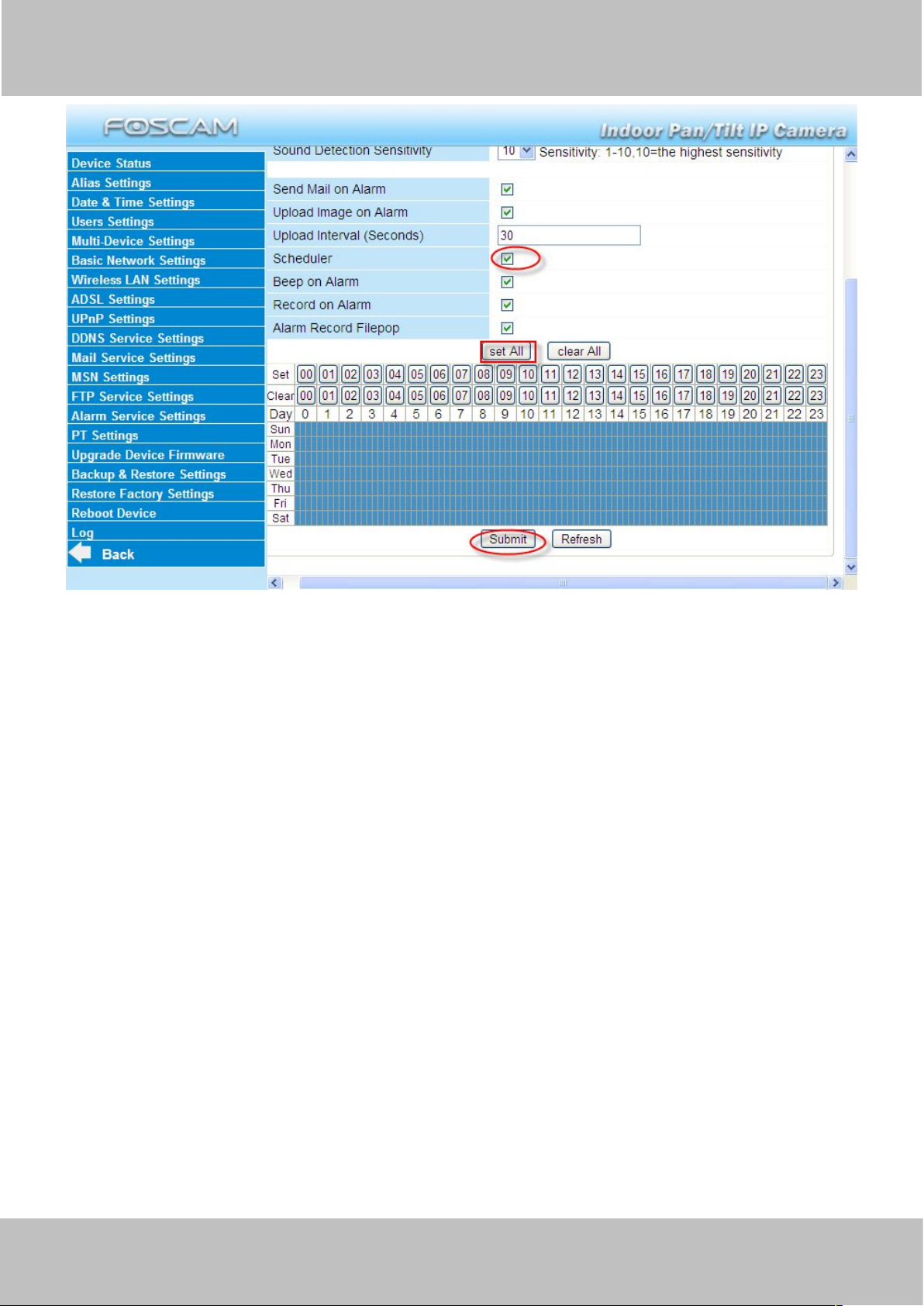
1) Alarm at any time when motion/sound is detected.
Here are two ways to set the alarm.
Don’t select Scheduler. Click Submit and the camera will alarm at any time when motion is
detected.
Figure 3.42
Another Way: select Scheduler, and click “set All”, you will see all time boxes turn blue as in the
following picture. Click Submit and the camera will alarm at any time when motion is detected.
Page 45
wwww.foscam.co
ww.foscam.comm
Shenzhen
Shenzhen
Foscam
Foscam
Intelligent
Intelligent
Technology
Technology
Co.,
Co.,
Limited
Limited
Tel:
Tel:8686
755
755
2674
2674
5668
5668
Fax:
Fax:8686
755
755
2674
2674
516
51688
42
Figure 3.43
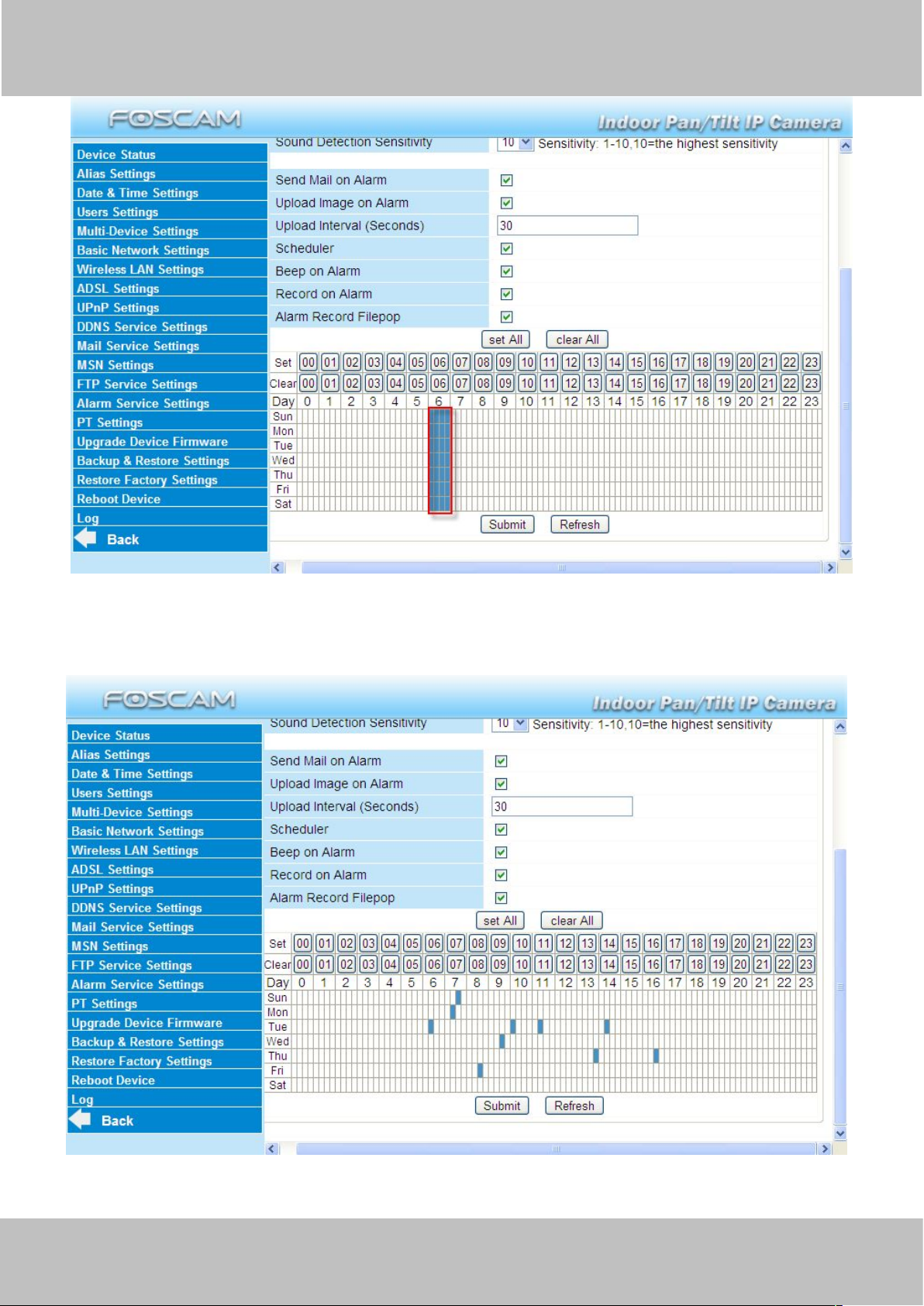
2) Specify an alarm schedule.
If you want the camera to alarm during set times select Scheduler and set time range.
If you want to select one serial area, you can click any number between 00 and 23 on the first
row, the corresponding column will be selected and it will turn blue. For example, click the
number “06” on the first row, you can see the column turn blue. That means the camera will
alarm when motion/sound is detected between 6 and 7 o’clock every day. Click the number“06”
on the second row, you can cancel the corresponding column you set. And it will turn grey.
Page 46
wwww.foscam.co
ww.foscam.comm
Shenzhen
Shenzhen
Foscam
Foscam
Intelligent
Intelligent
Technology
Technology
Co.,
Co.,
Limited
Limited
Tel:
Tel:8686
755
755
2674
2674
5668
5668
Fax:
Fax:8686
755
755
2674
2674
516
51688
43
Figure 3.44
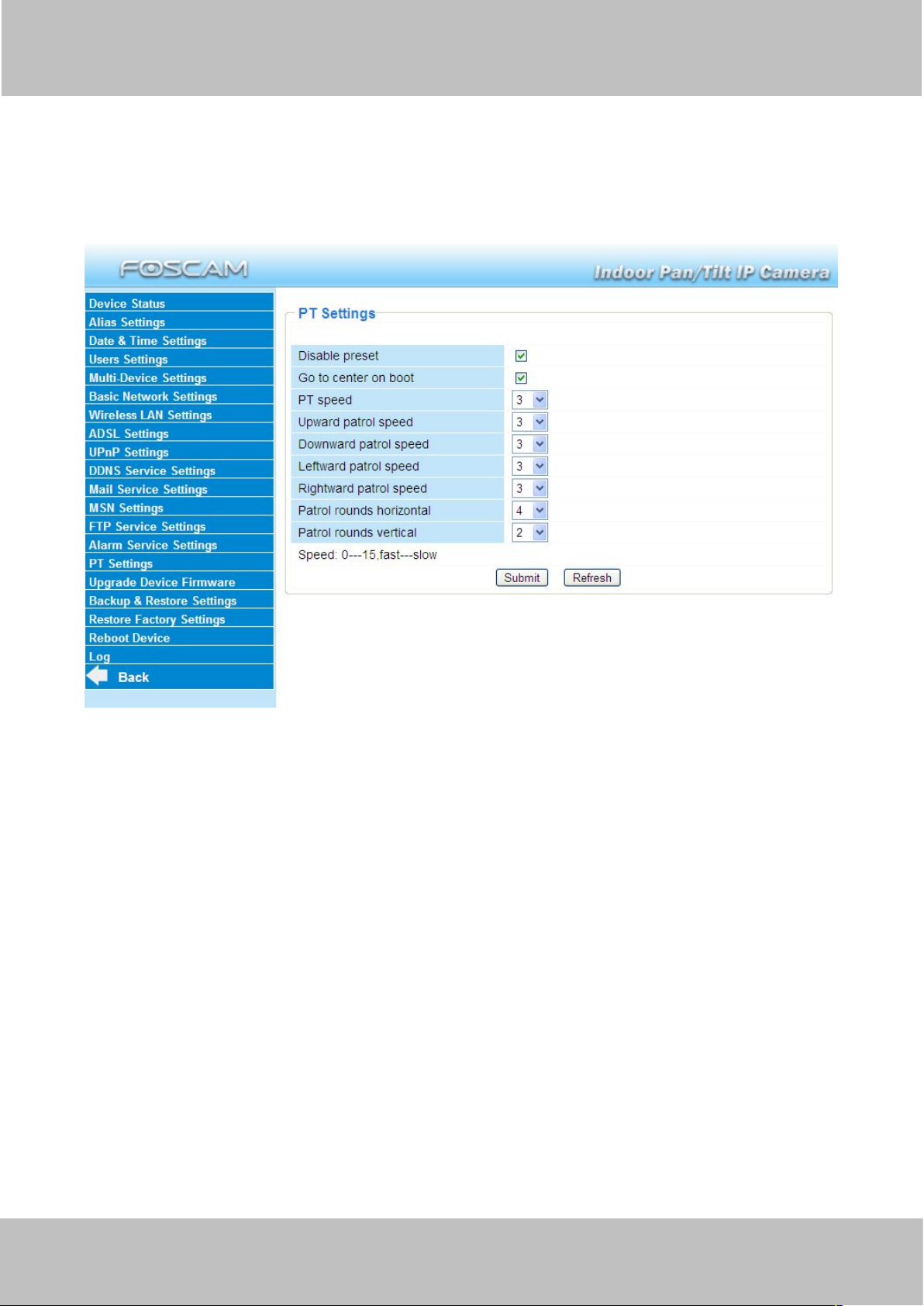
If you want to select discrete area, you click the left button on the box of time range. It will turn
blue. If you want to delete it, just click the left button and it will turn grey.
Figure 3.45
Page 47
wwww.foscam.co
ww.foscam.comm
Shenzhen
Shenzhen
Foscam
Foscam
Intelligent
Intelligent
Technology
Technology
Co.,
Co.,
Limited
Limited
Tel:
Tel:8686
755
755
2674
2674
5668
5668
Fax:
Fax:8686
755
755
2674
2674
516
51688
44
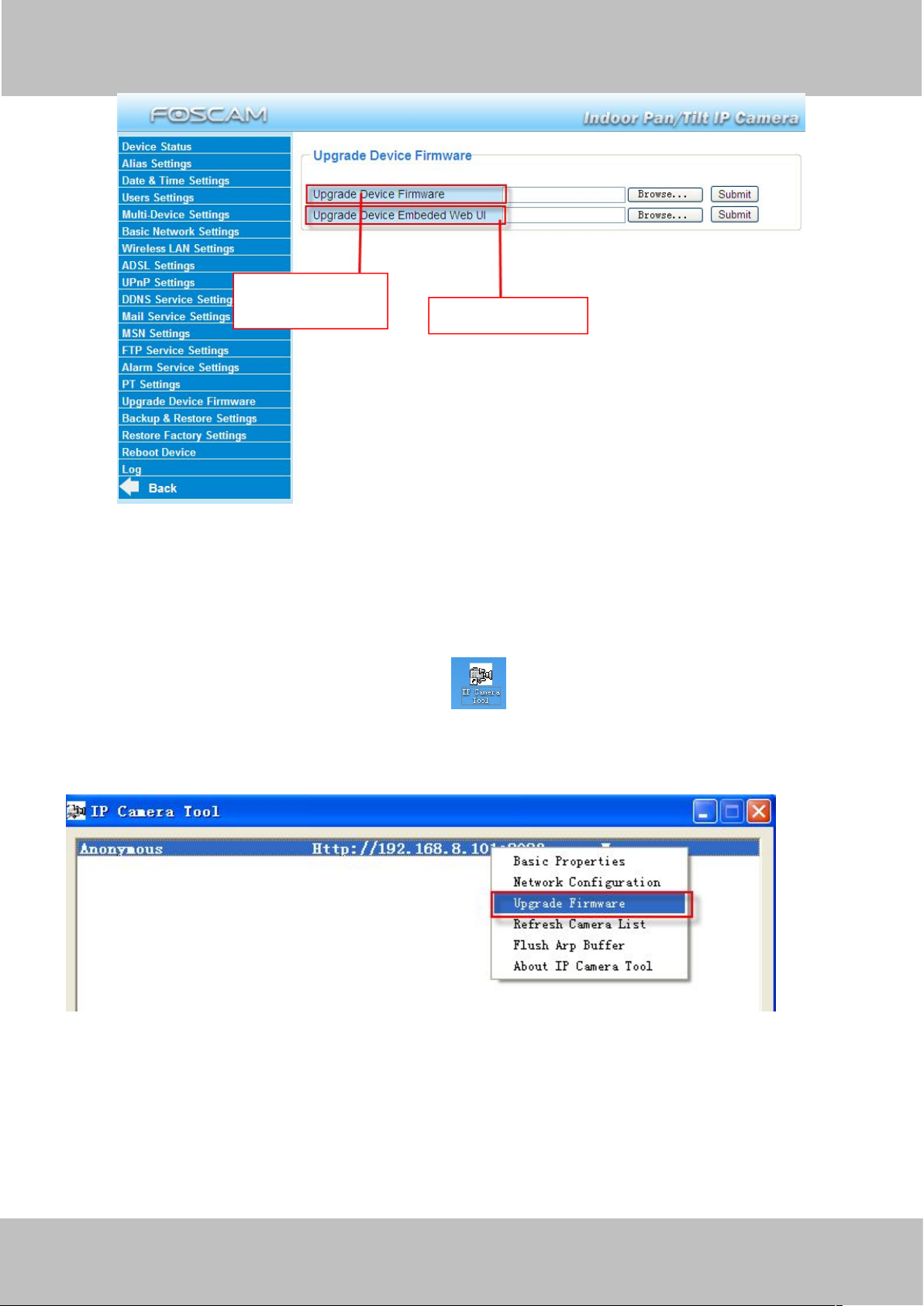
3.15 PT Settings
You can set pan/tilt speed. Normally, PT speed is 3. The larger the setting number, the lower
speed. Don’t enable the checkbox “disable preset” if you want to use the function of preset, it will
be effective after you reboot device.
Figure 3.46
Patrol rounds horizontal: Set the round between 1 and 10, then click Submit. Back to
surveillance window. Click the Horizon patrol button, the camera will patrol the rounds
horizontally you set and then stop if you don’t click Stop horizon patrol button. For example, you
set 4 for the patrol rounds. Click submit and back to surveillance window. Click the Horizon patrol
button and do not click the Stop horizon patrol button, the camera will patrol 4 rounds and then
stop automatically.
Patrol rounds vertical: Set the round between 1 and 10, then click submit. Back to surveillance
window Click the Vertical patrol button, the camera will patrol the rounds vertically you set and
then stop if you don’t click Stop vertical patrol button.
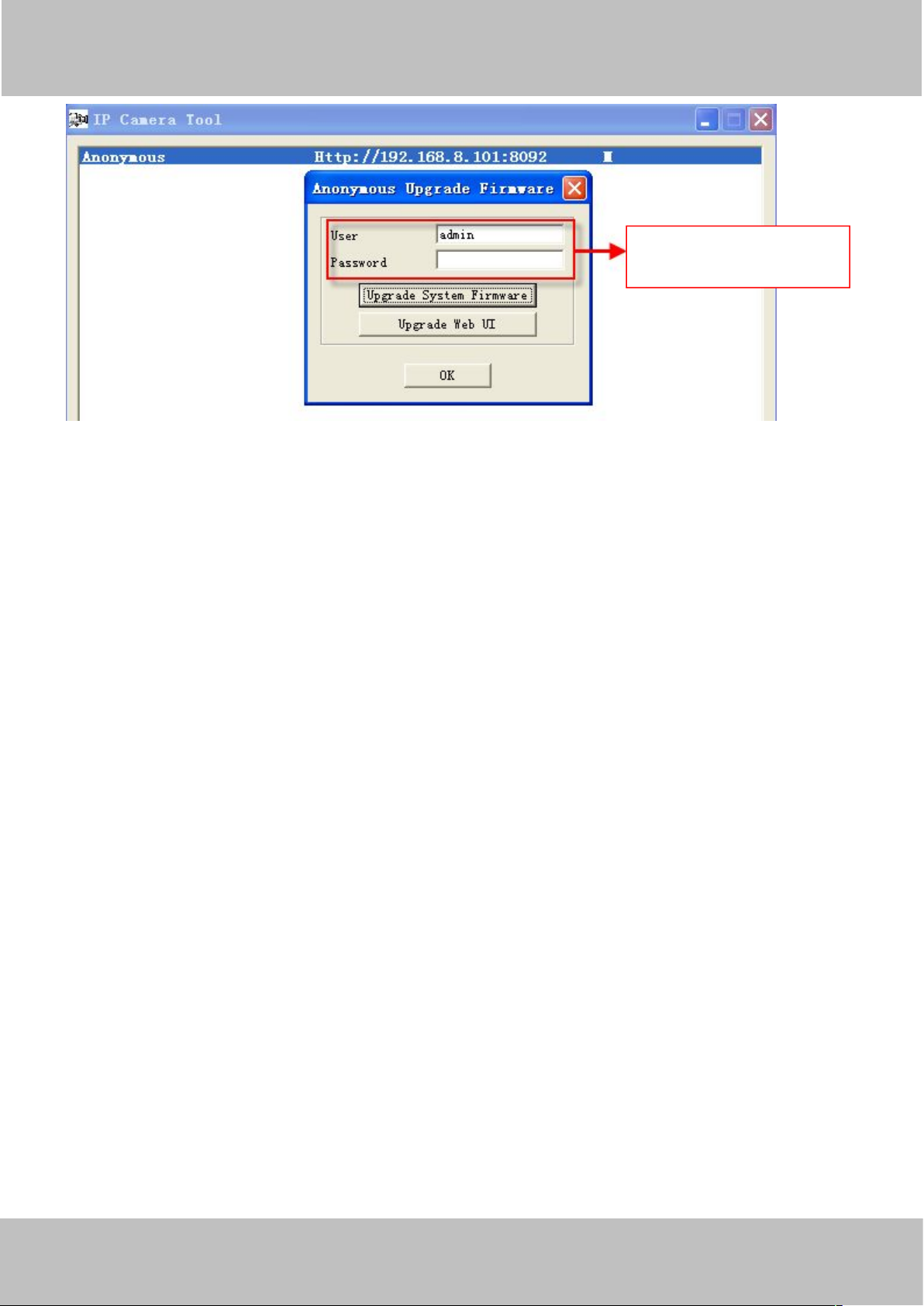
3.16 Upgrade Device Firmware
When you upgrade the camera, please upgrade system firmware first and then upgrade the Web
UI.
Page 48
wwww.foscam.co
ww.foscam.comm
Shenzhen
Shenzhen
Foscam
Foscam
Intelligent
Intelligent
Technology
Technology
Co.,
Co.,
Limited
Limited
Tel:
Tel:8686
755
755
2674
2674
5668
5668
Fax:
Fax:8686
755
755
2674
2674
516
51688
45
Figure 3.47
Upgrade system
firmware .
Upgrade Web UI
Click Browse, choose the correct bin file and then click Submit to upgrade.
Don’t shut down the power during upgrade until the IP camera tool finds the camera again.
Upgrade Firmware by IP Camera Tool
Double click the IP Camera Tool shot icon , select the Camera IP that you want to
upgrade the firmware. Then select Upgrade Firmware and enter the username and password,
choose the firmware file, and upgrade.
Figure 3.48
Page 49
wwww.foscam.co
ww.foscam.comm
Shenzhen
Shenzhen
Foscam
Foscam
Intelligent
Intelligent
Technology
Technology
Co.,
Co.,
Limited
Limited
Tel:
Tel:8686
755
755
2674
2674
5668
5668
Fax:
Fax:8686
755
755
2674
2674
516
51688
46
Figure 3.49
CAUTION: If your camera works well with the current firmware, we recommend not upgrading.
Please don’t upgrade the firmware unnecessarily. Your camera may be damaged if
misconfigured during an upgrade.
NOTE:
1) Please ensure you have download the correct firmware package for your camera before
upgrading. Read the upgrade documentation (readme.txt file) in the upgrade package before you
upgrade.
2)Upon downloading the firmware check the sizes of the .bin files. They must match the size in
the readme.txt file. If not, please download the firmware again until the sizes are the same. Your
camera will not function correctly if a corrupt .bin file is used.
3) Normally, only Device WEB UI need to be upgrade, please do not try to upgrade the Device
Firmware.
4) Never shut down the power of the camera during upgrade until the IP camera restart and get
connected.
Enter the User name and
password .
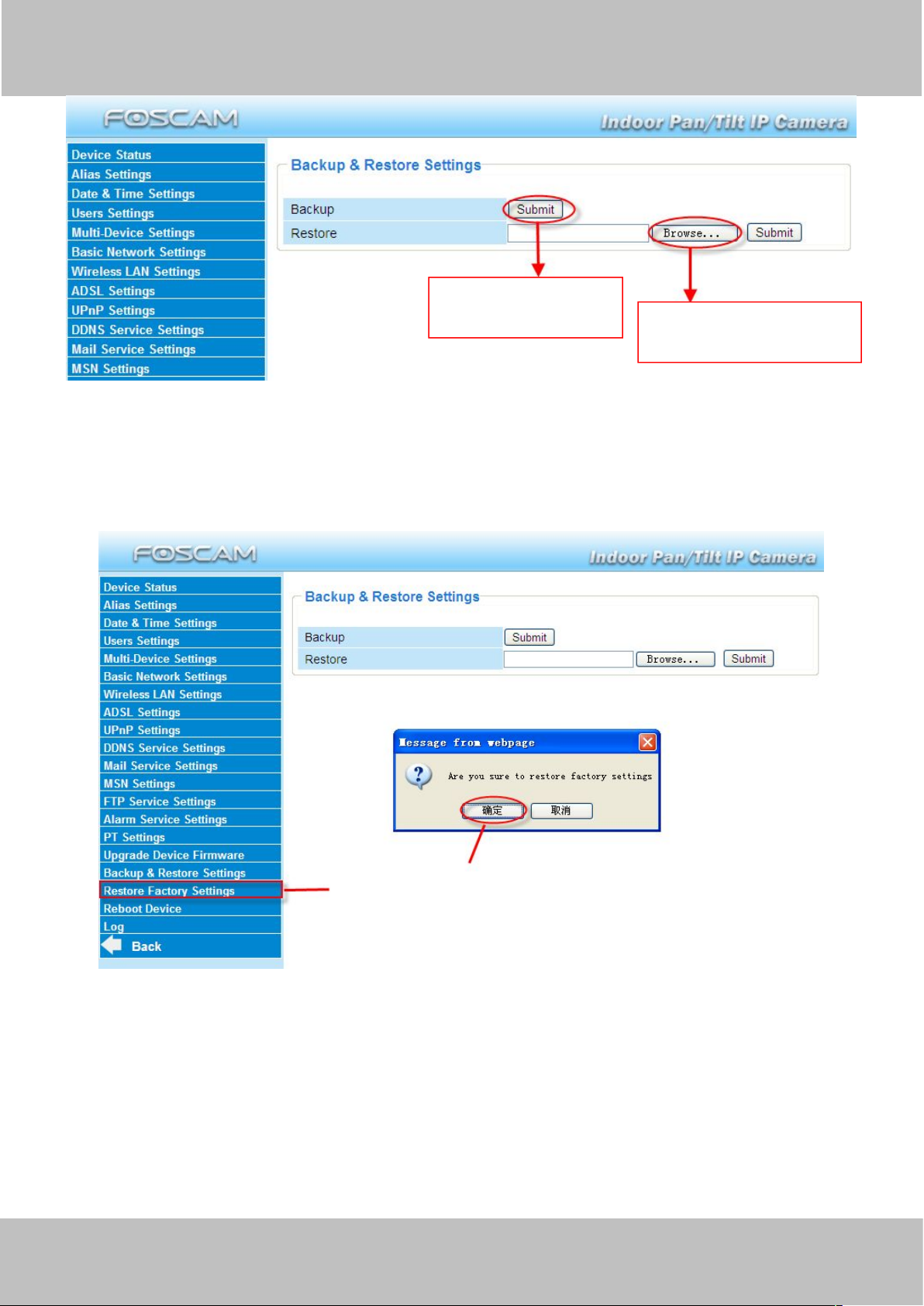
3.17 Backup & Restore Settings
Click Submit to save all the parameters you have set. These parameters will be stored in a bin
file for future use. The bin file can be reloaded to restore the parameters that were set.
Page 50
wwww.foscam.co
ww.foscam.comm
Shenzhen
Shenzhen
Foscam
Foscam
Intelligent
Intelligent
Technology
Technology
Co.,
Co.,
Limited
Limited
Tel:
Tel:8686
755
755
2674
2674
5668
5668
Fax:
Fax:8686
755
755
2674
2674
516
51688
47
Figure 3.50
Click Submit to store
parameters .
Load the parameters bin
file .
1
2
3.18 Restore Factory Settings
All parameters will return to factory settings if selected.
3.19 Reboot Device
Click Reboot Device to reboot the camera. This is similar to unplugging the power to the
camera.
Figure 3.51
Page 51
wwww.foscam.co
ww.foscam.comm
Shenzhen
Shenzhen
Foscam
Foscam
Intelligent
Intelligent
Technology
Technology
Co.,
Co.,
Limited
Limited
Tel:
Tel:8686
755
755
2674
2674
5668
5668
Fax:
Fax:8686
755
755
2674
2674
516
51688
48
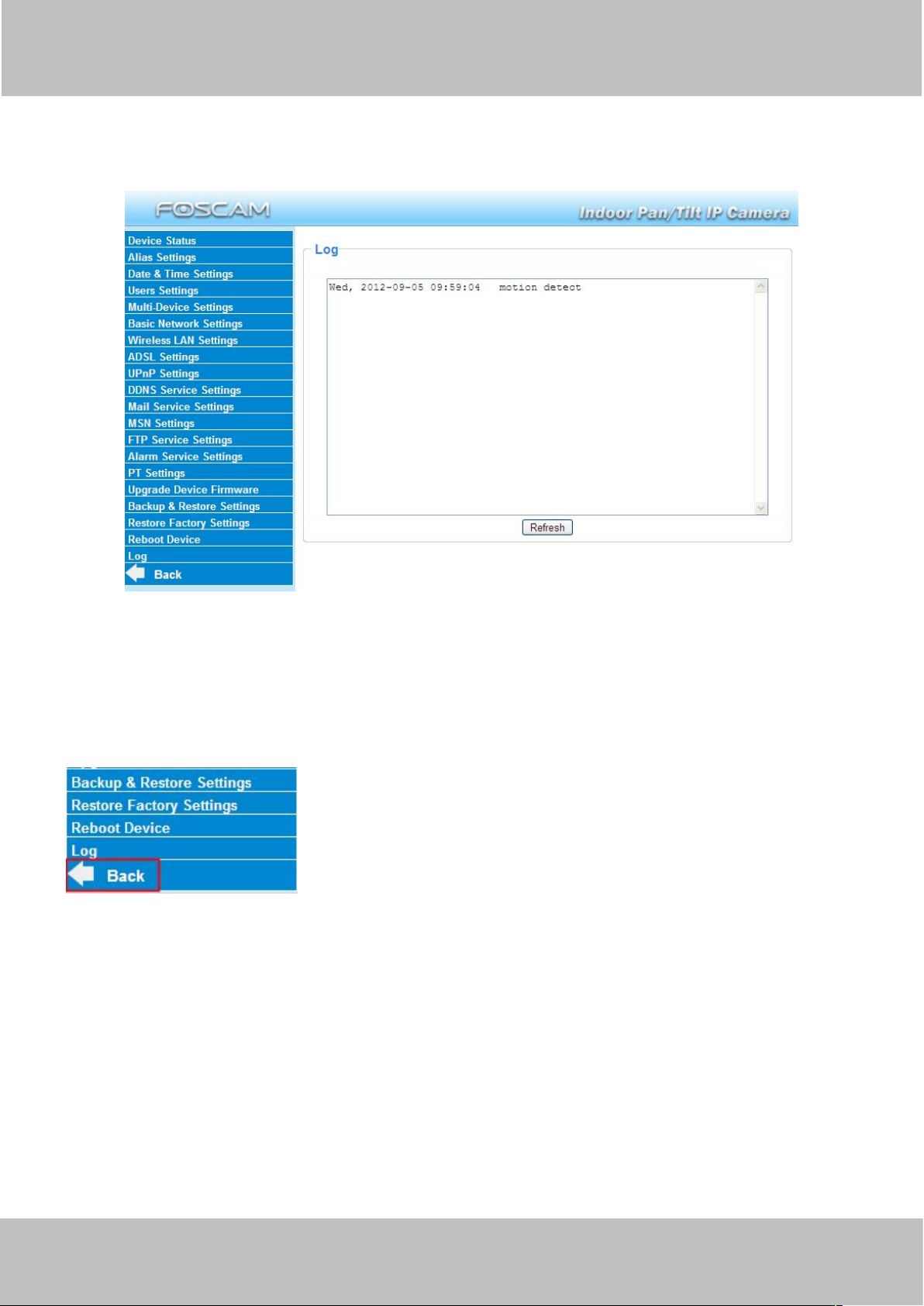
3.20 Log
The log record shows who accessed the camera and when. (Figure 3.52).
Figure 3.52
3.21 Back
This will take you back to the surveillance window.
4 APPENDIX
4.1 Frequently Asked Questions
NOTE: Always verify network connections are working by checking the status of the indicators
on the network server, hub and network card.
Page 52
wwww.foscam.co
ww.foscam.comm
Shenzhen
Shenzhen
Foscam
Foscam
Intelligent
Intelligent
Technology
Technology
Co.,
Co.,
Limited
Limited
Tel:
Tel:8686
755
755
2674
2674
5668
5668
Fax:
Fax:8686
755
755
2674
2674
516
51688
49
4.1.1 I have forgoten the administrator username and/or password
To reset the administrator username and password, press and hold down the RESET BUTTON
for 10 seconds. Upon releasing the reset button, the username and password will return to the
factory default administrator username and password. Please power on the camera before reset
Default administrator username: admin
Default administrator password: No password
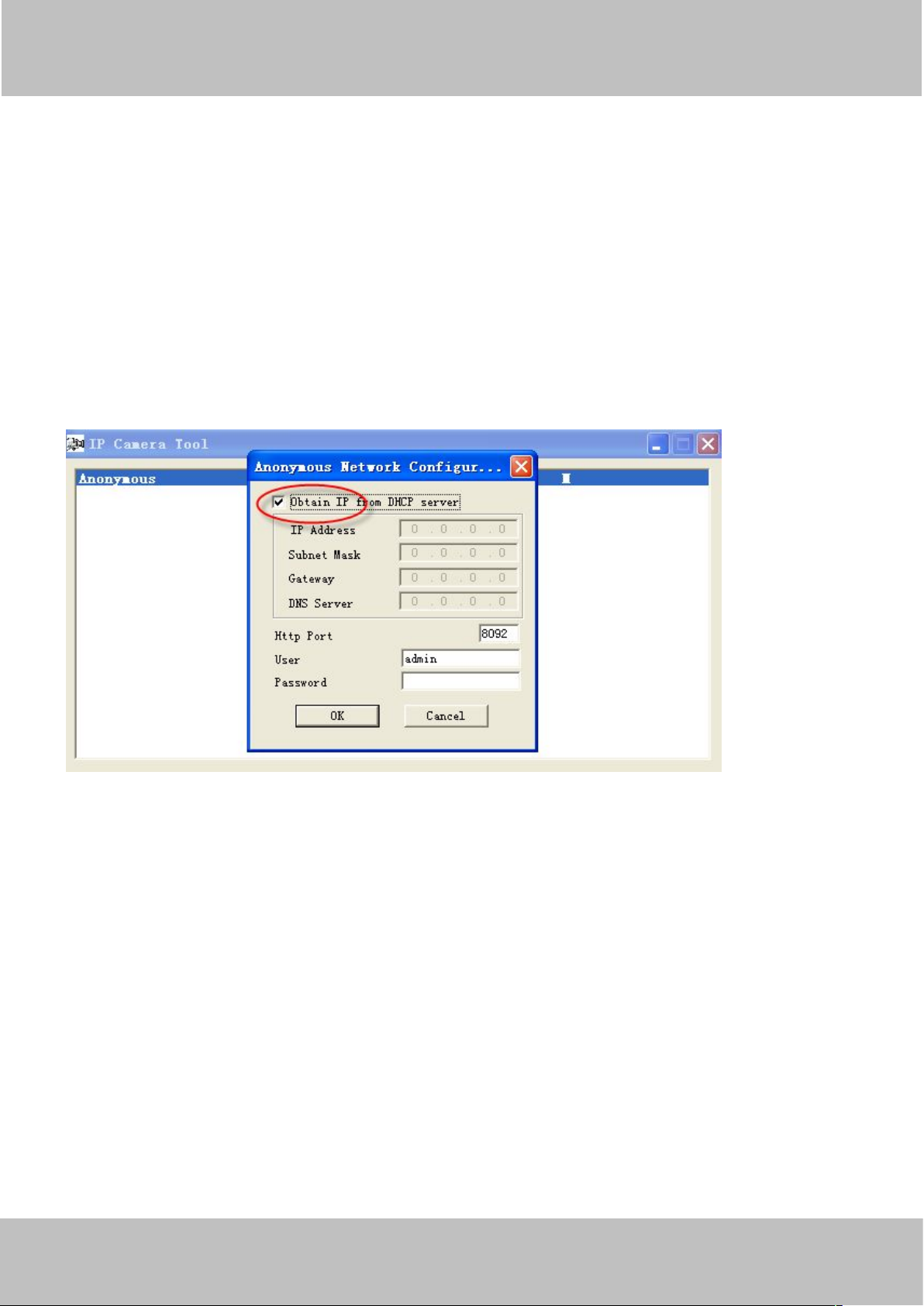
4.1.2 Subnet doesn’t match, dbclick to change
If the IP Camera Tool shows the error “Subnet doesn’t match, dbclick to change!”, select Obtain
IP from DHCP server.
If this error still exists after obtaining an IP from the DHCP server, check the local area
connection of your computer and verify the subnet and gateway of the camera which should be
the same subnet of your computer.
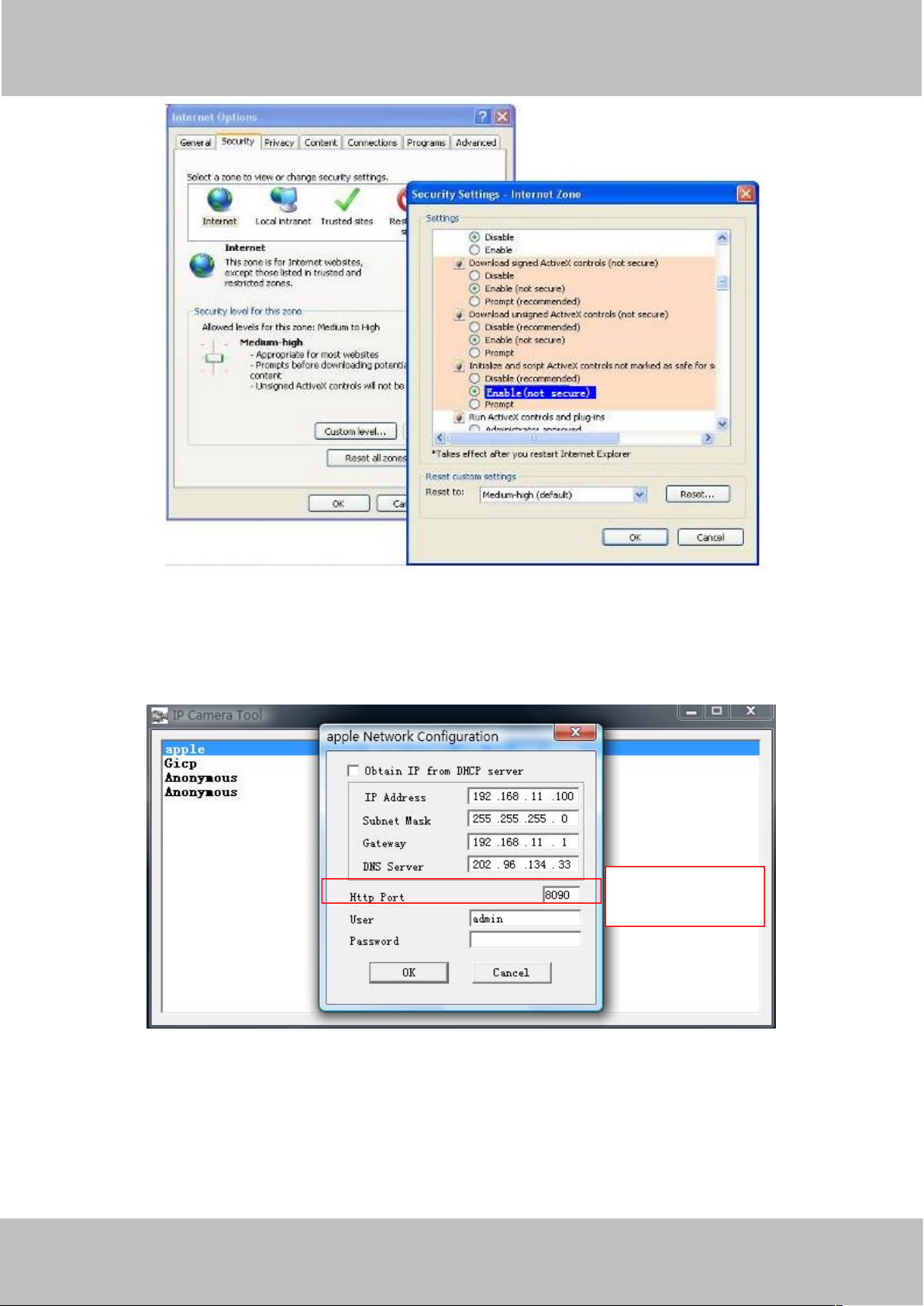
4.1.3 No Pictures Problems
Video streaming is managed by the ActiveX controller. If the ActiveX controller isn’t installed
correctly you will see no video image. There are two ways to resolve this problem:
1) Reinstall “IP Camera Tool” and ActiveX controller(recommended).
2) Download ActiveX controller and set the security setting of IE: IE browserToolInternet
ProperSecurityCustom LevelActiveX control and Plug-ins. The first three options of front
should be set to be “Enable”, The ActiveX programs read by the computer will be stored. As
follows:
Enable: Download unsigned ActiveX controls
Enable: Initialise and script ActiveX controls not marked as safe
Enable: Run ActiveX controls and plug-ins
Page 53
wwww.foscam.co
ww.foscam.comm
Shenzhen
Shenzhen
Foscam
Foscam
Intelligent
Intelligent
Technology
Technology
Co.,
Co.,
Limited
Limited
Tel:
Tel:8686
755
755
2674
2674
5668
5668
Fax:
Fax:8686
755
755
2674
2674
516
51688
50
Figure 4.1
Change another
port number .
If you allow the ActiveX to run, but still can not see living video and a red cross in the centre of
the video. Pls select another port number. Don’t use port 80, use port 85, 8005.etc.
NOTE: Make sure that your firewall or anti-virus software does not block the camera or ActiveX.
If you cannot see live video, try shutting down the firewall or anti-virus software and try again.
Figure 4.2
Page 54

wwww.foscam.co
ww.foscam.comm
Shenzhen
Shenzhen
Foscam
Foscam
Intelligent
Intelligent
Technology
Technology
Co.,
Co.,
Limited
Limited
Tel:
Tel:8686
755
755
2674
2674
5668
5668
Fax:
Fax:8686
755
755
2674
2674
516
51688
51
4.1.4 Can’t access IP camera on internet
Possible reasons why camera is not accessible on the internet:
1) ActiveX controller is not installed correctly.
2) The port which the camera uses is blocked by a Firewall or Anti-virus software. Try
changing to another port number. (Figure 4.2)
3) Port forwarding is not successful (Figure 3.27)
Double check these settings and make sure they are correct.
4.1.5 IP Camera Tool could not find camera’s IP
Verify that the network cable is securely fastened to the camera.
Make sure that DHCP is enabled on your router, do not enable MAC address filter.
Make sure that the firewall or anti-virus software does not block the camera. You can add the
camera as a trusted site on your firewall or anti-virus software.
4.1.6 UPnP always failed
UPnP only contains port forwarding in our recent software. Sometimes, it may be fail to do port
forwarding automatically because of the firewall or anti-virus software. It may also be due to the
router’s security settings. We recommend manually configuring port forwarding the camera can
be viewed on the internet.
4.1.7 Couldn’t find the shortcut on the desktop after install IP camera
tool
If you use Windows7 or Vista and the shortcut is missing after installing the IP camera tool,
check the path of IP Camera program.
For example, if it was pointing to C:\Windows\System32\IPCamera.exe.
Please fix this by pointing the shortcut to the correct path
C:\Windows\SysWOW64\IPCamera.exe. After this you should be able to use the shortcut
without any problems.
4.1.8 I can’t change the record path
When you use Windows7 or Vista, you may be not able to change the record path because of
the security settings of computer. Please add the camera as a trusted site to resolve this issue.
The steps are
IE browserToolInternet PropertiesSecurityTrusted sitesSitesAdd
Page 55

wwww.foscam.co
ww.foscam.comm
Shenzhen
Shenzhen
Foscam
Foscam
Intelligent
Intelligent
Technology
Technology
Co.,
Co.,
Limited
Limited
Tel:
Tel:8686
755
755
2674
2674
5668
5668
Fax:
Fax:8686
755
755
2674
2674
516
51688
52
4.1.9 I can’t find multi-device settings and record icon
Record and multi-device functionality are controlled by the ActiveX controller.
These functions are not available in Firefox, Google Chrome and Safari.
4.1.10 Can’t see other cameras listed in multi-device when using remote
access
If you want to view all the cameras via the WAN, verify that each camera added in the
multi-device settings can be accessed by using the DDNS name and port number. Use the
DDNS domain name not the camera’s LAN IP. (For more details see: How to add cameras in
WAN)
4.1.11 Only see black screen or undefined characters when using
remote login
If you could access the login page remotely, this indicates that your DDNS settings are correct. If
you are unable to see live video but only some undefined characters, this may be due to the
internet speed issues.
4.2 Default Parameters
Default network Parameters
IP address: obtain dynamically
Subnet mask: 255.255.255.0
Gateway: obtain dynamically
DHCP: Disabled
DDNS: Embedded FOSCAM domain name
Username and password
Default administrator username: admin
Default administrator password: No password
4.3 Specifications
ITEMS FI8918E
Image Sensor Image Sensor High Definition Color CMOS Sensor
Display Resolution 640 x 480 Pixels(300k Pixels)
Lens f: 2.8mm,F:2.4
Page 56

wwww.foscam.co
ww.foscam.comm
Shenzhen
Shenzhen
Foscam
Foscam
Intelligent
Intelligent
Technology
Technology
Co.,
Co.,
Limited
Limited
Tel:
Tel:8686
755
755
2674
2674
5668
5668
Fax:
Fax:8686
755
755
2674
2674
516
51688
53
Mini. Illumination 0.5Lux
Lens Lens Type Glass Lens
Viewing Angle 60degree
IR_CUT Filter will switch automatically
Video Image Compression MJPEG
Image Frame Rate 15fps(VGA),30fps(QVGA)
Resolution 640 x 480(VGA), 320 x 240(QVGA)
Flip Mirror Images Vertical / Horizontal
Light Frequency 50Hz, 60Hz or Outdoor
Video Parameters Brightness, Contrast
Audio Input Built-in Microphone
Output Built-in Speaker,with a audio jack
Audio Compression MJPEG
Communication Ethernet One 10/100Mbps RJ-45
Supported Protocol HTTP,FTP,TCP/IP,UDP,SMTP,DHCP,PPPoE,DDNS,UPnP,
GPRS
Infrared Light 11 IR LEDs, Night visibility up to 8 meters
Dimension 117(L) x114(W) x129mm(H)
Gross Weight 765g
Net Weight 315g
POE POE Standard IEEE 802.3af
Input Voltage DC 36V~DC 57V
Output Voltage DC 5V
Output Power 15.4W (Max.)
Wiring standards 100M BASE-T
Power Power Supply DC 5V/2.0A (EU,US,AU adapter or other types optional)
Power Consumption 5Watts (Max.)
Environment Operate Temper. 0° ~ 55°C (32°F ~ 131°F)
Operating Humidity 20% ~ 85% non-condensing
Storage Temper. -10°C ~ 60° (14°F ~ 140°F)
Storage Humidity 0% ~ 90% non-condensing
PC
Requirements
CPU 2.0GHZ or above
Memory Size 256MB or above
Display Card 64M or above
Supported OS Microsoft Windows
2000/XP/Vista/Windows7-32bit/Windows7- 64bit/ Windows832bit/Windows8-64 bit / mac
Browser IE 6.0, IE7.0, IE8.0,IE9.0, Firefox2.0,Firefox3.0, Google
Chrome, Safari or other standard browsers
Certification CE,FCC
Page 57

wwww.foscam.co
ww.foscam.comm
Shenzhen
Shenzhen
Foscam
Foscam
Intelligent
Intelligent
Technology
Technology
Co.,
Co.,
Limited
Limited
Tel:
Tel:8686
755
755
2674
2674
5668
5668
Fax:
Fax:8686
755
755
2674
2674
516
51688
54
5 OBTAINING TECHNICAL SUPPORT
While we hope your experience with the IPCAM network camera is enjoyable and easy to use,
you may experience some issues or have questions that this User’s Guide has not answered.
If you have problem with FOSCAM IP camera, please first contact FOSCAM reseller for solving
the problems. If our reseller cannot provide service, pls contact our service department:
 Loading...