

Page 1
SYNC Owner's Manual
Page 2

The information contained in this publication was correct at the time of going to print. In the interest of
continuous development, we reserve the right to change specifications, design or equipment at any time
without notice or obligation. No part of this publication may be reproduced, transmitted, stored in a
retrieval system or translated into any language in any form by any means without our written permission.
Errors and omissions excepted.
© Ford Motor Company 2012
All rights reserved.
Part Number: 05/2012 20120419080230
Page 3

SYNC
General Information........................................3
Using Voice Recognition.................................7
Using SYNC® With Your Phone................10
Using SYNC® With Your Media
Player..............................................................20
SYNC® Troubleshooting.............................23
Appendices
End User Licence Agreement....................30
1
Table of Contents
Page 4

2
Page 5
GENERAL INFORMATION
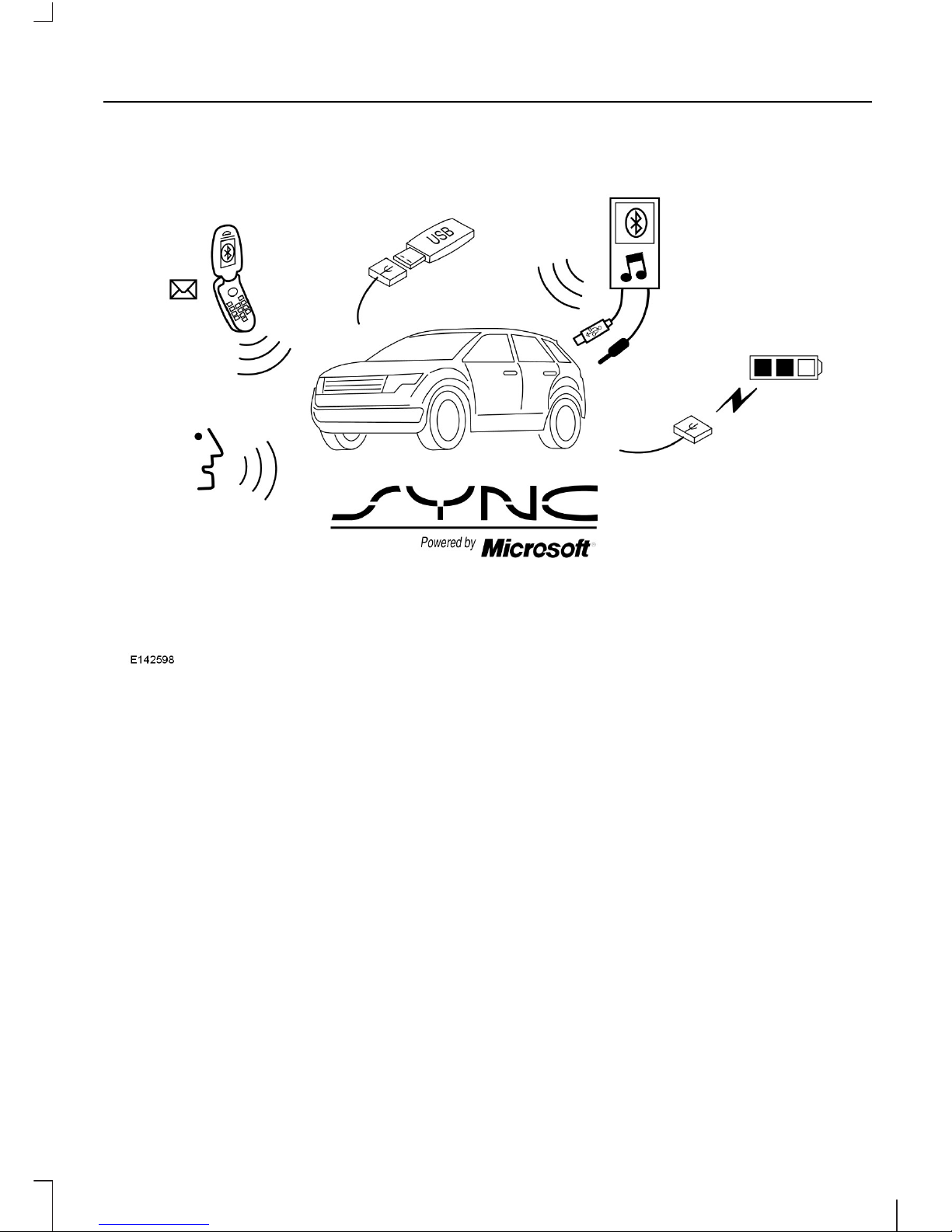
SYNC® is an in-vehicle communications
system that works with your
Bluetooth-enabled mobile phone and
portable media player. This offers you the
following features:
• Send and receive hands-free calls
• Access and play music from your
favourite digital media player through
easy, voice-activated commands
• Speak to access your
Bluetooth-enabled mobile phone’s
contact list.
• Read incoming SMS text messages
aloud from your mobile phone (This is
a phone-dependent feature.)
• Listen to music streaming through your
Bluetooth-enabled mobile phone
• use the advanced voice recognition
system.
• charge your USB device (if your device
supports this).
Note: Make sure that you refer your device's
user guide before using it with SYNC®.
Menu Structure - System Settings
The SYNC® system settings can be
accessed using the buttons on the audio
or navigation unit.
3
SYNC
Page 6
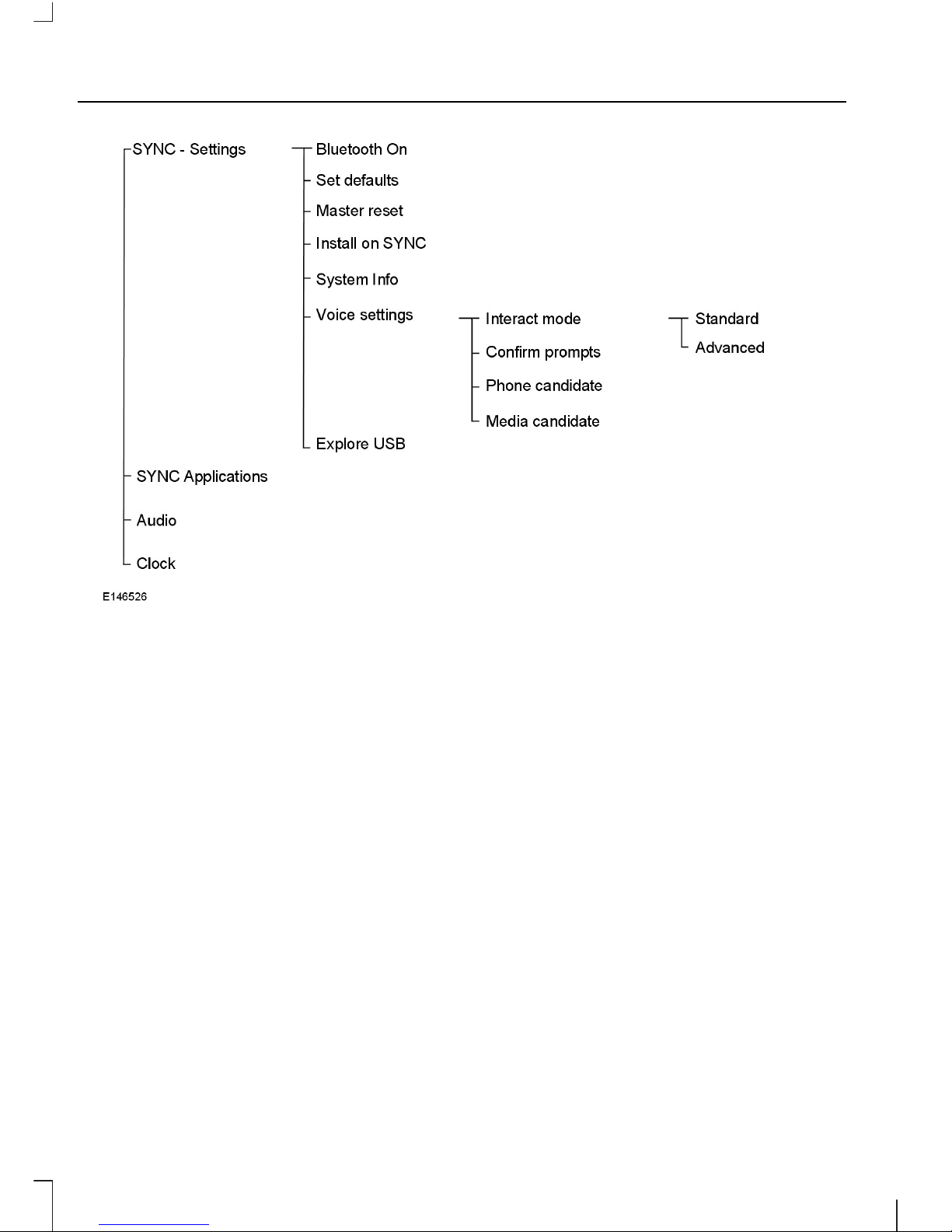
Bluetooth® On
Allows you to turn the Bluetooth® feature
on /off.
Set defaults
Allows you to return to the factory default
settings. This operation will NOT erase
your indexed information. (phonebook, call
history, text messages and paired devices)
Master reset
Allows you to completely erase ALL
information stored on SYNC (all
phonebook, call history, text messages and
all paired devices) and return to the factory
default settings.
Install on SYNC
Allows you to install applications you have
downloaded.
System Info
Allows you to access the Auto Version
number as well as the FDN number.
Voice settings
Allows you to customize your VR (Voice
Recognition) system to provide more or
less instruction and feedback. See Using
Voice Recognition (page 7).
Explore USB
Allows you to explore through all
supported digital media on your media
device connected to the USB port.
Menu Structure - Phone Settings
The SYNC® phone settings can be
accessed using the PHONE button on the
audio or navigation unit.
4
SYNC
Page 7
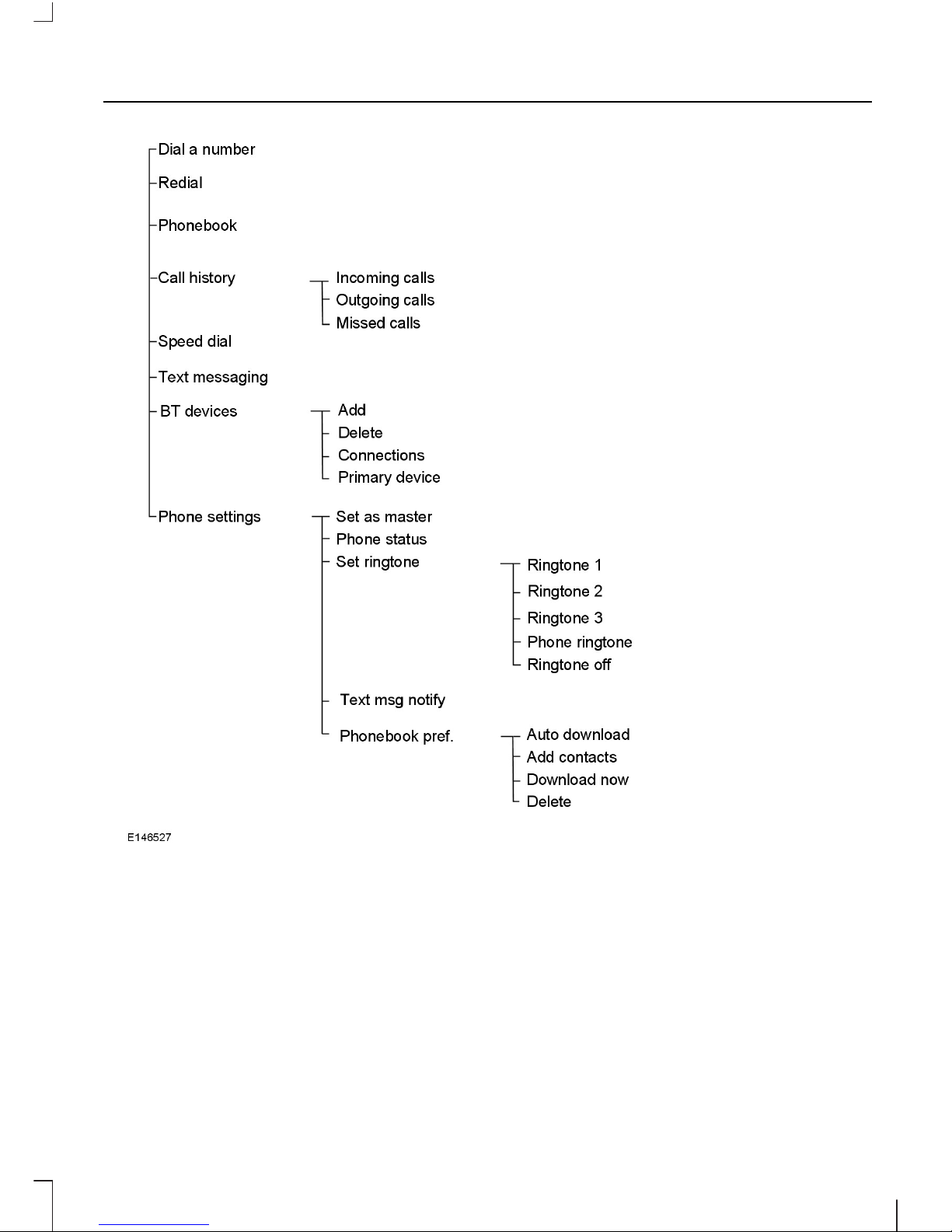
Dial a number
Allows you to enter phone number and call
this number.
Redial
Allows you to call the last dialled number.
Phonebook
Allows you to access the downloaded
phonebook.
Call history
Allows you to access any previously
dialled, received or missed calls while your
phone has been connected to SYNC®.
Speed dial
Allows you to call numbers which have
been stored as speed dial.
Text messaging
5
SYNC
Page 8
Allows you to send, download and delete
text messages.
BT devices
Allows you to add, connect, delete and set
a primary device. Also allows on/off of the
bluetooth® feature.
Note: Adding a bluetooth® device is a
speed-dependant feature.
Phone settings
Allows you to change or set up your
ringtone, text message notifications, phone
book, etc.
Set as master
Allows you to connect with the primary
phone at every ignition cycle. When a
phone is selected as master, it appears
first in the list and is marked with an "*".
Phone status
Shows your phone's number, provider,
roaming status, battery status, etc.
Set ringtone
Allows you to change or set up your
ringtone.
Text msg notify
Allows you to set an audible tone for the
incoming text message.
Phonebook pref.
• Auto Download: Automatically
download the phonebook each time
the phone connects to SYNC®.
(Downloading time is
phone-dependent and
quantity-dependent.)
• Add Contacts: allows you to add more
contacts to the phonebook.
• Download now: allows you to
download your current phonebook into
SYNC® immediately.
• Delete: allows you to delete a specific
contact from SYNC®.
Note: When auto download is on, any
changes, addition or deletion saved since
the last download are deleted.
Driving Restrictions
For your safety, certain features are
speed-dependent and restricted when your
vehicle is travelling over 3 mph (5 km/h).
Safety Information
WARNING
Driving while distracted can result in
loss of vehicle control. Ford strongly
recommends that drivers use
extreme caution when using any device
that may take their focus off the road. The
primary responsibility is the safe operation
of the vehicle. FORD does not recommend
the use of any handheld device while
driving, encourage the use of
voice-operated systems when possible
and that you become aware of applicable
state and local laws that may affect use
of electronic devices while driving.
When using SYNC®:
• Do not operate playing devices if the
power cords or cables are broken, split
or damaged. Carefully place cords and
cables where they cannot be stepped
on or interfere with the operation of
pedals, seats, compartments or safe
driving abilities.
• Do not leave playing devices in the
vehicle during extreme conditions as it
can damage them. Refer to your
device's user guide for further
information.
• Do not attempt to service or repair the
system. See your authorized dealer.
6
SYNC
Page 9
Privacy Information
When a mobile phone is connected to
SYNC®, the system creates a profile within
your vehicle that is linked to that mobile
phone. This profile is created in order to
offer more mobile features and to operate
more efficiently. Among other things, this
profile may contain data about your mobile
phone book, text messages (read and
unread), and call history, including history
of calls when your mobile phone was not
connected to the system. In addition, if you
connect a media device, the system
creates and retains an index of supported
media content. The system also records a
short development log of approximately
10 minutes of all recent system activity.
The log profile and other system data may
be used to improve the system and help
diagnose any problems that may occur.
The mobile profile, media device index, and
development log will remain in the vehicle
unless you delete it and are generally
accessible only in the vehicle when the
mobile phone or media player is
connected. If you no longer plan to use the
system or the vehicle, we recommend you
to perform a Master Reset to erase all
stored information.
System data cannot be accessed without
special equipment and access to the
vehicle's SYNC® module. Ford Motor
Company will not access the system data
for any purpose other than as described
absent consent, a court order, or where
required by law enforcement, other
government authorities, or other third
parties acting with lawful authority. Other
parties may seek to access the information
independently of Ford Motor Company.
USING VOICE RECOGNITION
Your SYNC® system comes equipped with
an advanced voice recognition system. This
system helps you control many features
using voice commands. This allows you to
keep your hands on the wheel and focus
on what is in front of you.
Initiating a Voice Session
Push the VOICE BUTTON; a
tone sounds and "Listening"
appears in the display. Say any
of the following:
If You Want ToSay
Return to the main menu."SYNC"
Use the connected phone."PHONE"
Access the device connected to your USB port."USB"
Stream audio from your phone."BLUETOOTH AUDIO"
Access the device connected to the auxiliary input jack."LINE IN"/ "AUDIO IN"
Adjust the level of voice interaction and feedback."VOICE SETTINGS"
7
SYNC
Page 10
If You Want ToSay
Hear the most recent incoming SMS text message."READ MESSAGE"
Hear a list of voice commands available in the current
mode.
"HELP"
Cancel the requested action."CANCEL"
Helpful Hints
• Make sure the interior of the vehicle is
as quiet as possible. Wind noise from
open windows and road vibrations may
prevent the system from correctly
recognizing the spoken commands.
• After pressing the voice control button,
wait until after the tone sounds and
"Listening" appears before saying a
command. Any command spoken prior
to this will not be recognised by the
system.
• Speak naturally, without long pauses
between words.
• The system can interrupt at any time
by pressing the voice control button.
• Don't stay too far or too close to SYNC
microphone when speaking out voice
commands.
• Don't rush to say any command to
SYNC before hearing the VR(Voice
Recognition) starting chime "ding".
• At any time, you may press voice
control button and say "HELP" for
assistance.
• In the middle of voice session, if want
to cancel current operation, you can
say "CANCEL" or press the up or down
arrow button in front control panel or
steering wheel.
• To say some commands directly
without listening some long prompts,
press the voice control button once to
abort the current prompts speaking.
System Interaction and Feedback
The system provides feedback through
audible tones, prompts, questions and
spoken confirmations depending on the
situation and the chosen level of
interaction (voice settings). You can
customize the voice recognition system to
provide more or less instruction and
feedback.
The default setting is to a standard
interaction mode in order to help you learn
to use the system. You can change these
settings at any time.
Adjusting the Interaction Level
Push the voice control button.
Say "VOICE SETTINGS" when
prompted, then any of the
following:
8
SYNC
Page 11
The SystemWhen You Say
Provides less audible interaction and more
tone prompts.
"INTERACTION MODE ADVANCED"
Provides more detailed interaction and
guidance.
"INTERACTION MODE STANDARD"
The system defaults to the standard interaction mode.
Confirmation prompts are short questions
the system asks when it is not sure of your
request or when there are multiple possible
responses to your request. For example,
the system may ask "Phone, is that
correct?".
The SystemWhen You Say
Makes a best guess from the command;
you may still occasionally be asked to
confirm settings.
"CONFIRMATION PROMPTS OFF"
Clarifies your voice command with a short
question.
"CONFIRMATION PROMPTS ON"
The system creates candidate lists when
it has the same confidence level of several
options based on your voice command.
When turned on, you may be prompted
with as many as four possibilities for
clarification.
For example say, "1" after the tone to call
John Doe at home or "2" after the tone to
call Johnny Doe on mobile or "3" after the
tone to call Jane Doe at home.
The same logic applies to media content.
For example say: "1" after the tone to play
John Doe or "2" after the tone to play
Johnny Doe or "3" after the tone to play
Jane Doe.
9
SYNC
Page 12
The SystemWhen You Say
Makes a best guess from the media
candidate list; you may still occasionally be
asked questions.
"MEDIA CANDIDATE LISTS OFF"
Clarifies your voice command for media
candidates.
"MEDIA CANDIDATE LISTS ON"
Makes a best guess from the phone
candidate list; you may still occasionally be
asked questions.
"PHONE CANDIDATE LISTS OFF"
Clarifies your voice command for phone
candidates
"PHONE CANDIDATE LISTS ON"
Changing the Voice Settings Using the
Multifunctional Display
1. Press the MENU button.
2. Select SYNC-Settings.
3. Select Voice Settings.
USING SYNC® WITH YOUR
PHONE
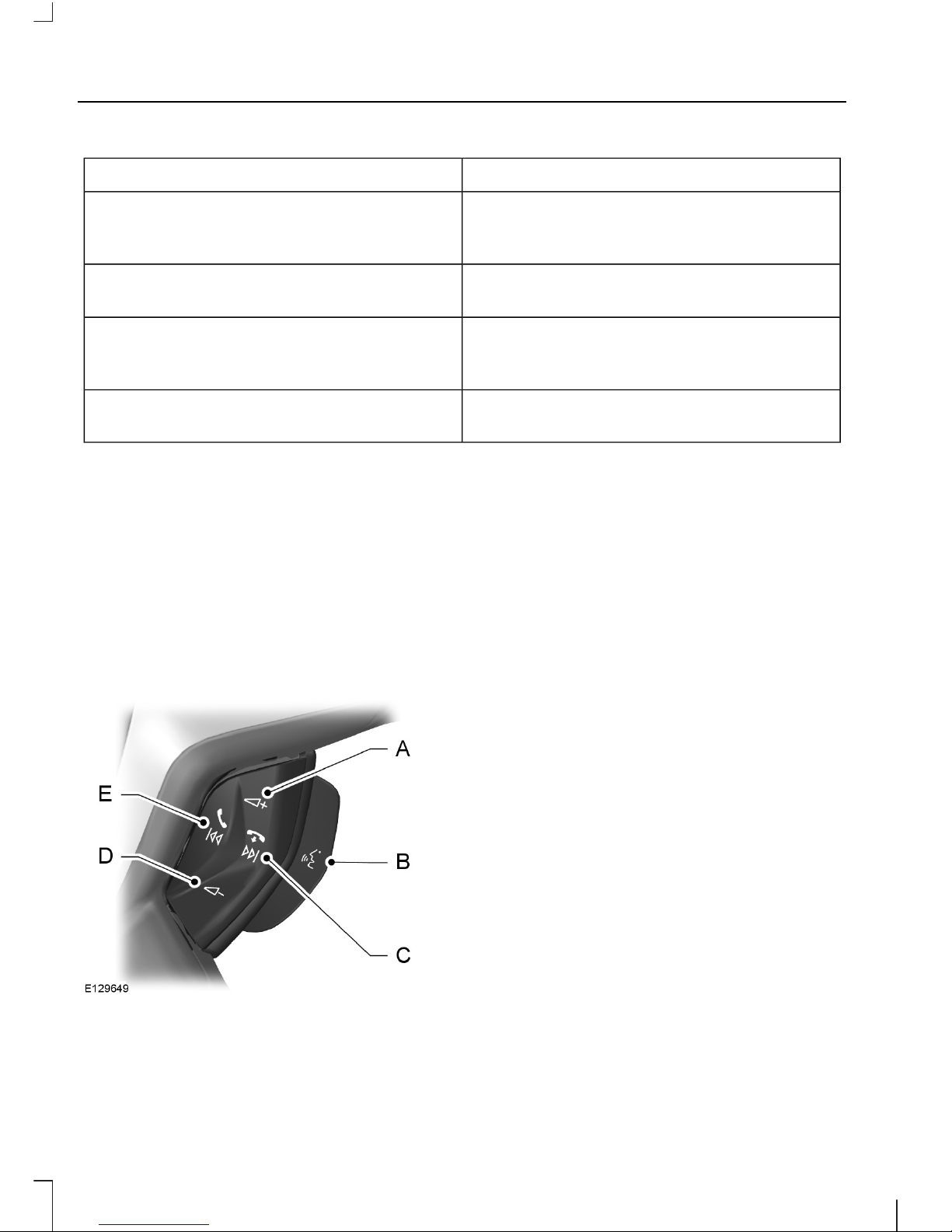
Volume upA
Voice buttonB
End callC
Volume downD
Receive callE
Hands-free calling is one of the main
features of SYNC. While the system
supports a variety of features, many are
dependent on your mobile phone's
functionality. At a minimum, most mobile
phones with Bluetooth® wireless
technology support the following
functions:
• Dialing a number
• Answering an incoming call
• Ending a call
• Redialing
• Call waiting notification
• Join calls
• Using privacy mode
• Caller ID
Other features such as text messaging
using Bluetooth and automatic phonebook
download are phone-dependent features.
To check your phone's compatibility, refer
to your phone's user manual and visit
www.fordsync.com.
10
SYNC
Page 13

Note: When using the system for the first
time, no phone is connected to the system.
Pairing a Phone for the First Time
Note: SYNC® can support downloading up
to approximately 1000 entries per
Bluetooth-enabled mobile phone.
Note: Make sure the radio is turned on.
Note: To scroll through the menus, press
the up or down arrow buttons on your audio
system.
Note: If your phone once paired with other
vehicle's SYNC® system, before you pair
your phone with another new vehicle please
make sure you delete the SYNC® device
name in your phone and search new SYNC®
device in the new vehicle for pairing.
Wirelessly pairing your phone with SYNC®
allows you to make and receive hands-free
calls.
1. Press PHONE button. A message
"searching for past paired phones"
appear. After about 10 seconds, a
message "No phone found" appears.
2. Press the button mapped to Add of
the information and entertainment
display.
3. A six-digit PIN will be provided by
SYNC®.
4. Put your phone into Bluetooth mode.
Refer to your phone's user guide if
necessary.
5. When prompted on your phone's
display, enter the six-digit PIN provided
by SYNC in the radio display. The
display indicates when the pairing is
successful.
Depending on your phone's capability and
your market, the system may prompt you
with questions such as setting the current
phone as the primary phone (the phone
SYNC automatically tries to connect with
first upon vehicle start-up), downloading
your phone book, etc.
Pairing Subsequent Phones
Note: Make sure radio is turned on.
Note: To scroll through the menus, press
the up or down arrow buttons on your audio
system.
1. Press PHONE button.
2. Press the up or down arrow buttons
until BT devices is shown and press
OK.
3. Press the up or down arrow buttons
until Add is shown and press OK.
4. Put your phone into Bluetooth mode.
Refer to your phone's user guide if
necessary.
5. When prompted on your phone's
display, enter the six-digit PIN provided
by SYNC® in the radio display. The
display indicates when the pairing is
successful
The system then prompts with questions
such as if you would like to set the current
phone as the primary phone (the phone
SYNC® automatically tries to connect with
first upon vehicle start-up), download your
phone book, etc.
Connecting a previously paired
phone with SYNC®
If you disconnect your phone with SYNC®
or leave the vehicle, you do not need to pair
your phone with SYNC® again.
Note: Make sure your phone's bluetooth is
on.
Press the PHONE button and system will
search paired Bluetooth device.
11
SYNC
Page 14
If there are several Bluetooth devices in
vehicle, system will try to connect to the
primary phone. If the primary phone is not
available in the vehicle, SYNC® will
connect to the available paired phone after
searching is finished.
Note: In some phones an access
confirmation will pop up in phone's screen,
"YES" needs to be always selected to allow
SYNC to automatically connect and transfer
phonebook.
Changing the active phone
Note: Phones must be paired to the system
before they can be made active.
1. Press PHONE button.
2. Press the up or down arrow buttons
until BT devices is shown and press
OK.
3. Press the up or down arrow buttons
until Connections is shown and press
OK.
4. Press the up or down arrow buttons to
select the desired bluetooth device.
5. Press OK button to connect to the
selected phone.
Downloading phonebook
SYNC® can support downloading up to
approximately 1000 entries per
Bluetooth-enabled mobile phone.
1. Press PHONE button.
2. Press the up or down arrow buttons
until Phone settings is shown and
press OK.
3. Press the up or down arrow buttons
until Phonebook pref. is shown and
press OK.
4. Press the up or down arrow buttons
until Download now is shown and
press OK.
5. Press OK button again to confirm
download.
Phone Voice Commands
Overview
The overview below shows the available
voice commands. The following lists will
give further information about the
complete command menu in selected
examples
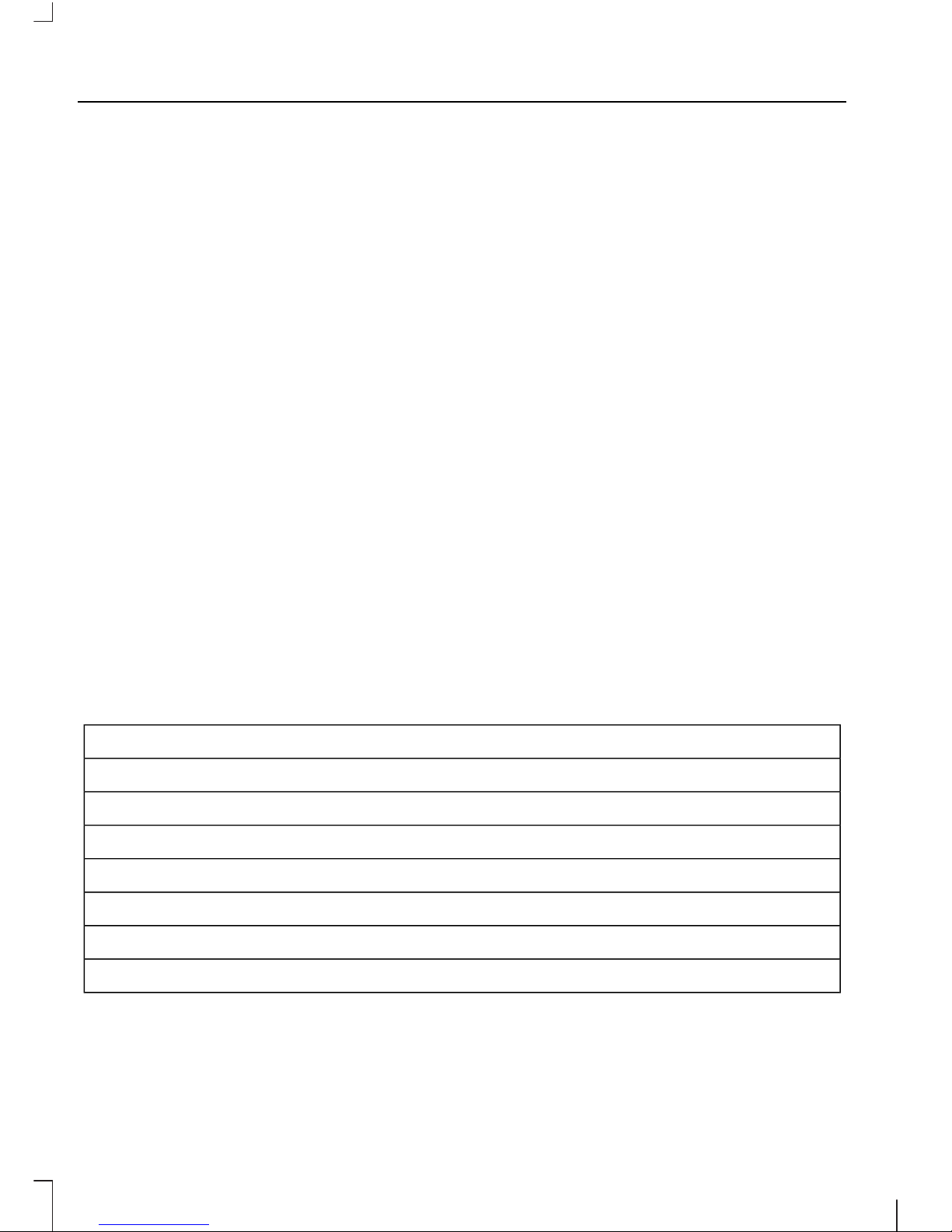
Press VOICE BUTTON and when prompted, say any of the following commands
"READ SMS"
"CALL" / "DIAL"
"CALL <name>"
"CALL <name> HOME PHONE"
"CALL <name> PHONE"
"CALL <name> MOBILE PHONE"
"CALL <name> OTHER NUMBER"
12
SYNC
Page 15

Press VOICE BUTTON and when prompted, say any of the following commands
"CALL <name> OFFICE PHONE"
"CALL <name> BUSINESS PHONE"
"PHONE"
"PHONE"
"CALL<name>"
"CALL <name> HOME PHONE"
"CALL <name> MOBILE PHONE"
"CALL <name> PHONE"
"CALL <name> BUSINESS PHONE"
"CALL <name> OFFICE PHONE"
"CALL <name> OTHER NUMBER"
"DIAL"
2
"PHONE BOOK <name>"
3
"PHONE BOOK <name> HOME PHONE"
3
"CALL <name> BUSINESS PHONE"
"PHONE BOOK <name> MOBILE PHONE"
3
"PHONE BOOK <name> OFFICE PHONE"
3
"PHONE BOOK <name> PHONE"
3
"PHONE BOOK <name> OTHER NUMBER"
3
"OUTGOING CALLS"
3
"INCOMING CALLS"
3
"MISSED CALLS"
3
13
SYNC
Page 16

"PHONE"
"CONNECTION"
4
"MENU"
1 2
1
These commands are not available until phone information is completely downloaded
using Bluetooth.
2
See Dial table below.
3
See Menu table below.
4
See Connection tab below.
Phone book commands
When you ask SYNC® to access a phone
book name, number, etc., the requested
information appears in the display to view.
Press the PHONE button and say
"CALL/DIAL" to call the contact.
"CALL" / "DIAL"
"Number <(0-9)>"
"DELETE" (deletes one digit)
"PLUS"
"POUND" / "HASH", (#)
"ASTERISK" / "STAR" (*)
"CLEAR" (deletes all entered digits)
"123" (one-two-three). "121" (one-two-one), etc.
"700" (seven hundred)
"800" (eight hundred)
"900" (nine hundred)
Note: To exit dial mode, press and hold the
PHONE button or press MENU to go to the
Phone menu.
Note: "CALL" command is used to call a
phonebook contact and cannot be used to
enter the phone number.
Note: "DIAL" command is used to call by
entering a number and cannot be used for
a phonebook contact.
14
SYNC
Page 17
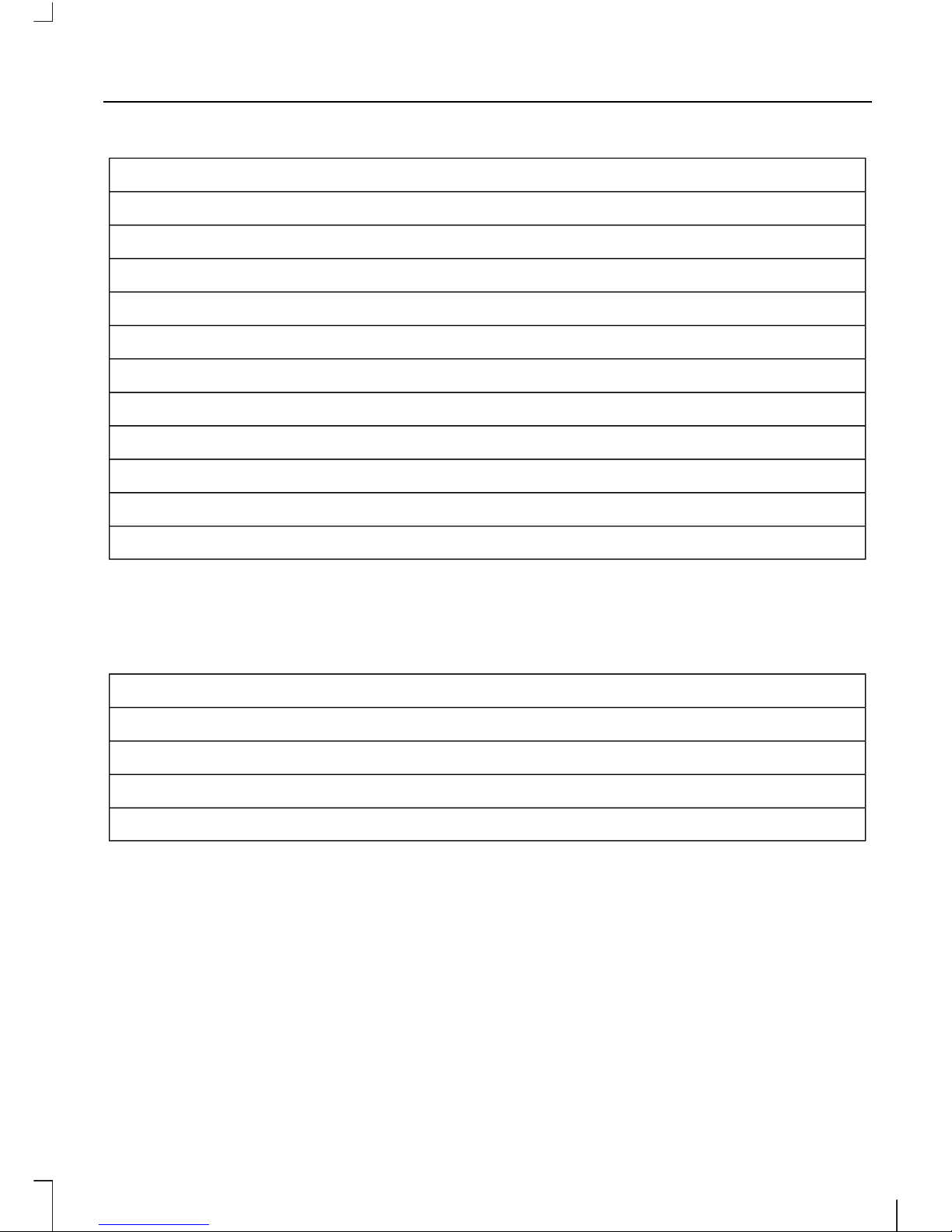
"MENU"
"(PHONE) CONNECTION"
"MESSAGE NOTIFICATION ON"
"MESSAGE NOTIFICATION OFF"
"PHONE NAME"
"SET PHONE RINGER"
"SET RINGER 1"
"SET RINGER 2"
"SET RINGER 3"
"SET RINGER OFF"
"TEXT MESSAGE INBOX"
"SEND TEXT MESSAGE"
Note: With the above commands, words in
( ) are optional and do not have to be
spoken for the system to understand the
command.
"CONNECTION"
"CONNECT <bluetooth device name>"
"BLUETOOTH ON"
"BLUETOOTH OFF"
"DELETE <bluetooth device name>"
15
SYNC
Page 18
Commands used when in a call
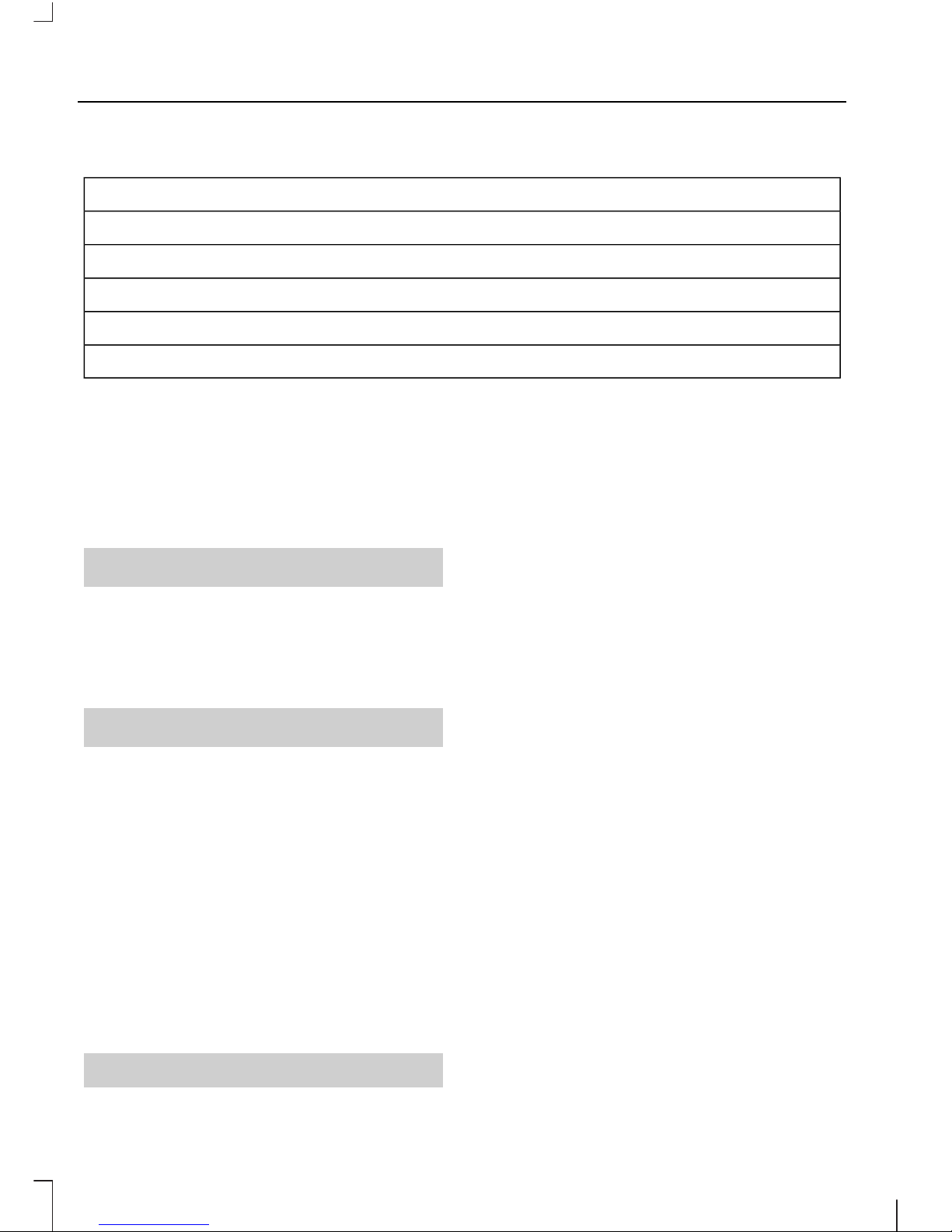
Press VOICE BUTTON and when prompted, say any of the following command
"GO TO PRIVACY"
"HOLD"
"JOIN"
"MUTE CALL ON"
"UNMUTE CALL"
Making a call
Dialling a number using voice
command
Press the VOICE BUTTON and when
prompted say:
Type 1
1. "CALL <name>
MOBILE/HOME/WORK/OFFICE/OTHER".
2. If there are several numbers listed
under the desired category, choose the
line number by saying "LINE 1/2/3".
Type 2
1. "CALL <name>".
2. System will feedback "CALL <name>,
Is that correct?"
3. Say "YES".
4. System will ask "CALL <name>
mobile/home/work/office/other,
Is that correct?"
5. Based on the numbers shown in the
display, say
"MOBILE/HOME/WORK/OFFICE/OTHER".
6. If there are several numbers listed
under the desired category, choose the
line number by saying "LINE 1/2/3".
Type 3
1. "DIAL".
2. System will ask "Please say a
number".
3. You can say the desired number
<0-9>.
4. System will repeat the number you
have said.
5. Say "DIAL".
Dialling a number using the address
book
1. Press PHONE button.
2. Press the up or down arrow buttons
until Phonebook is shown.
3. Press OK button.
Note: You can also use the telephone
keypad to select the first letter of the entry
you are looking for. Press the relevant
number that corresponds to the letter
repeatedly until the required letter is
displayed.
4. Press the up or down arrow buttons to
select the desired phone number.
Note: Press and hold the up or down arrow
buttons to search forwards or backwards
within the phonebook.
5. Press OK button to dial the selected
phone number.
16
SYNC
Page 19

Dialling a number using the telephone
keypad
If you have an audio unit with a telephone
keypad (buttons 0-9, * and #):
1. Press PHONE button.
2. Press the up or down arrow buttons
until Dial a number is shown.
3. Press OK button.
4. Dial the number using the telephone
keypad on the audio unit.
5. Press OK button.
Note: : Press and hold '0' to enter a + digit.
Ending a call
Calls can be ended by:
• Pressing the END CALL button.
• Pressing the OK button.
• Pressing and holding the PHONE
button.
Redialling a number
1. Press the PHONE button.
2. Press the up or down arrow buttons
until Call history is shown.
3. Press OK button.
Note: If the active phone does not provide
a call out list, the last outgoing call
number/entry can be redialled.
4. Press the up or down arrow buttons to
select the desired call history and press
OK button.
5. Press the up or down arrow buttons to
select the desired phone number and
press OK button.
Redialling the last dialled number
Press thePHONE button twice to redial
the last dialled number.
Using the Speed Dial Feature
Set speed dial
1. Press the PHONE button.
2. Select Phonebook or Call history.
3. Press the up or down arrow buttons to
locate the desired number you want to
set as a speed qial.
4. then press and hold one of digits
key"0~9" till a poping up shows to
confirm "Store to speed dial #
<0~9>"
Quick dialling
1. Press the PHONE button.
2. Hold the setted digits key "0~9" to
make a call or
3. Press the up or down arrow buttons to
select Speed dial.
4. Locate the desired phone number.
5. Press OK button.
Receiving an incoming call
Accepting an incoming call
Incoming calls can be accepted by pressing
the RECEIVE CALL button, or by pressing
the OK button.
Rejecting an incoming call
Incoming calls can be rejected by pressing
the END CALL button.
Receiving a second incoming call
If there is an incoming call whilst there is
an ongoing call, a beep will be heard and
you will have the option to end the active
call and to accept the incoming call.
Accepting a call
Press the RECEIVE CALL or PHONE or
OK button to accept the second incoming
call.
17
SYNC
Page 20

Note: The active call will be placed in hold
automatically.
Joining the calls
SYNC® supports a maximum of three
callers on a multi-party/conference call.
After accepting the second incoming call,
press the VOICE BUTTON and when
prompted say "JOIN".
Setting up a multi-party call
When you are in a call and want to invite
another person to join the call, you can:
• Press the VOICE BUTTON and say
"CALL <name>
/MOBILE/HOME/WORK/OFFICE/OTHER"
or say ""DIAL" to make a new call.
• Press the button mapped to More of
the information and entertainment to
select Dial, Phone book and Call
history to make a new call
And then press the VOICE BUTTON and
say "JOIN".
Rejecting a call
Press the END CALL button to reject the
second incoming call.
Muting and Unmuting the
microphone
Note: During a call, it is possible to mute
the microphone. Whilst muted, confirmation
will appear in the display.
Using voice command:
Press the VOICE BUTTON and when
prompted say "MUTE CALL ON" /
"UNMUTE CALL".
Using menu options:
Press the button mapped to Mic off of the
information and entertainment display to
mute/unmute the microphone.
Switching between speaker phone
and hands-free mode
Privacy mode can be activated from a
hands-free mode while in an active call.
Using voice command:
Press the VOICE BUTTON and when
prompted say "GO TO PRIVACY".
Using menu options:
Press the button mapped to Private of
the information and entertainment display
to switch between privacy and hands-free
mode.
Ongoing calls while entering and
exiting the vehicle
Note: Make sure the radio and Bluetooth®
mode are turned on.
SYNC® provides uninterrupted
connections while entering or exiting your
vehicle.
If the phone in use is already paired with
SYNC®, it will automatically connect and
transfer the call to the hands-free mode
when entering the vehicle.
It transfers the call back to the phone when
exiting the vehicle.
Text Messaging
Note: This is a phone-dependent feature.
If your phone is compatible, SYNC allows
you to receive, send, download and delete
text messages.
SYNC allows you to receive, send,
download and delete text messages. The
system can also read incoming text
messages so that driving the vehicle is not
disturbed.
Receiving a Text Message
Using voice command:
18
SYNC
Page 21

When a new message arrives, an audible
tone sounds and the display indicates you
have a new message. You have these
options:
• Press the VOICE BUTTON, wait for
the prompt and say "READ SMS" to
have SYNC read the message to you.
Using menu options:
Press the button mapped to View or
Listen of the information and
entertainment display to view or listen the
new text message.
Reply to a message
1. Press PHONE button.
2. Press the up or down arrow buttons
until Text messaging is shown and
press OK button.
3. Press the up or down arrow buttons
until View is shown and press OK
button.
4. Press the button mapped to More of
the information and entertainment
display.
5. Press the up or down arrow buttons to
select Reply to the sender and press
OK button.
6. Press the up or down arrow buttons to
select from the desired pre-defined
text messages.
7. Press OK button to send the selected
text message.
Forward a message
1. Press PHONE button.
2. Press the up or down arrow buttons
until Text messaging is shown and
press OK button.
3. Press the up or down arrow buttons
until View is shown and press OK
button.
4. Press the button mapped to More of
the information and entertainment
display.
5. Press the up or down arrow buttons to
select Forward the SMS and press
OK button.
6. Press the up or down arrow buttons to
select the desired recipient from
phonebook/call history/enter number.
7. Press OK button when desired recipient
is selected.
8. Press OK button again to confirm.
Sending a text message
Using voice command:
1. Press the VOICE BUTTON button.
2. When prompted say "PHONE".
3. When the system confirms, say
"MENU".
4. When prompted say "SEND TEXT
MESSAGE".
5. Press the up or down arrow buttons to
select from the desired pre-defined
text messages.
6. Press OK button to send the selected
text message.
7. Press the up or down arrow buttons to
select the desired recipient from
phonebook/call history/enter number.
8. Press OK button when desired recipient
is selected.
9. Press OK button again to confirm.
Note: Each text message will be sent with
the signature "This message was sent from
my Ford.”
Predefined text messages
Note: Predefined text messages are from
SYNC® system and not from the phone.
• See u in 10 min.
• See u in 20 min.
19
SYNC
Page 22
• Call me
• Call you later
• Can't talk now
• Miss you
• I love you
• Send directions
• Heavy traffic :-(
• No
• Thanks!
• Too funny :-)
• Where are you?
• Why?
• Yes
USING SYNC® WITH YOUR
MEDIA PLAYER
You can access and play music from your
digital music player over the vehicle's
speaker system using the system's media
menu or voice commands. You can also
sort and play your music by specific
categories such as artists, albums, etc.
SYNC is capable of hosting nearly any
digital media player including: iPod®,
Zune™, "Plays from device" players, and
most USB drives. SYNC also supports
audio formats such as MP3, WMA, WAV
and ACC.
Connecting Your Digital Media
Player to SYNC® via the USB Port
With the radio and digital media player ON,
plug the device into the USB port.
When first plugged in, SYNC will index all
available music content and prepare the
voice commands. This can take from a few
seconds to a few minutes depending on
the amount of content on your device.
Using Voice Command:
1. Press the VOICE BUTTON and when
prompted, say"USB".
2. You can now play music by saying any
of the following appropriate voice
commands.
"USB"
"PLAY ARTIST <name>"
1,2
"PLAY ALL"
"PLAY ALBUM <name>"
1,2
"PLAY GENRE <name>"
1,2
"PLAY PLAYLIST <name>"
1,2
"PLAY TRACK <name>"
1,2
1
<name> is a dynamic listing, meaning that it could be the name of any desired group,
artist, song, etc.
2
Voice commands which are not available until indexing is complete.
When the music is playing, you also can
press the VOICE BUTTON and say one of
the following appropriate voice
commands.
20
SYNC
Page 23
"USB"
"REPEAT ON" / "REPEAT""WHAT IS PLAYING" / "WHAT IS THIS"
"REPEAT OFF""PLAY"
"SIMILAR MUSIC""PAUSE"
"SEARCH TRACK <name>"
1,2
"PLAY NEXT TRACK" / "NEXT TRACK"
"SEARCH PLAYLIST <name>"
1,2
"PLAY PREVIOUS TRACK" / "PREVIOUS
TRACK"
"SEARCH GENRE <name>"
1,2
"PLAY NEXT FOLDER" / "NEXT FOLDER"
3
"SEARCH ARTIST <name>"
1,2
"PLAY PREVIOUS FOLDER" / "PREVIOUS
FOLDER"
3
"SEARCH ALBUM <name>"
1,2
"SHUFFLE ON" / "SHUFFLE"
"SHUFFLE OFF"
1
<name> is a dynamic listing, meaning that it could be the name of any desired group,
artist, song, etc.
2
Voice commands which are not available until indexing is complete.
3
Voice commands which are only available in folder mode.
Note: At any time, you may press the
VOICE BUTTON and say "HELP" for
assistance.
Voice Command Guide
21
SYNC
Page 24
Voice Command Guide
At any time when a track is playing, you can press
the voice control button and ask the system
"What's playing?" / "What is this?" The system
reads the metadata tags (if populated) of the
playing track to you.
"WHAT IS PLAYING" / "WHAT IS
THIS"
The system searches all the data from your
indexed music and, if available, begins to play the
chosen type of music. You can only play genres
of music which are present in the GENRE
metadata tags that you have on your digital
media player.
"SEARCH GENRE" or "PLAY GENRE"
The system compiles a playlist and then plays
similar music to what is currently playing from
the USB port using indexed metadata information.
"SIMILAR MUSIC"
The system searches for a specific artist, track or
album from the music indexed through the USB
port.
"SEARCH", "PLAY", "ARTIST",
"TRACK", "ALBUM"
Using Menu Options:
1. Press the AUX button on the front
control panel until the USB source is
displayed.
2. Press the button mapped to Menu of
the multi-function display.
3. Select USB Song Library and your
music is automatically organized by
playlists, songs, artists, albums, and
genres.
Connecting Your Digital Media
Player to SYNC® via the AUX Port
Note: At any time, you may press the
VOICE BUTTON and say "HELP" for
assistance.
With the radio and digital media player ON,
plug the device into the AUX port.
Press the VOICE BUTTON and when
prompted, say "LINE IN" or “AUDIO IN".
Connecting Your Digital Media
Player to SYNC® via Bluetooth®
SYNC® allows users to stream music from
their Bluetooth-enabled mobile phone or
player and play it through the SYNC®
audio system in the vehicle.
Pair your phone with SYNC®. See Using
SYNC® With Your Phone (page 10).
Press the VOICE BUTTON and when
prompted, say "BLUETOOTH AUDIO".
PLAY music by saying "PLAY" and SYNC®
will prompt "PLAY ALL", then start music
playing.
You also can press the VOICE BUTTON
and say one of the following appropriate
voice commands, when the music is
playing.
22
SYNC
Page 25
"BLUETOOTH AUDIO"
"PAUSE""PLAY"
"PLAY PREVIOUS TRACK" / "PREVIOUS
TRACK"
"PLAY NEXT TRACK" / "NEXT TRACK"
"CANCEL""HELP"
SYNC® TROUBLESHOOTING
Your SYNC system is easy to use. However,
should questions arise, please refer to the
tables below.
Use the website at any time to check your
phone's compatibility. Visit
www.fordsync.com for more information.
Phone Issues
Possible Solution(s)Possible Cause(s)Issue
Review your phone's user
guide regarding audio
adjustments.
The audio control settings
on your phone may be
affecting SYNC performance.
A lot of background noise
during a phone call.
Try turning off the device,
resetting the device,
removing the device's
battery, then trying again.
Possible phone malfunction.During a call, I can hear the
other person but they
cannot hear me.
· Go to the website to review
your phone's compatibility.
· This is a phone-dependent
feature.
SYNC is not able to download my phonebook.
· Try turning off the device,
resetting the device or
removing the device's, then
trying again.
· Possible phone malfunc-
tion.
· Try "pushing" your phonebook contacts to SYNC by
using the Download now
feature.
· Use the "SYNCmyphone"
feature available on the
website.
23
SYNC
Page 26

Phone Issues
Possible Solution(s)Possible Cause(s)Issue
· Try "pushing" your phonebook contacts to SYNC by
using the Download now
feature.
Limitations on your phone's
capability.
The system says "Phonebook downloaded" but my
phonebook in SYNC is
empty or is missing
contacts. · If the missing contacts are
stored on your SIM card, try
moving them to the device
memory.
· Remove any pictures or
special ring tones associated with the missing
contact.
· Go to the website to review
your phone's compatibility.
· This is a phone-dependent
feature.
I'm having trouble
connecting my phone to
SYNC. · Try turning off the device,
resetting the device or
removing the device's, then
trying again.
· Possible phone malfunction.
· Try deleting your device
from SYNC, deleting SYNC
from your device and trying
again.
· Check the security and
"auto accept/prompt
always" settings relative to
the SYNC Bluetooth
connection on your phone.
· Update your device's firmware.
· Turn off the Auto phonebook download setting.
· Go to the website to review
your phone's compatibility.
· This is a phone-dependent
feature.
Text messaging is not
working on SYNC.
· Try turning off the device,
resetting the device or
removing the device's, then
trying again.
· Possible phone malfunction.
· Check whether your
phonebook has been downloaded into SYNC properly
and successfully.
· This is a phone-dependent
feature.
· Possible phone malfunction.
System can not find my
contacts.
24
SYNC
Page 27

Phone Issues
Possible Solution(s)Possible Cause(s)Issue
· Do not separate First name
and Last name when
creating new connacts.
Otherwise users need to
speak the contact name as
the order shown on SYNC
screen.
· For some contact name in
SYNC phonebook, if SAYING
the whole name is not
successfully recognized,
please try to spell the name.
· If users add a new contact
into the paired phone, but it
is not shown in SYNC
phonebook. In this case,
please redownload the
phonebook into SYNC.
· If all contacst in SYNC
phonebook can't be
accessed via voice
commands, firstly please
double check whether your
phonebook has been downloaded correctly, and then
check contact names are
the same as what you said.
If no above issues, please
reset the system and try
again. If still does not work,
please switch off the audio
system and restart it.
For a higher successful
recognition rate, try saying
the phone number in several
groups instead of speaking
out at one time.For example:
a 11 digits phone number, say
the first 3 digits, wait for
SYNC confirmation, then say
next 4 digits, wait for SYNC
confirmation, and then say
the last 4 digits.
You may be speaking too
soon or too slowly.
System can not recognise
the phone number I said.
25
SYNC
Page 28

USB/Media Issues
Possible Solution(s)Possible Cause(s)Issue
· Try turning off the device,
resetting the device,
removing the device's
battery, then trying again.
Possible device malfunction.I'm having trouble
connecting my device.
· Make sure you are using the
manufacturer's cable.
· Make sure the USB cable is
properly inserted into the
device and the vehicle's USB
port.
· Make sure that the device
does not have an autoinstall program or active
security settings.
Make sure you are not
leaving the device in your
vehicle during very hot or
cold temperatures.
This is a device limitation.SYNC does not recognize
my device when I turn on the
car.
Make sure the device is
connected to SYNC and that
you have pressed play on
your device.
This is a phone-dependent
feature.
The device is not connected.
Bluetooth audio does not
stream.
· Make sure that all song
details are populated.
· Your music files may not
contain the proper artist,
song title, album or genre
information.
SYNC does not recognize
music that is on my device.
· Some devices require you
to change the USB settings
from mass storage to MTP
class.
· The file may be corrupted.
· The song may have copy-
right protection which does
not allow it to play.
· Try using the proper name
listed on your media player.
For instance, if the album is
titled “Star Wars, the motion
picture soundtrack,” saying
“Play album Star Wars”
won’t work, but saying “Play
album Star Wars the motion
picture soundtrack” will
work.
· You may be using the
wrong voice commands.
· You may not be saying the
name exactly as it is saved.
· The system may not be
"reading" the name the
same way you are saying it.
SYNC is not playing the
album I think I have.
26
SYNC
Page 29

USB/Media Issues
Possible Solution(s)Possible Cause(s)Issue
· For a MP3 files, it normally
has three main attributes in
mp3's ID3 tag field: Title
Artist Album and Genre
Please note "Title" is
different with mp3 file's
name.
· The voice commands for
playing specified artist/
album/genre/title are
effective only for USB
devices. If your device is
connected to the SYNC via
AUX or bluetooth, these
voice commands are uneffective.
Try resetting SYNC system,
then trying again.
Possible device malfunction.All songs can not be played
by voice commands.
Voice Command Issues
Possible Solution(s)Possible Cause(s)Issue
· This could be due to the
ambient noise inside the
vehicle. Make sure that other
passengers in the vehicle are
not speaking at the same
time that the system is
listening. Also, extraneous
sounds, like wind noise,
could interfere with the
system recognizing voice
commands.
· You may be using the
wrong voice commands.
· You may be speaking too
soon or at the wrong time.
System does not respond to
my voice.
27
SYNC
Page 30

Voice Command Issues
Possible Solution(s)Possible Cause(s)Issue
· Might be speaking too soon
or speaking when the
system isn’t listening (for
ex¬ample, during a prompt).
Make sure the system is in
the listening state by verifying that the word
“Listening” is in the display
before saying a command
to the system.
· Be aware of the system’s
sensitivities; yelling or
speaking the voice
commands too slowly does
not help. Remember to
speak the voice commands
with a normal smooth,
steady and confident voice.
Speak the voice commands
toward the microphone, not
too far or near.
You may not be audible to
the system.
System could not hear me.
· Review the phone voice
commands and the media
voice commands. See
Using SYNC® With Your
Phone (page 10). See
Using SYNC® With Your
Media Player (page 20).
· You may be using the
wrong voice commands.
· You may be speaking too
soon or at the wrong time.
SYNC does not understand
what I am saying.
· Be aware that SYNC's
microphone is either in your
rear view mirror or in the
headliner just above the
windshield.
· Review the media voice
commands. See Using
SYNC® With Your Media
Player (page 20).
· You may be using the
wrong voice commands.
· You may not be saying the
name exactly as it is saved.
SYNC does not understand
the name of a song or artist.
28
SYNC
Page 31

Voice Command Issues
Possible Solution(s)Possible Cause(s)Issue
· Say the song or artist
exactly as they are listed. If
you say "Play Artist Prince"
the system does not play
music by Prince and the
Revolution or Prince and the
New Power Generation.
· The system may not be
"reading" the name the
same way you are saying it.
· Make sure you are saying
the complete title such as
"California remix featuring
Jennifer Nettles".
· If the songs are saved in all
CAPS, you have to spell
them. LOLA requires you to
say "L-O-L-A".
· Do not use special characters in the title as the system
does not recognize them.
· Review the phone voice
commands. See Using
SYNC® With Your Phone
(page 10).
· You may be using the
wrong voice commands.
· You may not be saying the
name exactly as it is saved.
SYNC does not understand
or is calling the wrong
contact when I want to
make a call.
· Make sure you are saying
the contacts exactly as they
are listed. For example, if a
contact is saved as Joe
Wilson, say "Call Joe
Wilson".
· Contacts in your phonebook may be very short and
similar, or they may contain
special characters.
· Your phonebook contacts
may be saved in CAPS.
· The system works better if
you list full names such as
"Joe Wilson" rather than
"Joe".
· Do not use special characters such as 123 or ICE as the
system does not recognize
them.
29
SYNC
Page 32

END USER LICENCE
AGREEMENT
SYNC® End User License
Agreement (EULA)
• You have acquired a device ("DEVICE")
that includes software licensed by
FORD MOTOR COMPANY from an
affiliate of Microsoft Corporation
("MS") . Those installed software
products of MS origin, as well as
associated media, printed materials,
and "online" or electronic
documentation ("MS SOFTWARE")
are protected by international
intellectual property laws and treaties.
The MS SOFTWARE is licensed, not
sold. All rights reserved.T
• The MS SOFTWARE may interface with
and/or communicate with, or may be
later upgraded to interface with and/or
communicate with additional software
and/or systems provided by FORD
MOTOR COMPANY. The additional
software and systems of FORD
MOTOR COMPANY origin, as well as
associated media, printed materials,
and "online" or electronic
documentation ("FORD SOFTWARE")
are protected by international
intellectual property laws and treaties.
The FORD SOFTWARE is licensed, not
sold. All rights reserved.
• The MS SOFTWARE and/or FORD
SOFTWARE may interface with and/or
communicate with, or may be later
upgraded to interface with and/or
communicate with additional software
and/or systems provided by third party
software and service suppliers. The
additional software and services of
third party origin, as well as associated
media, printed materials, and "online"
or electronic documentation ("THIRD
PARTY SOFTWARE") are protected by
international intellectual property laws
and treaties. The THIRD PARTY
SOFTWARE is licensed, not sold. All
rights reserved.
• The MS SOFTWARE, FORD
SOFTWARE and THIRD PARTY
SOFTWARE hereinafter collectively
and individually will be referred to as
"SOFTWARE".
IF YOU DO NOT AGREE TO THIS END
USER LICENSE AGREEMENT ("EULA")
DO NOT USE THE DEVICE OR COPY
THE SOFTWARE. ANY USE OF THE
SOFTWARE, INCLUDING BUT NOT
LIMITED TO USE ON THE DEVICE, WILL
CONSTITUTE YOUR AGREEMENT TO
THIS EULA (OR RATIFICATION OF ANY
PREVIOUS CONSENT).
GRANT OF SOFTWARE LICENSE: This
EULA grants you the following license:
• You may use the SOFTWARE as
installed on the DEVICE and as
otherwise interfacing with systems
and/or services provide by or through
FORD MOTOR COMPANY or its third
party software and service providers.
30
Appendices
Page 33

Description of Other Rights and
Limitations
• Speech Recognition: If the
SOFTWARE includes speech
recognition component(s), you should
understand that speech recognition is
an inherently statistical process and
that recognition errors are inherent in
the process. Neither FORD MOTOR
COMPANY nor its suppliers shall be
liable for any damages arising out of
errors in the speech recognition
process.
• Limitations on Reverse Engineering,
Decompilation and Disassembly:
You may not reverse engineer,
decompile, or disassemble nor permit
others to reverse engineer, decompile
or disassemble the SOFTWARE, except
and only to the extent that such activity
is expressly permitted by applicable
law notwithstanding this limitation.
• Limitations on Distributing,
Copying, Modifying and Creating
Derivative Works: You may not
distribute, copy, make modifications
to or create derivative works based on
the SOFTWARE, except and only to the
extent that such activity is expressly
permitted by applicable law
notwithstanding this limitation.
• Single EULA: The end user
documentation for the DEVICE and
related systems and services may
contain multiple EULAs, such as
multiple translations and/or multiple
media versions (e.g., in the user
documentation and in the software).
Even if you receive multiple EULAs, you
are licensed to use only one (1) copy of
the SOFTWARE.
• SOFTWARE Transfer: You may
permanently transfer your rights under
this EULA only as part of a sale or
transfer of the DEVICE, provided you
retain no copies, you transfer all of the
SOFTWARE (including all component
parts, the media and printed materials,
any upgrades, and, if applicable, the
Certificate(s) of Authenticity), and the
recipient agrees to the terms of this
EULA. If the SOFTWARE is an upgrade,
any transfer must include all prior
versions of the SOFTWARE.
• Termination: Without prejudice to any
other rights, FORD MOTOR COMPANY
or MS may terminate this EULA if you
fail to comply with the terms and
conditions of this EULA.
• Security Updates/Digital Rights
Management: Content owners use
the WMDRM technology included in
your DEVICE to protect their
intellectual property, included
copyrighted content. Portions of the
SOFTWARE on your DEVICE use
WMDRM software to access
WMDRM-protected content. If the
WMDRM software fails to protect the
content, content owners may ask
Microsoft to revoke the SOFTWARE's
ability to use WMDRM to play or copy
protected content. This action does
not affect unprotected content. When
your DEVICE downloads licenses for
protected content, you agree that
Microsoft may include a revocation list
with the licenses. Content owners may
require you to upgrade the SOFTWARE
on your DEVICE to access their content.
If you decline an upgrade, you will not
be able to access content that requires
the upgrade.
31
Appendices
Page 34

• Consent to Use of Data: You agree
that MS, Microsoft Corporation, FORD
MOTOR COMPANY, third party
software and systems suppliers, their
affiliates and/or their designated agent
may collect and use technical
information gathered in any manner as
part of product support services related
to the SOFTWARE or related services.
MS, Microsoft Corporation, FORD
MOTOR COMPANY, third party
software and services suppliers, their
affiliates and/or their designated agent
may use this information solely to
improve their products or to provide
customized services or technologies to
you. MS, Microsoft Corporation, FORD
MOTOR COMPANY, third party
software and systems suppliers, their
affiliates and/or their designated agent
may disclose this information to others,
but not in a form that personally
identifies you.
• Internet-Based Services
Components: The SOFTWARE may
contain components that enable and
facilitate the use of certain
Internet-based services. You
acknowledge and agree that MS,
Microsoft Corporation, FORD MOTOR
COMPANY, third party software and
service suppliers, their affiliates and/or
their designated agent may
automatically check the version of the
SOFTWARE and/or its components
that you are utilizing and may provide
upgrades or supplements to the
SOFTWARE that may be automatically
downloaded to your DEVICE.
• Additional Software/Services: The
SOFTWARE may permit FORD MOTOR
COMPANY, third party software and
service suppliers, MS, Microsoft
Corporation, their affiliates and/or their
designated agent to provide or make
available to you SOFTWARE updates,
supplements, add-on components, or
Internet-based services components
of the SOFTWARE after the date you
obtain your initial copy of the
SOFTWARE ("Supplemental
Components").
If FORD MOTOR COMPANY or third party
software and services suppliers provide or
make available to you Supplemental
Components and no other EULA terms are
provided along with the Supplemental
Components, then the terms of this EULA
shall apply.
If MS, Microsoft Corporation, their affiliates
and/or their designated agent make
available Supplemental Components, and
no other EULA terms are provided, then
the terms of this EULA shall apply, except
that the MS, Microsoft Corporation or
affiliate entity providing the Supplemental
Component(s) shall be the licensor of the
Supplemental Component(s).
FORD MOTOR COMPANY, MS, Microsoft
Corporation, their affiliates and/or their
designated agent reserve the right to
discontinue without liability any
Internet-based services provided to you or
made available to you through the use of
the SOFTWARE.
32
Appendices
Page 35

• Links to Third Party Sites: The MS
SOFTWARE may provide you with the
ability to link to third party sites through
the use of the SOFTWARE. The third
party sites are not under the control of
MS, Microsoft Corporation, their
affiliates and/or their designated
agent. Neither MS nor Microsoft
Corporation nor their affiliates nor their
designated agent are responsible for
(i) the contents of any third party sites,
any links contained in third party sites,
or any changes or updates to third
party sites, or (ii) webcasting or any
other form of transmission received
from any third party sites. If the
SOFTWARE provides links to third
party sites, those links are provided to
you only as a convenience, and the
inclusion of any link does not imply an
endorsement of the third party site by
MS, Microsoft Corporation, their
affiliates and/or their designated
agent.
• Obligation to Drive Responsibly:
You recognize your obligation to drive
responsibly and keep attention on the
road. You will read and abide with the
DEVICE operating instructions
particularly as they pertain to safety
and assumes any risk associated with
the use of the DEVICE.
UPGRADES AND RECOVERY MEDIA:
If the SOFTWARE is provided by FORD
MOTOR COMPANY separate from the
DEVICE on media such as a ROM chip, CD
ROM disk(s) or via web download or other
means, and is labeled "For Upgrade
Purposes Only" or "For Recovery Purposes
Only" you may install one (1) copy of such
SOFTWARE onto the DEVICE as a
replacement copy for the existing
SOFTWARE, and use it in accordance with
this EULA, including any additional EULA
terms accompanying the upgrade
SOFTWARE.
INTELLECTUAL PROPERTY RIGHTS:
All title and intellectual property rights in
and to the SOFTWARE (including but not
limited to any images, photographs,
animations, video, audio, music, text and
"applets" incorporated into the
SOFTWARE), the accompanying printed
materials, and any copies of the
SOFTWARE, are owned by MS, Microsoft
Corporation, FORD MOTOR COMPANY, or
their affiliates or suppliers. The
SOFTWARE is licensed, not sold. You may
not copy the printed materials
accompanying the SOFTWARE. All title
and intellectual property rights in and to
the content which may be accessed
through use of the SOFTWARE is the
property of the respective content owner
and may be protected by applicable
copyright or other intellectual property
laws and treaties. This EULA grants you no
rights to use such content. All rights not
specifically granted under this EULA are
reserved by MS, Microsoft Corporation,
FORD MOTOR COMPANY, third party
software and service providers, their
affiliates and suppliers. Use of any on-line
services which may be accessed through
the SOFTWARE may be governed by the
respective terms of use relating to such
services. If this SOFTWARE contains
documentation that is provided only in
electronic form, you may print one copy of
such electronic documentation.
EXPORT RESTRICTIONS: You
acknowledge that the SOFTWARE is
subject to U.S. and European Union export
jurisdiction. You agree to comply with all
applicable international and national laws
that apply to the SOFTWARE, including
the U.S. Export Administration Regulations,
as well as end-user, end-use and
destination restrictions issued by U.S. and
other governments. For additional
information, see
http://www.microsoft.com/exporting/.
33
Appendices
Page 36

TRADEMARKS: This EULA does not grant
you any rights in connection with any
trademarks or service marks of FORD
MOTOR COMPANY, MS, Microsoft
Corporation, third party software or service
providers, their affiliates or suppliers.
PRODUCT SUPPORT: Product support
for the SOFTWARE is not provided by MS,
its parent corporation Microsoft
Corporation, or their affiliates or
subsidiaries. For product support, please
refer to FORD MOTOR COMPANY
instructions provided in the documentation
for the DEVICE. Should you have any
questions concerning this EULA, or if you
desire to contact FORD MOTOR
COMPANY for any other reason, please
refer to the address provided in the
documentation for the DEVICE.
No Liability for Certain Damages:
EXCEPT AS PROHIBITED BY LAW, FORD
MOTOR COMPANY, ANY THRID PARTY
SOFTWARE OR SERVICES SUPPLIERS,
MS, MICROSOFT CORPORATION AND
THEIR AFFILIATES SHALL HAVE NO
LIABILITY FOR ANY INDIRECT, SPECIAL,
CONSEQUENTIAL OR INCIDENTAL
DAMAGES ARISING FROM OR IN
CONNECTION WITH THE USE OR
PERFORMANCE OF THE SOFTWARE. THIS
LIMITATION SHALL APPLY EVEN IF ANY
REMEDY FAILS OF ITS ESSENTIAL
PURPOSE. IN NO EVENT SHALL MS,
MICROSOFT CORPORATION AND/OR
THEIR AFFILIATES BE LIABLE FOR ANY
AMOUNT IN EXCESS OF U.S. TWO
HUNDRED FIFTY DOLLARS (U.S.
$250.00).
• THERE ARE NO WARRANTIES OTHER
THAN THOSE THAT MAY EXPRESSLY
BE PROVIDED FOR YOUR NEW
VEHICLE.
End User Notice
Microsoft® Windows® Mobile for
Automotive Important Safety
Information
This system Ford SYNC™ contains
software that is licensed to Manufacturer
FORD MOTOR COMPANY by an affiliate
of Microsoft Corporation pursuant to a
license agreement. Any removal,
reproduction, reverse engineering or other
unauthorized use of the software from this
system in violation of the license
agreement is strictly prohibited and may
subject you to legal action.
Read and follow instructions: Before
using your Windows Automotive- based
system, read and follow all instructions
and safety information provided in this end
user manual ("User's Guide"). Not
following precautions found in this User's
Guide can lead to an accident or other
serious consequences.
Keep User's Guide in vehicle: When kept
in the vehicle, the User's Guide will be a
ready reference for you and other users
unfamiliar with the Windows
Automotive-based system. Please make
certain that before using the system for
the first time, all persons have access to
the User's Guide and read its instructions
and safety information carefully.
34
Appendices
Page 37

WARNING
Operating certain parts of this
system while driving can distract
your attention away from the road,
and possibly cause an accident or other
serious consequences. Do not change
system settings or enter data non-verbally
(using your hands) while driving. Stop the
vehicle in a safe and legal manner before
attempting these operations. This is
important since while setting up or
changing some functions you might be
required to distract your attention away
from the road and remove your hands from
the wheel.
General Operation
Voice Command Control: Functions
within the Windows Automotive-based
system may be accomplished using only
voice commands. Using voice commands
while driving allows you to operate the
system without removing your hands from
the wheel.
Prolonged Views of Screen: Do not
access any function requiring a prolonged
view of the screen while you are driving.
Pull over in a safe and legal manner before
attempting to access a function of the
system requiring prolonged attention. Even
occasional short scans to the screen may
be hazardous if your attention has been
diverted away from your driving task at a
critical time.
Volume Setting: Do not raise the volume
excessively. Keep the volume at a level
where you can still hear outside traffic and
emergency signals while driving. Driving
while unable to hear these sounds could
cause an accident.
Use of Speech Recognition Functions:
Speech recognition software is inherently
a statistical process which is subject to
errors. It is your responsibility to monitor
any speech recognition functions included
in the system and address any errors.
35
Appendices
Page 38

36
Page 39

A
Appendices......................................................30
E
End User Licence Agreement....................30
SYNC® End User License Agreement
(EULA)................................................................30
S
SYNC® Troubleshooting.............................23
SYNC.....................................................................3
General Information...............................................3
U
Using SYNC® With Your Media
Player...............................................................20
Connecting Your Digital Media Player to
SYNC® via Bluetooth®.................................22
Connecting Your Digital Media Player to
SYNC® via the AUX Port..............................22
Connecting Your Digital Media Player to
SYNC® via the USB Port..............................20
Using SYNC® With Your Phone................10
Changing the active phone................................12
Connecting a previously paired phone with
SYNC®...................................................................11
Downloading phonebook...................................12
Making a call...........................................................16
Muting and Unmuting the microphone........18
Ongoing calls while entering and exiting the
vehicle..................................................................18
Pairing a Phone for the First Time....................11
Pairing Subsequent Phones...............................11
Phone Voice Commands....................................12
Receiving an incoming call.................................17
Receiving a second incoming call....................17
Switching between speaker phone and
hands-free mode.............................................18
Text Messaging......................................................18
Using the Speed Dial Feature...........................17
Using Voice Recognition.................................7
Helpful Hints............................................................8
Initiating a Voice Session......................................7
System Interaction and Feedback...................8
37
Index
Page 40

38
Page 41

 Loading...