

Page 1
HE5J 19G217 EA
TWO THOUSAND SEVENTEEN
FUSION HYBRID
March 2016
First Printing
Quick Reference Guide
Fusion Hybrid
Litho in U.S.A.
This Quick Reference Guide is not intended to replace your vehicle Owner’s Manual which contains more detailed
information concerning the features of your vehicle, as well as important safety warnings designed to help reduce the risk
of injury to you and your passengers. Please read your entire Owner’s Manual carefully as you begin learning about your
new vehicle and refer to the appropriate chapters when questions arise. All information contained in this Quick Reference
Guide was accurate at the time of duplication. We reserve the right to change features, operation and/or functionality of
any vehicle specification at any time. Your Ford dealer is the best source for the most current information. For detailed
operating and safety information, please consult your Owner’s Manual.
United States
Ford Customer Relationship Center
1-800-392-3673 (FORD)
(TDD for the hearing impaired:
owner.ford.com @FordService
Canada
Ford Customer Relationship Centre
1-800-565-3673 (FORD)
(TDD for the hearing impaired:
ford.ca
1-800-232-5952)
1-888-658-6805)
@FordServiceCA
WARNING
Driving while distracted can result in loss of vehicle
control, accident and injury. Ford Motor Company strongly
recommends that drivers use extreme caution when using
any device or feature that may take their focus o the
road. Your primary responsibility is the safe operation of
the vehicle. We recommend against the use of any handheld device while driving, encourage the use of voiceoperated systems when possible and that you become
aware of applicable state and local laws that may aect
the use of electronic devices while driving.
Quick
Reference
Guide
Page 2
COMMONLY USED VOICE COMMANDS
Press the voice button on your steering wheel and then say:
Basic Commands
» Main menu
» Go back
» Cancel
» List of commands
» Next page
» Previous page
» Help
Phone
» Phone list of commands
» Pair phone
» Call <name> <on cell/at
home/ at work>
» Dial <number>
» Listen to message
Climate
» Climate list of commands
» Climate set temperature
to <# degrees>
Audio
» AM <530-1710>
» FM <87.9-107.9>
» CD
» USB
» Sirius <0-233> **
» <Sirius channel name>**
» Bluetooth audio
» Help
Navigation
» Navigation list of commands
» Destination
<home/previous destination>
» Find
<POI/an address/ intersection>
» Show route
» Where am I?
» SiriusXM Trac and Travel Link**
list of commands
• Show
<trac/weather map/
5 day forecast/fuel prices>
• Help
Apps
» List mobile apps
» Find new apps
*available only with SYNC 3
**if equipped
Learn More About
Your New Vehicle
Scan the country-appropriate QR code with your
*
smartphone (make sure you have a scanner app
installed) and you can access even more information
about your vehicle.
4–5 Instrument Panel
6 Quick Tips
7 Energy Saving Tips
8–9 SYNC
owner.ford.com
(U.S.)
ford.ca
(Canada)
10–12 SYNC 3
13 Fusion Hybrid Features
14–15 Comfort
16–17 Function
18–19 Essential Information
Some features may not be available in
your area. Refer to your Owner’s Manual,
visit the website or call the toll-free
number for more information. For U.S. customers:
visit owner.ford.com or call 1-800-392-3673
(select Option 1 or 2 for language, then Option3).
For Canadian customers: visit syncmyride.ca
or call 1-800-565-3673 (select Option 1 or 2
for language, then Option 3).
Page 3
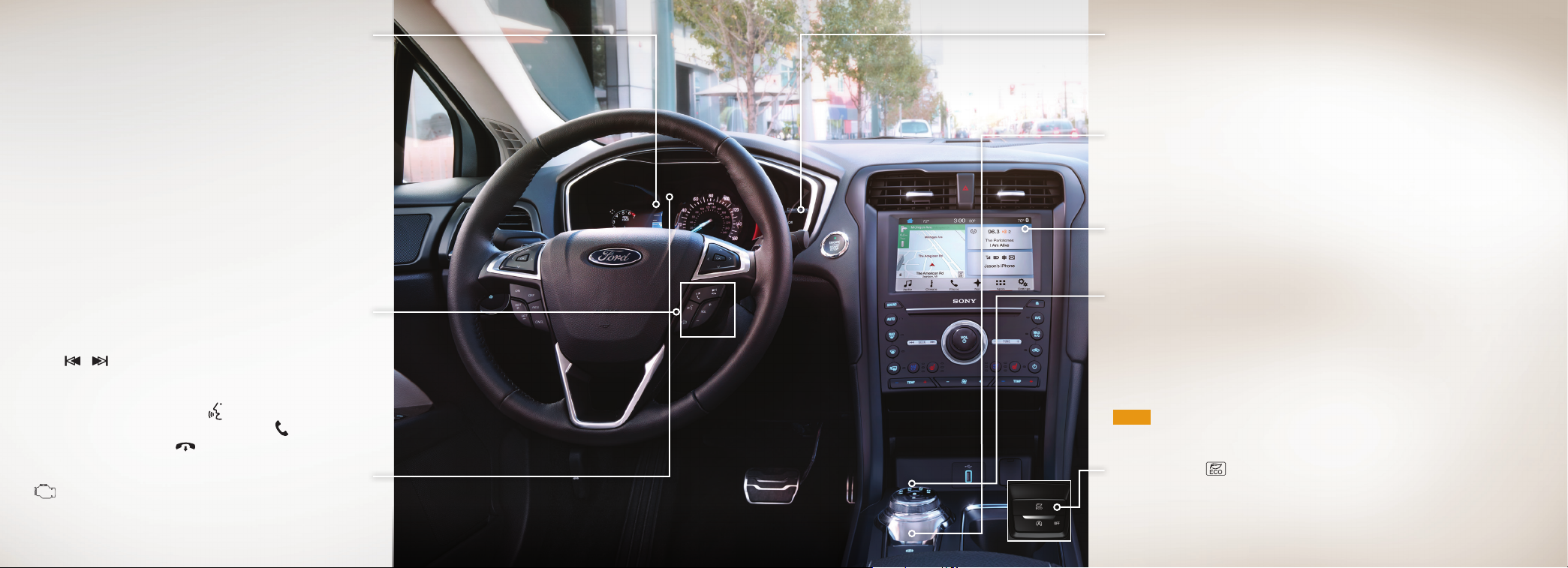
Using the le steering-wheel-mounted controls, press the up and
down arrow buttons to scroll through and highlight the options;
- MyView lets you choose what information you wish to display.
» The Brake Coach appears aer the vehicle has come to a stop.
It coaches you to brake in a manner that maximizes the amount
of energy returned through the regenerative braking system.
The displayed percentage indicates your regenerative braking
eciency, with 100% representing the maximum amount
use the right arrow button to enter a sub-menu.
» The Display/Trip Mode provides hybrid-specific
information through the following screens:
• Engage • Empower • MyView • Trip
Select Change MyView in the Options menu
to scroll through choices.
of energy recovery. You can switch this feature
ON and OFF in the information display.
Steering Wheel Controls
Le Vehicle Info Display
Audio Controls
Press
Press VOL + or – to increase/decrease volume levels.
to access the next or previous radio station preset,
CD track or preset satellite radio channel*.
Voice Controls
Press to access voice recognition.
to answer call.
Press
Press
to exit phone mode or end a call.
Service Engine Soon Light
Lights briefly when you switch the ignition on. If it remains on or
blinks aer you start your vehicle, the On-Board Diagnostics (OBD-II)
system has detected a problem. Drive in a moderate fashion and
contact your authorized dealer as soon as possible.
INSTRUMENT PANEL
Right Vehicle Info Display
Use the right steering-wheel-mounted controls to access a variety of features:
» Fuel Economy provides ways you can monitor your energy use:
• Eciency Leaves • Fuel History • Coach
» Entertainment, Phone and Navigation* information is also available.
Refer to the SYNC 3 chapter in your Owner's Manual for more information.
Electric Parking Brake
The operating switch replaces the conventional handbrake. To use, pull the switch
up. The brake system warning lamp lights to confirm that you applied the electric
parking brake. You can release the electric parking brake manually by switching on
the ignition, pressing the brake pedal and then pressing the electric parking brake
switch. Refer to the Brakes chapter of your Owner's Manual for more details.
Rear View Camera
Provides a video image of the area behind the vehicle. The image automatically
appears in the touchscreen when the vehicle is in reverse (R) and uses green, yellow
and red guides to alert you of your proximity to objects.
Rotary Shi Transmission
Your vehicle has an electronic transmission. The shift knob is on the center console,
below the climate control system.
Putting your vehicle in gear:
A. Fully press down the brake pedal.
B. Turn the shi knob to select your gear.
C. The gear you select lights and the instrument cluster displays the selected gear.
D. Release the brake pedal and your transmission remains in the selected gear.
NOTE When entering an automatic car wash, always shi to Neutral. Push the "L"
button to enable Stay in Neutral Mode if you are exiting the vehicle for the car wash.
Please follow the commands on the information display.
ECOSelect
See page 13 for details.
*if equipped*if equipped
5
Page 4
QUICK TIPS
ENERGY SAVING TIPS
The Brake Coach appears in the display aer the vehicle has come to a stop, and coaches you to maximize
the amount of energy that can be returned through the regenerative braking system.
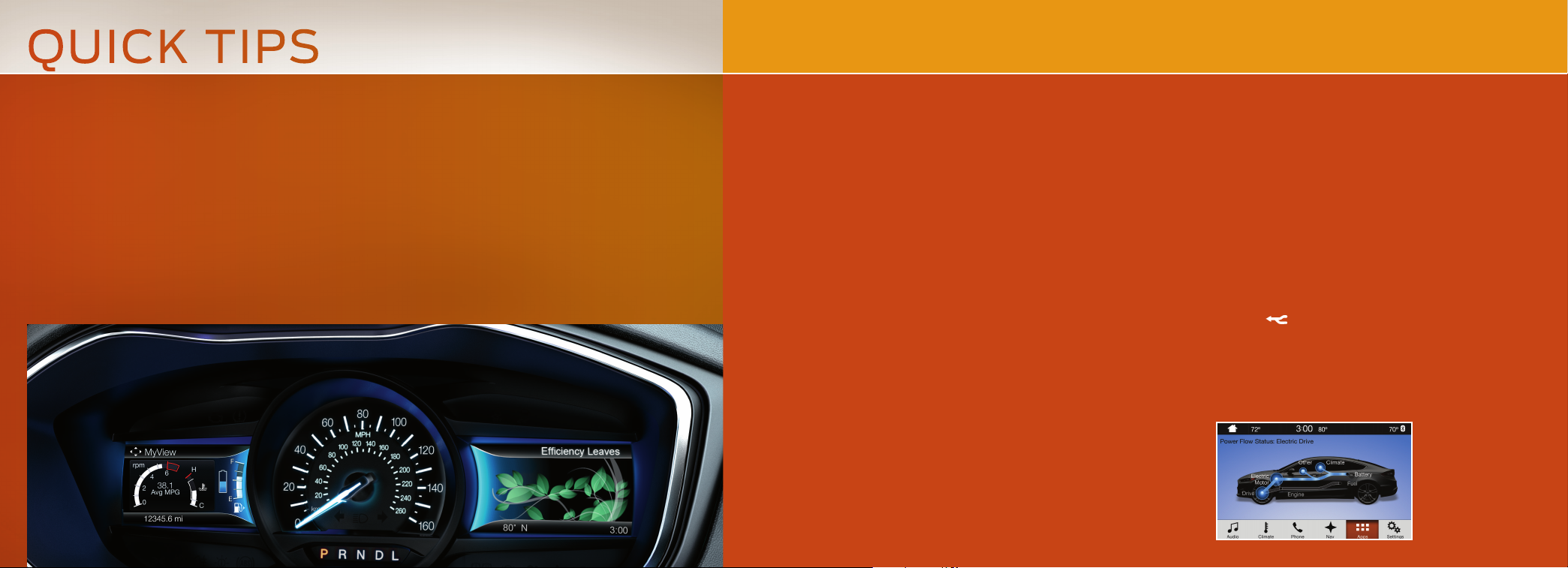
SmartGauge® with EcoGuide
Delivers specific information about various systems on your
vehicle using menus that build on previous data. Use your
le-hand, 5-way steering controls to scroll through your
menu choices:
Engage: Adds gas and electric power-split information.
Empower: Adds an engine on and o threshold to the power
demand gauge. See how much power you request based on
how far you press the accelerator pedal.
MyView: Lets you customize your menu options, allowing you
to select key information and combine it into one screen.
EcoGuide: Displays leaf graphics within the right-hand cluster,
showing you when you’re driving eciently. More leaves equal
better driving habits!
Help Maximize Your Fuel Economy by
Utilizing These Few Tips
1. Use smooth acceleration and braking. According to the United
States Department of Energy, aggressive driving can lower your
gas mileage by up to 33 percent at highway speeds and
5 percent in the city.
2. Carry the bare essentials. The Department of Energy
estimates that an extra 100 pounds (45.4 kilograms) in your
vehicle could reduce your fuel economy by up to two percent.
3. Seasonal fuel makes a dierence. Winter fuel contains
slightly less energy than summer fuel, so the fuel blend you fill
up with can impact your eciency.
4. Idling burns fuel, too. You can burn up to half a gallon
(1.9 liters) of fuel per hour when idling. Minimize your morning
warm-up and parking lot waits to get the most out of filling
your tank.
5. Avoid extreme temperatures. Find a shady or sheltered spot
to help keep your lithium-ion battery operating eciently,
and minimize the amount of energy required to heat or
cool your cabin.
6. Use accessories wisely. Heated seats, the rear defroster,
the air conditioner and other power features draw electrical
energy. When you operate your accessories, you may notice
that the gasoline engine needs to start. Choose “Accessory
Power” when configuring your MyView screen to see how much
electricity you are using to power your vehicle’s accessories.
7. Check your tires. Proper tire inflation can help you improve
your fuel economy by up to 3.3 percent, according to the
Department of Energy, while under-inflation could lower
your fuel economy by 0.3 percent for every 1 psi drop in pressure
of all four tires. Check your vehicle’s door sticker
for recommended cold tire inflation pressure.
Fuel History and Coach
Within the information displays, you'll be able to see how your
driving style directly impacts your fuel economy.
Fuel history provides instant fuel economy, plus your recent fuel
economy averaged over selectable intervals of 1, 2 or 6 minutes.
Coach can teach you how to improve your fuel economy by
providing feedback on your recent acceleration, braking and
cruising behavior.
Eciency Leaves show your recent driving eciency measured
over the last few minutes. More leaves mean better fuel economy!
Power Flow
» Your system has hybrid-specific screens that
display your vehicle power settings.
» Press the Power Flow button on the apps menu
to see this screen. It shows you where your vehicle
power is coming from and where it is being used.
7
Page 5

SYNC
®
*
SYNC is a hands-free, voice
recognition system used for
entertainment, information
and communication.
SYNC. Say the Word.
Before You Get Started
1. Set up your owner account
at owner.ford.com (U.S.) or
syncmyride.ca (Canada).
Register and you will see which
complimentary services you are
eligible for.
2. SYNC uses a wireless connection
Bluetooth
called
with your phone. Switch Bluetooth
mode on in your phone’s menu
options. This lets your phone
find SYNC. For more details on
setting up your phone with SYNC,
visit owner.ford.com (U.S.) or
SyncMyRide.ca (Canada), or your
phone manufacturer’s website.
®
to communicate
Pairing Your Cell Phone with SYNC
In order to use many of the features of SYNC, such as making a phone call or receiving a
text, you must first connect or pair your phone with SYNC.
To Pair Your Cell Phone for the First Time
1. Make sure that your vehicle is in park (P), then switch your ignition and radio on.
2. Press the phone button
press OK.
3. Put your phone into Bluetooth discovery mode. See your phone's manual, if necessary.
4. When prompted on your phone’s display, enter the six-digit PIN provided by SYNC into
your phone.
5. The display indicates when the pairing is successful.
The System May Prompt You to
» Set your phone as the primary or favorite (the primary phone receives messages
and voicemail).
» Download your phone book (a requirement to use the full set of voice commands).
» Switch on 911 Assist
TIPS
» Make sure you accept the request from SYNC to access your phone.
» To pair subsequent phones, please refer to Pairing Subsequent Cell Phones in the
SYNC 3 chapter of your Owner’s Manual.
» If you experience pairing problems, try performing a clean pairing by deleting your
services from SYNC, deleting your phone pairing from SYNC and then repeating the
Pairing Your Cell Phone with SYNC process.
. When the display indicates there is no phone paired,
®
.
*if equipped
Why Do You Need a SYNC
Owner Account?
A SYNC owner account provides you with
the latest soware updates and, if you have
questions, free customer support.
NOTE Your SYNC system may oer
advanced features. Visit the website or
call the toll-free number for more
information. See the inside front cover
of this guide for details.
Using Your Cell Phone
with SYNC
NOTE You must download your phone
book to make phone calls with voice
commands by name.
Making a Phone Call
Use SYNC to make a phone call to anyone
in your phone book by pressing the voice
button
voice command.
. When prompted, say a
For example, you could say “Call Jake
Smith at home”. When the system confirms
the number, say “Dial” again to initiate
the call.
NOTE You can also make phone calls
by pressing the voice button
prompted, give the voice command “Dial”,
then verbally say the phone number.
and when
Answering Incoming Calls
Whenever you have an incoming call, the
name and number of the person calling
appears in the display. Press the phone
button
can hang up at any time by pressing and
holding the phone button
to answer an incoming call. You
.
Do Not Disturb Mode
This feature blocks incoming calls and
text messages and saves them for later.
You still have access to outgoing calls
when this feature is active. Say the voice
command “Do not disturb on” to switch on
and “Do not disturb o” to switch o.
Using SYNC to Access
Digital Media
Plug in your USB media devices such as
phones and MP3 players, and use SYNC
to play all of your favorite music.
Using Voice Commands to Play Music
1. Plug your media player into your
USB port.
2. Press the voice button .
When prompted, say “USB”, then
follow-up by saying a voice command.
9
Page 6
®
SYNC
3
*
Using SYNC 3
SYNC is a hands-free, voice recognition system used for entertainment,
information and communication.
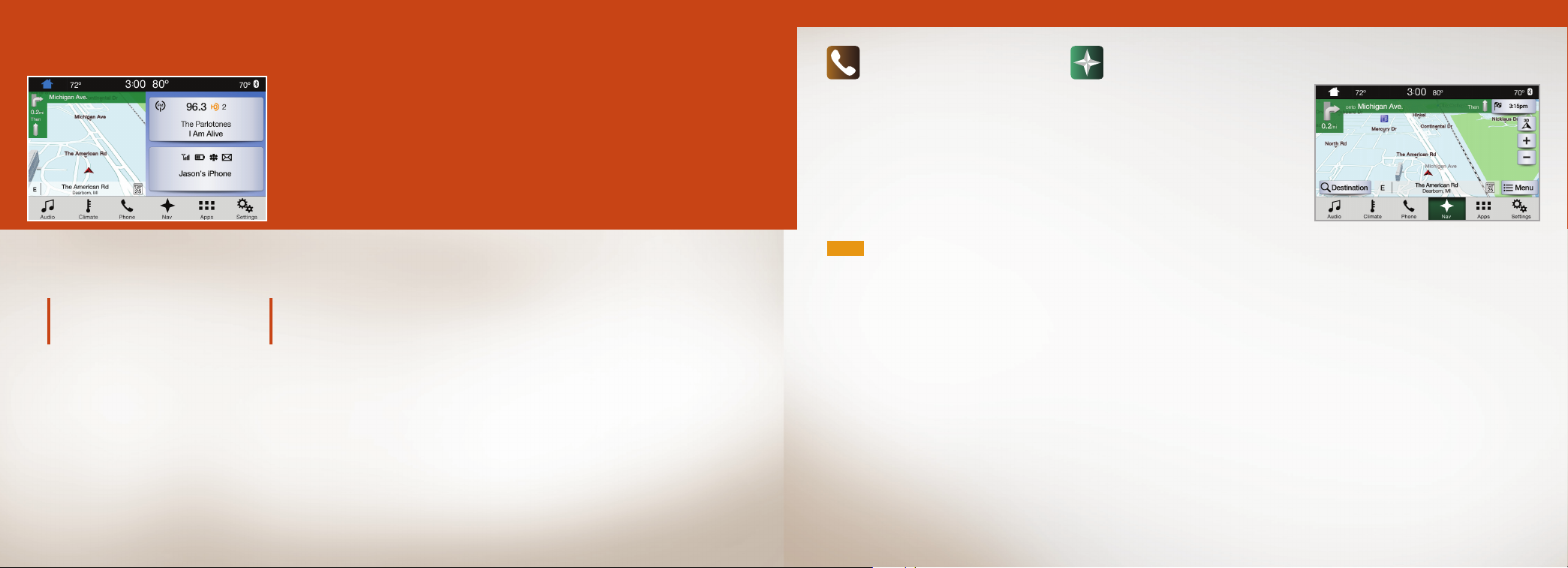
Use the touchscreen to explore and interact with your vehicle. The touchscreen
works the same way traditional controls, knobs and buttons do. The system
provides easy interaction with your audio, climate, phone, navigation*, mobile
apps and settings. Press the various corners on your touchscreen to personalize
the many features and settings of your vehicle all in one place.
Create Your SYNC Owner Account
Create your account by visiting the website. Call the toll-free number for more information.
In the United States:
owner.ford.com
1-800-392-3673
In Canada:
syncmyride.ca
1-800-565-3673
Pairing Your Cell Phone with SYNC 3
Pair your phone to SYNC 3 before use. Make sure that your vehicle is in park (P) and you switch on your ignition.
1. Make sure you switch Bluetooth on and that your phone is discoverable through Bluetooth.
2. Touch Add Phone on your touchscreen.
3. Select SYNC on your phone. A six-digit PIN appears on your phone.
4. When prompted on your phone’s display, confirm that the PIN provided by SYNC matches the PIN displayed on your phone.
The display indicates when the pairing is successful.
Phone
Aer pairing your phone, you can access
more phone-dependent features:
» Recent call lists.
» Contacts: Sort alphabetically and
choose a specific letter to begin
viewing your entries.
» Phone settings: Pair another phone and
set ring tones and alerts.
» Text messages.
NOTE Use the voice commands to make
calls. Say “Call James at home” or “Dial
555-1212”. You can use the touchscreen to
place calls as well. Refer to the SYNC 3
chapter in your Owner's Manual for
complete details.
Do Not Disturb Mode
Touch the Do Not Disturb button to send all
calls directly to your voicemail. All ringtones
and alerts are silent.
Navigation*
Press the Navigation* icon to set your
destination. Select one of two ways to find
your destination:
» Destination mode lets you key in a
specific address or use a variety of
search methods to locate where you
want to go.
» Map mode shows advanced viewing of
2D city maps, 3D landmarks and 3D city
models (when available).
Set a Destination
Press Destination on your touchscreen
and then press Search. Enter a street
address, intersection, city or a point of
interest (POI).
Aer you choose your destination, press
Start. The system uses a variety of screens
and visible prompts to guide you to
your destination.
During your route, you can press the
maneuver arrow icon on the map if you
want the system to repeat the previous
route guidance instructions.
The navigation map shows your estimated
time of arrival, remaining travel time or the
distance to your destination.
Navigation Menu
When you are on your route, you can change
your touchscreen view. Touch Menu and
then select Screen View to select from
these options:
» Full Map.
» Highway Exit displays on the right
side of the touchscreen. View POI
icons (restaurants, ATMs, etc.) as they
pertain to each exit. You can select a
POI as a waypoint, if you wish.
» Turn List shows all of the available
turns on your current route.
» Trac List displays SiriusXM Trac
and Travel Link* information.
*if equipped*if equipped
11
Page 7
SYNC
®
*
3
CONTINUED
FUSION HYBRID FEATURES
Climate
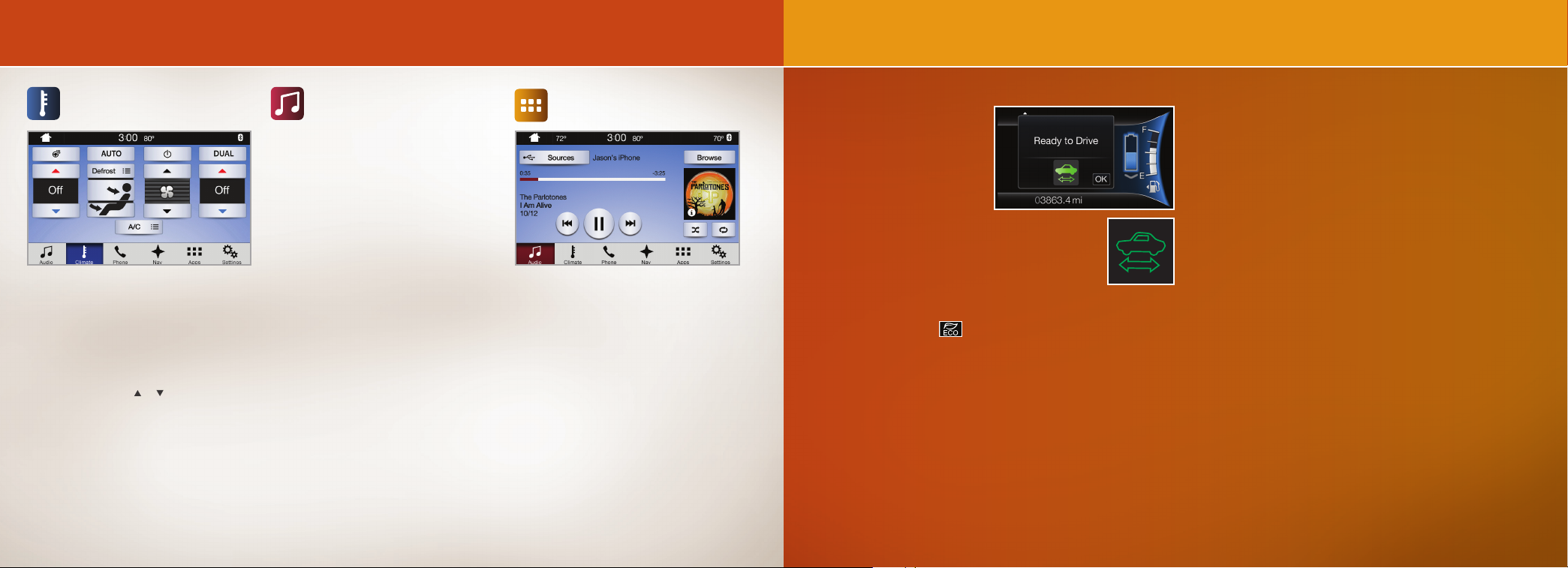
Touch the Climate icon on the touchscreen
to access climate control features, including
the temperature, airflow direction, fan
speed and other climate features for you
and your front passenger. Say “Climate set
temperature to 72 degrees” and SYNC 3
makes the adjustment.
You can also use the
change the temperature setting.
or buttons to
Audio
SYNC 3 gives you a mix of media. Press the
Audio icon on the touchscreen and select
Sources. Choose from AM, FM, SiriusXM*,
CD, USB, Bluetooth Stereo or Apps.
Set Your Radio Presets
» Tune to the station and then press
and hold one of the memory preset
buttons. The audio mutes briefly when
the system saves the station, and then
the audio returns.
» Two preset banks are available for
AM and three banks for FM. To access
additional presets, tap the preset
button. The indicator on the preset
button shows which bank of presets
you are currently viewing.
Use SYNC 3 to Access Digital Media
Play all of your favorite music from phones,
flash drives and other devices.
Plug your device into a USB port, select
Sources and then choose USB. Wait for
the system to finish indexing your music to
begin listening.
You can even create random playlists by
using the Shue function.
Apps
Voice Control Your Smartphone Apps
The system supports the use of certain
types of apps such as Pandora
iHeartRadio
through a USB or Bluetooth-enabled device.
Each app gives you dierent on-screen
options depending on the app’s content.
To find new apps, use the voice command,
“Find new apps”.
For more information, refer to the SYNC 3
chapter in your Owner's Manual for details.
For support, visit the website or call the
toll-free number. See the inside back cover
of this guide for details.
®
(U.S.), Spotify® or Glympse®
®
or
*if equipped
Silent Key Start
When starting your vehicle,
you may not hear your engine
because your hybrid-electric
vehicle is equipped with silent
key start. This fuel-saving
feature allows your vehicle
to be ready to drive without
requiring your gas engine to be
running. Look for the ‘ready to drive’ indicator light
in your information display. When the light displays,
your vehicle has started and is ready to drive.
ECOSelect
This feature oers the best possible fuel economy with only a
slight impact to vehicle performance and comfort. To activate
ECOSelect, press the
graphic appears on your information display.
With ECOSelect active, you may notice:
» Less aggressive heating and cooling.
» Soer acceleration and changes in engine, braking and cruise
control behavior.
See the Unique Driving Characteristics chapter in your Owner's
Manual for more information.
button on the center console and a
Unique Driving Characteristics
This hybrid vehicle combines electric and gasoline propulsion
to provide breakthrough performance and improved eciency.
Familiarizing yourself with these unique characteristics will provide
an optimal driving experience from your new vehicle.
Conditions that may cause the engine to start up or remain
running include: considerable vehicle acceleration, vehicle speed
above 85 mph (137 km/h) (although this may vary during certain
climate or road conditions), ascending a hill and the engine is not
warm enough to provide a requested cabin temperature.
Driving: The gas engine automatically starts and stops to provide
power when needed and to save fuel when not needed. When
coasting at low speeds, coming to a stop, or standing, the gas
engine normally shuts down and the vehicle operates in
electric-only mode.
Braking: Your hybrid has standard hydraulic braking and
regenerative braking. Regenerative braking is performed by your
transmission and it captures brake energy and stores it in your high
voltage battery.
Stopping: The gas engine may shut o to conserve fuel as you
come to a stop. Restarting the vehicle is not required. Simply step
on the accelerator when you are ready to drive.
EV+ Mode
Your vehicle recognizes your frequent destinations and allows
for more EV driving as you approach them. For example, when
nearing your home it should be easier to stay in electric mode. The
EV indicator displays EV+ when this mode is active. You should
see this about 1/8 mile (200 m) from a frequent destination.
You can clear your frequent destinations with a Driving History
reset through the Settings menu. You can also switch the EV+
feature o through the Driver Assist section of the Settings menu.
See the Information Display chapter in your Owner's Manual
for details.
13
Page 8
COMFORT
Intelligent Access
NOTE Your intelligent access transmitter must be within
3 feet (1 meter) of the vehicle for intelligent access to
function properly.
This system operates the power locks on all four doors.
To unlock a door, pull the exterior door handle. Make sure not to
touch the lock sensor on top of the handle. To unlock and open the
luggage compartment, press the exterior release button hidden
above the license plate.
To lock the doors, touch the lock sensor on top of the door handle.
The transmitter also contains a mechanical key blade to unlock the
driver’s door, if necessary.
NOTE You must have a valid transmitter inside the vehicle to
switch on the ignition and start the engine.
Memory Function
Use the memory controls on the driver door to program and then
recall memory positions. Move the seats and mirrors to the position
you desire. To program up to 3 positions, press and hold the desired
preset button until you hear a single tone. You can now use these
controls to recall the set positions.
You can also program your memory seats to your transmitter. That
way, when you unlock your door with the transmitter, your memory
features automatically move to your saved position. See the Seats
chapter in your Owner’s Manual for more details.
*
*
Remote Start
Remote start allows you to start the engine from outside your
vehicle using your remote transmitter.
To start, press
Once inside, apply the brake while pressing the START STOP
button. Shi into drive (D) and go.
To switch o the engine from outside the vehicle aer using your
remote start, press
If your vehicle has this feature, it provides feedback through the
LEDs on your key. A solid green light indicates a successful remote
start. A solid red light indicates that the remote stop has taken place
while a blinking red light means that remote stop or start has failed.
The key blinks green when it is waiting for a status update.
*
and then press twice within three seconds.
once.
Driver Seat with Easy Entry and Exit
With the easy entry and exit feature in the information display,
your driver seat automatically moves rearward up to two inches
(five centimeters) when you switch the ignition o. The driver seat
returns to the previous position when you switch the ignition on.
See the Information Display chapter in your Owner’s Manual for
more details.
Adaptive Cruise Control
This system, when on or in use, uses a radar and camera to scan
the road ahead and detect vehicles in front of you. The system
automatically brakes or accelerates to maintain set speed or
follows the flow of trac when speeds are below your set speed.
In addition to selecting a set speed, you may also choose between
four dierent gap settings that control the following distance to
a slower moving vehicle in front of you. The system can also bring
your vehicle to a complete stop in stop-and-go trac
The controls for engaging and controlling the adaptive cruise
control system are on the lower-le side of your steering wheel.
NOTE Please refer to the Using Adaptive Cruise Control section
of your Owner's Manual for system limitations and for detailed
instructions on engaging the system.
*
*
Push Button Start
Allows you to start your vehicle by fully pressing the brake pedal
and the START STOP button. Press the button again to switch the
engine o.
Tilting Head Restraints
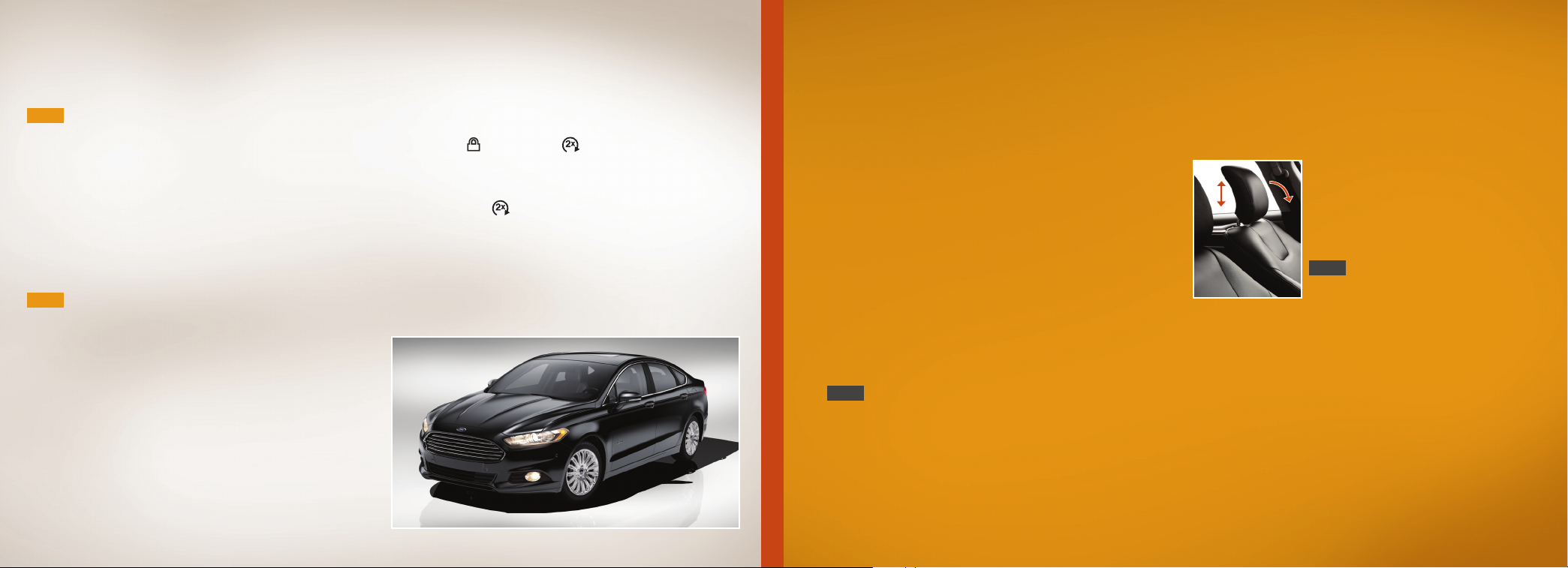
Your vehicle’s front head restraints have a tilting feature for
extra comfort.
To Tilt the Head Restraint
Adjust the seatback to an upright driving
or riding position. Pivot the head restraint
forward toward your head to the position
you desire. In the forward-most position,
tilting it forward once more releases it to the
upright position.
NOTE Do not attempt to force the head
restraint backward aer tilting it. Instead,
continue tilting it forward until the head
restraint releases to the upright position.
Ambient Lighting
Lights various places, such as the footwells, with a choice of colors.
Access Using Your Touchscreen and Make Your Adjustments
1. Press the Settings icon > Vehicle > Ambient Lighting.
2. Touch the desired color.
3. Use the scroll bar to increase or decrease the intensity.
To switch o this feature, press the power button.
*
*if equipped
*if equipped
15
Page 9
FUNCTION
Lane Keeping System
Notifies you to stay in your lane through the steering
system and the instrument cluster display when the
front camera detects that an unintentional dri out of
your lane is likely to occur. The system automatically
detects and tracks the road lane markings using a
camera mounted behind the interior rear view mirror.
Press the button on the steering wheel stalk to switch the system
on or o.
NOTE The system stores the on or o setting until you manually
change it, unless the system detects a MyKey. Set your preferred
system settings by Mode and Intensity through your information
display screen. Refer to the Information Displays chapter in your
Owner’s Manual for more details on how to change your settings.
Refer to the Driving Aids chapter in your Owner’s Manual for more
information on the Lane Keeping System.
*
Driver Alert*
Automatically monitors your driving behavior using various inputs
including the front camera sensor. If the system detects that your
driving alertness level reduces below a certain threshold, then
the system alerts you with a tone and a message in the cluster
display. Press OK on the steering wheel to clear the warning.
Pre-Collision Assist
The Pre-Collision Assist system uses a radar sensor and a camera
sensor to scan the road ahead to detect stationary vehicles, vehicles
moving in the same direction as yours and upright pedestrians in
*
your driving path. The system provides an audible and visual alert,
brake support, and active braking in order to help the driver reduce
impact damage or avoid a crash completely. The system provides
support at speeds above approximately 3 mph (5 km/h), and
support for pedestrians at speeds up to 50 mph (80 km/h)
For specific details on using the system, adjusting the system alert
sensitivity and familiarizing yourself with the system limitations
and warnings, please refer to the section Pre-Collision Assist in your
Owner's Manual.
NOTE You are responsible for controlling your vehicle at all times.
The system does not relieve you of your responsibility to drive with
due care and attention. Failure to take care may result in the loss of
control of your vehicle, serious personal injury or death.
BLIS® (Blind Spot Information System)
*
and Cross Trac Alert
BLIS aids you in detecting vehicles that may have entered into
your blind spot zone. Cross trac alert warns you of vehicles
approaching from the sides when the transmission is in reverse (R).
BLIS and cross trac turn on an amber indicator light in the exterior
mirror on the side of the vehicle the approaching vehicle is coming
from. Refer to the Driving Aids chapter in your Owner’s Manual for
more information.
NOTE NEVER use BLIS or cross trac alert as a replacement for
using the interior and exterior mirrors and looking over your shoulder
before changing lanes. The systems are not replacements for
careful driving. Use both systems only as an assist.
*if equipped
Configurable Daytime Running Lamps
When you switch the feature on in the information display, daytime
running lamps turn on when you are driving, the lighting control is
in the autolamps position
switch the configurable daytime running lamps feature On or O
using the information display controls. See the Lighting chapter in
your Owner’s Manual for complete information.
Parking Aids
With front, rear and side sensing systems, a warning tone sounds
if there is an obstacle near either bumper or near the sides of your
vehicle. The warning tone increases in frequency as the object gets
closer. The front sensors are active when the gearshi is in any
position other than park (P) or neutral (N) and the vehicle speed is
below 7 mph (12 km/h), the rear sensors turn on when the vehicle
is in reverse (R) and is traveling less than 3 mph (5 km/h). The side
sensors turn on when the transmission is in any position other
than park (P).
NOTE Visibility aids do not replace the need to watch where
the vehicle is moving. Refer to your Owner’s Manual for safety
information, more details and system limitations.
*
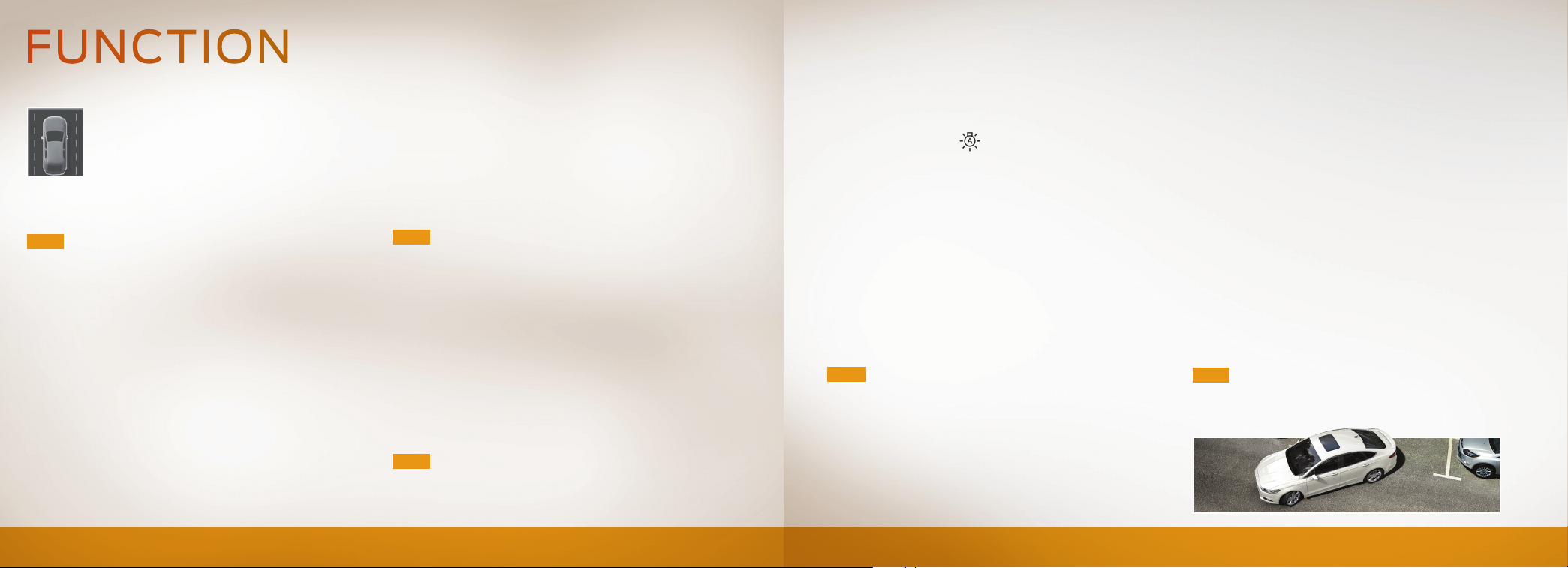
Active Park Assist with Park Out Assist
The system detects an available parallel or perpendicular parking
space and automatically steers your vehicle into the space (handsfree) while you control the accelerator, gearshi and brakes.
and the headlamps are o. You can
*
The system visually and audibly guides you to park your vehicle.
» Use the direction indicator to select which direction you want
to begin searching, either to the le- or right hand side of
your vehicle.
» Then press the button once for parallel parking or twice for
perpendicular parking.
» The system displays a message and a corresponding graphic to
indicate that it is searching for a parking space. Park out assist
determines the clearance to the front and rear of your vehicle
and automatically steers your vehicle out of a parallel parking
space(hands-free) while you control the accelerator, gearshi
and brakes.
» When your vehicle is at rest, press the button once.
» The system displays a message requesting a direction. Use the
direction indicator to select the le or right-hand side of
your vehicle.
For complete information, refer to the Parking Aids chapter of your
Owner’s Manual.
NOTE Driving aids do not replace the need to watch where the
vehicle is moving and brake when necessary. Refer to your Owner’s
Manual for safety information, more details and limitations.
*if equipped
17
Page 10

ESSENTIAL INFORMATION
Fuel Tank
Capacity/Fuel Info
Your vehicle has a fuel tank capacity
of 14 gallons (53 liters). Use only
UNLEADED fuel or UNLEADED fuel
blended with a maximum of 15% ethanol.
Do not use ethanol (E85), diesel,
fuel-methanol, leaded fuel or any other
fuel because it could damage or impair
the emission control system.
Low Fuel Reminder
A low fuel reminder triggers when the
distance to empty is about 50 miles
(80 km) to empty.
Open Window Bueting
You may hear a pulsing noise when just
one of the windows are open. Lower the
opposite window slightly to reduce
this noise.
Refueling
Put your vehicle into
park (P) and switch
the ignition o.
Unlock the fuel door
by pressing the fuel
button on the driver
door to open the fuel filler door. It could
take up to 15 seconds for the fuel door to
pop open. Insert the fuel filler nozzle fully
and begin fueling. Wait five to ten seconds
aer pumping fuel before removing the fuel
filler nozzle. Press the center rear edge of
the fuel filler door to close. The fuel door
latches closed.
Make sure you close the fuel door
NOTE
securely aer refueling. If the fuel door
remains open and the vehicle is driven, the
check engine light in the instrument cluster
may come on. Please see your Owner’s
Manual for complete details.
Transmission
Your hybrid’s transmission is designed to
do its work seamlessly, so you may not feel
shi changes as you normally would in a
gasoline-powered vehicle.
You may feel the transition when the system
changes from electric vehicle (EV) mode to
gas mode. This is normal. Since your engine
speed is controlled by the transmission, it
may seem elevated at times. This is also
normal hybrid operation as it helps deliver
fuel eciency and performance.
Roadside Assistance
Your new Ford vehicle comes with the
assurance and support of 24-hour
emergency roadside assistance.
To receive roadside assistance in the
United States, call 1-800-241-3673.
In Canada, call 1 -800-665-2006.
Tire Pressure
Monitoring System
Your vehicle illuminates a low tire
pressure warning light
instrument cluster when one or more of
your tires are significantly under-inflated.
If this happens, stop and check your tires
as soon as possible, then inflate them to
the proper pressure. Refer to the Tire
Pressure Monitoring section in the Wheels
and Tires chapter of your Owner’s Manual
for more information.
in your
Tire Sealant and
Inflator Kit
The kit is in under the load floor of the
luggage compartment. It consists of an
air compressor to reinflate the tire and a
sealing compound in a canister that seals
most punctures caused by nails or similar
objects. Refer to the Wheels and Tires
chapter of your Owner’s Manual for
more details.
*
Towing Your
Fusion Hybrid
Towing your vehicle behind an RV or any
other vehicle may be limited. Refer to
Towing the Vehicle on Four Wheels in the
Towing chapter of your Owner's Manual.
Automatic Shutdown*
In vehicles equipped with intelligent
access*, this feature automatically
shuts down the vehicle if it has been
idling for an extended period. The
ignition also turns o in order to save
battery power. Before the engine
shuts down, a message appears in
the information display, allowing
you to override the shutdown
feature temporarily.
NOTE You cannot permanently
switch o the automatic shutdown
feature. When you switch it o
temporarily, it turns on at the next
ignition cycle. See Starting and
Stopping the Engine chapter of your
Owner's Manual for more details.
19
*if equipped
 Loading...