

Page 1
Quick Reference Guide
This Quick Reference Guide is not intended to replace your vehicle
Owner’s Manual which contains more detailed information
concerning the features of your vehicle, as well as important
safety warnings designed to help reduce the risk of injury to you
and your passengers. Please read your entire Owner’s Manual
carefully as you begin learning about your new vehicle and refer to
the appropriate sections when questions arise.
All information contained in this Quick Reference Guide was
accurate at the time of duplication. We reserve the right to
change features, operation and/or functionality of any vehicle
specification at any time. Your Ford dealer is the best source for
the most current information. For detailed operating and safety
information, please consult your Owner’s Manual.
FM5J 19G217 CA
November 2014 • First Printing
Quick Reference Guide
Focus Electric • Litho in U.S.A.
LEARN HOW TO USE SYNC
IN YOUR VEHICLE
SYNC is a voice-activated technology personalized by you. It is
a hands-free, voice recognition system used for entertainment,
information and communication.
SyncMyRide.com (United States)
SyncMyRide.ca (Canada)
fordowner.com
ford.ca
LEARN MORE ABOUT
YOUR NEW VEHICLE
Scan the countr y-appropriate QR co de
with your smar tphone (make sure you
have a scanner ap p installed) and you
can access even m ore information
about your vehicle.
Canada
Ford Customer Relationship Centre
1-800-565-3673 (FORD)
ford.ca
@FordServiceCA
United States
Ford Customer Relationship Center
1-800-392-3673 (FORD)
(TDD for the hearing impaired: 1-800-232-5952)
fordowner.com
@FordService
Page 2
3
3
4–5
6–7
8–12
13
14
15
Commonly Used Voice Commands
Smart Start
Instrument Panel
SYNC with MyFord Touch
Convenience
Essential Information
Function
WARNING: Driving while distracted can result in loss of
vehicle control, crash and injury. We strongly recommend
that you use extreme caution when using any device
that may take your focus off the road. Your primary
responsibility is the safe operation of your vehicle. We
recommend against the use of any hand-held device
while driving and encourage the use of voice-operated
systems when possible. Make sure you are aware of
all applicable local laws that may affect the use of
electronic devices while driving.
Commonly Used Voice Commands
SYNC
®
. Say the Word.
Basic Commands
» What can I say?
» List of commands
» Main menu
» Previous
» Next
» Go back
» Exit
» Help
Entertainment
» Audio list of commands:
You can also get detailed lists
of commands for radio, USB,
Bluetooth
®
audio, SiriusXM
and SD card*
» Radio
• <On/O>
• FM <87.9-107.9>
• FM preset <#>
» CD
• Play track <1-512>
• Shue <On/O>
» USB
• Play song <name>
• Play album <name>
» SiriusXM <channel name>
» Preset <#>
Navigation*
» Navigation list of commands
(if equipped)
» Destination street address
<number, name, city>
» Destination home
» Navigation voice <On/O>
» Navigation voice volume
<increase/decrease>
» Repeat instruction
» Show <map/north-up/
heading-up/3-D>
» Travel Link list of commands
» Trac
» Weather
» Movie listings
» Electrical vehicle charging
station locations and
plug availability
» Sports <headlines/
scores/schedule>
Climate
» Climate control list
of commands
» Climate temperature
Phone
» Phone list of commands
» Dial
» Call <name> on cell/
at home/at work
» Call voicemail
» Do not disturb
» Listen to text message
(phone-dependent feature)
Pull the voice control on the steering wheel, and then say:
Table of Contents
Some services may not be available in your area. Refer to your Owner’s Manual, visit the website or call the toll-free number for more
information. For U.S. customers: visit SyncMyRide.com or call 1-800-392-3673 (select Option 1 or 2 for language, then Option 3).
For Canadian customers: visit SyncMyRide.ca or call 1-800-565-3673 (select Option 1 or 2 for language, then Option 3).
*if equipped
Page 3

4 5
7. MYFORD® MOBILE APP FOR
YOUR SMARTPHONE
View your vehicle’s charging information on a computer or
other Web-accessible mobile device, smartphone or from
your vehicle by downloading your free MyFord Mobile app
for your phone. Visit MyFordmobile.com and enhance your
charging experience with these key features and more:
• Text Alert: Receive text messages on your phone
that notify you of your vehicle’s charging status and
other functionality.
• Find a Charging Station: Locate charging stations
when you are on the go so you can recharge while you
are out.
8. CABIN CONDITIONING
Get the most miles out of every charge by letting the
interior of your Focus Electric warm up or cool down while
you still have it plugged in and charging. Use MyFord
Mobile to set the cabin temperature and departure time
before you leave.
Note: Extreme outside temperatures or 120V charging may reduce
cabin conditioning eectiveness.
9. TRIP PLANNER
Locate the best routes to your destination based on charge
levels and available charging stations. Aer you input your
destination, MyFord Mobile interfaces with the vehicle to
provide the confidence to always know how far you can go,
and the most economical way of getting there.
10. VALUE CHARGING
MyFord Mobile gives Focus Electric drivers a unique
“set it and forget it” charging feature. The app lets you
know when the cheapest rates are available
and allows you to set your vehicle’s
charging time accordingly.
Contact your utility
company to learn if
regular charging during
non-peak times
requires a rate
plan change.
Smart Start
10 QUICK TIPS
1. CHARGE PORT DOOR AND LIGHT RING
The charge port is on the front le fender. Press the
indentation on the charge port door to open it. To close,
press and hold the indentation until the door rotates and
closes. The light ring indicates the approximate charge
status of your high-voltage battery system
as it charges.
2. CHARGE OPTIONS
Focus Electric comes equipped with
a 120V charge cord. Ford recommends
upgrading to the optional 240V charging
station for faster, more ecient charging.
Use of an available, Ford-branded 240V home charging
station takes approximately 3.6 hours to fully charge an
empty battery. In addition, you can charge your Focus
Electric anywhere you find a 120V/240V charge station.
Every charge station uses the same connector.
3. PUSH BUTTON SILENT START
To start your Focus Electric, press the brake pedal and
press the START STOP button on the instrument panel.
The green indicator light lets you know that your
Focus Electric is ready to drive.
4. SMARTGAUGE® WITH ECOGUIDE
Use your 5-way controls located on your steering wheel
to interact. You can choose and confirm settings and
messages, control many of the SYNC with MyFord Touch
functions, and change how you view your Focus Electric
vehicle information.
5. RANGE SCREENS
Choose several ways to view vehicle range. Enter a
destination and range view to learn if you have enough
plug-in power to get there. The various screens can also
show miles or kilometers per charge, distance until your
plug-in power depletes and an evaluation of economical
driving habits. The visual cues of butterflies in the right
cluster lets you know your range surplus: more butterflies
equal greater surplus.
6. BRAKE COACH
Aer your vehicle comes to a stop,
this screen automatically appears
in your display. It coaches you
to maximize the amount of
energy returned through the
regenerative braking system.
The percentage displayed
indicates the regenerative
braking eciency.
Page 4
2 5
3
1
4
6
6 7
7
8
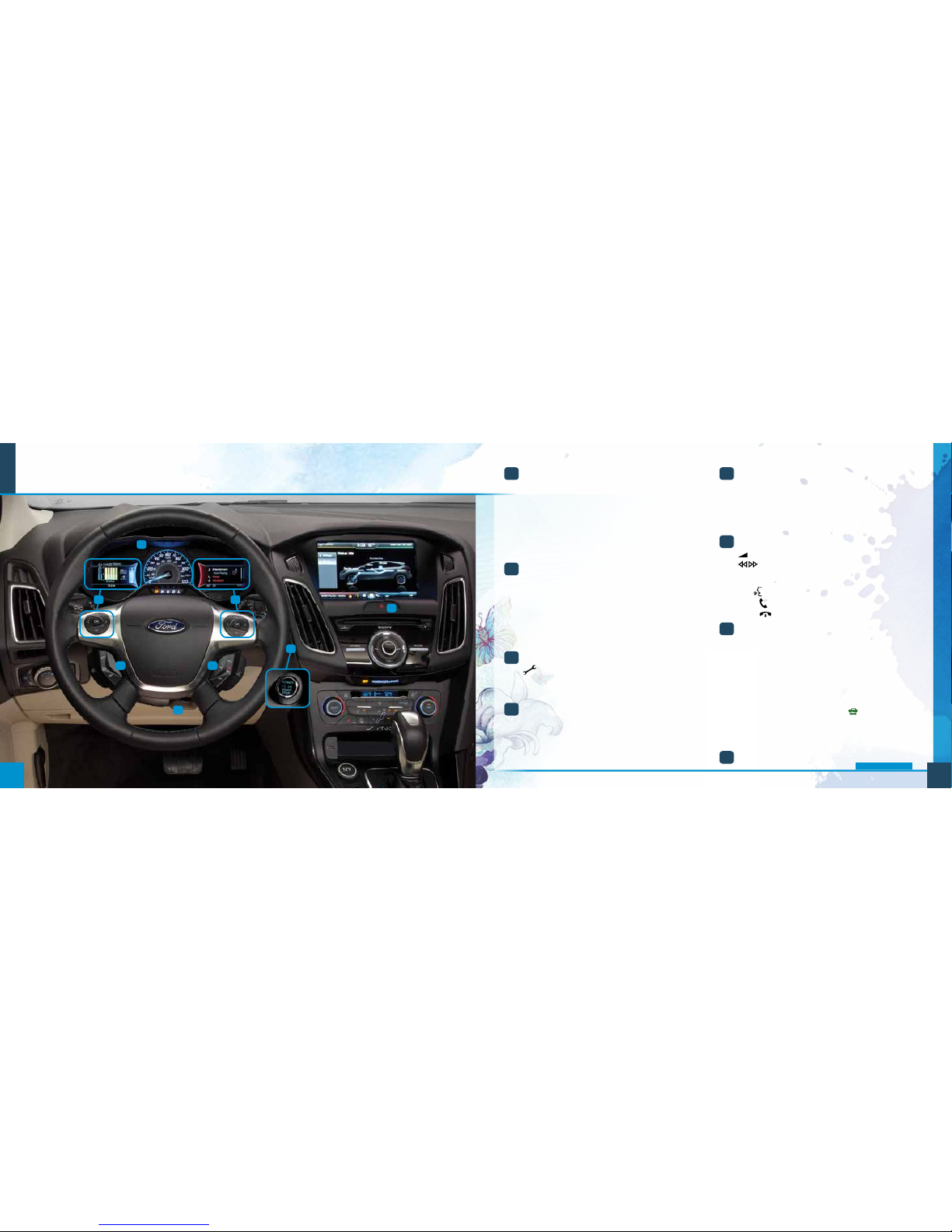
1
CRUISE CONTROL
To Set Your Cruise Control Speed
A. Press and release ON.
B. Accelerate to the desired speed.
C. Press and release SET+, then take your foot o
the accelerator.
Aer you set your speed, you can adjust your
cruise speed by pressing and releasing SET +/– .
To disable, press and release OFF.
2
LEFT VEHICLE INFORMATION DISPLAY
Provides specific information about various
systems on your vehicle including the status of your
high-voltage battery and the other unique features
of your electric vehicle.
Use the le-hand, 5-way controls located on the
steering wheel to choose and confirm settings and
messages. Refer to the Instrument Cluster chapter
of your Owner’s Manual for more information.
3
SERVICE VEHICLE SOON LIGHT
Lights when your vehicle detects a powertrain
or high-voltage charge system fault. If the indicator
stays on or continues to come on, contact your
authorized dealer as soon as possible.
4
TILT/TELESCOPE STEERING COLUMN
Unlock the steering wheel by pulling the lever down.
Adjust the steering wheel to the desired position.
Push the lever up to lock the steering wheel in place.
5
RIGHT VEHICLE INFORMATION DISPLAY
Displays information about Entertainment, Phone,
Navigation* and Surplus. Use the right hand 5-way
controls located on your steering wheel to scroll
through, highlight and make minor adjustments
within a selected menu. Refer to the MyFord Touch®
chapter in your Owner’s Manual for more information.
6
MEDIA STEERING WHEEL CONTROLS
Press + to increase or – to decrease volume levels.
Press the right or le arrows to hear the
next or previous saved radio station, CD track or
MP3 choice.
Pull
to access voice recognition.
Press
to answer an incoming phone call.
Press
to end a phone call and exit phone mode.
7
PUSH BUTTON START AND
READY TO DRIVE
Note: Your intelligent access transmitter must be inside
the vehicle to put the vehicle in “Ready to Drive” mode. The
keyless warning alert sounds when you open the driver’s
door and your vehicle is in RUN.
Allows you to go into “Ready to Drive” mode by
pressing the START STOP button while fully
pressing down on the brake pedal. A green
“Ready to Drive” indicator light appears in the
instrument cluster aer you start the vehicle. This
lets you know that the vehicle is turned on and
ready for driving. Press the START STOP button
again to switch the vehicle o.
8
HAZARD CONTROL
Instrument Panel
*if equipped
Page 5
SYNC® with MyFord Touch
®
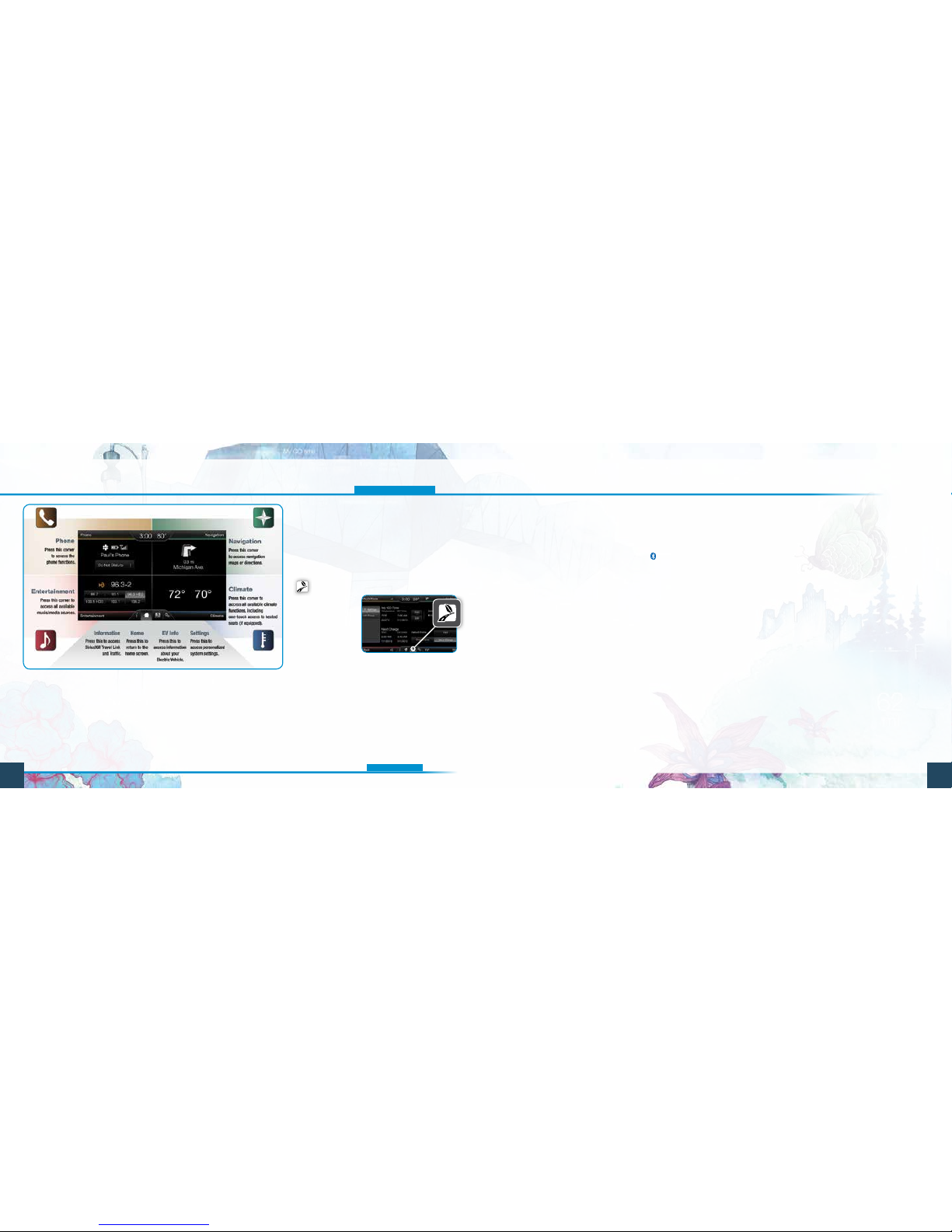
Use the four-corner, four-color touchscreen to explore and
interact with your vehicle. The screen works the same way
as traditional controls, knobs and buttons do. Press the
various corners on your touchscreen to personalize the many
features and settings of your vehicle. The system provides easy
interaction with your cellular phone, multimedia entertainment,
climate controls and navigation system*.
Before You Get Started
• Pair your phone with SYNC before using
MyFord Touch (see the To Pair Your
Phone with SYNC section in this guide for
instructions on how to do this).
• If you have the navigation SD card*, make
sure that it is inserted into the SD slot in your
media hub or your navigation* cannot work.
EV INFO
Press the “road
and leaf” icon
to access your
Power Flow
Status and
Charge Settings.
• The Power Flow
Status displays how your vehicle uses its
power at any moment.
• The Charge Settings screen lets you
schedule charging, GO times and cabin
conditioning times, as well as view charge
status and more. Four quadrants arranged
clockwise include:
- My GO Times
- High-voltage Battery Charge Status
- Charge Profile
- Charge Status
CREATE YOUR ACCOUNT
1. Set up your owner account at SyncMyRide.com (U.S.)
or SyncMyRide.ca (Canada). Register by following the
on-screen instructions. Aer registering, you can learn
about the services available to you.
2. SYNC uses a wireless connection called
Bluetooth®
to communicate with your phone. Switch Bluetooth
mode on in your phone’s menu options. This lets your
phone find SYNC. If you need more details on setting
up your phone with SYNC, visit SyncMyRide.com
(U.S.) or SyncMyRide.ca (Canada), or your phone
manufacturer’s website.
WHY DO YOU NEED A SYNC OWNER ACCOUNT?
A SYNC owner account allows you to receive the latest
soware updates that add new places, directions and
information. When you have questions, you get free
customer support. Some services may not be available in
your area. Create your account by visiting the website or
calling the toll-free number for more information. See the
inside front cover for details.
PAIRING YOUR PHONE WITH SYNC
In order to use many of the features of SYNC, you must first
connect or pair your phone with SYNC. Make sure that your
vehicle is in park (P), and you switch your vehicle and radio
on, then:
1. Touch Add Phone in the upper le corner of the
touchscreen. Find SYNC appears on your screen
and instructs you to begin the pairing process
from your device.
2. Make sure that Bluetooth is set to ON and that your
cellular phone is in the proper mode. See your phone’s
manual, if necessary. Select SYNC, and a six-digit
PIN appears on your device.
3. If the system prompts you to enter a PIN on your device,
then it does not support Secure Simple Pairing. To pair,
enter the PIN displayed on the touchscreen. Skip to the
next step.
4 When prompted on your phone’s display, confirm that
the PIN provided by SYNC matches the PIN displayed on
your cellular phone.
5. The display indicates when the pairing is successful.
The System May Prompt You to
• Set your phone as the primary or favorite (the primary
phone receives messages and voicemail).
• Download your phone book (required to use the full set
of voice commands).
• Turn on 911 Assist
®
.
*if equipped
SYNC. Say the Word.
8 9
Page 6

10 11
*if equipped
Tips
• Make sure you accept the request from SYNC to access
your phone.
• To pair subsequent phones, please refer to Pairing
Subsequent Phones in the SYNC chapter of your
Owner’s Manual.
• If you are experiencing pairing problems, try performing
a clean pairing by deleting your services from SYNC and
deleting the SYNC connection from your phone, and then
repeat the process.
PHONE
Voice-control your phone for hands-free calling with your
phone securely put away. With SYNC, you won’t even need
to know the phone number. Just say the name of the person
you want from your contacts.
Your Phone Connects You with Many Other Features
• Connect directly to a 911 Operator in the event of an accident
(feature must be set to ON prior to an incident).
• Transfer calls seamlessly from SYNC to phone as you
get in or out of your vehicle.
Refer to the MyFord Touch chapter of your Owner’s Manual
for complete details.
USING MY PHONE WITH SYNC
Note: Enter your phone book contacts with both first and last
names to increase the ability of SYNC to select the correct contact.
Remember to say the contact name exactly as you listed it in your
phone book.
Making a Phone Call
Use SYNC to make a phone call to anyone in your phone
book by pulling the voice control
. When prompted, give a
voice command.
For example, you could say “Call Jake Smith at home”. SYNC
repeats the command back to you and dials the number.
Note: You can also make phone calls by pressing the voice button
and when prompted, give the voice command “Dial” again to
initiate the call.
Answering Incoming Calls
Whenever you have an incoming call, the name and number
of the person calling appears in your display. Press the
phone button
to answer an incoming call. You can hang
up at any time by pressing the phone button .
Do Not Disturb Mode
This feature blocks incoming calls and text messages, and
sends them for later. You still have access to outgoing calls
when this feature is active. Say the voice command “Do not
disturb on” to enable and “Do not disturb o” to disable.
NAVIGATION
*
Get started with your navigation system by pressing the
upper-right, green corner. The available, voice-activated
navigation system includes:
• SiriusXM Trac™
• SiriusXM Travel Link™
• 3-D mapping
• Turn-by-turn navigation
Some features require activation. Refer to the
MyFord Touch chapter of your Owner’s Manual for
complete details.
Tips
• Save your favorite locations by touching “Save
to Favorites”.
• Change your map views from Heading Up, North Up
or 3-D.
Set a Destination
Set a destination on your touchscreen by using a street
address, a city center, a place on the map or a point of
interest (POI). The easiest way, however, is by voice.
1. Pull the voice control
. When prompted, say
“Destination street address”.
2. The system asks you to say the full address and displays
an example on-screen.
3. You can then speak the address naturally, such as:
“One two three Main Street, Anytown”.
You can also use the touchscreen to enter a destination
and narrow your choices by city or street as you type.
You can choose from up to three dierent types
of routes:
• Fastest: Uses the fastest moving roads possible.
• Shortest: Uses the shortest distance possible.
• Eco (EcoRoute): Uses the most energy-ecient route.
CLIMATE
SYNC with MyFord Touch controls the temperature,
airflow direction and fan speed, and activates other
climate features for you and your passenger. To use voice
commands to operate the climate control, say a voice
command like “Climate temperature 72 degrees” and
MyFord Touch makes that adjustment.
Set Your Temperature
• Touch the lower-right, blue Climate corner on
the touchscreen.
• Set your exact, desired temperature by using the
+ or – buttons.
Page 7
12
13
Convenience
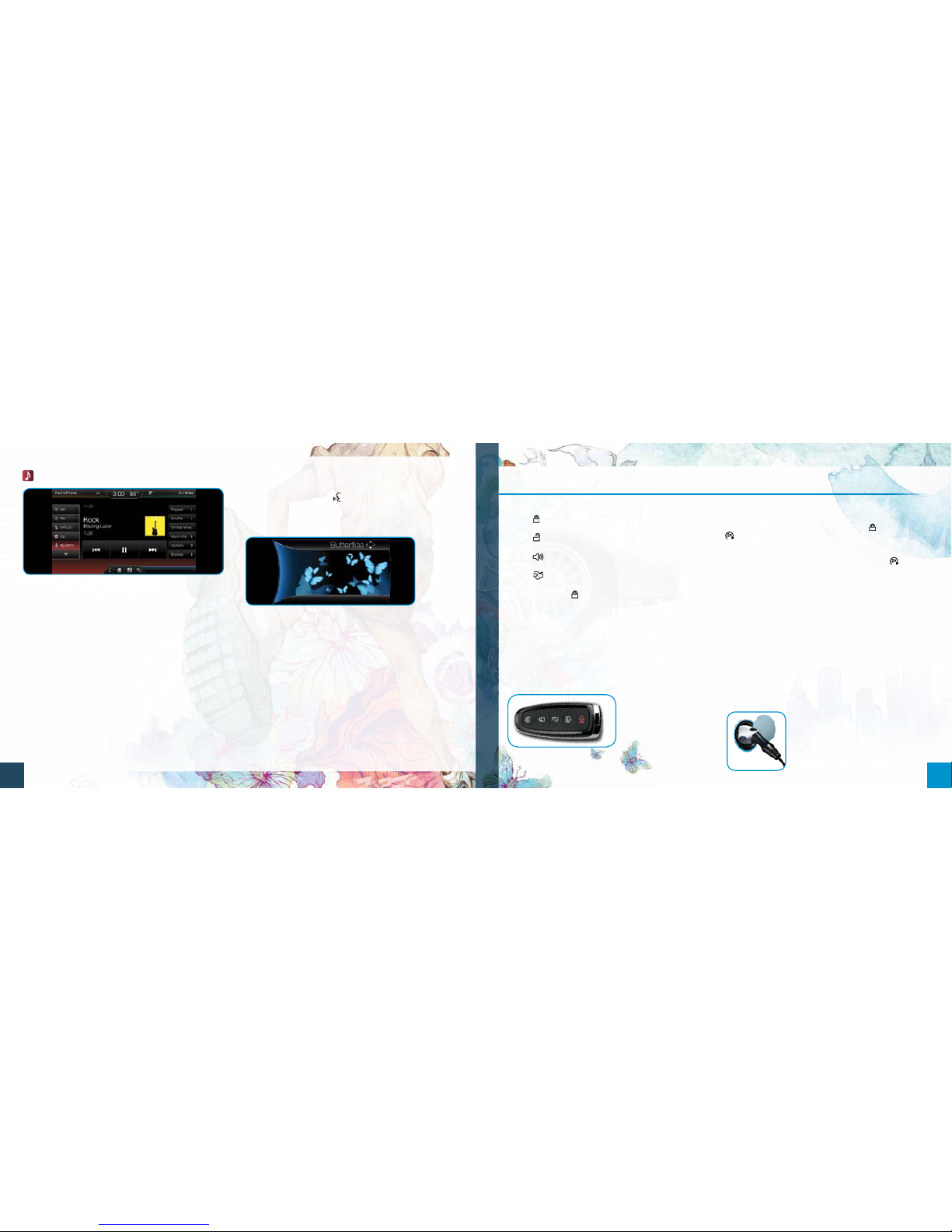
REMOTE ENTRY ICONS
• Press once to lock all doors. Press again within three
seconds to confirm that you locked all doors.
• Press
once to unlock the driver’s door. Press again
within three seconds to unlock all doors.
• Press to activate the panic alarm. Press again or
switch the vehicle on to deactivate.
• Press twice within three seconds to release the
ligate latch.
• Car finder: Press twice within three seconds to
locate your vehicle. The horn sounds and the direction
indicators flash.
INTELLIGENT ACCESS
Note: Your transmitter must be within 3 feet (1 meter) of the
vehicle for intelligent access to function properly.
To unlock the driver’s door, pull the front exterior door
handle. To lock the doors, press the sensor button on
the door handles. To unlock and open the ligate, press
the exterior ligate release button near the license plate.
The intelligent access
transmitter also contains
a mechanical key blade
which can be used to
unlock the driver door,
if necessary.
REMOTE START
Remote start allows you to start your vehicle from outside
the vehicle using your key. To start, press and then press
twice within three seconds. Once inside, apply the
brake while pressing the START STOP button. Shi into
drive (D) and go. To switch o your vehicle from outside
the vehicle aer using your remote start, press once.
Note: It is also possible to switch your vehicle on and o using the
MyFord
®
Mobile application on your smartphone.
CHARGING YOUR VEHICLE
Your vehicle must be in park (P) to charge. Press the
indentation located on the charge port door and the door
rotates open. Plug the charging coupler into the vehicle’s
charge port receptacle and make sure that the button
“clicks” confirming that you completely engaged it.
• When the vehicle detects the connection, each quadrant
of the light ring flashes in a clockwise manner two full
times (indicating the start of a normal charge cycle).
• When you are done charging your vehicle, press the
button on the charging coupler and remove it from the
charge port receptacle.
• Close the charge port door by
pressing and holding the indentation
on the door until the door rotates
counterclockwise and closes. See
your Owner’s Manual for complete
information on charging your vehicle.
ENTERTAINMENT
No matter how you store your music, SYNC makes it yours
to enjoy when you’re behind the wheel. Press the lower-le,
red corner of the touchscreen. From here, you can easily go
between AM, FM, CD, USB and other media sources.
Set Your Radio Presets
• Touch the Entertainment corner on the touchscreen.
• Touch FM.
• Touch Direct Tune.
• Enter the desired station and touch Enter.
• Touch Presets and then touch and hold one of the memory
preset buttons to save it. The sound mutes briefly and
returns once the system saves the station.
USING SYNC TO ACCESS DIGITAL MEDIA
Plug in your USB media devices, such as phones and MP3
players, and use SYNC to play all of your favorite music.
Using Voice Commands to Play Music
1. Plug your media player into your USB port.
2. Pull the voice control
. When prompted, say “USB”,
then follow-up by saying one of the voice commands.
SURPLUS MODE
In Surplus mode, either butterflies or a gauge represents
your surplus or status. The number of butterflies matches
the current surplus or status distance, with a maximum of
16 butterflies.
• If you entered your next charge destination in the
navigation system and you see butterflies on your screen,
then you should be able to make your destination, and you
have a Surplus.
• If you see butterflies but did not enter your next charge
destination, then you should be able to achieve the range
estimate shown at the start of your drive, and you have a
positive Status.
See the Instrument Cluster chapter in your Owner’s Manual
for more information.
Page 8
14 15
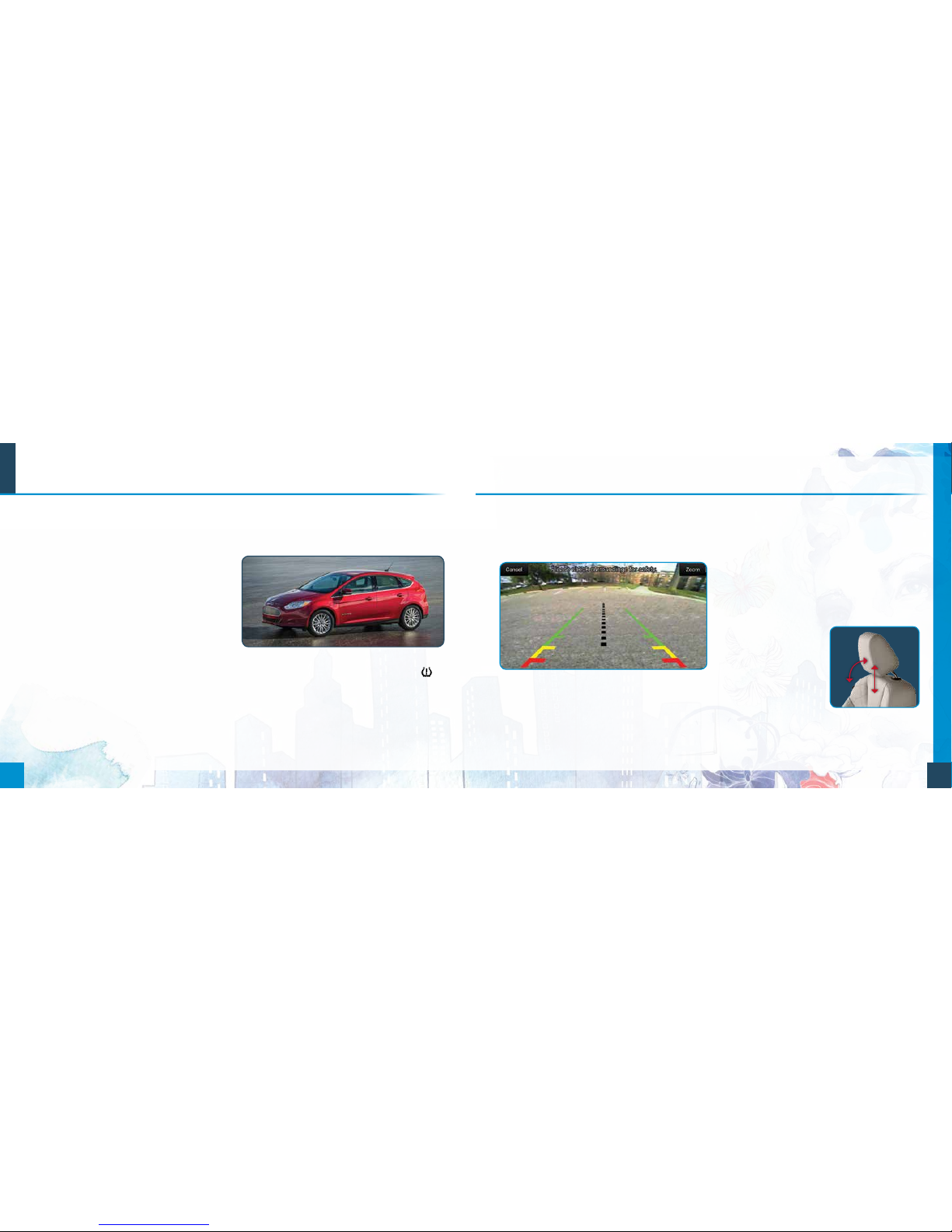
REAR VIEW CAMERA
This system provides a video image of the area behind
the vehicle. The display automatically appears in the
touchscreen when the vehicle is in reverse (R) and uses
green, yellow and red guides to alert you of your proximity
to objects.
REAR SENSING SYSTEM
This system sounds a warning tone if there is an obstacle
near the vehicle’s rear bumper when the vehicle is in
reverse (R) and is traveling less than 3 mph (5 km/h).
The warning tone increases in frequency as the object
gets closer.
Note: Visibility aids do not replace the need to watch where
the vehicle is moving. Refer to your Owner’s Manual for safety
information, more details and limitations.
MYKEY®
MyKey allows you to program certain driving restrictions
in order to promote good driving habits. You can program
things like speed restrictions, limited volume levels and
safety belt reminders. For complete information, refer to
the Locks and Security chapter in your Owner’s Manual.
TILTING HEAD RESTRAINTS
The front head restraints may have a tilting feature for
extra comfort. Tilt the head restraint forward by gently
pulling the top of the head restraint. Once it is in the
forward-most position, tilting it forward once more
releases it back to the upright position.
Pull up to raise the head
restraint. To lower, press
the head restraint down
while pressing and holding
the guide sleeve adjust/
release button.
Note: Do not attempt to force
the head restraint backward aer
it is tilted. Instead, continue tilting
it forward until the head restraint
releases to the upright position.
Essential Information Function
SINGLE-SPEED TRANSMISSION
Your single-speed transmission is built specifically to
handle the high RPM range that comes with an allelectric motor. This gives you a quiet, energy-ecient ride,
delivering quick responsiveness, smooth acceleration and
no-compromise driving fun.
TOWING YOUR VEHICLE
Towing your vehicle behind an RV or any other vehicle may
be limited. Refer to Towing the Vehicle on Four Wheels in
the Towing chapter of your Owner’s Manual.
TEMPORARY MOBILITY KIT
Your temporary mobility kit is in the floor of the cargo area.
Loosen the Velcro® strap to access the kit.
The kit consists of an air compressor to reinflate the tire
and a sealing compound in a canister that seals most
punctures caused by nails or similar objects. Do not
attempt to repair punctures larger than 1⁄4 inch (6 mm)
or damage to the tire’s sidewall. Refer to the Wheels
and Tires chapter of your Owner’s Manual for complete
instructions on use.
Note: This kit provides a temporary seal allowing you to drive your
vehicle up to 120 miles (200 km) at a maximum speed of
50 mph (80 km/h).
ROADSIDE ASSISTANCE
Your new Ford vehicle comes with the assurance and
support of 24-hour emergency roadside assistance. To
receive roadside assistance in the United States, call
1-800-241-3673. In Canada, call 1-800-665-2006.
TIRE PRESSURE MONITORING SYSTEM
Your vehicle lights a low tire pressure warning light
in your instrument cluster when one or more of your tires
are significantly under-inflated. If this happens, stop and
check your tires as soon as possible. Inflate them to the
proper pressure. Refer to the Wheels and Tires chapter of
your Owner’s Manual for more information.
 Loading...