

Page 1
Page 2

Fonera Simpl (FON2405)
2
Table of Contents
HOW TO INSTALL AND REGISTER THE FONERA SIMPL ................................................................................................................ 3
INSTALLATION ..................................................................................................................................................................................... 3
REGISTRATION .................................................................................................................................................................................... 3
HOW TO MODIFY THE SETTINGS OF THE FONERA SIMPL VIA ITS WEB INTERFACE...................................................................... 7
STATUS .............................................................................................................................................................................................. 8
NETWORK SETTINGS ............................................................................................................................................................................. 9
INTERNET SETTINGS ............................................................................................................................................................................ 10
WIFI ............................................................................................................................................................................................... 11
PASSWORD ...................................................................................................................................................................................... 13
SYSTEM ........................................................................................................................................................................................... 14
LANGUAGES ..................................................................................................................................................................................... 15
FIREWALL ......................................................................................................................................................................................... 15
TROUBLESHOOTING THE FONERA SIMPL .................................................................................................................................. 17
MY FONERA FAILS TO CONNECT TO INTERNET .......................................................................................................................................... 17
MY FONERA IS CONNECTED CORRECTLY BUT DOESN’T BROADCAST THE PUBLIC SIGNAL ..................................................................................... 17
MY FONERA IS SHOWING OFFLINE IN MY USERZONE ................................................................................................................................. 18
MY FONERA IS NOT SHOWING ON THE MAPS ........................................................................................................................................... 19
FORGOTTEN FONERA’S MANAGEMENT CONSOLE PASSWORD ...................................................................................................................... 19
REQUIRED PORTS ............................................................................................................................................................................... 19
HOW TO RESTORE THE FACTORY SETTINGS ON MY FONERA ........................................................................................................................ 20
MY COMPUTER CONNECTS TO A FON SPOT INSTEAD OF MY HOME NETWORK ................................................................................................ 20
FORGOTTEN USERZONE PASSWORD....................................................................................................................................................... 21
HOW TO CHANGE MY EMAIL ADDRESS .................................................................................................................................................... 23
HOW TO ACCESS THE MANAGEMENT CONSOLE OF THE FONERA .................................................................................................................. 24
THE MAC ADDRESS ONLINE IS DIFFERENT THAN THE ONE FOUND ON MY ROUTER ........................................................................................... 24
FIRMWARE UPGRADE ......................................................................................................................................................................... 24
PPPOE MODE ................................................................................................................................................................................... 24
I REGISTERED MY FONERA, BUT IT IS SHOWING THE REGISTER ICON ON ITS WEB INTERFACE ............................................................................... 25
WHEN I CONNECT MY WINDOWS DEVICE TO THE PRIVATE WIFI (MYPLACE) I’M PROMPTED TO INTRODUCE A PIN CODE ....................................... 25
FONERA SIMPL SPECIFICATIONS ............................................................................................................................................... 27
TECHNICAL SPECIFICATIONS ................................................................................................................................................................. 27
LED STATUS DESCRIPTION ................................................................................................................................................................... 28
Page 3
Fonera Simpl (FON2405)
3
How to install and register the Fonera Simpl
Installation
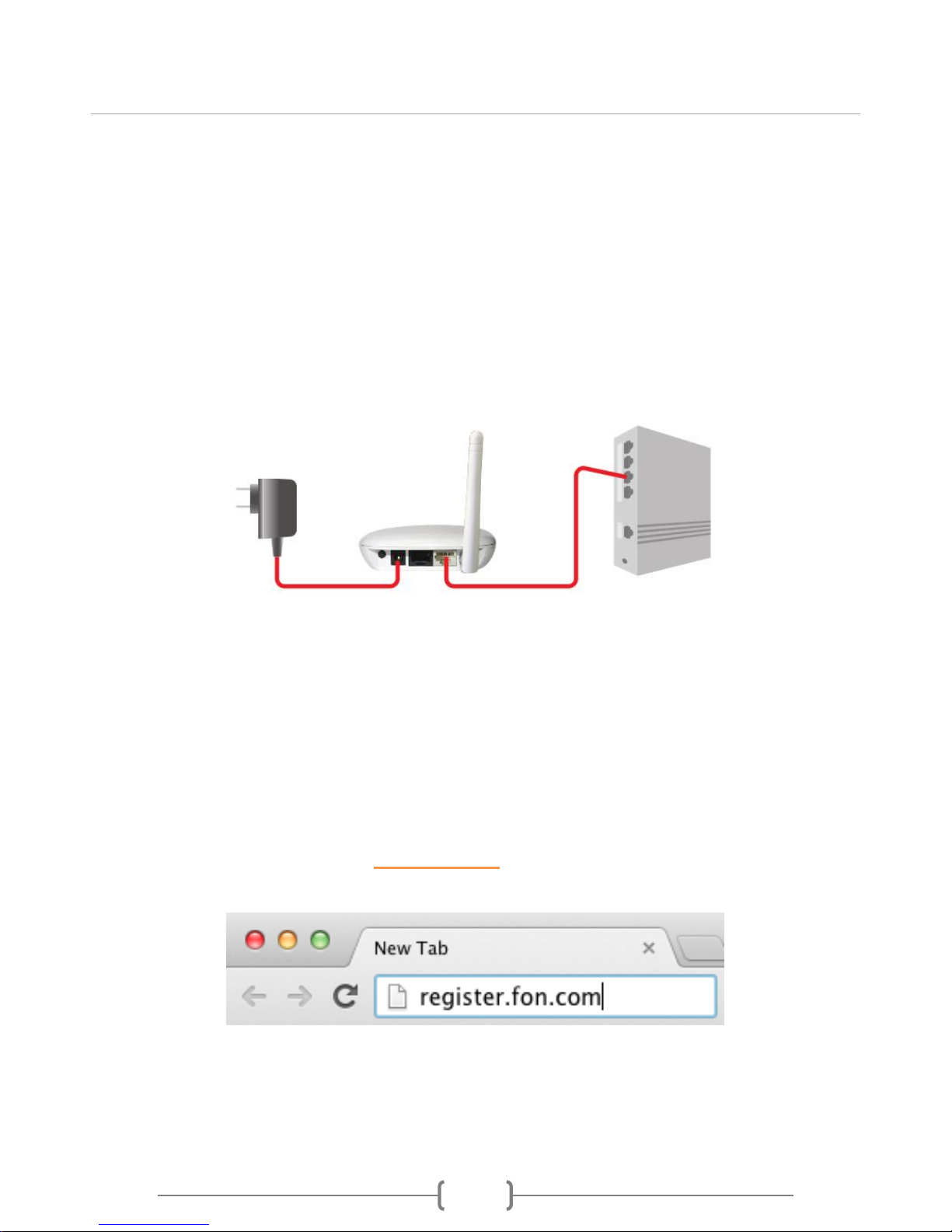
Connect the internet port (white or orange) of the Fonera Simpl to your ISP's modem/router.
Plug in the power cable, and wait about 20 seconds until the two left LEDs (on the Fonera)
turn green.
Note: if you own a cablemodem, please proceed with the following installation instructions:
disconnect and power off both cablemodem and Fonera
connect the Fonera to the cablemodem
power on the Fonera
after a few seconds, power on the cablemodem
Registration
Step 1: Open your browser and type register.fon.com in the address bar
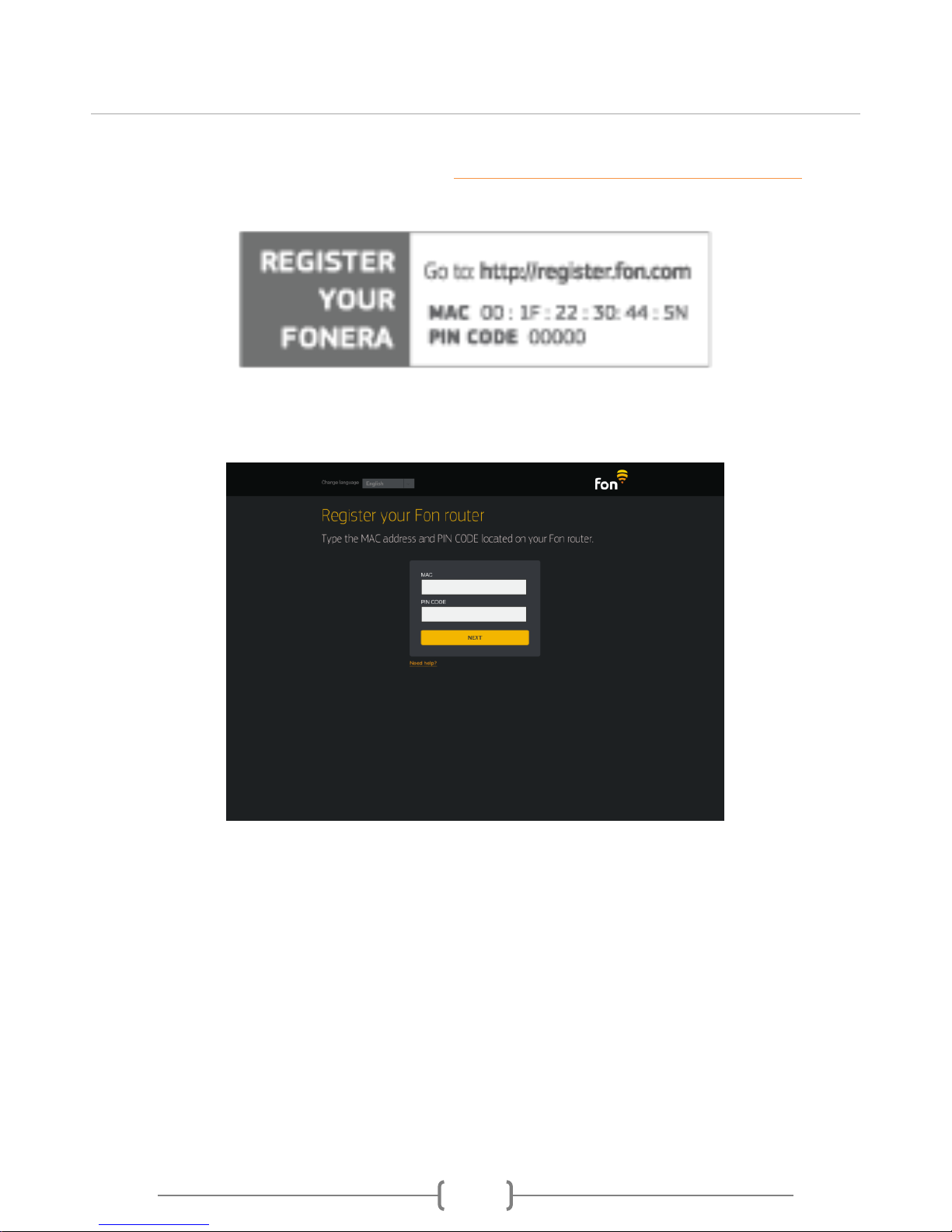
Step 2: Enter your Fonera's MAC and PIN CODE
This information is available on the sticker covering your Fonera.
Page 4
Fonera Simpl (FON2405)
4
If you don’t have this information, or your Fonera is already registered under a different account and you
wish to update it, please submit a support ticket at https://support.fon.com/hc/categories/200052532
providing the MAC which appears on the underside of your Fonera.
Use only numbers (and letters) For the MAC field. Do not use the colons that separate them (this
will be filled automatically for you).
Click on "Next" to continue.
Step 3: Create your username and password
Note: If you already have a Fon account, click the "I am already a member" link to skip this step
(go to Step 4).
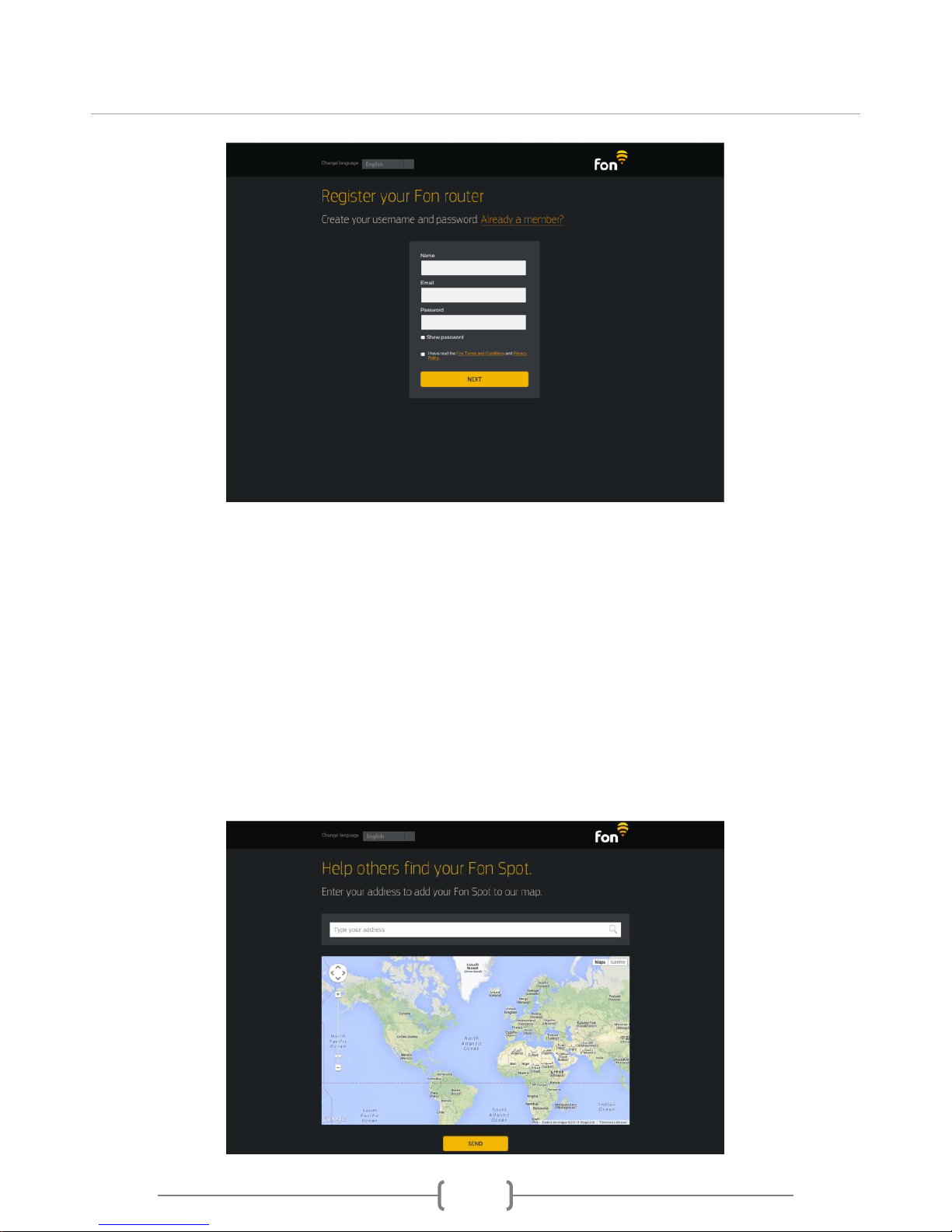
To create a Fon account, enter your Fon name and email and choose a password (all fields are
mandatory).
Page 5
Fonera Simpl (FON2405)
5
Name: Must be at least 6 characters long.
Email: The email address provided will be your Fon username.
Password: Must be at least 6 (ASCII) characters long.
Tick to confirm you agree to our Terms and Conditions.
Click on Next to continue.
Step 4: Locate your Fon Spot on our maps
Type in your address on the search bar.
Check that your location is correct. If it isn't, you can drag and drop the pinpoint to the exact
location.
When the pinpoint is in the right location, click "Send".
Page 6
Fonera Simpl (FON2405)
6
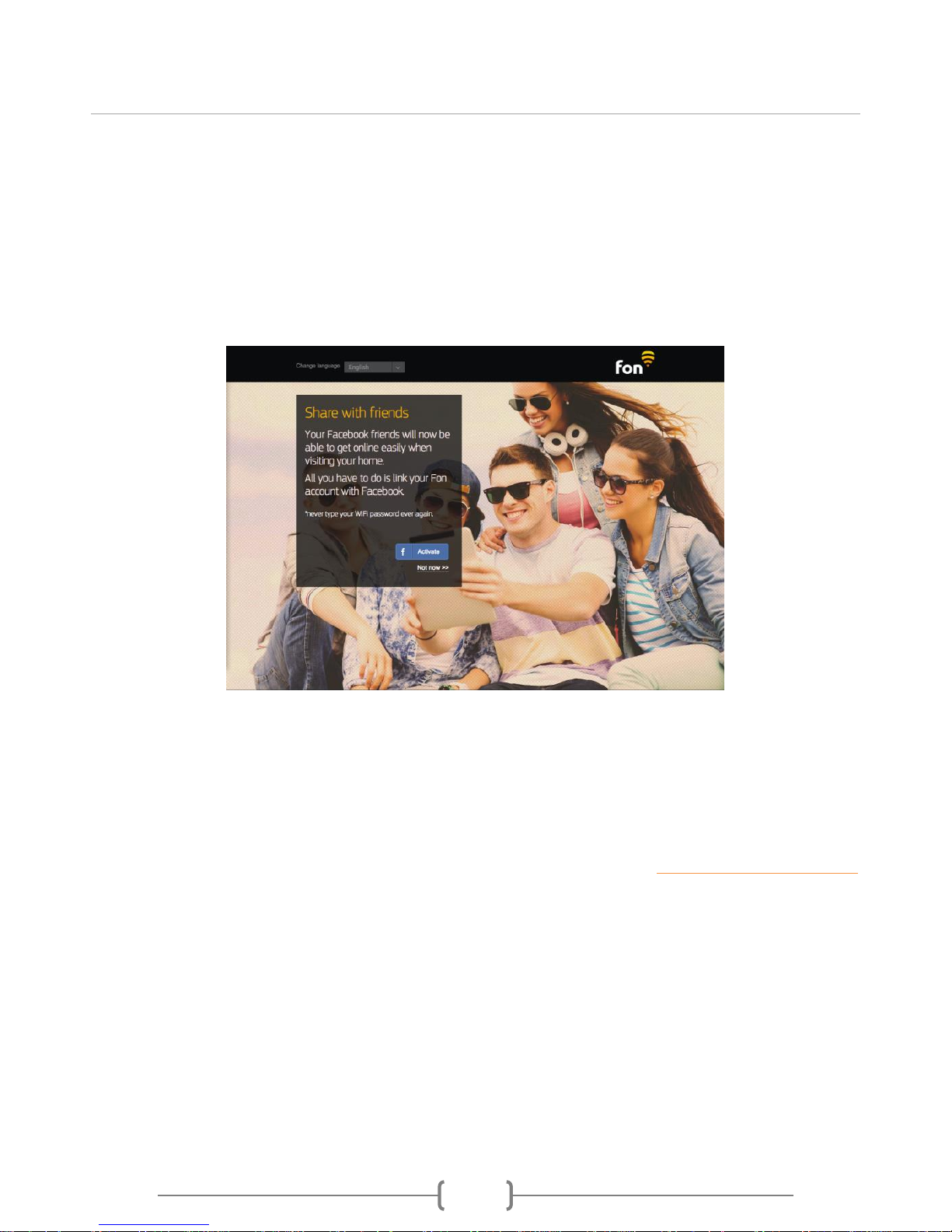
Step 5: Allow your Facebook friends to connect
If you are interested in sharing your WiFi with your Facebook friends, click the "Facebook" button
and link your Fon account to this social network.
Note: To use the Facebook sharing feature, both your Fon and Facebook accounts must have the
same email address.
Step 6: You're all set!
That's it, your Fonera is now registered, your Fon Spot on our map and you are part of the world’s
largest WiFi network!
Back to Table of Contents
Page 7
Fonera Simpl (FON2405)
7
How to modify the settings of the Fonera Simpl via its
web interface
From the Fonera's web interface, you'll be able to change all sorts of settings and perform system
maintenance tasks such as rebooting and restoring factory defaults. You can access your
Fonera’s web interface via WiFi or Cable:
WiFi: use a computer or a mobile device to connect to its private WiFi signal
Cable: connect an Ethernet from the computer port of the Fonera to your computer
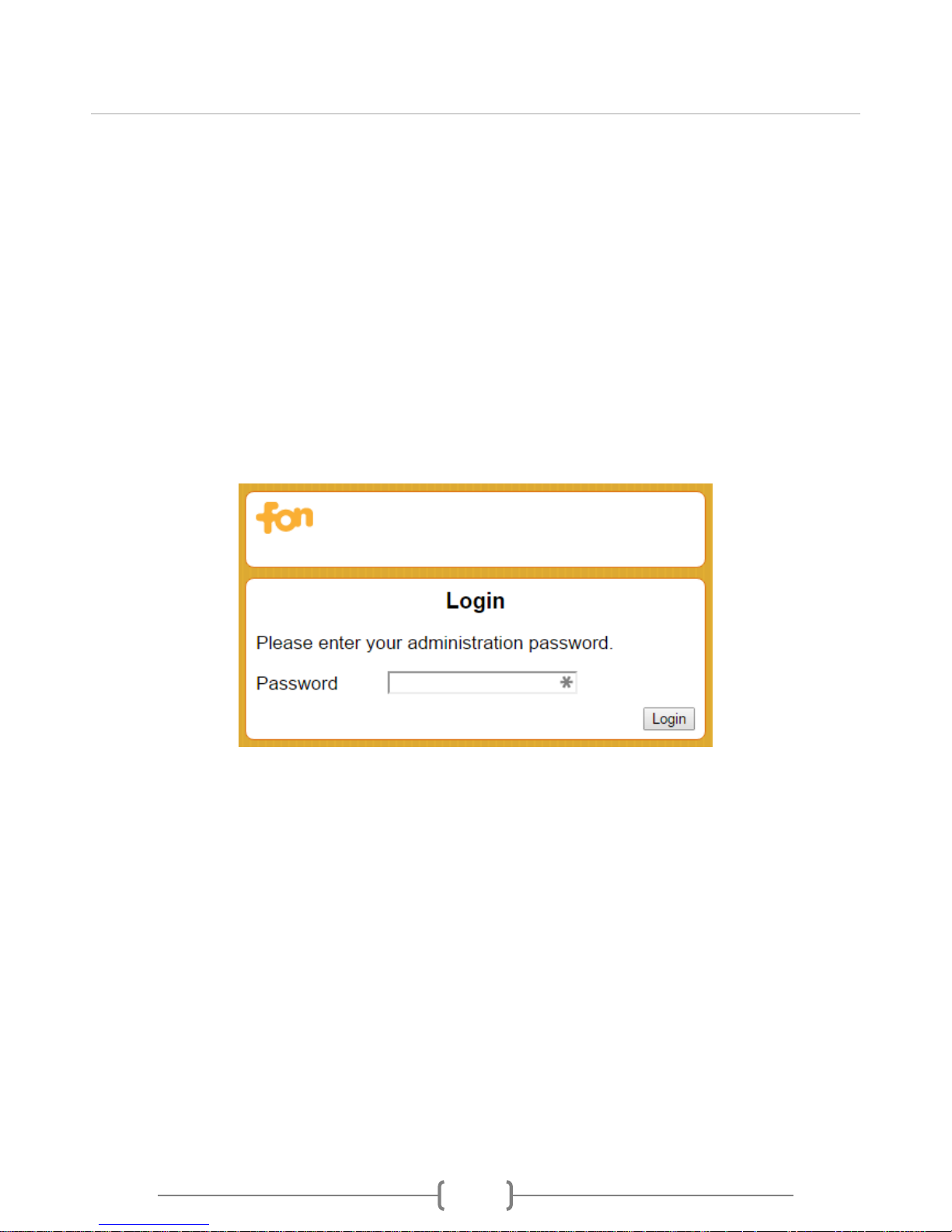
Then type http://fonera or http://192.168.10.1* into your web browser’s address bar and log in
with its password, the default is admin.
* Note: 192.168.10.1 is the Fonera's default IP address, if you ever change it, type in the new
value to access the web interface.
List of menus available:
1. Status
2. Network settings
3. Internet settings
4. WiFi
5. Password
6. System
7. Languages
8. Firewall
Page 8
Fonera Simpl (FON2405)
8
Status
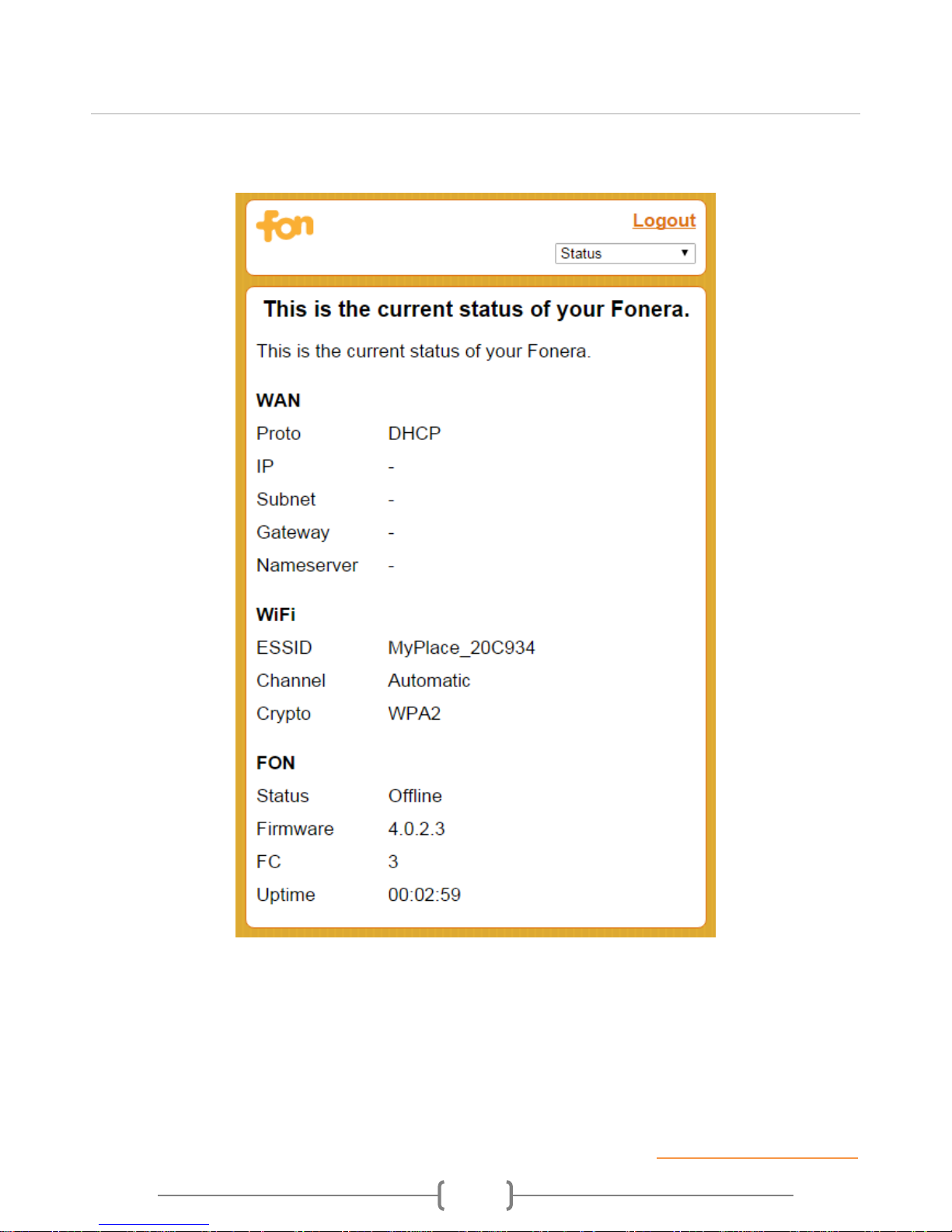
Configuration information is the reason why the page is called "Overview". On this page you
can see at first glance very relevant configuration information, such as internet connection and
network set-up, name of the private WiFi signal, channel and firmware version.
If you ever see an icon prompting you to register your Fonera, please just disregard it or click
on it. If your Fonera hasn't been registered yet, go to register.fon.com to make the registration. If
your Fonera has already been registered, just ignore that message as it only means that the
option to register is always available, at least until you click on it.
Back to Table of Contents
Page 9
Fonera Simpl (FON2405)
9
Network settings
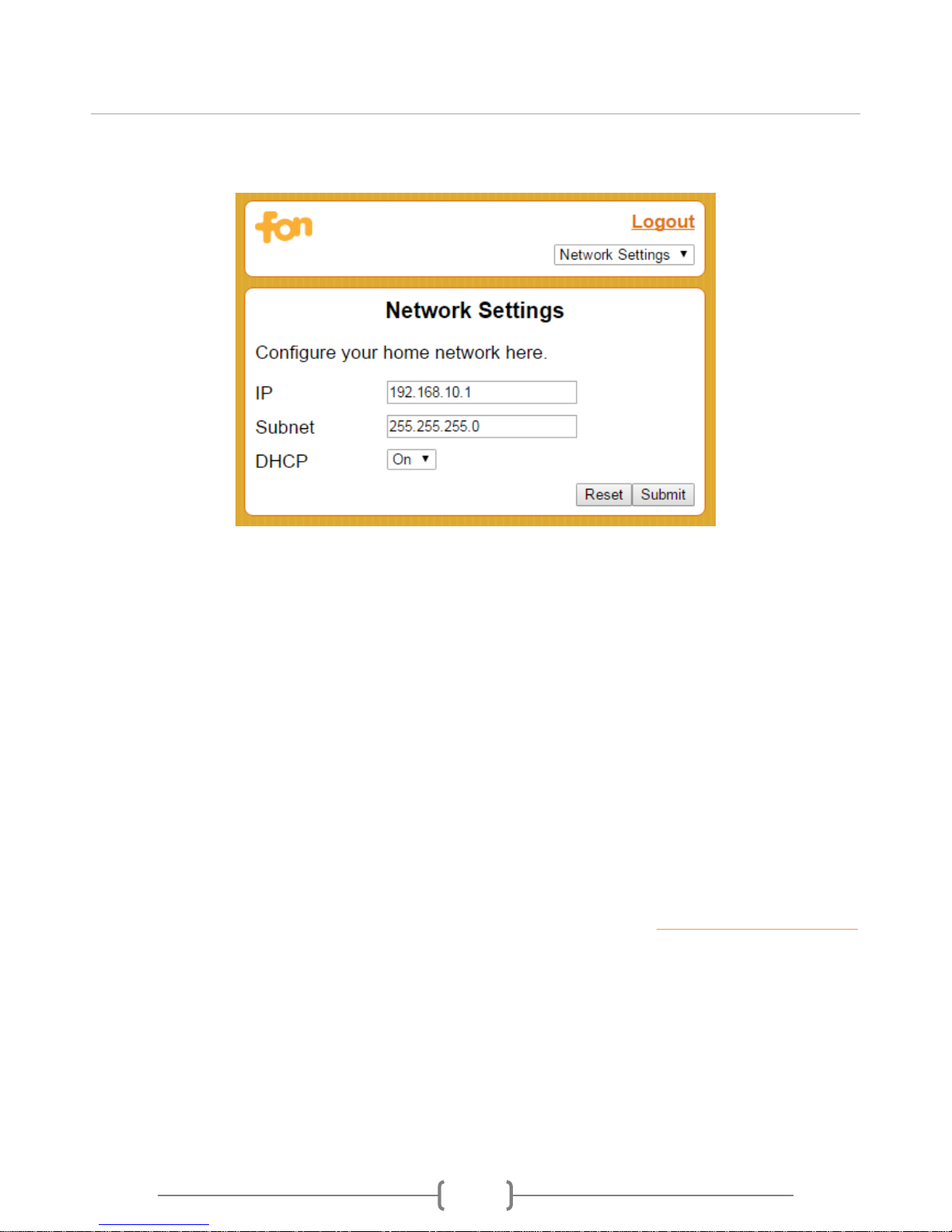
From the network settings page you can configure the Fonera's private network, which consists of
all devices connected to its private WiFi signal or LAN Ethernet port. Warning: We do not
recommend changing the network configutation unless you know what you are doing.
IP is the IP address of the Fonera in its own local network. This is the IP used to access the
Fonera's web interface (whether you type the IP address directly or http://fonera) as a result, if you
change the IP, you will get disconnected and will need to access again the Web interface on the
new IP. Important Note: The Fonera's (LAN) IP address and its WAN IP address must be in
different subnets.
Subnet is a logically visible subdivision of its IP network specified in the form of a subnet
mask. The default is 255.255.255.0 which is the network mask for the 192.168.10.0/24 prefix.
DHCP is the Dynamic Host Configuration Protocol (DHCP) server on the Fonera. Use this setting
to switch it ON and OFF. The DHCP server assigns IP addresses to devices connected to the
Fonera's local network. Disabling it will result on devices connecting to the Fonera's LAN and
private WiFi signal not acquiring an IP address automatically.
Back to Table of Contents
Page 10
Fonera Simpl (FON2405)
10
Internet settings
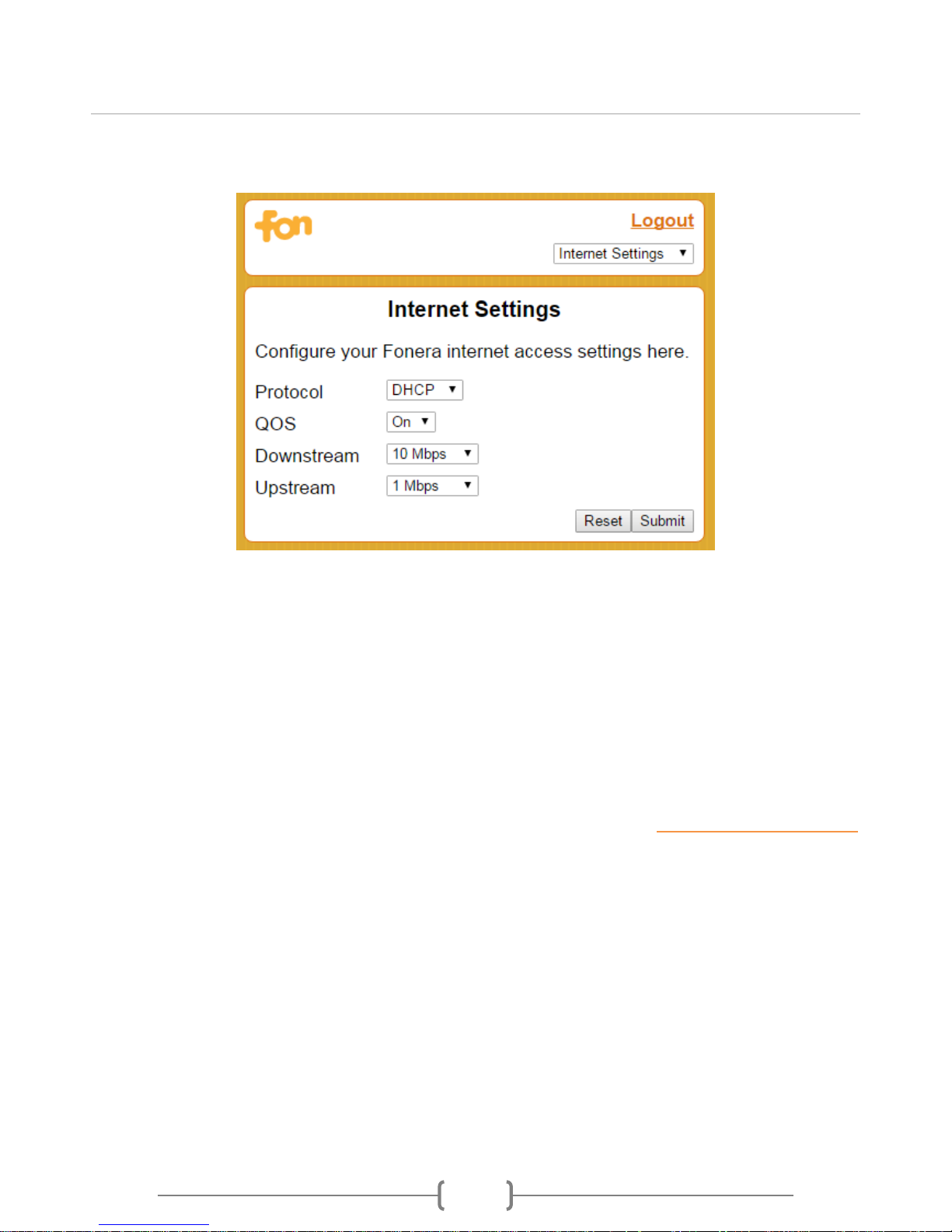
From the internet settings page you can configure the way the Fonera connects to the internet. To
set up a new internet connection (the defaults are Cable and DHCP), you'll need to select a mode
and a protocol.
Protocol is the way the Fonera will be assigned an IP address. Select "DHCP" for the Fonera to
acquire an IP address automatically from your ISP's modem or local DHCP server, select "Static"
to configure an IP address manually or "PPPoE" if you need to establish a session with your ISP
to connect to the internet.
QoS actually refers to downstream and upstream Quality of Service. Activating it assigns high
priority to Internet video streaming.
Back to Table of Contents
Page 11
Fonera Simpl (FON2405)
11
WiFi
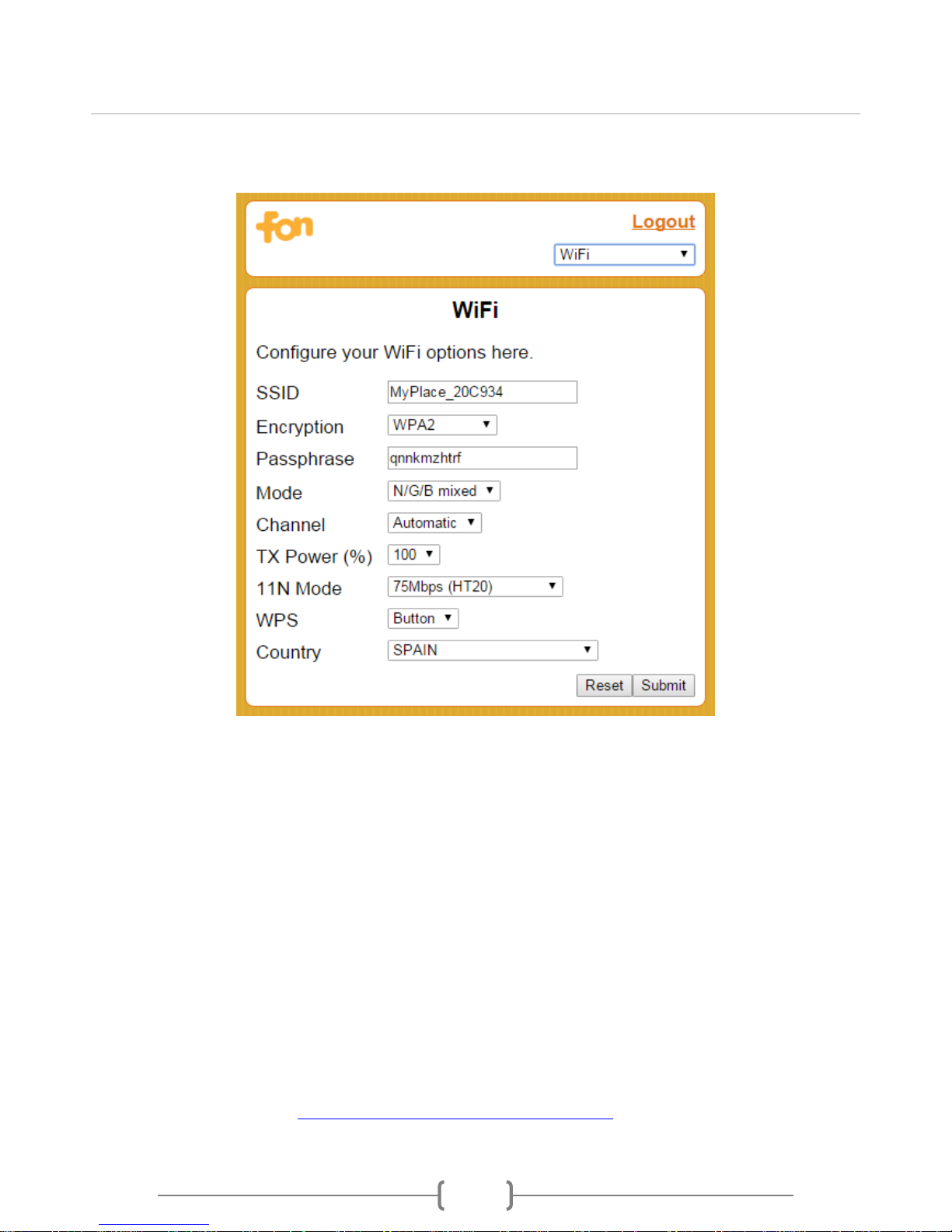
From the WiFi settings page you can configure the Fonera's private WiFi signal, but please note
that modifying Mode, Channel, TX Power and 11N Mode will affect both the public and private
WiFi signals of your Fonera.
SSID is the name of the private WiFi signal that your Fonera is broadcasting. The default SSID is
MyPlace_XXXXX", but you can change it to a more convenient name such as MikeFonera.
Encryption is the type of security used to cipher the data exchanged between your devices and
the Fonera when the private wireless signal is used. The default is WPA2, and it is the most
secured option. Only change those settings if you have a device which doesn't support WPA2 and
you want to connect it to the Internet through the Fonera private signal. Other available modes
are WPA and WPA/WPA2 - which allow devices to connect to both WPA2 and WPA mode. We do
not recomment using WEP mode as it is not as secure.
Passphrase is the password you have to use to connect to your private wireless signal. The
default passphrase is written in very small print on the sticker under the Fonera.
Mode is the WiFi protocol that will be used to connect. The default mode is N/G/B mixed which
allows WiFi devices using 802.11b, 802.11g and 802.11n protocols to connect. Modifying this
setting may affect compatibility with devices and therefore we strongly suggest that you use
Page 12

Fonera Simpl (FON2405)
12
its default unless for instance ALL your WiFi devices support 802.11n and you would like to use "N
only" for maximum speed and compatibility.
Channel is the WiFi channel that the Fonera uses to broadcast its WiFi signals (public and
private). Channel related interference can be reduced or eliminated by selecting the proper WiFi
channel for your network. In automatic mode your Fonera will try its best to avoid overlapping
channel interference. However, in environments where several WiFi signals are available,
choosing the best* channel can boost WiFi perfomance and prevent connection related issues.
We recommend channels 1, 6 and 11.
TX Power is the strength of the WiFi signal that the Fonera produces. A stronger signal will
generally provide a more reliable WiFi connection and therefore the default value is 100%. A lower
power setting means the signal will not go as far, decreasing its range and throughput. We
suggest keping TX Power at 100% and adjust it only if you have a good reason to change it.
11N Mode is the WiFi channel width, which can be 20MHz (HT20) or 40MHz (HT40). The default
is HT20 which ensures a stable signal. We do not recommend changing
to HT20/HT40 mode as some 802.11n devices and Operative Systems don't support HT40.
WPS is a network security standard (WiFi Protected Setup) that allow users to easily secure a
WiFi home network. This setting allows you to enable/disable WPS. When enabled, the Fonera's
WPS button is used to produce a pin, you then can use this instead of the passphrase to connect
to its private WiFi signal. The default is Button, which means that WPS is enabled and can by
triggered by tap pressing the Fonera's black back button.
Country is associated to dot11d's world-mode. We recommend configuring a country code. The
IEEE 802.11h protocol requires access points to include the country information element in
beacons and probe responses. By default, however, the country code is blank. Use the drop-down
menu to select the appropriate country.
Back to Table of Contents
Page 13
Fonera Simpl (FON2405)
13
Password
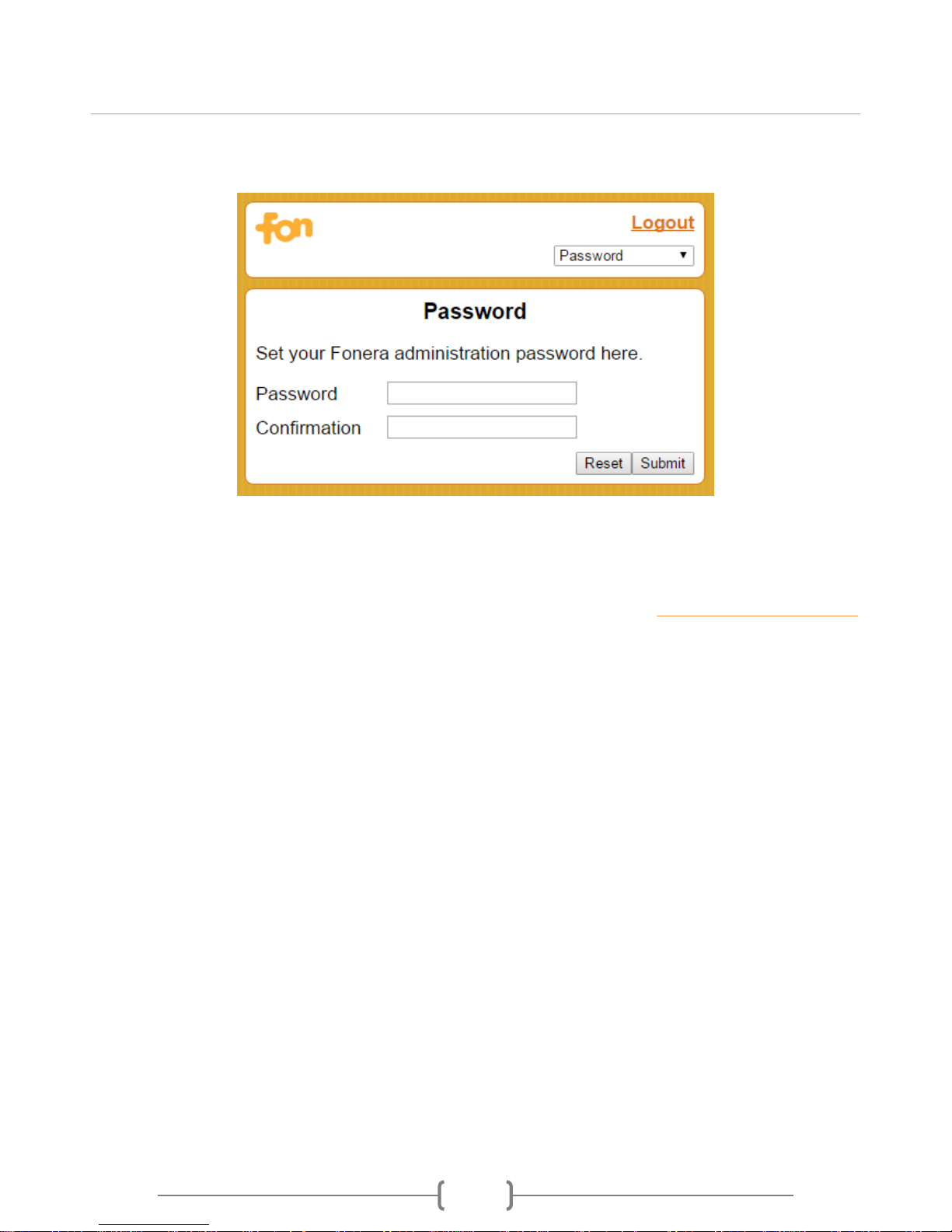
From the password page you can change the password to access the Fonera's web interface. The
default password is admin. To keep it safe, we highly recommend you create a
unique password. The maximum length for a password is 63 chars.
Back to Table of Contents
Page 14
Fonera Simpl (FON2405)
14
System
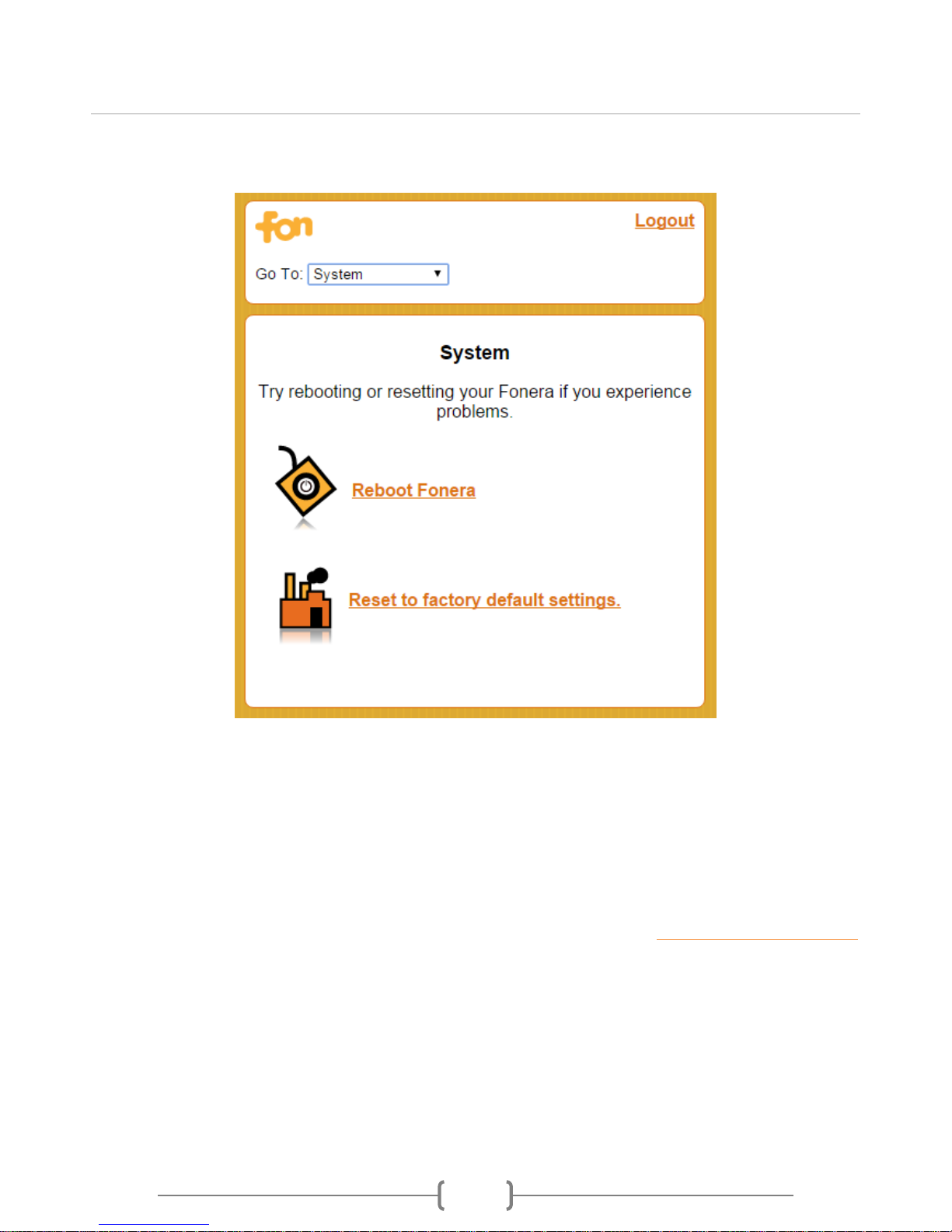
From the system page you can reboot the Fonera or restore its factory default settings.
Reboot Fonera use this option to restart the Fonera. Rebooting your Fonera might prove handy
when configuration changes don't take effect or if you ever notice a drop in its performance. A
reboot will leave the previously saved configuration unmodified.
Restet to Factory Settings use this option to get rid of custom configuration and go back to
default values.
Back to Table of Contents
Page 15
Fonera Simpl (FON2405)
15
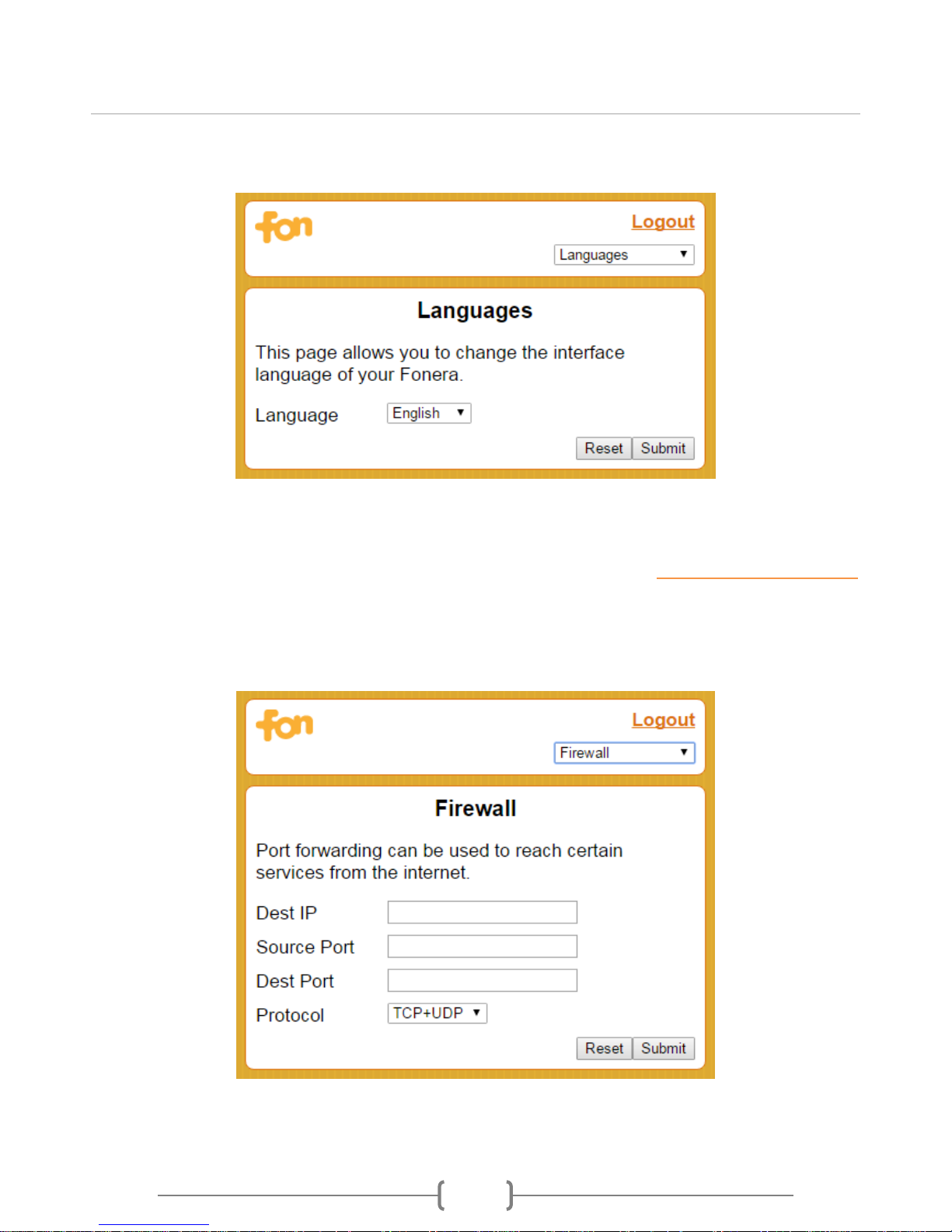
Languages
From the language page you can change the language in which the Fonera's web interface is
displayed. The default language is English.
Back to Table of Contents
Firewall
From the firewall settings page you can configure port forwarding by adding NAT mapping rules.
Port forwarding provides external access to services running on the Fonera's private network
Page 16

Fonera Simpl (FON2405)
16
(devices connected to its privat WiFi signal or LAN port). Forwarding of ports is seldom if ever
required to allow clients of online PC game to function properly. However, some online games or
applications might require port forwarding to allow communications from the Internet.
Note: If the Fonera is connected to the internet via a router (as opposed to a modem) you'll first
have to forward the desired traffic/port to the Fonera's IP (WAN) and then forward it from the
Fonera to your computer.
Dest IP is the IP of the computer/device running the software that requires port redirection.
Source Port is the external port (number).
Dest Port is the internal port (number). Normally, you would use the same port number as
destination and source.
Protocol is the type of traffic that will be forward: TCP, UDP or TCP+UDP.
For example, if you want to run your own web server on your LAN, this would need to get requests
on port 80 (the default port number for HTTP traffic). If the PC running your web server on your
LAN had an address of say 192.168.10.2, you would configure the Fonera to forward any
(TCP/UDP) traffic from the WAN to its WAN address with a destination port of 80 to the PC at
192.168.10.2. When your web server replies to the request, it is sent through the Fonera back to
the WAN address of the original requester.
Back to Table of Contents
Page 17

Fonera Simpl (FON2405)
17
Troubleshooting the Fonera Simpl
1. My Fonera fails to connect to Internet
2. My Fonera is connected correctly but doesn’t broadcast the public signal
3. My Fonera is showing offline in my userzone
4. My Fonera is not showing on the maps
5. Forgotten Fonera’s management console password
6. Required ports
7. How to restore the factory settings on my Fonera
8. My computer connects to a Fon Spot instead of my home network
9. Forgotten Userzone password
10. How to change my email address
11. How to access the management console of the Fonera
12. The MAC address online is different than the one found on my router
13. Firmware upgrade
14. PPPoE mode
15. I registered my Fonera but it is showing the register icon on its web interface
16. When I connect my Windows device to the private WiFi (MyPlace) I’m prompted to introduce a PIN
code
My Fonera fails to connect to Internet
Whenever you see that your Fonera lost internet connection (LEDs glowing static or blinking
orange), and your router settings were not modified, then you can proceed as follows:
Perform a factory reset
Repeat the installation
If it still fails to set an internet connection, it is very likely that the issue is hardware-related. As
this Fonera model is outdated, no replacement or further troubleshooting could be provided.
Back to Table of Contents
My Fonera is connected correctly but doesn’t broadcast the
public signal
Usually this means that you have to change the Internet settings to make the Fonera work in a different
mode from its default (DHCP). To do so, please follow these instructions:
Perform a factory reset
Repeat the installation
Page 18

Fonera Simpl (FON2405)
18
Detect the private signal MyPlace_XXX and connect to it: WPA key appears on the label stuck at
the back of the Fonera
Open your web browser and introduce http://fonera in the bar address: default password to access
the web interface is admin
Go to "Internet settings"
Switch connection mode from DHCP to Static IP
Introduce an IP different from your router's and the Fonera's
In case your router operates under PPPoE mode, please get in touch with your ISP so he provides you with
the configuration information.
If you are still not able to see the public SSID:
Make sure the Ethernet cable is connected to the right port (Internet) on the Fonera and on the
main router (any spare DMZ LAN port).
If the Ethernet cable is correctly connected try using a different cable at hand and that you know
works.
Make sure the following ports are open on network's Firewall:
Port | Protocol | Description
53 | UDP/TCP | FON DNS
80 | TCP | HTTP
123 | UDP | Fonera Clock synchronization
443 | TCP | HTTPS for portal
1645 | UDP | Radius authentication
1812 | UDP | Radius authentication
1813 | UDP | Radius authentication
1937 | TCP | Fon heartbeat and updates
1938 | TCP | Fon heartbeat and updates
3990 | TCP | Coovachilli port
If it still fails to broadcast the public signal, it is very likely that the issue is hardware-related. As
this Fonera model is outdated, no replacement or further troubleshooting could be provided.
Back to Table of Contents
My Fonera is showing offline in my userzone
If you look at your router information in your user area at fon.com, you might notice that your
Fonera status is “Offline”, despite it’s actually connected and operating correctly.
This is nothing to be worried about. Indeed, it is due to the fact that this Fonera model is outdated
and any router-related data is saved in an old deprecated platform. For this reason, the
information showing in your userzone is not updated.
Page 19

Fonera Simpl (FON2405)
19
If you check that your Fonera is connected (Internet LED glowing static green light), then you can
just ignore the offline mention.
Back to Table of Contents
My Fonera is not showing on the maps
First of all, please be aware that your Fon Spot doesn't show up on our maps (https://fon.com/maps/)
immediately after completing the registration process.
But, if more than 24 hours have passed since you created your Fon account and you're still unable to see
your hotspot on the Fon map; it could be that the geolocalisation process failed.
Unfortunately, geolocalisation (based on Google maps) isn’t a 100% accurate process.
As a possible workaround to fix this issue, please re-register your Fonera.
At step 4, introduce your address and move the pin which appears on the below map to the right location, if
necessary. Then, just complete the registration process to make sure the change is saved. Please note that
changes may take up to 24 hours to be reflected in your userzone, and the Fon map.
Back to Table of Contents
Forgotten Fonera’s management console password
The only way to recover your password to access the admin console of your Fonera is to reset it to its
factory settings.
Once done, please note the default password is admin.
Back to Table of Contents
Required ports
Foneras do not require a special port configuration to connect to the internet. You just have to make sure
that the following ports are not blocked:
Port 53
Port 1812
Port 1813
Page 20

Fonera Simpl (FON2405)
20
Port 443
Back to Table of Contents
How to restore the factory settings on my Fonera
Here is how to get the Fonera back to its default settings using its button:
While the Fonera is powered OFF, press its back button and connect the power cable
Hold the button for at least 15 seconds while the Fonera is powering up
After 15 seconds, or a little more, release the button. The Fonera will be back to its factory settings
The password of the Fonera's web interface will be admin, and private wireless signal will be
named MyPlace
Note: You can also restore the defaults settings from the web interface.
Back to Table of Contents
My computer connects to a Fon Spot instead of my home
network
This occurs when your automatic wireless settings are giving priority to a connection to Fon over a
connection to your home router. Here's how to solve the problem for:
1. Windows XP Wireless Auto Configuration
2. Apple iPad, iPhone and iPod touch
If you're using other wireless management software, check the user documentation.
Windows XP Wireless Auto Configuration
If you have connected to a Fon Spot in the past, it might have been automatically added to the list
of your preferred wireless networks.
Double click the 'Wireless Connection' icon from the System Tray. 'Note:' If the wireless connection
icon is not available in the System Tray, click 'Start > Control Panel > Network Connections', double
click on the 'Wireless Network Connection'.
The following window appears. Click 'Properties'.
Click 'Wireless Networks' tab.
When you switch on your computer, it attempts to connect to the networks listed in the order they
appear. So if Fon (i.e. FON_FREE_INTERNET) is higher in the list than your home network and
both wireless networks are in range then you will be automatically connected to the Fon Spot.
To get around this issue move your home network so it is higher in the list than Fon (do this by
selecting your home router's SSID in the list and clicking on the 'Move up' button until it is above
Page 21
Fonera Simpl (FON2405)
21
Fon) or remove the Fon entry if you no longer require it (select the Fon SSID in the list and click on
the 'Remove' button).
Apple iPad, iPhone and iPod touch
All you need to do is get your Apple device to forget the network. Do this by:
Going to Settings
Selecting 'WiFi'
Press the arrow next to the Fon network
Select 'Forget this Network'
Set Auto-Join to 'OFF'
Back to Table of Contents
Forgotten Userzone password
You can access the Userzone at https://fonglobal.userzone.fon.com/uz/login.
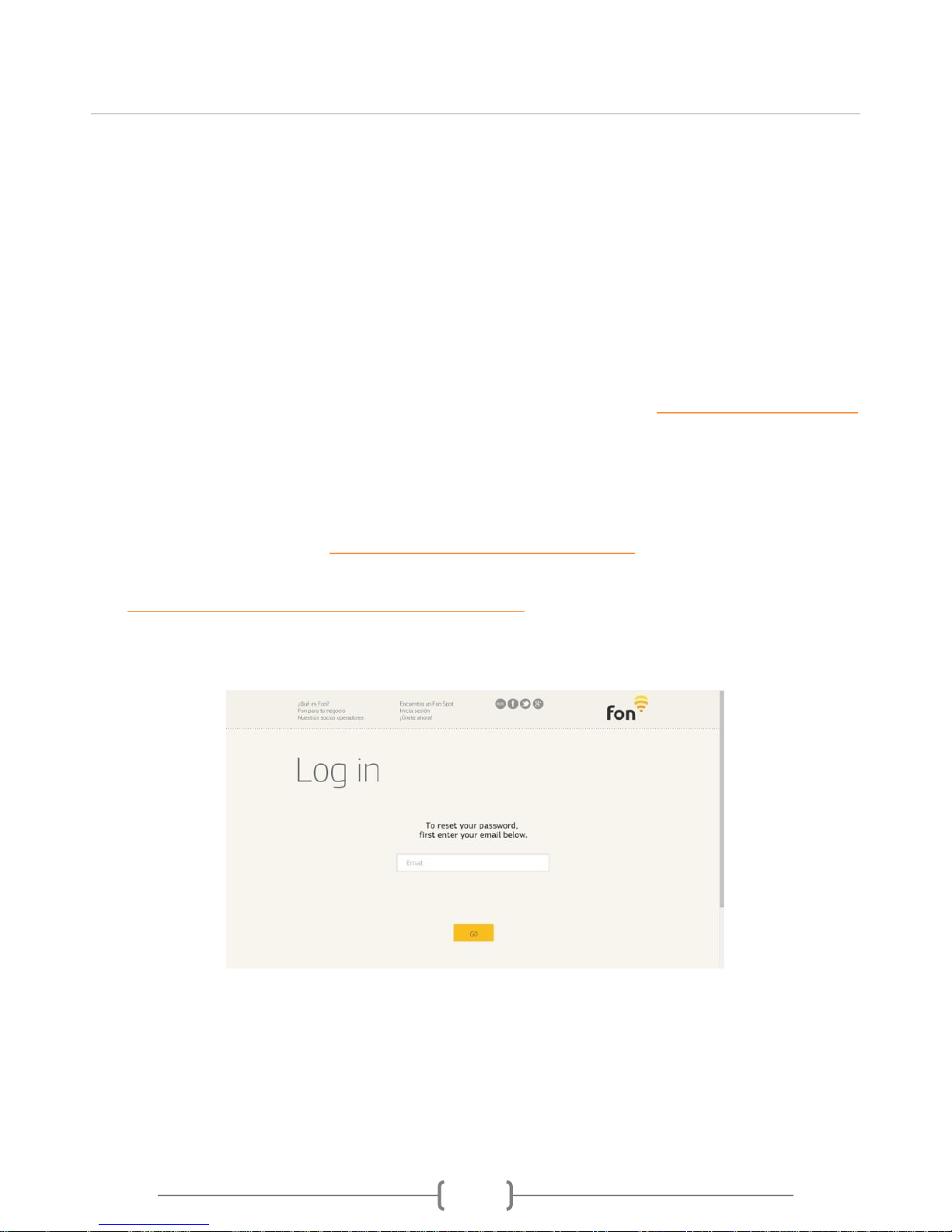
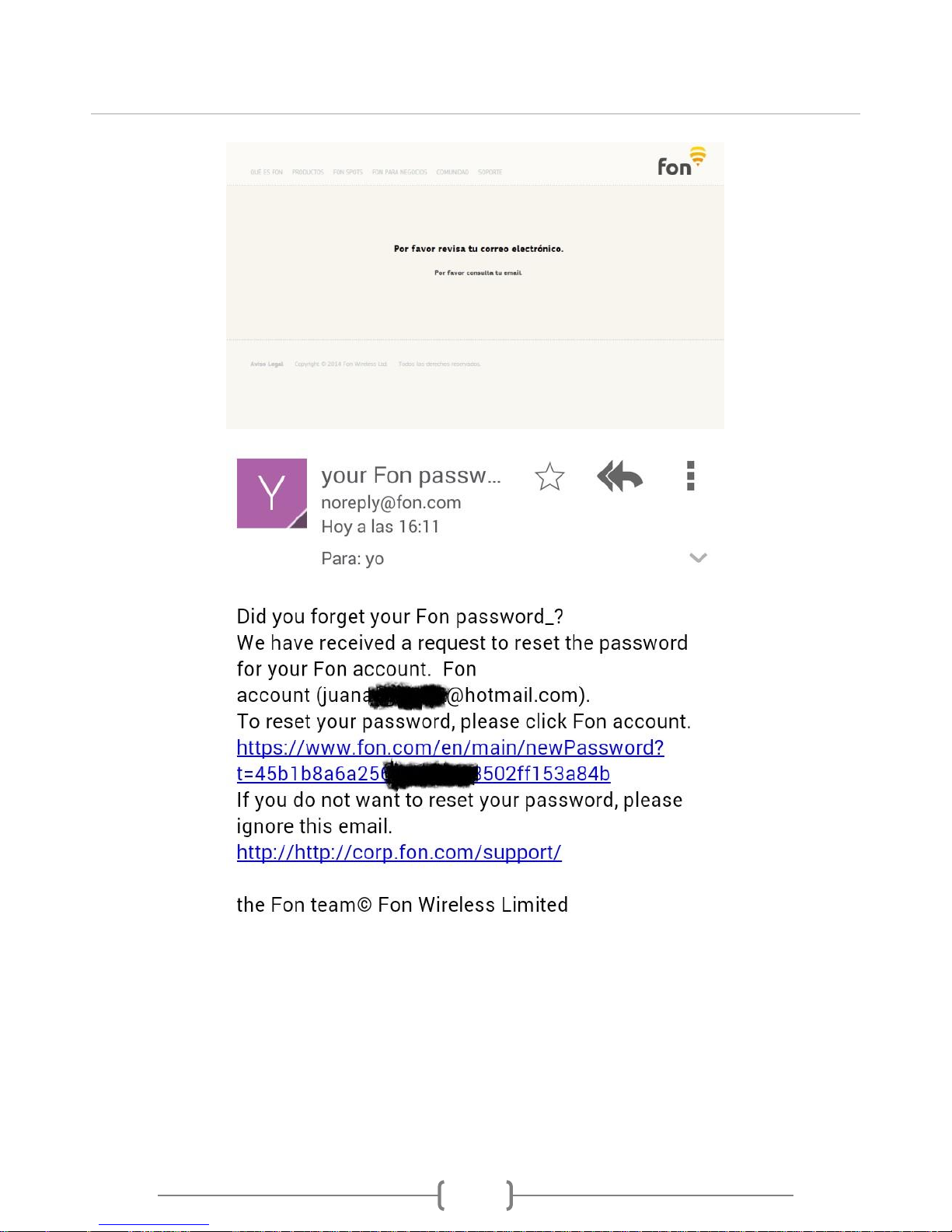
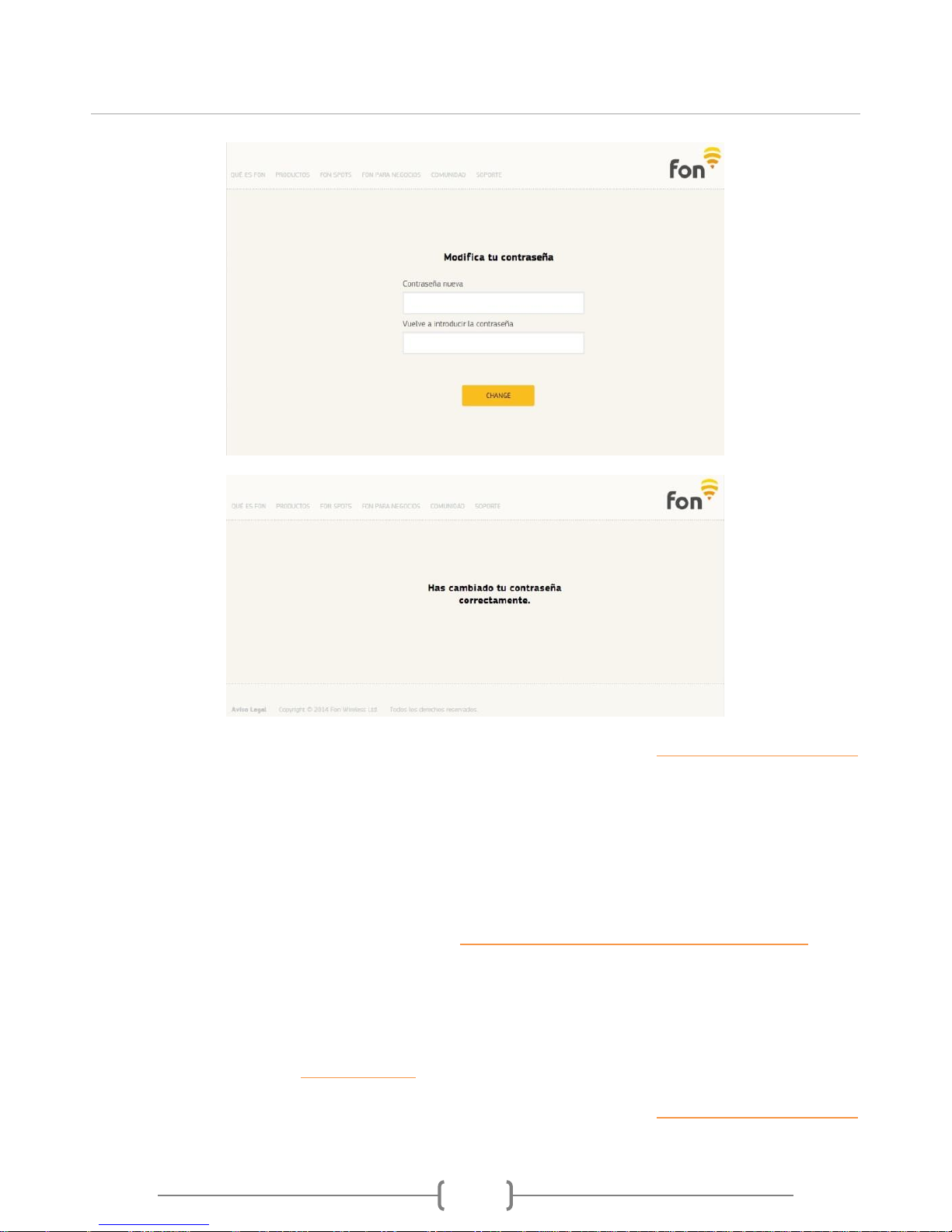
If you forget your Userzone password, you can reset/restore it by the following steps:Go to web
site: https://fonglobal.userzone.fon.com/dfp/forgotPassword?
Follow the steps depicted in the following pictures to get your password reset and restored:
Page 22
Fonera Simpl (FON2405)
22
Page 23
Fonera Simpl (FON2405)
23
Back to Table of Contents
How to change my email address
Unfortunately, it isn't possible to change it. To use a new email address with Fon, you need to re-register
your Fonera, creating a new Fon account.
For this, please contact a support representative at https://support.fon.com/hc/categories/200052532 with
the following info:
Your router's MAC ID (printed on the router's label)
Your current email address
The above information will enable to unregister the Fonera from your current account. Afterwards you will
be able to register it again at register.fon.com creating a new user account.
Back to Table of Contents
Page 24

Fonera Simpl (FON2405)
24
How to access the management console of the Fonera
While connected to the private wireless signal or to the LAN port of the Fonera:
Open your browser (Internet Explorer, Firefox, Safari, Chrome, etc.)
type http://fonera or http://192.168.10.1 in the address bar and hit Enter.
You will be prompted for a password, the default is admin.
Back to Table of Contents
The MAC address online is different than the one found on
my router
If you look at your router information in your user area at fon.com, you will notice that the MAC ID
is different than the one found at the bottom of the Fonera.
This is nothing to be worried about. Both MAC IDs are associated with the same Fonera: the MAC
ID in the user area is associated with the FON_ signal, and the MAC ID found at the bottom of the
Fonera refers to the LAN port.
Back to Table of Contents
Firmware upgrade
The Fonera is updated automatically anytime a new firmware version is published.
Back to Table of Contents
PPPoE mode
Generally, Foneras will work out of the box, as soon as they are connected to a broadband
connection. However, in the unusual case of having an internet connection in 'Bridge' or
'Passthrough' mode and having to "dial in" before being able to browse, you will have to configure
your Fonera in PPPoE mode.
Back to Table of Contents
Page 25
Fonera Simpl (FON2405)
25
I registered my Fonera, but it is showing the register icon on
its web interface
If you registered your Fonera via an App, website or any method other than its Web interface, the
"register" icon will be shown. Additionally, Foneras that have been reset might display the
"register" icon indicating that it hasn't been registered yet, even if it has been registered already.
If this ever happens, you can either click on it to make it go away or simply disregard it. Once a
Fonera is registered you can not register it again and the fact that the message is shown doesn't
mean that it unregistered overnight, is just that the option to register is always there at least until
you click on it.
Back to Table of Contents
When I connect my Windows device to the private WiFi
(MyPlace) I’m prompted to introduce a PIN code
The new Fonera's features include QSS (Quick Security Setup) and WPS (Wi-Fi Protected Setup), which
means that when you connect to its private WiFi signal (Myplace) using a computer with Windows 7 (or
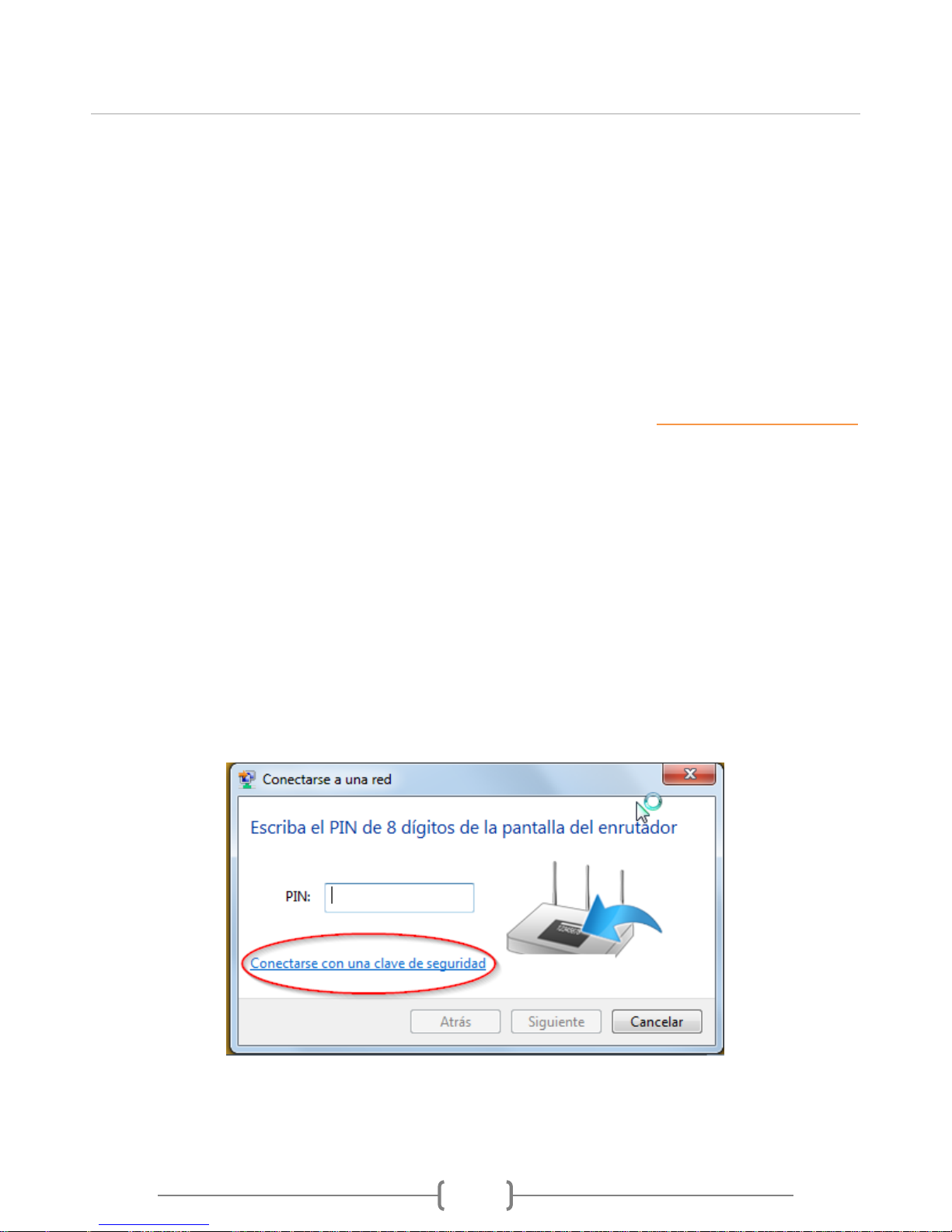
above) for the first time, a small window might pop up asking for an 8 digit PIN code.
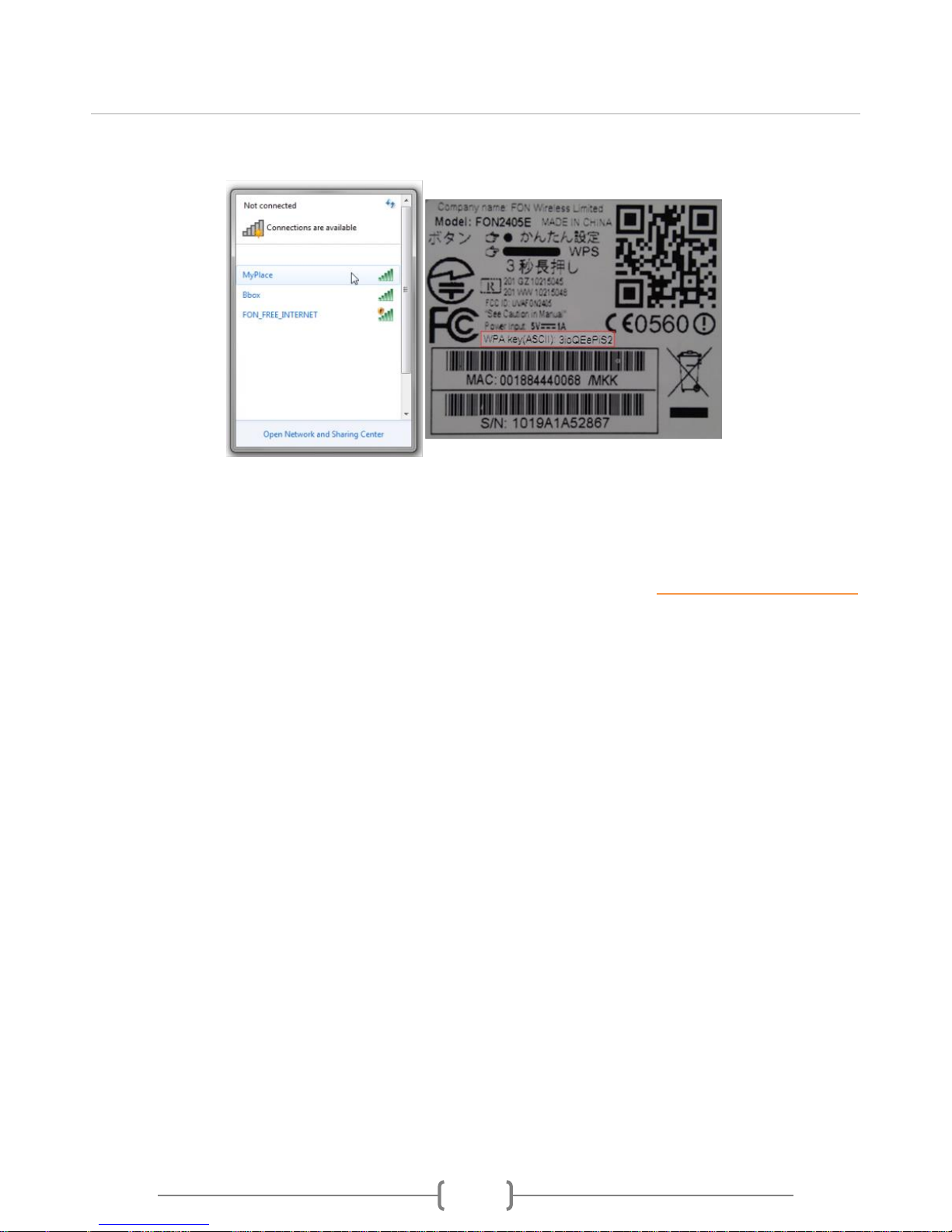
Please do not confuse this PIN with the one printed underneath your new Fonera's MAC ID (which is 6
digits-long). Actually, you don't need to enter an 8 digit code to connect. You'll notice that the window has a
link to connect using a security key.
Choose this option and connect using the WPA key which is found at the bottom of the Fonera.
Page 26
Fonera Simpl (FON2405)
26
Alternatively, if your device supports WPS, you can connect using this feature instead. To enable WPS on
the Fonera, simply press the "FON WPS" button on its back.
Back to Table of Contents
Page 27
Fonera Simpl (FON2405)
27
Fonera Simpl Specifications
Technical Specifications
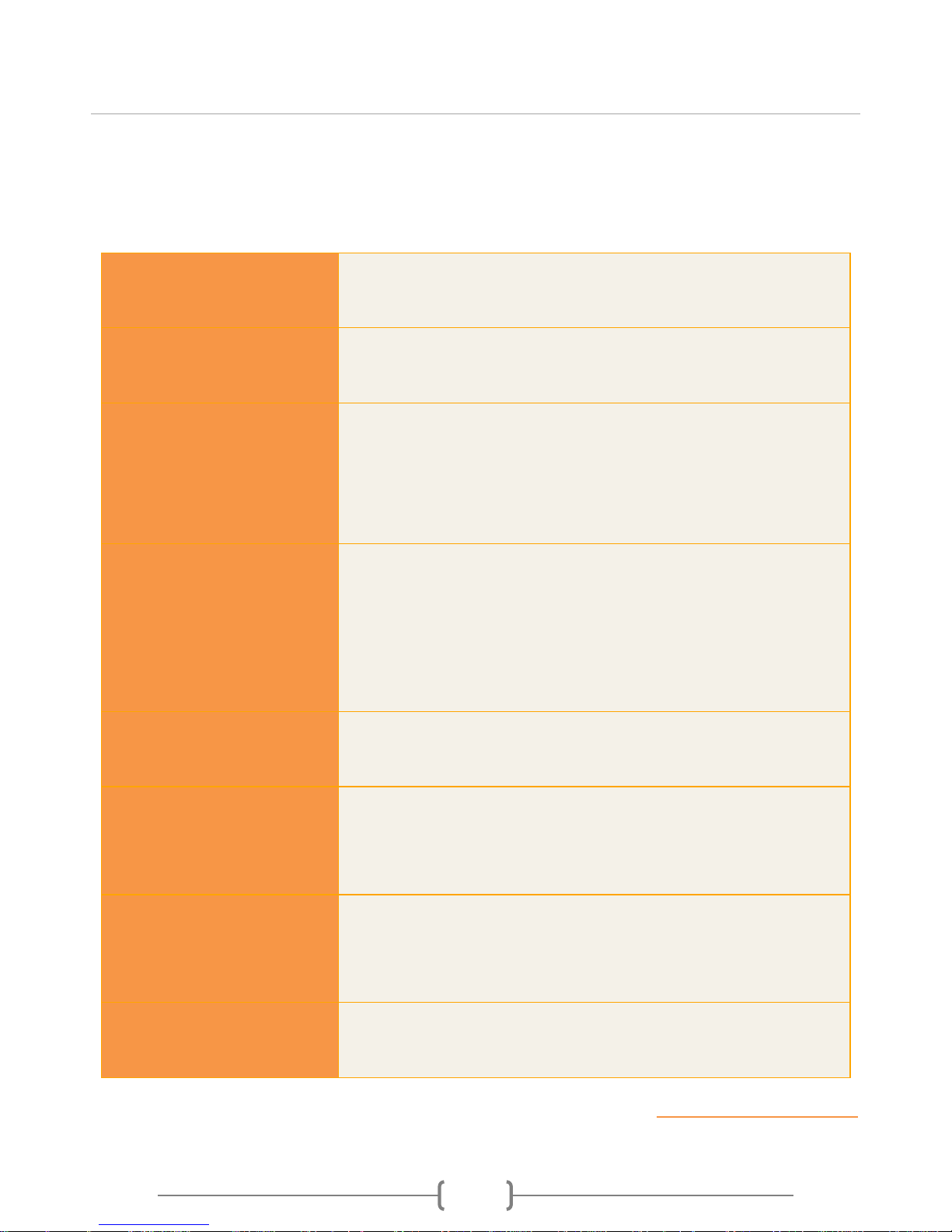
Dimensions
95mm (3.7 inches) by 95mm (3.7 inches) by 25mm (.98 inches)
Weight
94 grams (3.3 ounces)
Wireless protocols
(Network Standard
Support)
802.11n (150 Mbps)
802.11b/g (54 Mbps) compatible
Ports
1 WAN Ethernet port for connecting ADSL or Cable modem
1 LAN Ethernet port for connecting computers
Security
WEP 64/128 bit, WPA, WPA2, WPA mixed
SSIDs
1 Fon network SSID (FON_FREE_INTERNET) for public use
1 private WPA-PSK encrypted SSID (MyPlace) for personal use
Antenna
Detachable, external
R/P SMA 3dBi
Warranty
2 years
Back to Table of Contents
Page 28
Fonera Simpl (FON2405)
28
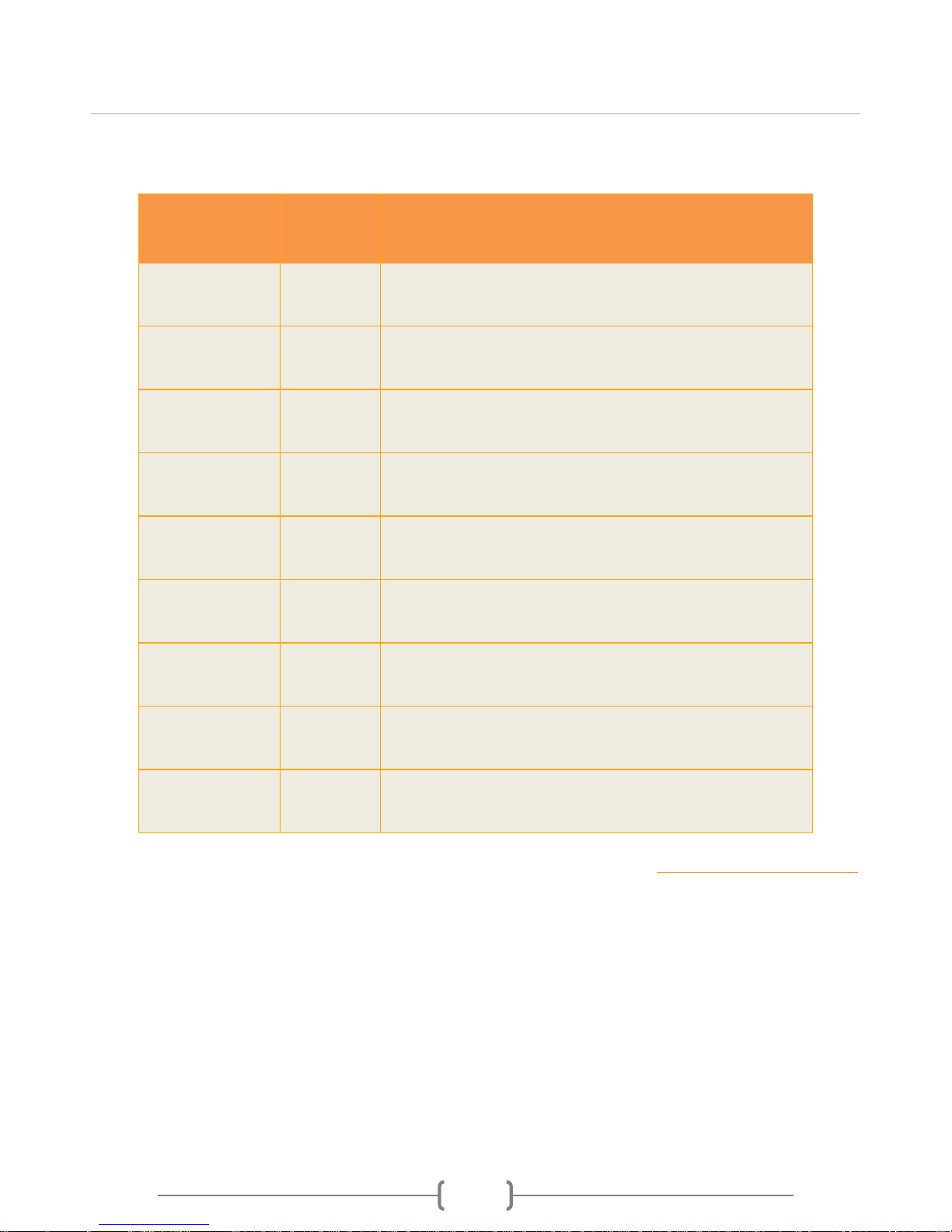
LED Status description
Name/Color
Activity
Description
Internet
ON
Fonera receiving power
Internet
Blinking
Fonera is getting ready
Internet
Blinking
Fonera unable to reach internet
WAN
OFF
No cable connected to WAN port or router/modem off
WAN
ON
Cable connected on WAN port
WAN
Strobing
Traffic on WAN port
Wireless
OFF
No traffic on wireless signals
Wireless
Strobing
Traffic on wireless signals
Wireless
Solid
WPS mode waiting for pairing
Back to Table of Contents
 Loading...