

Page 1

22867 NW Bennett Road, Suite 200
Hillsboro, OR 97124 USA
Phone: 503 615-7716 • Fax: 503 615-4232
http://www.FOCUSinfo.com
TT2201 Wireless USB HWA Users Manual
Revision:
Page 2

22867 NW Bennett Road, Suite 200
Hillsboro, OR 97124 USA
Phone: 503 615-7716 • Fax: 503 615-4232
http://www.FOCUSinfo.com
1 Introduction
This document describes both the system operation of the TT2201 – a HWA (Hardware
Wire Adapter) and the driver installation and use of the MAGOO control software.
2 System Description
The TT2201 is an external dongle which plugs into any USB 2.0 port in a PC and
operates directly off the USB bus power. Its size is similar to a USB flash drive and the
low-cost design uses the single System-in-a-package TT1013 solution. The design
includes a high-performance UWB antenna, serial flash memory, LEDs, and all necessary
power regulators.
3 Driver Installation
1. Copy the MAGOO folder to your computers desktop
2. Plug in the TT2201 either directly into a USB port of a host or into a host via a USB
cable.
3. You will be prompted shortly to install the driver for the newly found device. It will
ask you if you want Windows to search for the driver. Select “No, not at this time”.
4. You will then be asked what you want the wizard to do? When prompted select
“Install from a list or specific location (advanced)” to locate the driver.
5. You should then select “Search for the best driver in these locations”. Check the
“Include this location in your search” check box. Also, if the “Search removable
media…” check box is checked, then uncheck it.
6. Click on the BROWSE button and browse for the MAGOO folder. Double click on
the “drivers” folder and click OK.
7. Windows will begin installing the driver. It will ask you with a warning box to either
“STOP Installation” or “Continue Anyway”. Click on the “Continue Anyway” button for
each warning box.
Page 3
22867 NW Bennett Road, Suite 200
Hillsboro, OR 97124 USA
Phone: 503 615-7716 • Fax: 503 615-4232
http://www.FOCUSinfo.com
4 MAGOO Control Software
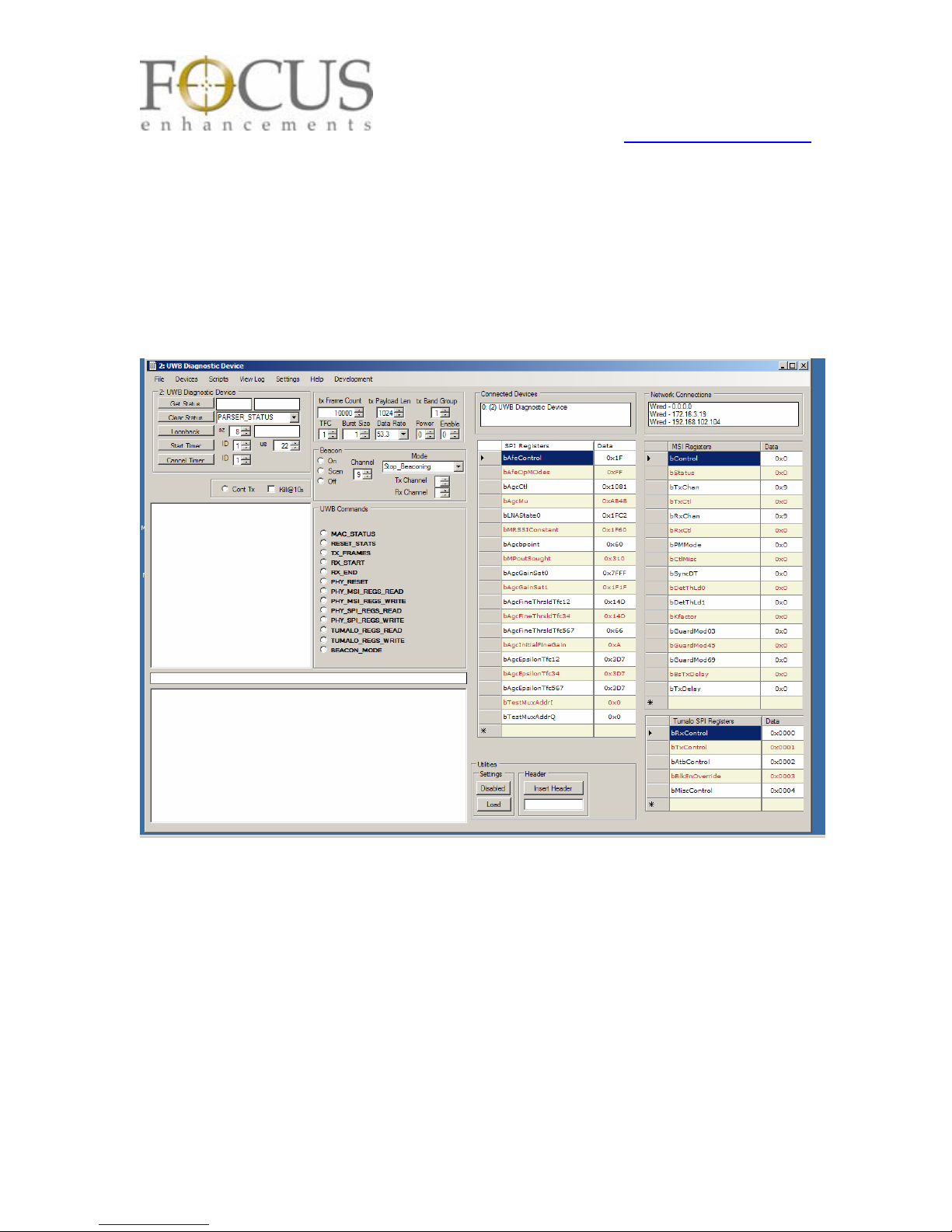
1. Go to the folder on your desktop and double click the MAGOO.exe application. This
will launch the MAGOO control software. You should see a menu similar to the one
shown below.
2. From this menu you should see one device in the “Connected Devices” box in the
upper right hand corner when the TT2201 is plugged in the USB. The above figure
includes an example of an active USB device in this box. When it is unplugged, the
“Connected Devices” box should be blank.
3. Manually set the Payload Len to 3584.
4. Set the TFC, Data Rate, Power Level as appropriate. Do not adjust other settings.
Page 4
22867 NW Bennett Road, Suite 200
Hillsboro, OR 97124 USA
Phone: 503 615-7716 • Fax: 503 615-4232
http://www.FOCUSinfo.com
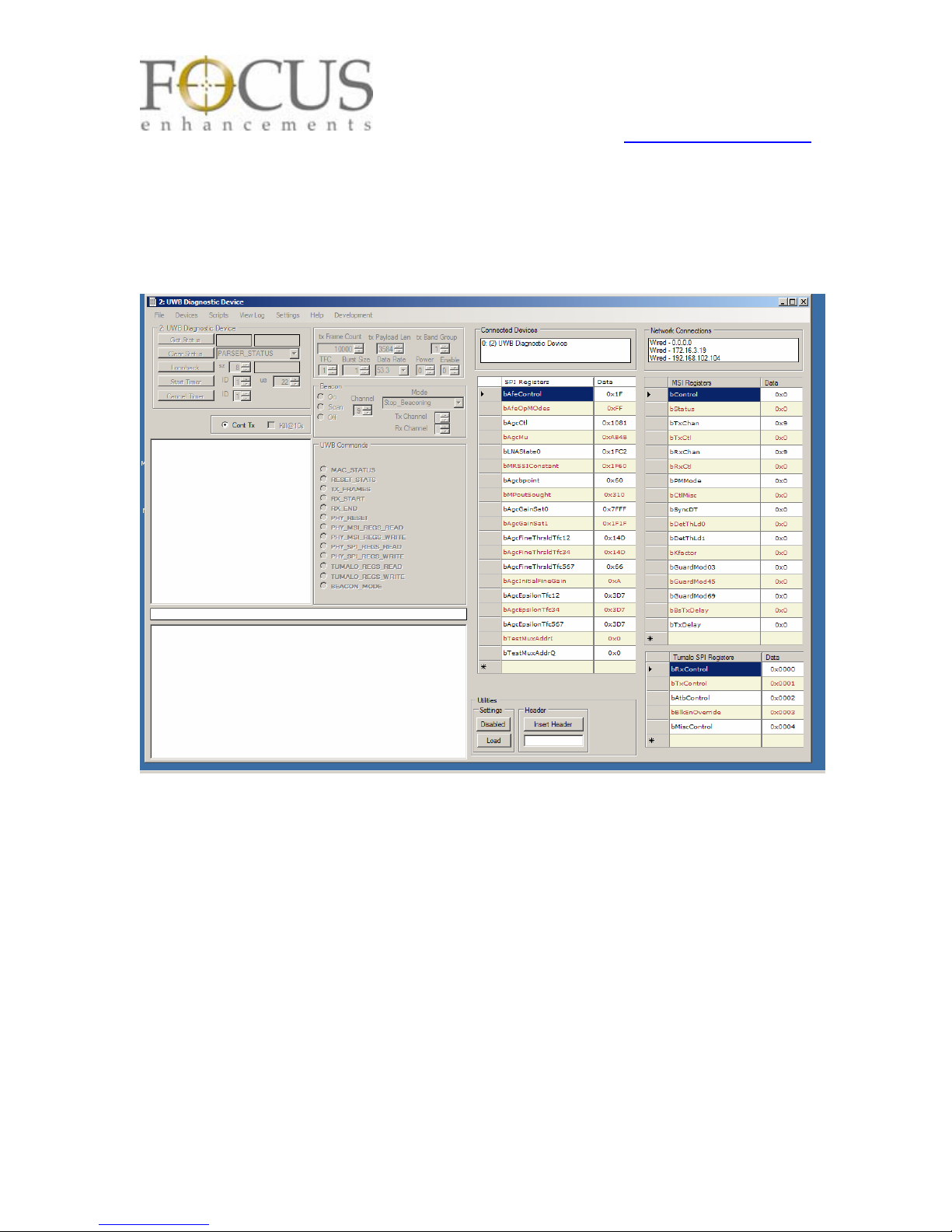
5. To start transmitting click on the “Cont TX” button. You should see most of the menu
grayed out as you cannot change parameters during Tx. Below is a screen shot when it is
transmitting.
Page 5
22867 NW Bennett Road, Suite 200
Hillsboro, OR 97124 USA
Phone: 503 615-7716 • Fax: 503 615-4232
http://www.FOCUSinfo.com
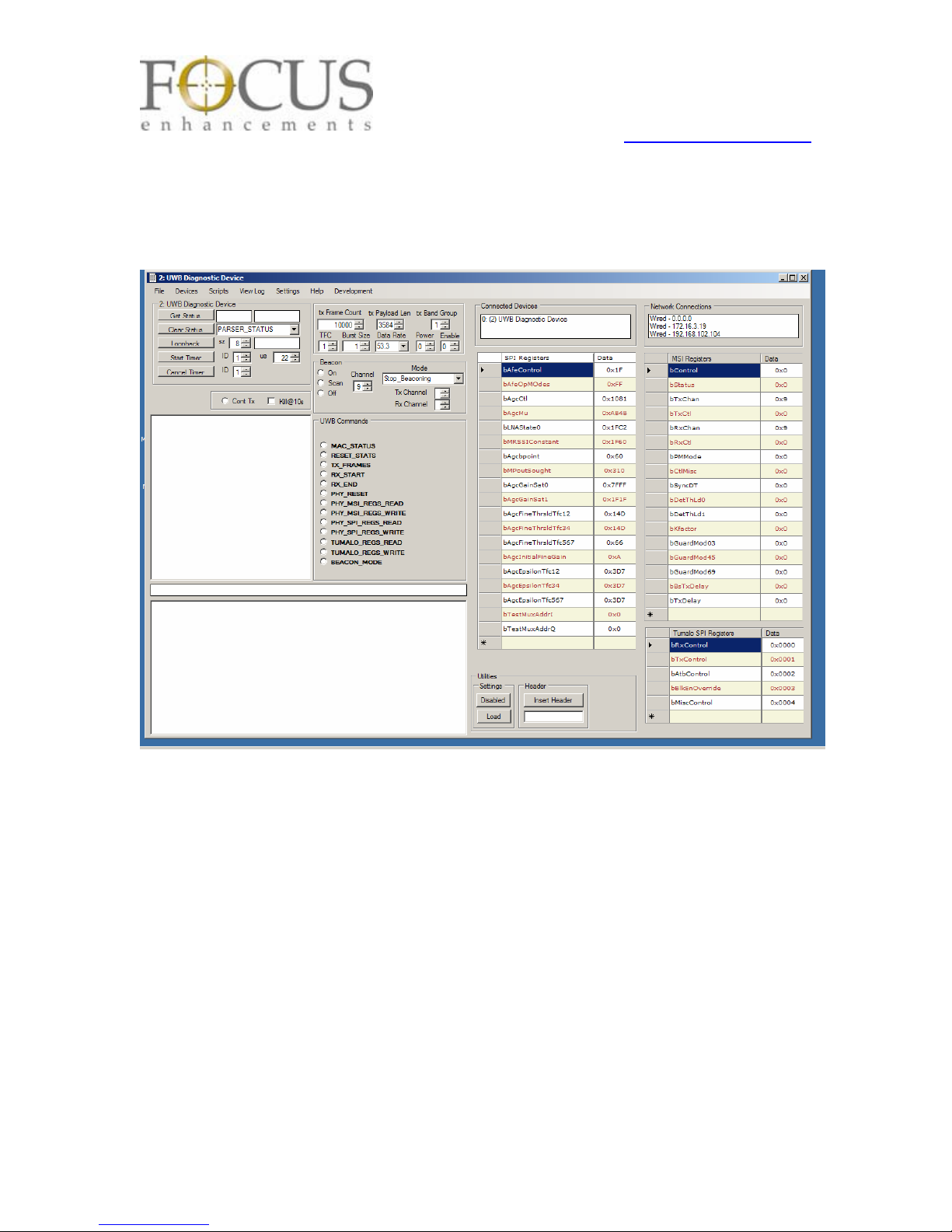
6. To stop transmitting click on the “Cont TX” button and the grayed out portions will
become active and can be changed. Below is a screen shot when it is not transmitting.
 Loading...