

Page 1
User Manual
RKR-768
Compatible with Windows 2000 / Windows XP / Windows Vista / Windows 7 .
O
ompliant
Page 2

Page:
1
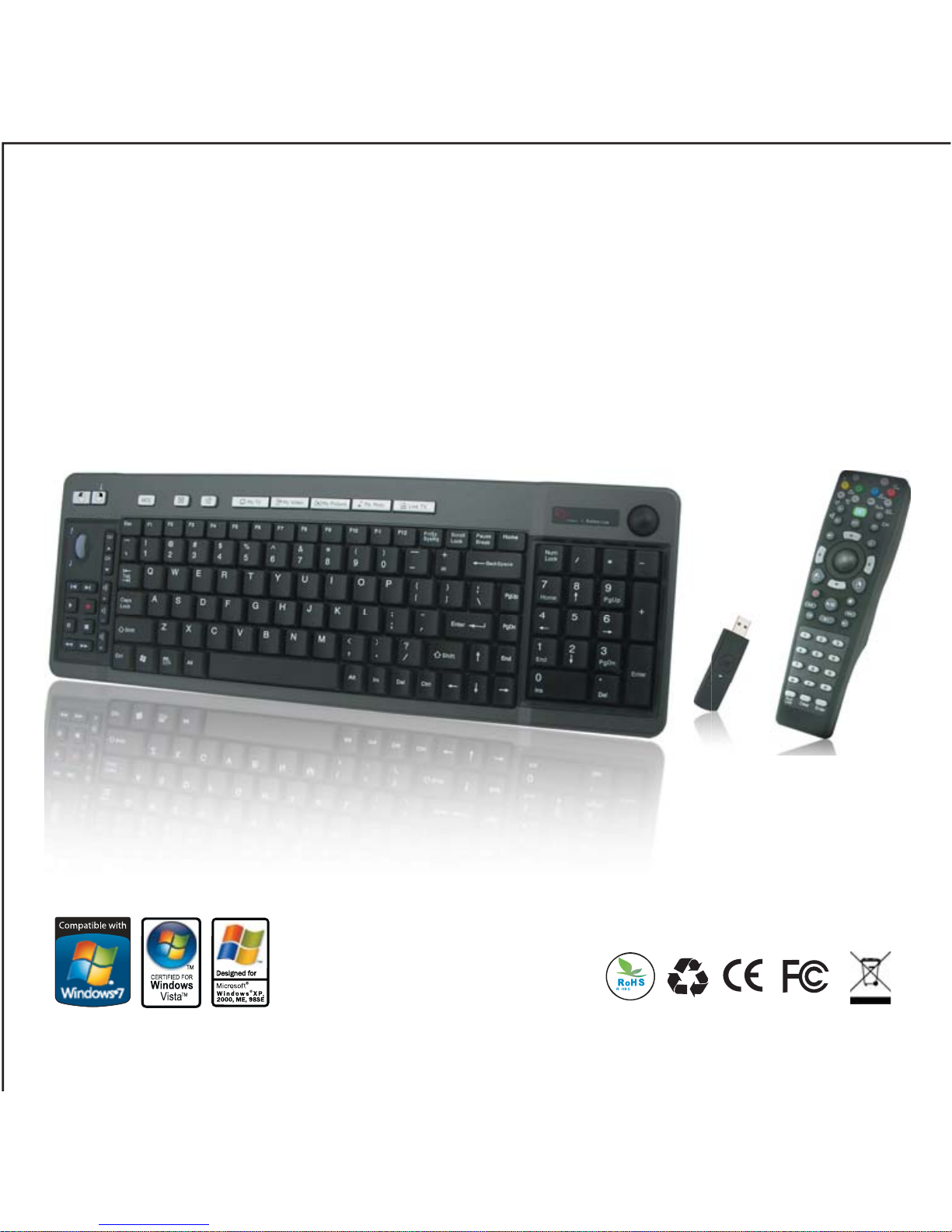
RKR-768 is the wonderful combo set combing 2.4Ghz RF Keyboard and
MCE Remote Control together. Both Keyboard and Remote are built in
Optical Trackball for convenient use.
RK-768 radio wireless keyboard is one of the best computer input devices in
the market today. It combines the convenience of radio frequency wireless
and the trackball with two button mouse key and scroll wheel.It combined with
RM-518 MCE RF remote control as a combo set , there are no cables
connected to the keyboard & control,based on 2.4GHz radio frequency,
10-30 meters effective working range and 360 degree navigation.
Therefore, you can turn off the TV program that is broadcasting in the living
room from the kitchen; you can sit in the balcony but choose the music that is
broadcasting in the room; Switch the program or surf the Internet and E-mail, all
of them, just use a small wireless remote control. Integrated with the wireless
keyboard, carry on the on-line game or work happily will be more convenience.
Please read carefully the information and instructions contained in this manual and
you are sure to obtain a higher level of computing enjoyment.
Page 3
Microsoft Windows 2000 / Windows XP / Windows Vista / Windows 7 Compatible
Patent No: ZL 2007 2 0143404.1 M318157
ZL 2006 2 0002046.8 M296544
Nr.20 2006 002 499.9
Keyboard: (RK-768)
Receiver:
USB interface
Dimension: 78 x 21.5 x 10 mm
Remote: (RM-518)
2.4GHz wireless with 8 channels, 360-degree navigation
Working range: 10 meters.
Built-in optical trackball, mouse key
Trackball: 19mm Optical, 800DPI
KEY: Including 45 hot-keys & 2 mouse keys & MCE keys.
Dimension: 178 x 50 x 33 mm
2-AA batteries, approx. 3 months battery life (alkali batteries use only)
2.4GHz wireless with 16 channels. 360-degree navigation.
Working range: 10 meters.
2-AA batteries, approx. 3 months battery life. (alkali batteries use only)
Energy saving management.
10 Million Key switch life.
103 keys, including 21 hot-keys & 2 mouse keys.
Built-in Optical trackball + 2 Mouse Buttons & Scroll Wheel.
Trackball: 19mm Optical, 800DPI.
Dimension: 425 x 150 x 31.5 mm.
Page:
2
Specification
Page 4
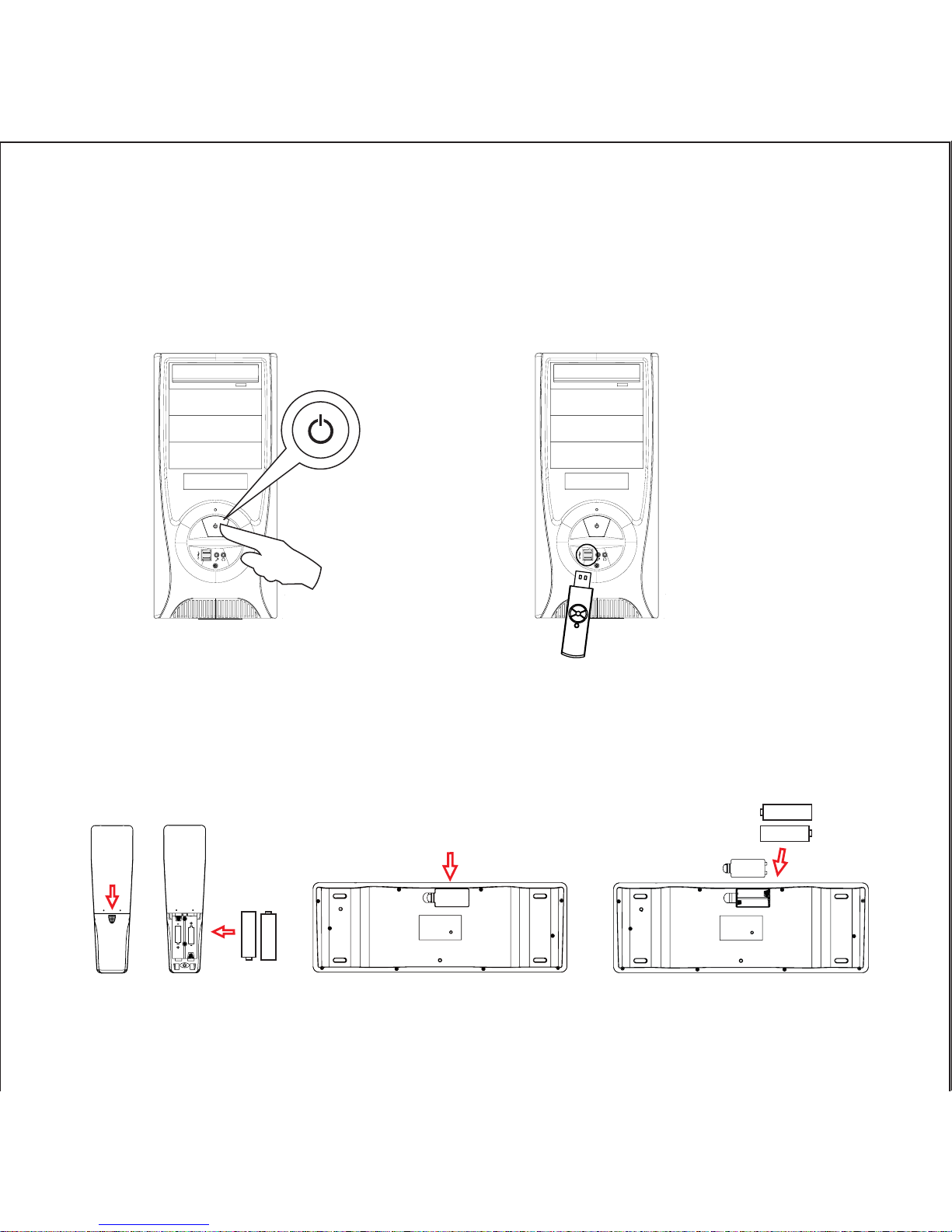
1. Turn on the Computer.
2. Plug the USB Receiver of the
keyboard unto the USB ports
of your computer.
3. Open the battery cover on back of keyboard and Remote control,
place AA batteries inside the battery compartment. Close the
battery compartment cover.
Push to open
Push to open
Installation
Page:
3
Page 5
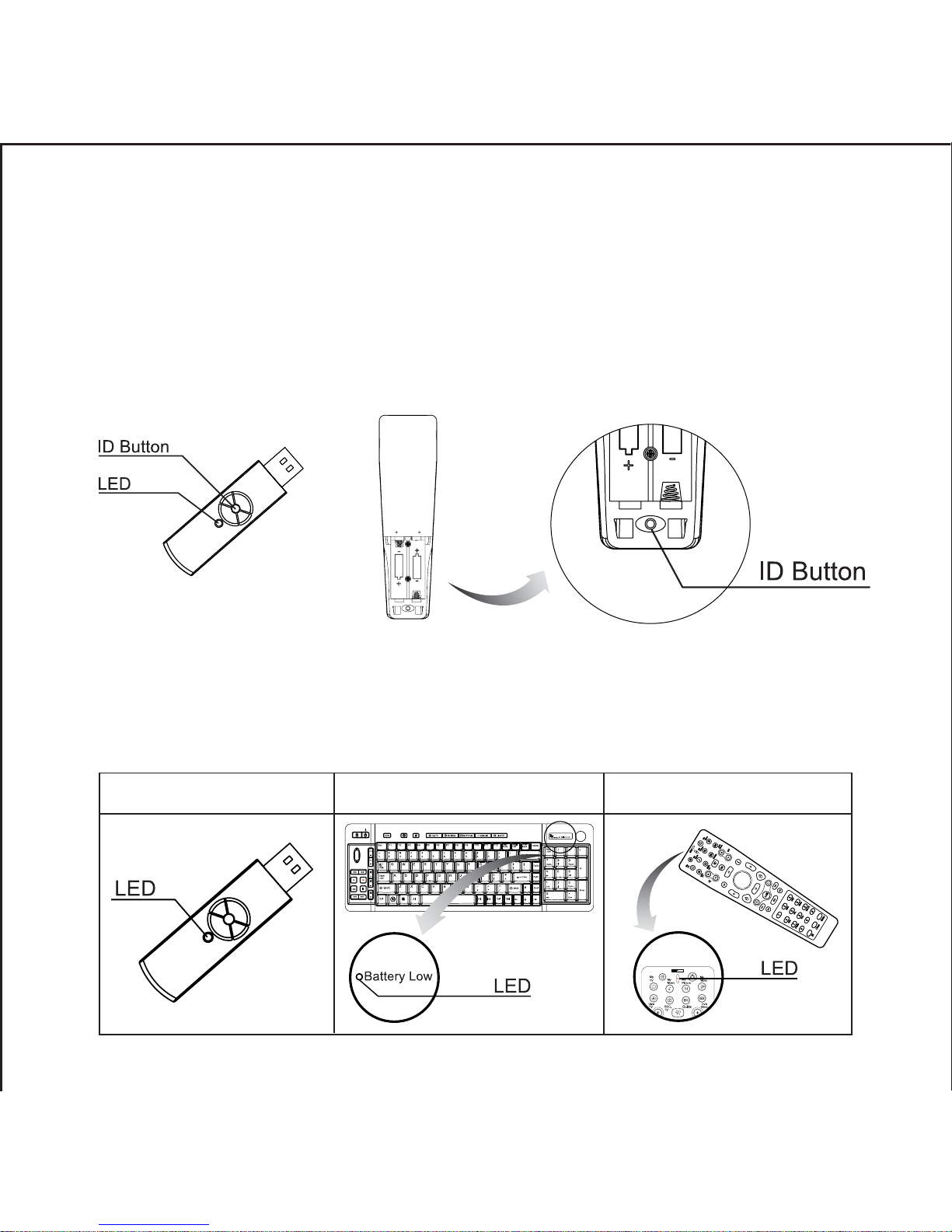
4. Setting ID
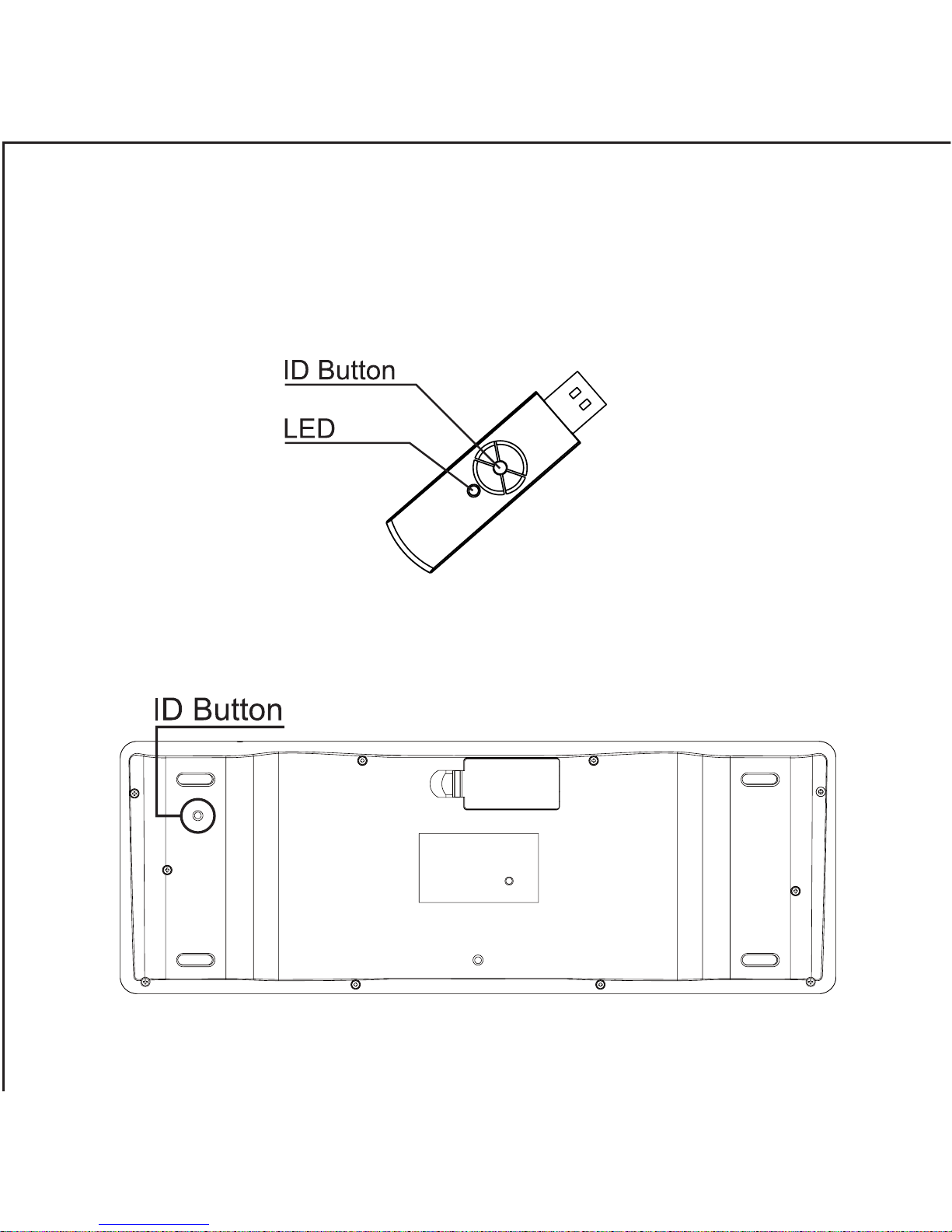
Keyboard Setting:
Press ID button on the receiver, the LED is on flash which means
ID is searching.
(Picture A)
Press ID button on Back of the keyboard, the LED is off
which means setting is successful. (Picture B)
b.
(Picture A)
Page:
4
a.
(Picture B)
Page 6
Remote Setting:
1. RF Signal LED on the receiver will flash when the keyboard or remote
is being used. (Picture A)
2. When Battery Low LED lights, it means the keyboard or Remote
requires changing batteries. (Picture B C)
Page:
5
Remarks
Open the battery cover.
Press ID button on the receiver, the LED is on flash which means
ID is searching. (Picture A)
Press ID button on the back of remote, the LED on the receiver is
off which means setting is successful. (Picture B)
b.
c.
a.
Receiver(A) Keyboard(B) Remote(C)
(Picture B)
(Picture A)
Page 7
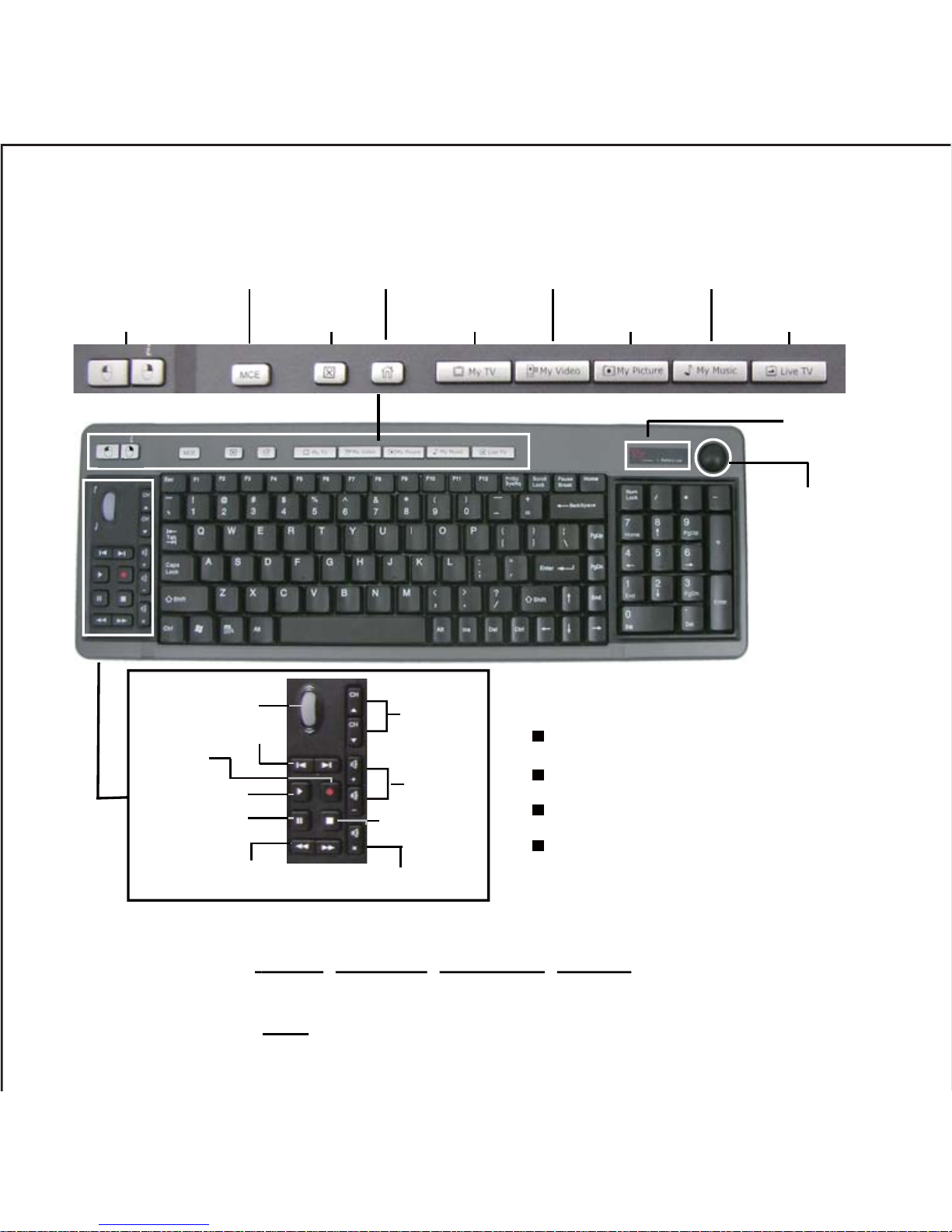
Notice:
The hot keys of My TV, My Video, My Picture, Live TV, and media hotkeys only
can be used after the program of Media Center is activated; it can be simply done
by the hotkey of MCE
Key Description
Key Description
Battery low indicator
Channel
up/down
Volume
up/down
Scroll Wheel
Replay / Skip
Record
Play
Pause
Mouse keys Close My TV My Pictrue Live TV
MCE Home
My Video
My Music
Internet Home
Forward/Backward
Stop
Table of Functional Keys:
Fn + Prtsc SysRq = PrtscSysRq
Fn + Scroll Lock = Scroll Lock
Fn + Pause Break = Pause Break
Fn + Num Lock = Num Lock
Mute
19mm
Trackball
Page:
6
Page 8
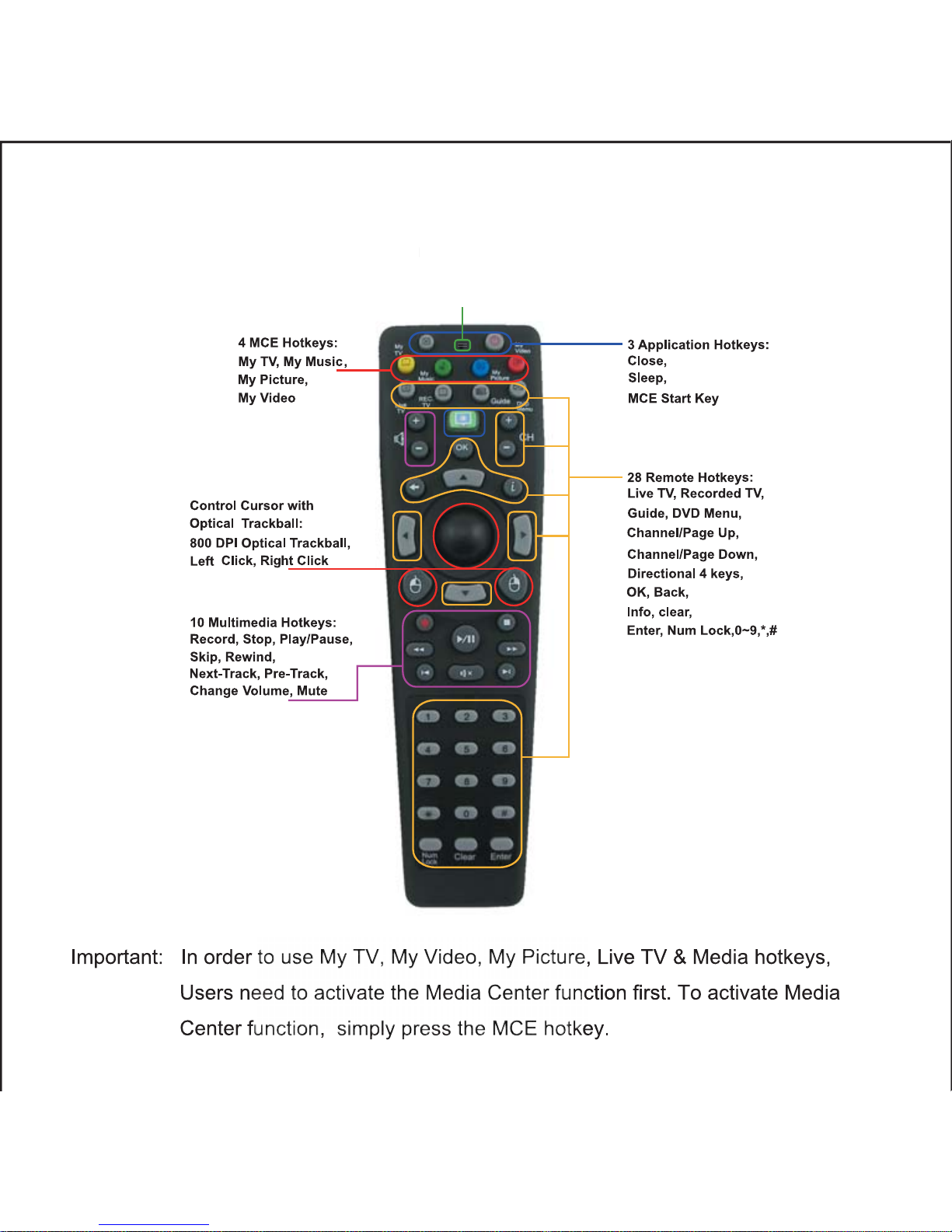
Remote Control Description
l Description
Battery Low
Page:
7
Page 9

Trouble Shooting:
a.
b.
c.
d.
Notice:
Impor tant note:
If your keyboard or remote control can not work after installation, please
check followings:
The changes or modifications not expressly approved by the party res pon sib le
for compliance could void the user ’s authority to operate the equipment.
To comply with the FCC RF exposure compliance requirements, no change
to the antenna or the device is permitted. Any change to the antenna or the
device could result in the device exceeding the RF exposure requirements and
vo i d u s er’s authority to operate the device.
Make sure you have connected the receiver correctly to the computer;
the receiver has been properly plugged onto computer’s USB port.
Make sure you have inserted AA batteries each into keyboard and remote,
and they are compartment correctly. (2 pcs for keyboard,2 pcs for remote)
If without any interference, such as other computer peripherals, the
working distance (the distance between keyboard and the receiver) is about
10 meters.
If using more than two units and interfere occurred, please reset ID again.
Page:
8
Page 10
Reorient or relocate the receiving antenna.
Increase the separation between the equipment and receiver.
Connect the equipment into an outlet on a circuit different from that to which the
receiver is connected. Consult the dealer or an experienced radio/TV technician for help.
Page:
9
The Federal Communication Commission Radio Frequency Interference Statement
includes the following paragraph:
The equipment has been tested and found to comply with the limits for a Class B Digital
Device, pursuant to part 15 of the FCC Rules. These limits are designed to provide
reasonable protection against harmful interference in a residential installation.
This equipment generates uses and can radio frequency energy and, if not installed
and used in accordance with the instruction, may cause harmful interference to radio
communication.
However, there is no grantee that interference will not occur in a particular installation.
If this equipment dose cause harmful interference to radio or television reception,
which can determined by turning the equipment off and on, the user is encouraged to
try to correct the interference by one or more of the following measures:
 Loading...