

Page 1

InVideo
USB Capture
User’s Guide
Rev. 6/99
Page 2

This page is blank
Page 3

FCC NOTICE
This equipment has been tested and found to comply with the limits
for a Class B digital device, pursuant to Part 15 of the FCC Rules.
These limits are designed to provide reasonable protection against
harmful interference in a residential installation. This equipment
generates, uses and can radiate radio frequency energy, and if not
installed and used in accordance with the installation manual, may
cause harmful interference to radio communications. However, there
is no guarantee that interference will not occur in a particular
installation. If this equipment does cause harmful interference to
radio or television reception, which can be determined by turning the
equipment on and off, the user is encouraged to try to correct the
interference by one or more of the following measures:
• This unit was tested with shielded cable. Therefore, for
continued compliance, use the shielded cables provided with the
unit.
• Re-orient or relocate the unit or receiving antenna.
• Increase the separation between the computer/converter and
television.
• Connect the equipment to an outlet on a circuit different from
that to which the receiver is connected.
• Consult the dealer or an experienced radio/TV technician for
help.
You may find the following booklet helpful:
How to Identify and Resolve Radio-TV Interference Problems (stock
number 004-000-000345-4)
To order the booklet, write to:
The U.S. Government Printing Office
Washington D.C. 20402
Page 4

COPYRIGHT
This document and the software described in it are copyrighted under
United States Copyright Laws. No part of this document or software
may be copied without prior written consent from FOCUS
Enhancements, Inc. except in the normal use of the software as
described in this documentation. All printed circuits, their physical
implementation on printed circuit boards, including the LCA
program’s configuration bit streams, and associated software are
copyrighted with all rights reserved. Under the copyright laws, the
printed circuit board, or the software programs provided may not be
copied in whole or part, without written consent of FOCUS
Enhancements, Inc., except in the normal use of the software
programs to make a backup copy. This exception does not allow
copies to be made for others, whether sold or not, but all of the
material may be sold, given, or loaned to another person. Under the
law, copying includes translating into another language or format.
Microsoft Windows, Windows 98, and Microsoft are trademarks of
Microsoft Corporation. All other products named are trademarks of
their respective manufacturers.
©1999 FOCUS Enhancements, Inc. All Rights Reserved
Page 5

This is a blank page
Table of Contents
FCC NOTICE iii
COPYRIGHT iv
TABLE OF CONTENTS V
Ordering Information 1
INTRODUCTION 3
Features 3
Suggested Uses for InVideo USB Capture 3
HARDWARE INSTALLATION 5
System Requirements 5
Connecting InVideo USB to an IBM PC or Macintosh
Computer 6
SOFTWARE INSTALLATION 9
Windows and Macintosh Installation 9
VIDEO CONNECTIONS 11
Connect a Video Source 11
RETURNING A DAMAGED OR FAILED INVIDEO USB
UNIT 13
LIMITED WARRANTY 15
Page 6

Page 7

USB Capture User’s Guide
Preface 1
Ordering Information
To get information on the reseller nearest to you or to order
replacement parts, contact one of the following:
Worldwide headquarters
600 Research Drive
Wilmington, MA 01887
800-538-6000 (U.S. Only)
FOCUS Enhancements, B.V.
Schipholweg 110
Kantorenhuis
2316 XD Leiden NL
31-71-524-1841
On-line
http://www.FOCUSinfo.com
e-mail: [email protected]
Page 8

Page 9

USB Capture User’s Guide
Chapter 1 3
Chapter 1
Introduction
The InVideo USB Capture device enables the user to capture live
video and still images on their PC or MAC. When used in
conjunction with a desktop video camera and videoconferencing
software InVideo USB Capture will allow the user videoconference
over the internet.
Features
The InVideo USB Capture includes the following features:
• Easy Plug and Play installation for USB equipped PCs and Mac
computers
• Composite video input
• S-Video input
• Composite Video through
Suggested Uses for InVideo USB Capture
InVideo USB Capture can be used for many purposes. For example:
• Capture live video from a desktop video camera
• Save and edit digital photos on your desktop
• Edit home videos
• Send Video E-Mail
• Videoconference over the internet
Page 10

Page 11

USB Capture User’s Guide
Chapter 2 5
Chapter 2
Hardware Installation
This chapter describes how to install the InVideo USB Capture
device on your PC or Mac.
System Requirements
IBM (or compatible)
• Personal or multimedia computer with a 486 or higher processor
• Microsoft Windows 98
• 20 MB of free hard disk space
• CD ROM Drive
Macintosh (or compatible)
• iMac or USB equippedMacintosh personal computer
• MacOS System Software 8 or higher
• 20 MB of free hard disk space
• CD ROM drive.
Page 12
USB Capture User’s Guide
6 Hardware Installation
Connecting InVideo USB to an IBM PC
or Macintosh Computer
Follow these steps to install InVideo USB to your PC or Macintosh
computer:
Installing InVideo USB Capture on a PC
1. Turn on your computer. It is not necessary to power down your
computer to install USB peripherals.
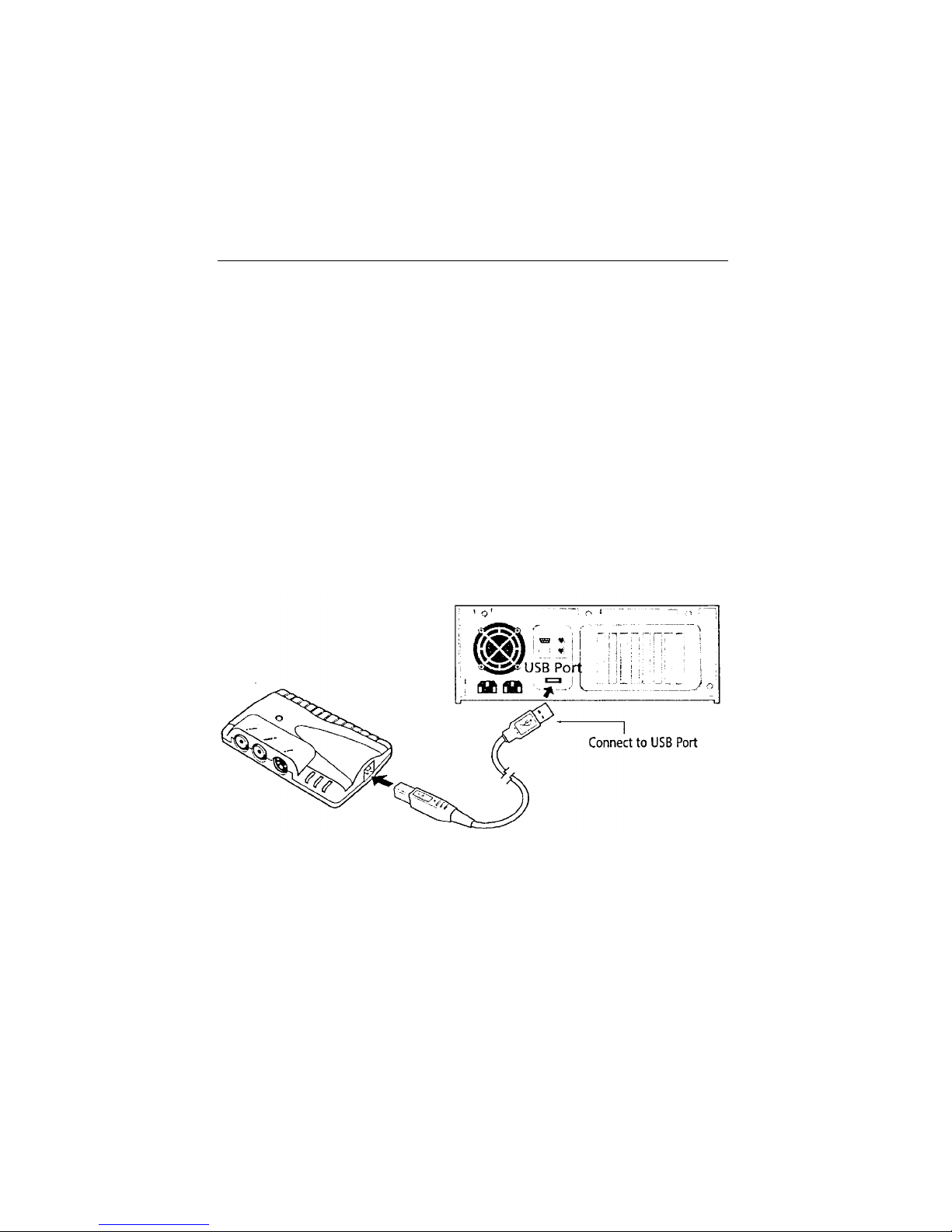
2. Connect the supplied USB cable into the matching port on the
video capture device.
3. Plug the other end of the USB cable into the USB port on your
PC or Macintosh Computer.
4. If you are installing InVideo USB Capture on a PC, the “Add
New Hardware Wizard” within Windows 98 will recognize the
new device. When the Hardware Wizard appears on your
screen click on Next
5. Locate the InVideo USB CD ROM that was packed with your
capture device. When the hardware wizard asks you to load the
drivers for the capture device, click on the box labeled “CD ROM
Drive” then click Next.
Page 13

USB Capture User’s Guide
Chapter 2 7
6. Congratulations! you have just installed your new InVideo USB
Capture.
Installing InVideo USB Capture on a Macintosh
1. Connect the supplied USB cable into the matching port on the
video capture device. It is not necessary to power down your
computer to install USB peripherals.
2. Plug the other end of the USB cable into the USB port on your
Macintosh.
3. Locate the InVideo USB CD ROM that was packed with your
capture device. Click on the CD folder when it appears on the
desktop. Run the installer program. This will install the driver
software for your InVideo USB Capture on your Macintosh.
4. Restart your Macintosh
Page 14

Page 15

USB Capture User’s Guide
Chapter 3 9
Chapter 3
Software Installation
Your new InVideo USB Capture will work with any popular video
editing software. The USB video capture device has been packaged
with a suite of video editing software which will enable you to capture
and edit both still and full motion video.
Windows and Macintosh Installation
Follow these steps to install the video editing software on your
computer.
1. Insert the CD that came with your InVideo USB Capture into the
CD ROM drive on your computer.
2. If the installation program does not automatically start click on
the “Start” button on the Windows 98 toolbar. Choose Run from
the menu then type in D:setup.exe (in this case the letterD
represents the letter of the CD ROM drive) then click OK.
3. If you are installing on a Macintosh, insert the CD ROM into your
Macintosh and open the folder when it appears on your desktop.
Run the installer program for the Video Editing software.
4. Follow the on Screen instructions to install the Video Editing
Software on your computer.
Page 16

Page 17
USB Capture User’s Guide
Chapter 6 11
Chapter 4
Video Connections
This chapter explains how to connect a video source (video camera,
desktop webcam, or digital mcamera) to your InVideo USB Cpature.
Connect a Video Source
Follow these steps to connect a video camera, desktop webcam, or
digital camera to your USB Video Capture Device.
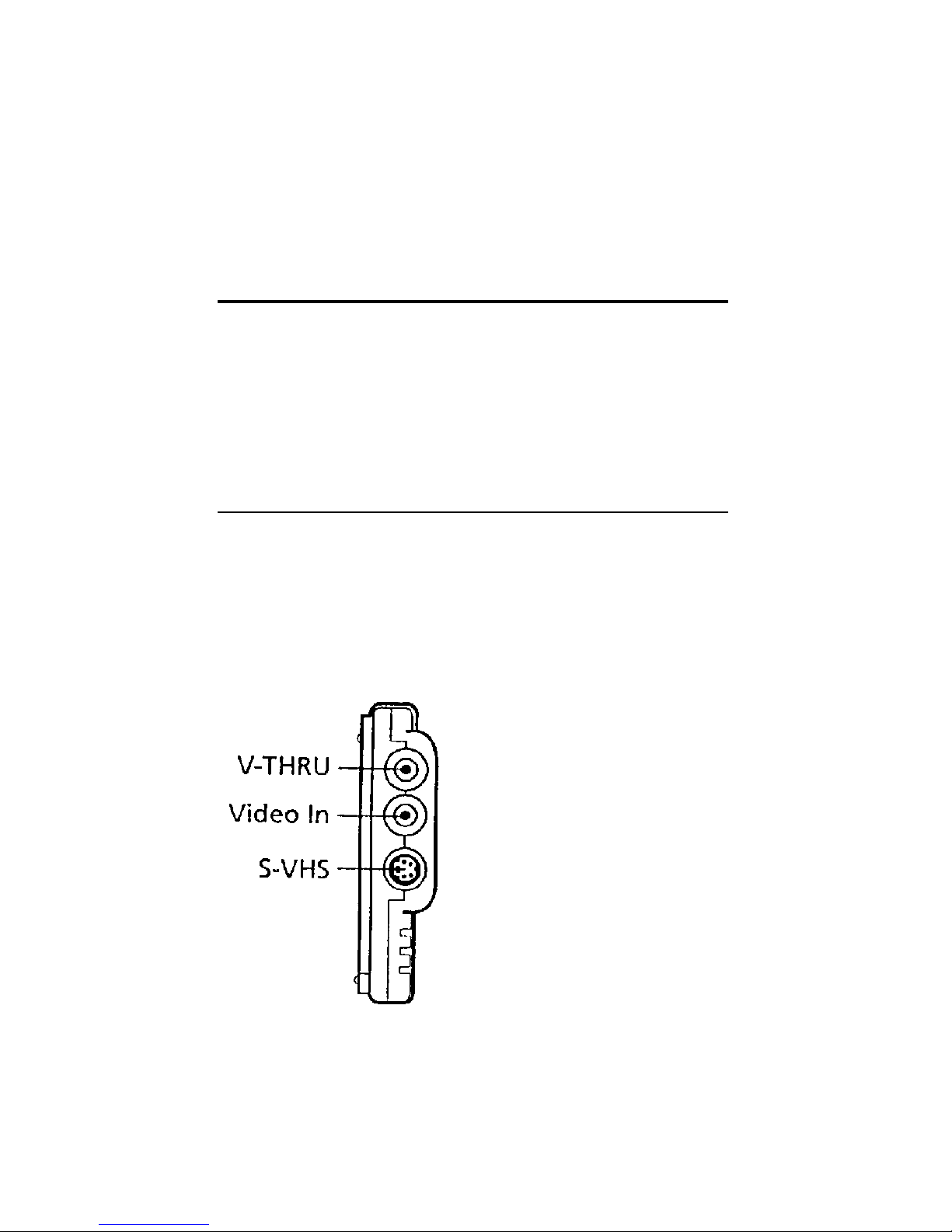
1. Locate the video connectors on the side of the USB Video
Capture device. You will notice three connectors: S-VHS, Video
In, and Video Through.
2. The Video In and S-VHS inputs are the two video inputs
Page 18

USB Capture User’s Guide
12 Troubleshooting
available for capturing live video or still images. Connect one
end of a Composite Video cable (not included) or S-Video cable
(not included) to your video camera, digital camera, or desktop
webcam. Connect the other end of the Composite Video cable,
or S-Video cable to the matching port on the side of the USB
Video Capture Device.
3. You have successfully connected your video device to the
InVideo USB Capture. You can now grab live motion video or
still images on your computer.
4. If you are interested in previewing your video or still images on a
television connect a second Composite Video cable (Not
included) from the connector labeled V-THRU to the Video In
connector on your television.
Page 19

USB Capture User’s Guide
Chapter 6 13
Chapter 5
Returning a Damaged or Failed
InVideo USB Unit
To return an InVideo USB Unit, follow these steps:
1. Contact FOCUS Enhancements Technical Support at 1-978988-5505. A representative is available from 9:00 AM to 8:00PM
Eastern Standard Time (EST). Explain the nature of the problem
and any evidence of damage you may have found. The
customer representative will either assist you with the specific
problem or give you a Return Materials Authorization Number.
Note: No goods will be accepted for warranty repair or return
without an RMA number.
2. Pack the USB Video Capture Device carefully. If possible, use
the original shipping package. Send the package pre-paid and
insured via United Parcel Service (UPS) or US Mail to:
FOCUS Enhancements
ATTN: RMA# (Your RMA Number)
600 Research Drive
Wilmington, MA 01887
Page 20

USB Capture User’s Guide
14 Troubleshooting
FOCUS Enhancements will repair or replace your USB Capture
device within 5 working days. For units not covered under the 1 year
warranty, or where the warranty has been voided, a minimum fee of
$90.00 must be paid.
Page 21

USB Capture User’s Guide
Warranty 15
Limited Warranty
FOCUS Enhancements, Inc. warrants this product against defects in
materials and workmanship for a period of ONE (1) YEAR from the
date of original purchase.
If you discover a defect, FOCUS Enhancements, Inc. will, at its sole
option, repair or exchange the product at no charge to you, provided
you contact FOCUS Enhancements, Inc. Technical Support to obtain
a Return Material Authorization (RMA) Number and instructions on
where and how to obtain repair. Note that a copy of the bill of sale
bearing the FOCUS Enhancements, Inc. serial numbers as proof of
date of original purchase is required for each product returned for
warranty service. Before returning product, remove all non-FOCUS
Enhancements, Inc. RAM, accessories, and options. FOCUS
Enhancements, Inc. cannot be liable for the return or care of any
non-FOCUS Enhancements, Inc. products, nor accept responsibility
for loss or damage of product in transit.
This warranty does not apply if the product has been damaged by
accident, installation or removal of product, abuse, misuse,
misapplication, accident, neglect, fire, water, lightening, or other acts
of nature, failure to follow supplied instructions; has been modified,
repaired or undergone attempted repair by unauthorized personnel
without the written consent of FOCUS Enhancements, Inc.; has a
serial number that has been removed, modified, or defaced. FOCUS
Enhancements, Inc. reserves the right to use re-manufactured,
refurbished, or used parts and components in making warranty
repairs.
FOCUS Enhancements, Inc. products are designed to work with
Windows and MacOS computers. Certain features of third-party
software or hardware designed for the host system may not be
available when used with this product. Accordingly, FOCUS
Page 22

USB Capture User’s Guide
16 Warranty
Enhancements, Inc. does not warrant or represent that all third-party
software or hardware will function error-free when used in
conjunction with this FOCUS Enhancements, Inc. product.
THIS WARRANTY IS IN LIEU OF ALL OTHER WARRANTIES,
WHETHER ORAL OR WRITTEN, EXPRESS OR IMPLIED. ALL
EXPRESS AND IMPLIED WARRANTIES OF MERCHANTABILITY
AND FITNESS FOR A PARTICULAR PURPOSE, ARE LIMITED IN
DURATION TO THE WARRANTY PERIOD. NO WARRANTIES,
EXPRESS OR IMPLIED WILL APPLY AFTER THIS PERIOD.
FOCUS ENHANCEMENTS, INC. SHALL NOT BE LIABLE FOR ANY
LOST PROFITS, DAMAGE TO OTHER PROPERTY CAUSED BY A
DEFECT IN THIS PRODUCT, DAMAGES BASED UPON
INCONVENIENCE, LOSS OF USE OF THE PRODUCT, LOSS OF
TIME, COMMERCIAL USE, INCIDENTAL AND/OR
CONSEQUENTIAL DAMAGES FOR THE BREACH OF ANY
EXPRESS OR IMPLIED WARRANTY, INCLUDING DAMAGE TO
PROPERTY AND, TO THE EXTENT PERMITTED BY LAW,
DAMAGES FOR PERSONAL INJURY, EVEN IF FOCUS
ENHANCEMENTS, INC. HAS BEEN ADVISED OF THE
POSSIBILITY OF SUCH DAMAGES.
Some states do not allow the inclusion or limitation of incidental or
consequential damages or limitations on how long an implied
warranty lasts, so the above limitation or exclusion may not apply to
you. This warranty gives you specific legal rights, and you may have
other rights which vary from state to state.
Product specifications and information are subject to change without
notice.
 Loading...