

Page 1
FireStore Case User Guide
Congratulations on your purchase of the FOCUS Enhancement’s FireStore
Custom Case. This case is for use with the FireStore FS-1 product and allows
for easy, portable operation. This User Guide will describe some of the features
as well as installation procedures for mounting your FireStore unit, battery, hard
disk drive and cables inside the carry case. These is no right way to use the bag,
but rather it was designed to support individual professional’s needs flexibly.
Mounting FireStore, Battery and Hard Disk Drive
Unpack the Carry Case from its packaging and remove the inner aluminum
chassis from the nylon case. To do this, simply unzip the top flap and pull the
chassis free. Once removed, study the front of the chassis. Items should simply
slide into the chassis, but do not install anything yet. Each piece of equipment
inserts as follows:
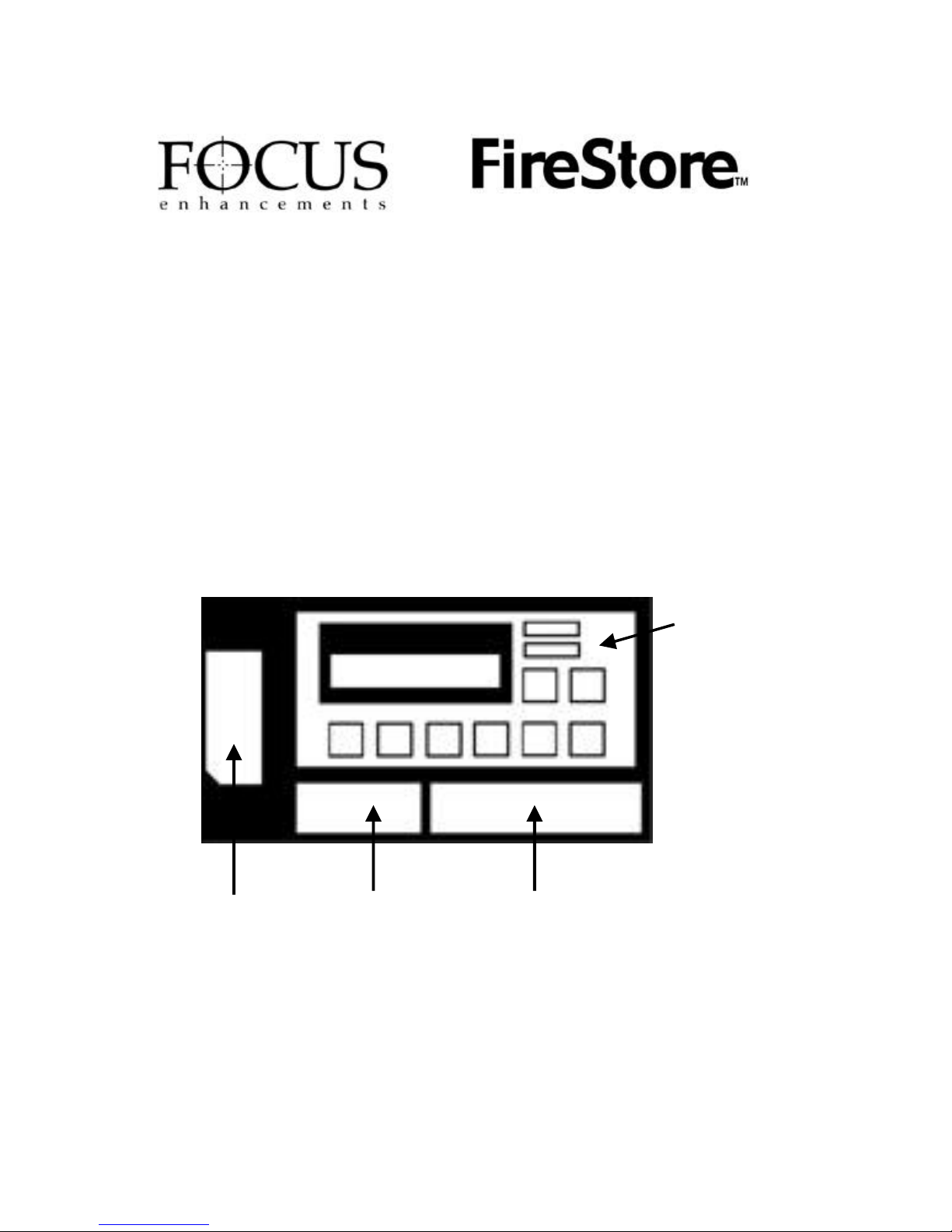
The main slot is
for your
FireStore.
This slot is for an
NP series battery
such as the
Focus BATT0004-01.
MANL-0890-01
This slot is for
storage of the 4-pin
to 4-pin FireWire
cable that connects
to your DV source.
One end of the cable
will go through the
slot to the rear of
FireStore. See next
section for details.
This slot is for a slim
line FireWire disk
Drive. Use the
included 6-pin to 6pin cable that came
with your FireStore
to connect the drive
to the rear of
FireStore.
Page 2
Installing the 4-pin to 4-pin FireWire Cable
To install the 4-pin to 4-pin FireWire cable, you will need a Phillips head
screwdriver. It is also recommended that you have some miniature cable ties.
If you have inserted any of the items in the case, remove them now and
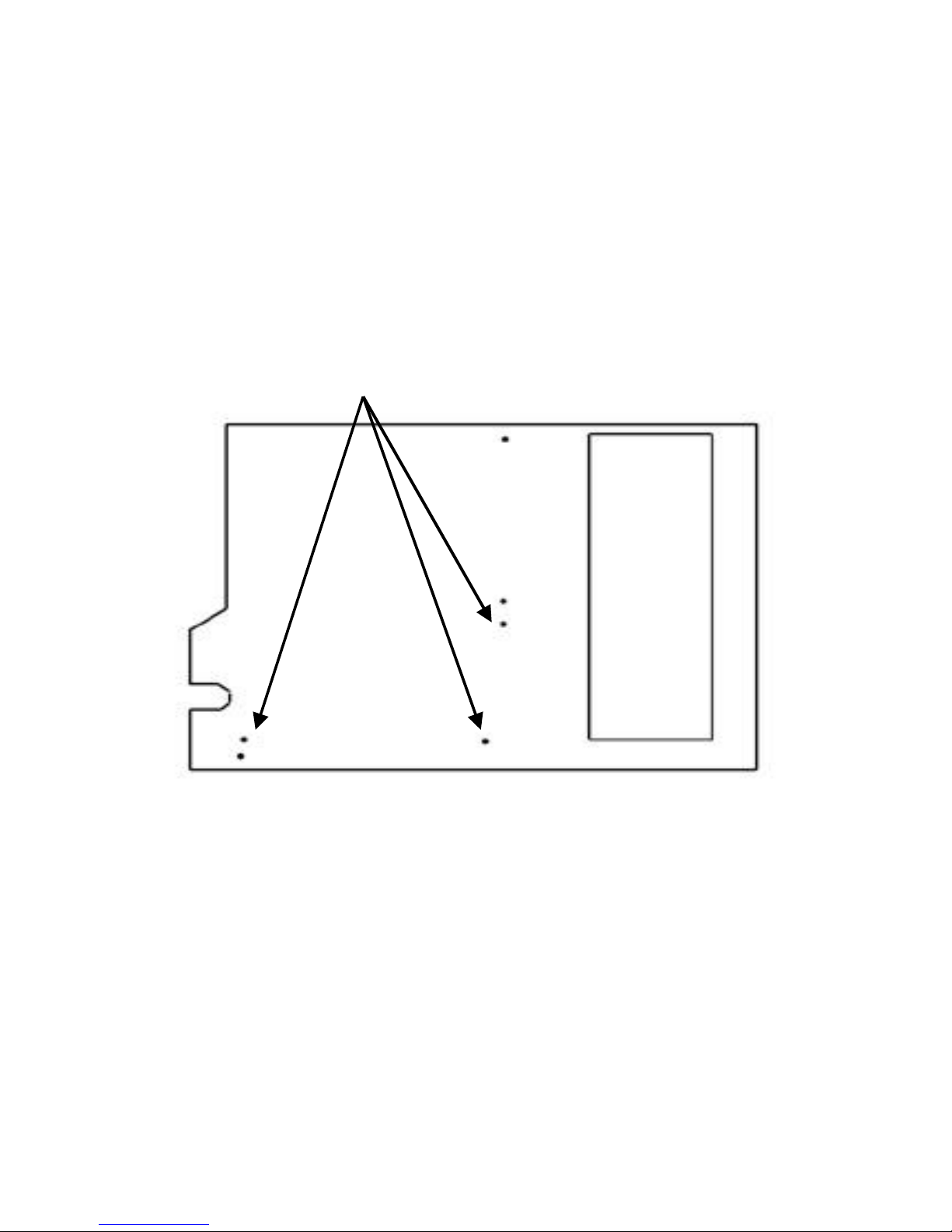
disconnect any cables. On the rear of the unit, undo the following screws:
Remove these 3 screws. Keep
them as you will need to replace
them.
Front
On
Once removed, the slot for the cable should be loose. Insert one end of the 4-pin
to 4-pin cable through the opening in the cable slot so that it is available in the
rear compartment. If the cable is not extra thick, it is possible to pass the cable
through the rubber gomnet on one of the holes. The gromnet simply slides off
the hole and the slit in one side will allow you to slide it over the cable. Slide the
ring and cable back into the hole. If it is a thick cable, you may want to ensure
you have enough slack for cable restraining and connection to the FireStore unit.
Once inserted, replace the screws.
Page 3
Mounting and Cabling FireStore and the FireWire Hard Disk Drive
GROUND
12V DC
DO NOT CONNECT A BATTERY UNTIL YOU HAVE COMPLETED ALL
CABLING!
Now mount FireStore into the main slot. It should simply slide in. You can also
insert the FireWire disk drive in the drive slot. First connect the 6-pin to 6-pin
FireWire cable that came with your FireStore and make it accessible in the rear
compartment. Once these items are inserted, connect all the cables in the rear
compartment.
A black cable with a mini-jack power connector comes from the back of the 4-pin
XLR power connector on the side of the chassis. Connect this to the power
connector marked “DC 12V, 2A” on the rear panel of FireStore. Make sure the
power switch on FireStore is set to “ON”. Connect the 4-pin to 4-pin FireWire
cable you inserted earlier into FireStore’s “DV In/Out” connector. Finally, connect
the 6-pin – 6-pin FireWire cable from the Hard Disk Drive to FireStore’s “To HDD”
connector.
At this stage, you may also like to restrain the cables in the rear compartment.
Do this by using the slots on the rear of the chassis and zip ties. It is also
recommended that you test the unit now. Insert a 12V NP series battery (such
as the Focus BATT-0004-01). Turn the power switch on the side of the unit on
(the green LED will light). Ensure that all items function properly.
Once complete, replace the chassis back into the FireStore nylon case.
Using the Optional FireStore Field AC Adapter and Other DC Power
Sources
It is possible to connect AC power to the FireStore Carry Case using the optional
FireStore Field AC Adapter (ASYF-0639-01). Simply connect the AC adapter to
the 4-pin XLR power connector on the side of the FireStore Carry Case.
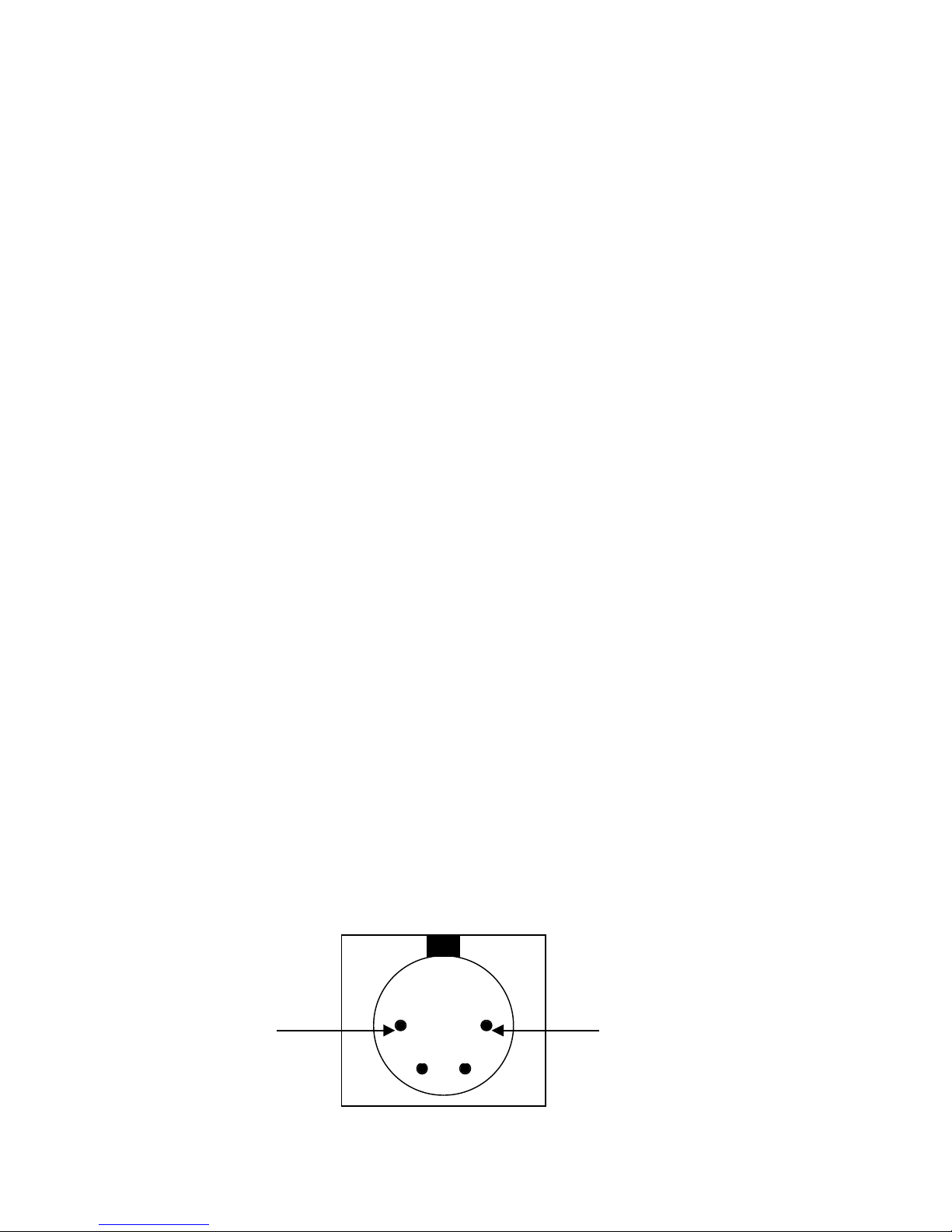
It is also possible to connect a different 12V DC power source into the 4-pin XLR
power connector. To do so, use the following configuration:
4
+
1
-
3 2
 Loading...