

Page 1
FOBO TAG
User Manual
Version – 1.1
(For Android 4.30 & above)
1 | P a g e
Page 2

Contents
1 Introduction
2 About FOBO TAG
3 Description of FOBO TAG
4 Battery Replacement.
5 Start to use FOBO TAG:-
5.1 Installing FOBO TAG 3 App
5.2 Pairing to your smart phone
5.3 Logout from FOBO TAG 3 App
6 Re-pairing FOBO TAG with Cross-Pair technology
7 Description of FOBO TAG 3 App screens:-
7.1 Login screen
7.2 Home screen before adding the TAG.
7.3 Home screen after adding the TAG.
7.4 Tag’s Profile.
7.4.1 Tag’s setting
7.4.2 SafeZone
7.4.3 Move Records
7.4.4 FOBOButton
7.4.5 FOBOShare
7.4.6 About This TAG
7.5 General settings screen
7.6 Safe Zone.
7.7 Time Zone.
7.8 MySOS Profile.
7.9 Helper & Helpee.
7.10 SOSMe.
8 FOBO TAG Functions:-
1) PromptME
2) TrackME
3) FindME
a) Augmented Reality (AR) Search.
b) Group Search
c) 2D Search
d) Reverse Search
4) RemindME
2 | P a g e
Page 3

5) Don’tMoveME
6) SOS.ME
9 Trouble Shooting Guide
10 FOBO Specifications
11 LED & Tone alert pattern
12 Warning
13 Regulatory Information
14 Intellectual Properties
3 | P a g e
Page 4

1 Introduction
FOBO TAG is a wireless device using Bluetooth® 5.0 technology to monitor your
belongings. Please ensure that your smart phone has Bluetooth® 4.0 or above capability
in order to use FOBO TAG.
Before starting to use FOBO TAG, please download the FOBO TAG 3 App to your smart
phone, FOBO TAG 3 App is available free of charge on Google play store..
2 About FOBO TAG
As we go about our daily life, we are inundated with a lot of information and many things
for us to remember. With FOBO TAG, we aim to bring convenience to your daily living
by providing timely reminder or alert when you forget your belongings or about to lose
sight of your loved ones. FOBO TAG working with your smart phone applications could
monitor your loved ones or belongings from anywhere within Bluetooth range. (Note:
The distance varies according to different environment or surrounding e.g. building walls,
metal objects, human body, vegetation & water could affect the RF signal).
Attach FOBO TAG to your personal items such as your handbag, laptop bag,
luggage, car key or any important belongings, and FOBO TAG will monitor them
for you. When you leave any Tagged belonging behind, RemindME function will
trigger your phone to alert and remind you to take your belonging with you. We
understand that at times you might not want to be disturbed by RemindME alerts;
example your laptop bag is safely placed at home and you are on the way leaving
your home to the cinema. Our smart SafeZone feature working with TimeZone
will prevent an alert. However during weekday, when you leave your home to the
office and forget your laptop, TimeZone will know it is time to go to office and it
will prompt an alert to remind you. (Note: SafeZone utilizes GPS/AGPS of your
smart phone to determine location. Turn on Wi-Fi on your smart phone for better
accuracy.)
When you misplace any belonging you can use FindME to search for it. Example
a car key misplaced under your sofa. FindME will be able to indicate the signal
strength for you to estimate how far you are away from your belonging. The
FOBO TAG can also be triggered to beep for ease of locating your belonging. But
if the TAG is not within vicinity, FindME will also display the GPS location
(with time and date) where your belonging was last disconnected with the phone.
This will help you trace where you misplaced your belonging. You can also locate
your smartphone with the help of TAG, you just need to long press “FOBO button”
on the TAG and your smartphone will loudly ring- even on silent, to disable the
search again long press the FOBO Button.
You can also use FOBO TAG to monitor your belonging to ensure nobody moves
it. For example your desk drawer with important things inside. Just place a FOBO
TAG in your drawer and activate Don’tMoveME function. Once the drawer is
moved and you are within Bluetooth range, you will get an alert on your phone. If
you are out of range, you will get an alert with movement records showing the
4 | P a g e
Page 5

movement history log when your phone gets back into Bluetooth range with the
FOBO TAG in your drawer.
For frequent traveler, you could imagine the boredom of waiting for your
checked-in luggage at arrival hall after a long tiring flight. Activate PromptME
feature for the TAG inside your luggage and you will get an alert once the
luggage get into range with your phone, typically within bluetooth range (Note:
Bluetooth range varies depending on surrounding things or building structure).
You are free to move around without having to wait beside the luggage carousel.
When you need to walk into a dark and quiet area, e.g. back-street or under-
ground car park, you may want a method to alert your family members or friends
for help immediately in case you get into danger. With SOS.ME, you can set
FOBO TAG to watch over you for up to 60 minutes.
All the above are example use cases of how you could use FOBO TAG. There are many
other ways of using FOBO TAG with all these smart features. Example, placing a FOBO
TAG by the main door with Don’tMoveME activated, to warn of any intruder. All you
need is to understand how the features work and with a little bit of imagination, you
could make FOBO TAG work better and more suited to your lifestyle needs.
We have designed FOBO TAG to work with coin cell battery (CR2025) so that you do
not need to worry about charging the device. FOBO TAG is also dust and splash proof
(IP54) to allow you to use it outdoor without any worry.
DISCLAIMER: FOBO TAG IS NOT AN ANTI-THEFT OR ANTI-KIDNAPPING
DEVICE. PLEASE CONTINUE TO TAKE PRECAUTIONARY MEASURES
AND TAKE FULL RESPONSIBILITY OF YOUR BELONGINGS OR LOVED
ONES AGAINST THEFT OR KIDNAPPING.
5 | P a g e
Page 6
Key Hole
Battery Compartment
FOBO Button
Beeper hole
3 Description of FOBO TAG
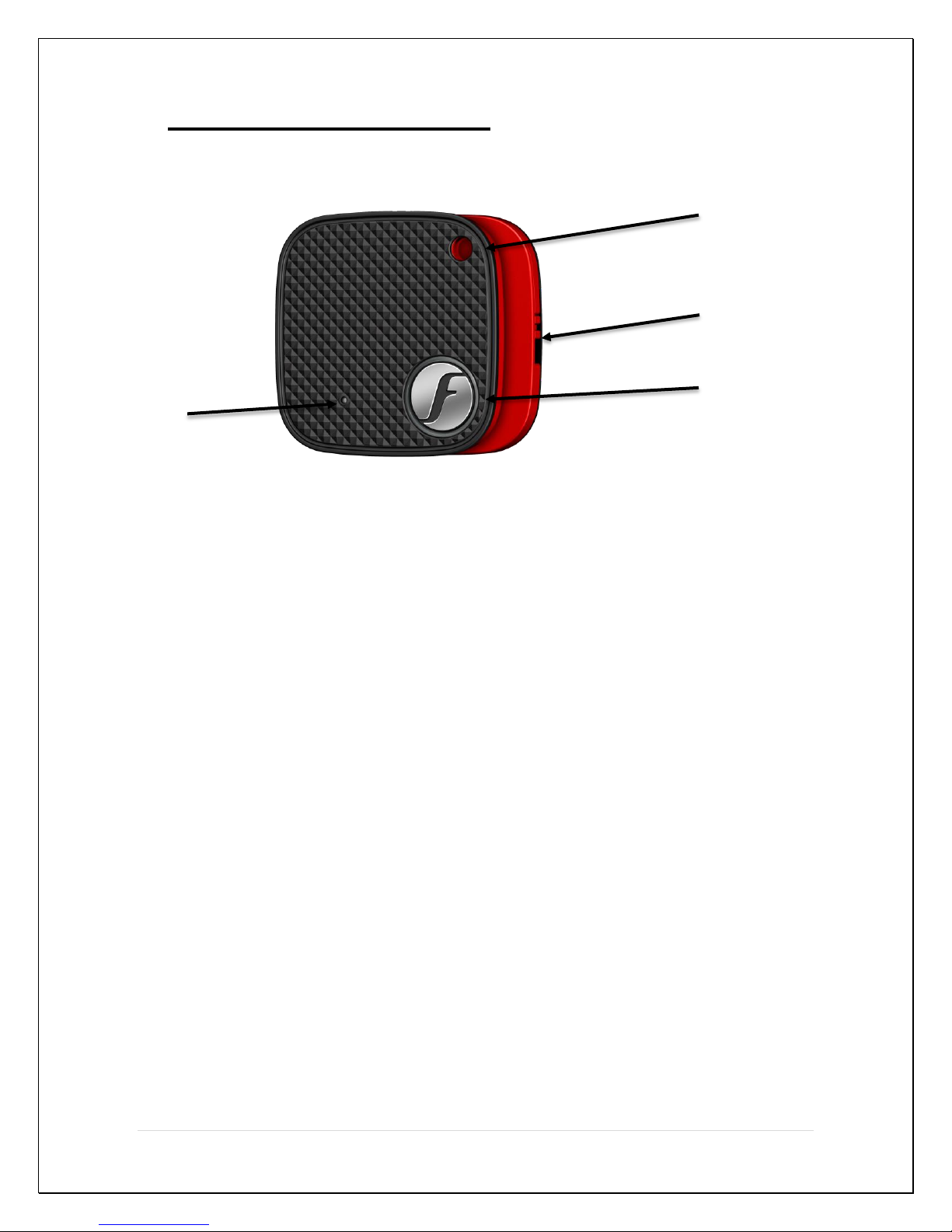
Beeper hole - For beeper sound.
Key hole - To hang TAG with the keys.
FOBO logo button - To perform various functions such as; power
on/off, click picture, locate smartphone, open
App, trigger SOS etc.
Battery Compartment - To insert/replace the battery.
6 | P a g e
Page 7
4 Battery Replacement
Lock
Battery Holder
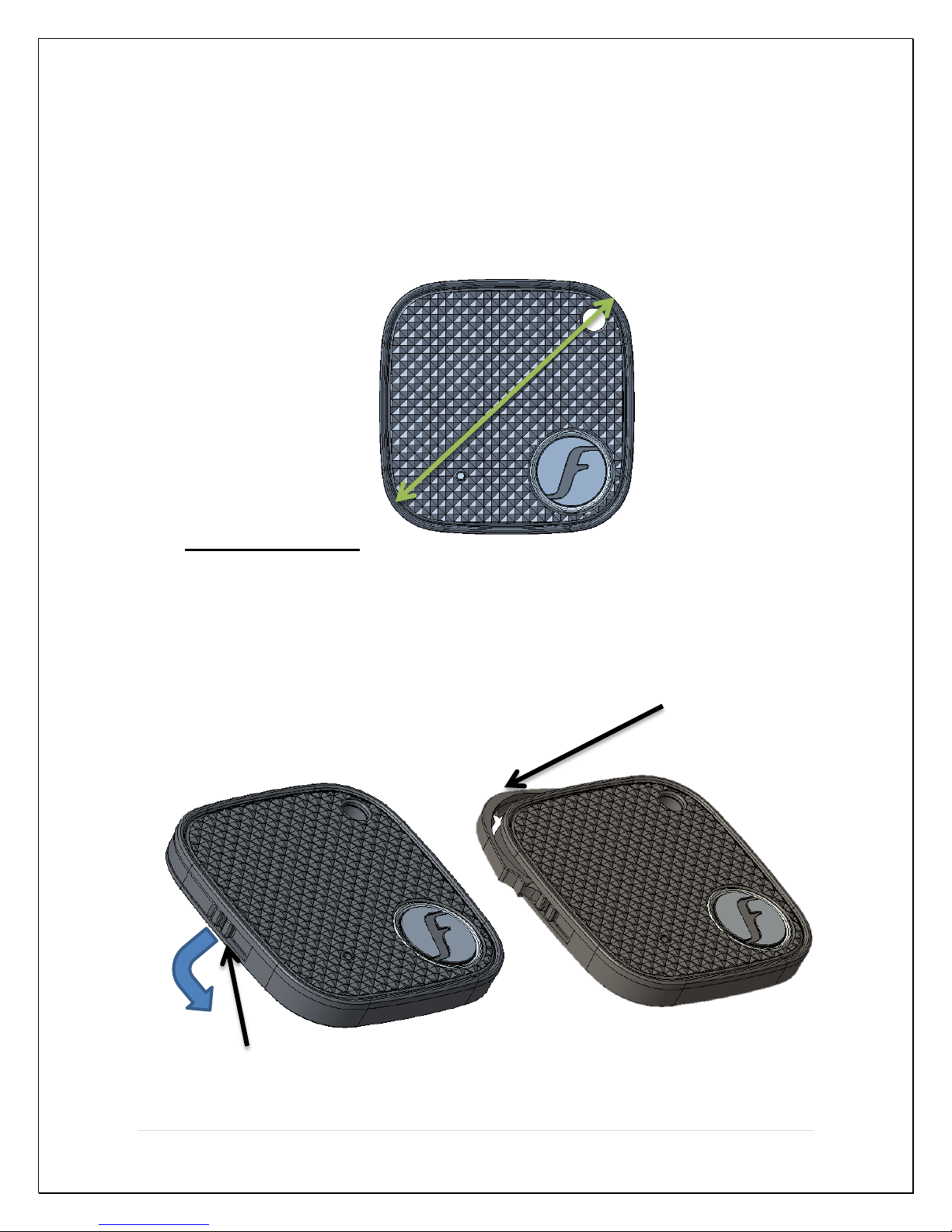
a) Hold the TAG within the area as shown in the below
picture.
b) Shift/push the Lock, follows the arrow direction. Battery
holder will automatically eject.
7 | P a g e
Page 8
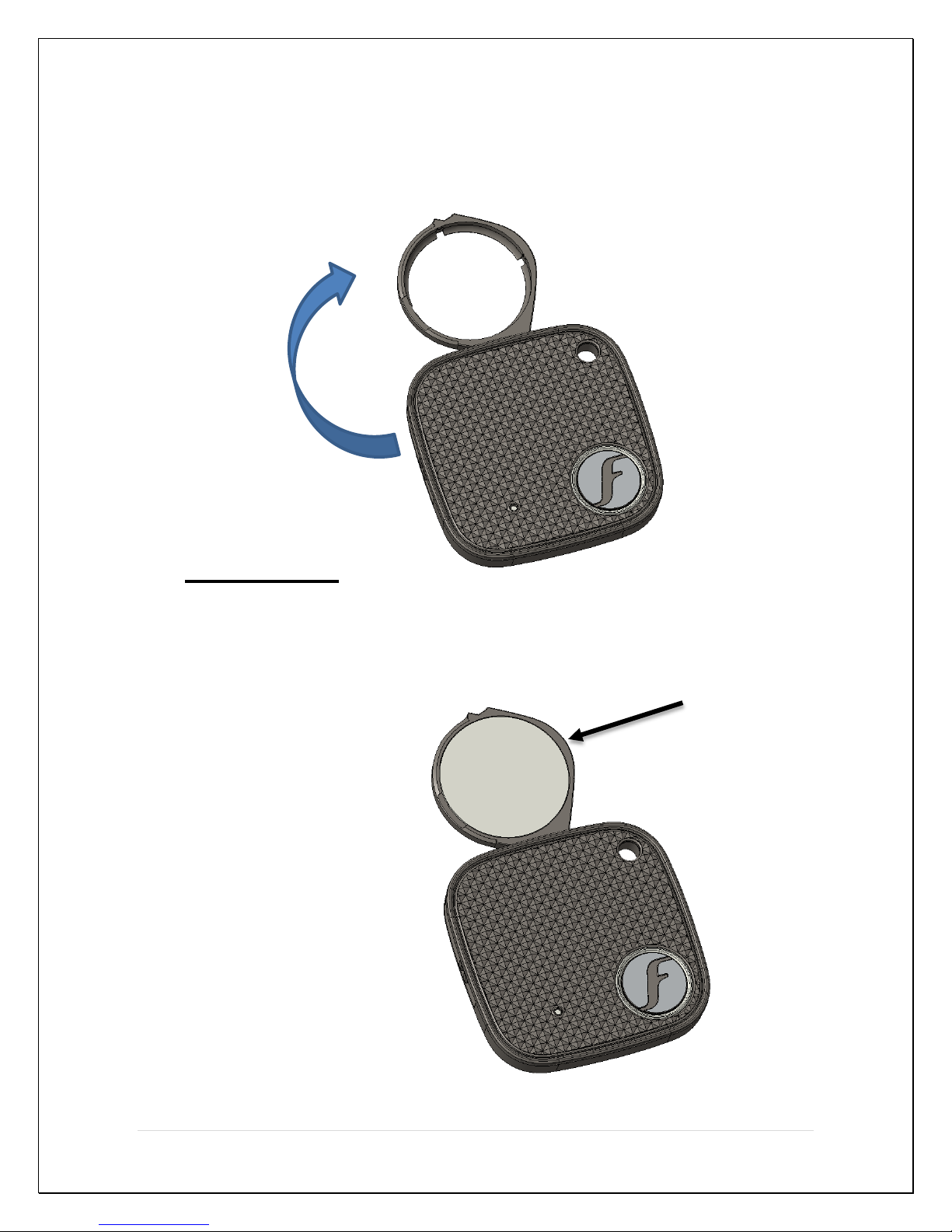
c) Rotate/Open the battery Holder.
Battery CR2025
d) Insert battery in to the battery holder.
8 | P a g e
Page 9
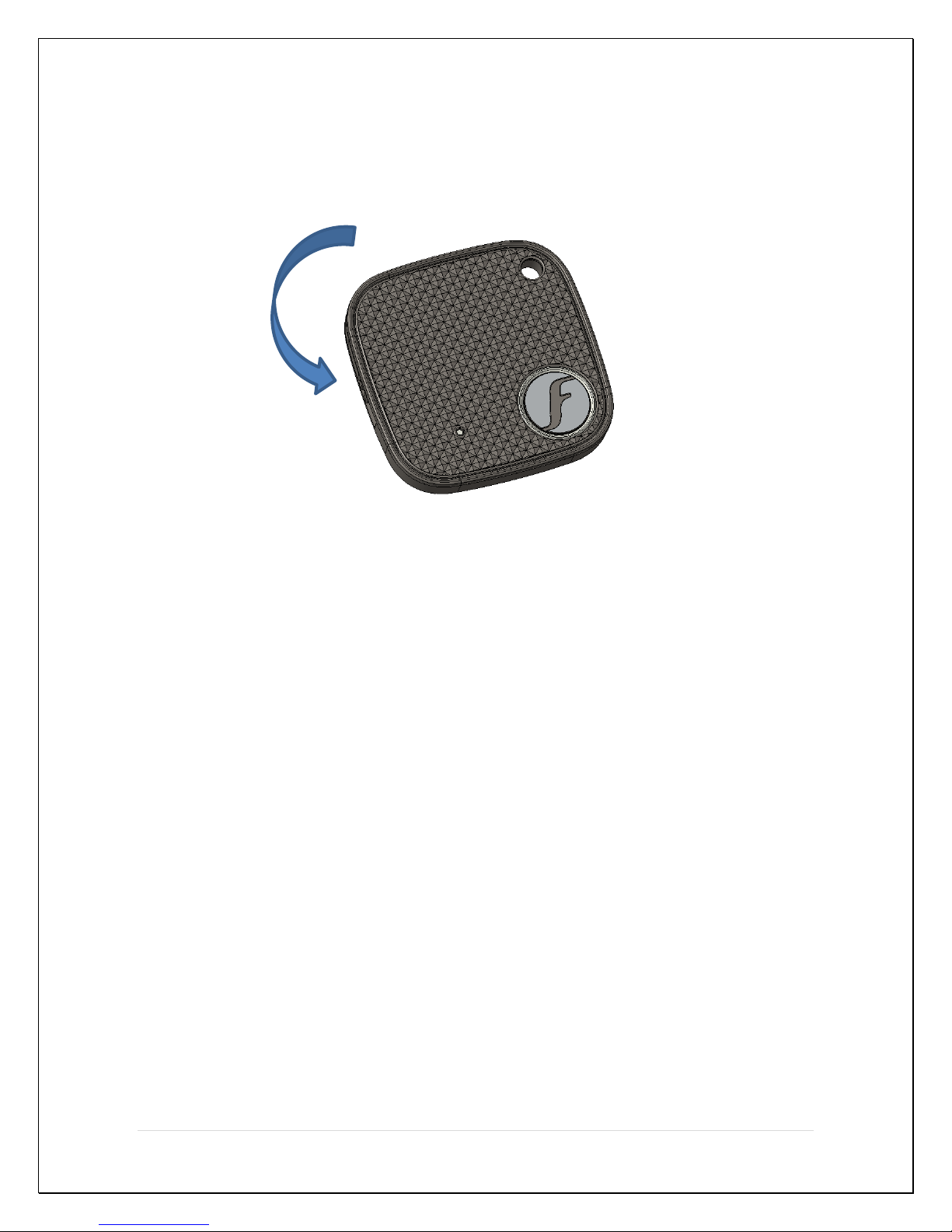
e) Rotate/close back the battery holder. Do ensure the battery
holder is properly locked.
The coin cell battery (CR2025) could last up to one year on normal operation. Frequent
beeping and movement of the FOBO TAG will consume battery power and reduce
battery operating life.
It is advisable to change the battery once you get the battery alert to ensure proper
performance of FOBO TAG. Do not wait until battery is fully drained as you may never
know when you need to use FOBO TAG urgently.
You should be able to purchase CR2025 battery from your local electronics store or Online stores (search CR2025 in your web browser).
9 | P a g e
Page 10

5 Start to use FOBO TAG
5.1 Installing FOBO TAG 3 App
Step 1: Download FOBO TAG 3 App to your smart phone
For Android users, download from Google Play store.
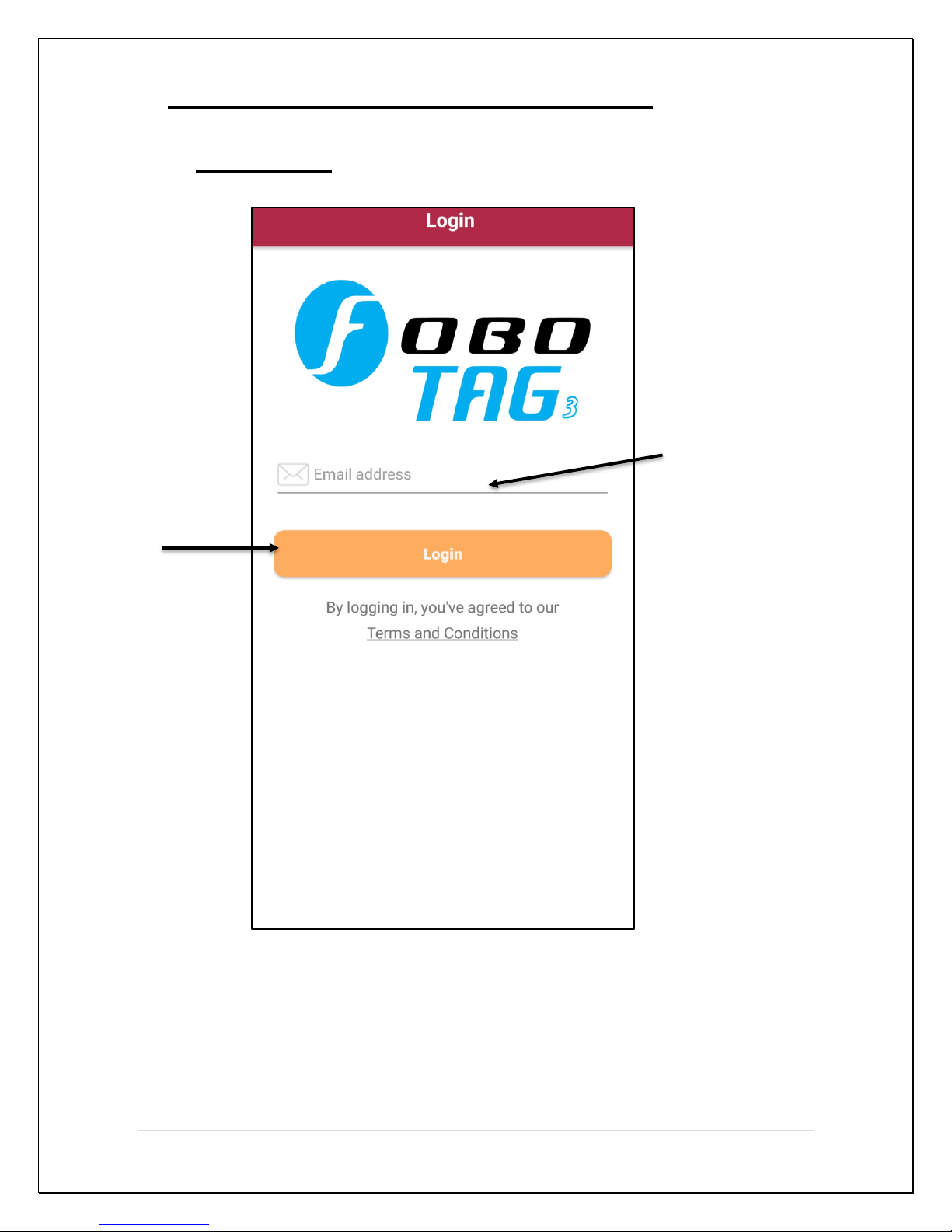
Step 2: Launch FOBO TAG 3 App, key in your email and hit login.
Create new account with a valid e-mail address.
NOTE: By clicking Login you acknowledge your acceptance to the terms and
conditions of our Software Licensing Agreement and Privacy Policy.
Please read the Software Licensing Agreement and Privacy Policy carefully
before proceeding.
A verification email will be sent to your e-mail address
If you do not receive the verification e-mail from FOBO Admin, please
check your e-mail address entry to ensure it is valid without typo error. It
may end up in the wrong e-mail address.
This e-mail may also be filtered by some e-mail servers. Please check the
Spam mailbox.
Please sign up again if you still did not receive any message from FOBO
Admin. Upon successful verification, proceed to Login.
Note: Please ensure you allow all the permission for FOBO TAG 3 App, such
as Location service, Camera, Storage, Audio, Do not disturb.
5.2 Pairing to your smart phone
Step 1: Add a new FOBO TAG
Select your TAG using the “switch button” at home screen (Refer to page
13, Section 7.2)
Select “+” at HOME screen.
Hold the TAG and long press on the “FOBO Button” (Refer to page 6.
Section 3) to initiate the pairing process.
Note: Please ensure you have good internet connection while
installing the TAG, you won’t be able to install/Release the TAG
without the internet connection.
10 | P a g e
Page 11

Step 2: Set up profile for FOBO TAG
Upon successfully establishing connection between TAG and smartphone
user need to setup the profile. Fill in the respective information, such as
TAG Name (To identify the TAG), TAG Color or choose the picture from
the Gallery. Do not forget to click save after filling in all the
information to save the settings.
Step 3: Confirming FOBO TAG paired successfully
The Picture Icon of the TAG will appear on the app main screen together
with signal and Battery level indicator. The signal and battery level
indicator will be faded (Grey out) if there is no connection to the smart
phone, example when it is out of Bluetooth range from the smart phone.
Note: The FOBO TAG can only be paired to one Login account. This is to protect
against possibility of tracking and control of the FOBO TAG by unauthorized users.
In order to pair to another Login account, the user will have to select “Release TAG”
under the “TAG settings screen” (refer to Page 16, Section 7.4). This will remove
the pairing information and all other configuration setting of the particular FOBO
TAG. Be very sure of what you want to do before releasing the TAG.
5.3 Logout from FOBO TAG 3 App
If you do not want to use the FOBO TAG 3 App and want to stop the reminder alert,
please logout from FOBO TAG 3 App. The logout button is located in General
settings screen.
NOTE: FOBO TAG 3 App will stop monitoring all TAGs after logout. You will
also stop receiving SOS alerts from your friends or loved ones after logout. Please
be very sure that you want to logout!!
6 Re-pairing FOBO TAG with CrossPair technology
FOBO TAG requires only one time pairing to your smart phone. All the pairing
information and settings are stored at FOBO Cloud. In case you change to another smart
phone or erased all contents on your smart phone, you could retrieve the pairing
information and settings by downloading the FOBO TAG 3 App and login using your email address.
Upon successful login, all pairing information and settings would be restored into your
smart phone and you are ready to use all the TAGs just as the last time you used them.
This CrossPair technology allows you the convenience of porting all the FOBO TAGs to
another smart phone unit without the tedious process of having to pair and configure the
TAGs all over again.
11 | P a g e
Page 12
7 Description of FOBO TAG 3 App screen
Login button
E-mail address
7.1 Login screen
E-mail address – Your FOBO account and TAG information will be
Login button - Click here to login after you have registered and activated
referenced to this e-mail address. Please use a valid email address.
an account.
12 | P a g e
Page 13
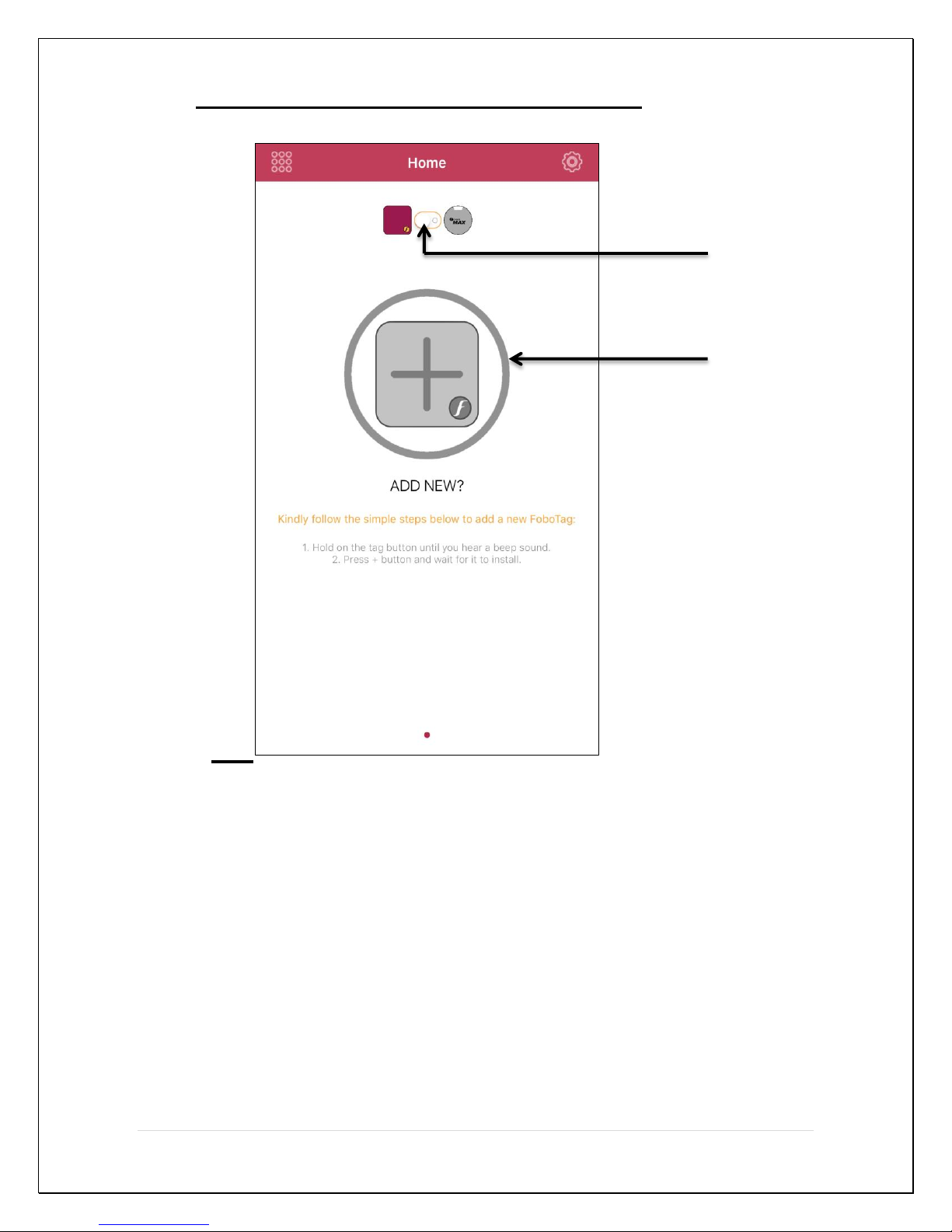
7.2 Home screen before adding the TAG
Switch Button
Add TAG Button
Switch Button - Prior to adding TAG, use this button
to switch between FOBO max and
FOBO TAG.
Add TAG Button - Use this button to add a new TAG.
13 | P a g e
Page 14
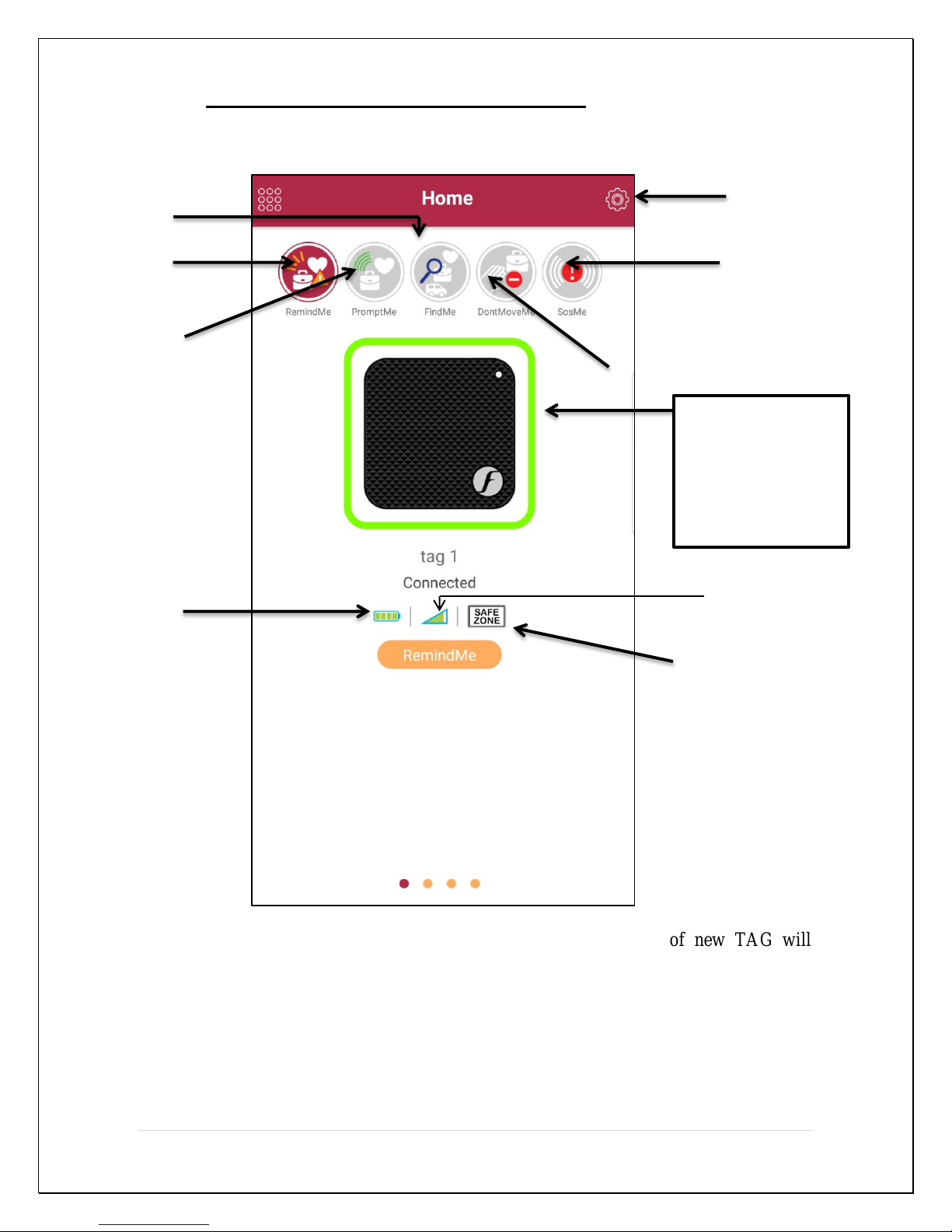
7.3 Home screen after adding the TAG
General settings
RemindMe
SOSMe
DontMoveME
PromptMe
FindMe
Battery Indicator
TAG Signal level
TAG Image –
SAFE ZONE
Click on the TAG
image to go to the
Tag’s Profile
page.
TAG image - Picture taken/Chosen during adding of new TAG will
appear as TAG image. This image can be changed
anytime under Tag settings page. This image will be
blurred out when TAG is not connected to smartphone,
i.e. outside of Bluetooth range. Click on the TAG image
to go to the Tag settings page.
14 | P a g e
Page 15
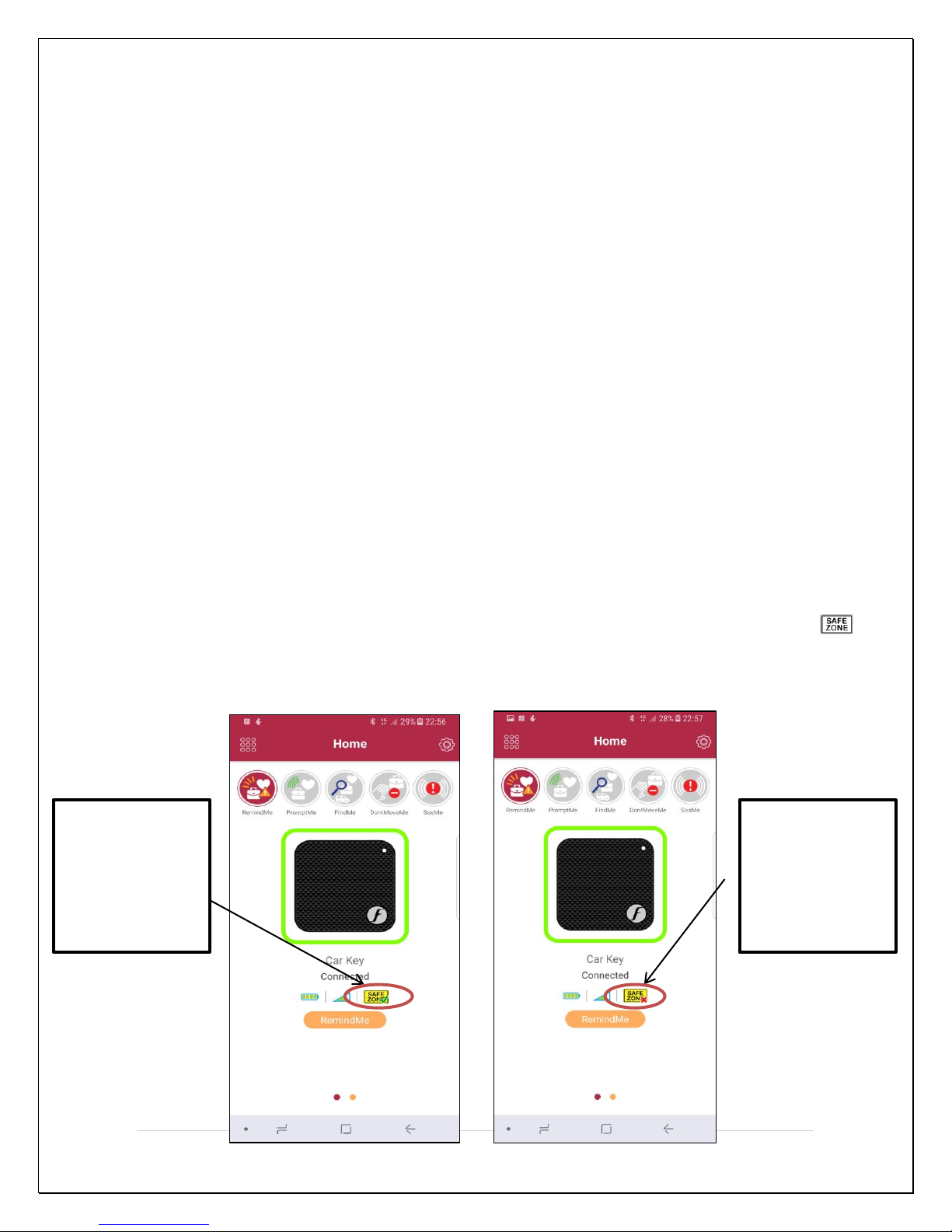
TAG signal level - Indicator of the signal level detected for each TAG. Note
SafeZone is ON
and TAG is
within the Safe
SafeZone is ON
and TAG is
outside the Safe
that the TAG uses low power Bluetooth for power saving
feature. This low power signal level may be affected by
human body, building walls, metal or other RF energy
absorption materials in the surrounding area.
General settings button - Click here to get to the General Settings screen.
Battery Indicator - To indicate the battery status.
RemindMe - Alert you the moment connection between the smartphone
and TAG is lost.
FindMe - Use this option to find the TAG.
PromptMe - Use this option to activate the PromptMe function and App
will notify you when TAG comes into close proximity
with you.
DontMoveMe - Use this option to activate the DontMoveMe function and
App will notify you immediately if your TAG is moved.
SOSMe - Use this function to activate the SOS.
Safe Zone - This icon will reflect the status of safe zone. White color
denotes that no SafeZone is selected for particular TAG.
Zone.
Zone.
15 | P a g e
Page 16
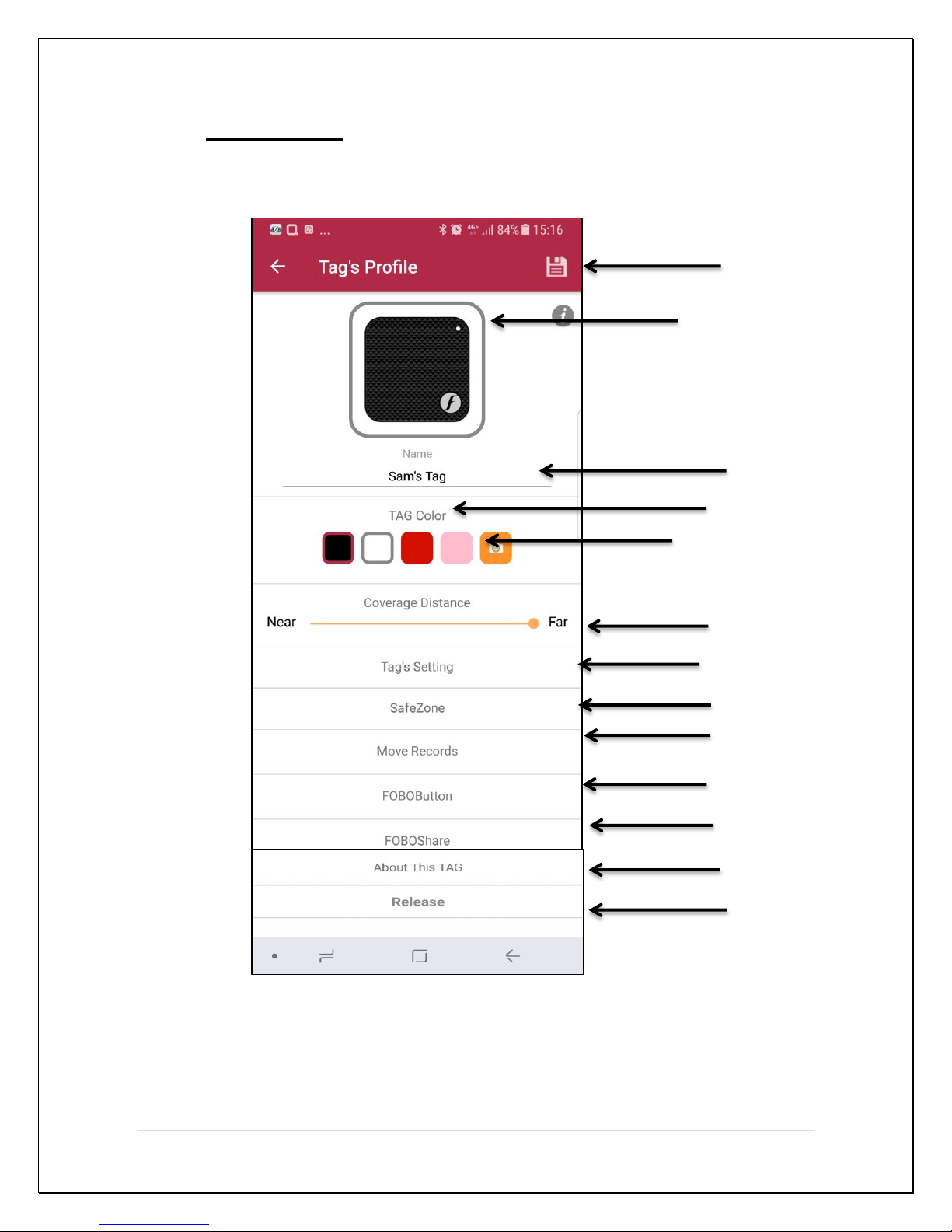
TAG Image
TAG Name
TAG Color
SafeZone
Move Records
Fobo Button
About this TAG
Release TAG
Save Button
Camera
Coverage Distance
Fobo Share
Tag’s settings
7.4 Tag’s Profile
16 | P a g e
Page 17
Save button - Click here to save the TAG settings. Do take note that
changes won’t be saved if user do not click save icon.
TAG image - Picture taken during setting up TAG profile will appear as
TAG image.
TAG name - Enter TAG name here.
TAG Color - Choose the TAG color here, user can also choose to click
picture or select from the photo library.
Camera - Click here to take picture or choose from photo library.
Coverage Distance - Use this option to set the coverage distance. If user set the
coverage distance (let’s say in the middle) then upon
getting far from the TAG he/she will get the first alert on
the smartphone stating that TAG is getting far and second
alert will pop-up once the TAG is completely out of the
bluetooth range, stating that the TAG is disconnected. If
user does not adjust the coverage distance (default) then
he/she will only get an alert for disconnection.
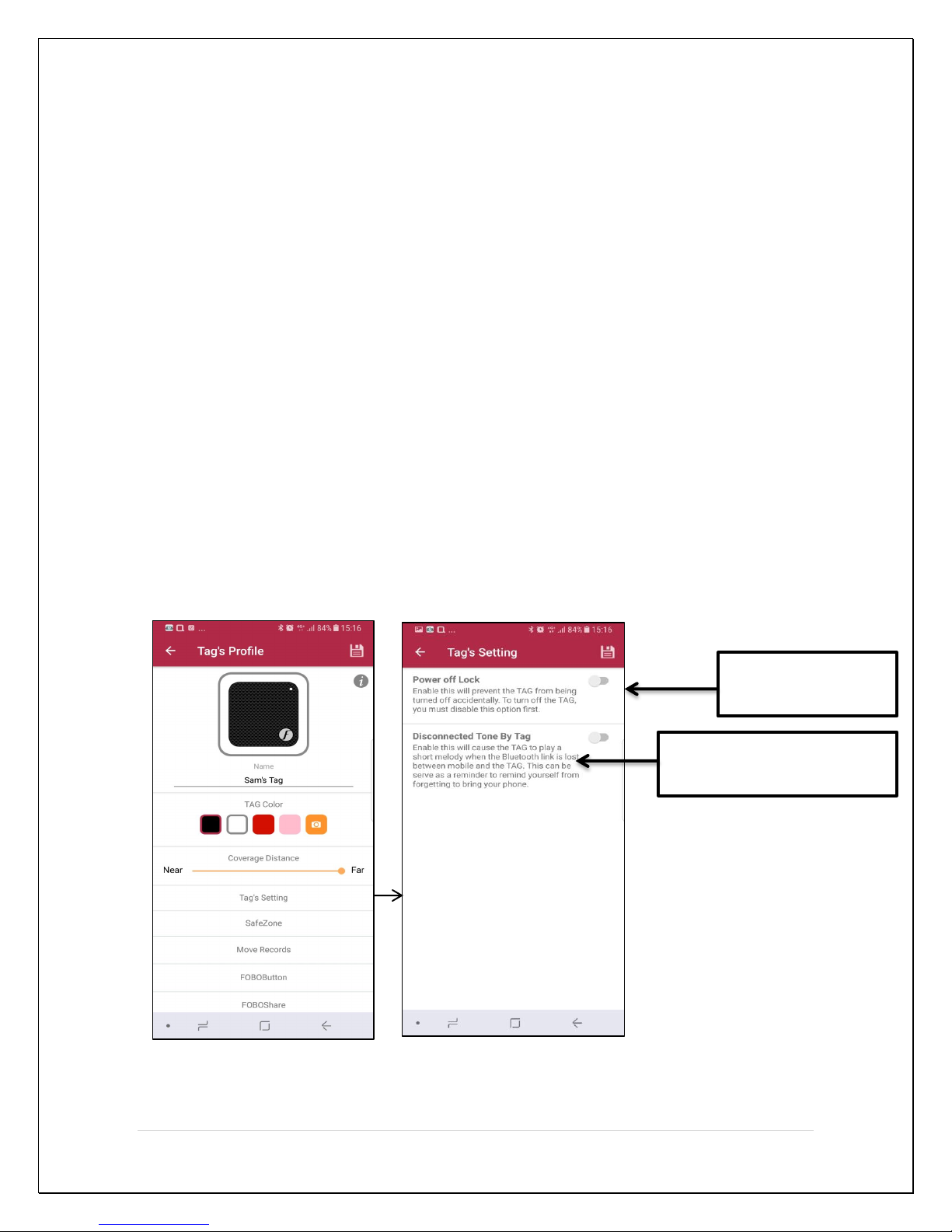
7.4.1. Tag’s Settings
Power Off lock
Disconnected Tone by Tag
17 | P a g e
Page 18
Power-off Lock – Enable this feature to prevent the TAG from turn off
accidentally, such as TAG placed in the pocket or
wallet.
Disconnected Tone by TAG – Enable this feature to get melody tone from TAG upon
disconnection.
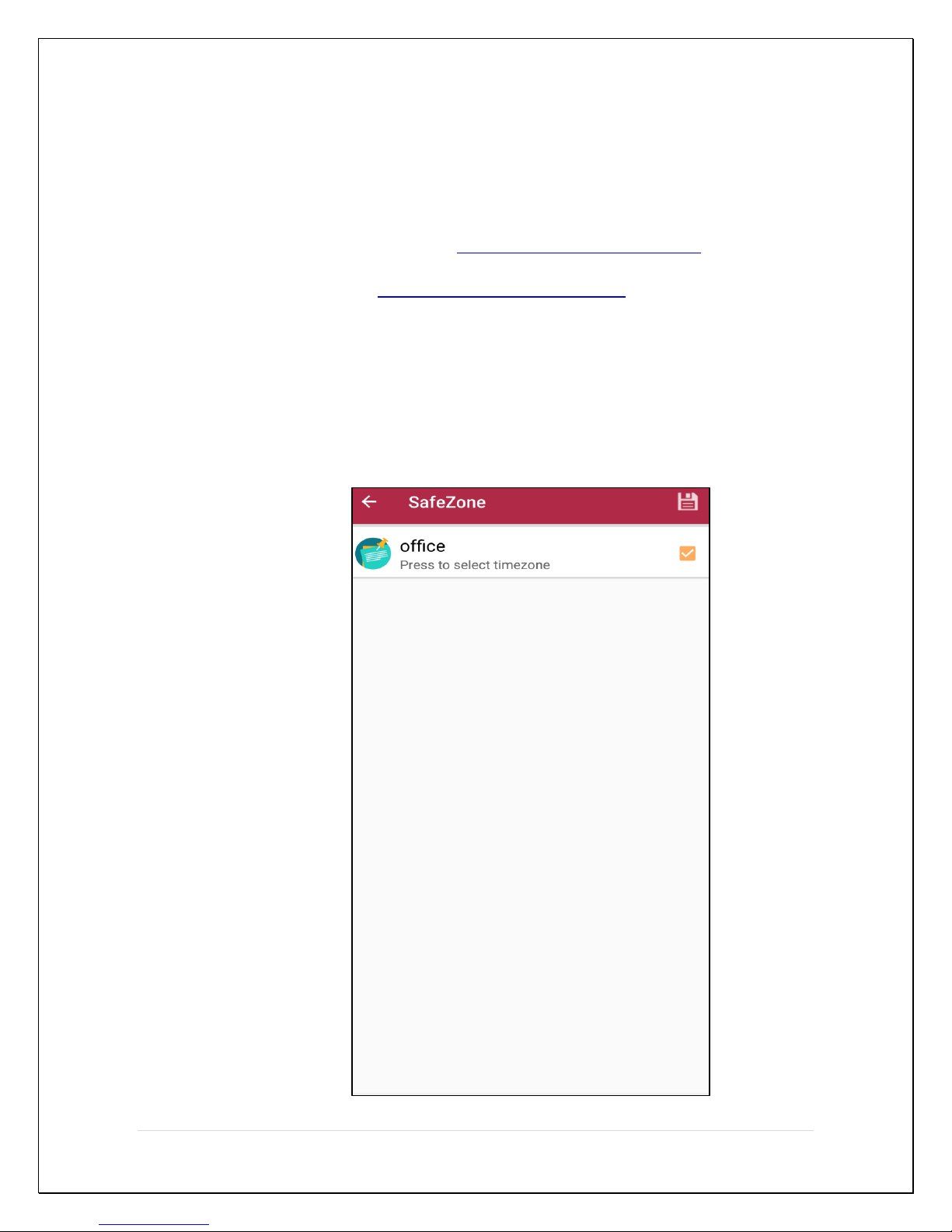
7.4.2. SafeZone - Click here (Refer to page 16 & Section 7.4) to choose safe
zone for the TAG from the list. User can create safe zone
(Refer to page 25 & Section 7.6) under General settings -
> SafeZone in the App. Refer to the picture below,
showing list of the available safe zone. You must have at
least one SafeZone in order to use this feature.
18 | P a g e
Page 19
CLEAR
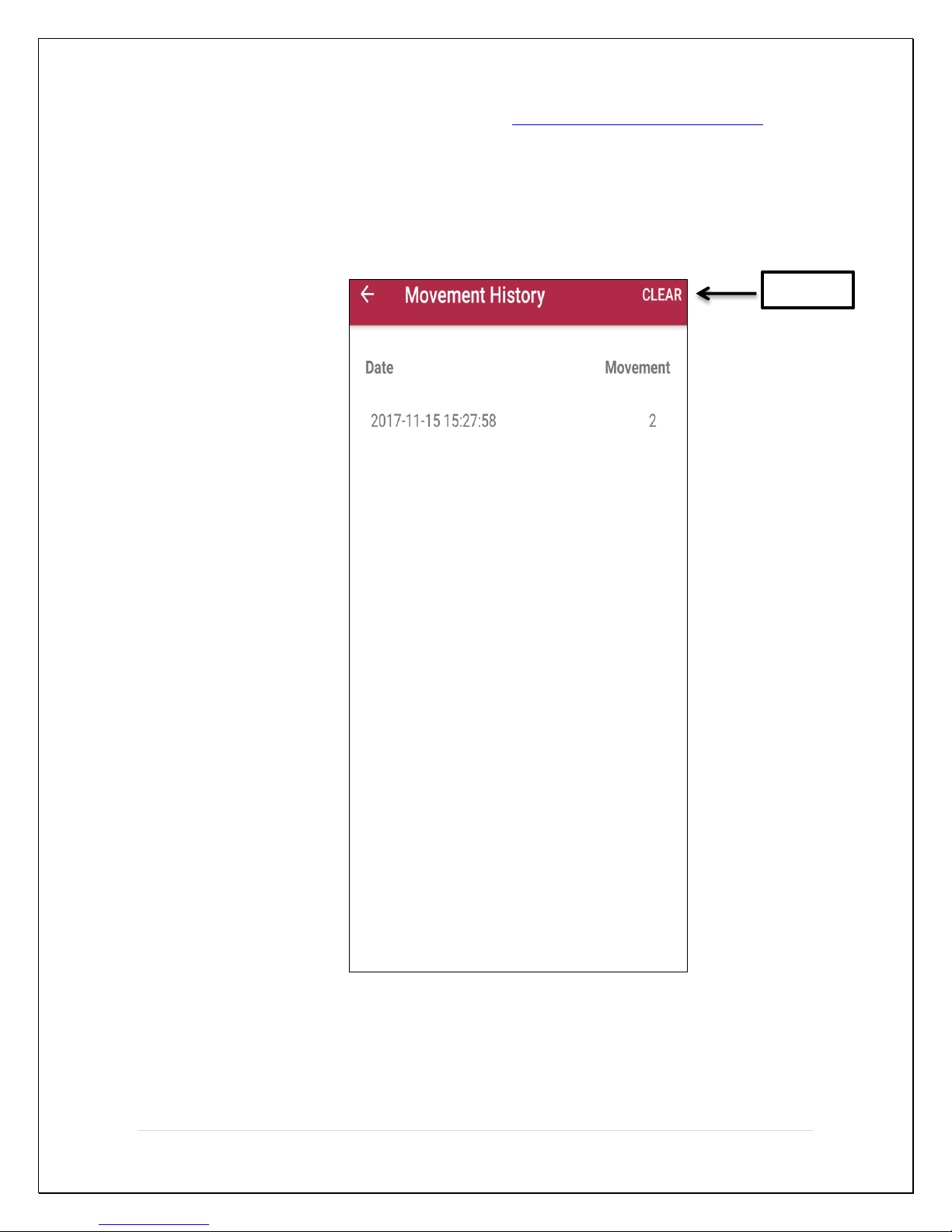
7.4.3. Move Records - Click here (Refer to page 16 & Section 7.4) to get
the movement history. Click clear to remove the
Movement record history.
19 | P a g e
Page 20
Save
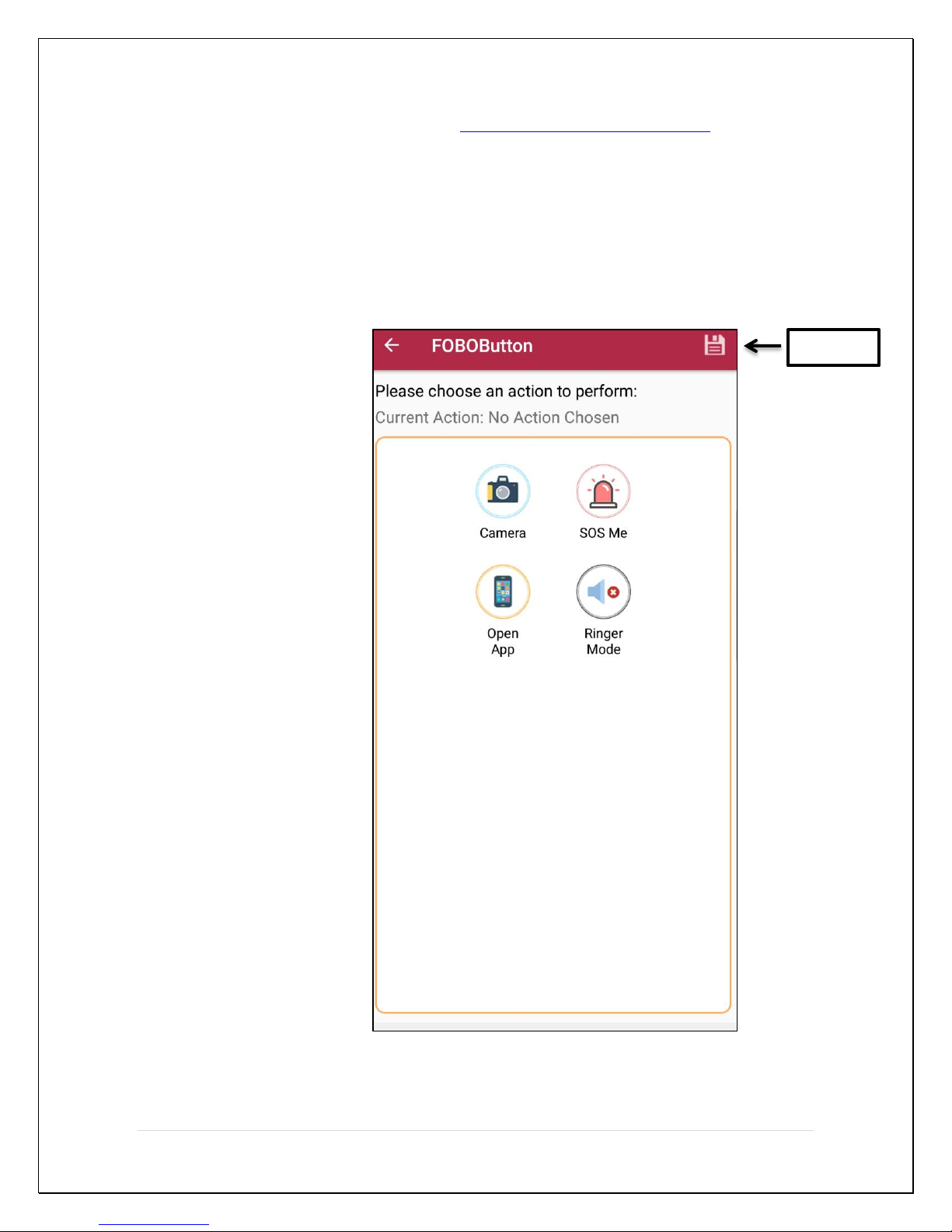
7.4.4 FOBOButton - Click here (Refer to page 16 & Section 7.4) to customize
the “FOBO button” on the TAG. User can select the
desired action from the current actions available in the
App. User need to double press the “FOBO Button” on
the TAG in order to perform the selected action.
Note: Please ensure to click save after selecting the desired action.
20 | P a g e
Page 21
1
2
3
A CB
4
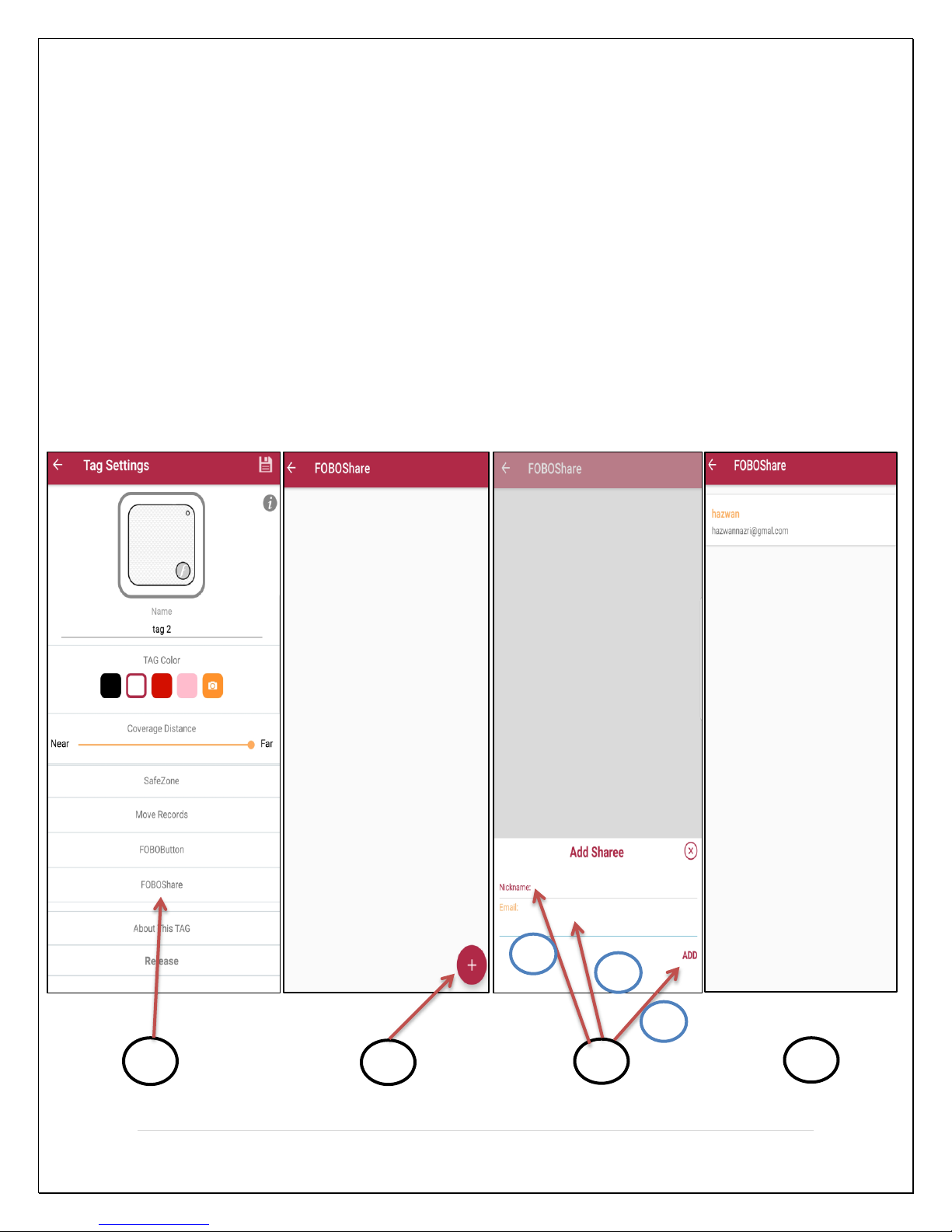
7.4.5 FOBOShare - Click here to add an email of a person with whom
you would like to share the TAG. Click on the “+”
button at bottom of the FOBOShare page to add
sharee name and email.
This feature allows two users to track the same
FOBO TAG together or separately. This patented
feature also shows the detached user whether the
tracked item is with the other user. When both of
the users are detached from the tracked item, they
will be alerted at once, even if they are not at the
same location. This feature is useful to monitor the
movement of a child at a shopping mall or a pet at
a park.
21 | P a g e
Page 22
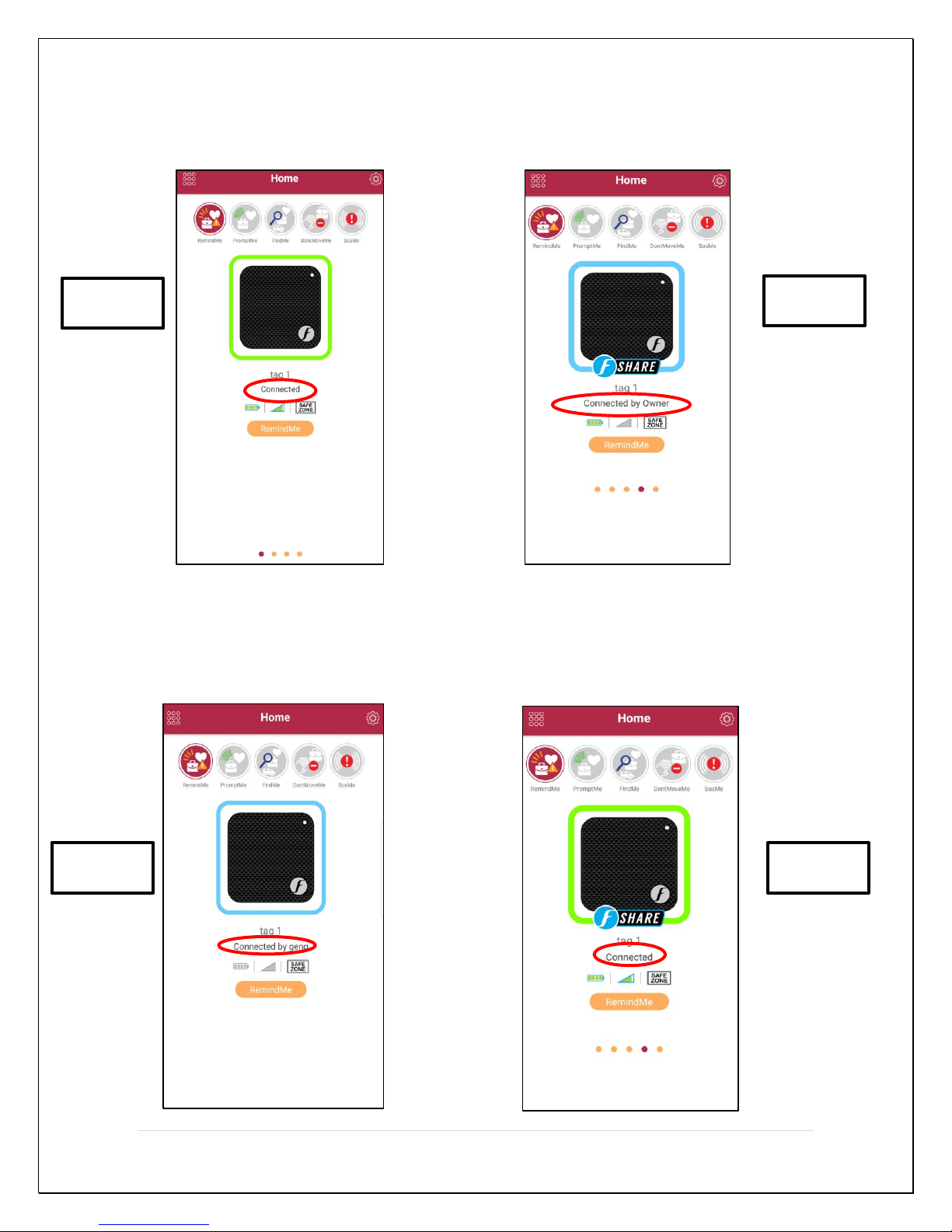
a) While owner’s smartphone connected to the TAG, the sharee’s smartphone will show
Owner
Sharee
Sharee
Owner
Owner
the outer edge of FOBO TAG image in Blue color and connection status as “connected
by owner”.
b) While sharee’s smartphone connected to the TAG, the owner’s smartphone will show
the outer edge of FOBO TAG image in Blue color and connection status as “connected
by (Name of the sharee)”.
22 | P a g e
Page 23
Save
Release TAG
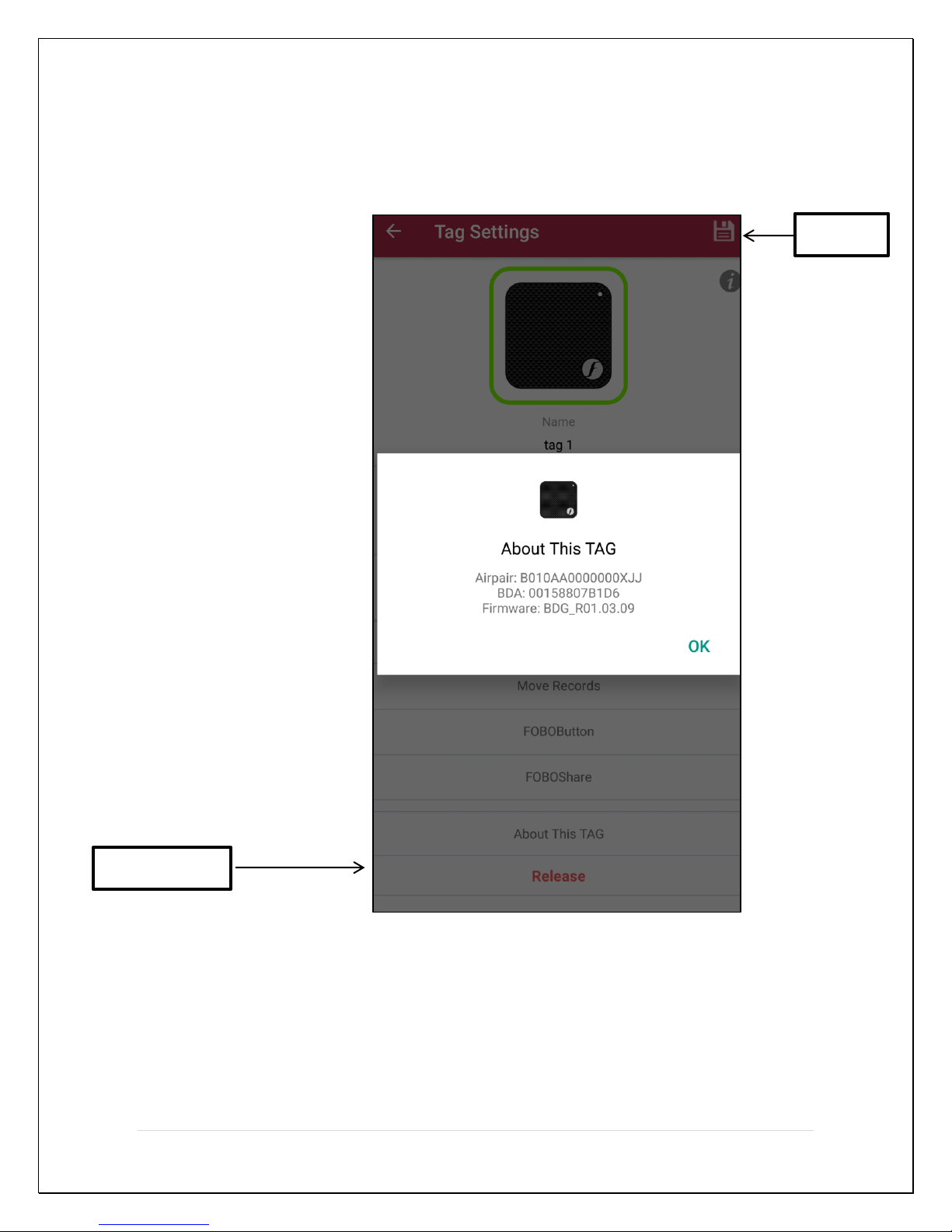
7.4.6 About This TAG - Click here to get the Firmware, BDA and Air-pair
information of the TAG. This information will be
helpful for troubleshooting.
Release TAG - Click here to release the TAG. Please ensure you have
Save Button - Click here to save the settings.
good internet connection while releasing the TAG,
you won’t be able to release the TAG without the
internet connection.
23 | P a g e
Page 24
7.5 General Settings screen
Account Email
Ringtones
Angel Mode
SafeZone
TimeZone
My SOS profile
Helper & Helpee
Build Version
Feedback
Terms & conditions
Visit FOBO Website
Logout
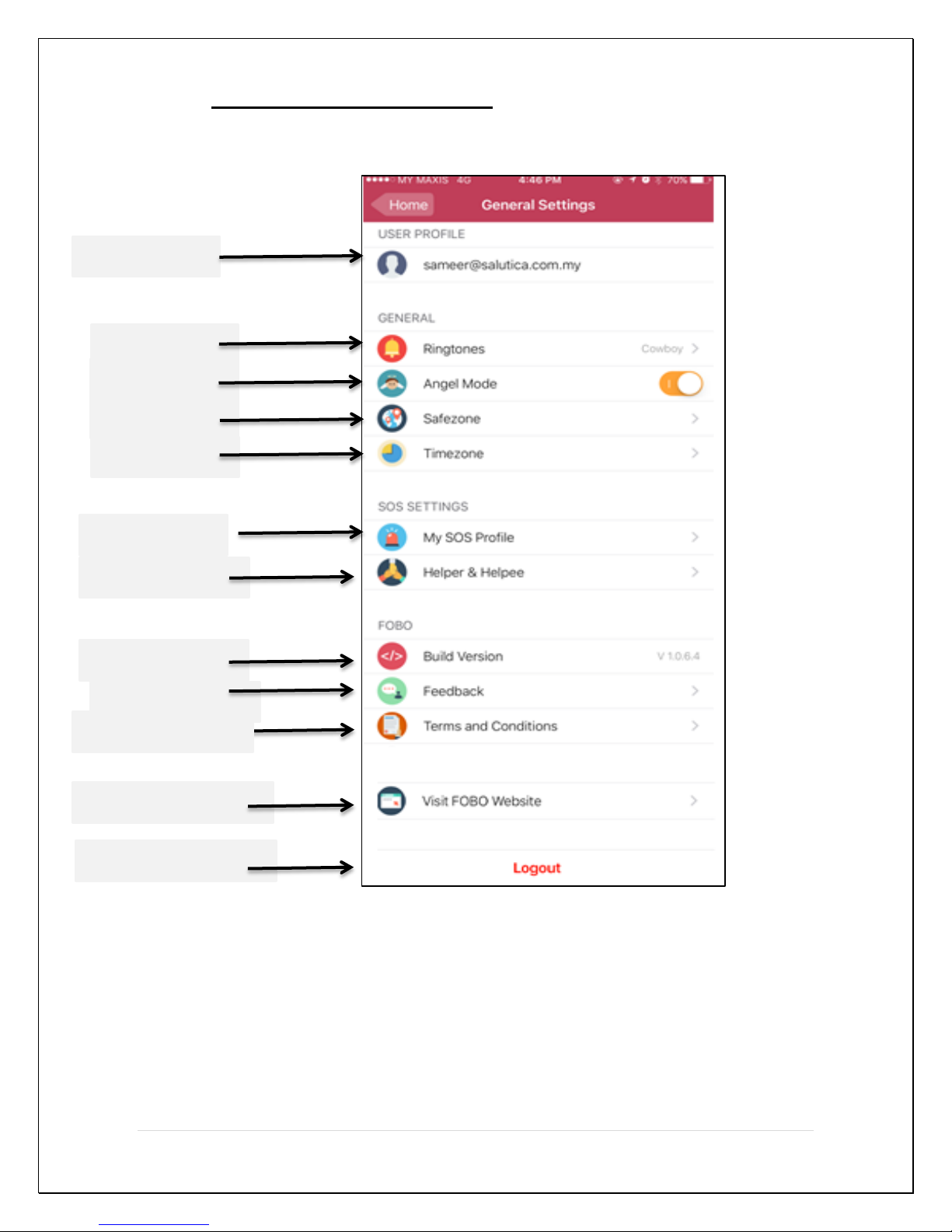
Account e-mail – E-mail used to login to FOBO app.
Ringtones - Click here to choose ringtone.
Angel Button - FOBO app will automatically help others to locate their
lost their belongings via WebSearchME platform. User
does not require doing anything and it costs nothing to
24 | P a g e
Page 25

help. If for whatever reason you do not intend to
participate in helping other people, you can switch off
this feature. However we hope you can allow the app to
remain in ANGEL mode to continue helping other people.
Someday, this WebSearchME platform may help you in
return.
Safe Zone - Click here to create safe zone and to get the list of saved
safe zones.
Time Zone - Click here to create Time Zone.
MySOS Profile - Click here to create SOS profile
Helper & Helpee - Click here to Add Helper & Helpee.
Build version - Display version of this FOBO app.
Feedback - Click here to contact FOBO Helpdesk and to send log file.
Terms and Conditions - Click here to view the Terms and Conditions.
View FOBO Web-site - Click here to View FOBO Web-site.
Logout button - Click here to logout from FOBO app.
Note: The app will cease monitoring all FOBO Tags once it is logout. Please be very
sure that you really want to logout!!
25 | P a g e
Page 26
7.6 SafeZone
1
2
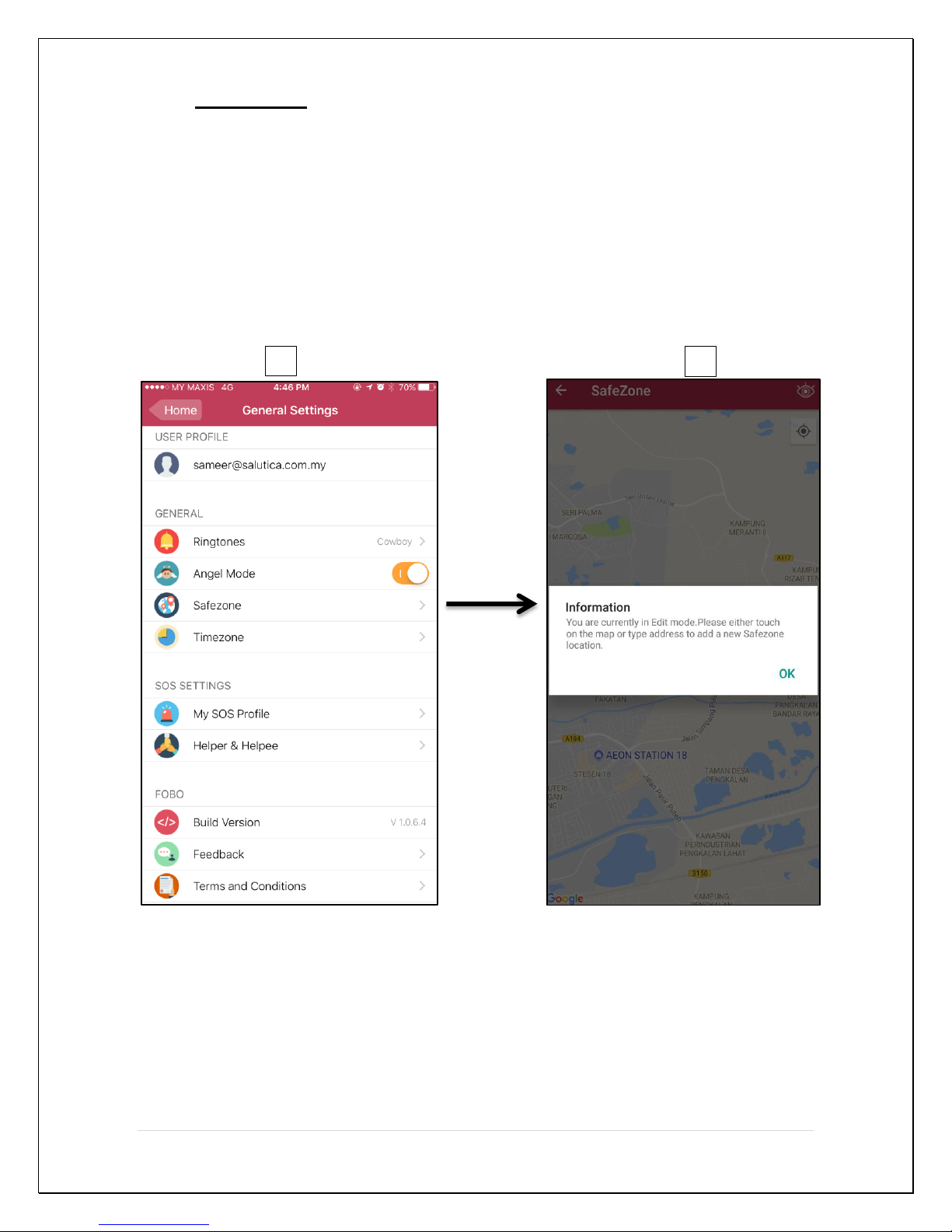
SafeZone is a feature that allows the FOBO TAG 3 App to drop its guard on a tracked
item at a location where you need to detach from the item. You can set a preferred
perimeter in which the RemindME function is turned off for the said tracked item. This
is a useful feature when you need to detach from the item within a safe perimeter, like at
home. User can create SafeZone in the General Settings -> Safe Zone. SafeZone relies on
signals from GPS, AGPS (via GSM network) & Wi-Fi to determine the location.
User can set multiple SafeZone for each TAG, e.g. home, office, friend’s house, etc.
Refer to the below illustrations on how to set up a safe zone.
26 | P a g e
Page 27
3
4
Safe Zone Name
Safe Zone Radius
Category
SAVE
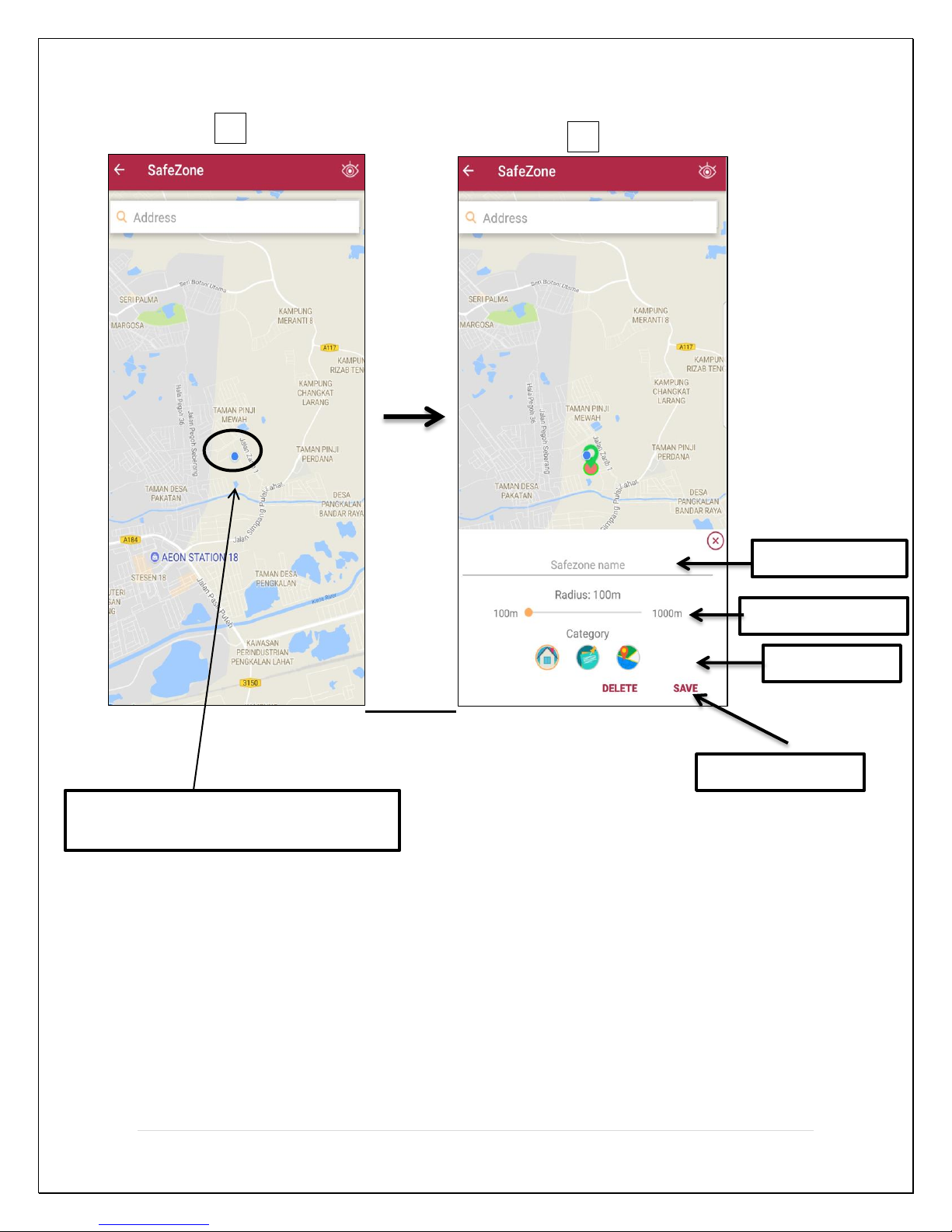
Current location - Click here
SafeZone name - Click here to enter safe zone name.
SafeZone radius - Use this to set safe zone radius.
Category - Click here to choose the category.
Save - Click here to save the safe zone.
27 | P a g e
Page 28

In order to change the safe zone details user need to enter into the edit mode and then
choose the preferred safe zone from the list.
NOTE: Please turn on Wi-Fi for more accurate detection of SafeZone. Turning
off Wi-Fi may cause wrong SafeZone alerts.
Note: In certain areas without Wi-Fi and with weak phone reception signal, user
may encounter a delay or error in SafeZone notification. This is due to the phone
is unable to determine its location accurately and the instant where phone
reception signal returns to normal and the phone is able to determine its location,
the alert will sound immediately. At times this may be a few hundred meters away
from the intended distance from SafeZone
28 | P a g e
Page 29
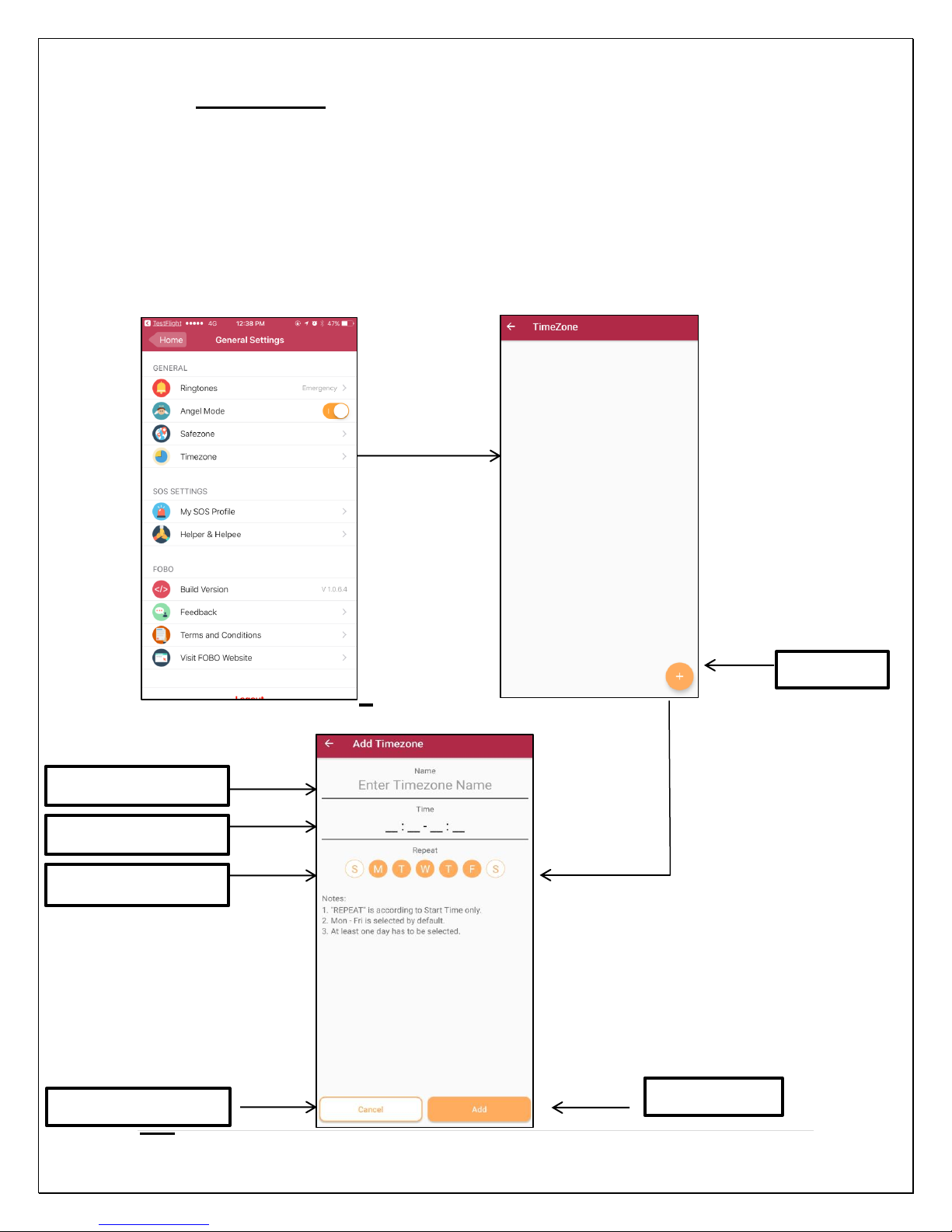
7.7 Time Zone
“+” Button
Time Zone name
Start & End time
Repeat
Cancel
ADD
There could be times when user does not wish to be reminded, e.g. leaving home for a
movie at night, a reminder to bring laptop may be annoying. To avoid this alert, user
may use TimeZone. When set for a particular SafeZone tied to a particular TAG, there
will be no alert when user leaves a SafeZone during any time that falls within the set
TimeZone. However the reminder alert will still work in spite of TimeZone set if user
takes the belonging together outside the SafeZone and accidentally leave the
belonging behind.
29 | P a g e
Page 30

“+” Button – Click here to add Time Zone.
Time Zone name – Click here to add Time zone name.
Start and end time – Click here to set start and end time.
Repeat – Click here to choose the days on which you would
like to repeat. User need to choose at-least one
day. All the days are pre-selected; user can
deselect the days according to their need.
Cancel – Click here to cancel.
Add – Click here to save the Time Zone settings.
30 | P a g e
Page 31
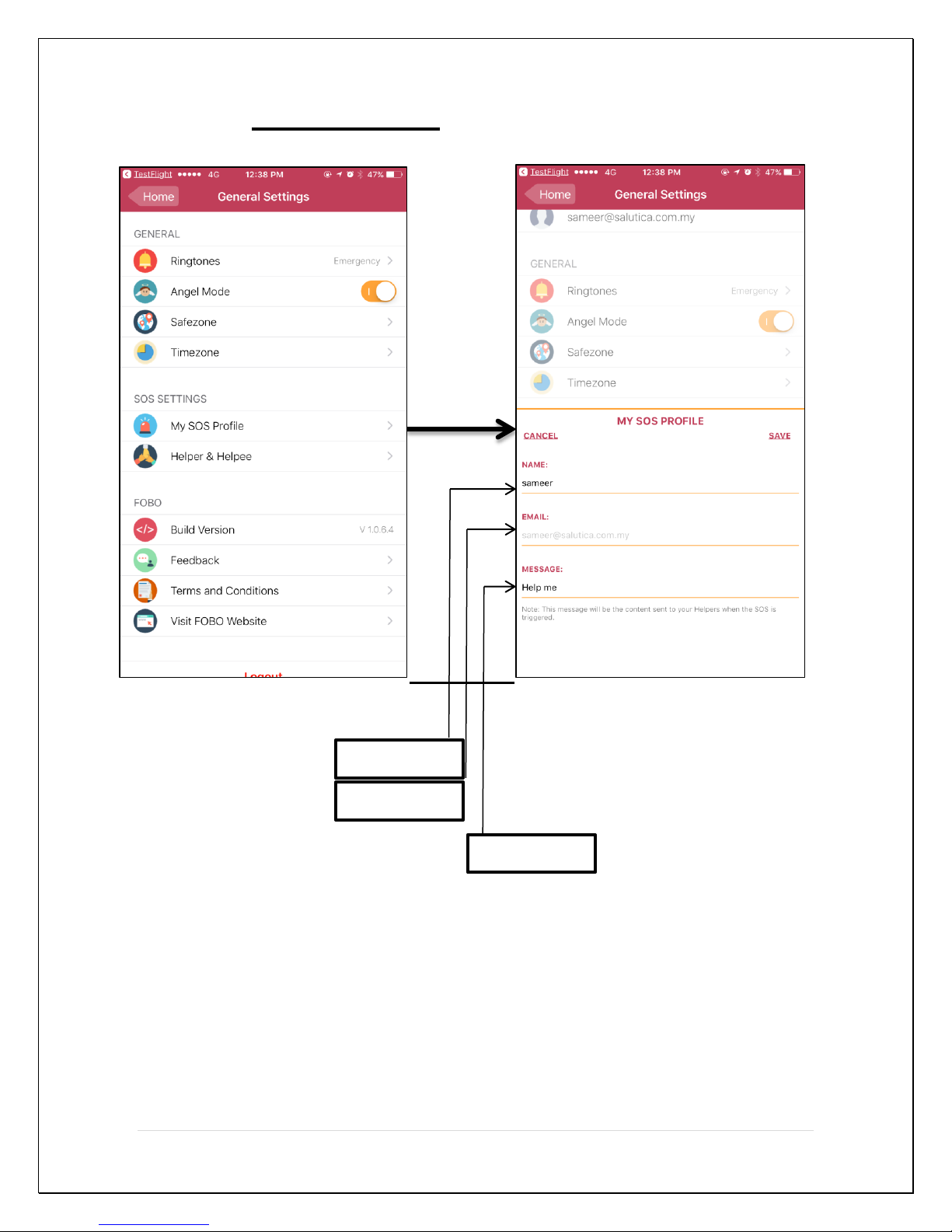
Name
Email
Message
7.8 My SOS Profile
Name - Click here to Add SOS profile name.
Email - By default, this is an email used to login in to the FOBO
TAG 3 App.
Message - Click here to add SOS message which will appear on the
helper’s device.
NOTE: Prior to using the SOS feature in the App, user needs to setup the SOS profile
and need to add at least one helper.
31 | P a g e
Page 32
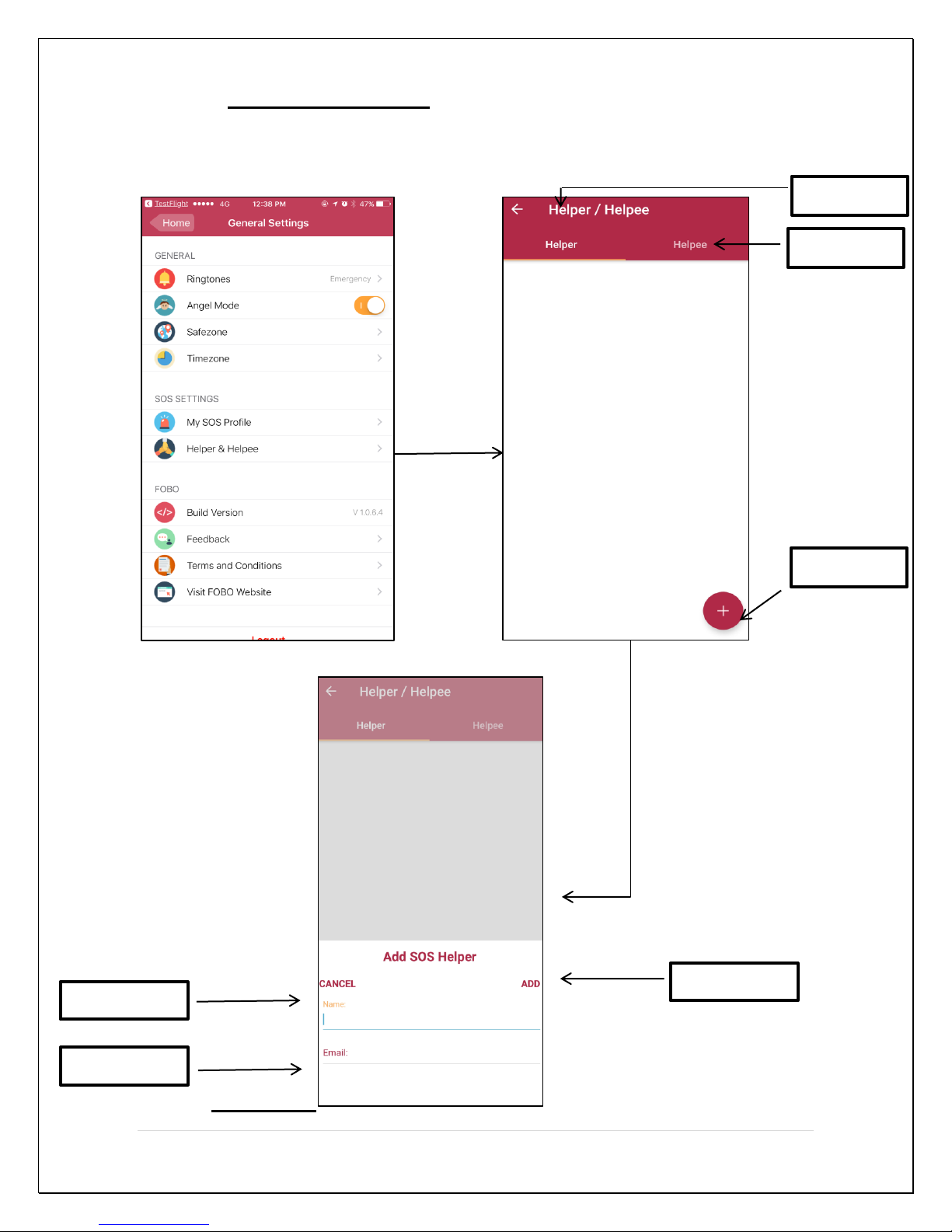
7.9 Helper & Helpee
“+” Button
Name
Email
Add
Helper
Helpee
A) Helper - Helpers are people who care for you and will respond to your
SOS alert.
32 | P a g e
Page 33
“+” Button – Click here to add someone as helper.
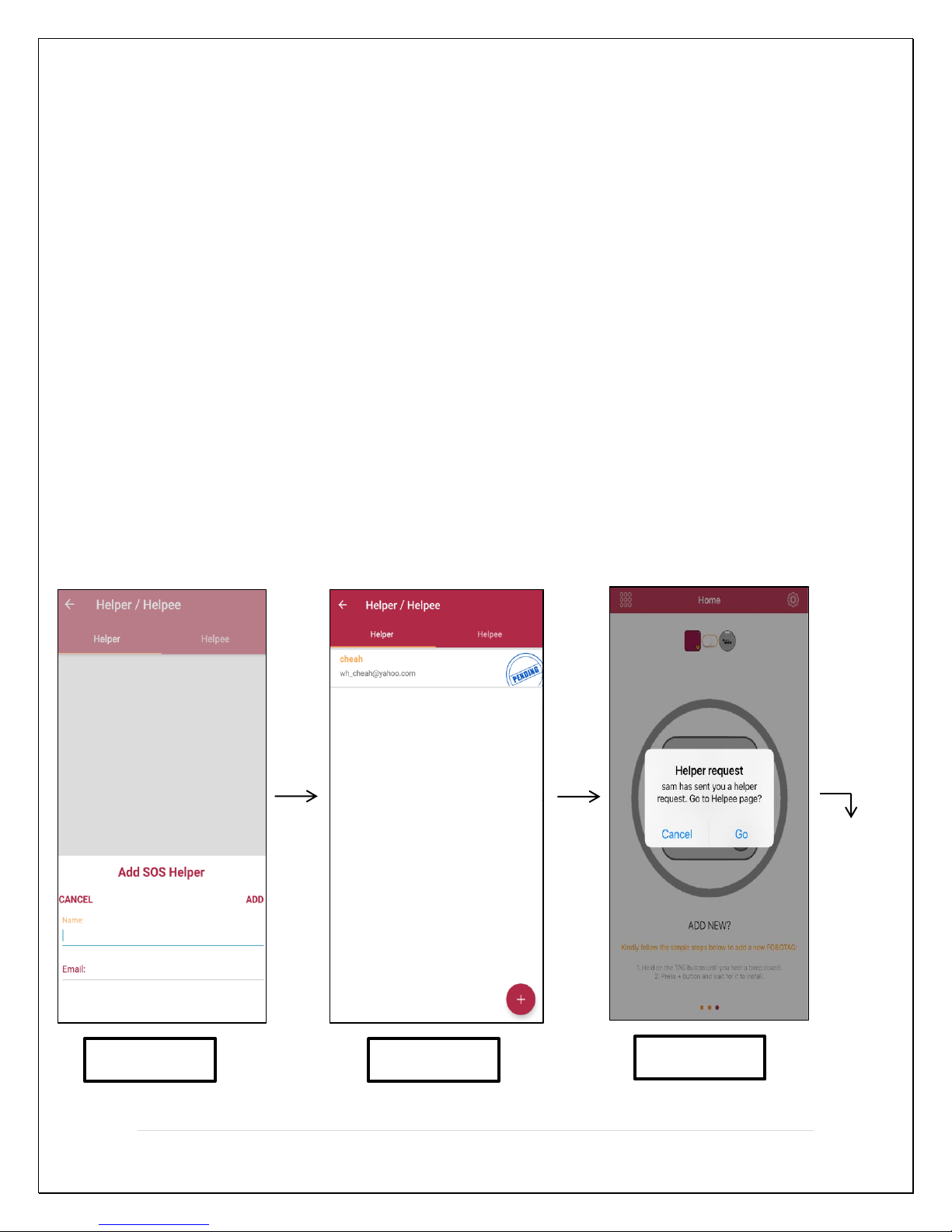
Image 1
Image 2
Image 3
Name - Click here to add helper name.
Email – Click here to add helper email.
Add – Click here to save the helper details. After adding,
helper will get the request; if helper did not accept
the request then the status will appear as Pending.
How to Add Helper:
1. Add helper Name and email on Helpee smartphone (Image 1).
2. On the Helpee smartphone under helper page the request status will show
Pending ( Image 2)
3. Helper will receive the notification of the request (Image 3).
4. Helper need to go to the Helpee page on his smartphone to accept the
request, Helper need to long press (Image 4) on the request icon to choose
the desired action.
5. Upon accepting the request by helper, the status on Helpee device will
change to Accepted ( Image 5)
33 | P a g e
Page 34
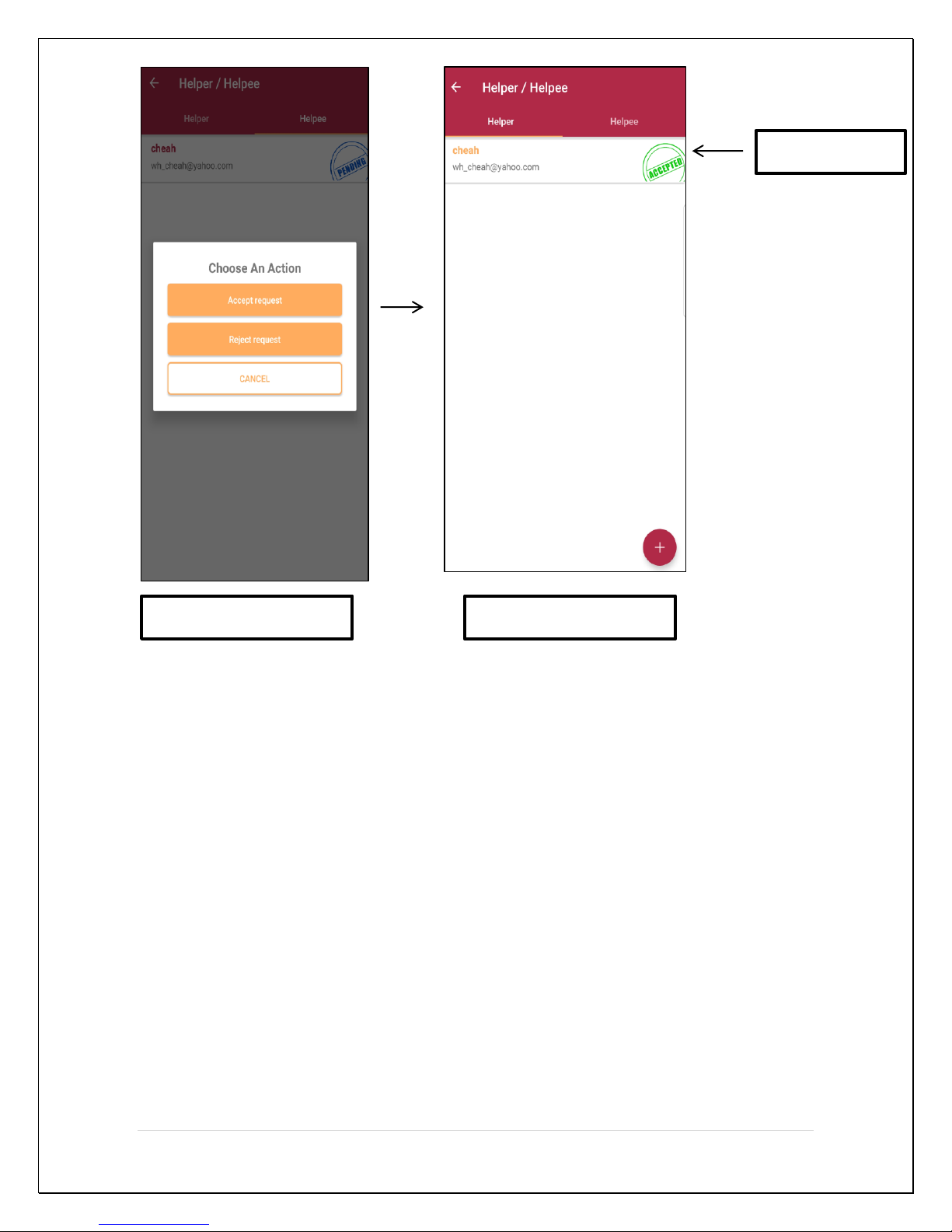
Image 4
Image 5
Helper Status
Helper Status - Display the status whether Helper accepted or rejected
your request to be your Helper. It will show “Pending”
if Helper has not made decision. It will show
Accepted, Pending or Rejected depending on Helper’s
decision to agree to help you or not.
34 | P a g e
Page 35
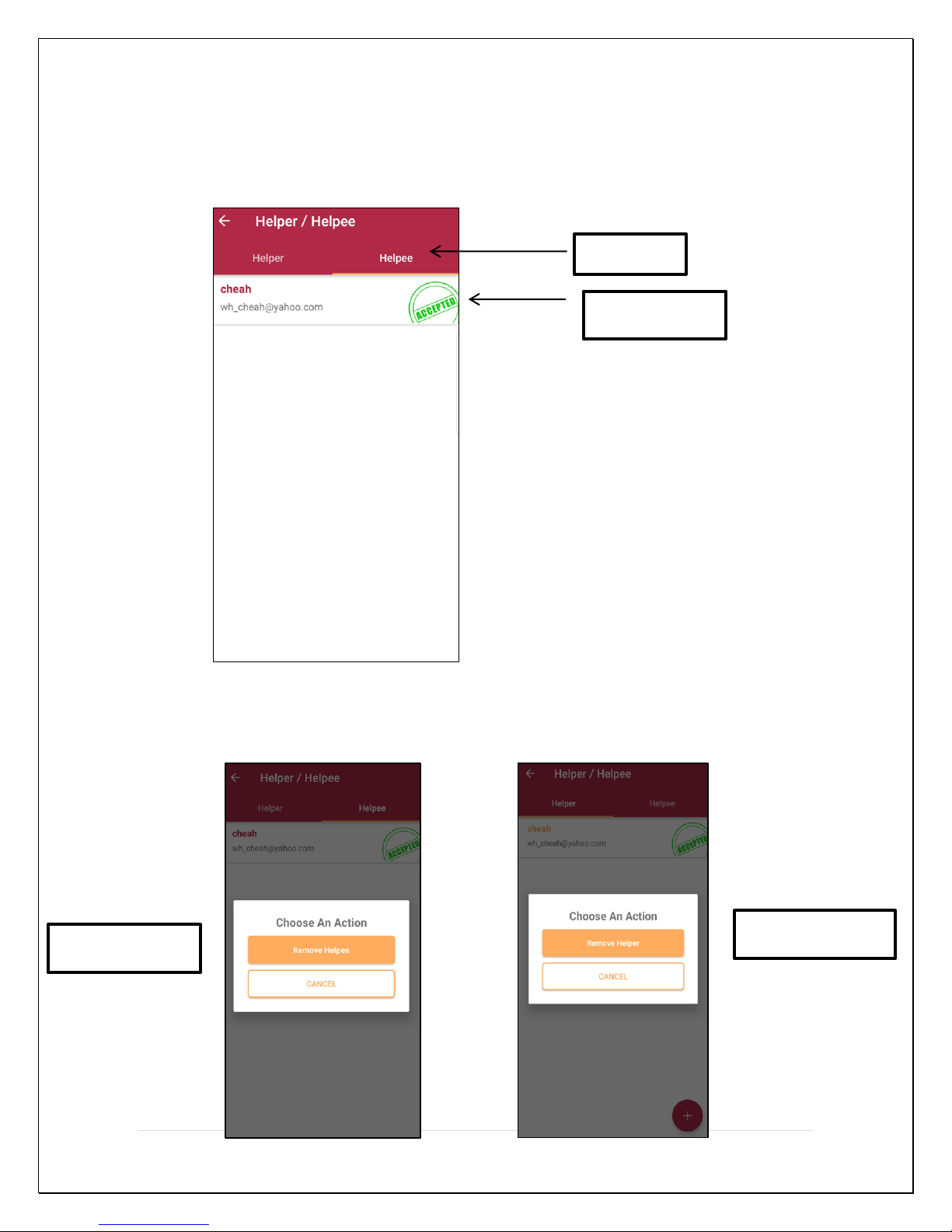
B) Helpee - Helpees are people who you care for and will respond to
Helpee
Helpee Status
Remove Helpee
Remove Helper
their SOS alert.
Helpee – Click here to view the Helpee list.
How to remove Helpee and Helper: Long press on the Helper or Helpee profile in the
list and then choose the desired action.
35 | P a g e
Page 36
7.10 SOSMe
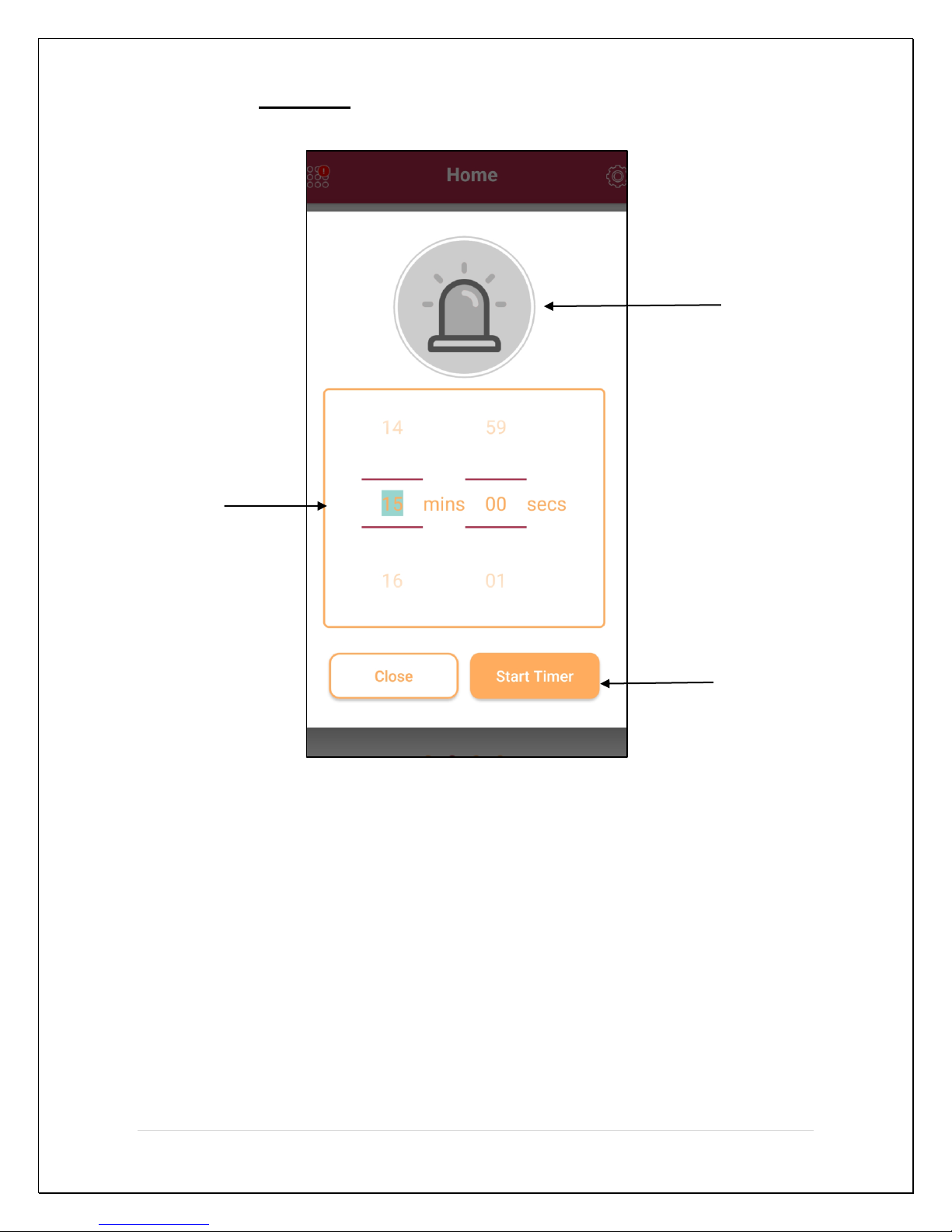
Timer Selection
SOS Trigger button
Start Timer
Timer Selection button - Click here to select timer options. The timer will set
duration for FOBO TAG to watch over you. During this
period, when FOBO TAG is out of Bluetooth range from
the phone, an SOS alert will be triggered. Please ensure
you are connected with TAG prior to initiating the timer.
Helper’s listed under the helper list will receive an
email; notification and audio for 10 seconds on the
smartphone every 1 minute until Helpee stop the SOS
alert. If FOBO TAG is in Bluetooth range with phone,
an SOS alert will still be triggered when the timer is out.
SOS Trigger button - Click here to trigger SOS alert immediately.
Start Timer - Click here to start the timer.
36 | P a g e
Page 37
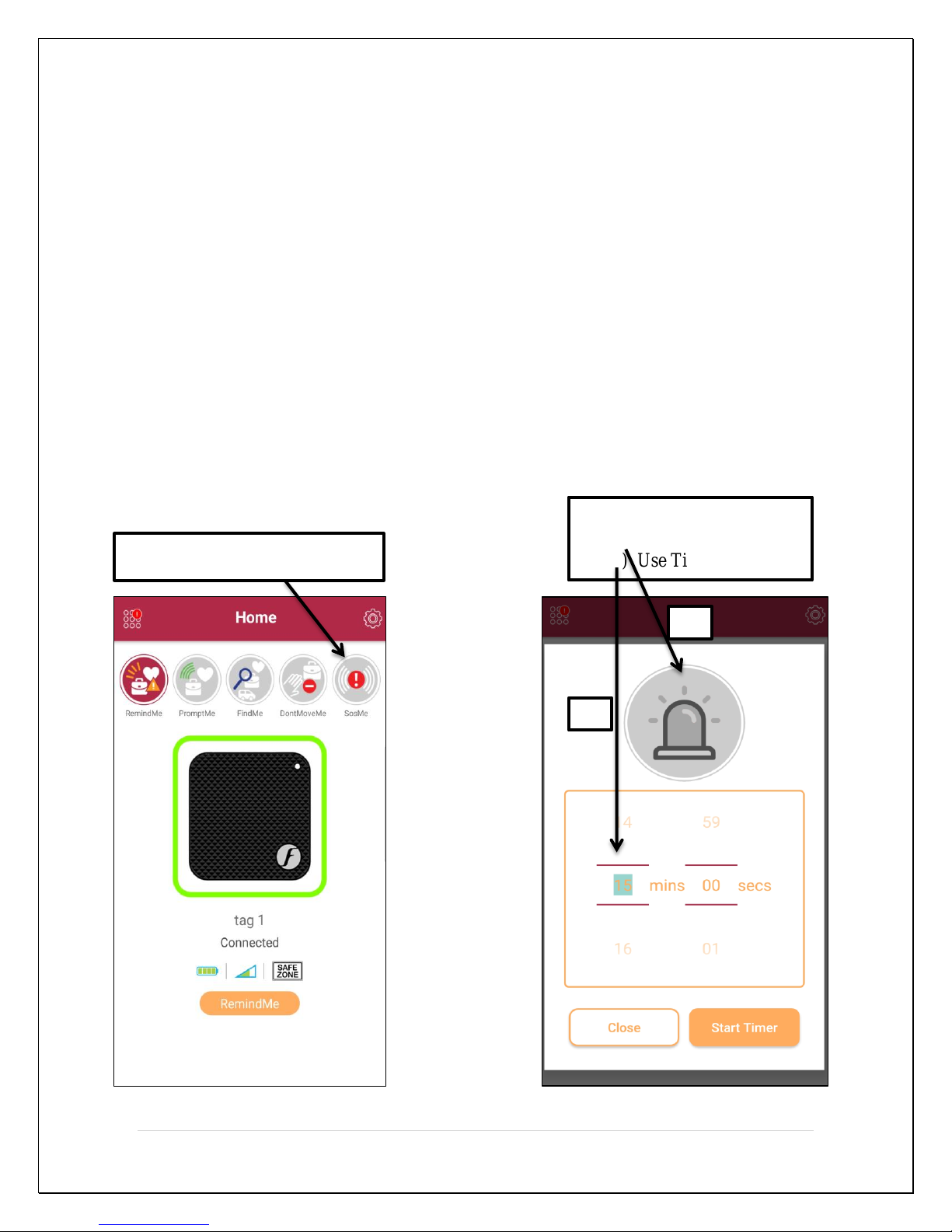
Step 1- Click SOSMe
Step 2-
A) Trigger Immediately
B) Use Timer
A
B
NOTE: Prior to using the SOS feature in the App, user needs to setup the SOS
profile and need to add at least one helper.
How the SOS function work:
1) On the FOBO TAG 3 App home screen, click at SOSMe button.
2) Set timer or trigger the SOS immediately using the “SOS trigger button”.
3) Helper’s under the helper list will receive notification on their smartphone
simultaneously by an email asking for help; Helpee’s smartphone will also record
audio for 10 seconds and send to the Helper.
Helper can check the audio sound and direction by going to general settings –>
Helper & Helpee –> Helpee –> click on the Helpee email –> choose from the
available option; Play audio or Get direction. Upon clicking at get direction, App
will direct the user to Google Map where user can choose to get directions in order
to reach the Helper.
37 | P a g e
Page 38
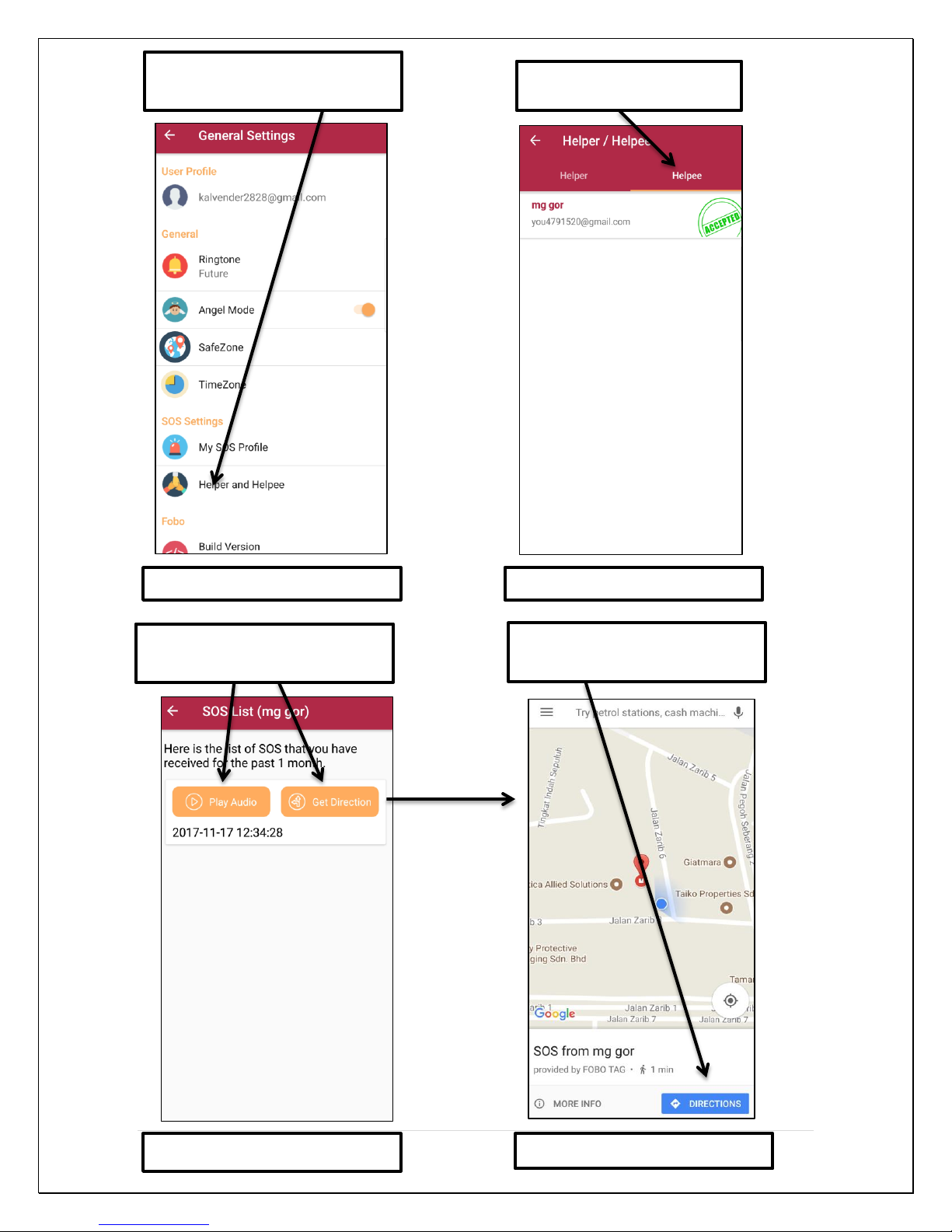
Helper Smartphone screen
Helper Smartphone screen
Helper Smartphone screen
Helper Smartphone screen
Step 3- Click on Helper &
Helpee.
Step 4- Click on Helpee
Step 5- Play Sound or Get
Direction
Step 6- Click direction to get
the route
38 | P a g e
Page 39
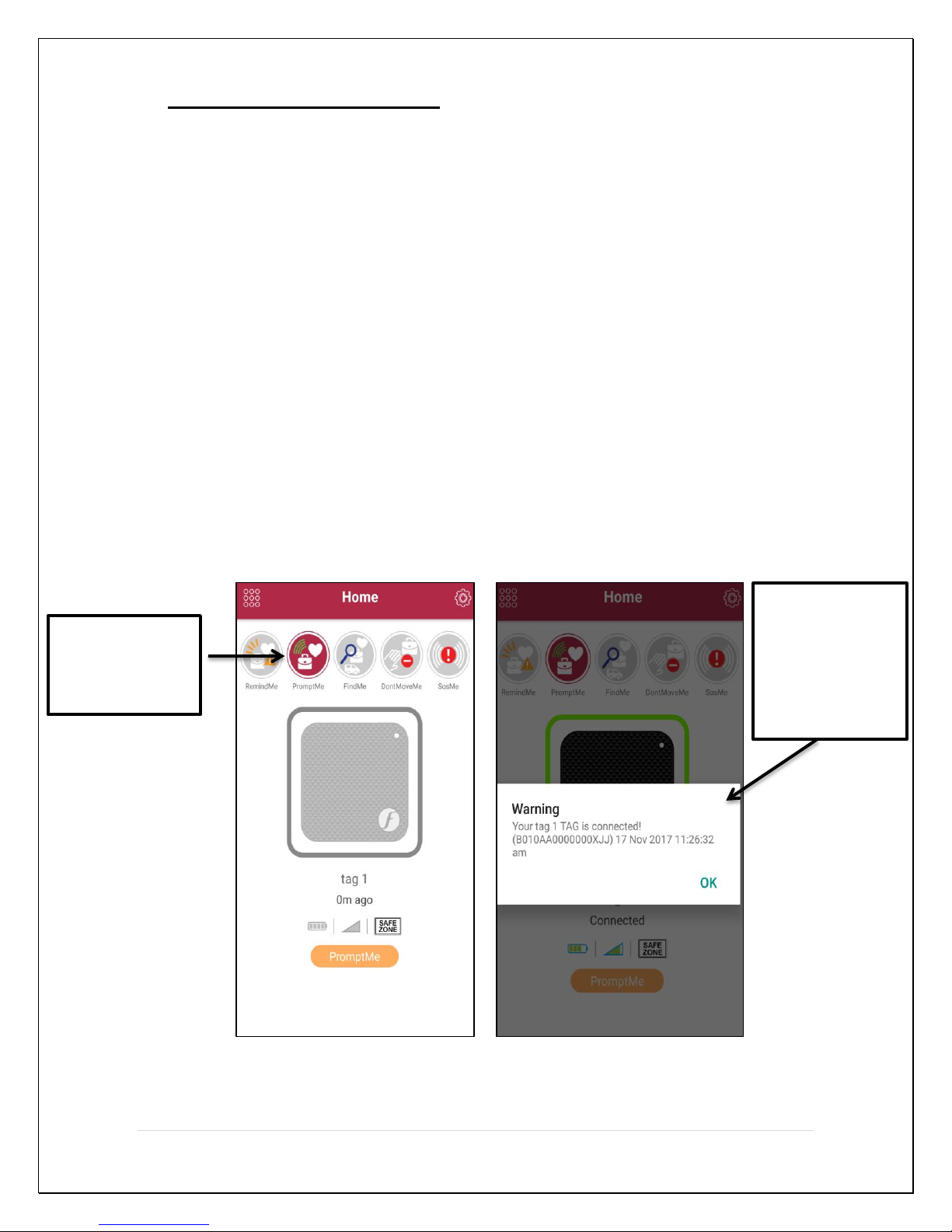
Click here to
PromptMe
Once connected,
enable
8 FOBO TAG Functions
Functions are activities for the FOBO TAG to perform. All functions can be activated
from Home screen by selecting the particular FOBO TAG in HOME screen.
1) PromptME – This function alerts you when a tracked item comes in Bluetooth
range with your smartphone. It is useful for parents who fetch children from
school events; the tracked FOBO TAG will also beep when gets in range telling
the children that their parents are waiting by. A traveler can avoid the crowd and
approach the airport carousel upon getting a notification as the luggage turn up
and get in range with the smartphone (FOBO TAG should be leashed on the bag
exterior)to notify the arrival of a belonging; Examples below:
a. Waiting for checked-in luggage at arrival hall. You will get an alert when
the luggage is within the bluetooth range.
b. Announcing the returning home of your spouse as the vehicle is being
parked outside the house.
Note: User will still receive RemindME alerts if FOBO TAG gets connect and
disconnect in the PromptMe mode.
39 | P a g e
message with
alert sound will
pop-up to alert
the user.
Page 40
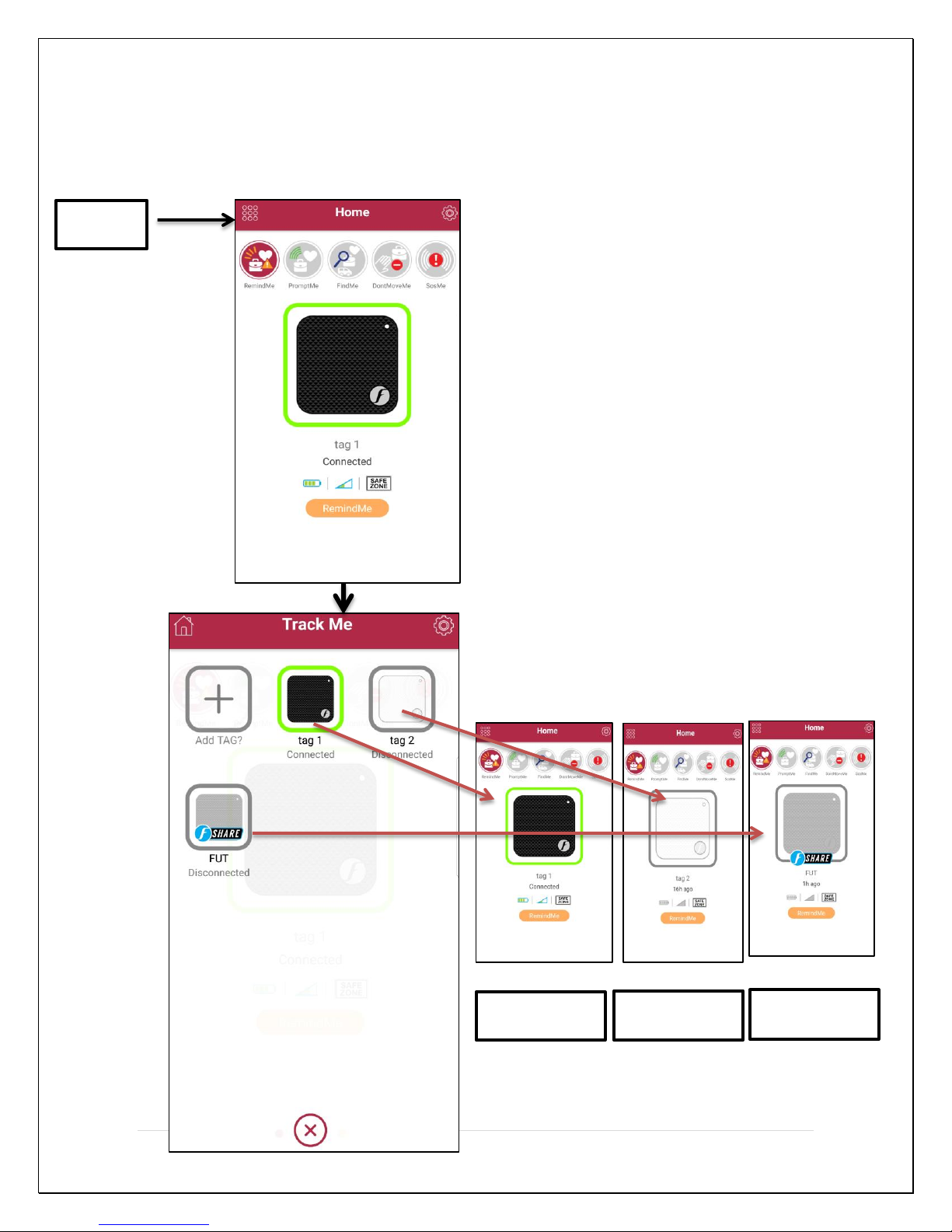
Tag 1 Connected
Tag 2
Disconnected
FUT
Disconnected
Click here
2) TrackME – This function shows on demand the presence of items that you would
like to track. It provides an instant summary view of those FOBO TAGs that are
in Bluetooth range with your smartphone. This function is handy when you have
to move about with multiple belongings like during a family vacation or tracking
expensive tools in a construction environment.
40 | P a g e
Page 41
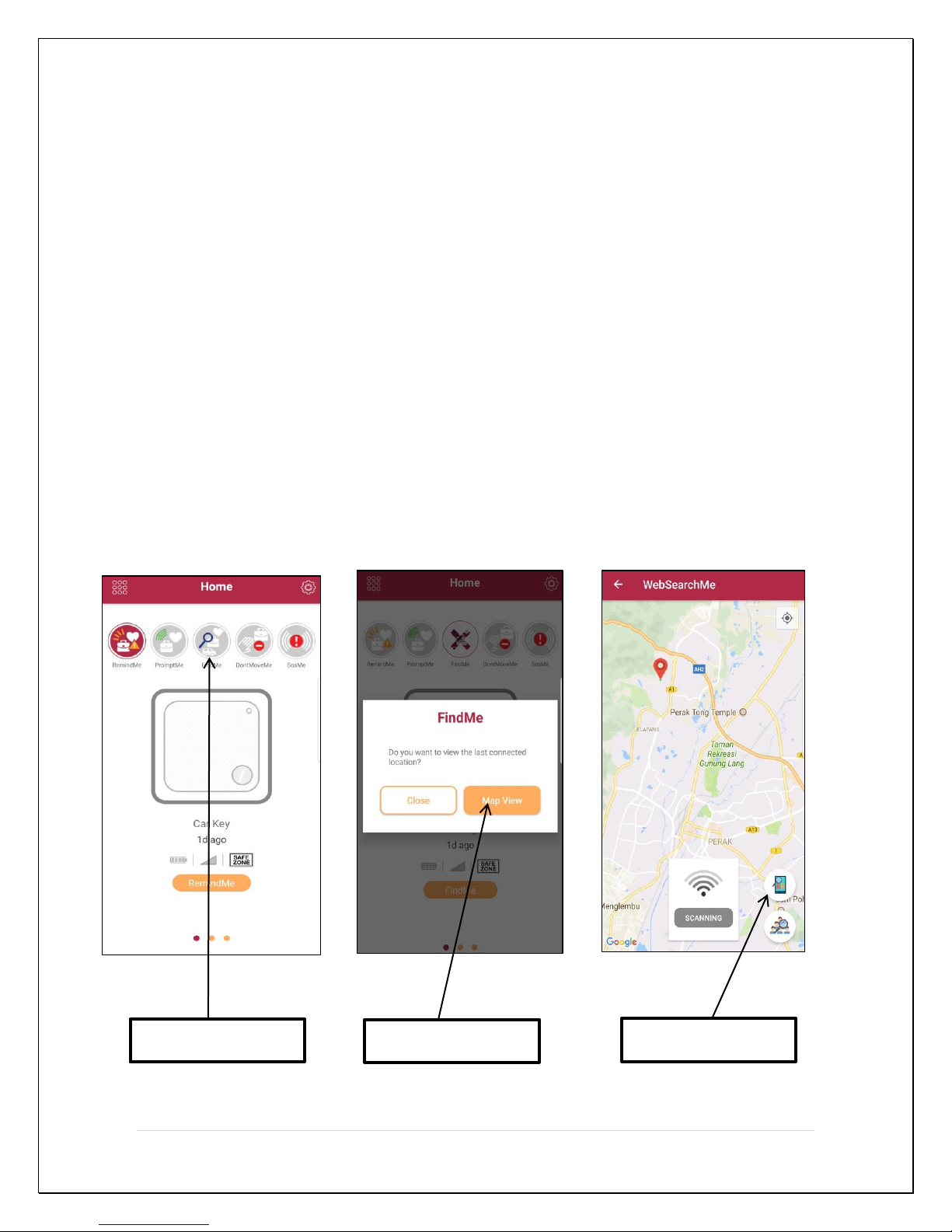
3) FindME – When you need to locate your misplaced belonging, loved one. You
Step 1
Step 2
Step 3
will be able to use sound and visual level to guide you to your misplaced
belonging or your loved one. FindME comprises multiple search functions to
retrieve something or someone missing, such as:
a) Augmented Reality (AR) Search.
b) Group Search
c) 2D Search
d) Reverse Search
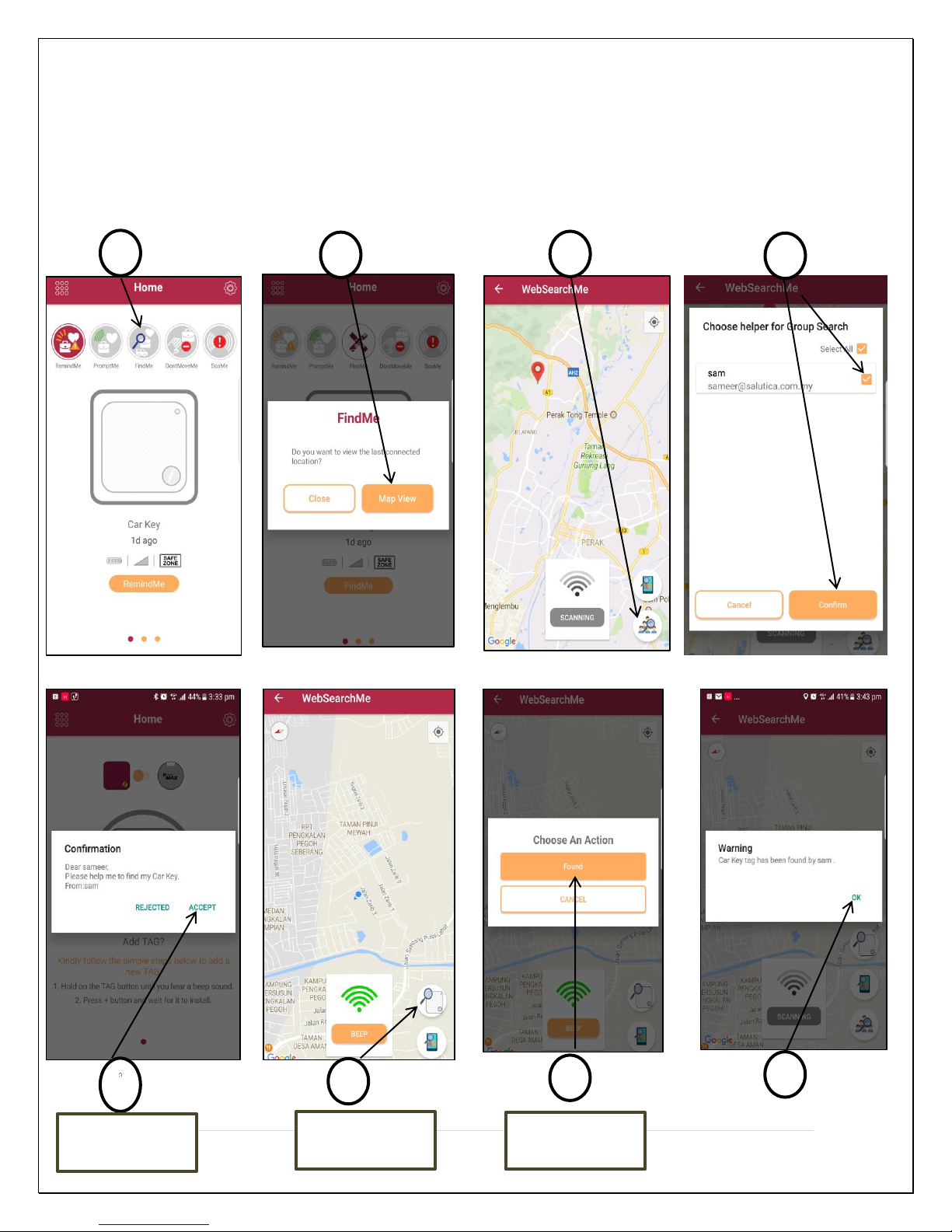
a) Augmented Reality (AR) search: This feature enhances the effectiveness of
a search. It maps the real life surrounding with directional indications to
enhance visual recognition and depth perception during a search. This AR
effectively navigates you towards the missing item in a familiar or unfamiliar
environment.
AR mode is the last location best known by server; either it is last
disconnected location or last WebSearchME report location, whichever is
latest.
Below are the steps to use AR feature:
41 | P a g e
Page 42
1 2 3
4
657
8
Helper
smartphone
Helper
smartphone
Helper
smartphone
b) Group Search: This feature improves the efficiency of a search in a large
area. With patented technology, FOBO TAG 3 App lets you mobilize an
enlisted team search for a missing item or loved one. The search members can
individually and simultaneously search at different spots of a large area with
AR Search function. This function is useful when time is an essence.
Note: Please add at least one helper prior to using this feature.
42 | P a g e
Page 43
Step 1 – Click
FindMe
Step 2 – Click
Beep
Step 3
Long press on the “FOBO
Button” to activate the
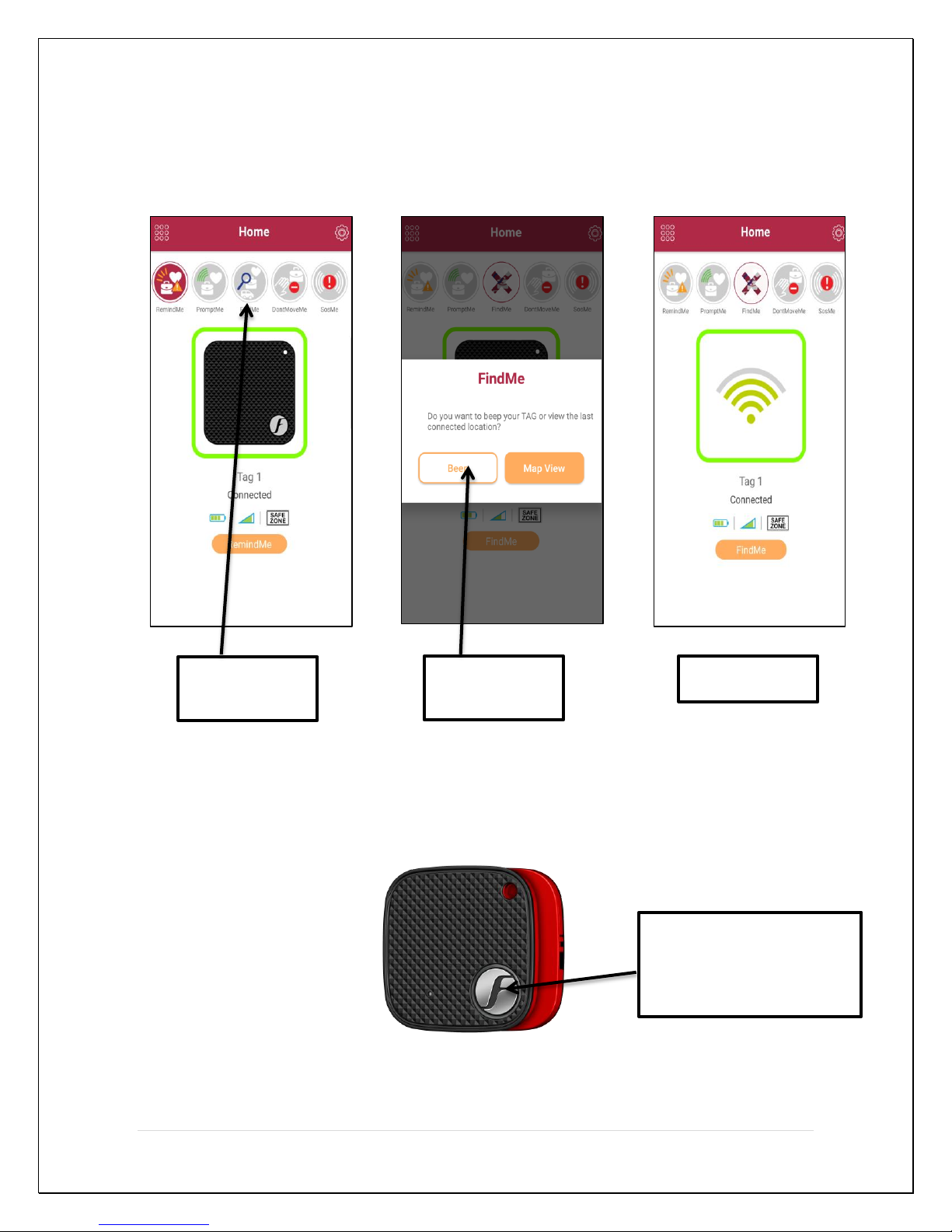
c) 2D Search: This feature use radio signal strength, audible beep to direct you
to the FOBO TAG attached on the missing item. You can activate a strong
audible beep from FOBO TAG to detect its actual location when you are in
close proximity. Click on FindMe button to beep the Tag and click again on
FindMe button to stop the Beep.
d) Reverse Search: This feature helps you search for the smartphone that the
FOBO TAG is paired with. This function is handy when you have misplaced
your phone. If you have multiple TAGs paired with your phone, you can
mobilize a team search by assigning one TAG to each team member.
Reverse search.
43 | P a g e
Page 44

4) RemindME – This function alerts you when a tracked item gets out of Bluetooth
range with your smartphone, reminding that the item has been left behind or
alerting that the item has been taken away or wandered off. This is a default
feature. Examples below:
a. When Tagged to a belonging, the applications will provide an alert when
the smart phone is a certain distance away from the TAG. You could TAG
to your laptop bag in case you forget to bring to office.
b. However at certain times, you do not want the TAG to provide reminder.
Example you might not want to be reminded about your laptop bag when
you go to the cinema from home after work at night. With TimeZone, user
can set certain timeslots within different days of the week when the FOBO
TAG should not provide a reminder alert.
5) Don’tMoveME – This is a motion function that alerts you when the tracked item
is moved. This is a safety feature that you would love when traveling alone to
alert you if there is a movement of the hotel room door. You can also use to
detect movement of the lid of a candy jar. If the tracked item is moved when you
are away, you will still get an alert when you return; a movement log is
provided. You can use this feature in a busy airport to alert you against luggage
theft (FOBO TAG should be leashed on the bag exterior) to monitor your
belonging to ensure nobody moves it without your knowledge. Examples below:
a. Place a FOBO TAG in your drawer. Once the drawer is moved and you
are within Bluetooth range, you will get an alert on your phone. If you are
out of range, you will get an alert when the smart phone gets back into
Bluetooth range with the FOBO TAG.
b. Monitoring can be done for your apartment door to track if anybody
uninvited opening your door.
Note: You can only activate this function when TAG is connected with the
smartphone.
44 | P a g e
Page 45
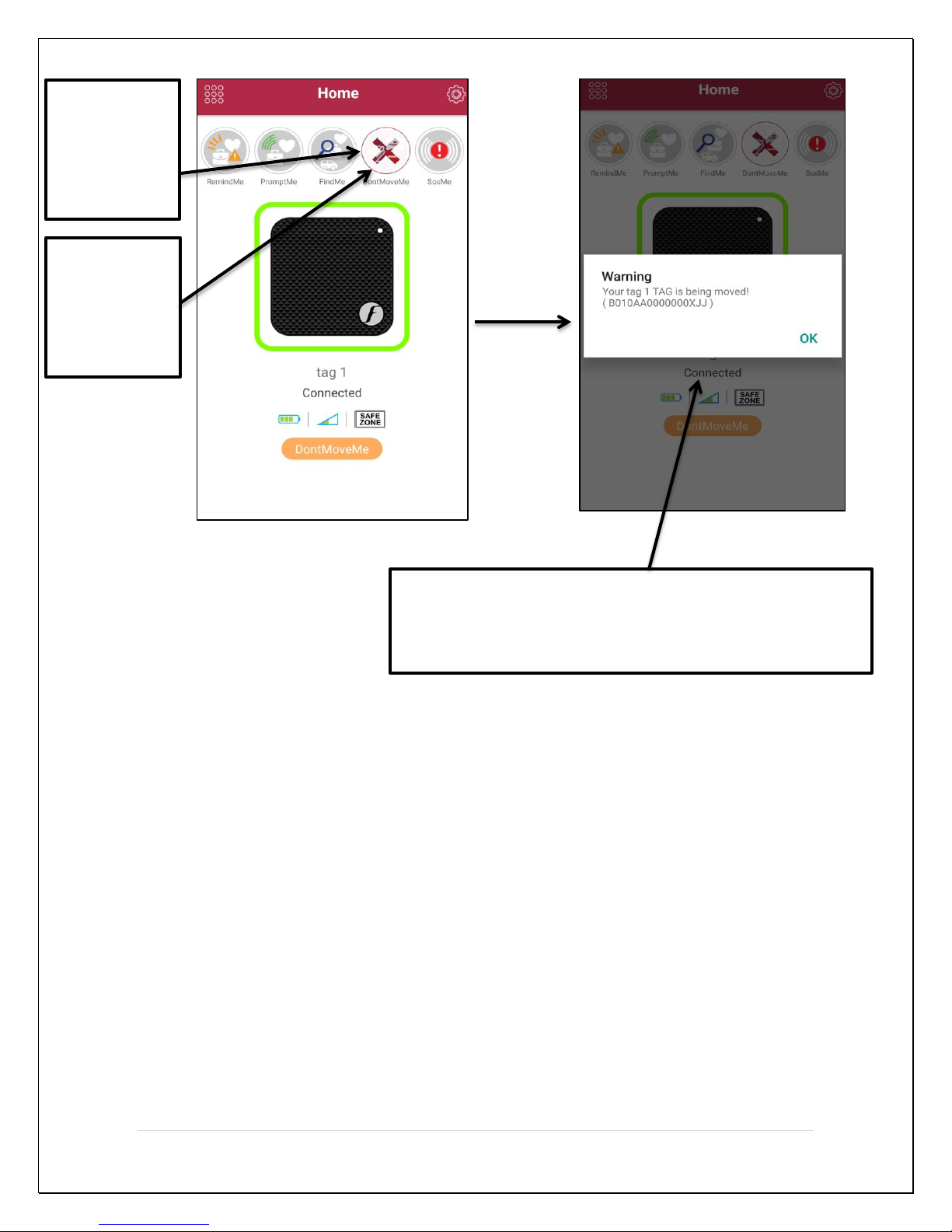
Click here to
DontMoveMe
Once the TAG is moved, alert message with alert sound will
pop-up if the user is within bluetooth range, otherwise user
can check the movement records once connected to the
TAG.
DontMoveMe
enable
Click here
again to
disable
6) SOSME – Use this function to watch over you and send SOS alert to people who
care for you in the event of an emergency situation. You can also use immediate
trigger without FOBO TAG. Examples below:
a. When you are walking into a quiet area, set SOS.ME. Place the phone in
your pocket and hold FOBO TAG in your hand. In an emergency situation,
throw the FOBO TAG away from you. Once the TAG is out of range from
phone, an SOS alert will be sent to the list of Helpers. Your Helpers will
also be able to review 10sec audio recording of your surrounding location
as well as your current GPS location. Any commotion will be recorded
and will be confirmation for your Helpers that you are in danger. This
SOS alert will continue every minute to notify your Helpers of your latest
where about together with latest audio recording.
b. Imagine you are staying alone and notice some noise outside your room.
You can use the SOS Control screen to trigger immediate SOS alert to
your Helpers as soon as you detect an intruder.
45 | P a g e
Page 46

9 Trouble Shooting Guide
Could not sign up a new FOBO account (did not receive authentication e-
mail)
o Check the e-mail address entry is typed correctly
o Check the Spam mailbox, in case the e-mail was filtered by the e-
mail server
o Check the smart phone is connected to WIFI/GSM and able to
receive e-mail
Could not sign up a new FOBO account (received authentication e-mail)
o Make sure to click on the “Activation” link of the latest e-mail, in
case there are multiple authentication e-mails
o You should be directed to web page that clearly displayed “TAG is
activated”.
Unable to Login after signing up to FOBO App
o Make sure your e-mail address is typed correctly.
o A verification mail will be sent to your e-mail address
o Follow the instruction in the mail to activate your account before you
can Login
o Check if internet connection is available on your smart phone
Unable to pair FOBO TAG
o Launch FOBO TAG 3 App
o Choose TAG using the switch button in home screen.
o Select “+” in HOME screen.
o Long press the “FOBO Button” on the TAG until you hear the beep
sound.
o Make sure your smart phone has Bluetooth 4.0 and above capability.
NOTE: BLUETOOTH 2.0 OR 3.0 WILL NOT WORK WITH
THIS DEVICE.
o Please check if the FOBO TAG has been paired before to another
Login account. You’ll need to “Release” the FOBO TAG from the
Login account that it is paired to, before using on your account. The
FOBO TAG is designed to pair with one Login account only to
protect your privacy.
o Try to reset the Bluetooth manager of your smart phone
.
Unable to connect FOBO TAG after pairing
o Make sure there is nothing blocking the RF signal between FOBO
TAG and your smart phone.
46 | P a g e
Page 47

o Make sure you Login with the same information (e-mail) that was
used to pair with this FOBO TAG.
o Upon connection you should see a clear signal bar graphics.
o Make sure to change the battery immediately after you receive a low
battery alert. FOBO TAG might not function properly of battery
level is too low. The CR2025 coin cell battery could last up to one
year; depending on usage the battery life may be much lesser than
one year.
Unable to see all paired FOBO TAGs after sign out and login again
o Note that FOBO TAG pairing information is tied to your login
account using your e-mail address.
o Make sure you login using the correct e-mail address that was used
to pair your FOBO TAGs.
o Make sure you did not save your FOBO TAG settings and Logout
when there is no internet connection. This might cause failure to
synchronize your FOBO TAG information with FOBO cloud server
thus disrupting your Login account database.
PromptME did not alert when FOBO TAG in vicinity
o Try again with FOBO TAG 3 App in the foreground when you want
to detect an in-coming FOBO TAG. Due to power saving protocol in
your smart phone operating system, there may be some delay in
detecting a FOBO TAG signal if the app is put to the background.
o Ensure PromptME feature is activated and your smart phone must be
disconnected from the FOBO TAG for more than 20 seconds.
o Ensure the FOBO TAG is not placed in a metal casing, metal bag or
immersed in liquid which can seriously attenuate signals coming out
from FOBO TAG.
SOS.ME does not work. Helper could not receive SOS alert.
o Check if the Helper that you added has accepted your request to add
him/her as your Helper. The status should display “Accepted”.
o Ensure that Helper is still Login to FOBO TAG 3 App with the app
in the background.
o Check the Helper’s e-mail listed in Helper List screen is the same as
the e-mail that the Helper used to Login to FOBO TAG 3 App.
Ensure that your smartphone and Helper’s smartphone has access to
cellular data or Wi-Fi.
47 | P a g e
Page 48
10 FOBO Specifications
Bluetooth 5.0 Ready
Connectivity range – Up to 120 meter with line of sight (BT5.0)
Dimension (H x D): 36.5mm X 36.5mm
Thickness - 4.5mm
Dust and Splash Proof: IP54
Battery Type – CR2025
Battery life span - Up to one year
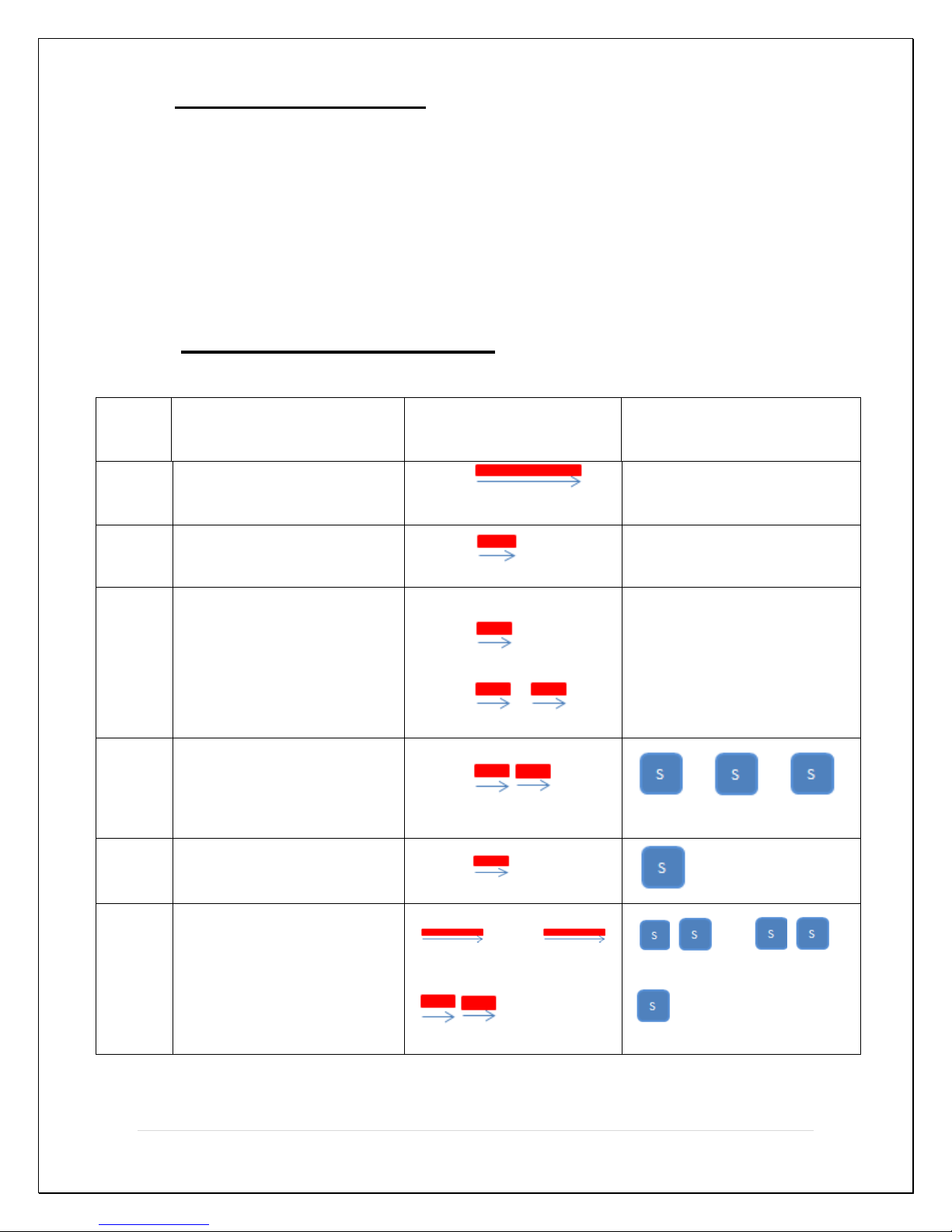
11 LED & Tone alert pattern
SR No. FUNCTIONS
LED PATTERN
TONE PATTERN
1
POWER ON
2s
2
POWER OFF
0.5s
3
BLUETOOTH STATUS:
BT CONNECTED
STATUS
BT CONNECTABLE
STATUS
0.5s
0.5s +0.5s
No Tone
No Tone
4
PAIRING MODE
0.2s+0.2s
5
CUSTOMIZE FUNCTION
0.5s
6
ACTIVATE PHONE
SEARCH
DEACTIVATE PHONE
SEARCH
……...
300ms 5s
0.1s+0.1s
……………...
48 | P a g e
Page 49
7
RELEASE
NO LED
12Warning
Take note that FOBO TAG is not meant to function as anti-theft or anti-
kidnapping device. In some use cases involving SafeZone, unauthorized
person may remove the belonging without triggering an alert on your smart
phone.
Please take extra precaution to acoustics safety when operating the FOBO
TAG. Note that the FOBO TAG beeper may be loud and may result in injury
to the ear or permanent loss of hearing.
You shall not use the FOBO TAG in any unlawful way that violates any laws.
Avoid exposing the FOBO TAG to solvent, fire or extreme temperatures.
FOBO TAG may fail to function properly if the battery is below 100% level.
Replace the battery immediately to continue enjoying full features of FOBO
TAG.
CAUTION
THERE MAY BE A RISK OF EXPLOSION IF BATTERY IS REPLACED
BY AN INCORRECT TYPE. DISPOSE ALL USED BATTERIES
PROPERLY.
13 Regulatory information
Federal Communication Commission Interference Statement
This device complies with Part 15 of the FCC Rules. Operation is subject to the
following two conditions: (1) This device may not cause harmful interference, and
(2) this device must accept any interference received, including interference that
may cause undesired operation.
This equipment has been tested and found to comply with the limits for a Class B
digital device, pursuant to Part 15 of the FCC Rules. These limits are designed to
provide reasonable protection against harmful interference in a residential
installation. This equipment generates uses and can radiate radio frequency
energy and, if not installed and used in accordance with the instructions, may
cause harmful interference to radio communications. However, there is no
49 | P a g e
Page 50

guarantee that interference will not occur in a particular installation. If this
equipment does cause harmful interference to radio or television reception, which
can be determined by turning the equipment off and on, the user is encouraged to
try to correct the interference by one of the following measures:
- Reorient or relocate the receiving antenna.
- Increase the separation between the equipment and receiver.
- Connect the equipment into an outlet on a circuit different from that
To which the receiver is connected.
- Consult the dealer or an experienced radio/TV technician for help.
FCC Caution: Any changes or modifications not expressly approved by the party
responsible for compliance could void the user's authority to operate this
equipment.
This transmitter must not be co-located or operating in conjunction with any other
antenna or transmitter.
Radiation Exposure Statement:
The product comply with the FCC portable RF exposure limit set forth for an
uncontrolled environment and are safe for intended operation as described in this
manual. The further RF exposure reduction can be achieved if the product can be
kept as far as possible from the user body or set the device to lower output power
if such function is available.
Industry Canada statement:
This device complies with ISED’s licence-exempt RSSs. Operation is subject to
the following two conditions: (1) This device may not cause harmful interference,
and (2) this device must accept any interference received, including interference
that may cause undesired operation.
Le présent appareil est conforme aux CNR d’ ISED applicables aux appareils
radio exempts de licence. L’exploitation est autorisée aux deux conditions
suivantes : (1) le dispositif ne doit pas produire de brouillage préjudiciable, et (2)
ce dispositif doit accepter tout brouillage reçu, y compris un brouillage
susceptible de provoquer un fonctionnement indésirable.
Radiation Exposure Statement:
The product comply with the Canada portable RF exposure limit set forth for an
uncontrolled environment and are safe for intended operation as described in this
manual. The further RF exposure reduction can be achieved if the product can be
kept as far as possible from the user body or set the device to lower output power
if such function is available.
50 | P a g e
Page 51

Déclaration d'exposition aux radiations:
Le produit est conforme aux limites d'exposition pour les appareils portables RF
pour les Etats-Unis et le Canada établies pour un environnement non contrôlé.
Le produit est sûr pour un fonctionnement tel que décrit dans ce manuel. La
réduction aux expositions RF peut être augmentée si l'appareil peut être conservé
aussi loin que possible du corps de l'utilisateur ou que le dispositif est réglé sur la
puissance de sortie la plus faible si une telle fonction est disponible.
[警語內容]
低功率電波輻射性電機管理辦法
第十二條 經型式認證合格之低功率射頻電機,非經許可,公司、商號
或使用者均不得擅自變更頻率、加大功率或變更原設計之特
性及功能。
第十四條 低功率射頻電機之使用不得影響飛航安全及干擾合法通信;
經發現有干擾現象時,應立即停用,並改善至無干擾時方得
繼續使用。
前項合法通信,指依電信法規定作業之無線電通信。
低功率射頻電機須忍受合法通信或工業、科學及醫療用電波
輻射性電機設備之干擾。
14 Intellectual Properties
FOBO™ is a trademark of Salutica Allied Solutions Sdn Bhd. All rights
reserved.
FOBO™ wireless TAG incorporates a few patent pending technologies solely
owned by Salutica Allied Solutions Sdn Bhd.
Bluetooth® is a registered trademark owned by Bluetooth SIG Inc.
iPhone® is a registered trademark of Apple Inc.
51 | P a g e
 Loading...