

Page 1
FMUSER INTERNATIONAL GROUP INC. 广州市汉婷信息科技有限公司
1 / 16
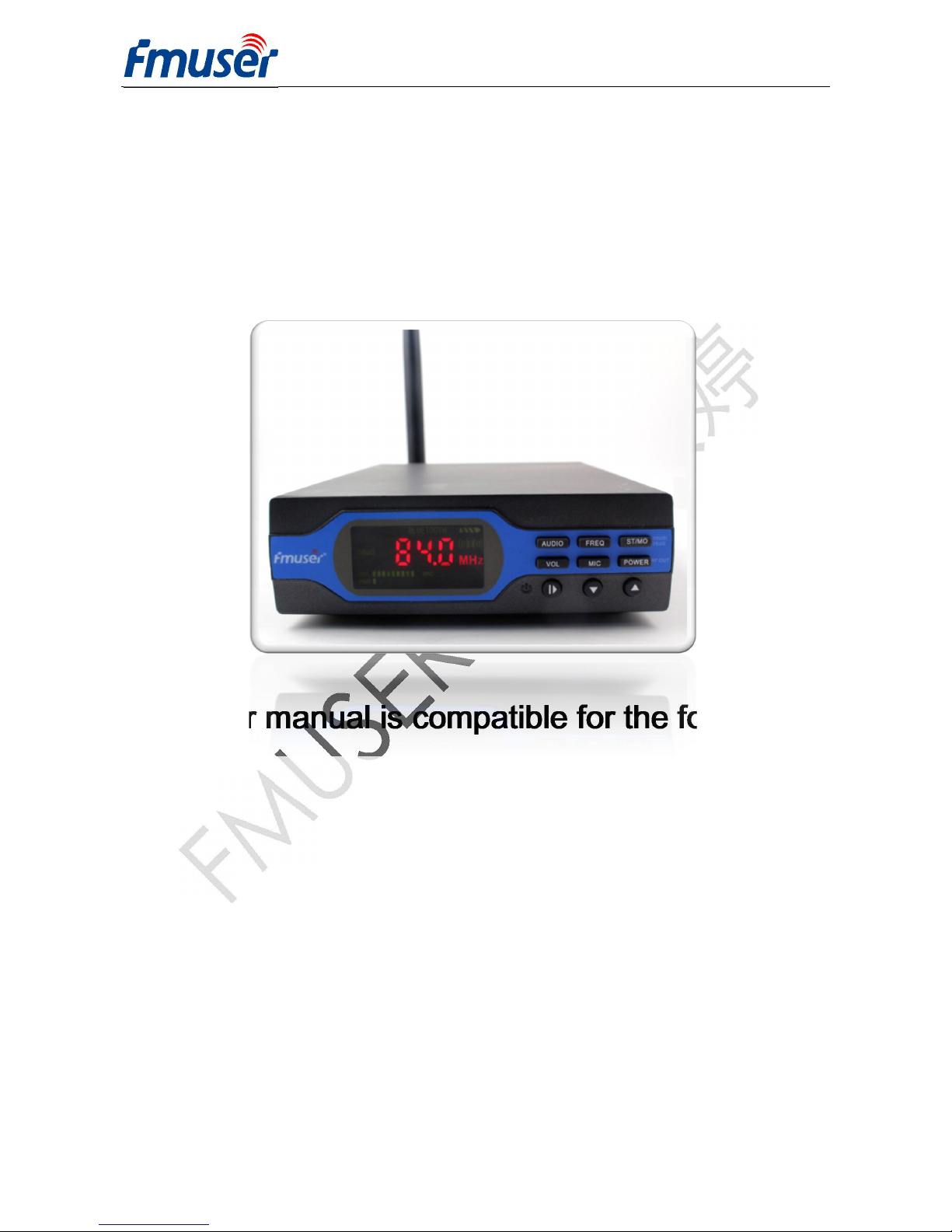
FU-X01 1W FM Transmitter
User Manual
This user manual is compatible for the following
products:
l FU-X01A—Standard Configuration(simple functions without Mp3, Bluetooth and
battery modules)
l FU-X01B—Intermediate Configuration(include Mp3, Bluetooth and battery modules)
l FU-X01C—Advanced Configuration(include Mp3, Bluetooth and battery modules, TF
card and rechargeable battery)
Page 2
FMUSER INTERNATIONAL GROUP INC. 广州市汉婷信息科技有限公司
2 / 16
FMUSER International Group INC. reserves the right to change and modify the
specifications and contents included in this FU-X01 Technical Description without notices.
Including but not limited to the printer errors and other relevant errors of this publication.
FMUSER will not assume the related responsibility.
Using this transmitter please abide by the local related laws and regulations of radio
management departments. Parties of using the machine will assume the resulting legal
responsibilities. Our company and dealers will assume no responsibility of this.
Attentions
l Using this wireless FM transmitter must comply with the regulations of the local
government. Improper use may violate the law;
l Do not use wireless FM transmitter in a flammable, explosive environment;
l Do not use the wireless FM transmitter with damaged antenna;
l Please do not expose wireless FM transmitter to long periods of direct sunlight or put it
in near heating devices;
l If there are any odors or smoke, please shut off the electrical power immediately.
Page 3
FMUSER INTERNATIONAL GROUP INC. 广州市汉婷信息科技有限公司
3 / 16
l Appearance and Illustration
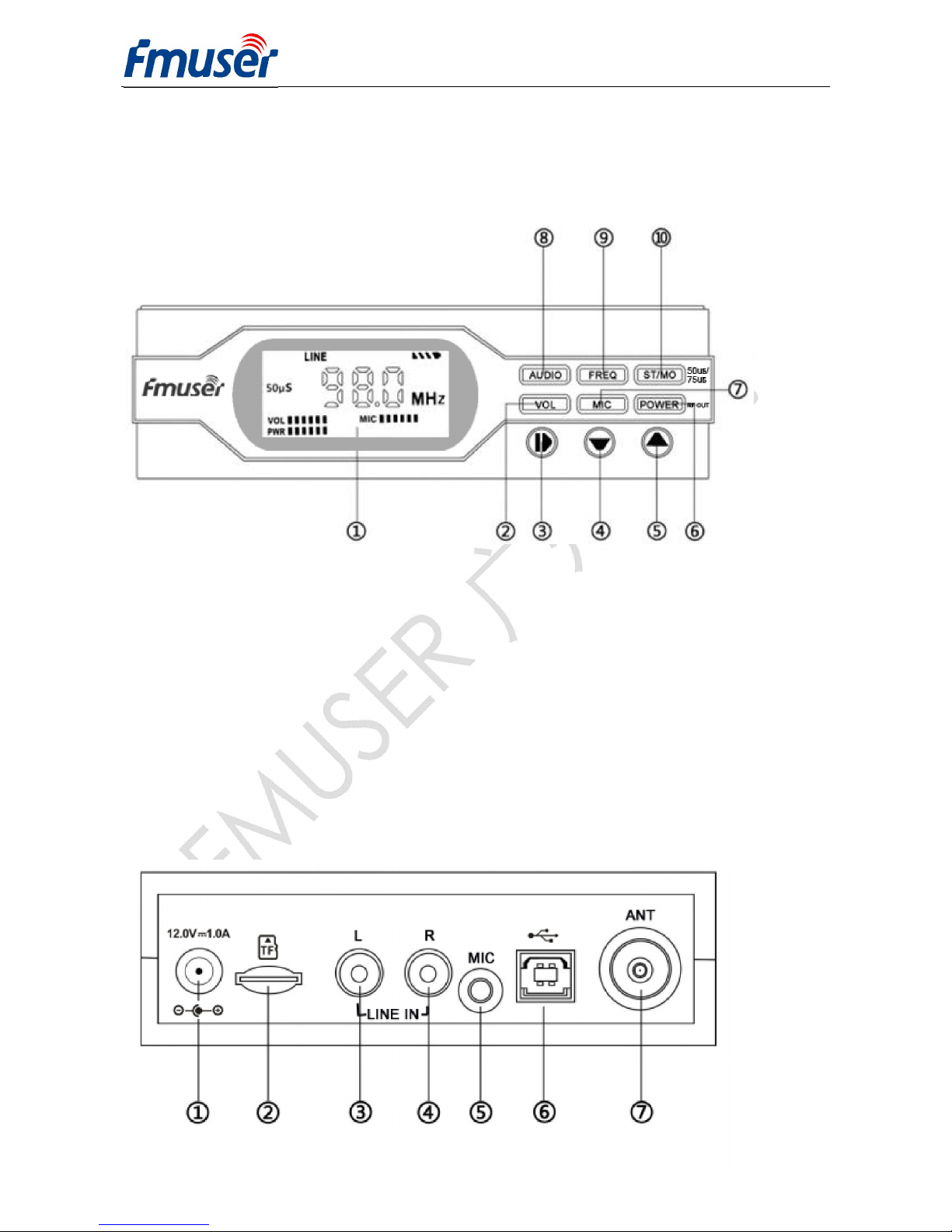
1. Front Panel Illustration
①LED panel
②Volume
③Press and Hold--On/Off
Press-- Play/Pause (under TF card play
mode)
④Decrease, Previous
(under TF card play mode)
⑤Increase, Next
⑥RF power output
⑦Volume of microphone
⑧Audio Source Switching
⑨Frequency Regulation
⑩Press: Stereo/Mono
Press and Hold : Pre-emphasis
75us/50us
(under TF card play mode)
2. Rear Panel Illustration
Page 4
FMUSER INTERNATIONAL GROUP INC. 广州市汉婷信息科技有限公司
4 / 16
①Power Supply Input(12V 1A ,2. 1mm)
②TF Card Slot
③Stereo Input (RCA-L)
④Stereo Input (RCA-R)
⑤MIC Input (Interface 3.5mm)
⑥Data Communication Input(USB-B)
⑦Antenna Input (Interface TNC-J)
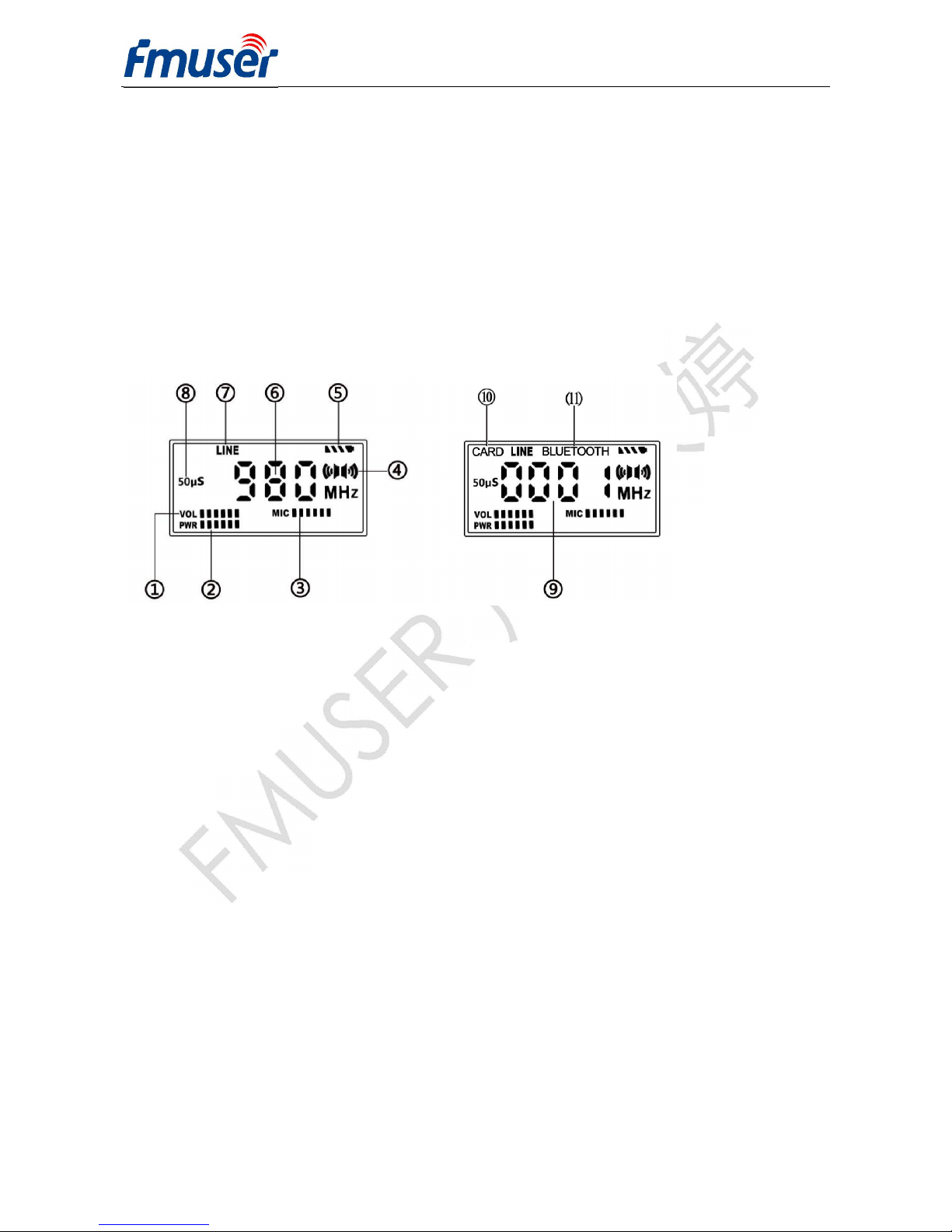
3. LCD Panel
①LINE IN Volume
②RF Power Output
③MIC Volume
④Stereo/Mono
⑤Battery Power
⑥Current Frequency
⑦Audio Input
⑧Pre-emphasis
⑨Serial Number of Playing Song(under TF
card play mode)
⑩Current Play Mode(TF card mode)
⑾
Current Play Mode(Bluetooth mode)
Page 5
FMUSER INTERNATIONAL GROUP INC. 广州市汉婷生物技术开发有限公司
5 / 16
l Key Features
1. RF output power is adjustable from 0~1w by 10 levels.
2. Audio pre-emphasis is switchable between 50US/ 75US.
3. Mono and stereo are switchable.
4. Microphone input volume will be turned up in priority when there is voice input, while the
main volume will be tuned down automatically.
5. Auto power off when there is no audio input within 5 minutes.
6. Battery Saving: When the device is powered by battery, the LED panel will automatically
reduce to the minimum brightness after 30 seconds to save energy.
7. Save Setting: Current settings of power output and broadcast frequency will be saved for
next start-up.
8. Support of inputting audio from external Bluetooth device, effective communication
distance is about 8 meters.
9. Support audio play through TF card, memory up to 32G.
10. Support up to 1000 MP3 format songs.
l Key Functions and Operation
1.
Button
1) Power ON: Connect the transmitter to the power adapter, press the button and it will light
up. At the same time, the screen starting showing contents as the device starts working.
2) Power OFF: Press and hold the button for 2 seconds during working status, the screen
will be light off as the device is turned off.
3) Play/Pause: Under Bluetooth or TF card play mode, press the to pause or play
audio files.
Page 6
FMUSER INTERNATIONAL GROUP INC. 广州市汉婷生物技术开发有限公司
6 / 16
2.
and Buttons
Adjust Frequency, Volume, MIC volume or Power Output
To adjust frequency, volume, MIC volume or power output, press the and to
decrease or increase by one level at a time. Press and hold the and to decrease or
increase continually (at 1MHZ stepping.)
MP3 play mode: Next, Previous
Bluetooth play mode: Next, previous
3. VOL Button
Main volume Adjustment
Introduction:Press this button, the VOL icon on LED screen starts blinking, press
or now to increase or decrease the main volume, press the VOL button again to
confirm setting. The valid adjusting period is within 15 seconds from the twinkle of icon
every time you press the or button.
The icon will stop blinking when switch to other setttings from the VOL adjustment during
the setting peiod.
4. MIC Button
MIC Volume Adjustment
Introduction:Press this button, the MIC icon on LED screen starts blinking, press
or now to increase or decrease the microphone volume, press the MIC button
again to confirm setting. The valid adjusting period is within 15 seconds from the twinkle of
Page 7
FMUSER INTERNATIONAL GROUP INC. 广州市汉婷生物技术开发有限公司
7 / 16
icon every time you press the or button.
The icon will stop blinking when switch to other setttings from the MIC adjustment during
the setting peiod.
5. POWER Button
Power Adjustment Function
Introduction:Press this button, the POWER icon on LED screen starts blinking, press
or now to increase or decrease the power output, press the POWER button again
to confirm setting. The valid adjusting period is within 15 seconds from the twinkle of icon
every time you press the or button.
The icon will stop blinking when switch to other setttings from the POWER adjustment
during the setting peiod.
6. AUDIO Button
Working Status Switching
The icons of CARD, LINE OR BLUETOOTH on LED screen lights up steadily during their
working status respectively. When the icons of CARD twinkles, it means the play is paused,
or the card is not reading correctly. Press the play button to check, if there is still no audio
out, take out the TF card and insert into the device to try again. If the problem is not solved,
please check if the card status or the file formats in the TF card. Please refer to TF card
format instructions in this manual for more details about this checking part.
Page 8
FMUSER INTERNATIONAL GROUP INC. 广州市汉婷生物技术开发有限公司
8 / 16
7. FREQ Button
Frequency Regulation Function
Introduction:Press this button, the FREQ icon on LED screen starts blinking, press
or now to increase or decrease the frequency,press the FREQ button again to
confirm setting. The valid adjusting period is within 15 seconds from the twinkle of icon
every time you press the or button.
The icon will stop blinking when switch to other setttings from the FREQ adjustment during
the setting peiod.
8. ST/MO Button
1. Press the button to switch audio output mode between MONO and STEREO.
2. Press and hold the button to switch pre-emphasis between 50US and 75US.
l Technical Specifications
1 Voltage: 12V 12 Frequency deviation: +-75KHZ
2 Current: <0.4 13 SNO Rate: > =60dB
3 Frequency range: 76~108MHZ 14 Pre-emphasis: 50/75US switchable
4 Frequency stepping: 100KHZ 15 Antenna Impedance: 50 Ohm
5 Working temperature: -10~45 16 Product dimension: 162*120*40MM
6
Audio frequency response:
50Hz~15000Hz
17 Package size: 253*183*70mm
Page 9
FMUSER INTERNATIONAL GROUP INC. 广州市汉婷生物技术开发有限公司
9 / 16
l Operation Instruction for Play part
1. MP3 part:
1) Read the TF Card: Insert the blank TF card
into card reader and connect it with computer.
The computer shows card storage as
shown in Picture 1. Picture 1
2) Format TF Card: Right click on the
icon of card disk, choose Format option, then
choose FAT32 under the File system option,
click confirm to start the formatting.
(see Picture 2 for reference )
Picture 2
7 Stereo separation :>=40dB 18 Device N.W. (without battery):298g
8 Audio input level:15dBV 19 Device N.W.(with battery):419g
9
RF Output power : 0-1W, 11 levels
adjustable
20 Package G.W.( without battery):861g
10 Harmonic and clatter : <=-60dB 21 Package G.W.(with battery):987g
11 Audio distortion :<=0.2%
Page 10
FMUSER INTERNATIONAL GROUP INC. 广州市汉婷生物技术开发有限公司
10 / 16
3) Copy Songs to TF Card: Copy audio files from computer disk to TF card, then choose
pop out the card disk and remove card reader from computer USB interface.
4) Play audio files from TF card: Turn on the transmitter, press Audio button on the
transmitter and switch to CARD play mode, then the transmitter plays audio files from the
card automatically by sequence in loop. (The default sequence is classified by the time of
files copied into the card, you can set the playing order by arranging the time sequence of
copying audio files into the card)
2. Operation of Bluetooth:
1) Connect the power and turn on the transmitter.
2) Turn on the Bluetooth on mobile phone, click scan to find the Bluetooth name of the
transmitter and choose connect.
3) After the connection is successfully done, play the audio files from mobile phone, they’ll
be broadcasted out from the transmitter.
4) The play of audio files can also be controlled by pressing corresponding buttons on
transmitter.
l Precautions of Machine:
1. Please connect the antenna to transmitter first, then turn on the power and do other
operations afterwards.
Page 11
FMUSER INTERNATIONAL GROUP INC. 广州市汉婷生物技术开发有限公司
11 / 16
2. The working voltage of the transmitter must be 12V, otherwise the transmitter could be
damaged if the voltage is higher or lower than 12V.
l Precautions of card play operation:
1. Before using the card play mode, make sure the TF card included MP3 files is inserted
into the card slot when the transmitter is at OFF status.
2. It is strongly recommended that the new TF card should be formatted by FAT32 format
before using on the transmitter.
3. The only file format allowed on the TF card is MP3 format, otherwise the files can’t be
played through the transmitter. If the transmitter suddenly shut down because of the wrong
audio file format, please turn off the transmitter and take out the TF card, delete the wrong
files and restart the transmitter to try again.
4. Please do not take out the TF card when the power is ON, or the transmitter might be
damaged. If the transmitter suddenly shut down because of the wrong operation of TF card,
please press the power button to turn on the transmitter again.
5. The TF card can support up to 1000 quantity of songs, please do not exceed the number
to avoid harming the transmitter.
l Precautions of Bluetooth operation:
1. Before using the Bluetooth, please keep the electric metallic substances away from the
transmitter in case they affect the receiving distance of Bluetooth.
Page 12
FMUSER INTERNATIONAL GROUP INC. 广州市汉婷生物技术开发有限公司
12 / 16
2. If the mobile phone cannot connect to the Bluetooth of transmitter, please reboot the
mobile phone and connect again.
3. The Bluetooth transmission distance is very limited, please do not keep the mobile phone
far from the transmitter in case the signal fails to connect. If the audio play is OFF due to the
far distance between mobile phone and transmitter, keeping them close can restore the
play. If the Bluetooth connection is failed, please connect again.
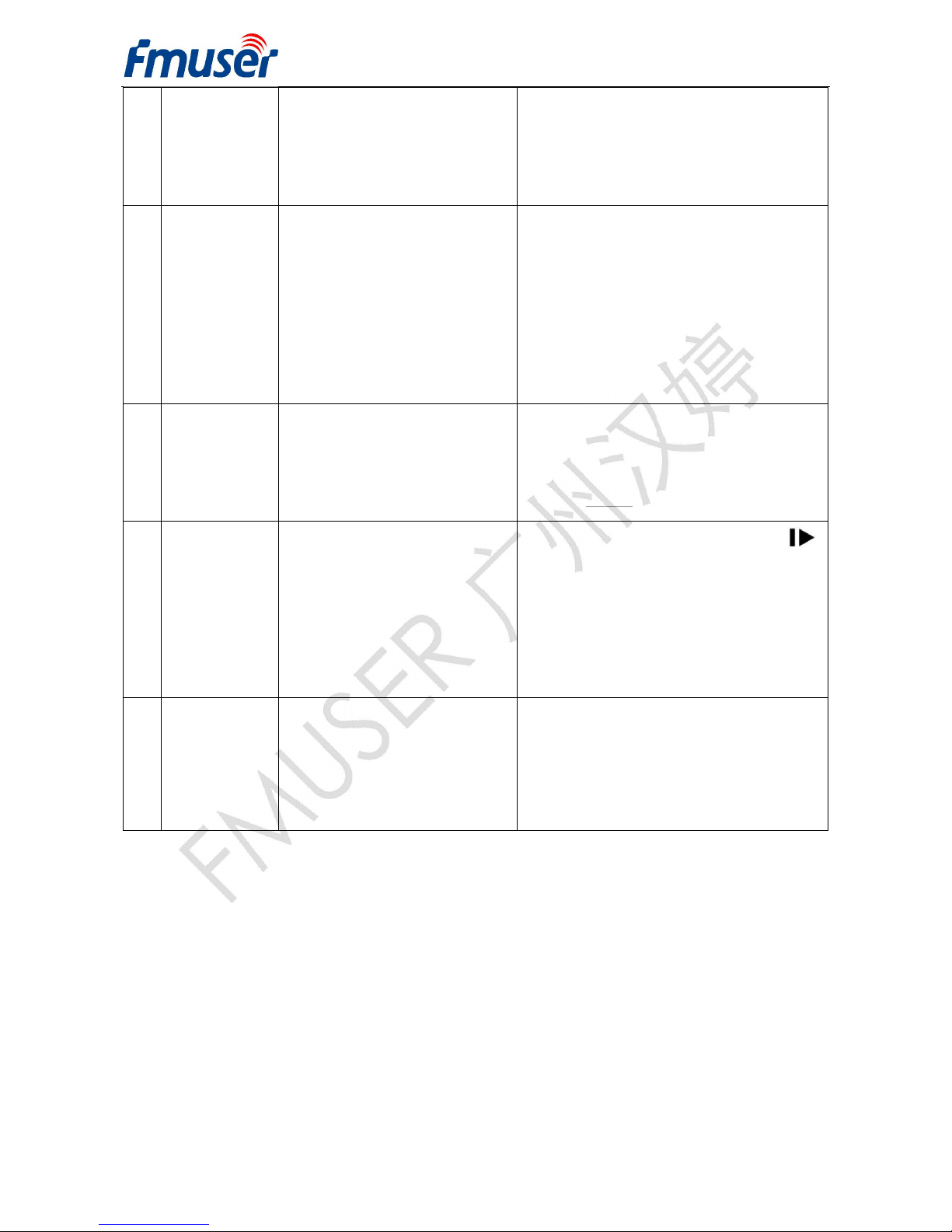
l Common Trouble Shooting
Malfunction
Possible
Reasons
Corresponding
Solution
1
Screen
shows start
failed
1)No power electricity in the
socket
2)TF card faulty.
3)Power source faulty.
1)Check if the power
source
is
well
connected.
2)Check if the TF card is FAT32
format and the audio files are MP3
format.
3)Replace with another 12V power
source to check if the problem is
solved.
2
The Machine
restart
repeatedly
1)Power cord not well
connected
2)TF card faulty
1)Check if the power
source
is
well
connected.
2)Check if the TF card is FAT32
format and the audio files are MP3
format.
3)Check if the TF card is damaged
.
3
Very short
transmission
distance
1)Poor
transmission
environment.
2)Low power for output
3)Antenna too close from
ground.
4)Low
sensitivity
of receiver
1) Place the transmitter to a high and
open place
2)Use car FM radio to receive the
signals for testing.
3)Adjust to higher power for output
4
No signal
received on
receiver
1)Output power at 0 level
2)Wrong frequency
1)Increase the output power
2)Adjust the radio’s frequency to the
same as transmitter’s.
Page 13
FMUSER INTERNATIONAL GROUP INC. 广州市汉婷生物技术开发有限公司
13 / 16
5
Signal
detected on
receiver but
no sound
1)Low volume output from
transmitter
2)Line in cable not well
connected on transmitter
3)Wrong audio play mode
1)Check if the line in cable is well
connected with transmitter.
2)Turn up the volume of transmitter
3)Switch to corresponding audio
play mode.
6
Sound
quality
is bad
1)Low quality microphone
2)Line-in volume too high
3)Installation of antenna is
incorrect
4)Transmitter volume too
high
5)Low quality Bluetooth
function on mobile phone
1)Set the microphone volume at
minimum when there is no
microphone connected.
2)Use high quality microphone with
shielded wire.
3)Keep the line-in volume at
30%-50% when input into transmitter
4)Use mobile phone with better
Bluetooth
quality.
7
No sound
from
microphone
1)Volume of microphone not
turned up
2)Not an electret
microphone.
1)Adjust the volume of microphone
between 30% to 70%
2)Use an electret microphone
8
MP3 cannot
play
1)TF card
not inserted
2)TF card faulty
3)Audio files are not MP3
format
4)There are files of non
MP3 format in TF card.
5)Quantity of songs in TF
card exceeds 1000.
1)I
nsert TF card
and then press
to play.
2)Check if the TF card is broken.
3)Check if the TF card is in FAT32
format and the audio files are MP3
format.
4)Delete non-MP3 files
5)Delete
songs
to less than
1000.
9
Bluetooth
cannot
connect
1)Mobile phone too far from
transmitter
2)Mobile phone is not in the
music play mode.
1)Connect the
Bluetooth
and keep
the distance within 3 meters
2)Reboot mobile phone and try to
connect the Bluetooth over 9 times.
3)Switch the mobile phone to stereo
play
mode
l About Transmission Distance
Transmission range is greatly affected by the local RF environment, antenna type,
power setting, frequency setting and receiver sensitivity. If the transmission range is short,
you may need to upgrade the antenna to higher gain, or install the antenna on places at
higher altitude.
Generally speaking, a rubber antenna brings up a transmission distance of around 120
Page 14
FMUSER INTERNATIONAL GROUP INC. 广州市汉婷生物技术开发有限公司
14 / 16
meters, under the premise of receiving by car fm radio. Using a normal FM radio might get
about 100 meters distance. Please contact us for more and better transmission proposals.
l About sound quality
1. Please keep line-in volume under 50% and adjusted to a proper level when inputting into
machine.
2. If the input audio sources (such as audio from computer) include bass enhancement
mode or treble enhancement mode, please adjust the volume of transmitter to lower level,
because there is an audio amplifier built-in inside the transmitter, thus the audio output is of
high quality without distortions.
3. To ensure better listening experience, please adjust the output volume level of
transmitter to a matching grade with that of other local radio stations.
l Interference
If you hear buzzes from the transmitter, possible reasons could be from the line-in
cable or microphone, or it could be the power source, audio input device, or antenna. The
last and least possible reason is on the transmitter. Please check from the following
aspects to solve this problem:
1) Sort out all the cables on the transmitter to make sure they are not intertwined with each
other. The antenna should not be blocked by any object.
2) If the buzzes still exist, please pull out the line-in cable and Microphone wire, leave only
the antenna and power source to be connected with the transmitter, then check if the buzz
still exists.
3) If the buzzes stop after step 2, the possible reason could be the quality of the line-in
cable, or the line-in cable was intertwined with the power cord, or the audio input equipment
caused the buzz. In this case, keep the wires apart from each other should solve the
problem. We have met similar circumstances from our customers and we suggested the
Page 15
FMUSER INTERNATIONAL GROUP INC. 广州市汉婷生物技术开发有限公司
15 / 16
same way to solve the problem.
4) Or you can check the audio input device, it has been testified that if the audio input
equipment is connected with a power adapter, it will cause the buzz on transmitter.
5) Another possible reason for the buzz could be on the antenna, it should be 90 degrees
vertical with tightened onto the transmitter.
6) If all checks were done as above and the buzzes are still there, the only reason should
be on the power adapter of transmitter.
l Recommended Applications.
Applications Cover Distance Qty.of Listeners Suggested transmitter
Small city 10 -15 KM
FSN-1000
1KW FM transmitter
Small village 5 -10 KM
FSN-600
600W FM Transmitter
Big community 3 x 5 KM
FSN-350
350w FM transmitter
Big Conference
Room
200 x 500 Meters
1000-1500
people
FU- 25A 25W FM transmitter
FU-30B 30W FM transmitter
FU-50B 50W FM transmitter
Middle-sized
Conference Room
50 x150 Meters 50-500 people FU- 25A 25W FM transmitter
Small Conference
Room
50 x 50 Meters
Less than 50
people
FU-15A 15W FM transmitter
Page 16
FMUSER INTERNATIONAL GROUP INC. 广州市汉婷生物技术开发有限公司
16 / 16
Public Speech
on Square
500x1000 Meters
1000-1500
people
FU- 25A 25W FM transmitter
FU-30B 30W FM transmitter
FU-50B 50W FM transmitter
Simultaneous
Translation
50 x 150 Meters
FU- 25A 25W FM transmitter
FU-30B 30W FM transmitter
FU-50B 50W FM transmitter
School Classroom 10 x 20 Meters
Less than 50
people
FU-X01 1W FM transmitter
FU-T300 0.2W FM transmitter
Driving School
Teaching
200 x 500 Meters 100 cars FU -25A 25W FM transmitter
Car MP3 Audio
Transmission
FU-T300 0.2W FM transmitter
Home Wireless
Audio System
FU-X01 1W FM transmitter
Travel Guide 50 x50 Meters FU-T300 0.2W FM transmitter
Outdoor activities 50 x 50 Meters FU-T300 0.2W FM transmitter
We highly recommend to use the FU-X01 series transmitters with FU-R01 FM receiver in
practical applications. If you have different needs, please call this number at any time for
technical service: +86 13922702227,or send email to [email protected] to get help.
 Loading...