

Page 1
FMUSER INTERNATIONAL GROUP INC. 广州市汉婷生物技术开发有限公司
FUTV466X SD IRD
User’s Manual
Web-NMS Version: 1.05
Software: 2.01
Hardware: 1.0
FMUSER International Group Inc
Page 2
FMUSER INTERNATIONAL GROUP INC. 广州市汉婷生物技术开发有限公司
About This Manual
Intended Audience
This user manual has been written to help people who have to use, to integrate and to install the
product. Some chapters require some prerequisite knowledge in electronics and especially in
broadcast technologies and standards.
Disclaimer
No part of this document may be reproduced in any form without the written permission of the
copyright owner.
The contents of this document are subject to revision without notice due to continued progress in
methodology, design and manufacturing. FMUSER shall have no liability for any error or damage of
any kind resulting from the use of this document.
Copy Warning
This document includes some confidential information. Its usage is limited to the owners of the
product that it is relevant to. It cannot be copied, modified, or translated in another language without
prior written authorization from FMUSER.
Page 3
FMUSER INTERNATIONAL GROUP INC. 广州市汉婷生物技术开发有限公司
DIRECTORY
Chapter 1 Product Outline .................................................................................. 3
1.1 Outline .................................................................................................................... 3
1.2 Features ................................................................................................................... 3
1.3 Specifications ........................................................................................................... 4
1.4 Principle Chart ......................................................................................................... 5
1.5 Appearance and description ....................................................................................... 5
Chapter 2 Installation Guide ............................................................................... 7
2.1 Acquisition Check .................................................................................................... 7
2.2 Installation Preparation ............................................................................................. 7
2.3 Wire’s Connection .................................................................................................... 9
2.4 Signal Cable Connection ......................................................................................... 10
Chapter 3 Operation.......................................................................................... 12
3.1 LCD Menu Class Tree ............................................................................................ 12
3.2 General Setting....................................................................................................... 14
Chapter 4 Web-based NMS Management ......................................................... 25
4.1 login ...................................................................................................................... 25
4.2 Operation ............................................................................................................... 26
Chapter 5 Troubleshooting ................................................................................ 41
Chapter 6 Packing List ...................................................................................... 42
Page 4
FMUSER INTERNATIONAL GROUP INC. 广州市汉婷生物技术开发有限公司
3 / 43
Chapter 1 Product Outline
1.1 Outline
FUTV466X SD IRD is FMUSER’s all-in-one device which integrates demodulation, de-scrambler
and decoding (DVB-C, T/T2, S/S2 optional) in one case to convert RF signals into analogue video
(CVBS) output.
It is a 1-U case which supports 2 tuner inputs. The two CAMs/CIs accompanied can descramble the
programs input from encrypted RF, ASI and IP. The CAM requires NO unsightly external power
cords, cables, or additional remote control device.
Its pluggable structure design greatly facilitates the change of modules (demodulator or decoder) as
needed.
To meet customers’ various requirements, FUTV466X is also equipped with ASI and IP input, and
output with 2 ASI ports and IP port.
1.2 Features
l Demodulation + descrambler + decoder modules in one box
l 2 Tuner inputs (DVB-C, T/T2, S/S2 Optional)
l 1 ASI & 1 IP (UDP) input for re-mux
l One CAM can decrypt multiple programs from Tuners/ASI/IP
l 2 separate CVBS video output
l IP (1 MPTS & 8 SPTS) over UDP and RTP/RTSP output; ASI out
l Support maximum 128 PID mapping per input
l Pluggable and changeable demodulator and decoder modules
l LCD display, Remote control and Firmware, web NMS management
l Updates via web
l Best quality and breakthrough price
Page 5
FMUSER INTERNATIONAL GROUP INC. 广州市汉婷生物技术开发有限公司
4 / 43
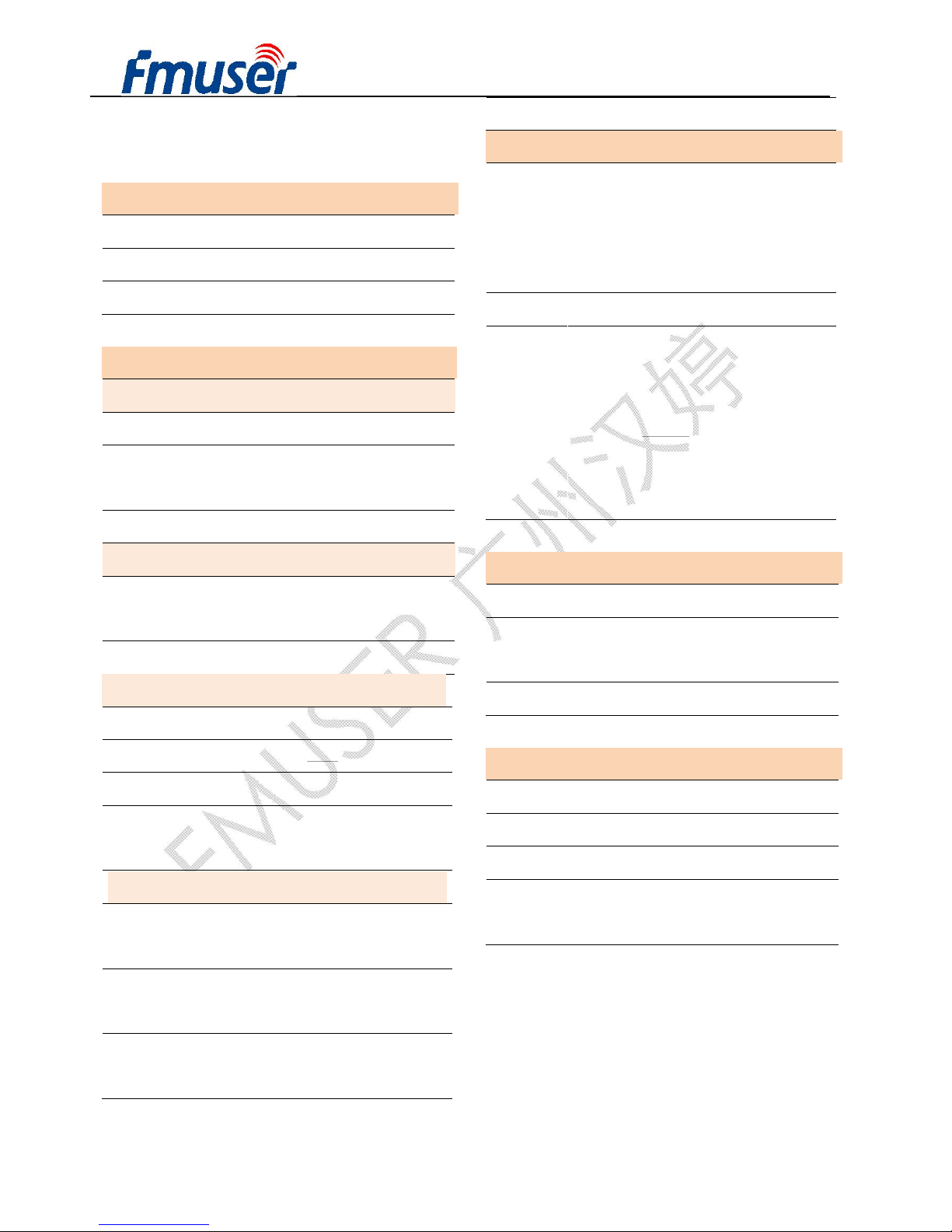
1.3 Specifications
Input
2 x RF (DVB-C, T/T2, S/S2 optional), F type
1×ASI input for re-mux, BNC interface
1xIP input for re-mux (UDP)
Tuner Section
DVB-C
Standard J.83A(DVB-C), J.83B, J.83C
Input
Frequency
47 MHz~860 MHz
Constellation 16/32/64/128/256 QAM
DVB-T/T2
Input
Frequency
44MHz ~1002 MHz
Bandwidth 6/7/8 M bandwidth
DVB-S
Input Frequency 950-2150MHz
Symbol rate 2-45Msps
Signal Strength - 65- -25dBm
Constellation
1/2, 2/3, 3/4, 5/6, 7/8
QPSK
DVB-S2
Input
Frequency
950-2150MHz
Symbol rate QPSK 1~45Mbauds;
8PSK 2~30Mbauds
Code rate 1/2, 3/5, 2/3, 3/4, 4/5,
5/6, 8/9, 9/10
Constellation QPSK, 8PSK
Output
IP
Output
1*MPTS & 8*SPTS over UDP,
RTP/RTSP.
100Base-T Ethernet interface
(unicast / multicast)
2×ASI BNC interface
Video
Output
Video Interface: 2xCVBS (RCA)
Audio Interface: 2 x Stereo/mono
(RCA)
Resolution: PAL 576i, NTSC 480i
Video Decode: MPEG-2 MP@ML
Audio Decode: MPEG 1 Layer II
System
Local interface LCD + control buttons
Remote
management
Web NMS
Management
Language English
General
Power supply AC 100V~240V
Dimensions 482*300*44.5mm
Weight 3 kgs
Operation
temperature
0~45℃
Page 6
FMUSER INTERNATIONAL GROUP INC. 广州市汉婷生物技术开发有限公司
5 / 43
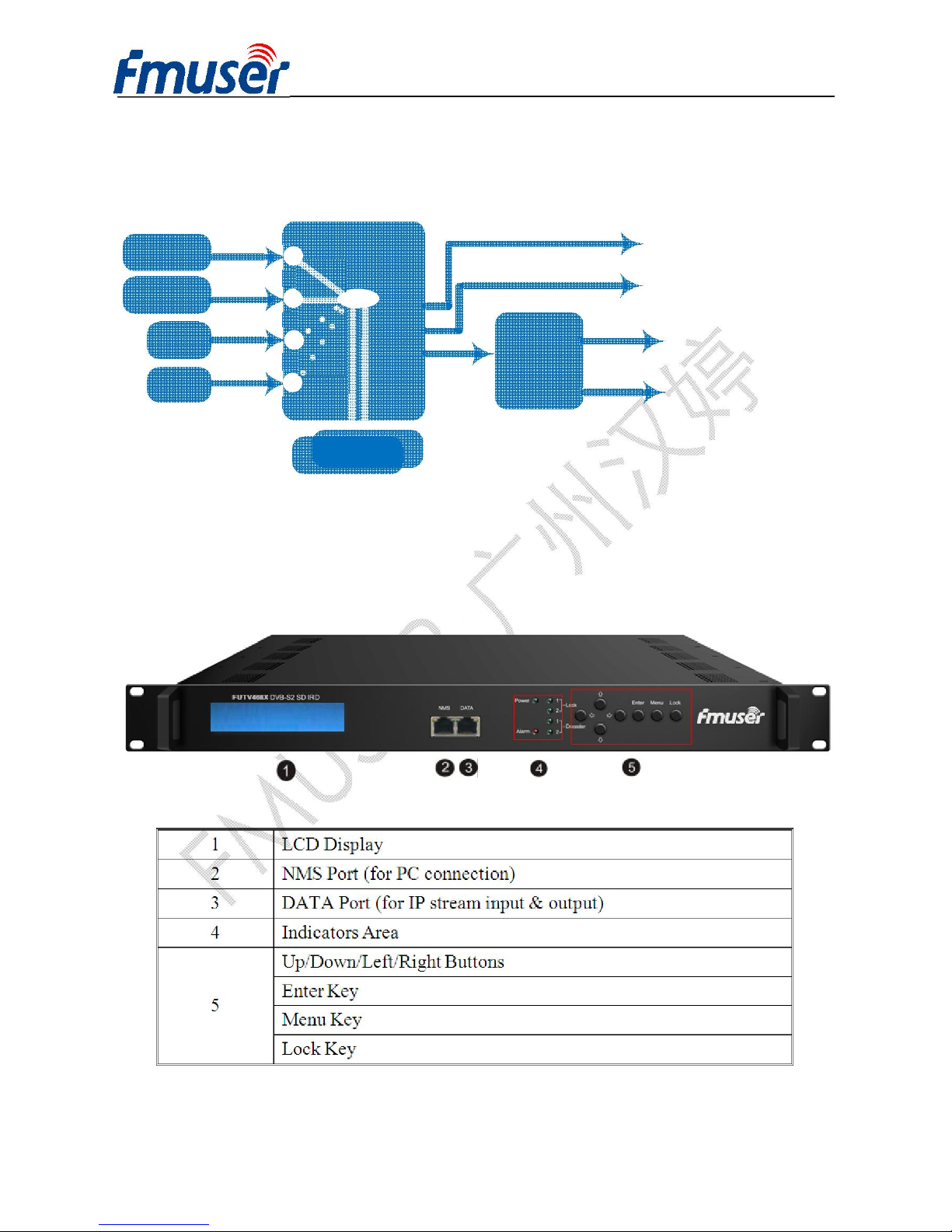
1.4 Principle Chart
IP Output
Decoder
Module
ASI Output 1,2
A/V 1
A/V 2
MUX
IP
Tuner 2
ASI
CAM/CI 1
Tuner 1
CAM/CI 2
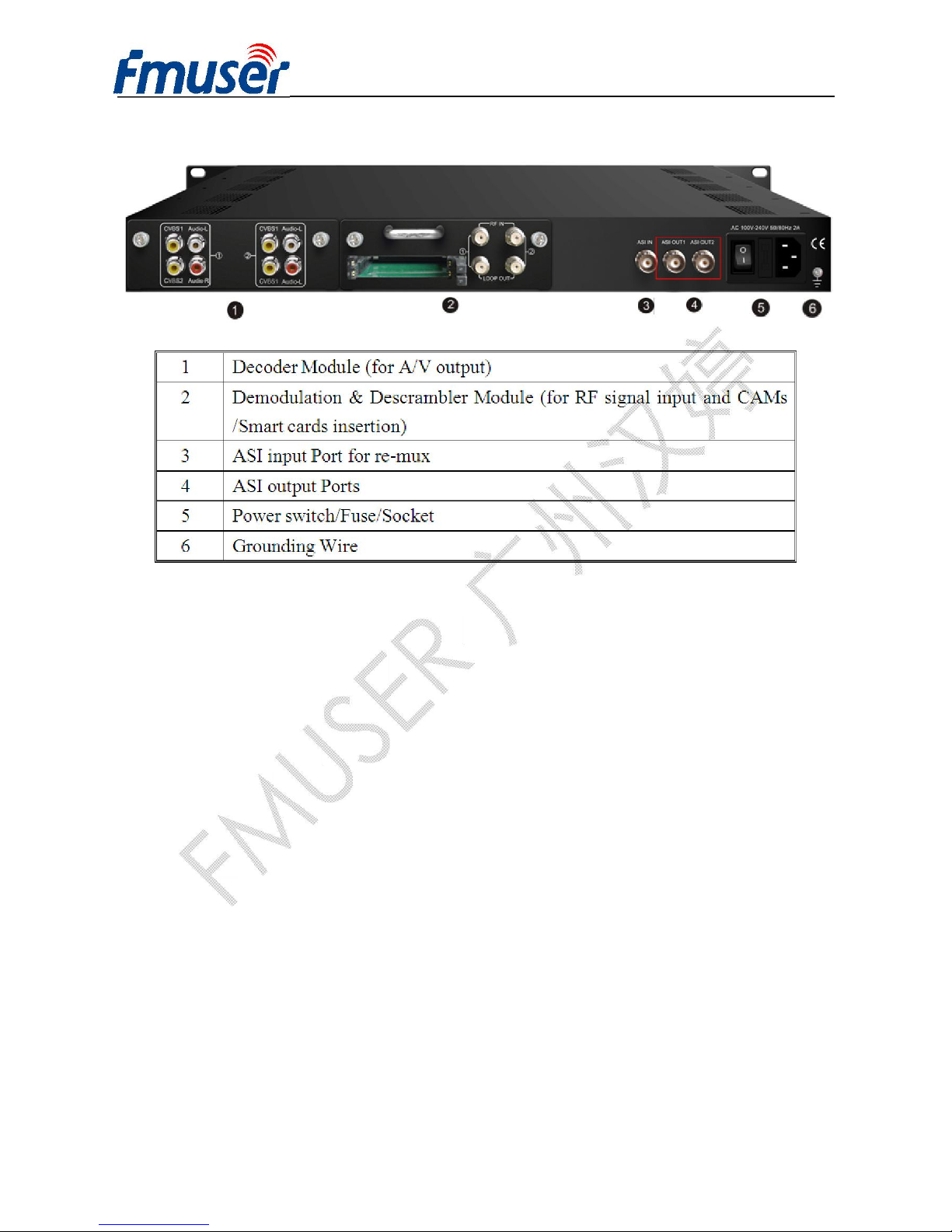
1.5 Appearance and description
Front Panel Illustration:
Page 7
FMUSER INTERNATIONAL GROUP INC. 广州市汉婷生物技术开发有限公司
6 / 43
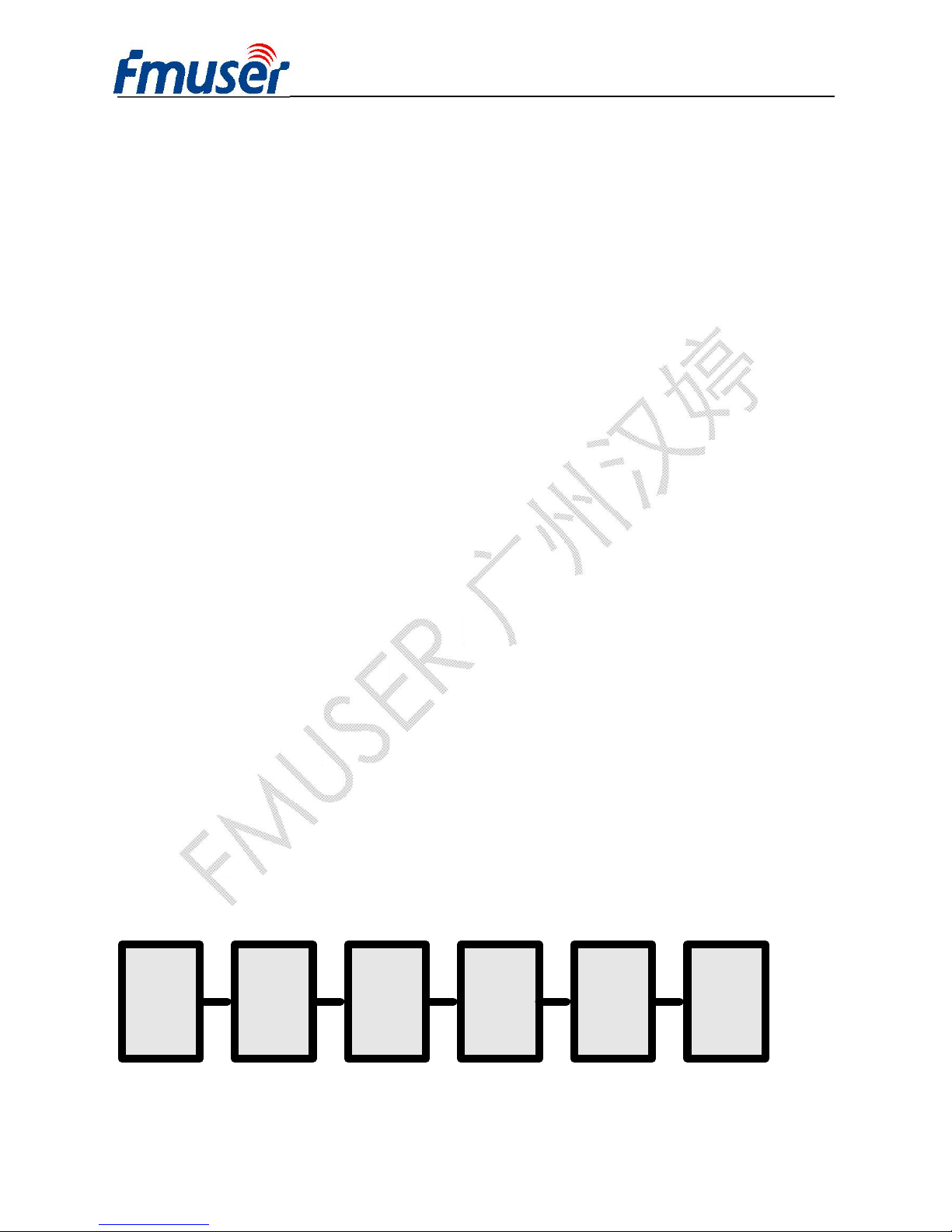
Rear Panel Illustration
Page 8
FMUSER INTERNATIONAL GROUP INC. 广州市汉婷生物技术开发有限公司
7 / 43
Chapter 2 Installation Guide
2.1 Acquisition Check
When user opens the package of the device, it is necessary to check items according to packing list.
Normally it should include the following items:
l FUTV466X SD IRD 1pcs
l User’s Manual 1pcs
l ASI Cable 1pcs
l Power Cord 1pcs
If any item is missing or mismatching with the list above, please contact our company.
2.2 Installation Preparation
When users install device, please follow the below steps. The details of installation will be described
at the rest part of this chapter. Users can also refer rear panel chart during the installation.
The main content of this chapter including:
l Checking the possible device missing or damage during the transportation
l Preparing relevant environment for installation
l Installing modulator
l Connecting signal cables
l Connecting communication port (if it is necessary)
2.2.1 Device's Installation Flow Chart Illustrated as following:
Connecting
Grouding
Wire and
Power
Cord
Acquisition
Check
Fixing
Device
Setting
Parameter
Running
Device
Connecting
Signal Wire
Page 9
FMUSER INTERNATIONAL GROUP INC. 广州市汉婷生物技术开发有限公司
8 / 43
2.2.2 Environment Requirement
Item Requirement
Machine Hall Space
When user installs machine frame array in one machine hall,
the distance between 2 rows of machine frames should be
1.2~1.5m and the distance against wall should be no less
than 0.8m.
Machine Hall Floor
Electric Isolation, Dust Free
Volume resistivity of ground anti-static material:
1X10
7
~1X10
10Ω
,Grounding current limiting resistance: 1M
(Floor bearing should be greater than 450Kg/㎡)
Environment
Temperature
5~40℃(sustainable ),0~45℃(short time),
installing air-conditioning is recommended
Relative Humidity 20%~80% sustainable 10%~90% short time
Pressure 86~105KPa
Door & Window
Installing rubber strip for sealing door-gaps and dual level
glasses for window
Wall It can be covered with wallpaper, or brightness less paint.
Fire Protection Fire alarm system and extinguisher
Power
Requiring device power, air-conditioning power and lighting
power are independent to each other. Device power requires
AC power 100-240V 50-60Hz. Please carefully check before
running.
2.2.3 Grounding Requirement
l All function modules’ good grounding is the basis of reliability and stability of devices. Also,
they are the most important guarantee of lightning arresting and interference rejection.
Therefore, the system must follow this rule.
l Coaxial cables outer conductor and isolation layer should keep proper electric conducting with
the metal housing of device.
l Grounding conductor must adopt copper conductor in order to reduce high frequency impedance,
Page 10
FMUSER INTERNATIONAL GROUP INC. 广州市汉婷生物技术开发有限公司
9 / 43
and the grounding wire must be as thick and short as possible.
l Users should make sure the 2 ends of grounding wire well electric conducted and be antirust.
l It is prohibited to use any other device as part of grounding electric circuit
l The area of the conduction between grounding wire and device’s frame should be no less than
25mm
2
.
2.2.4 Frame Grounding
All the machine frames should be connected with protective copper strip. The grounding wire should
be as short as possible and avoid circling. The area of the conduction between grounding wire and
grounding strip should be no less than 25mm2.
2.2.5 Device Grounding
Connecting the device’s grounding rod to frame’s grounding pole with copper wire.
2.3 Wire’s Connection
The grounding wire conductive screw is located at the right end of rear panel, and the power switch,
fuse, power supply socket is just beside ,whose order goes like this, power switch is on the
left ,power supply socket is on the right and the fuse is just between them.
l Connecting Power Cord
User can insert one end into power supply socket, while insert the other end to AC power.
l Connecting Grounding Wire
When the device solely connects to protective ground, it should adopt independent way, say,
share the same ground with other devices. When the device adopts united way, the grounding
resistance should be smaller than 1Ω.
FCaution:
Before connecting power cord to FUTV466X SD IRD, user should set the power switch to
“OFF”.
Page 11
FMUSER INTERNATIONAL GROUP INC. 广州市汉婷生物技术开发有限公司
10 / 43
2.4 Signal Cable Connection
The signal connections include the connection of input signal cable and the connection of output
signal cable. The details are as follows:
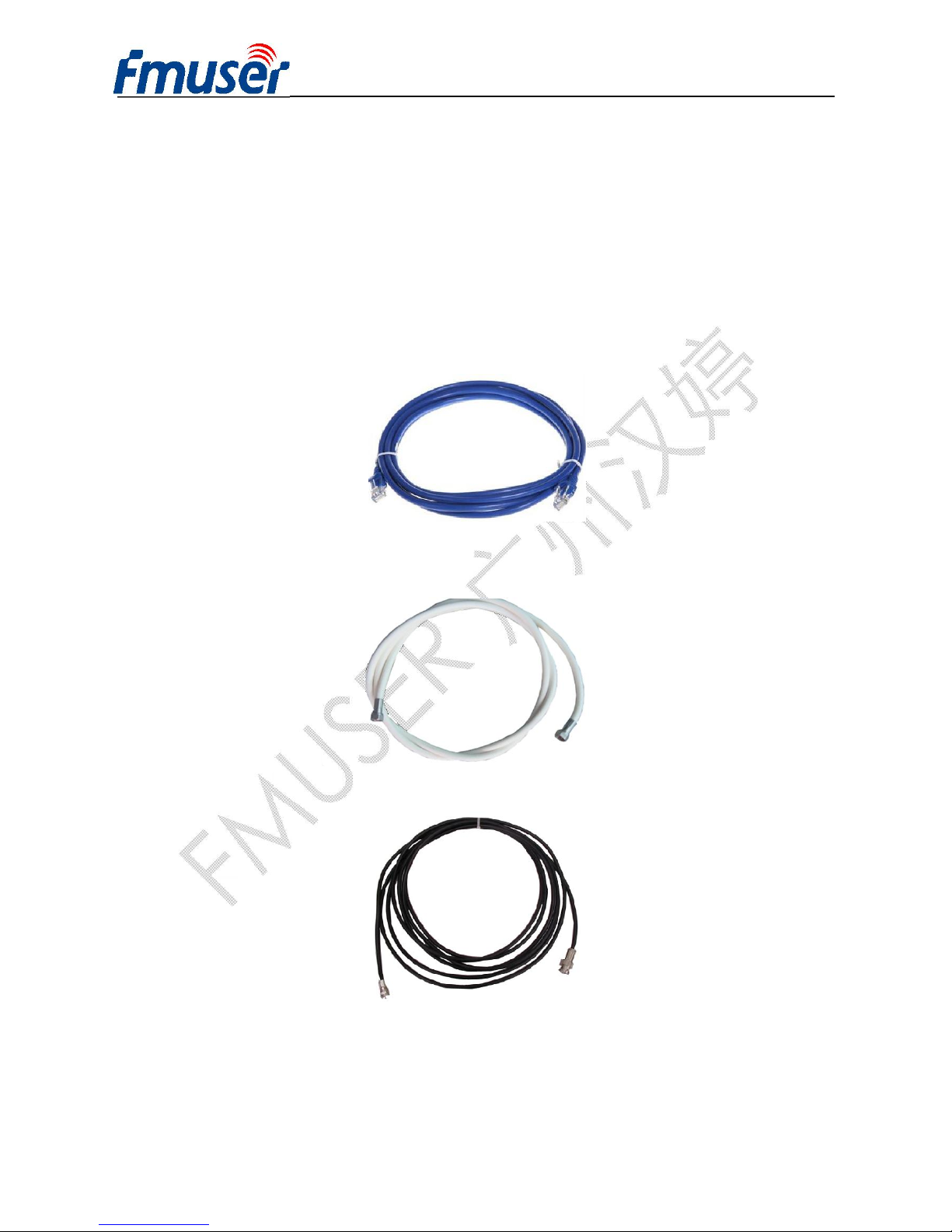
2.4.1 FUTV466X SD IRD Cables Illustration:
l IP Input/output Cable Illustration:
l Tuner Cable Illustration:
l ASI Input/output Cable Illustration:
Page 12
FMUSER INTERNATIONAL GROUP INC. 广州市汉婷生物技术开发有限公司
11 / 43
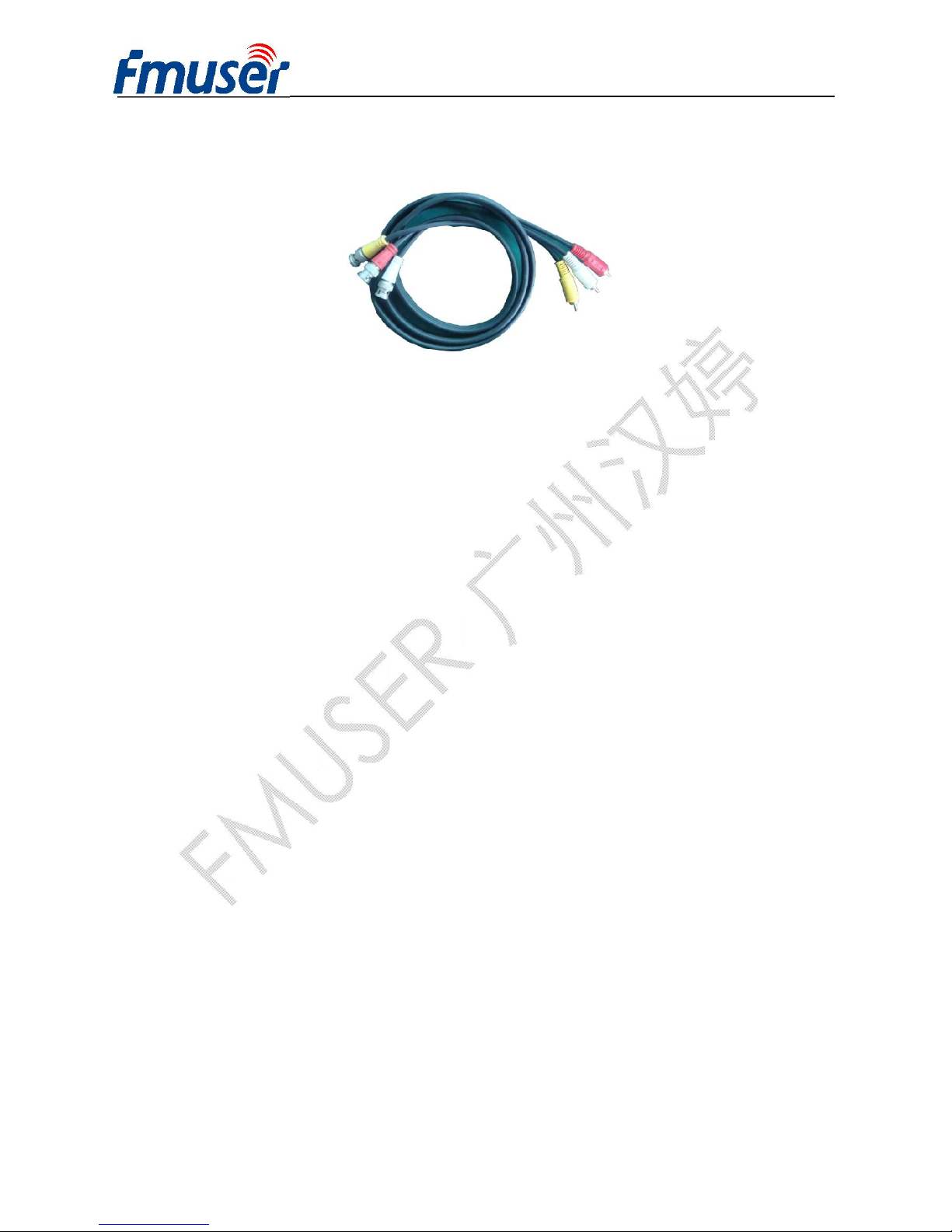
l CVBS & Audio output Cable Illustration: (for connection between the IRD
and TV set)
Page 13
FMUSER INTERNATIONAL GROUP INC. 广州市汉婷生物技术开发有限公司
12 / 43
Chapter 3 Operation
The front panel of FUTV466X SD IRD is the user-operating interface and the equipment can be
conveniently operated and managed by user according to the procedures displayed on the LCD:
Keyboard Function Description:
MENU: Cancel current entered value, resume previous setting; Return to previous menu.
ENTER: Activate the parameters which need modifications, or confirm the change after
modification.
LEFT/RIGHT: Choose and set the parameters.
UP/DOWN: Modify activated parameter or paging up/down when parameter is inactivated.
LOCK: Lock the screen/cancel the lock state. After pressing the lock key, the LCD will display the
current configuring state.
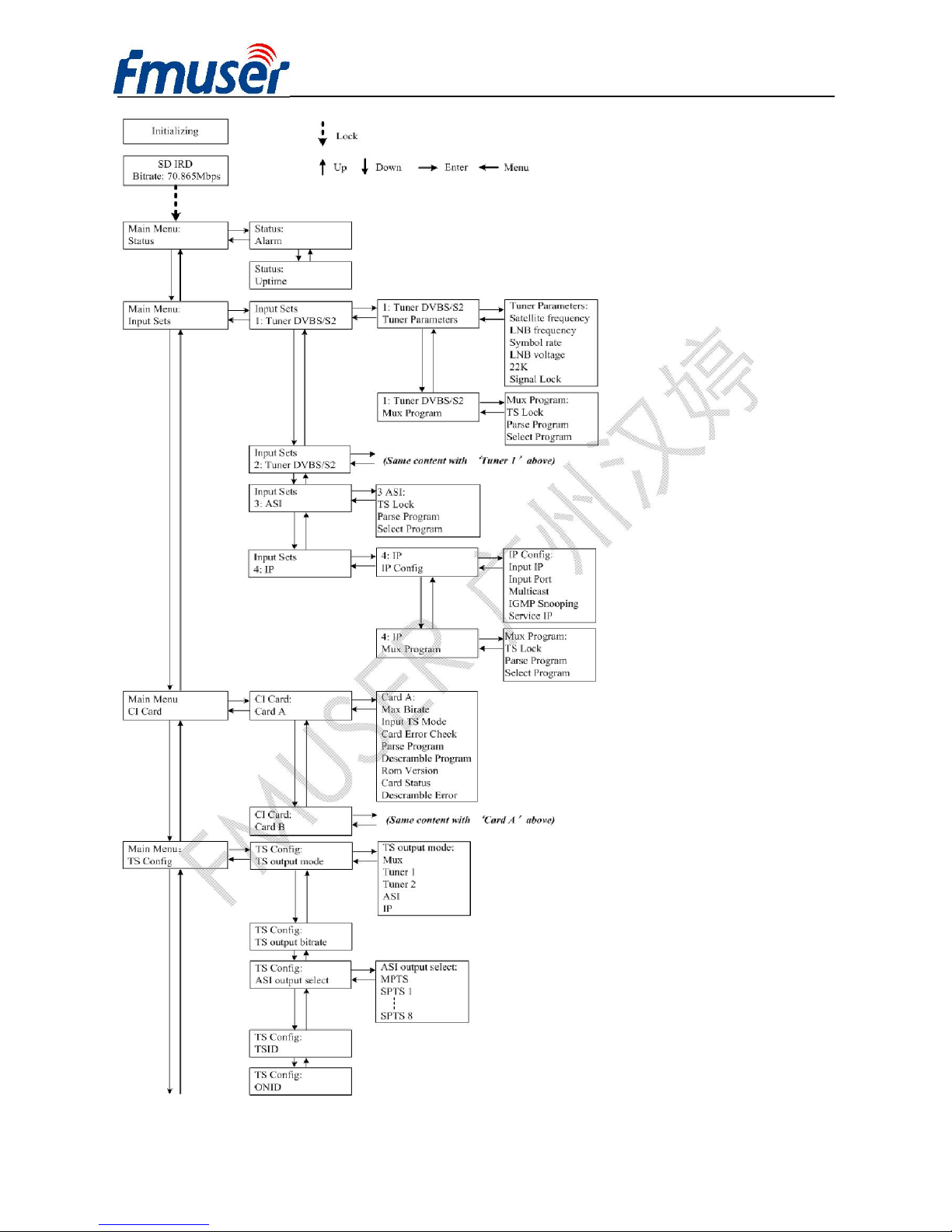
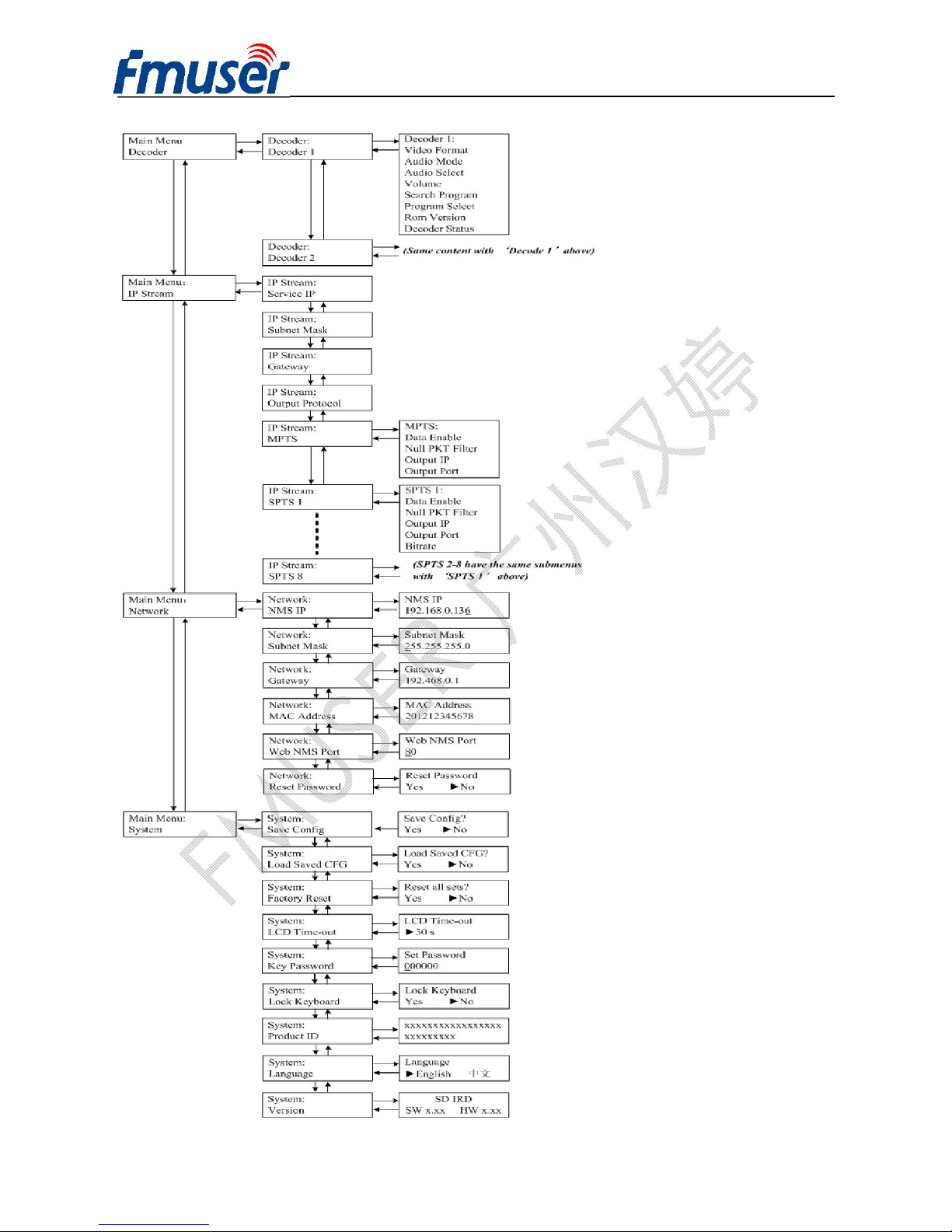
3.1 LCD Menu Class Tree
(See next page :)
Page 14
FMUSER INTERNATIONAL GROUP INC. 广州市汉婷生物技术开发有限公司
13 / 43
Page 15
FMUSER INTERNATIONAL GROUP INC. 广州市汉婷生物技术开发有限公司
14 / 43
Page 16
FMUSER INTERNATIONAL GROUP INC. 广州市汉婷生物技术开发有限公司
15 / 43
3.2 General Setting
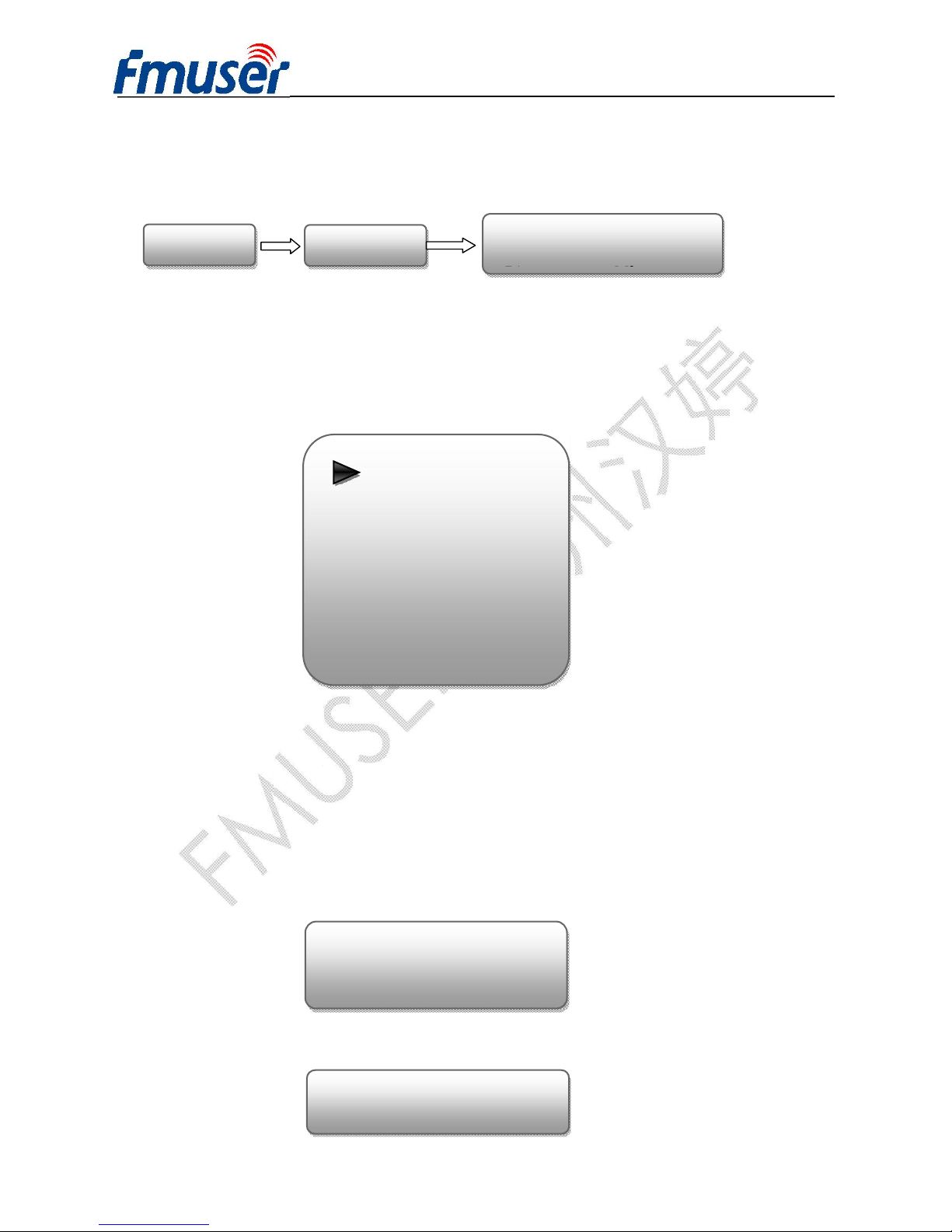
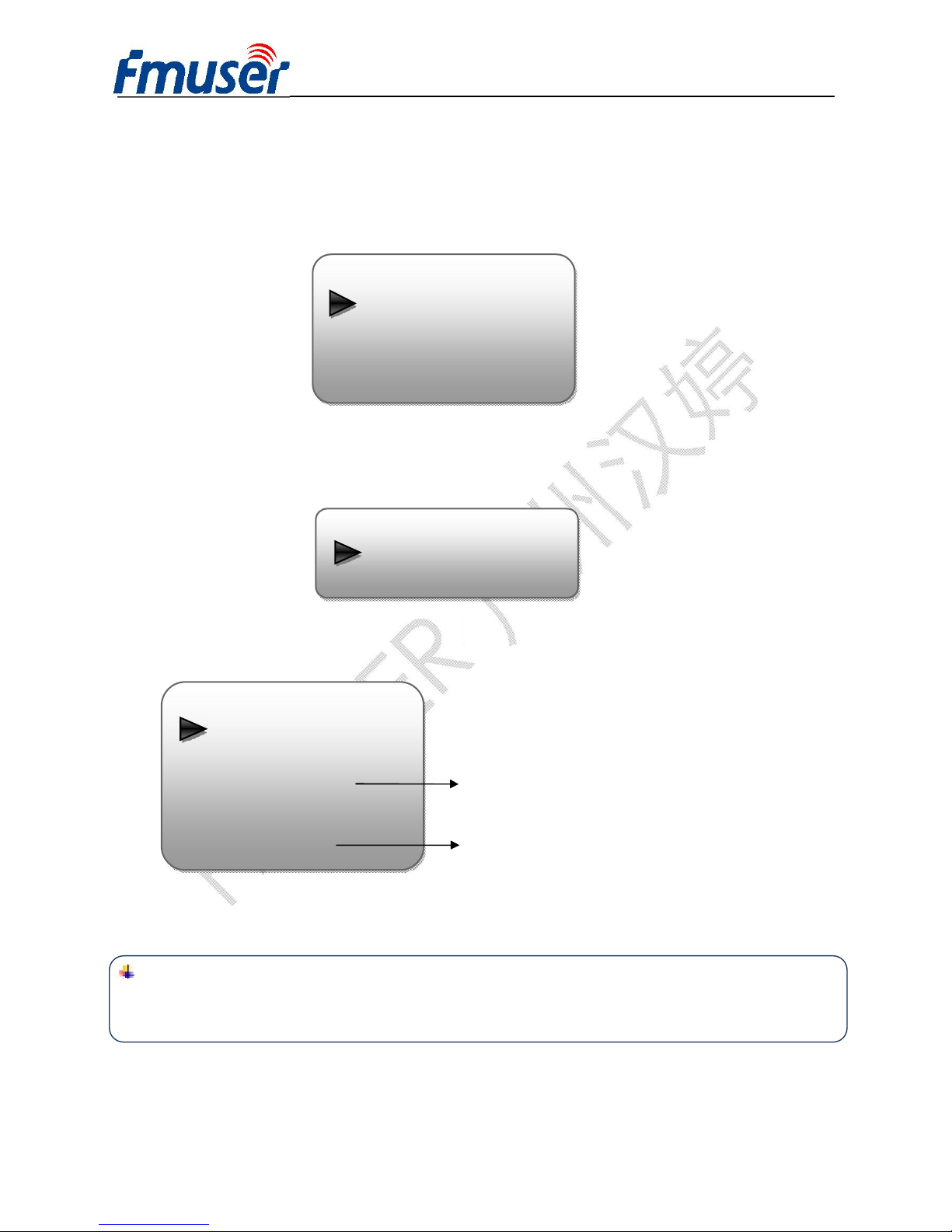
Switch on the device and after a few seconds’ initialization, it presents start-up pictures as below:
l SD IRD: Device’s name
l Bitrate: xx.xxx MHz indicates the current ASI output bitrate.
Press LOCK key on the front panel to enter the main menu. The LCD will display the following
pages where user can configure the parameters for the device:
User could do all the settings according to the 8 directions displayed on the LCD. User can press
UP/DOWN buttons to specify menu item, and then press ENTER to enter the submenus as below:
3.2.1 Status
Alarm: The alarm indicator will turn on if there is no A/V signals inputting or outputting bit rate
overflows. User then can enter this menu to check the error type. Otherwise it shows the ‘system is
normal’.
Uptime: It displays the working time duration of the device. It times upon power on.
S
tart up
…
S
tart OK
…
SD IRD
Main menu
1 Status
2 Input Sets
3 CI Card
4 TS Config
5 Decoder
6 IP
Stream
Alarm
System is normal
Uptime
1 Day(s) 03:30:02
Page 17
FMUSER INTERNATIONAL GROUP INC. 广州市汉婷生物技术开发有限公司
16 / 43
3.2.2 Input Sets
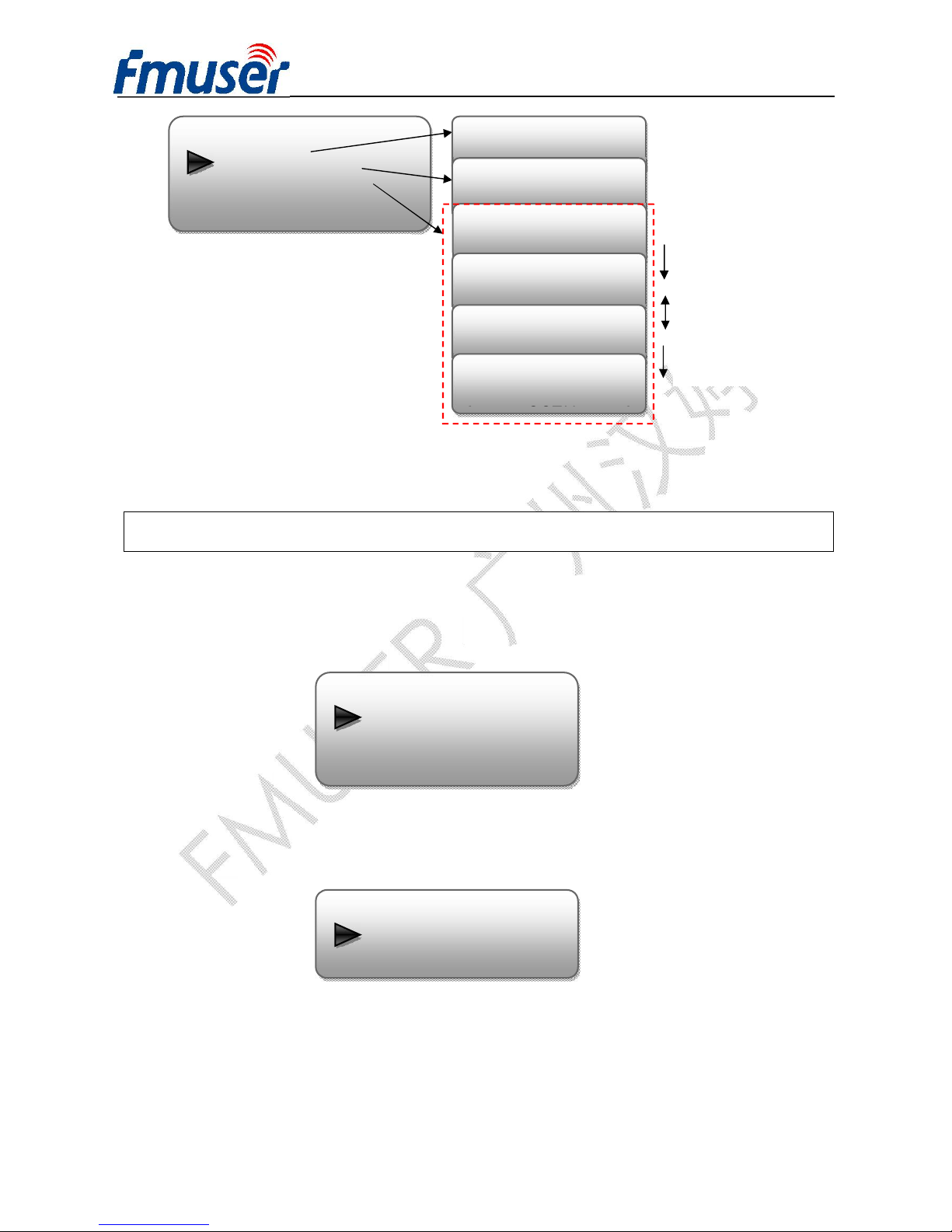
FUTV466X supports 2 tuners input, 1 ASI input and 1 IP stream input. Users can enter ‘Input Sets’
to configure the tuner/IP parameters to receive the transport streams and select programs to mux out.
It displays as below:
Ø Tuner DVBS/S2:
Press ENTER key to enter ‘1 Tuner DVBS/S2’ (or ‘2 Tuner DVBS/S2’), it displays as below:
Tuner Parameters:
Users can enter this menu to configure the tuner parameters separately to receive the tuner programs.
Mux Program:
Users can parse the Tuner input program list and select programs to mux out in this menu.
NOTE:
Multiplexing operation can only take effect on condition that the “TS output mode” is
set to “Mux” under ‘TS Config’. (i.e.: TS Config→TS output mode→Mux)
Tuner Parameters:
Satellite frequency
LNB frequency
Symbol rate
LNB Voltage
1 Tuner DVBS/S2
Tuner Parameters
Input Sets
1 Tuner DVBS/S2
2 Tuner DVBS/S2
3 ASI
For checking signal status and quality etc
18V, 13v and 0v Optional
Page 18
FMUSER INTERNATIONAL GROUP INC. 广州市汉婷生物技术开发有限公司
17 / 43
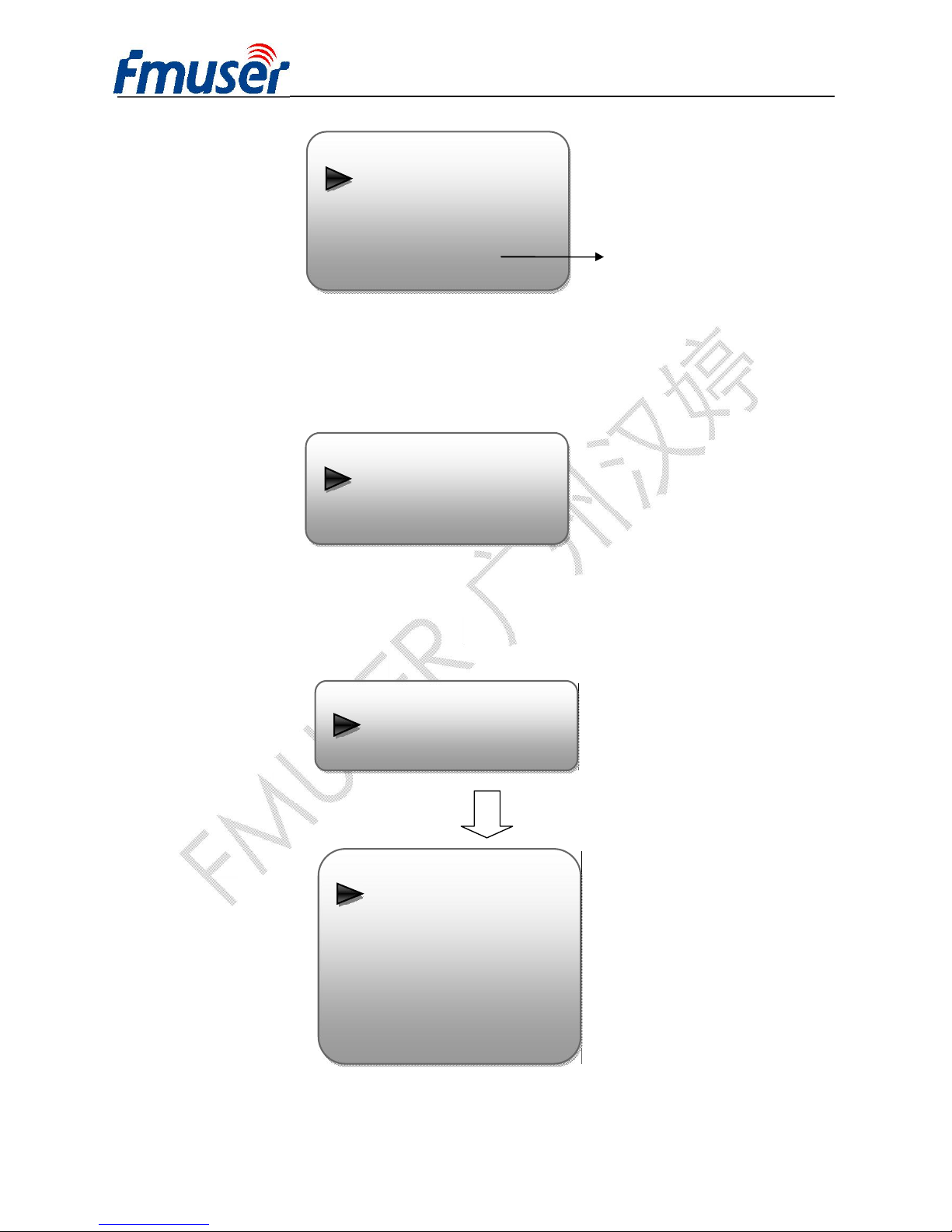
Ø ASI:
Users can parse ASI input programs and select program(s) to mux out under this menu. The
operating method is same with what explained above.
Ø IP:
Press ENTER key to enter ‘4 IP’, it displays as below:
IP Config:
Users can enter this menu to configure IP parameters according to the IP source to receive the IP
programs.
Mux Program
TS Lock
Parse Program
TS Locked
Searching Program
For reading the input
bitrate
For reading the number
of programs from Tuner
1 (or 2)
Mux Program (0/7)
‘1/7’ represents there are all 7 programs in the list and 1 program has been selected to mux out through
Mux Program (0/7)
Mux Program (0/7)
Mux Program (1/7)
Process of selecting programs to
output through front panel:
[←]: to cancel program output;
[→]: to output the program
“√”: a symbol indicating the
corresponding program has been
selected to output;
Press ENTER key
Press RIGHT/LEFT
key to shift arrow
Press ENTER key to
3: ASI
TS Lock
Parse Program
4: IP
IP Config
Page 19
FMUSER INTERNATIONAL GROUP INC. 广州市汉婷生物技术开发有限公司
18 / 43
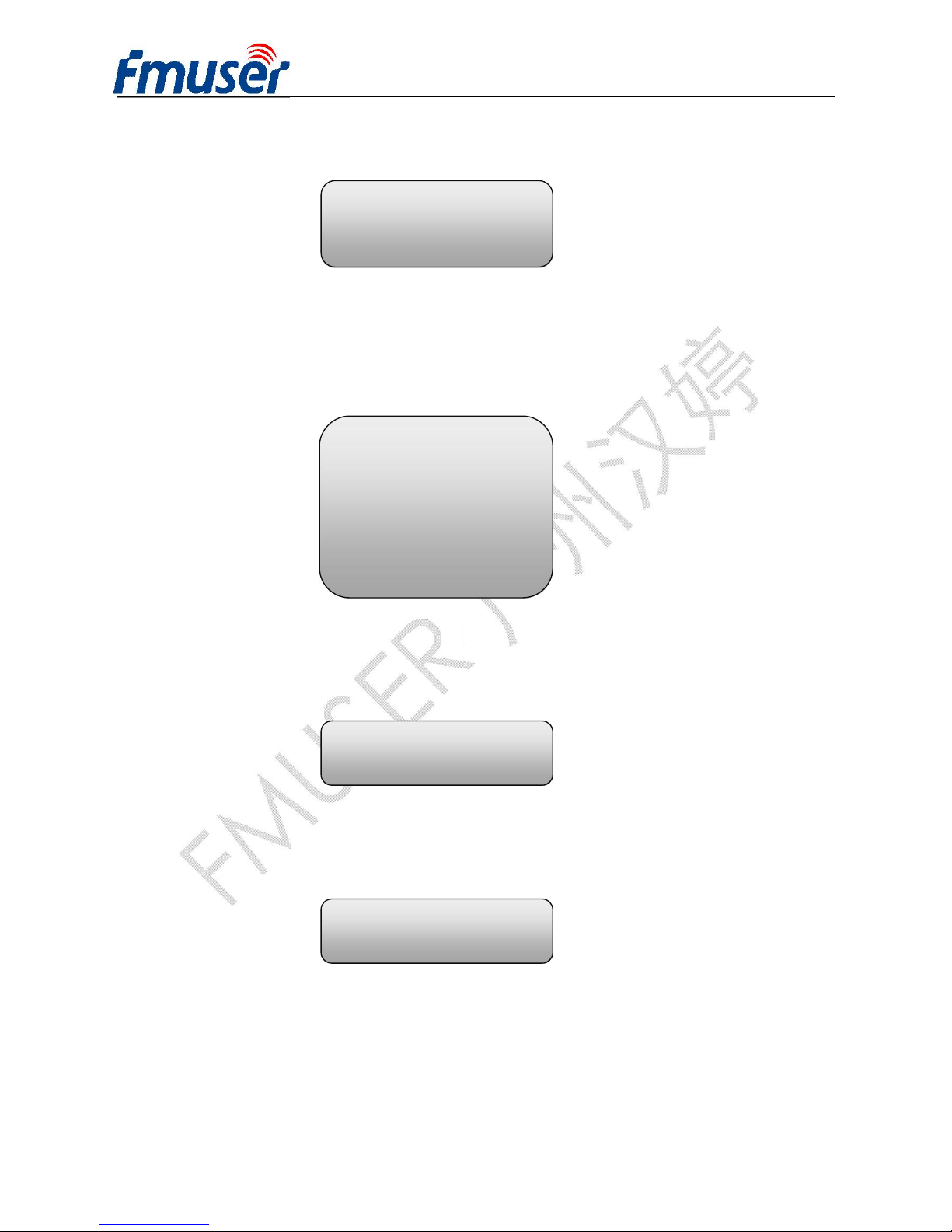
Mux Program:
Users can parse the IP input program list and select programs to mux out in this menu. The operating
method is same with what explained above.
3.2.3 CI Card
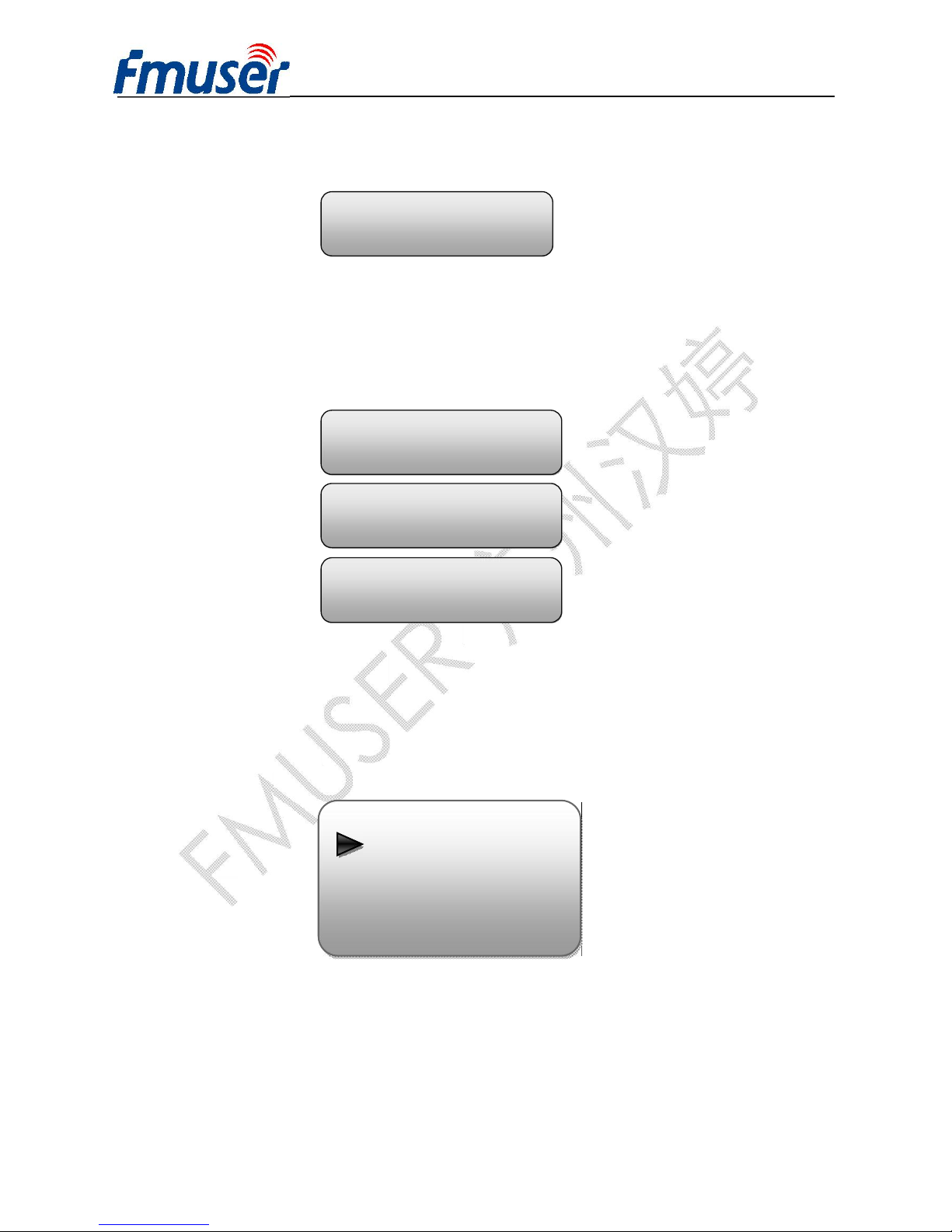
FUTV466X SD IRD supports 2 CI cards (Card A & Card B) to descramble programs from either
encrypted RF, ASI or IP. Users can press ENTER key to enter ‘CI Card’ to configure the 2 cards
respectively.
Press ENTER key to enter Card A (or Card B):
Ø Max Bit rate
Mux Program
TS Lock
Parse Program
Off, V2 and V3 Optional
CI Card
Card A
IP Config
Input IP
Input Port
Multicast
Card A
Max Bitrate
Input TS Mode
Card Error Check
Parse Program
Descramble Program
Page 20
FMUSER INTERNATIONAL GROUP INC. 广州市汉婷生物技术开发有限公司
19 / 43
CI Max Bitrate options range from 48-108Mbps. Move the triangle to select a value as principle:
Actual Input Bitrate≤ Max Bitrate≤CI Max decrypting capacity
Ø Input TS Mode
FUTV466X has 4 signal sources: Tuner 1, Tuner 2, ASI, and IP. One CI card can applied to
descramble one channel input signal from the 4 signal sources. ‘Skip CI card’ means to skip the card
which is used for FTA stream.
Ø Card Error Check
Users can decide whether to enable or disable the card error check function in this menu.
Ø Parse Program
Users can read the quantity of programs parsed from the de-scrambled channel.
Ø Descramble Program
Max Bitrate
► 48 Mbps
Input TS Mode
► Skip CI Card
Tuner 1
Tuner 2
ASI
IP
Card Error Check
► Enable
Searching Program
Get 8 Programs
Page 21
FMUSER INTERNATIONAL GROUP INC. 广州市汉婷生物技术开发有限公司
20 / 43
Users can select program(s) from the searched out programs to descramble. The quantity to be
descrambled will depend on the CAM/CI performance you apply to.
Ø Rom Version/Card Status/Descramble Error
Users can read the other info about the CI card in the following menus.
3.2.4 TS Config
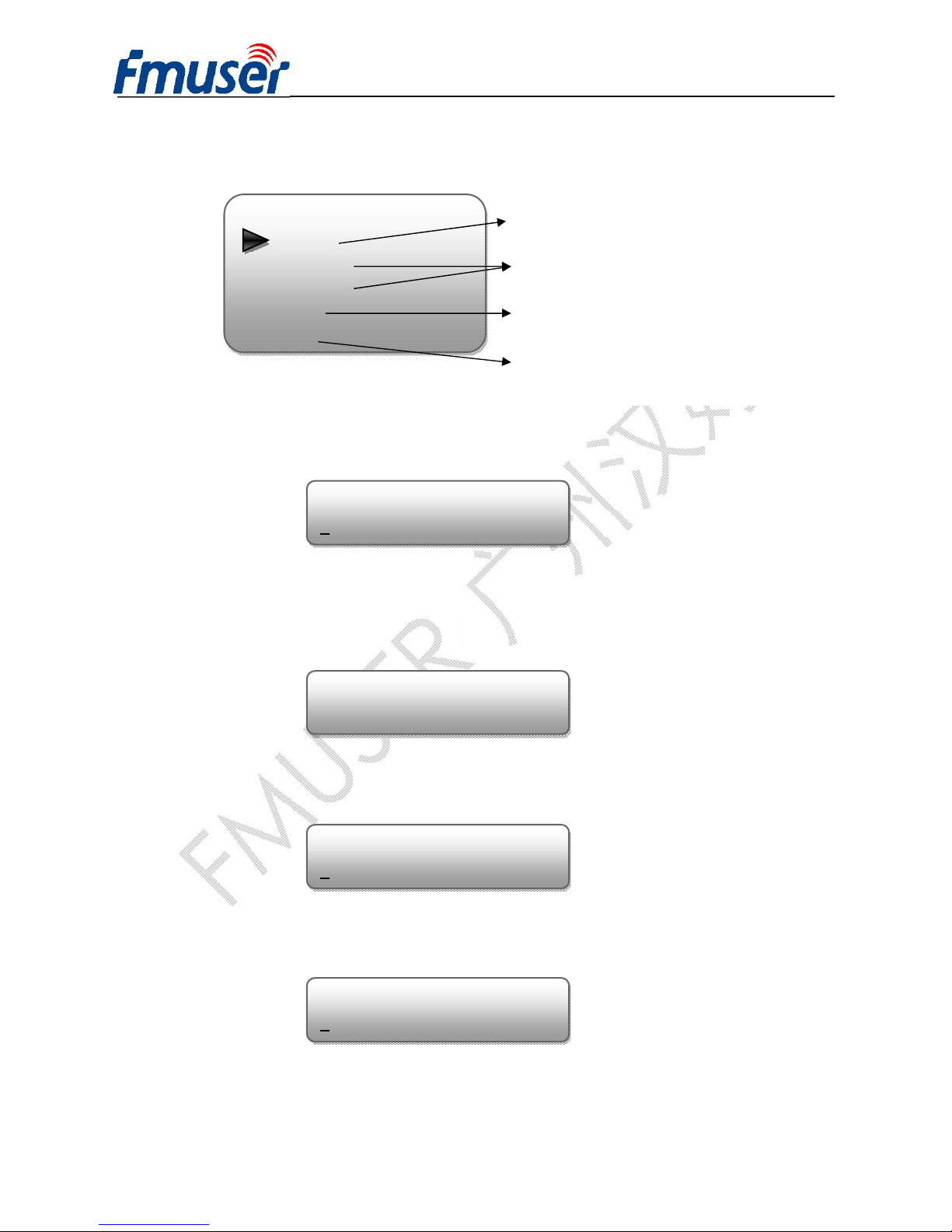
Users can press ENTER key to enter ‘TS Config’ to configure the parameters of TS output through
ASI.
►1 CETV 1 √
2 CCTV 4A X
Rom Version
4.0.4.0
Card Status
Normal
Descramble Error
Normal
TS Config
TS output mode
TS output bit rate
ASI output select
Page 22
FMUSER INTERNATIONAL GROUP INC. 广州市汉婷生物技术开发有限公司
21 / 43
TS output mode: Enter this menu to select a TS output mode.
TS Out Bit rate: Users can set TS output bit rate in this menu.
ASI Output Select: The content of TS output through ASI is copied from the one of the IP streams
(MPTS and SPTS 1-8).
TS ID: Users can set TS ID in this menu.
ON ID: Users can set ON ID (original network ID) in this menu.
Under this mode, users can randomly select
programs from any input channel to mux out.
TS output mode
Mux
Tuner 1
Tuner 2
TS ID
00001
To transfer programs from Tuner 1/2
out without mux
ON ID
0
0001
To transfer programs from ASI out
without mux
To transfer programs from IP out
without mux
TS output bit rat
054 Mbps
ASI output Select
►MPTS
Page 23
FMUSER INTERNATIONAL GROUP INC. 广州市汉婷生物技术开发有限公司
22 / 43
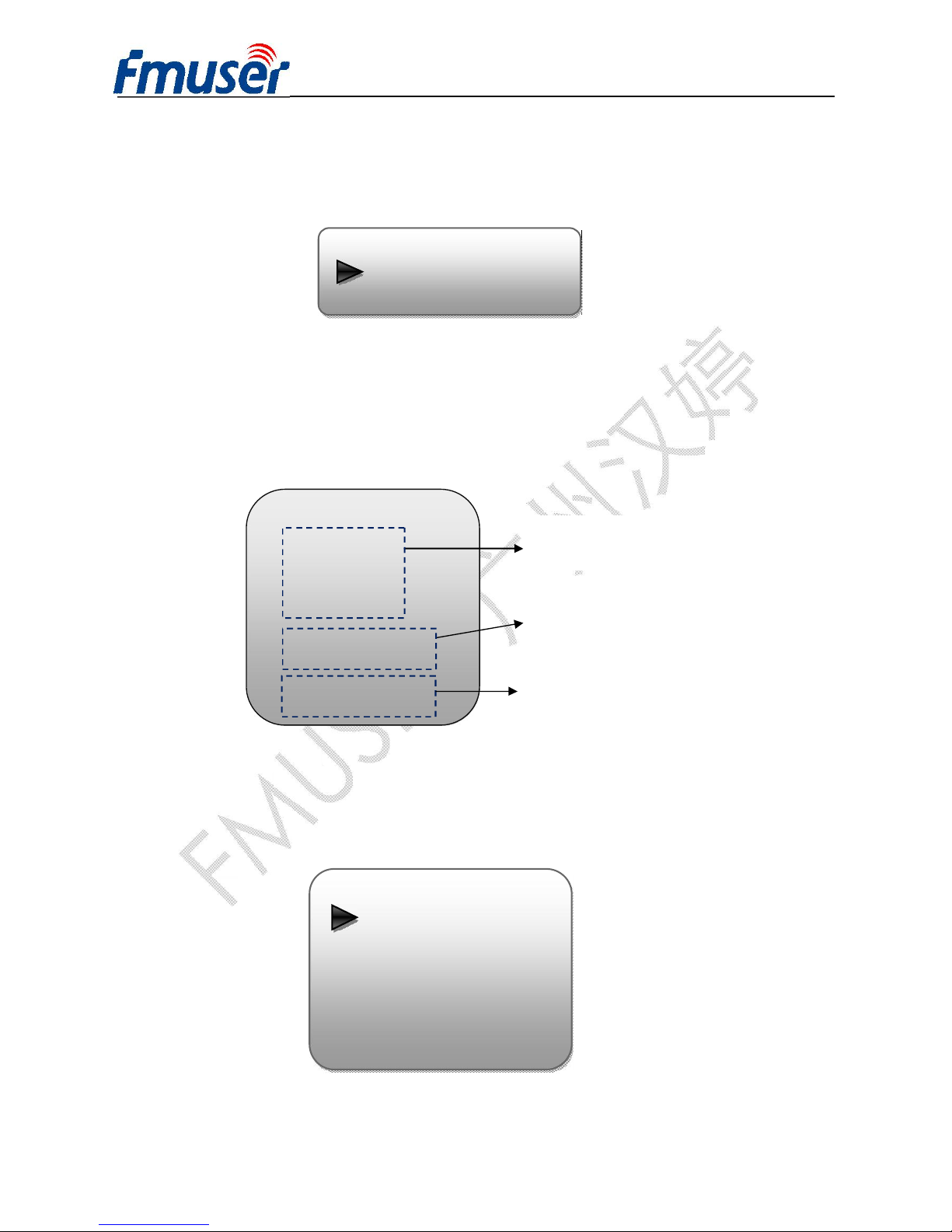
3.2.5 Decoder
Users can press ENTER key to enter ‘Decoder’ to set the video to be decoded. FUTV466X IRD
supports 2 separate decoded videos/audios output at the same time.
Ø Decoder 1/2
Decoder 1 and 2 are for setting the two decoded programs respectively. The program selected to
decode will output through CVBS port.
3.2.7 Network
Users can set network parameters in this menu. Enter ‘Network’ submenus to separately set
corresponding parameters.
Network
NMS IP
Subnet Mask
Gateway
MAC Address
Web NMS Port
Reset Password
Decoder
Decoder 1
Decoder 1
►Video Format
Audio Mode
Audio Select
Volume
Search Program
Program Select
Rom Version
To set the video/audio effect
for Program 1
To read the rom version and
decoding status
To search out the input program list and
select one to output through CVBS port.
Page 24
FMUSER INTERNATIONAL GROUP INC. 广州市汉婷生物技术开发有限公司
23 / 43
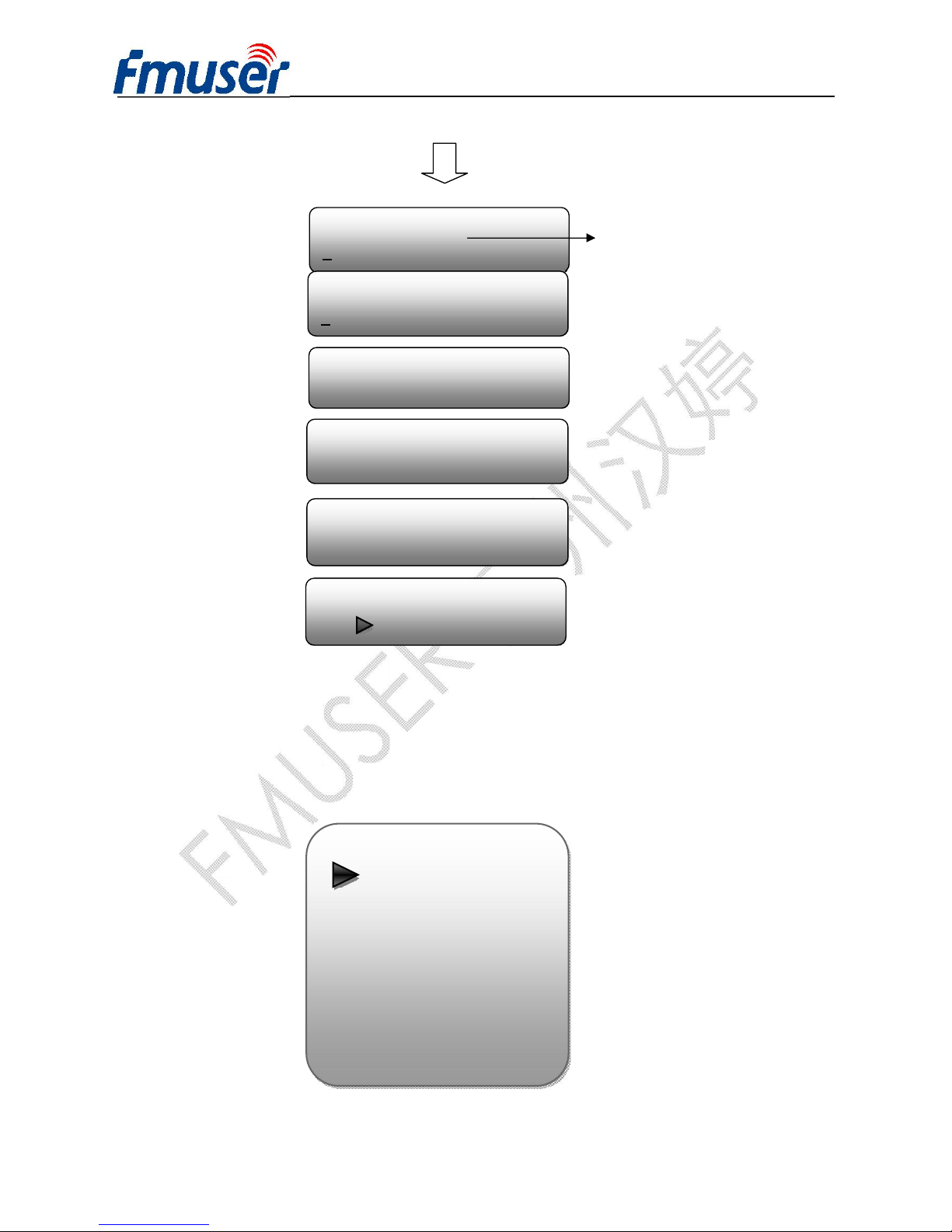
3.2.8 System
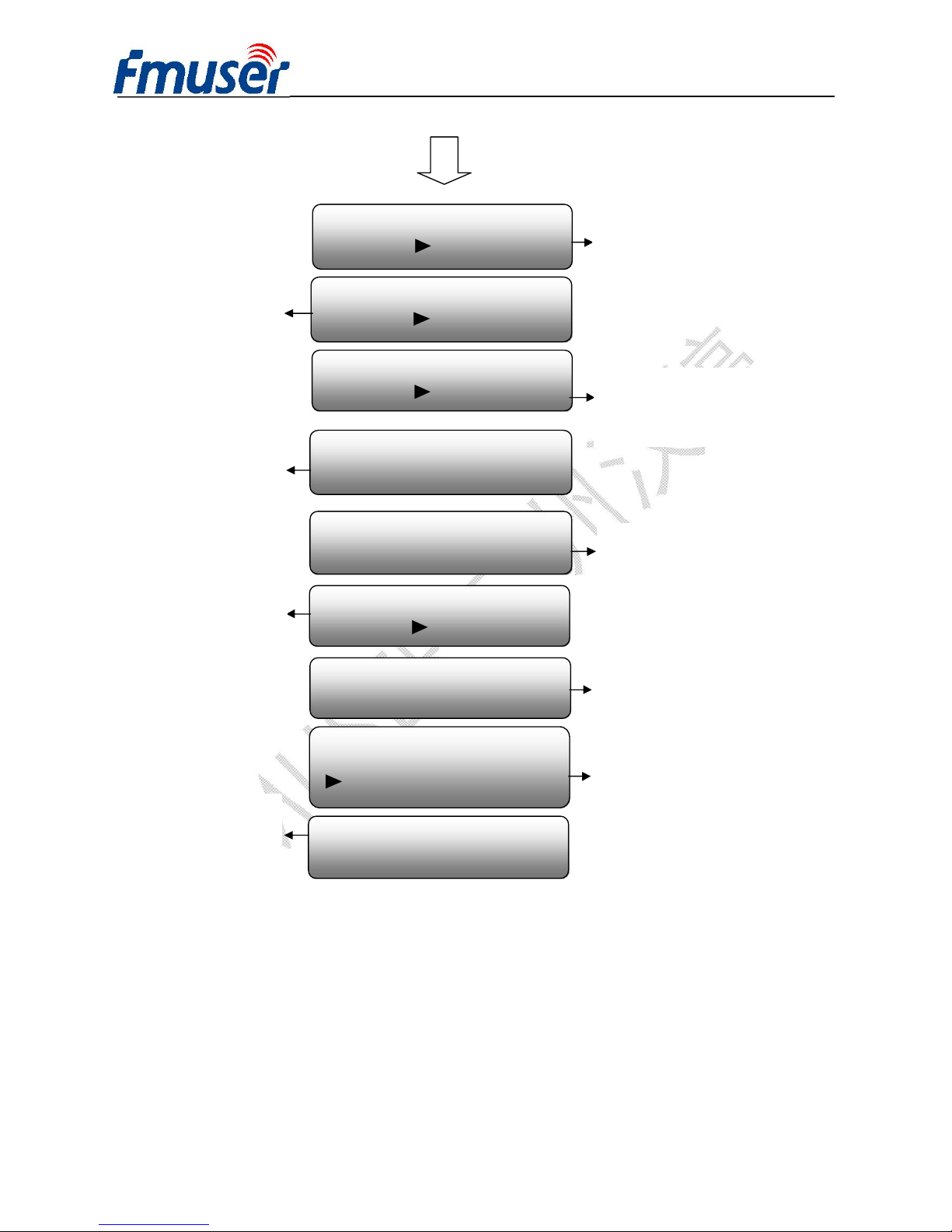
Users can set the system parameters in this menu. Enter ‘System’ submenus to separately set
corresponding parameters.
NMS IP
192.168.000.136
Subnet Mask
255.255.255.000
Gateway
1
92.168.000.001
MAC Address
201012345678
Reset Password?
Yes NO
Web NMS Port
00080
The IP address for connecting
the device to PC
System
Save Config
Load Saved CFG
Factory Reset
LCD Time-out
Key Password
Lock Keyboard
Product ID
Language
Page 25
FMUSER INTERNATIONAL GROUP INC. 广州市汉婷生物技术开发有限公司
24 / 43
Save Configuration?
Yes No
Load Saved CFG?
Yes No
Reset All Sets?
Yes
No
LCD Time-out
30 s
Set Password
000000
Lock Keyboard?
Yes
No
xxxxxxxxxxxxxxxxxxxx
xxxxxxxxxxxxxxxxxxxxx
ATSC Modulator
SW x.xx HW x.xx
Choose yes to save settings.
Choose yes to restore the
device into the last saved
configuration.
Choose yes to restore the
device into factory’s default
configuration.
Press DOWN/UP key to select
a time out for the LCD lighting
duration (5-120 seconds)
To set a 6-digit password for
unlocking the keyboard
Choose Yes to lock the
keyboard, then the keyboard
will be locked and cannot be
applicable. It is required to
input the password to unlock
the key board. This operation
is one-off
User can view the serial number
of this device. It is read-only
and unique
It displays the version
information of this device.
Encoder Modulator: the name
of the device; SW: software
version number; HW:
hardware version number.
Language
English 中文
User can shift the system
language here.
Page 26
FMUSER INTERNATIONAL GROUP INC. 广州市汉婷生物技术开发有限公司
25 / 43
Chapter 4 Web-based NMS Management
In addition to using front buttons to control the device, users can also control and set the
configuration with the web Brower in the PC.
4.1 login
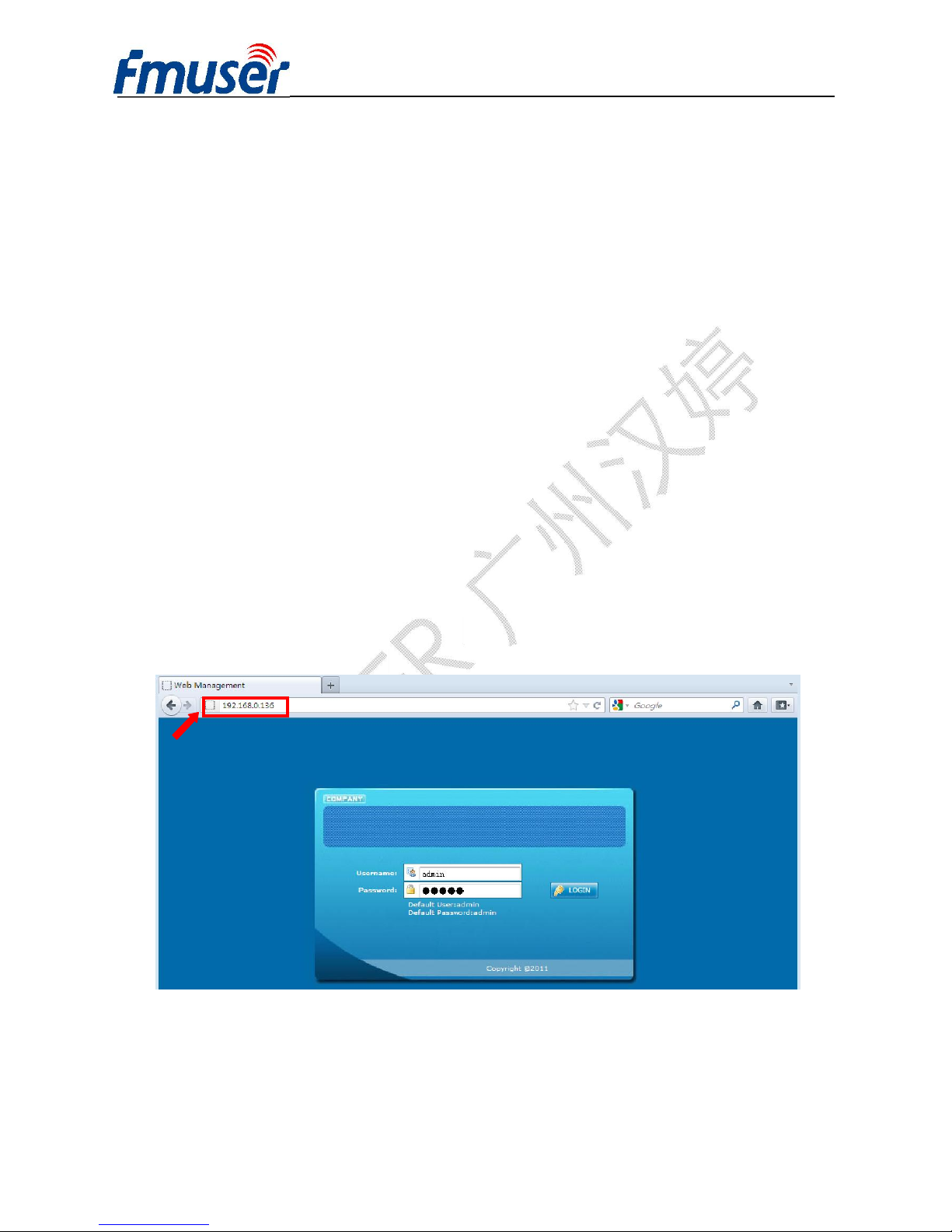
The default IP address of this device is 192.168.0.136. (We can modify the IP through the front
panel.)
Connect the PC (Personal Computer) and the device with net cable, and use ping command to
confirm they are on the same network segment.
I.G. the PC IP address is 192.168.99.252, we then change the device IP to 192.168.99.xxx (xxx can
be 1 to 254 except 252 to avoid IP conflict).
Use web browser to connect the device with PC by inputting the device’s IP address in the browser’s
address bar and press Enter.
It will display the Login interface as Figure-1. Input the Username and Password (Both the default
Username and Password are “admin”.) and then click “LOGIN” to start the device setting.
Figure-1
Page 27
FMUSER INTERNATIONAL GROUP INC. 广州市汉婷生物技术开发有限公司
26 / 43
4.2 Operation
Summary:
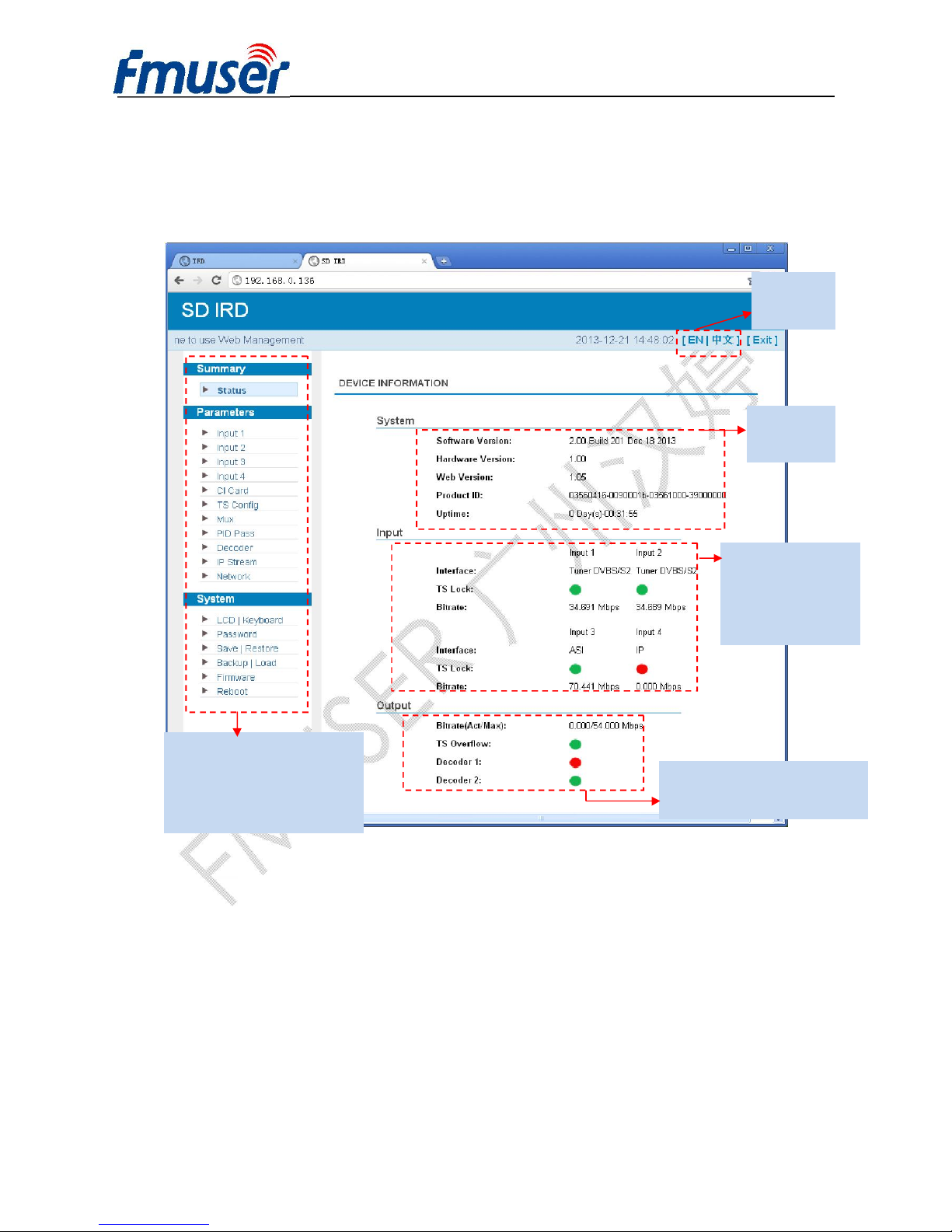
When we confirm the login, it displays the WELCOME interface as Figure-2 where users can
have an overview of the device’s system information and working status.
Figure-2
Parameters → Input 1/2 (Tuner 1/Tuner 2 Input):
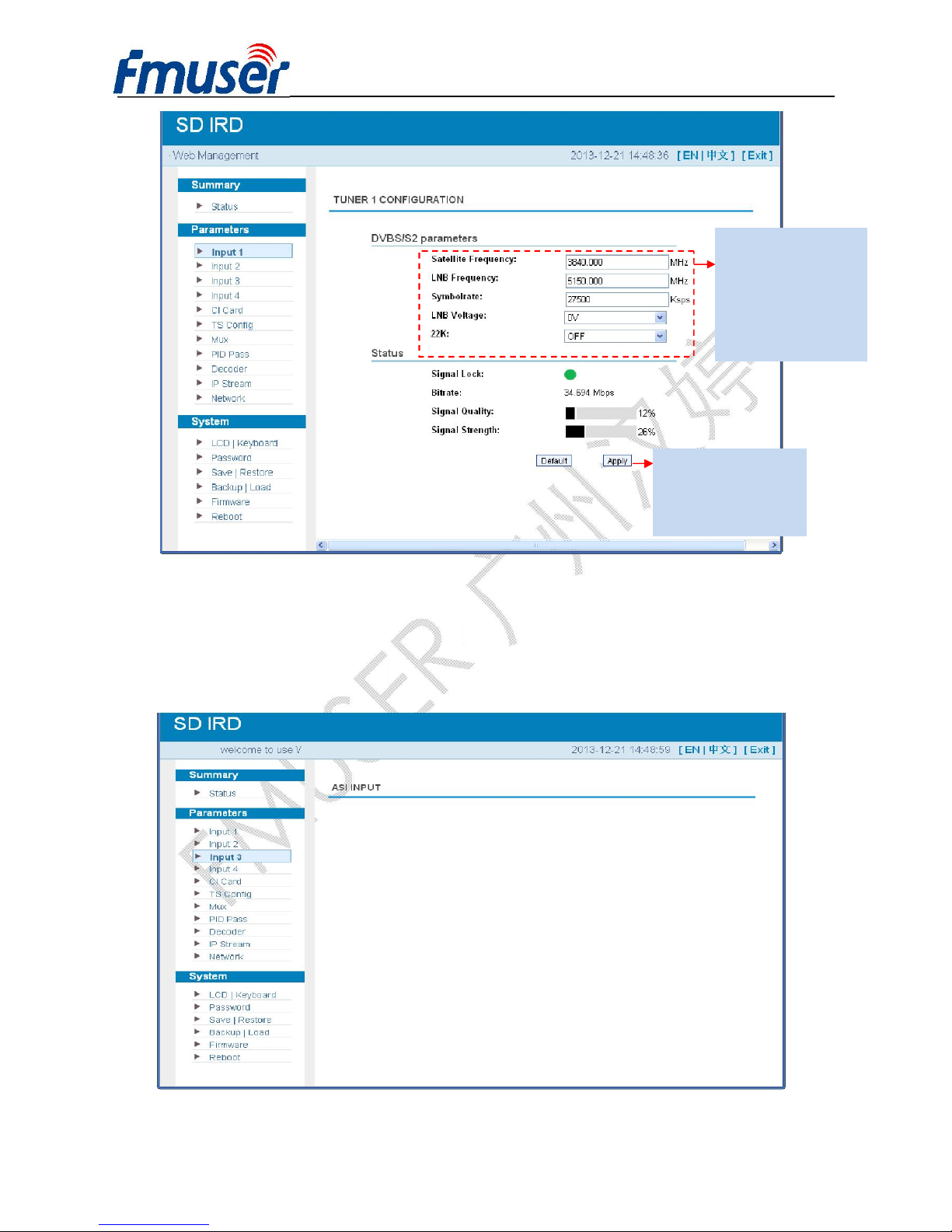
From the menu on left side of the webpage, clicking “Input 1” or “Input 2”, it displays the interface
where users can configure the 2 Tuner input parameters separately. (Figure-3)
User can click any item here to
enter the corresponding interface
to check information or set the
parameters
.
System
information
Language
shift area
Output information of the TS and
decoded program.
Input information of
the two satellite
Page 28
FMUSER INTERNATIONAL GROUP INC. 广州市汉婷生物技术开发有限公司
27 / 43
Figure-3
Parameters → Input 3 (ASI Input):
“Input 3” refers to the ASI source, this page is not applicable as it does not need to configure ASI
signal. (Figure-4)
Figure-4
Configure tuner
parameters in this area
according to your signal
source to receive
programs.
Click “Apply” button to
apply the input data to
start receive signals.
Page 29
FMUSER INTERNATIONAL GROUP INC. 广州市汉婷生物技术开发有限公司
28 / 43
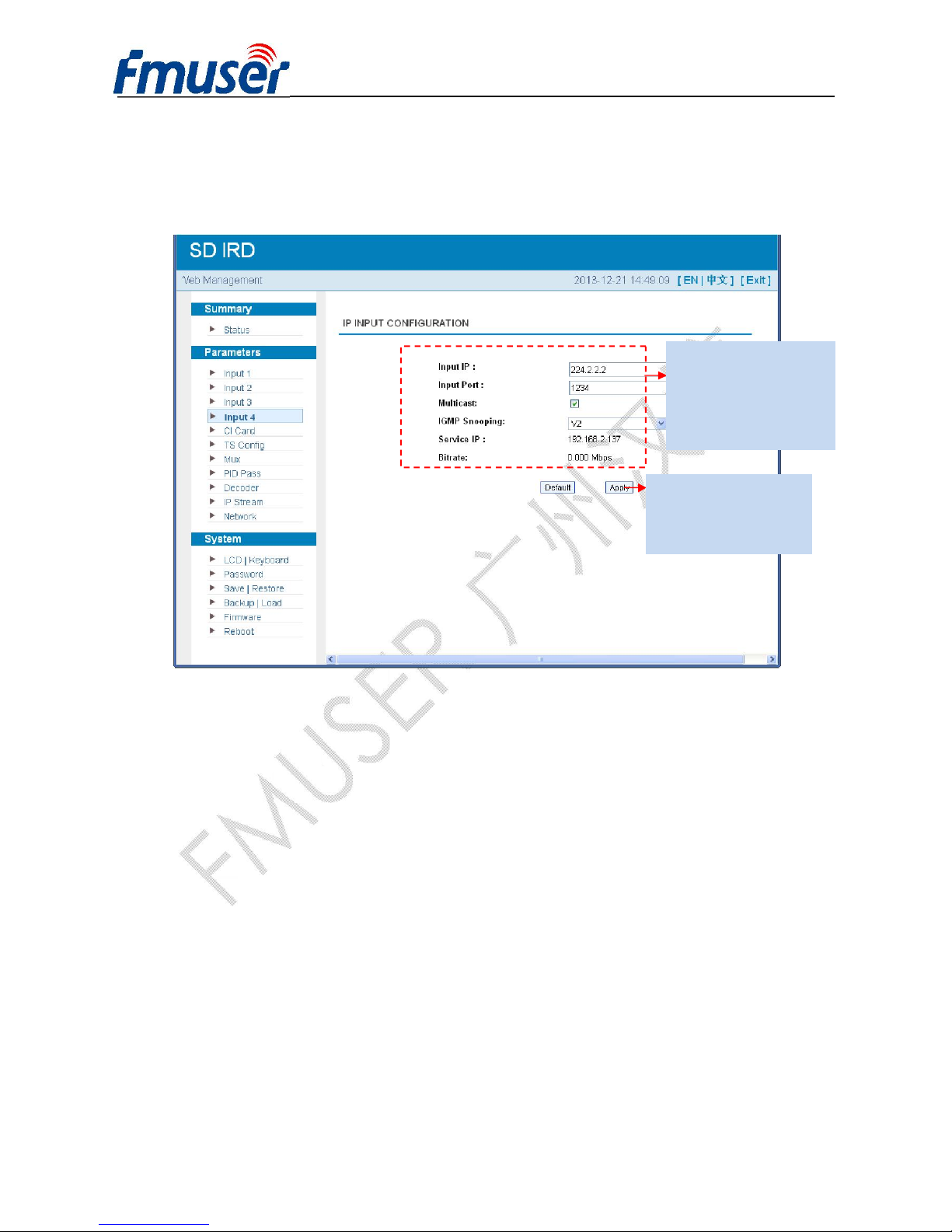
Parameters → Input 4 (IP Input):
From the menu on left side of the webpage, clicking “Input 4”, it displays the interface where users
can configure the IP input parameters. (Figure-5)
Figure-5
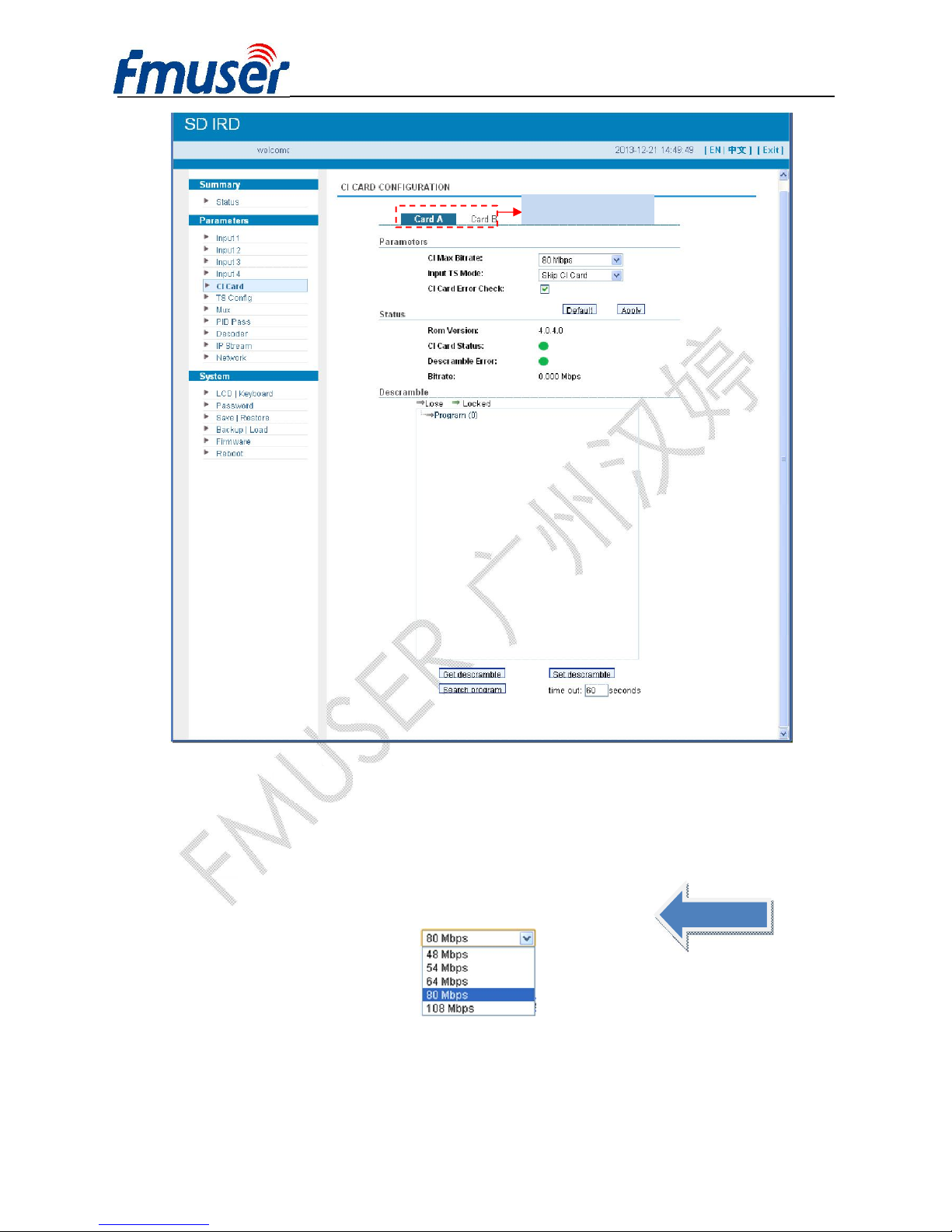
Parameters → CI Card:
FUTV466X SD IRD supports 2 CI cards (Card A & Card B) to descramble programs from either
encrypted RF, ASI or IP. Users can click and enter ‘CI Card’ to configure the 2 cards respectively.
(Figure-6)
Configure IP parameters in
this area according to your
signal source to receive
programs.
Click “Apply” button to
apply the input data to
start receive signals.
Page 30
FMUSER INTERNATIONAL GROUP INC. 广州市汉婷生物技术开发有限公司
29 / 43
Figure-6
Ø CI Max Bit rate
CI Max Bitrate options range from 48-108Mbps. Select a value in the pull-down list as principle:
Actual Input Bitrate≤ Max Bitrate≤CI Max decrypting capacity.
Ø Input TS Mode
FUTV466X has 4 signal sources: Tuner 1, Tuner 2, ASI, and IP. One CI card can applied to
descramble one channel input signal from the 4 signal sources. ‘Skip CI card’ means to skip the card
Card Selection Area
NOTE!
Page 31
FMUSER INTERNATIONAL GROUP INC. 广州市汉婷生物技术开发有限公司
30 / 43
which is used for FTA stream.
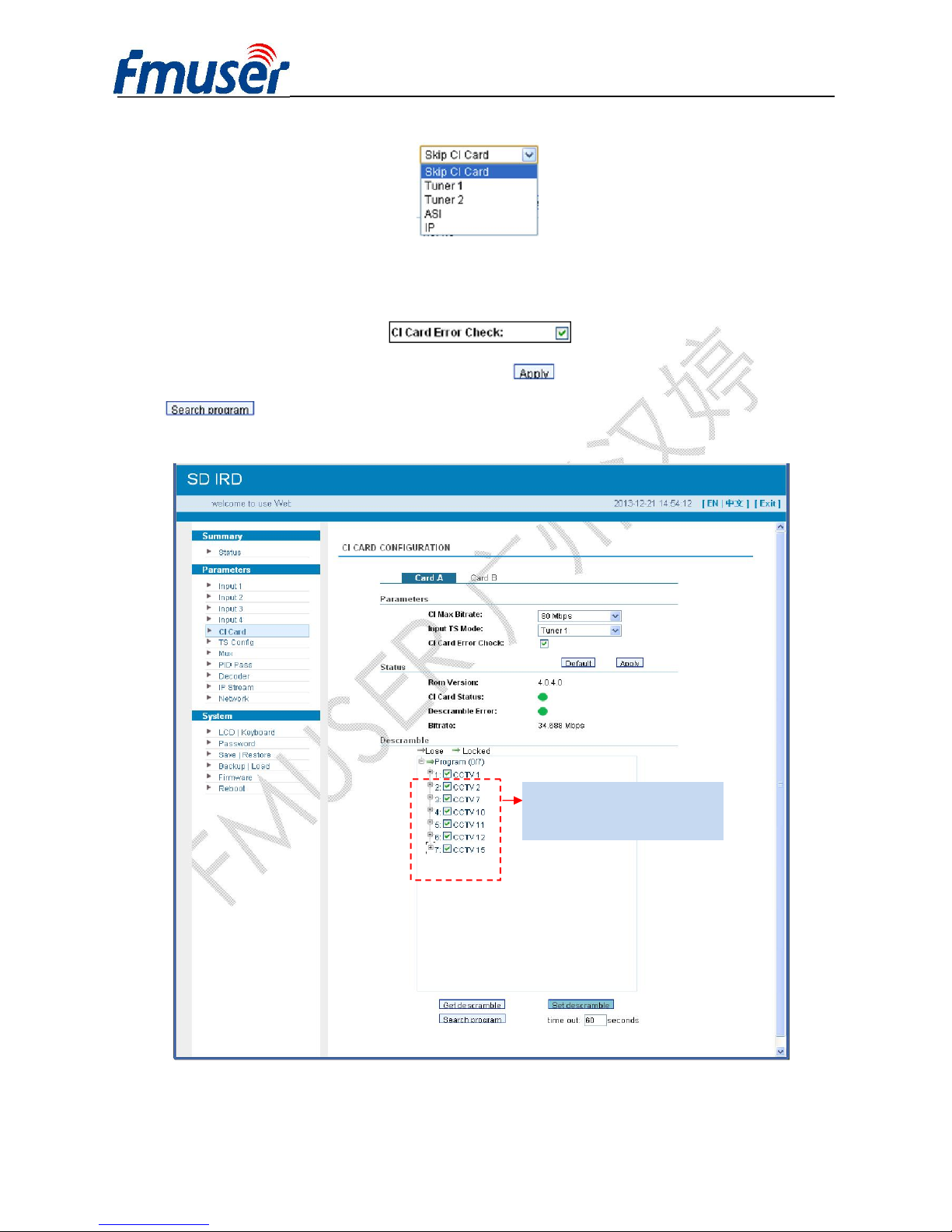
Ø Card Error Check
Users can decide whether to enable or disable the card error check function by checking the box.
After configuring the above CI card parameters, click button to apply the input data and then
click button to parse programs from the channel selected in ‘Input TS Mode’.
The searched out programs will be listed in the ‘Descramble’ box below: (Figure 7)
Figure-7
Program list from the channel
selected in ‘Input TS Mode’
Page 32
FMUSER INTERNATIONAL GROUP INC. 广州市汉婷生物技术开发有限公司
31 / 43
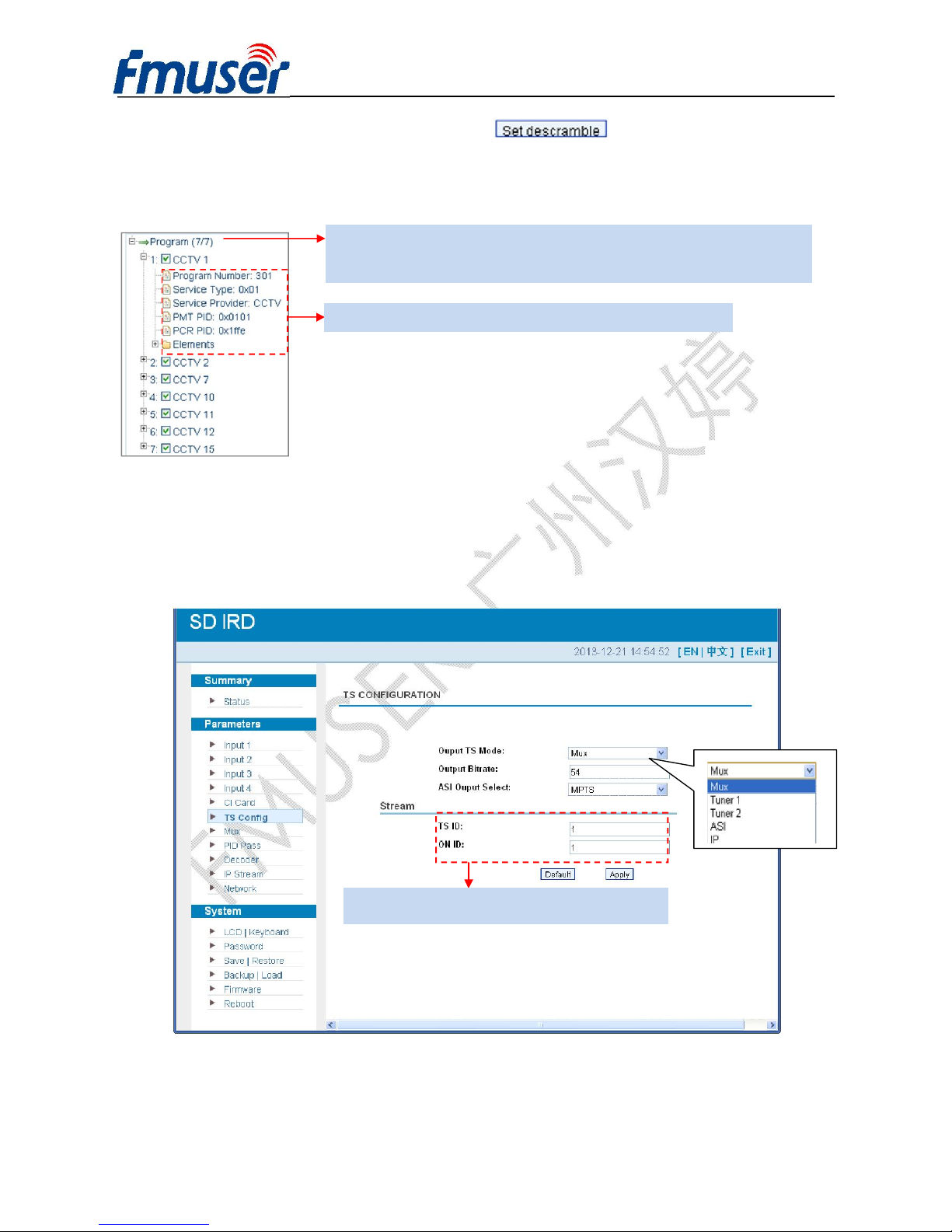
Check the program(s) to be descrambled and click button to start descrambling the
checked program(s). The program quantity to be descrambled will depend on the CAM/CI
performance you apply to.
Parameters → TS Config:
From the menu on left side of the webpage, clicking “TS Config”, it displays the interface where
users can configure the ASI output parameters. (Figure-8)
Figure-8
Number before slash indicates the programs which have been descrambled.
Number behind slash indicates the whole programs from the selected channel.
Configure TS ID and ON ID here for the output stream.
Page 33
FMUSER INTERNATIONAL GROUP INC. 广州市汉婷生物技术开发有限公司
32 / 43
Output TS Mode:
ASI Output Select: The TS content output through ASI is copied from the one of the IP streams
(MPTS and SPTS 1-8). Users can select one stream from the pull-down list.
After finishing the configuration, click to confirm.
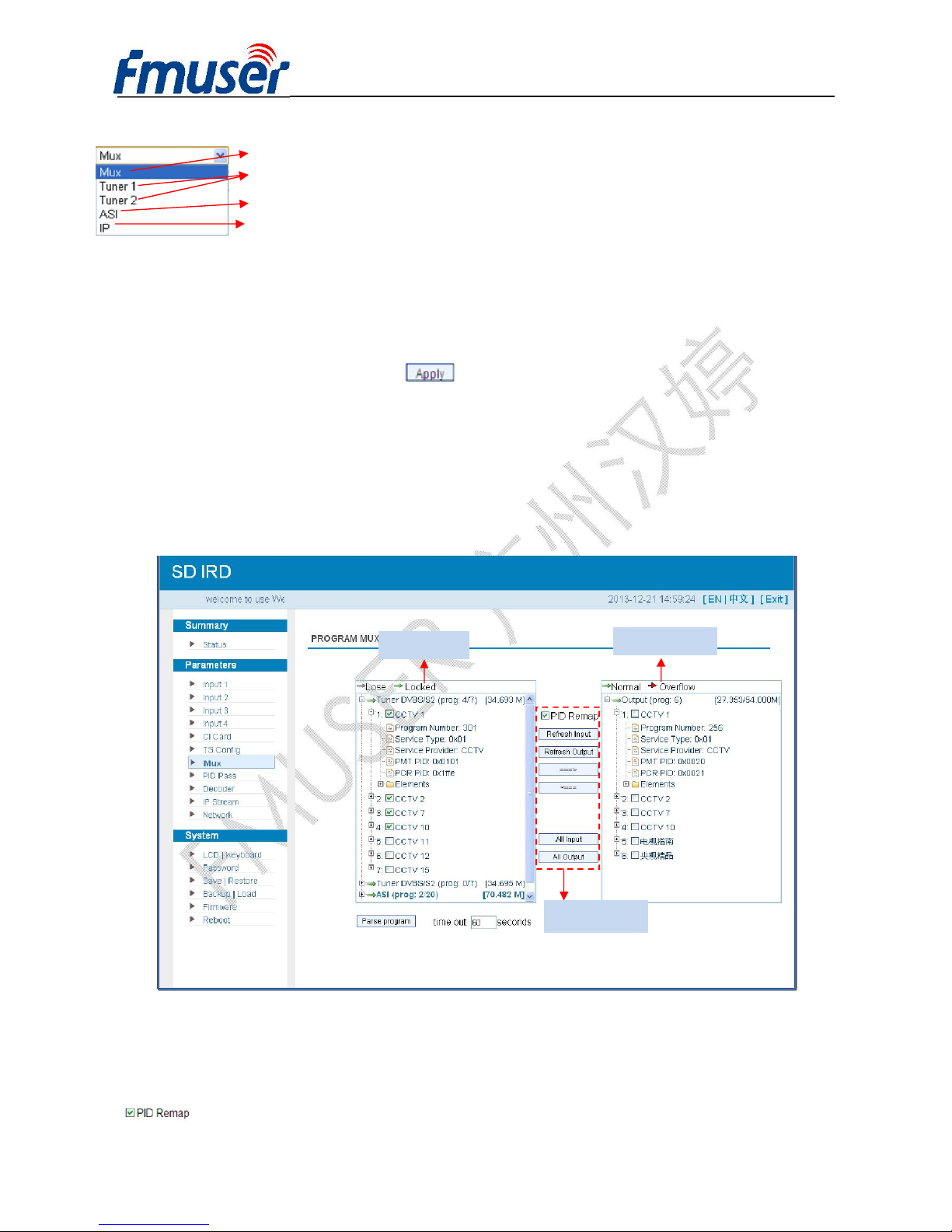
Parameters → Mux:
From the menu on left side of the webpage, clicking “Mux”, it displays the interface where users
can configure the parameters of input signals separately. (Figure-9)
Figure-9
Configure ‘Input Area’ and ‘Output Area’ with buttons in ‘Operation Area’. Instructions are as
below:
: To enable/disable the PID remapping
Input Area
Output Area
Operation Area
Under this mode, users can randomly select programs from any input channel to mux out.
To transfer programs from Tuner 1/2 out without mux
To transfer programs from ASI out without mux
To transfer programs from IP out without mux
Page 34
FMUSER INTERNATIONAL GROUP INC. 广州市汉婷生物技术开发有限公司
33 / 43
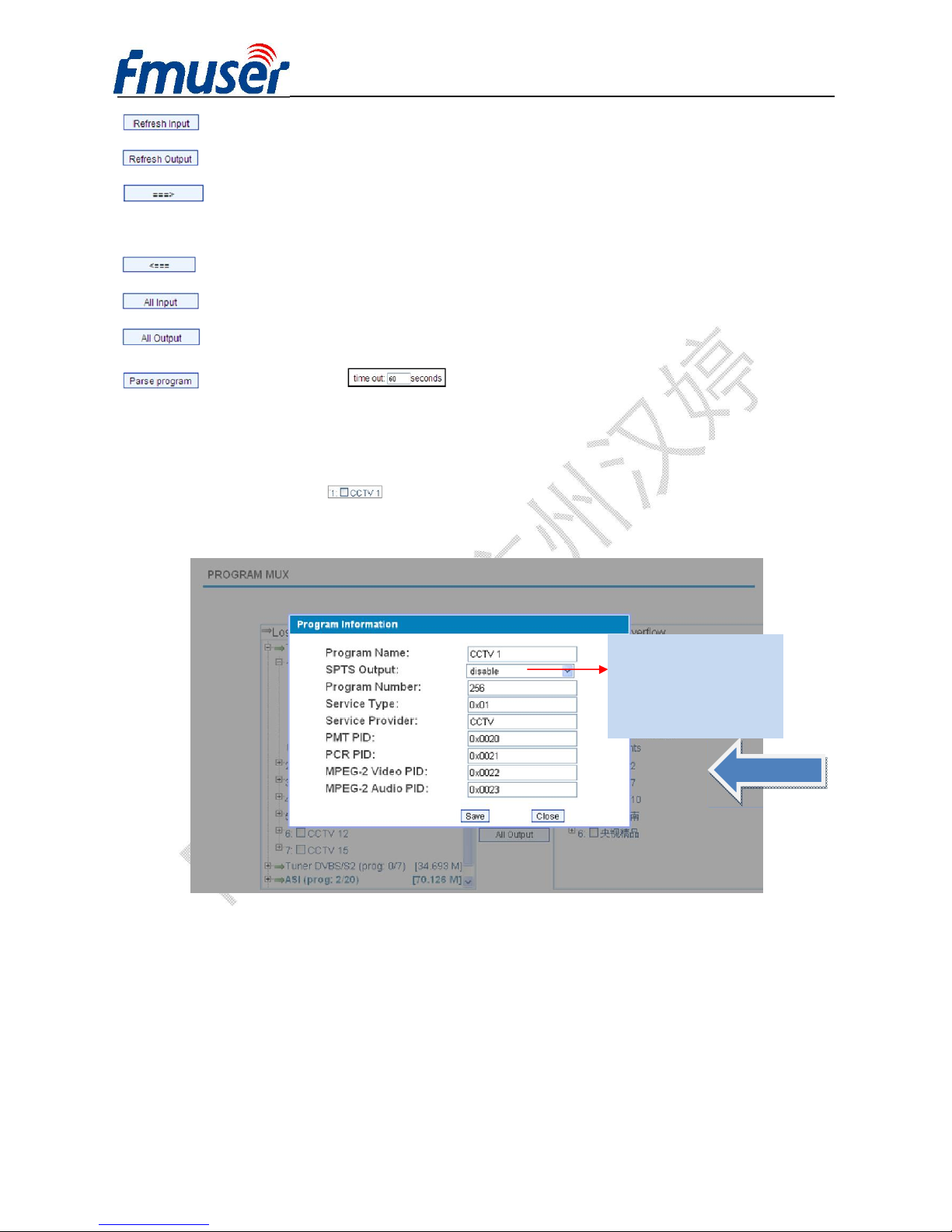
To refresh the input program information
To refresh the output program information
Select one input program first and click this button to transfer the selected program to
the right box to output.
Similarly, user can cancel the multiplexed programs from the right box.
To select all the input programs
To select all the output programs
To parse programs time limitation of parsing input programs
u Program Modification:
The multiplexed program information can be modified by clicking the program in the ‘output’ area.
For example, when clicking , it triggers a dialog box (Figure 10) where users can input new
information.
Figure-10
Input new data and click ‘Save’ button at last to confirm the modification.
NOTE!
This device supports 8 SPTS
IP out. Users can enable the
program output via SPTS
here.
Page 35
FMUSER INTERNATIONAL GROUP INC. 广州市汉婷生物技术开发有限公司
34 / 43
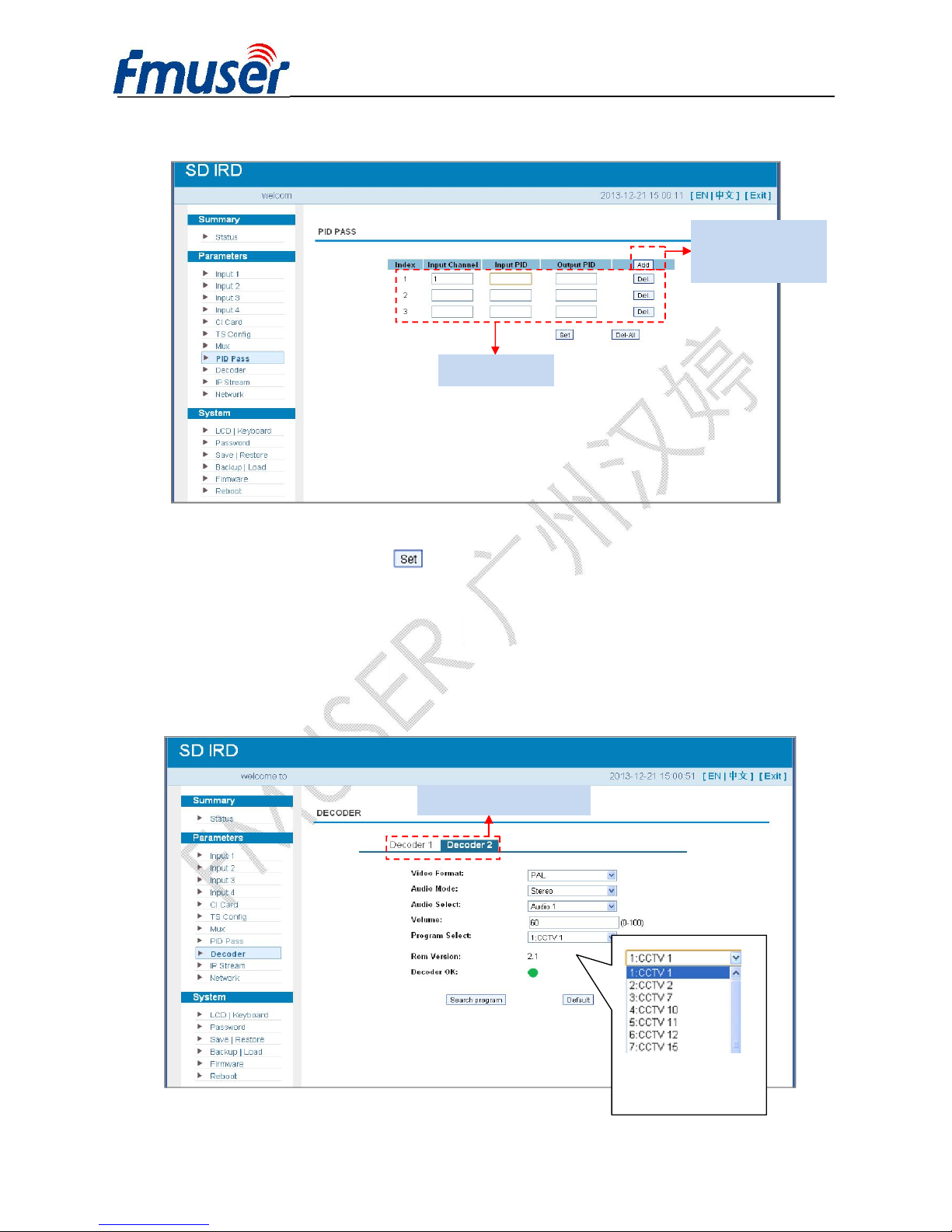
Parameters → PID Pass:
Figure-11
After finishing the configuration, click to confirm.
Parameters → Decoder:
This unit supports to decode two programs to output simultaneously through the CVBS ports. From
the menu on left side of the webpage, clicking “Decoder”, it displays the interface where users can
configure the Video/Audio output parameters respectively. (Figure-12)
Figure-12
Click this button to
add new columns.
Operation Area
Decoding channel selection
Select one prog to output
from the list.
Page 36
FMUSER INTERNATIONAL GROUP INC. 广州市汉婷生物技术开发有限公司
35 / 43
After finishing the configuration, click to confirm.
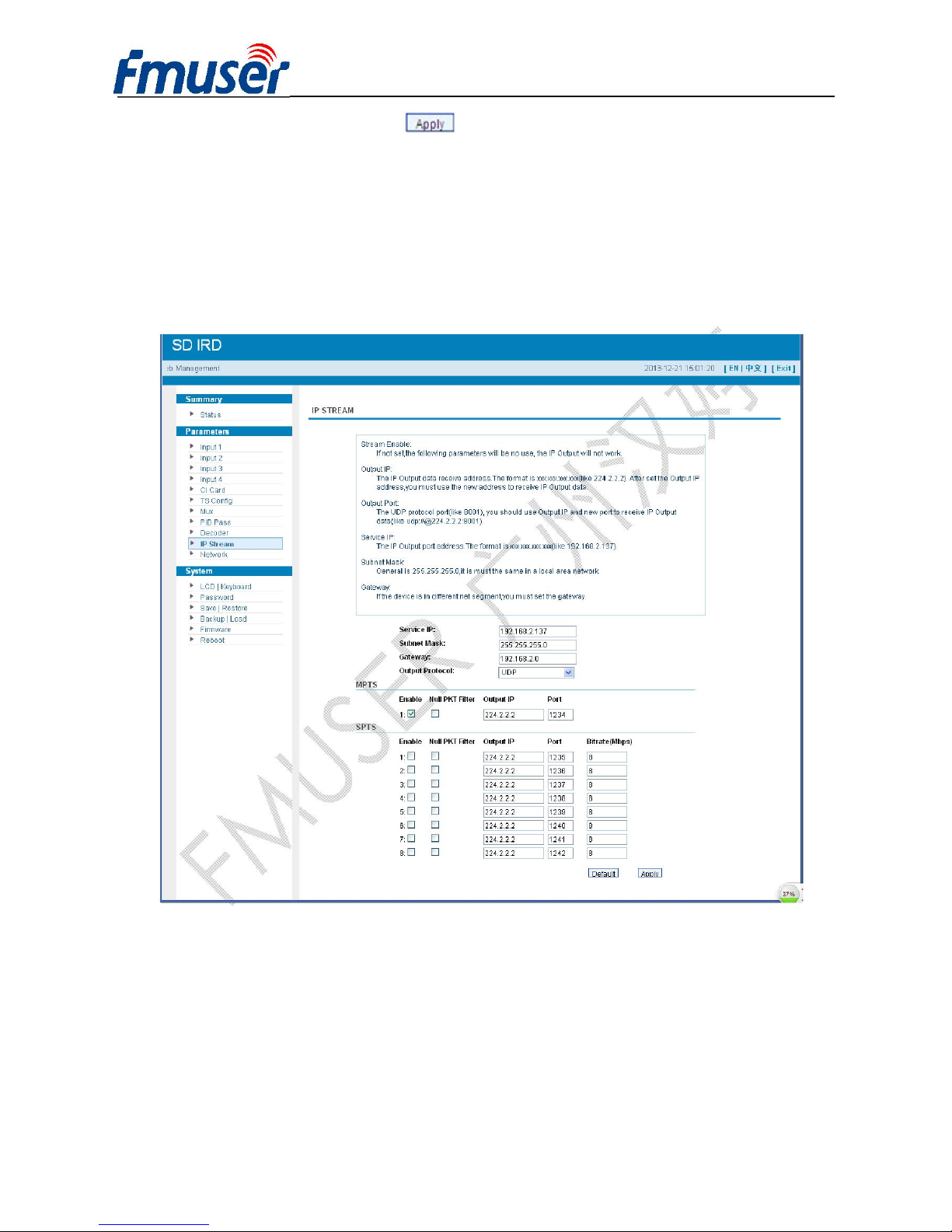
Parameters → IP Stream:
This unit supports TS output in IP (1 MPTS & 8 SPTS). Click “IP Stream” and it displays the
interface where users can configure the MPTS & SPTS out parameters. (Figure-13)
Figure-13
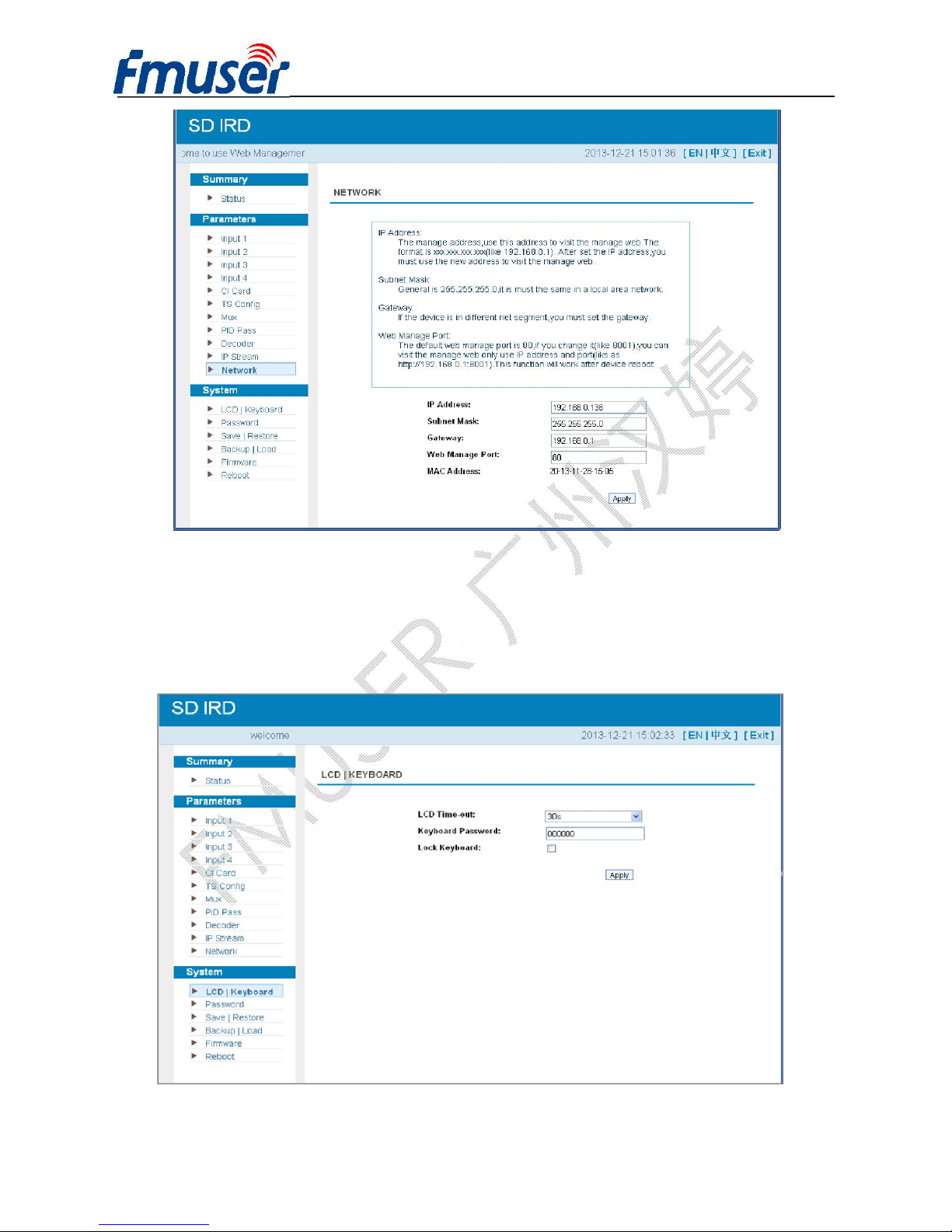
Parameters → Network:
From the menu on left side of the webpage, clicking “Network”, it will display the screen as
Figure-14 where to configure the network parameters for the device.
Page 37
FMUSER INTERNATIONAL GROUP INC. 广州市汉婷生物技术开发有限公司
36 / 43
Figure-14
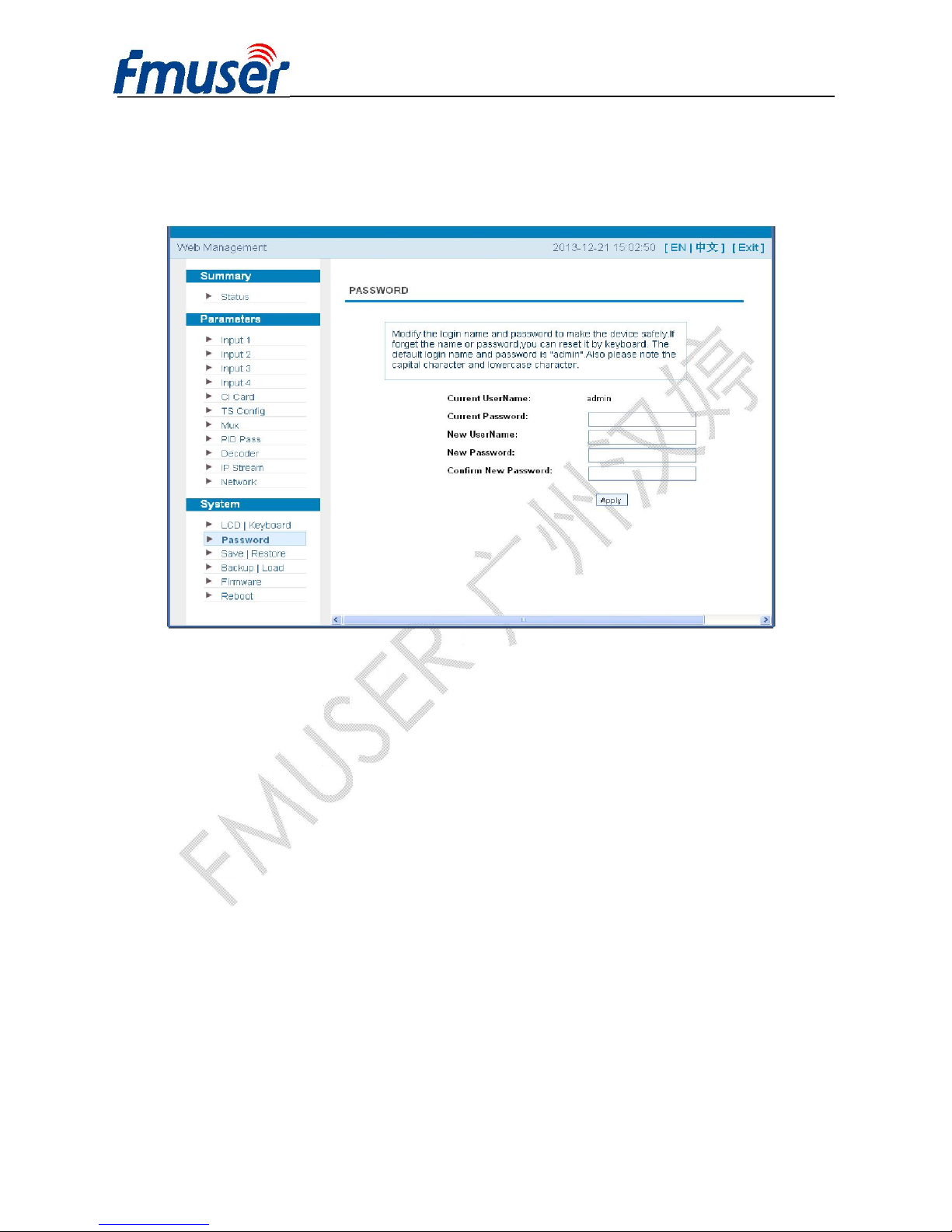
System → LCD/Keyboard:
From the menu on left side of the webpage, clicking “LCD/Keyboard”, it will display the screen as
Figure-15 where to control the device’s front panel.
Figure-15
Page 38
FMUSER INTERNATIONAL GROUP INC. 广州市汉婷生物技术开发有限公司
37 / 43
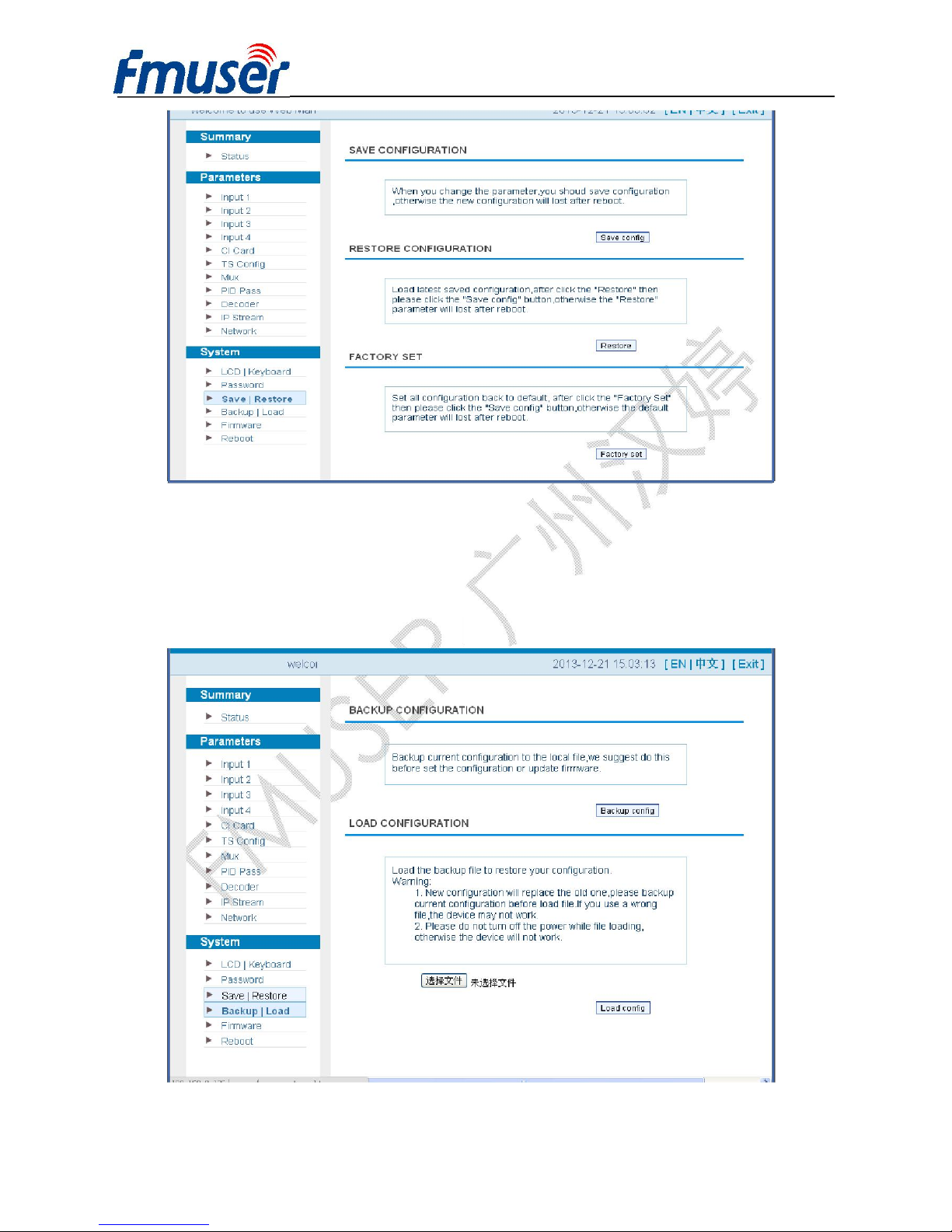
System → Password:
From the menu on left side of the webpage, clicking “Password”, it will display the screen as
Figure-16 where to set the login account and password for the web NMS.
Figure-16
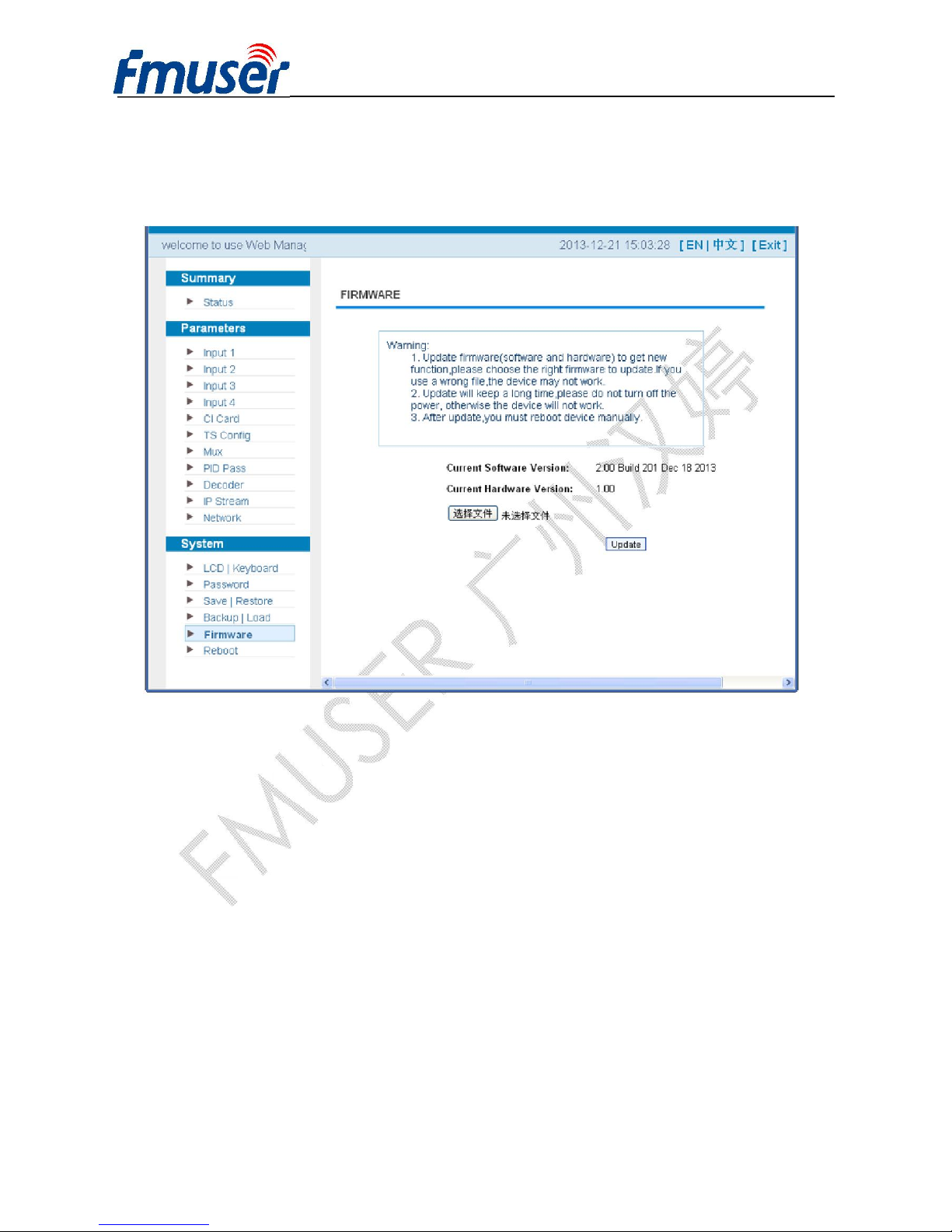
System → Save/Restore:
From the menu on left side of the webpage, clicking “Save/Restore”, it will display the screen as
Figure-17 where to save or restore your configurations.
Page 39
FMUSER INTERNATIONAL GROUP INC. 广州市汉婷生物技术开发有限公司
38 / 43
Figure-17
System → Backup/Load:
From the menu on left side of the webpage, clicking “Backup/Load”, it will display the screen as
Figure-18 where to backup or load your configurations.
Figure-18
Page 40
FMUSER INTERNATIONAL GROUP INC. 广州市汉婷生物技术开发有限公司
39 / 43
System → Firmware:
From the menu on left side of the webpage, clicking “Firmware”, it will display the screen as
Figure-19 where to update firmware for the device.
Figure-19
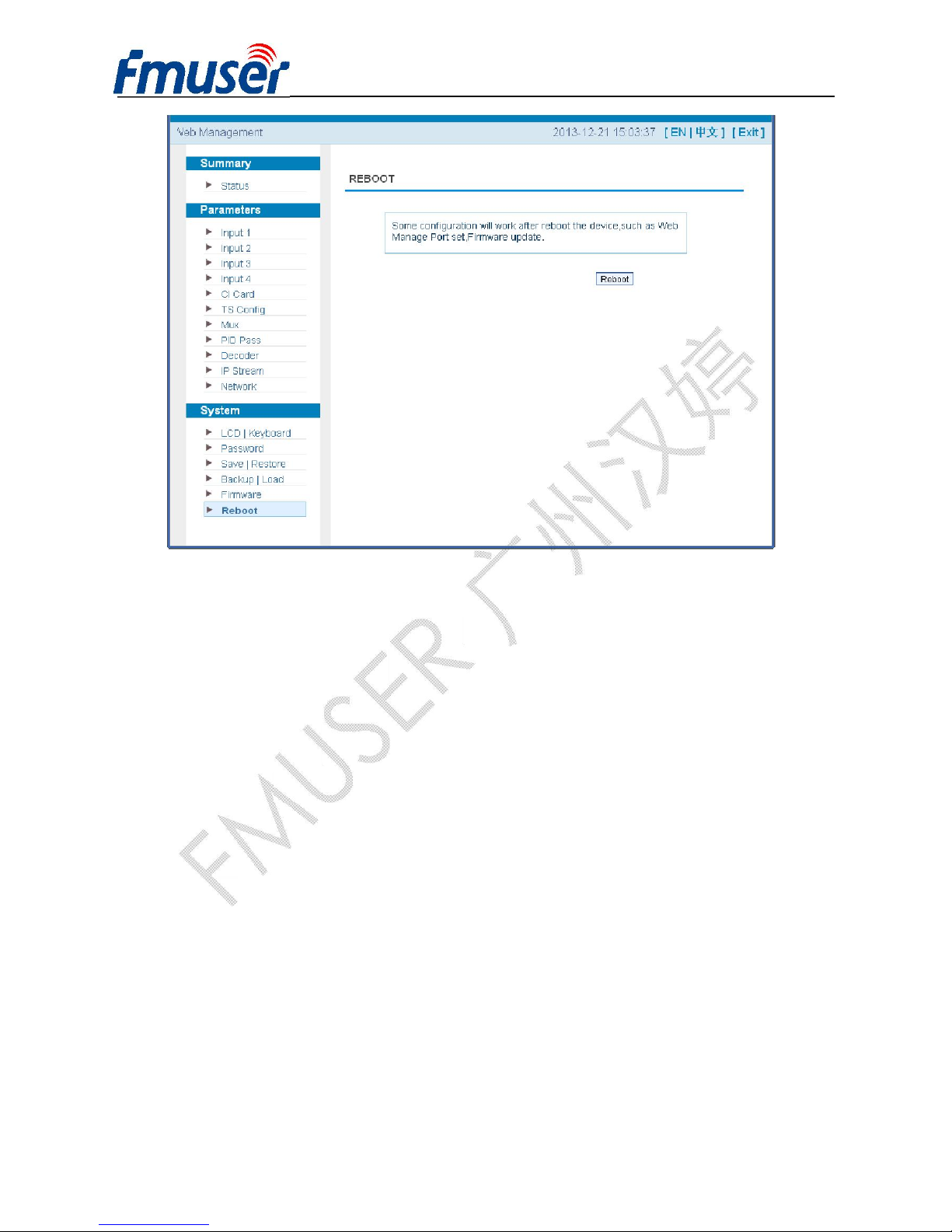
System → Reboot:
From the menu on left side of the webpage, clicking “Reboot”, it will display the screen as
Figure-20 where to restart the device manually.
Page 41
FMUSER INTERNATIONAL GROUP INC. 广州市汉婷生物技术开发有限公司
40 / 43
Figure-20
Page 42
FMUSER INTERNATIONAL GROUP INC. 广州市汉婷生物技术开发有限公司
41 / 43
Chapter 5 Troubleshooting
FMUSER’s ISO9001 quality assurance system has been approved by CQC organization. For
guarantee the products’ quality, reliability and stability. All FMUSER products have been passed the
testing and inspection before ship out factory. The testing and inspection scheme already covers all
the Optical, Electronic and Mechanical criteria which have been published by FMUSER. To prevent
potential hazard, please strictly follow the operation conditions.
Prevention Measure
l Installing the device at the place in which environment temperature between 0 to 45 °C
l Making sure good ventilation for the heat-sink on the rear panel and other heat-sink bores if
necessary
l Checking the input AC voltage within the power supply working range and the connection is
correct before switching on device
l Checking the RF output level varies within tolerant range if it is necessary
l Checking all signal cables have been properly connected
l Frequently switching on/off device is prohibited; the interval between every switching on/off
must greater than 10 seconds.
Conditions need to unplug power cord
l Power cord or socket damaged.
l Any liquid flowed into device.
l Any stuff causes circuit short
l Device in damp environment
l Device was suffered from physical damage
l Longtime idle.
l After switching on and restoring to factory setting, device still cannot work properly.
l Maintenance needed
Page 43

FMUSER INTERNATIONAL GROUP INC. 广州市汉婷生物技术开发有限公司
42 / 43
Chapter 6 Packing List
l FUTV466X SD IRD 1pcs
l User’s Manual 1pcs
l CVBS Cable set 2 sets
l ASI Cable 1pcs
l Power Cord 1pcs
Ordering Guide
FUTV466X, ‘X’ should be interpreted as different digits which indicate tuners of different
standard.
ü FUTV4661 DVB-C SD IRD
ü FUTV4664 DVB
-
T/T2 SD IRD
 Loading...