

Page 1
FMUSER INTERNATIONAL GROUP INC. 广州市汉婷生物科技开发有限公司
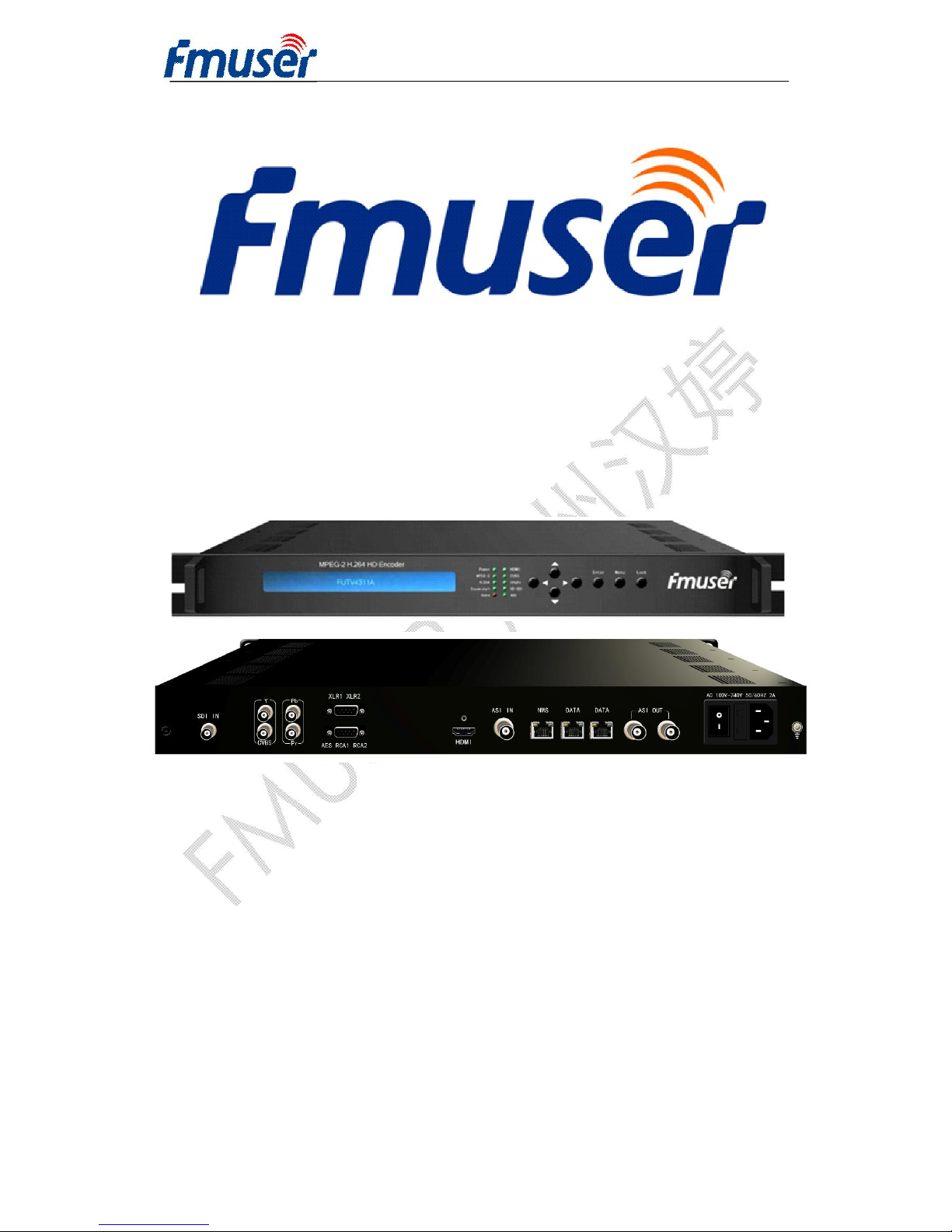
FUTV4311A MPEG-2/H.264 HD
Encoder
SW Version: V1.49
HW Version: V1.3.11
Web NMS Version: V1.28
Date: 9th JUNE, 2013
Page 2
FMUSER INTERNATIONAL GROUP INC. 广州市汉婷生物科技开发有限公司
About This Manual
Intended Audience
This user manual has been written to help people who have to use, to integrate
and to install the product. Some chapters require some prerequisite knowledge
in electronics and especially in broadcast technologies and standards.
Disclaimer
No part of this document may be reproduced in any form without the written
permission of the copyright owner.
The contents of this document are subject to revision without notice due to
continued progress in methodology, design and manufacturing. FMUSER shall
have no liability for any error or damage of any kind resulting from the use of this
document.
Copy Warning
This document includes some confidential information. Its usage is limited to
the owners of the product that it is relevant to. It cannot be copied, modified, or
translated in another language without prior written authorization from
FMUSER.
Page 3

FMUSER INTERNATIONAL GROUP INC. 广州市汉婷生物科技开发有限公司
Directory
CHAPTER 1 INTRODUCTION ..................................................................................................4
1.1 P
RODUCT OVERVIEW
.............................................................................................................4
1.2 K
EY FEATURES
......................................................................................................................4
1.3 S
PECIFICATIONS
....................................................................................................................5
1.4 P
RINCIPLE CHART
..................................................................................................................6
1.5 A
PPEARANCE AND DESCRIPTION
..............................................................................................6
CHAPTER 2 INSTALLATION GUIDE ........................................................................................8
2.1 G
ENERAL PRECAUTIONS
.........................................................................................................8
2.2 P
OWER PRECAUTIONS
............................................................................................................8
2.3 D
EVICE’S INSTALLATION FLOW CHART ILLUSTRATED AS FOLLOWING
.............................................8
2.4 E
NVIRONMENT REQUIREMENT
.................................................................................................9
2.5 G
ROUNDING REQUIREMENT
....................................................................................................9
CHAPTER 3 FRONT PANEL OPERATION .............................................................................10
3.1 LCD M
ENUS
....................................................................................................................... 11
3.2 I
NITIAL STATUS
....................................................................................................................12
3.3 G
ENERAL SETTINGS FOR MAIN MENU
....................................................................................13
CHAPTER 4 WEB NMS OPERATION.....................................................................................25
4.1
LOGIN
.................................................................................................................................25
4.2 O
PERATION
.........................................................................................................................26
CHAPTER 5 TROUBLESHOOTING .......................................................................................37
CHAPTER 6 PACKING LIST ..................................................................................................38
Page 4

FMUSER INTERNATIONAL GROUP INC. 广州市汉婷生物科技开发有限公司
4 / 38
Chapter 1 Introduction
1.1 Product Overview
FUTV4311A MPEG-2/H.264 HD Encoder is the new broadcasting audio &
video encoding and multiplexing device with powerful functionality. It is
equipped with multiple video input interfaces (SDI, CVBS, YPbPr and
HDMI) and audio input interfaces (AES, RCA and XLR). It supports both
MPEG-2 and MPEG-4 AVC/H.264 video encoding and MPEG1 Layer II,
HE-AAC and LC-AAC audio encoding. Multiplexing function is also
embedded to select the input programs and output stream through ASI/IP
port in the same time.
1.2 Key Features
n MPEG-2 HD/SD and MPEG-4 AVC/H.264 HD/SD video encoding
n Support 720P, 1080I, 480I and 576I video resolution
n MPEG1 Layer II, HE-AAC (v1&v2) and LC-AAC audio encoding
n Support 2 stereo or 4 Mono audio encoding
n Support AC3 pass through
n Support CC (Closed Caption), EIA 608 and EIA 708
n Applicable for one Seg/ISDB-T utilization (2 streams output
simultaneously: 1 for one-seg and 1 for main stream)
n IP (MPTS/8*SPTS) Output; ASI Output
n GOP structure setting
n Support CBR & VBR control
n Support UDP/RTP media transmission protocols &
multicast/unicast output
n LCD / keyboard control and web management
Page 5

FMUSER INTERNATIONAL GROUP INC. 广州市汉婷生物科技开发有限公司
5 / 38
1.3 Specifications
Input
1×SDI, 1×CVBS, 1×YPbPr and 1×HDMI input
2×XLR, 2×RCA and 1×AES inputs
1×ASI input, BNC interface
Video
Resolution
1920×1080i @59.94Hz, 1920×1080i @50Hz
1280×[email protected], 1280×720p @50Hz
720×480i @59.94Hz, 720×576i @50Hz
Encoding
MPEG-2 HD/SD; MPEG-4 AVC/H.264 HD/SD
Bit-rate
0.25 Mbps~60.5Mbps
Rate Control
CBR/VBR
GOP Structure
Auto, IP, IPB, IPBB, IPBBB, IPBBBB, IPBBBBB
Aspect Ratio
4:3; 16:9; 1:1; 2.35:1
Advanced
Pretreatment
De-interlacing, noise reduction, sharpening
Audio
Encoding
MPEG-1 Layer II
, HE-AAC (v1&v2), LC-AAC
Sampling rate
48KHz
Resolution
24-bit
Bit-rate
32Kbps~384Kbps
Multiplexing 1 ASI input multiplexed with 1 local channels TS
Stream output
2×ASI output ports, BNC interface
MPTS/8*SPTS over UDP/RTP, 10/100 Base-T
Ethernet interface (UDP/RTP multicast/unicast)
System function
LCD/keyboard and web management
Language: English
Ethernet software upgrade
General
Dimensions
482mm×405mm×44.5mm (W × D × H)
Approx weight
4.5Kg
Temperature
range
0~45℃(Operation), -20~80℃(Storage)
Power
requirement
AC110V±10%, 50/60Hz
AC 220V±10%,50/60Hz
Power
consumption
21W
Page 6
FMUSER INTERNATIONAL GROUP INC. 广州市汉婷生物科技开发有限公司
6 / 38
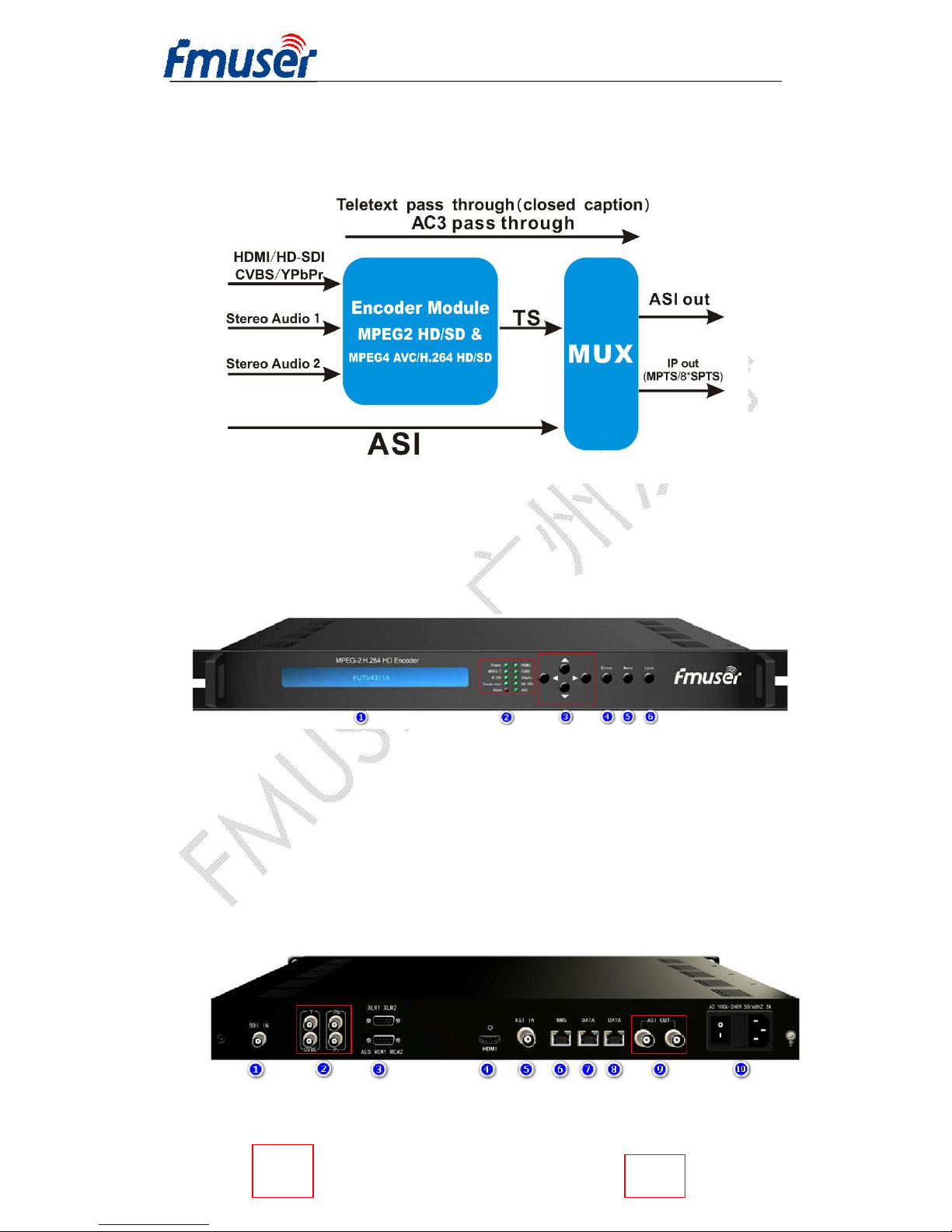
1.4 Principle Chart
1.5 Appearance and Description
Front Panel Illustration
① LCD window
② Indicators
③ Up and down, left and right navigation buttons
④ Enter button: for confirm
⑤ Menu button: for back step
⑥ Lock button: press to lock set
Rear Panel Illustration
Page 7

FMUSER INTERNATIONAL GROUP INC. 广州市汉婷生物科技开发有限公司
7 / 38
① SDI input connector
② YPbPr & CVBS input connectors
③ AES, RCA and XLR input connectors
④ HDMI input connector
⑤ ASI input connector
⑥ NMS connector for connecting Web management on PC
⑦ DATA Port (not applicable currently)
⑧ DATA Port for IP stream output
⑨ ASI output connectors
⑩ Power supply/Fuse
⑪ Grounding
Page 8
FMUSER INTERNATIONAL GROUP INC. 广州市汉婷生物科技开发有限公司
8 / 38
Chapter 2 Installation Guide
This section is to explain the cautions the users must know in some case
that possible injure may bring to users when it’s used or installed. For this
reason, please read all details here and make in mind before installing or
using the product.
2.1 General Precautions
ü Must be operated and maintained free of dust or dirty.
ü The cover should be securely fastened, do not open the cover of the
products when the power is on.
ü After use, securely stow away all loose cables, external antenna, and
others.
2.2 Power precautions
ü When you connect the power source, make sure if it may cause overload.
ü Avoid operating on a wet floor in the open. Make sure the extension cable
is in good condition
ü Make sure the power switch is off before you start to install the device
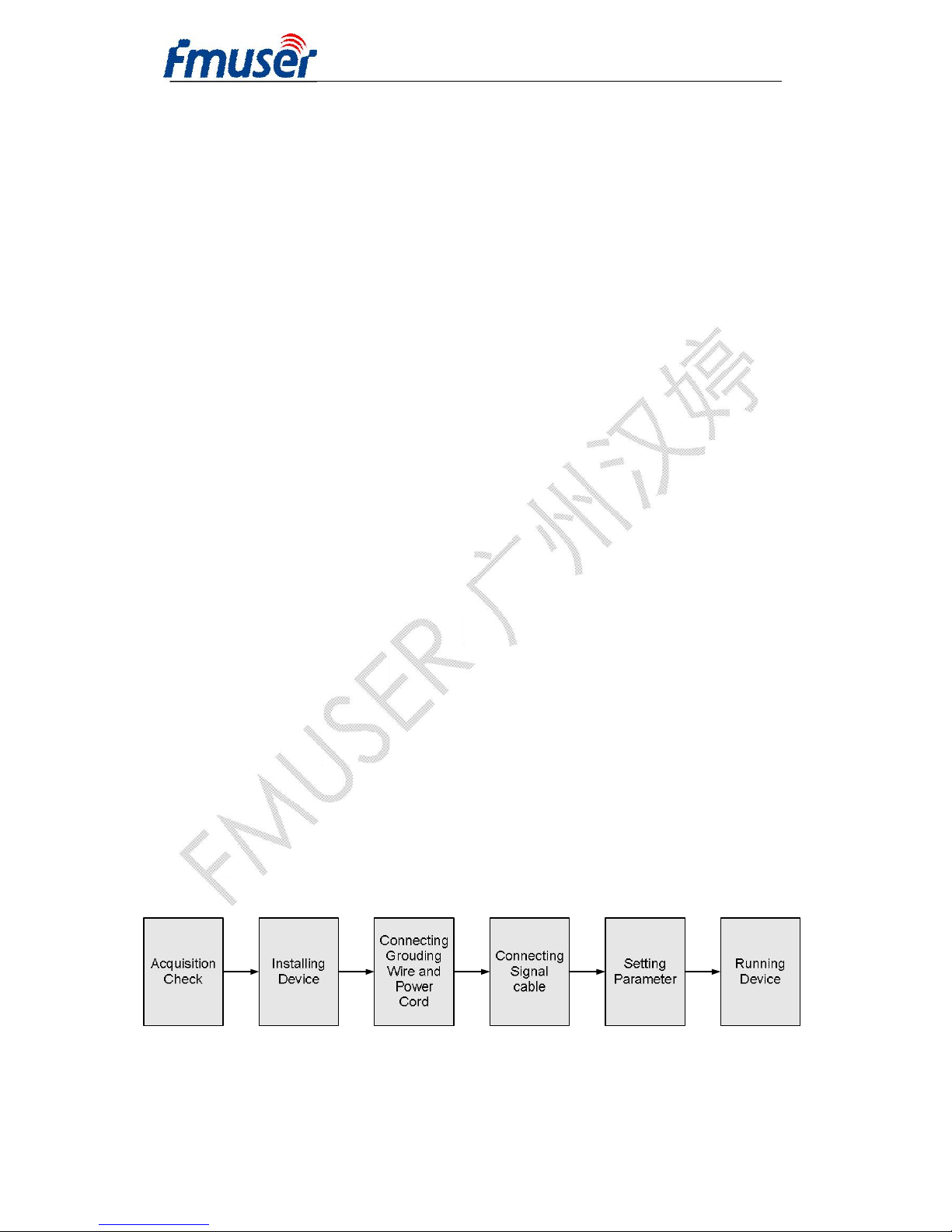
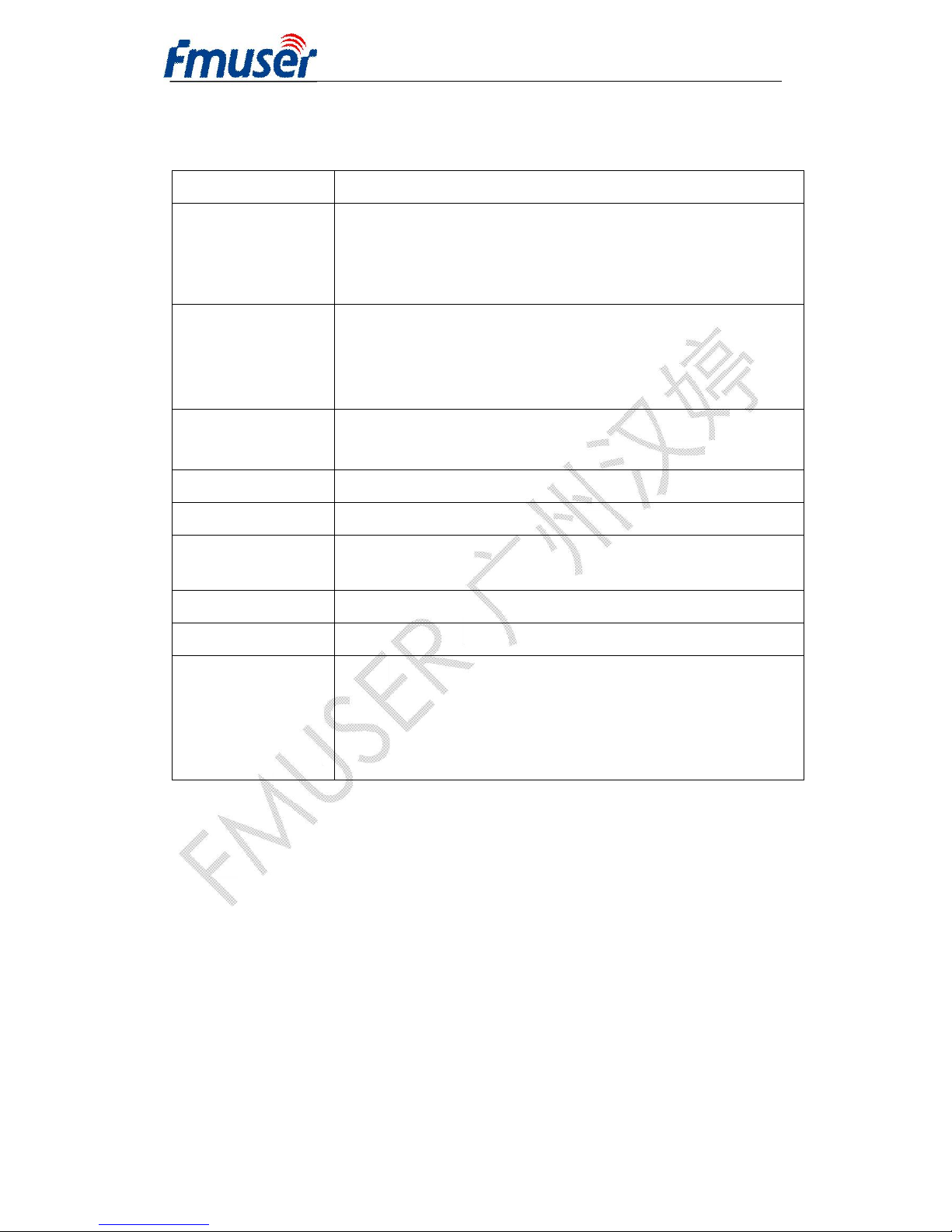
2.3 Device’s Installation Flow Chart Illustrated as following
Page 9
FMUSER INTERNATIONAL GROUP INC. 广州市汉婷生物科技开发有限公司
9 / 38
2.4 Environment Requirement
Item Requirement
Machine Hall
Space
When user installs machine frame array in one machine
hall, the distance between 2 rows of machine frames
should be 1.2~1.5m and the distance against wall should
be no less than 0.8m.
Machine Hall
Floor
Electric Isolation, Dust Free
Volume resistivity of ground anti-static material:
1X10⁷~1X10¹⁰Ω,Grounding current limiting resistance:
1MΩ (Floor bearing should be greater than 450Kg/㎡)
Environment
Temperature
5~40℃(sustainable ),0~45℃(short time),
installing air-conditioning is recommended
Relative Humidity 20%~80% sustainable 10%~90% short time
Pressure 86~105KPa
Door & Window
Installing rubber strip for sealing door-gaps and dual level
glasses for window
Wall It can be covered with wallpaper, or brightness less paint.
Fire Protection Fire alarm system and extinguisher
Power
Requiring device power, air-conditioning power and
lighting power are independent to each other. Device
power requires AC 110V±10%, 50/60Hz or AC
220V±10%, 50/60Hz. Please carefully check before
running.
2.5 Grounding Requirement
ü All function modules’ good grounding is the basis of reliability and stability of
devices. Also, they are the most important guarantee of lightning arresting and
interference rejection. Therefore, the system must follow this rule.
ü Grounding conductor must adopt copper conductor in order to reduce high
frequency impedance, and the grounding wire must be as thick and short as
possible.
Page 10

FMUSER INTERNATIONAL GROUP INC. 广州市汉婷生物科技开发有限公司
10 / 38
ü Users should make sure the 2 ends of grounding wire well electric conducted
and be antirust.
ü It is prohibited to use any other device as part of grounding electric circuit
ü The area of the conduction between grounding wire and device’s frame
should be no less than 25 mm
2
.
Chapter 3 Front Panel Operation
FUTV4311A’s front panel is user operation interface where users
configure the device manually. The LCD is a 2-line * 40-character back-lit
dot-matrix user interface with pushbuttons for UP, DOWN, LEFT, RIGHT,
ENTER, MENU, and LOCK for front panel control.
User can decide whether to directly use the factory setting, or customize
the input/output parameters and etc.
Keyboard Function Description
LEFT/RIGHT: To choose and set the parameters
UP/DOWN: To modify activated parameters or page up/down when
parameter is inactivated.
MENU: To cancel presently entered value, resume previous setting;
ENTER: To activate the parameters which need modification, and confirm
the changes after modification
LOCK: Lock the screen / cancel the lock state .After pressing lock key,
the system will question the users to save or not .If not, the LCD will
display the current configuration state
Page 11
FMUSER INTERNATIONAL GROUP INC. 广州市汉婷生物科技开发有限公司
11 / 38
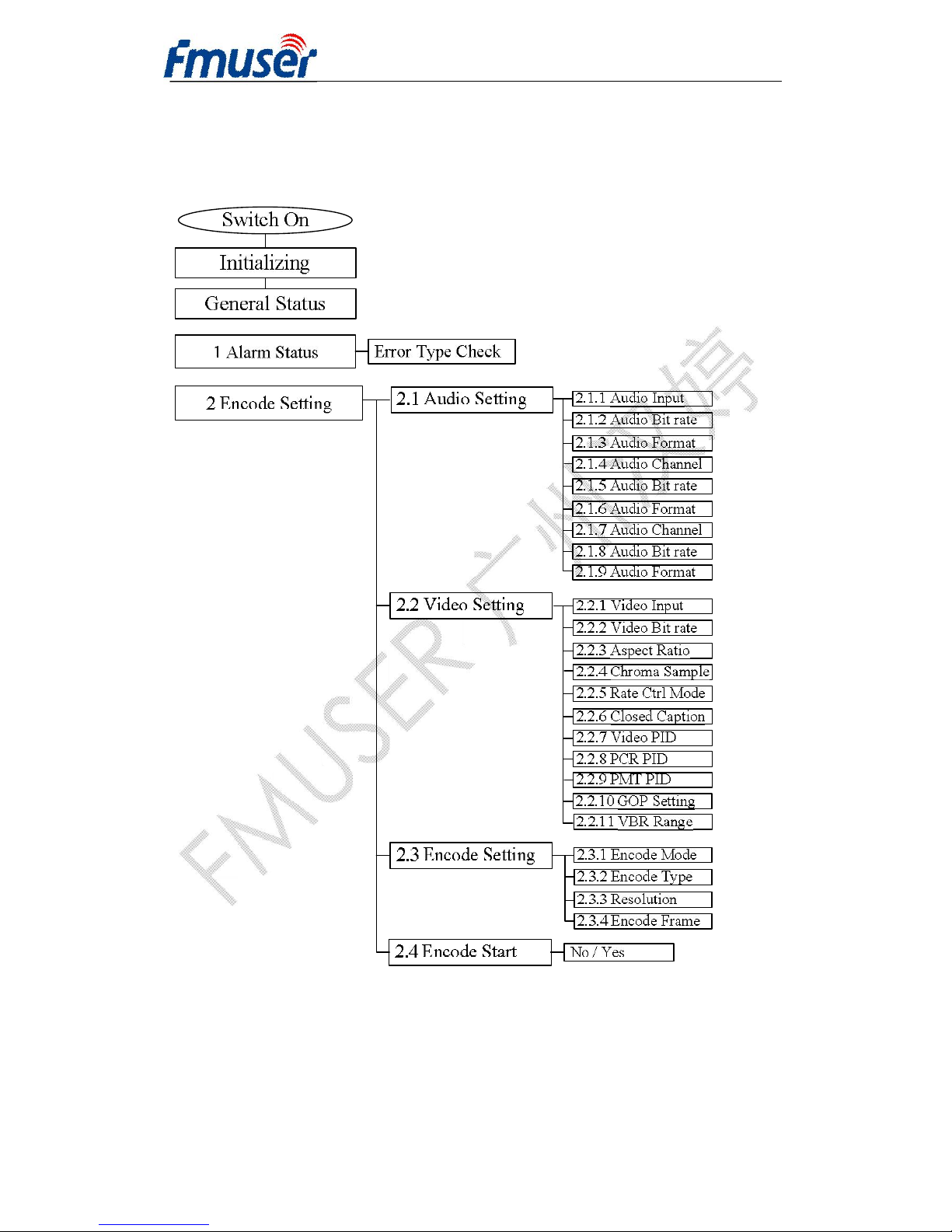
3.1 LCD Menus
An overview of the LCD menus:
Page 12
FMUSER INTERNATIONAL GROUP INC. 广州市汉婷生物科技开发有限公司
12 / 38
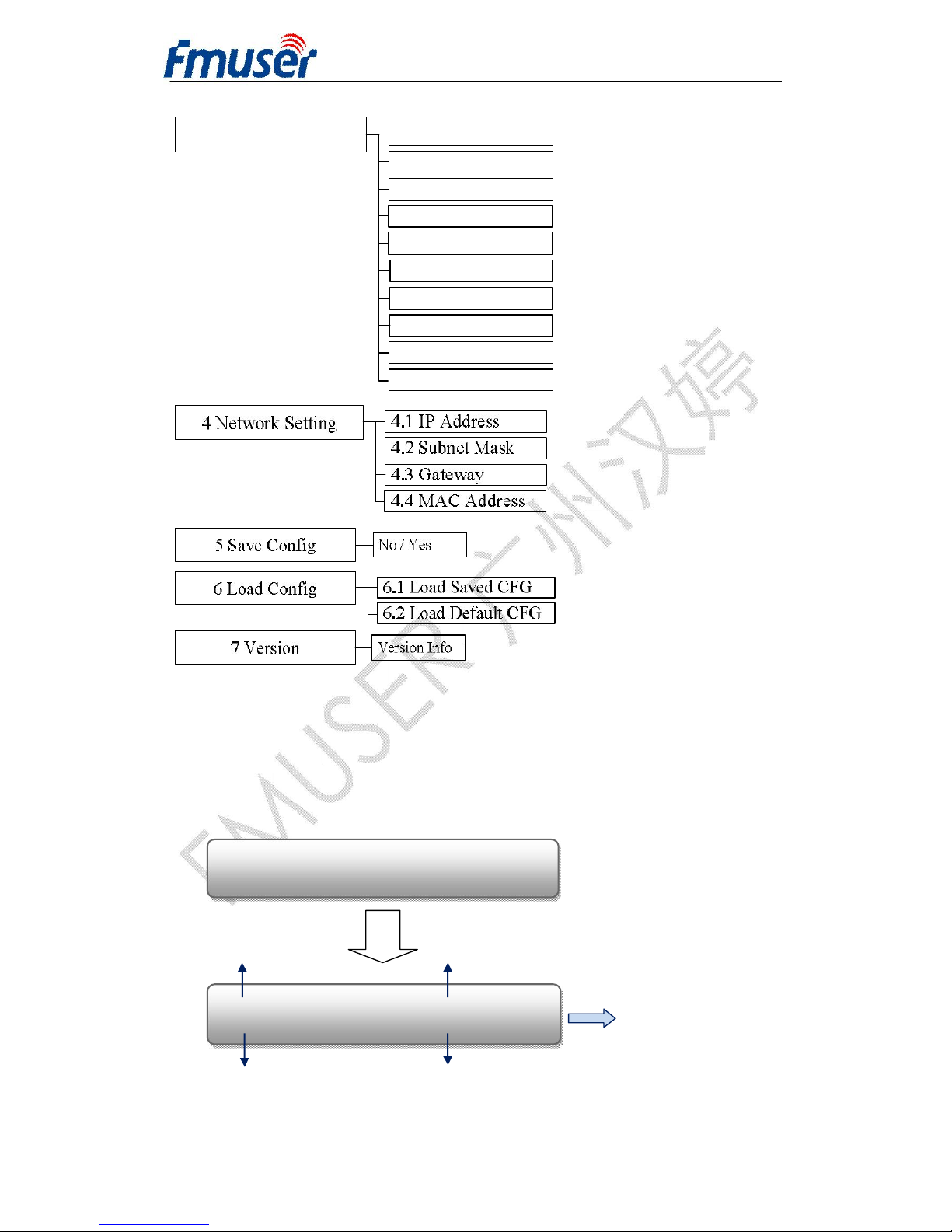
3 Output Setting
3.1 TS Mux Option
3.2 IP Null Packet
3.3 IP Out Mode
3.4 IP Out Address
3.5 IP Out Submask
3.6 IP Out Port
3.7 Service IP
3.8 Source MAC
3.9 Source Gateway
3.10 Output Bit rate
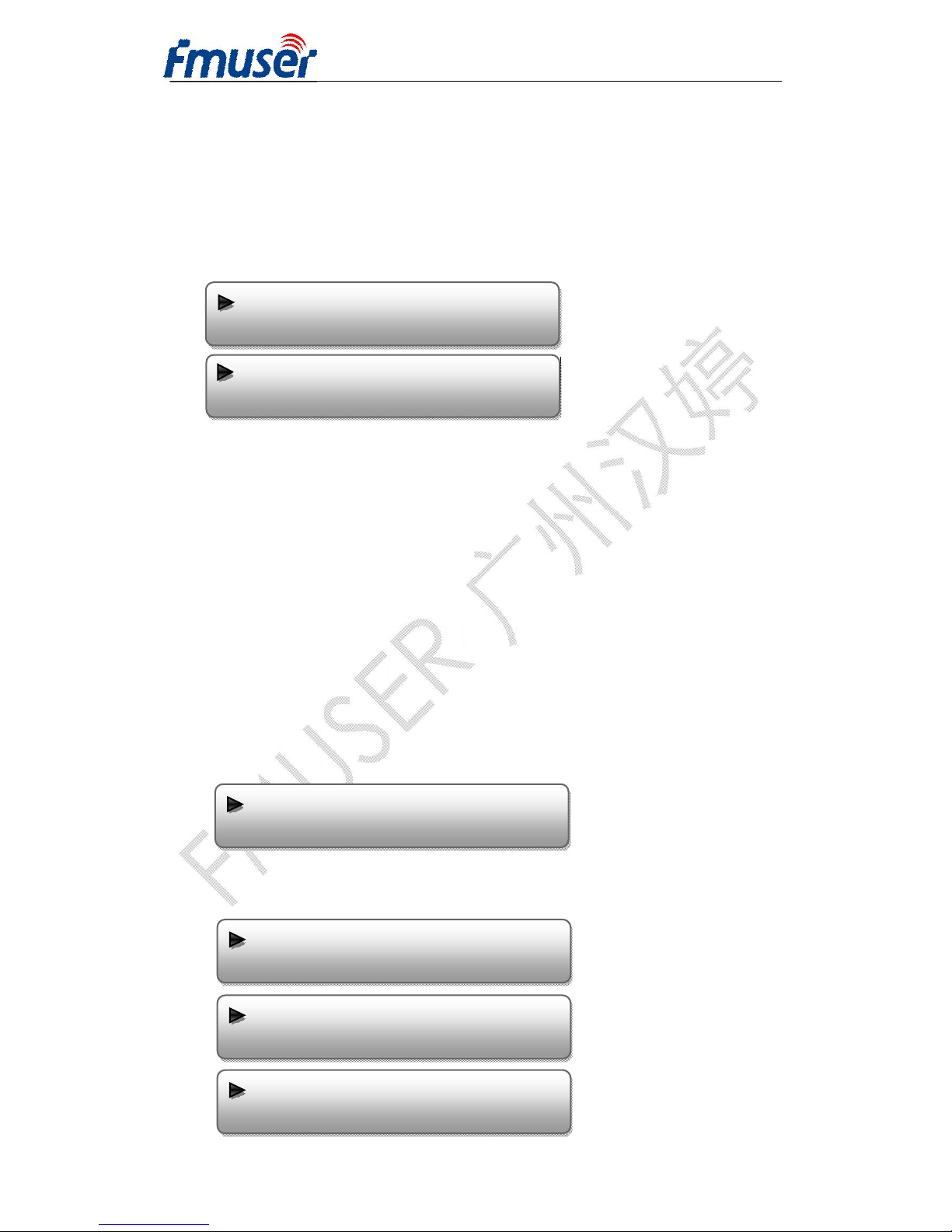
3.2 Initial Status
Switch on the device and after a few seconds’ initialization, it presents
booting pictures as below:
Encode Starting
>>>>>>>>>>>>>>>>>>>>>>
NDS3211A HD Encoder Rate: 12.34 Mbps
FMT: 720x576 50i PORT: HDMI
Signal’s encoded resolution format
Signal source port
Read Only
Output Bit Rate
Device Name
Page 13
FMUSER INTERNATIONAL GROUP INC. 广州市汉婷生物科技开发有限公司
13 / 38
3.3 General Settings for Main Menu
Press “LOCK” key on the front panel to enter the main menu. The LCD will
display the following pages where user can configure the parameters for
the device:
User can press UP/DOWN/LEFT/RIGHT buttons to specify menu item,
and then press ENTER to enter the submenus as below:
3.3.1 ALARM STATUS
The alarm indicator will turn on if signal source loses or encoding errors
occur. User can then enter this menu to check the error type.
3.3.2 ENCODE SETTING
Enter “2 Encode Setting” to configure the Video/Audio parameters for the
input program (HDMI/SDI/YPbPr/CVBS input program). Submenus go as
below:
3.3.2.1 Audio Setting
1 Alarm Status 2 Encode Setting
3 Output Setting 4 Network Setting
5 Saving Config 6 Load Config
7 Version
2.1 Audio Setting 2.2 Video Setting
2.3 Encode Setting 2.4 Encode Start
2.1.1 Audio Input 2.1.2 Audio Bit rate
2.1.3 Audio Format 2.1.4 Audio Channel
2.1.5 Sample Rate 2.1.6 Code Mode
2.1.7 Pass through 2.1.8 Audio-1 PID
2.1.9 Audio-2 PID
Page 14
FMUSER INTERNATIONAL GROUP INC. 广州市汉婷生物科技开发有限公司
14 / 38
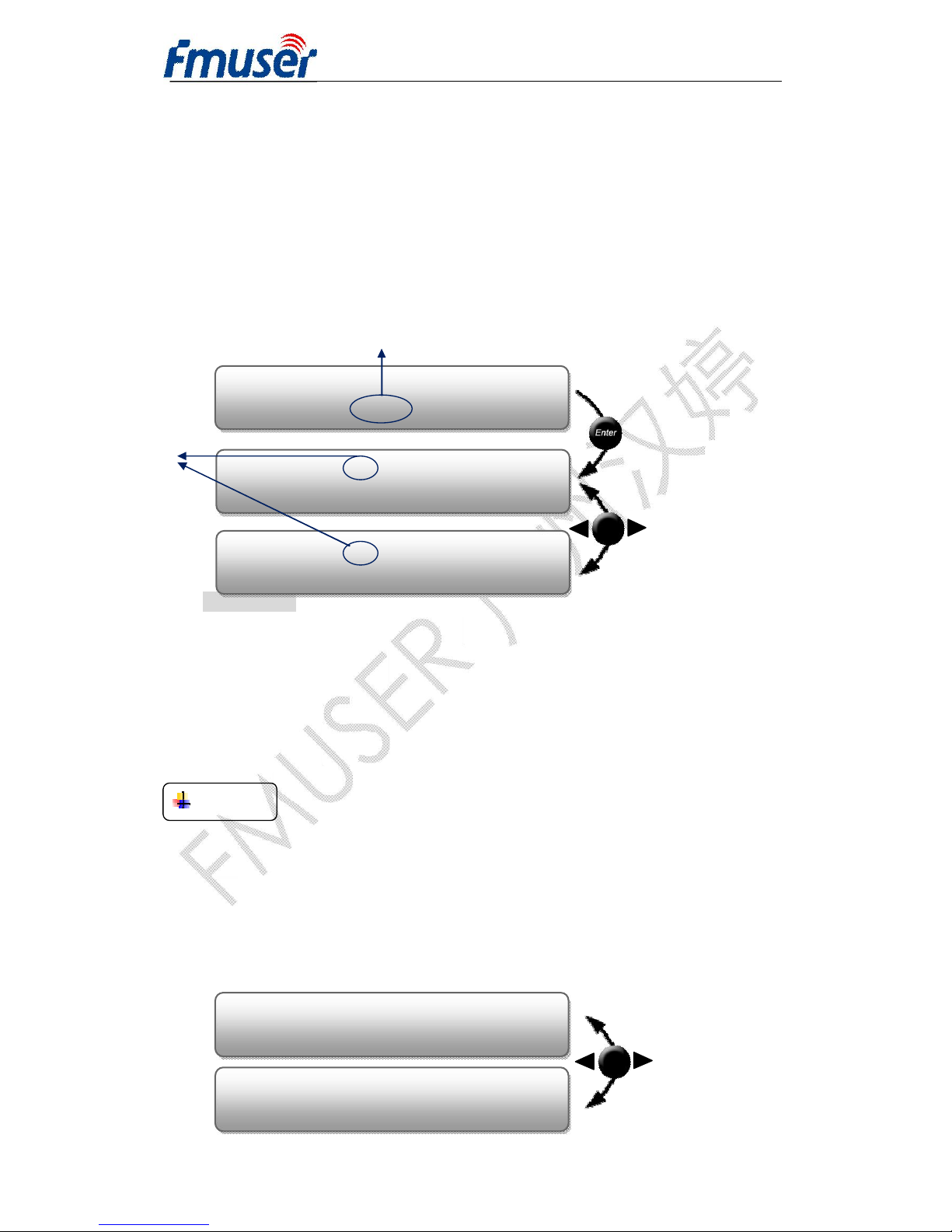
Ø Audio Input
Press ENTER to enter menu 2.1.1Audio Input. It displays the current mode
of audio input. Press ENTER again to enter the setting interface, move the
square bracket with LEFT/RIGHT keys to select the target mode and press
ENTER to confirm. At last, press MENU to step back to the upper menus.
REMARKS:
If the audio source is from HDMI or SDI, the system will automatically
identify and match the interface. It is not necessary to set this menu. If the
audio source is from XLR, RCA or AES, it needs to match the interface
manually.
NOTE
THE OPERATIONAL APPROACHES DEFINED ABOVE ARE
APPLICABLE FOR ALL THE OTHER SETTINGS.
Ø Audio Bit rate
Select audio bit rate among 32Kbps – 384Kbps.
Audio Input
RCA
Audio Input RCA
XLR [RCA] AES
Audio Input RCA
[SDI]
Press ENTER key to go to
the setting interface
The current mode
The current
mode
Press LEFT/RIGHT keys to turn
pages and elect the target mode.
Audio Bit rate 192 Kbps
[192 Kbps] 256 Kbps 320 Kbps 384
Audio Bit rate 192 Kbps
[32 Kbps] 64 Kbps 96 Kbps 128 Kbps
Page 15
FMUSER INTERNATIONAL GROUP INC. 广州市汉婷生物科技开发有限公司
15 / 38
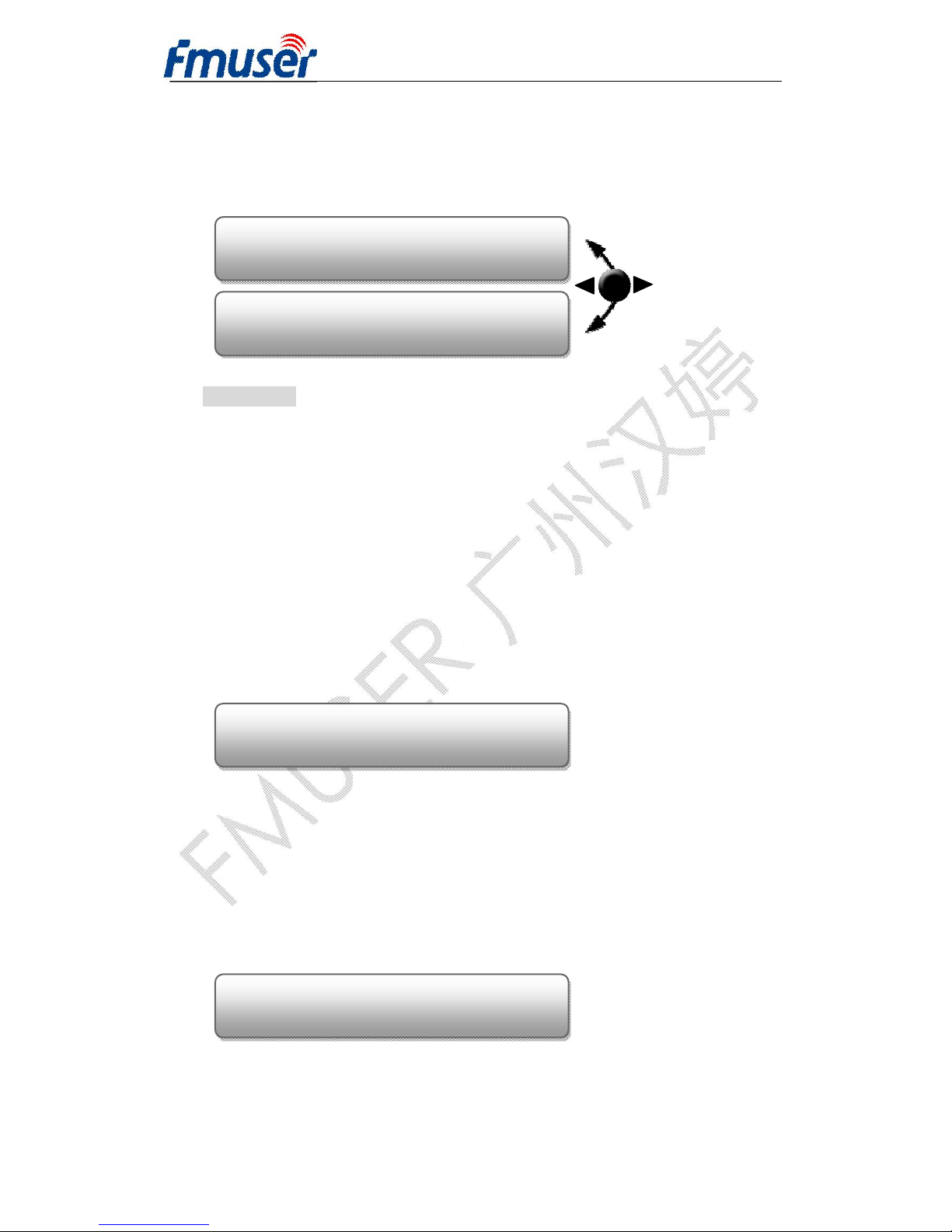
Ø Audio Format
Select audio format among items listed in the interface.
REMARKS:
l If “None” is chosen the audio format, the system will not choose any
audio to process and there will be no audio in the output data stream.
l If “AC3 Pass” is chosen, user needs to enable the pass-through
function at menu “2.1.7 Pass through”
Ø Audio Channel
FUTV4311A HD Encoder supports both single audio channel and dual
audio channels (Audio1 and Audio 2).
Single: Only Audio 1 will be effect.
Multi: Both Audio 1 and Audio 2 will be effect.
Ø Sample Rate
The audio sample rate is 48 KHz without other options.
Ø Code Mode
Select audio code mode among stereo, L-Mono, and R-Mono.
Audio Format MPEG 1
[AAC HE V1] AAC HE V2
Audio Format MPEG 1
None [MPEG 1] AC3 Pass AAC
Audio Channel Multi
Single [Multi]
Audio Sample Rate 48 KHz
[48 KHz]
Page 16
FMUSER INTERNATIONAL GROUP INC. 广州市汉婷生物科技开发有限公司
16 / 38
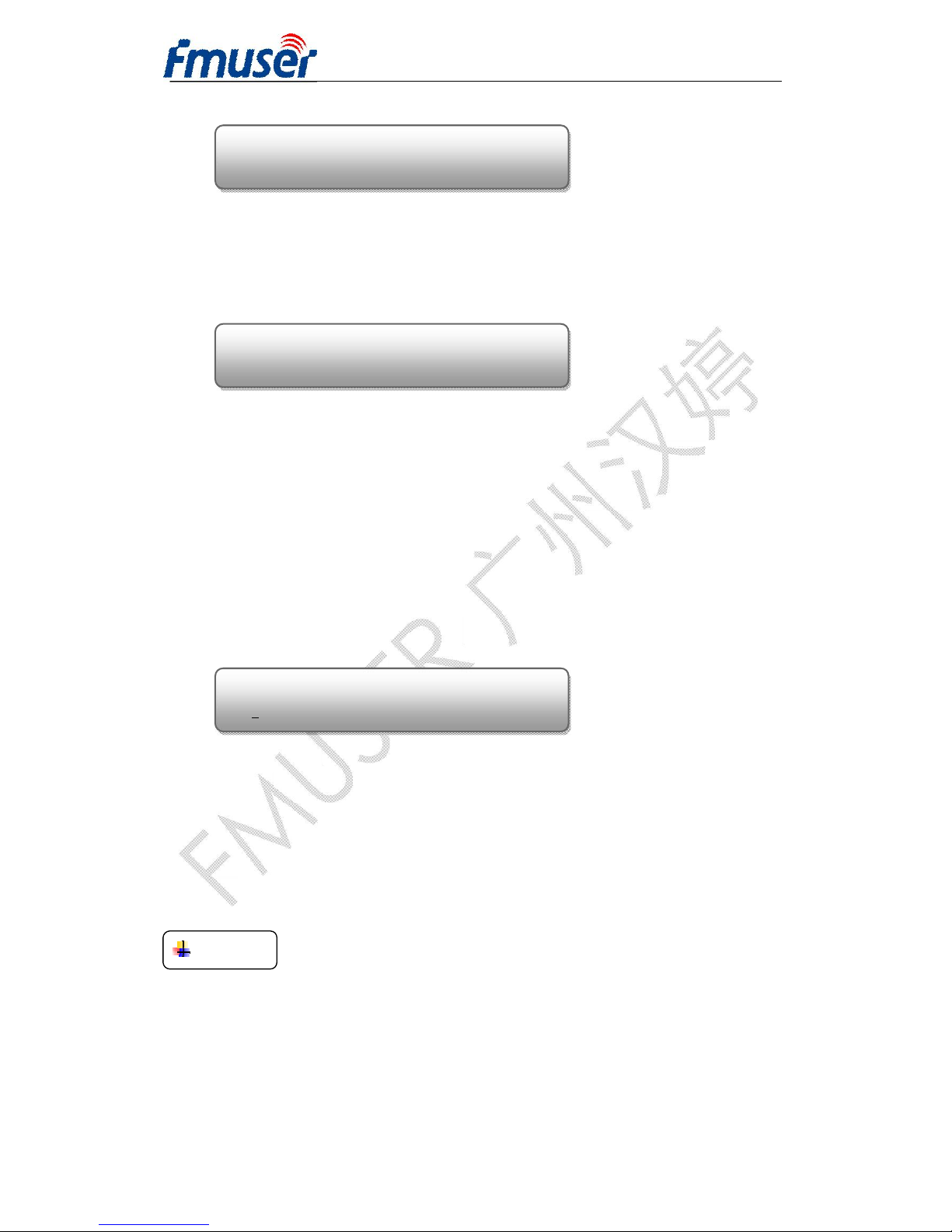
Ø Pass Through
If user needs to pass through AC3 audio, select “AC3 pass” as the audio
format at menu “2.1.3 Audio Format” and select “ON” at this menu.
Ø Audio-1/2 PID
FUTV4311A HD Encoder supports both single audio channel and dual
audio channels (Audio1 and Audio 2). User can edit the audio PID at
menus 2.1.8 and 2.1.9.
When the audio channel is single, only audio 1 PID is effect, while audio
channel is multi, both audio1 and 2 PID are effect.
REMARKS: The value is based on decimal system.
l Press ENTER key to start the editing state;
l Press LEFT/RIGHT key to move the underline;
l Press UP/DOWN key to adjust the value with underline;
l Press ENTER key again to confirm
NOTE
THE OPERATIONAL APPROACHES DEFINED ABOVE ARE
APPLICABLE FOR ALL THE OTHER SETTINGS.
3.3.2.2 Video Setting
Audio Code Mode Stereo
[Stereo] L-Mono R-Mono
Audio Pass Through ON
OFF [ON]
Audio-1 PID
0
512
Page 17
FMUSER INTERNATIONAL GROUP INC. 广州市汉婷生物科技开发有限公司
17 / 38
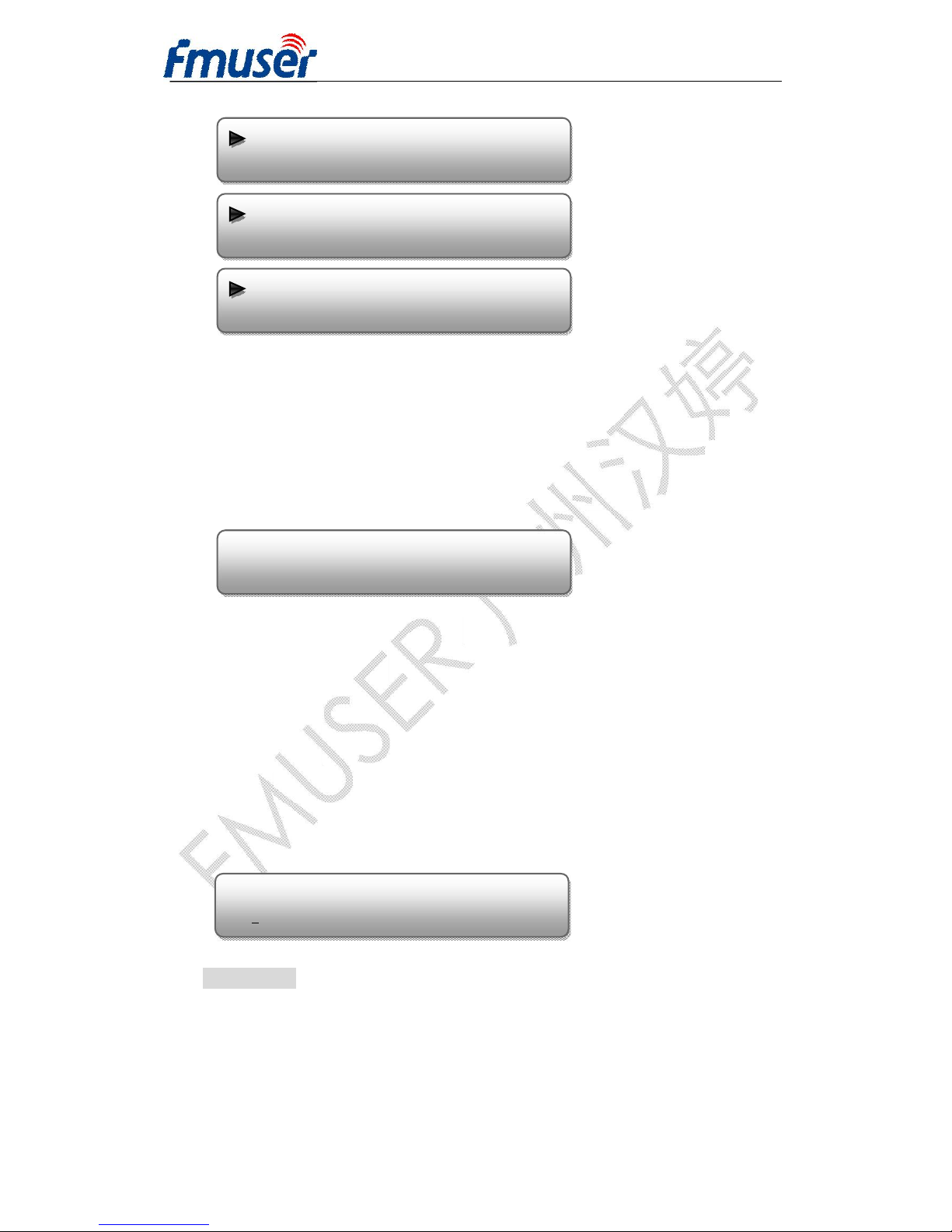
Ø Video Input
Press ENTER to enter menu 2.2.1Audio Input. It displays the current mode
of audio input. Press ENTER again to enter the setting interface, move the
square bracket with LEFT/RIGHT keys to select the target mode and press
ENTER to confirm. At last, press MENU to step back to the upper menus.
There are 4 types of interface for video input. Select one type and the
system will detect the single and process. Make sure the single cables are
properly connected.
Ø Video Bit Rate
FUTV4311A can encode video at range of 0.25 Mbps to 60.50 Mbps (This
item is for setting CBR).
REMARKS:
If VBR (Variable Bit Rate) is set as the rate-control mode, make sure the
video bit rate is within the VBR range (see 2.2.10).
Ø Aspect Ratio
2.2.1 Video Input 2.2.2 Video Bit rate
2.2.3 Aspect Ratio 2.2.4 Chroma Sample
2.2.5 Rate Ctrl Mode 2.2.6 Closed Caption
2.2.7 Video PID 2.2.8 PCR PID
2.2.9 PMT PID 2.2.10 GOP Setting
2.2.11 VBR Range
Video Input YPbPr
HDMI CVBS [YPbPr] SDI
Video Bit rate
12.00 Mbps
Page 18
FMUSER INTERNATIONAL GROUP INC. 广州市汉婷生物科技开发有限公司
18 / 38
Select one aspect ratio mode from options listed.
REMARKS:
FUTV4311A supports two Encode Types: H.264 (MPEG4 AVC/H.264) and
MPEG2 (see 2.3.2). Mode “2.35x1” is only applicable for H.264 encode
type.
Ø Chroma Sample
Select one Chroma Sample mode from the 2 options listed.
REMARKS:
FUTV4311A supports two Encode Types: H.264 (MPEG4 AVC/H.264) and
MPEG2 (see 2.3.2). Modes “4:2:0” is only applicable for H.264 encode
type.
Ø Rate Control Mode
FUTV4311A supports both CBR (Constant Bit Rate) and VBR (Variable Bit
Rate) control mode.
Ø Closed Caption (CC)
ON: to insert the CC into the output stream
OFF: not to insert the CC into the output stream
Aspect Ratio 16x9
4x3 [16x9] 1x1 2.35x1
Chroma Sample
[4:2:0] 4:2:2
Rate Control Mode CBR
[CBR] VBR
Closed Caption OFF
[OFF] ON
Page 19
FMUSER INTERNATIONAL GROUP INC. 广州市汉婷生物科技开发有限公司
19 / 38
Ø Video/PCR/PMT PID
Enter each menu to edit the PIDs.
REMARKS: These values are based on decimal system.
Ø GOP Setting
Select GOP structure mode from the options listed.
Ø VBR Range
When the Rate Control Mode is set as VBR, user can enter this menu to
set the VBR range. (The minimum rate is fixed to 1.00 Mbps. User can only
set the maximum value.)
3.3.2.3 Encode Setting
Ø Encode Mode
User can choose to encode the program automatically or manually at this
menu.
Video PID
0258
PCR PID
0256
PMT PID
0
257
VBR range
01.00 – 1
5.00 Mbps
2.3.1 Encode Mode 2.3.2 Encode Type
2.3.3 Resolution 2.3.4 Encode Frame
GOP Structure Auto
[Auto] IP IPB IPBB
GOP Structure Auto
IPBBB IPBBBB IPBBBBB
Page 20
FMUSER INTERNATIONAL GROUP INC. 广州市汉婷生物科技开发有限公司
20 / 38
Ø Encode Type
FUTV4311A supports two Encode Types: H.264 (MPEG4 AVC/H.264) and
MPEG2. User can choose to one mode as the video compression type at
this menu.
Ø Resolution
Enter this menu to set the video resolution.
Ø Encode Frame
Enter this menu to set the video frame.
3.3.2.4 Encode Start
After finishing all the configuration of V/A and encode modes (from
2.1-2.3), user can choose “Yes” in 2.4 to start processing the program.
3.3.3 OUTPUT SETTING
Enter “3 Output Setting” to set the output parameters. Submenus go as
below:
Encode Mode Manual
Auto [Manual]
Encode Type MPEG 2
H.264 [MPEG 2]
Encode Resolution 576i
480i [576i] 720p 1080i
Encode Frame 50
[50] 59.94 60
Encode Start?
►No Yes
Page 21
FMUSER INTERNATIONAL GROUP INC. 广州市汉婷生物科技开发有限公司
21 / 38
3.3.3.1 TS Mux Option
Encode: to pass through the encoded program inputting from HDMI /
YPbPr / SDI / CVBS interface. In such case, programs from ASI will not
output.
ASI: to pass through the ASI programs. In such case, program from HDMI
/ YPbPr / SDI /CVBS interface will not output.
Mux: to select programs from both ASI and Encoded to output. User can
only complete the multiplexing operation by parsing and filtering programs
in Web management interface.
3.3.3.2 IP Null Packet
User can decide whether to filter IP null packet at this menu.
3.3.3.3 IP Out Enable
FUTV4311A HD encoder supports program stream to output over IP
(MPTS or SPTS) through the DATA port.
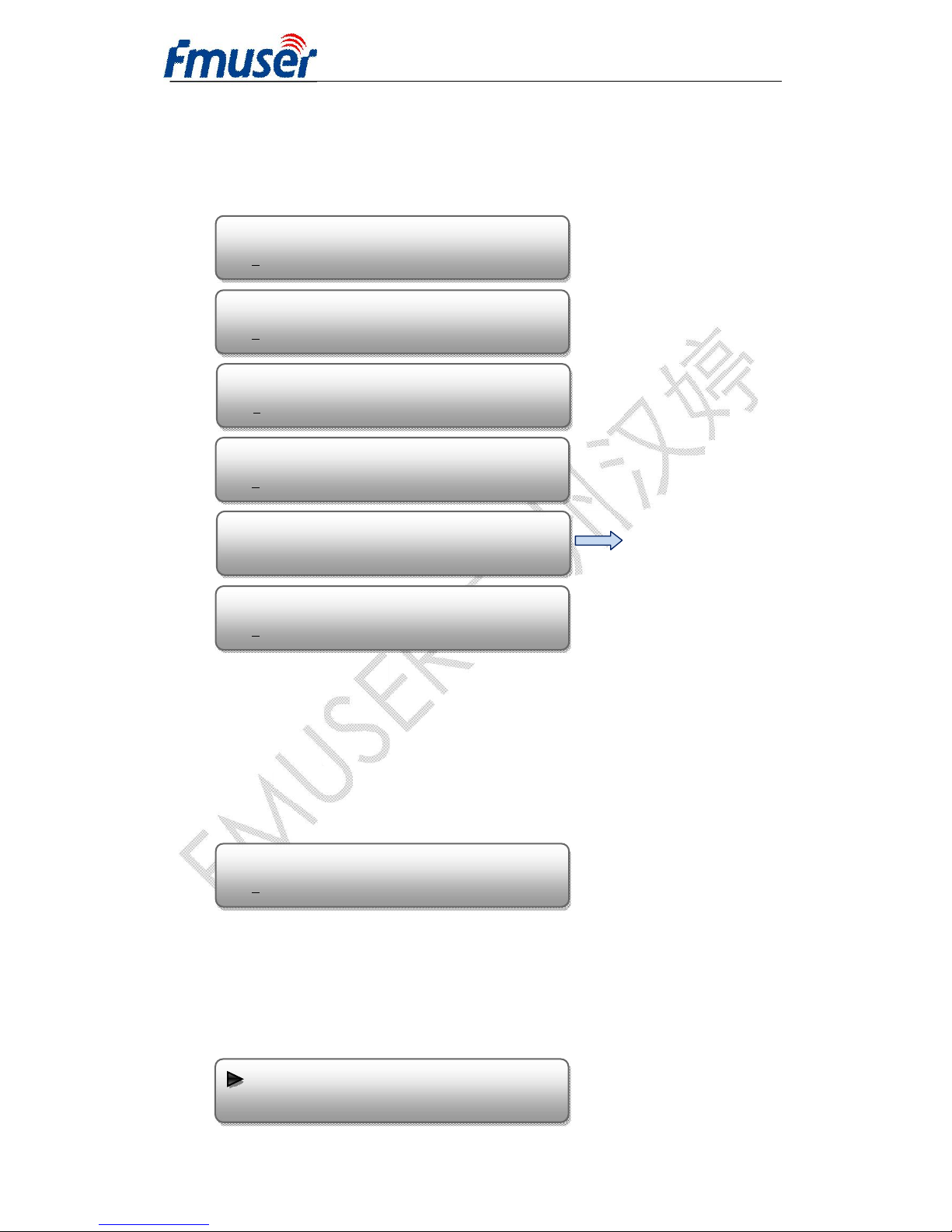
3.1 TS Mux Option 3.2 IP Null Packet
3.3 IP Out Mode 3.4 IP Out Address
3.5 Audio Setting 3.6 Video Setting
3.7 Encode Setting 3.8 Encode Start
3.9 Audio Setting 3.10 Video Setting
TS Mux Setting Encode
[Encode] ASI Mux
Filter IP Null Packet?
[No] Yes
IP Out Mode MPTS
Disabled SPTS [MPTS]
Page 22
FMUSER INTERNATIONAL GROUP INC. 广州市汉婷生物科技开发有限公司
22 / 38
3.3.3.4 – 3.3.3.9
User can enter 3.3.3.4 – 3.3.3.9 respectively to check or modify
3.3.3.10 Output Bit rate
This bit rate is special for ASI pass-through or multiplexed programs. (If
“ASI” or “Mux” is selected in “3.1 TS Mux Setting”, this bit rate is effective.
If “Encode” is selected, the bit rate is set in part 2.2.)
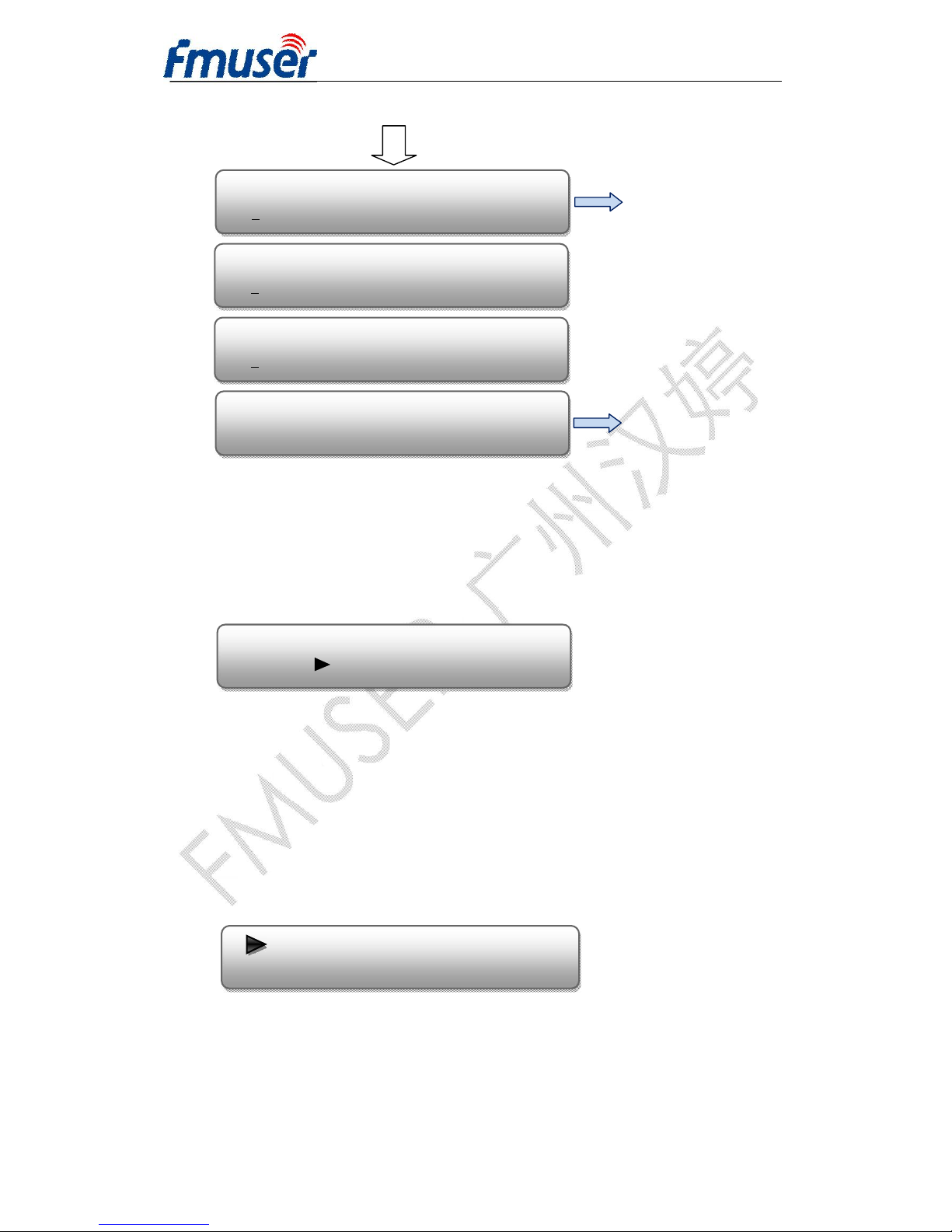
3.3.4 NETWORK SETTING
Enter “4 Network Setting” to set the network. Submenus go as below:
IP Out Address
224.002.002.002
IP Out Mask
255.255.255.000
Service IP Address
192.168.002.137
IP Out Port
1
234
Source MAC
11:22:33:44:55:22
Source MAC is read only on the
front panel. It is can only be
modified in the Web management
interface.
Source Gateway
1
92.168.002.001
Output Bit rate
50.00 Mbps
4.1 IP Address 4.2 Subnet Mask
4.3 Gateway 4.4 MAC Address
Page 23
FMUSER INTERNATIONAL GROUP INC. 广州市汉婷生物科技开发有限公司
23 / 38
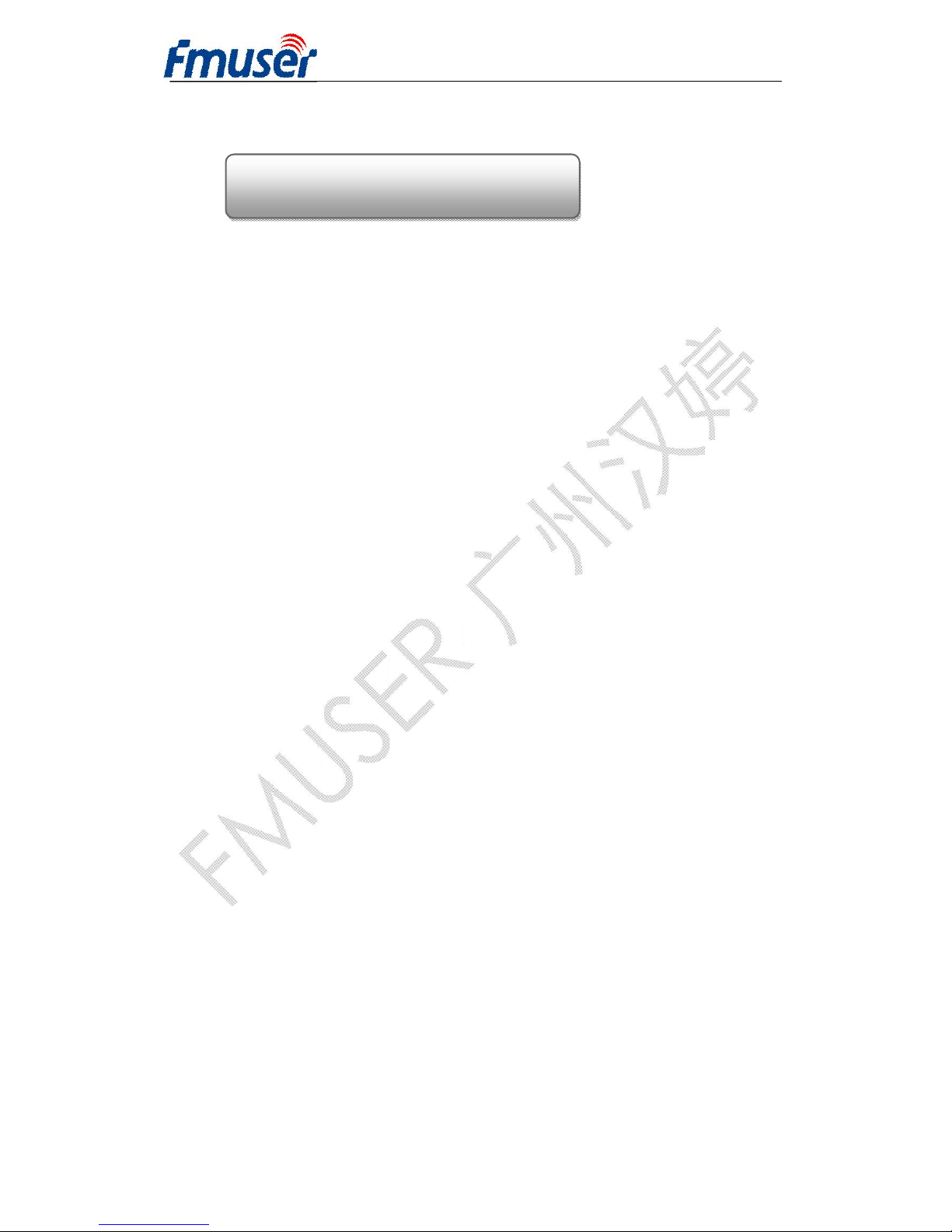
3.3.5 SAVE CONFIGURATION
User can enter Saving Configuration for saving settings. Choose yes and
press ENTER to confirm.
3.3.6 LOAD CONFIGURATION
At this menu, user can select a loading source and press ENTER to
confirm. User can restore the device into the last saved configuration by
choosing “6.1” and restore the device into factory configuration by
choosing “6.2” the display will show as below:
3.3.7 VERSION
User can check the software version and hardware version of this
IP Address
192.168.000.136
Subnet Mask
2
55.255.255.000
Gateway
192.168.000.001
MAC Address
00:11:22:33:55:11
This is the IP address used for
connecting to Web management.
Save Configuration?
Yes No
6.1 Load Saved CFG 6.2 Load Default
The MAC is read only on the front
panel. It is can be modified in the
Web management interface.
Page 24
FMUSER INTERNATIONAL GROUP INC. 广州市汉婷生物科技开发有限公司
24 / 38
equipment under this submenu.
NDS3211A HD Encoder
SW: V1.36 HW: V1.3.2
Page 25
FMUSER INTERNATIONAL GROUP INC. 广州市汉婷生物科技开发有限公司
25 / 38
Chapter 4 WEB NMS Operation
User can not only use front panel to set configuration, but also control
and set the configuration with a PC (Personal Computer) by connecting
the device to web NMS Port. User should ensure that the computer’s IP
address is different from the FUTV4311A’s IP address; otherwise, it
would cause IP conflict.
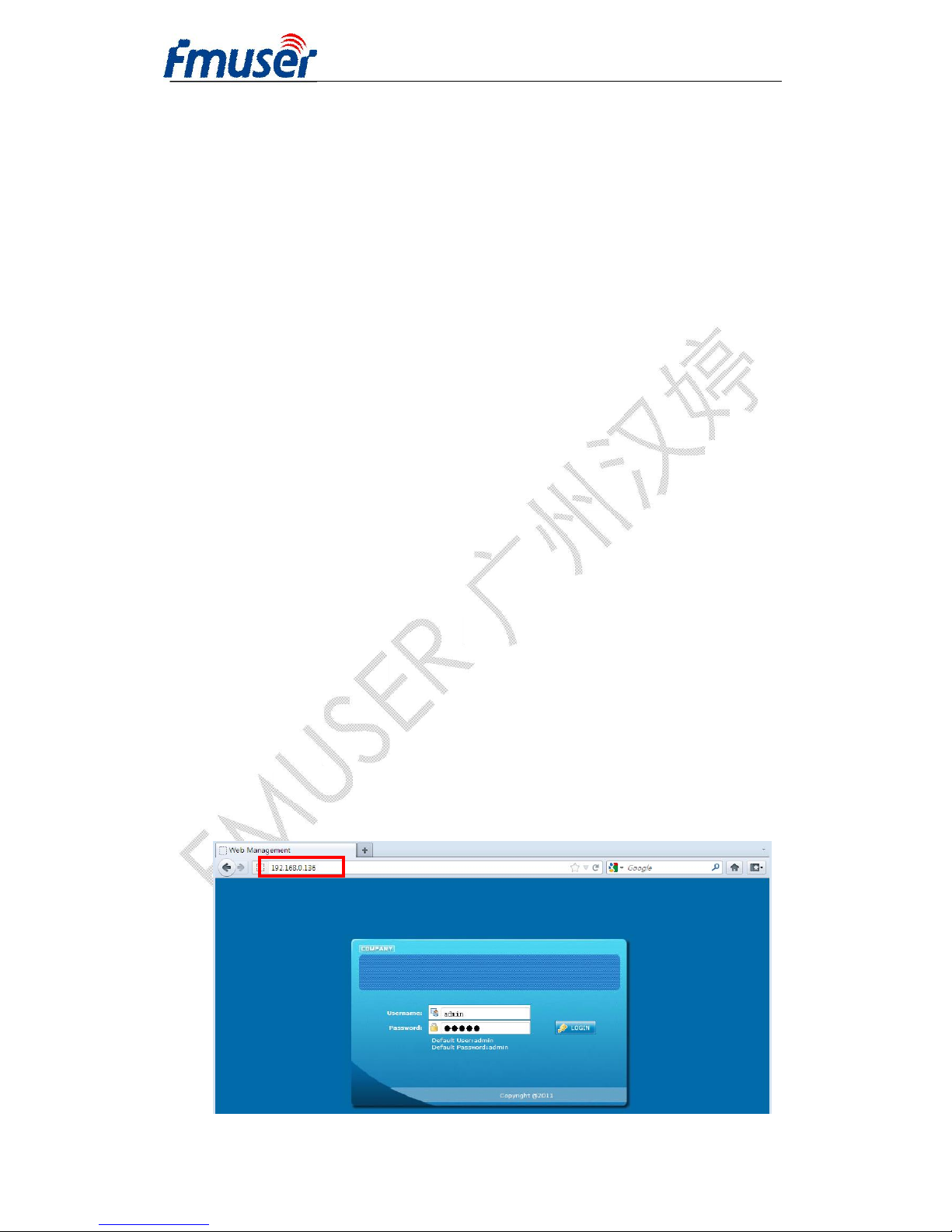
4.1 login
The default IP address of this device is 192.168.0.136. (We can modify
the IP through the front panel – menu 4.1.)
Connect the PC and the device with net cable, and use ping command to
confirm they are on the same network segment.
I.G. the PC IP address is 192.168.99.252, we then change the device IP
to 192.168.99.xxx (xxx can be 0 to 255 except 252 to avoid IP conflict).
Use web browser to connect the device with PC by inputting the device’s
IP address in the browser’s address bar and press Enter.
It will display the Login interface as Figure-1. Input the Username and
Password (Both the default Username and Password are “admin”.) and
then click “LOGIN” to start the device setting.
Page 26
FMUSER INTERNATIONAL GROUP INC. 广州市汉婷生物科技开发有限公司
26 / 38
Figure-1
4.2 Operation
Ø System Information
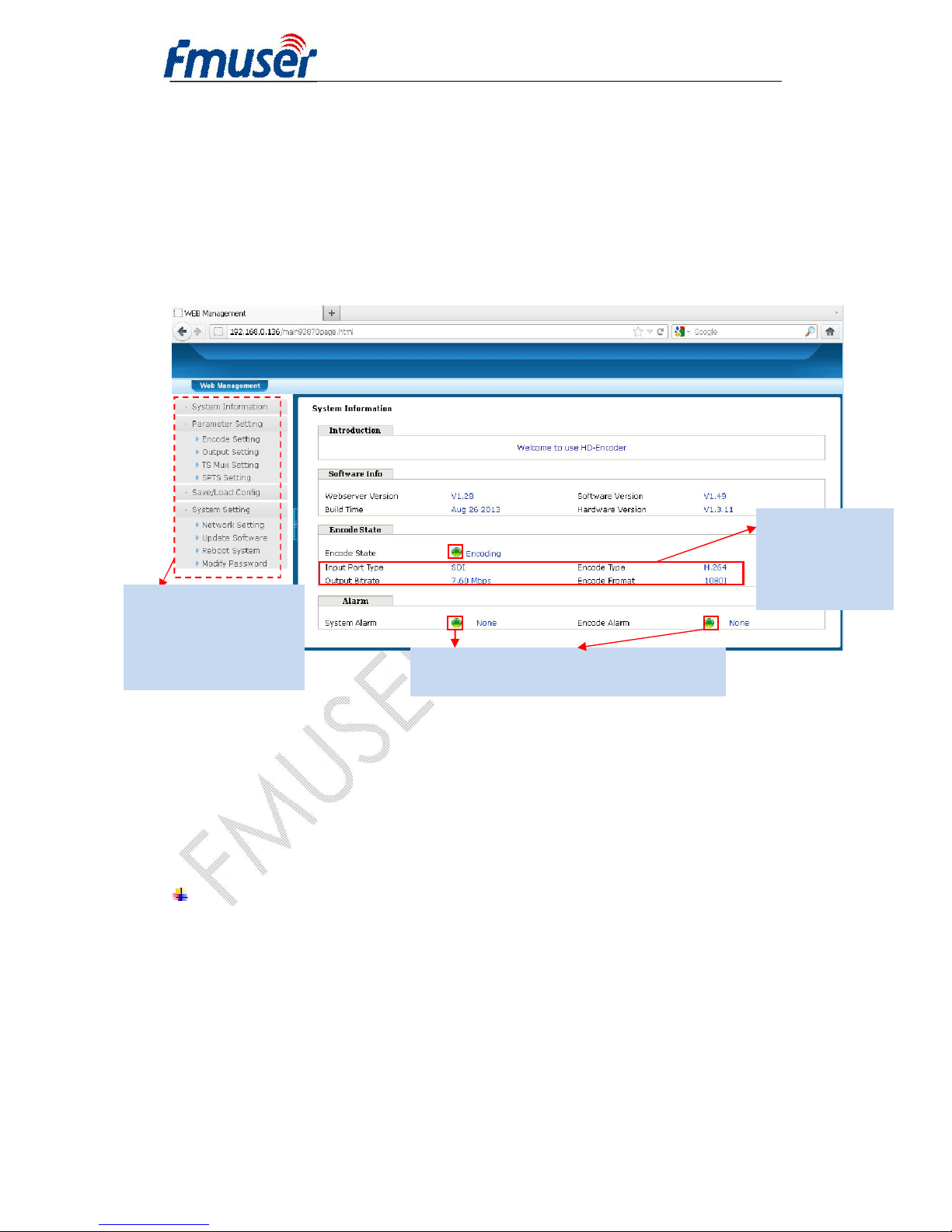
When we confirm the login, it displays the SYSTEM INFORMATION interface
as Figure-2 where user can view the system information.
Figure-2
Ø Encode Setting
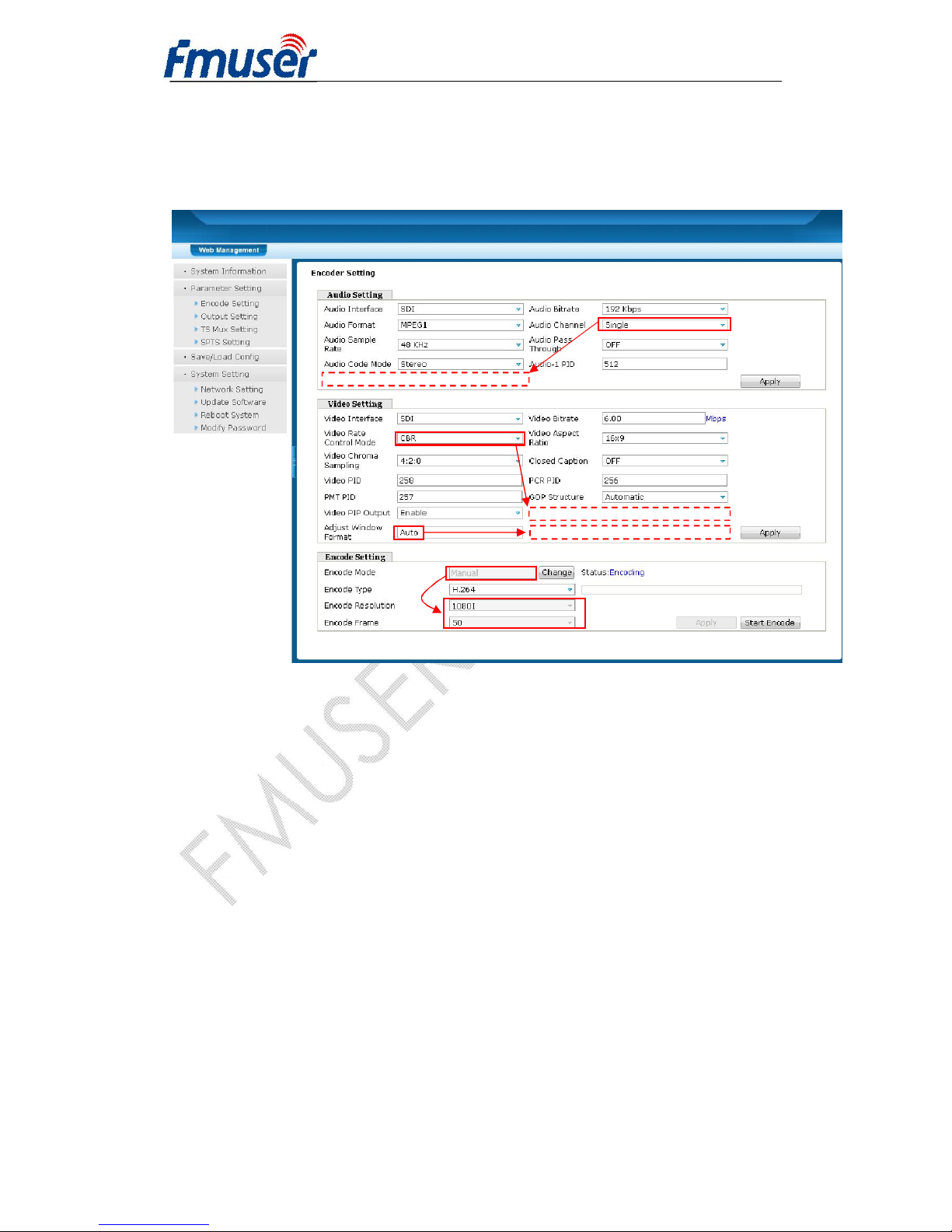
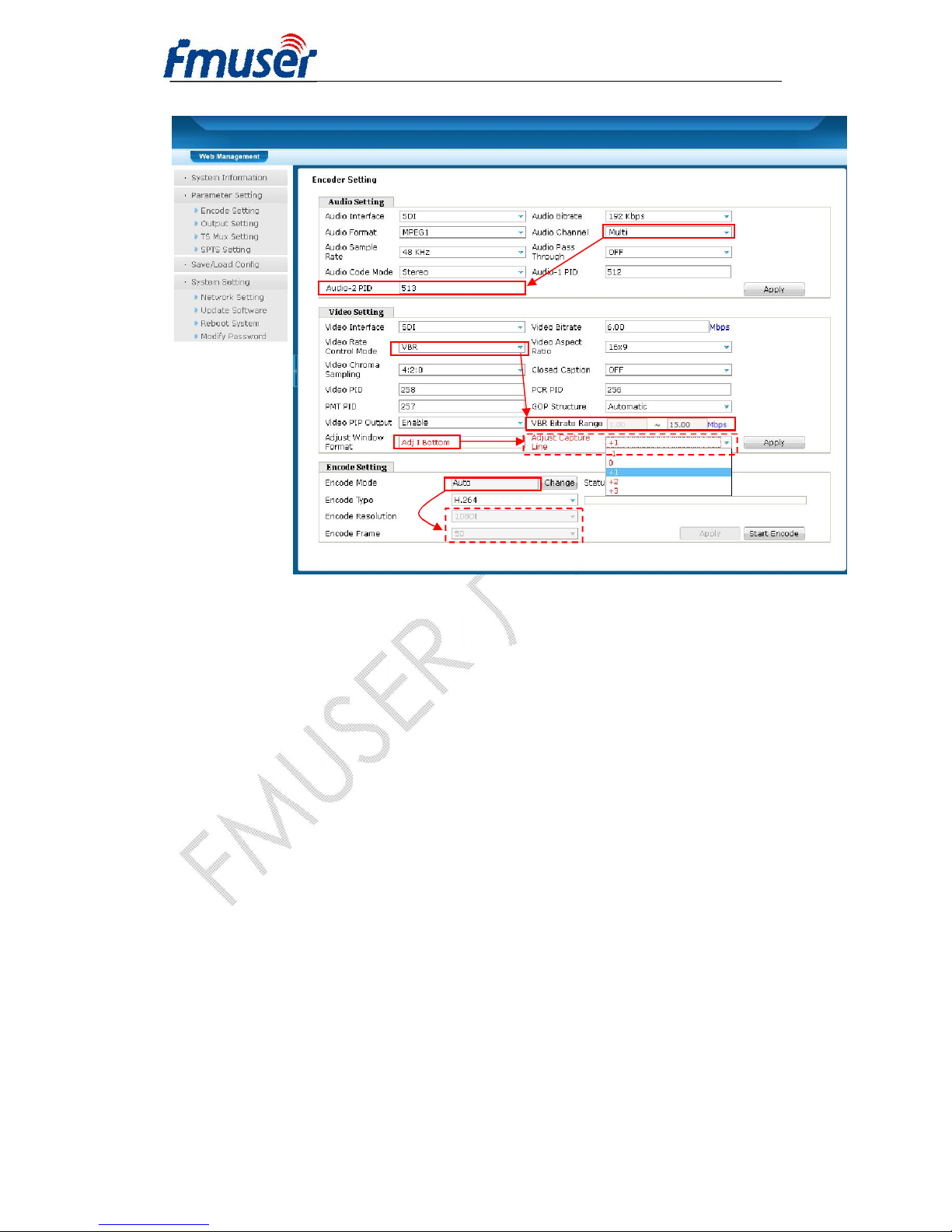
Click “Encode Setting” on the left column and it displays interface as Figure-3
& Figure 4. User can set the Audio/Video parameters by inputting a value or
selecting a value in the pull-down list.
NOTE:
In this interface, there are matters needing attentions concerning setting
parameters for Audio/Video. As the parameters listed in this interface is the
counterpart of items in LCD menu “2 Encode Setting”, user can refer to the
detailed explanations and attentions in “Chapter 3” → “3.3.2 ENCODE
SETTING” in this manual.
User can click any item
here to enter the
corresponding interface
to check information or
set the parameters.
Indicators—Green light indicates it is working
normally, which otherwise turns to red.
The system
automatically
reads and displays
the current
encoding state.
Page 27
FMUSER INTERNATIONAL GROUP INC. 广州市汉婷生物科技开发有限公司
27 / 38
Red boxes and arrows in Figure 3 and Figure 4 display the hidden menus
under different settings.
Figure-3
Page 28
FMUSER INTERNATIONAL GROUP INC. 广州市汉婷生物科技开发有限公司
28 / 38
Figure-4
Page 29
FMUSER INTERNATIONAL GROUP INC. 广州市汉婷生物科技开发有限公司
29 / 38
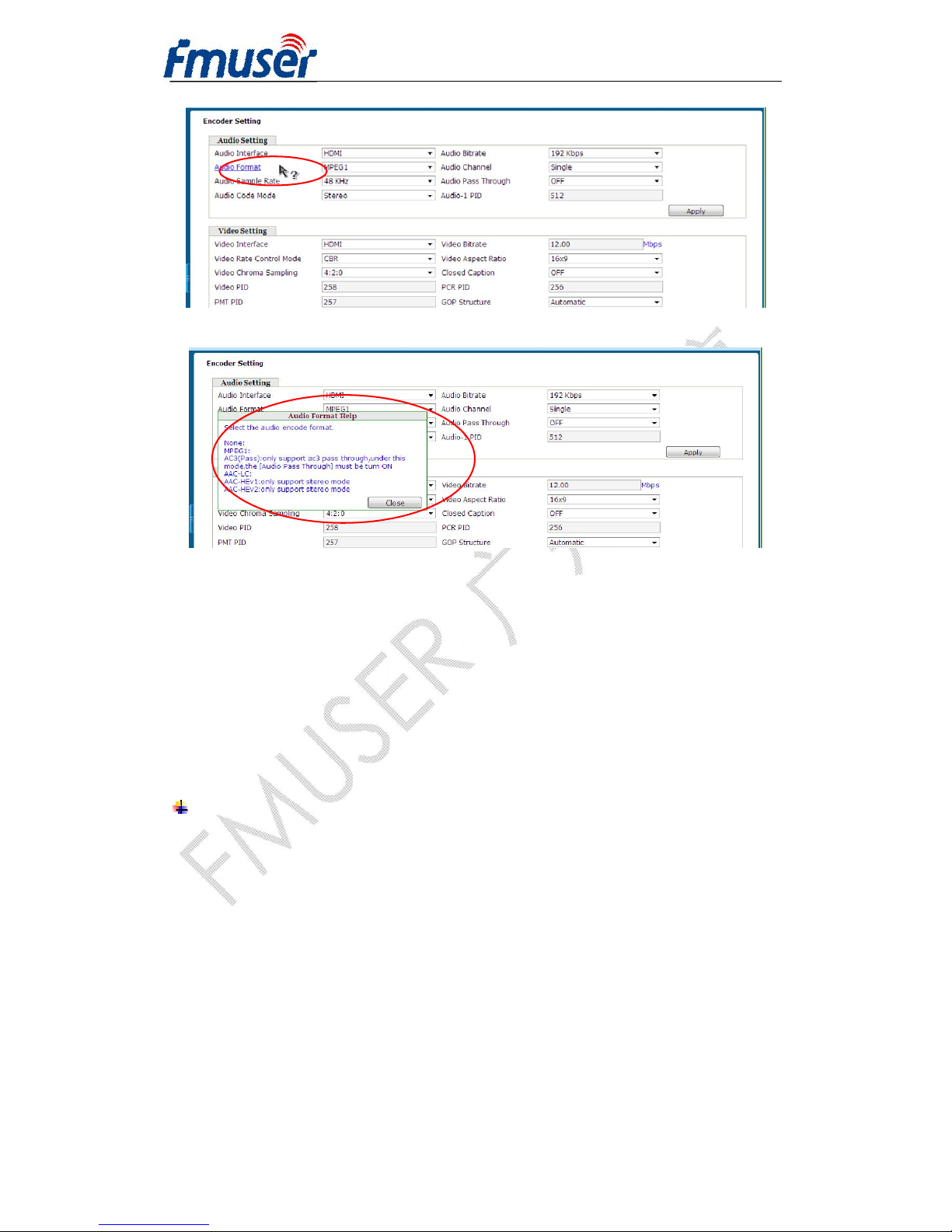
Important Function Remarks:
“Help” Function
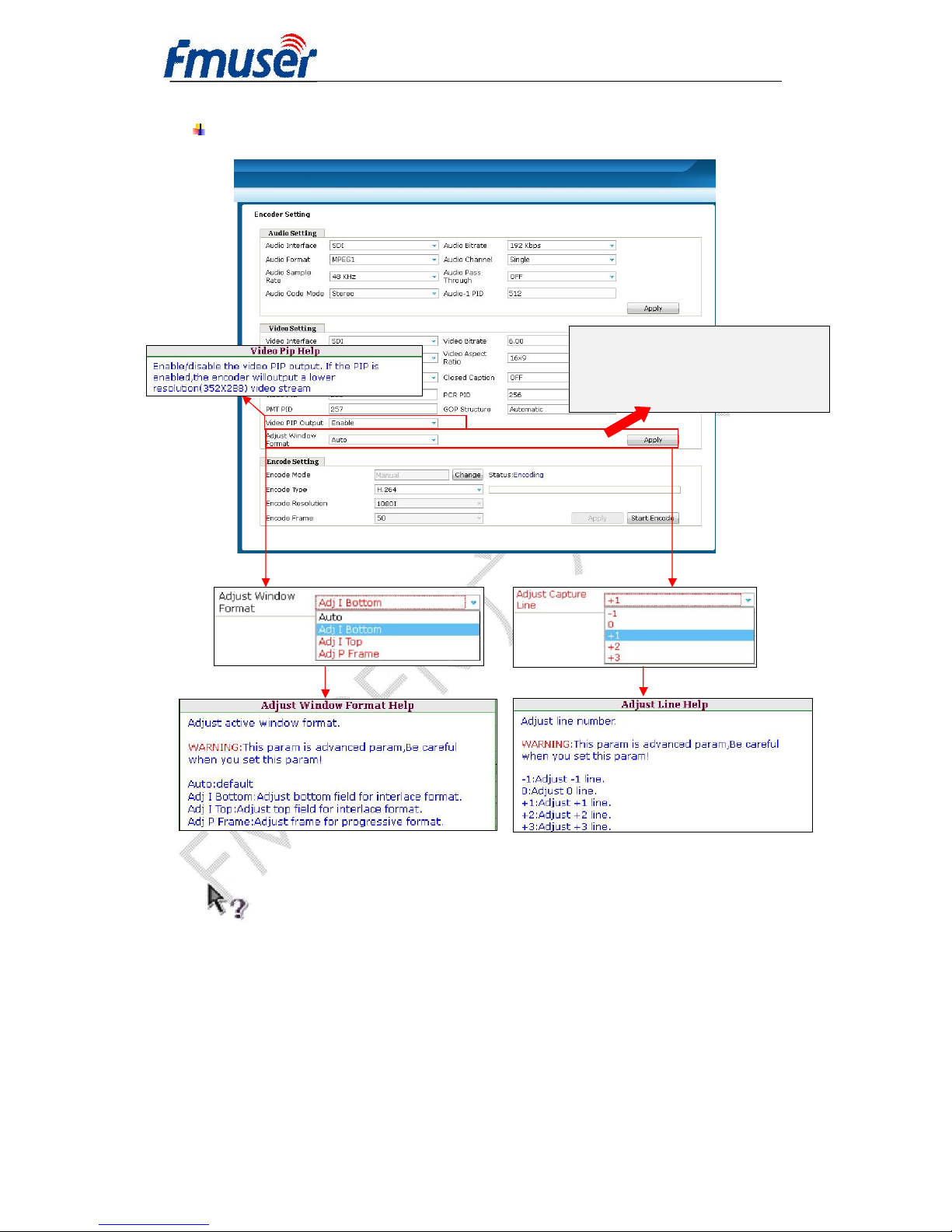
In “Encode Setting” Interface, whenever the mouse cursor is suspended on
one item, a question mark appears by the cursor and the corresponding item
comes to hyperlink state (Figure-5). Click the hyperlink item to trigger a text
window to give instructions on properly setting the corresponding item.
(Figure-6)
Be careful to apply this function: If the
output video has problems, like there is
ghost on the screen, users can apply this
function to adjust lines or fields to debug.
Page 30
FMUSER INTERNATIONAL GROUP INC. 广州市汉婷生物科技开发有限公司
30 / 38
Figure-5
Figure-6
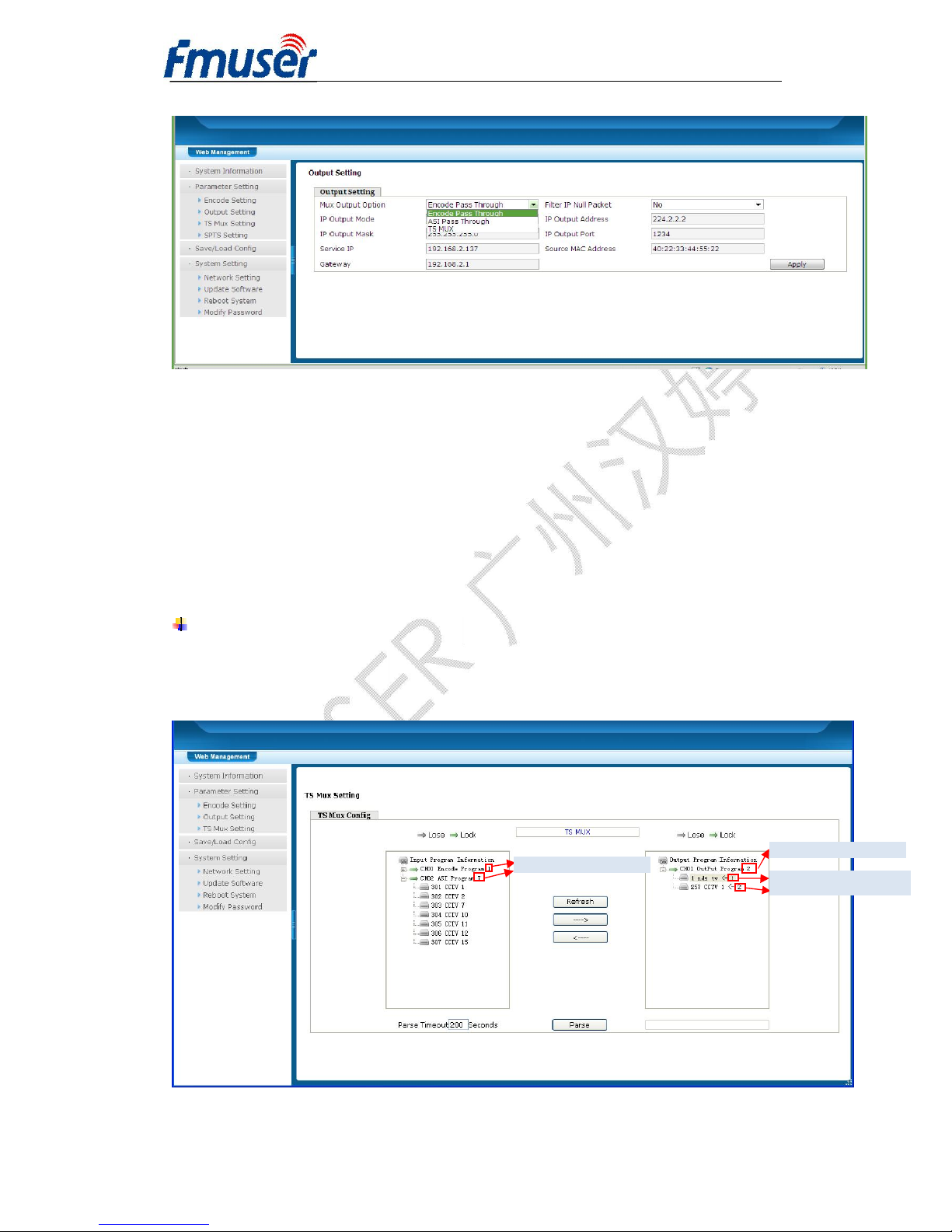
Ø Output Setting
Click “Output Setting” on the left column and it displays interface as
Figure-7. User can set the output parameters by inputting a value or
selecting a mode in the pull-down list.
NOTE:
The parameters displayed in this interface are the counterpart of items in
LCD menu “3 Output Setting”, user can refer to the detailed explanations
and attentions in “Chapter 3” → “3.3.3 OUTPUT SETTING” in this manual.
Page 31
FMUSER INTERNATIONAL GROUP INC. 广州市汉婷生物科技开发有限公司
31 / 38
Figure-7
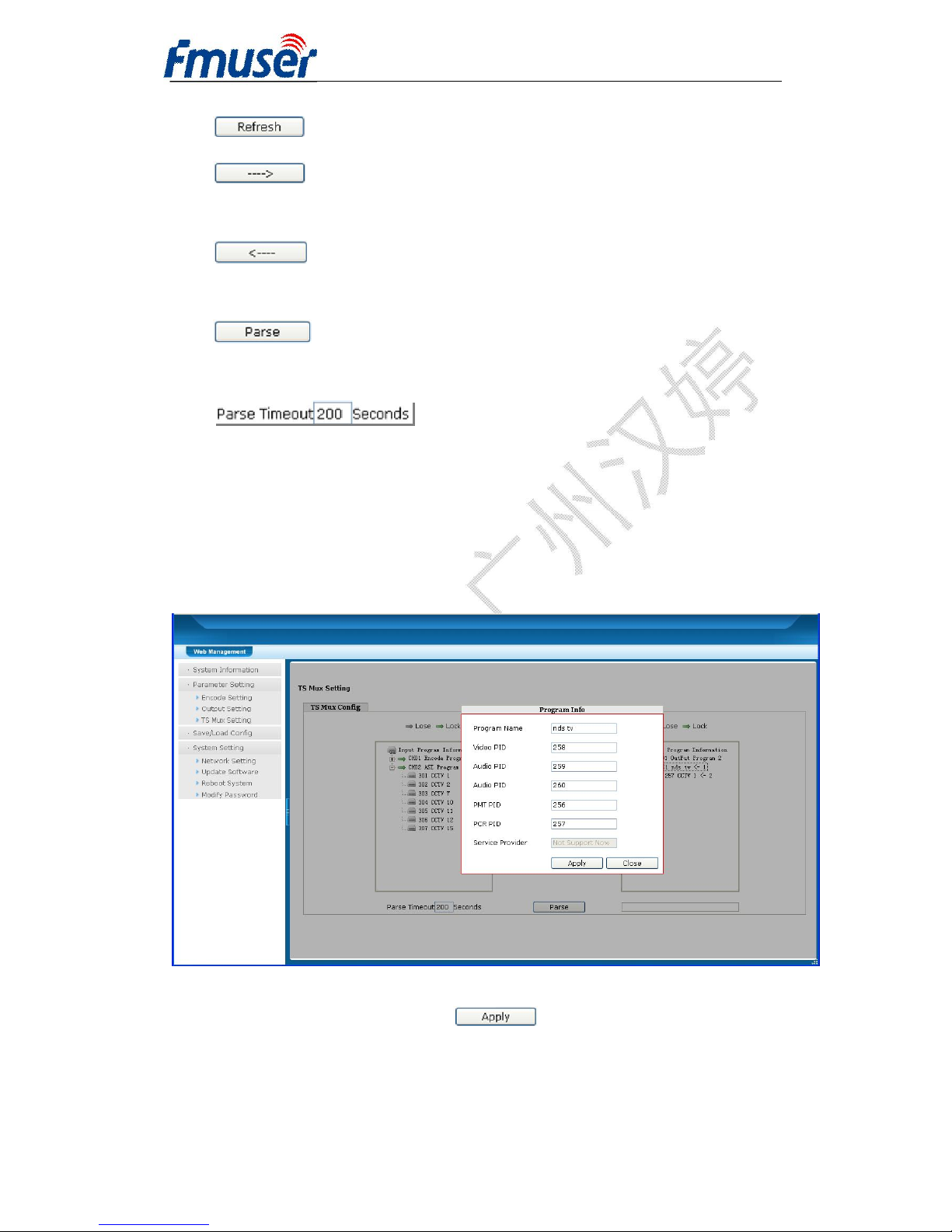
Ø TS Mux Setting
Click “TS Mux Setting” on the left column and it displays interface as
Figure-8. This section is for filter programs which are from both the ASI IN
and Encoder interfaces (HDMI/SDI/CVBS/YPbPr).
NOTE:
This mux section will be applicable on condition that “TS Mux” is chosen at
the “Mux Output Option” in “Output Setting” (Figure 7).
Figure-8
Program quantity in each channel
Quantity of multiplexed programs
These numbers indicate the source
channel of the multiplexed program.
Page 32
FMUSER INTERNATIONAL GROUP INC. 广州市汉婷生物科技开发有限公司
32 / 38
Click “Refresh” button to refresh the input/output program list.
Select one program in the left box and click this button to
transfer the selected program to the right box to output.
Similarly, user can click this button to cancel the multiplexed
programs from the right box.
click this button to parse the program list in each input
channel.
: Time limitation to parse the input programs
u Modify Program Information:
When one program is selected to output, user can double-click the
program in the right box to reset the program information. It will trigger a
dialog box as below (Figure 9):
Figure-9
Input the custom data and click to confirm.
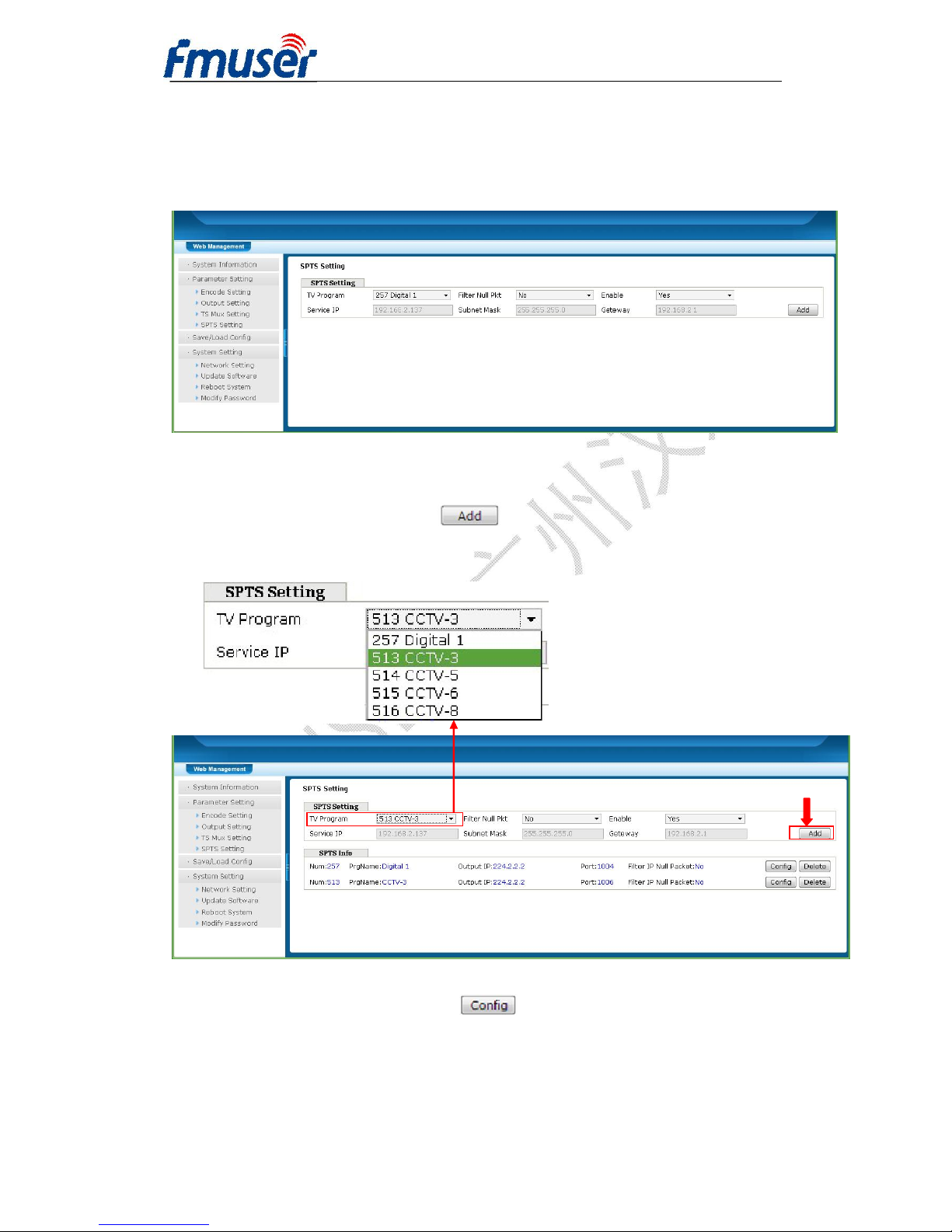
Ø SPTS Setting
Page 33
FMUSER INTERNATIONAL GROUP INC. 广州市汉婷生物科技开发有限公司
33 / 38
FUTV4311A HD encoder supports 1 MPTS IP or 8 SPTS IP output. Click
“SPTS Setting” on the left column and it displays interface as Figure-10
where user can configure the SPTS output.
Figure-10
Select one program and click to add its SPTS information. (Figure
11)
Figure-11
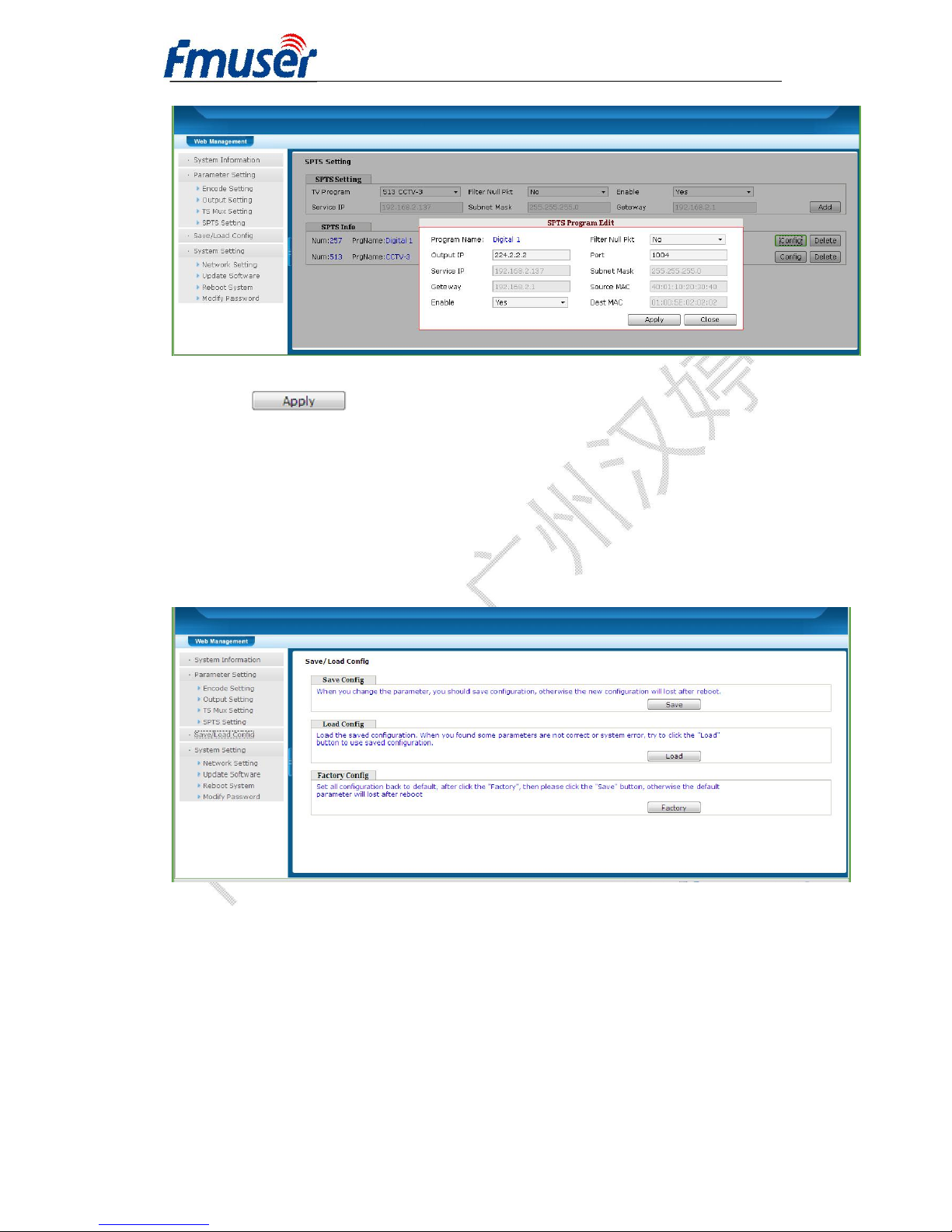
Select one program and click to modify its SPTS information.
(Figure 12)
Page 34
FMUSER INTERNATIONAL GROUP INC. 广州市汉婷生物科技开发有限公司
34 / 38
Figure-12
Click to confirm.
Ø Save/Load Config
Click “Save/Load Config” on the left column and it displays interface as
Figure-13 where user can save new configuration or load existing
configuration as per prompts.
Figure-13
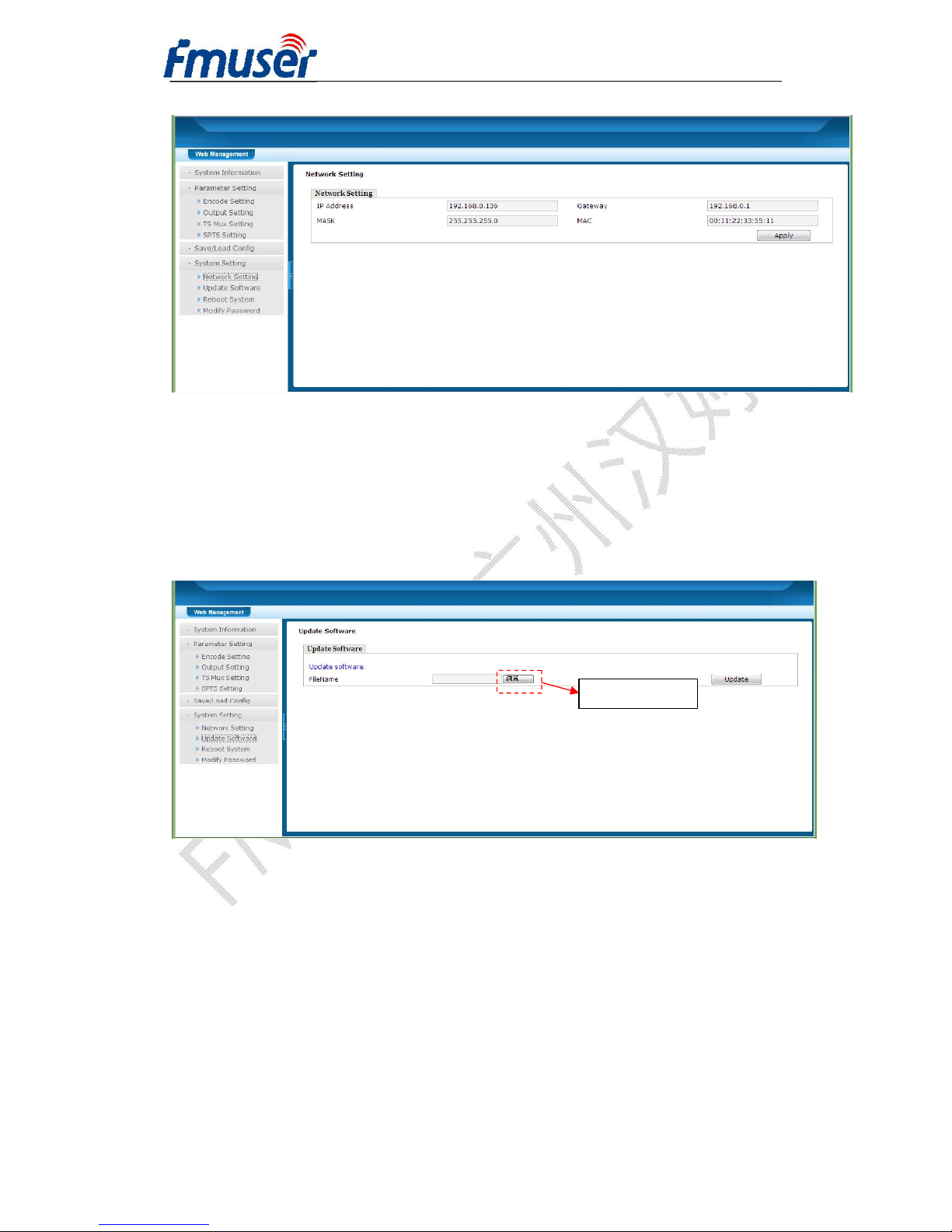
Ø Network Setting
Click “Network Setting” on the left column and it displays interface as
Figure-14 where user can check or reset the network.
Page 35
FMUSER INTERNATIONAL GROUP INC. 广州市汉婷生物科技开发有限公司
35 / 38
Figure-14
Ø Update Software
Click “Update Software” on the left column and it displays interface as
Figure-15 where user can update the software for the device. Click browse
button to find the update file and click “Update” button to start updating.
Figure-15
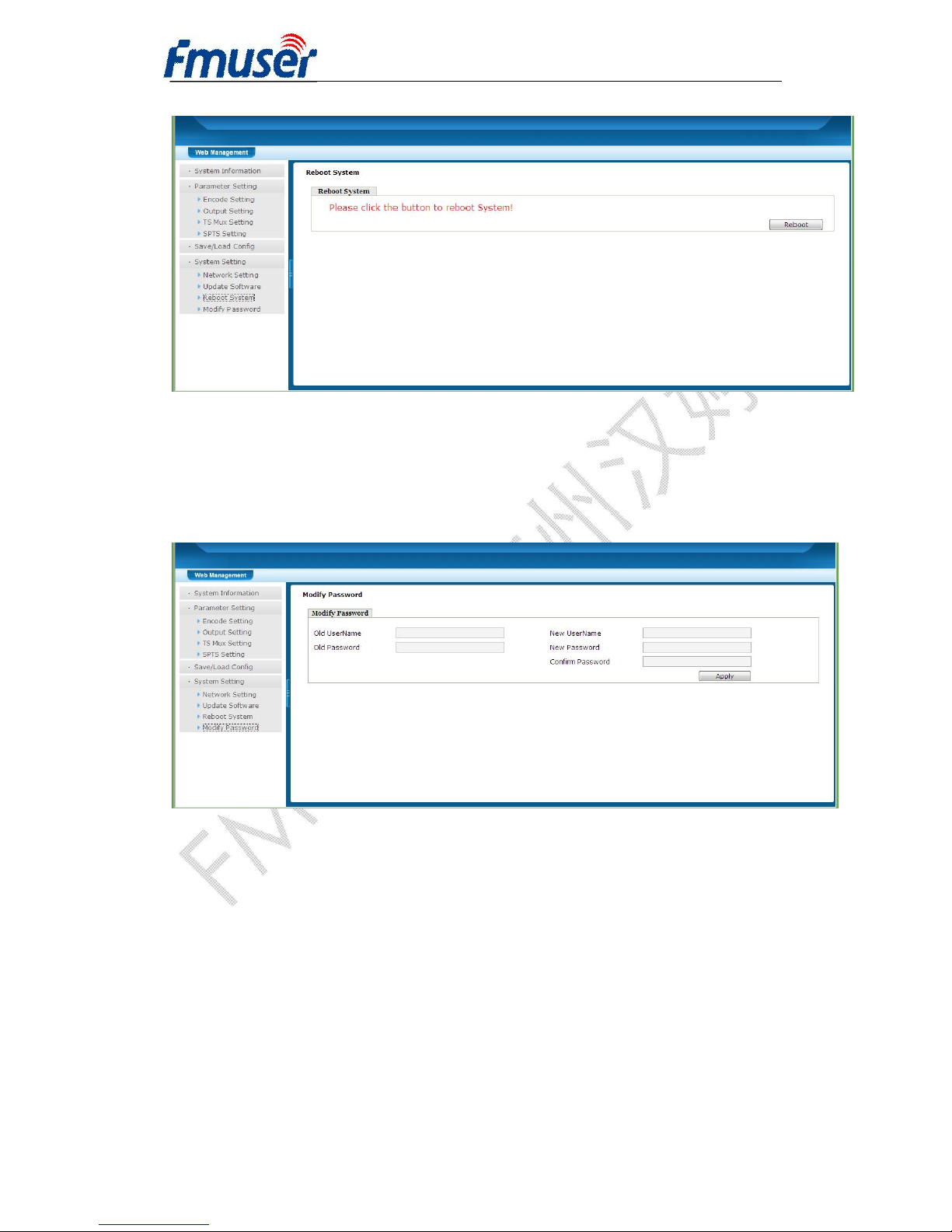
Ø Reboot System
Click “Reboot System” on the left column and it displays interface as
Figure-16 where user can reboot the system as per prompts.
Browse Button
Page 36
FMUSER INTERNATIONAL GROUP INC. 广州市汉婷生物科技开发有限公司
36 / 38
Figure-16
Ø Modify Password
Click “Modify Password” on the left column and it displays interface as
Figure-12 where user can reset the account information as needed.
Figure-12
Page 37

FMUSER INTERNATIONAL GROUP INC. 广州市汉婷生物科技开发有限公司
37 / 38
Chapter 5 Troubleshooting
To guarantee the products’ quality, reliability and stability, all FMUSER’s
products have been passed the testing and inspection before ship out
factory. The testing and inspection scheme already covers all the Optical,
Electronic and Mechanical criteria which have been published by
FMUSER. To prevent potential hazard, please strictly follow the operation
conditions.
Prevention Measure
Ø Installing the device at the place in which environment temperature between
0 to 45 °C
Ø Making sure good ventilation for the heat-sink on the rear panel and other
heat-sink bores if necessary
Ø Checking the input AC within the power supply working range and the
connection is correct before switching on device
Ø Checking the RF output level varies within tolerant range if it is necessary
Ø Checking all signal cables have been properly connected
Ø Frequently switching on/off device is prohibited; the interval between every
switching on/off must greater than 10 seconds.
Conditions need to unplug power cord
Ø Power cord or socket damaged.
Ø Any liquid flowed into device.
Ø Any stuff causes circuit short
Ø Device in damp environment
Ø Device was suffered from physical damage
Ø Longtime idle.
Ø After switching on and restoring to factory setting, device still cannot work
properly.
Page 38

FMUSER INTERNATIONAL GROUP INC. 广州市汉婷生物科技开发有限公司
38 / 38
Ø Maintenance needed
Chapter 6 Packing List
FUTV4311A MPEG2/H.264HD Encoder 1PC
User Manual 1PC
HDMI Cable 1PC
SDI Cable 1PC
YPbPr Cable 1PC
CVBS Cable 1PC
Audio Cables 2PCs
Power Cord 1PC
 Loading...