

Page 1

Version B0 August 2015
User manual
Page 2
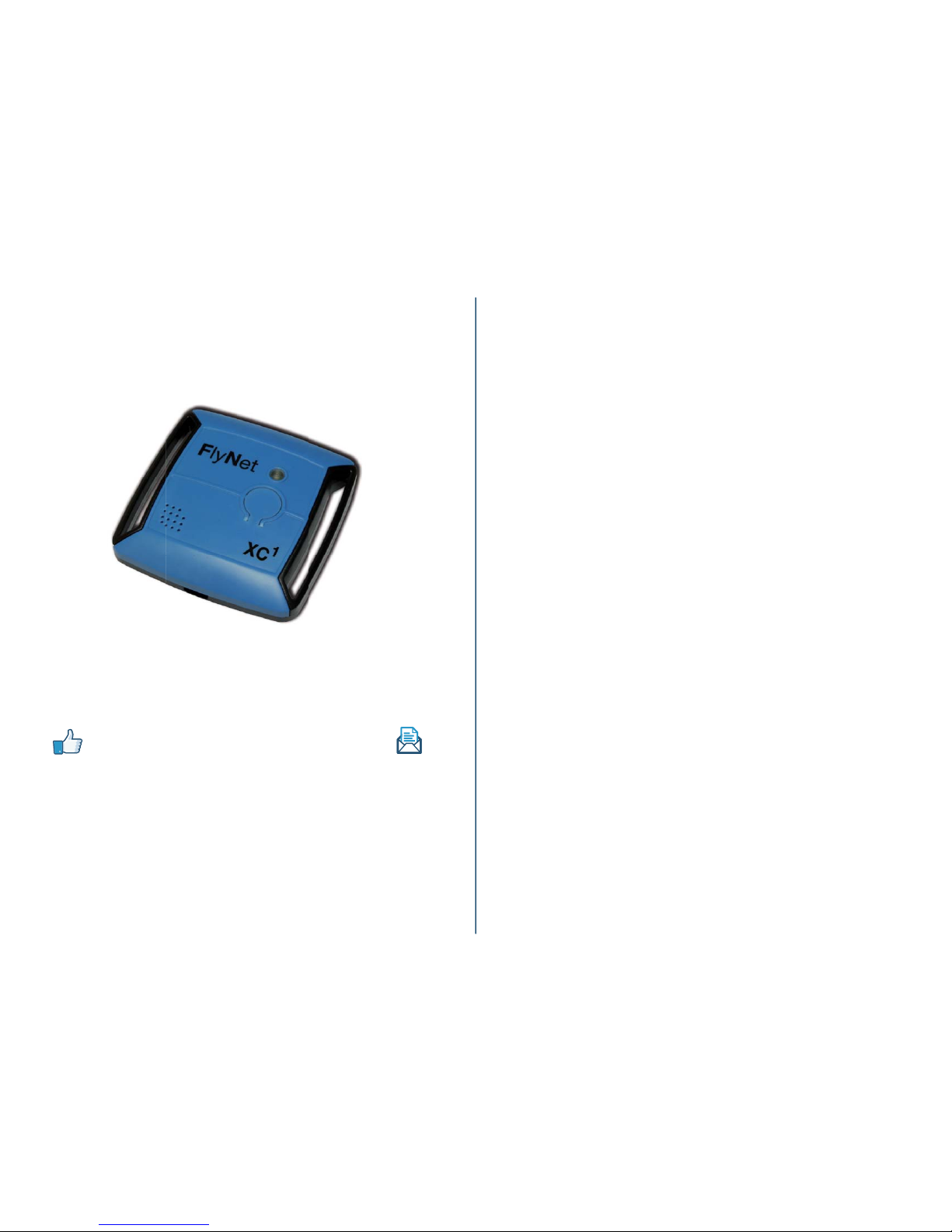
Congratulation for purchasing your FlyNetXC, an evolutionary ight
instrument device, (you will be able to update for new features).
LIKE our Facebook page and register to our newsletter
by opening an user account on our website. This will keep you
informed of any new releases and versions of the rmware.
You can download the latest version and the user manual on our
website, in the tab support (updated with each new rmware
release).
Getting started...............................................................................3
Device layout...................................................................................................3
ON / OFF............................................................................................................4
Charging the battery....................................................................................5
Settings............................................................................................6
Settings on the FlyNetXC..............................................................................6
Settings on PC / MAC / Linux.....................................................................6
Settings on a mobile device.......................................................................7
Settings using Logy.....................................................................................7
GPS tracks........................................................................................8
GPS track download on PC / MAC / Linux.....................................8
GPS track download on a mobile device.........................................8
GPS track download using Logy.........................................................8
Update device................................................................................9
Firmware update on PC / MAC / Linux.................................................9
Firmware update using Logy..................................................................9
Contents
1
2
Page 3
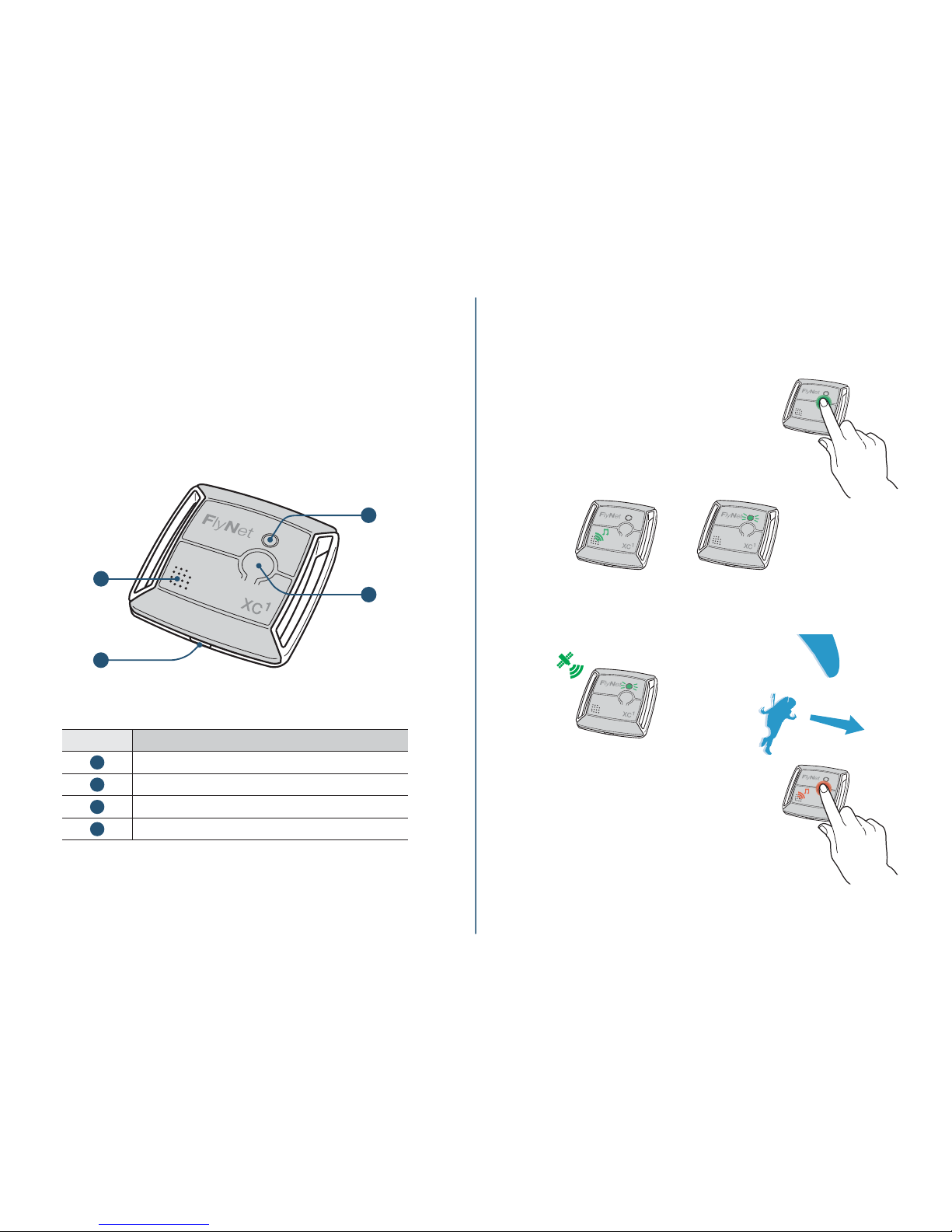
Device layout
Getting started
Front view
›
4
3
1
2
Number Function
1
Speaker
2
Micro USB
3
LED light
4
ON / OFF button
ON / OFF
To turn the FlyNetXC ON, press and hold the
ON/OFF button (for about 2 seconds).
The FlyNet
XC
beeps, and the LED turns ON.
After a few seconds, the LED will ash ON and
OFF (50/50).
After approximatively one minute, the ON/OFF blinking of the LED
reduces to10% ON/ 90% OFF conrming that the FlyNet
XC
is getting
the GPS satellites reception. The instrument is ready for ight.
To switch the FlyNet
XC
OFF, press and hold
the ON/OFF button (for about 2 seconds).
The FlyNet
XC
emits a sound, and the LED
stops ashing.
GPS
34
Page 4
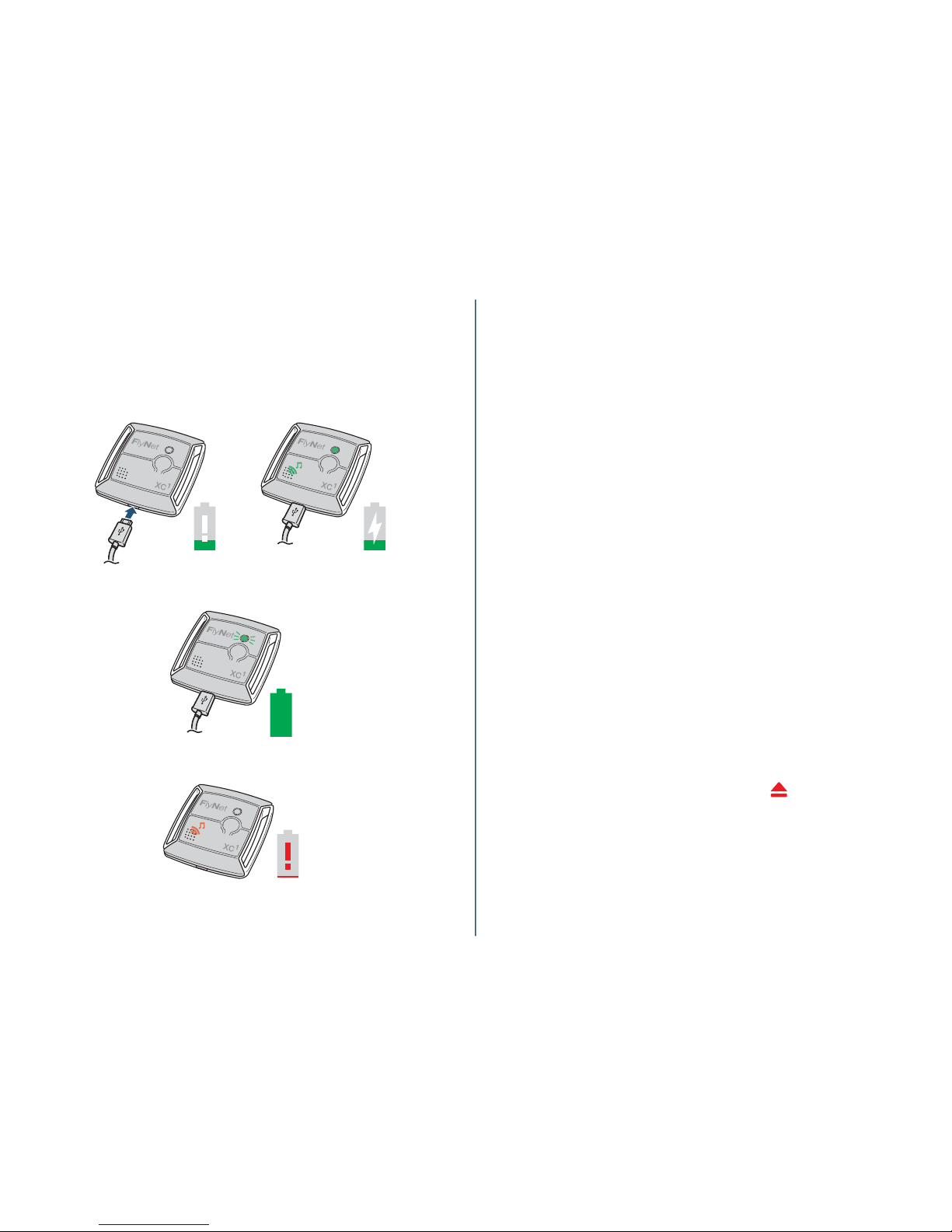
Charging the battery
Connect your FlyNetXC to power with the USB cable. It will emit a
sound and the LED will stay on until the battery charging is complete.
Once charge is complete, the LED begins ashing.
During usage, a warning alarm is activated, if the battery level is critically low.
Settings
Settings on the FlyNet
XC
When the FlyNetXC is not connected to the app, pressing shortly the
ON / OFF button disables and enables the sound of the FlyNet
XC
.
Settings on PC / MAC / LINUX
To make settings on the device, connect the FlyNetXC to your computer using the micro USB cable (appears as an USB drive), and open the
CONFIG.TXT le with the help of a text editor, by double clicking. You
can then edit:
FirmwareRev
PilotName
VarioName
GliderType
SoundVolume
SoundEnableConnected
SoundEnableCharging
GpsRate
TakeOSpeed
SendGpsInfo
SendPressureInfo
Once the settings are done, save the le & eject the FlyNetXC,
(on Mac).
56
firmware version (no edit possible).
pilot name.
Bluetooth device name.
wing name.
the volume from 0 to 3, 0= no sound, 3=maximum volume.
0=sound disabled when connected to an app 1= sound enabled when
connected to an app.
0=sound disabled when charging battery 1= sound enabled when
charging battery.
the GPS rate, 1=1point each second 5=1point each 5 seconds (we
recommend 5 for a better battery autonomy). You can set up to 1point
each 99 seconds.
speed threshold for the automatic takeoff and landing detection in Kph.
0=GPS records as soon as FlyNet
XC
is switched on. Recommended value is 8.
0=GPS data are not transmitted via Bluetooth, 1=GPS data are transmitted via Bluetooth.
0=pressure data are not transmitted via Bluetooth, 1=GPS data are
transmitted via Bluetooth.
Page 5

Settings on a mobile device
Open your FlyNet app, connect the FlyNetXC via Bluetooth to the
app, then go to settings, cong vario. You can now setup: The vario
name; see the rmware version; set paraglider or hand glider
(Para/Delta); set your name; set the wing name; set the takeo
speed; enable sound from the vario; set the volume; set the GPS Rate
(one point every x seconds). Ones the settings done click OK.
Settings using Logy
Logy, is a great PC / Mac logbook app you can download, from our
website (in the support tab section).
To edit the settings, connect the FlyNetXC to your computer using
the micro USB cable, (appear as an USB drive). Open Logy and
select the GPS button on the top left, click select GPS and choose
FlyNet. A green light appears on the right if the FlyNet
XC
is connected and a setting logos on the left. Click on the setting logos and
make your changes.
GPS track
GPS track download on PC / MAC / LINUX
To extract the ight information, connect the FlyNetXC to your computer using the micro USB cable (appears as an USB drive). The IGC
les contains your ight data. You can copy them to your computer
(download them into your logbook app or online contest).
These les are a veried FAI-CIVL valid ight record.
GPS track download on a mobile device
Still in development.
GPS track download using Logy
Logy, is a great PC / Mac logbook app you can download, from our
website (in the support tab section)
To download your GPS track data, connect the FlyNetXC to your computer using the micro USB cable (appears as an USB drive). Open the
Logy app, and click on the GPS button (top left), select GPS and
choose FlyNet. Automatically, the window expands, and you will see
a list of all your ights. Click on update logbook. All your ights are
now in Logy.
78
Page 6

Update device
Firmware update on PC / MAC / LINUX
Warning: not following step by step the update procedure can
damage your FlyNet
XC
.
The rmware is regularly updated so you can download the last
version on our web site, in the tab support.
To update the rmware, connect the FlyNet
XC
to your computer
using the micro USB cable (appears as an USB drive), and copy the
update le (update.hex) to FlyNet
XC
.
Select eject with a right click and wait for the end of the ejection
process before disconnecting the FlyNetXC. Then reconnect it, it will
takes more time than usual to start, (approximately 10 seconds).
That’s it. Your FlyNet
XC
is up to date.
Firmware update using Logy
Logy, is a great PC / Mac logbook app you can download, from our
website (in the support tab section)
To update your rmware, connect the FlyNetXC to your computer
using the micro USB cable (appears as an USB drive). Open the
Logy app, and click on the GPS button (top left), select GPS and
choose FlyNet. If there is a new version available, Logy will ask, if
you want to update your rmware (click yes).
910
www.ynet-vario.com
www.facebook.com/asi.ynet
 Loading...