

Page 1
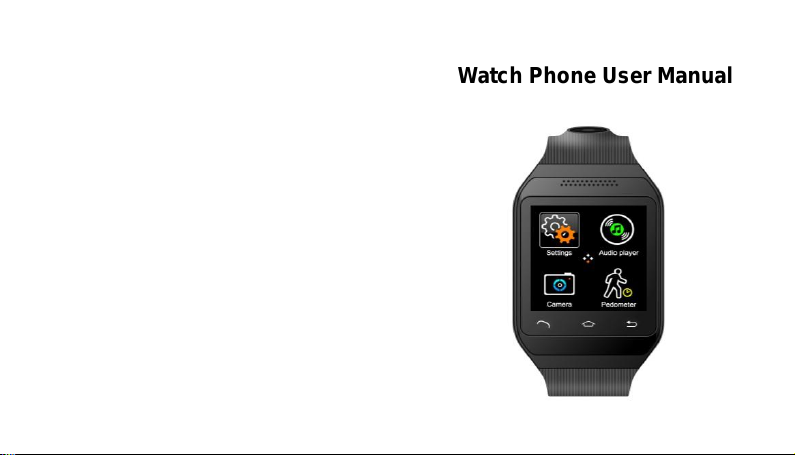
Watch Phone User Manual
Page 2

Page 3

12
network supplier
• Try to select th e net work by han d
• Ple ase t ry it later if the network is busy.
Cannot dial the watch phone
• Please ma ke su re the telephone NO. i s correct a nd pre ss
the call button
• For the inte rnet calli ng, please check the coun try code
and area code.
• Please make sure the phone with net work and not in
busy status
• Please make sure yo ur Sim card ha ve enough mon ey and
did not prohibit the calling
• To inquiry your register infor mation from you r networ k
supplier (such as limit, SIM card validity and so on )
• Ple ase make su re di d not set the ca ll li mited
• Please check if set the fixed dialing
Music cannot be played
• P lease che ck if t he music format is s upportable, such a s
MMF format
• Plea se check the m usic is exist ed without deleting: you
can updat e yo ur playin g l ist and make sure it is under “m y
music ” file.
1
Safety notice
Before use, Please read the user manual carefully.
Only support the standard battery, charger and accessories
we approved, we won’t take any responsibility for any
consequences caused by the use of third party accessories
Prohibit the unauthorized disassembly of watch phone
No mechanical vibrating and shaking, No kicking the screen
by tool
No using solute to clean the shell, such as benzene,thinner or
alcohol, No touching the watch phone with corrosive
chemicals and so on, but with a clean textile to clean it softly.
No exposing the watch phone under the sunrise or the place
with smog and dust,
Keep the phone in dry. No using in the wet environment such
as bathroom. This watch is not water proof and is strictly
prohibited to rain and moisture.
Please put the watch phone in a safety place out of the reach
of children to avoid any dangerous happenning.
Page 4
2
1、Introduction
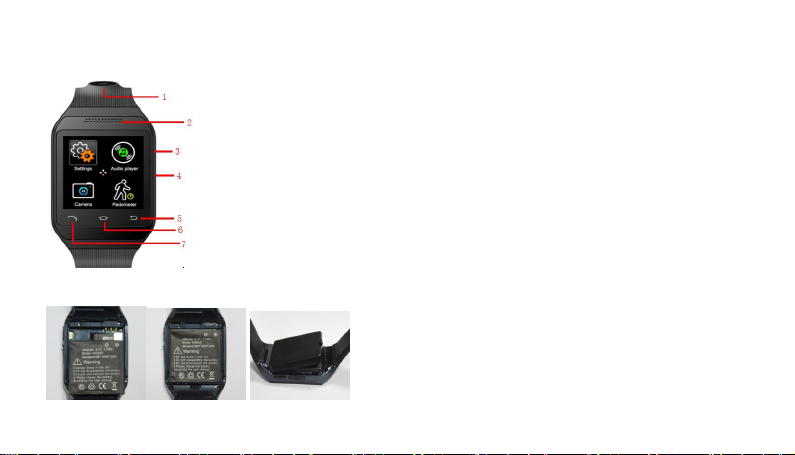
1.1 Key function introduction
1.Camera
2.Speaker
3. Power on/off
4. USB/earphone port
5.Return
6. Homepage
7. Dial
1.2 Removable battery, install Sim card and Micro sd
card Step illustration :
11
please follow below solution ways. If the problems are
still existed, please contact the distributor or appointted
maintenance personnel
The watch phone can not power on.
• Pre ss “on” but ton t ill s tartup scree n
• Che ck th e battery p ower
• Chec k if th e battery poo r contact, re move i t and install the
battery again, then power on
No feedback for several minutes
• Pre ss “off” ke y
• Rem ove the battery and install agai n, the n power on .
Using time is short
• Ple ase make su re ha ve no t clo sed the screen savers
• Please make sure enough charging time( more th an 3
hours)
• After chargin g parts of power, Battery level indica tor mig ht
be inaccurate. Please wait about 20minutes to get the
accurate indication after removing the battery charger.
Cannot connect the network
• Ple ase t ry in anoth er pl ace
• Please confirm the net service place from your netwo rk
supplier
• Please make sure your SIM card is effective from your
Page 5
10
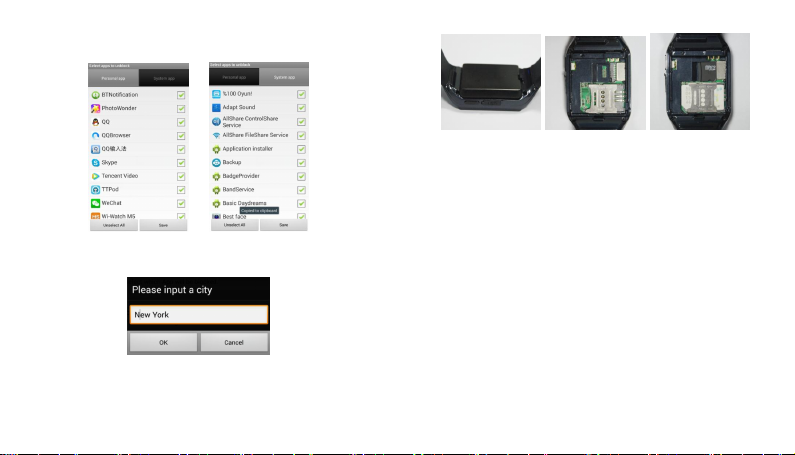
4.Click “Notification APP”, can choose which APP notifications need to
push to the watch:
5. Weather service, write the city name can synchronize the city
weather information.
Common Troubleshooting
If any problems appearred when using the watch phone,
3
2、Phone function
Function introduction
This watch phone can support GSM quad bands sim
card(850MHZ,900MHZ,1800MHZ,1900MHZ) and
Expand TF memory card. It is not only a watch phone, also can use its
smart bluetooth to sync your another Iphone&Android phone’s music
player, calls, call history, phonebook, SMS, Email, weather ect
notification.
It also has build-in 2.0M HD camera, bluetooth(connect with bluetooth
headset), FM, U-disk, Alarm, Calendar,
Mp3,Mp4, Voice recorder, Calculator and so on.
Main Function
Page 6
4
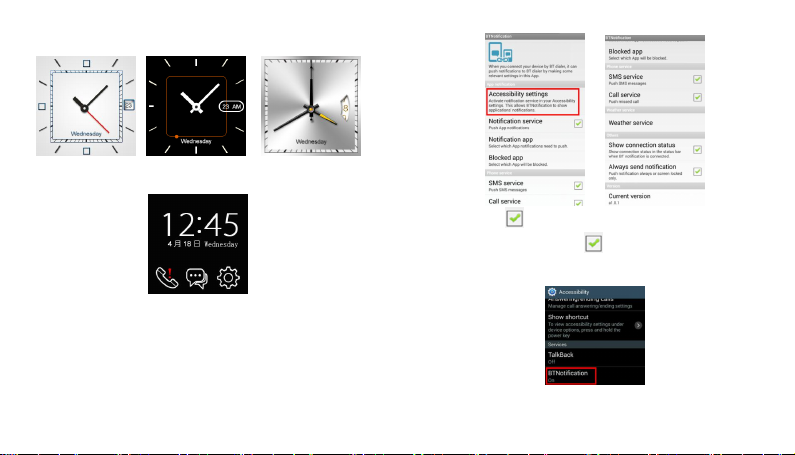
2.1 Clock
Slip the touch screen to choose different clock interface.
2.2 Main Menu
1. Display the date and time
2. The three menuat the botton are: Missed calls, Message and
Phone settings
9
*you can click to choose open and closed about the push
notification service to the watch. ICON means” Open”.
3: Click “Accessibility settings” To activate the bluetooth notice. “ ON”
means activated state.
Page 7
8
earphone to the usb port. The earphone line is same as the
antenna of radio, so please let it hanging freely
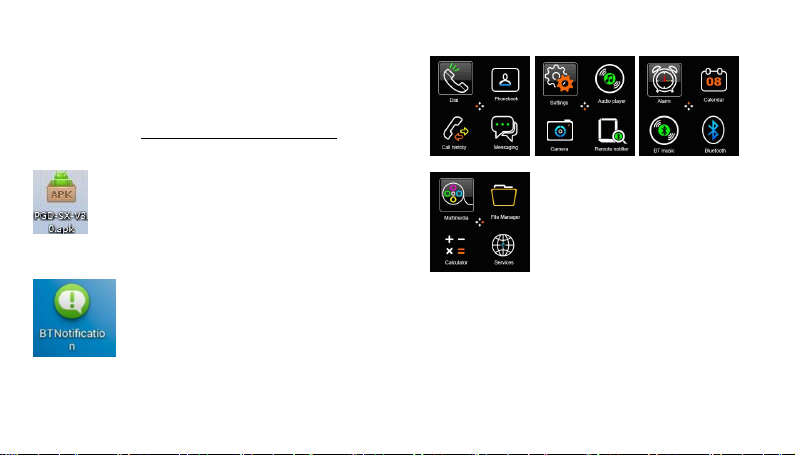
3.6 Apk install for smart phone
1: APK must be installed first in your Smart Phone , then the Sync
service can work .
There are two ways to download APK:
1.1: Find “APK “ from http://www.paxgps.com/PGD-SX-V3.0.apk
1.2: Scan QC code to get “APK “(as 3.13), download this APK, install in
the phone.
2: When you want to sync the phone’s Push Notification to the watch,
click this APK ICON, open this software. ( before this step, please
make sure your phone have connect with the watch via bluetooth.)
Then you will enter the below interface:
5
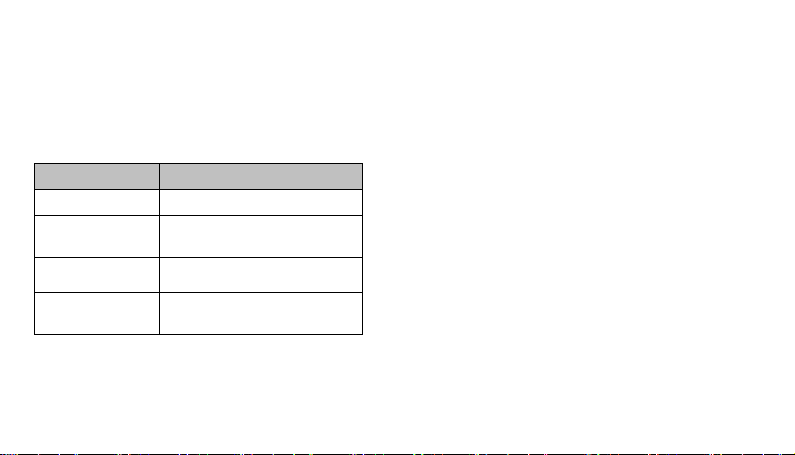
2.3 Function menu
1. Dial: Build-in Sim card dial and bluetooth dial(will add this function
when smart bluetooth connected)
2. Phonebook:(Build-in sim card phonebook and bluetooth syncing
phonebook)
3. Call histoty(for both Build-in sim card’s and syncing samart
phone’s)
4. Messaging 5.Settings 6.Audio player 7. Camera 8. Remote
notifier 9. Alarm 10. Calendar
Page 8
6
11.BT music(syncing smart phone’s music) 12. Bluetooth(for
bluetooth headset)
13. Multimedia 14.File Manager ( for bult-in TF card )
15.Calculator
16. Services
3 Settings
3.1 Bluetooth setting
Option
Instructions
Active bluetooth
Can turn on/off the bluetooth
Search handfree
devices
After the activation, it can search
the devices to communicate with it
My device
The searched device name
Connecting device
Display the connected device
name
7
3.2 Restore factory setting
The phone will be restored factory default setting after select
this function. But it needs to insert the password, default
password is“1122”
3.3 Audio player
The inner music player can play music, and set the music to
be the ring. But attention: The MP3 files only can be played
after saved to the Root directory“my music”
Choosing the suitable volume when listening the music as it
may harm your hearing in continued high volume.
3.4 Multi-media
Video player
Inner video player can scan or handle the video files which
saved at player list, include record, 3gp format and so on. But
attention: the video files only can be displayed after saved to
the root directory“video”
Choosing the suitable volume when watching the video as it
may harm your hearing in continued high volume.
3.5 FM radio
Using the phone to listen the broadcast, please insert the
 Loading...