

Page 1
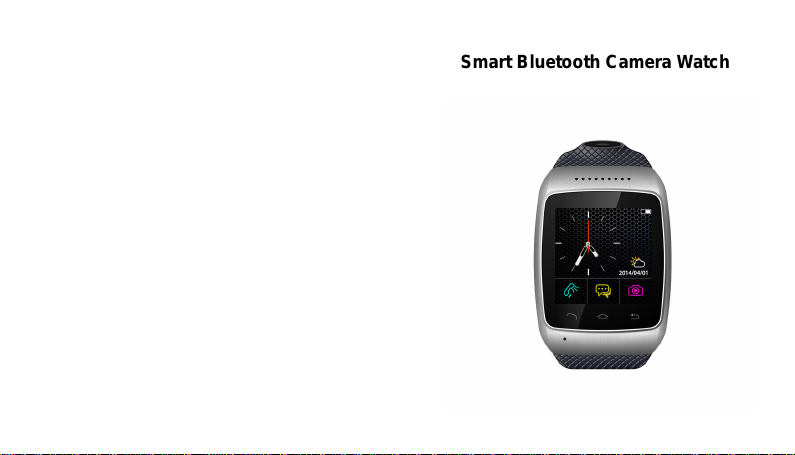
Smart Bluetooth Camera Watch
Page 2

1
1、Product Resume
This is a new fashionable smart Bluetooth watch! Compared with the
tendency of modern marketing developing, we try effort to catch the
marketing opportunity in advance, the larger touch screen phone and
higher tech smart design which bring us into the enjoyable
entertainment as well as extraordinary feeling, but on the contrary, if
the smart phone cause you the burden some times as too big size?
Now, our smart Bluetooth watch can help you to solve this problem, it
will be the best convenient for you on travel, running, climb mountain
and exercises , the mini smart watch can help you to receive/dial the
phone call easily.
The smart Bluetooth watch can help you to receive/dial the phone
from Android/Iphone, when you are on travel with hand carry the bags,
the phone call is coming,the smart Bluetooth watch can control your
Android/Iphone mobile in bag, to review the SMS and call reminder,
no need to take Android/Iphone out of bags. Especially, the smart
bluetooth watch can direct synchronization on smart phone with
phonebook,calling history,SMS, Music, Email, Facebook, Twitter,
Weather, Skype, etc. Pedometer for heath and Anti-Lost features .
14
4:Common Troubleshooting
Any problems in the process of using the watch, please refer to the
following terms and conditions. If the problem still exists, please
contact the dealer or the designated maintenance personnel.
The watch can not power on.
• Pre ss “on ” butt on til l startup s creen
• Chec k the batte ry po wer
watch ’s screen difficult to read
•Clean the screen.
• Start the backlight.
•According to the proposed conditions of use to use your watch.
The watch automatically shut down
•Check the batte ry lif e.
• Mak e sure LCD b ackli ght no t alwa ys ope n.
Using time is short
• Plea se ma ke sur e have not closed the screen saver s
• Please make sure enough charging time(more than 3 hours)
• After charging parts of power, Batter y level indicator might be
inaccurate. Please wait about 20minutes to get the accurate
indication after removing the battery char
Using time is short
• please check whether the battery is available, the use of the
performance of the battery will reduce after a few years.
• plea se make sur e charging under norma l cond ition
• mak e sure to us e the desig nated charge r.
Page 3
13
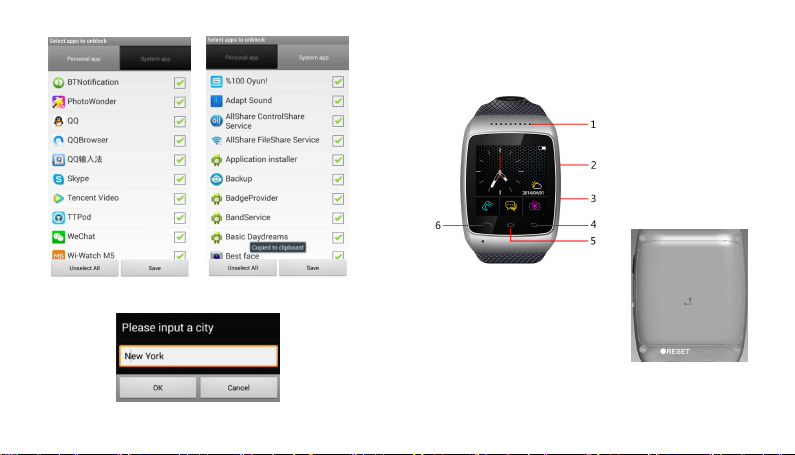
5. Weather service, write the city name can synchronize the city
weather information.
2
2、Product Introduction
Watch appearance and functional specification
1:Loudspeaker
2:Power On/Off
3:USB port/Earphone port
4:Return button
5:Home button
6:Call button
*RESET button is on the back of the watch, when the watch crashed
or can not power on/off, use this button to reset the watch.
Page 4
3
3、Menu
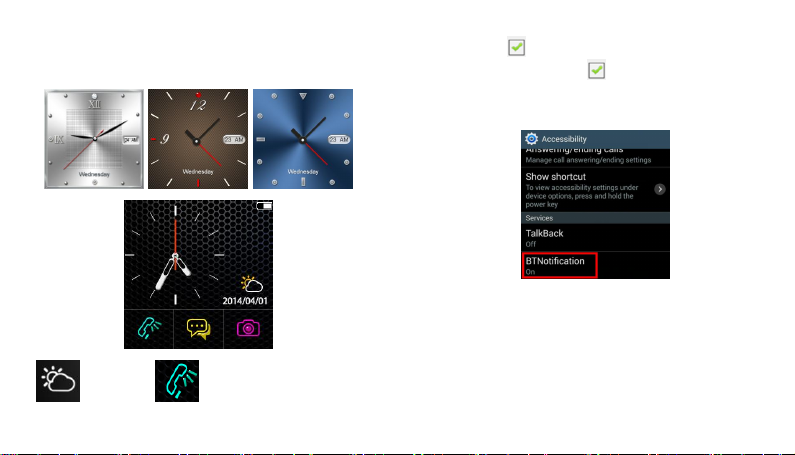
3.1:Main interface:
1.Sliding to right/left to change the clock interface.
2. Click the clock display into the main interface
Weather MISSED CALL
12
*you can click to choose open and closed about the push
notification service to the watch. ICON means” Open”.
3: Click “Accessibility settings” To activate the bluetooth notice.
“ ON” means activated state.
4.Click “Notification APP”, can choose which APP notifications need
to push to the watch:
Page 5
11
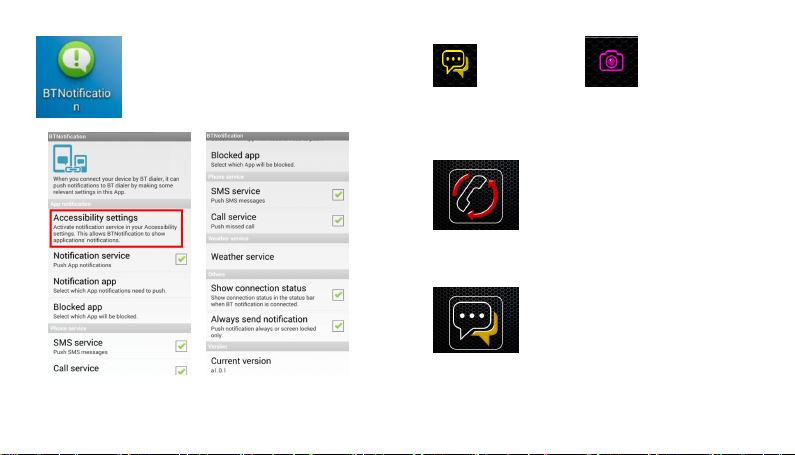
Then you will enter the below interface:
4
unread message camera
Note:Sync the Weather and Message need the user’s smart phone
have install the APK software(Scan the QR-Code at the end of this
user manual).
3.2: Call history
View your Missed calls, Dialled calls, Received calls and all calls
records.
3.3:Messaging
first need install our APK software, click the bluetooth “connection”
Icon after you finish the installing, choose “PGD”, the Android phone
will receive a request , confirm it. Then the watch can receive the
message when is coming.
Page 6
5
3.4:Settings
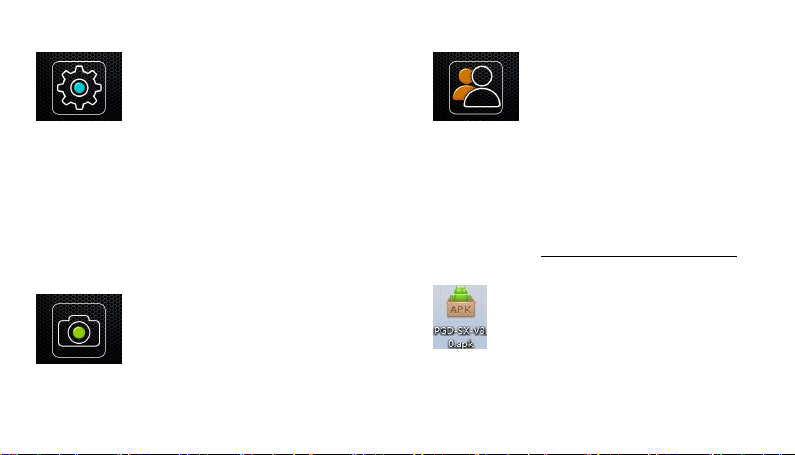
1.Setting scene mode: General mode,Silence mode, Meeting mode.
Outside mode
2. Watch setting: Set time/language/input
3.File setting: SD card files
4.Security setting: Set up screen lock
5. Restore to factory settings: Password (1122) is required for
restoring to factory settings. After restoring to factory settings, all
customized system settings (e.g. Profiles) will be restored to factory
default ones and the data stored in the watch memory will be
removed.
3.5 Camera
Smart Watch comes with 2M camera
10
3.16 Phonebook
After pairing watch and mobile phone via Bluetooth, select
“Phonebook”, then click “connect”. It will a sync request on your Smart
Phone, after confirming it, the watch will sync the phonebook with
your mobile phone.
3.17 Install APK in the Smart Phone
1: APK must be installed first in your Smart Phone , then the Sync
service can work .
There are two ways to download APK:
1.1: Find “APK “ from http://www.paxgps.com/PGD-SX-V3.0.apk
1.2: Scan QR code to get “APK “(as 3.13), download this APK, install
in the phone.
2: When you want to sync the phone’s Push Notification to the watch,
click this APK ICON, open this software. ( before this step, please
make sure your phone have connect with the watch via bluetooth.)
Page 7
9
Gmail
Email
Facebook
Twitter
Weather
Wechat etc...
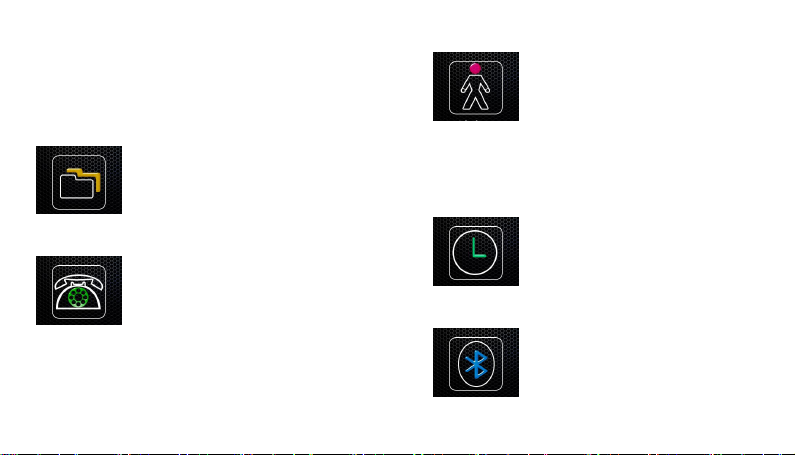
3.14 File Manager
Manager the files in expand TF memory card
3.15 Dial
After pairing Smart phone and watch successfully, the watch can
synchronize calls with your phone , you can answer /make calls by the
watch directly.
Note: When the user use mobile phone to make/answer calls, without
any sound in the watch . If you want to. make/answer calls by the
watch, pls. use the watch first.
6
3.6 Pedometer
Current time and step records can be viewed on Pedometer interface.
Activate Pedometer after wearing the Smart Watch. One hand
shaking will be recorded as one walk step. Pedometer will be
deactivated after taping Stop. Tap Cont to continue recording steps.
Re-recording can be done after resetting Pedometer.
3.7 Alarm
Set up Alarm
3.8 Bluetooth Connect
Firstly power on the Bluetooth of Smart Watch, enter Bluetooth menu
Page 8
7
of smartphone, search Bluetooth Device and choose Smart Watch
PGD. Bluetooth will connect successfully after confirming paring
requests on both the Smart Watch and smartphone.
Anti-Lost function works through Bluetooth connected to the
smartphone. After activating the Anti-Lost, the Smart Watch will
vibrate and alarm you the smartphone is leaving you or lost. Tap
Power On/off of Smart Watch to stop the alarm.
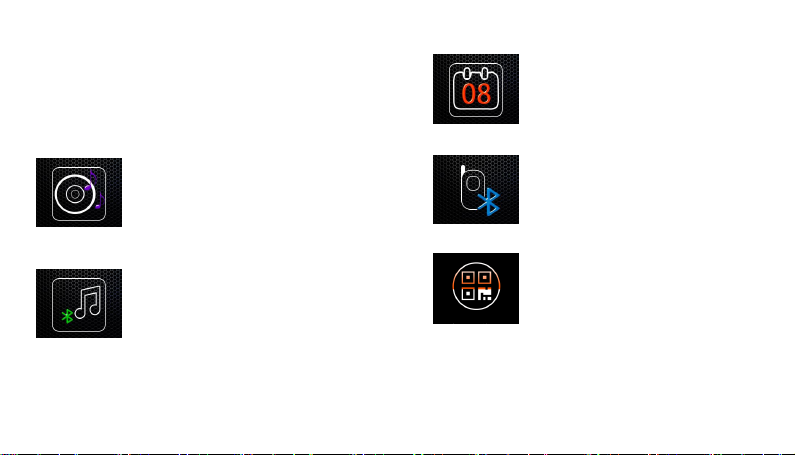
3.9 Audio Player
Smart Watch can play the music in the watch memory
3.10 Bluetooth Music
After Smart Watch Bluetooth connected to smartphone, Bluetooth
Music function can play (control music Previous / Next, Volume +/-)
the music in the smartphone
8
3.11 Calendar:
3.12 Remote notifier
3.13 QR code
Scan this QR- code to download this APK software(only for Android
phone)
Then you can enjoy the below syncing functions with your Android
phone:
Remind
 Loading...