

Page 1
Flydigi X8 Pro Wireless Controller
User Manual
Model No.: FeiZhi X8 Pro
FCC ID: 2AORE-X8
Page 2
Page 3
Page 4
3. Controller Mode
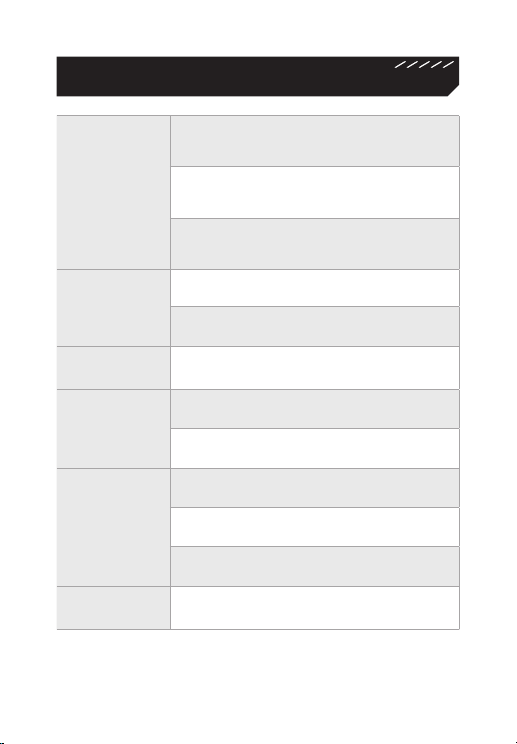
Bluetooth Mode
Hold an d press B+Logo buttons for 5 s econds
Mode
Wirele ss An droid Mode
Hold an d press A+Logo buttons for 5 se cond s
Xinput Mod e
Hold an d press X+Logo bu tton s for 5 seconds
Connection
Method
Syste m
Supported
Device
Supported
2.4G Wireless
Bluetooth
Android
Cellphone/Tablets
TV/Set-top Box/PC
Air Mouse
Experience
Supported
Motion Sensing
Authentic Vibration
Upgrade
Supported
Note: For mobile games, select Bluetooth mode to play on the cellphone;
For playing Android mobile games on computer simulator, select wireless Android mode;
For computer games, select Xinput mode.
Firmware Upgrade
Page 5
4. Play Games on Android Cellphone and Tablet
(Bluetooth Mode)
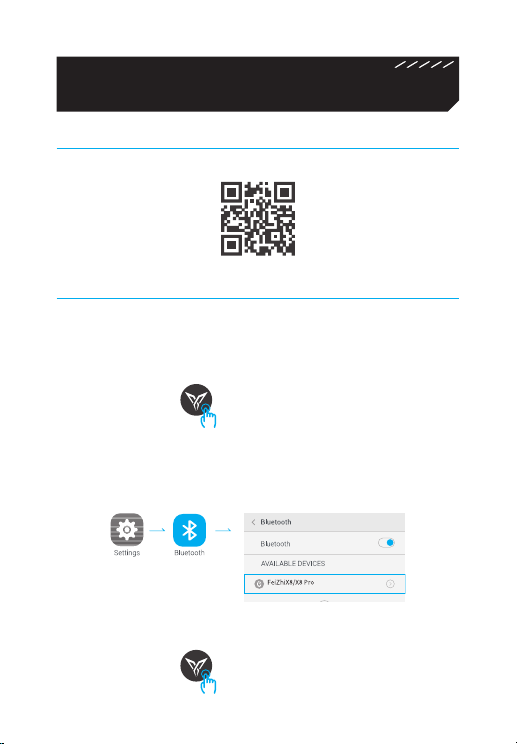
1. Download Flydigi Gamepad Assistant
Scan QR code to download an d install
2. Connect Controller
Step 1: Turn on power, pres s and hold Log o button for 5 seconds, then
controller goes into p airing mode (White Logo light fl ashing). If the light
is not wh ite at this time, press and hold B+Log o buttons in s equence fo r 5
seconds, then it will be s witched back to Bluetooth mod e.
Press and hold for 5 seconds
Step 2: Click Settin gs – Bluetooth on the cellph one , turn on Bluetooth,
click o n Feiz hiX8 / X8 Pro of the s earch result and start p airing with
cellp hone, after p airing is succes sful, white Logo lig ht sta ys steadily on.
Note: For paired controller , it’s only necessary to press Logo button when reconnecting next time, not need to hold.
Click
Page 6
Page 7
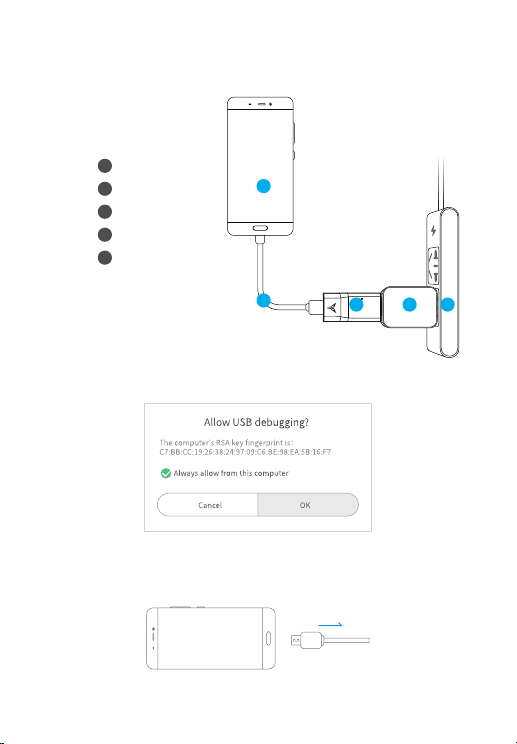
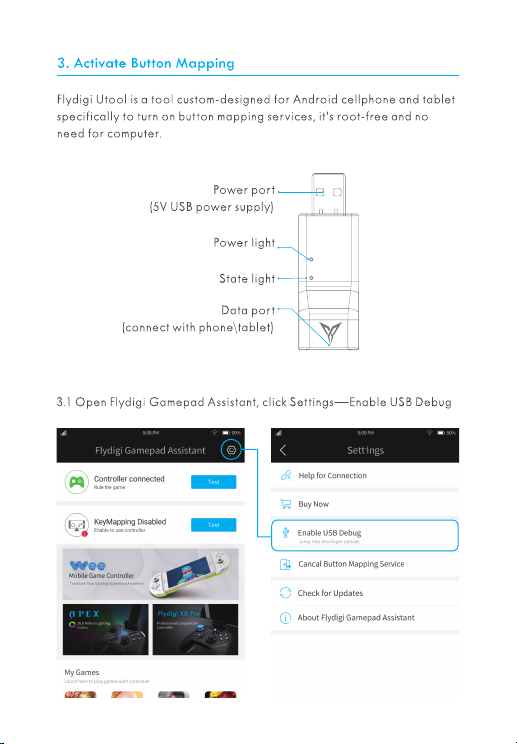
3.2 Conne ct Utool in sequen ce following 1-5 as shown in the figure, red
light s tays stea dily on.
Cellphone
1
Data cable
2
Flydigi Utool
3
Charging plug
4
Socket
5
5
4
3.3 Allow USB debugging on the cellphone, click OK .
3.4 Af ter completing ac tivation, unplug the Flydigi Utool.
123
Page 8
5. Play Games on Set-Top Box / Smart TV or PC Android
Simulator
(Wireless Android Mode)
Set-Top Box/Smart TV (TV Game)
1.Search TV ap p market and install in the TV brow ser.
2.Download games in the app m arket and ins tall.
3.Plug receiver into the USB port of set-top b ox/smart T V.
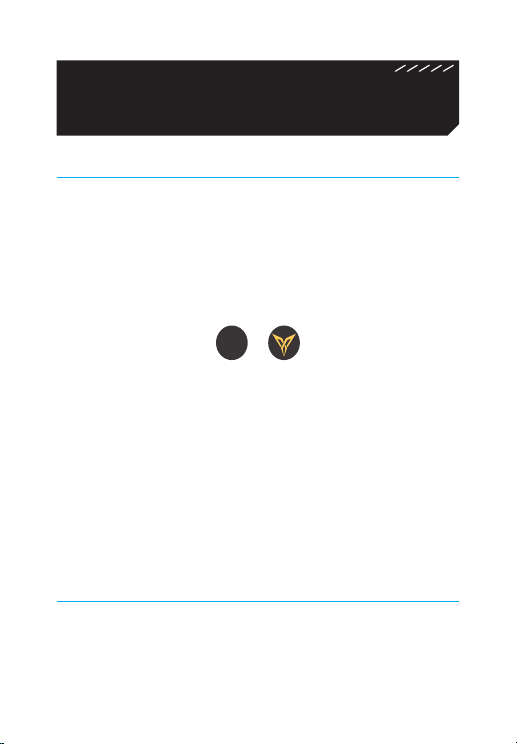
4.Turn on pow er of controller, press an d hold the A+Logo b uttons in
sequence for 5 sec onds, the co ntroller will b e switched to wireless
Android mode (Yellow Lo go light stays ste adily on). The controller will
connect to receiver.
+
A
Press and hold A + Logo for 5 seconds
Note: If yellow Logo light keeps flashing slowly and unable to connect after switching
to wireless Android mode, the controller needs to be paired to the receiver:
1. First ensure that you have switched to yellow light mode.
2. Restart controller, press and hold Logo button for 5 seconds, the light will flash
quickly and the controller will enter pairing mode. Plug and unplug the receiver once
and keep the controller within 20cm from the receiver. If yellow Logo light flashes
slowly twice, then stays steadily on, it indicates successful pairing.
5. If the controller is n ot use d for a period of ti me, it will enter stan dby
mode, press t he Logo button again to turn it on.
Air Mouse Function (Only Supports Wireless Android Mode)
Air Mouse is a u niqu e function of F lydigi controller t hat can utili ze
controller to simulate mou se operation, to facilitate u sers to click like a
mous e any where as you wish.
After yellow Logo lig ht sta ys steadily on, press Lo go but ton to turn on /
off Air M ouse func tion. After it ’s turned on, LT will be lef t mouse but ton.
Page 9
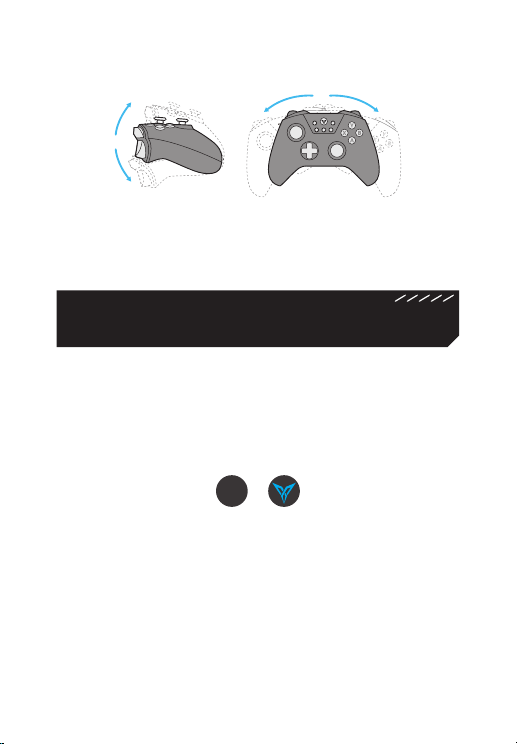
Note: Use center point of controller as the axis, rotate it up and down and side to side,
so you can control the Air Mouse pointer movement.
6. Play Games on Computer
(Xinput Mode)
PC games can s upport controller with out driver.
1. Plug receiver into com pute r USB por t.
2. Turn on power of co ntroll er, press and hold the X+Log o buttons in
sequence for 5 sec onds, the co ntroller will b e switched to Xinp ut
mode (Blue Logo light sta ys steadily on). The controll er will connect
to receiver.
+
X
Press and hold X+Logo buttons for 5 seconds
Note: If Blue Logo light keeps flashing slowly and unable to connect after switching to
Xinput mode, the controller needs to be paired to the receiver:
1. First ensure that you have switched to blue light mode.
2. Restart controller, press and hold Logo button for 5 seconds, the light will flash
quickly and the controller will enter pairing mode. Plug and unplug the receiver once
and keep the controller within 20cm from the receiver. If blue Logo light flashes slowly
twice, then stays steadily on, it indicates successful pairing.
3. If the controller is n ot use d for a period of ti me, it will enter stan dby
mode, press t he Logo button again to turn it on.
Page 10
7. FAQ
Light of controller is off
1
First turn on the power switch and che ck whether t he pow er is
sufficient. If there is electricity b ut Logo light is still off, please
contact customer service.
Problem with joystick and but ton
2
Contro ller te stin g can be done in the Gamepad As sistant.
Joys tick c alibration: Press and hold men u + back buttons of th e
controller at the sam e time, Logo lig ht flashes s lowly twice to
complete calibration.
Shooting center will automatically drift if motion sensing of
controller is used in shooting games
3
If view angle c annot b e controlled after p ress ing an d holding th e
LB button and swinging controller, please le ave it on the des k for
10 seconds.
What if Utool activation is not successful?
4
1.The red light is flashing all th e time: There m ay be a proble m with
data cable or USB por t of the cellph one. Pleas e change and try
again (Some data cables can ch arge but cannot transmit data.)
2.Blue light is always f lashing quickly or it is n ot on: M ake sure USB
debu gging is enabled and click OK in the popup box "Allow USB
debu gging"; Unplug and plug in USB deb ugging data cable and
try again.
3.Still una ble to activate after red an d blue lights are ste adily on:
Please restart t he cellphone, wait a few minutes to try ag ain.
4.Bl ue light is flashing slow ly: You may have not inst alled Flydigi
Game pad A ssistant, please retu rn to the firs t step to install the
App.
Page 11
8. Performance Parameter
Platform
Supported
Wireless RF 2.4-2.4 83GHz, Bluetooth 4.0 B LE
Usag e
Distance
Product Size 155.5x103.5x64.5mm
Operating
Current
Rated Input Charging Voltage: 5 V. Charging cur rent: <120 mA
Worki ng
Hours
Storage
Temperature
Worki ng
Temperature
Android
PC Windows XP an d above version OS
>10 m
Bluetooth
Mode
Wireless
Android
Mode
Xinput Mod e
80 ho urs un der Bluetooth mod e (motion sensing not
enabled)
40 hours un der wireles s Android mode/Xinput m ode
-20℃~+80℃
-5℃~+50℃
Cellp hone and tab let with OS of
Android 4.4 or above and Blu etooth
4.0
Operating c urrent <4m A, after
enab ling motion sensing, operating
current <8mA; standby current
<15u A
Operating c urrent<8 mA, stand by
current<15uA
Operating c urrent<8 mA, stand by
current<15uA
Page 12

Shanghai Flydigi Electronics Technology Co.,Ltd.
www.flydigi.com/en
UM7104
Page 13
 Loading...