

Page 1
Scorpion One-Handed Mechanical Keyboard
FCC ID:2AORE-D1
Model Name:FeiZhi D1
User Manual
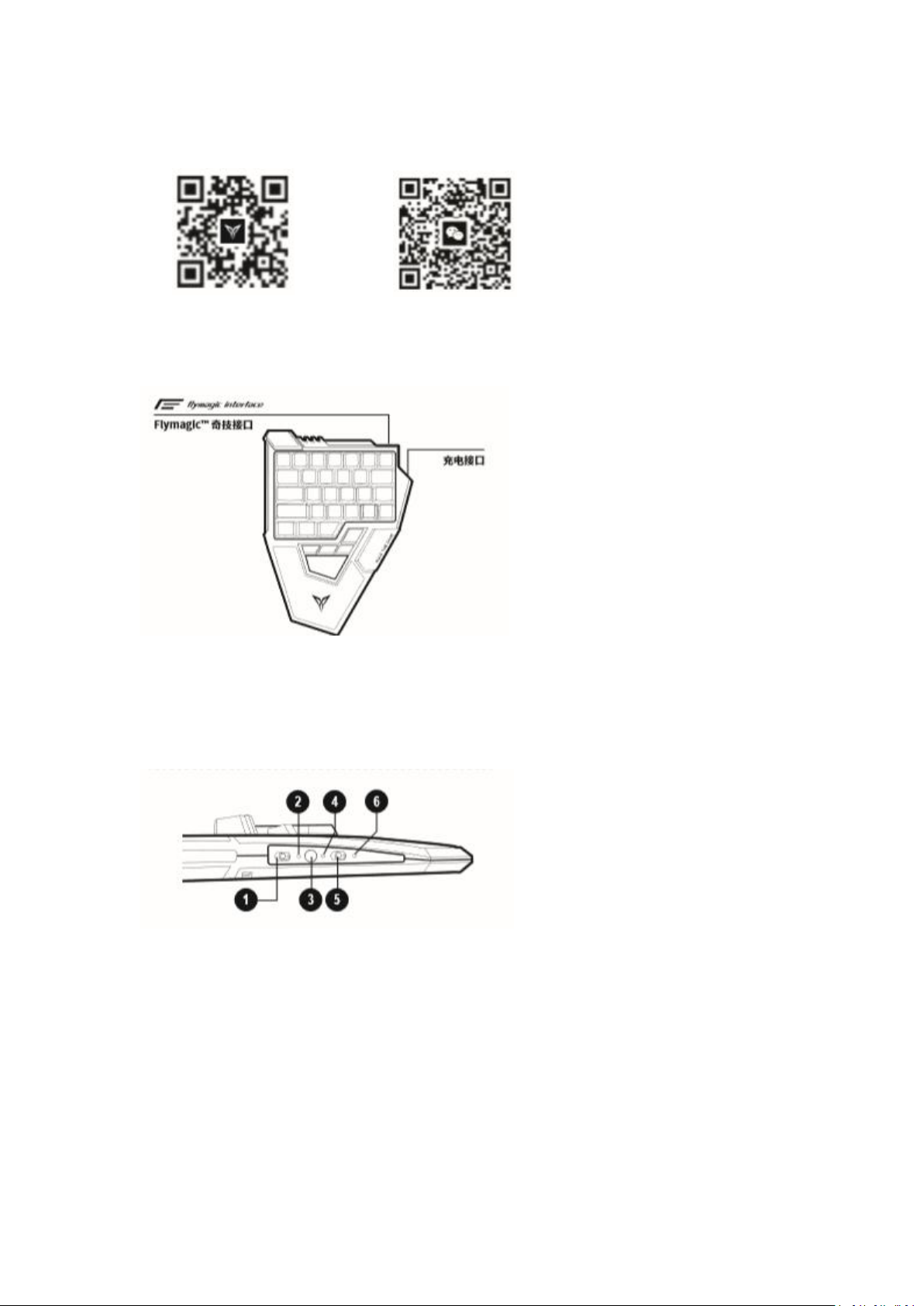
Scan to download Flydigi Game Center ; Follow Flydigi on WeChat
for popular games ; for more gaming tips
Flymagic™ interface
Charging port
A technological innovation from Flydigi that enables dual functions with just one interface
Function 1: External mouse extension Function 2: Can be used with Android phones to activate
button mapping
1: Mode button
2: Charging indicator
3: Bluetooth wake-up button
4: Pairing indicator
5: Backlight switch
6: Low battery indicator
Included components: One-handed mechanical keyboard, Type-C USB cable, user manual,
warranty card, and phone holder
Page 2
Getting Started
1
Bluetooth mode
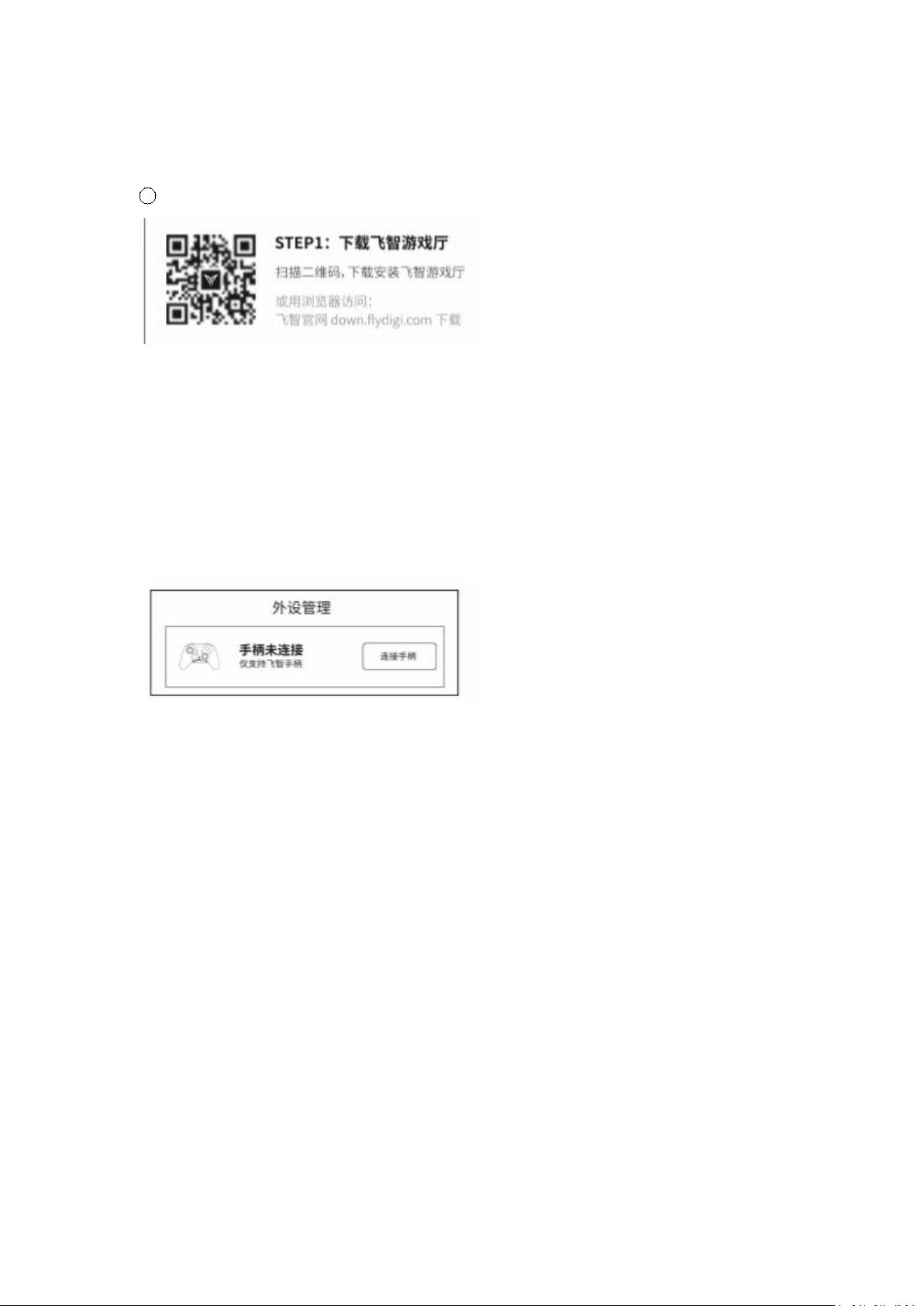
STEP 1: Download Flydigi Game Center
Scan the QR code to download and install Flydigi Game Center
Or download the app from the Flydigi website:
down.flydigi.com
STEP 2: Connect to the device via Bluetooth
Toggle the Mode button to the right to put the keyboard into pairing mode. In Flydigi Game
Center > Device Management, tap Connect Gamepad and follow the instructions displayed to
connect the keyboard.
Device Management
Gamepad is not connected
Only Flydigi gamepads are supported
Connect gamepad
The paired keyboard will automatically connect via Bluetooth when it is next turned on, provided
your device has enabled Bluetooth and is within the specified range.
If you wish to pair the keyboard with another device, you must disable Bluetooth on the original
device first, then enter Game Center and tap Connect Gamepad.
If the device is not operated for more than 20 minutes, Bluetooth will enter Sleep mode. Press
the Bluetooth wake-up button to reactivate Bluetooth.
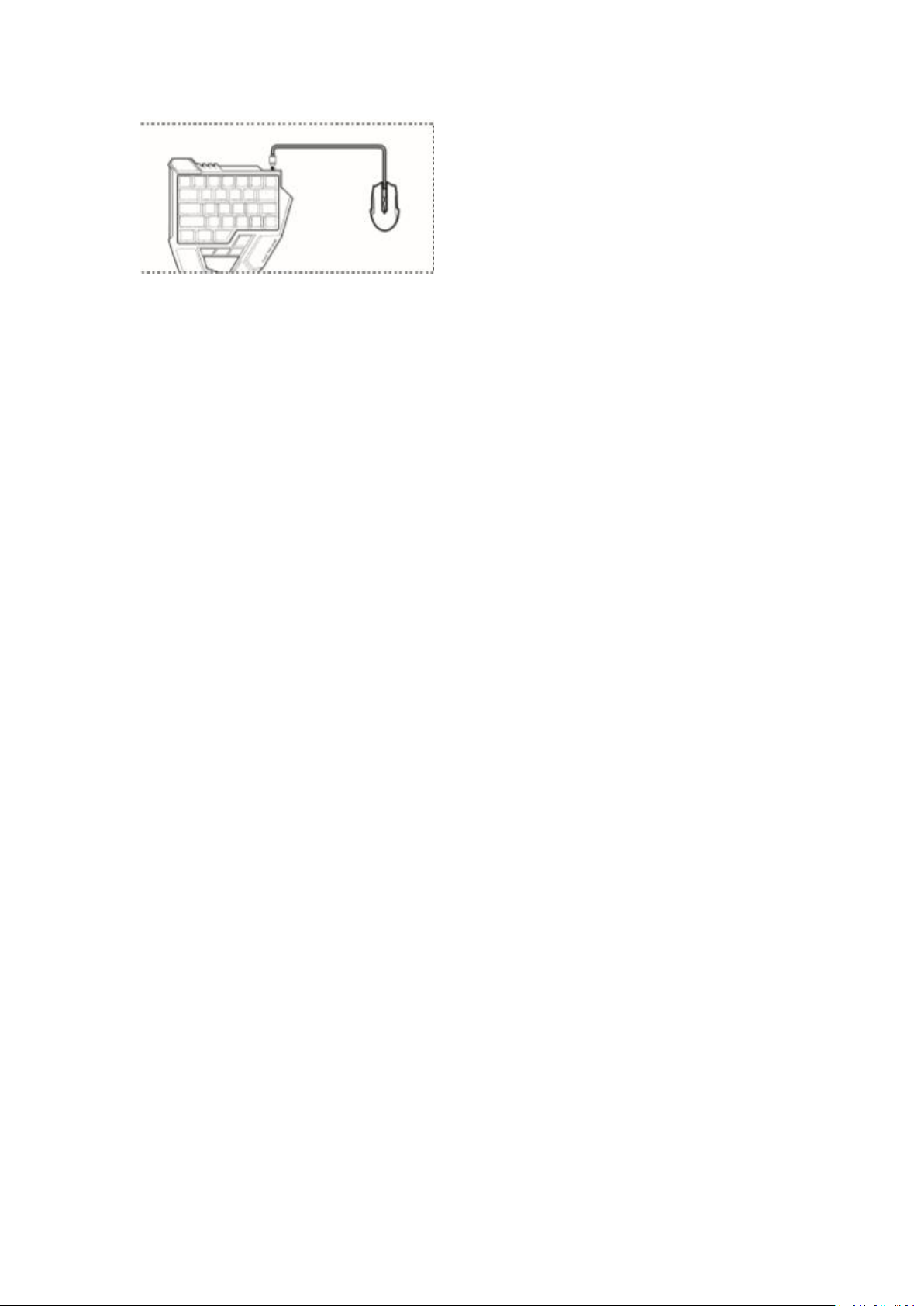
STEP 3: Connect the mouse
Connect the mouse to the keyboard's Flymagic interface as shown in the figure below.
Page 3
Note: The Flymagic interface supports mouse devices connected via USB, including USB wired
1. For iOS devices, please first uninstall games downloaded from the App Store and download
2. 2. For Android devices, games can be downloaded directly from Game Center. You can also
3. *After launching a game in Game Center, tap the floating window and then tap Reconfigure to
mouses and wireless mouses.
STEP 4: Launch a game
For a better gaming experience, please launch games in Flydigi Game Center.
them from Flydigi Game Center.
add games that are not among the downloaded games in Game Center by tapping the "+" symbol
in My Games.
customize the buttons.
② PC mode
Toggle the Mode button to the left to disable Bluetooth mode. Then connect one end of the USB
cable to the Type-C interface on the keyboard, and the other end to the computer to make the
keyboard enter PC mode.
Flymapping technology
Flydigi's button cloud mapping technology allows users to customize and adjust buttons and save
the configuration to the cloud.
Flydigi is continually updating the button mapping function to better suit various game controls.
Every button can be independently configured with attributes include tapping, swiping, motion
sensing, left/right joystick association, and macro definition.
After launching a game in Game Center, tap the floating window and then tap Reconfigure to
customize the buttons.
Drag a button on the screen to the skill position, and tap this button to configure its attributes.
Drag a button to the dustbin in the upper right corner to delete it.
After configuration is complete, tap Apply and then Save to use the buttons.
Flashplay Smart Connect
Scorpion One-Handed Keyboard is equipped with Flydigi's innovative Flashplay Smart Connect
Page 4
mode, and the gamepad features built-in button mapping algorithms. No activation is required
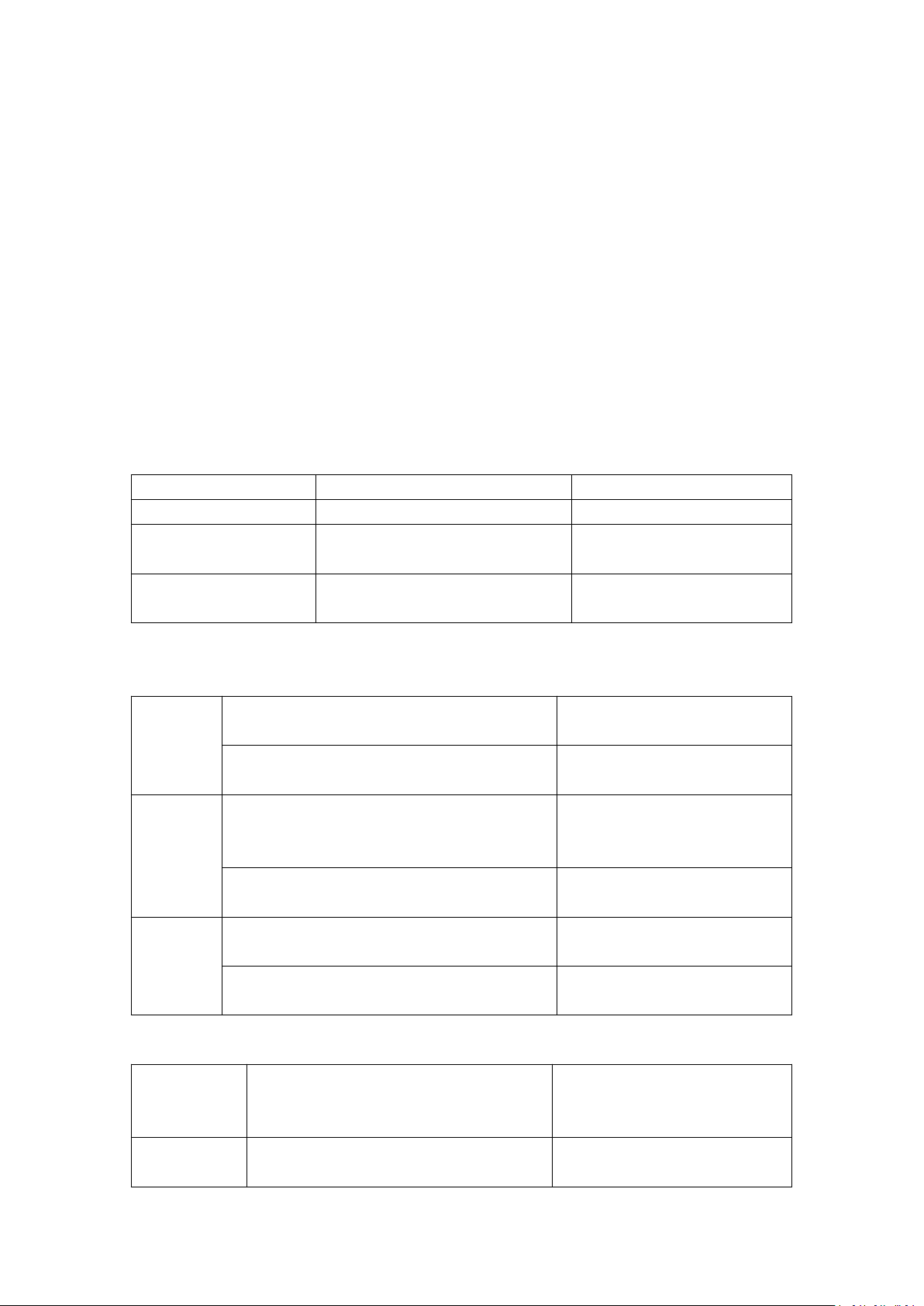
Function
Operation
Backlight
Backlight ON/OFF
Toggle the backlight switch
Backlight turns on/off
Backlight switch
FN+TAB
Backlight effect changes
(in loop)
Sleep mode
Keyboard is not operated for 5
minutes
Backlight turns off
Bluetooth
pairing
Toggle the Bluetooth switch to the right
Pairing indicator flashes blue
when in pairing mode
Connect the gamepad via Bluetooth
Pairing indicator is solid blue
when connected via Bluetooth
Charging
Connect to a power supply or PC to charge
Charging indicator is solid red if
the device is not yet fully
charged
Charging complete
Charging indicator is solid green
when fully charged
Low
battery
20% battery remaining
Power indicator flashes red
slowly
10% battery remaining
Power indicator flashes red
quickly
Platform
iOS
iPhone 5s and above
iPad 5 and above, and iOS 9.0
and above
Android
Android phones and tablets with
Bluetooth 4.0
on the phone, through Flydigi Game Center or any other software. Just connect the gamepad to
your device via Bluetooth to start playing mobile games.
Please go to the Flydigi Game Center app to configure game buttons. Unsupported models: Smart
Connect technology does not currently support phones with MediaTek processors. Users of such
phones must use Bluetooth and follow the instructions in the Flydigi Game Center app to activate
game button mapping and play games.
For more information on supported models, please visit www.flydigi.com.
Colored backlight
Basic operations and indicator status
Performance parameters
Page 5
Android 6.0 and above
Connection
type
Bluetooth 4.0
Usage range
Within 10m
Battery life
5-10h
Battery capacity
2000mAh lithium-ion battery
Charging input
5V--1A
Charging time
5h
Keyboard
weight
440g
Keyboard
lifespan
>50 million key presses
Operating
temperature/h
umidity
0-40℃ / ≤85 RH
Key & combination key values
Keys & combination keys
Values
G1-G4
F1-F4
FN+1-6
7,8,9,0,-,=
Part Name
Toxic or Hazardous Substances and Elements
Lead
(Pb)
Mercury
(Hg)
Cadmium
(Cd)
Hexavalent
Chromium
(Cr(VI))
Polybromin
ated
Biphenyls
(PBB)
Polybrominated
Diphenyl Ethers
(PBDE)
PCBAXOOOOO
Outer casing
OOOOO
O
Packaging
OOOOO
O
WiresOOOOOO
Polymer battery
OOOOO
O
SiliconeOOOOOO
Metal, adhesive
tape and small
structural parts
OOOOO
O
Name and Concentration of Toxic or Hazardous Substances and Elements
This table is based on the regulations of SJ/T 11364-2014
O indicates that the concentration of the toxic or hazardous substance in all homogeneous
materials in this part is below the limit requirement in GB/T 26572-2011
X indicates that the concentration of the toxic or hazardous substance in at least one
homogeneous material of this part exceeds the limit requirement in GB/T 26572-2011
The environmentally-friendly use period of this product is 10 years based on normal operating
conditions.
Page 6

Shanghai Flydigi Electronics Technology Co., Ltd.
Federal Communication Commission (FCC) Radiation Exposure Statement
The device has been evaluated to meet general RF exposure requirement, The device can be used in portable
exposure condition without restriction Federal Communication Commission (FCC) Radiation.
This device complies with part 15 of the FCC rules. Operation is subject to the following two conditions: (1)
this device may not cause harmful interference, and (2) this device must accept any interference received,
including interference that may cause undesired operation.
NOTE: The manufacturer is not responsible for any radio or TV interference caused by unauthorized
modifications or changes to this equipment. Such modifications or changes could void the user's authority to
operate the equipment.
NOTE: This equipment has been tested and found to comply with the limits for a Class B digital device,
pursuant to part 15 of the FCC Rules. These limits are designed to provide reasonable protection against
harmful interference in a residential installation. This equipment generates uses and can radiate radio
frequency energy and, if not installed and used in accordance with the instructions, may cause harmful
interference to radio communications. However, there is no guarantee that interference will not occur in a
particular installation. If this equipment does cause harmful interference to radio or television reception,
which can be determined by turning the equipment off and on, the user is encouraged to try to correct the
interference by one or more of the following measures:
‐ Reorient or relocate the receiving antenna.
‐ Increase the separation between the equipment and receiver.
‐Connect the equipment into an outlet on a circuit different from that to which the receiver is connected.
‐Consult the dealer or an experienced radio/TV technician for help.
FCC Caution: Any changes or modifications not expressly approved by the party responsible for compliance
could void the user's authority to operate this equipment.
Rm 1108, No. 258 Guoxia Rd, Yangpu District, Shanghai, China
 Loading...