

Page 1
Contents
User Manual
Flic Twist
Description and main features
Getting started 2
Connecting your Twist 3
Bluetooth connection 4
Sticking your Twist 5
Cleaning the adhesive 6
Changing the battery 7
Factory reset 8
Problems 9
Compliance 9
Handling the battery 10
Safety usage guidelines 11
Warranty 12
Notice 13
1
Page 2
Description and main features
Flic Twist it’s simple and intuitive, wildly configurable and can be placed
anywhere.
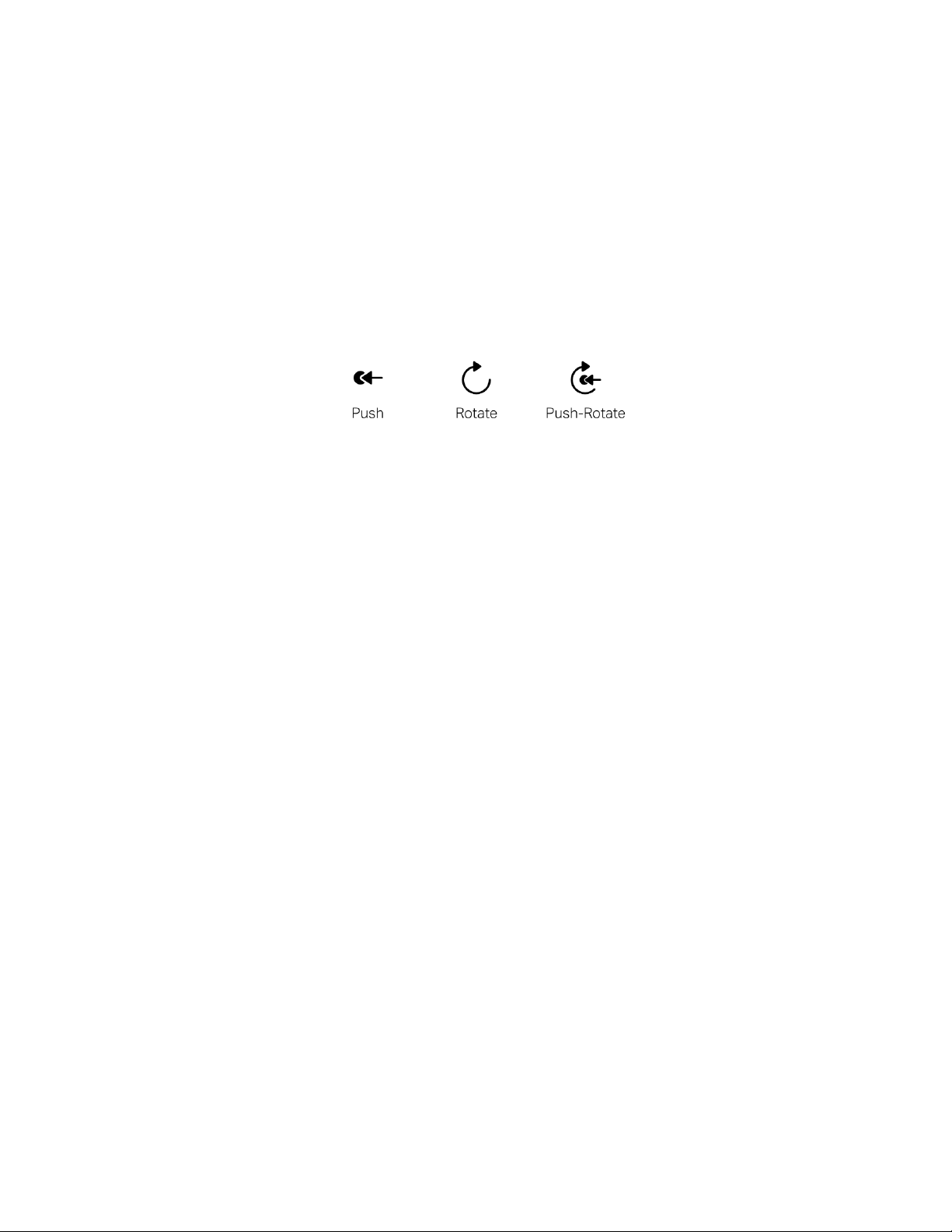
Push and Rotate are easy to use and understand. Unlock advanced modes
by pushing and rotating at the same time.
Main Features
1. Smart Dimming
Smart Dimming adapts intelligently to vivid color scenes or different volume
settings. It adjusts each parameter individually, maintaining the relative
differences between devices.
2. Advanced Dimming
Advanced Dimming is a flexible dimming journey with custom triggers along
the way. When rotating you can adjust brightness, color, or saturation
simultaneously. Sequence the lights and even add events.
3. Scene Blender
Flic Twist's innovative Scene Blender mode allows you to preset up to 4
different light scenes and blend seamlessly between them.
1
Page 3
Getting started
To get started make sure that you have:
1. An iOS or Android device with at least Bluetooth 4.0+
2. Active internet connection
3. The Flic app, available on the App Store or Google Play
4. A Flic Hub, Flic Hub LR or Flic Hub Mini (“Flic Hub”)
5. A Flic Twist (“Twist”)
For the up-to-date requirements and further information visit
https://flic.io/start
2
Page 4
Connecting your Twist
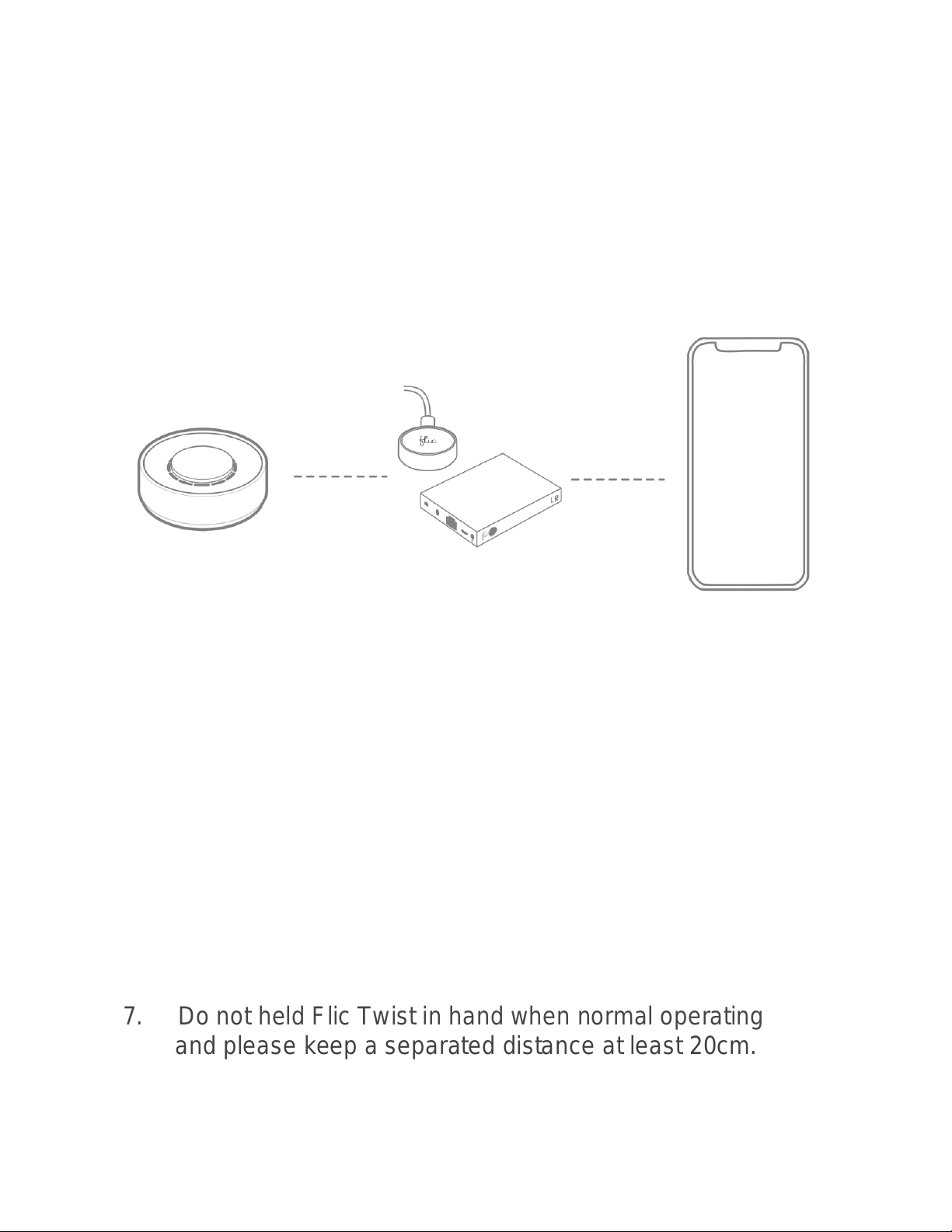
1. Plug in the Hub LR / Mini.
2. Make sure Bluetooth is activated on your phone.
3. Open the Flic App, create an account or login.
4. Add or connect to your Flic Hub
5. Follow the setup guide in the app to add your Twist.
6. Now you are ready to set up your first actions.
7. Do not held Flic Twist in hand when normal operating
and please keep a separated distance at least 20cm.
3
Page 5

Bluetooth
4
Connection
When setting the Twist up, make sure to connect to your Flic Hub using
the Flic App in order to be able to add the Twist.
Make sure that the Flic Twist is within Bluetooth range of the Flic Hub.
The range is up to 50m (150ft), but can vary greatly depending on the
environment.
Page 6

Sticking your Twist
5
Each Twist comes with a reusable adhesive sticker, pre-attached to the
back.
Simply peel off the protective layer and stick your Twist on any clean
surface.
If you want to change the position of your Twist, twist the button to the
right in order to exert horizontal force which makes it easier to remove the
adhesive from the surface.
Note: consider that the adhesive is super strong before you stick it to any
surface. Removing the adhesive might damage the surface attached.
The Twist can also be mounted on the wall. Use the included magnetic
wall mount and screw it.
Page 7

Cleaning the adhesive
6
If the adhesive starts to lose its stickiness then you can clean it.
1. Carefully wash the adhesive with water.
2. Give it a rub and repeat the wash.
3. Leave it to air-dry and it will return to full stickiness.
The Twist is not waterproof. Do not expose it to rinsing water, submerge
or attempt to use it underwater as this will result in irreversible damage
that is outside the scope of the Shortcut Labs AB warranty.
Do not apply solvents, chemicals, or abrasive cleaning products as this
will damage the adhesive.
Page 8

Changing the battery
7
Flic Twist comes with two replaceable AAA batteries that last up to 2
years.
To change the battery you will need to follow these steps:
1. Open the battery hatch by inserting a small, flat-headed
screwdriver into the slot and gently bend upwards.
2. Remove the old battery
3. Place two new AAA batteries into the battery slots. Make sure to
check the polarity with the printing inside the battery hatch. Don’t mix
used and new batteries.
4. Close the battery hatch.
Note: Please dispose of old batteries according to local regulations.
Page 9

Factory reset
8
If, for any reason, you must perform a factory reset, perform the
following steps:
1. Remove the battery, see the page “Changing the battery”.
2. Insert the battery.
3. Within 5 seconds push and hold the button for 10 seconds.
This will remove all pairings and return the Twist to factory
default.
Page 10

Problems
9
If you have any issues setting up or using the Flic products that are not
answered here, please read FAQ’s at https://start.flic.io/faq
Alternatively, you can contact us via https://flic.io/support
Compliance
Shortcut Labs declaration of conformity is available at https://flic.io/doc
For full compliance, list visit https://flic.io/compliance
Flic Twist is certified as FCC, IC, CE, AUS, R-NZ and WEEE, Prop 65
RoHS, REACH compliant.
Page 11

Handling the battery
10
The Twist has been designed with replaceable AAA batteries that last up to
two years. Twist also supports rechargeable AAA batteries.
The AAA battery contains a composition of alkaline, lithium or Ni-MH.
For this reason, improper handling of the battery could lead to distortion,
leakage, overheating, explosion or fire, causing personal injury.
Please observe the following instructions to prevent accidents. Never
swallow, heat, expose to open flame, moisture or liquid. Never attempt to
disassemble, reverse the polarity or short circuit. Keep away from children
and pets. Never charge non-rechargeable batteries.
When disposing of used batteries please remove the battery in advance. If
not possible, then dispose of the entire product in a waste bin for
electronics as per the WEEE directive. Battery disposal may be regulated
by national or local regulations, as such please follow applicable
guidelines.
Page 12

Safety usage guidelines
11
The Twist is not a toy. It contains small parts and accessories that present
a choking hazard. As such it is not suitable for children or pets.
General
-Do not attempt to service the product.
-Do not use the product in temperatures below -10°C or above +40 °C.
-Clean with a damp cloth only. Do not submerge and do not use
chemical or abrasive cleaning products.
Flic specific
-Battery life will be shortened with heavy usage and/or use in extreme
conditions.
-Flic Twist is not waterproof. Do not submerge or use in overly moist
environments as this will result in irreversible damage that is outside the
scope of the Shortcut Labs AB warranty.
Page 13

Warranty
12
Shortcut Labs AB warrants that your Flic hardware product (“the product”)
will be free from defects in materials and workmanship for a period of 24
months from the date of delivery to the original retail purchaser
(“the warranty period”).
If a defect in the product arises within the warranty period, Shortcut Labs
will, at its sole option and subject to applicable laws:
(1) repair or replace it with a new or refurbished product or
component; or
(2) refund the original purchase price upon return of the defective
product.
This warranty does not apply to products you purchase from unauthorized
resellers, or where the instructions for use and activation of the product
are not complied with or where the product is damaged as a result of
abuse, accident, modification, moisture or other causes beyond our
reasonable control.
Note: Battery usage is regarded as normal wear and tear and is therefore
not covered by the 24 month warranty.
For detailed warranty information visit:
https://flic.io/warranty-and-return-policy
Page 14

Notice
13
Federal Communications Commission Interference Statement
This equipment has been tested and found to comply with the limits for a Class B digital device, pursuant to part 15
of the FCC Rules. These limits are designed to provide reasonable protection against harmful interference in a
residential installation. This equipment generates, uses and can radiate radio frequency energy and, if not installed
and used in accordance with the instructions, may cause harmful interference to radio communications. However,
there is no guarantee that interference will not occur in a particular installation. If this equipment does cause harmful
interference to radio or television reception, which can be determined by turning the equipment off and on, the user
is encouraged to try to correct the interference by one or more of the following measures:
-Reorient or relocate the receiving antenna.
-Increase the separation between the equipment and receiver.
-Connect the equipment into an outlet on a circuit different from that to which the receiver is connected.
-Consult the dealer or an experienced radio/ TV technician for help.
Caution
Any changes or modifications not expressly approved by the grantee of this device could void the user's authority
to operate the equipment. This device complies with Part 15 of the FCC Rules. Operation is subject to the following
two conditions:
(1) this device may not cause harmful interference, and
(2) this device must accept any interference received, including interference that may cause undesired
operation.
Radio Frequency (RF) Exposure Warning
This equipment must be installed and operated in accordance with provided instructions and the antenna(s) used
for this transmitter must be installed to provide a separation distance of at least 20 cm from all persons and must
not be co-located or operating in conjunction with any other antenna or transmitter. End-users and installers must
be provided with antenna installation instructions and transmitter operating conditions for satisfying RF exposure
compliance.
Canada, Industry Canada (IC) Notices
This device complies with Industry Canada’s license-exempt RSSs. Operation is subject to the following two
conditions:
(1) this device may not cause interference; and
(2) this device must accept any interference, including interference that may cause undesired operation of the
device.
Canada, avis d'Industry Canada (IC)
Le présent appareil est conforme aux CNR d'Industrie Canada applicables aux appareils radio exempts de
licence. L'exploitation est autorisée aux deux conditions suivantes:
(1) l'appareil ne doit pas produire de brouillage, et
(2) l'utilisateur de l'appareil doit accepter tout brouillage radioélectrique subi, même si le brouillage est
susceptible d'en compromettre le fonctionnement.
Radio Frequency (RF) Exposure Information
The radiated output power of the Wireless Device is below the Industry Canada (IC) radio frequency exposure
limits. The Wireless Device should be used in such a manner that the potential for human contact during normal
operation is minimized.
This device has also been evaluated and shown compliant with the IC RF Exposure limits under mobile exposure
conditions (antennas are greater than 20 cm from a person's body).
Informations concernant l'exposition aux fréquences radio (RF)
La puissance de sortie émise par l’appareil de sans fil est inférieure à la limite d'exposition aux fréquences radio
d'Industrie Canada (IC). Utilisez l’appareil de sans fil de façon à minimiser les contacts humains lors du
fonctionnement normal.
Ce périphérique a également été évalué et démontré conforme aux limites d'exposition aux RF d'IC dans des
conditions d'exposition à des appareils mobiles (antennes supérieures à 20 cm à partir du corps d'une personne).
Page 15

Join us! https://community.flic.io/
14
Share your ideas with other Flic users and keep up to date with the
latest news and happenings from the Flic team.
Shortcut Labs AB, Drottning Kristinas Väg 41, 11428, Stockholm, Sweden
 Loading...