

Page 1

FW3870 User’s manual
M4060-00 1111 Seyeon Tech Co., Ltd
FW3870 User’s Manual
(Product Guide)
Version 4.14
April 13, 2012
Class A Digital Device (industrial & commercial environment)
This equipment has been tested and found to comply with the limits for a Class A digital device, pursuant to CE and
FCC Rules. These limits are designed to provide reasonable protection against harmful interference when the
equipment is operated in a commercial environment. This equipment generates, uses and can radiate radio
frequency energy and, if not installed and used in accordance with the instruction manual, may cause harmful
interference to radio communications. Operation of this equipment in a residential area is likely to cause harmful
interference in which case the user will be required to correct the interference at his own expense.
Page 2

FW3870 User’s manual
M4060-00 2222 Seyeon Tech Co., Ltd
FW3870 User’s Manual
Document Part Number: M4060-00
Document Version: 4.14
Revised: April 13, 2012
About This Document
This document is prepared for users of FW3870 supplied by Seyeon Tech Co., Ltd. It is assumed that the
users are familiar with Microsoft Windows operating systems and Web browsers such as Internet Explorer.
It is also assumed that the users are well aware of how to install and use the network equipment such as
LAN, Hub, router, and having basic knowledge of network terminologies. If you have any questions
regarding network installations, please contact your network equipment vendor or network administrator
or Internet service providers.
For updated contents, detailed features and other applications from Seyeon Tech, please refer to the user’s
manual in CD-ROM provided with the product you purchased, or visit Seyeon Tech’s Internet homepage at
http://www.flexwatch.com/.
Copyright Notice
Copyright © 2012 Seyeon Tech Co., Ltd. All rights reserved.
No part of this document may be reproduced in any form or by any means without the prior written
permission of Seyeon Tech Co., Ltd.
Disclaimer
Seyeon Tech Co., Ltd. (Seyeon Tech) Makes no representations or warranties with respect to the contents
hereof. In addition, information contained herein is subject to change without notice. Every precaution has
been taken in the preparation of this manual, nevertheless, Seyeon Tech assumes no responsibility for
errors or omissions or any damages resulting from the use of the information contained in this document.
Trademarks
FlexWATCH® and FlexWATCH® Logo are trademarks of Seyeon Tech Co., Ltd.
Windows and Internet Explorer are a trademark of Microsoft Corporation.
All other trademarks belong to their respective owners.
Technical Support
For technical support call, email, or visit our web site.
Telephone: +82-2-2192-6840~1
Email: [email protected]
Web site: http://www.flexwatch.com or http://www.seyeon.co.kr
Page 3

FW3870 User’s manual
M4060-00 3333 Seyeon Tech Co., Ltd
Contents
1. PRODUCT OVERVIEW ....................................................................................................................... 4
1.1. FW3870 .......................................................................................................................................................................... 4
1.2. K
EY FEATURES
................................................................................................................................................................. 5
1.3. T
ECHNICAL SPECIFICATION
........................................................................................................................................... 6
1.4. FW3870P
ACKING LIST
................................................................................................................................................. 8
2. PRODUCT DESCRIPTION .................................................................................................................... 9
2.1. FW3870 F
RONT VIEW
.................................................................................................................................................. 9
2.1. FW3870 R
EAR VIEW
.................................................................................................................................................. 10
2.1.1. COM Port Description ...................................................................................................................................... 12
3. FW3870 INSTALLATION AND BASIC SETUP ................................................................................. 13
3.1. B
EFORE INSTALLATION
................................................................................................................................................. 13
3.2. F
ACTORY DEFAULT SETTINGS
..................................................................................................................................... 13
3.3. I
NSTALLING
FW3870 .................................................................................................................................................. 13
Page 4
FW3870 User’s manual
M4060-00 4 Seyeon Tech Co., Ltd
1. Product Overview
1.1. FW3870
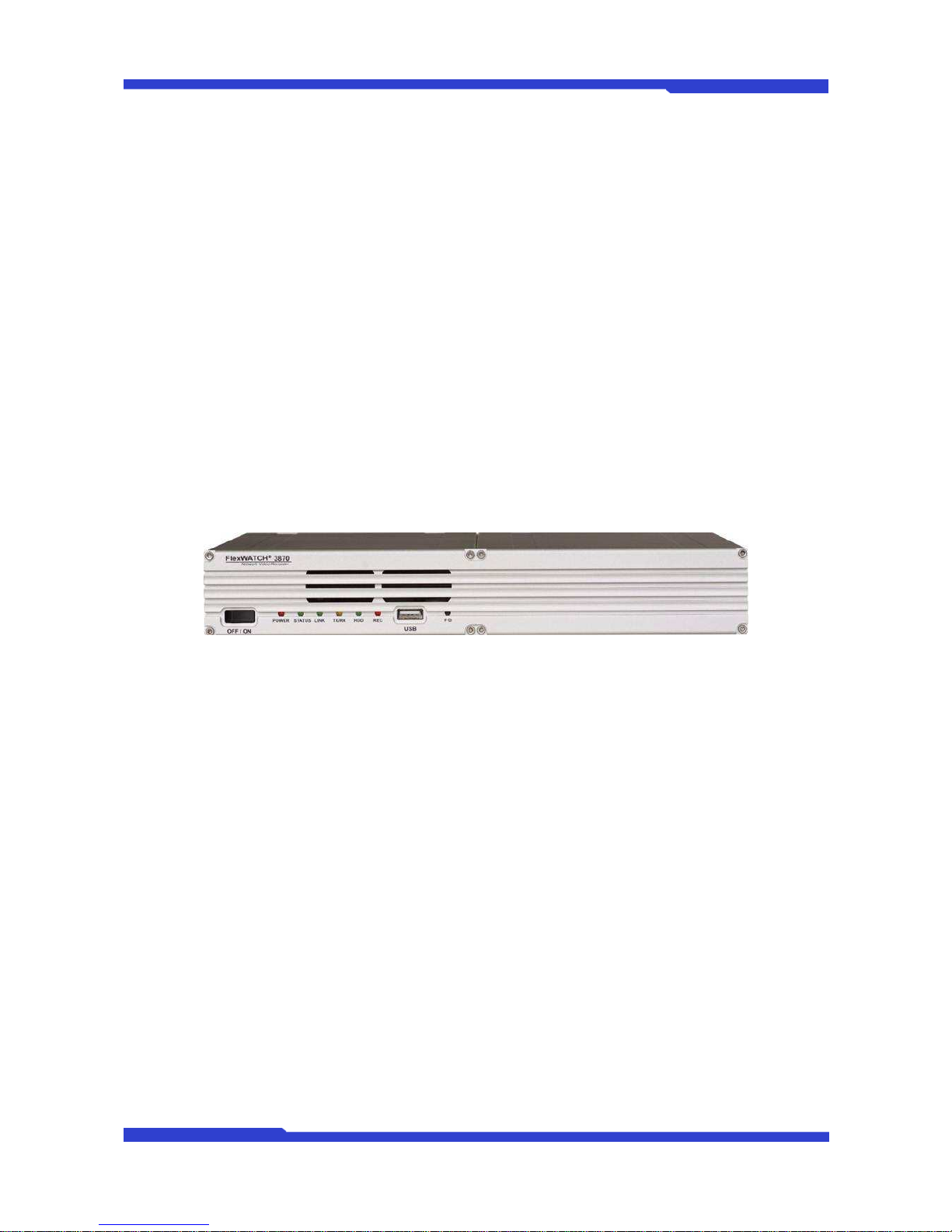
FlexWATCH® 3870 is 1ch network video server which transmits digital images captured by Analog
CCD camera over IP(Internet Protocol) network.
It can transmit up to 30fps@D1 over the existing network. You can monitor video of FW3870 through
web browser(ie. MS Internet Explorer), if FW3870 is connected to network. FW3870 supports video
compression both MJPEG and H.264 simultaneously so that user can choose appropriate video compression
for the purpose. For both MJPEG and H.264, FW1174 provides 6 levels of video quality.
FW3870 server is state-of-the art device and leads new generation of monitoring and security solution.
Picture 1 : FW3870
Page 5

FW3870 User’s manual
M4060-00 5 Seyeon Tech Co., Ltd
1.2. Key Features
• Standalone device with a built-in web server
• 10M/100M/1000M Auto-Sensing Ethernet
• Configuration and control device through Web browser
• Max 120 fps transmission speed on TCP/IP network
• Compressed audio transmission for each of 8 channels
• Audio decoding for one channel
• Support Dynamic IP network by IPCCTVDNS Server
• Support various PTZ (Pan/Tilt/Zoom) devices
• Support Sensor Input, Digital Output
• Support Transparent Mode
• Encryption function by user authentication
• Image transmission via FTP and Email
• Provide 8-Channel analog quad outputs
Page 6
FW3870 User’s manual
M4060-00 6 Seyeon Tech Co., Ltd
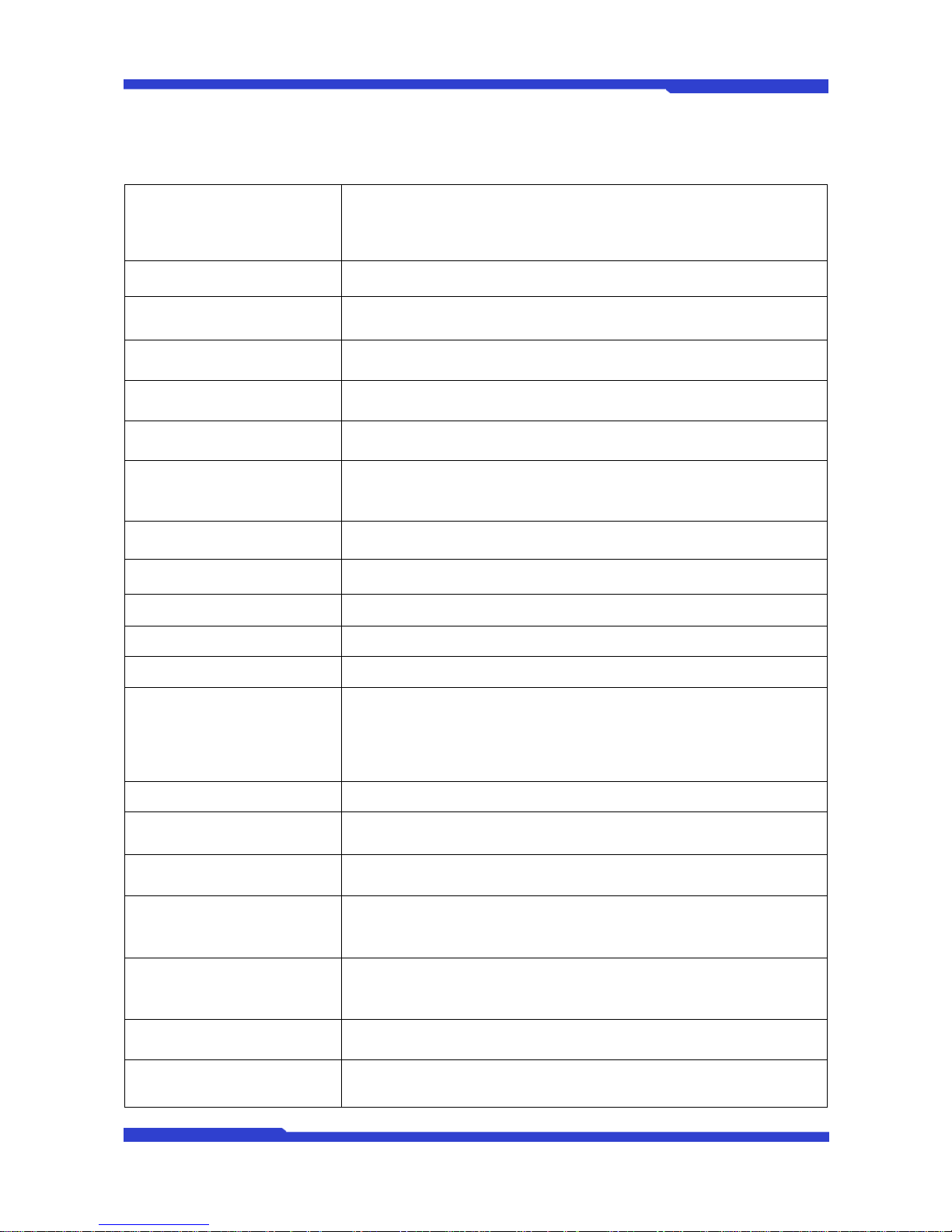
1.3. Technical Specification
Hardware
32bit Embedded CPU
Flash 8Mbytes /SDRAM: 128Mbytes
Linux version 2.6.24.4 operating system
Battery backed up real-time clock
Video
compression
MJPEG
H.264
Resolution
NTSC: 704x480,704x240,352x240,176x112
PAL: 704x576,704x288,352x288,176x144
Frame rate
(each channel)
Up to 120 fps@D1
Video Streaming
MJPEG and H.264 Dual Streaming (Simultaneously)
Controllable frame rate and bandwidth
Image setting
Compression levels: 6 (MJPEG/H.264)
Color: color, black & white
Transmission
Performance(1000Base-T / LAN)
Trans: Up to 120fps(NTSC)/100fps (PAL)
when 8channels at D1
Voice
4bit G.723, Sampling rates 8KHz Mono
Audio 8ch in & 1ch out
LAN interface 10/100/1000BaseT Ethernet auto sensing
Alarm I/O Interface 4x2 Photo-coupled inputs and 4 Relay output
Video Input 8 Channel Composite Video Input
Quad Output 1 Channel Quad Composite Video Output
Serial Interface
COM Port: RS-232
AUX Port: RS-485/RS-422
COM ports for console, serial input/output device and AUX ports for PTZ or
other RS485/422 device
Max Baudrate: 115200 bit/s
Security features Multi user level protection for camera access, PTZ, Alarm I/O
Advanced Service
Up to 5.6M memory for Pre/Post alarm buffer e-mail, FTP, IP notification, Alarm
Notification to e-mail, CGI Call by event or schedule
Built-in Motion detections
Accuracy: 12x12=144 blocks
Motion Sensitivity : -100 ~ 100 : 100 is hypersensitive
PTZ & UART Control Support
PTZ and UART device control through serial port (RS-232/RS-485) (Support
protocols from Pelco “P”& “D”protocol, Vicon V1311RB, Samsung PTZ,
Honeywell PTZ and X10 Epson Printer)
Others
Time stamp on Video
Transmit External data(ex. POS) transfer with Video
IP notification by e-mail
Management
Configurable by serial, web or telnet
Remote system update via telnet, FTP OR web browser.
Developer support
Provides HTTP CGI API
ActiveX control development kit
Page 7

FW3870 User’s manual
M4060-00 7 Seyeon Tech Co., Ltd
PWR Supply
SMPS
Input: 100~240VAC, 1.5A
Output: DC 12 Volt, 3 A, SMPS
PWR Consumption
DC 12Volt
Max or Peak: 0.8 A
Normal : 0.7 A
Operating Environment
Temperature : 32° ~ 122°F (0° ~ 50°C)
Humidity : 20 ~ 80% RH(non-condensing)
Miscellaneous
Work with Smart NVR(CMS software)
Dynamic IP support through IPCCTVDNS Server
Users 128 simultaneous users
Installation, management and
maintenance
Installation CD and web-based configuration
Firmware upgrades over HTTP, telnet or FTP, firmware available at homepage
Video access from Web browser Video access from Web browser
Minimum Web browsing
requirements
Pentium 4, 2 GHz, 2GB(RAM) or higher
Video Card: 256MB RAM, 1024x768 resolution or higher
100Mbps Network Adaptor or faster
Windows XP Pro or later
Internet Explorer 6.x or later
System integration support
Powerful API for software integration available at http://www.flexwatch.com,
including Simple Viewer API, FlexWATCH Control SDK, event trigger data in
video stream, embedded scripting and access to serial port peripherals over
HTTP/TCP
User can be installed user program daemon for event notification or sending
image.
Embedded operating system: Linux 2.6
Supported protocols
HTTP, TCP/IP, FTP, Telnet, RARP, PPPoE, PAP, CHAP, DHCP, NTP, SMTP
client
Approvals
KCC
FCC : Class A
CE : Class A
RoHS
Dimensions (HxWxD) and weight
280(W) x 224(D) x 44(H) (in mm)
About 1.40kg without power supply.
* All specifications are subject to change without prior notice.
Table 1 : FW3870 Data Sheet
Page 8
FW3870 User’s manual
M4060-00 8 Seyeon Tech Co., Ltd
1.4. FW3870Packing List
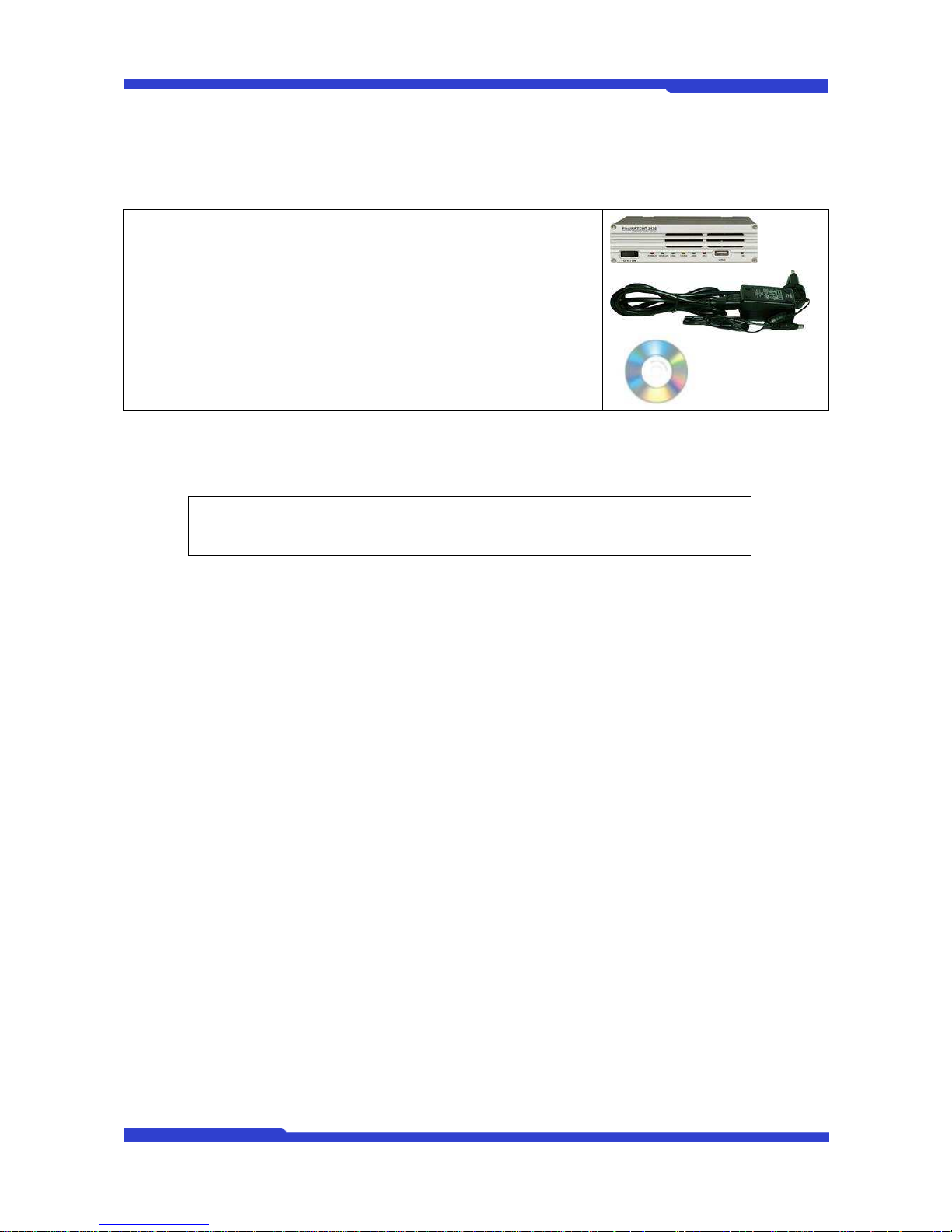
FW3870 1 EA
Power Supply
(Power Cable & SMPS DC12V 5A Adapter)
1 EA
CD (User’s Manual, IP Installer and etc) 1 EA
Table 2 : FW3870 Packing List
Note: Please make sure all the listed items are included in the package. For any
missing items, please contact your local distributor.
Page 9
FW3870 User’s manual
M4060-00 9 Seyeon Tech Co., Ltd
2. Product Description
2.1. FW3870 Front View
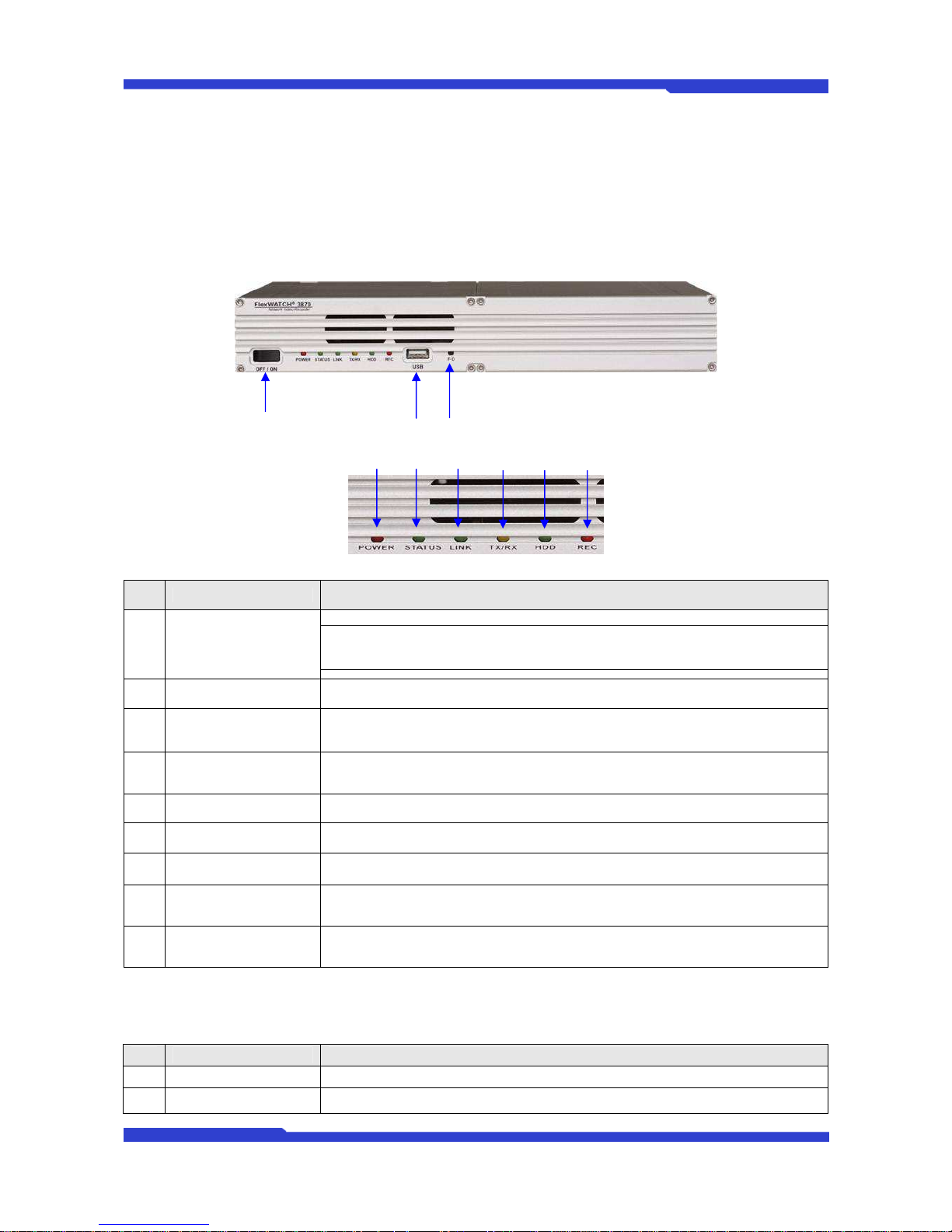
Picture 2 : FW3870 Front View
Picture 3 : Enlarged Front LED
Name Description
A Power On/Off Switch
This switch is used to turn FW3870 On or Off.
Note: Never turn off during formatting the HDD because it may cause a severe
damage to it.
B POWER LED This red LED is lit during FW3870 is powered on.
C STATUS LED
Shows the operating status of FW3870. It goes green when it enters into normal
operation after powered on and booting process.
D LAN LINK LED
Indicates the connection status of LAN connector. It goes green when a physical
connection is properly made to the LAN port.
E LAN(Tx/Rx) LED Blinks green when there is any data activity on the LAN port.
F HDD LED Not supported for FW3870.
G RECORDING LED Not supported for FW3870.
H USB port USB port (reserved for future use)
I Factory Default Switch
Restore the factory default setting for FW3870. Keep pressing this button for 5
seconds after a system boot up.
Table 3 : FW3870 Front Panel
Beep Sound Description
Name Description
1 Power ON One short beep if boot-up is started normally.
2 System Ready Two short beeps if boot-up is finished normally.
Page 10
FW3870 User’s manual
M4060-00 10 Seyeon Tech Co., Ltd
Table 4 : FW3870 Beep Sound
2.1. FW3870 Rear View
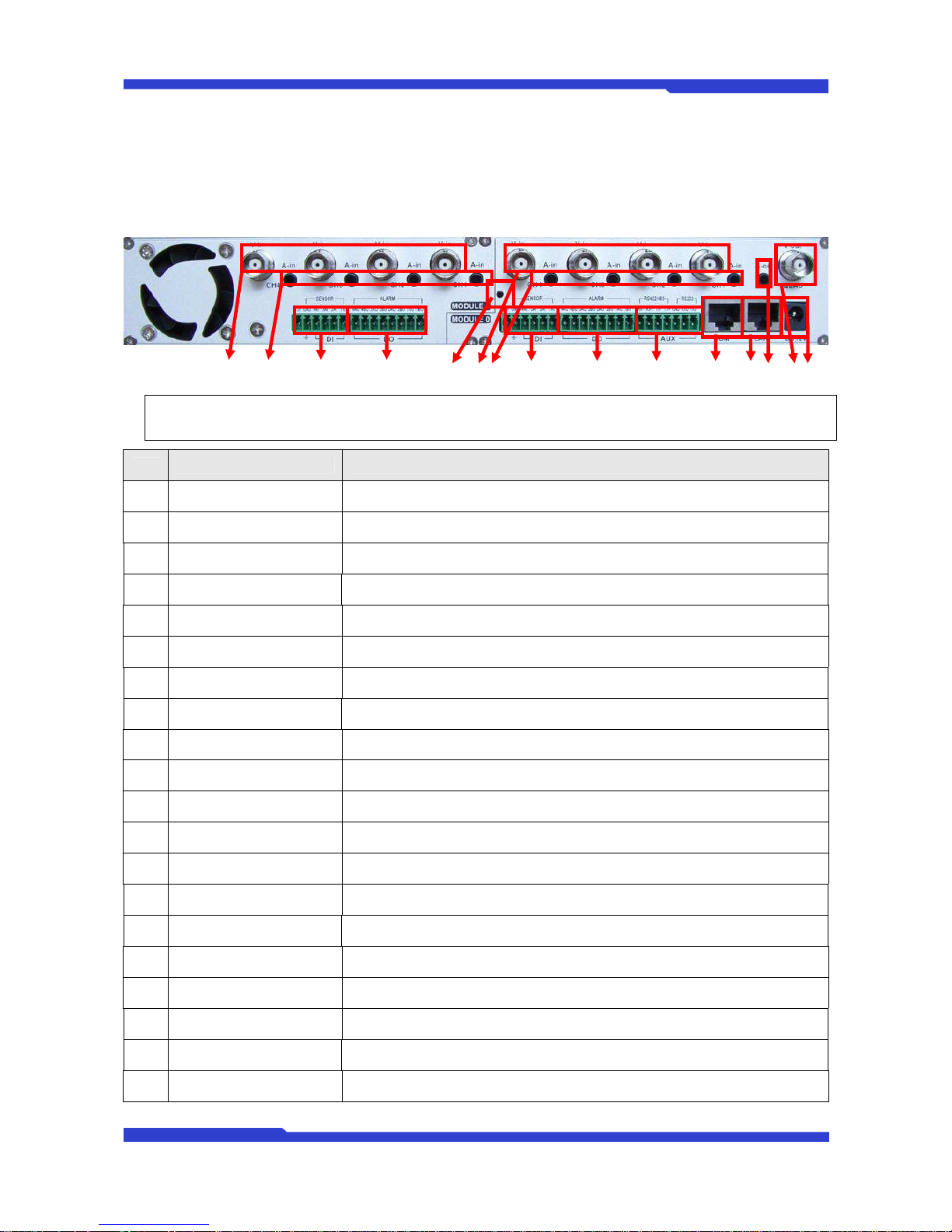
Picture 4 : FW3870 Rear View
A B C D E F G H I J K L M N O
Note: FW3870 is made up of 2 modules(module 0 and module 1) each have inputs for 4 cameras and
outputs for 4 cameras, 4 DI and 4 DO ports.
이름 설명
A Mod1, Video In 1 BNC cable port for Video input of number 1 camera of Module 1.
Mod1, Video In 2 BNC cable port for Video input of number 2 camera of Module 1.
Mod1, Video In 3 BNC cable port for Video input of number 3 camera of Module 1.
Mod1, Video In 4 BNC cable port for Video input of number 4 camera of Module 1.
B Mod1, Audio In 1
Stereo cable port for Audio input of number 1 camera of Module 1. (3.5mm
Audio Jack)
Mod1, Audio In 2 Stereo cable port for Audio input of number 2 camera of Module 1.
Mod1, Audio In 3 Stereo cable port for Audio input of number 3 camera of Module 1.
Mod1, Audio In 4 Stereo cable port for Audio input of number 4 camera of Module 1.
C Mod1/DI Signal input ports for sensor and contact for Module 1
D Mod1/DO Signal output ports for alarm and light for Module 1
E Ground Ground connection port
F Mod0, Video In 1 BNC cable port for Video input of number 1 camera of Module 0.
Mod0, Video In 2 BNC cable port for Video input of number 2 camera of Module 0.
Mod0, Video In 3 BNC cable port for Video input of number 3 camera of Module 0.
Mod0, Video In 4 BNC cable port for Video input of number 4 camera of Module 0.
G Mod0, Audio In 1
Stereo cable port for Audio input of number 1 camera of Module 0. (3.5mm
Audio Jack)
Mod0, Audio In 2 Stereo cable port for Audio input of number 2 camera of Module 0.
Mod0, Audio In 3 Stereo cable port for Audio input of number 3 camera of Module 0.
Mod0, Audio In 4 Stereo cable port for Audio input of number 4 camera of Module 0.
H Mod0/DI Signal input ports for sensor and contact for Module 0.
Page 11
FW3870 User’s manual
M4060-00 11 Seyeon Tech Co., Ltd
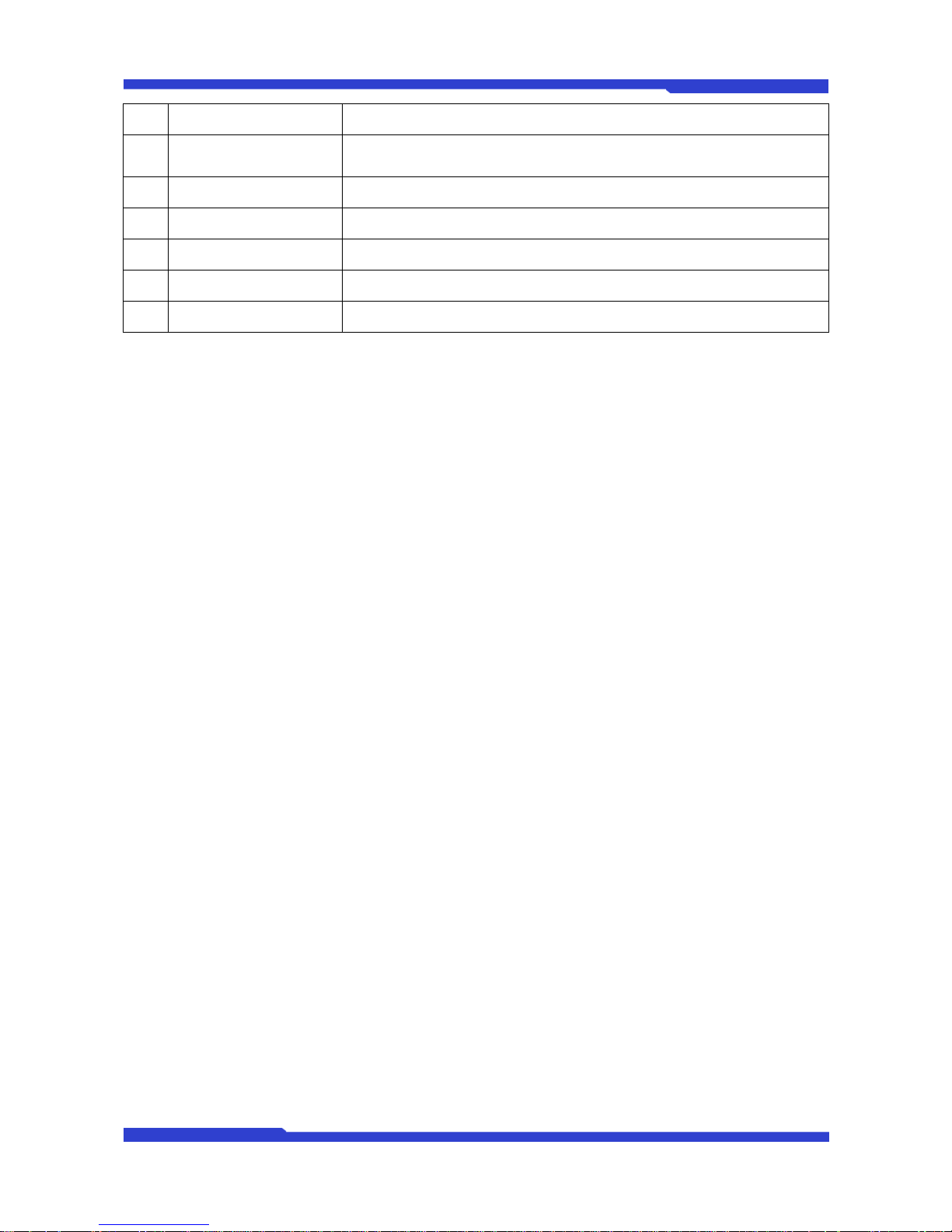
I Mod0/DO Signal output ports for alarm and light for Module 0.
J AUX
RS-422/485 Ports for PTZ, UART-Out/In (PTZ must be connected to AUX port
only)
K LAN LAN Port for 10/100/1000M Base T Auto Sensing
L COM RS-232 Ports for Serial Input Device, Modem & Console
M Audio Out 1 Audio Output port
N Video Mux Out Video outport port for Multiplexed View
O Power DC 12V 3A
Table 5 : FW3870 Rear Panel
Page 12
FW3870 User’s manual
M4060-00 12 Seyeon Tech Co., Ltd
2.1.1. COM Port Description
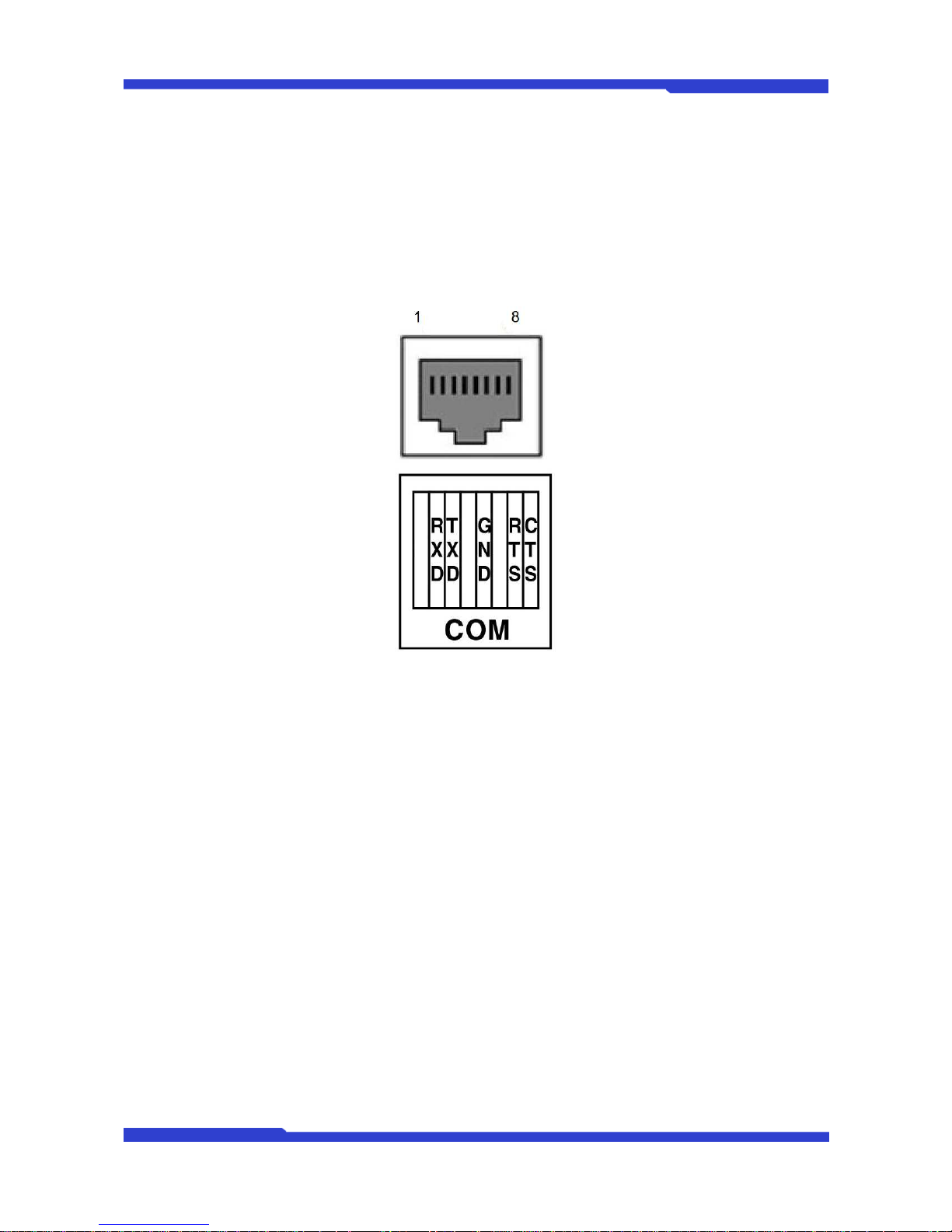
The picture below shows how to wire the COM port connector pins when configuring the FW3870 with
console. Each signal should be wired to the correct pin as shown in the picture. It is a common practice to
use only RXD, TXD, and GND signals for RS-232 functionality. If FW3870 needs to be connected a computer
through RS-232, then RXD and TXD pin may need to be cross-wired.
Picture 5 : COM Port Description
Page 13

FW3870 User’s manual
M4060-00 13 Seyeon Tech Co., Ltd
3. FW3870 Installation and Basic Setup
3.1. Before Installation
Read carefully User's Manual.
Check User’s Network (IP Address, Network Mask and default gateway)
Secure IP address for FW3870.
3.2. Factory Default Settings
The following table shows the factory default condition. Please refer to this when you need to change
the values on admin menu.
Factory Default
Admin ID root
Admin password root
IP address 10.20.30.40
Network mask 255.255.255.0
Gateway 10.20.30.1
Table 5 : Factory Default
Note:
Factory default Admin ID and Password are all lower case letters. You can change the
password with Capital letters.
3.3. Installing FW3870
For installation of FW3870, please follow the steps below.
1.
Place the CCTV cameras in place and connect power supplies.
2.
Connect the video output ports of analog CCTV cameras to the video-in ports of FW3870.
3.
Connect the FW3870 to the Internet cable through the LAN port.
4.
Connect the power supply of FW3870.
After that, you need to follow the steps below.
Network Configuration: Refer to “IP Installer User’s Manual”
Camera Configuration: Refer to “FlexWATCH Admin Menu User’s Manual”
Service Configuration: Refer to “FlexWATCH Admin Menu User’s Manual”
 Loading...