

Page 1
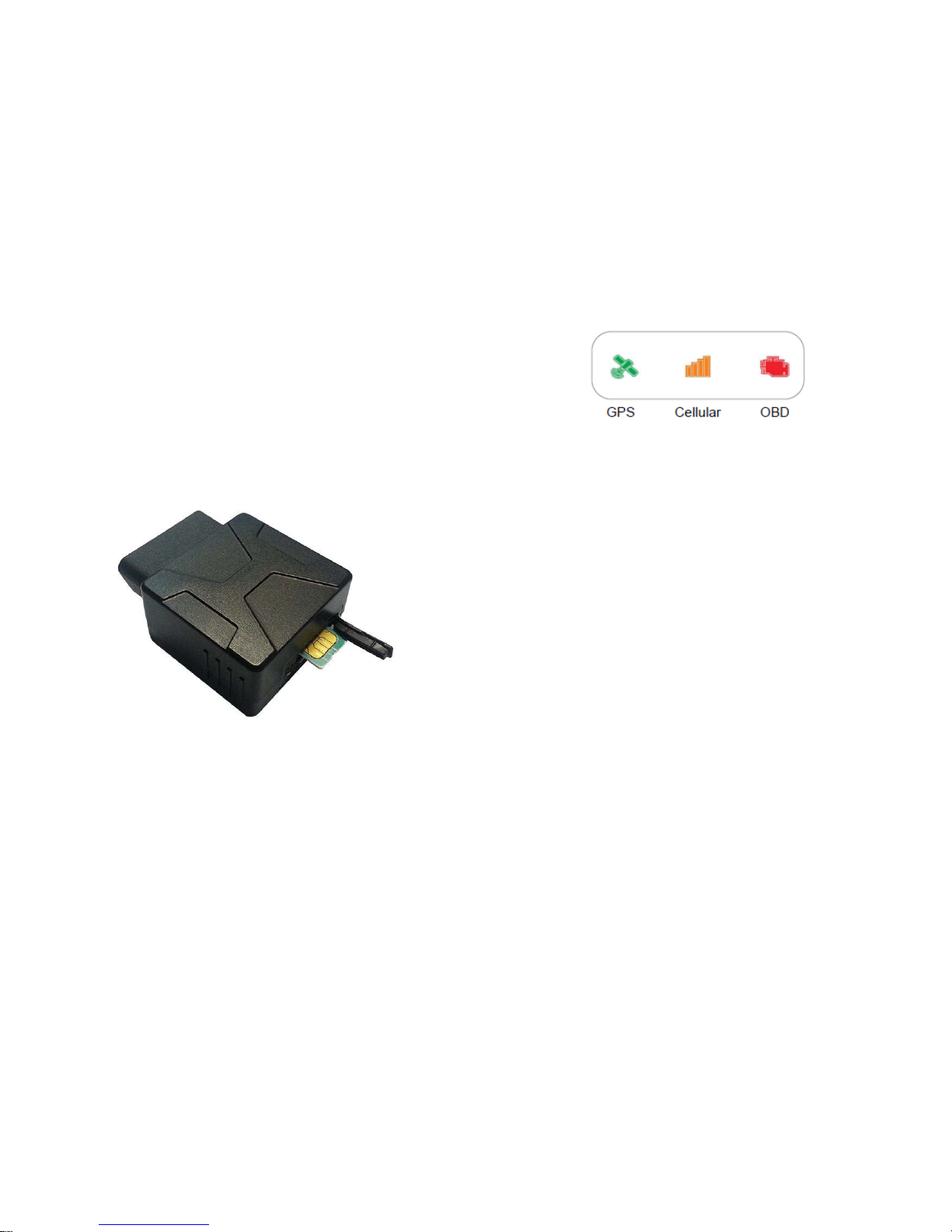
Thank you for your purchase of the Fleetminder OBD300
3G/GPS Vehicle Tracker. Below is a quick guide to get you
started.
SIM Card access:
Remove the SIM card cover, insert Micro SIM card into the
device and press gently, then insert the SIM card cover
back.
Note: There is a backup battery in these devices, please
make sure all lights are off before inserting or removing
SIM card.
OBD port:
For location of the vehicle’s OBD port, please consult the
vehicle’s manual. Heavy vehicles supporting the J1939
port will require a 9 pin adaptor (sold separately).
LED light codes:
GPS function: The GPS light blinking indicates the device
has got its location. If the device is unable to obtain a GPS
signal, an extension cable may be required for better
positioning. Extension cable sold separately.
Cellular connection: The Cellular light will show slow
blinking to indicate connection to a registered network,
solid on and 3 beeps indicates logged into the server.
OBD communication: The OBD light will appear solid on
and makes 2 beeps with successful OBD communication.
SMS command – Location on Demand:
Send code: *[last 6 digits of serial num]#position#* To
the device’s mobile number, you’ll receive a Google Maps
link. Prepaid SMS credits must be purchased for device
replies, log in to Fleetminder and go to Setup > Messaging
Service.
Live Tracking:
Reports:
1. Go to the Reports menu along the top menu bar.
2. Move your mouse down to ECU Report – there you
will find Alert Reports, Fuel Summaries, Speeding
Reports and Trip Reports.
Page 2

Alerts:*
Engine Management Alerts
1. Go to Alerts on the top menu bar.
2. Select Engine Management Alerts.
3. Select the vehicle from the list and it will display the
current alert settings.
4. Click the Save button to continue.
Device Removal Alert and Over Speed Alerts
1. Under the Alerts menu, select General Alerts.
2. Select the vehicle from the list.
3. In General Parameters tick to box labelled Trigger
Main Power Cut Alert, speed limit is selected via the
drop down menu list labelled Speed.
*When setting alerts, a recipient’s email or mobile
number must be entered to receive the alerts. To receive
mobile alerts, a mobile number must first be entered in
Setup > Messaging Service.
Monitoring:
For real time monitoring, go to the Vehicle on the top
menu bar, in the drop down menu you will see Real Time
ECU Monitor.
Note:
The OBD300 comes preconfigured to your vehicle’s OBD
protocol (ie. Passenger car, Heavy Vehicle). The device will
not change protocol mode if reinstalled in a different
vehicle type. Device reset can only be performed by
calling Fleetminder Tech Support on (08) 9383 7833.
 Loading...