

Page 1

Version 4.0 | Download latest at FlameBoss.com/manuals
FLAME BOSS® 500 MANUAL
Page 2

2
www.FlameBoss.com
WARNING: Important Safety Instructions
It is important for the safety of persons to follow these instructions.
Save these instructions. Follow all instructions, as incorrect installation
and use can lead to injury or property damage. Flame Boss® 500 is
intended for use only in dry, outdoor locations. Store the unit indoors in
a dry location. If you know or suspect that the Flame Boss controller or
power adapter has been exposed to excessive moisture or rain or was
submerged in water, do not use the unit. The 12 V DC power to the unit
shall be supplied by a properly certied power adapter with SELV / LPS
output. Use only the power adapter provided with the unit. Do not allow
children to play with a Flame Boss 500. Keep away from children. Flame
Boss 500 is not to be used by persons with reduced physical, sensory, or
mental capabilities, or lack of experience and knowledge. Do not place
or mount a Flame Boss 500 where it is exposed to excessive heat from
the grill or smoker.
Page 3

3
www.FlameBoss.com
04 What’s Included
05 Blower & Adapter Installation
10 Vent Closure
11 Probe Placement
12 Installing Flame Boss Mobile App
13 Using Flame Boss
14 Main Menu
16 Features: Timer, Meat Alarms & Pit Alarms
19 WiFi Setup: Using Apps, Controller & Advanced
22 Other Menu
23 Amazon Alexa & Google Assistant Instructions
25 Connect Modes
CONTENTS
Page 4
4
www.FlameBoss.com
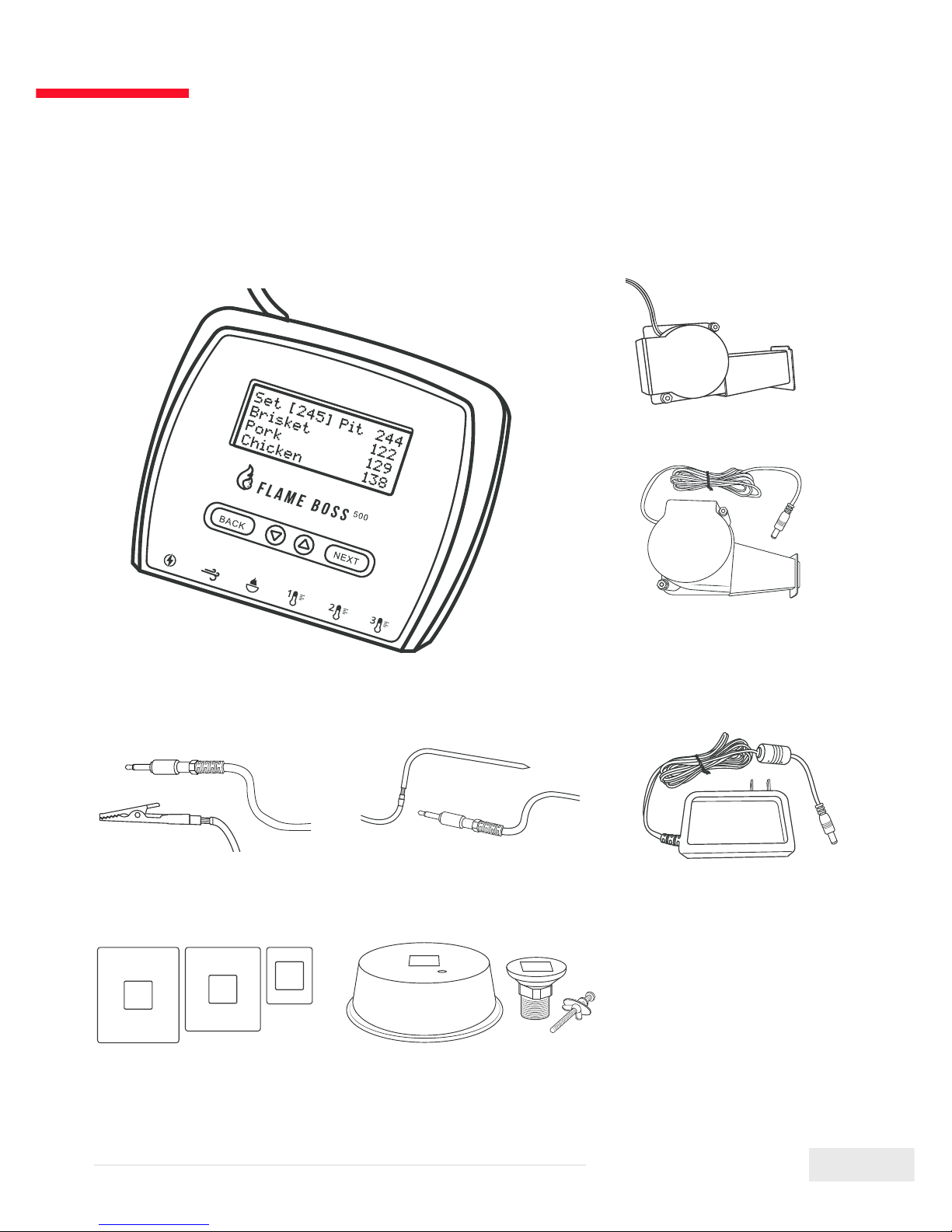
WHAT’S INCLUDED
Flame Boss controller
12 V DC power supply
Adapter plates (3)
Pit temperature probe Meat temperature probe
Blower
* Kamado
Manifold with fasteners
* Universal
* Kamado
* Universal
Page 5
5
www.FlameBoss.com
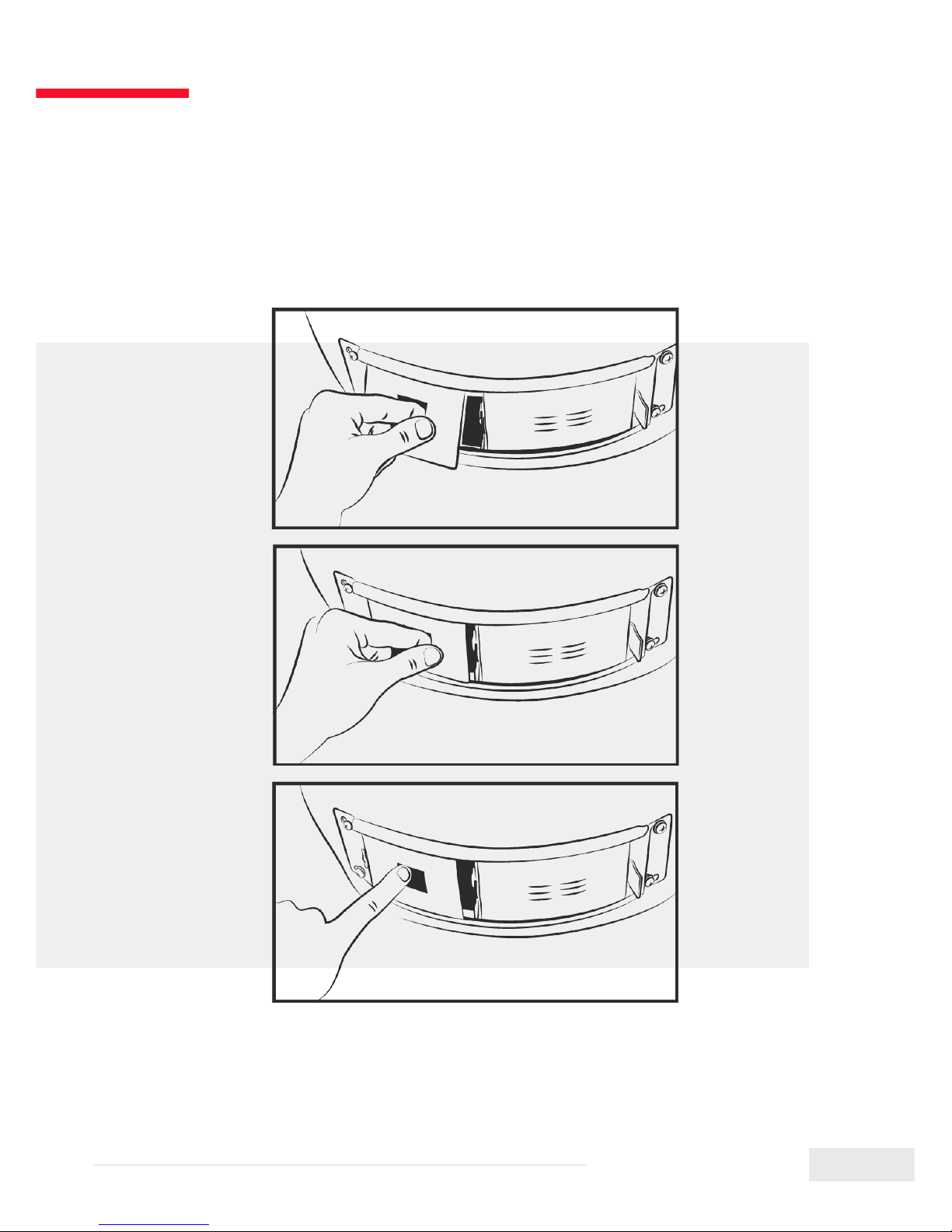
KAMADO - BLOWER INSTALLATION
1
2
3
Page 6
6
www.FlameBoss.com
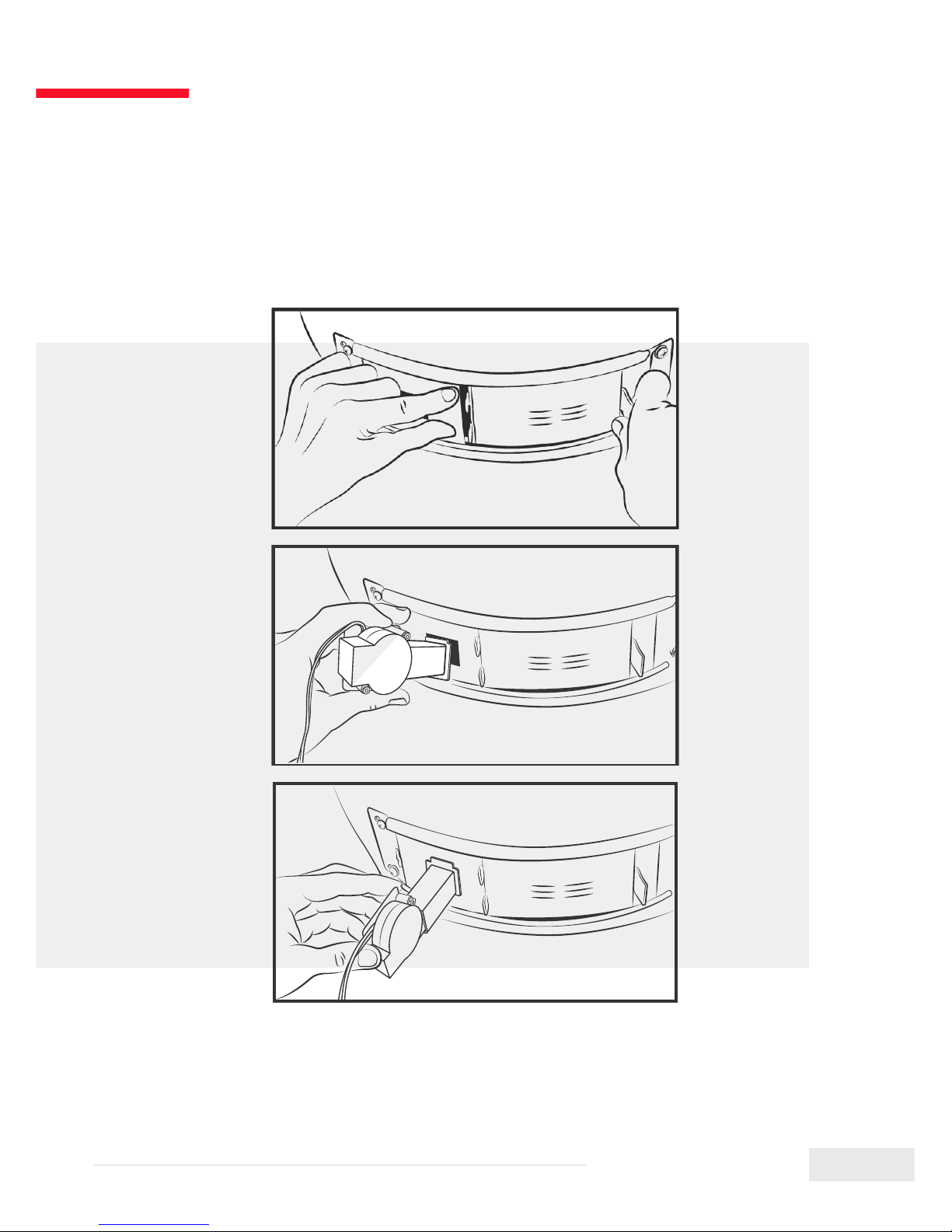
4
5
6
KAMADO - BLOWER INSTALLATION
Page 7
7
www.FlameBoss.com
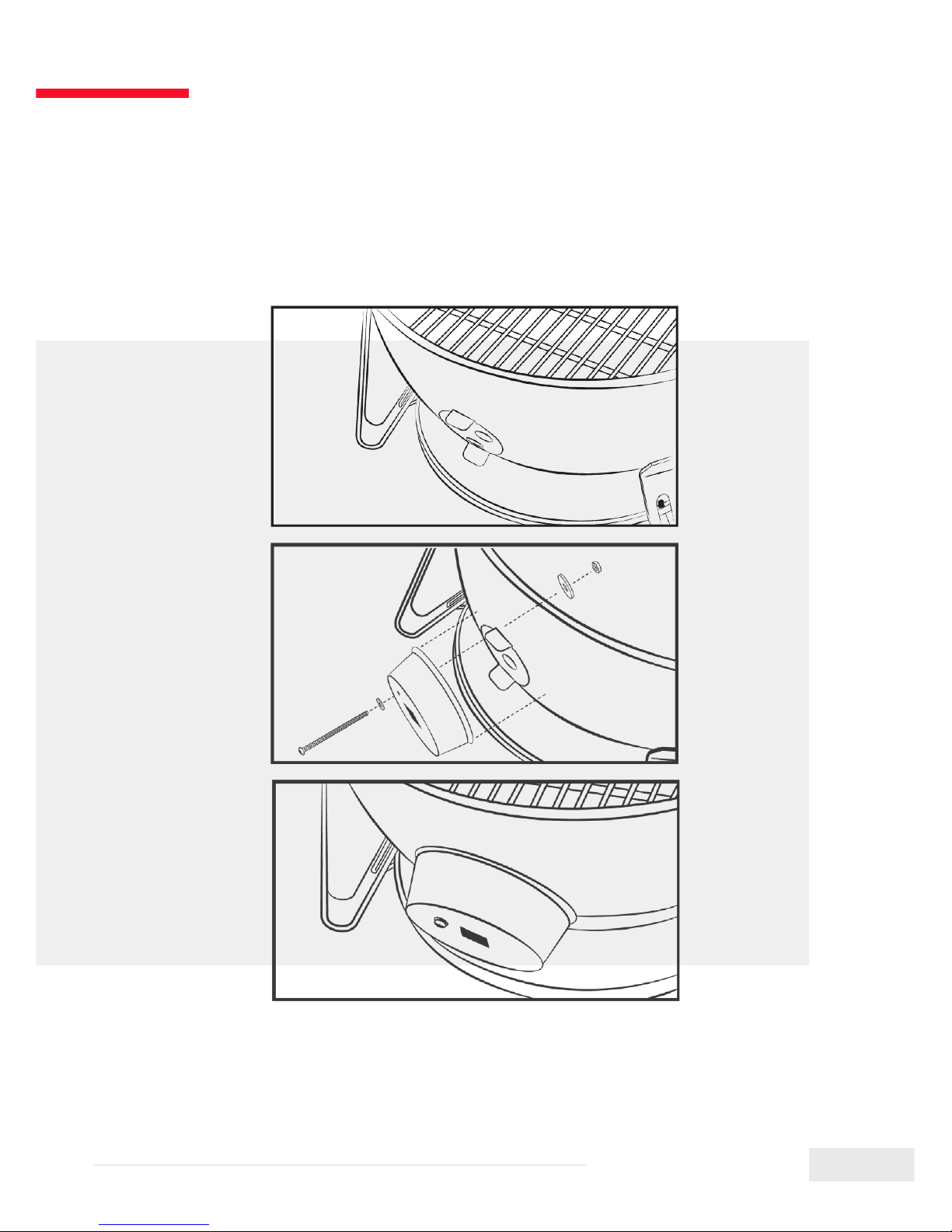
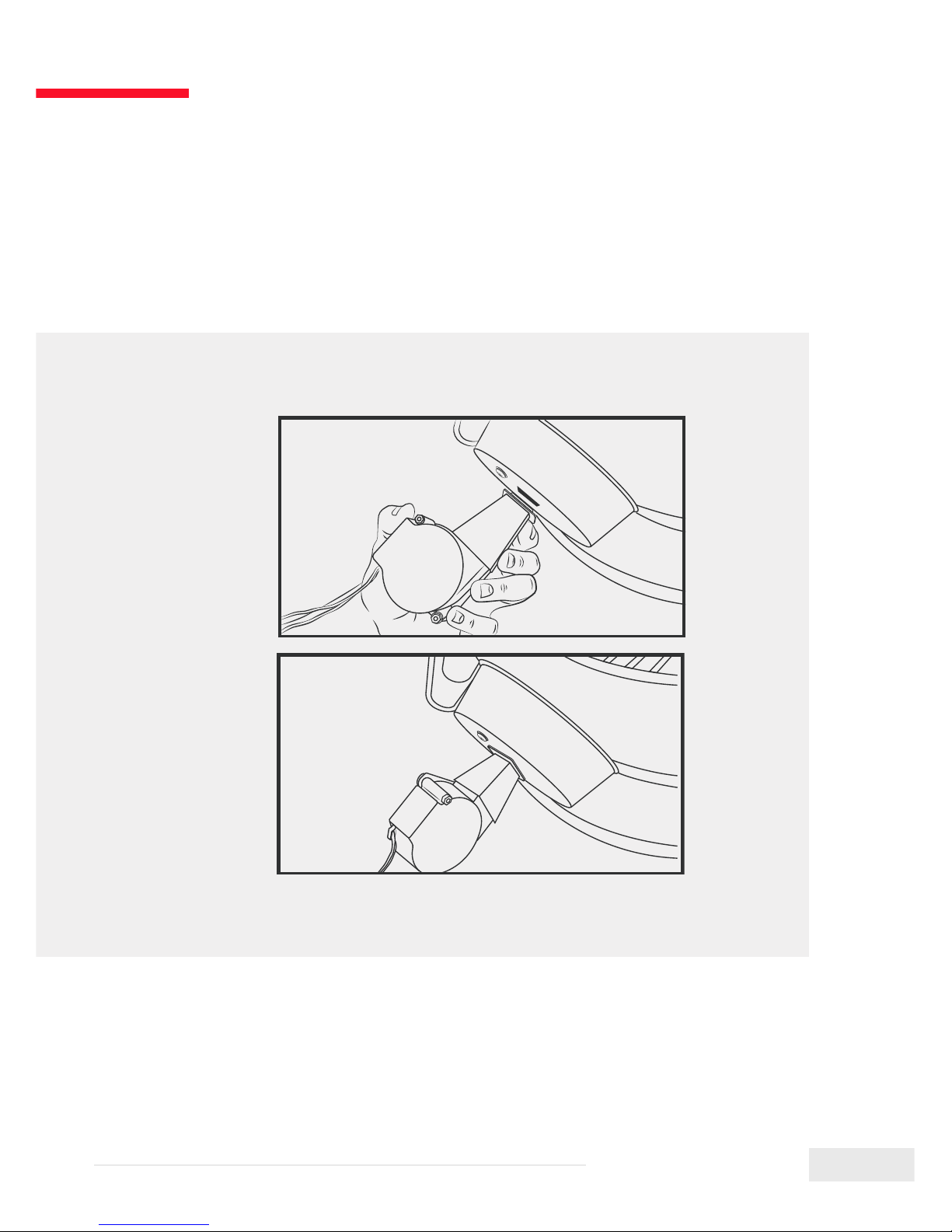
WEBER SMOKEY MOUNTAIN - BLOWER INSTALLATION
1
2
3
Page 8
8
www.FlameBoss.com
4
5
WEBER SMOKEY MOUNTAIN - BLOWER INSTALLATION
Page 9
9
www.FlameBoss.com
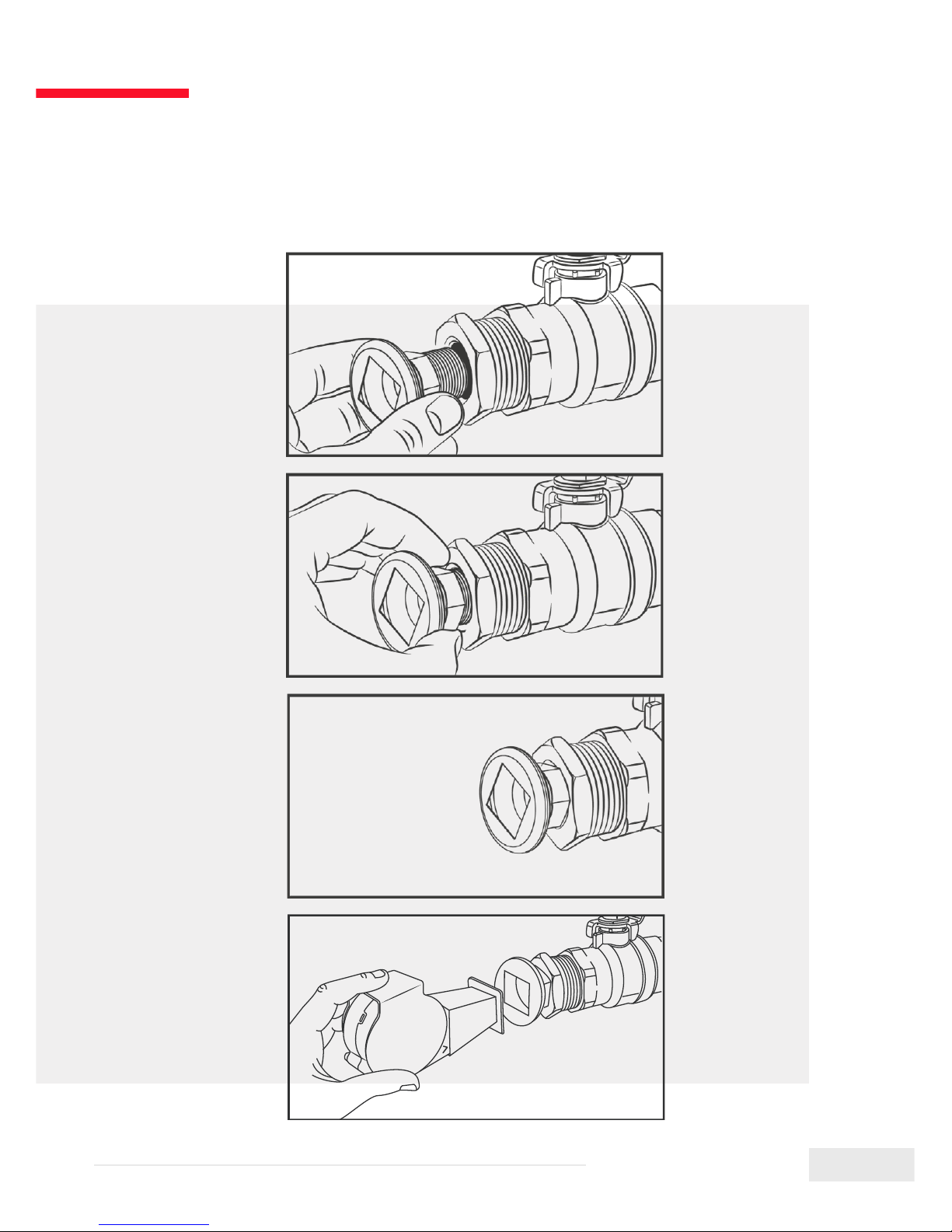
PIPE THREAD UNIVERSAL - BLOWER INSTALLATION
1
2
3
4
Page 10
10
www.FlameBoss.com
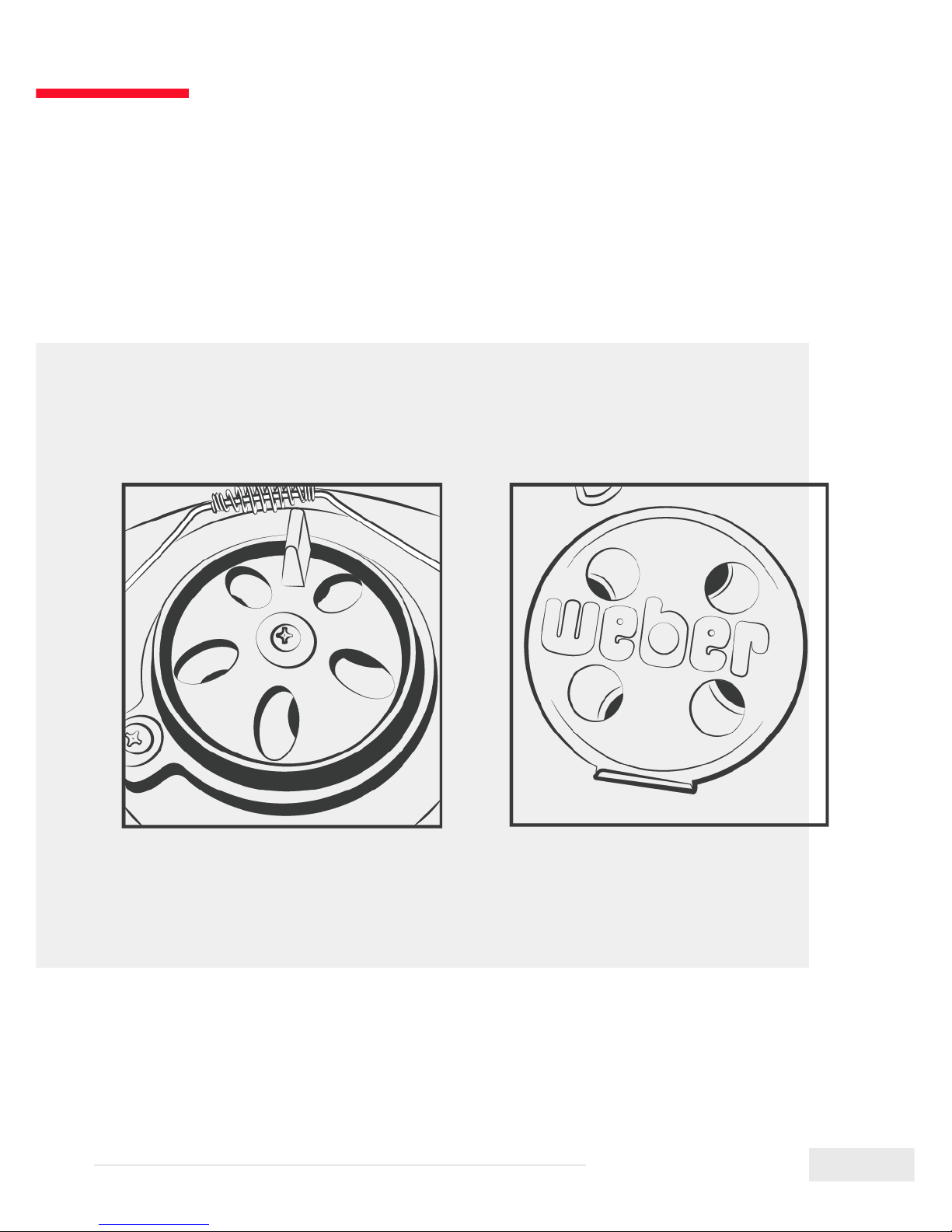
VENT CLOSURE
Page 11
11
www.FlameBoss.com
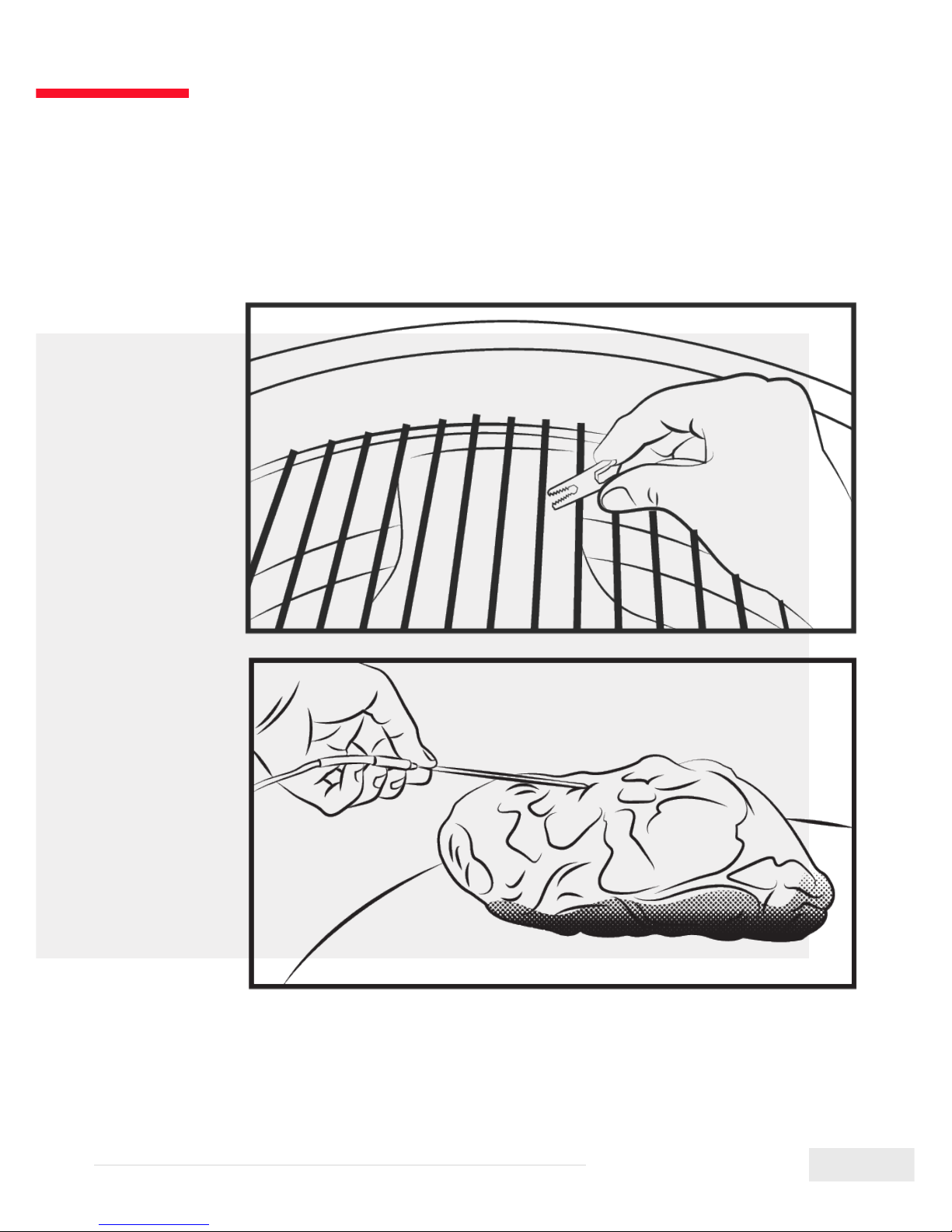
1
2
PROBE PLACEMENT
Page 12

12
www.FlameBoss.com
INSTALL FLAME BOSS MOBILE APP
Follow the instructions in the Flame Boss app to add a controller.
OR if you are unable to scan the code above, open the browser
(Chrome or Safari, for example) on your tablet or smartphone and
enter the following address: https://myameboss.com/app
Open the
camera app on
your tablet or
smartphone and
point it here:
Page 13
13
www.FlameBoss.com
USING FLAME BOSS
®
Flame Boss uses a variable-speed blower that runs at the best speed to reach and
maintain the desired temperature of your smoker.
Flame Boss WiFi enabled devices will automatically install updated rmware when
connected to the internet. To nd an updated manual that might include new features,
click the Manuals link in the mobile apps or go to www.FlameBoss.com/manuals.
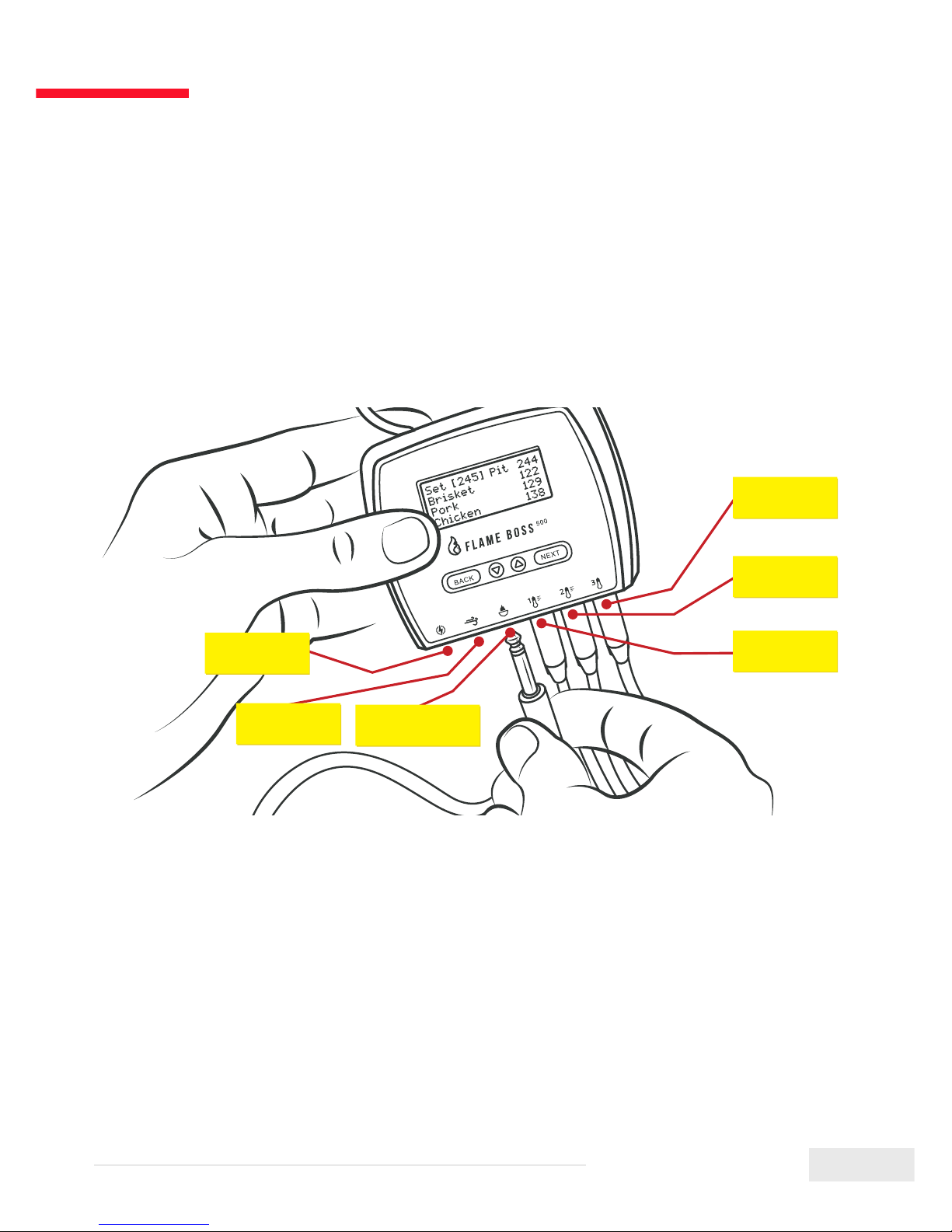
The Flame Boss 500 has the capability of monitoring 3 meats at a time as shown by
Meat 1, Meat 2, & Meat 3. You can change the names of meat probes using our web
and mobile apps.
Power
Meat 3
Blower
Meat 2
Meat 1
Pit Probe
Page 14

14
www.FlameBoss.com
USING FLAME BOSS
®
Home Screen
Set [225] Pit 223
Meat 1 --Meat 2 --Meat 3 ---
The home screen shows the set temperature, pit temperature,
and meat temperatures.
The set temperature is the desired cooking temperature for your smoker or grill.
To change the set temperature, press the q or p buttons.
Pressing BACK several times will bring you back to the home screen. The
controller will also go back to the home screen after 15 seconds of inactivity.
Page 15

15
www.FlameBoss.com
MAIN MENU
From the home screen, press NEXT to access
the main menu. Press q or p to scroll through
the features.
Press NEXT to enter a feature.
Press BACK to return to the menu.
> Timer
Meat Alarms
Pit Alarm
WiFi
Pit Alarm
WiFi
Advanced WiFi
> Other
Page 16

16
www.FlameBoss.com
FEATURES
You can congure any setting that has [ ] brackets around it.
q or pcycles through the different options or values of the setting.
NEXT saves the settings and moves the brackets to the next congurable setting.
BACK moves the brackets to the previous setting.
Timer
q or p changes timer’s minutes and seconds.
q or p turns timer On or Off.
Timer
[0:05:00]
Off
Timer
0:04:49
[On]
Page 17

17
www.FlameBoss.com
FEATURES
Meat Alarms
Meat Alarm [1]
Off
Meat Alarm 1
[Off]
Meat Alarm 1
On
[195] Done
Meat Alarm 1
On + Keep Warm
[195] Done
[200] Keep Warm
Meat Alarm 1
On + Keep Warm
195 Done
[200] Keep Warm
q or p selects the meat alarm to congure.
q or p turns the meat alarm mode to Off, On, or On +
Keep Warm.
q or p changes the desired meat done temperature
when the mode is set to On.
q or p changes the desired meat done temperature
when the mode is set to On + Keep Warm.
q or p changes the keep warm temperature when the
mode is set to On + Keep Warm.
The set temperature will automatically adjust to the keep
warm temperature to keep food warm after it reaches the
meat done temperature.
Page 18

18
www.FlameBoss.com
FEATURES
Pit Alarm
Pit Alarm
[Off]
Pit Alarm
On
+/- Limit [20]
q or p turns the pit alarm mode to Off or On.
q or p changes the pit alarm temperature range.
If the pit temperature goes outside this range from the
set temperature, the pit alarm will trigger.
Page 19

19
www.FlameBoss.com
Entering Your Password:
The controller will display this WiFi Status indicating the
controller is in Access Point mode.
The numbers, #####, following the FB- is the controller’s
device ID.
Ex: FB-32270 (This is the SSID and 32270 is the device ID)
WIFI SETUP USING MOBILE APPS
To set your controller in Access Point Mode, follow the screens below:
q or p toggles between Station and Access Point mode.
Select Access Point mode and press NEXT.
* Refer to page 13 for instructions to download iOS or Android mobile app.
1. Using the mobile app, create a MyFlameBoss.com account and log in.
2. Once logged in, tap on the Controllers tab (2nd tab from the left) on the
bottom of the app.
3. At the top of the Controllers tab, click the Add link and follow the steps shown.
WiFi Status
AP Mode
SSID: FB-#####
WiFi Mode
[Access Point]
Page 20

20
www.FlameBoss.com
WIFI SETUP USING CONTROLLER
q or p toggles between Station and Access Point mode.
Selection Station mode and press NEXT.
q or p cycles through available local networks detected by
the controller. Select your WiFi Name and press NEXT.
Press q or p to select a character. Press NEXT to save the
character and move to the next position.
This will duplicate the last character. Press q or p to select the
next character and press NEXT to save it and move to the next
position. Repeat until all characters are entered.
At the end of your password the last letter should be
duplicated. Press q or p to select (Enter) and press NEXT
to save.
Note: If your WiFi network is using WEP security, change the
format to Hex.
After saving your password, the controller will join your
WiFi network.
WiFi Name (SSID)
> sabshomewi
fb
fb-guest
WiFi Password
Format: Text
[password123]
Enter
WiFi Mode
[Station]
WiFi Password
Format: Text
[]
Enter
Once connected, the display will show the ID & Pin of
your controller.
WiFi Status
Joining fb
Online! Visit
MyFlameboss.com
ID: 12345
Pin: 1234
q or p hides or unhides the pin in the online notice.
Hide PIN in
online notice?
[Yes]
Page 21

21
www.FlameBoss.com
IP Addr Method
[Auto (DHCP)]
This screen displays the
controller’s IP address
when connected to a
WiFi network.
IP Address
192.168.128. 62
IP Address
[192.168.128. 62
Network Gateway
[255.255.255. 0
ADVANCED WIFI (OPTIONAL)
IP Addr Method
[Static IP]
This screen displays the controller’s
Station MAC Address.
p or q changes each byte.
NEXT moves to the next byte.
or
p or q toggles between
Auto (DHCP) and Static IP
conguration.
**Auto (DHCP) is the default
conguration.
WiFi MAC Address
2c:3a:e8:
22:12:75
Network Mask
[255. 0. 0. 0
p or q changes each byte.
NEXT moves to the next byte.
p or q changes each byte.
NEXT moves to the next byte.
Online! Visit
MyFlameboss.com
ID: 12345
Pin: 1234
WiFi Status
Joining fb
After conguring the Static
IP Address, the controller will
join your WiFi network.
Once connected, the display
will show the ID & Pin of your
controller.
Page 22

22
www.FlameBoss.com
OTHER MENU
q or p changes the type of sounds the controller makes.
q or p changes the LCD contrast.
q or p changes the maximum time the controller will stay
in open pit mode (controller disables the blower to avoid
over-stoking the re).
q or p changes the temperature scale.
q or p changes the maximum temperature allowed on a
probe before the probe high temp alarm is triggered.
**Our probes are rated to 450˚F so this is the default.
LCD Contrast
[40]
Temp Scale
> Fahrenheit
Celsius
Sound
> Off
Chirps
Chirps & Alarm
Max Open Pause
[ 2:00]
This screen displays the current rmware version of your
controller.
Probe High Temp
Alarm
[450]
Version
4.00.000
Page 23

23
www.FlameBoss.com
AMAZON ALEXA
Amazon Alexa Instructions:
Download the Amazon Alexa application for your mobile device and sign into your
Amazon account. Go to “Skills” on the Alexa app to search and enable the Flame Boss
skill or simply speak to your Alexa-enabled device and say “Alexa, enable Flame Boss.”
Now you can use a variation of the following voice commands:
Alexa, open Flame Boss.
Alexa, tell Flame Boss to change the set temperature to 300 degrees.
Alexa, ask Flame Boss for the temperatures.
Alexa, ask Flame Boss for the Meat 1 temperature.
Alexa, ask Flame Boss to tell me the set temperature.
Alexa, tell Flame Boss to forget my info.
Alexa, tell Flame Boss my controller ID is _____.
Alexa, tell Flame Boss my controller PIN is _____.
Alexa, tell Flame Boss to change the set temperature.
Alexa, tell Flame Boss to switch to Celsius/Fahrenheit.
Page 24

24
www.FlameBoss.com
GOOGLE ASSISTANT
Google Assistant Instructions:
Download the Google Assistant or the Google Home application. Say a voice
command using the Google Assistant app or simply speak to your Google Home using
a variation of the following voice commands:
OK Google, open Flame Boss.
Hey Google, ask Flame Boss to change the set temperature to 225 degrees.
OK Google, ask Flame Boss for the temperatures.
OK Google, ask Flame Boss for the Meat 2 temperature.
Hey Google, ask Flame Boss for the set temperature.
Hey Google, ask Flame Boss to forget my info.
OK Google, ask Flame Boss to set my controller ID to _____.
OK Google, ask Flame Boss to set my controller PIN to _____.
OK Google, ask Flame Boss to change the set temperature.
Hey Google, ask Flame Boss to switch to Celsius/Fahrenheit.
Page 25
25
www.FlameBoss.com
CONNECT MODES (AVAILABLE IN FIRMWARE VERSIONS 4.0 AND ABOVE)
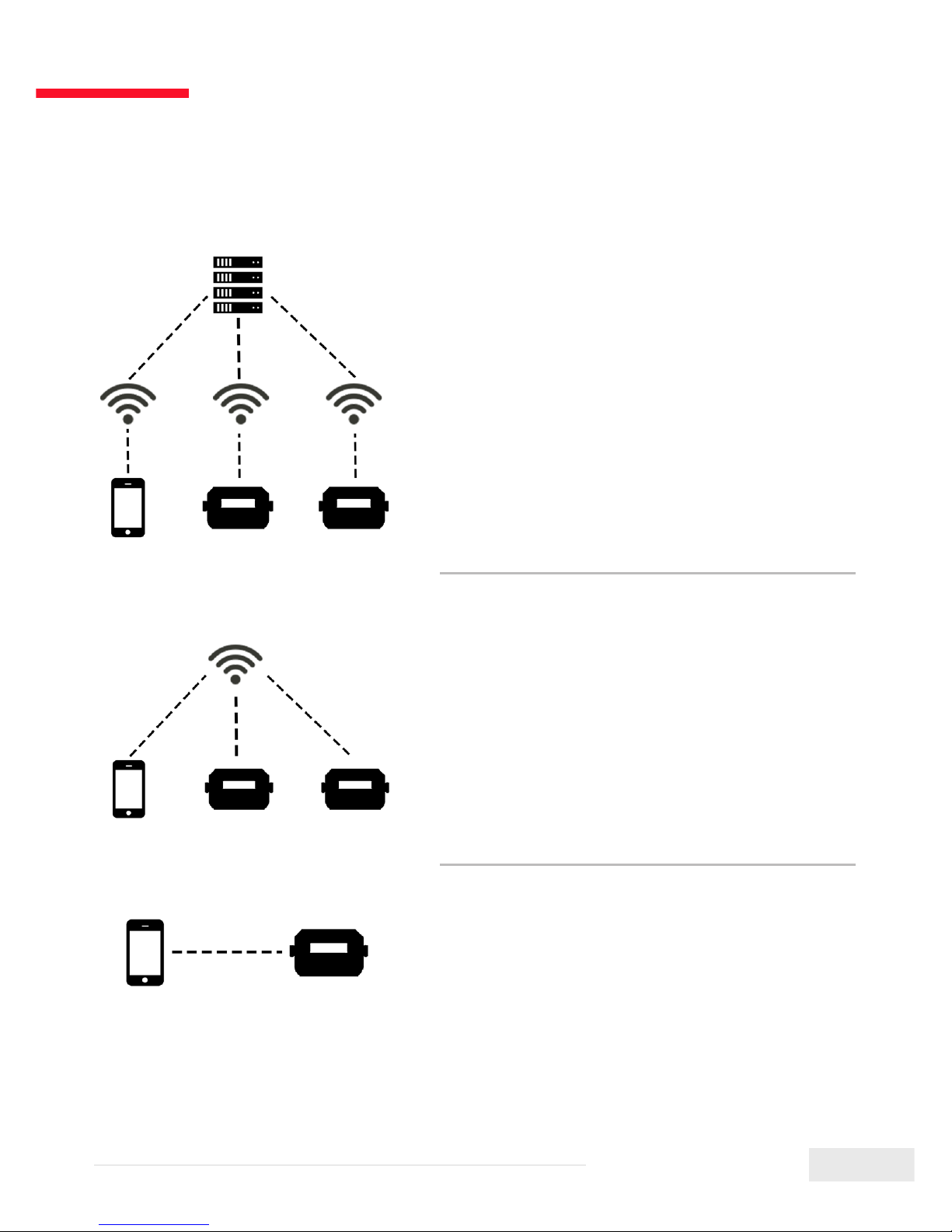
Cloud Connect:
Your phone will connect to our server over the
internet and you can view and manage any of
your connected controllers. This mode has the
most functionallity including cook history and
cook notes. If both your phone and controller
have internet access, use this mode.
Local Connect:
Your phone will detect any controllers on your
local WiFi network. You can then connect to
your controllers to view and manage them.
History and Account pages are disabled for
this mode. If you have a router with no internet
access, use this mode.
Direct Connect:
Your phone will connect directly to your
controller so you can view and manage it.
Using this mode requires the controller to be in
Access Point mode. History and Account pages
are disabled for this mode. If you don’t have a
router, use this mode.
To change modes, press the Mode link at
the top of the Account tab.
Page 26

26
www.FlameBoss.com
This product contains ee_printf which includes the following notice:
Copyright © 2002 Michael Ringgaard. All rights reserved.
Redistribution and use in source and binary forms, with or without
modication, are permitted provided that the following conditions are met:
1. Redistributions of source code must retain the above copyright notice,
this list of conditions and the following disclaimer.
2. Redistributions in binary form must reproduce the above copyright
notice, this list of conditions and the following disclaimer in the
documentation and/or other materials provided with the distribution.
3. Neither the name of the project nor the names of its contributors may
be used to endorse or promote products derived from this software
without specic prior written permission.
THIS SOFTWARE IS PROVIDED BY THE COPYRIGHT HOLDERS AND
CONTRIBUTORS “AS IS” AND ANY EXPRESS OR IMPLIED WARRANTIES,
INCLUDING, BUT NOT LIMITED TO, THE IMPLIED WARRANTIES OF
MERCHANTABILITY AND FITNESS FOR A PARTICULAR PURPOSE ARE
DISCLAIMED. IN NO EVENT SHALL THE COPYRIGHT OWNER OR
CONTRIBUTORS BE LIABLE FOR ANY DIRECT, INDIRECT, INCIDENTAL,
SPECIAL, EXEMPLARY, OR CONSEQUENTIAL DAMAGES (INCLUDING, BUT
NOT LIMITED TO, PROCUREMENT OF SUBSTITUTE GOODS OR SERVICES;
LOSS OF USE, DATA, OR PROFITS; OR BUSINESS INTERRUPTION)
HOWEVER CAUSED AND ON ANY THEORY OF LIABILITY, WHETHER IN
CONTRACT, STRICT LIABILITY, OR TORT (INCLUDING NEGLIGENCE OR
OTHERWISE) ARISING IN ANY WAY OUT OF THE USE OF THIS SOFTWARE,
EVEN IF ADVISED OF THE POSSIBILITY OF SUCH DAMAGE.
Page 27
ENJOY
YOUR COOK
 Loading...