

Page 1

VV960 user manual
. 1
Bluetooth Handsfree User Manual
Model:VV960
Page 2

VV960 user manual
. 2
Declaration:
Without written p ermission from original manufacturer, reproduction, transfer, distribution or stor age of
part or all of the contents in this document in any form is prohibited.
The company reserves rights to make any changes and improvements to the product described in this
document without prior notice.
Notice :
Please make sure your mobile phone supports Bluetooth profiles and network operator supports the
functions described in this manual, otherwise the relative fun ctions cannot be realized on this Handsfree
device.
Safety
z Use the charger that comes with package.
z Caution, risk of explosion if battery is replaced by an incorrect type.
z Check the laws and regulations on the use of mobile phones and handsfree equipment in the areas where you
drive. Always give full attention to driving and pull off the road and park before making or answering a call if
driving conditions require.
z Do not allow children to play with your Bluetooth Handsfree Speaker since it contains small parts that could
become detached and create a choking hazard.
z This device contains a Li-polymer battery. Please keep it away from fire anytime (including discarding the
device) or the battery may explode.
z The Handsfree Speaker, especially the embedded battery must be properly disposed or may be recycled,
contacts your local recycling centers for disposal methods.
Page 3

VV960 user manual
. 3
Certification and Safety Approvals
This product has been tested and found to comply with Bluetooth BQB requirements, part 15 of FCC rules,
R&TTE Directive(99/5/EC) or CE marked req uirements.
Warning:Users should not make changes or modify the device in any way. Changes or modifications
without expressly approved by the party responsible for compliance could void the user’s authority to
operate the device.
This device complies with p art 15 of the FCC Rules. Operation is subject to the following two conditions: (1)
This device may not cause harmful interference, and (2) this device mu st accept any interference received,
including interference that may cause undesired operation.
FEDERAL COMMUNICATIONS COMMISSION INTERFERENCE STATEMENT
This equipment has been tested and found to comply with the limits fo r a Class B digital device, pursuant to
part 15 of the FCC Rules. These limits are d esigned to provide reasonable protection against harmful
interference in a residential installation. This equipment generates, uses an d can radiate radio frequency
energy and, if not installed and used in accordance with the inst ructions, may cause harmful interference to
radio communications. However, there is no guarantee that interference will not occur in a particular
installation. If this equipmen t does cause harmful interference to radio or television reception, which can be
determined by turning the equip ment off and on, the user is encouraged to try to correct the interference by
one or more of the following measures:
-Reorient or relocat e the receiving antenna.
-Increase the separation between t h e equipment and receiver.
-Connect the equipment into an outlet on a circuit different from that to which the receiver is connected.
-Consult the dealer or an experienc ed radio/ TV technician for help.
CAUTION:
Any changes or modifications not expressly approved by the grantee of this device could void the user's
authority to operate the equ ipment.
RF exposure warning ·
The equipment complies with FCC RF exposure limits set forth for an uncontrolled envi ronment.
The equipment must no t be co-located or operating in conjunction with any other antenna or transmitter.
CE command:
EN 301 489-17 v1.2.1: 2002
ETSI EN 300 328 v1.6.1:2004
IEC 60950-1:2001 / EN 60950-1:2001
Page 4

VV960 user manual
. 4
1.
INTRODUCTION.................................................................................................................................6
1.1 BLUETOOTH TECHNOLOGY ..................................................................................................................6
1.2 PRODUCT FEATURES ............................................................................................................................6
1.3 PACKAGE CONTENTS............................................................................................................................7
1.4 OVERVIEW ...........................................................................................................................................7
1.5 DEFINITIONS OF ICON INDICATORS .......................................................................................................7
2. USING YOUR HANDSFREE..............................................................................................................9
2.1 BATTERY CHARGING AND USAGE ........................................................................................................9
2.1.1 Battery Charging .........................................................................................................................9
2.1.2 Battery Information .....................................................................................................................9
2.2 MOUNTING THE HANDSFREE................................................................................................................9
2.3 TURN ON/OFF HANDSFREE .................................................................................................................10
2.4 MENU OPERATIONS............................................................................................................................11
2.4.1 The Main Menu .........................................................................................................................11
2.4.2 Enter Main Menu.......................................................................................................................11
2.4.3 Browse Menu Items...................................................................................................................11
2.4.4 Execute Menu Item or Enter Submenu......................................................................................12
2.4.5 Exit the menu.............................................................................................................................12
2.5 PAIRING AND CONNECTION................................................................................................................12
2.5.1 Pairing Device with Bluetooth Handset.....................................................................................12
2.5.2 Delete Paired Records ...............................................................................................................12
2.5.3 Quit Pairing with Bluetooth Equipment ....................................................................................12
2.5.4 Connecting/Disconnecting Device with Bluetooth Handset......................................................12
2.6 CALL FUNCTIONS ...............................................................................................................................13
2.6.1 Basic Call Operations ................................................................................................................13
2.6.2 Adjust Volume...........................................................................................................................13
2.6.3 Mute an Active call....................................................................................................................13
2.6.4 Transfer Call between Handsfree and Handset..........................................................................13
2.6.5 Voice Dialing.............................................................................................................................13
2.6.6 Advanced Call Functions...........................................................................................................14
2.7 AV FUNCTIONS ..................................................................................................................................14
2.7.1 Using Handset AV Function......................................................................................................14
2.7.2 AV Operations...........................................................................................................................14
2.8 PAIRING/CONNECTING WITH OTHER BLUETOOTH EQUIPMENT ..........................................................15
2.8.1 Pairing Handsfree with Other Bluetooth Equipment.................................................................15
2.8.2 Connecting your Handsfree with Bluetooth USB Dongle.........................................................15
2.8.3 Connecting Both AV player and Handset..................................................................................16
3. PHONEBOOK OPERATIONS..........................................................................................................17
3.1 DOWNLOAD PHONEBOOK ...................................................................................................................17
3.1.1 Initiate Phonebook Downloading/Synchronization from Handsfree .........................................17
3.1.2 Initiate Phonebook Downloading/Synchronization from Handset ............................................17
3.2 DELETE PHONEBOOK..........................................................................................................................18
3.3 DISPLAY AND MAKE CALL VIA PHONEBOOK......................................................................................18
4. DEVICE CONFIGURATION AND MAINTENANCE...................................................................19
4.1 SET BACKLIGHT TIME ........................................................................................................................19
4.2 SET BRIGHTNESS................................................................................................................................19
4.3 SET LANGUAGE ..................................................................................................................................19
5. UPGRADE SOFTWARE ...................................................................................................................20
6. QUICK USER GUIDE........................................................................................................................24
7. IMPORTANT MESSAGES AND FREQUENTLY ASKED QUESTIONS...................................27
Page 5

VV960 user manual
. 5
8. MAINTENANCE ................................................................................................................................28
Page 6

VV960 user manual
. 6
1. Introduction
1.1 Bluetooth Technology
Bluetooth is an internationally standardized technology supporting short distance wireless communications. Any
two Bluetooth-compatible equipments, such as mobile phone, PDA、PC, headset, mouse, keyboards, printer, etc.
can wirelessly communicate with each other via Bluetooth connection. To ensure worldwide compatibility,
Bluetooth operates on the globally available ISM (Industrial Scientific and Medical) frequency band. Within 2.4
GHz and 2.48 GHz, Bluetooth transmits data up to either 10 meters (CLASS II mode) or 100 meters (CLASS I
mode) using 79 frequency hopping channels.
Though line-of-sight is not required, Bluetooth connections could be subject to interferences from obstructions such
as walls, human bodies, and other electronic devices. In addition, due to variations on product implementation, it is
likely that Bluetooth equipments from different manufactures have interoperability issues. In that case, you may
consult with manufactures to check product compatibility.
Note that, there could be some restrictions imposing on using Bluetooth devices in some countries. Please check
with your local authorities.
1.2 Product Features
z Bluetooth v 1.2 compliant, interference-tolerable with WLAN devices
z Class II, operating range up to 10 meters
z An OLED screen displays phone status, battery capacity, call status, caller’s ID, and local phonebook records
z User friendly menu design ideal for car drivers to make/receive calls and operate the device
z Support local phonebook call origination and phonebook synchronization with mobile phone records.
z Support A2DP, AVRCP, HS/HF,OBEX and OPP profiles
z Support software upgrade via USB port
z Data rate up to 723 Kbps
z Compatible with most Bluetooth-enabled devices such as cellular phones, PDAs, computers, MP3, MP4, iPOD,
and other multimedia players
z Support up to 8 handset pairing information
z Best-in-class voice quality ensured by cutting-edge noise suppression and echo cancellation techniques
z Voice dialing and user friendly operation keys ideal for car drivers to make/receive calls
z Support call waiting and conferencing call functions
z Support Multi-language display
z Voice security ensured by using 128-bit encryption
z Audio output up to 115 dB
z Better portability with internal rechargeable Lithium Polymer battery
z 3.5mm standardized Line-Out connector for voice privacy
z Low power consumption, up to 6 hours talk time and 550 hours standby time with the internal battery
z Easy-to-mount with car Sun-Visor Clip and Vent Mount Clip
z Robust performance, fast connection, accurate and sensible search of devices in range
Page 7
VV960 user manual
. 7
z Stylish, portable, lightweight, mini-sized, suitable for vehicle and office environment
1.3 Package Contents
z VV960
z Sun-Visor Clip
z Vent Mounting Clip
z Car Charger Set
z User Manual
1
1
1
1
1
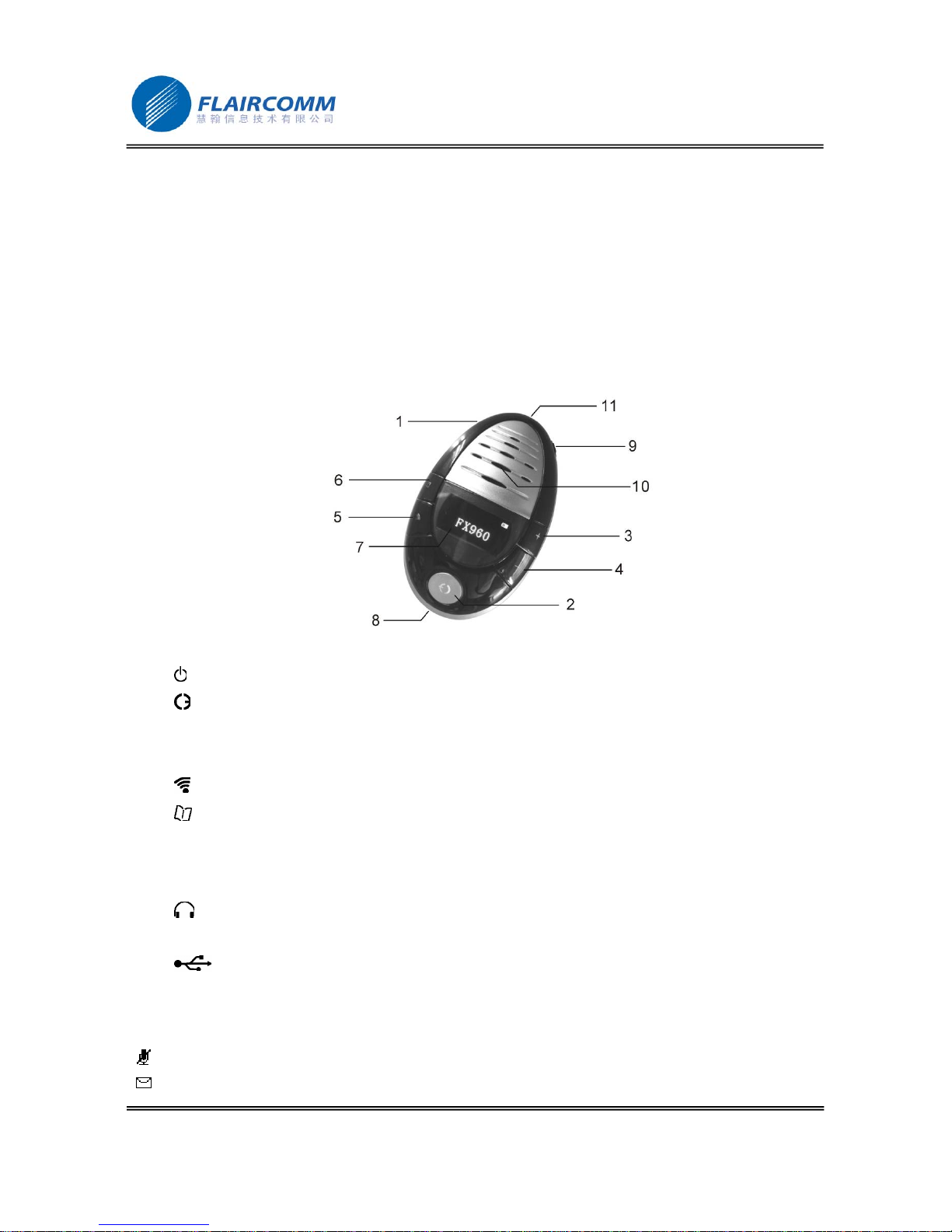
1.4 Overview
Figure 1 Overview
1. “ ”: Switch the device on/off.
2. “
”: Answer/end a call, transfer a call between handsfree and phone, select menu items, play/pause AV.
3. “╋”: Volume up, scroll up menu items, last number redial.
4. “━”: Volume down, scroll down menu items, voice dialing.
5. “
”: Enter/exit menu, call mute, stop AV play.
6. “
”: Phonebook display.
7. OLED Screen: Displays control menu, phone status, battery capacity, call status, caller’s ID and phonebook
records.
8. Microphone: Voice pick-up.
9. “
”: Earphone jack for connecting external earphone.
10. Speaker: Voice/AV music delivery.
11. “
”: Charging port for connecting to car (or travel) charger for charging device battery.
1.5 De finitions of Icon Indicators
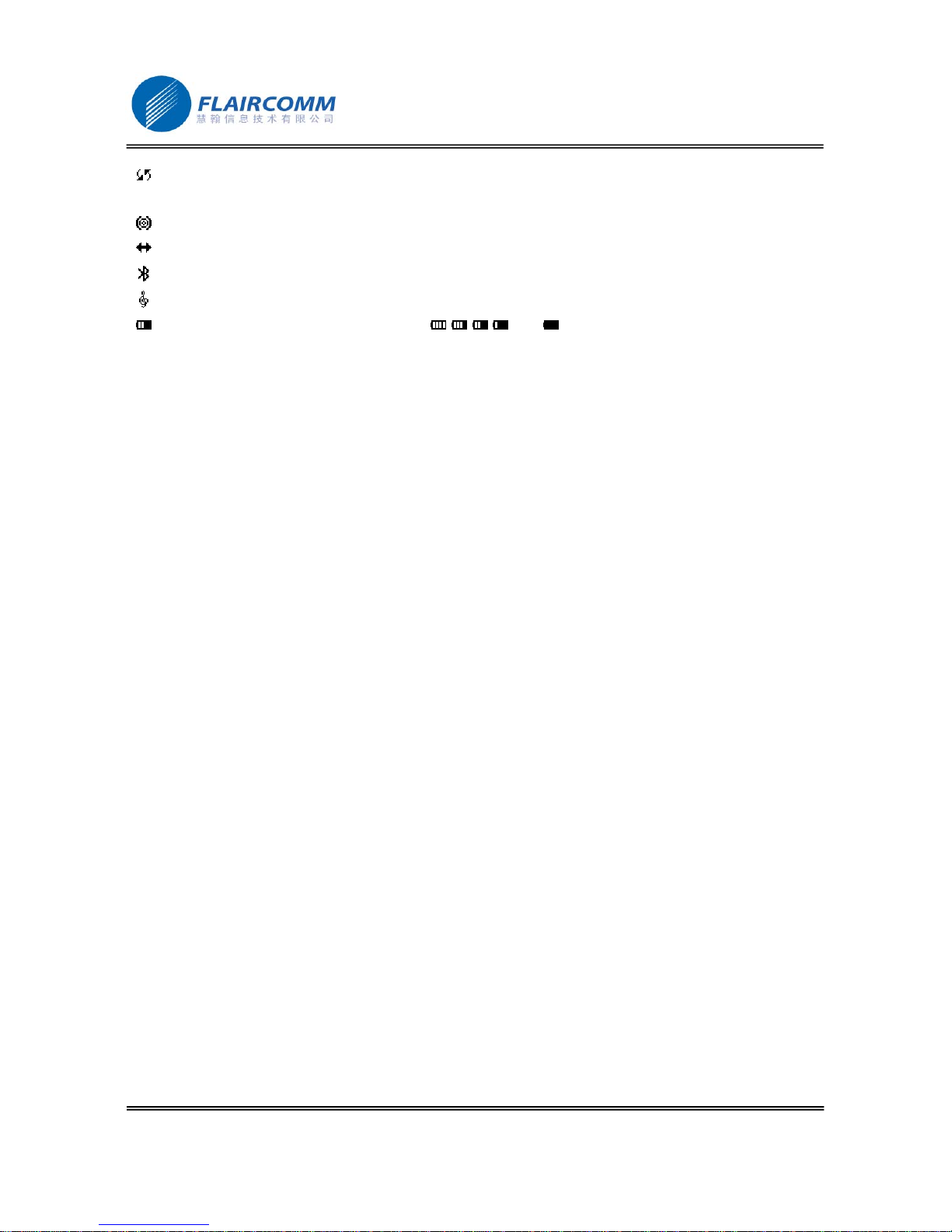
The following icon indicators are used for displaying the device/phone status on the OLED screen:
“
”: Mute indicator, displayed when the device is in the muting status.
“
”: SMS indicator, displayed when a new SMS is received (Optional).
Page 8
VV960 user manual
. 8
“ ”: Phonebook synchronization indicator, displayed when phonebook synchronization between the device and
the handset is in progress.
“
”: Pairing indicator, displayed when entering pairing mode.
“
”: Connecting indicator, displayed when connection is in progress.
“
”: HF/HS Connection indicator, displayed after establishing HF/HS connection.
“
”: AV connection indicator, displayed after establishing the connection of AV service.
“
”: Battery information indicator, with 5 grades and , displayed according to battery capacity.
Page 9
VV960 user manual
. 9
2. Using Your Handsfree
2.1 Battery Charging and Usage
2.1.1 Battery Charging
This device contains a rechargeable Li-Polymer battery. First-time charging time is about 4 hours. Later-on
recharging time is around 2-3 hours. Detailed charging procedures as follows:
1. Connect the car charger to the cigarette lighter.
2. Plug the connector of the charger to handsfree’s charging port to start charging. Icon indicator “ ” will
blink during charging on the screen. Once the icon turns to “
”, it indicates the battery is fully charged and
you should disconnect the charger from the handsfree and the power outlet.
You can also use the removable USB charging cable for charging the Handsfree speaker from your PC.
2.1.2 Battery Information
1. Once fully charged, the battery will support continuous talk time up to 6 hours and standby time about 550
hours.
2. When the battery is low, the device beeps once every 20 seconds and there is “Low Power” display in the
screen, charge the battery as described above.
Note that, over-charging will reduce battery life. If a fully charged battery is left unused, it will lose power over
time. Extreme temperature (either too hot or too cold) will also affect its ability to charge, capacity, and lifetime.
2.2 Mounting the Handsfree
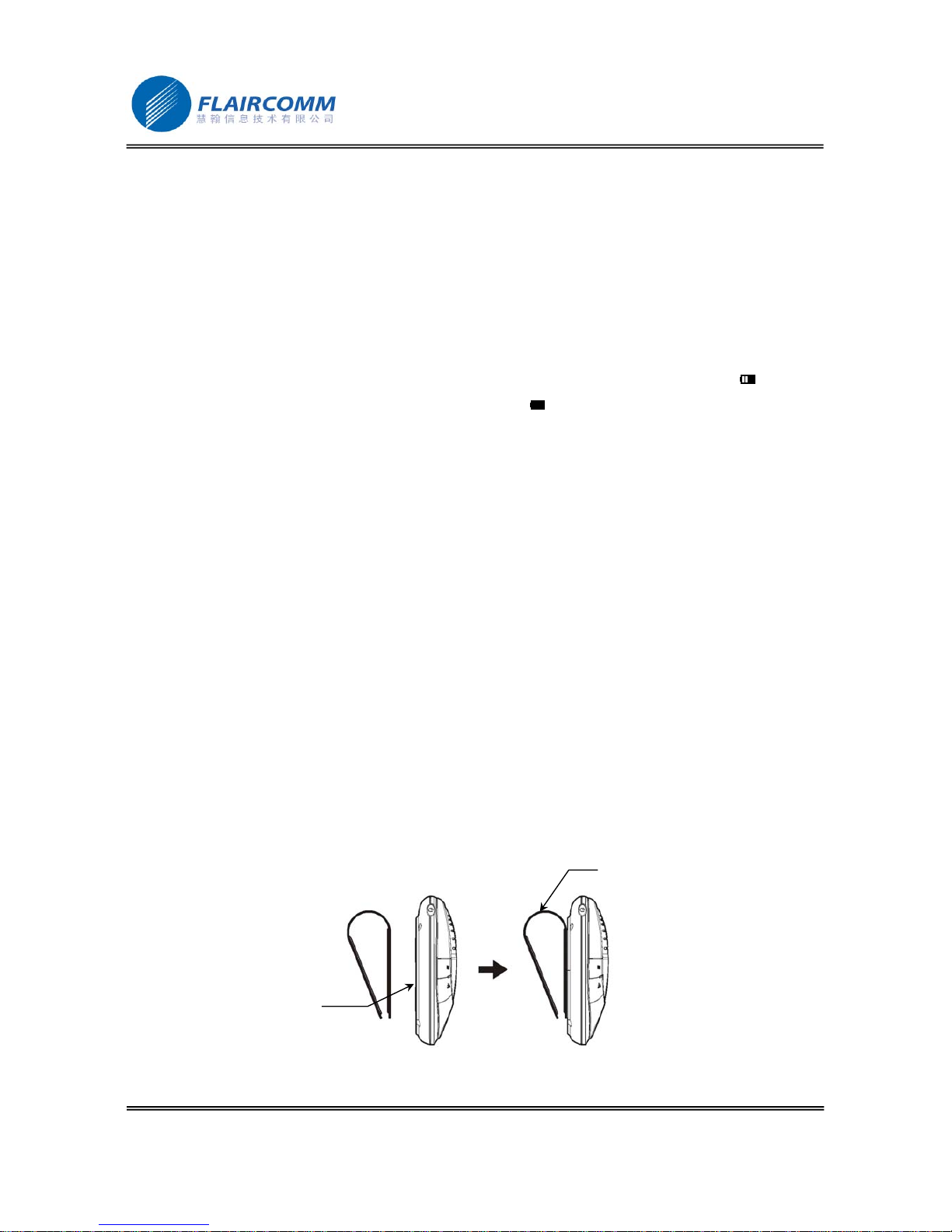
This Handsfree device can be easily mounted inside the car by either using the companion Sun-Visor Clip to fix the
product on the sun-visor over the driver’s seat, or inserting the optional Vent Mount Clip into the vent in front of
the driver’s seat. As shown in Figures 2 and 3, there are two magnetic tips on the backside of the device. You can
attach the Sun-Visor Clip or the Vent Mounting Clip to them. For better mounting the device, please clip the Sun-
Visor Clip to the sun visor first, and then properly attach the device to the Sun-Visor Clip. To use the Vent
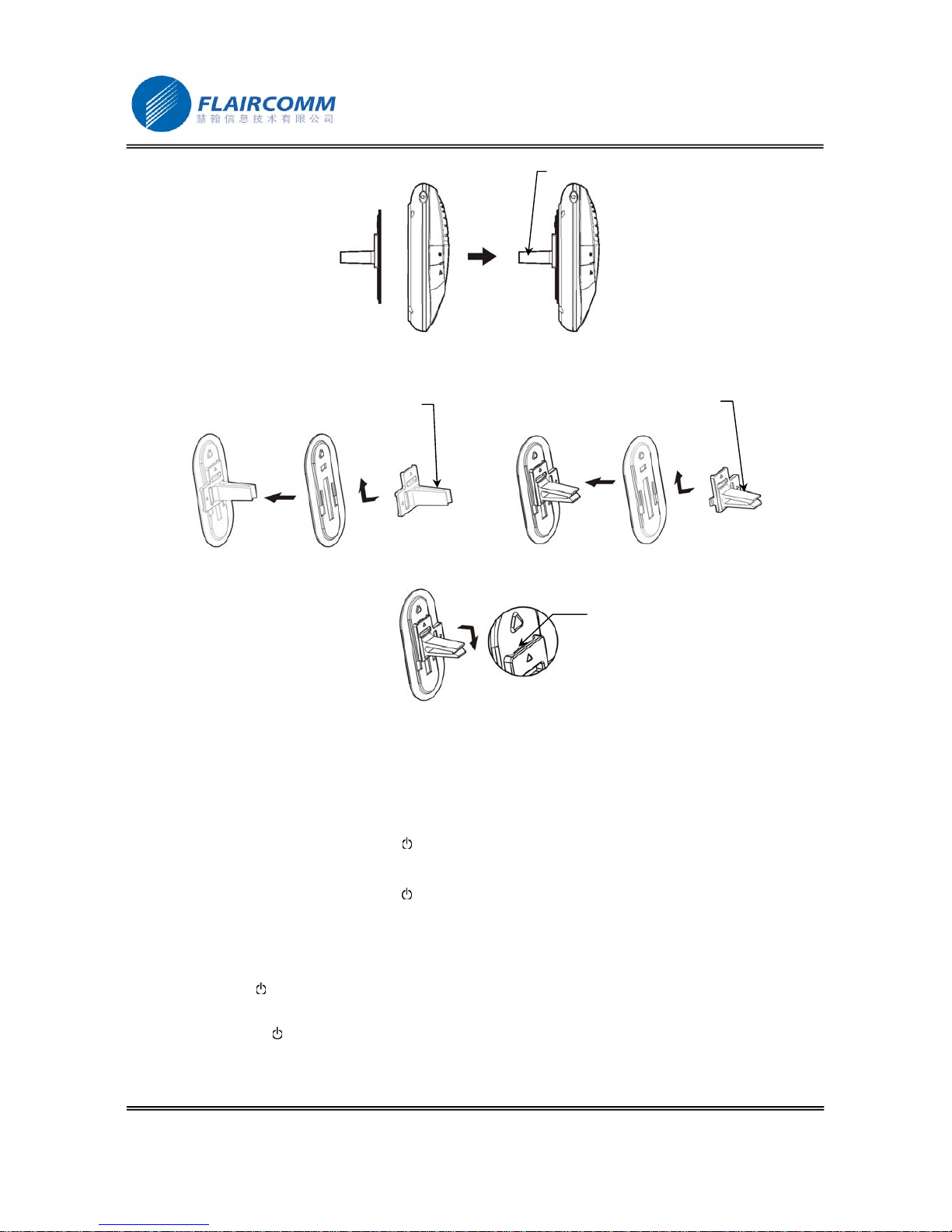
Mounting Clip, you may adjust the clip direction according to your car vent, as shown in Figure 4.
Note that, the microphone of the Handsfree must aim at the sound bearing.
Figure 2 Attach Sun-visor Clip to Magnetic Tips
Magnetic Tip
Sun-visor Clip
Page 10
VV960 user manual
. 10
Figure 3 Attach Vent Mount Clip to Magnetic Tips
Figure 4 Adjust Vent Mounting Clip Direction (Vertical or Horizontal)
Figure 5 Detach Clip from metal base
With great portability and flexibility, this device can also be used outside of such car environment such as in office
and/or at home.
2.3 Turn on/off Handsfree
Turn on the Device: Press and hold button for 3 seconds until “VV960” appears on the screen and two power-
up tones are heard, this indicates the handsfree is now turned on.
Turn off the Device: Press and hold button
for 3 seconds until the screen is off and two power-down tones are
heard, this indicates that the handsfree is now turned off.
Reset: If the device can not be power on, and OLED has no display, the following operations can help you:
1. Make sure the power cable is plugged into the device.
2. Hold button
for at least 15 seconds. During this period, you may hear some tones, LED light up, etc. But
just keep holding the button, ignore others.
3. Release button
, then doing the normal power on procedure.
4. The device shall be on.
Vent Mount Clip
Vent Mounting Clip
(Vertical Direction)
Vent Mounting Clip
(Horizontal Direction)
Pull out a little and push
down from here
Page 11
VV960 user manual
. 11
2.4 Menu Operations
2.4.1 The Main Menu
A user friendly control menu is provided for assisting the user to use the product. Listed below are menu page
contents and the usage of each menu item:
z Enter Pairing Mode: Selecting this item will let the device enter paring mode
z Delete Paired Info: Selecting this item will delete all the paring records stored in the device
z Delete Phonebook: Selecting this will delete all the phonebook records stored in the device
z Sync Phonebook: Selecting this item will synchronize the device local phonebook records with the records
stored in the handset. Note that, this menu item is displayed on the screen only if the HF/HS connection
between the handset and the handsfree is on. And, it only works with compatible handsets.
z Backlight Time: Selecting this item will lead to a second level sub-menu shown below. The user can
continue to pick a sub-menu item to adjust screen protection time.
10 Sec
20 Sec
60 Sec
Always On
z Brightness: Selecting this item will let the user adjust the brightness of displayed fonts and icon indicators
following the brightness indication bar showed on the screen.
Brightness
z SW Version: Selecting this menu will let the user find the 8-digit (“XXXXYYZZ”) SW version used by the
device, as shown below.
SW Version
XXXXYYZZ
z Select language: Selecting this item will lead to a second level sub-menu of language options. The user can
continue to pick a sub-menu item for language setting.
Press button ╋ or ━ can make page up and page down and to choose one menu item.
2.4.2 Enter Main Menu
When the device in standby mode, press button to enter the main menu. And then press button again can exit
the main menu).
2.4.3 Browse Menu Items
Press button ╋ or ━ to scroll up or down items of main/sub menu. The highlighted item will be ready for being
selected by the user.
Page 12

VV960 user manual
. 12
2.4.4 Execute Menu Item or Enter Submenu
Press button to execute the highlighted menu item or enter a highlighted submenu.
2.4.5 Exit the menu
In submenu, press button can return to the main menu. If it is already the main menu, press button to exit from
the menu.
2.5 Pairing and Connection
2.5.1 Pairing Device with Bluetooth Handset
Before making and answering calls, you must pair your handsfree device with your handset. Paring sets up a unique
relationship between the two and let the handset memorize the handsfree’s unique ID (or passkey). This ensures
that calls will always be carried over a unique encrypted wireless link.
Detailed operation procedures are as follows:
1. Place your handsfree device close to your Bluetooth handset, and ensure both the device and the handset are
power on.
2. Press button
to enter the main menu, choose item “Enter Pairing Mode” and then press button , you will
hear 2 tones and see icon indicator
showed on the screen. This indicates the handsfree device has
successfully entered the paring mode.
3. Following your phone user guide to active Bluetooth device search on the phone side, on your phone screen
you will see a list of Bluetooth equipment found by the phone at the end of the searching process.
4. Select this Bluetooth equipment ‘VV960’ from the list and initiate pairing following handset’s on-screen
prompts. Then enter passkey “0000”and confirm to pair the device with your handset. Once the pairing
procedure is completed, you will hear a connecting tone. It indicates that the handsfree device and the
handset are paired.
Note that, the handsfree will remain in the pairing mode for about 2 minutes. If paring cannot be finished within 2
minutes, the handsfree will enter into the standby mode and the icon indicator
will disappear. You need to
repeat the above steps 2-4 to restart the pairing process.
2.5.2 Delete Paired Records
This handsfree can be paired with up to 8 Bluetooth equipments. Press button to enter the menu, choose item
‘Delete Paired Info’ then press button
to erase all paring records stored in the device.
2.5.3 Quit Pairing with Bluetooth Equipment
When the handsfree is in the pairing mode, press button ╋ or ━ will cause the device to quit from pairing mode to
the standby mode. The icon indicator
will also disappear.
2.5.4 Connecting/Disconnecting Device with Bluetooth Handset
When the handsfree communicates with a Bluetooth equipment with Handsfree Profile, the Bluetooth connection
between two equipments shall be established in advance. If two Bluetooth equipments have been paired recently,
you can simply reconnect them.
Connecting Device with Bluetooth Handset:
Page 13

VV960 user manual
. 13
If the handsfree and the handset have been paired, to connect them, you can either quick press handsfree’s button
to initiate a connection request or follow the handset’s user guide to find the handsfree and send a connection
request from the handset. During connecting, the connecting icon indicator
will be displayed on the screen.
After connecting, you will hear a connecting successful tone, and icon indicator
will be replaced by icon
indicator
.
Disconnecting Device with Bluetooth Handset:
When connected, you can press and hold button
for 3 seconds to drop the connection, or you can follow the
handset’s manual to remove connection from the handset side.
When disconnection is completed, you will hear a disconnecting successful tone, and icon indicator
will
disappear.
2.6 Call Functions
2.6.1 Basic Call Operations
Answer Call: Press button .
Reject Call: Press and hold button
━ for 3 seconds.
End Call: Press button
.
Redial: Press and hold button
╋ for 3 seconds.
2.6.2 Adjust Volume
When in the connected or talk/play mode, you can adjust sound volume up or down by pressing button ╋ and ━ ,
respectively. After adjustment, the volume indication bar will keep on the screen for 2 more seconds before
disappearing.
2.6.3 Mute an Active call
You can mute or unmute the Handsfree during a call by pressing button , Once entering the mute mode, icon
indicator
appears on the screen. It will disappear after the device exits from the mute mode, and the device
beeps once every 5 seconds
2.6.4 Transfer Call between Handsfree and Handset
Press and hold button for 3 seconds to transfer an active call from the handsfree to handset.
Press button
to transfer an active call from the handset to handsfree.
2.6.5 Voice Dialing
If the connected handset support voice dialing, you can press and hold button ━ for 3 seconds to activate voice
dialing. Before using voice dialing, you must record voice tag in your handset. Please refer to your handset manual
for detailed descriptions on how to set up voice dialing and recording voice tags.
When voice dialing is progress, you can quick press button
━ to cancel voice dialing.
Page 14

VV960 user manual
. 14
2.6.6 Advanced Call Functions
If you use call waiting/conference call services with your handset, you can active these features following the
operations described below:
1. A new call comes in when the existing call is still in progress:
1) Press and hold button
╋ for 3 seconds to hold the current call and accept the incoming new call.
Repeating this operation can allow you to continuously hold and accept calls.
2) Press button
to end the current call and accept the incoming new call.
3) Press button
, to keep the current call and reject the new incoming call.
2. When calls are in progress, one is active and the other is on hold:
1) Press and hold button
╋ for 3 seconds to toggle the hold and the active call. If there are more than one
held calls, repeating this operation allow you to switch activating/holding calls from one to another.
2) Press button
to end the active call and accept a held calls. If there are more than one held calls, repeating
this operation allow you to go through all the held calls.
3) Press and hold button ━ for 3 seconds to make conference. Repeating this operation can allow you to
continuously add new calls to the conferencing party.
2.7 AV Functions
This product supports AV Mode Functions. When connecting with a Bluetooth-enabled multimedia/music player,
the product allows users to enjoy and remotely play stereo music from the player.
2.7.1 Using Handset AV Function
For handset supporting Bluetooth AV profiles, you can establish AV connection between the handset and the
device to enjoy music at the device side while the music is played by the handset. Depending on the handset
capability, the AV connection could be established automatically when you start playing music
If the connection is an AV link, icon indicator
will occur on the screen. If your handset does support Bluetooth
AV profiles but you fail to get AV connection when you start playing music, then you must follow your handset’s
user guide to establish AV connection before playing music.
2.7.2 AV Operations
The following operations can be used for remotely control your Bluetooth AV capable handset or media player to
play music:
Play:Press button
.
Pause:Press button
Stop: Press button
.
Forward:Press and hold button ━ for 3 seconds.
Backward:Press and hold button
╋ for 3 seconds.
Page 15

VV960 user manual
. 15
In addition, you can press button ╋ to increase sound volume and button ━ to decrease sound volume.
2.8 Pairing/Connecting with Other Bluetooth Equipment
2.8.1 Pairing Handsfree with Other Bluetooth Equipment
In addition to Bluetooth phones, your Handsfree can also be paired with other Bluetooth equipment for realizing
short distance wireless communications. Similar pairing procedures described in Section 2.5.1 can be applied. You
can also follow the user guide of the Bluetooth equipment to complete paring operations on the equipment side.
This Handsfree can be paired with up to 8 Bluetooth equipments (including mobile handsets). The corresponding 8
sets of pairing information are recorded by the handsfree. Please check Section 2.5.2 for procedures to delete paring
records.
Each paired equipment can wireless communicated with the Handsfree after setting up Bluetooth connection.
Please check Section 2.5.4 for procedures on establishing Bluetooth connection.
2.8.2 Connecting your Handsfree with Bluetooth USB Dongle
Before pairing and connecting, please ensure your USB Dongle has already been connected with PC and the IVT’s
BlueSoleil driver has been installed in PC.
Detailed operation procedures are as follows:
1. Press button
to enter the main menu. Choose “Enter Pairing Mode” and press button , you will hear 2
tones and see icon indicator
on the screen. This indicates the handsfree has successfully entered the
paring mode.
2. Start “IVT BlueSoleil”. Click “My Bluetooth—>Bluetooth Device Discovery” on the software menu bar to
search the Bluetooth device in range.
3. After finding your handsfree device, right click “VV960”, and choose “Pair Device”.
4. Enter passkey ’0000’ and confirm to pair the Handsfree with your computer.
5. After paired, a red “√” will occur before device name “VV960”. Connection for supporting “Bluetooth AV
Service” will then be established automatically.
6. For remotely playing and enjoying music from the PC, you can choose to start “Windows Media Player” and
configure the speaker interface to be “Bluetooth AV/HS Audio” after establishing AV service connection.
7. After reconfiguration, restart “Windows Media Player”. You can now listen to the music at the handsfree
side. You can also use the handsfree to remotely control music playing on the PC, as detailed in Section 2.7.2.
8. For voice communications such as chatting over the Internet, you must disconnect “Bluetooth AV Service”,
and connect “Bluetooth Headset Service”. First, right click “VV960”, and choose “Disconnect—>Bluetooth
AV Service”.
9. Then, right click “VV960” and choose “Connect—>Bluetooth Headset Service”. Once you hear indicating
tones from the handsfree, press button
to make the connection.
10. After setting up the connection, from the “Control Panel” you start “Volume and Audio Device” and
configure the default device to be “Bluetooth AV/HS Audio”. Now you can use handsfree’s microphone to
conduct voice communications.
Note that, when connecting with “Bluetooth AV Service”, you can use Handsfree’s buttons to control the remote
device, such as “play”,” pause”, select music, and control Volume up and down. But, you can’t use the
Page 16

VV960 user manual
. 16
microphone at the handsfree side for voice communications. On the other hand, when connecting with “Bluetooth
Headset Service”, you can listen to the music and use handsfree’s microphone. However, you can’t use the
handsfree to control the remote device.
If you use Bluetooth windows driver other than IVT’s BlueSoleil, you may follow software vendor’s user manual to
complete paring and connecting your handsfree with your USB dongle.
2.8.3 Connecting Both AV player and Handset
This product can connect with an AV player and a Bluetooth handset at the same time. This allows you to receive
and make phone calls while listening to music.
Detailed operation procedures are as follows:
1. Pair your handset with the handsfree (see Section 2.5 for details) to ensure that the handsfree has stored the
pairing information of the handset. If the handset has paired with the handsfree, you can skip this process.
If the handset automatically establishes connection with the handsfree at the end of paring, you need press
and hold button
for 3 seconds to drop the connection.
2. Pair and connect the handsfree with your AV player (see Sections 2.7 and 2.8 for details) to enable AV
mode functions.
3. Follow handset’s manual to initiate the connection from the handset side (see Section 2.5.3 for details).
While listening to music, the product will notify the user an incoming call. You can pause the on-playing music to
accept the incoming call or reject following the same button operations specified in Section 2.6.1. After ending the
call, the music playing will be automatically. If you want to make a phone call while listening music, you can either
dial a number from phonebook or via voice dialing, the handset will also pause playing music accordingly.
Page 17

VV960 user manual
. 17
3. Phonebook Operations
3.1 Download Phonebook
A user may synchronize a phonebook with a handset by a) syncing from VV960; b) pushing all phonebook entries
from a handset; c) pushing phonebook entries one by one from a handset. Due to different implementations on
handsets, the method to synchronize a phonebook with VV960 is handset depended. It is recommended to try on
these three methods and determined the best one for your handset.
In order to ensure your operations correctly, please refer to Chapter of Phonebook Operations in VV960 user
manual as well as your mobile handset user manual for details.
3.1.1 Initiate Phonebook Downloading/Synchronization from Handsfree
You may download or synchronize phonebook by initiating the process from the handsfree side. The procedures are
as follows:
Press button
to enter the main menu, choose item ‘Sync Phonebook’, and then press button , the Handsfree
starts to download phonebook records from the handset.
If there are no handset compatibility issues, the downloading process will replace the existing phonebook stored in
the handsfree by the new one. Icon indicator
will appear on the screen until the end of downloading process. If
the handsfree does not have enough space to record all the phonebook records, the downloading process will be
terminated after running out of space and message ‘Phonebook Full!’ will occur on the screen. The handsfree will
keep phonebook information recorded before termination time.
If there are handset compatibility issues, the downloading process will be terminated immediately and message
‘Sync Failed!Unsupported Phone’ will occur on the screen. The old phonebook records will remain in the
handsfree.
Note that, you may try to send phonebook records one by one to the handsfree from the handset if you failed to
initiate phonebook downloading from the handsfree side.
3.1.2 Initiate Phonebook Downloading/Synchronization from Handset
Referring to your handset’s user manual, you may also initiate phonebook downloading and synchronization from
the handset. Note that, you need to ensure that the device is in the standby mode without Bluetooth connection with
the handset before downloading. While downloading, icon indicator “
” will be displayed on the screen until
either finishing downloading all the records or running out of handsfree’s memory space. If there are compatibility
issues, your handset may display error messages (check your handset for details).
Note that, phonebook downloading/synchronization may be different for different handsets. Listed below are some
examples (only a small number of phones are listed here):
Model Send One by One Send All
Sony Ericsson W800
Yes Yes
Sony Ericsson K750
Yes Yes
Sony Ericsson K700c
Yes Yes
SAMSUNG D608
Yes Yes
SAMSUNG D508
Yes No
NOKIA 6600
Yes No
Page 18

VV960 user manual
. 18
NOKIA N-Gage QD
Yes No
Moto E680
Yes No
Note that,
1. Depending on phone models, you can download phone numbers from those recorded in the phone, in the
SIM card, or both. For instance, SAMSUNG D508 and D608 allow you synchronize numbers recorded in the
handset and the SIM card.
2. Some handsets, such as W800, K750, D608, offer multiple choices of establish different Bluetooth
connections. You need to follow handset user guide to establish the correct connection from the handset side
before synchronization phonebooks.
3. If you fail to download phonebook via the instruc tions speci fie d above, you can also check the pro d uct
service section of website to find if there are companion software can be installed at your handset side to
assist phonebook downloading. Please refer to the website for detailed information and instructions.
3.2 Delete Phonebook
Press button to enter the main menu, choose item ‘Delete Phonebook’, and then press button to delete all the
phonebook records.
3.3 Display and Make Call via Phonebook
In standby or connected mode, press button to display phonebook. If there is no records, message ‘Phonebook is
Empty!’ will be displayed. Otherwise, the first phone number record will show. Typically, both the call party’s
name and the phone number will be shown on the screen. However, if there are any characters (such as the
language different from the currently language used) not recognized, symbol “?” may appear on the screen. If you
didn’t enter name associate with the phone number recorded in your handset, you may only see the phone number
displayed. In addition, depending on whether the phone number is associate with caller party’s “Work “ , “Home”,
and “Mobile” phone number recorded in the phonebook, you may see the caller party’s name string follows by
characters “/w”, “/h”, “/m”, respectively.
You can press button
╋ or ━ to browse phone numbers. After picking up a number, press button to make call.
Notice that, your handsfree may contain phonebook records downloaded from more than one handset. If the
handsfree is in the standby (without connection) mode, press button
will display latest downloaded records
(from the last handset). If the handsfree is in the connected mode, records associated with the connected handset
will be displayed.
Page 19
VV960 user manual
. 19
4. Device Configuration and Maintenance
4.1 Set Backlight Time
Press button to enter the main menu, choose item ‘Backlight Time’, and then press button to enter the
following submenu shown below:
10 Sec
20 Sec
60 Sec
Always On
Use button
╋ or ━ to highlight the backlight time that you want to pick, and then press button to set the time
(See Section 2.4 for other related operations) . Note that, shorter backlight time will lead to longer battery life.
4.2 Set Brightness
Press button to enter the main menu, choose item ‘Brightness’ and then press button to get the brightness
control bar shown below:
Brightness
Use button ╋ or ━ to choose the right brightness that fit to your application environment, then press either button
or to activate it
4.3 Set Language
Press button to enter the main menu, choose item ‘Language’ and then press button to enter the submenu
containing list of language options. You can use button
╋ or ━ to highlight the desired language and press the
button
to activate it.
Page 20

VV960 user manual
. 20
5. Upgrade Software
This device supports self software upgrade via USB port. This unique feature allows you to always get the latest
software release from the product service section of website. Such software upgrade may help you to resolve some
compatibility issues related to new handset models entering the market. Our upgrade software may also include
product feature and performance improvement which you may want.
Warning:
Interrupting the upgrade proc ess, such as lost of power, USB cable disconn ection may cause your handsfree
unrecoverable software errors and the device will failure at work. You may have to return the product to the
vendor for software recovery. Before upgrading your device sof tware, please ensure that your device has
enough battery power, the USB cable has been firmly connected to both your PC and your device, and the
software execution on your PC will not be interrupted.
Detailed operation procedures are as follows:
1. Download software upgrade tool ‘DFU Wizard’ from our website and install it in your PC.
2. Download the latest version of software for VV960 from our website.
3. Connect the handsfree with PC using the USB cable coming with the package. (In order to update the
software successfully, it is better to unplug other Bluetooth equipment from the PC USB port at the same
time.)
4. Press button
to enter the menu, choose item ‘SW Version’, and then press buttons ╋ , ╋ , ━ , ━ ,
and
one by one to enter the software upgrade mode. Message “DFU…” will be displayed on the screen.
If enter the software upgrade mode by misoperation, you can double press button
to exit this mode.
5. Install the USB driver in your PC, if it is the first time of your PC to update the software for your handsfree.
(The location of the USA Driver is the folder ‘DFU Wizard’ which you have downloaded, and the file
name is CSRBlueCoreUSB.inf. The driver only works on Windows 2000 and Windows XP operating
system currently. If your PC used other operating system, it will be unable to update the software.) Note
that, even if your PC has been installed with other USB driver, you must use the provided USB driver to
update. Otherwise, your PC might be unable to update the software for your handsfree.
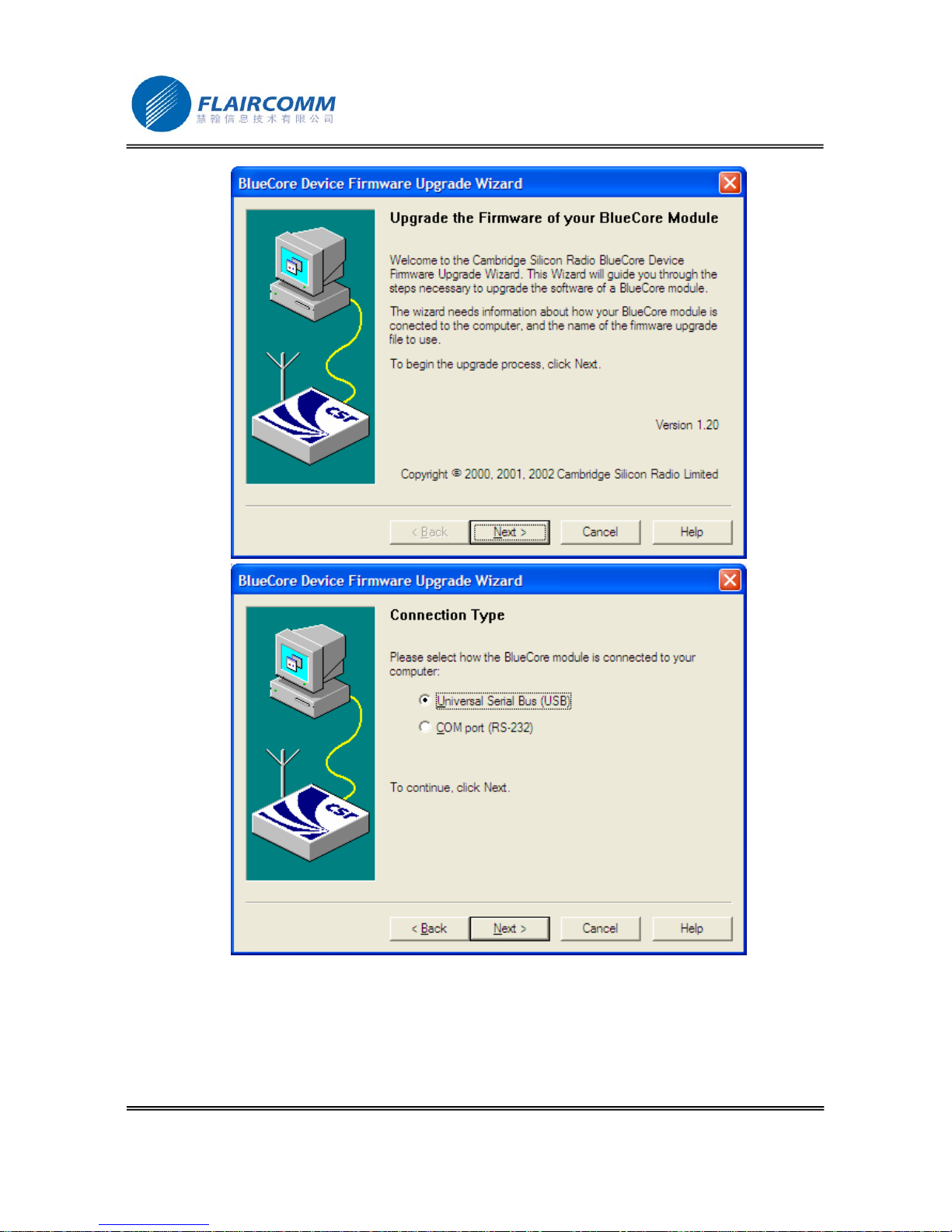
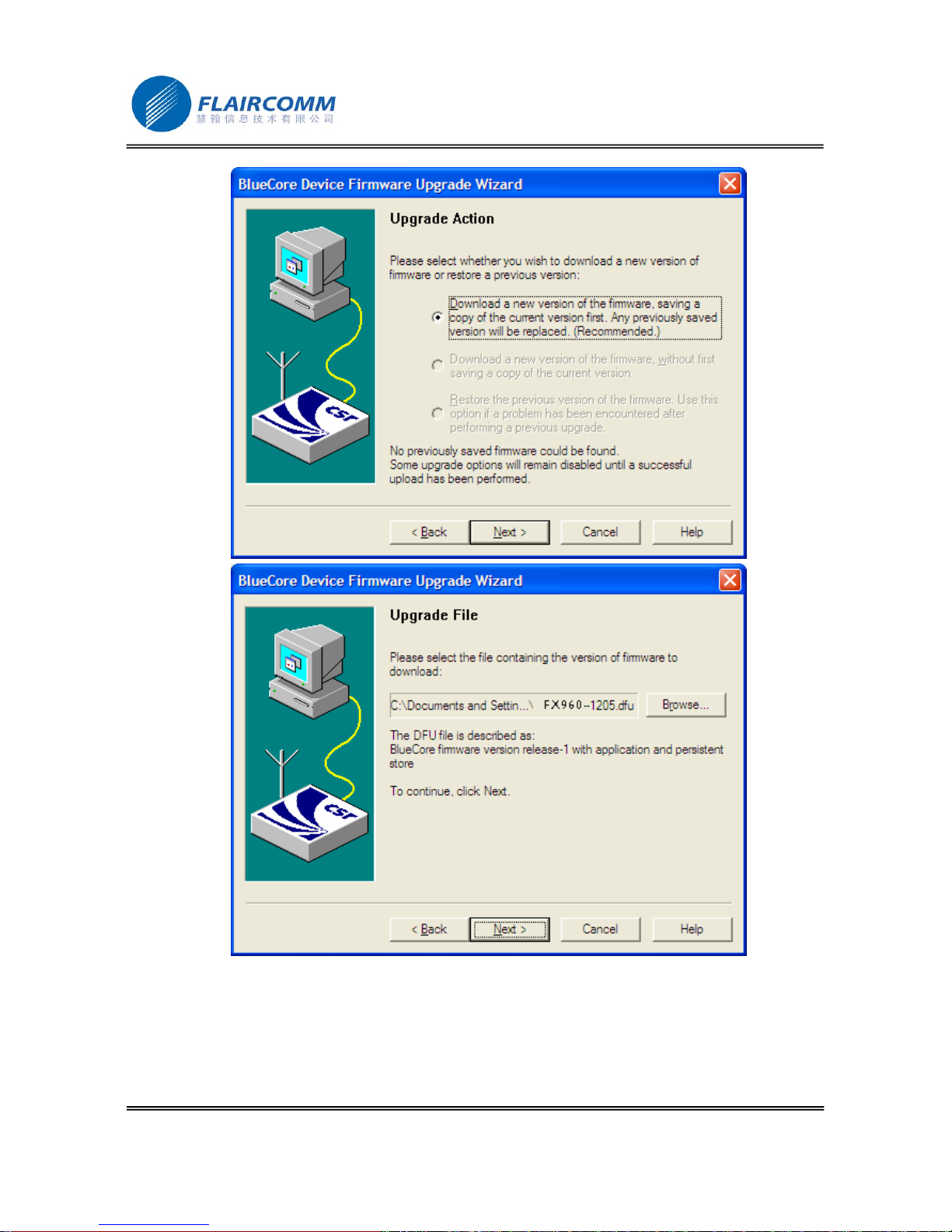
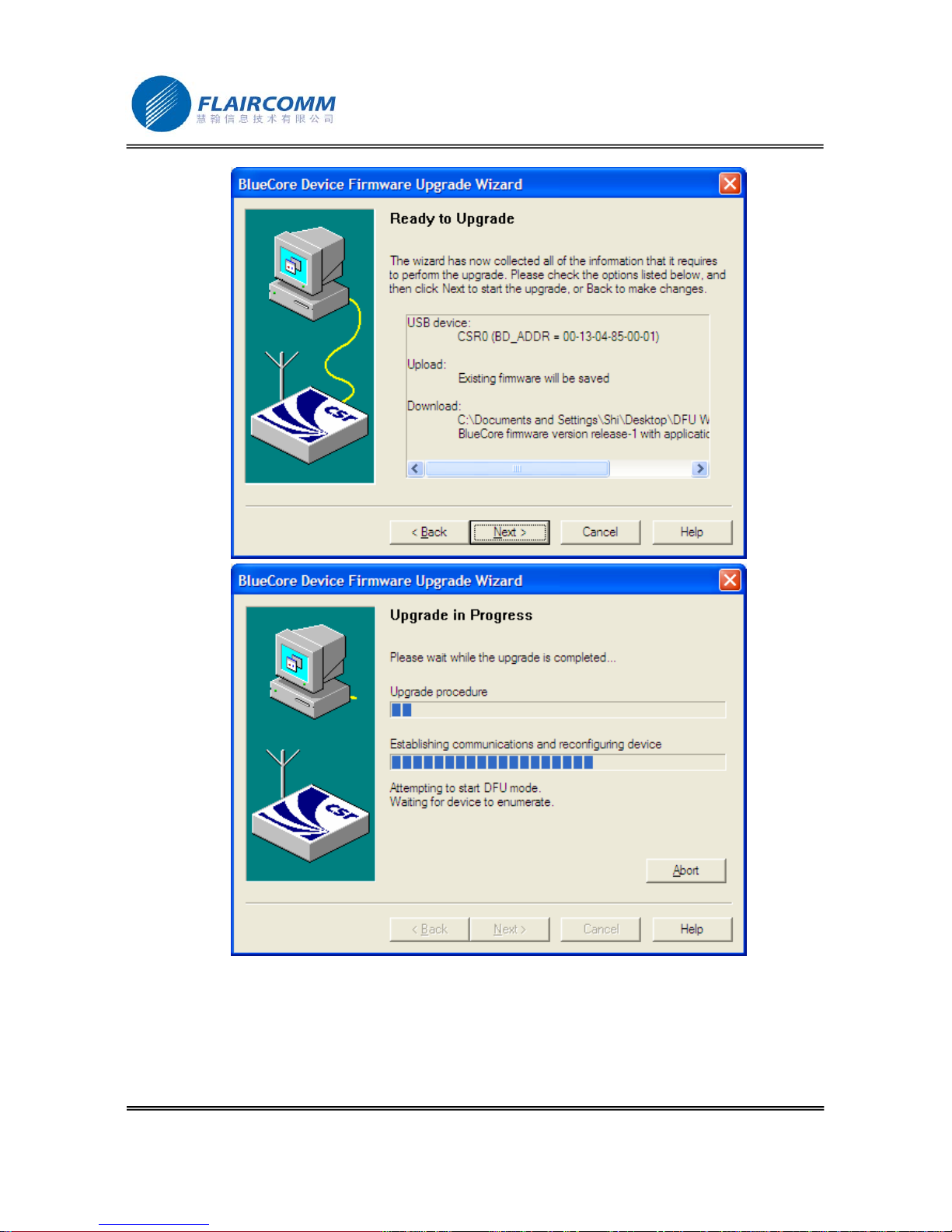
6. Continue to update the software by executing tool ‘DFU Wizard’, and click ‘Next’ to carry out
sequentially according to the suggestions.
Page 21
VV960 user manual
. 21
Page 22
VV960 user manual
. 22
Page 23
VV960 user manual
. 23
Page 24
VV960 user manual
. 24
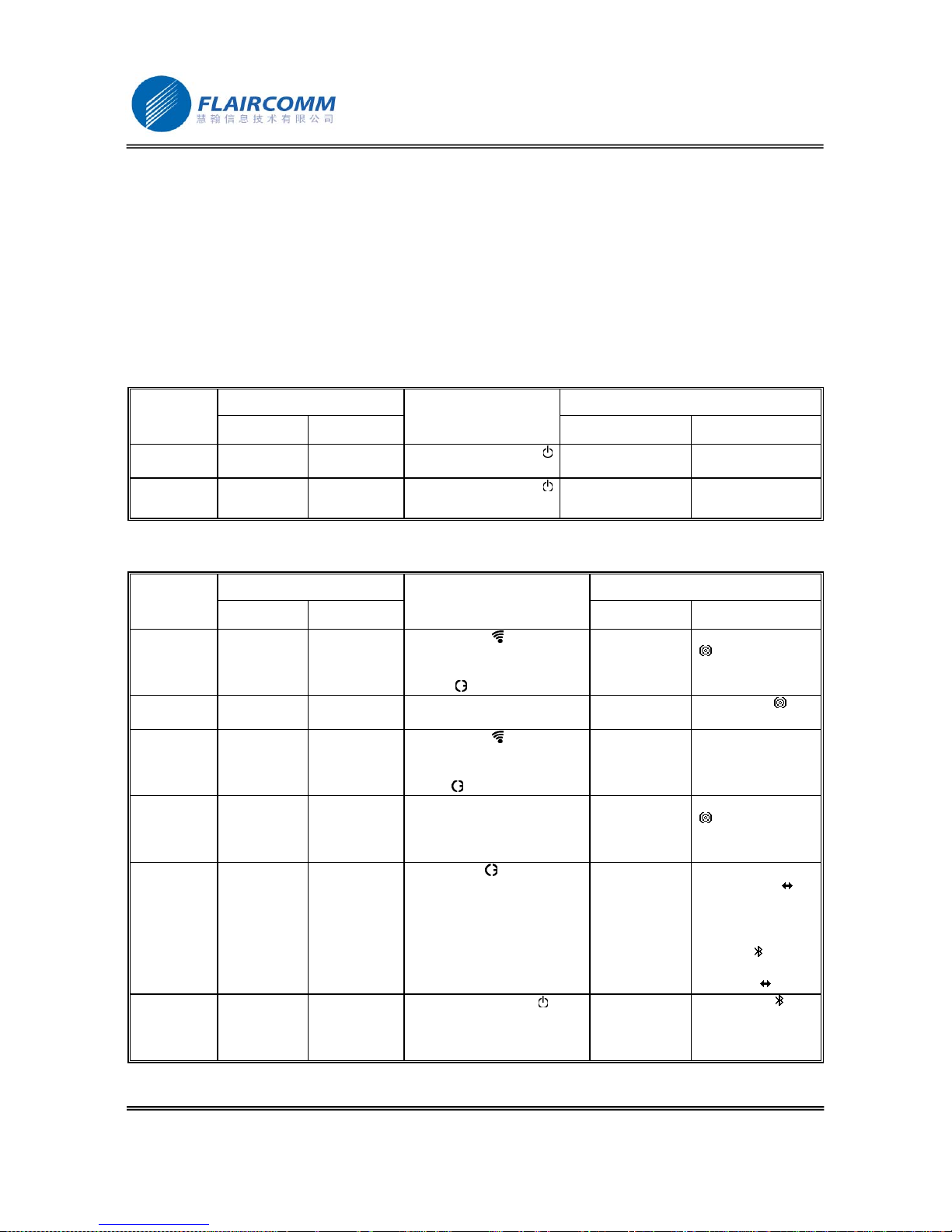
6. Quick User Guide
You can follow the instructions listed in Table 1-7 below to operate your handsfree devices. (See Sections 1.4 and
1.5 for button definitions and usages.)
Note: your handsfree devices can only talk to paired Bluetooth handsets. For handsets supporting HFP only, you
also need to establish Bluetooth connection between your handsfree and your phone before making and answering
calls.
Table 1: Power on/off
CURRENT STATUS HANDSFREE INDICATOR
FUNCTION
HANDSET HF
OPERATION
AUDIO TONE OLED INDICATOR
Turn On Power Off Press and hold button
for 3 seconds
Two power-up
tones
Display ‘VV960’ on
the screen
Turn Off Standby Press and hold button
for 3 seconds
Two power-down
tones
The screen is off
Table 2: Pairing/Connections
CURRENT STATUS HANDSFREE INDICATOR
FUNCTION
HANDSET HF
OPERATION
AUDIO TONE OLED INDICATOR
Enter
pairing
mode
Standby Press button to enter the
menu, choose item “Enter
Pairing Mode” and press
button
Two tones
Display icon indicator
on the screen
Quit pairing
mode
Pairing mode
Press button ╋ or ━
Icon indicator
disappear
Delete all
paired info
Standby
Press button to enter the
menu, choose item ‘Delete
Paired Info’ and then press
button
.
Pair
handsfree
with handset
Power on Pairing mode Follows your handset user
guide to complete pairing
procedure.
Passkey is “0000”
Display icon indicator
on the screen
Connect
(handsfree
with
handset)
Standby
(disconnected)
Standby
(disconnected)
Press button or set up
connection from the handset
Two tones During connecting,
icon indicator
occurs on the
screen. Once
connected, icon
indicator
appears
to replace icon
indicator “
”.
Disconnect Standby
(connect)
Standby
(connect)
Press and hold button for 3
seconds or follow handset’s
manual to initiate
disconnection from handset.
Icon indicator
disappears.
Page 25
VV960 user manual
. 25
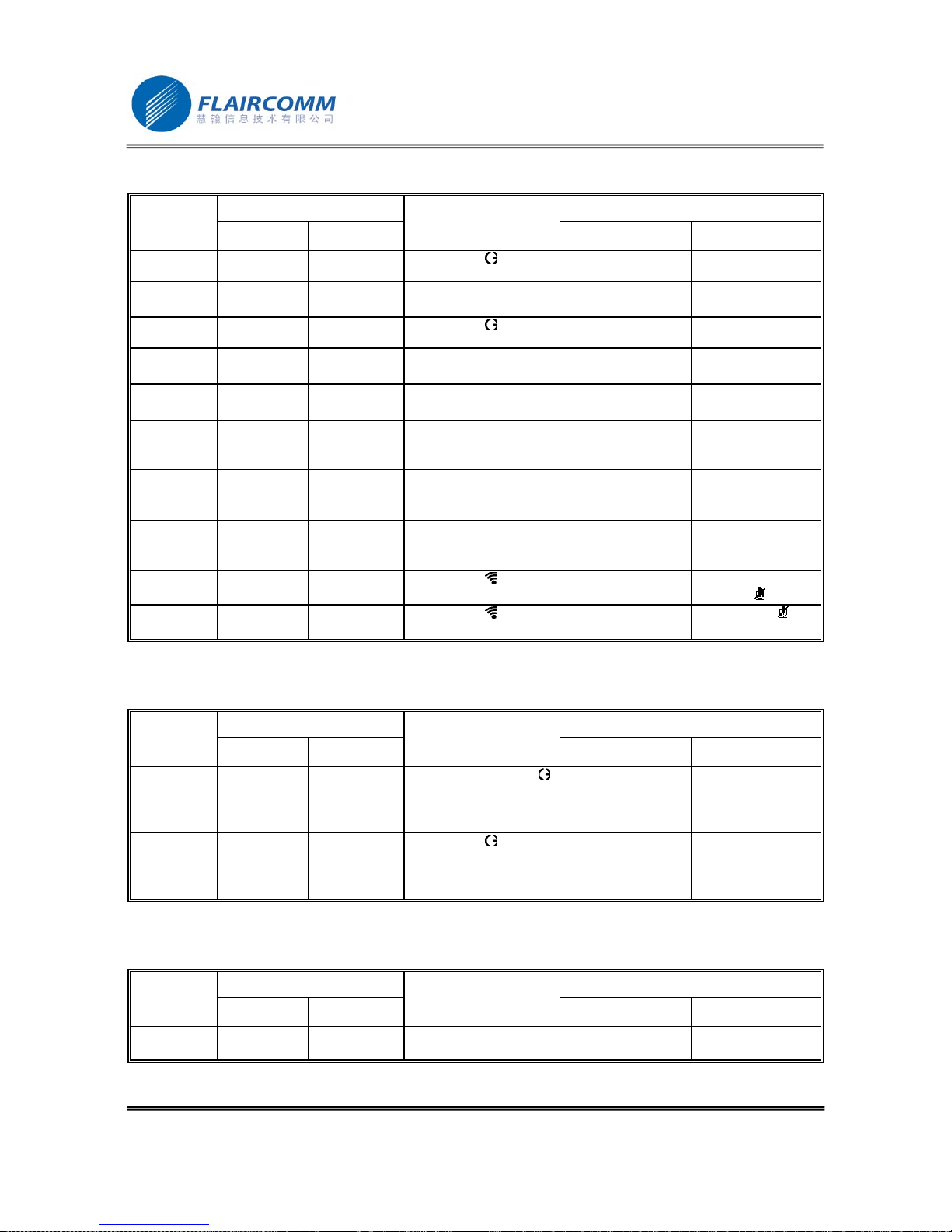
Table 3: Call Functions
CURRENT STATUS HANDSFREE INDICATOR
FUNCTION
HANDSET HF
OPERATION
AUDIO TONE OLED INDICATOR
Answer Call Standby Standby Press button Key Tone
Reject Call Standby Standby
Press and hold button ━
for 3 seconds
Key Tone
End Call Talk Talk Press button Key Tone
Redial Standby Standby
Press and hold button ╋
for 3 seconds
Key Tone
Voice
Dialing
Standby Standby
Press and hold button ━
for 3 seconds
Key Tone
Cancel
Voice
Dialing
Voice
Dialing
Voice Dialing
Press button ━
Key Tone
Volume up Talk Talk
Press button ╋
Display current
volume for 2
seconds.
Volume
down
Talk Talk
Press button ━
Display current
volume for 2
seconds.
Mute Talk Talk Press button Key Tone Display icon
indicator
Unmute Talk Mute Press button Key Tone
Icon indicato
disappears.
Table 4: Call Transfer Functions
CURRENT STATUS HANDSFREE INDICATOR
FUNCTION
HANDSET HF
OPERATION
AUDIO TONE OLED INDICATOR
Call
Transfer
(handsfree
to handset)
Talk Talk Press and hold button
for 3 seconds
Key Tone
Call
Transfer
(handset to
handsfree)
Talk Talk Press button Key Tone
Table 5: Low Power Indication
CURRENT STATUS HANDSFREE INDICATOR
FUNCTION
HANDSET HF
OPERATION
AUDIO TONE OLED INDICATOR
Low Power
Warning
Except power
off
Beep every 20
seconds
Display ‘Low Power’
on the screen
Page 26
VV960 user manual
. 26
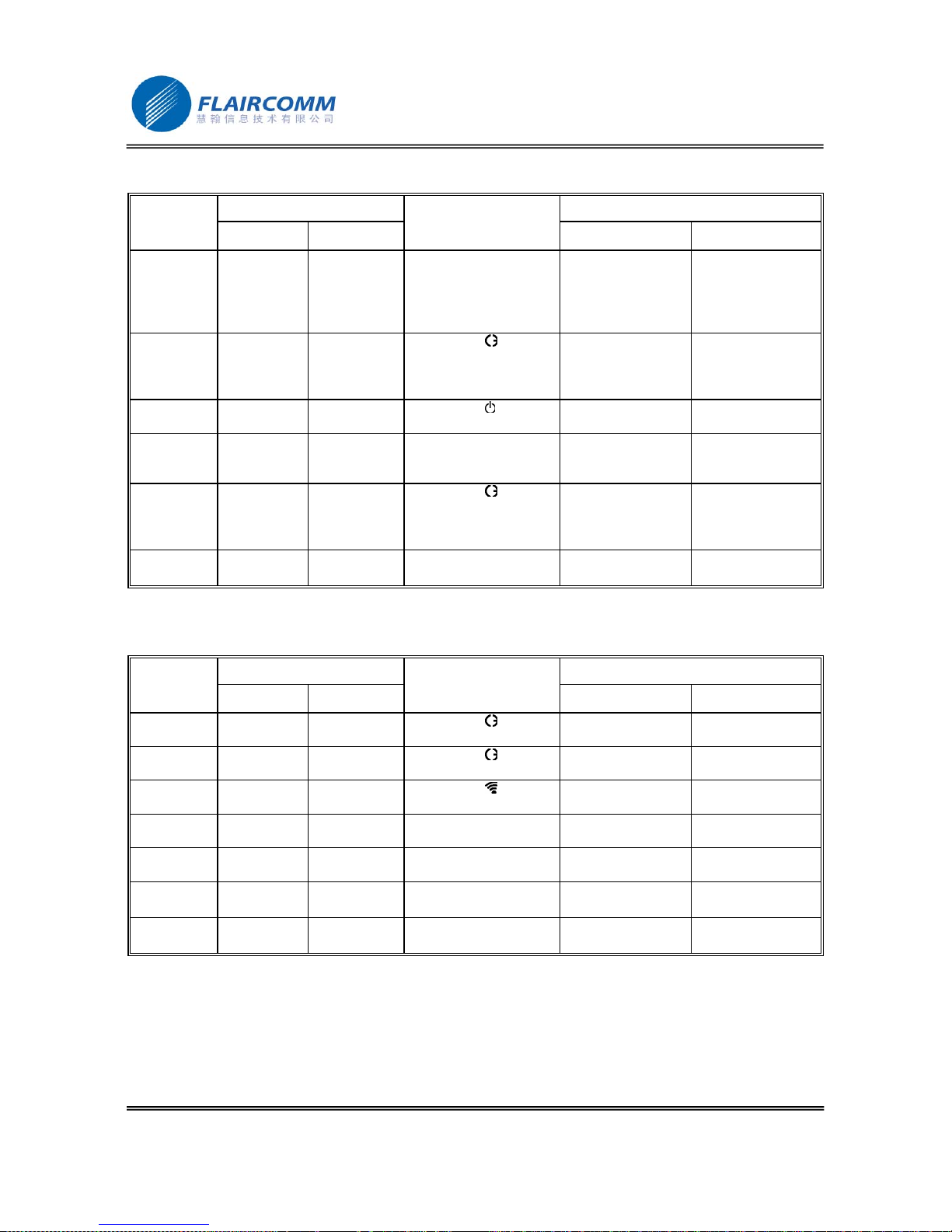
Table 6: Advanced Call Functions
CURRENT STATUS HANDSFREE INDICATOR
FUNCTION
HANDSET HF
OPERATION
AUDIO TONE OLED INDICATOR
Held Active
Call and
Accept
Incoming
Call
Talk Call Waiting
Press and hold button ╋
for 3 seconds
End Active
Call and
Answer
New Call
Talk Call Waiting Press button
Reject the
new call
Talk Call On Hold Press button
Toggle Held
Call and
Active Call
Talk Call On Hold
Press and hold button ╋
for 3 seconds
End Active
Call and
Accept Hold
Call
Talk Call On Hold Press button
Conference Talk Call On Hold
Press and hold button ━
for 3 seconds
Table 7: Work in with IVT and Windows Media Player
CURRENT STATUS HANDSFREE INDICATOR
FUNCTION
HANDSET HF
OPERATION
AUDIO TONE OLED INDICATOR
Play IVT/Media
player on
Press button
Pause IVT/Media
player on
Press button
Stop IVT/Media
player on
Press button
Volume up IVT/Media
player on
Press button ╋
Volume
down
IVT/Media
player on
Press button ━
Forward IVT/Media
player on
Press and hold button ━
for 3 seconds
Backward IVT/Media
player on
Press and hold button ╋
for 3 seconds
Page 27

VV960 user manual
. 27
7. Important Messages and Frequently Asked Questions
Q1. ‘Low Power’ message displayed on the screen
When this message occurs, please recharge your battery as soon as possible.
Q2. Can't power up the device after charging more than 20 minutes:
For the first time, the device should be charged at least 40 minute prior tuning on, it is recommended that the
battery should be fully charged before using the device.
Q3. Can't hear anything on hands free
you should check the followings
z Handsfree is power on
z Handsfree has paired with a handset
z Handsfree has connected with a handset (except that the handset supports Handsfree Profile only)
z Handsfree and handset are within 10 meters working distance
z Handsfree and handset has good single strength
Q4. Handsfree can not be found when a handset tries to pair with it
Your handsfree may not be in the pairing mode, please refer section 2.5.1 for details.
Q5. Does the paired handsfree or the paired hand set need to be repaired after power off
No. Please note that for the handset supports handsfree profile, the handsfree and the handset must be connected
first. Refer section 2.5.4 for details.
Q6. Voice dialing does not work
Check whether or not your handset supports voice dialing function and then make sure you have recorded the voice
tag. Please note that noisy environment will affect voice dialing.
Q7. How can I upgrade my bluetooth device to the most updated software version?
Please refer the section 5 for details.
If you don't have enough knowledge to handle this upgrade, you can recommend the device to your appointed local
service center, and let the service personnel to do so.
If something wrong when you upgrade it by yourself, you would also recommend the device to your local service
center to ask for help.
Q8. If the device can not be power on, and OLED has no display
The following operations can help you:
1. Make sure the power cable is plugged into the device.
2. Hold button
for at least 15 seconds. During this period, you may hear some tones, LED light up, etc. But
just keep holding the button, ignore others.
3. Release button
, then doing the normal power on procedure.
4. The device shall be on.
Page 28

VV960 user manual
. 28
8. Maintenance
VV960 is well-designed communications devices. Careful maintenance and proper use will extend the product life
and keep its performance. The maintenance procedures recommended below may be helpful to you:
z Always turn off power and keep your device in a safe place when it is not in use
z Keep the device dry, away from water, precipitation, humidity, moisture, and various liquids that may corrode
electronic circuits. If your device gets wet, turn it off immediately and wait until the device gets dry completely
before using it
z Keep the device away from dusty and dirty places. Otherwise, the mechanic and electronic parts could be
damaged
z Do not store the device in high temperatures or in direct sunlight. Extreme high temperature could degrade
performance, reduce battery lifetime, and wrap or melt the certain plastics.
z Do not store the device in too cold place. Moisture could form inside the device when you take it to a warm
place. This could damage the internal electronic circuits.
z Avoid dropping, knocking, and shaking the device. The mechanical parts and the internal electronic circuits
could be broken.
z Avoid using hash chemicals, cleaning solvents, and any other strong detergent to clean the device. You may
use a clean and slightly damp cloth to clean the device
z Always take to device to the nearest authorized service facility for repairing if it is malfunctioning.
Disassembling, modifying, and replacing components yourself could degrade product performance, cause
damages, and terminate warranty
 Loading...