

Page 1
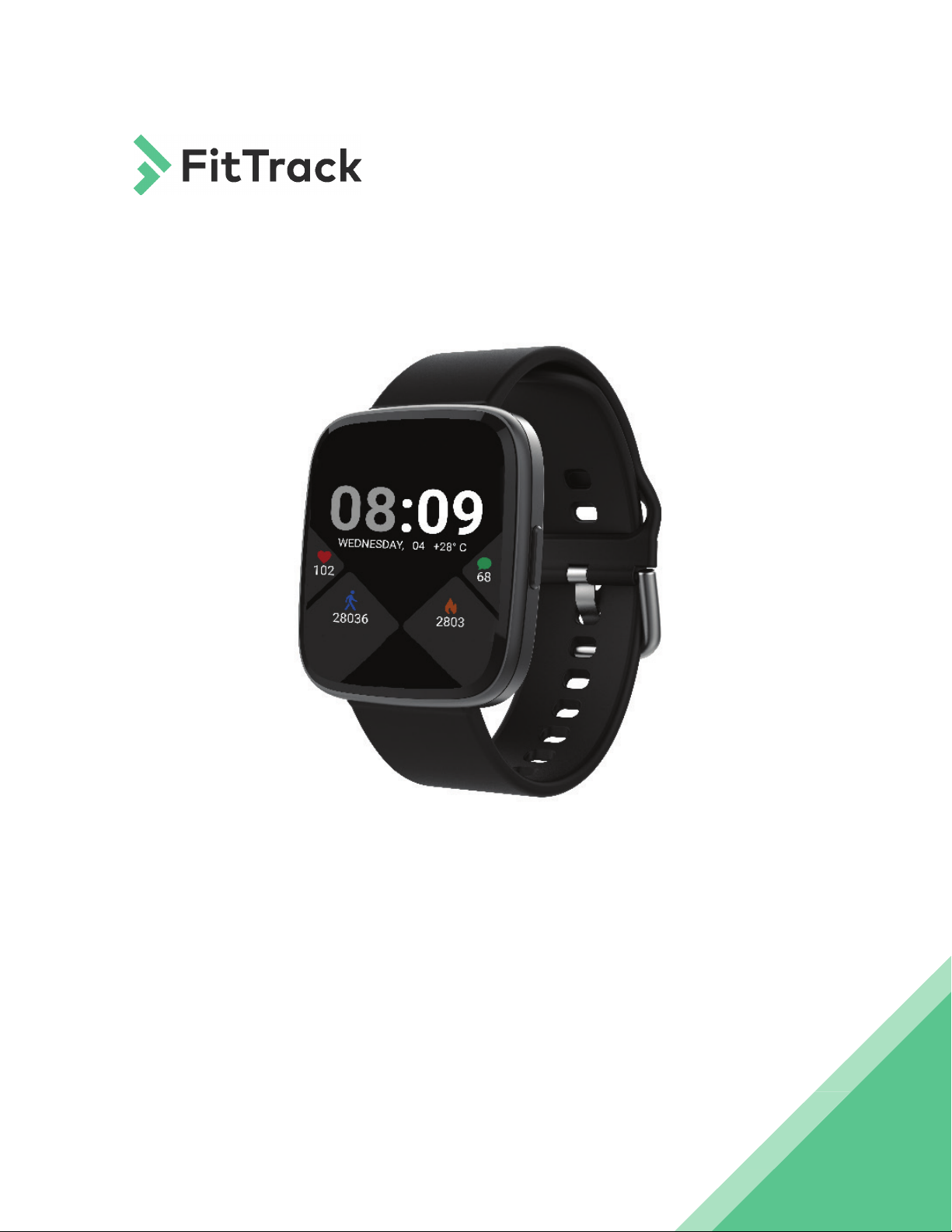
FitTrack Atria
User Manual
1
Page 2

Thank you!
Thank you for choosing the FitTrack Atria to start tracking your fitness journey.
Building a healthy and happier lifestyle starts with you and we’re here to be with
you every step of the way!
Preface
Atria is designed to help you on your health and wellness journey with a wide
variety of functions that empower you along the way. Please take the time to
become familiar with Atria’s capabilities, limitations, maintenance, and safety
precautions before you get started.
2
Page 3

Reminders
1. Do not allow your FitTrack Atria to suffer any impact damage
2. Do not allow your FitTrack Atria to contact corrosive chemicals such as benzene
or paint thinner.
3. Do not place or attempt to use your FitTrack Atria in proximity to any magnets
or magnetic devices
4. Avoid direct heat and intense light.
5. Do not disassemble, repair or modify your FitTrack Atria yourself.
6. Please dispose of batteries and electronics properly.
7. Do not submerge your FitTrack Atria in water
8. The charging adapter should not exceed 5V. If it exceeds 5V, your FitTrack Atria
will be damaged.
Warning
Please consult with a medical professional and do not attempt self-diagnosis
or treatment in any way whatsoever if you suspect you are ill. Users with blood
circulation disorders and blood diseases should be treated under the guidance
of a doctor. The measurement results of this product are for reference only and
are not intended for any medical use or basis.
3
Page 4

Contents
About FitTrack Atria .................................................................................................................................................................... 5
What’s in the Box? ........................................................................................................................................................................ 6
Instructions
First Charge .........................................................................................................................................................................7
Using the Bracelet ........................................................................................................................................................7
Touch Screen Functions ........................................................................................................................................7
Bluetooth Connection/Disconnection ....................................................................................................7
Low Battery and Charging ..................................................................................................................................8
Firmware Update ...........................................................................................................................................................8
Restart the Bracelet ....................................................................................................................................................8
Functions and Operating Instructions
1. Sport Mode ......................................................................................................................................................................9
2. Step/Distance/Calorie Tracking ..............................................................................................................9
3. Heart Rate .....................................................................................................................................................................10
4. Sleep ...................................................................................................................................................................................10
5. Find Phone ....................................................................................................................................................................10
6. Timer ....................................................................................................................................................................................11
7. Reminders .....................................................................................................................................................................11
8. Wake-up .........................................................................................................................................................................12
Summary of Atria Functions
1. Sport Data ................................................................................................................................................................... 13
2. Heart Rate .................................................................................................................................................................. 13
3. Sleep ................................................................................................................................................................................. 13
4. Message ....................................................................................................................................................................... 13
5. Sports ............................................................................................................................................................................... 13
6. Timer ................................................................................................................................................................................. 13
7. Weather ........................................................................................................................................................................ 14
8. Relax .................................................................................................................................................................................. 14
9. Music ................................................................................................................................................................................. 14
10. Settings . ....................................................................................................................................................................... 14
11. Brightness ..................................................................................................................................................................... 14
12. Power ............................................................................................................................................................................... 14
13. Information ................................................................................................................................................................ 14
14. Find Phone ................................................................................................................................................................. 15
4
Page 5
About FitTrack Atria
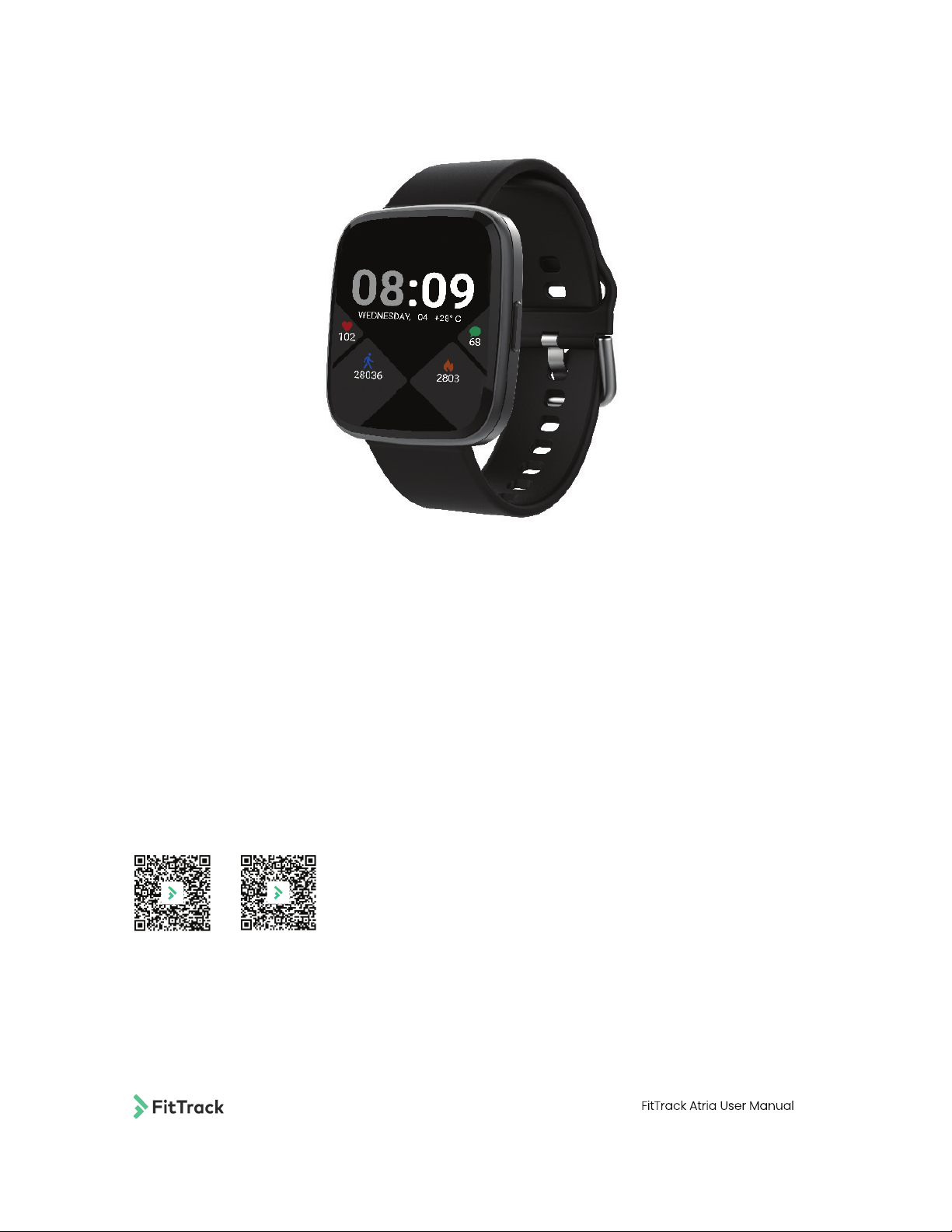
Available on Google Play/App Store
Android
iOS
The FitTrack Atria is a smart health bracelet that monitors heart rate, blood
pressure, exercise, and sleep data. Users can monitor their body condition and
adjust their diet and exercise routine in order to cultivate a healthy lifestyle. The
FitTrack Atria can be combined with the FitTrack Health App to personalize your
experience and keep track of your data. In addition, Atria also has functions such
as messaging, reminders, and more. Scan the QR code to find the FitTrack Health
app in your mobile phone’s app store.
5
Page 6
What’s in the Box?
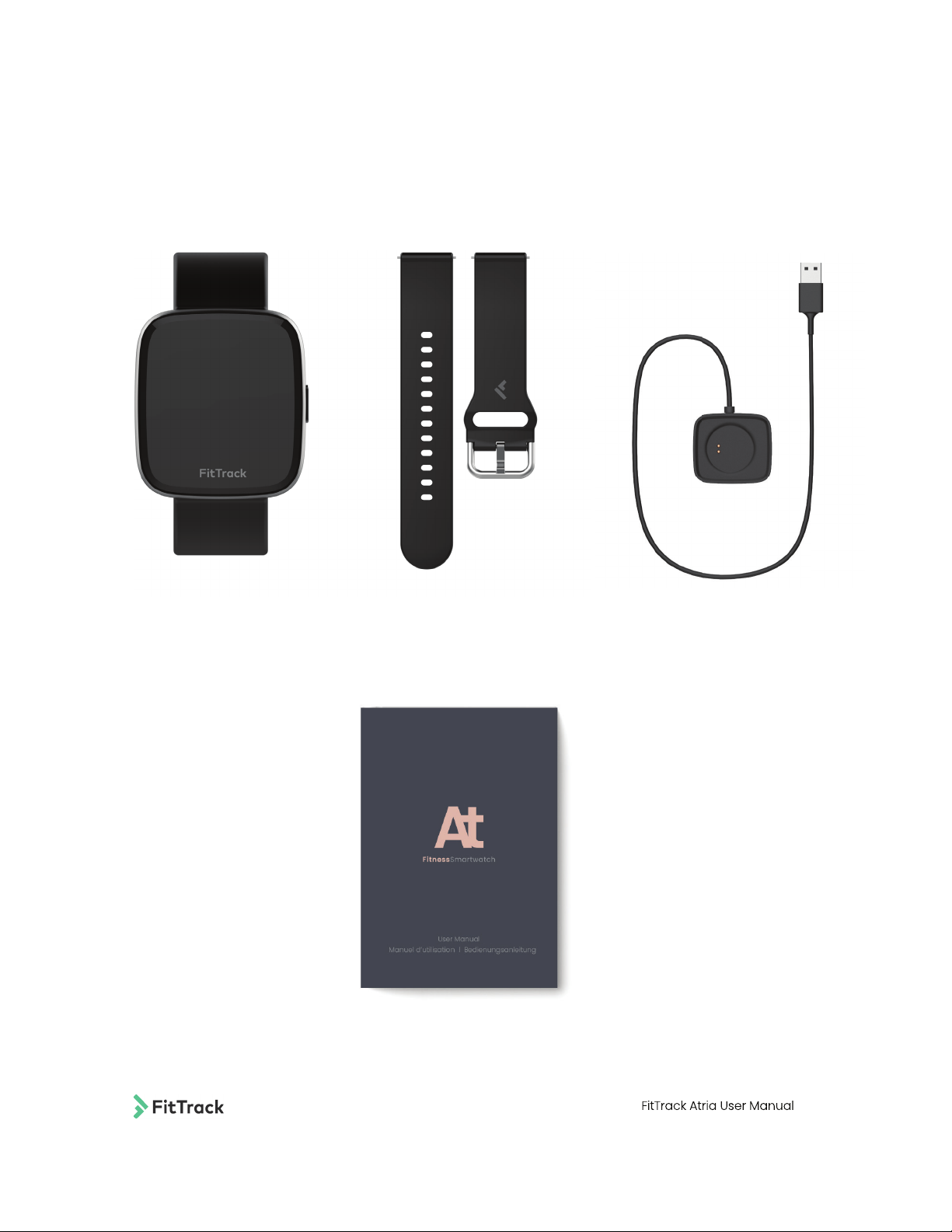
Your Atria includes:
Watch with Wristband
Charging Cradle
FitTrack Get Started Guide
6
Page 7

Instructions
First Charge
Upon receiving Atria, charge until the battery bar is full. The watch will vibrate when
connecting to the Charging Cradle. You can also swipe down on the watch to ensure
that the battery is charging. The recommended charging time is 2 hours when plugged into the wall.
Using the Bracelet
1. Press and hold the touch screen for 3 seconds to activate Atria and display
the homepage.
2. Swipe to the right to open the menu page, where you can tap on any icon in
order to access its corresponding function.
3. To shut down, tap the hut down, tap the “Settings” icon and then tap
“Shut down.”
Touch Screen Functions
1. Swipe left to display functions such as: Sport Data, Heart Rate, Sleep ,
Message, Sports Mode, Timer, Weather, Relax, Music, Settings.
2. Swipe down to display: Brightness, Phone Pairing, Power On/Off, System Information.
3. Swipe up to display: New Messages, Heart Rate, Sport Data.
4. Tap the screen or press the button on the side of the face to wake Atria up.
Bluetooth Connection/Disconnection Through the
FitTrack Health App
Connect Atria with the FitTrack Health app
1. Download the FitTrack Health app from the App Store(Apple) or Google Play(Android).
2. Make sure Bluetooth is enabled on your mobile device.
3. Open the FitTrack Health app.
4. Tap ”Profile”(1
5. Tap ”Search for Devices” and choose your watch (ex. HAtria - 79A).
6. Tap ”Sync Device”.
st
icon from the right) on the bottom menu bar and click on ”Devices”.
7
Page 8

Disconnect Atria with the FitTrack Health App
1. Tap ”Profile” (1st icon from the right) on the bottom menu bar and click on
”Devices”.
2. Swipe right on your device name
3. Tap Delete
4. Go to Phone Settings > Bluetooth > Forget Device
*Note: Choosing “RESET ALL” in the app will delete all data from your device. Previous data will reset to zero.
Low Battery and Charging
Low Battery:
When the battery is low, Atria will not vibrate during measurements or for notification
alerts. When the battery is depleted, Atria will automatically shut down.
Charging:
Atria will automatically turn on when sufficiently charged and display the homepage.
While charging, the battery icon will flash.
Firmware Update
Use the FitTrack Health app to keep Atria’s firmware version up to date. If an update is available, you’ll be prompted to install it.
Restart the Bracelet
On the watch:
1. Keep swiping left to ”Settings”
2. Scroll down to ”Restart”
8
Page 9

Functions and Operating Instructions
1. Sport Mode
Sport Mode tracks activities such as walking, running, cycling, mountain climbing,
playing basketball, etc. Swipe to the right to exit this mode and display detailed
motion data that Atria collects.
Instructions: From the homepage, swipe left twice and tap the Sport Mode icon to
activate this feature. Sport Mode will track and display activity time, calories, and
steps, etc. To exit, swipe to the right to enter the exit interface. Then swipe back to
the homepage to close Sport Mode.
2. Step/Distance/Calorie Tracking
Atria will display your total number of steps for the day, including walking distance
and calories burned. This data resets at midnight each day.
Instructions: Swipe right on the main interface to reveal the “Sport Data” icon. Tap
the icon to reveal steps data. From this screen, swipe up past message notifications
and Atria’s heart rate monitor to reveal more activity data.
9
Page 10

3. Heart Rate
Heart Rate Measurement
Atria measures your heart rate on command.
Automatic Heart Rate Monitoring
This function can be set in the app. Atria will automatically monitor your heart rate
every five minutes and record your average heart rate over time.
Instructions: Swipe right on the main interface and tap the heart rate icon to
switch to the heart rate measurement function. Atria will start to measure your
heart rate. During the measurement process, Atria’s display will read zero. After
the measurement is completed, your heart rate will be displayed. If the result
cannot be detected, the display will continue to read zero.
4. Sleep
Atria will display your sleep data from the previous night, which it will automatically
measure between 9:00pm to 12:30pm.
Instructions: Swipe right from the home screen and tap the sleep icon to open the
sleep function and view your sleep metrics from the previous night.
Clicking on Sleep during the measuring time (9:00pm to next day 12:00pm) will
only show Sleep Monitoring. Upon waking up the next day, the watch will detect
that you are awake and calibrate your previous night’s sleep statistics.
5. Find Phone
Ensure that Atria is connected with your phone through the app. When activated,
Atria can help you search for your mobile phone. If your mobile phone and Atria
are connected and within range, your phone will vibrate and ring*.
*Ensure that your sound is turned on to hear the ring from your phone.
10
Page 11

6. Timer
Atria can be used as a timer for any activity.
Instructions: Swipe left twice on the homepage and tap the timer icon to activate
this function and access Atria’s stopwatch. Tap to start timing, tap to pause
timing. Swipe right on the timer to return to the homepage.
7. Reminders
Alarm Reminder
You can set an alarm clock in the FitTrack Health app. You can set a single
alarm or repeat the alarm.
SMS/Mobile App Message Reminder
You can adjust this setting in the FitTrack Health app. When activated, Atria will
receive mobile messages when your phone does.
1. Open FItTrack Health App
2. Tap Profile Icon
3. Tap Devices
4. Tap your Atria Device
5. Tap Message Push
6. Choose the Applications that you would like Atria to connect with
Sedentary Reminder (Coming soon)
When activated, Atria will continuously monitor whether you’re in the sitting
position. If you remain sedentary for more than one hour, Atria will vibrate and
remind you to move. By default, Atria will not remind you to move during lunchtime (12:00pm - 2:00pm).
11
Page 12

8. Wake-up
This function can be activated in FitTrack Health. When you turn your wrist or
raise your hand, Atria will wake up.
You can enable ”Do Not Disturb” mode through the FitTrack Health app
1. Open FitTrack Health
2. Tap ”Profile” icon (1st icon from the right on the bottom menu)
3. Tap ”Devices”
4. Tap your Atria watch
5. Turn on ”Do Not Disturb” mode
12
Page 13
Summary of Atria Functions
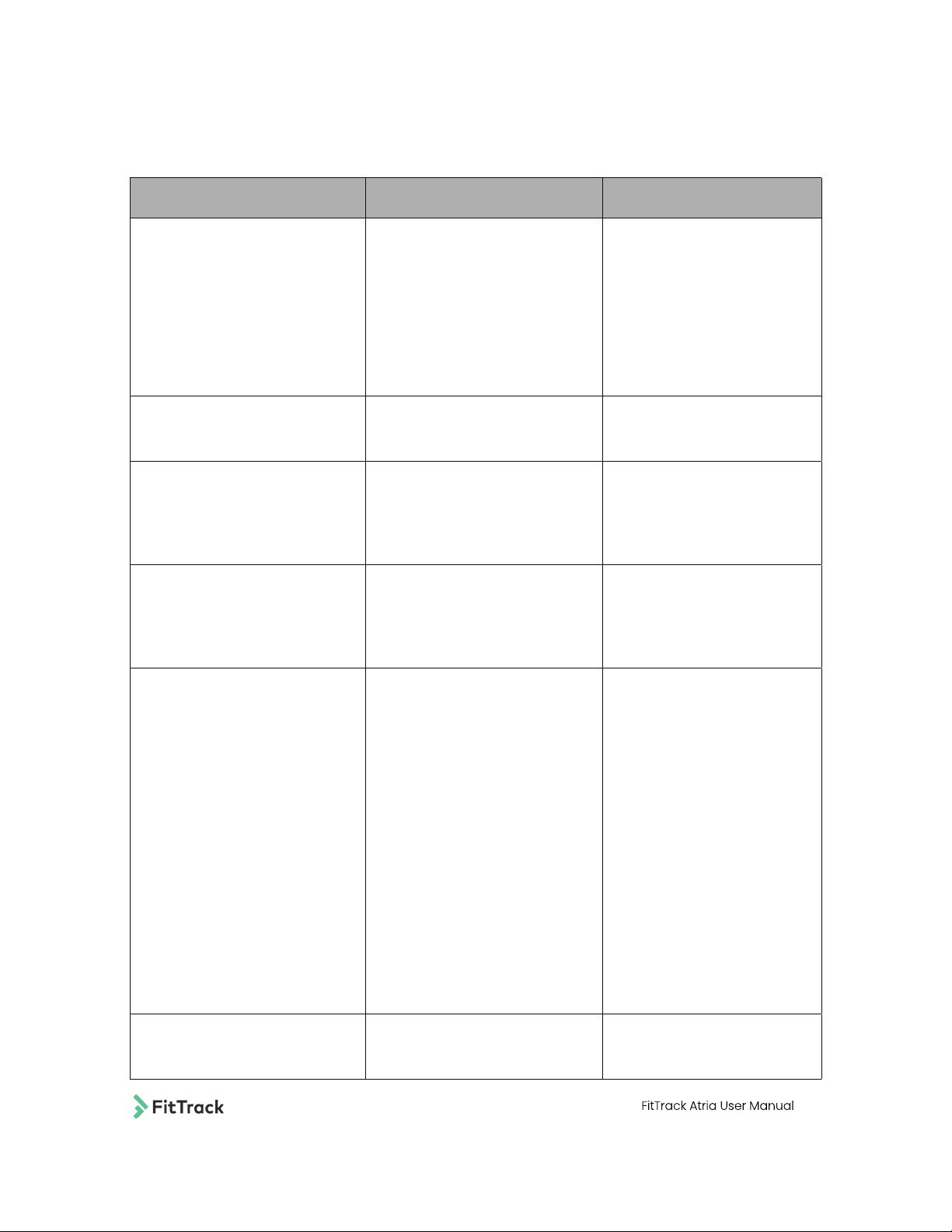
Function What does it do? How do I get there?
Sport Data Atria summarizes your
activities throughout the
day and will display:
- Steps
- Distance (km)
- KCal burned
Sports Data will reset at
midnight.
Heart Rate Atria measures your heart
rate on command.
Sleep Atria will display your sleep
data from the previous night,
which it will automatically
measure between 9:00pm
and 12:00pm.
Message You can adjust this setting
in the FitTrack Health app.
When activated, Atria will
receive mobile messages
when your phone does.
Sports Sport Mode tracks activities
such as walking, running,
cycling, mountain climbing,
playing basketball etc..Swipe
to the right to exit this mode
and display detailed motion
data that Atria collects.
Swipe left once
Swipe left once
Swipe left once
Swipe left once
Swipe left once
Atria currently tracks the
following activities:
- Walking
- Running
- Climbing
- Riding
- Basketball
- Elliptical
- Yoga
Timer Atria can be used as a timer
for any activity.
Swipe left twice
13
Page 14
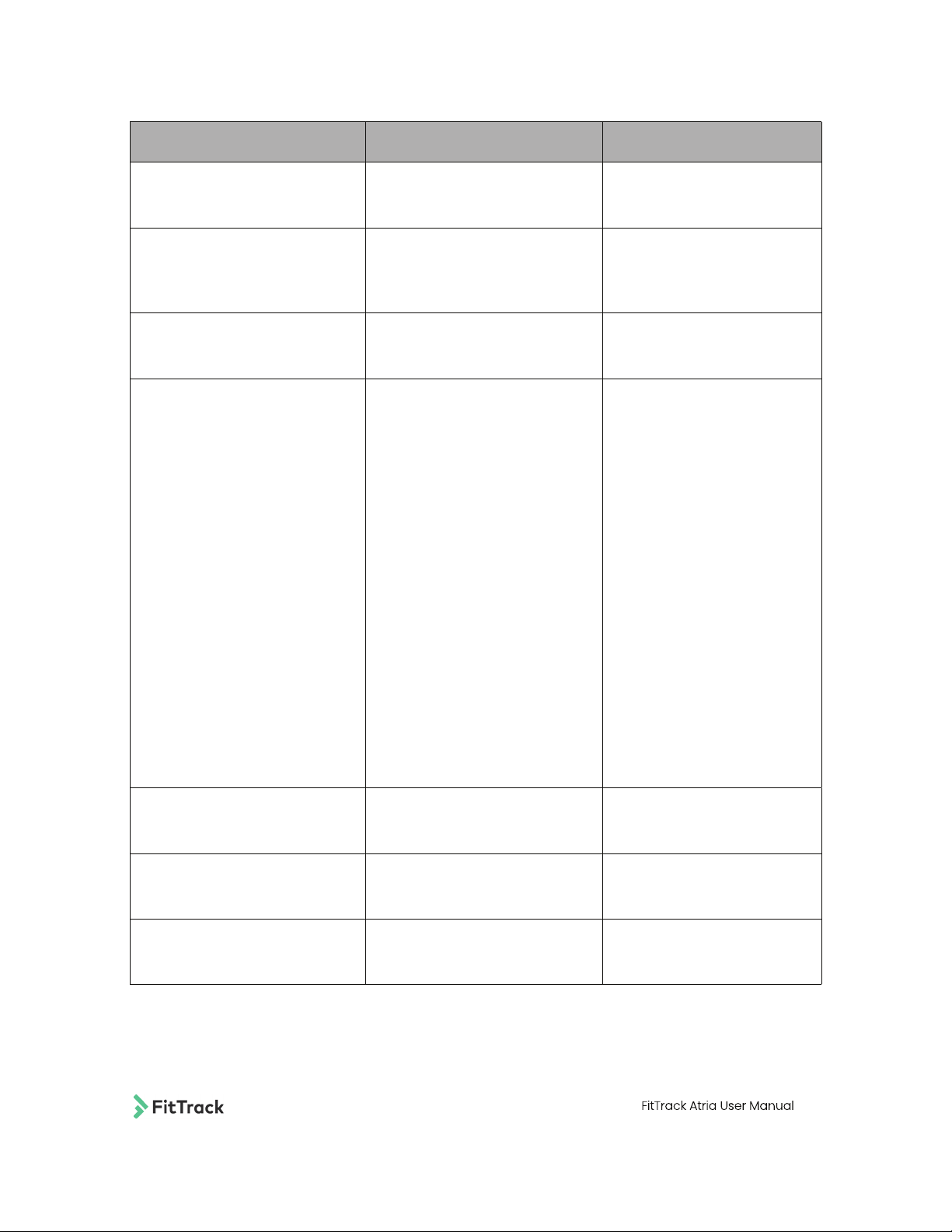
Function What does it do? How do I get there?
Weather Atria will display the overall
weather forecast for the day.
Relax Relax with Atria. Set the Relax
mode for 1 or 2 minutes and
follow the instructions on the
screen.
Music Play, Pause, Skip forward
and back your music playlist
through Atria.
Settings Settings include:
- Find phone
Find your phone using Atria Ensure that your phone volume is
turned on and Atria is connected.
- Change Face
Change the Home Page display
based on your preference.
- Brightness
Turn screen brightness up
or down.
- System
Atria software information
- Language
Choose your preferred language
- Shut Down
Turn off your Atria
- Restart
Erase all data from Atria
Swipe left twice
Swipe left twice
Swipe left three times
Swipe left three times
Brightness Adjust screen brightness Swipe down once
Power Shut down Atria. Swipe down once
Information Atria system software infor Swipe down once
14
Page 15
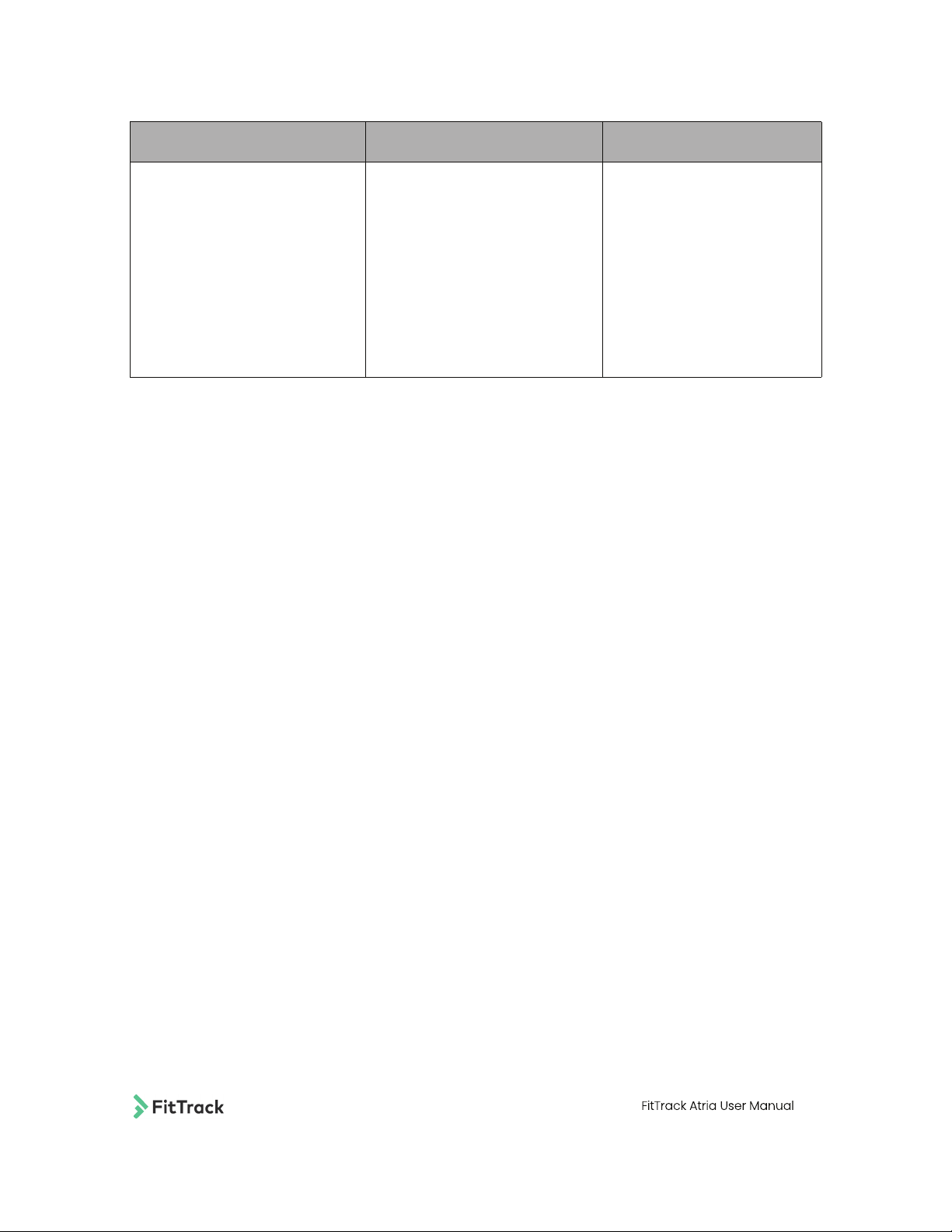
Function What does it do? How do I get there?
Find Phone Ensure that Atria is connected
with your phone through
the app. When activated,
Atria can help you search for
your mobile phone. If your
mobile phone and Atria are
connected and within range,
your phone will vibrate and
ring. Make sure that your
sound is turned on to hear
the ring from your phone.
Swipe down once
Troubleshooting
Have problems with troubleshooting? Visit our FAQ page at
https://getfittrack.com/pages/faqs
15
 Loading...